How to Create a Text Message Template in Affinect WhatsApp
This guide walks you through creating a simple yet effective WhatsApp text message template in Affinect. Text messages are ideal for direct, clear communication—whether you're promoting an offer, sending updates, or re-engaging customers—with full personalization and compliance built in.
Affinect
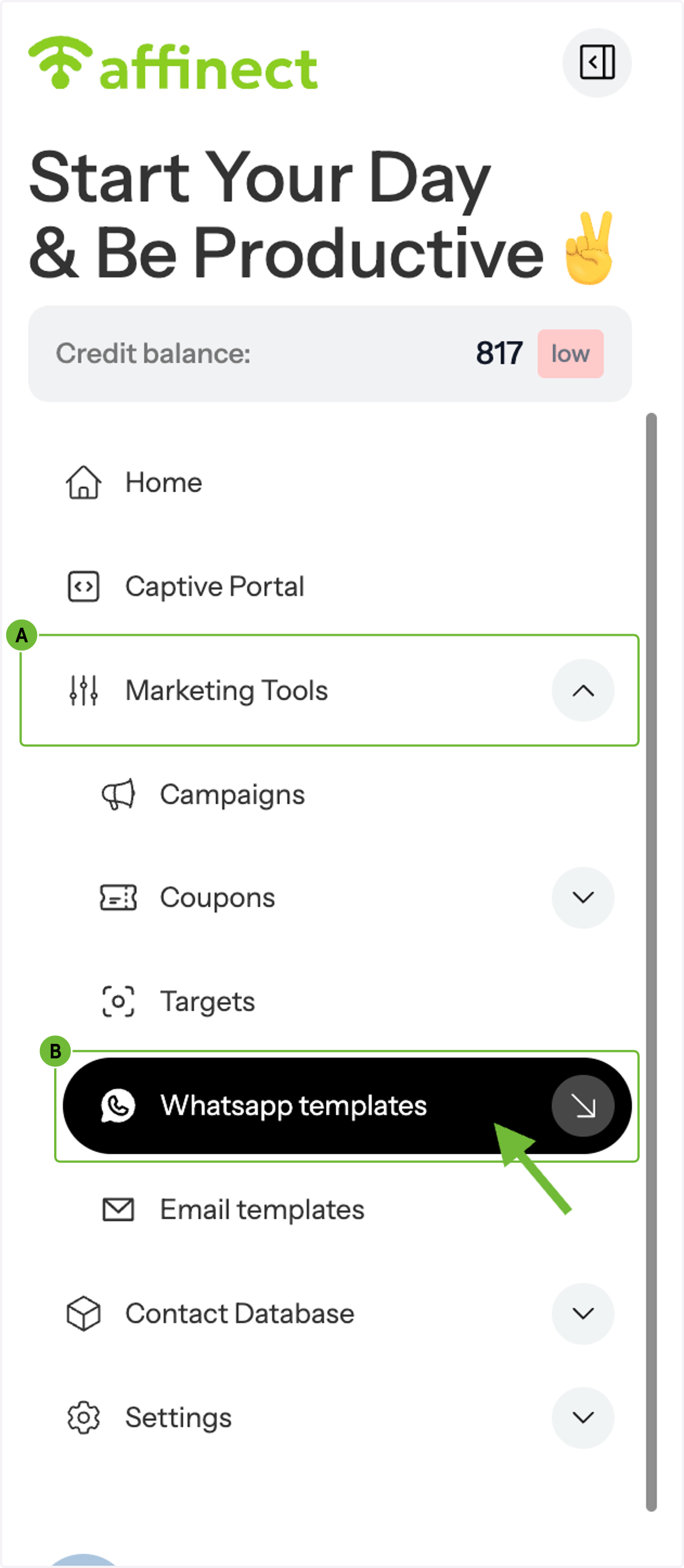
1. A. Go to Marketing Tools
1. B. Click on WhatsApp templates
From the dashboard, click on Marketing Tools in the left-side menu and select WhatsApp Templates.
2. Create or Edit a Template
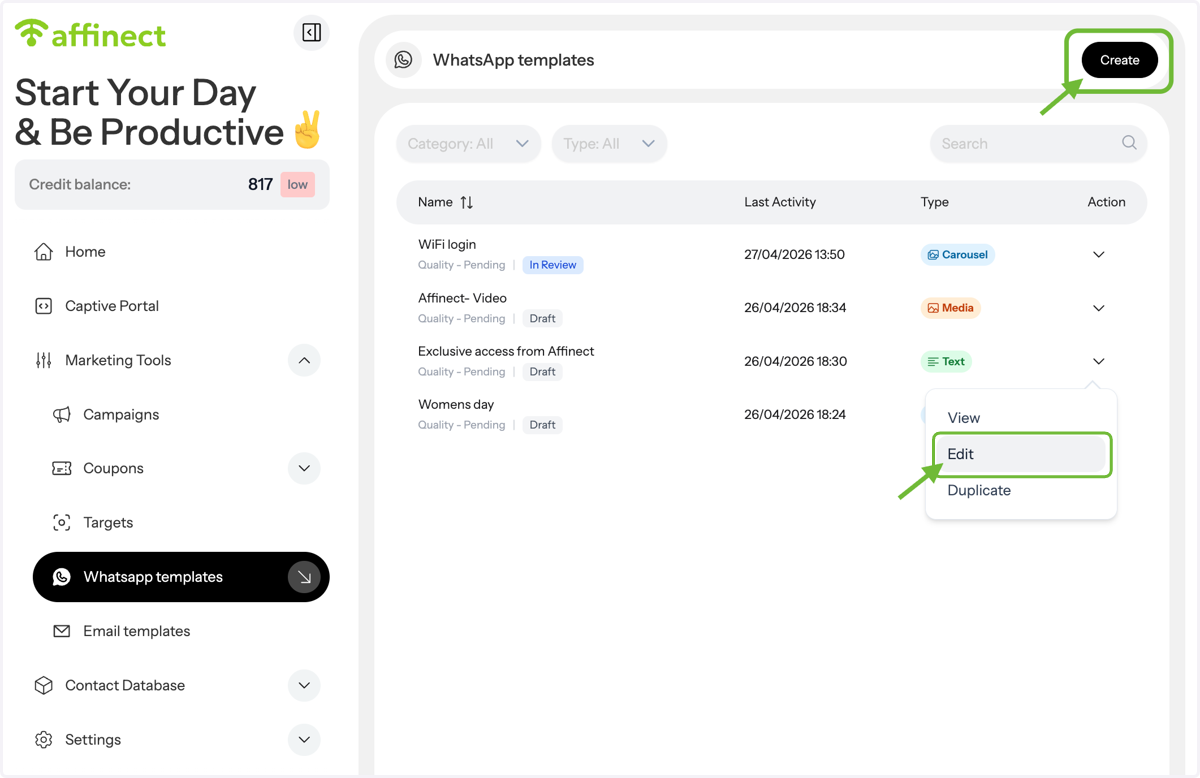
In the templates list:
Click Edit to update an existing draft, or
Click Create to start a new template
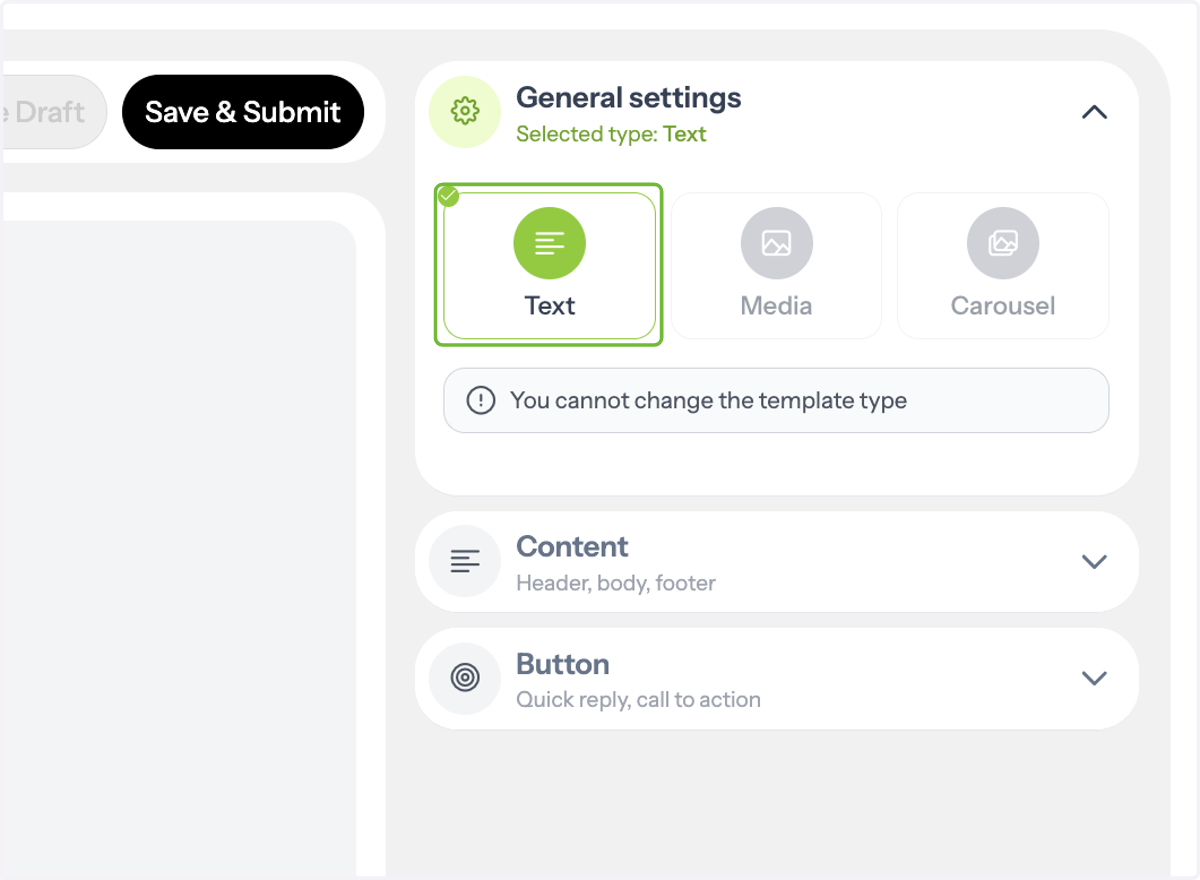
3. Select Template Format
Choose Text as your message format.
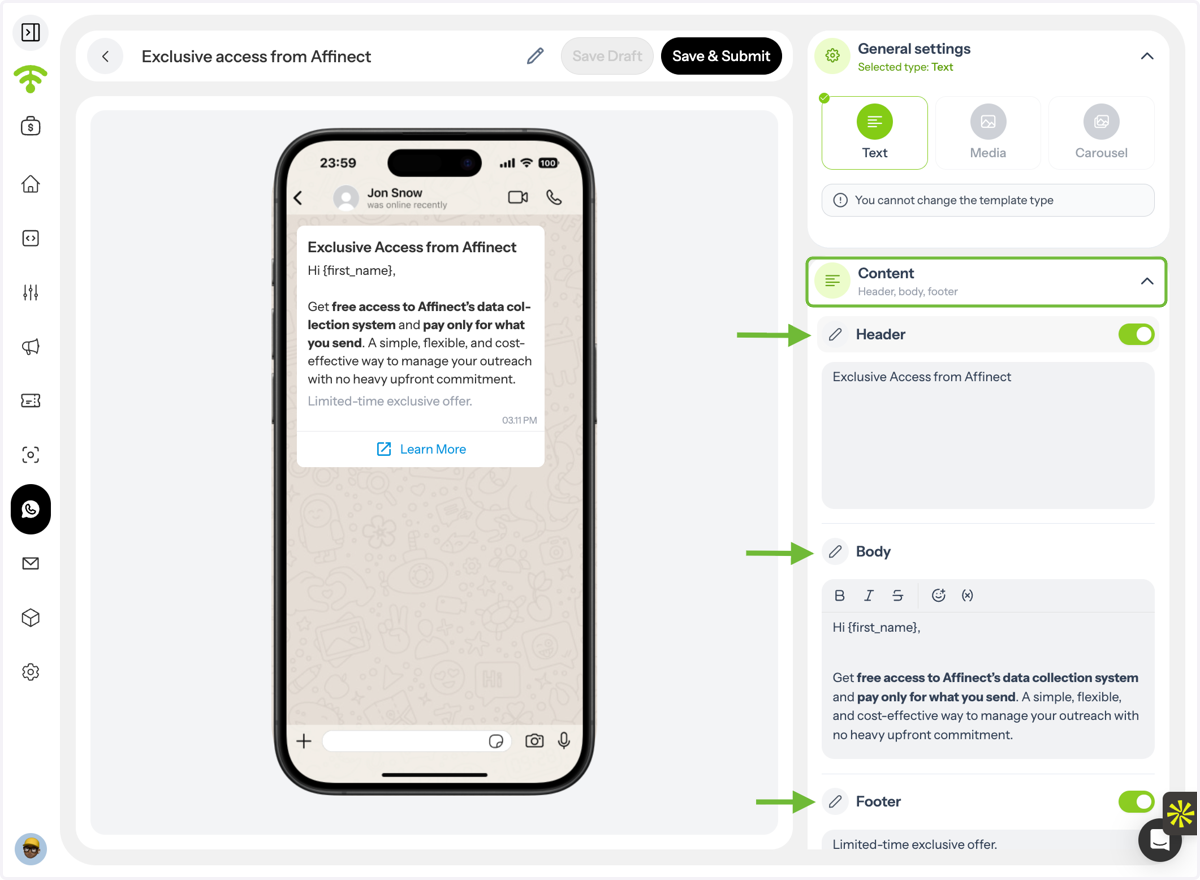
4. Add Message Content
Click on Content and start building your message by adding:
Header (optional)
Body
Footer (optional)
5. A. Customize Your Message
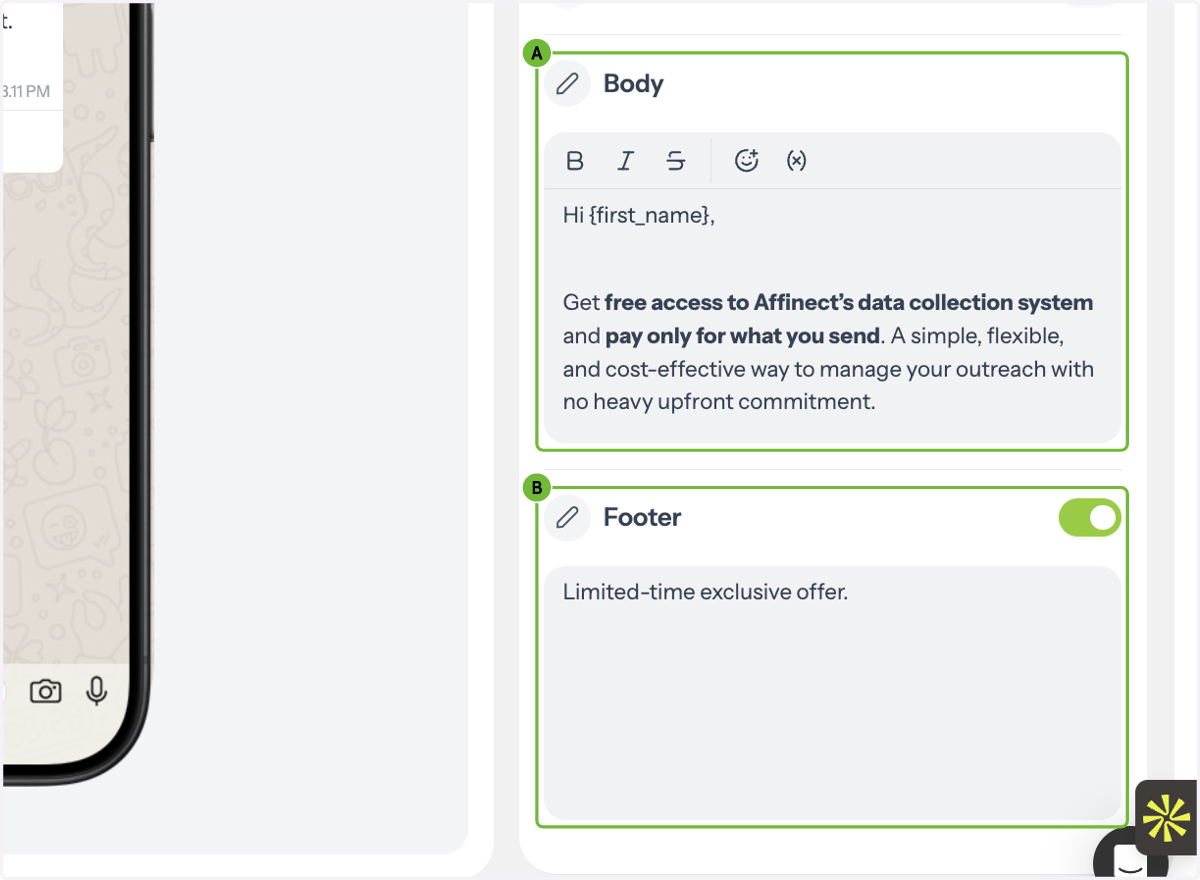
5. B. Write your body text and footer
Enhance your message using:
Text styles
Emojis
Personalization variables (e.g., first name, email, etc.)
6. Add Call-to-Action Buttons
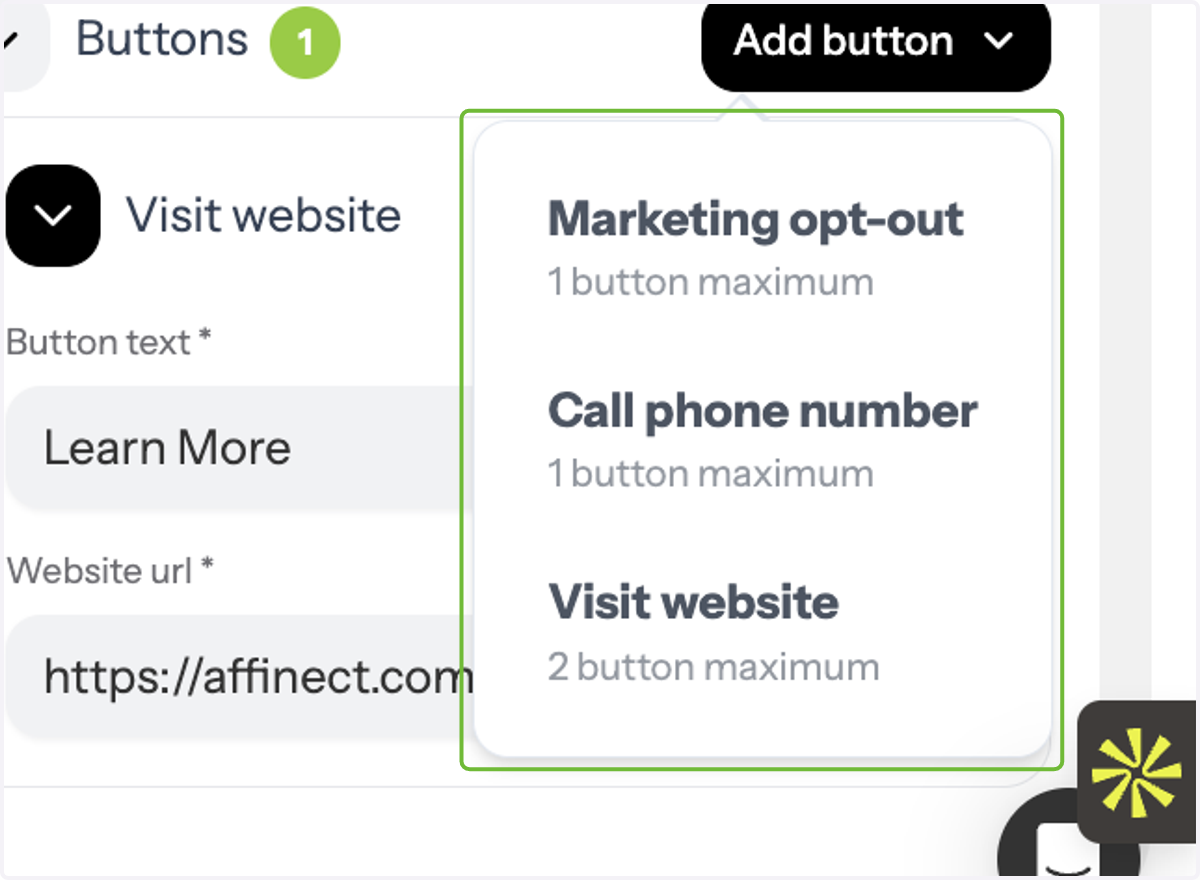
Go to Buttons and choose from:
Website link
Phone number
7. Ensure Compliance
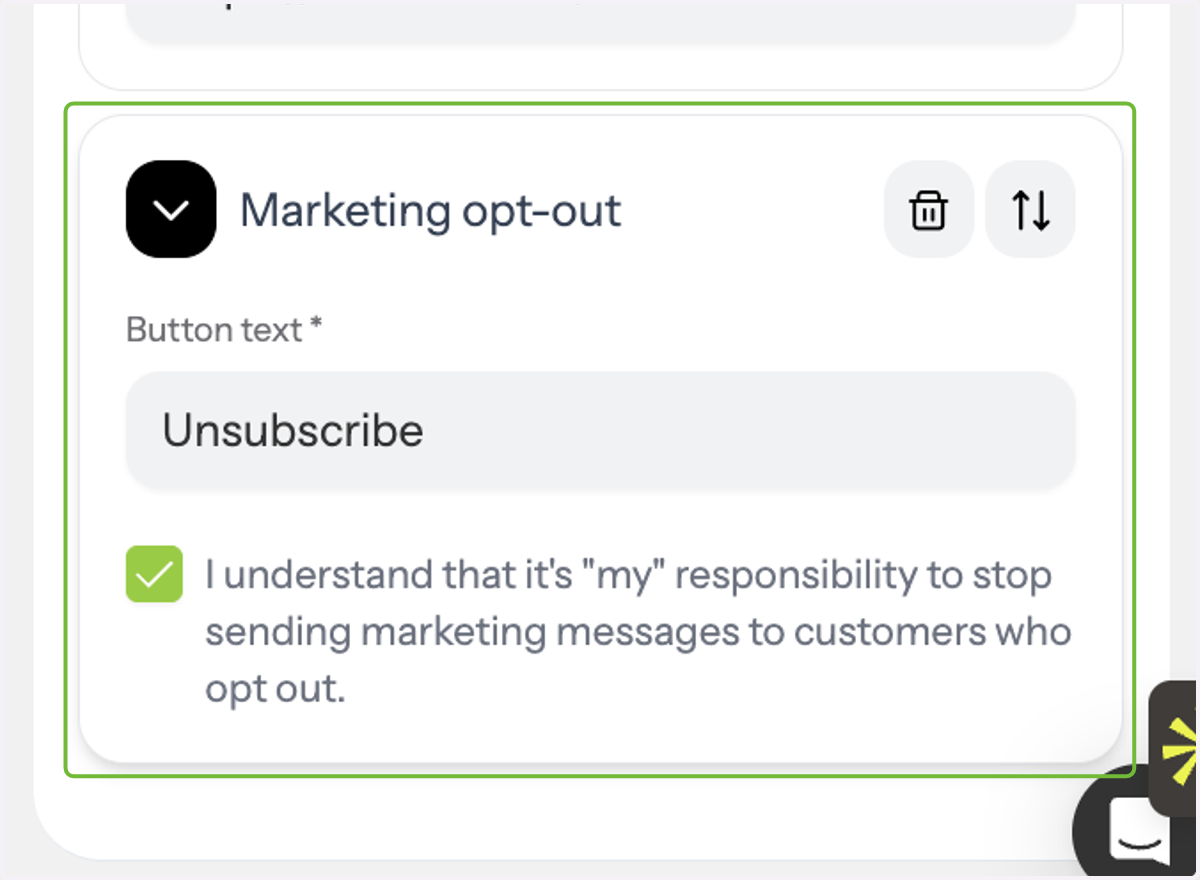
Include a mandatory marketing opt-out button in every message.
8. Submit for Approval
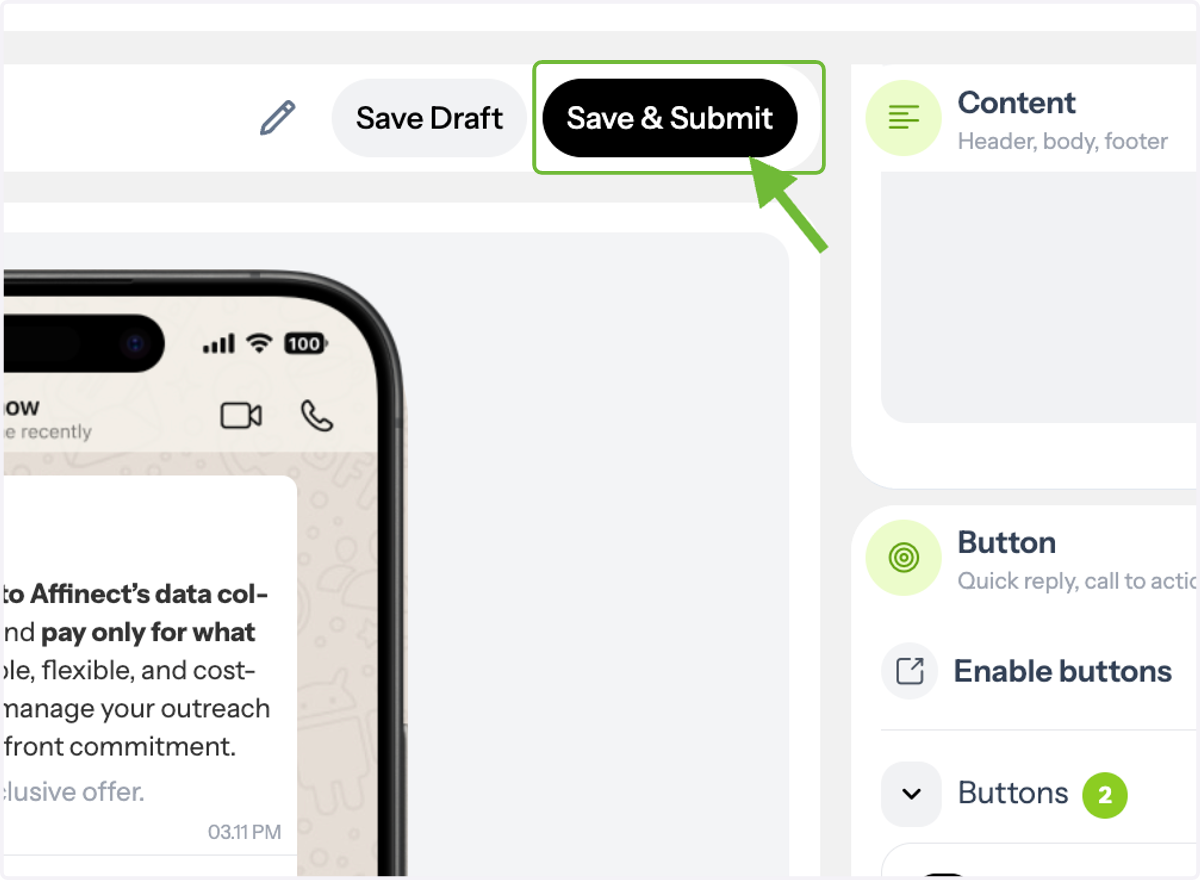
Once done, click Save & Submit to send your template to Meta for approval.