How to Create a Meta Business Portfolio
Meta for Business
Type in business.facebook.com in your URL tab
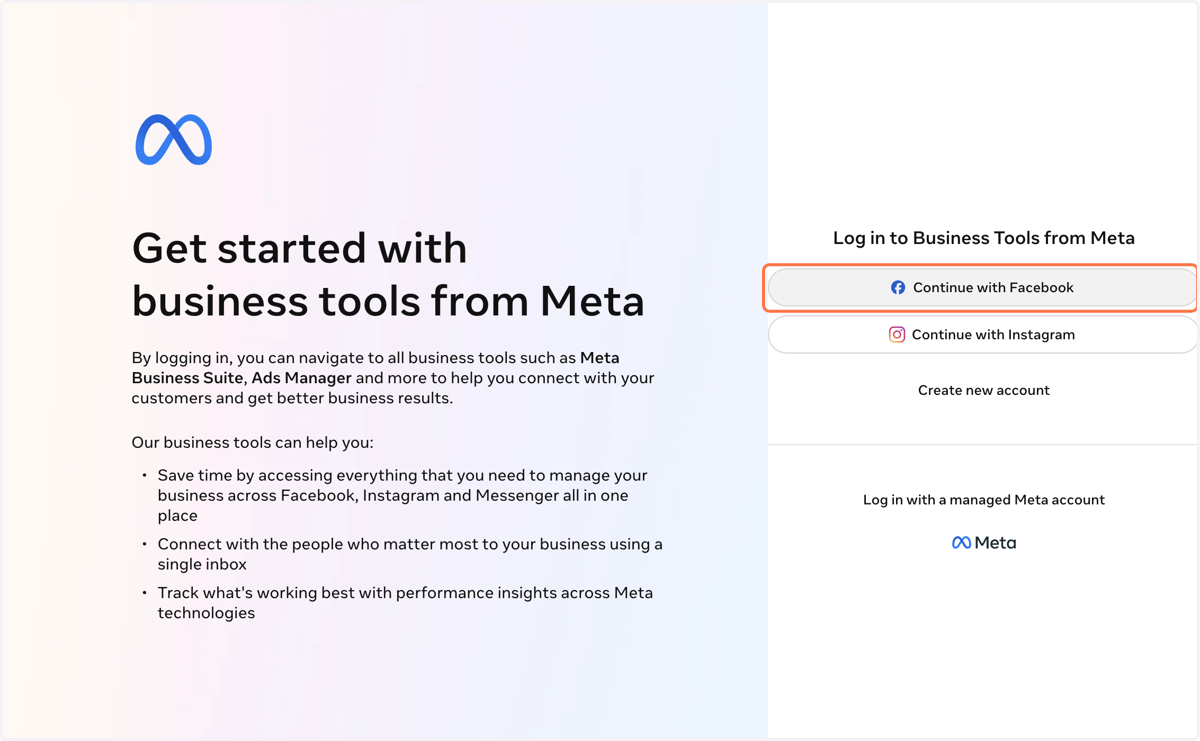
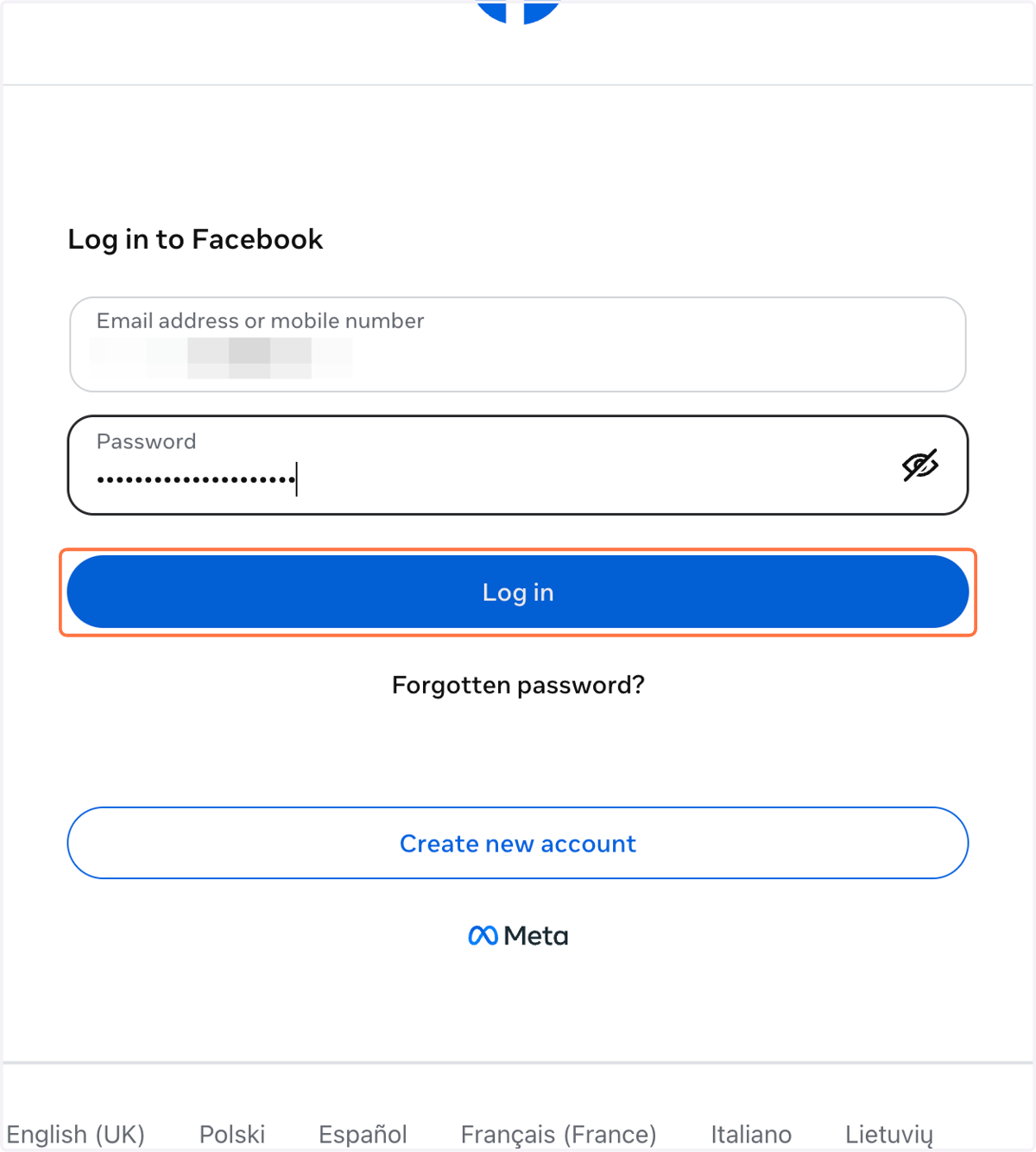
1. Click on Continue with Facebook if you have an existing account
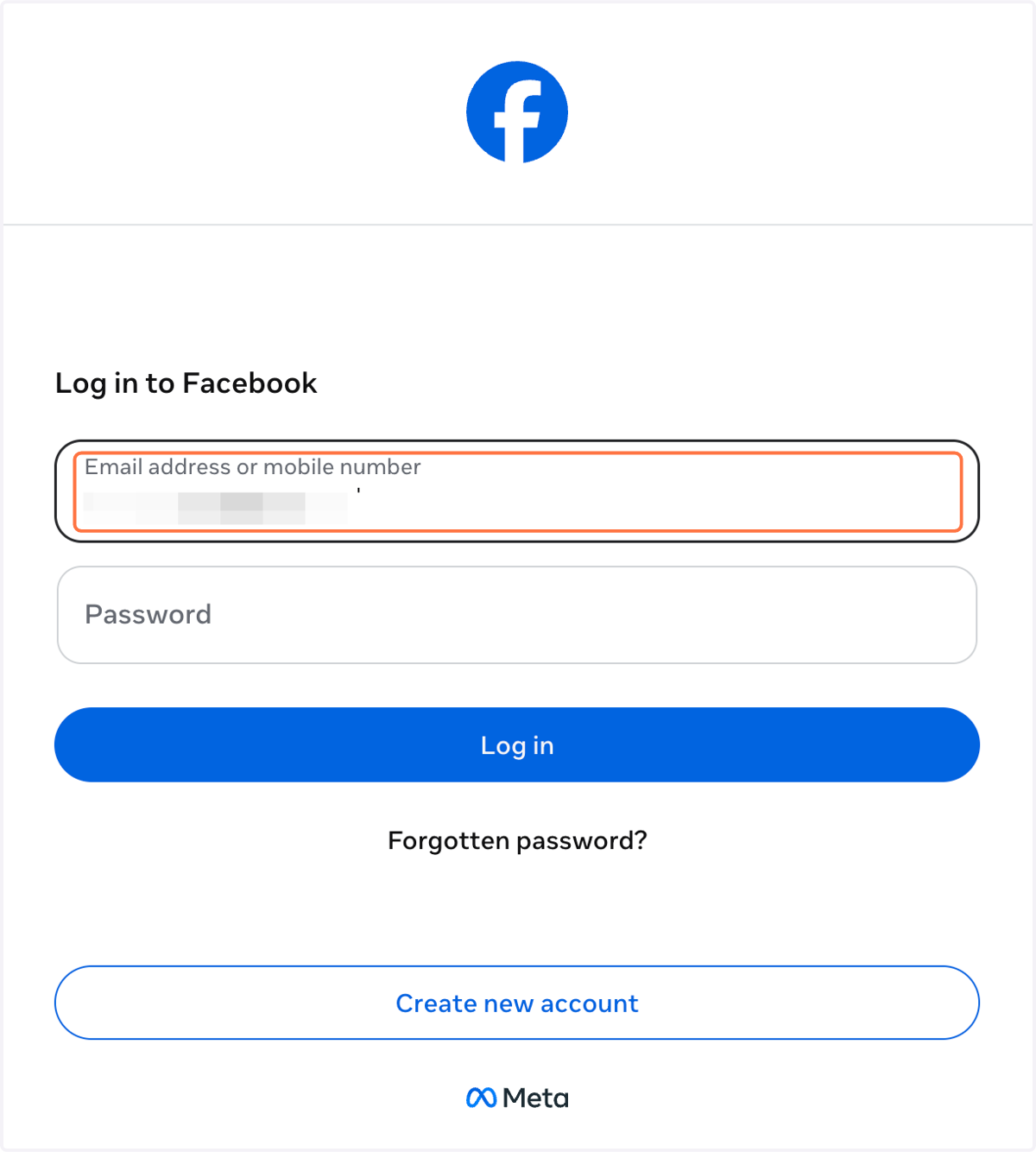
2. Type Email address or mobile numb…
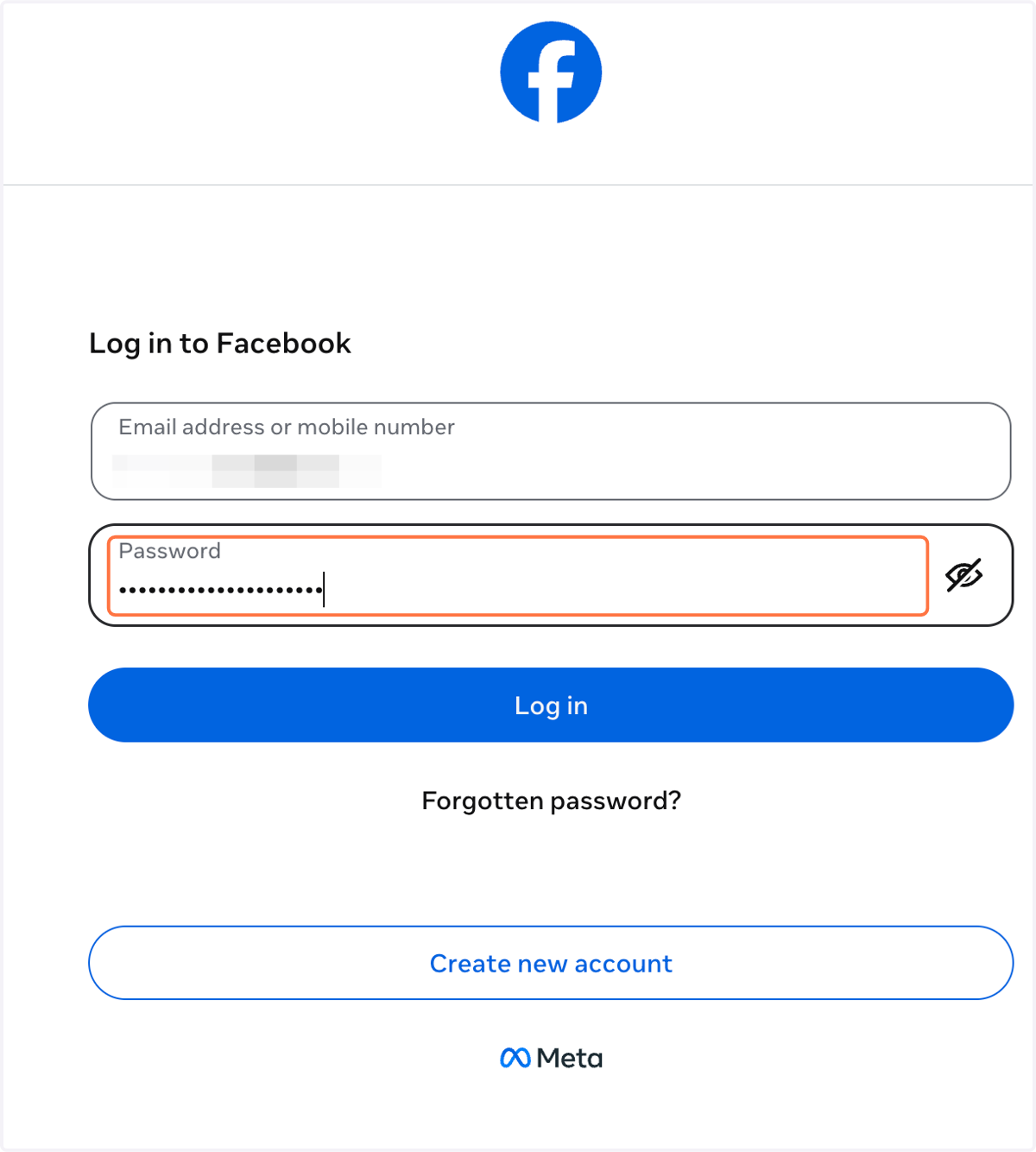
3. Type password
4. Click on Log in
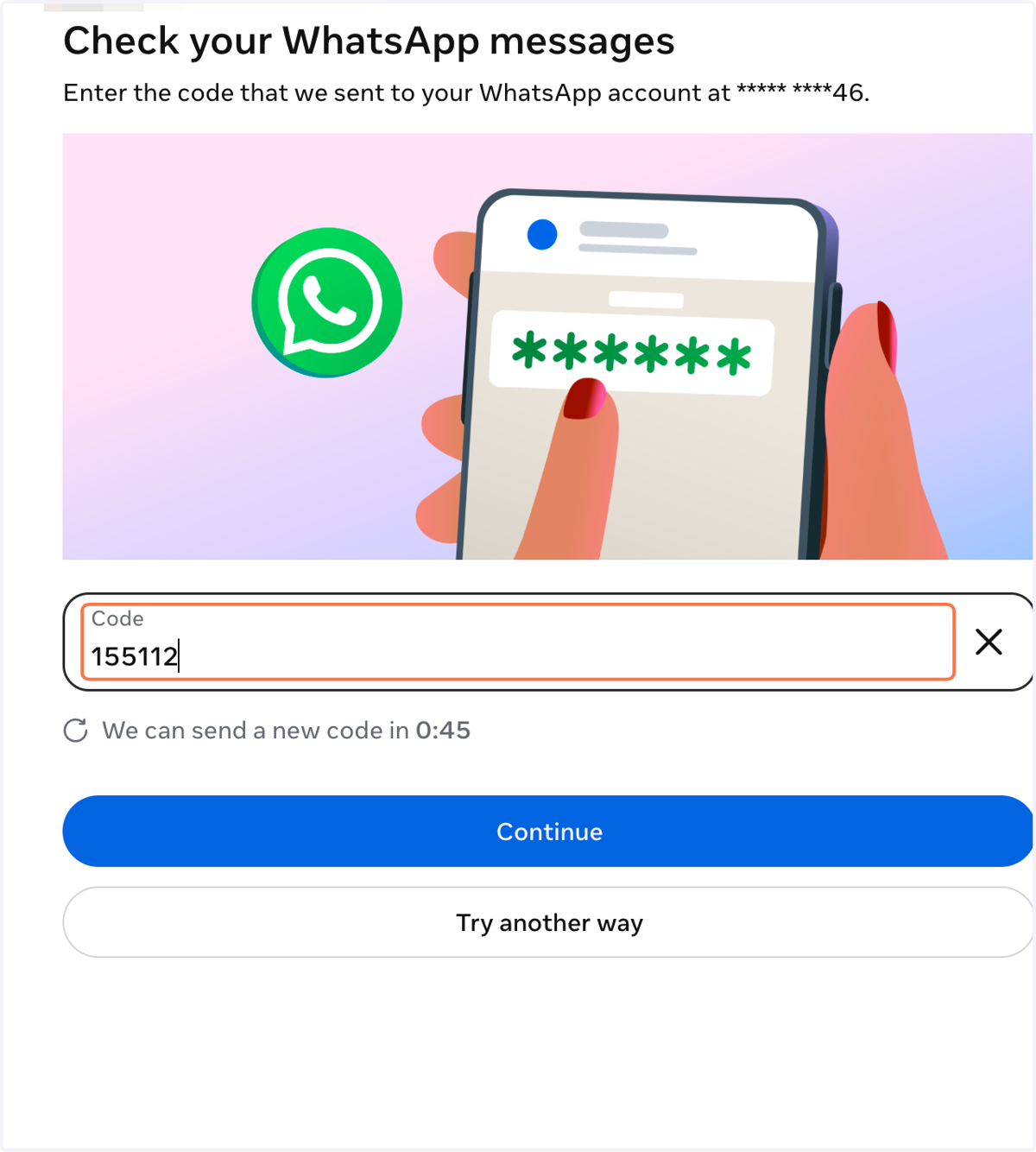
5. Type Code from your Whatsapp, SMS, email or authenticator app
This will depend on what you setup as your 2-Factor-Authentication
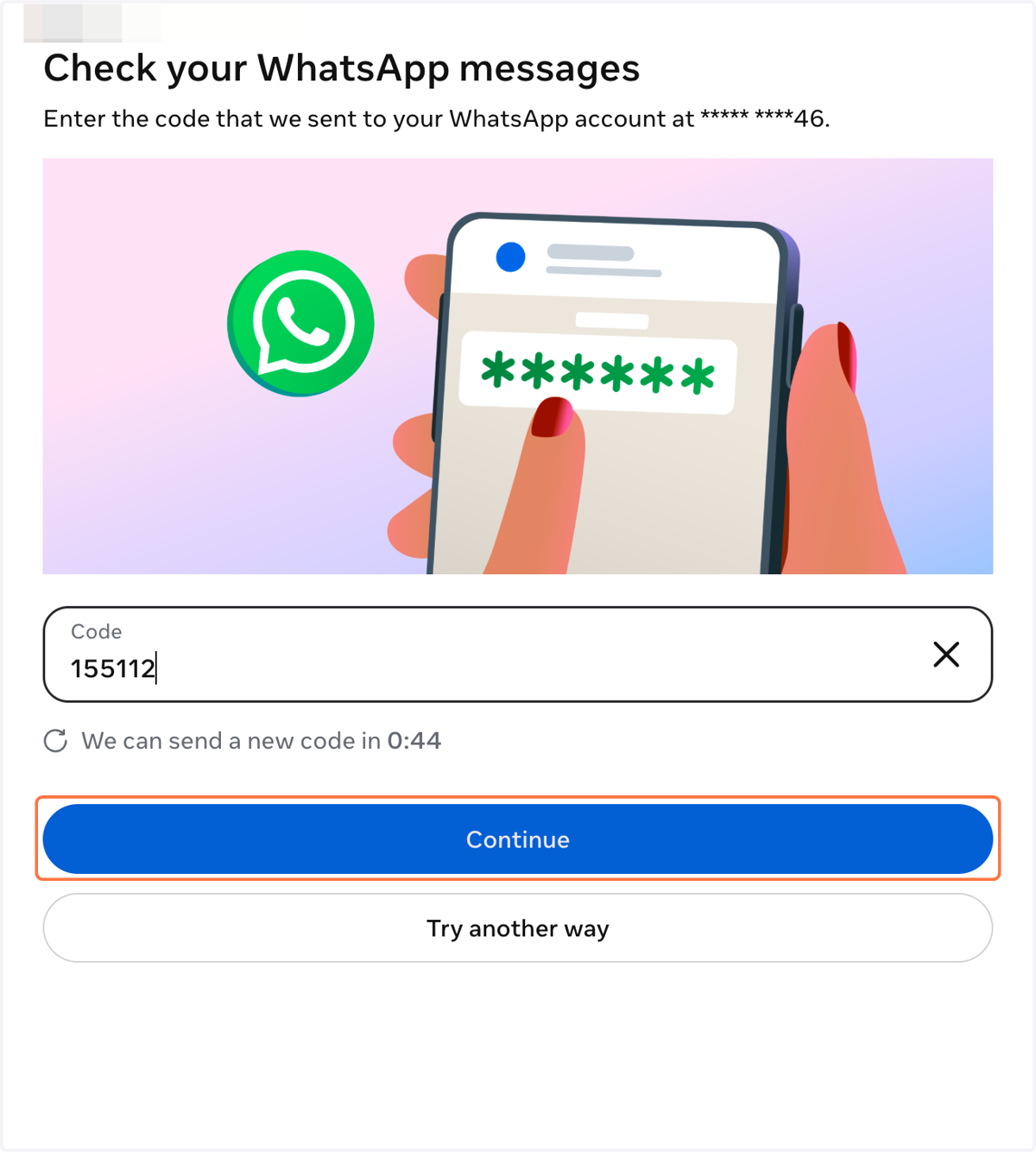
6. Click on Continue
7. Click on the dropdown under the Meta Business Suite Logo
8. Click on Create a business portfolio
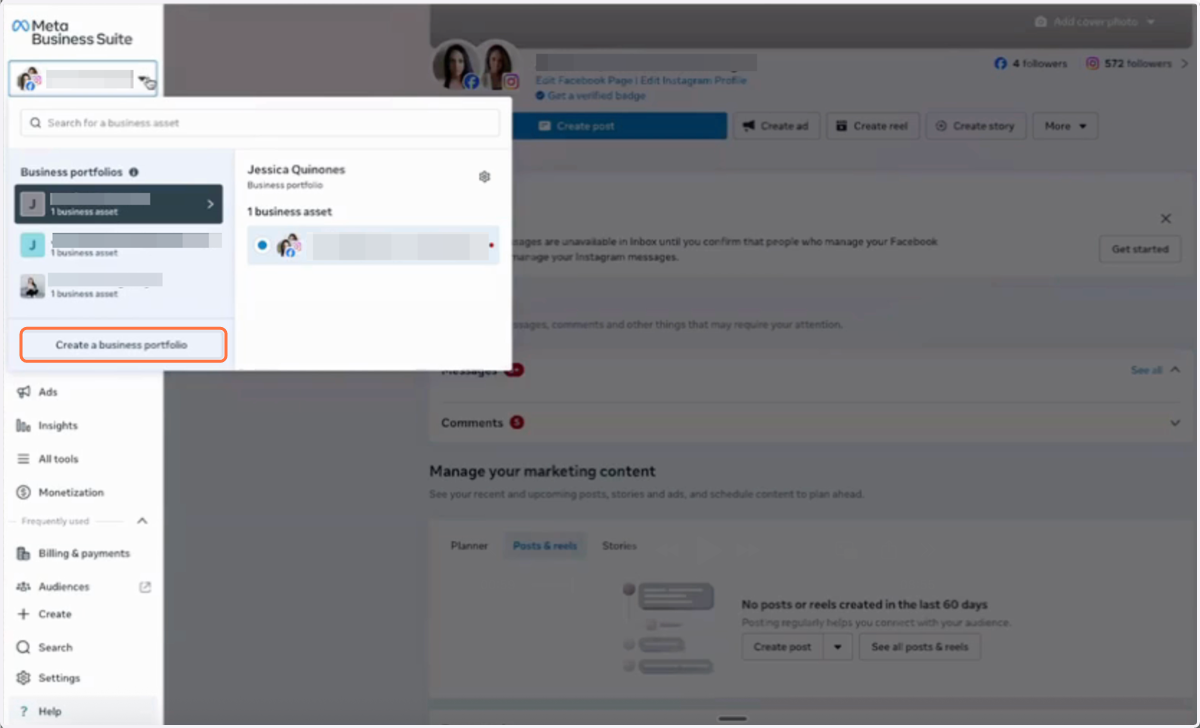
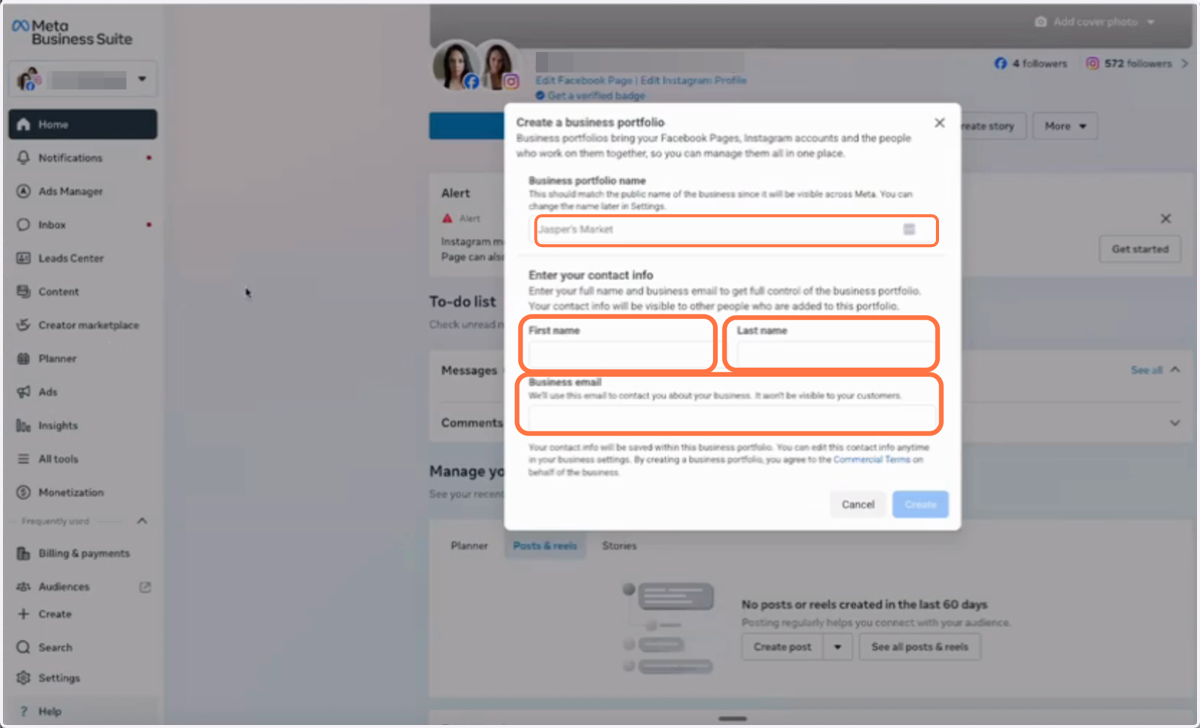
9. Add your Business name, First name, Last name and Business Email
If you don't have a business name or email, you can use your personal name.
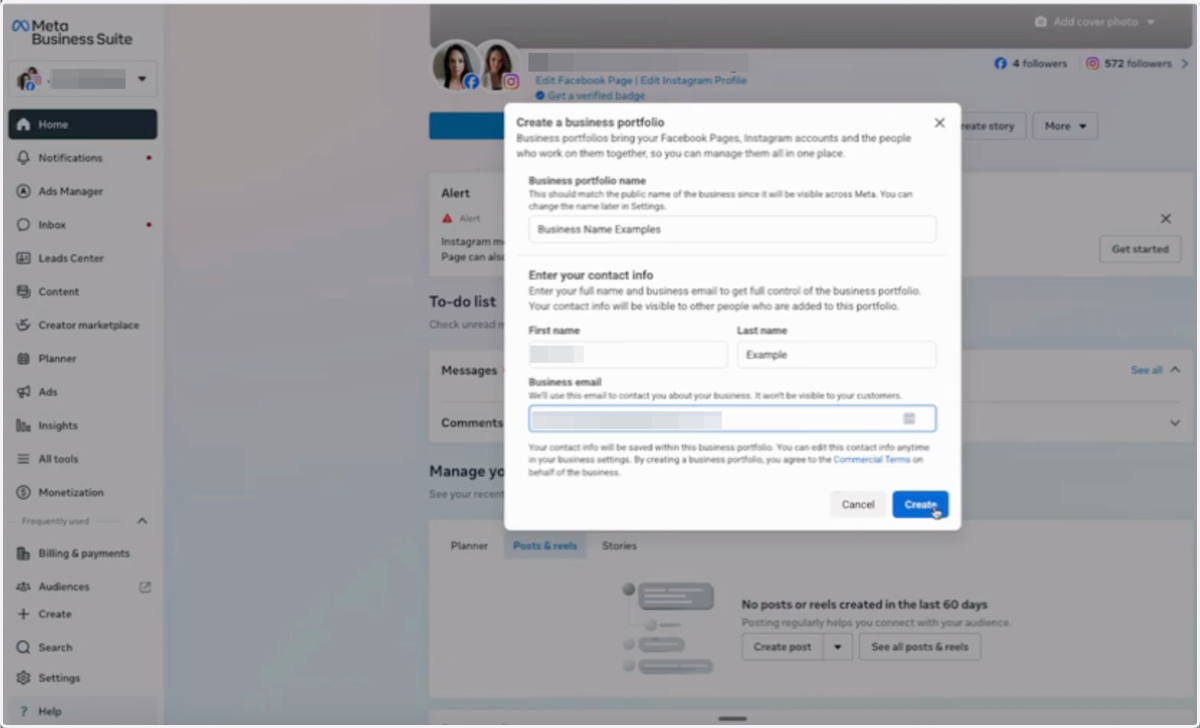
10. Click on Create
11. Click on Skip
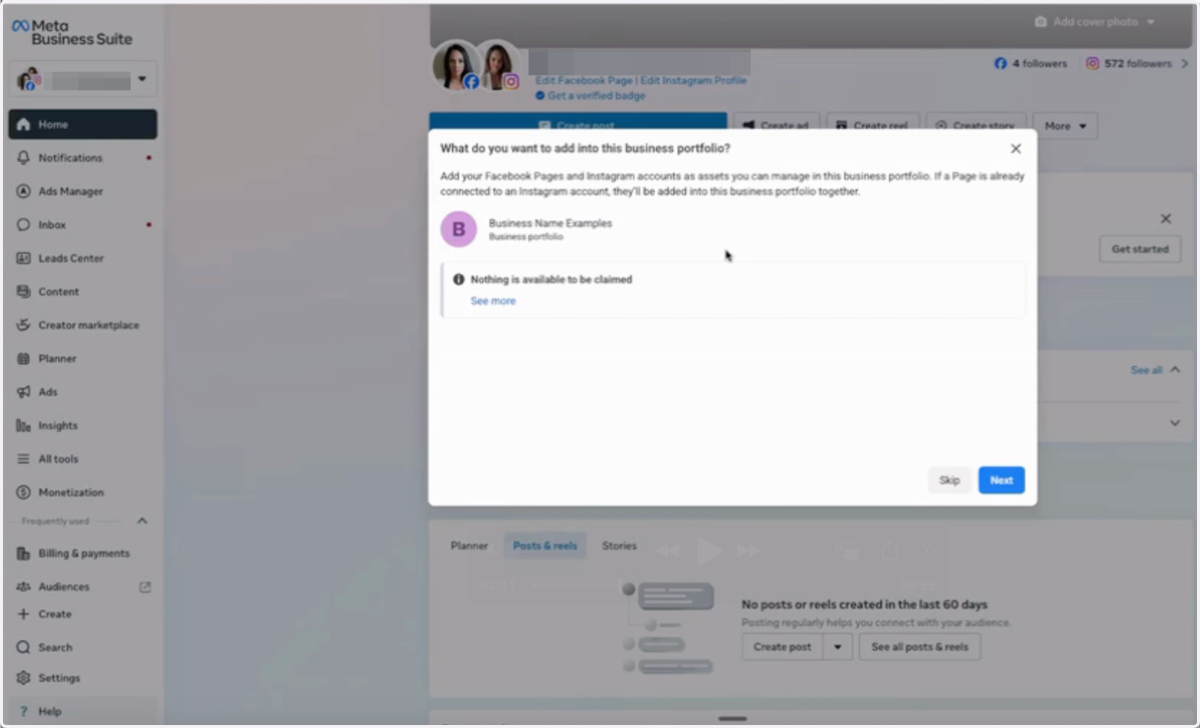
12. Click on Skip
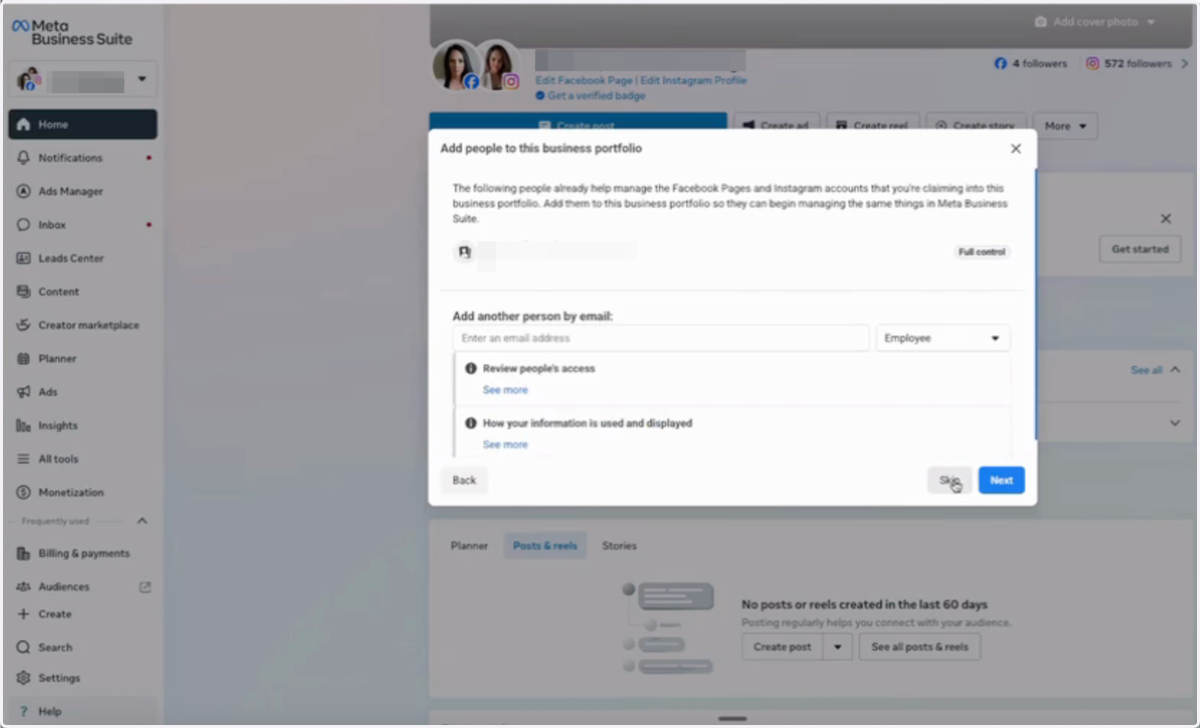
13. Click on Confirm
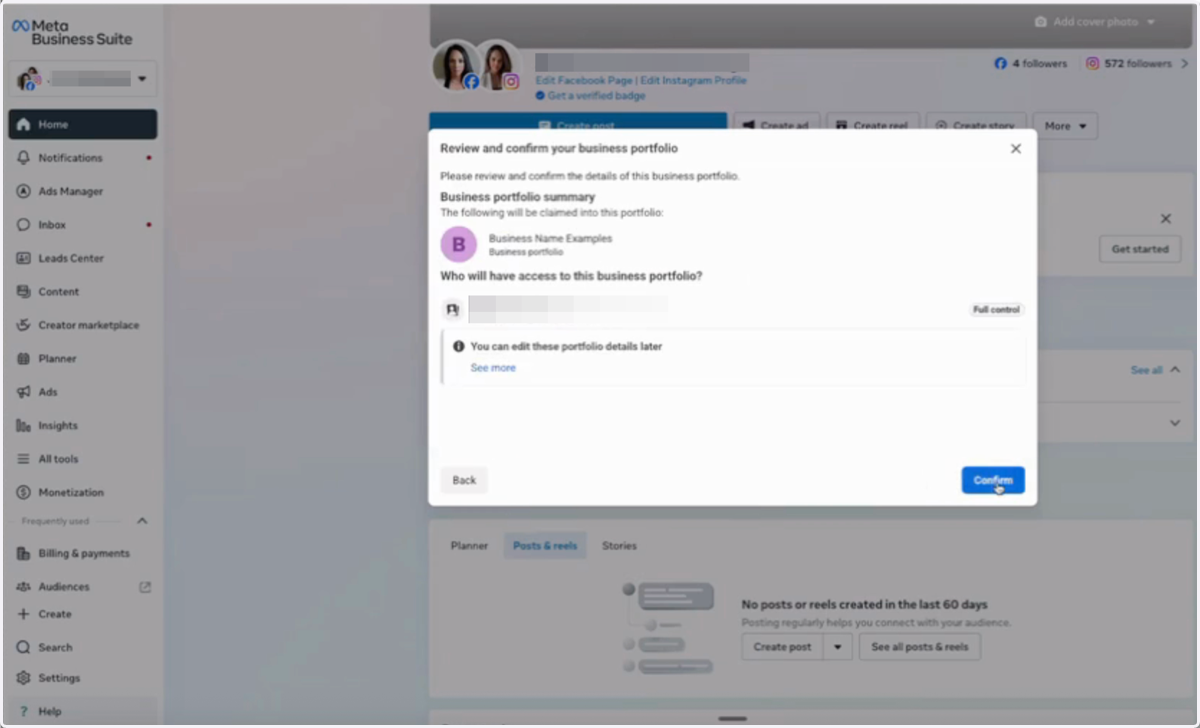
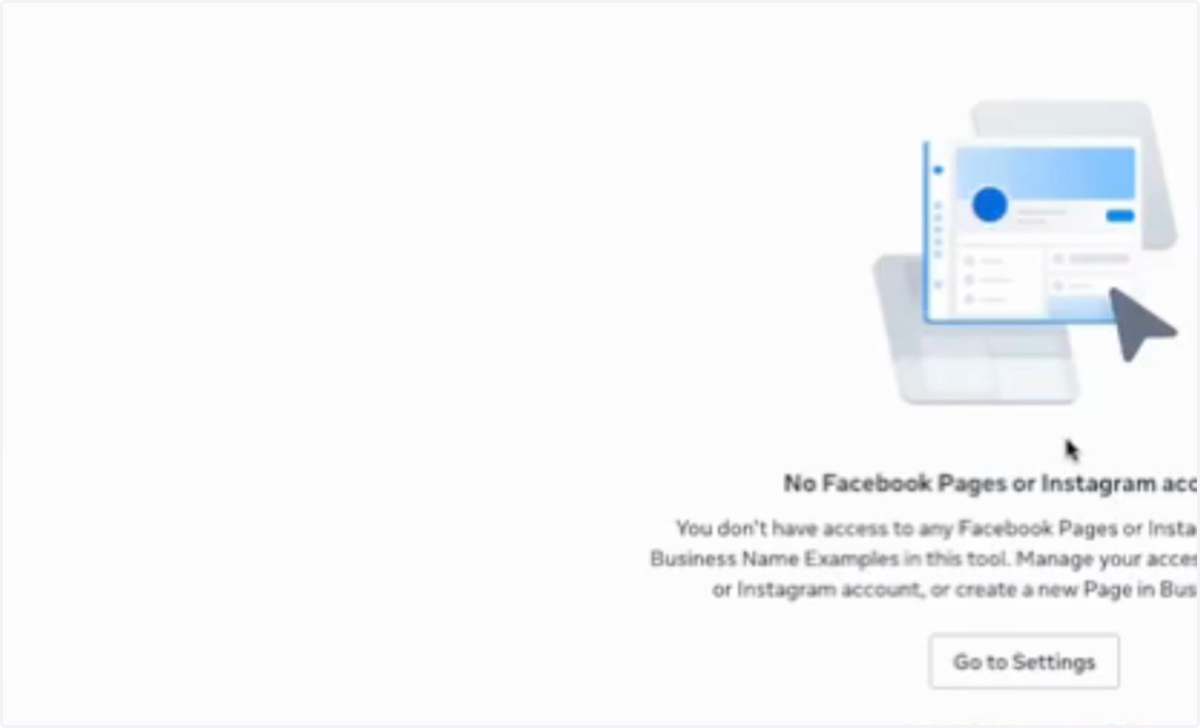
14. Click into Settings
15. Click on Business info
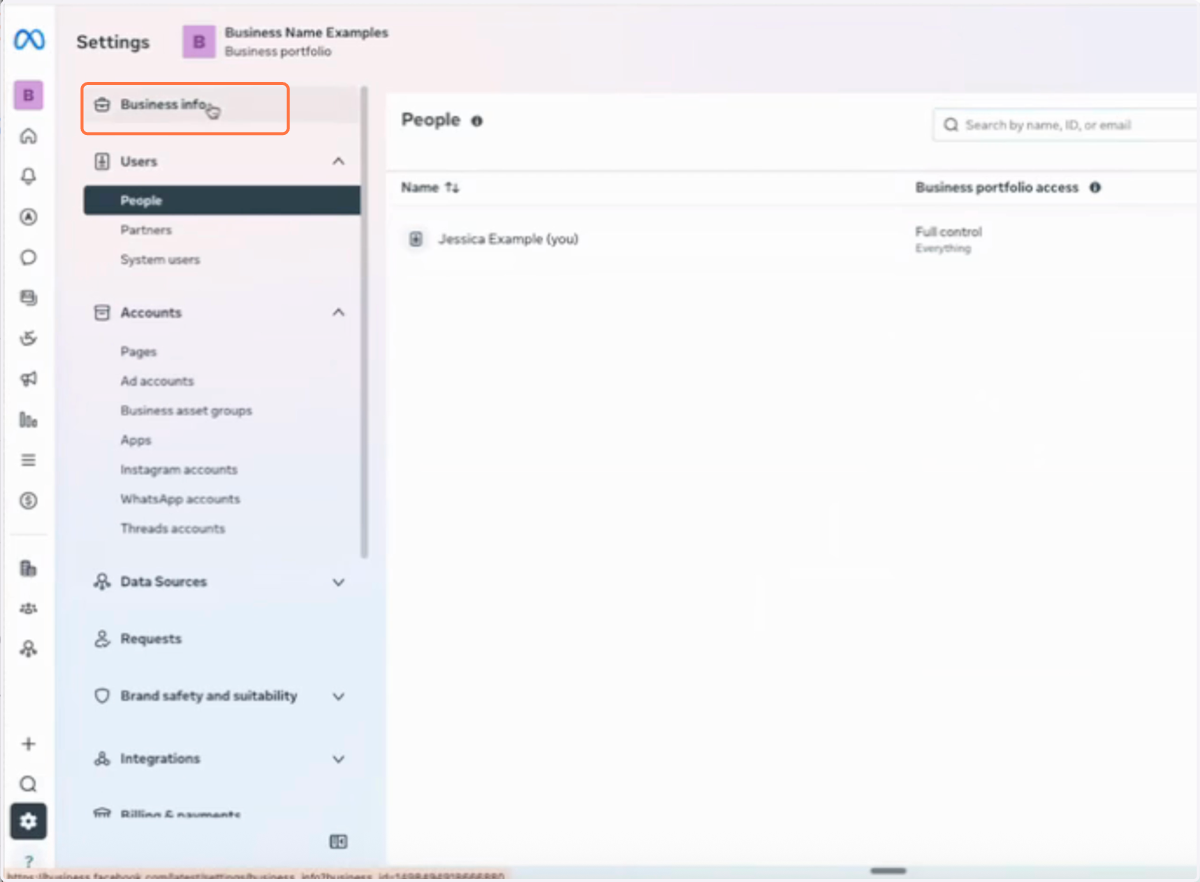
16. Click on Edit
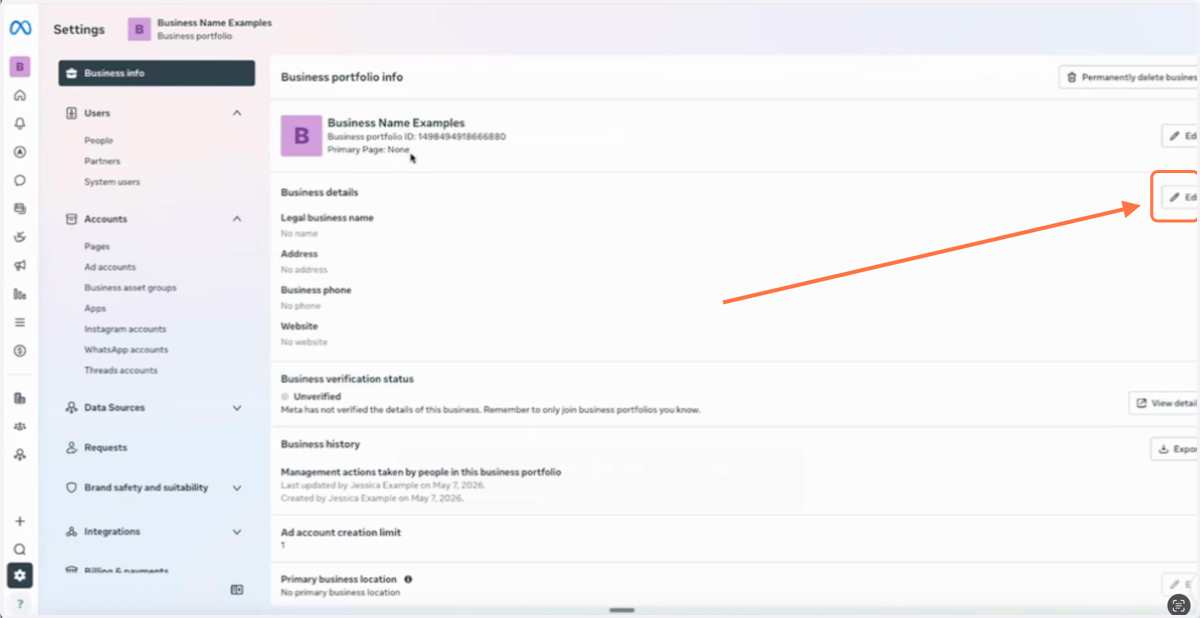
17. Enter your business name, address, website (domain)and Tax ID (EIN)
You don't have to have an active website, just a domain (website address) will do.
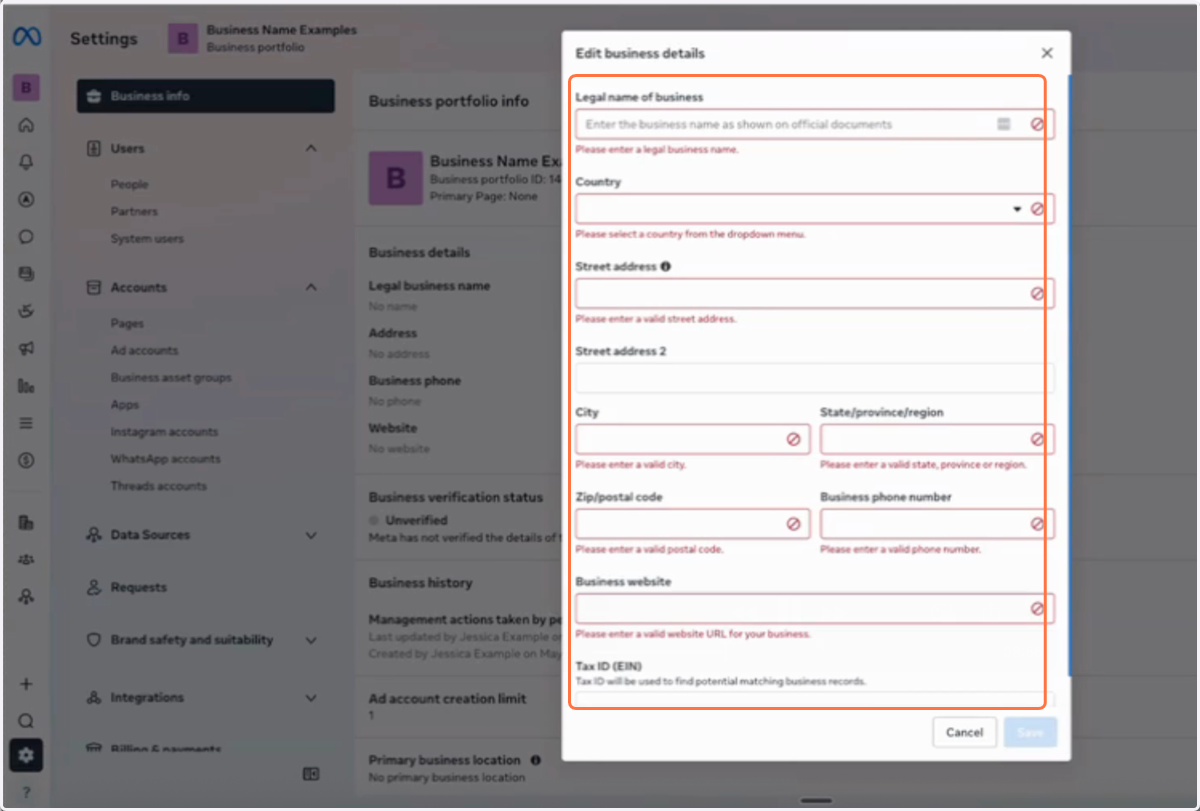
18. Click on Save
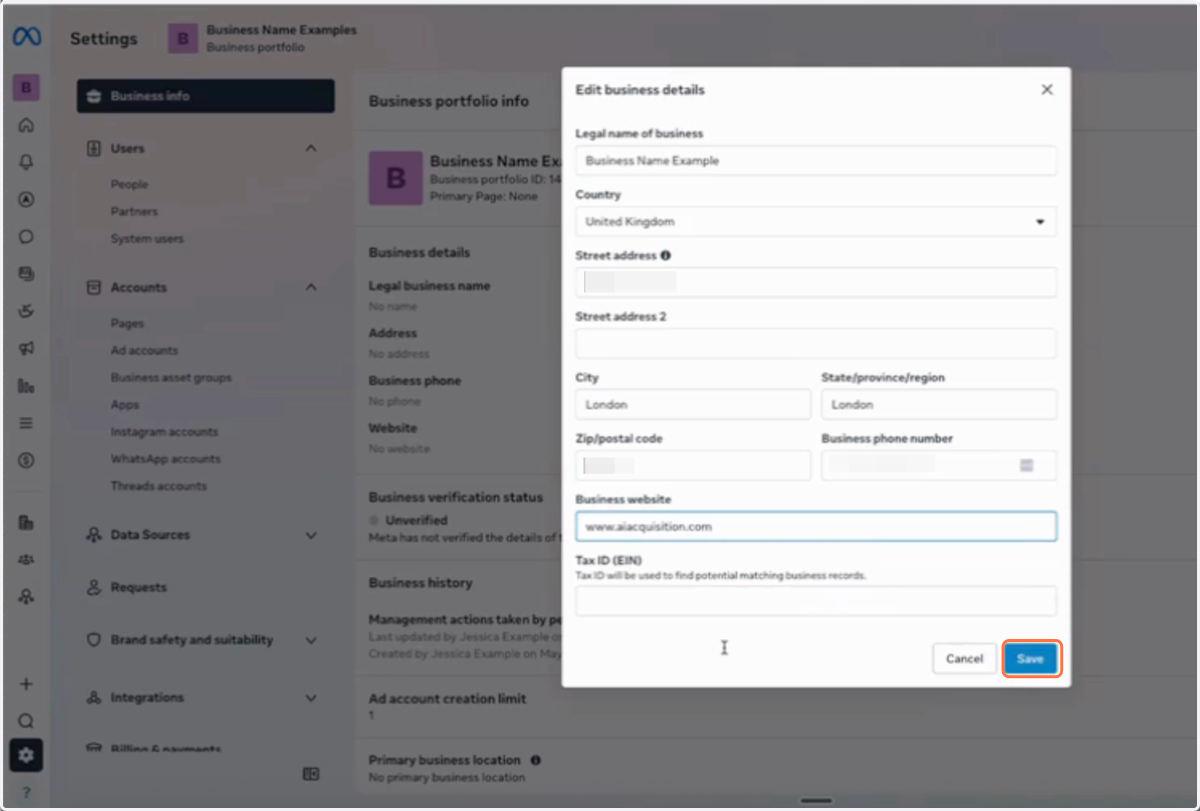
19. Click on Pages
From the menu bar on the left
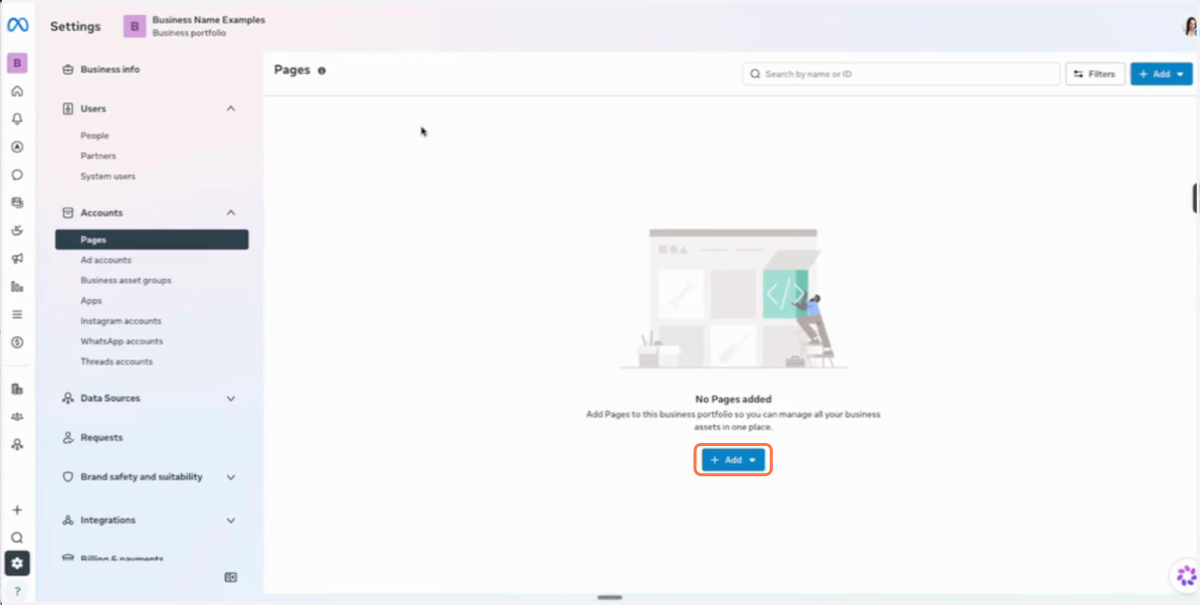
20. Enter your business name as the Page name and under Category add "Consulting Agency"
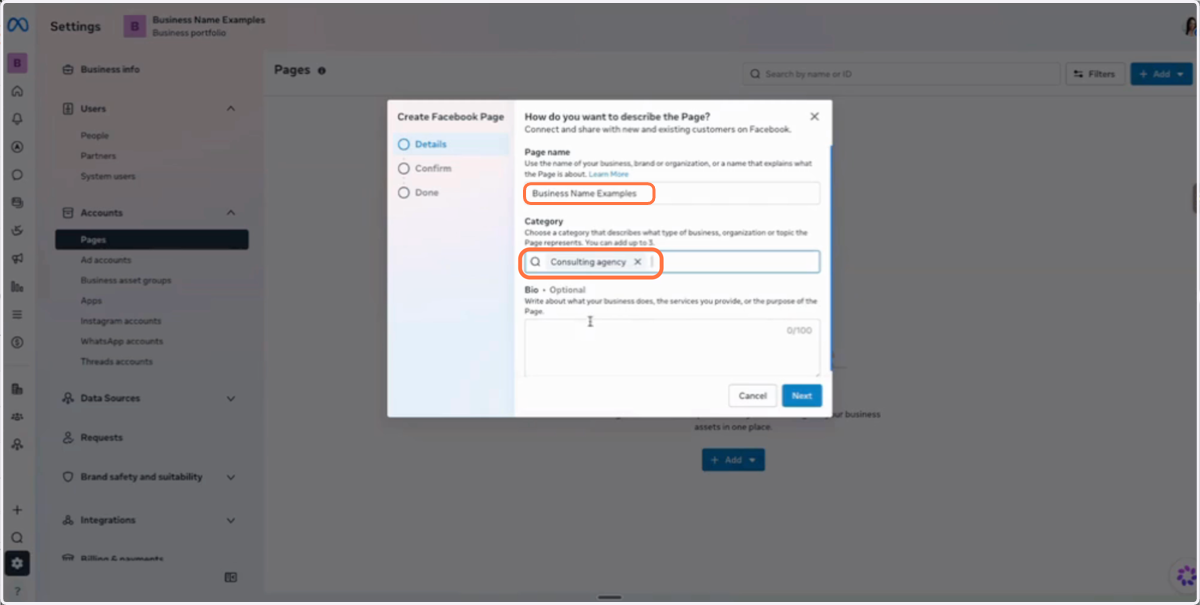
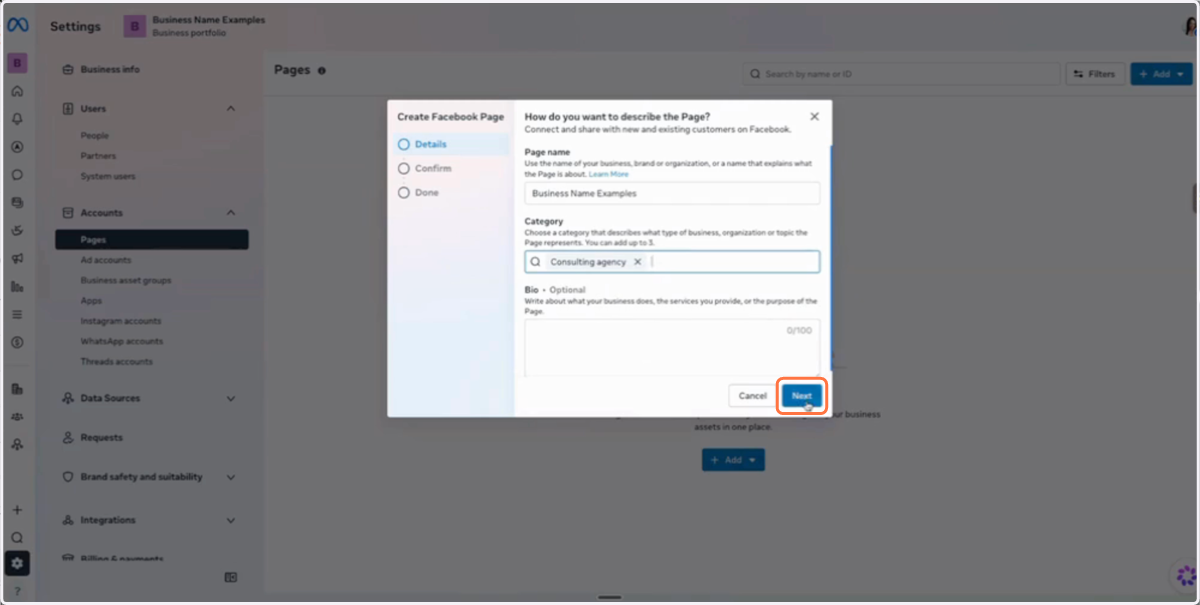
21. Click on Next
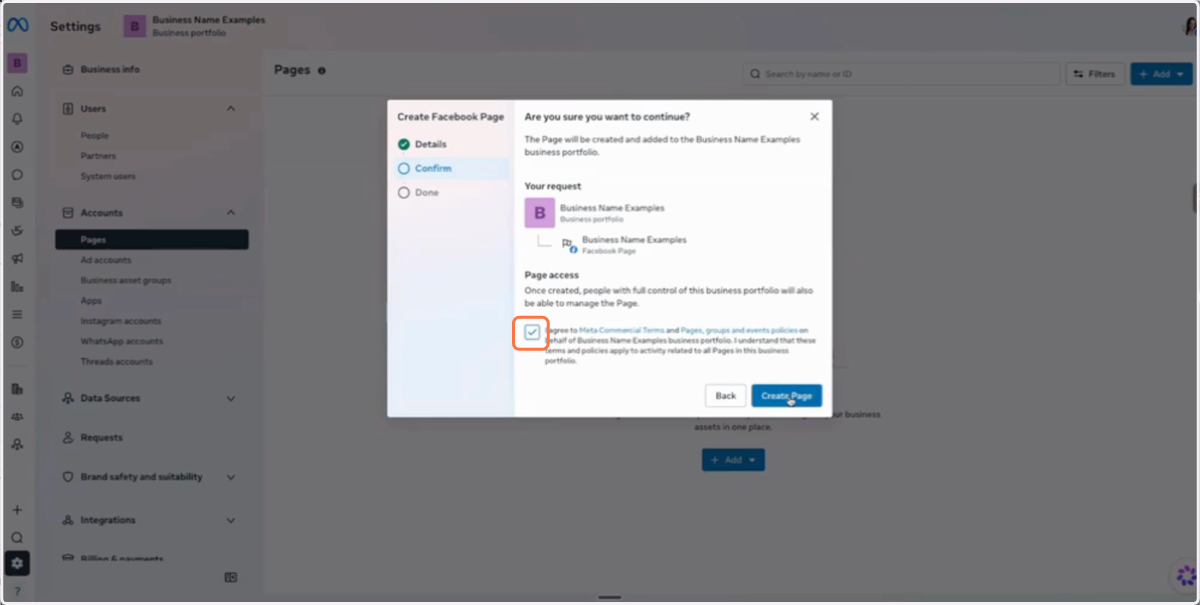
22. Check the checkbox
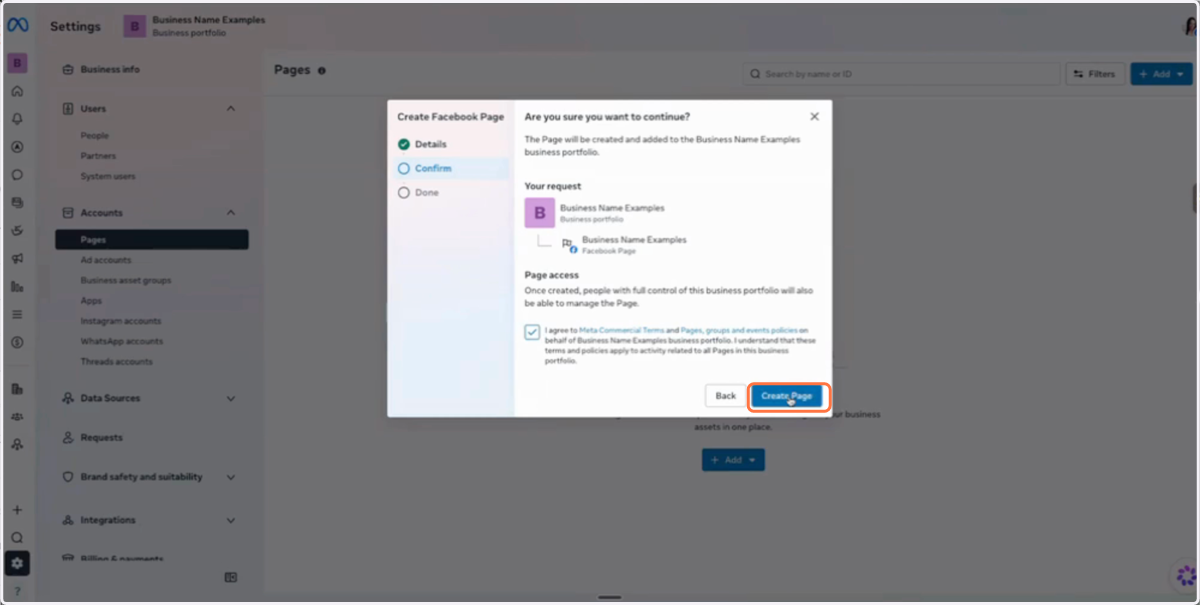
23. Click on Create Page
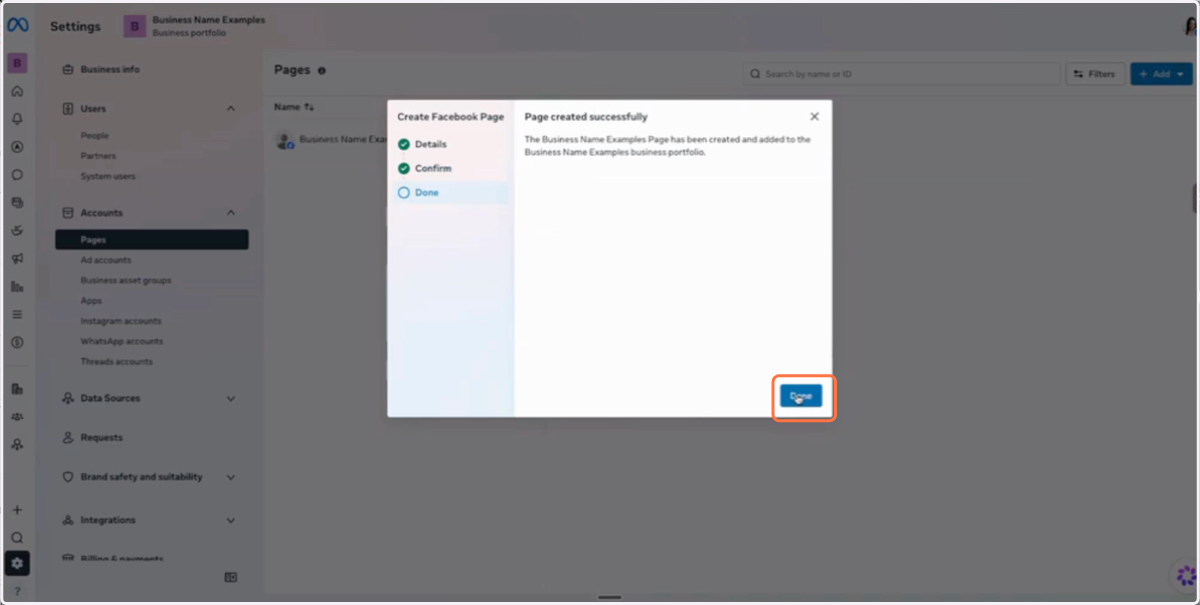
24. Click on Done
25. Under Accounts Click on Ad accounts

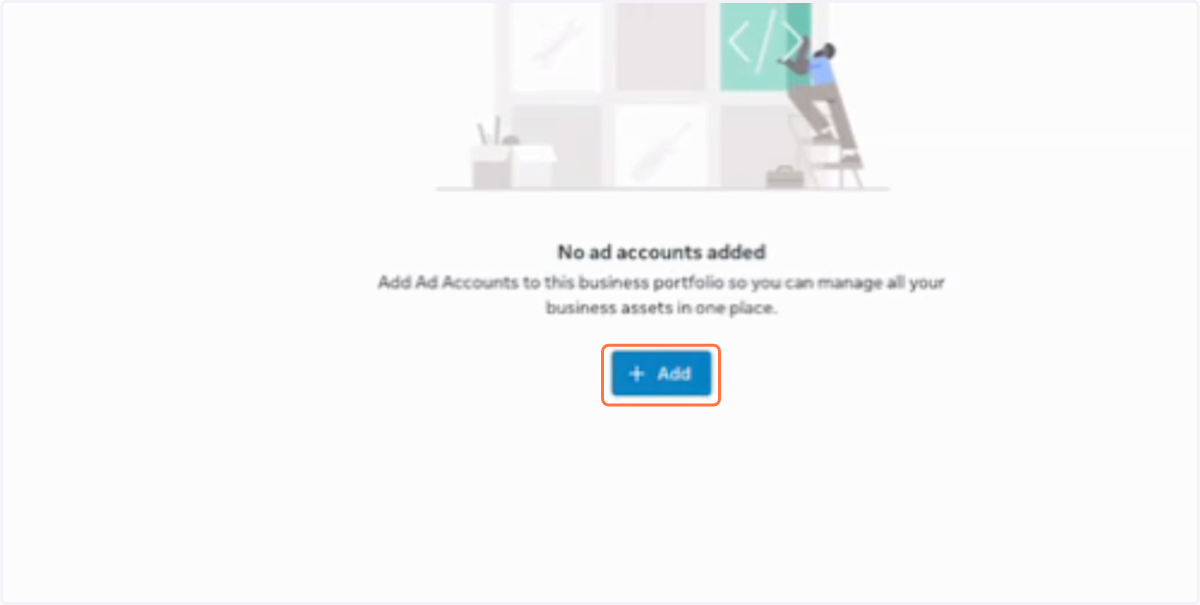
26. Click on Add
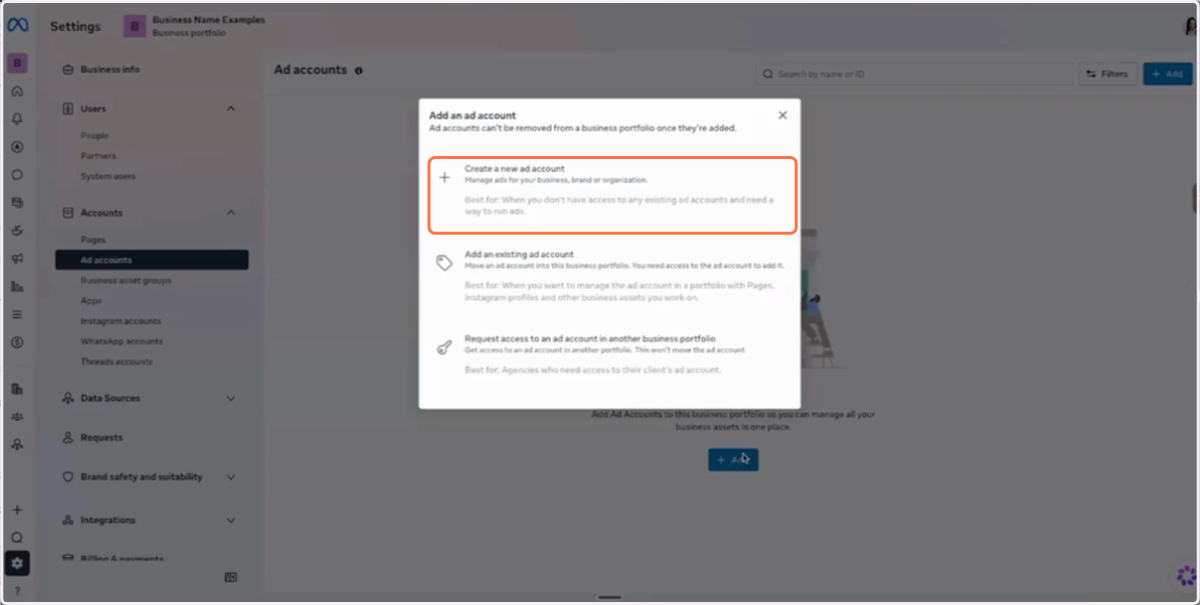
27. Click Create a new ad account
28. Add your Ad account name, Time one and Currency
Your ad account name should be your business name. Name is as your business name or your personal name.
For time zone and currency ensure you select correctly as you won't be able to change it later.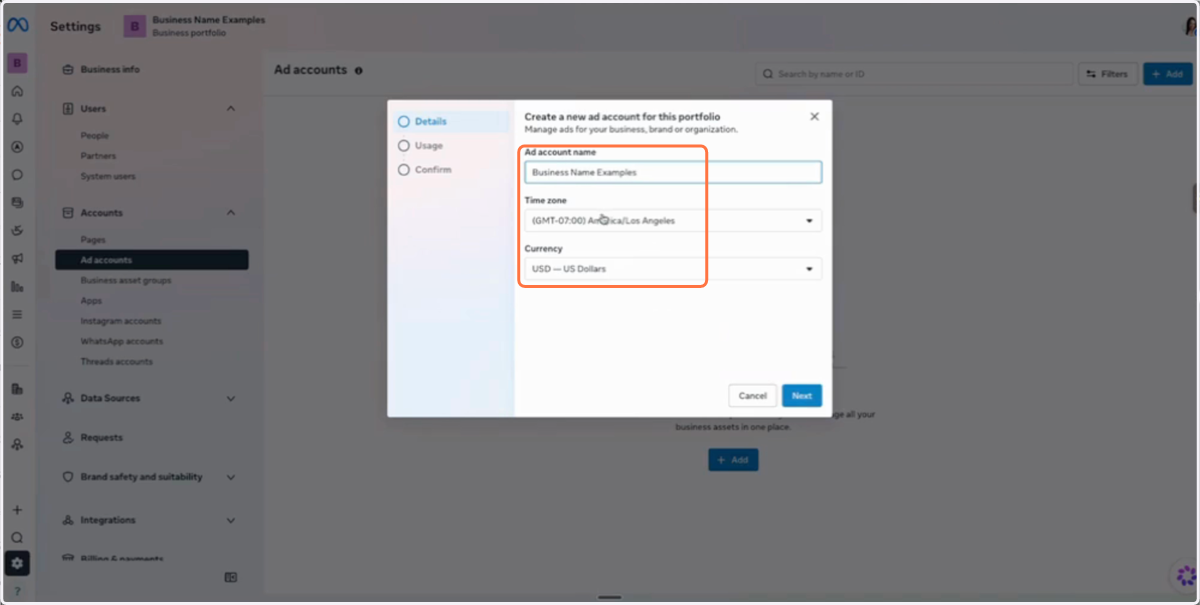
29. Click on Next
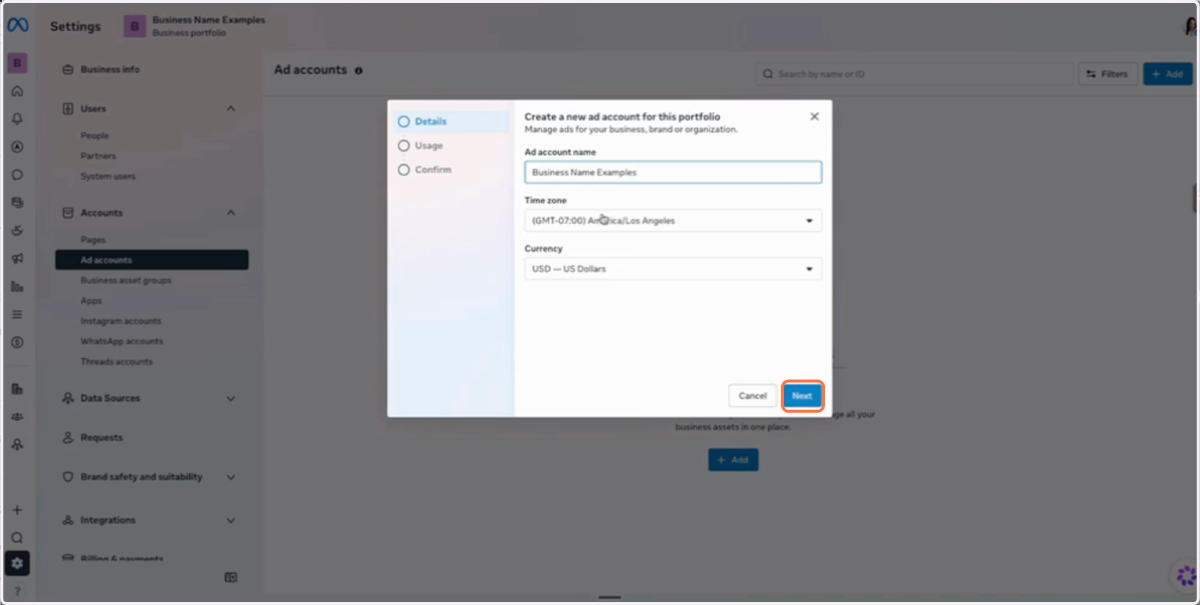
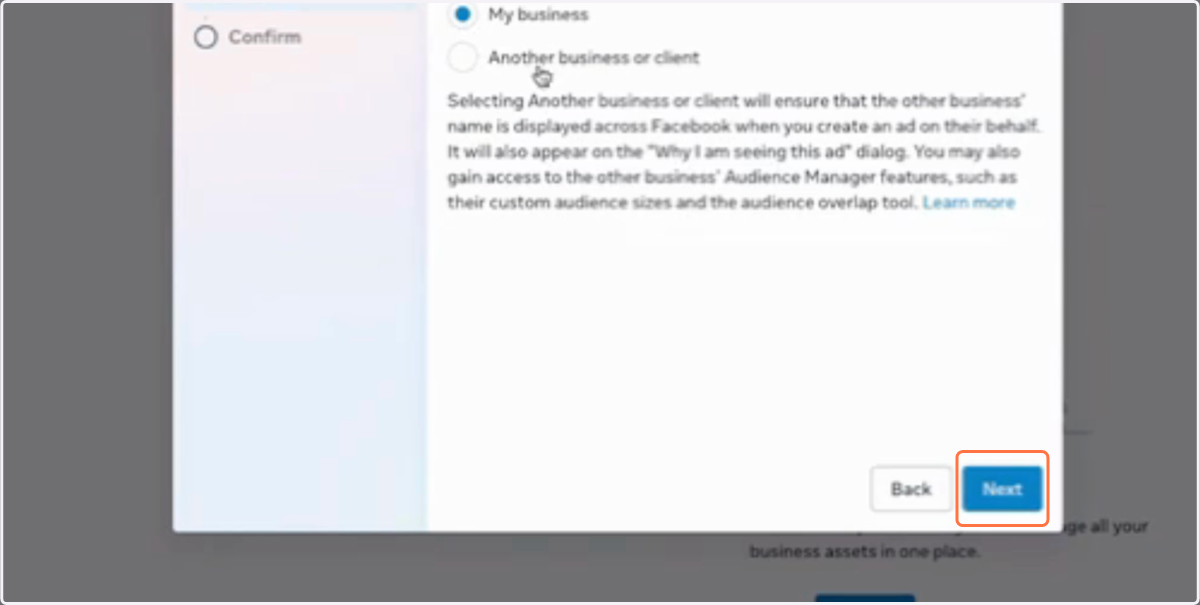
30. Select My business and Click on Next
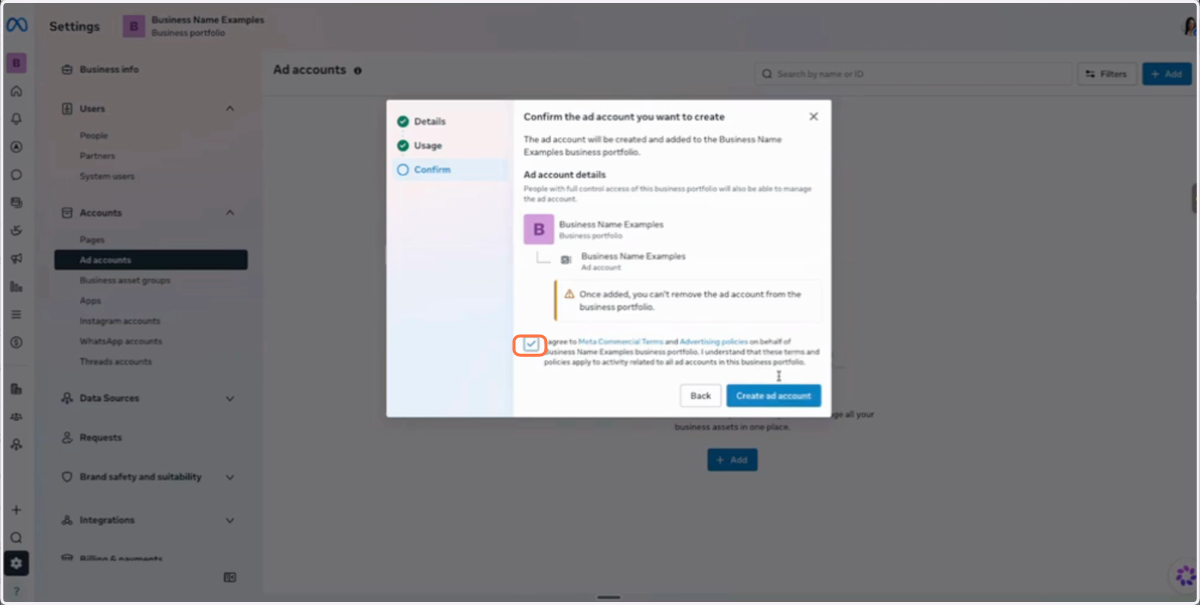
31. Check out the Checkbox
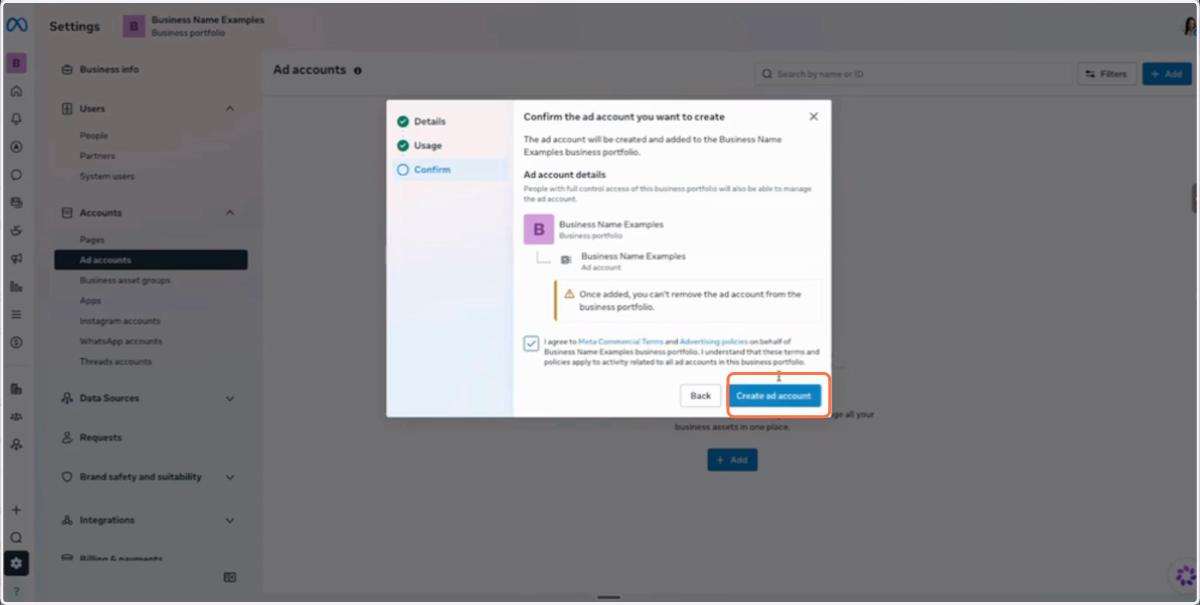
32. Click on Create ad account
33. Click on Add payment info
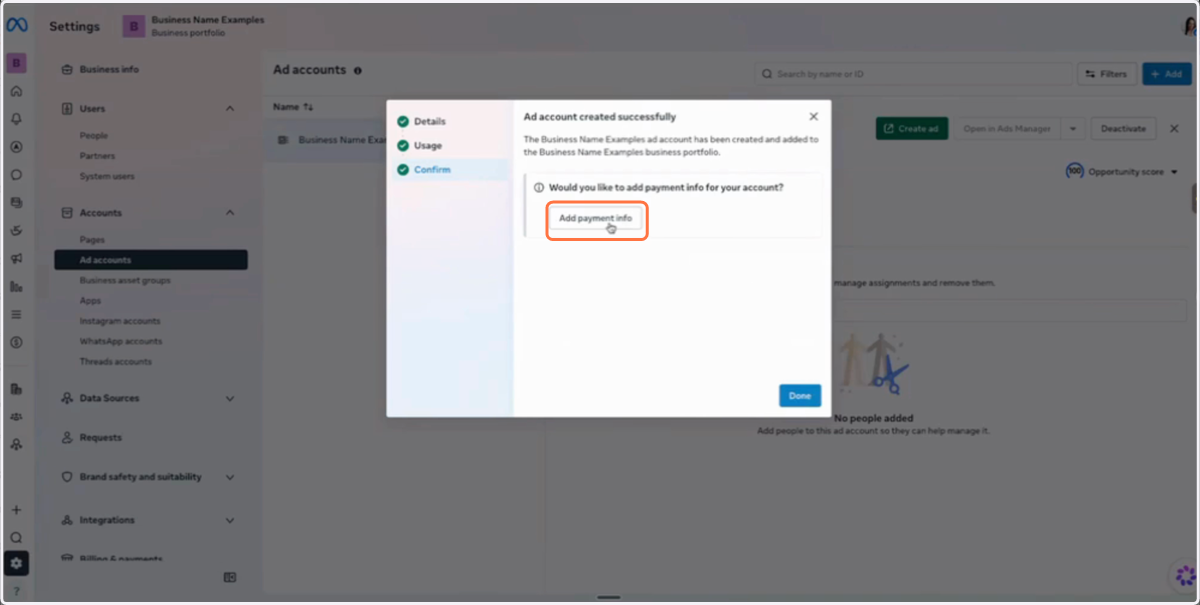
34. Ensure all fields and Click on Next
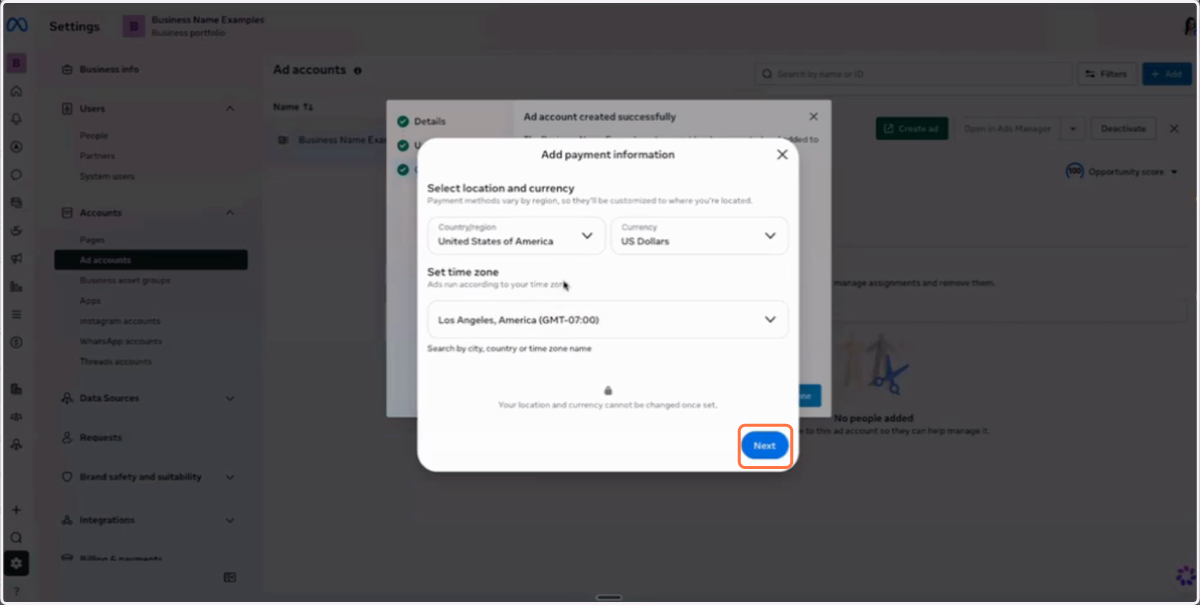
35. Click on Debit or Credit Card
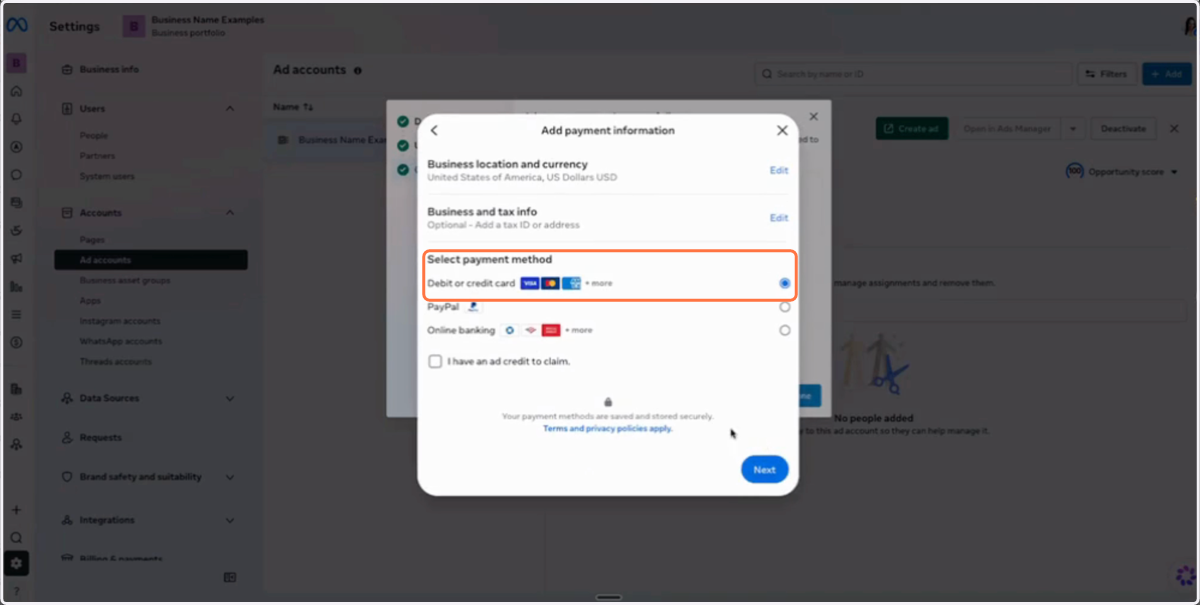
36. Click on Next
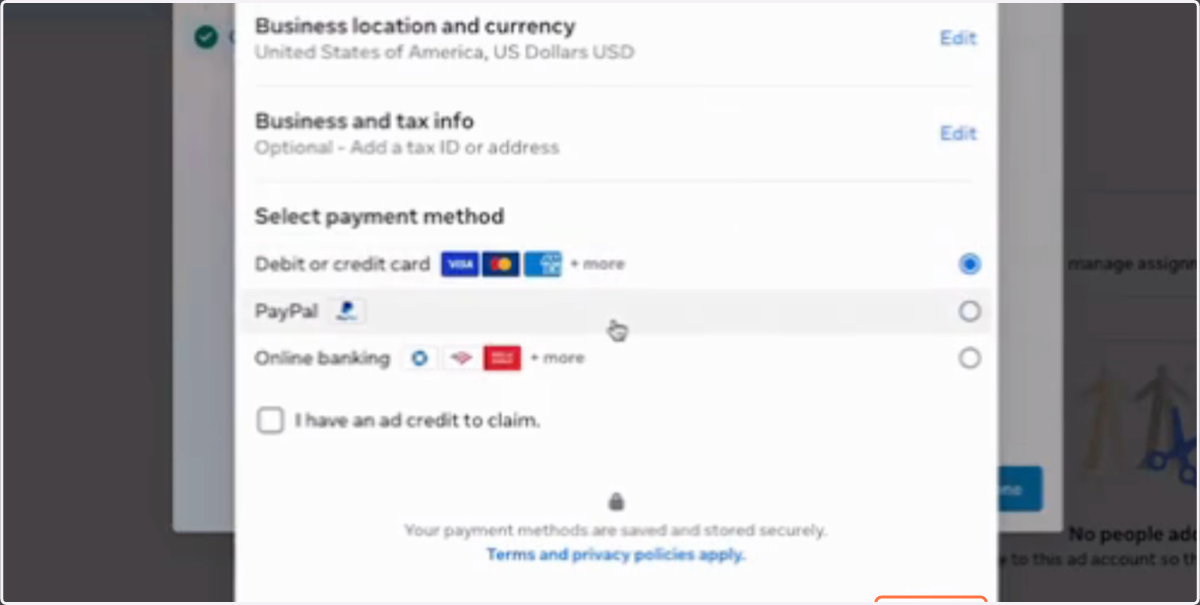
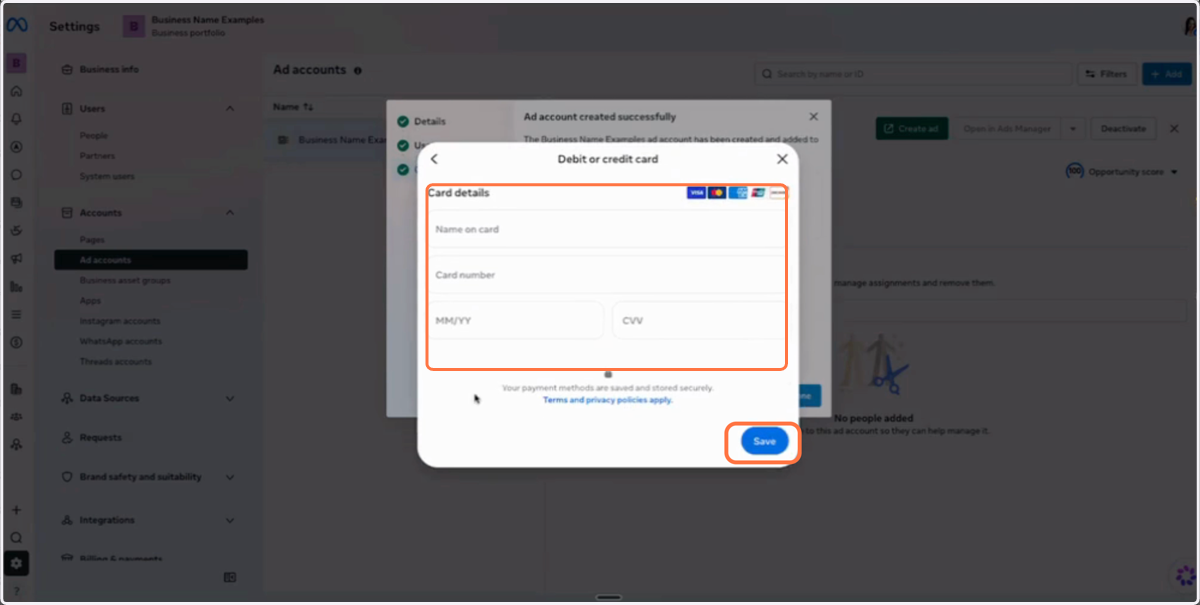
37. Enter your Card detail and Click on Save
38. Click on Partners
From the menu on the left
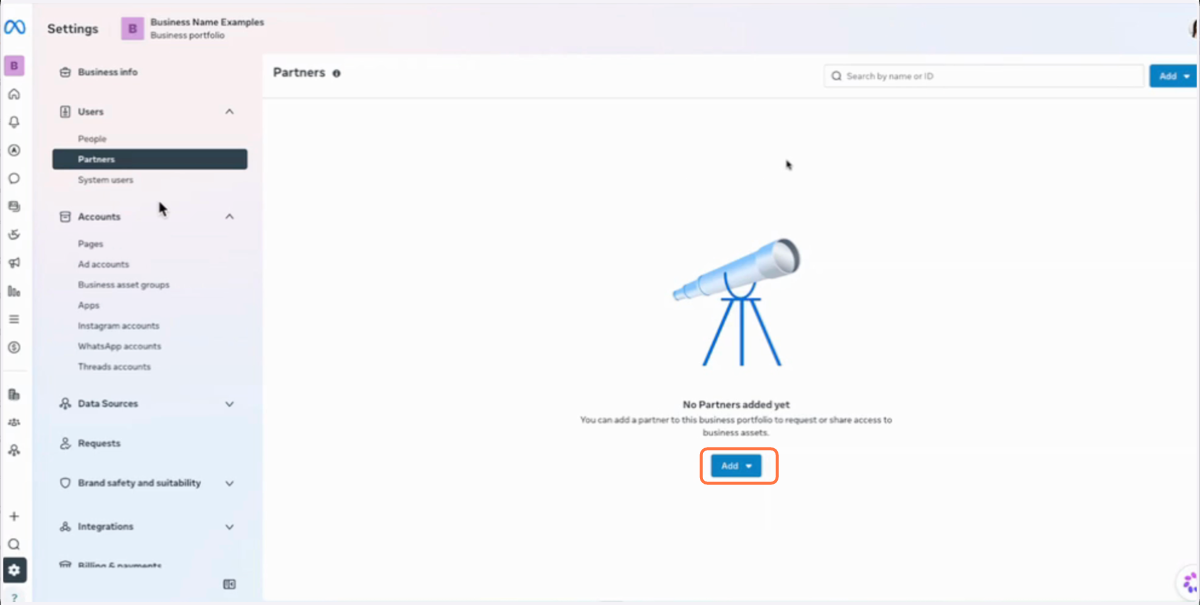
39. Click on Add
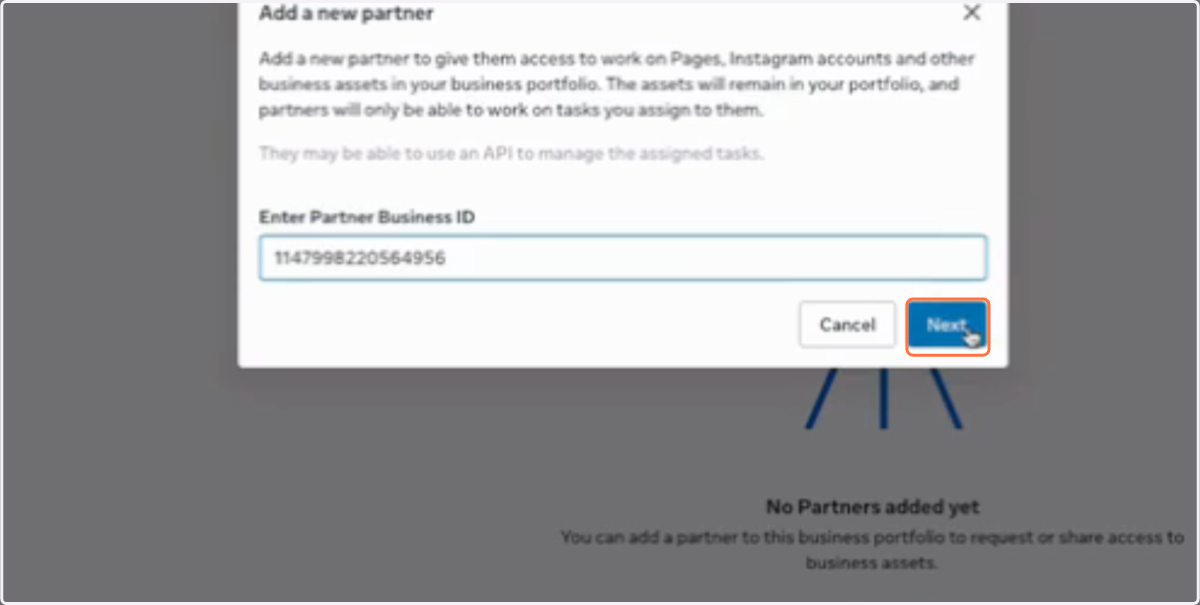
40. Add 1147998220564956 under Enter Partner Business ID
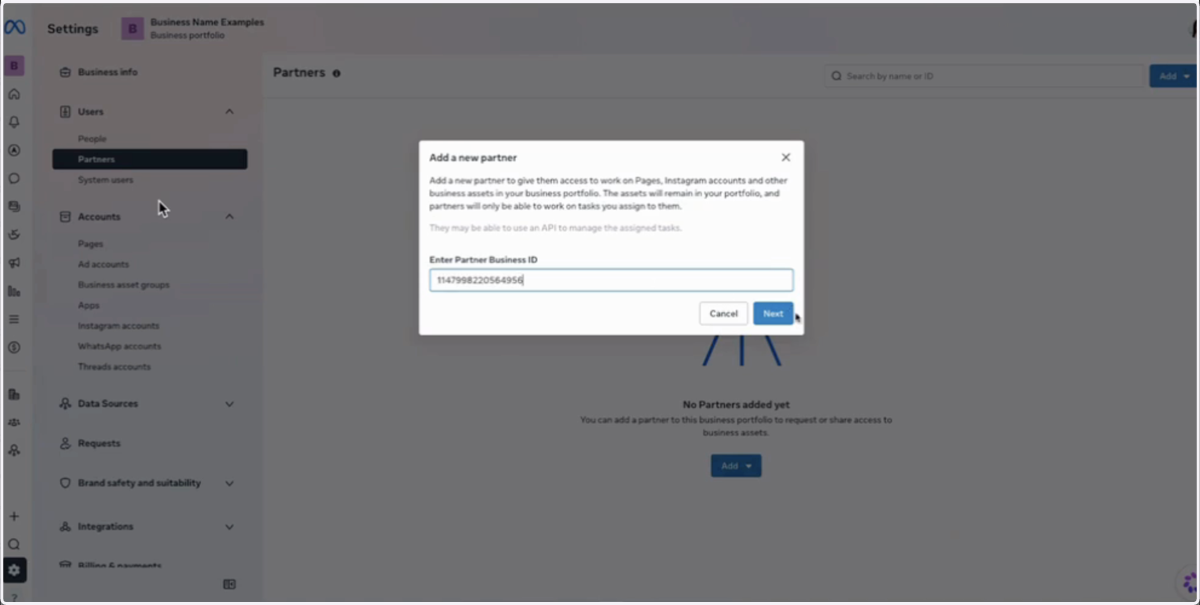
41. Click on Next
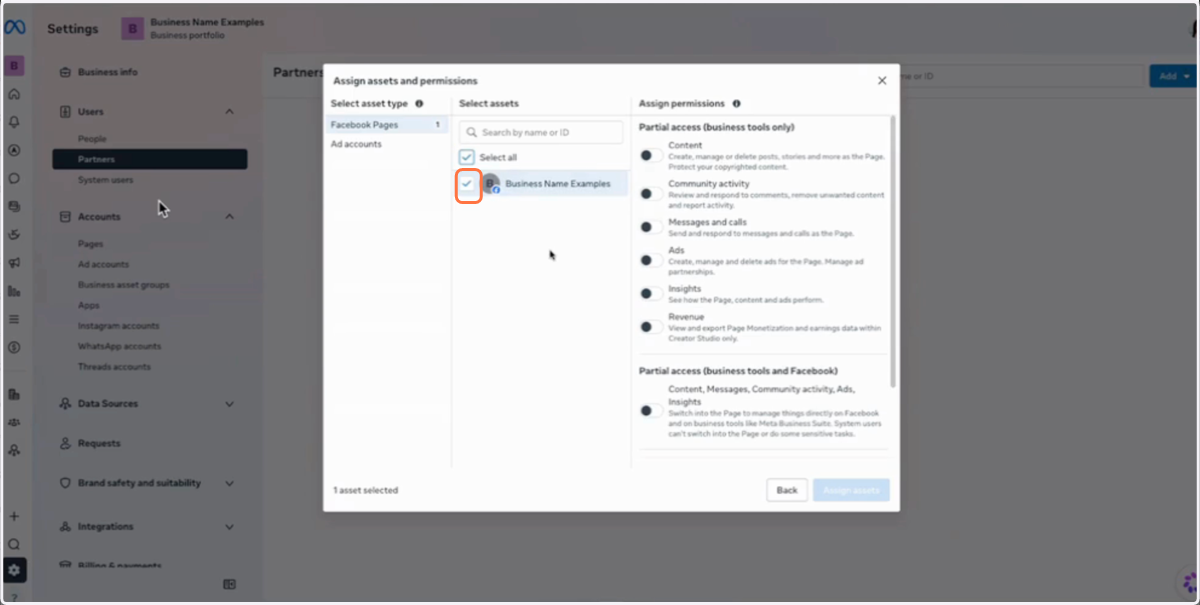
42. Under Facebook Pages, Select your Facebook Page
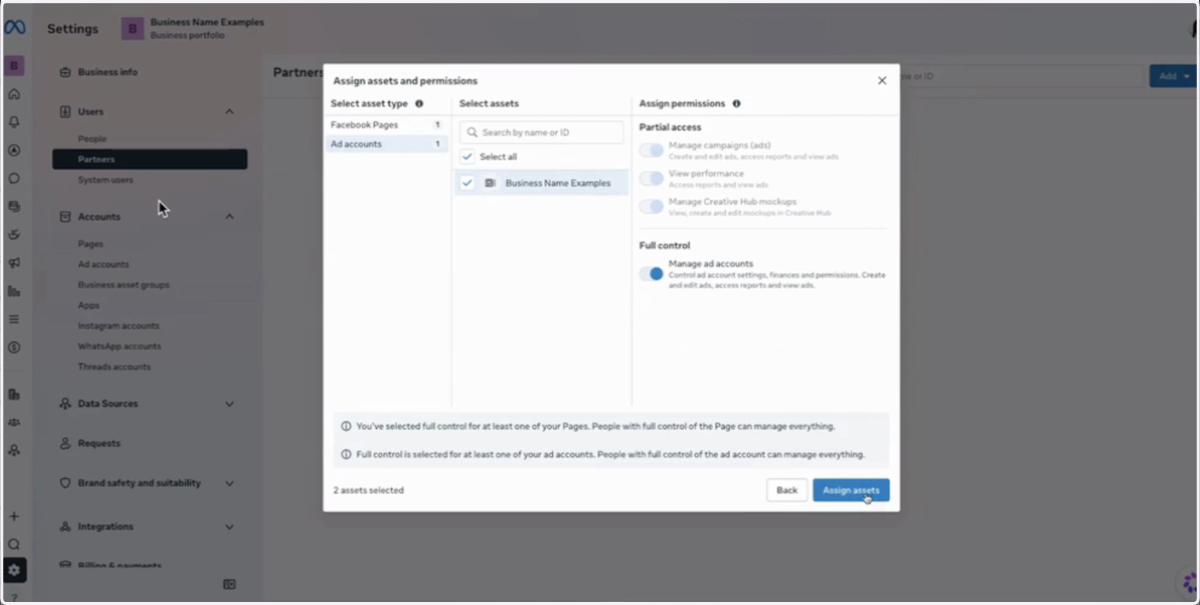
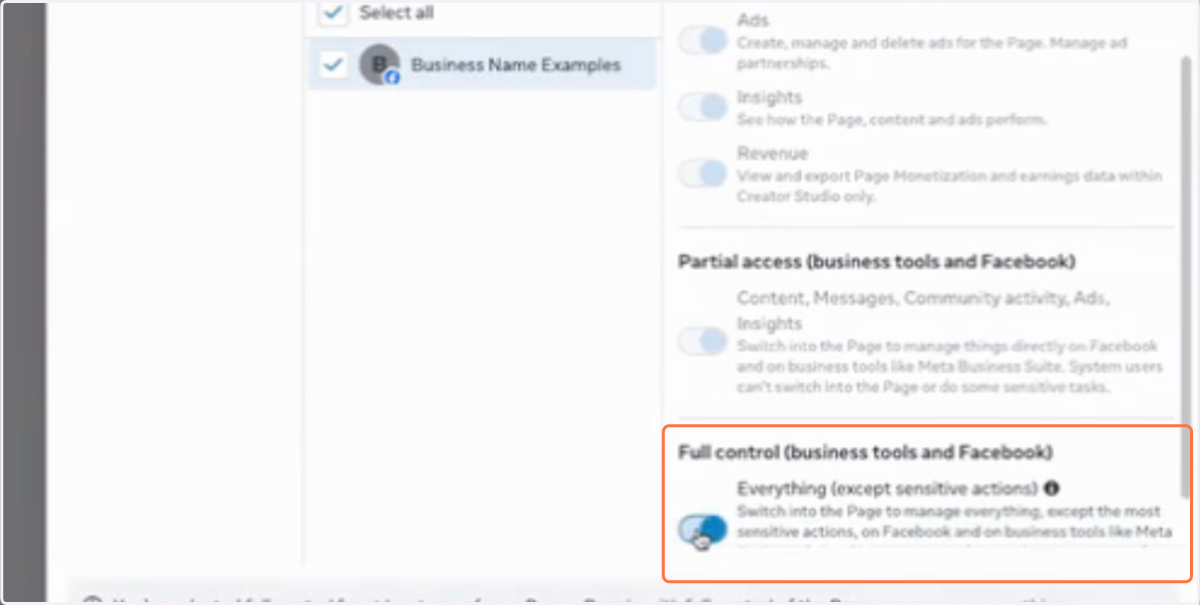
43. Toggle on Full control
If you can't see if stroll down
44. Under Ad accounts, Select your Ad account
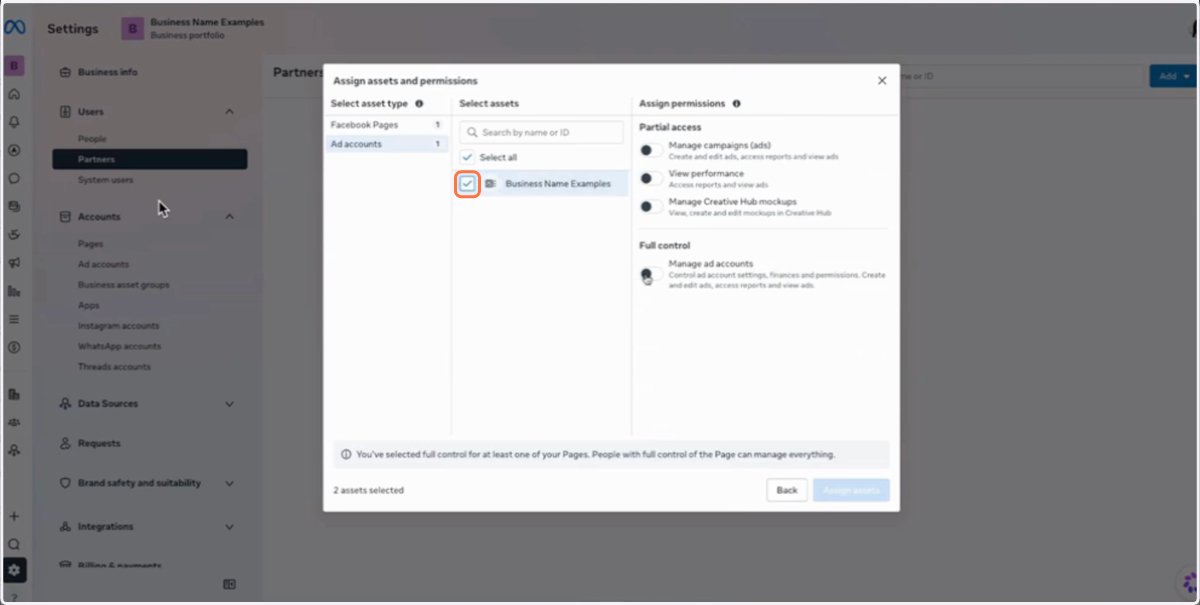
45. Toggle on Full control
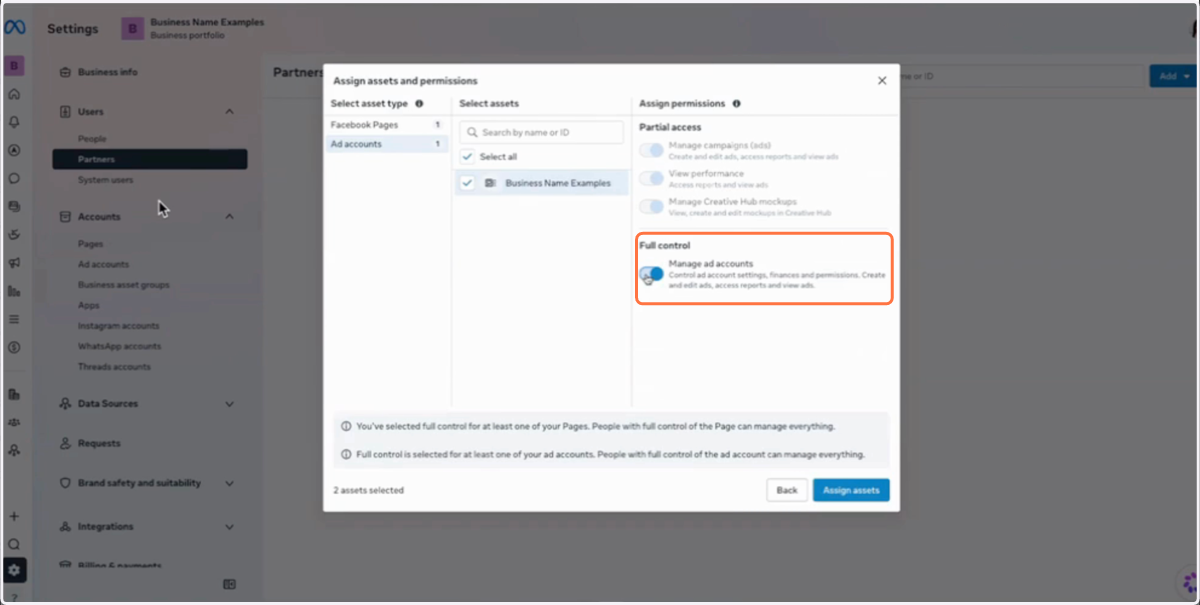
46. Click on Assign assets