How to Create a Loyalty Program in Affinect
Build a fully customised digital stamp card that rewards your guests for every visit or purchase. This guide walks you through setting up your loyalty program, customising its design, configuring rewards, assigning validators, and monitoring enrolled customers before publishing your program.
Affinect
1️⃣ Program Setup
Start by creating your loyalty program, selecting where it will be available, and configuring its validity, usage limits, and redemption settings.
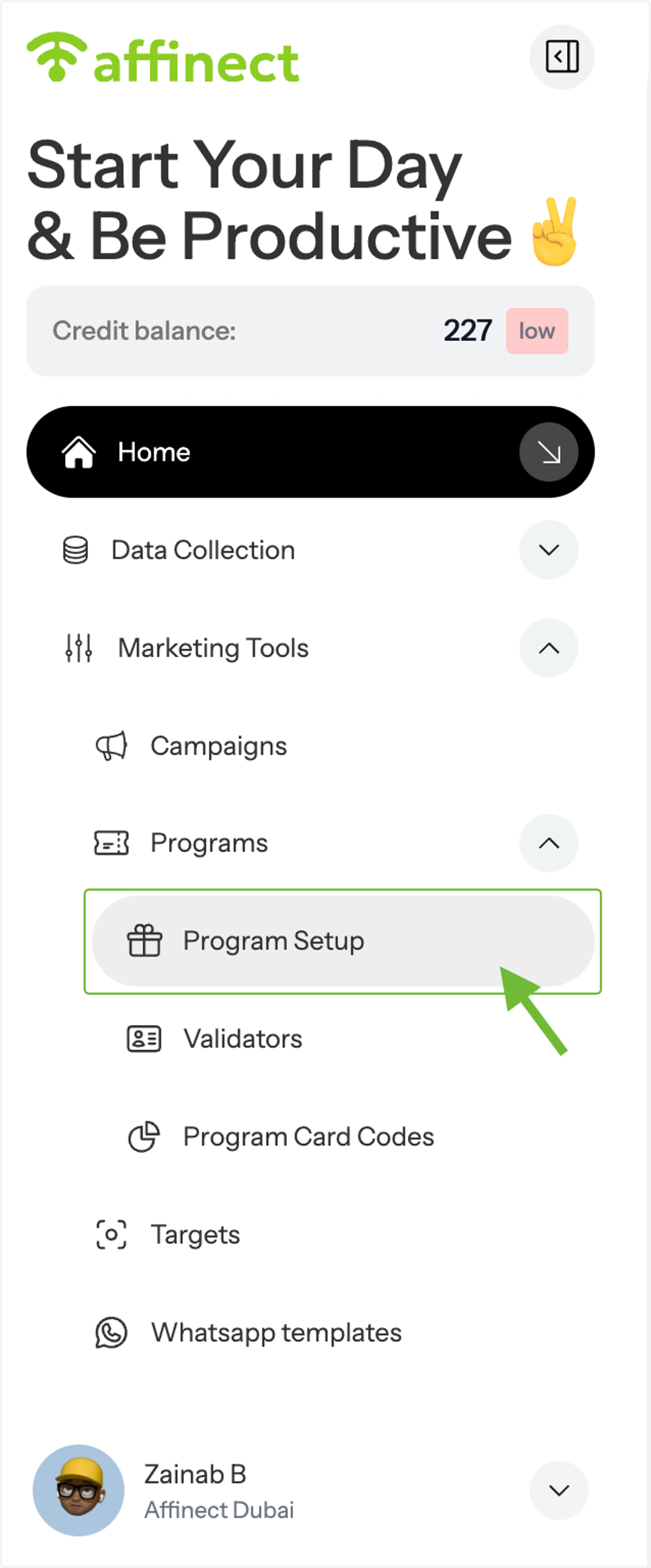
1. Open Program Setup
From the left-hand menu, navigate to Programs and select Program Setup.
2. Create a New Program
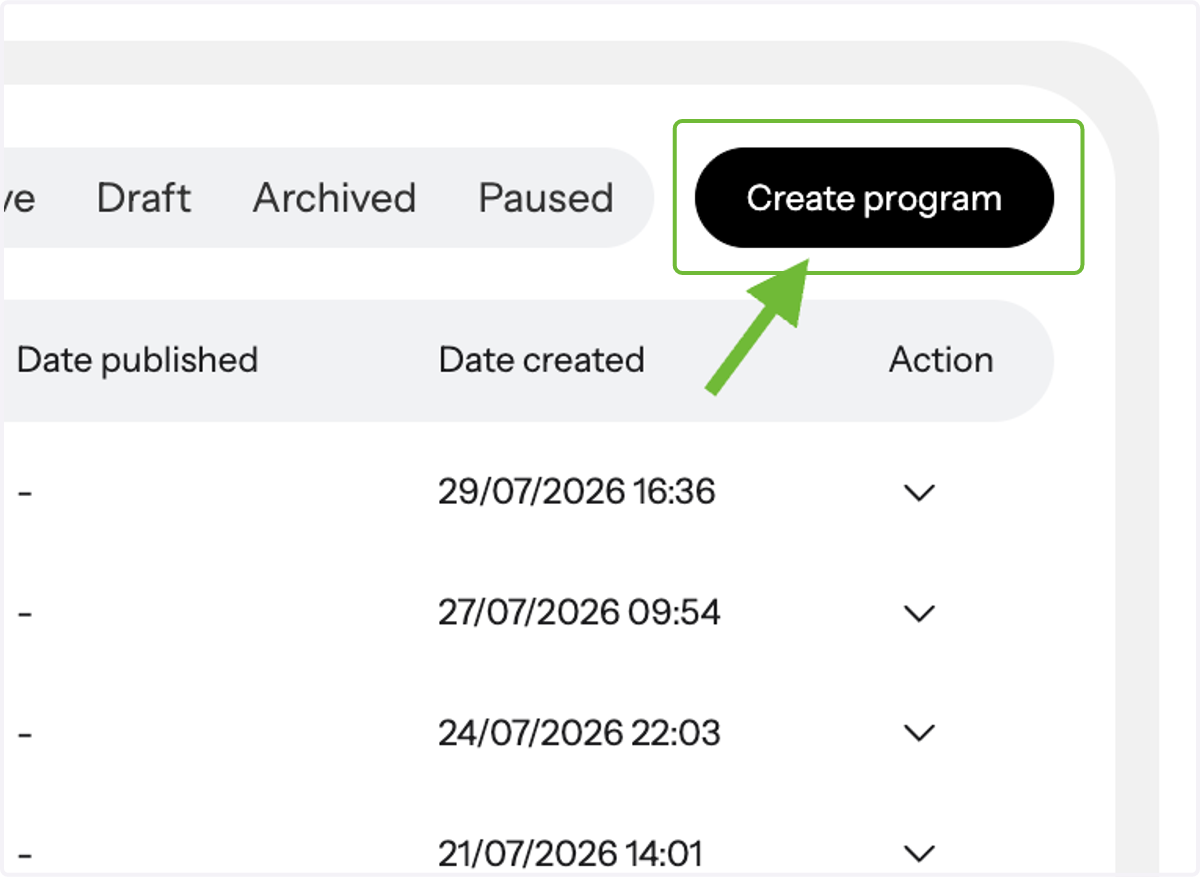
Your Program Setup page displays all existing programs, including both Stamp-Based Loyalty and Coupon-Based programs.
Here you can:
View each program's status (Live, Draft, Paused or Archived)
Edit existing programs
View program analytics from the Actions menu
To create a new program, click Create Program in the top-right corner.
3. Choose Your Program Type
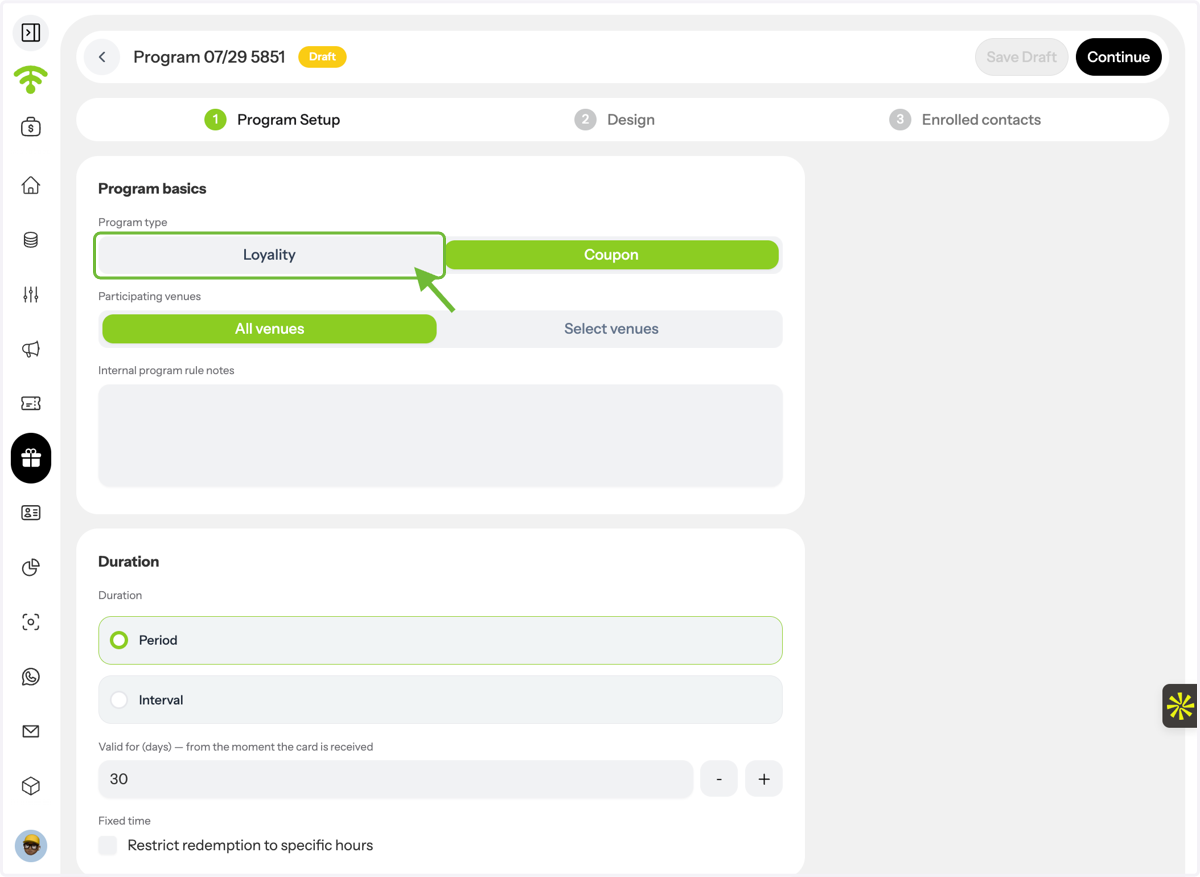
Select the type of program you would like to create:
Loyalty Program (Stamp Card)
Coupon Program
For this guide, select Loyalty Program.
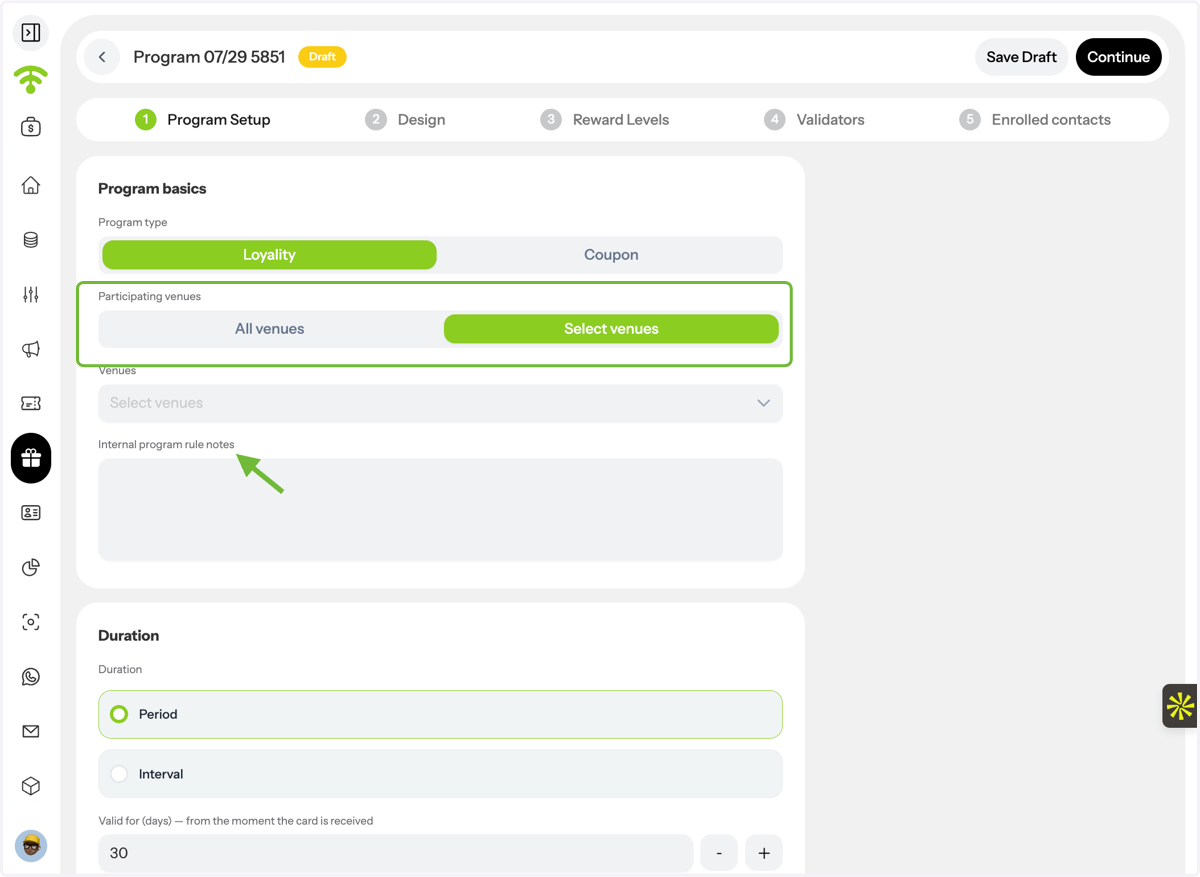
4. Select Your Venue
Choose where this loyalty program will be available.
You can:
Apply it to All Venues
Select one or multiple specific venues
You can also add Internal Program Notes for your staff. These notes are only visible internally and help document important information about the program
5. Set the Program Duration
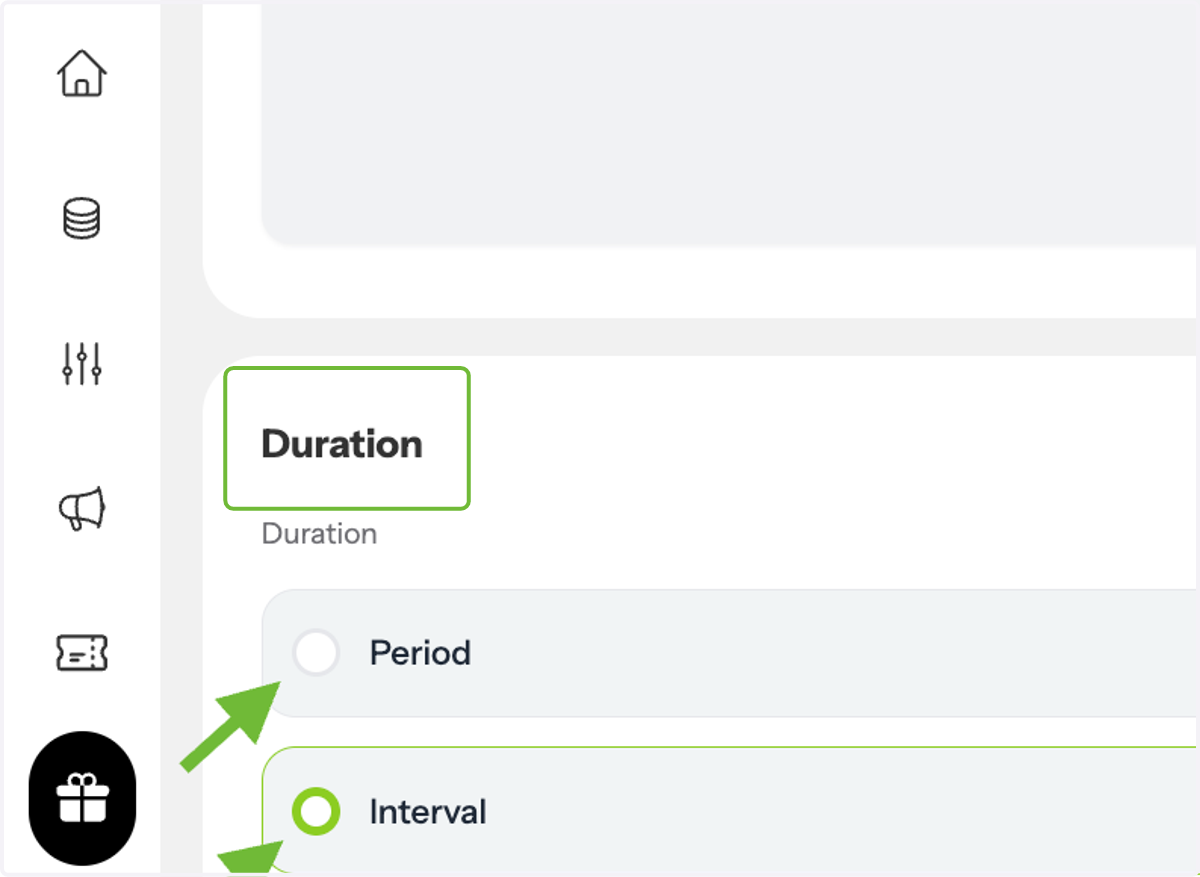
Choose how long your loyalty program will remain active.
Available options include:
Valid for a specific number of days
Valid between a start date and an end date
6. Set Program Usage Limits
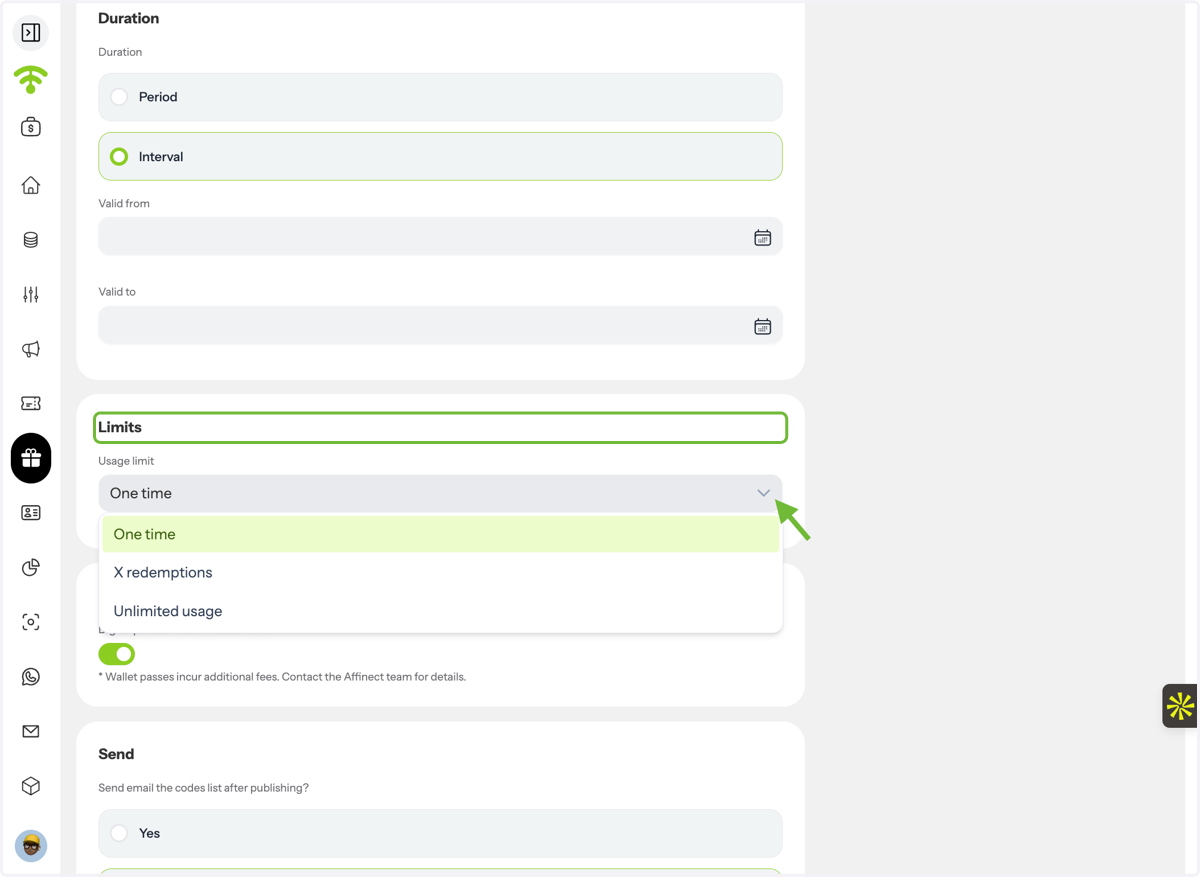
Choose how often a guest can redeem rewards within this program.
Options include:
One-time redemption
A specific number of redemptions
Unlimited redemptions
7. Configure Additional Options
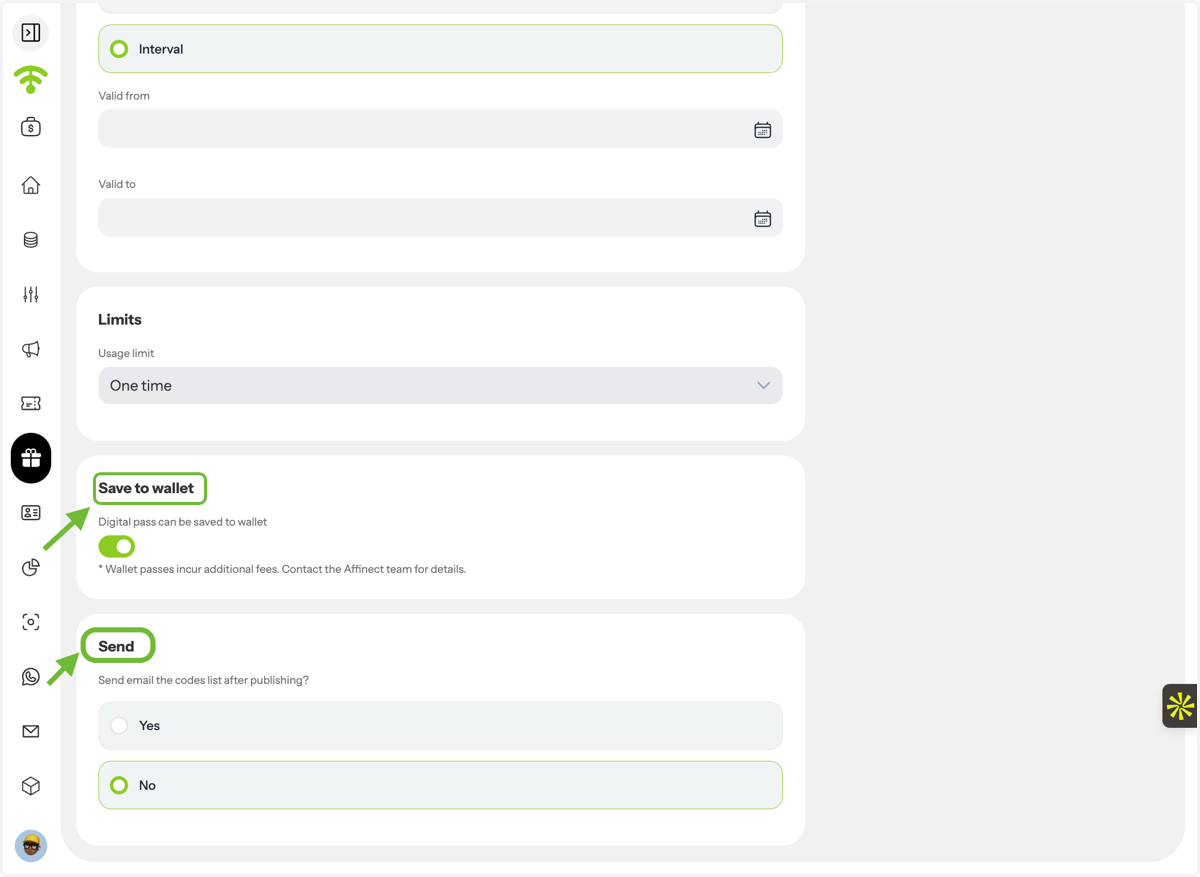
You can enable additional features before publishing:
Allow guests to save the loyalty card to their digital wallet
Receive redemption codes by email after the program is published for easier redemption management.
2️⃣ Design
Customise the appearance of your digital stamp card to match your brand, including colours, logos, stamps, content, and redemption settings.
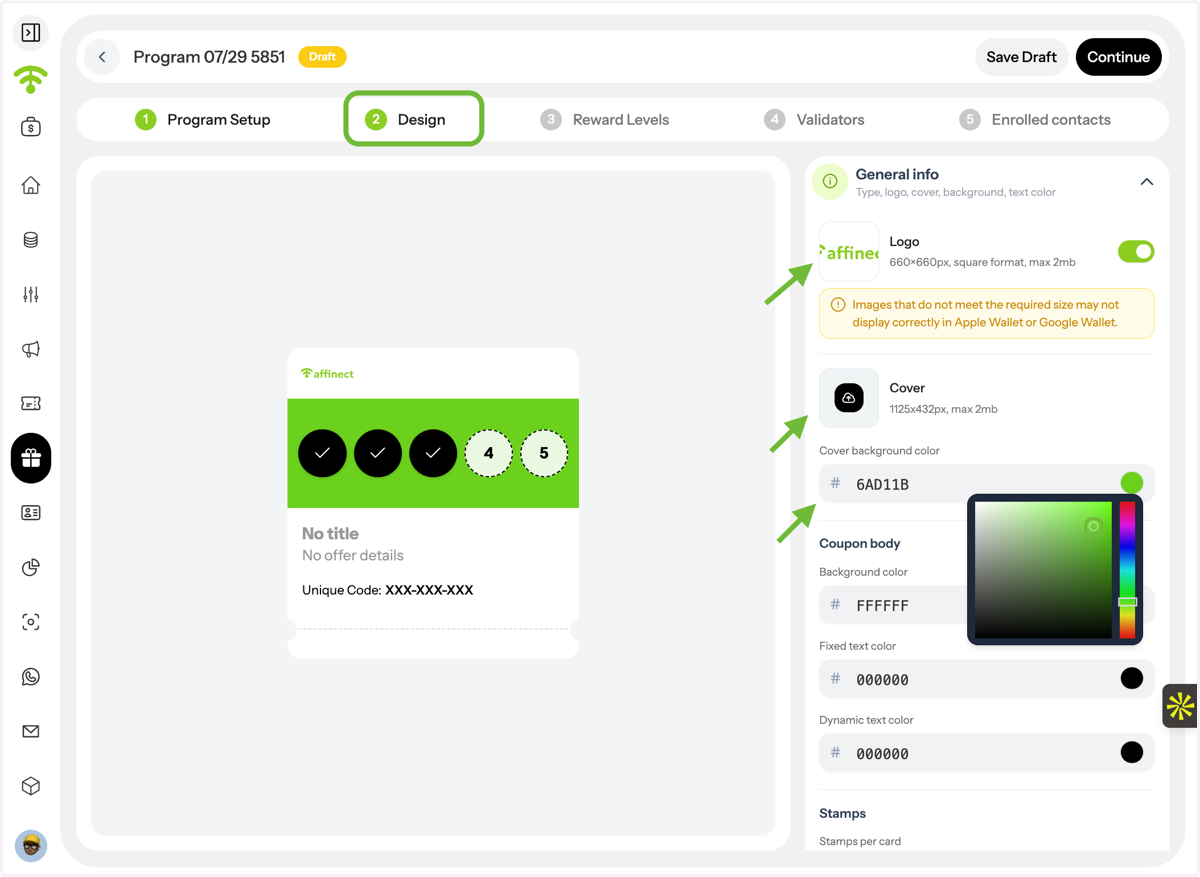
8. Customise General Appearance
Under General Information, personalise your loyalty card by:
Uploading your logo (or hiding it using the toggle)
Uploading a cover image
Selecting a background colour instead of an image
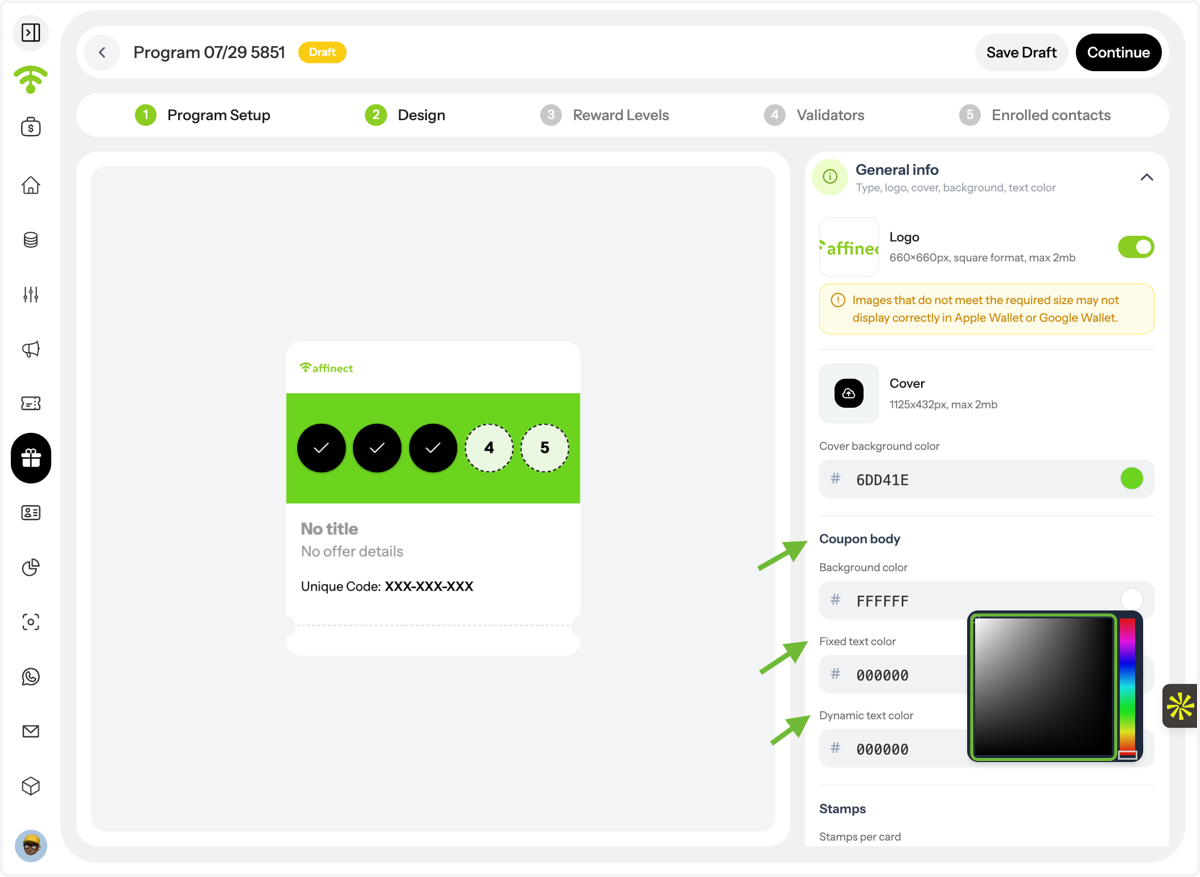
9. Customise Card Colours
Adjust the appearance of your loyalty card by selecting:
Card background colour
Fixed text colour
Dynamic text colour
This helps maintain consistency with your brand identity.
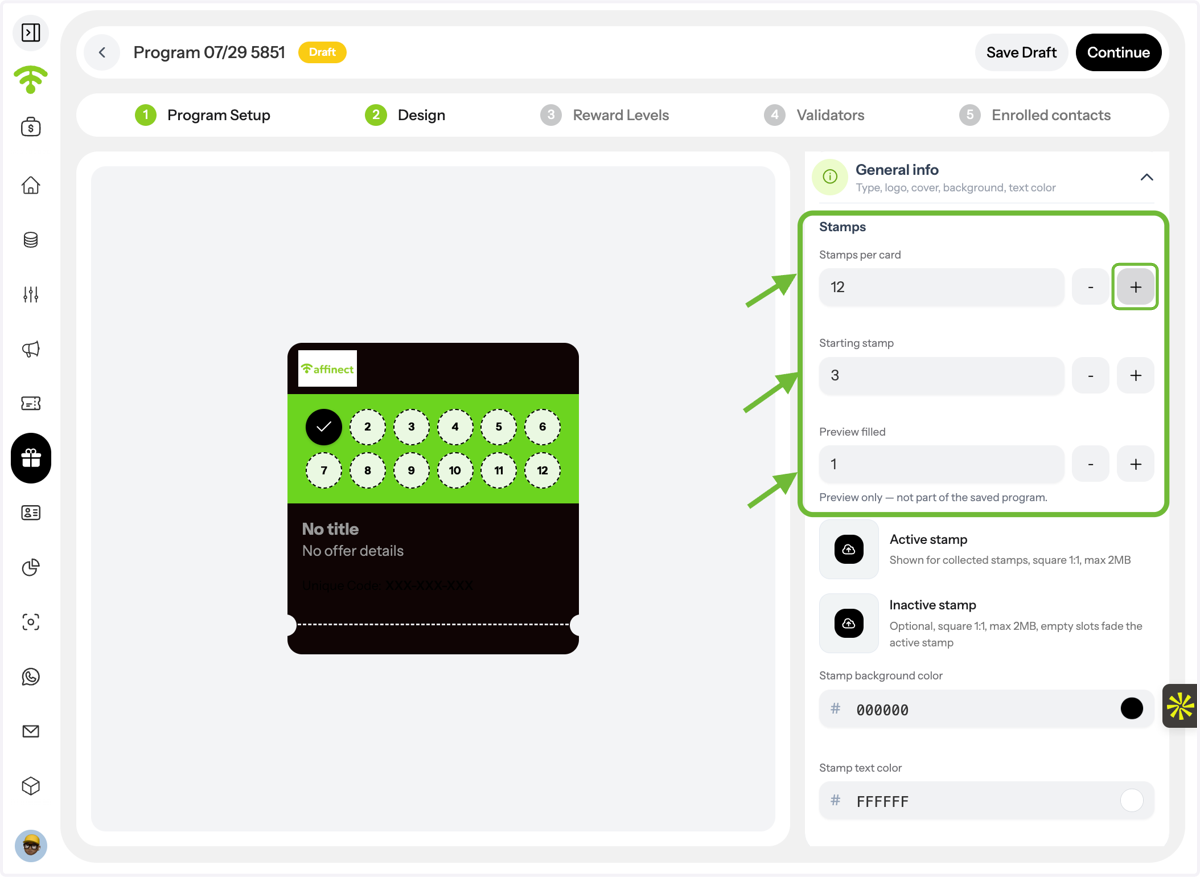
10. Configure Stamp Settings
Choose how your digital stamp card works.
You can configure:
Total number of stamps (up to 12)
Starting Stamps – the number of stamps guests receive immediately when they first join the program. This is useful for welcome promotions or giving guests a head start.
Preview Filled Stamps – displays sample completed stamps while you're designing the card. This only affects the preview and does not impact the live program.
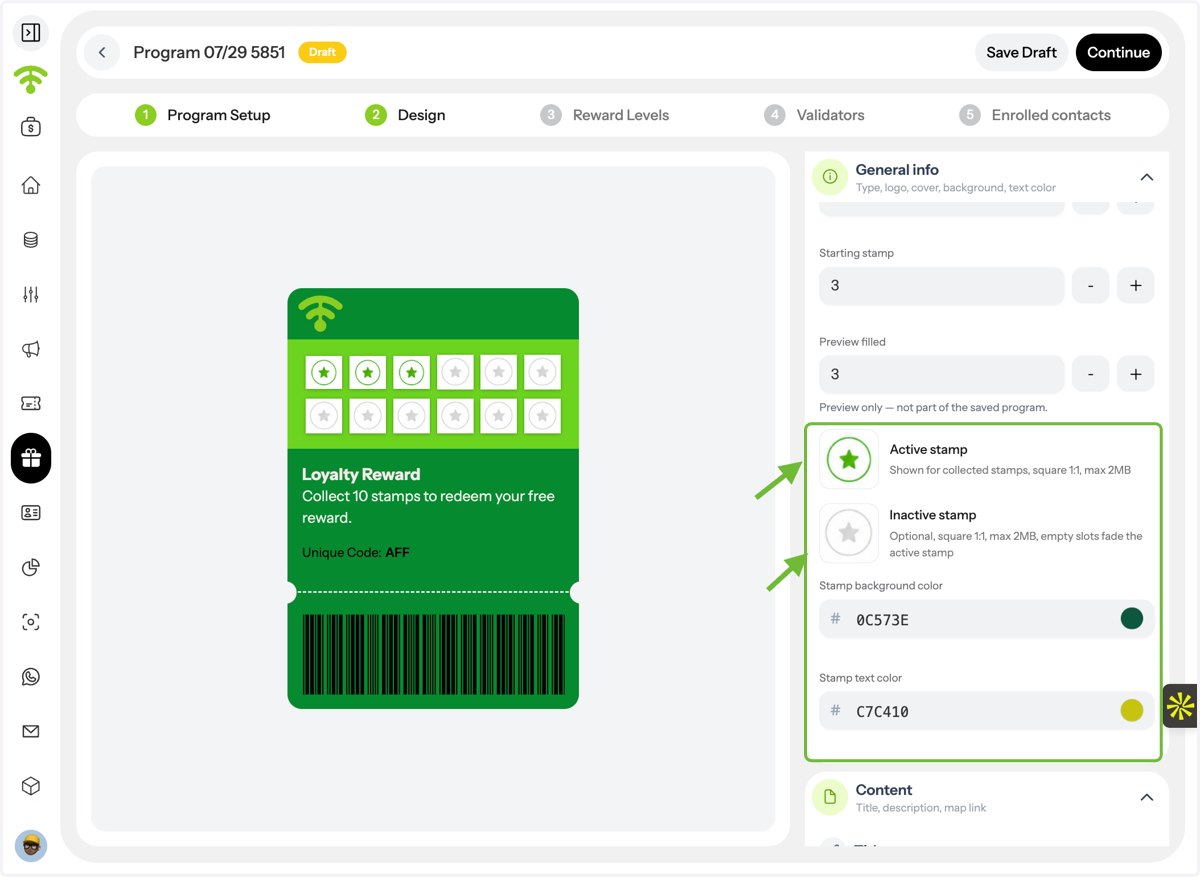
11. Customise Stamp Design
Upload custom images for both:
Active Stamp
Inactive Stamp
For best results, ensure your images match the recommended dimensions.
You can also customise:
Stamp background colour
Stamp text colour
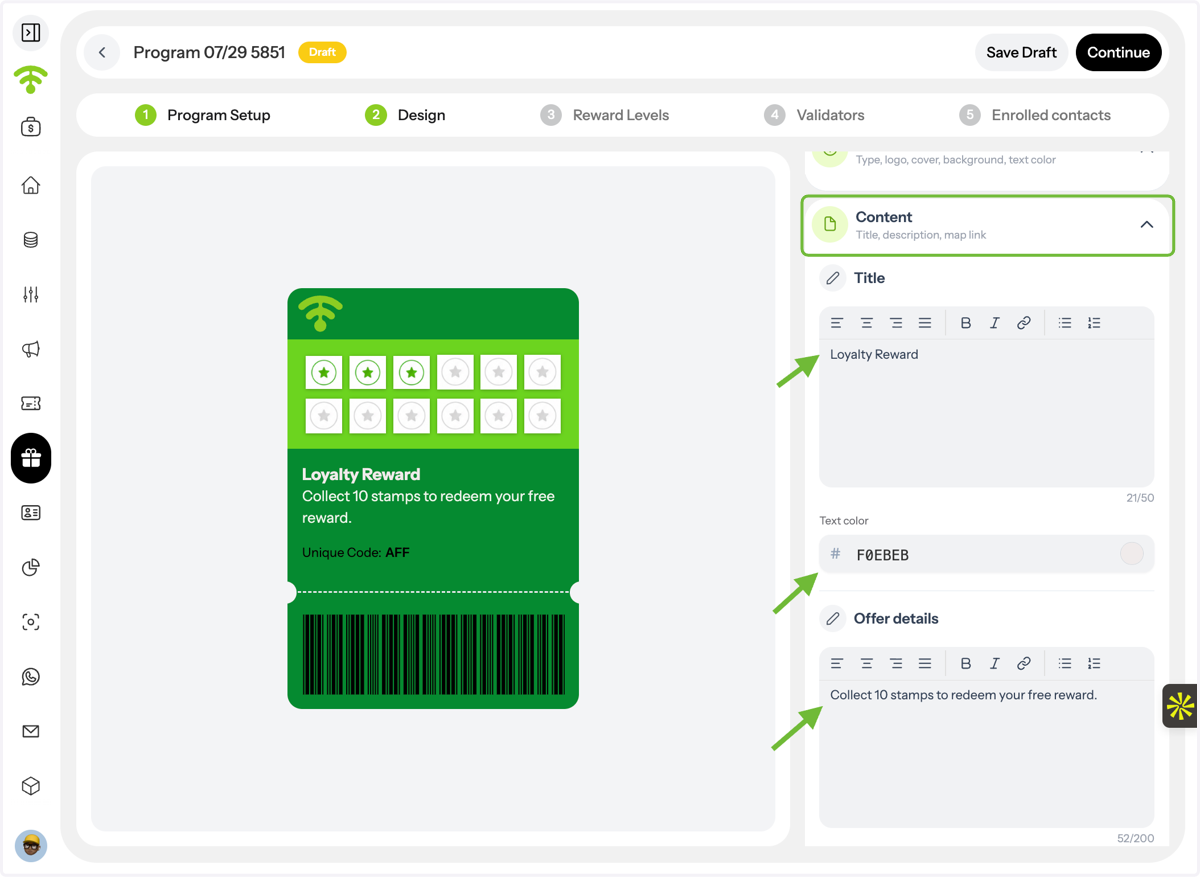
12. Add Program Content
Enter the information guests will see on their loyalty card.
This includes:
Program title
Offer details or reward description
You can also customise the text colour.
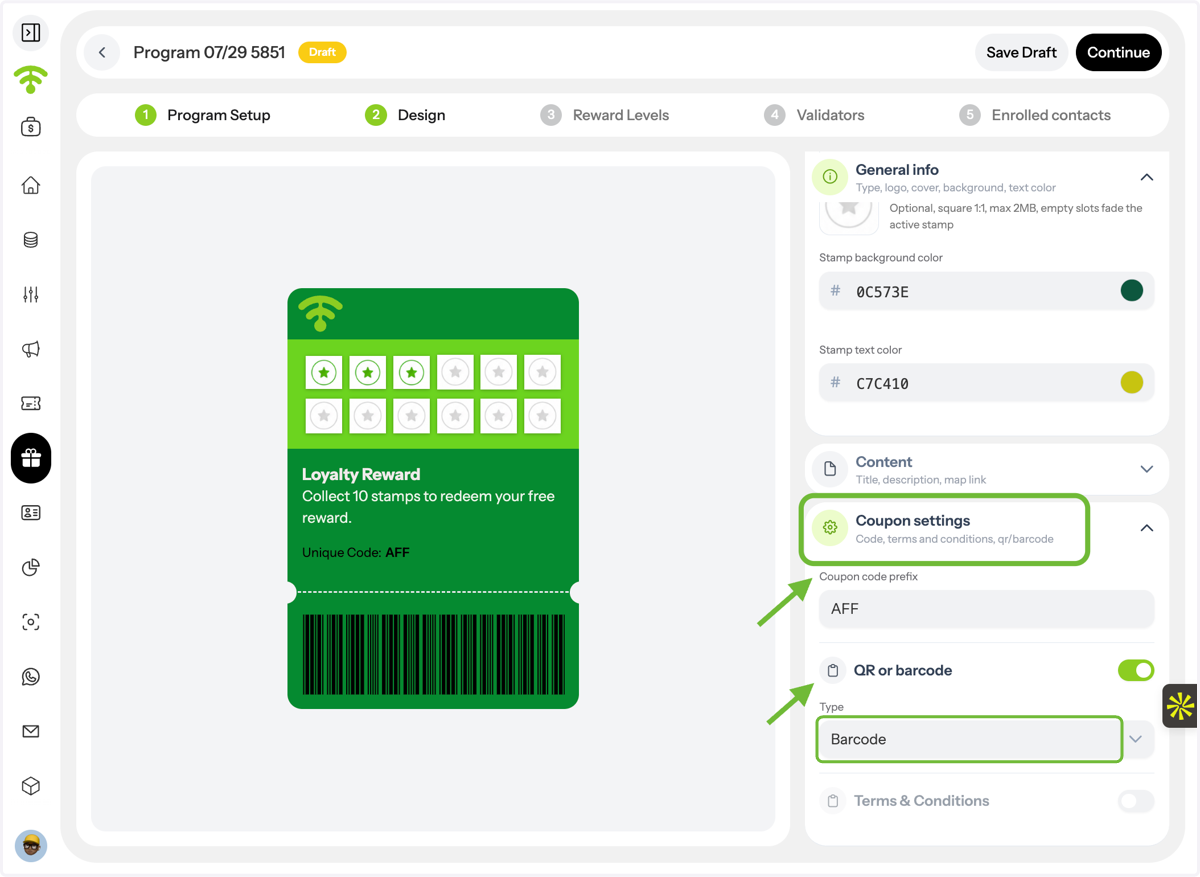
13. Configure Redemption Settings
Under Coupon Settings, configure how rewards are redeemed.
Options include:
Coupon code prefix
QR Code or Barcode format
Terms & Conditions (optional)
14. Configure Coupon Settings
Set a coupon code prefix to identify codes associated with your program.
The prefix forms the beginning of the redemption code, while Affinect generates the remaining characters to create the complete code.
For example, if your prefix is AFF, a generated code could look like AFF7K4P2.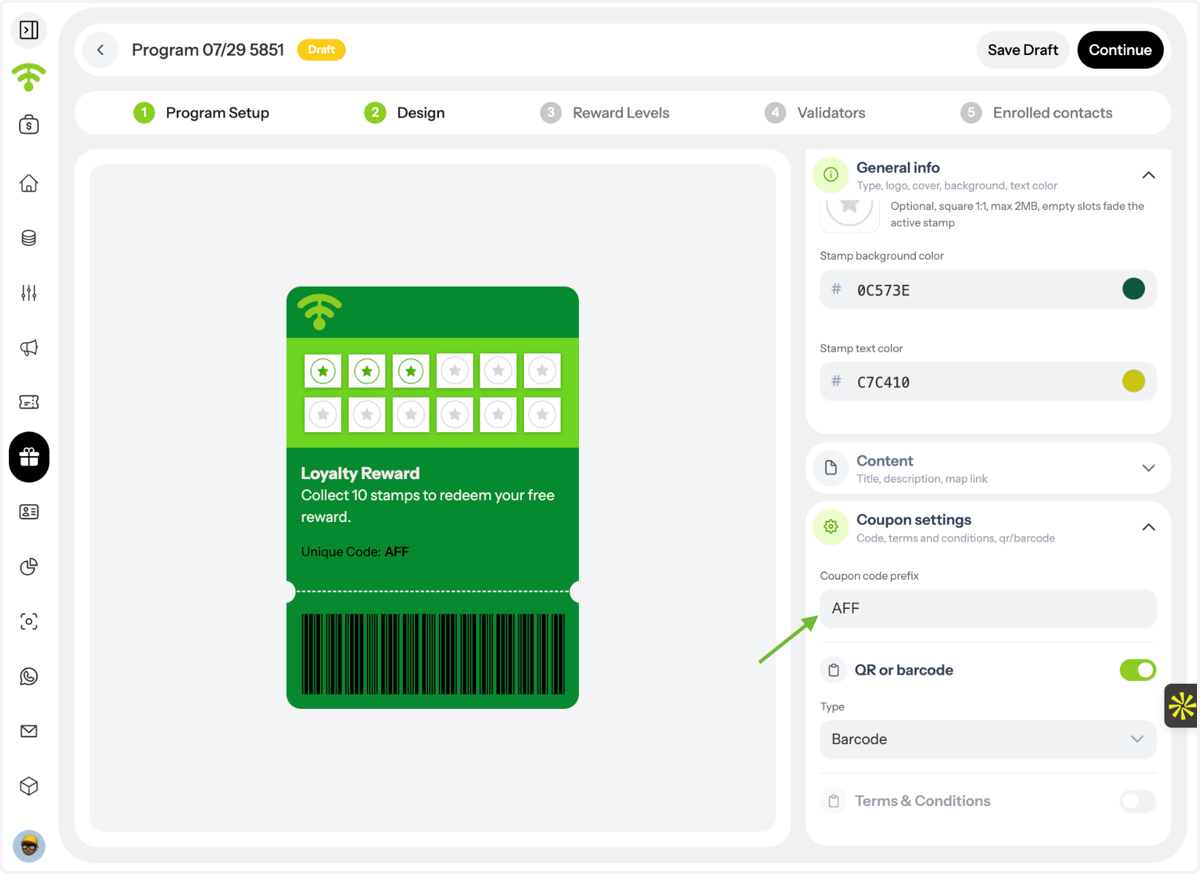
3️⃣ Reward Levels
Create milestones that unlock rewards as guests collect more stamps.
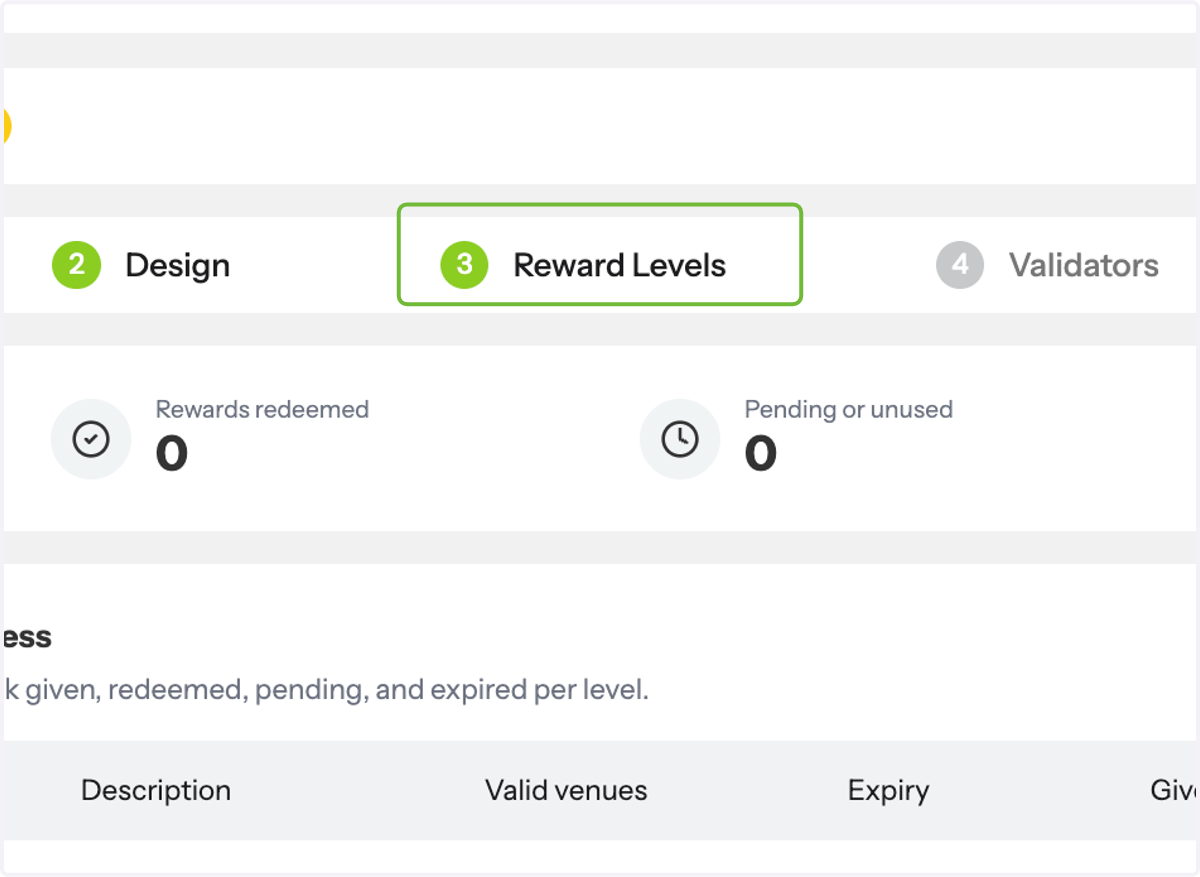
15. Review Reward Analytics
The Reward Levels page includes an overview of your program performance.
You'll see:
Stamp Progress – how guests are progressing towards rewards
Rewards Issued – rewards that have been earned
Rewards Redeemed – rewards that have been successfully claimed
Pending Rewards – rewards waiting to be redeemed
Unused Rewards – rewards that expired or were never redeemed
Median Issue to Redeem – the median amount of time it takes guests to redeem a reward after it has been issued. This helps you understand how quickly customers typically claim their rewards.
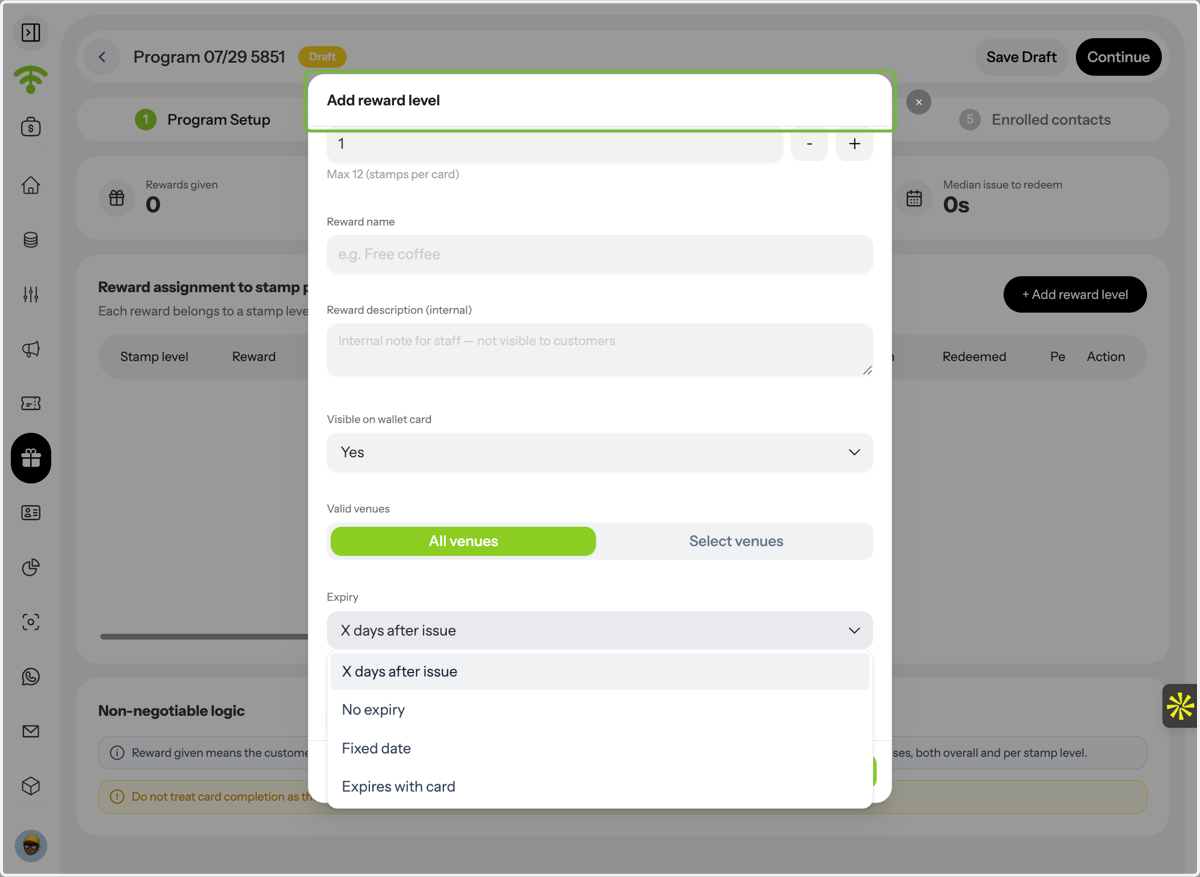
16. Add Reward Levels
Create one or more reward milestones by defining:
Number of stamps required to unlock the reward
Reward name
Reward description
Whether the reward is visible on the wallet card
Eligible venues
Reward expiry date
Guests will automatically unlock rewards once they collect the required number of stamps.
4️⃣ Validators
Assign staff members who are authorised to issue stamps and validate customer rewards.
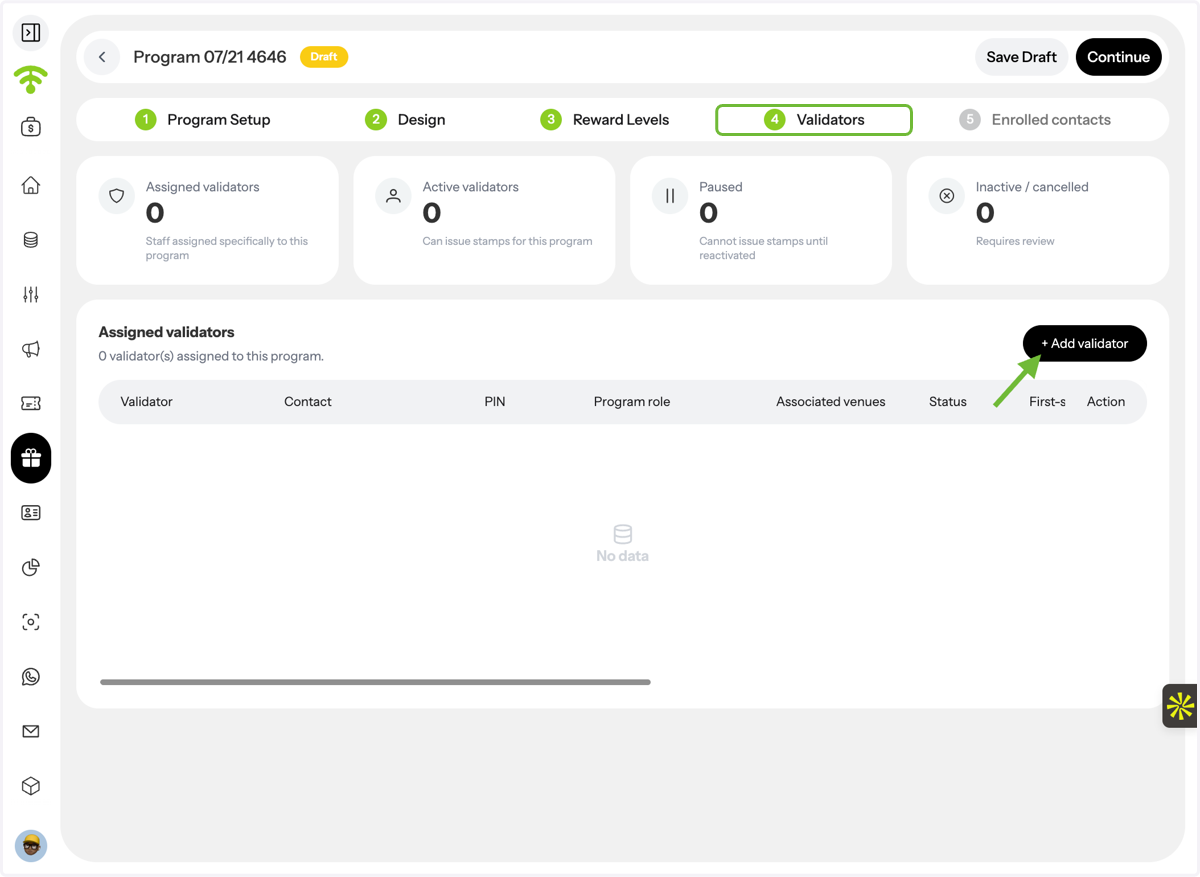
17. Manage Validators
The Validators page provides an overview of all assigned validators.
You can view their status, including:
Active
Assigned
Paused
Cancelled
You can also add additional validators at any time.
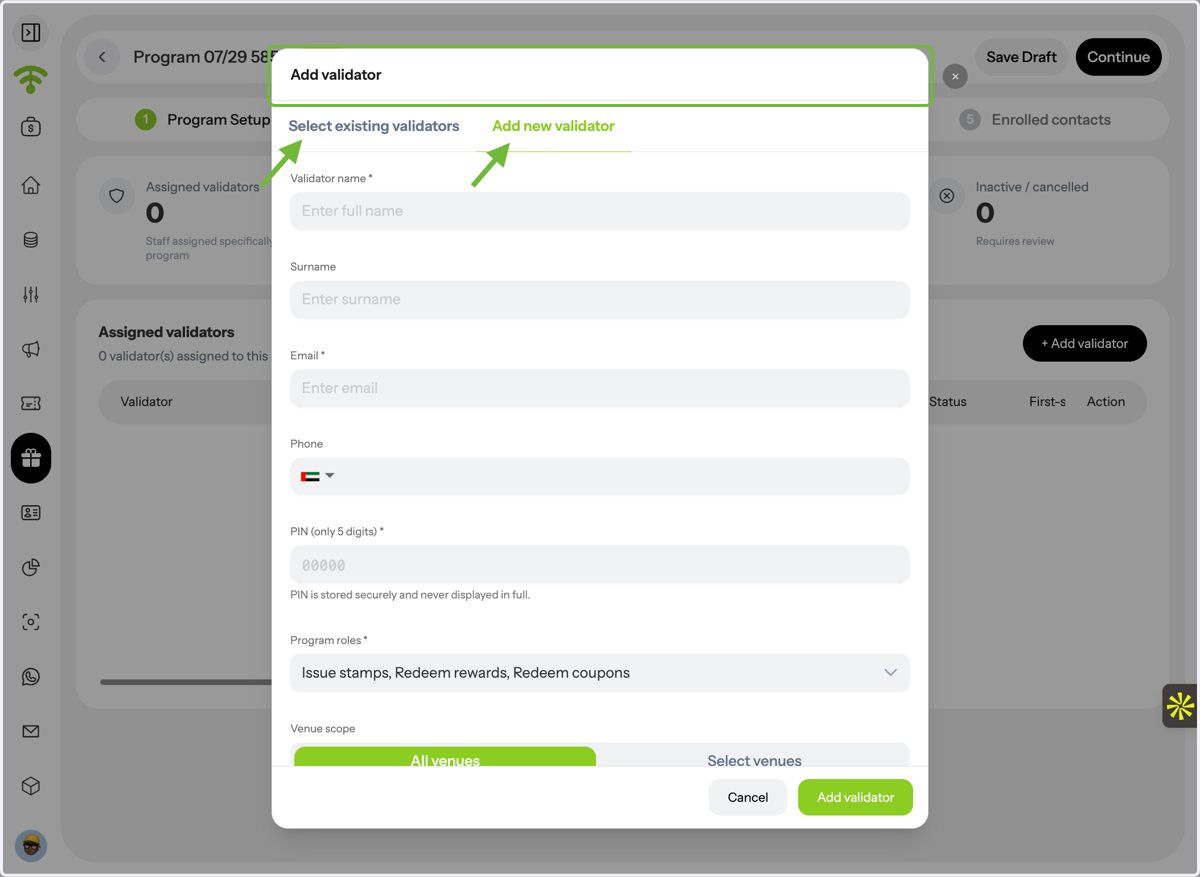
18. Select or Create a Validator
Choose an existing validator from your organisation or create a new validator. Validators are responsible for issuing stamps and validating reward redemptions.
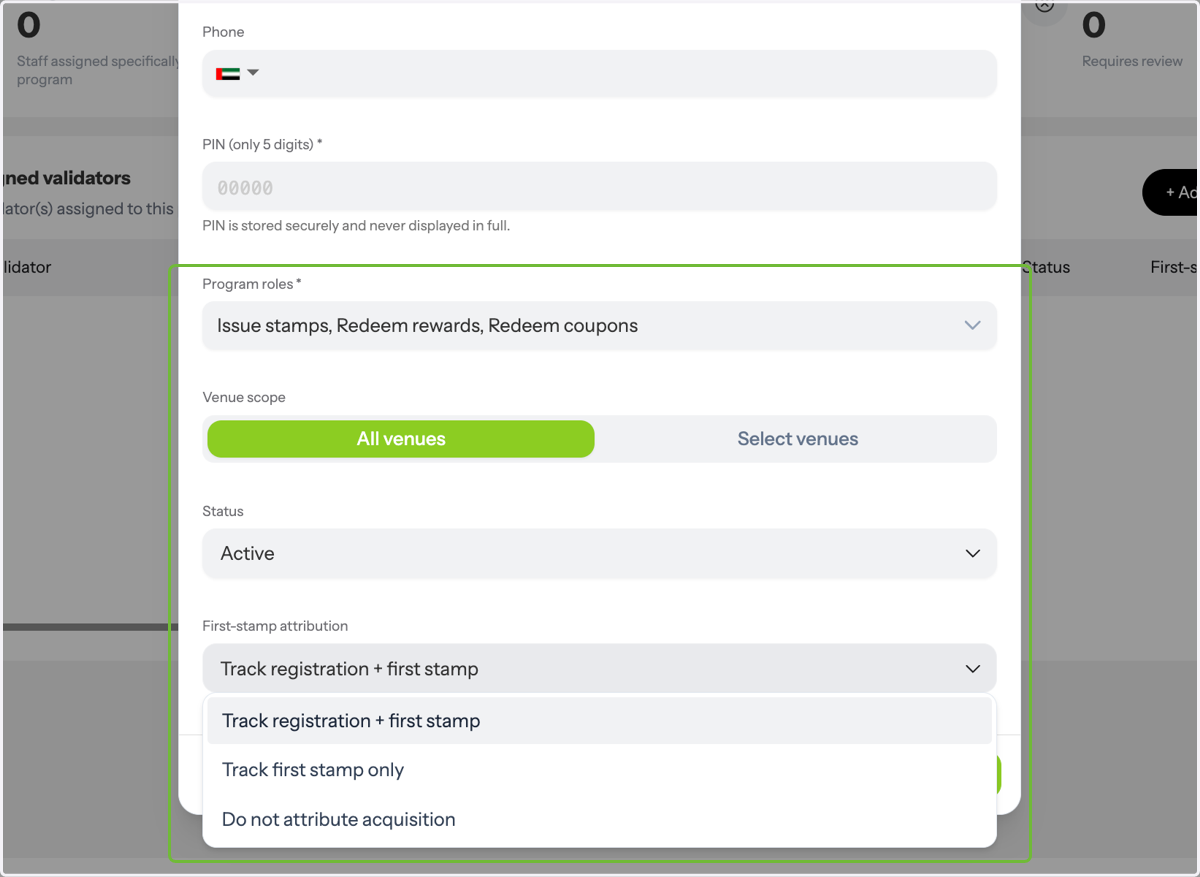
19. Assign Validator Permissions
Configure each validator by selecting:
Their program role
Their First Stamp Attribution, which determines how the first stamp is issued to newly enrolled guests.
5️⃣ Enrolled Contacts
Monitor guests participating in your loyalty program and track overall program performance before publishing.
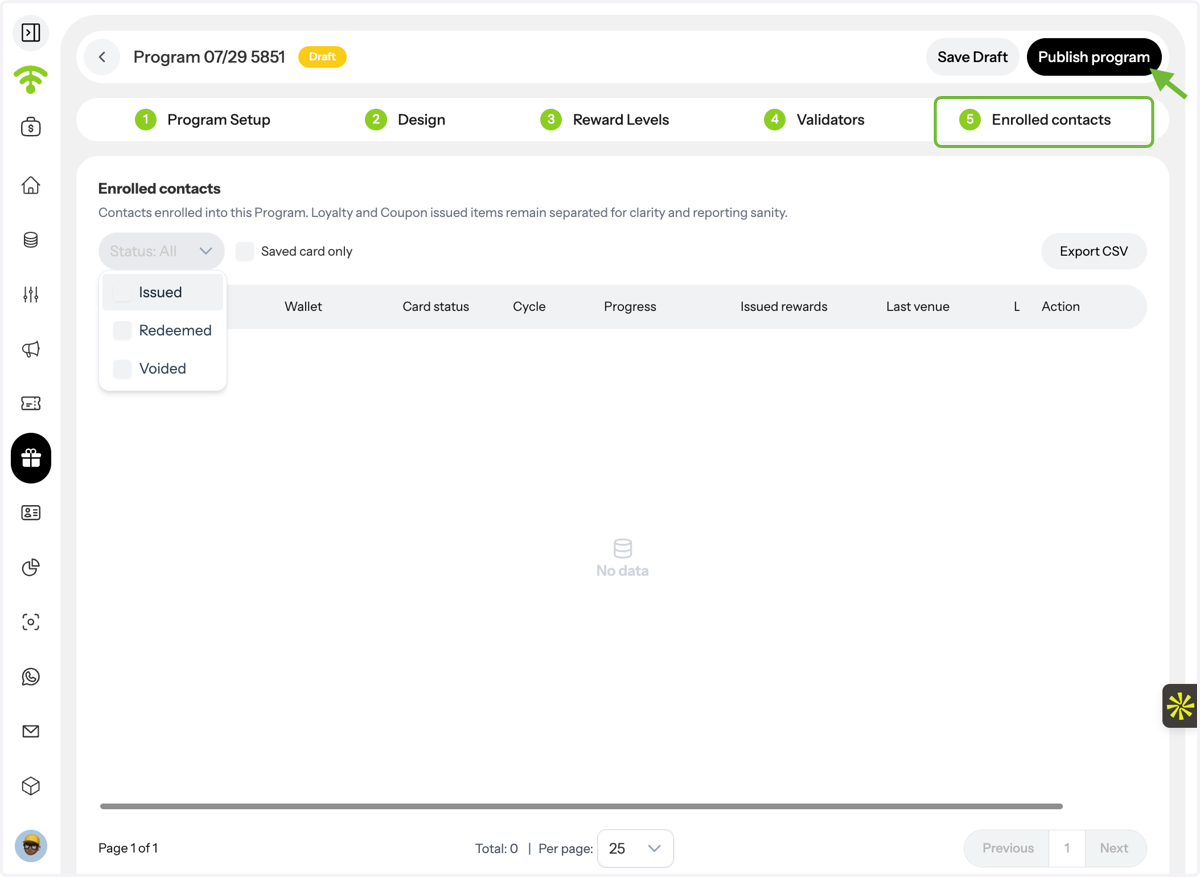
20. Review Enrolled Contacts & Publish
The Enrolled Contacts section provides an overview of all guests enrolled in the loyalty program.
You'll be able to view:
Cards issued
Rewards redeemed
Voided cards
Saved wallet cards
You can also export your enrolled contacts for reporting or further analysis.
Once you've reviewed your settings, click Publish in the top-right corner to make your loyalty program live.
Tada! Your digital stamp loyalty program is now ready for guests to start collecting stamps and unlocking rewards.