How to Create a Filter for Accepted & Tentative Meeting Invites
Inbox (11) - agruse@mascience.org - Milwaukee Academy of Science Mail
Go to your Gmail account to begin setting up your email filters!
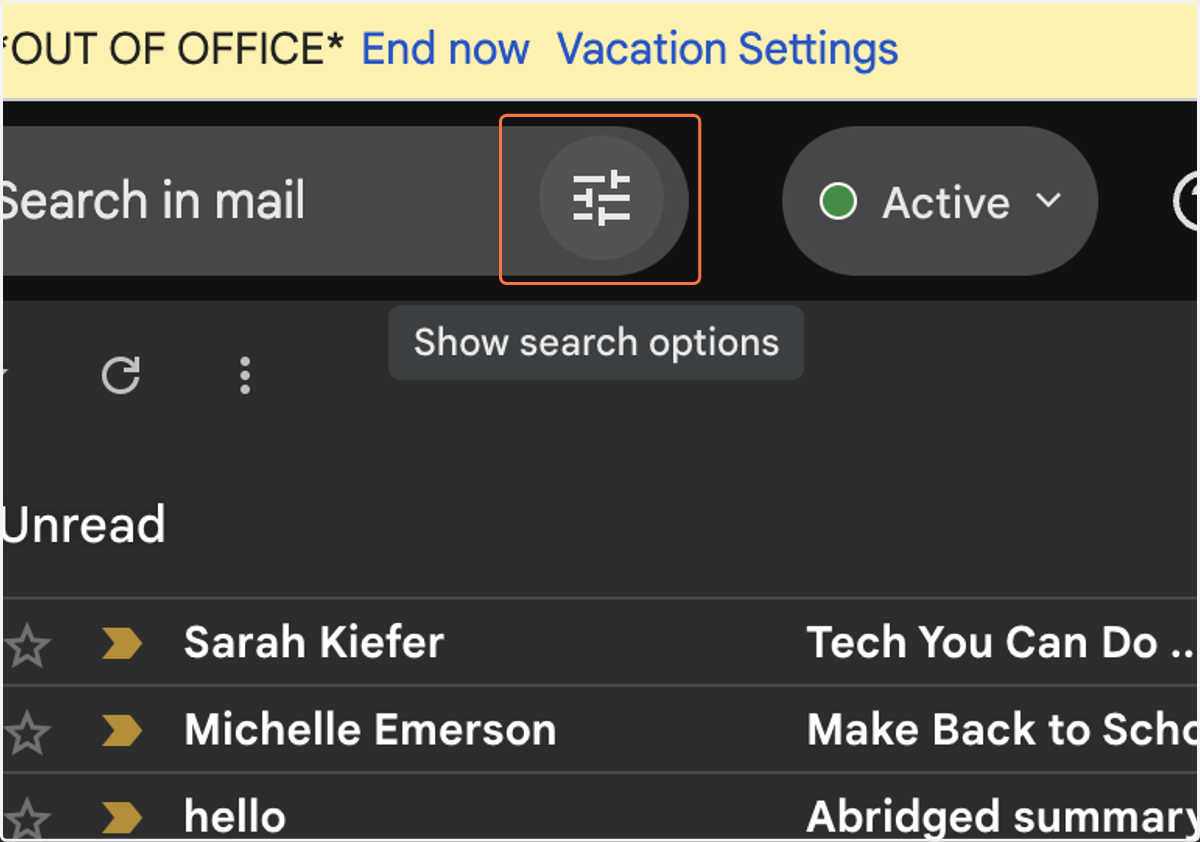
1. Click on the "Search Options" Icon in the "Search in mail" window
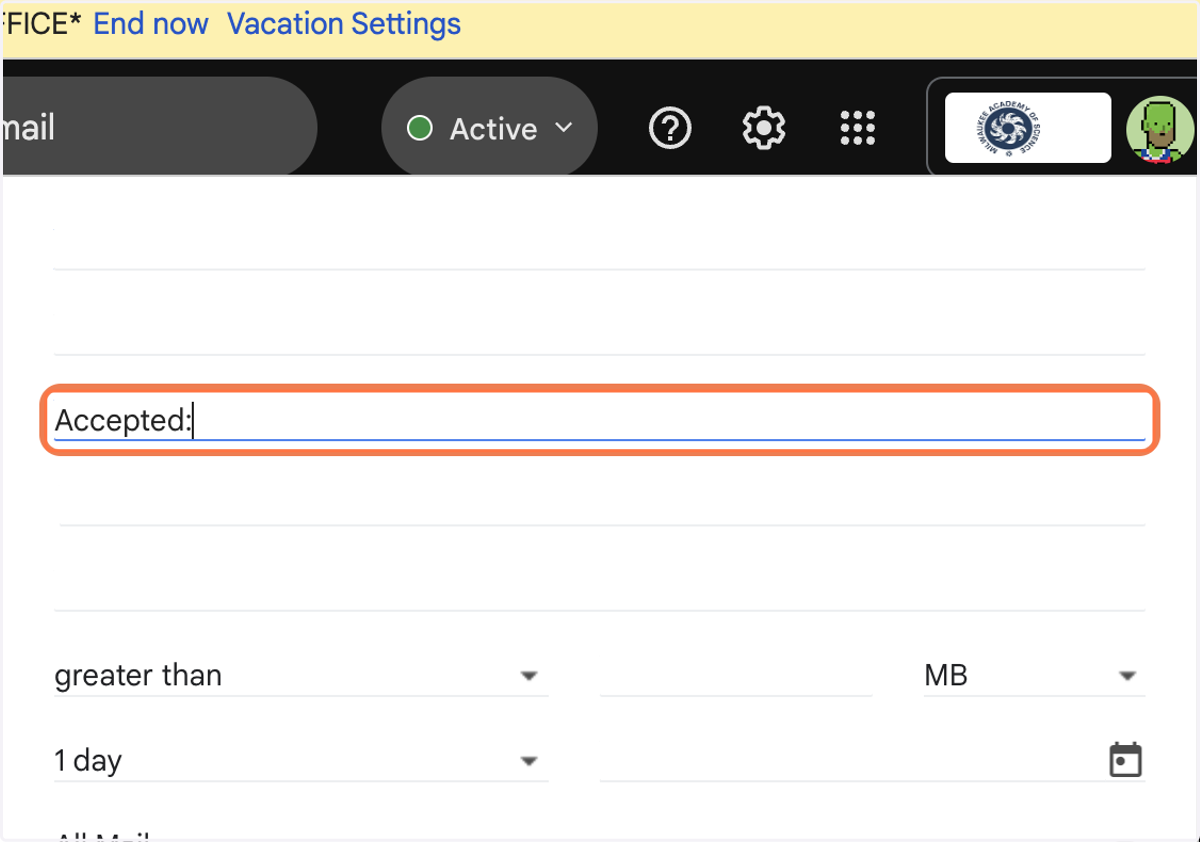
2. Type "Accepted:" in the Subject field
This will filter for only messages that have the word "Accepted" followed by a colon in the subject field. For the "Maybe" responses, those are labeled as "Tentatively Accepted" so this works for both!
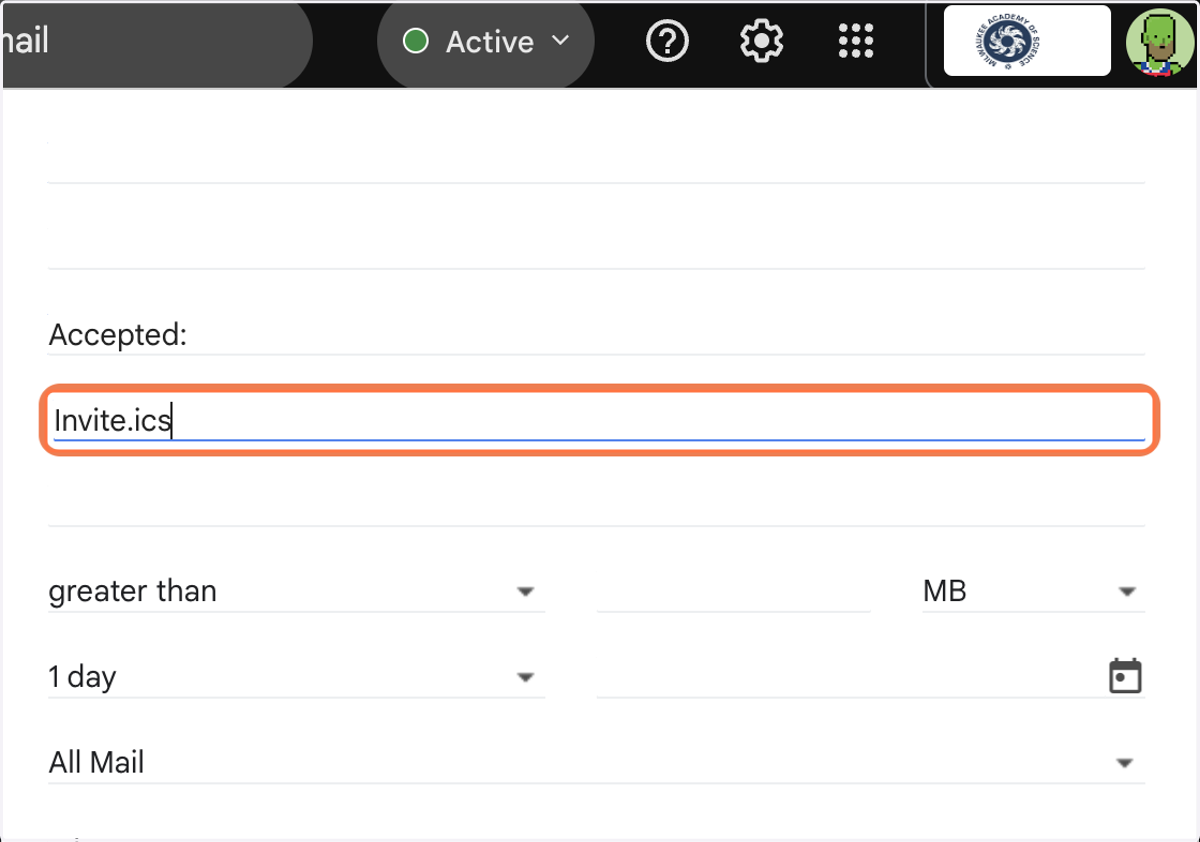
3. Type "Invite.ics" in the "Has the words" field.
This prevents any other emails with the subject of "Accepted" from being blocked. Google's calendar invites all have an attachment called "Invite.ics" so this filters for that.
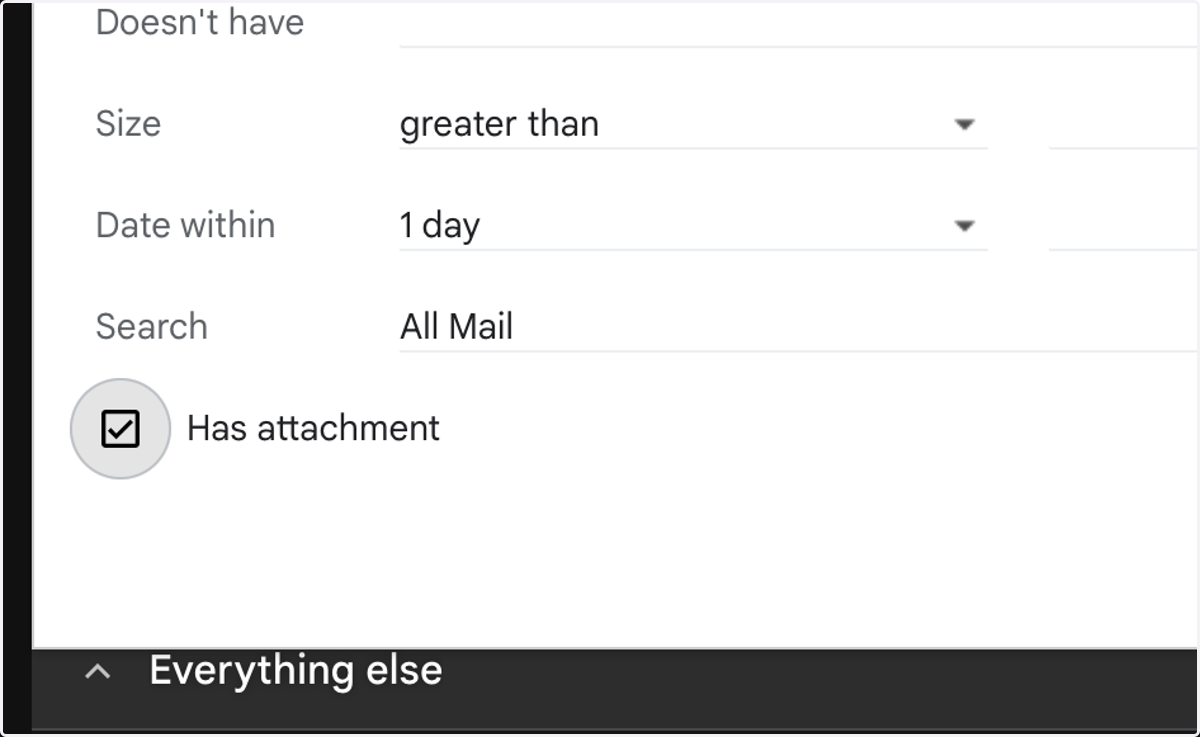
4. Check "Has attachment"
5. Click on Create filter
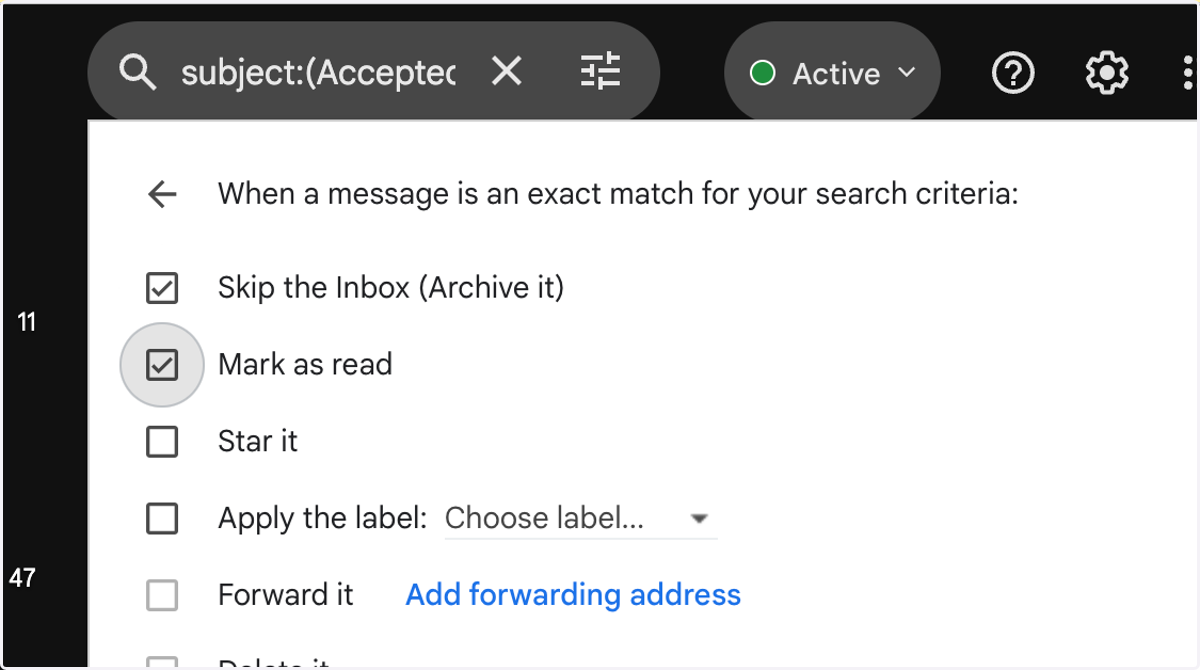
6. Check "Skip the Inbox" and "Mark as read"
This will make sure the email doesn't show up as a new email, but is still in your "All Mail" if you ever need to search for it.
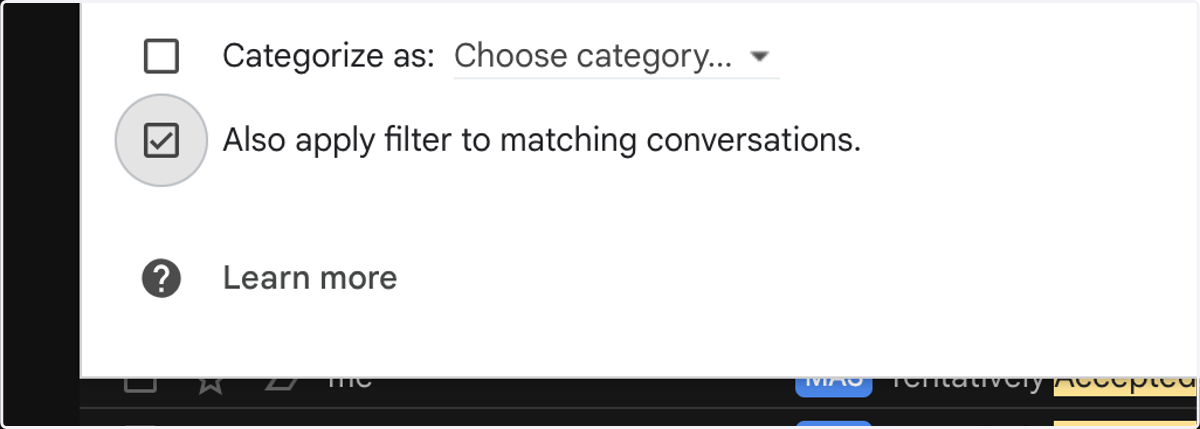
7. Check "Also apply filter to matching conversations."
This will scour your email and also move old calendar invites and acceptances so they are not in your inbox.
8. Click on Create filter