How to Add and Remove Shifts in Roster Manager Dashboard
Go to myRestaurant
Go to https://myrestaurant.mcdonalds.com.au/
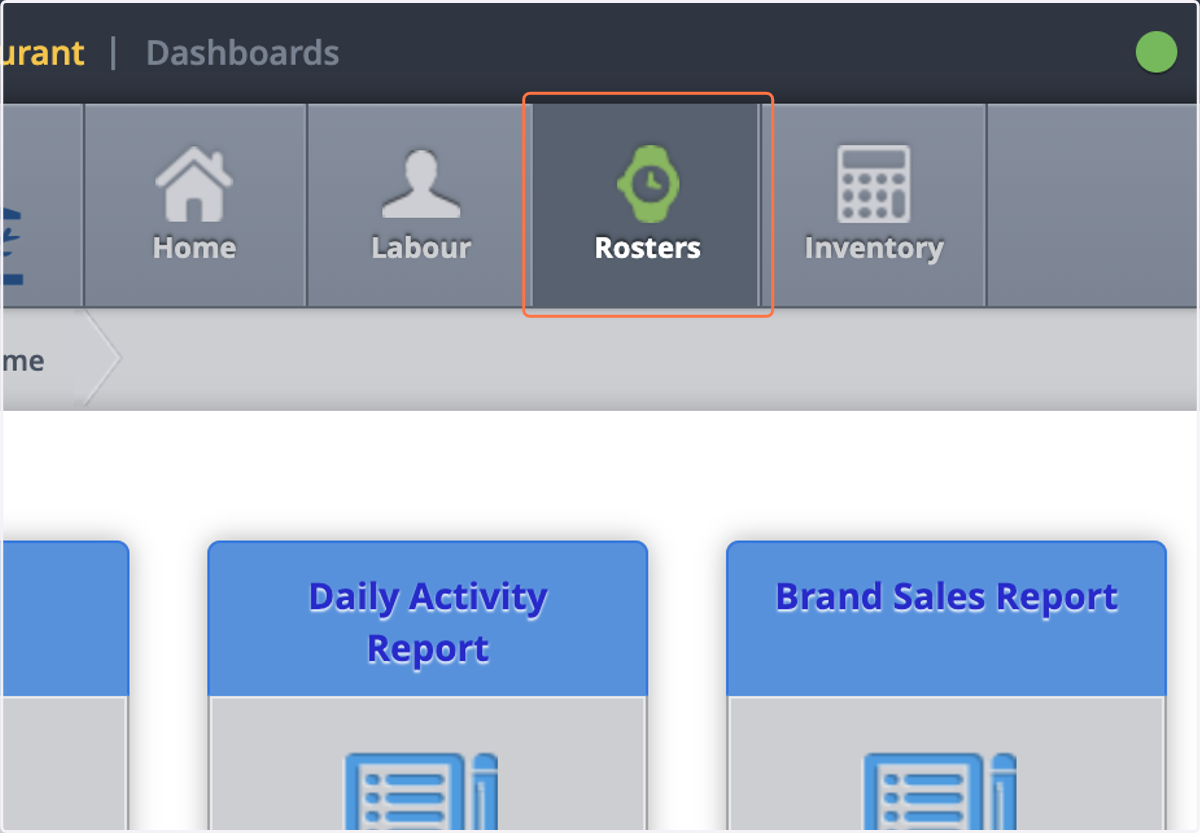
1. Click on Rosters
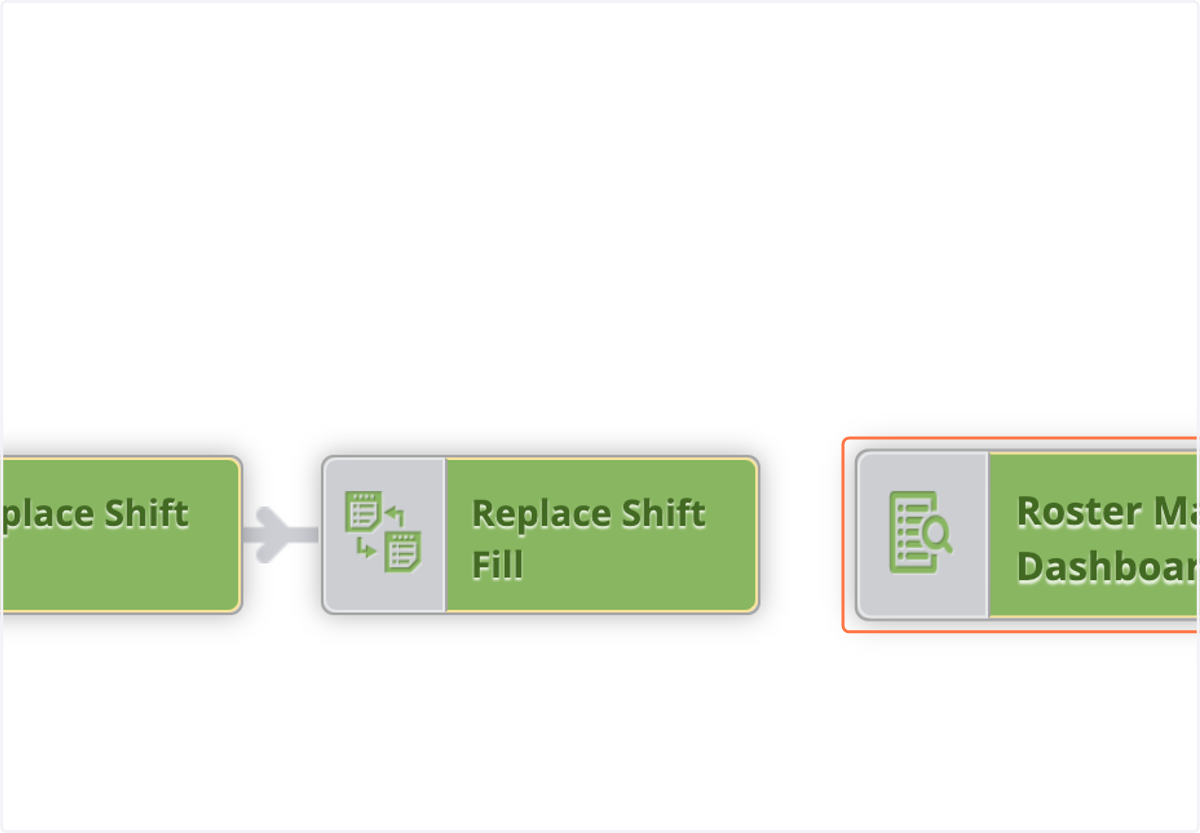
2. Click on Roster Manager Dashboard
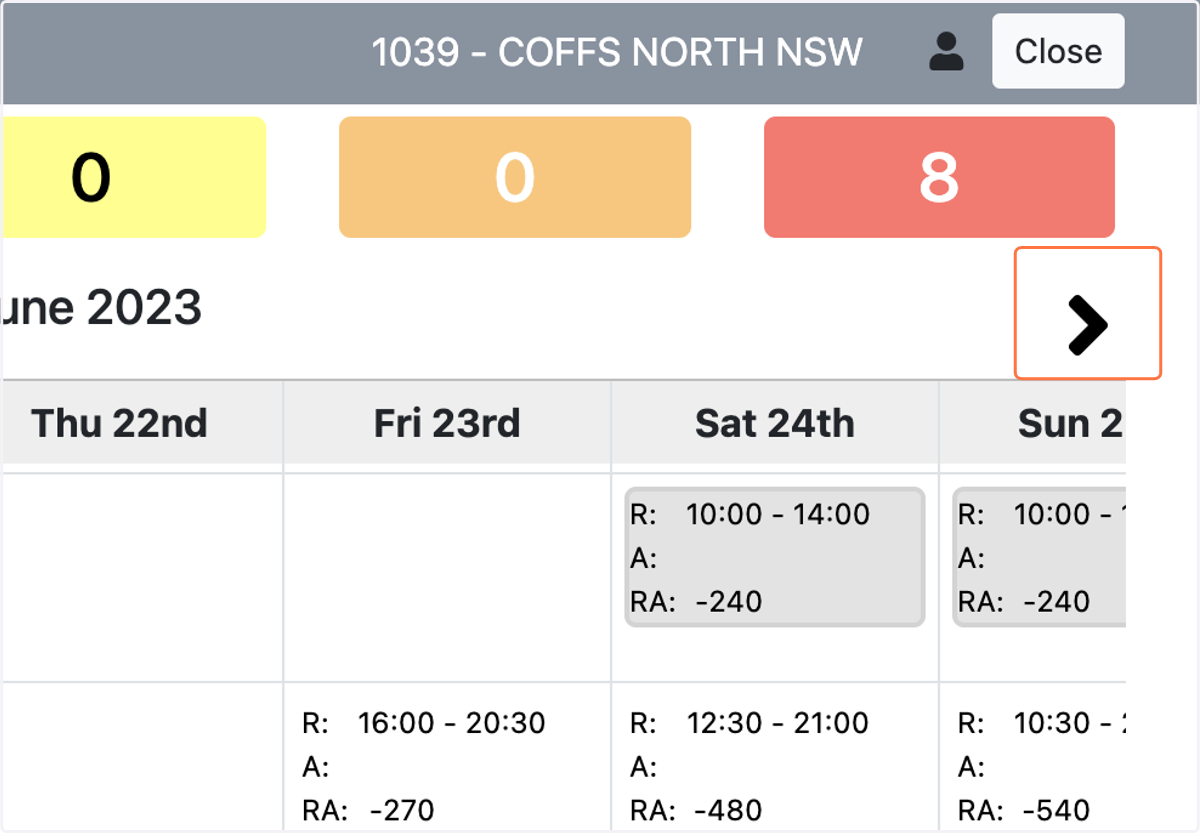
3. Find the correct date using week selector at top of screen
How to add a shift
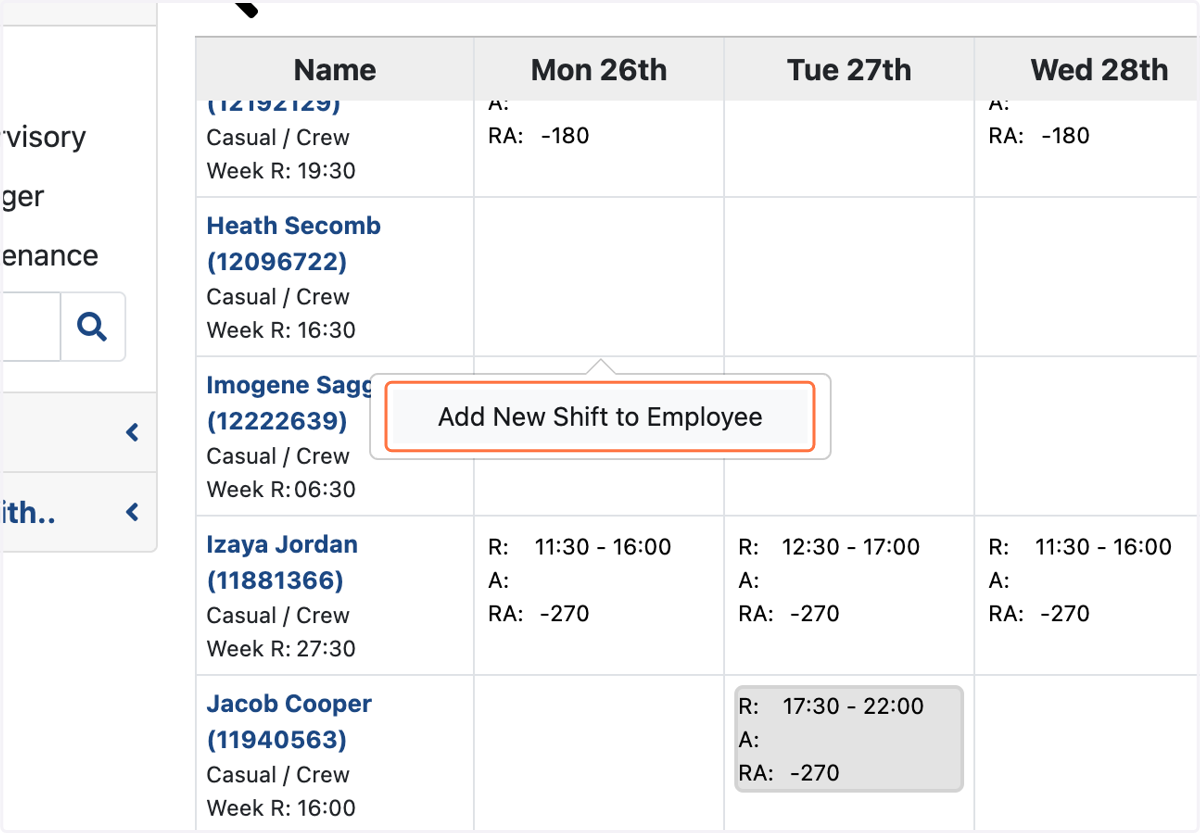
4. Find date & employee - click 'add new shift to employee'
5. Use the plus button to add shift segments
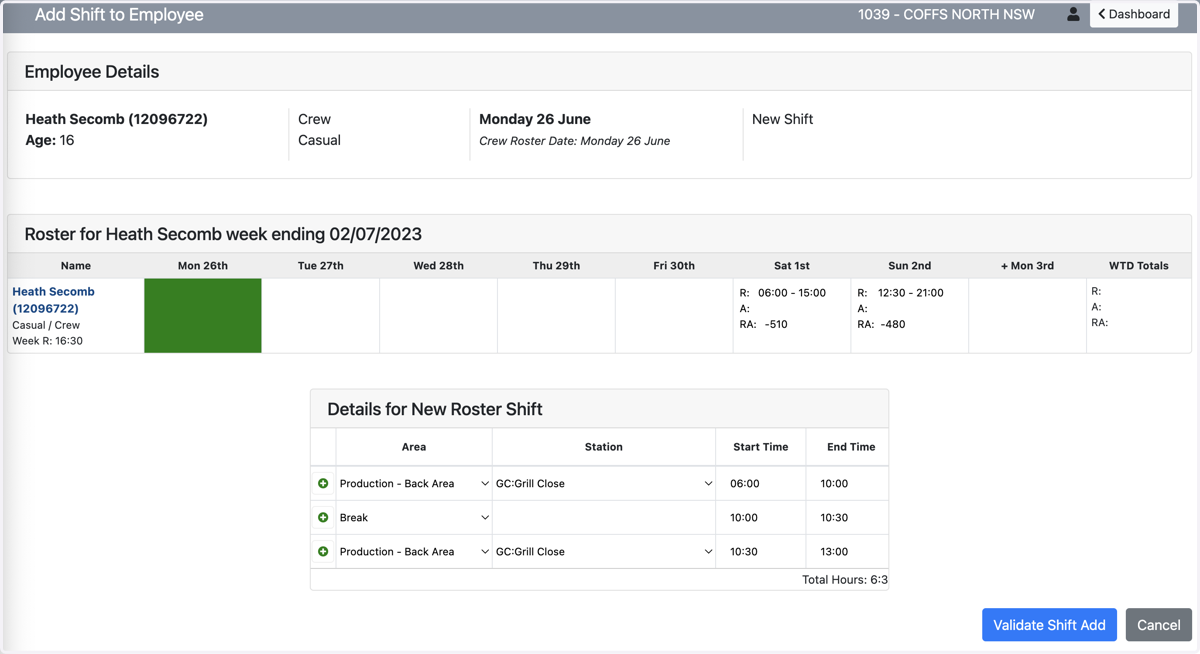
6. Add shift segments
All breaks and segments need to be assigned to shift, even if they are taken at a different time (except PT staff). See below a correct setup for a 6-1pm shift.
Ensure you add break with no more than 4hr45min between work. Use the start and end time to determine the break type - i.e 30mins, 10mins
7. Click on Validate Shift Add
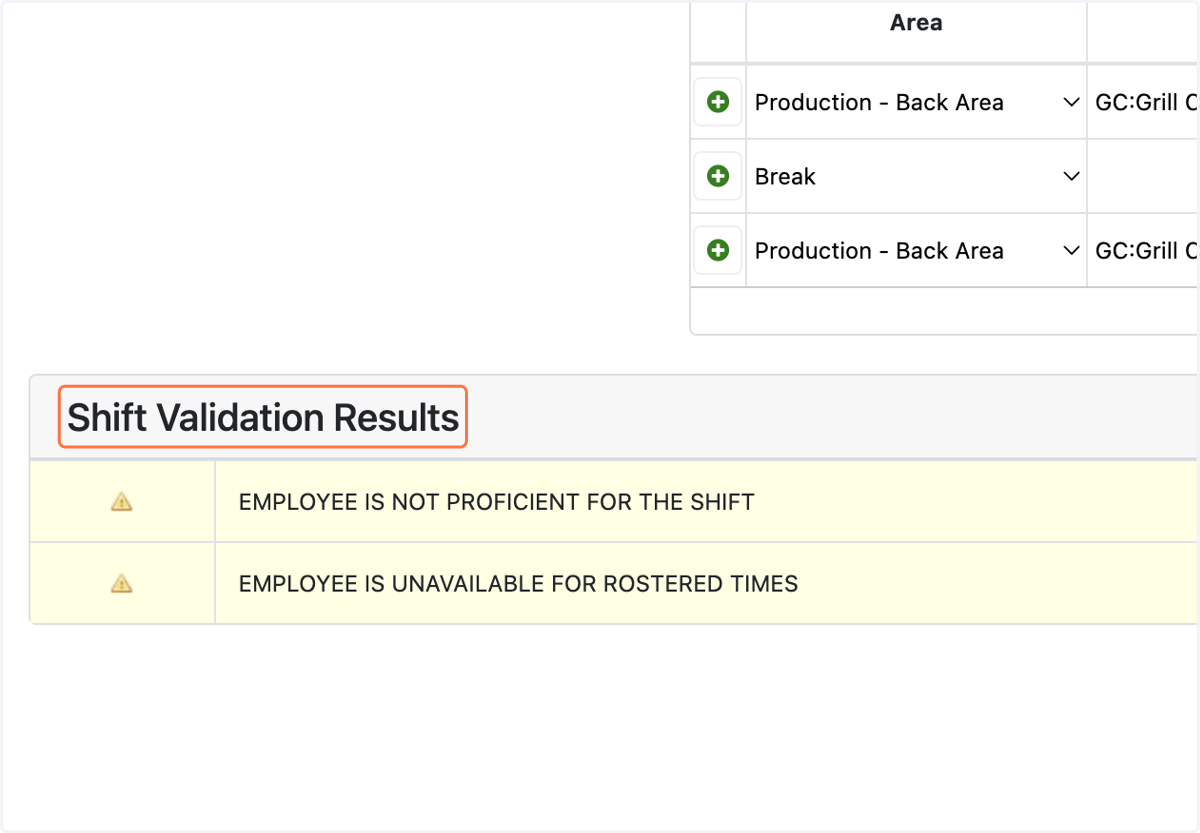
8. Once you have validated, myR will show any warnings or errors
If you see the below warnings, this is due to employee not being trained in this area, you can ignore and move onto next step.
If you see a red error - check your shift segments are not overlapping and correct GPPE is applied to shift times
9. Click on Confirm Update
10. The shift is now on the roster!
To remove a Shift from the roster
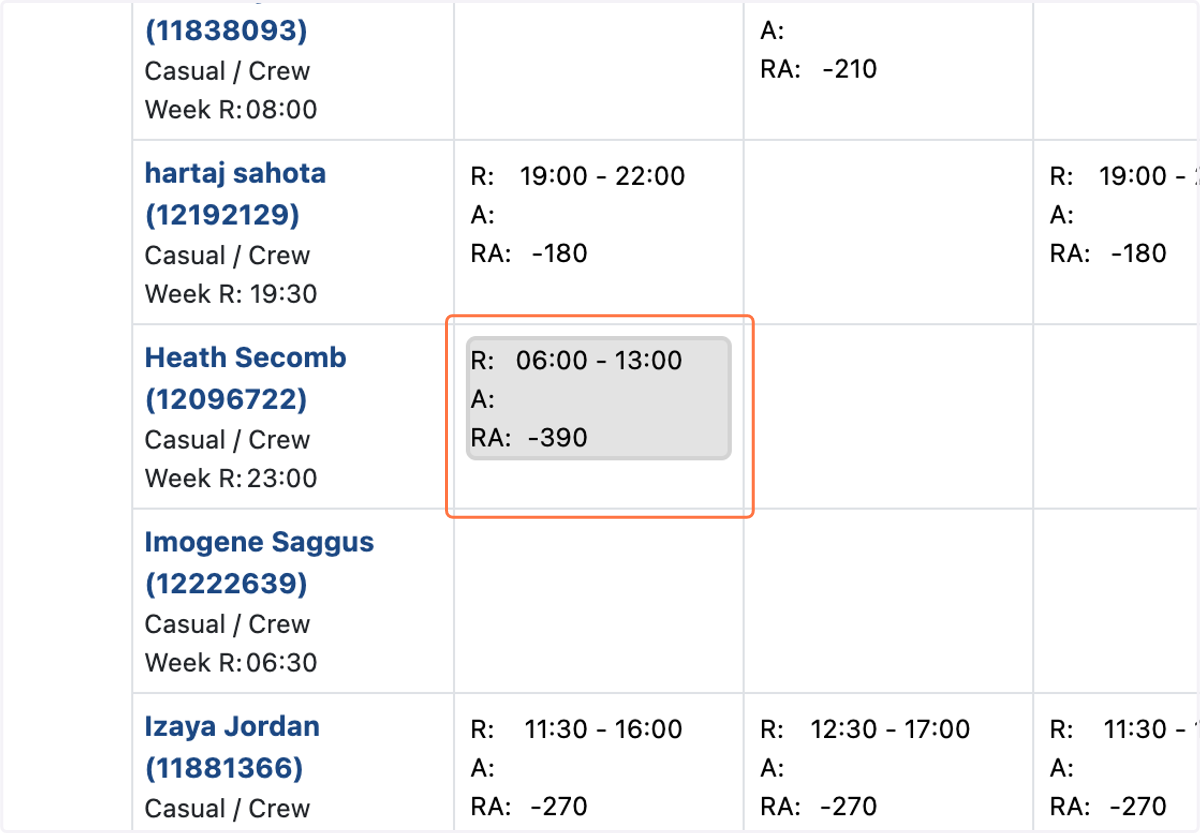
11. Find the shift, and click on the tile
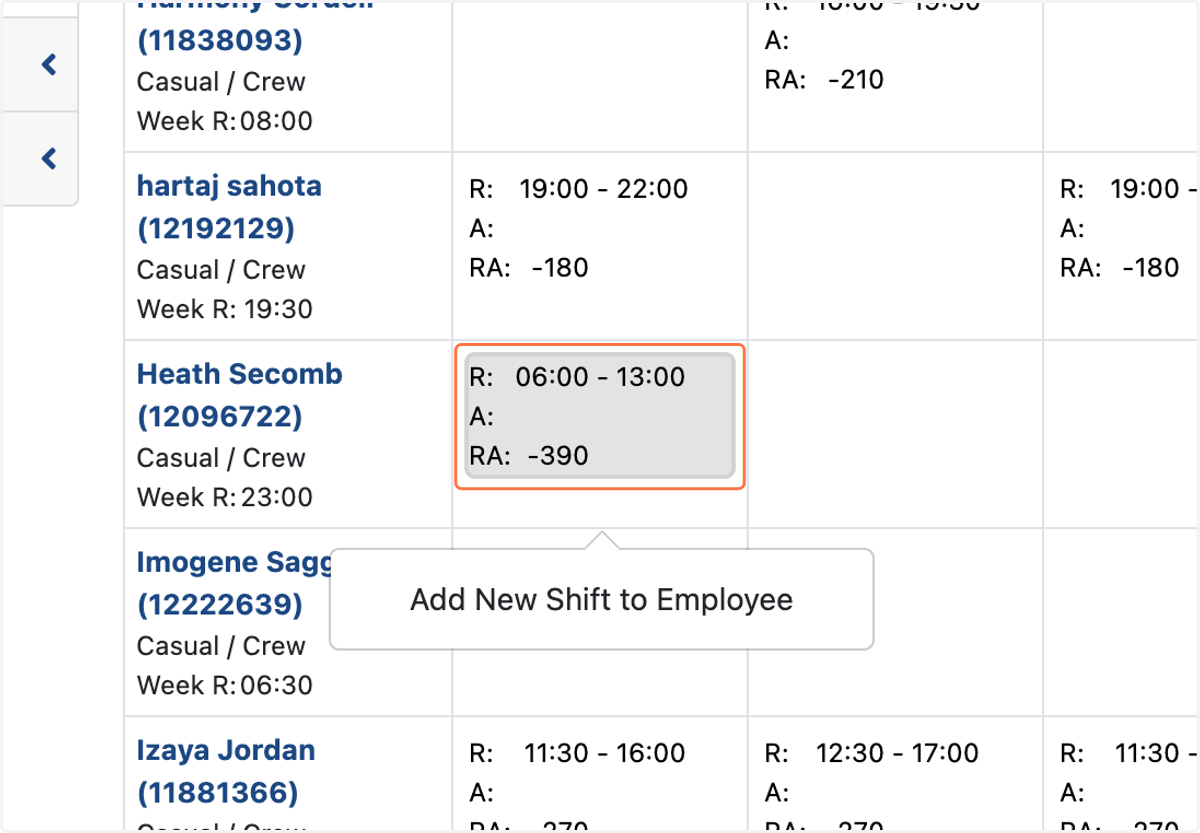
12. Click on Remove Shift from Roster
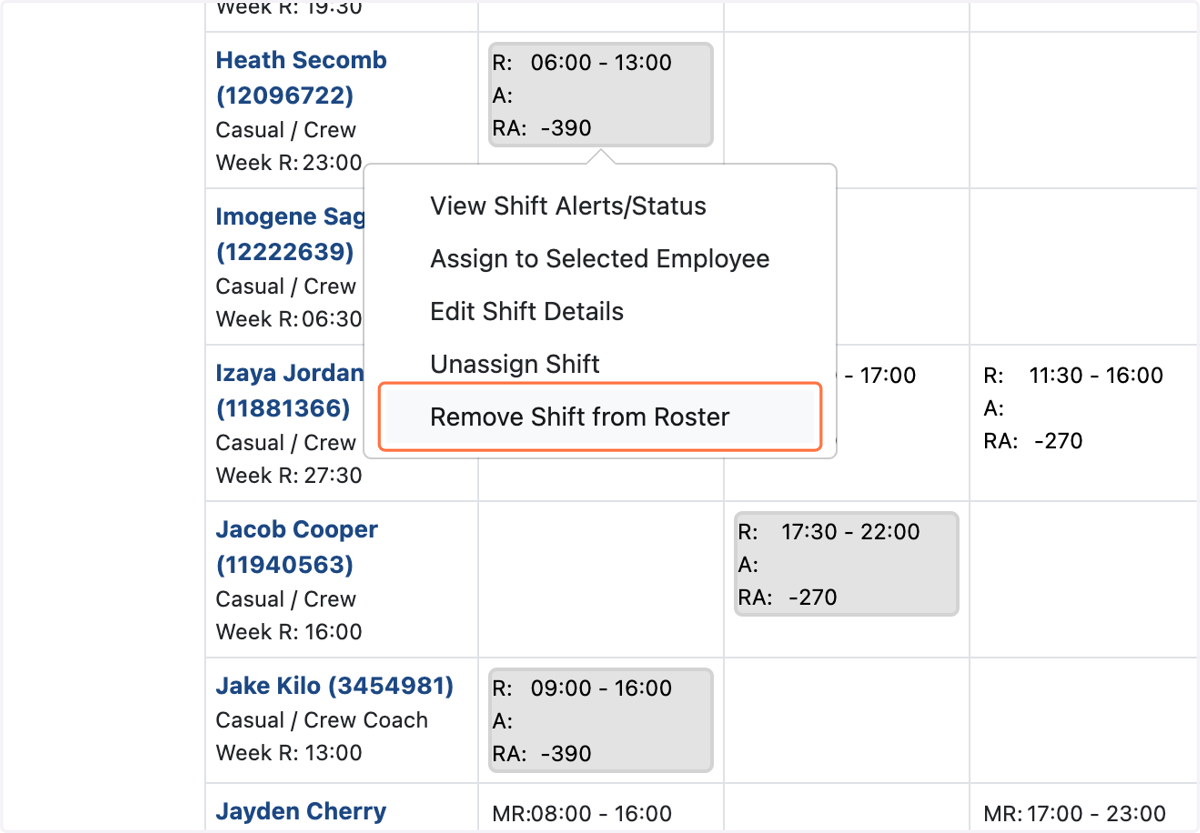
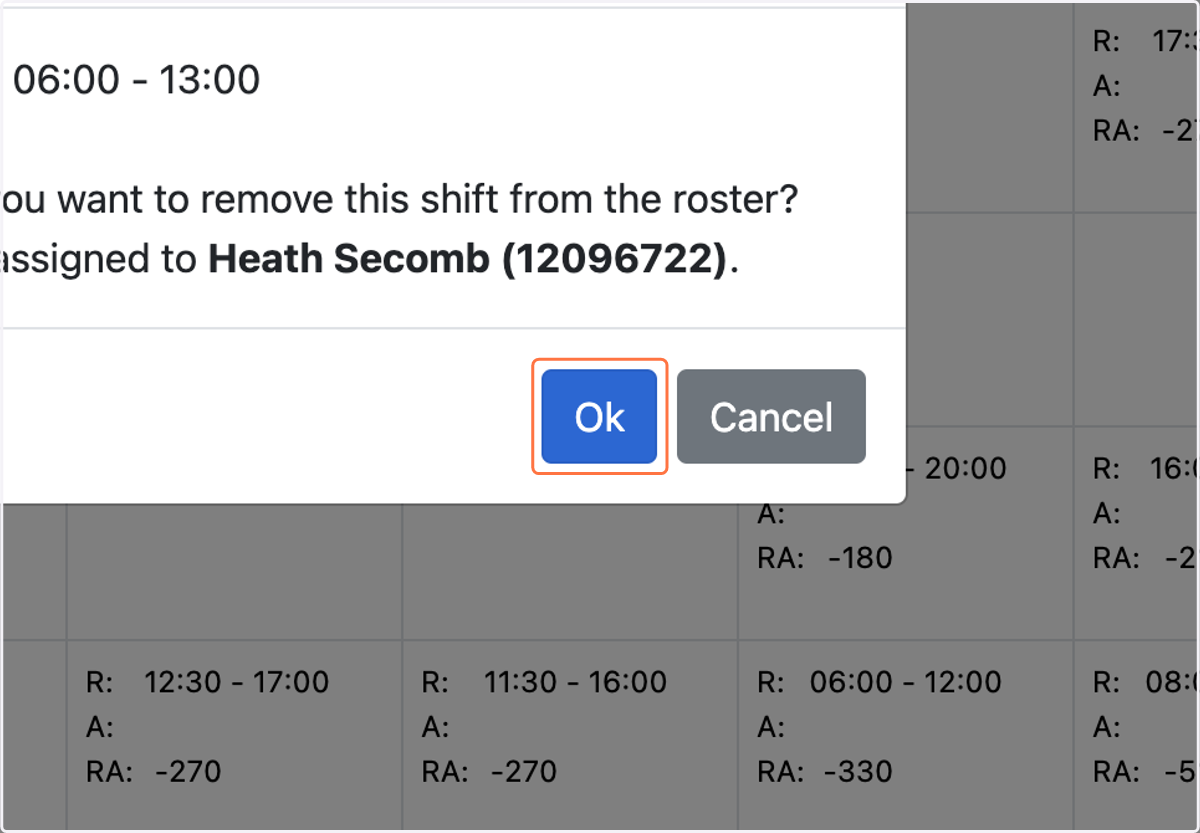
13. Click on Ok The shift is now removed from the roster!