How to Add a Master Course Member
Step-by-step instructions on adding a Master Course Member to a Master Course.
Homepage - LCM-Practice Course
Log in to Brightspace and open the Master course where you need to add faculty. Make sure you're in the correct Master (not a live or semester course) before proceeding.
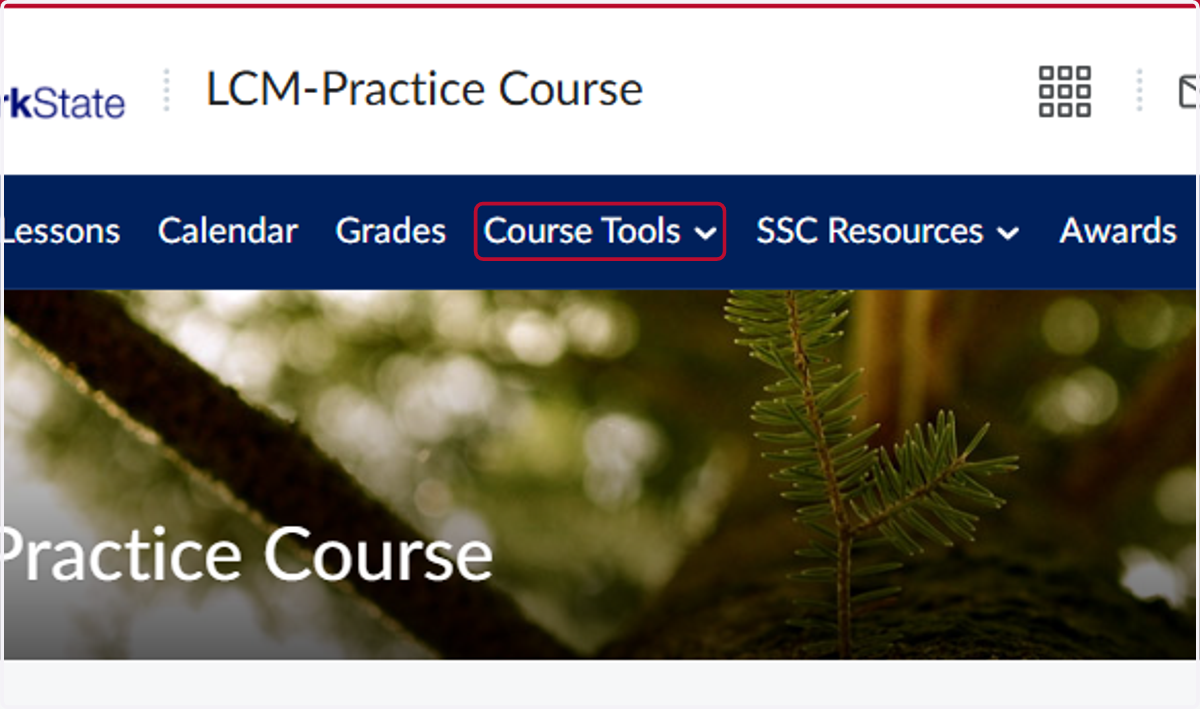
1. Click on Course Tools
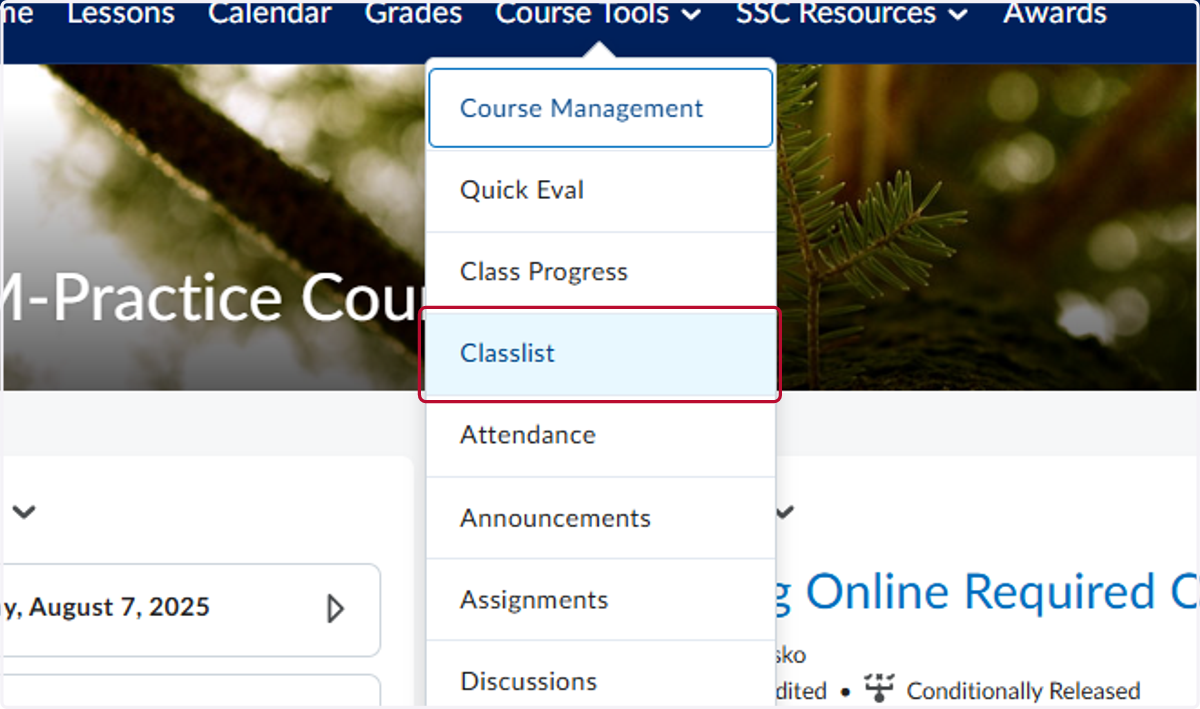
2. Click on Classlist
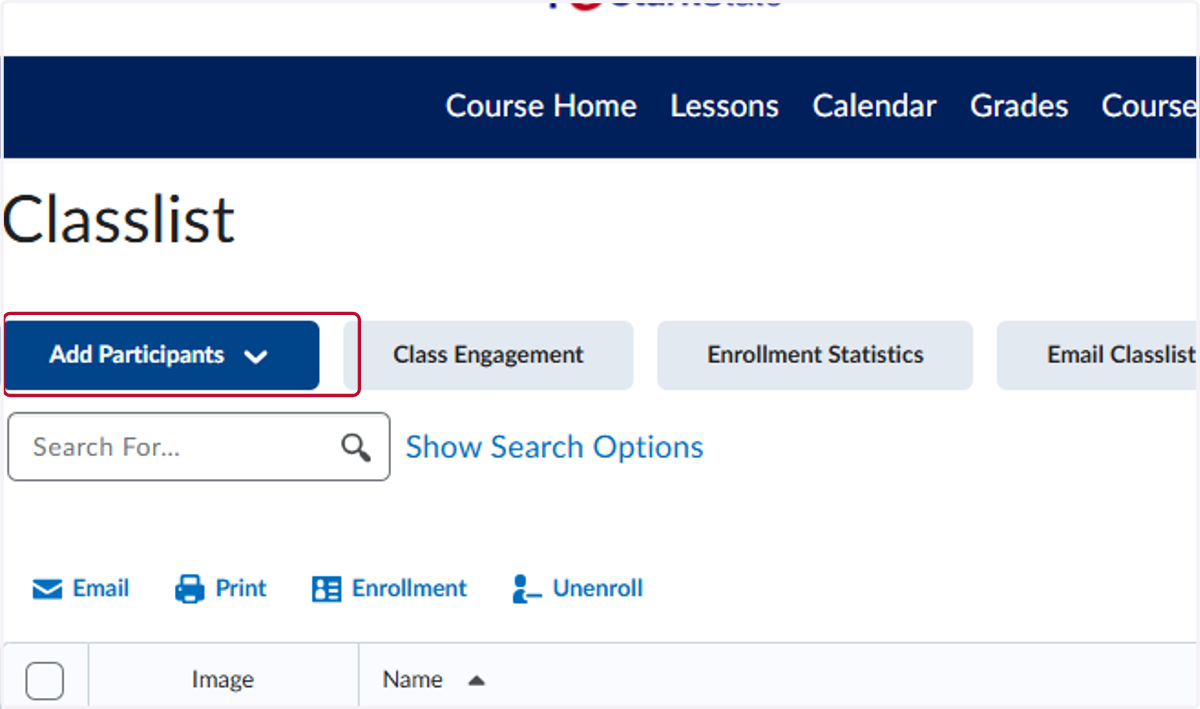
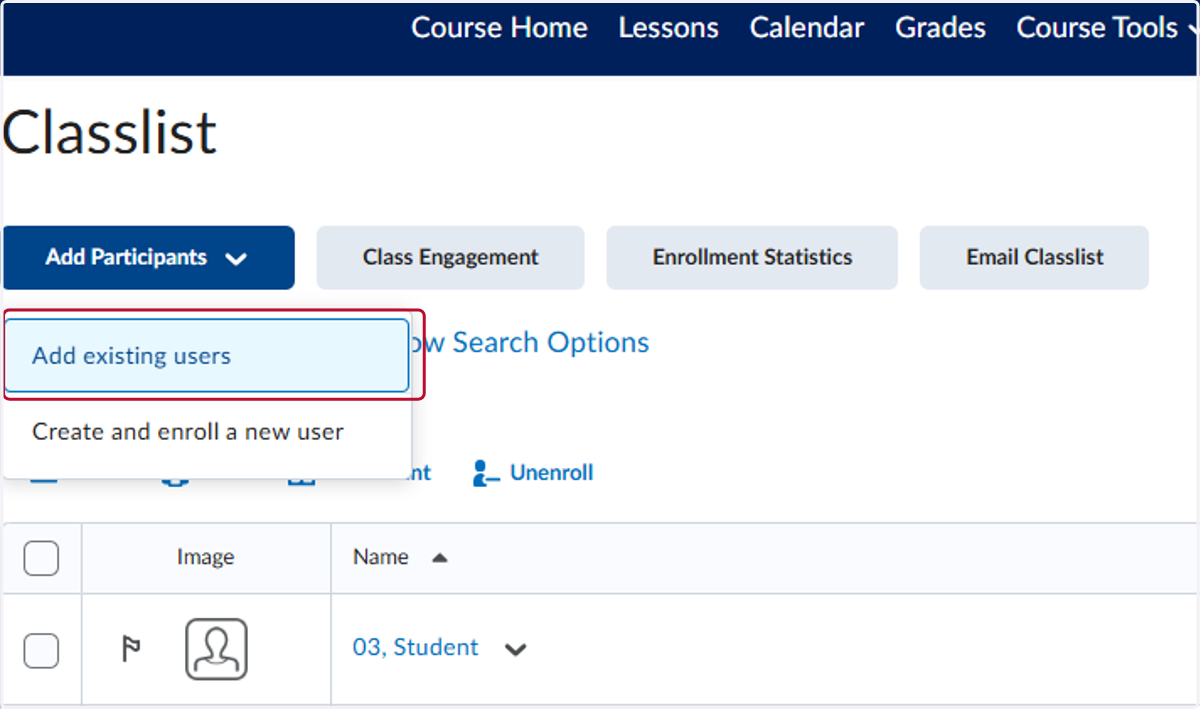
3. Click on Add Participants
4. Click on Add existing users
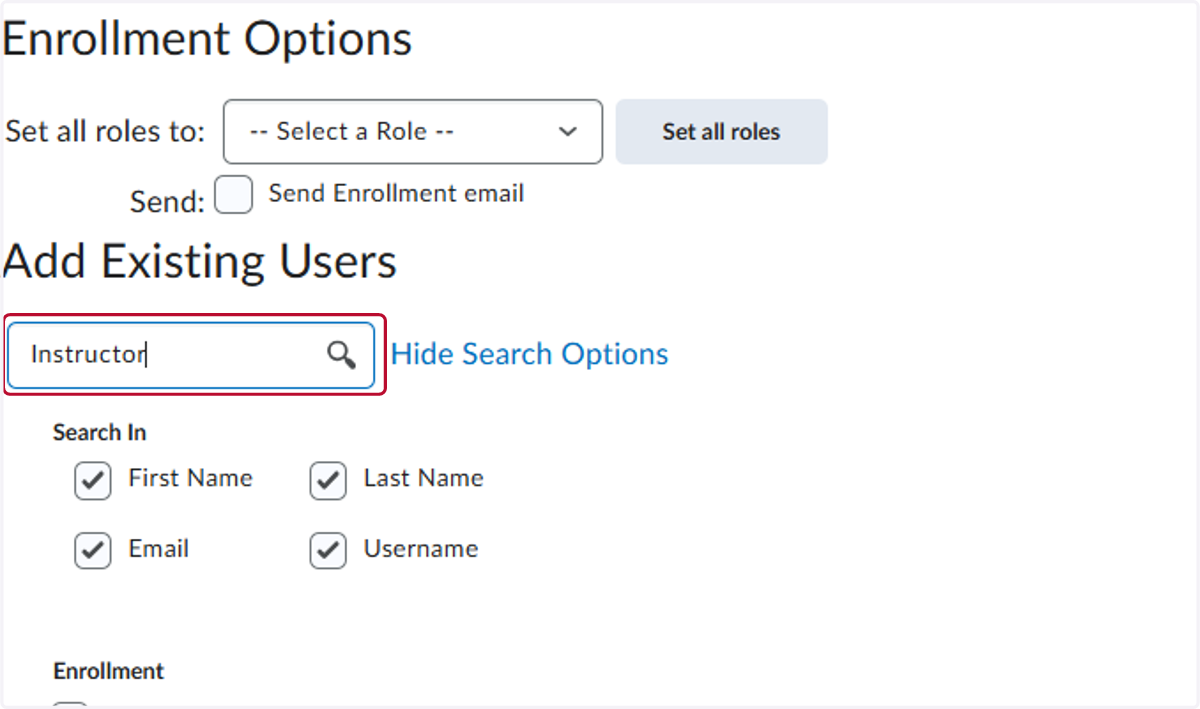
5. In the "Add Existing Users" window, type the name of the instructor you want to add as a Master Course Member into the search field. Be sure to check the spelling and select the correct individual from the search results.
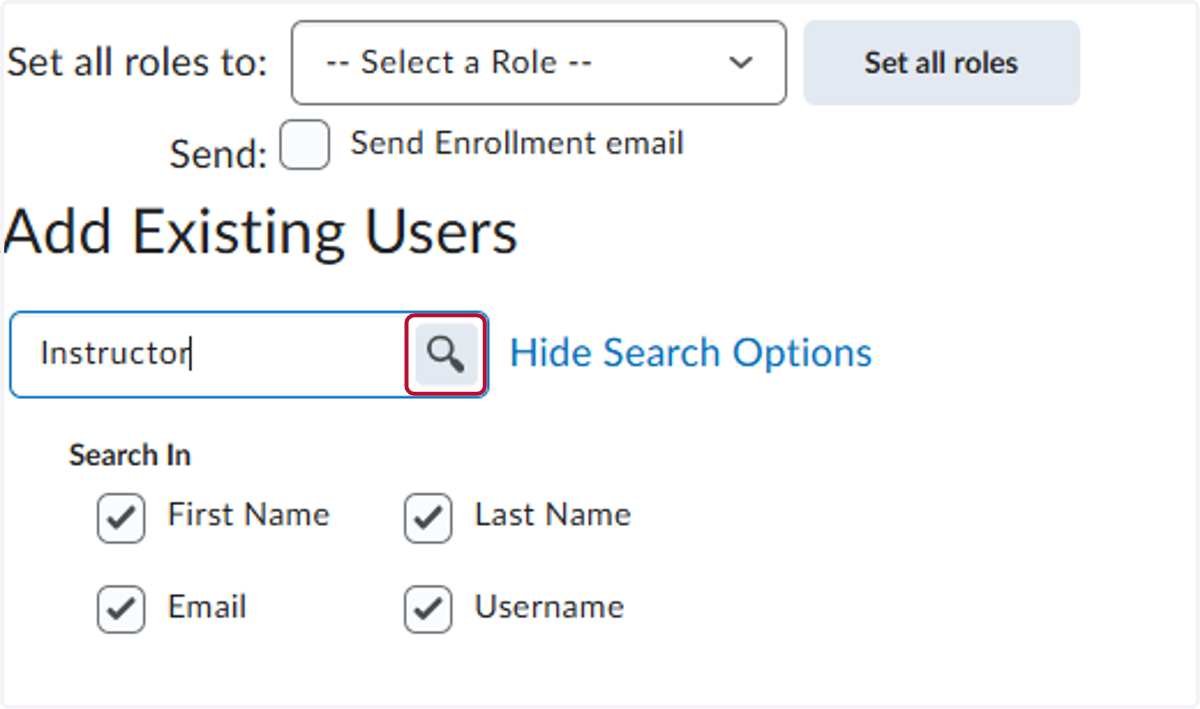
6. Click on the Search icon.
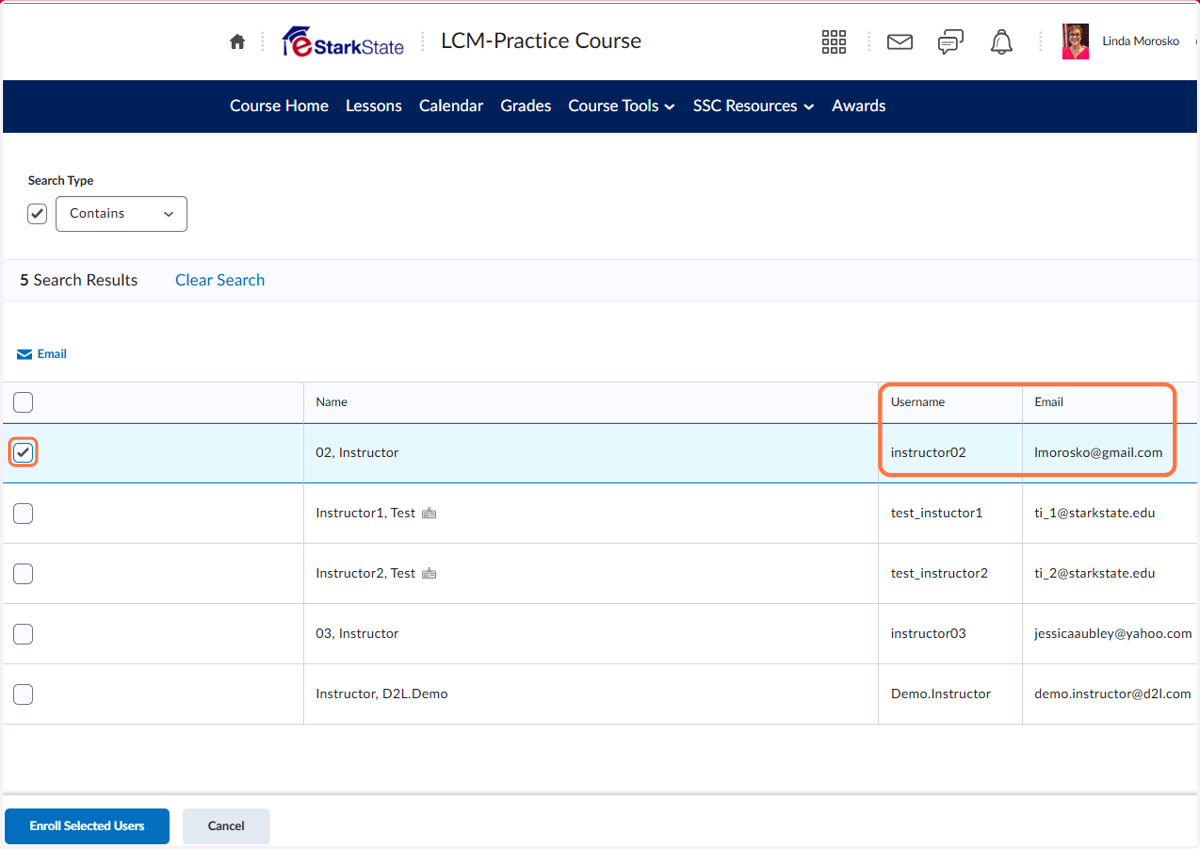
7. Check Select the instructor's name from the list. Verify both the name and email address.
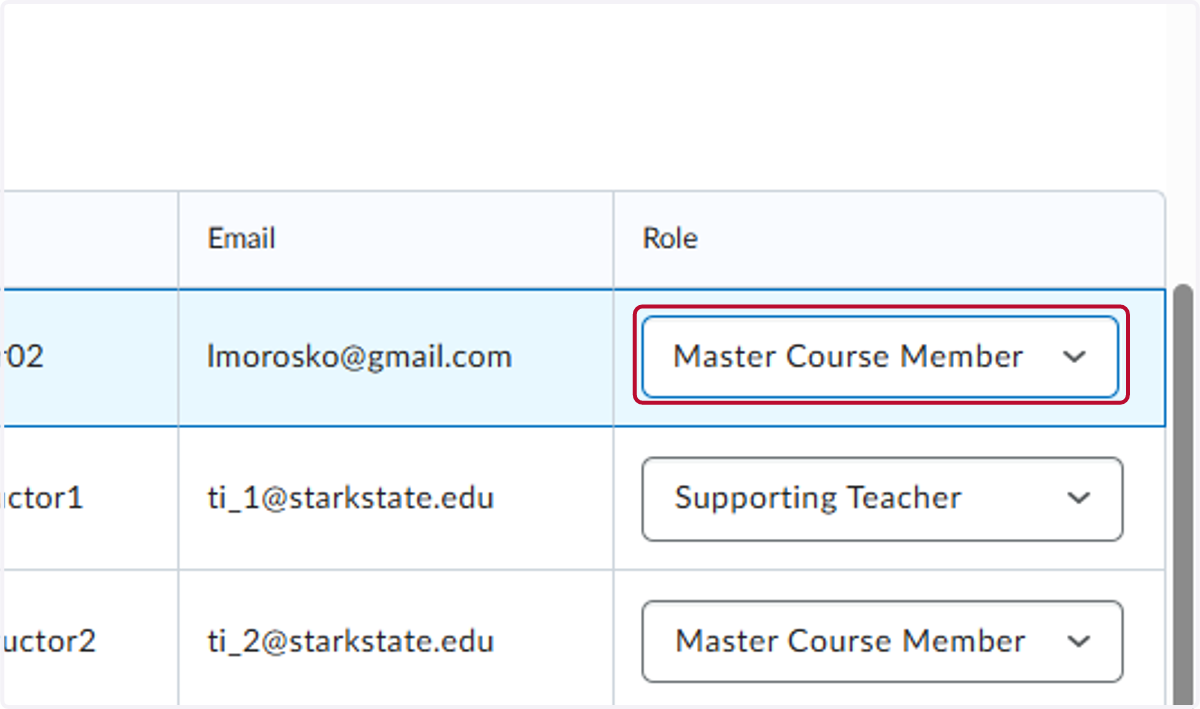
8. From the Role column, select Master Course Member from the dropdown list.
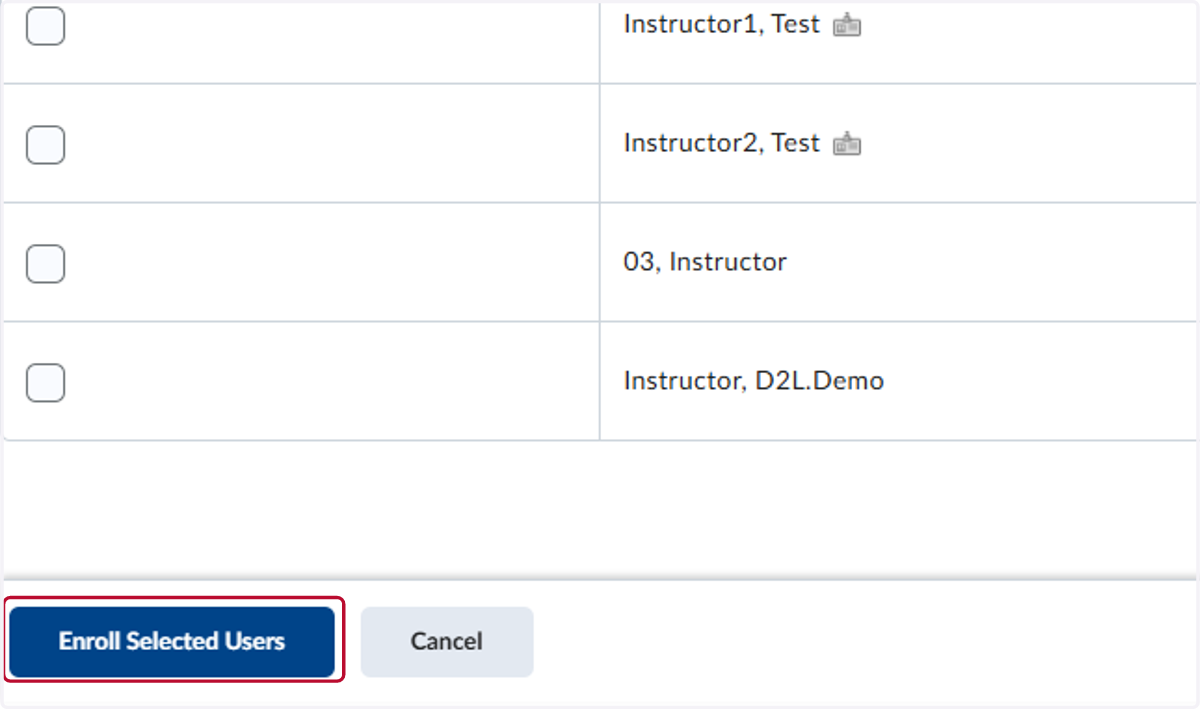
9. Click the Enroll Selected Users button from the bottom of the screen.
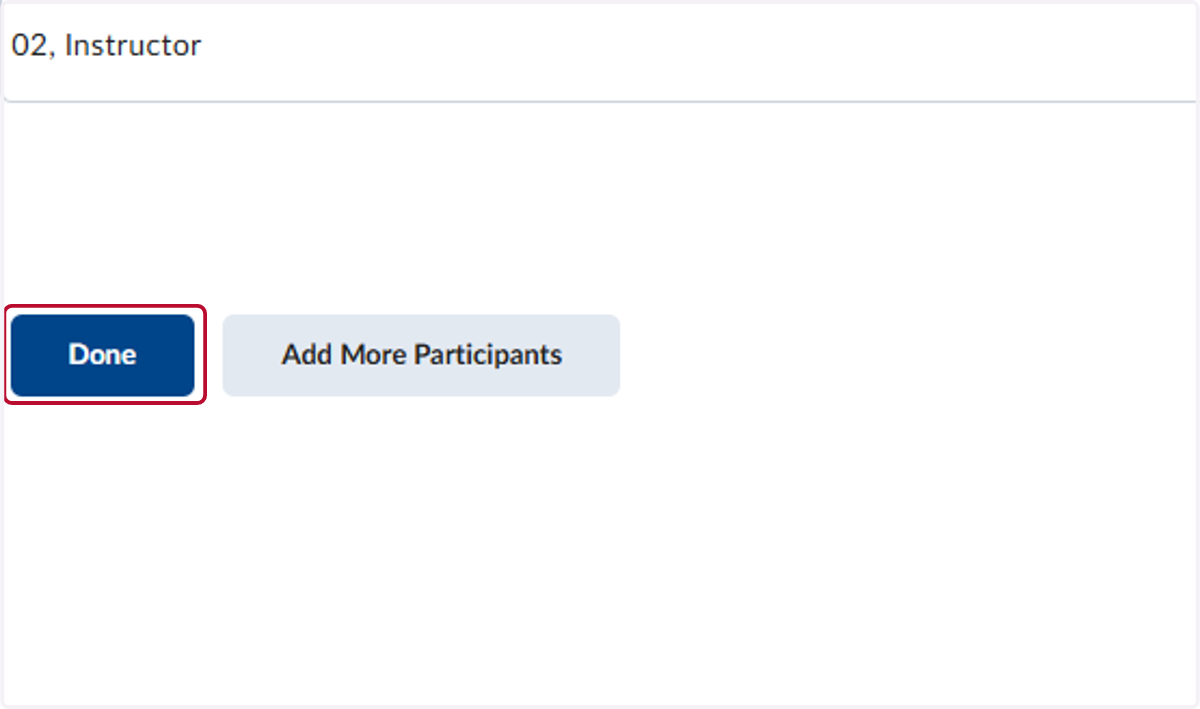
10. Click on Done. That is all you need to do to add faculty members to a Master course!