How to Attach a Coupon to Your Campaigns in Affinect
Attach a coupon to your marketing campaigns to drive redemptions and repeat visits. Simply select a coupon when building or editing a campaign, and Affinect will automatically track views, saves, and redemptions as part of your campaign performance.
Affinect
1. Create a New Campaign
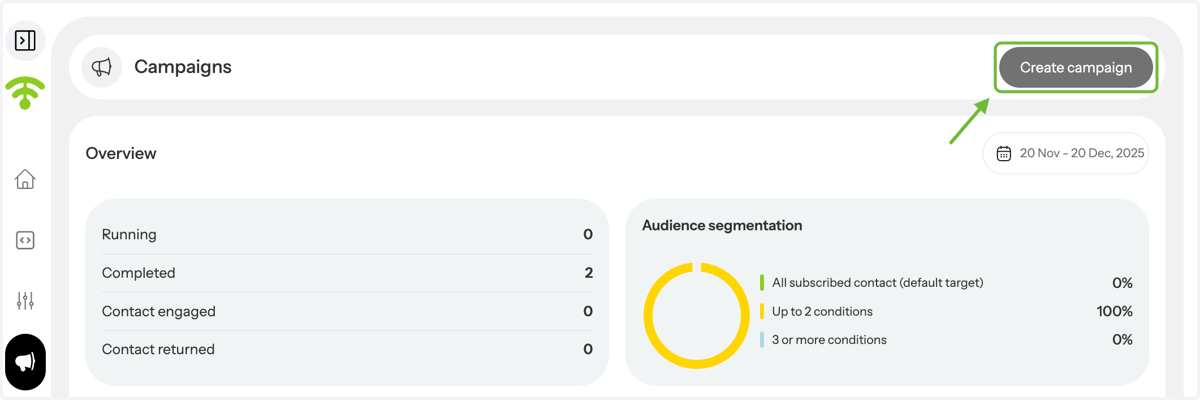
Under Marketing Tools, select Campaigns. Click Create Campaign in the top-right corner to get started. You can also edit an existing draft.
2. Select Run Cause.
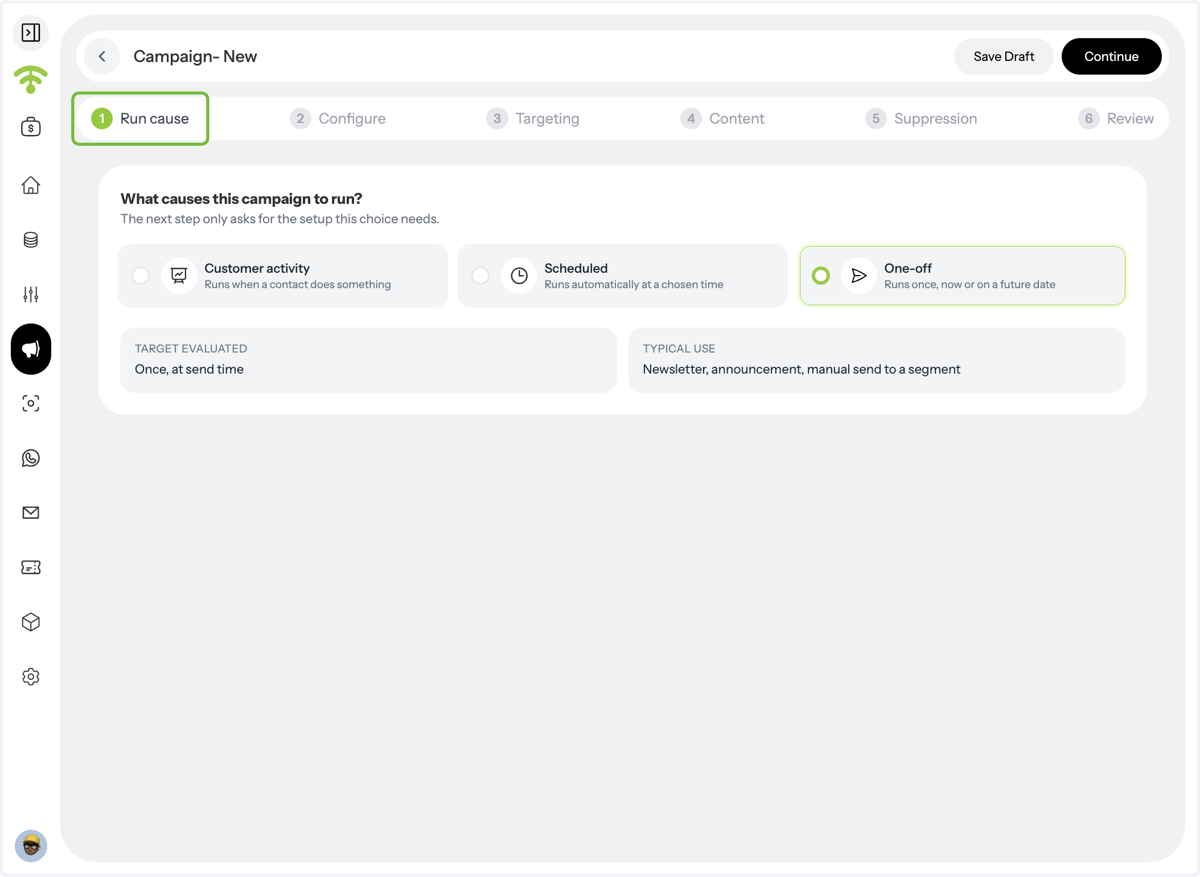
Choose whether you want to send the campaign once, schedule it, or send it based on customer activity.
3. Configure your Campaign.
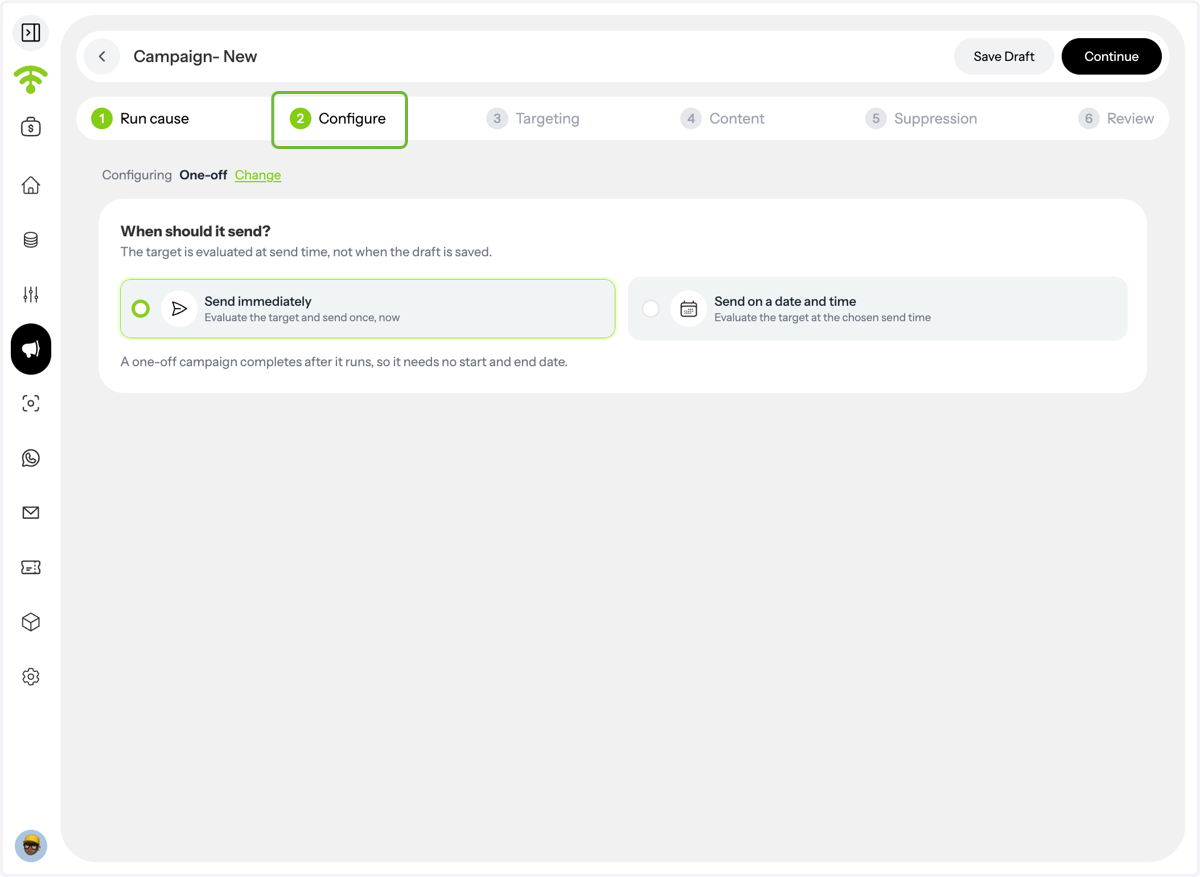
Select a date and time to send your campaign.
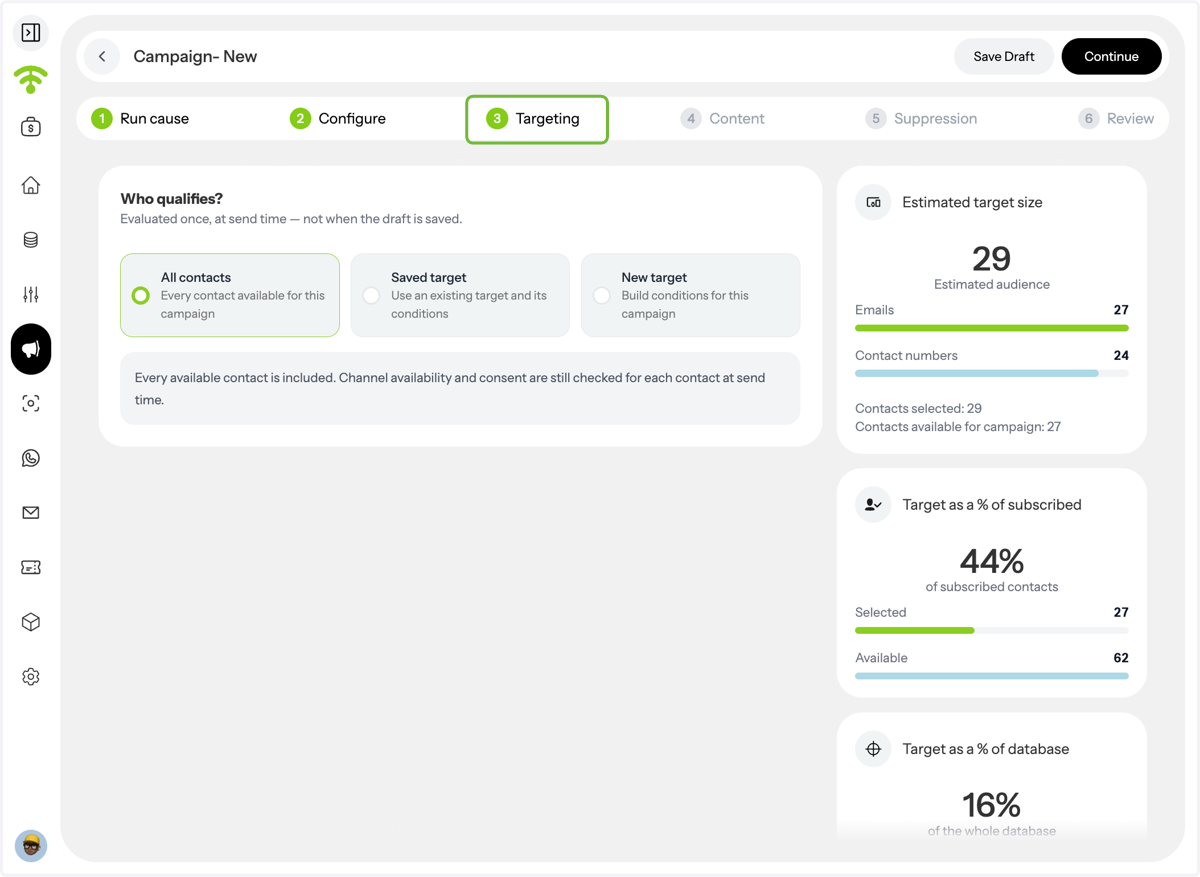
4. Select your target audience.
Select a saved target, create a new one, or send to all contacts.
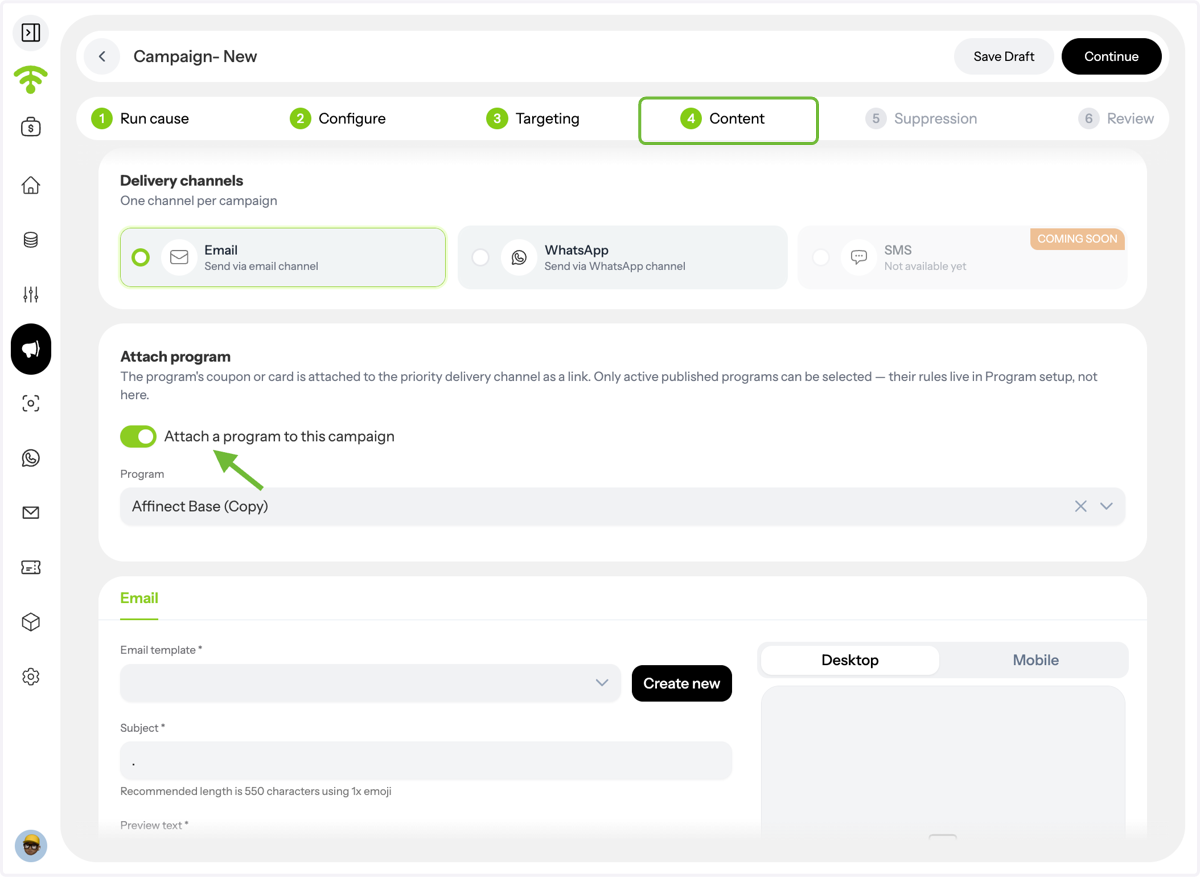
5. Move to the Contents tab.
Select your delivery channel and then attach a live program (coupon-based) to your campaign.
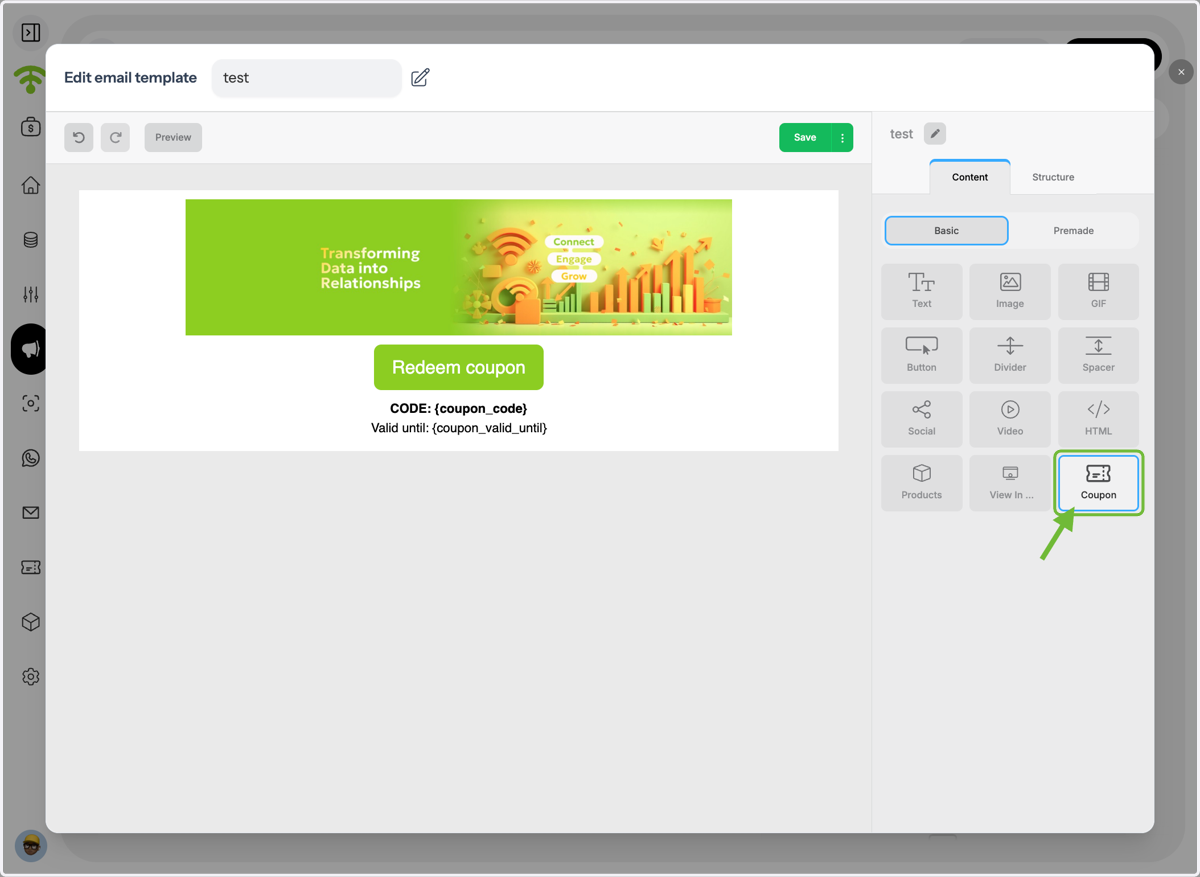
6. Edit your Email Template or Create a New One.
Edit your email template or create a new one, then drag the coupon from the contents table and drop it where you want to place it.
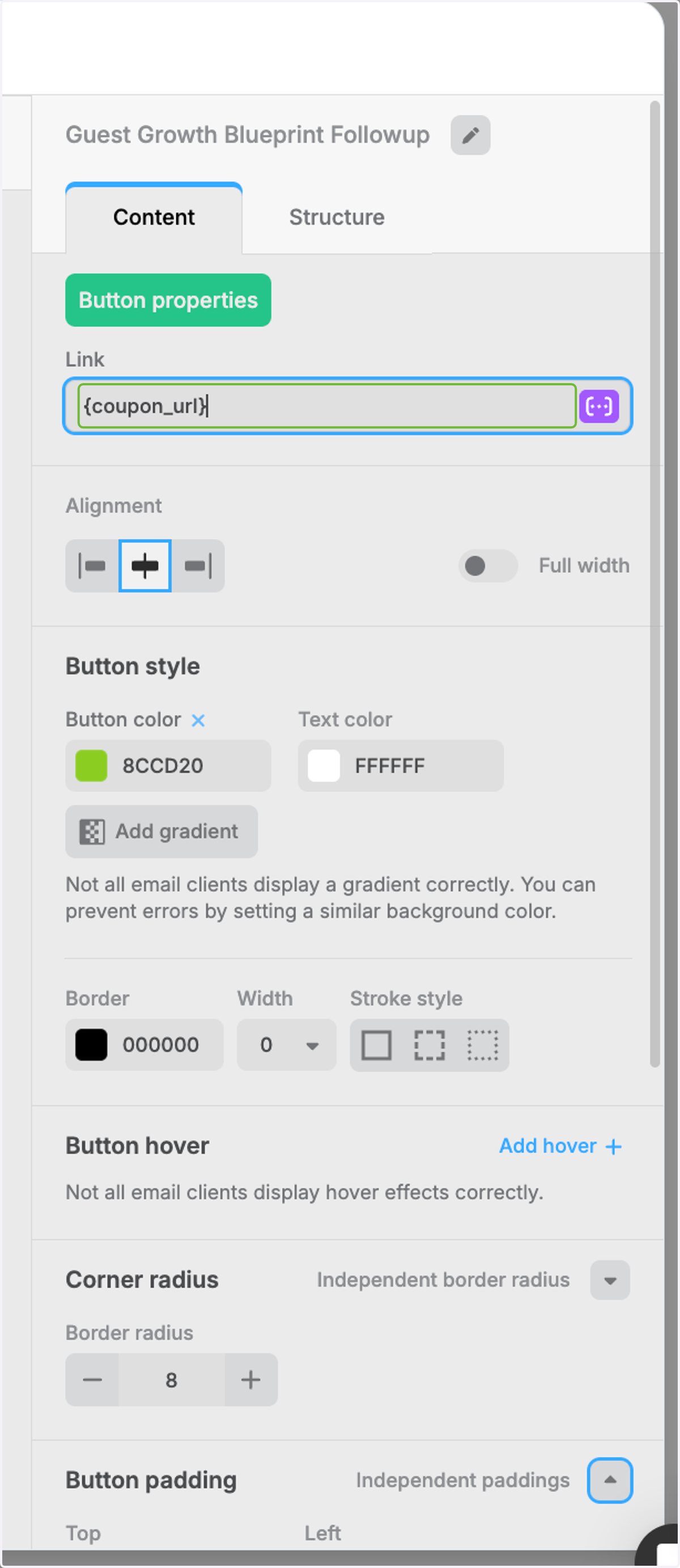
7. Design Coupon Button
The coupon will be automatically linked here, and you can then design its button the way you want and save the template.
8. Review Campaign Summary and Publish
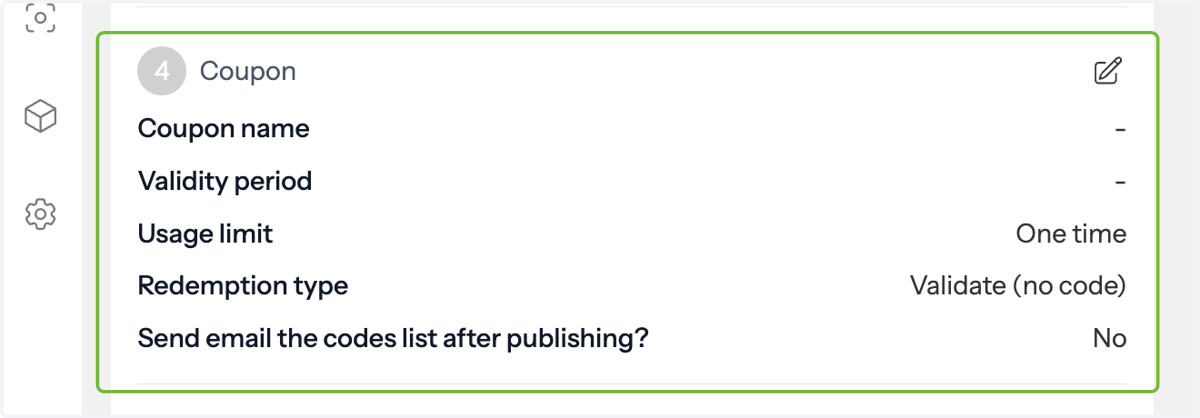
Go to the Review tab, see the final coupon and campaign settings, then publish your campaign.