How Training Faculty Access YuJa Panorama
If your role in a course is training faculty, you will use the following directions to access the accessibility tools offered by YuJa Panorama.
1. Click on the course you will be reviewing.
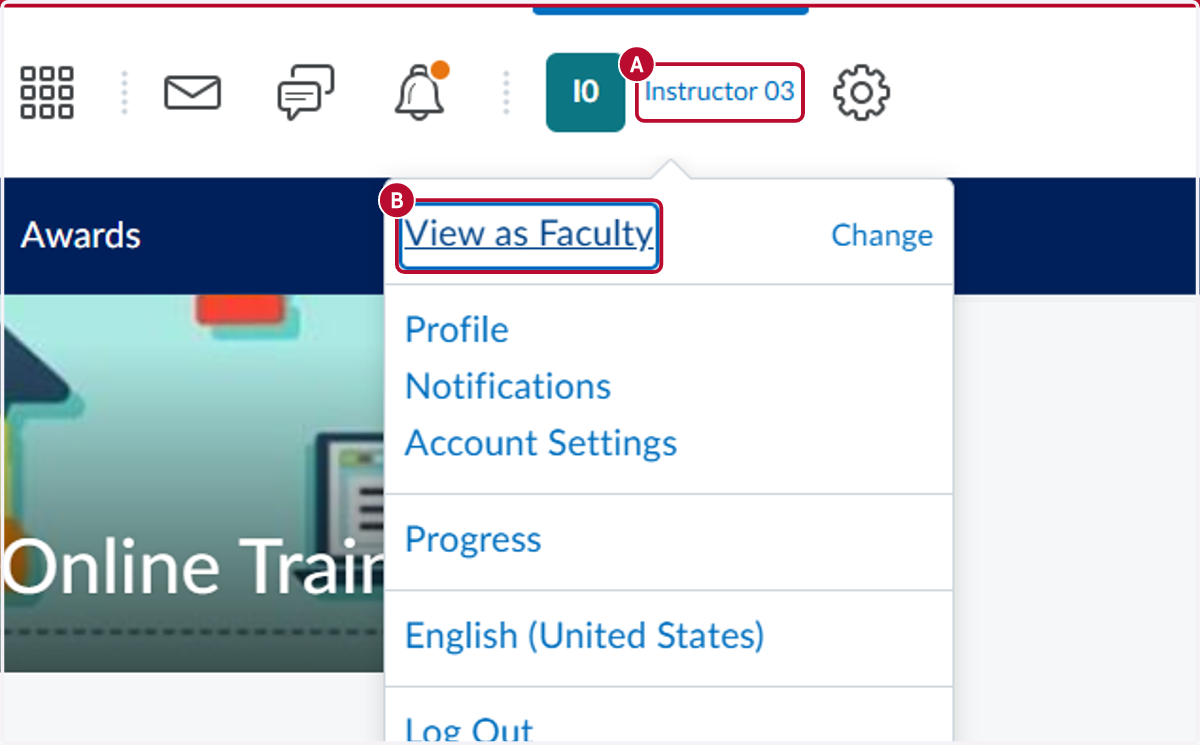
2. A. Click on your name
2. B. Click on View as Faculty
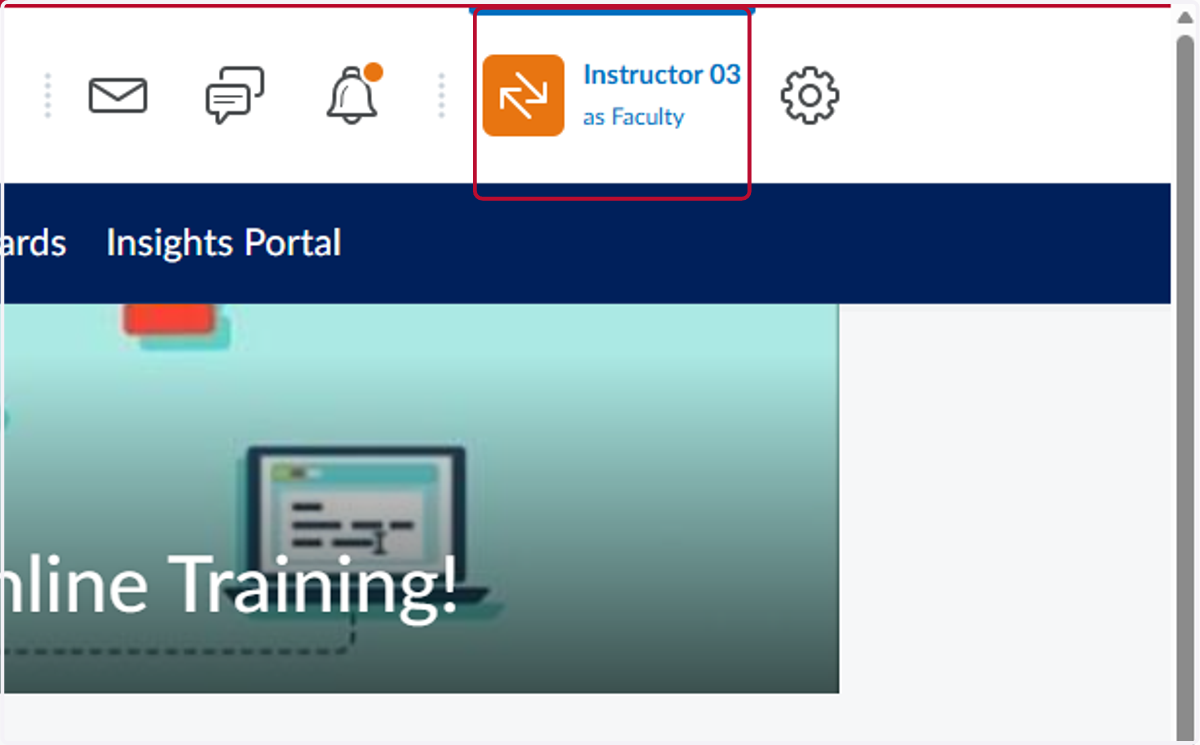
3. After you have done this, you will see that it now has "as Faculty" listed under your name.
4. If you want to review the remediation report, you can access it from your homepage.
Remember, you can't make changes to this report; it's just an overview of the content.

5. You will now see the icons by your titles that indicate if content is accessible.
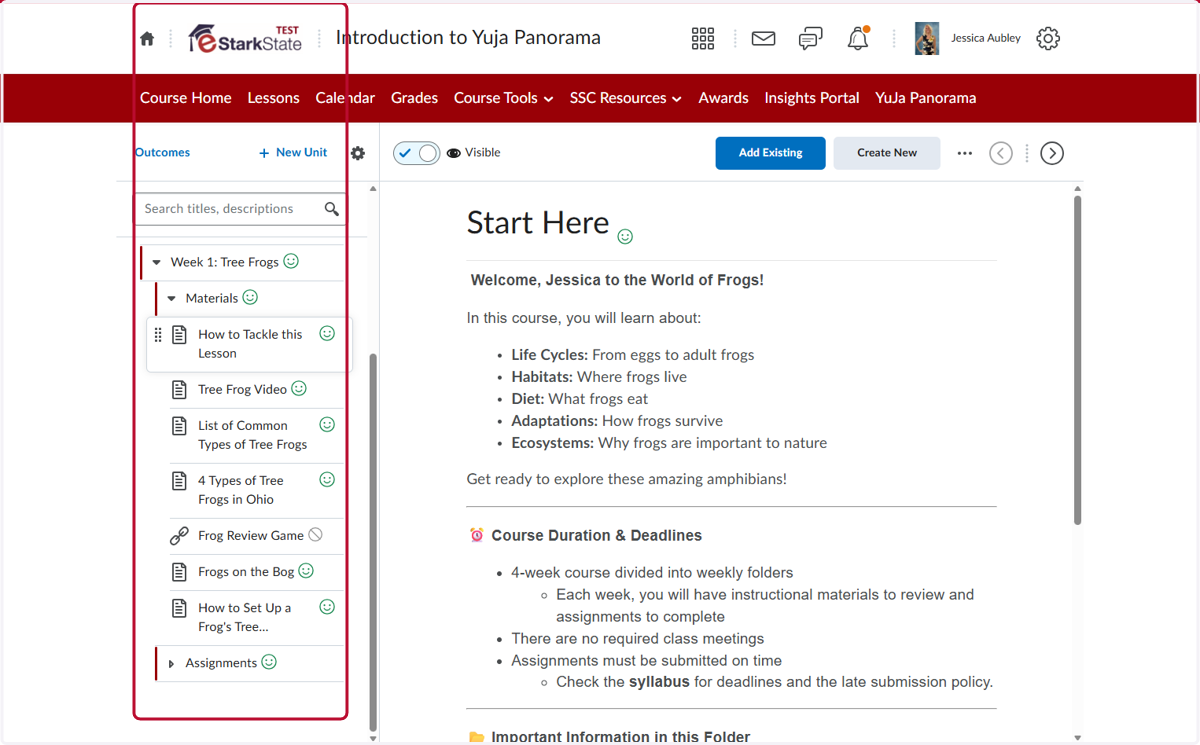
6. To edit content to accessible, click on the page title and then click on the three dots.
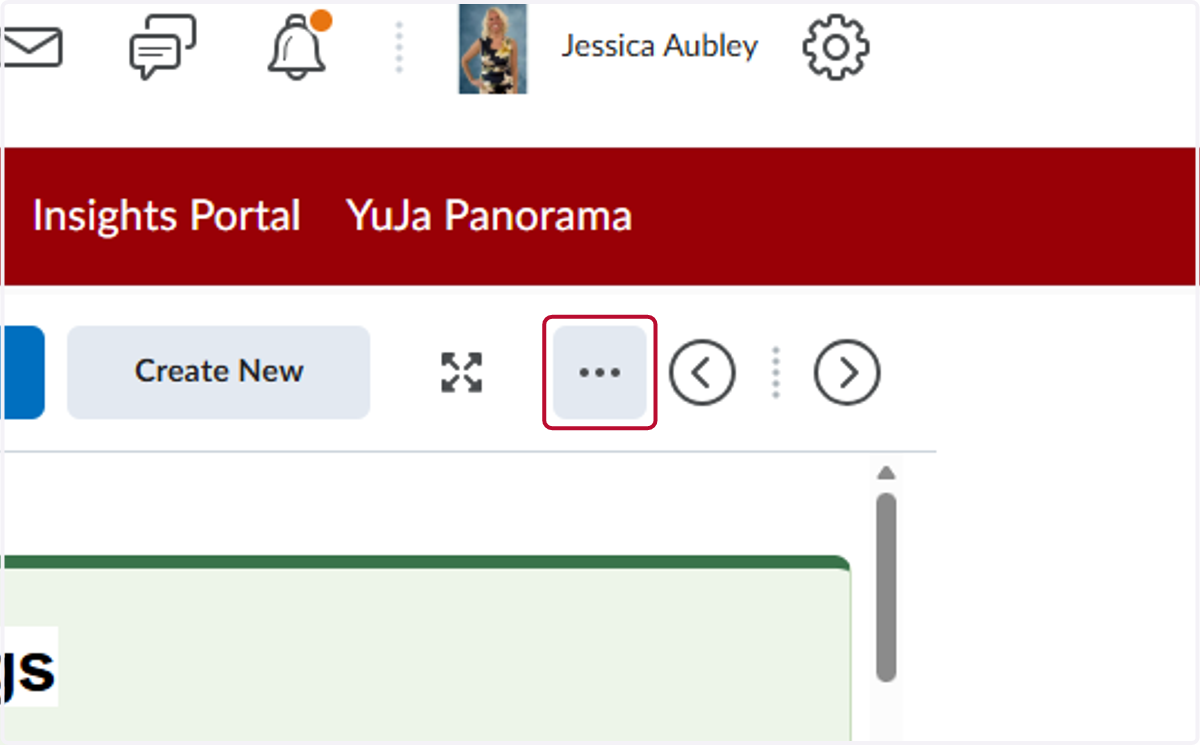
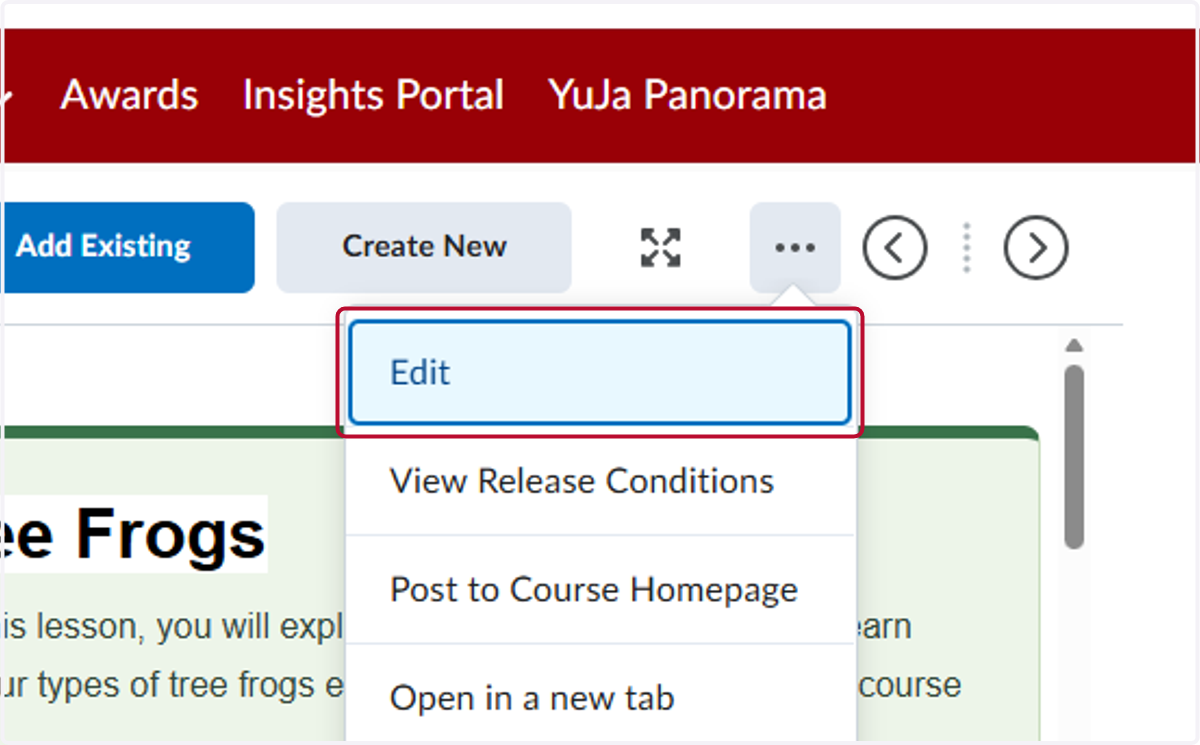
7. Click on Edit
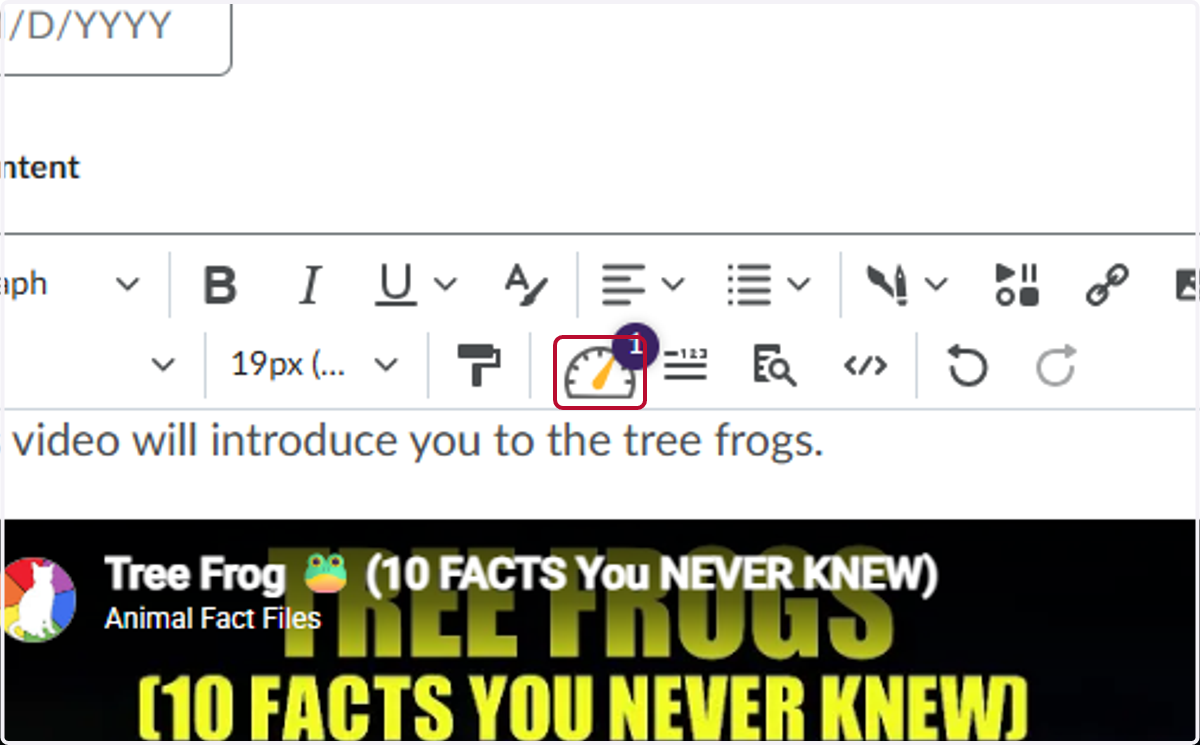
8. Click on the Guage icon
9. Review the Accessibility Report
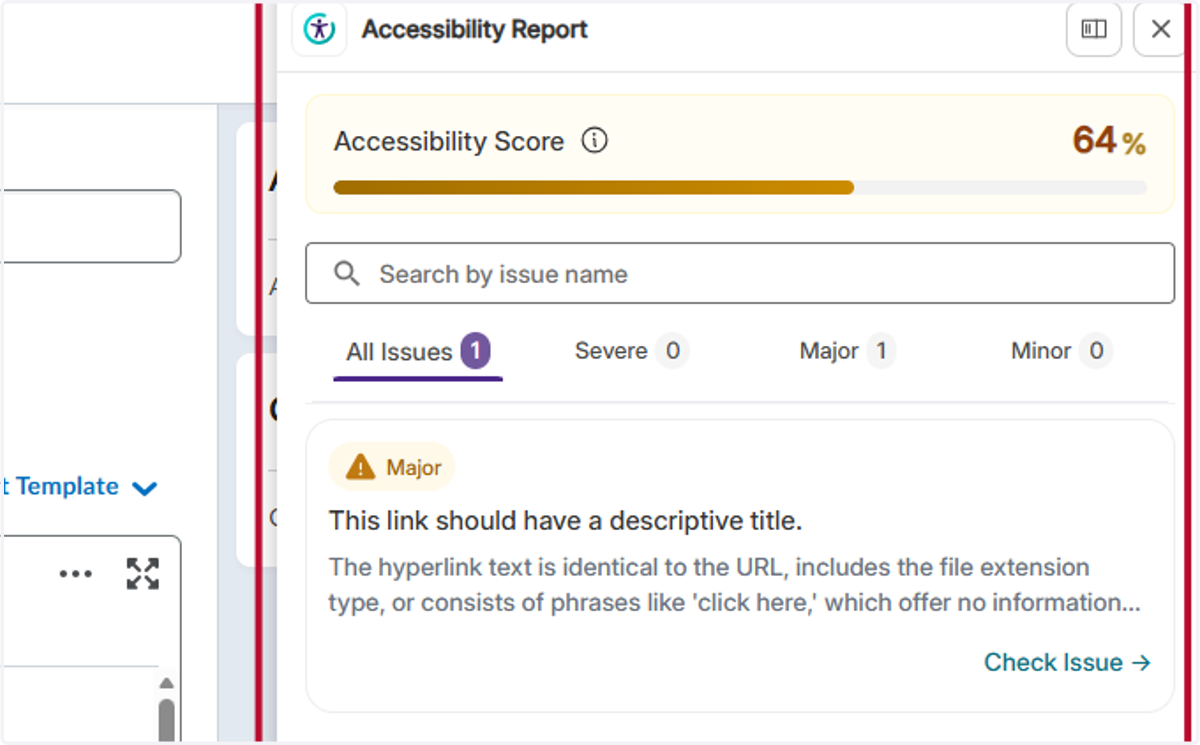
10. Click on Check Issue → to fix any issues you have
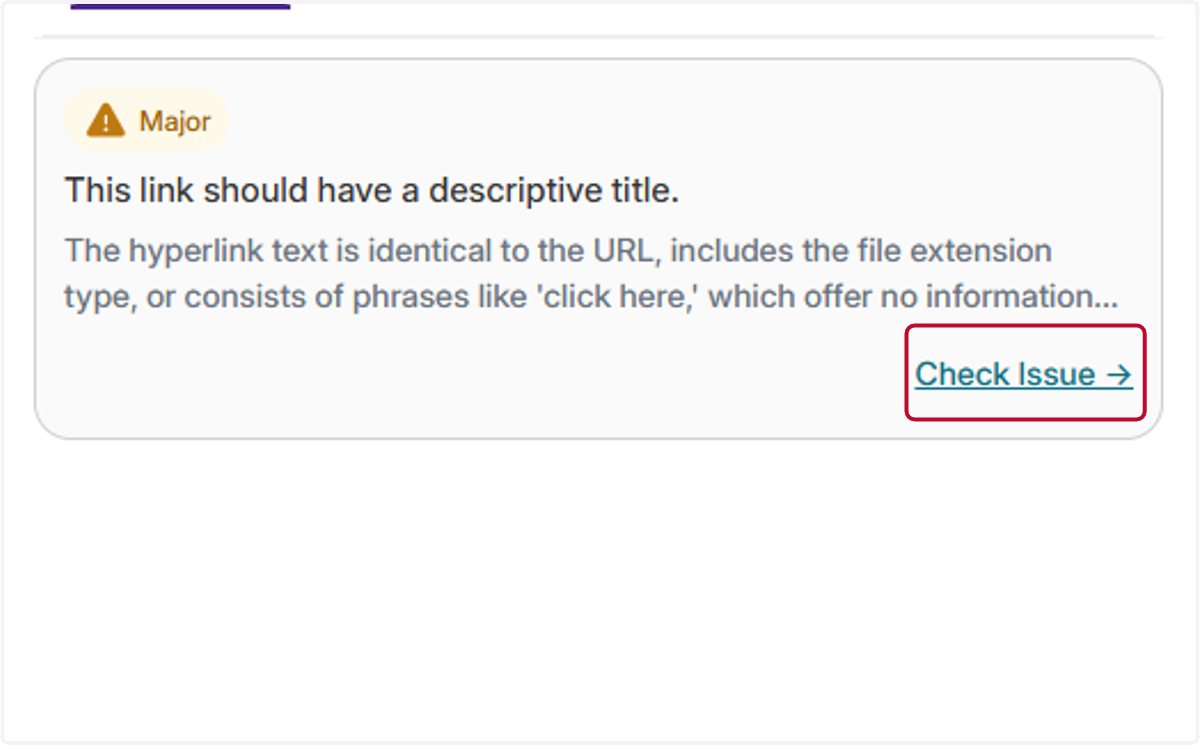
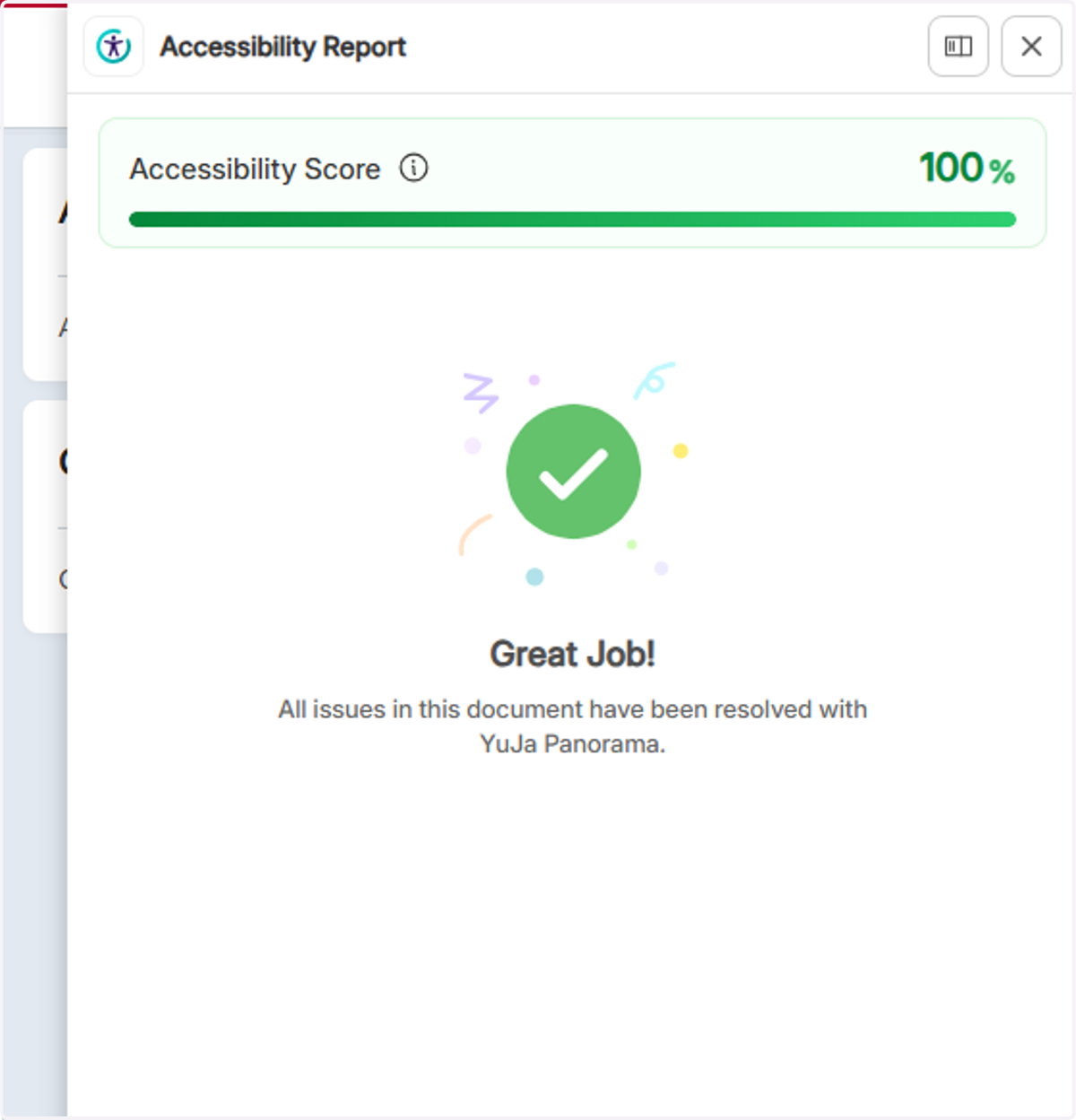
11. Repeat Step 10 until you have fixed all issues and see an Accessibility Score of 100%.
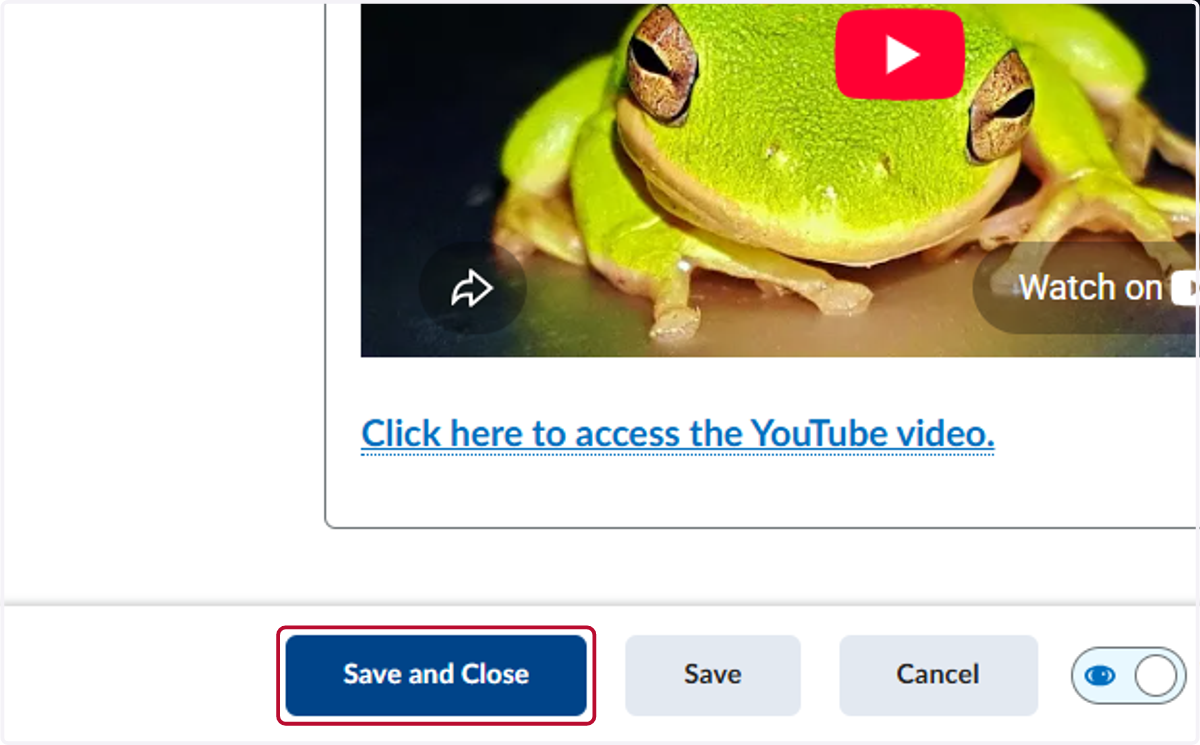
12. Click on Save and Close