How To Setup Voucher Redeem Points
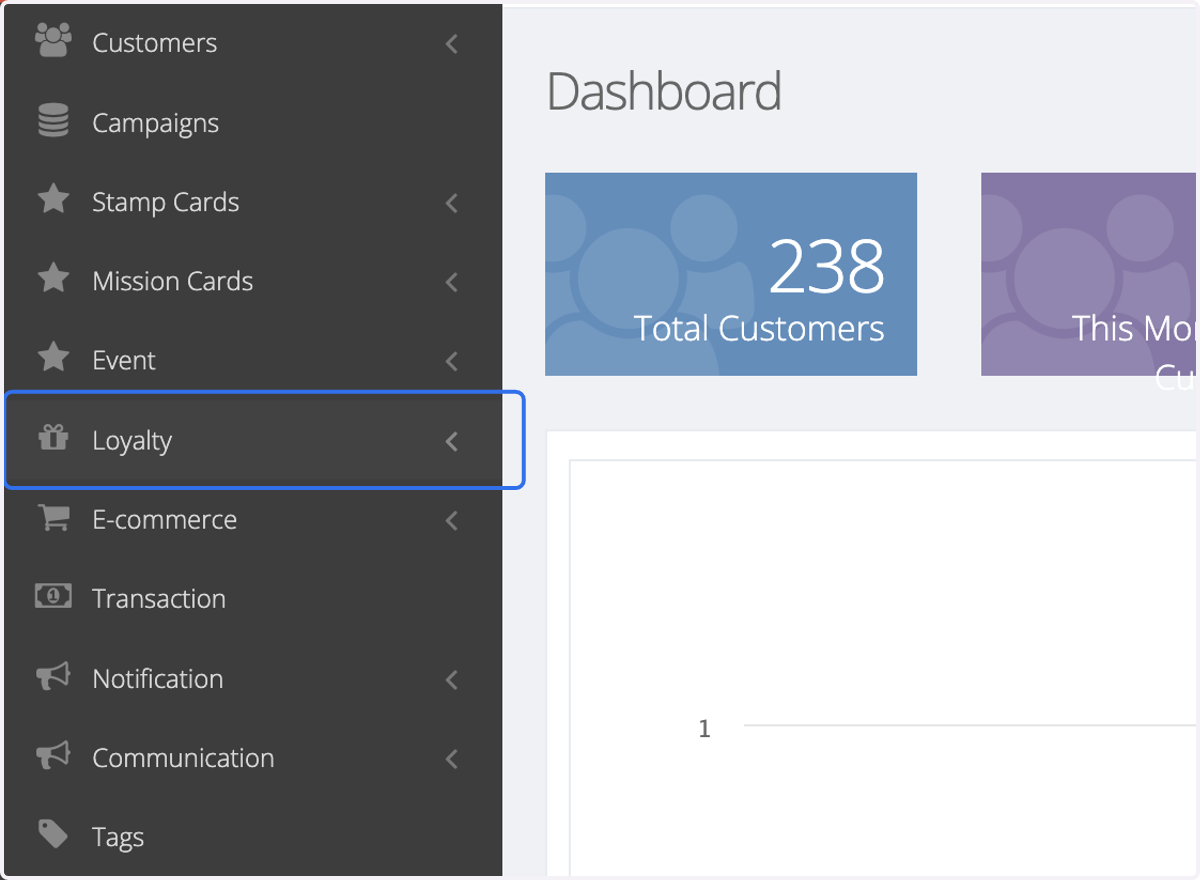
1. Click on Loyalty
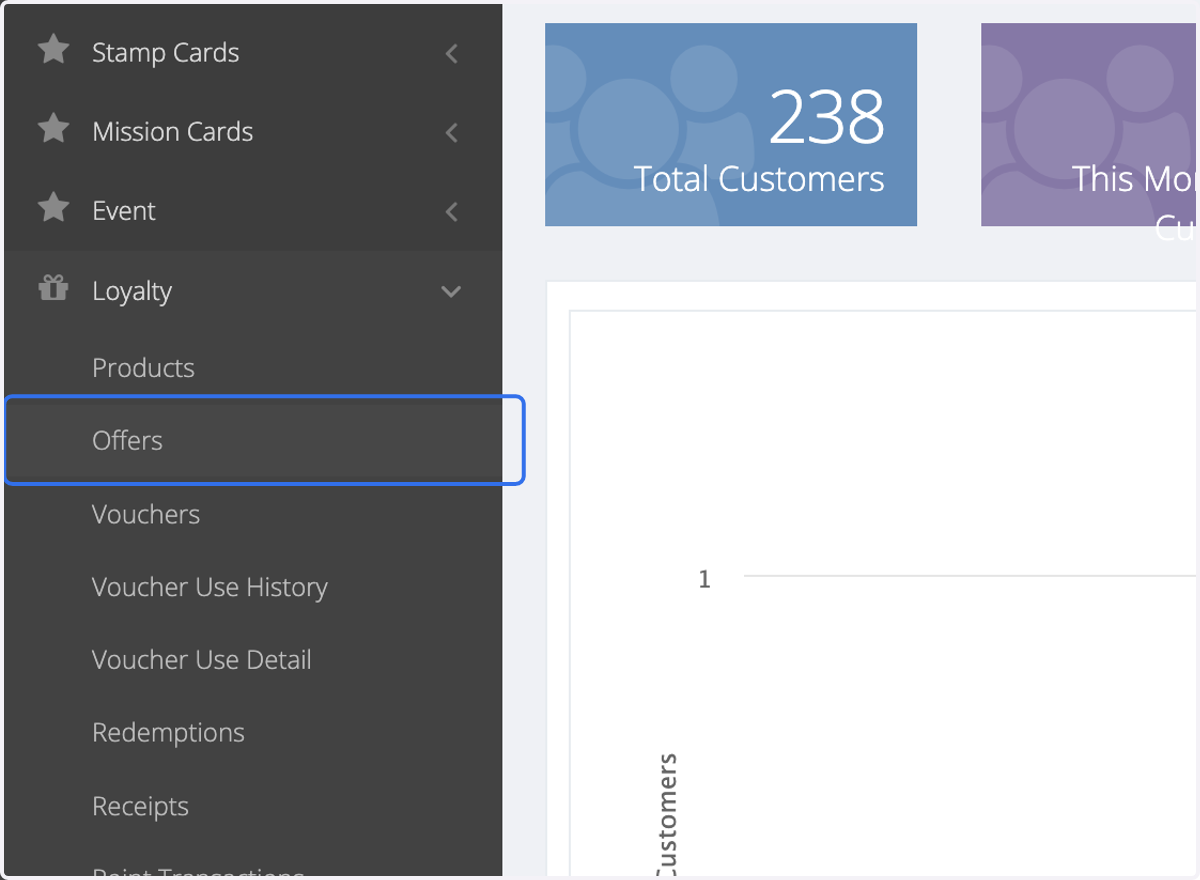
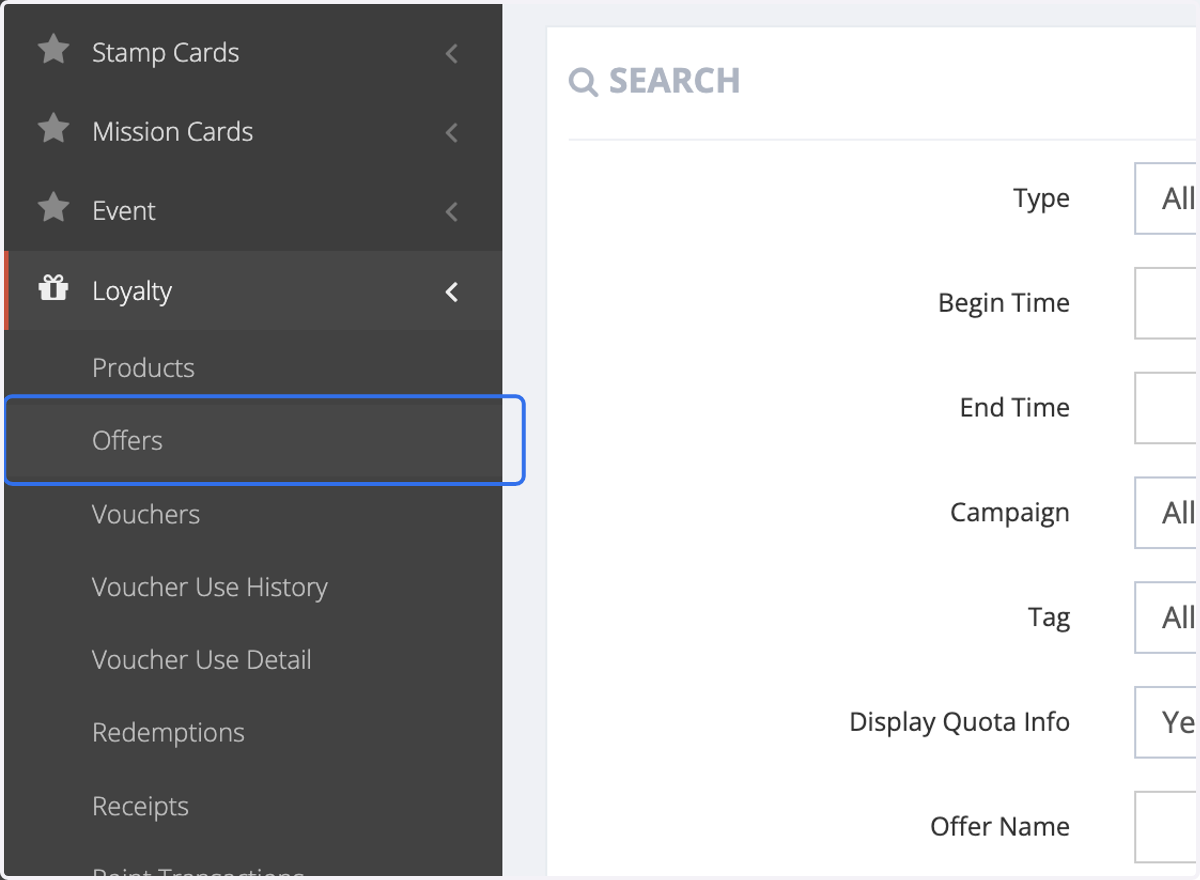
2. Click on Offers
3. Click on Add
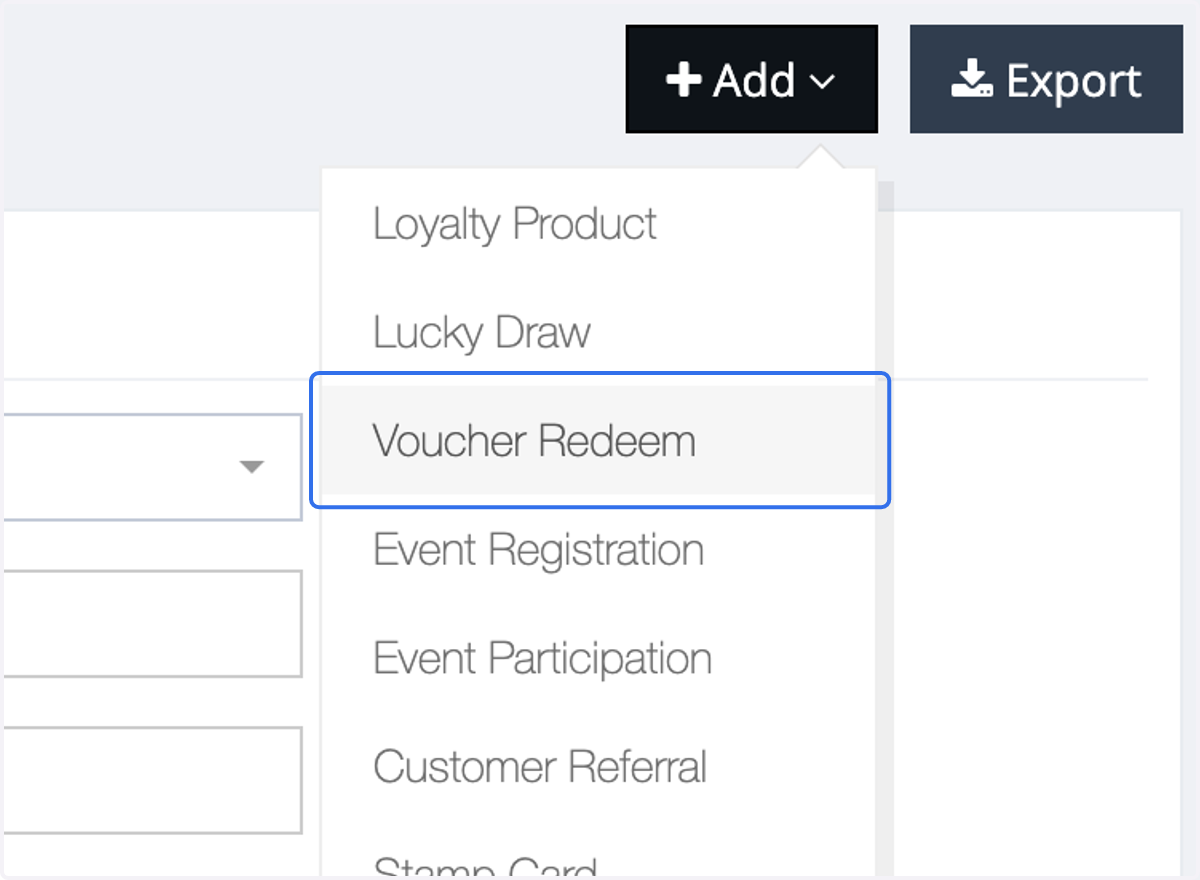
4. Click on Voucher Redeem
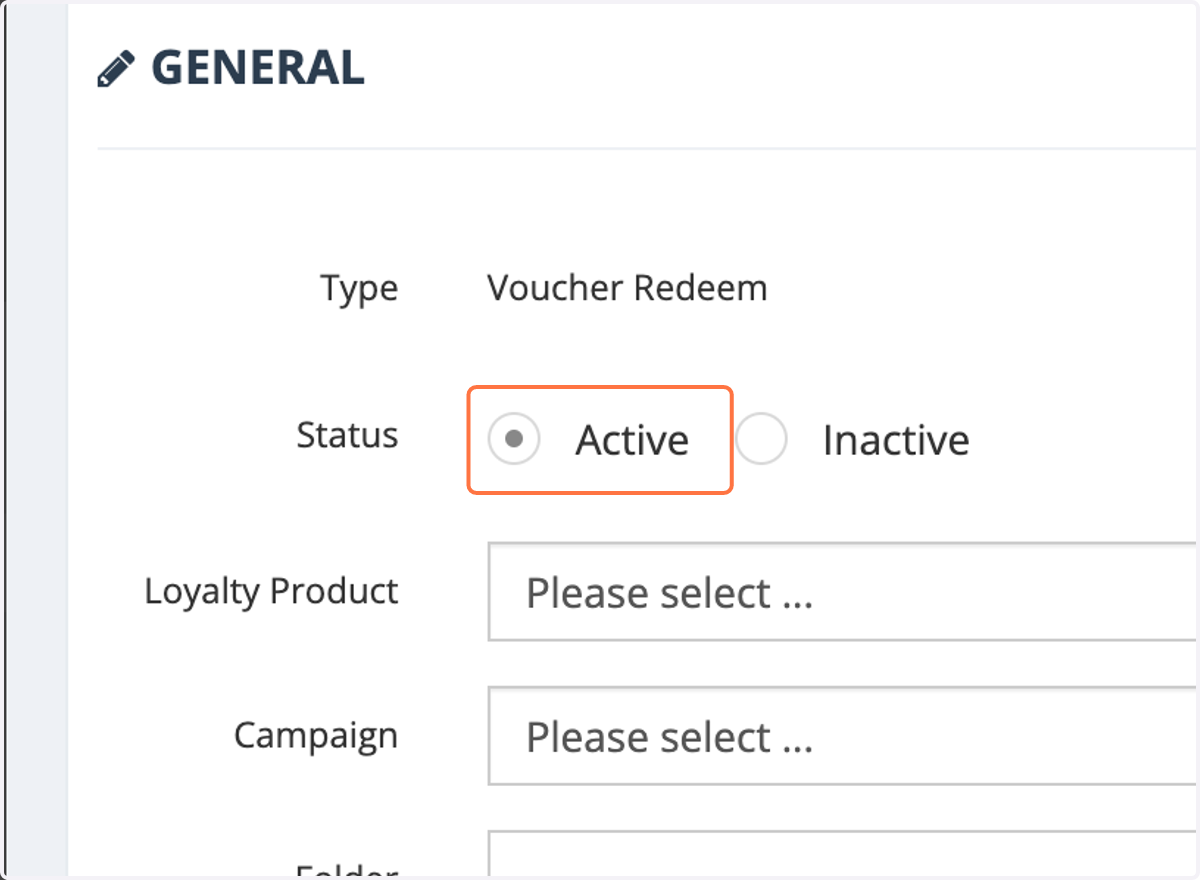
5. Select Active
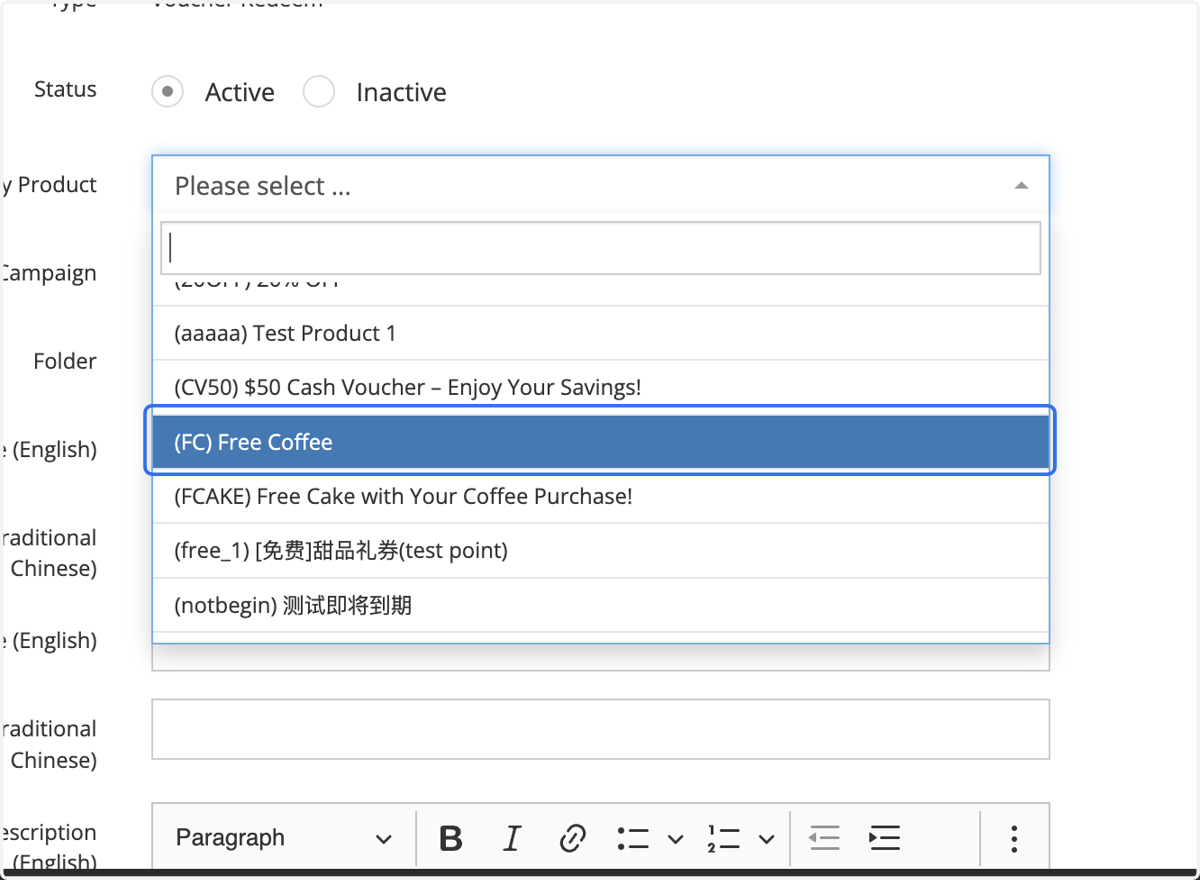
6. Select Loyalty Product
You can select a Loyalty Product if you want members redeeming this voucher to receive both points and a product/gift.
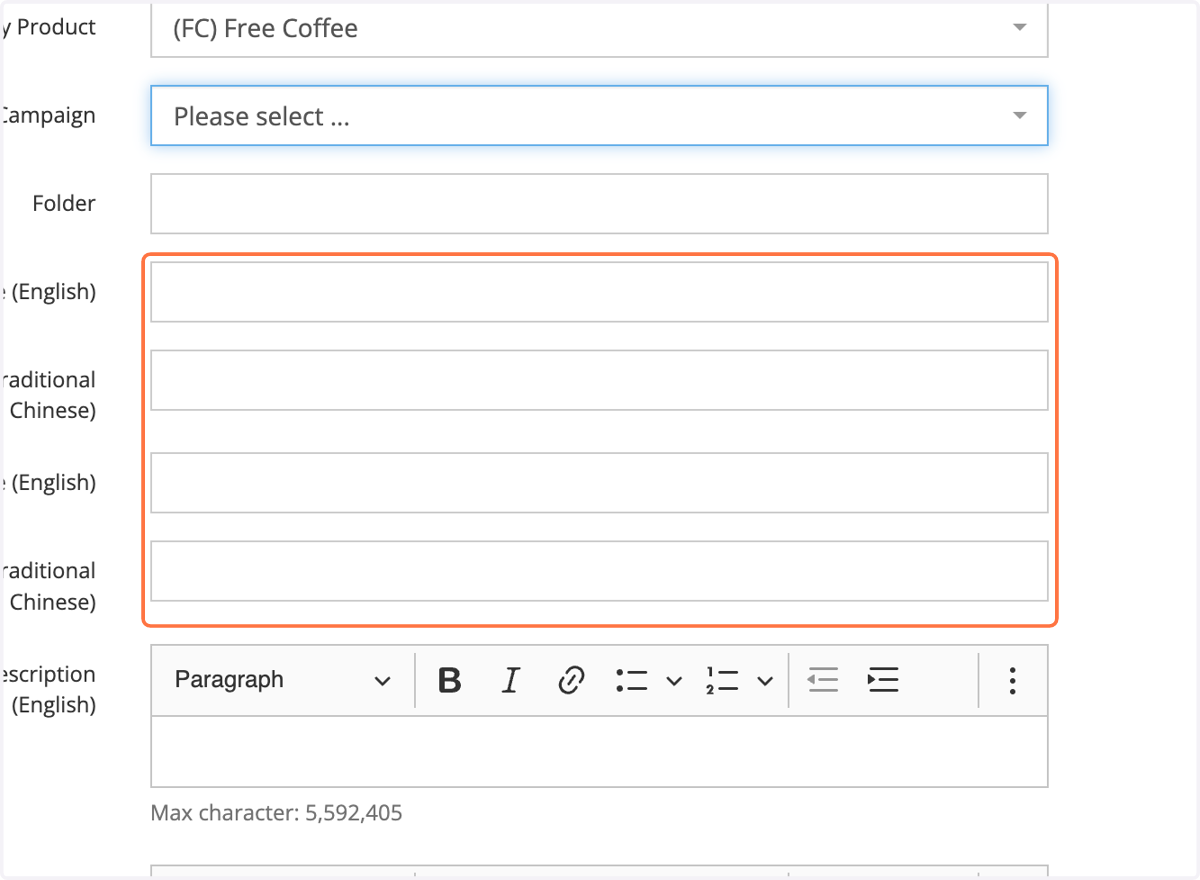
7. Type the voucher name to all three "Name" fields
8. Enter the Descriptions & Terms and Condition
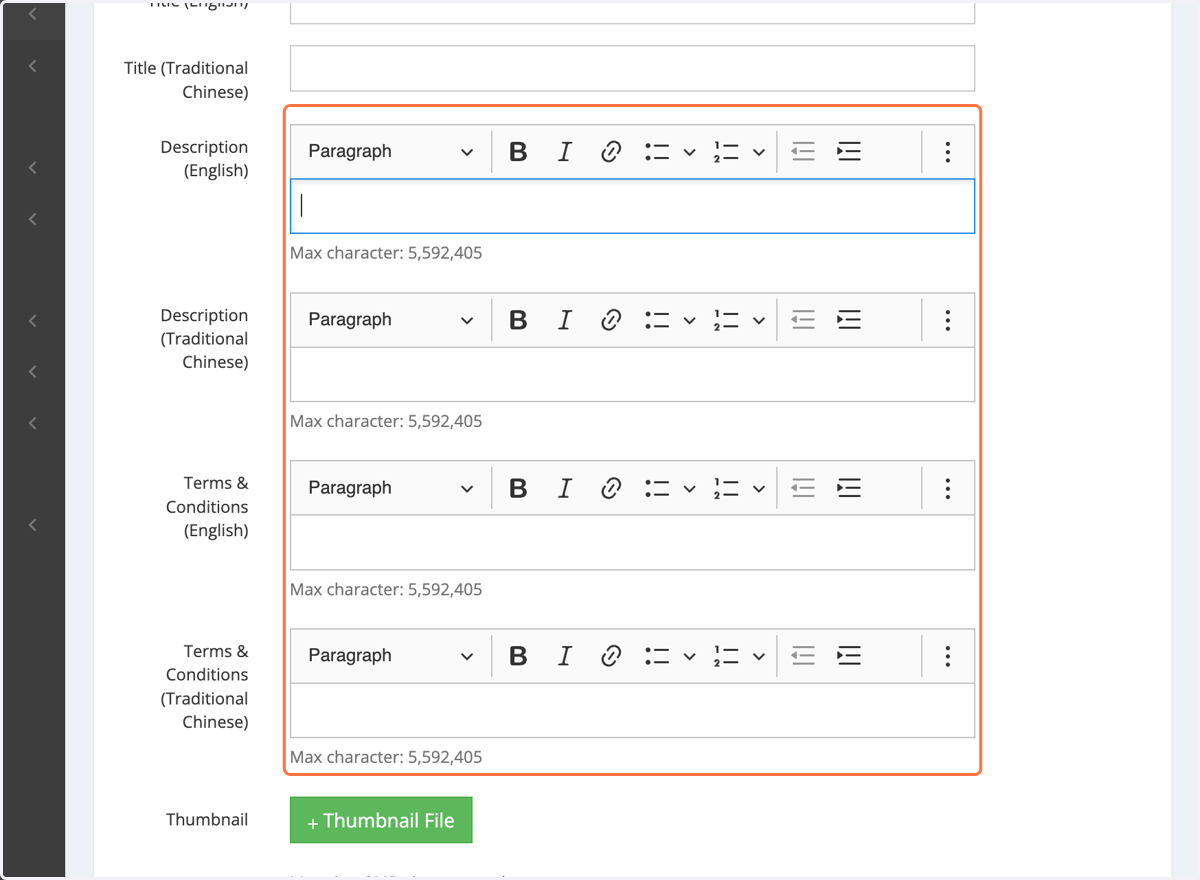
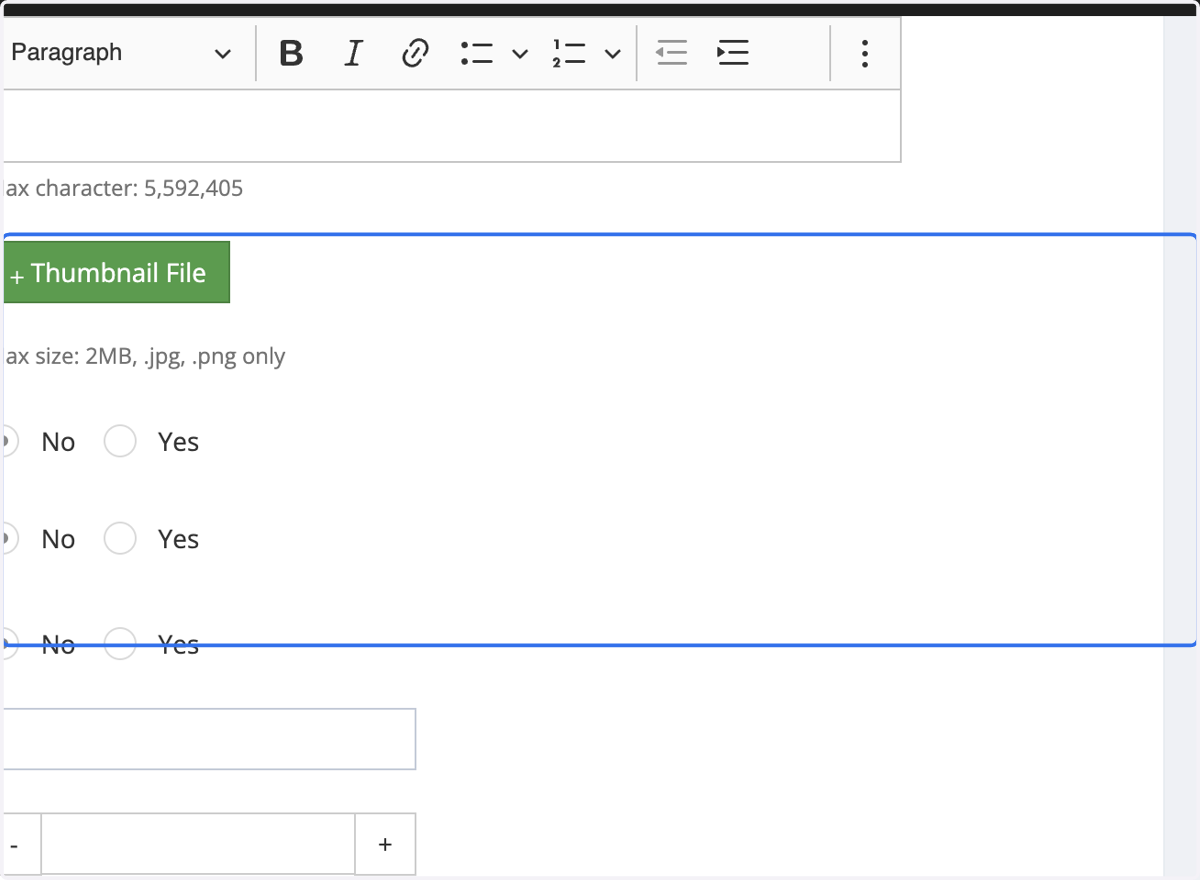
9. Insert Thumbnail
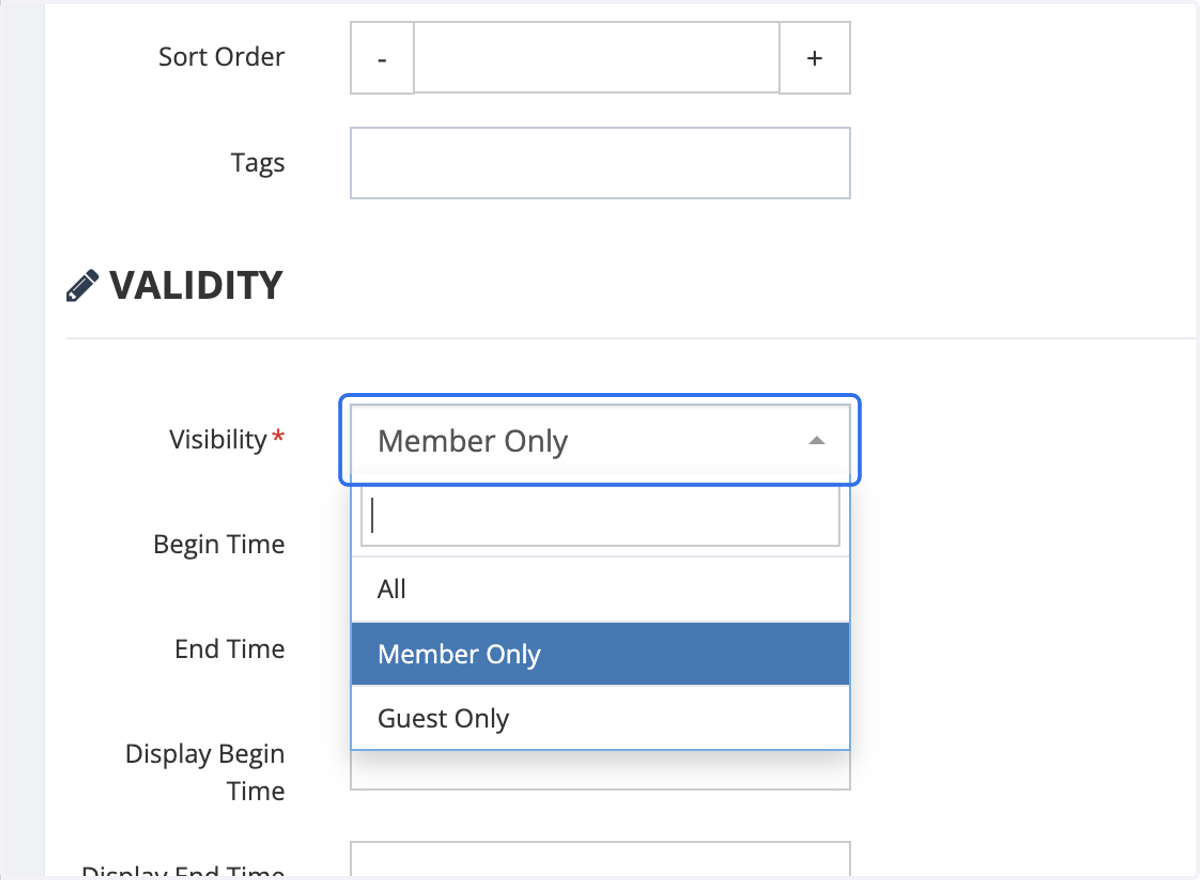
10. Click on Member Only for Visibility
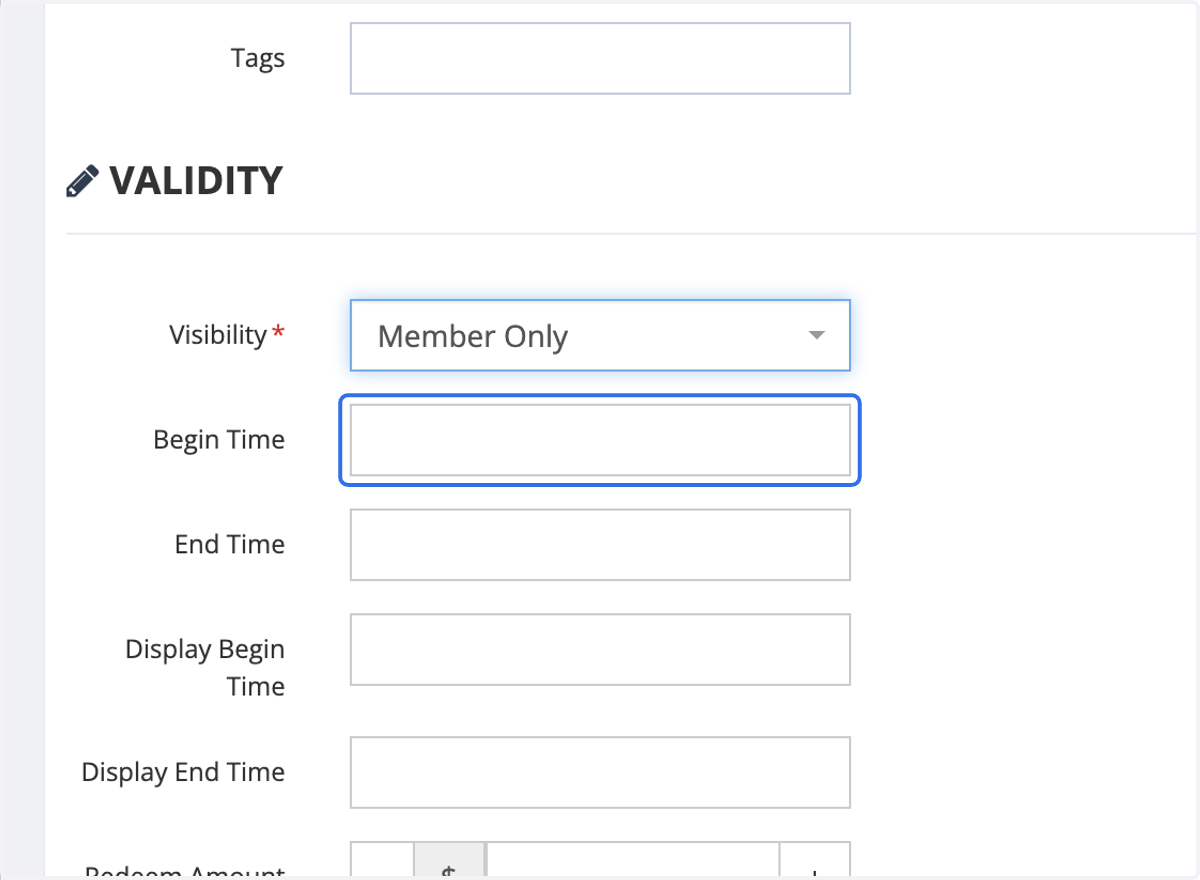
11. Insert the Begin and End Time
Use begin and expiry time control when the vouchers can be used by redeemed users
12. Enter the number of Redeem Points required for members to redeem this voucher.
Leave it blank if it is free.
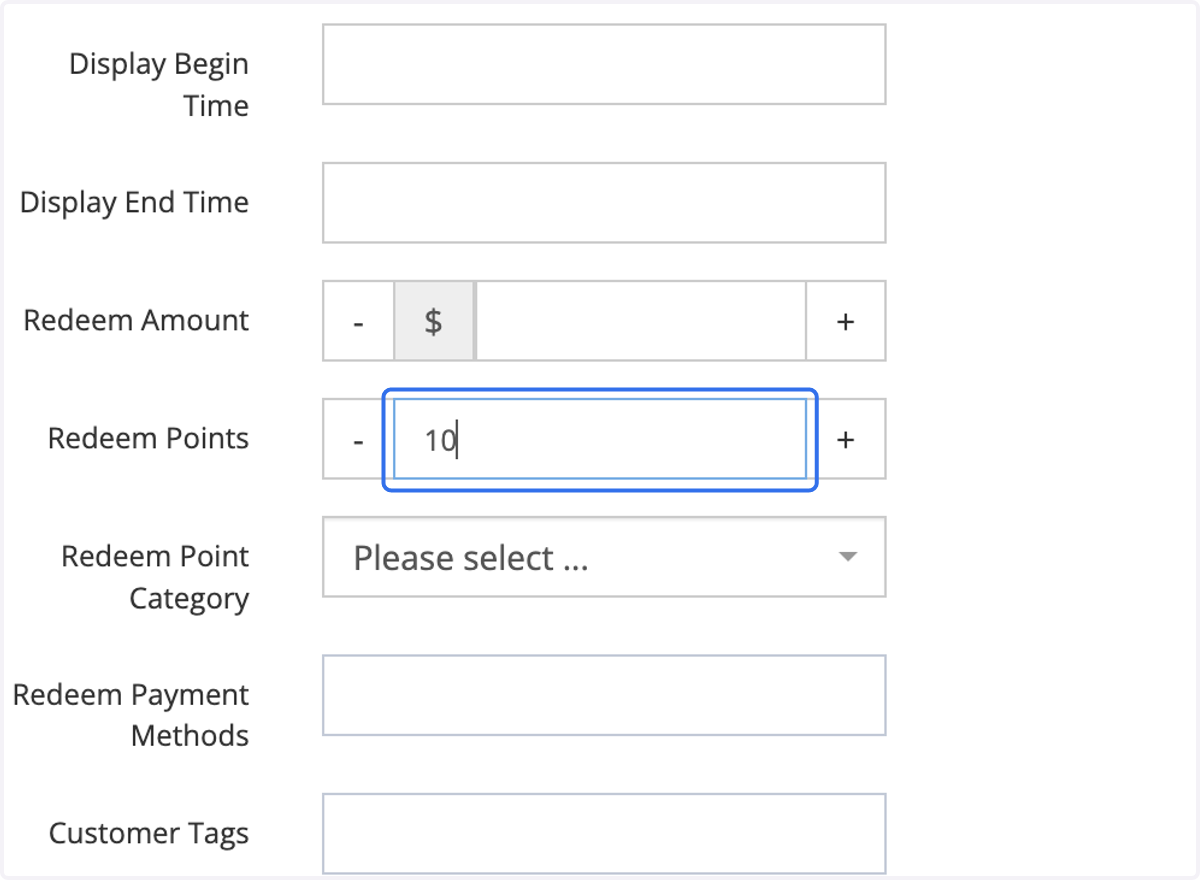
13. Select Redeem Points Category. In this case, we will choose Points Redeem
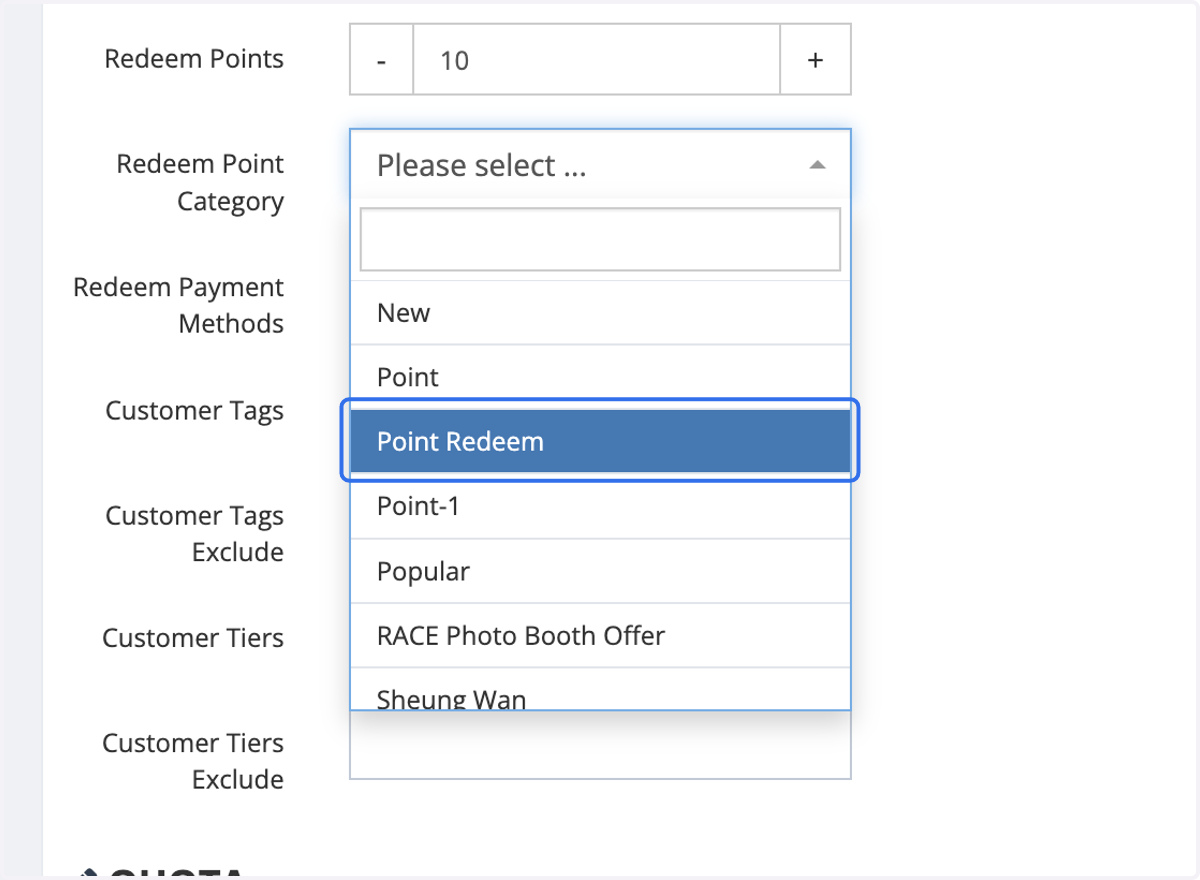
14. Insert Quota
Total Quota:用于限制总数量
Daily Quota:限制每天总共可领数量
Monthly Quota:限制每月总共可领数量
Customer Total Quota:用户总共可领数量
Customer Daily Quota:用户每日总共可领数量
Customer Monthly Quota:用户每月总共可领数量
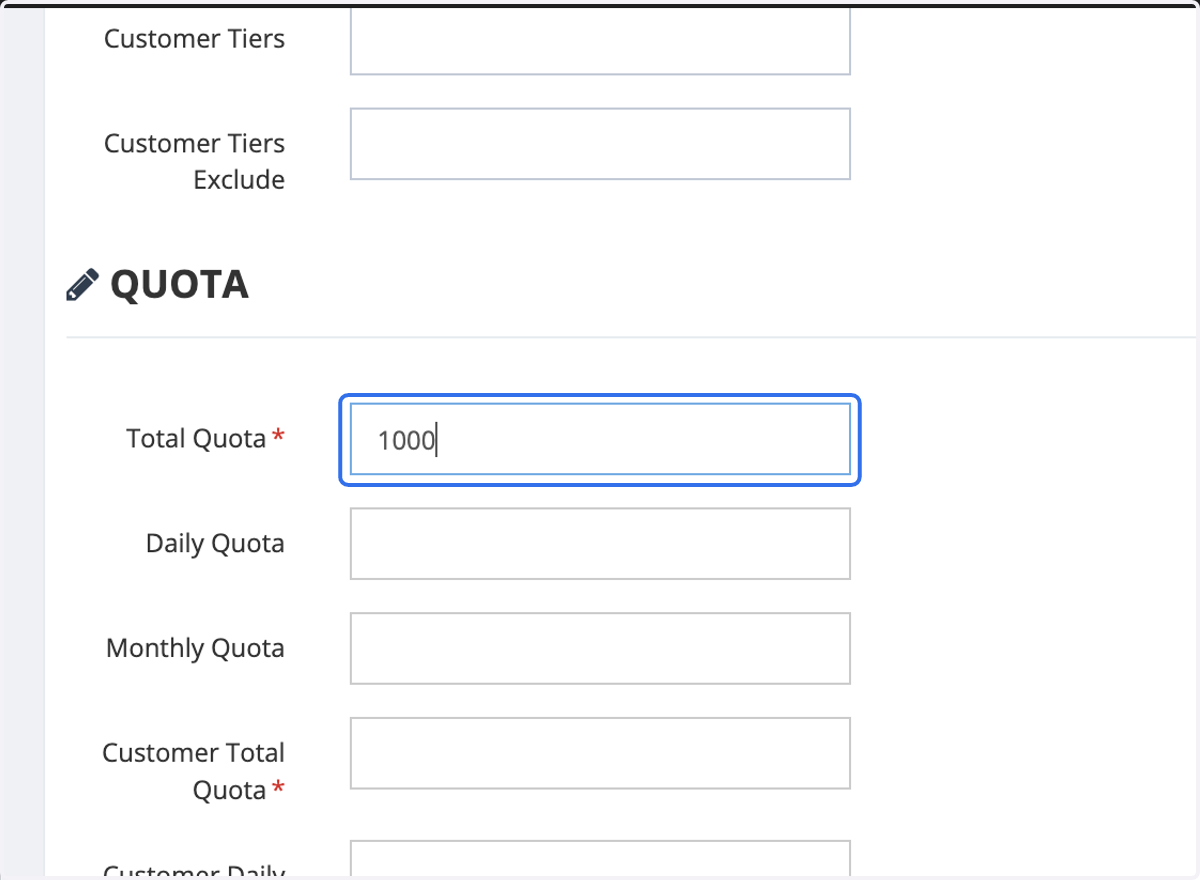
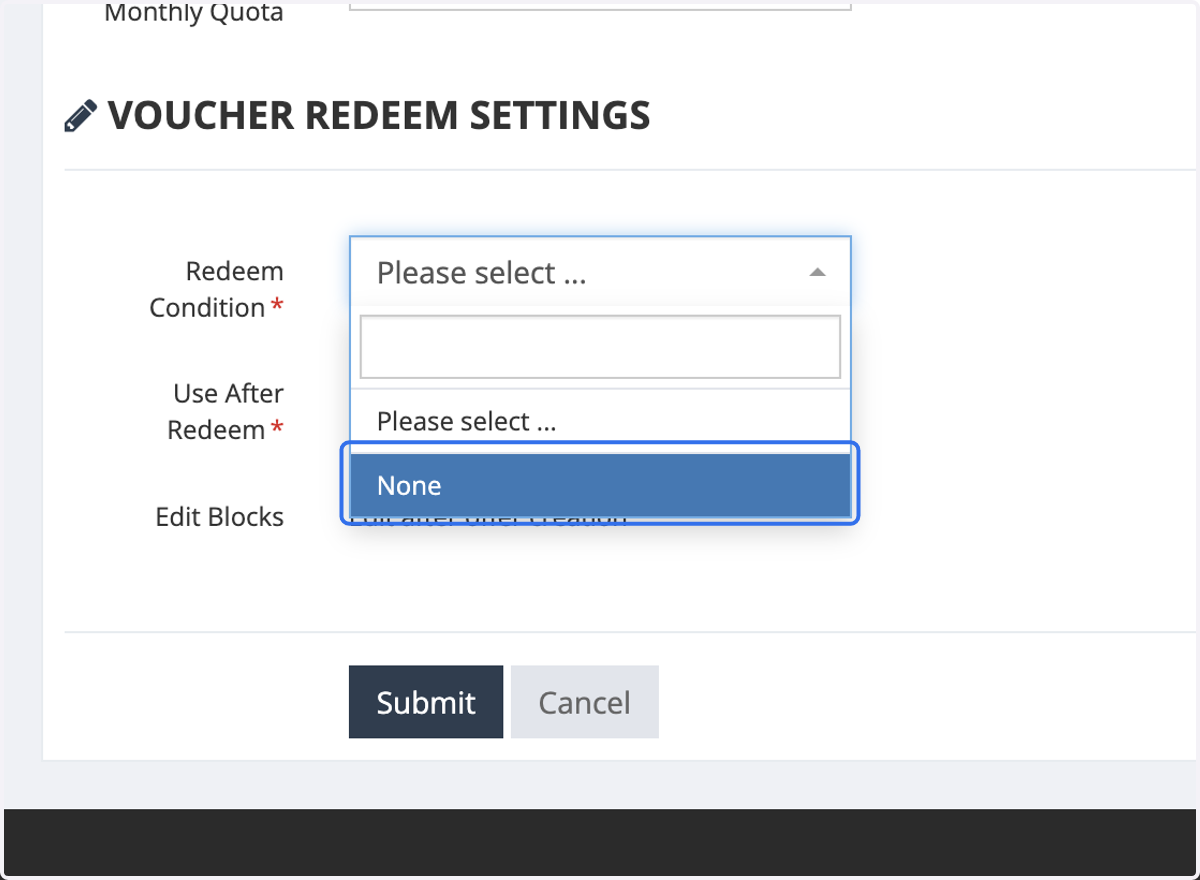
15. Select Redeem Condition.
In most cases, there will be no redemption conditions. However, any additional conditions required will need IT configuration.
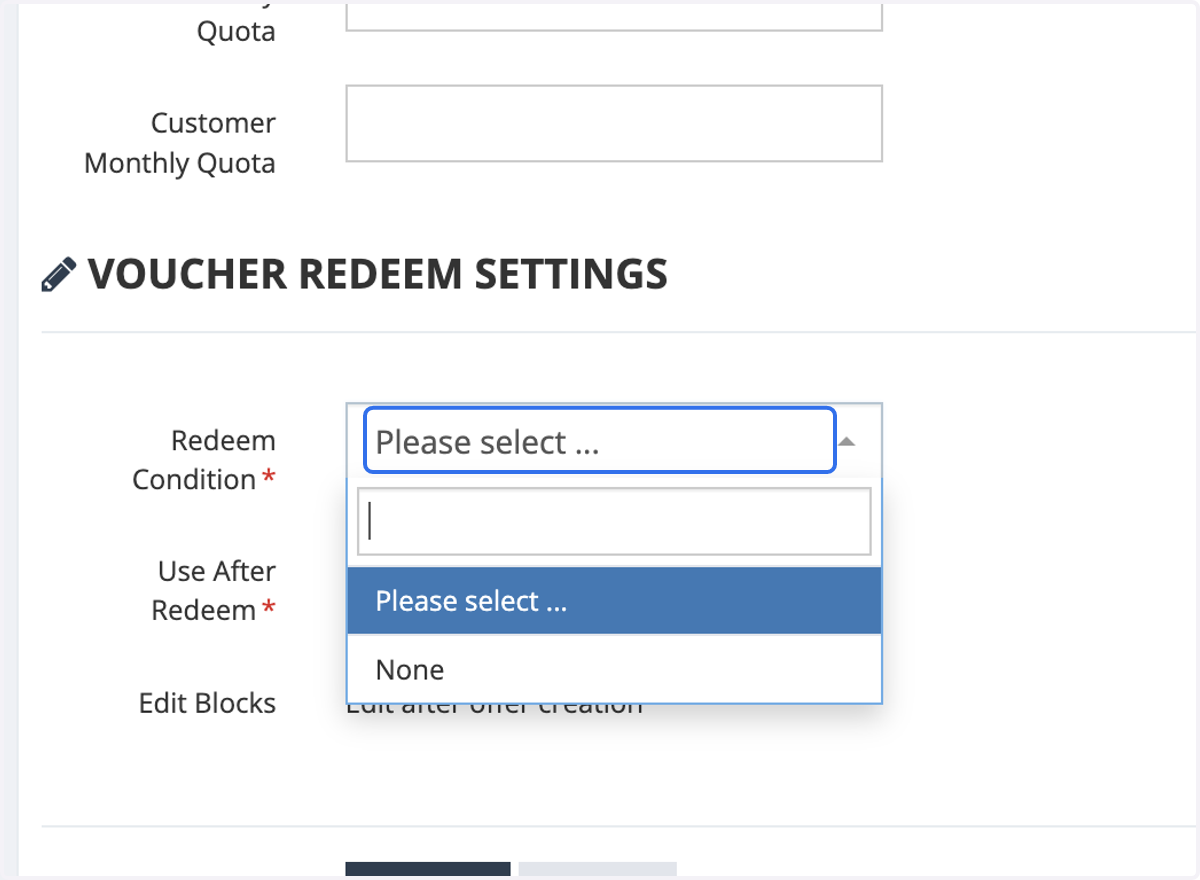
16. Click on None
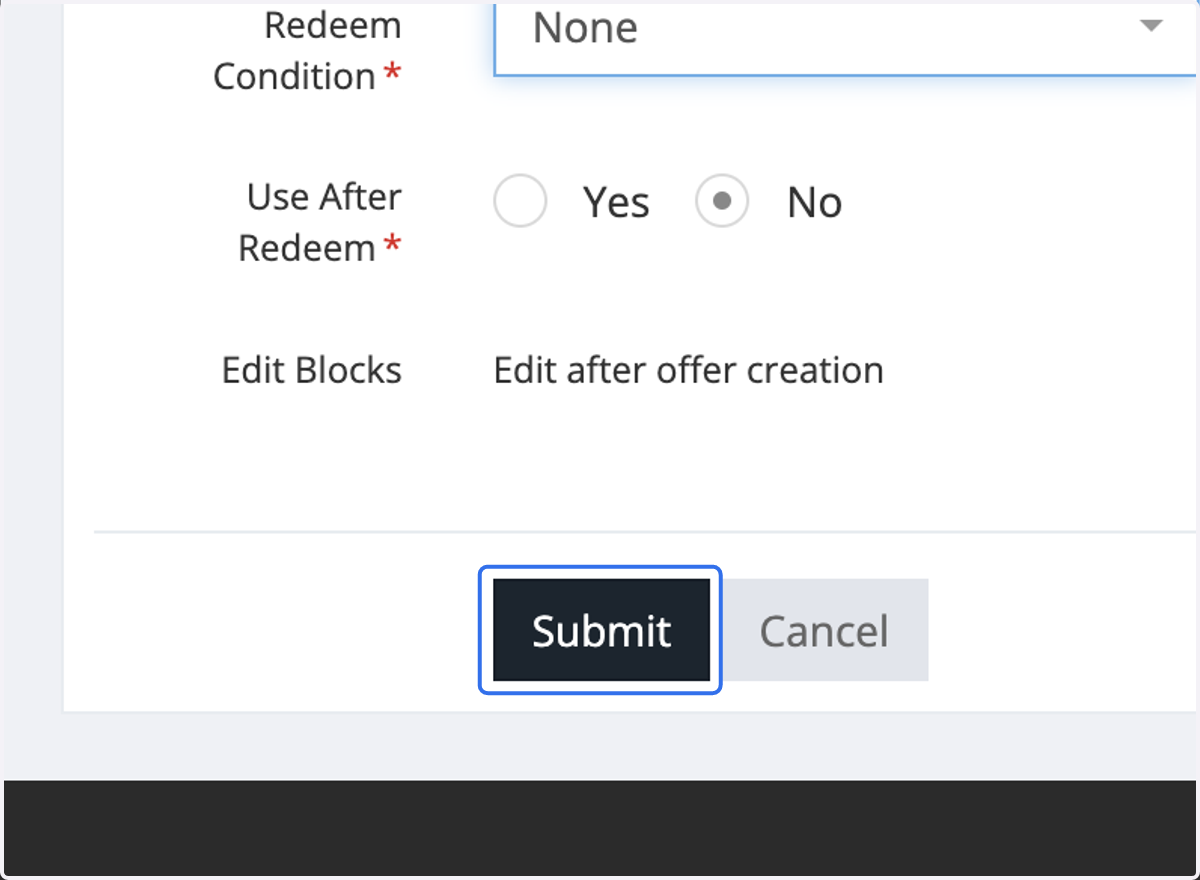
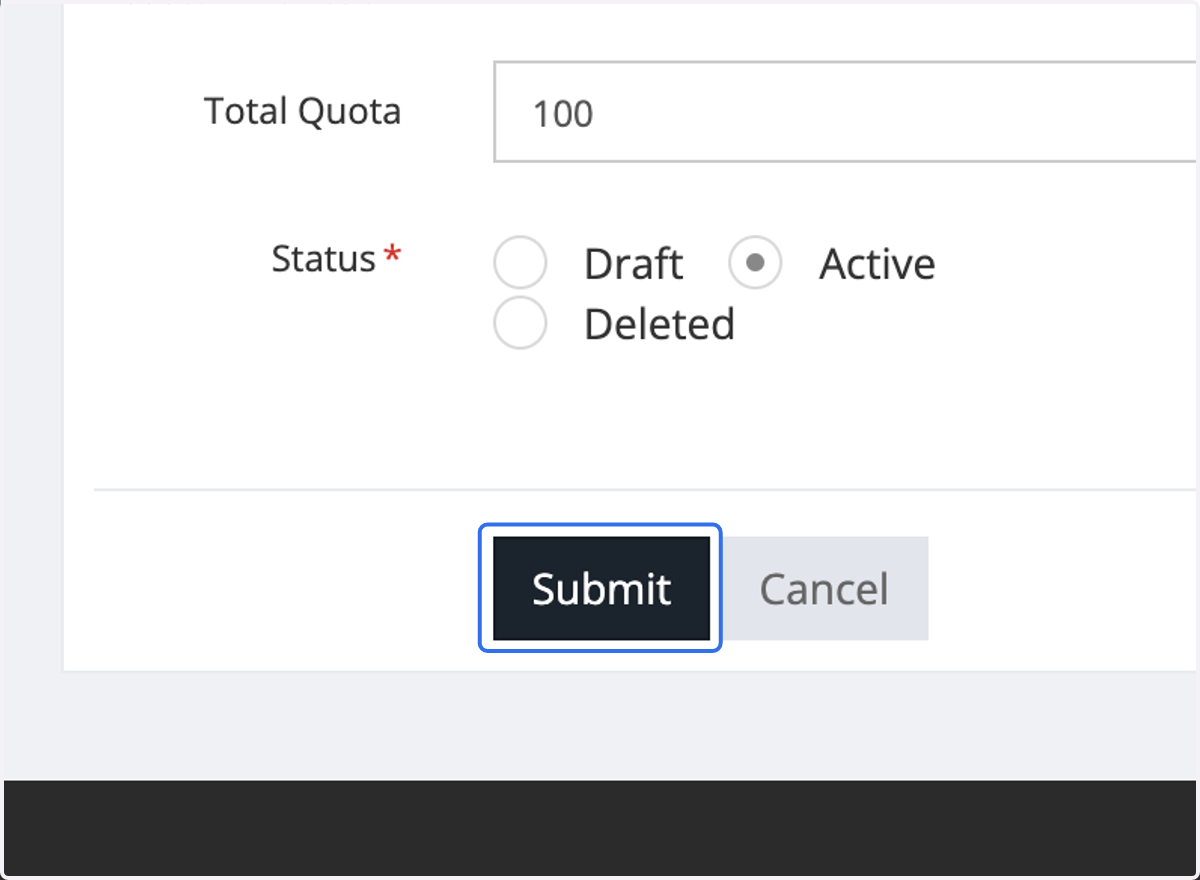
17. Click on Submit
18. Go back to Offers
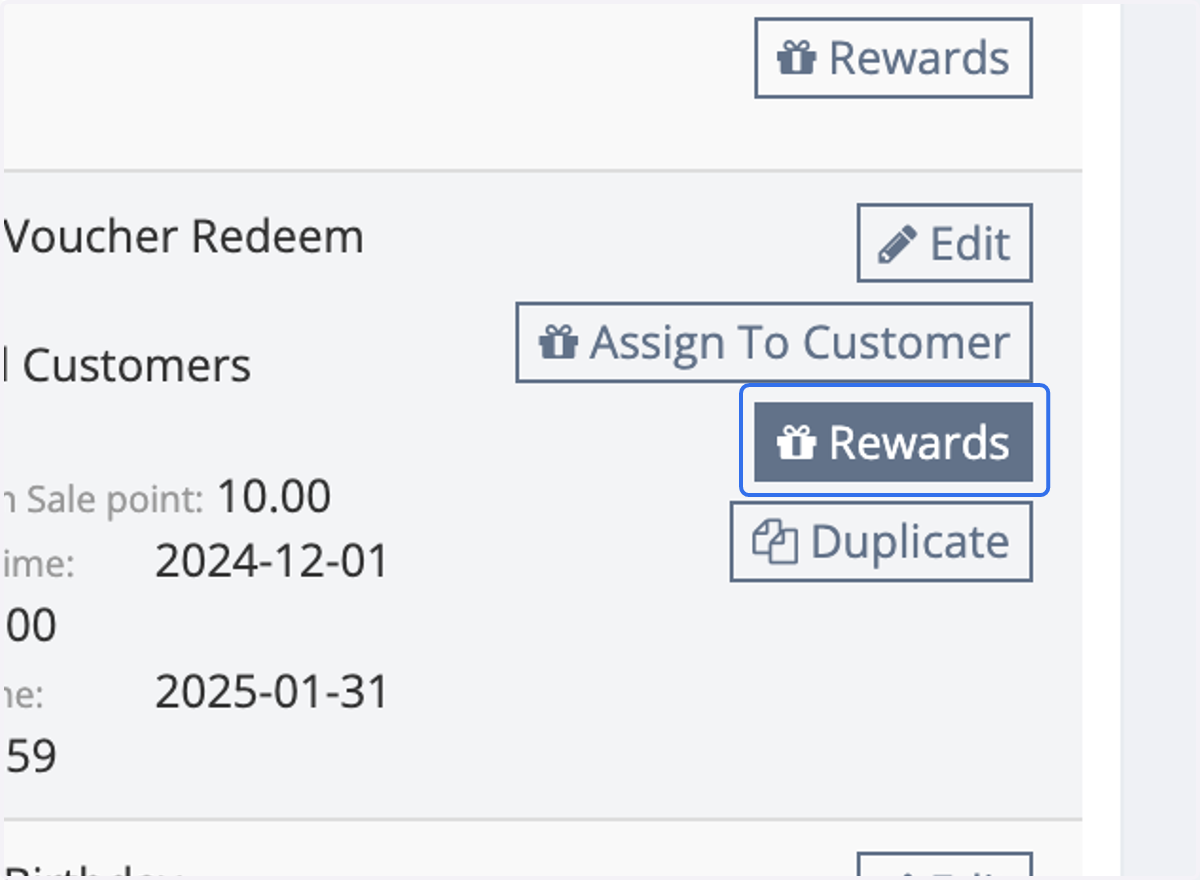
19. Click on Rewards for the respective Offer created.
20. Click on Add
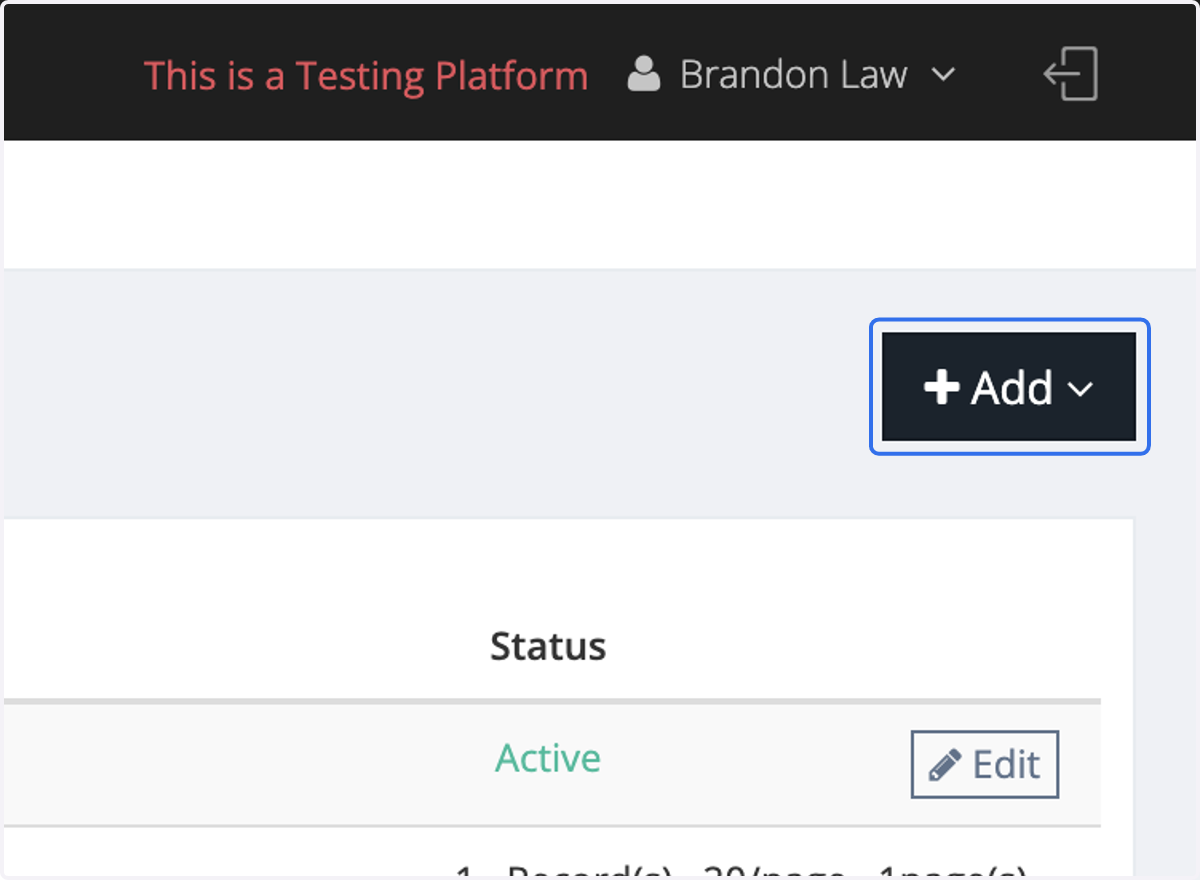
21. Click on Point
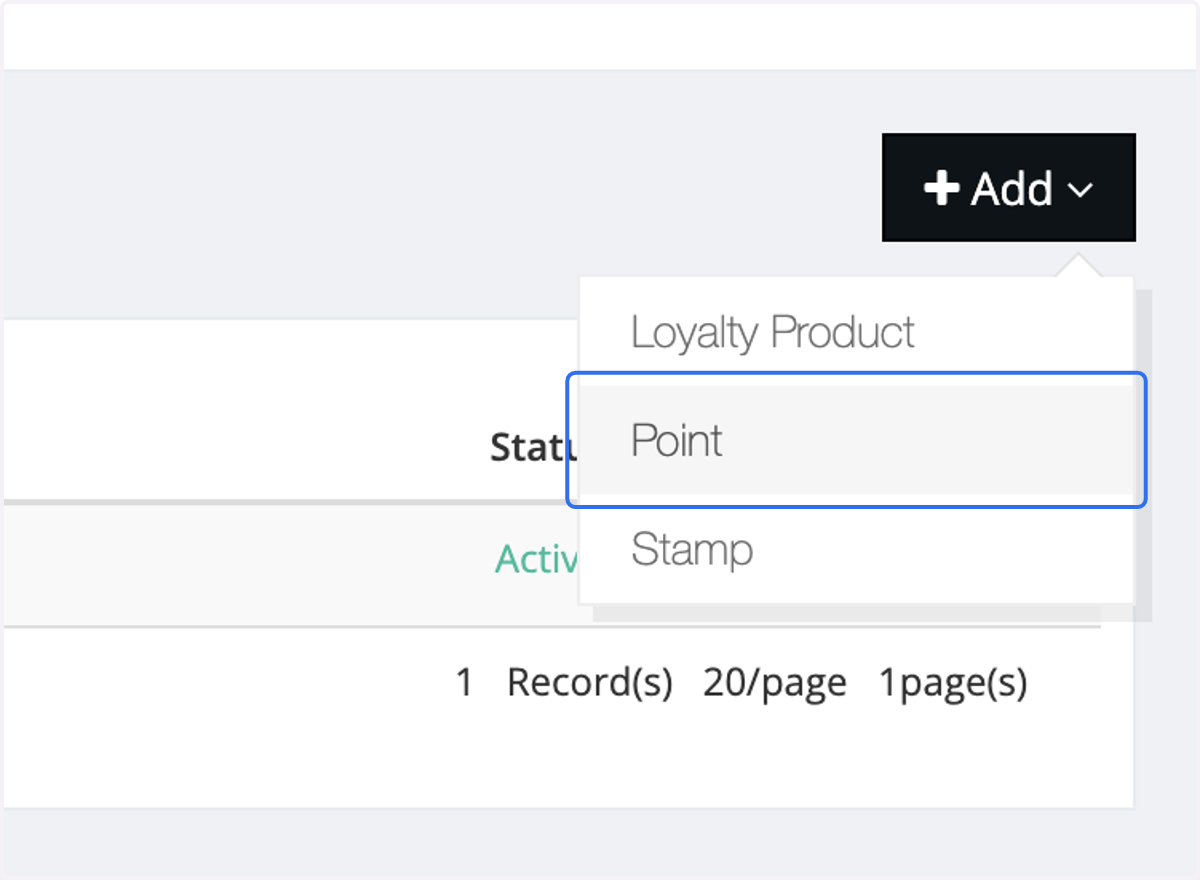
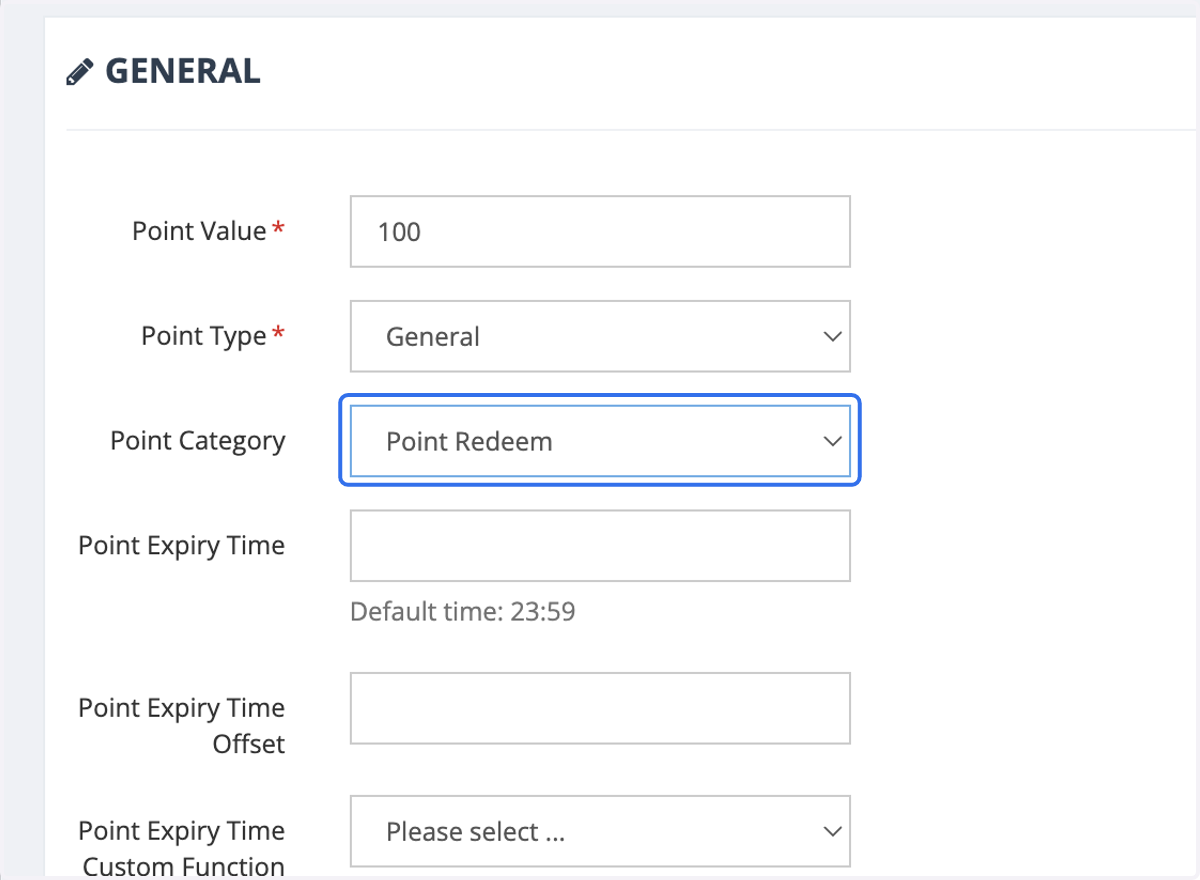
22. Insert the Point Reward upon redemption
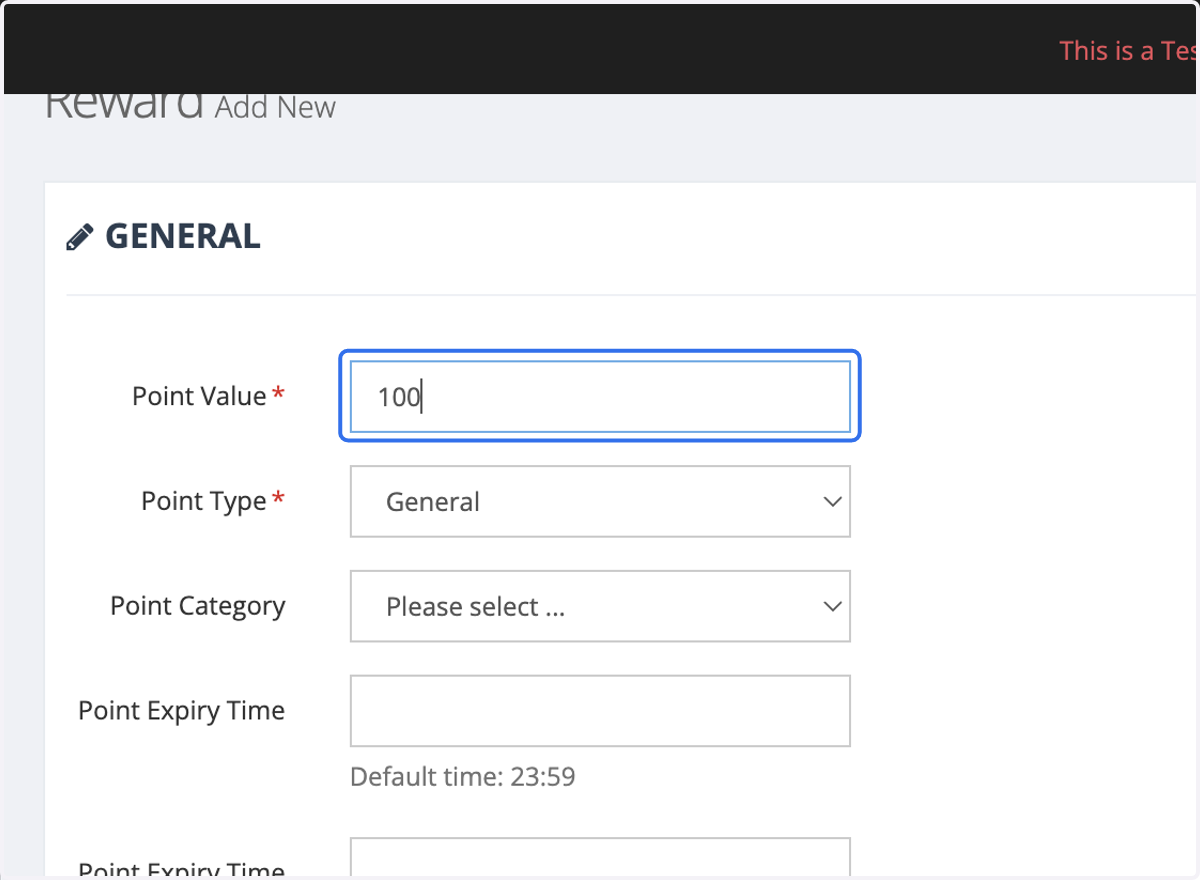
23. Insert Points Type.
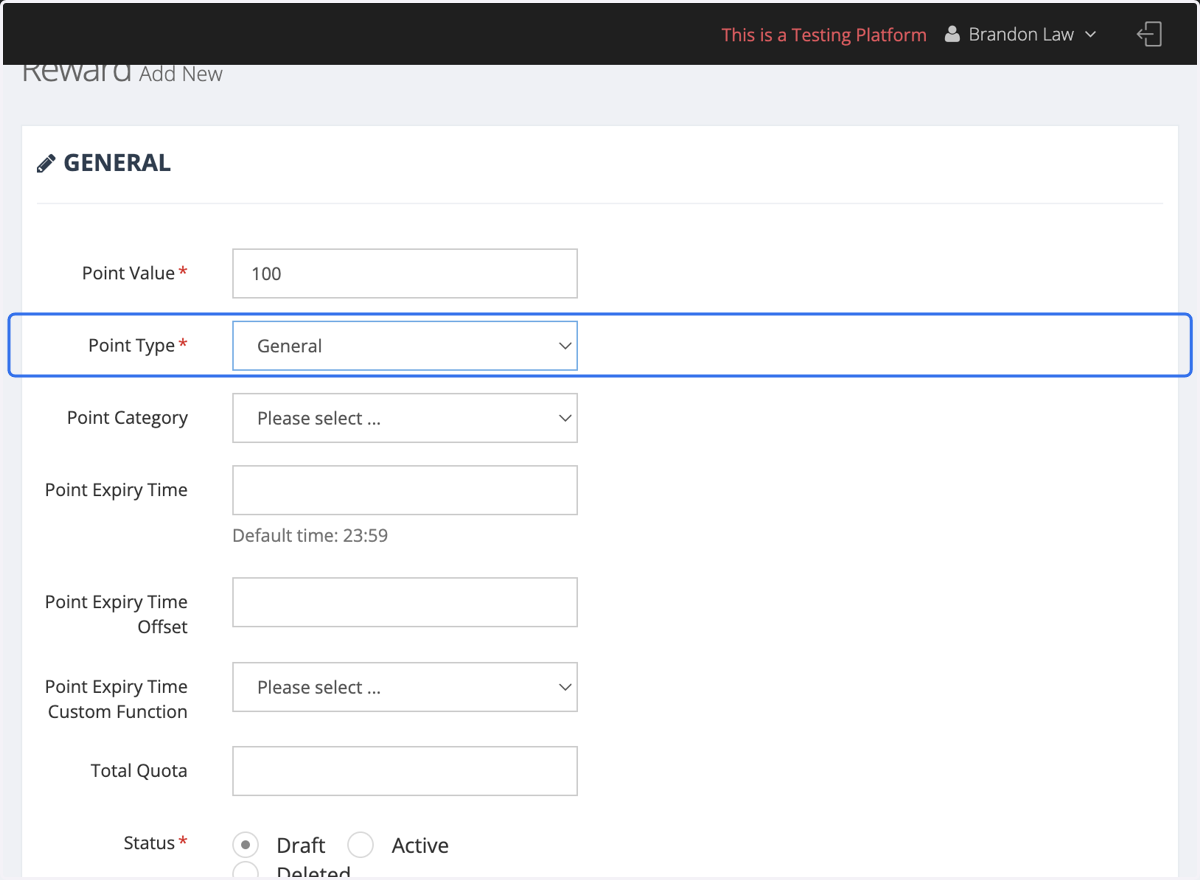
24. Select Point Redeem as Point Category
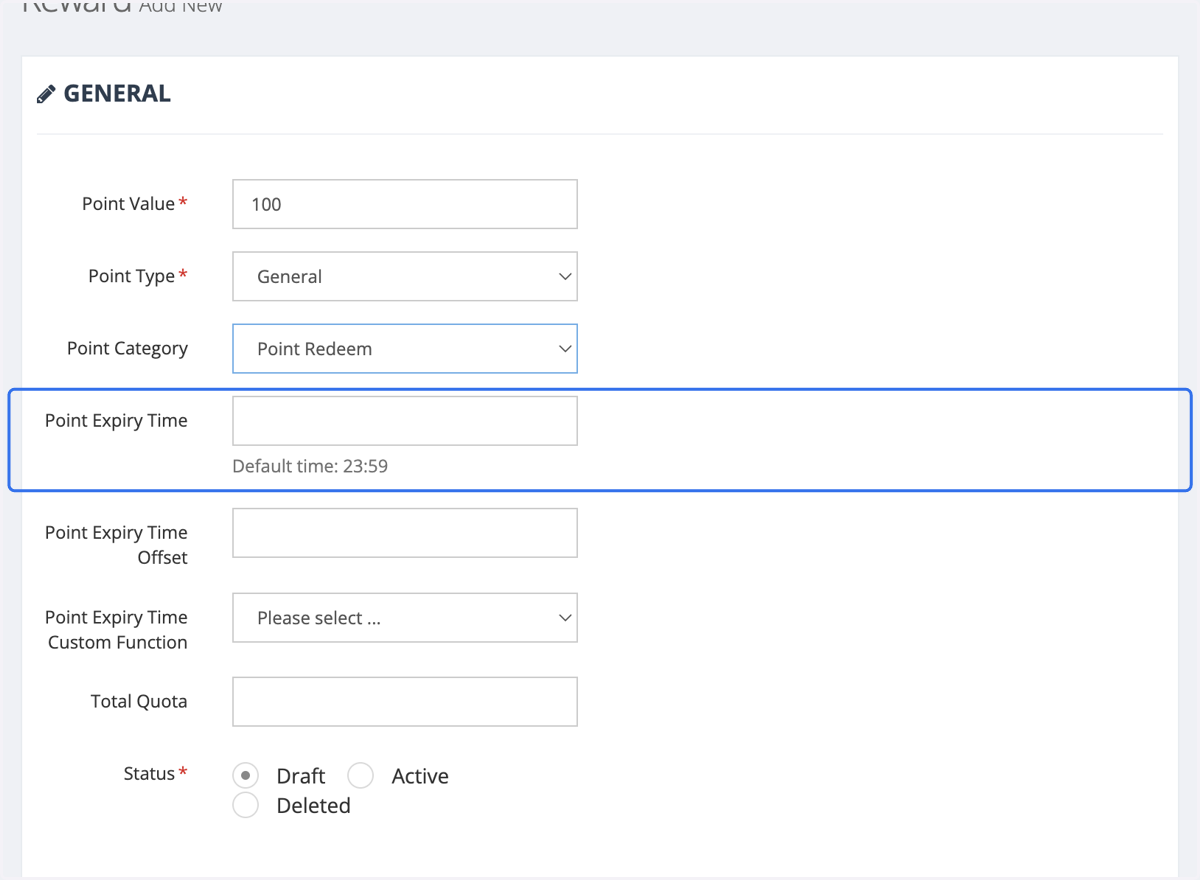
25. Select Point Expiry Time
If you would like the Welcome Points to expire after a certain period instead of on a specific date, you can enter the Point Expiry Time Offset. For example, if you enter "31" the Welcome Points will expire 31 days after being received. Please note that Points Expiry Time and Points Expiry Time Offset cannot be used simultaneously.
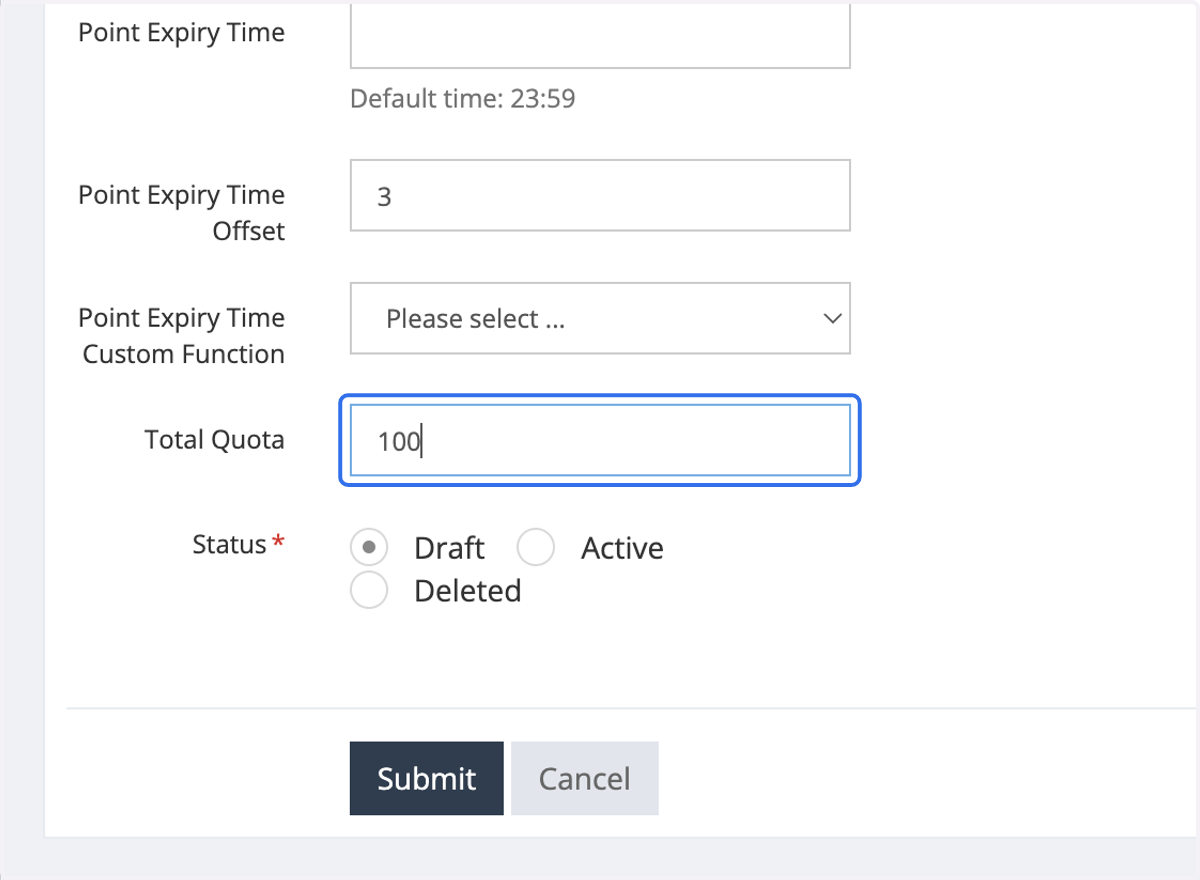
26. Enter the total availability for this Voucher Redeem reward.
27. Select Active
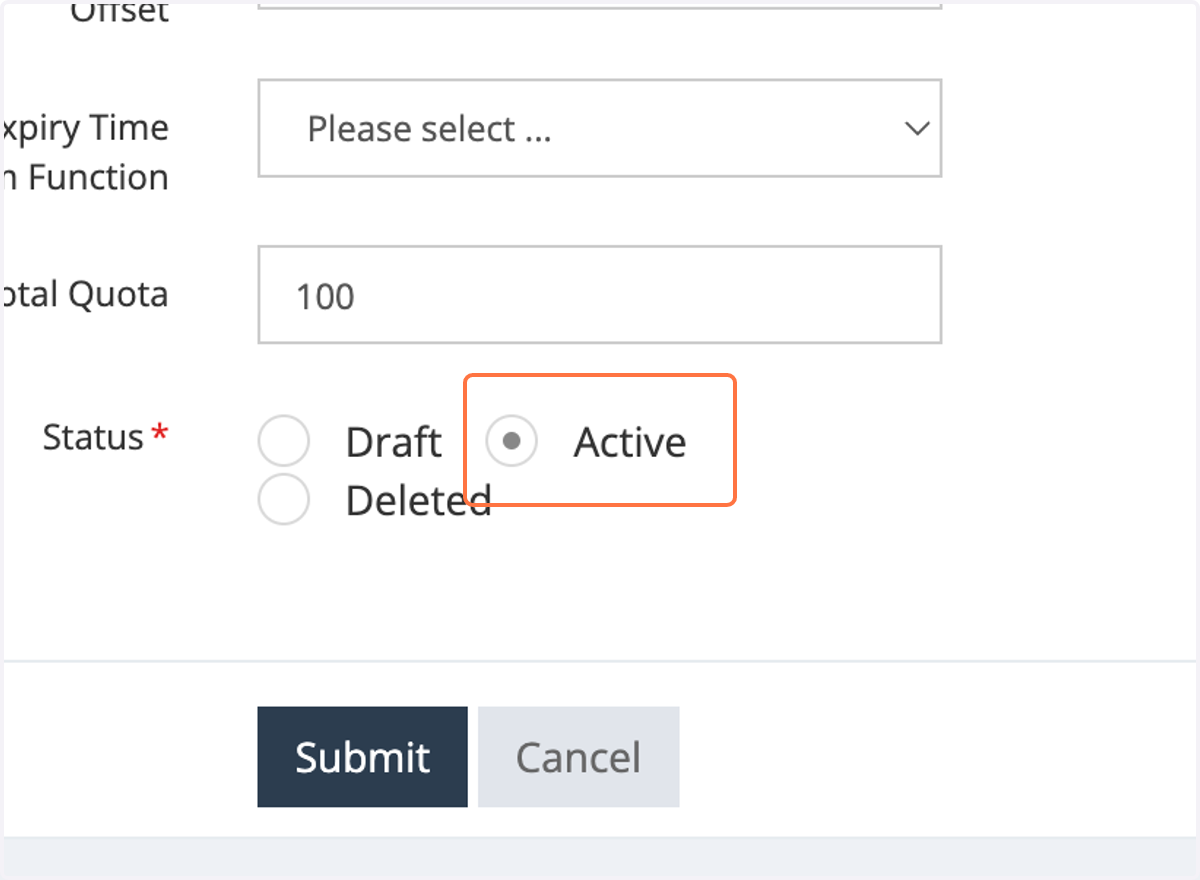
28. Click on Submit
Edit Blocks
Add images to display either before or after the redemption process.
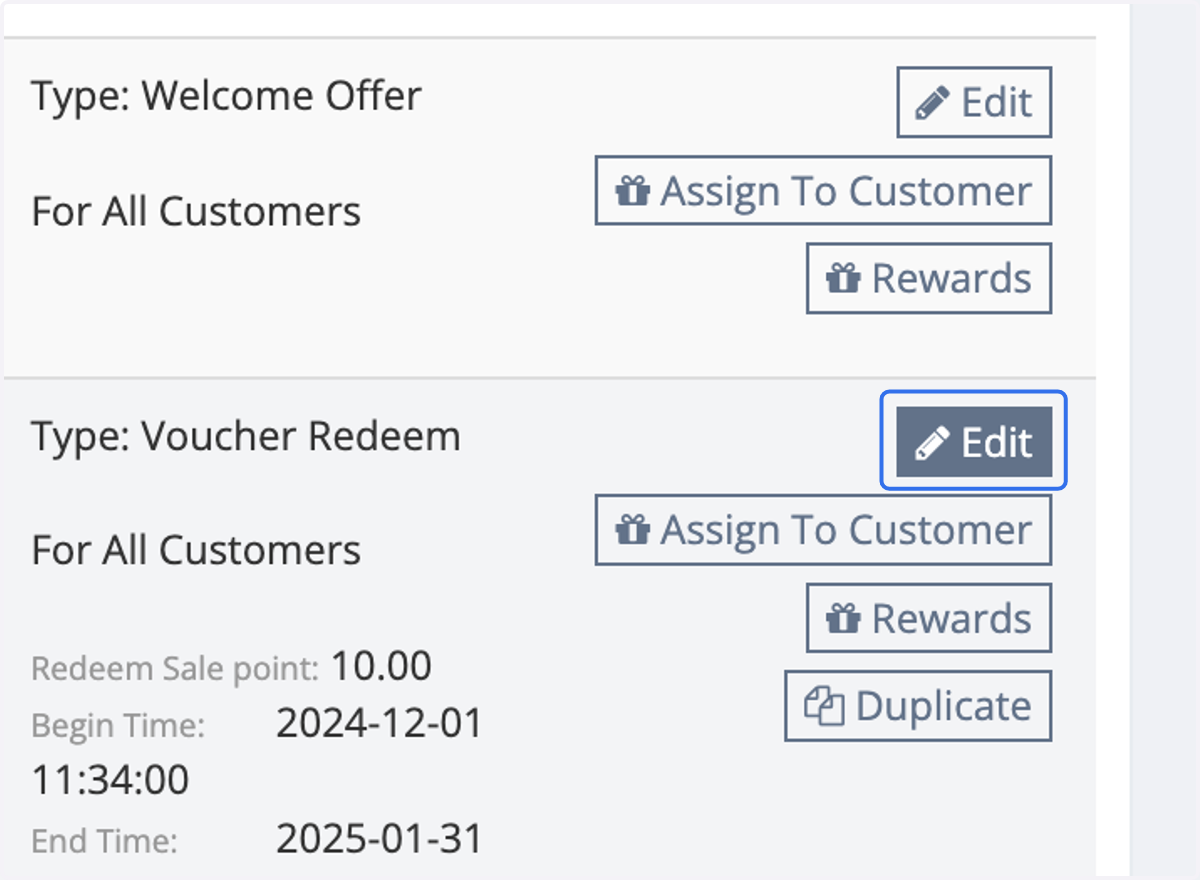
29. Select Edit to the Offer respectively
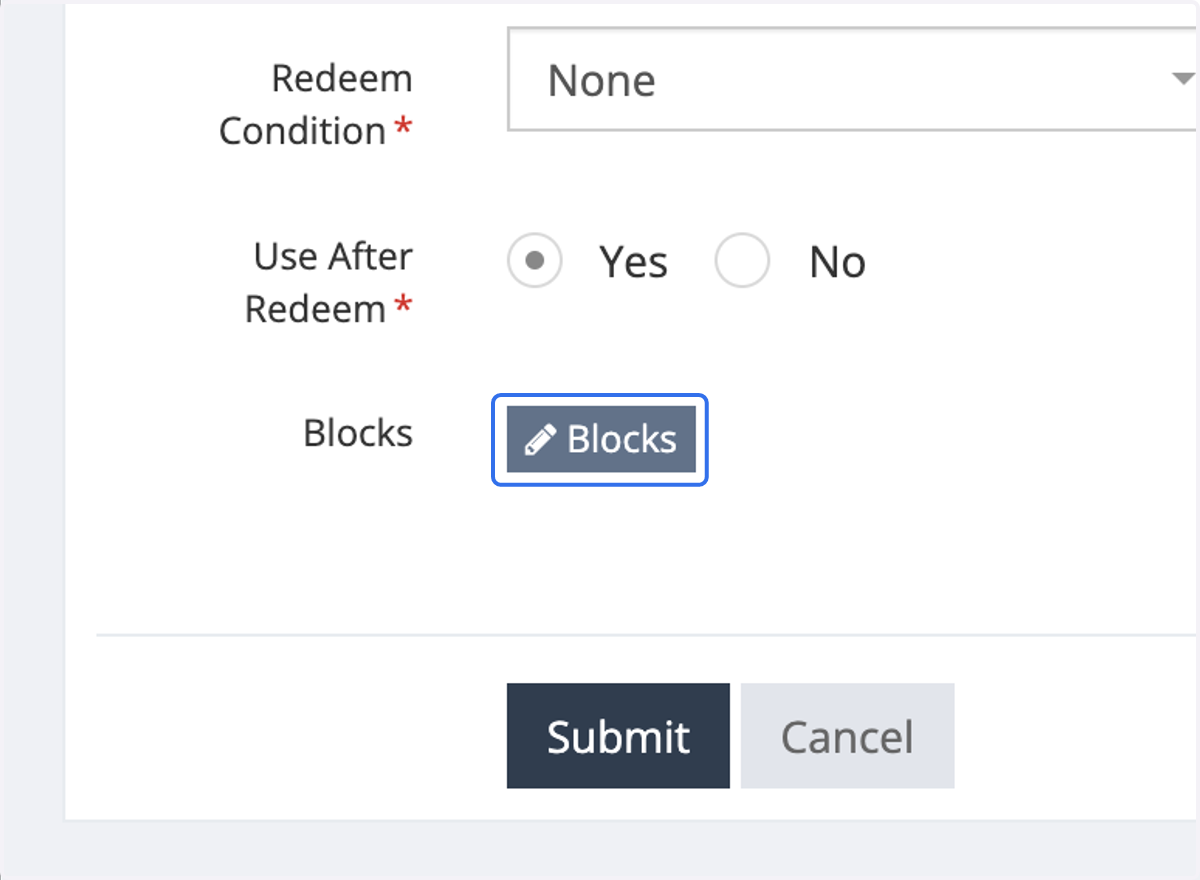
30. Click on Blocks
Blocks will only be displayed after the offer has been successfully created.
31. Click on Add
32. Click on Image
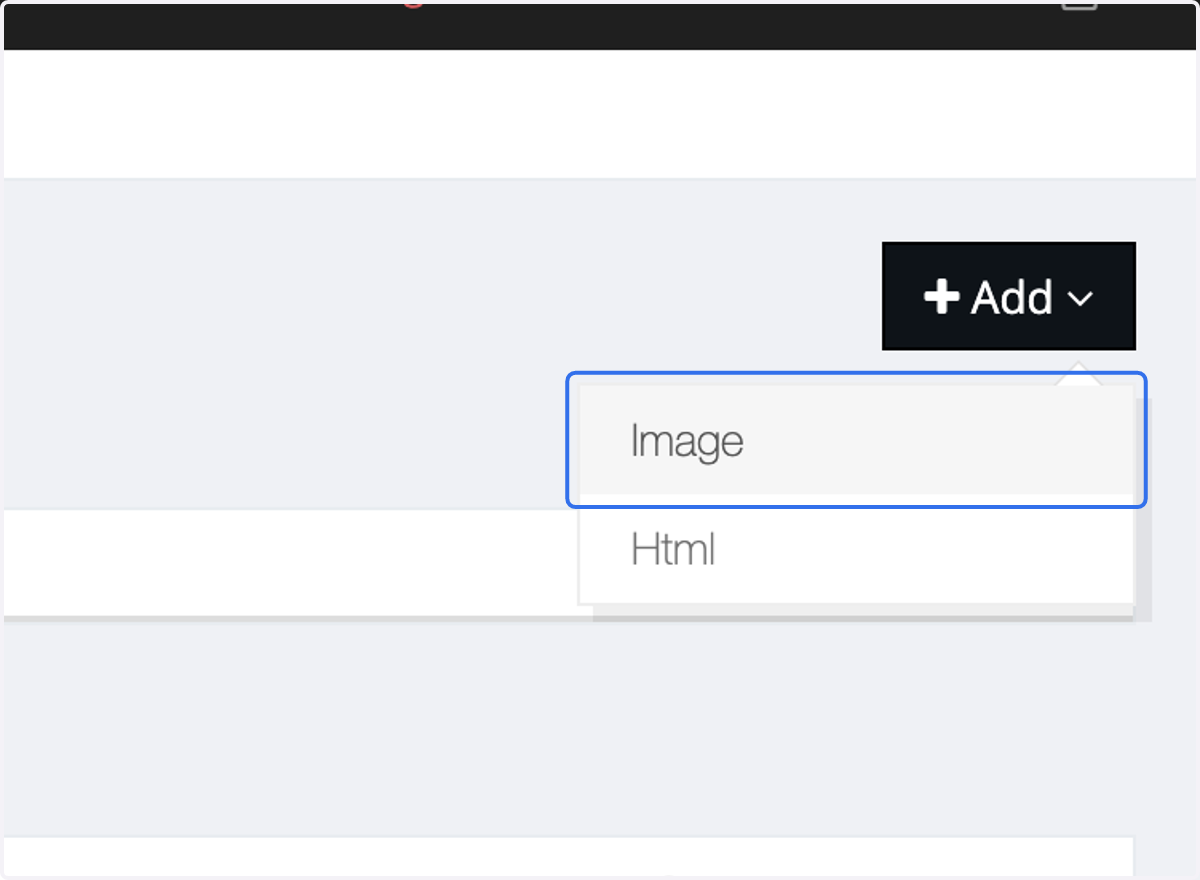
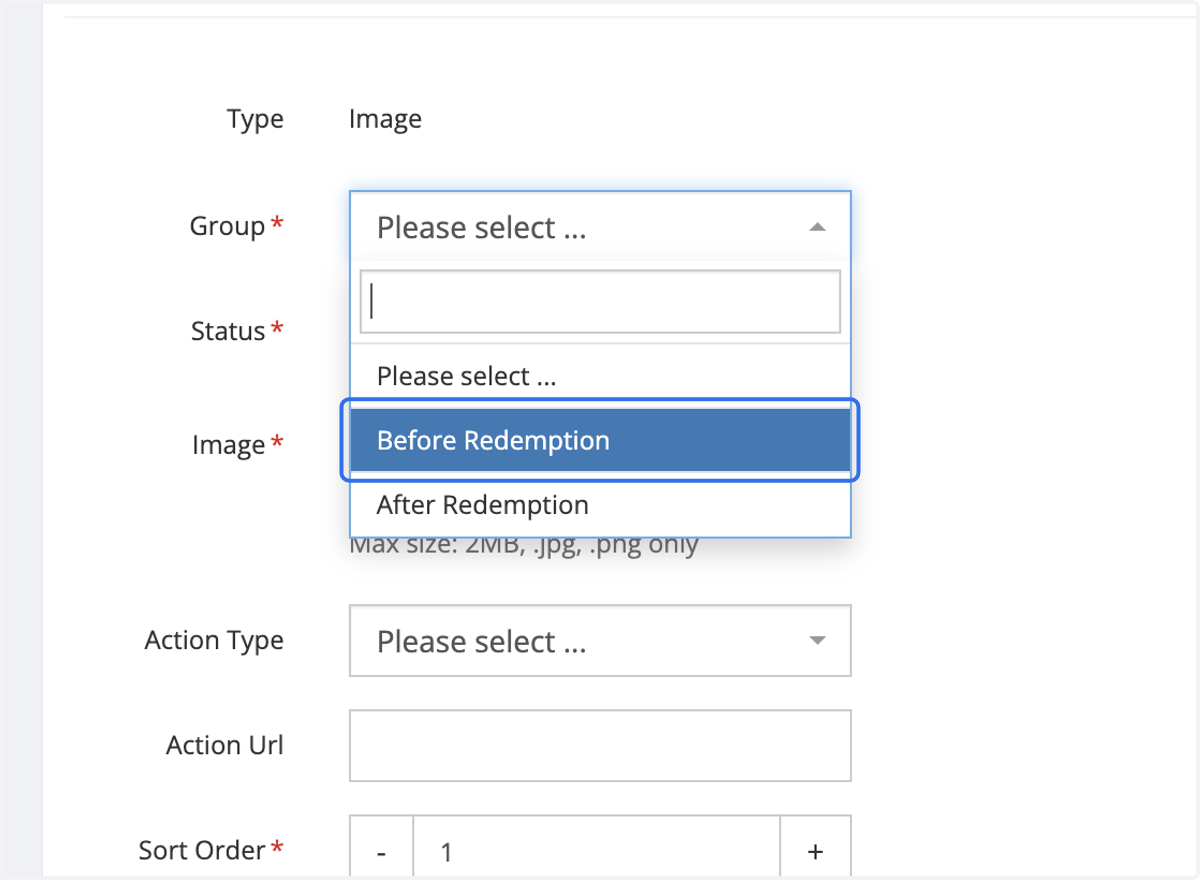
33. Choose the image you want to add image.
Add images to display either before or after redemption.
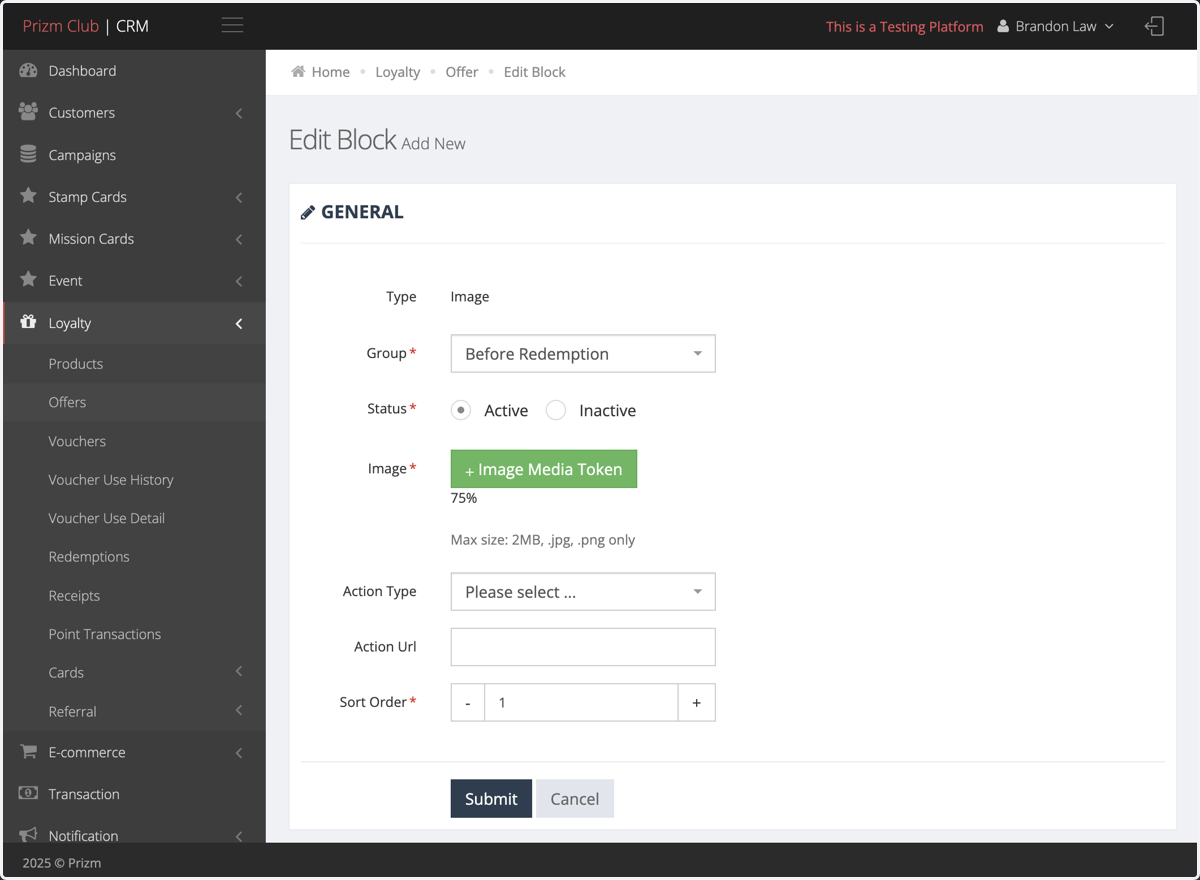
34. Upload Image
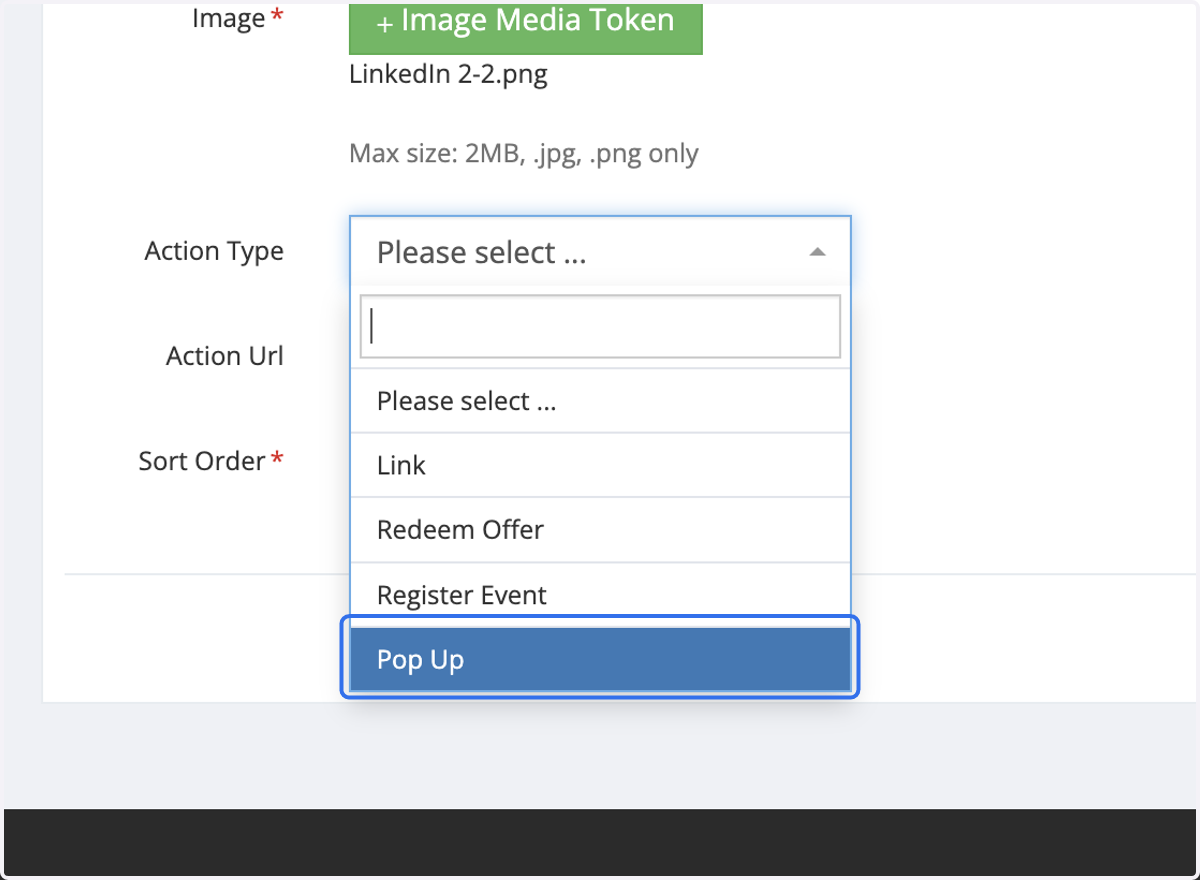
35. Select the Action Type to determine how you want the image to be displayed.
36. Click on Submit