How To Setup Item Rule
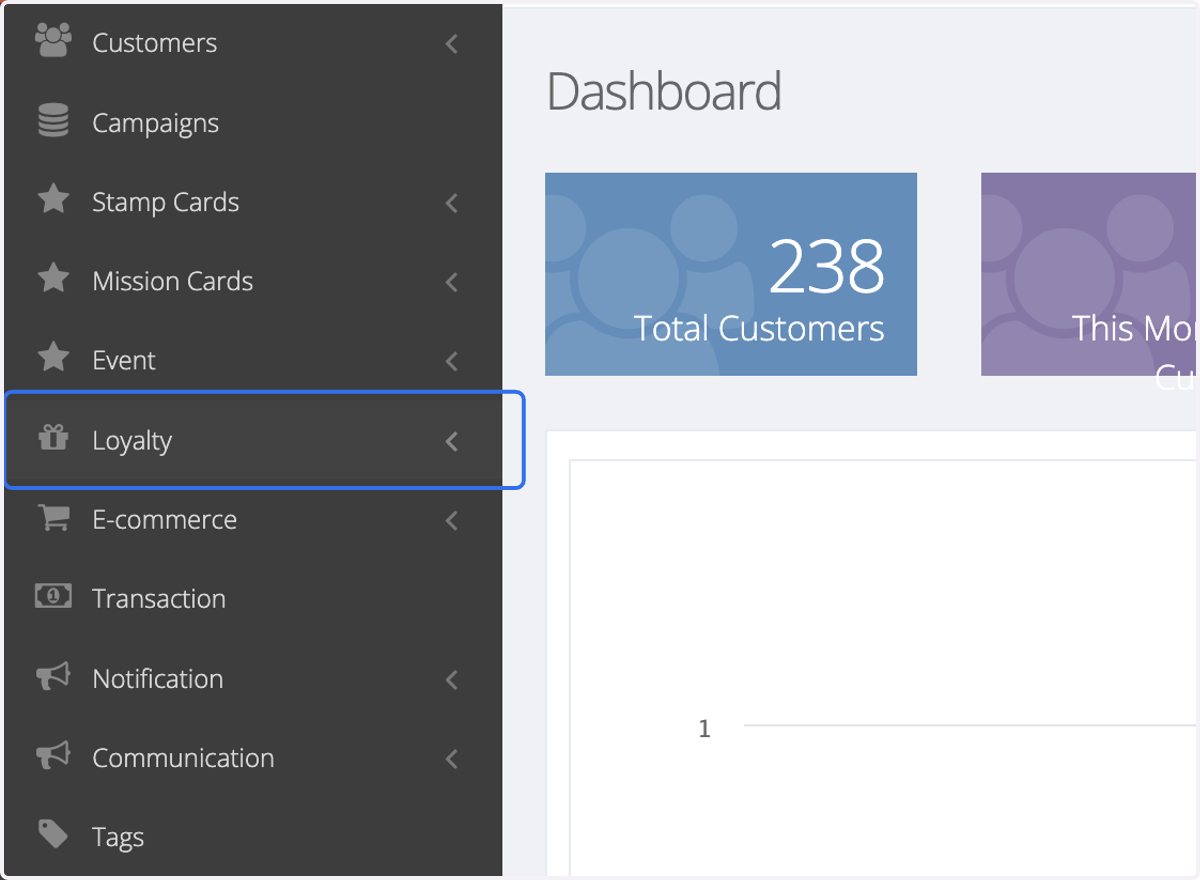
1. Click on Loyalty
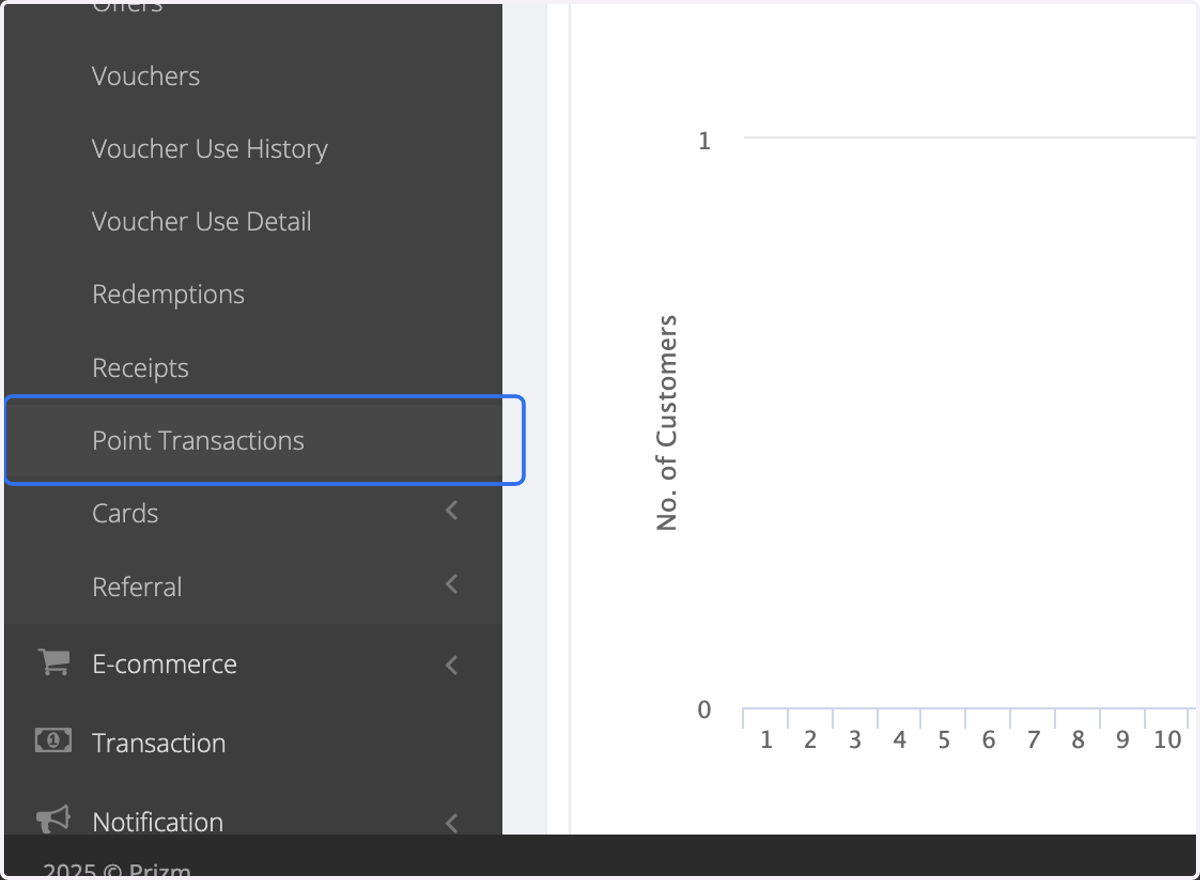
2. Click on Point Transactions
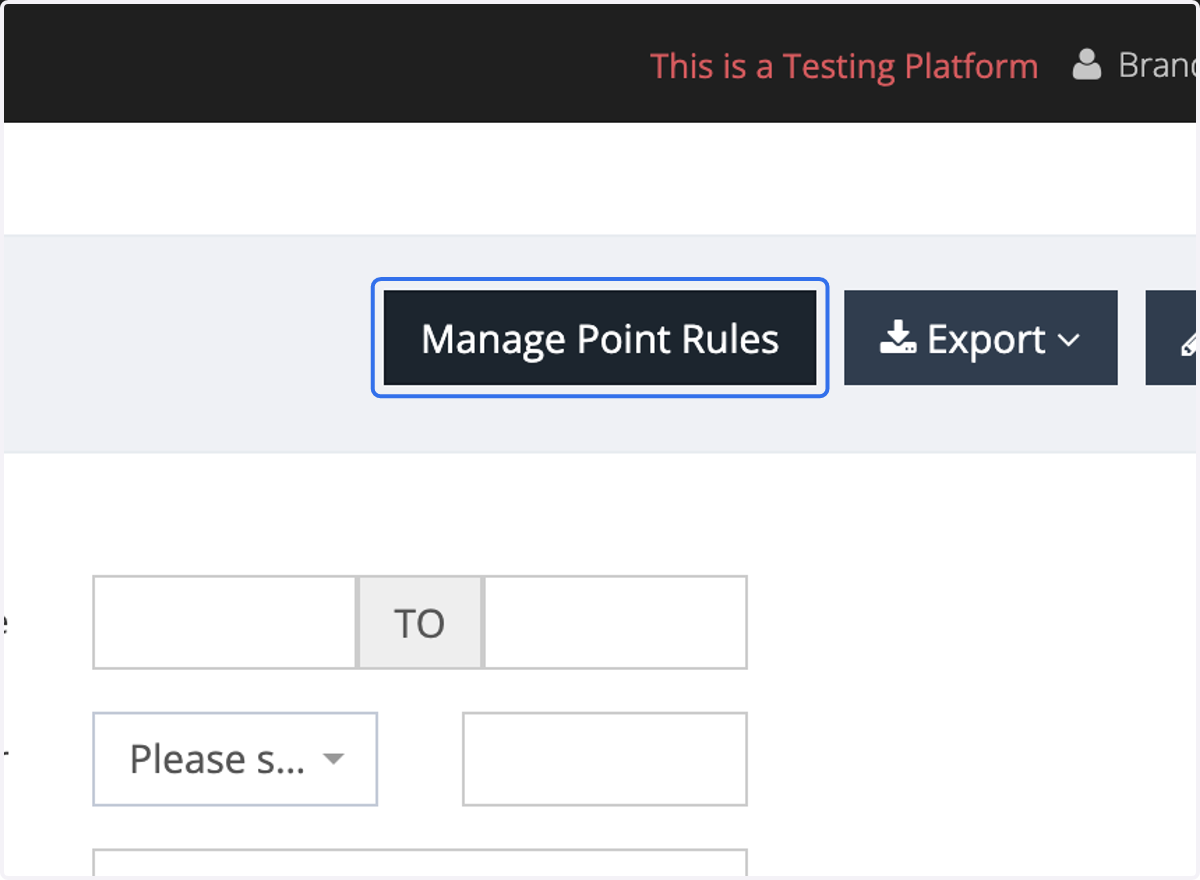
3. Click on Manage Point Rules
4. Click on Add
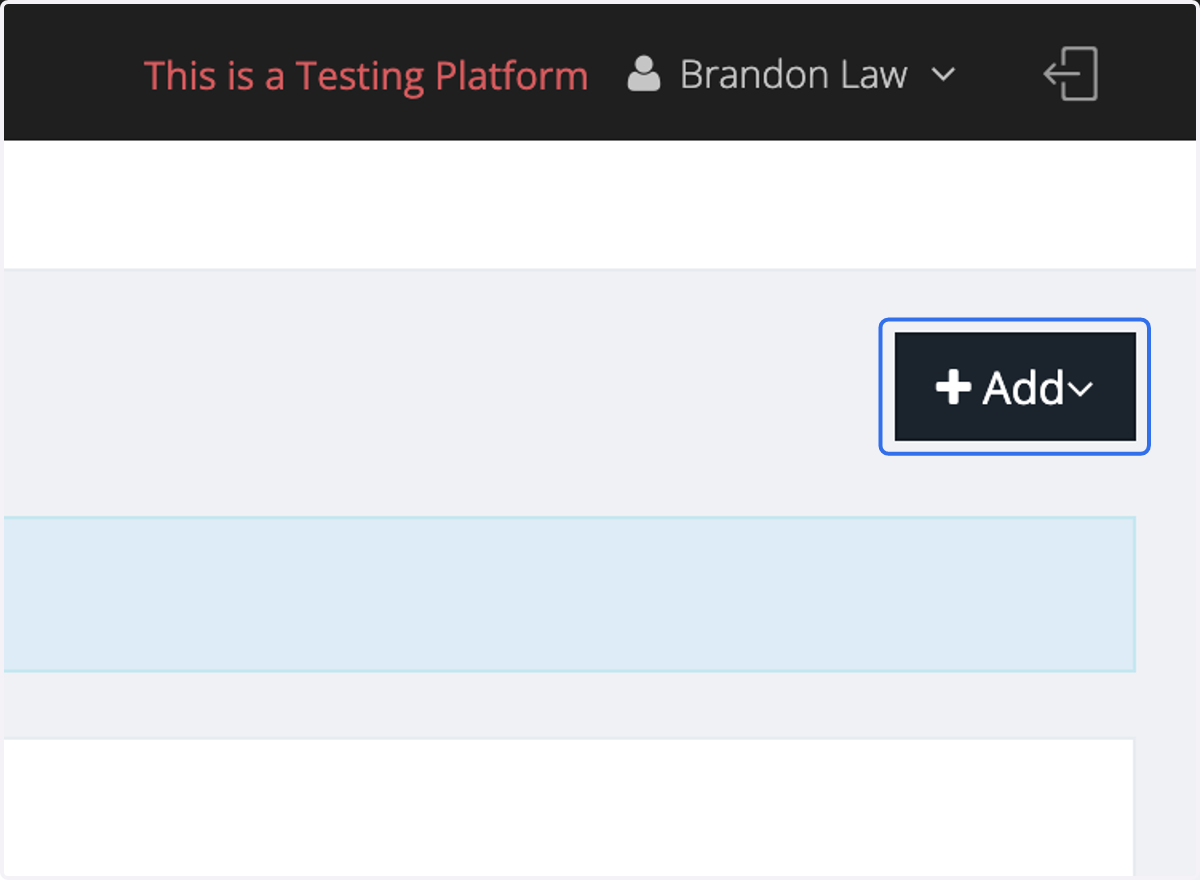
5. Click on Item Rule
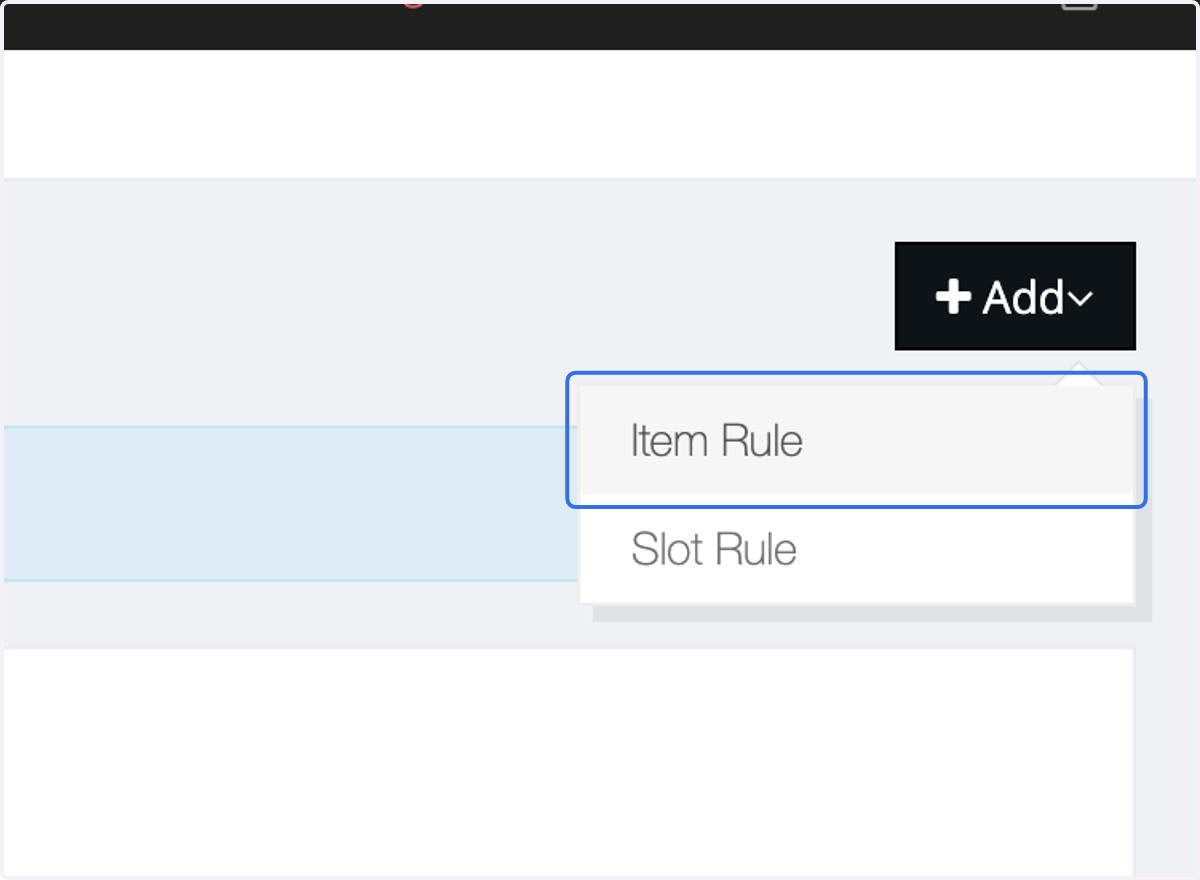
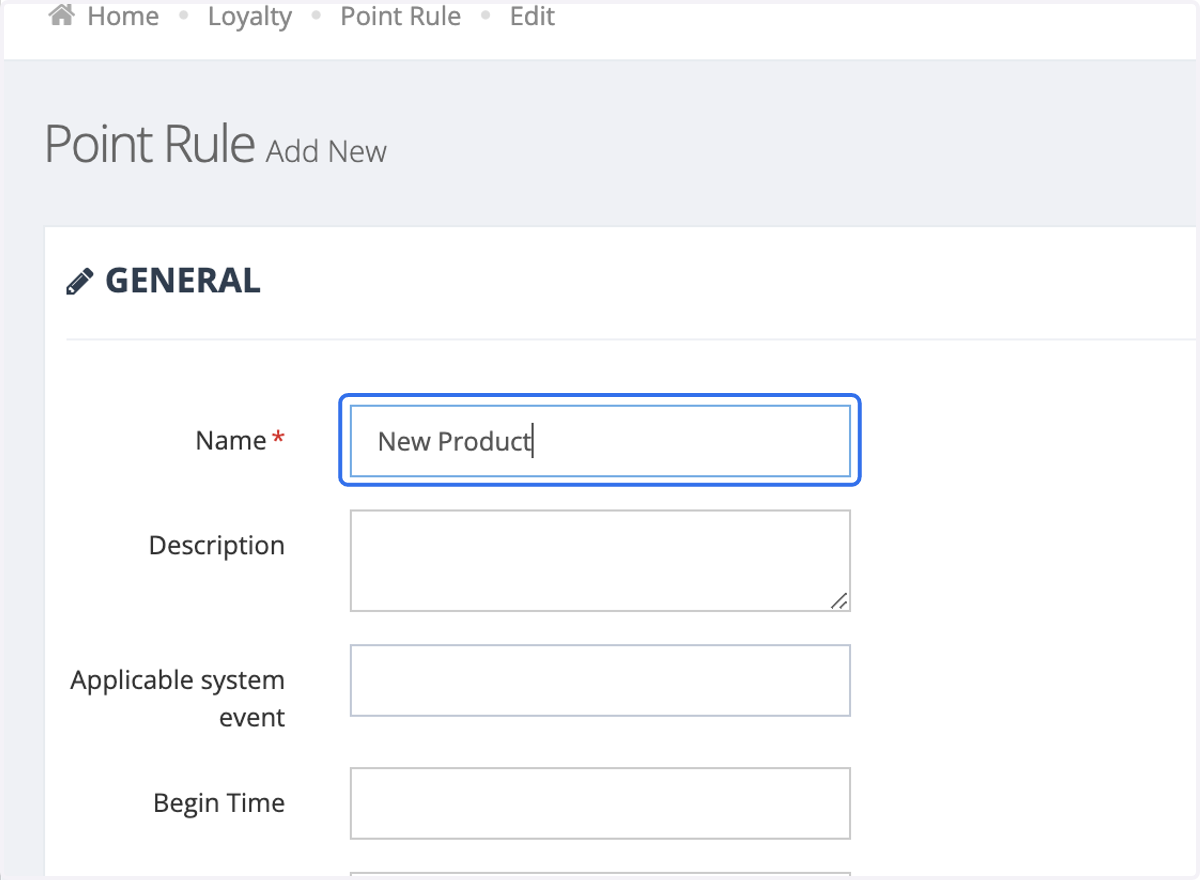
6. Insert the Name of the Points Rule
7. Insert the Description of the Points Rule
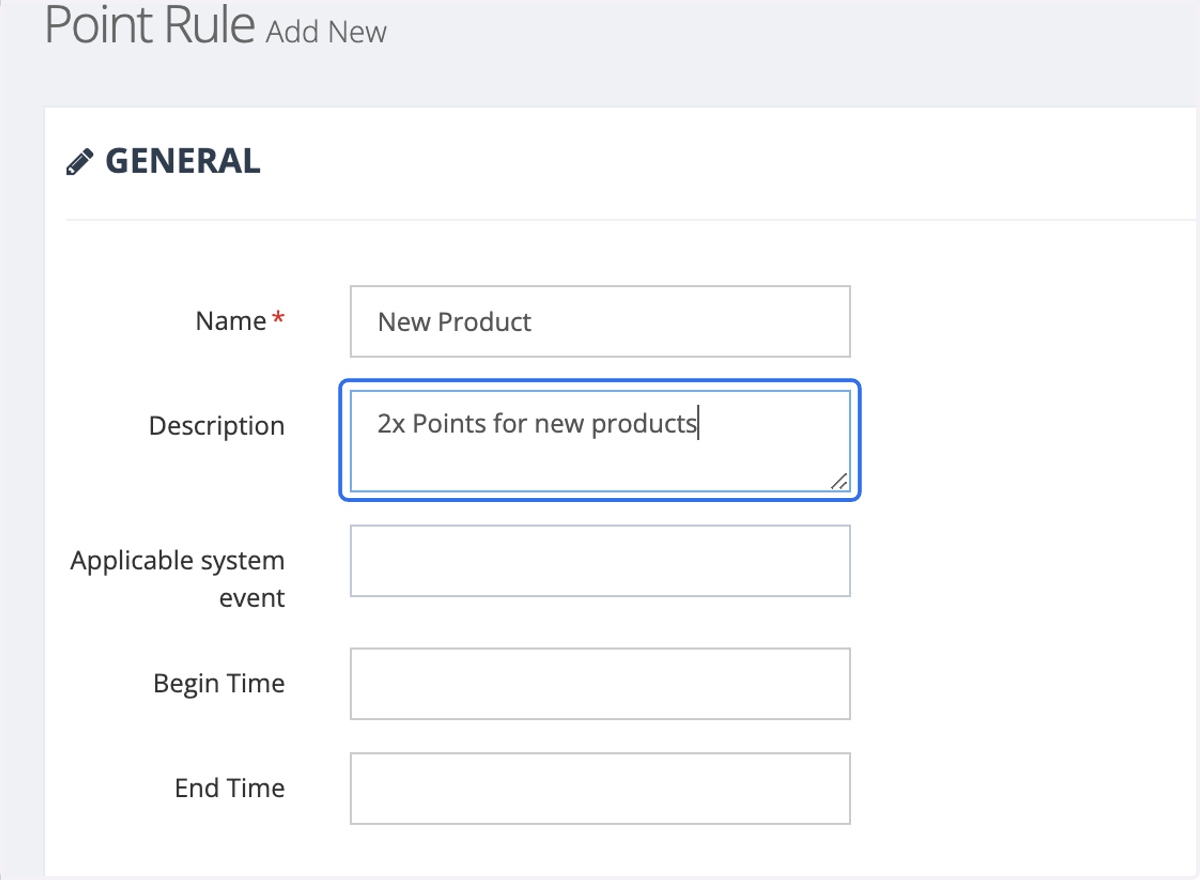
8. Select the Applicable Event Tag of the Points Rule
The tag must be pre-defined in the "Tag" section or configured by IT.

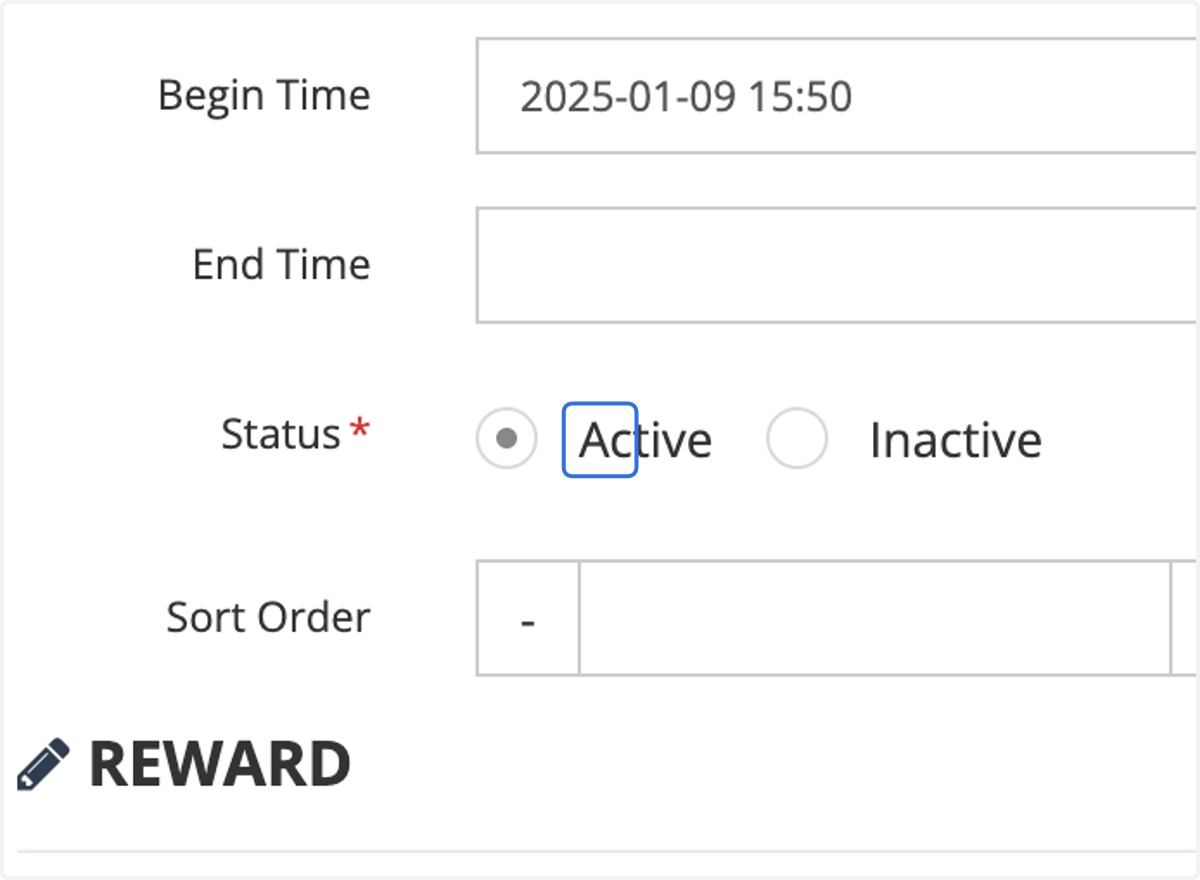
9. Select the Begin and End time of this Points Rule.
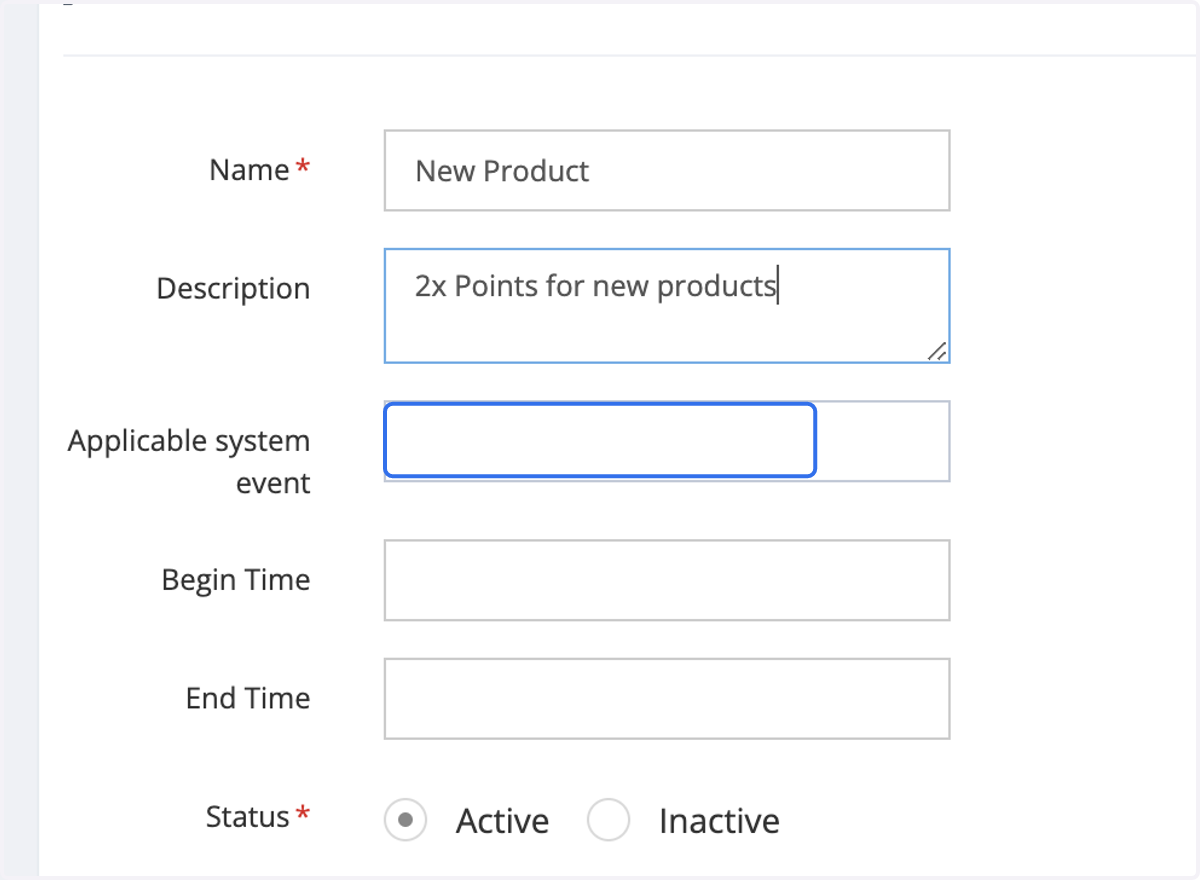
10. Select Active
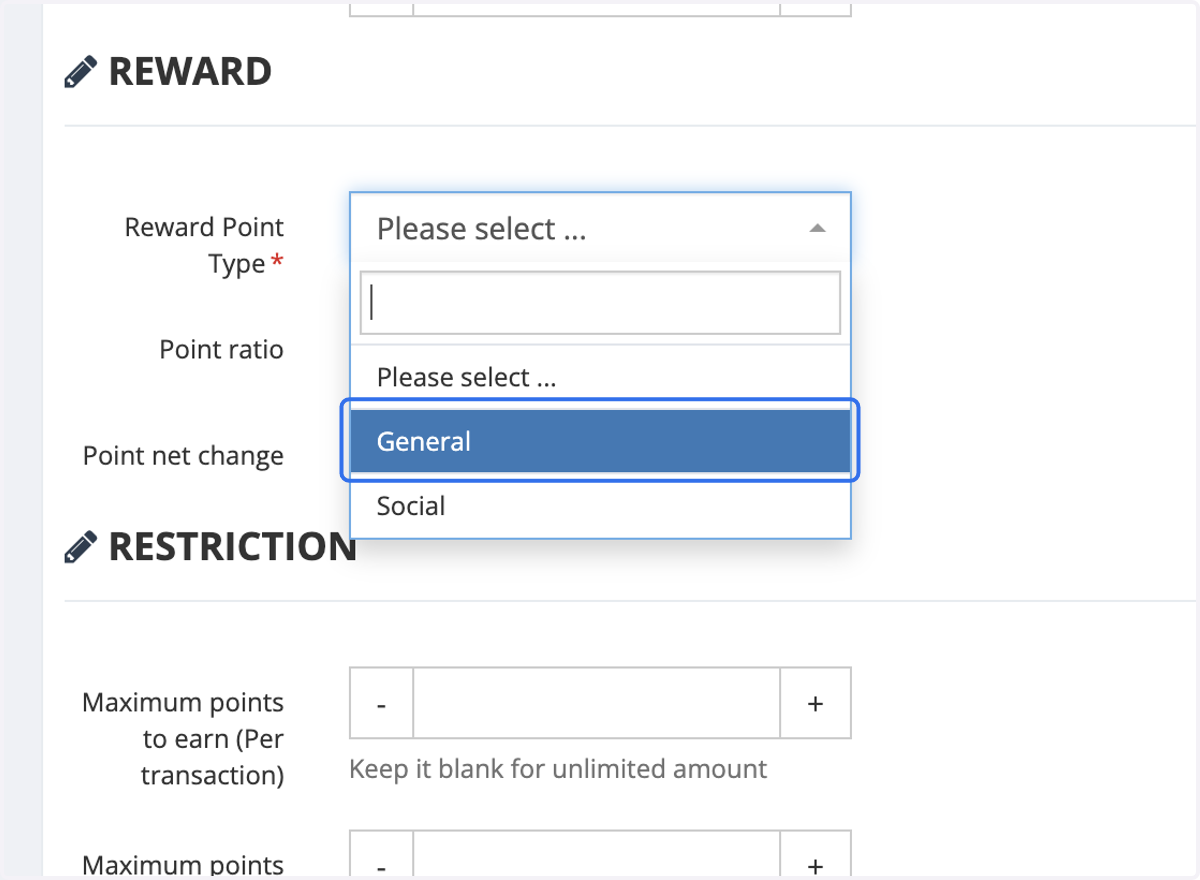
11. Choose the Reward Point Type. In most cases, "General" will be the preferred option.
Any additional point types must be configured by the IT team.
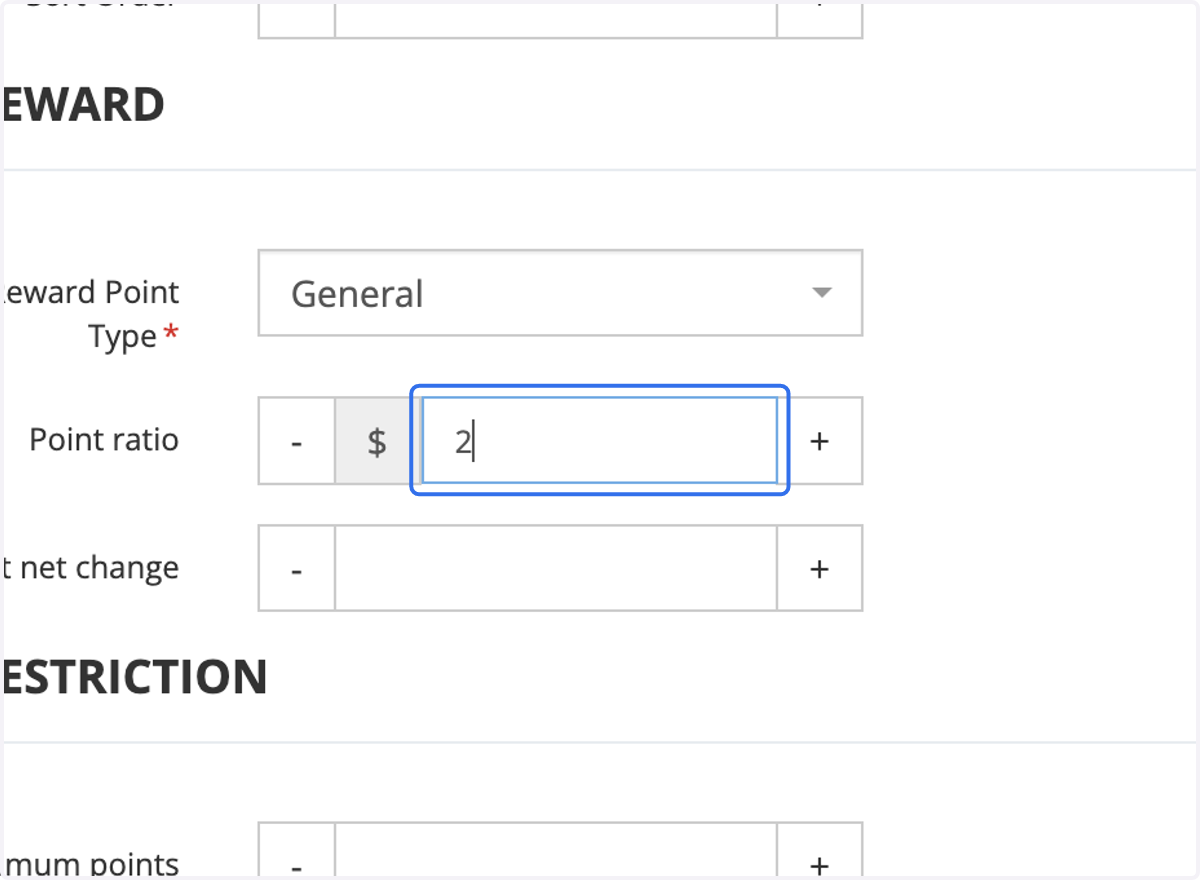
12. Enter the Points Ratio.
If you enter "1," every $1 spent will earn 1 point.
If you enter "10," every $1 spent will earn 10 point.
If you enter "0", no points will be given. Note: kindly remember to set up the include and exclude criteria on this.
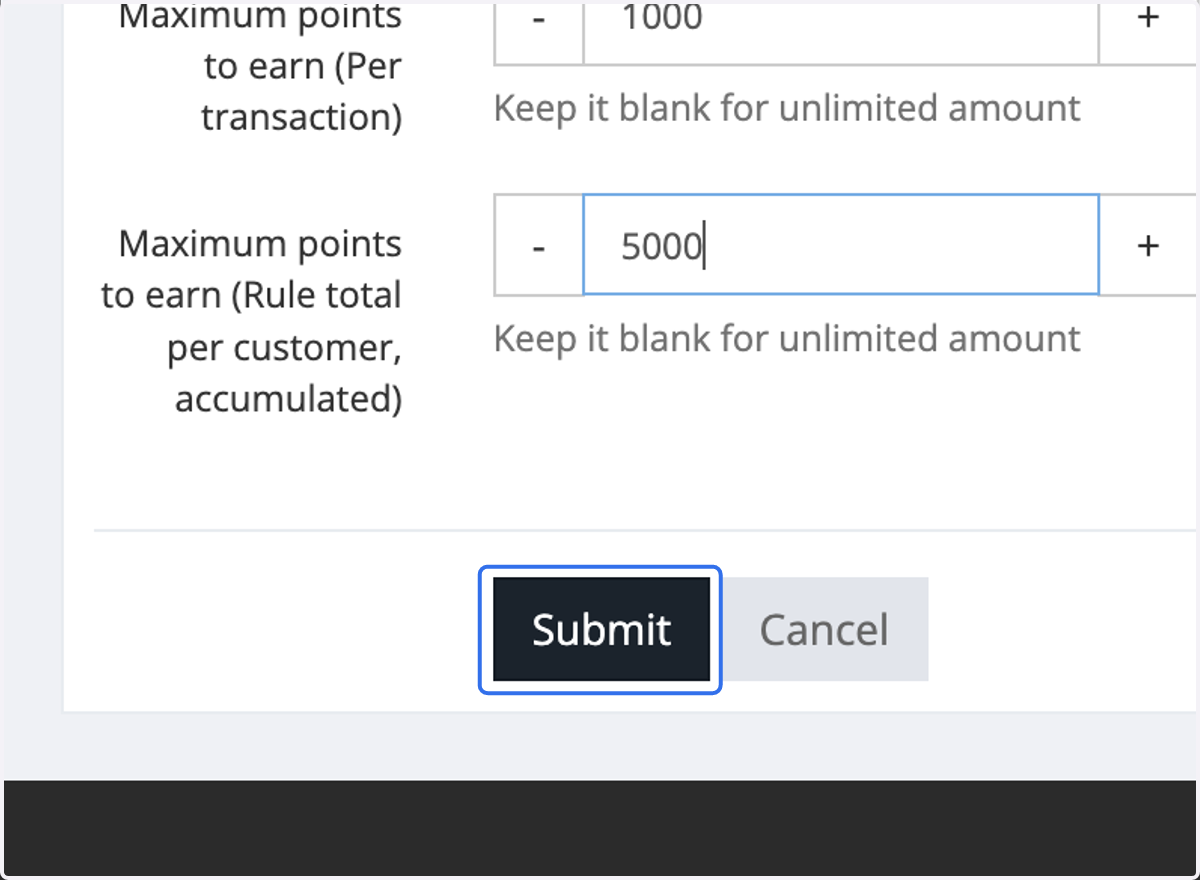
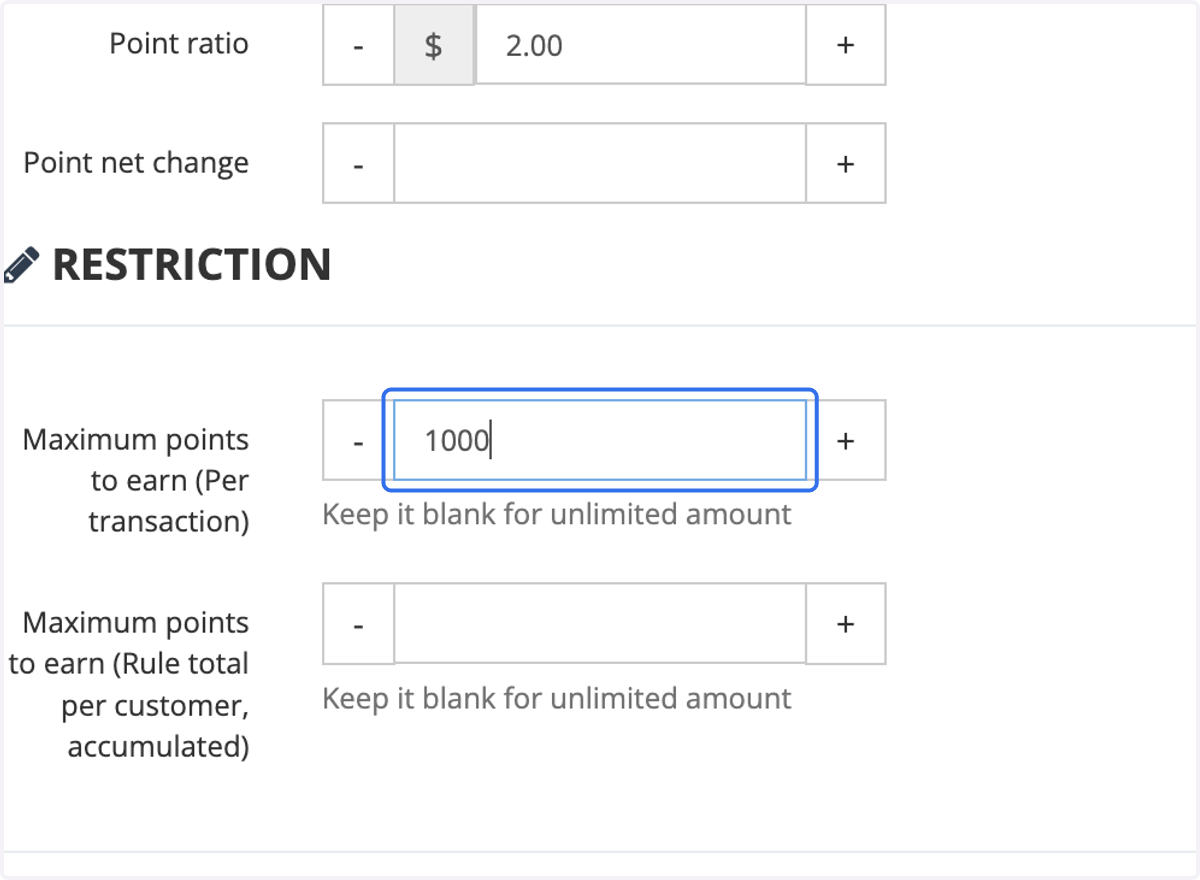
13. Enter the Maximum Points to Earn per transaction. This sets a cap on the total points that can be earned for each transaction.
14. Type "5000"Type "5000"Enter the Maximum Points to Earn per customers. This sets a cap on the total points that can be earned and accumulated for each customers.
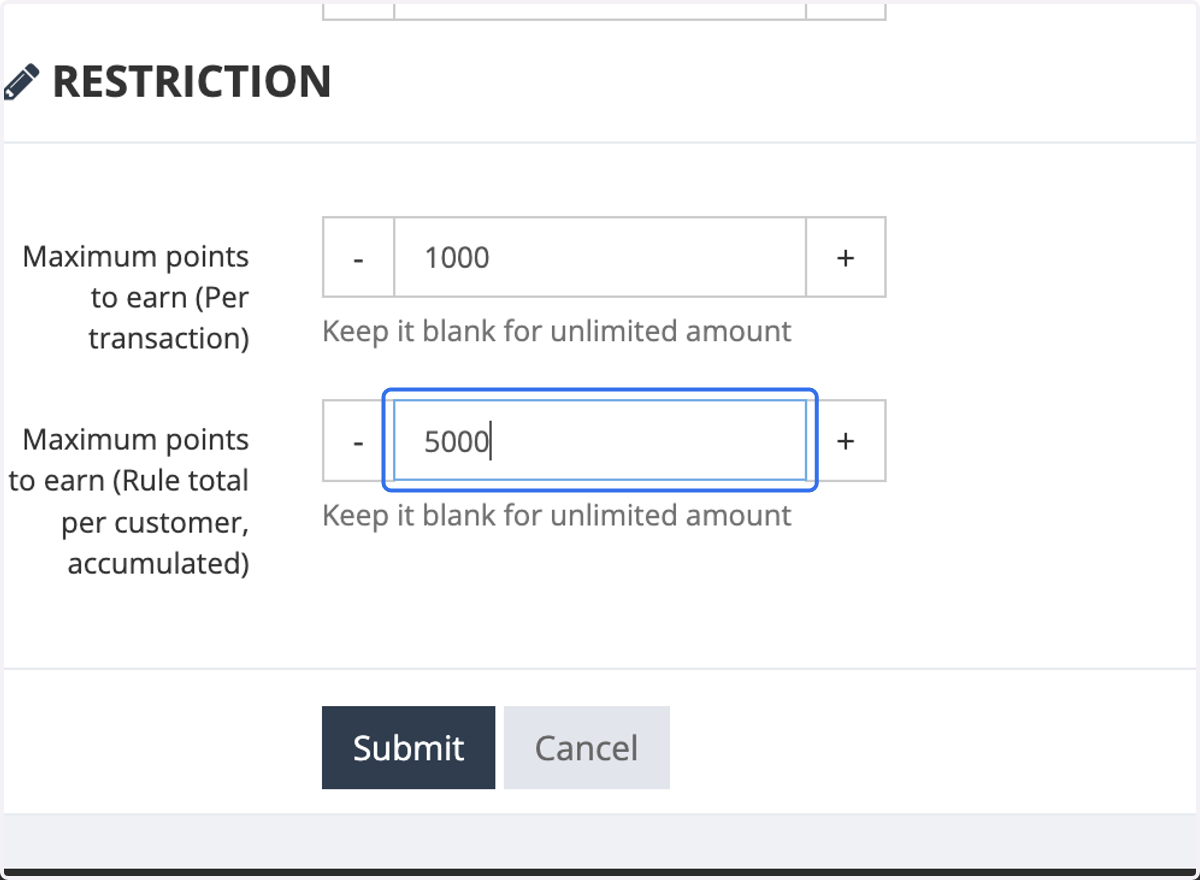
15. Click on Submit