How To Download CAC Applications and Reports in SurveyMonkey Apply
Cuyahoga Arts & Culture
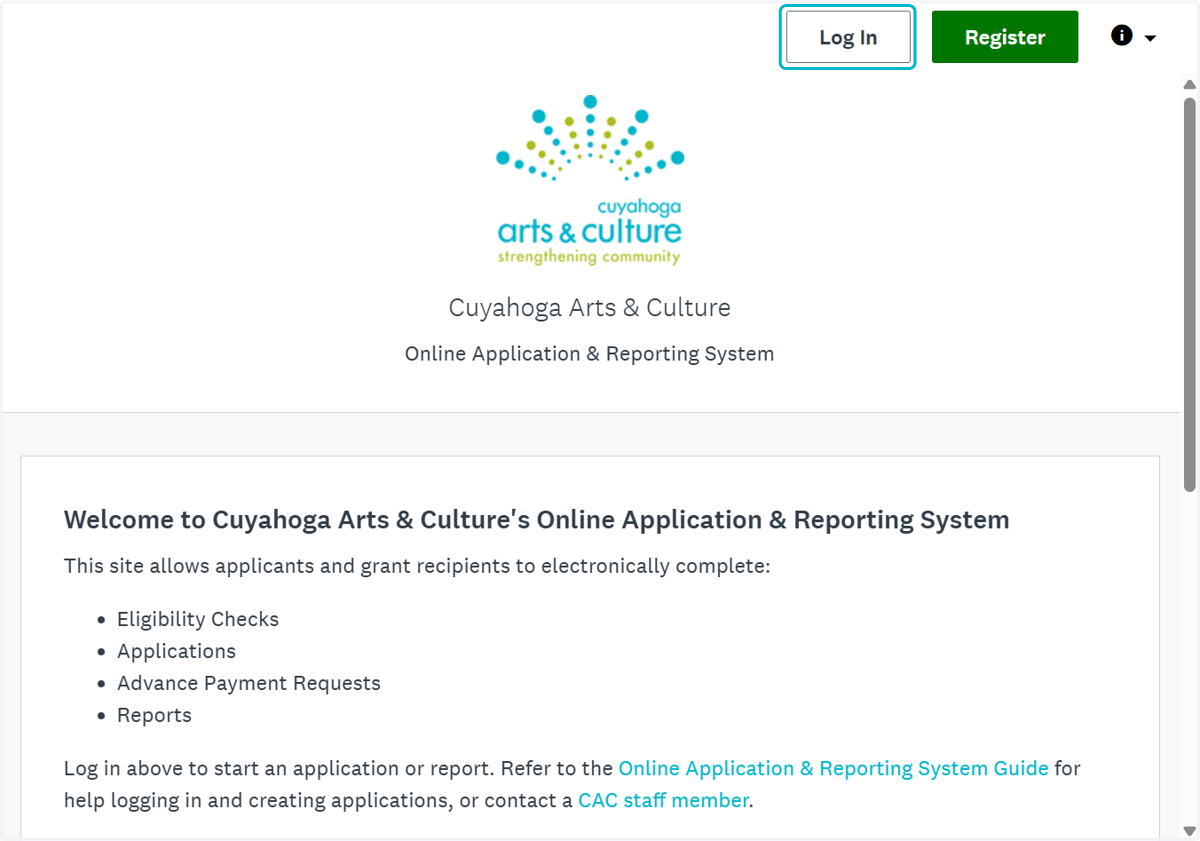
1. Click on Log In
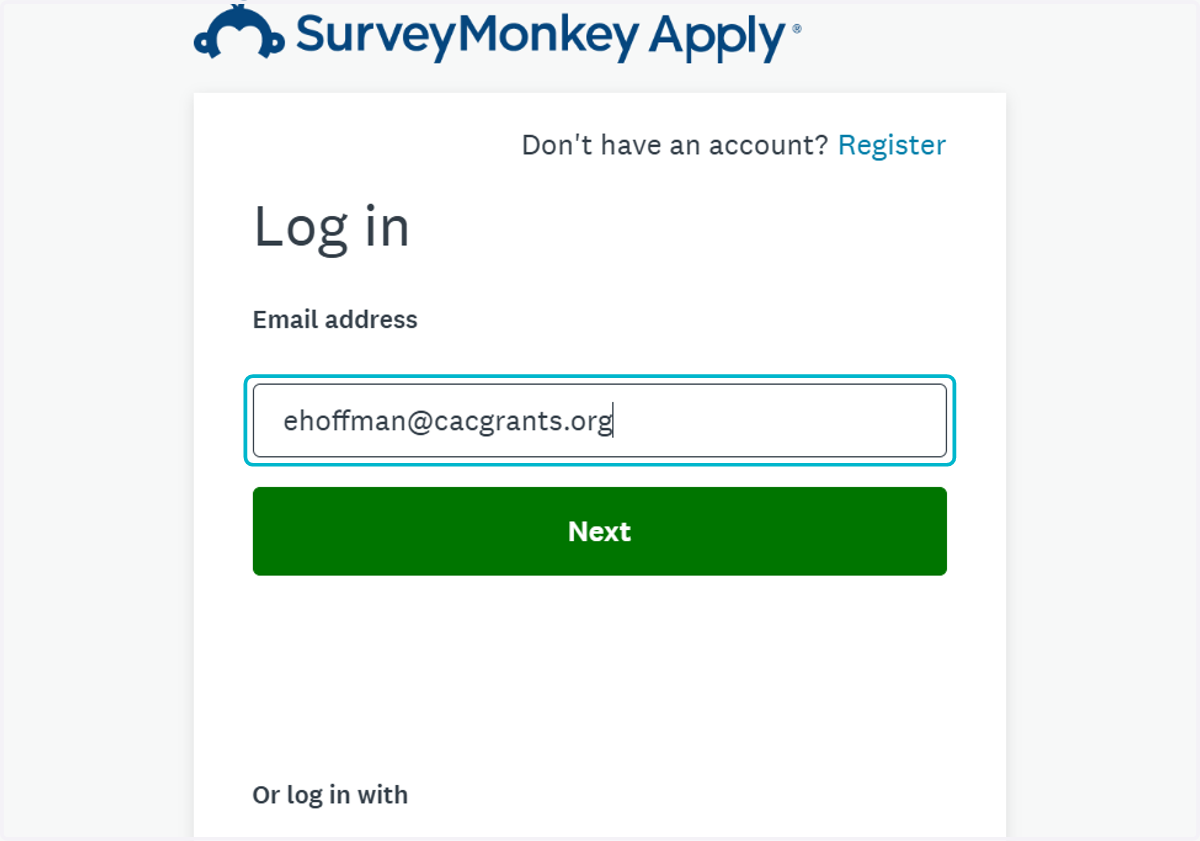
2. Enter the email address you've registered with SurveyMonkey Apply
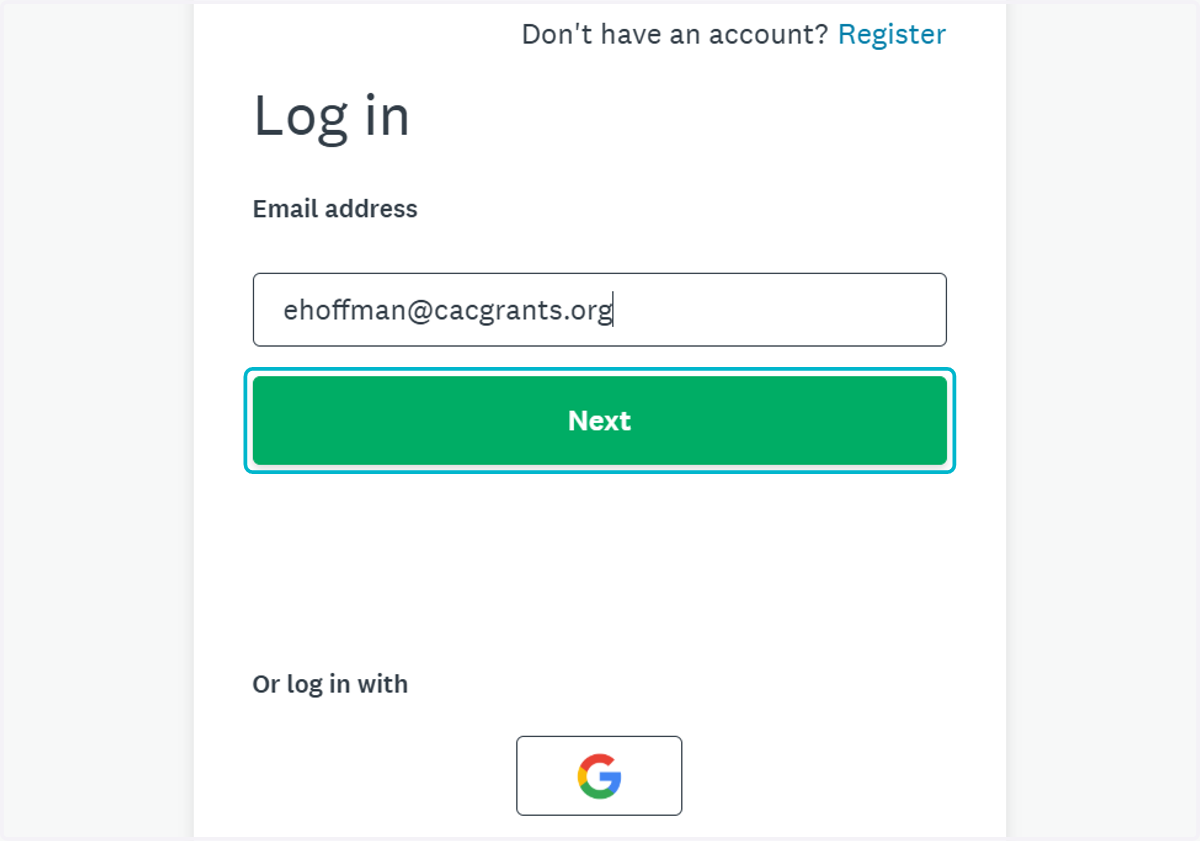
3. Click on Next
4. Enter your password
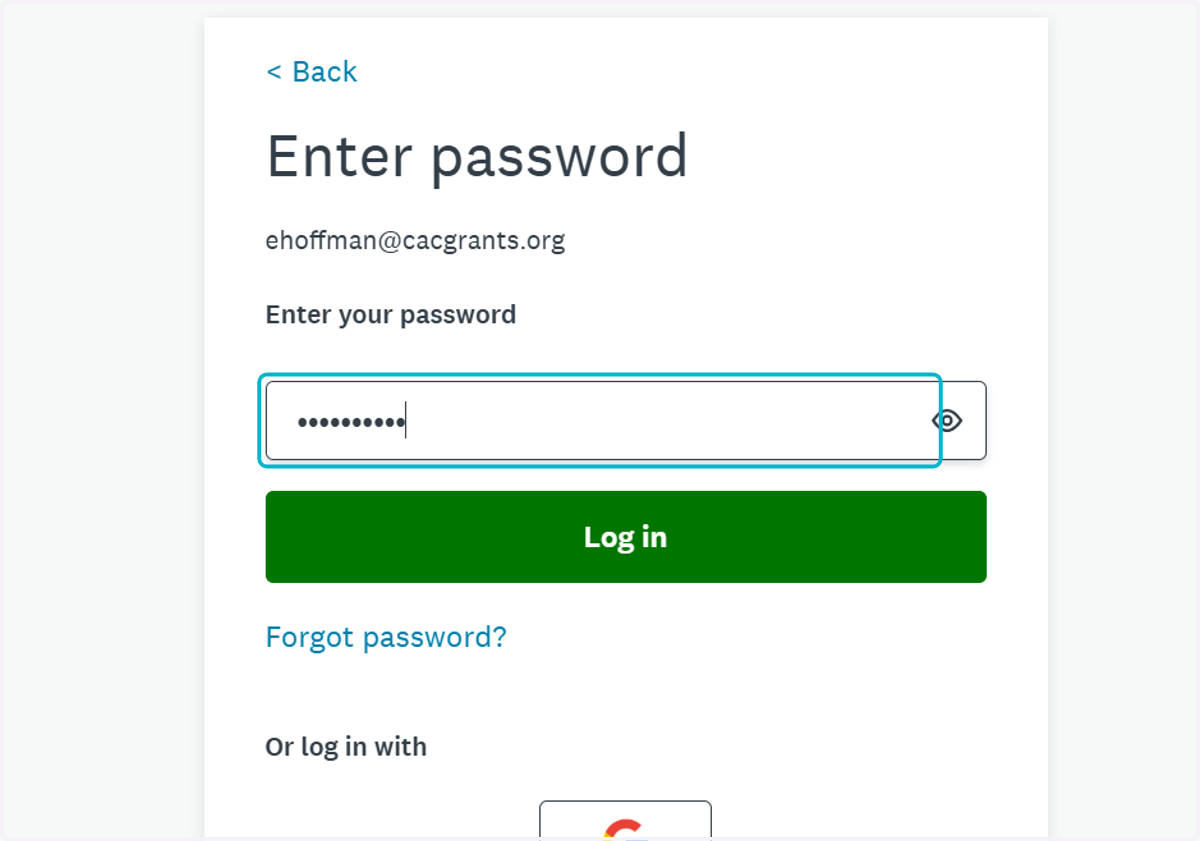
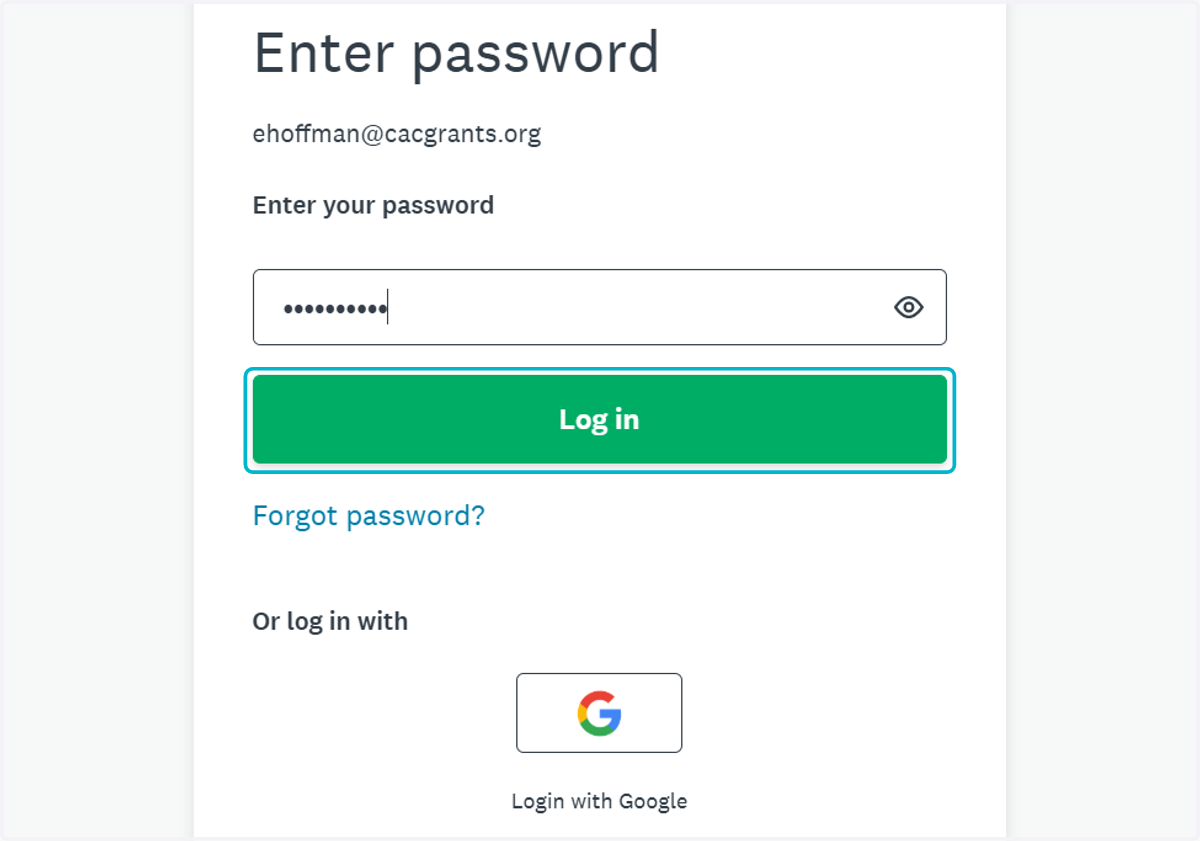
5. Click on Log in
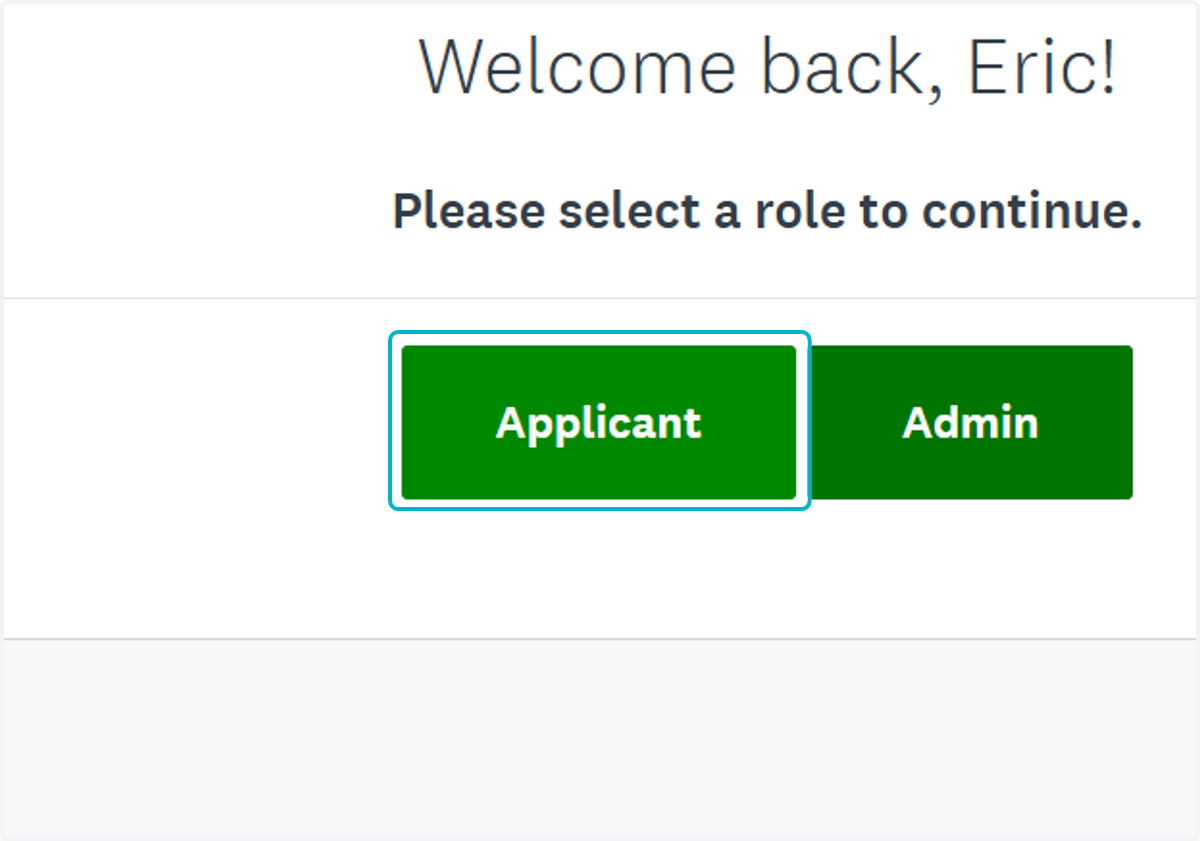
6. If you have multiple roles in SurveyMonkey Apply Click on Applicant
If you don't have multiple roles in SurveyMonkey Apply you'll automatically go to the next step.
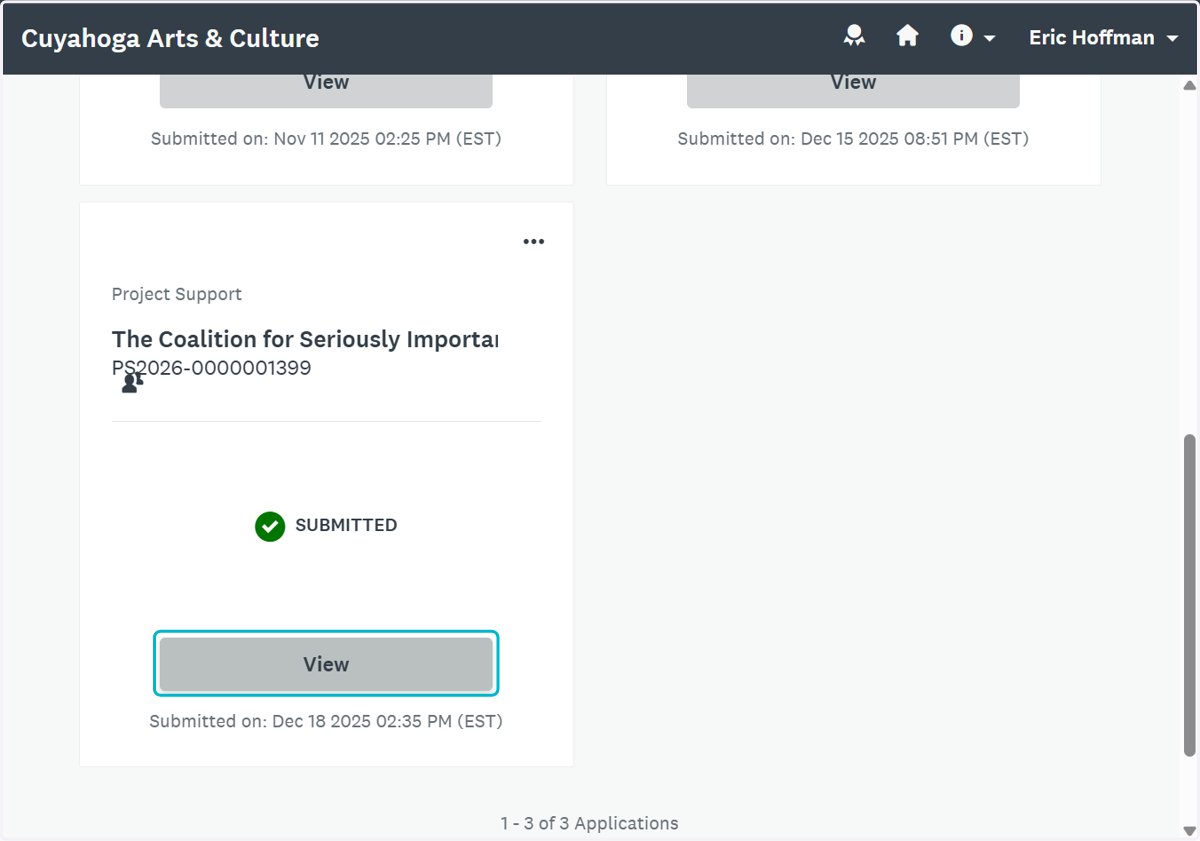
7. Click on View
If an award cycle has been completed you can click "View" to see each task associated with that application. If you're in the middle of an award cycle, you can click "Start" to see the tasks you've already completed.
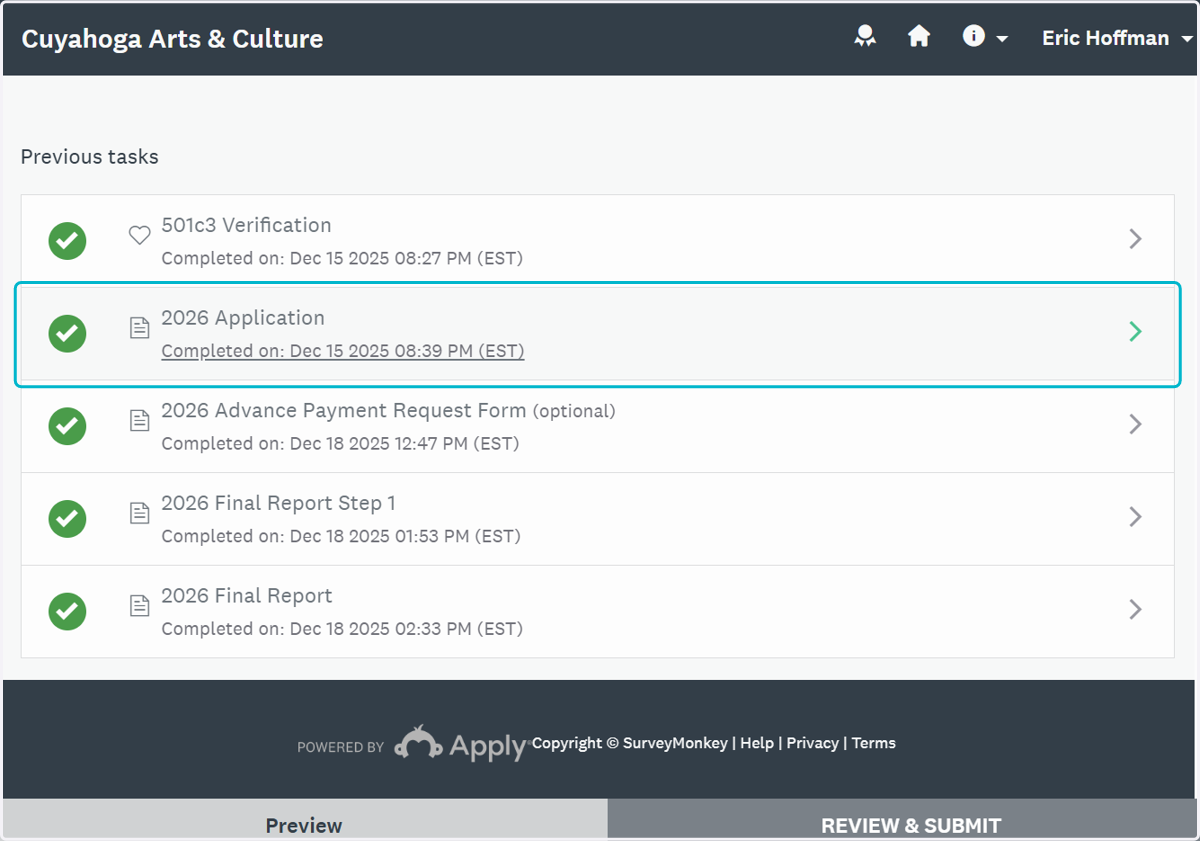
8. Click on the Application or Report you'd like to download
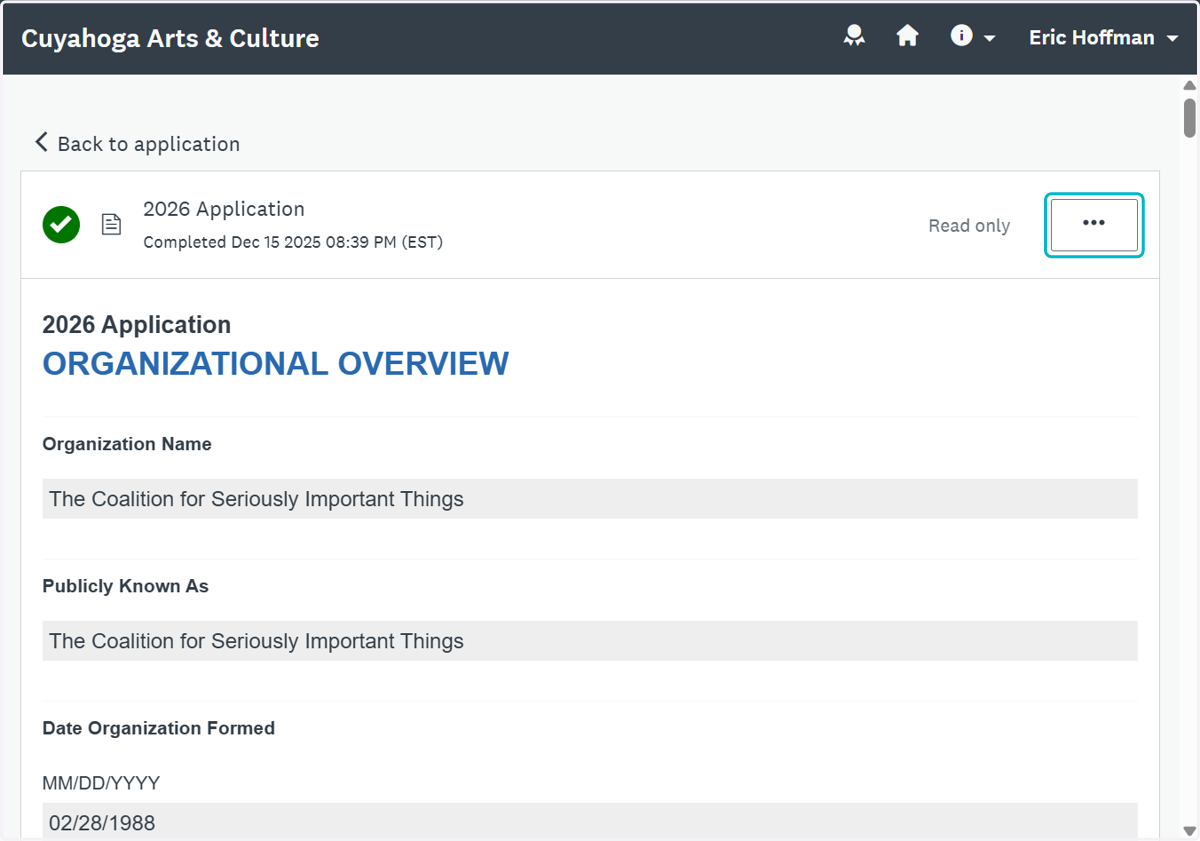
9. Click on the three horizontal dots next to the words "Read only"
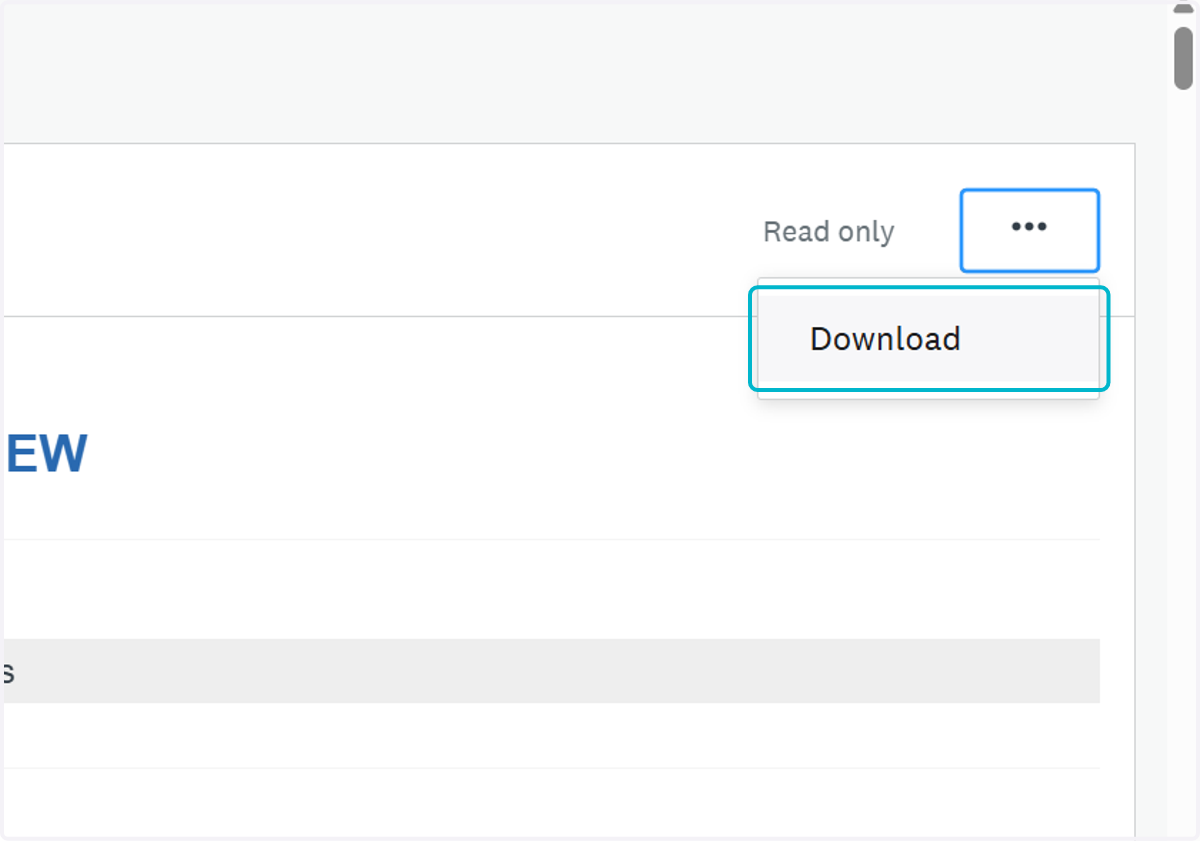
10. Click on Download
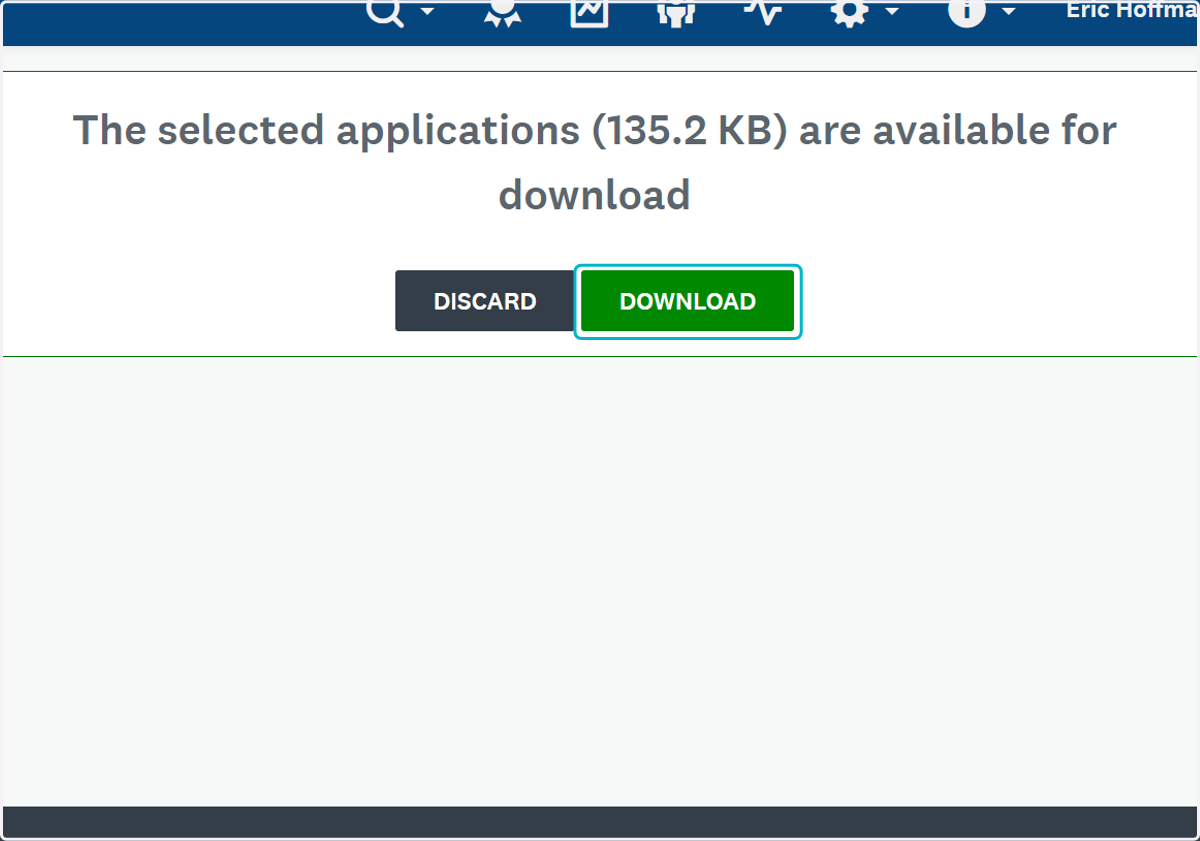
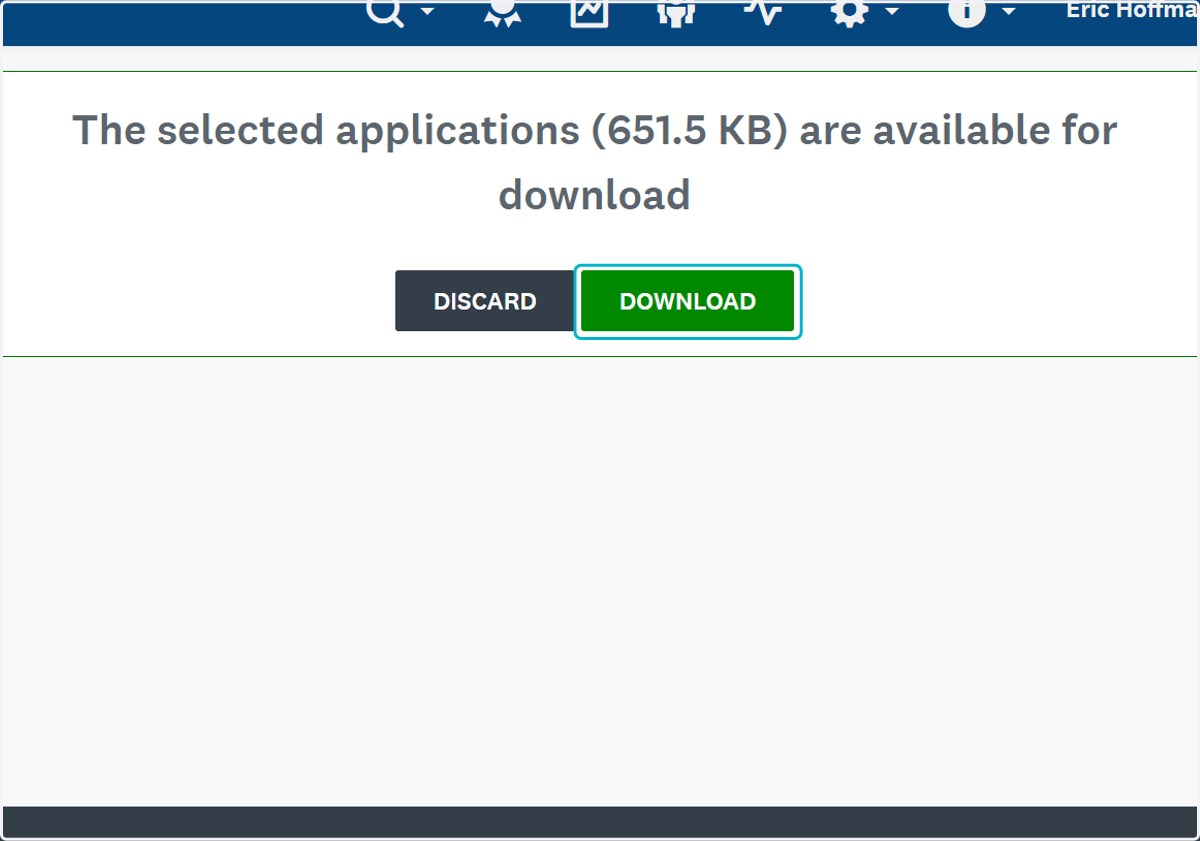
11. Click on DOWNLOAD
A new tab will open. On that tab click the green "DOWNLOAD" button
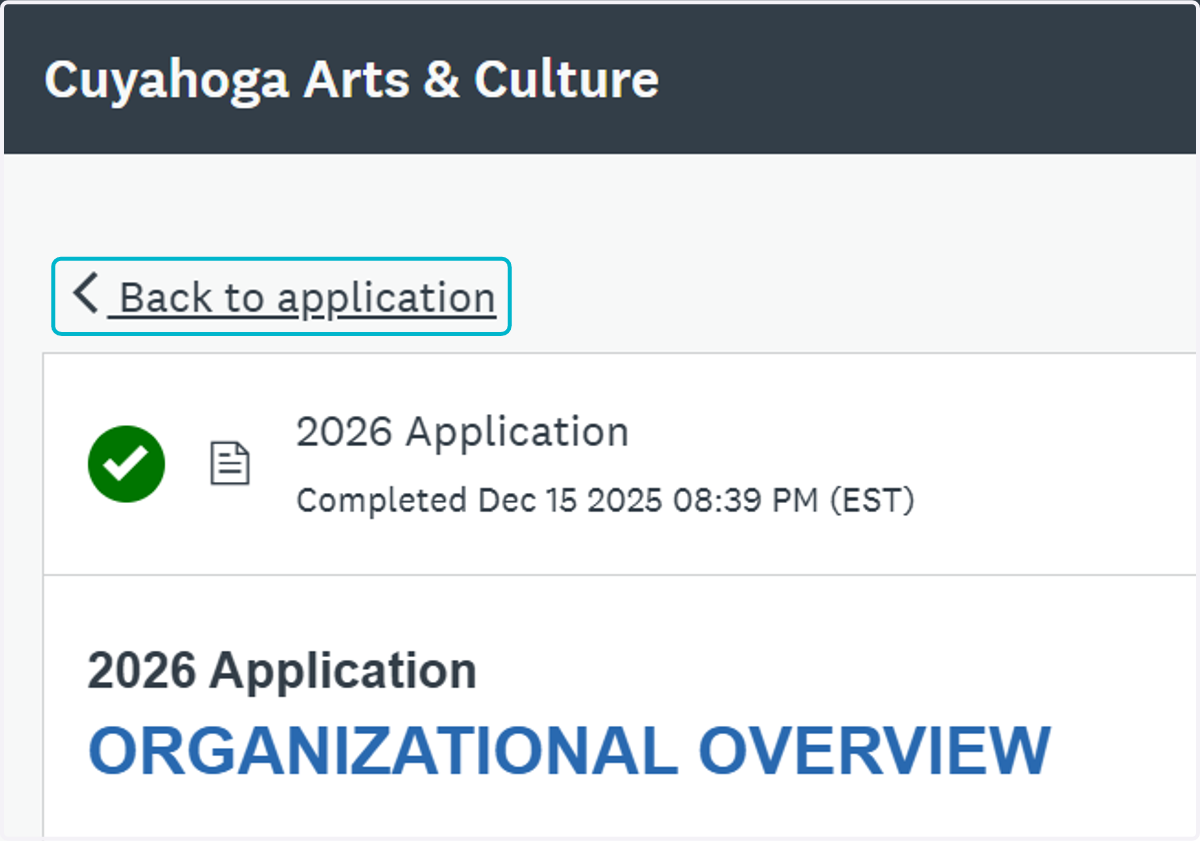
12. After saving that Application to your computer, navigate back to the SurveyMonkey Apply tab in your browser and click on "Back to application"
This, and the following steps, will allow you to download additional applications and reports.
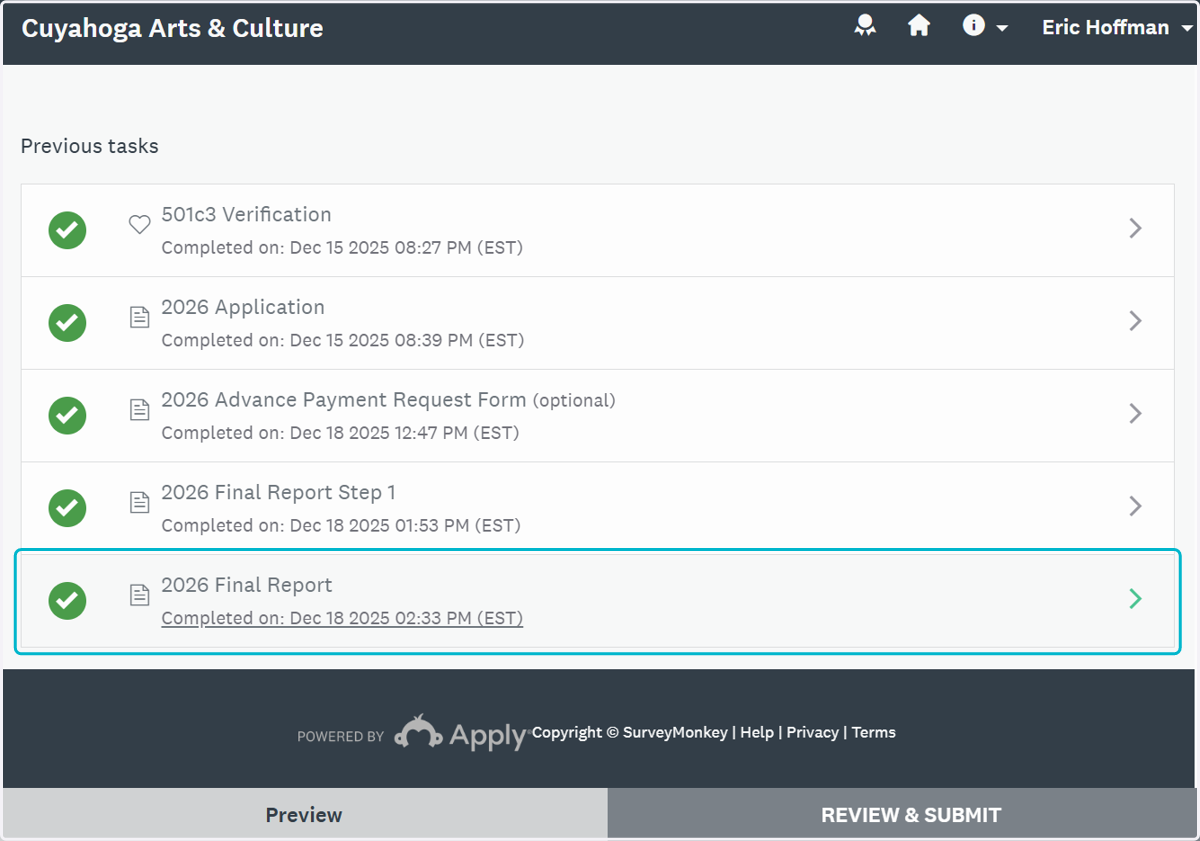
13. Click on 2026 Final Report…
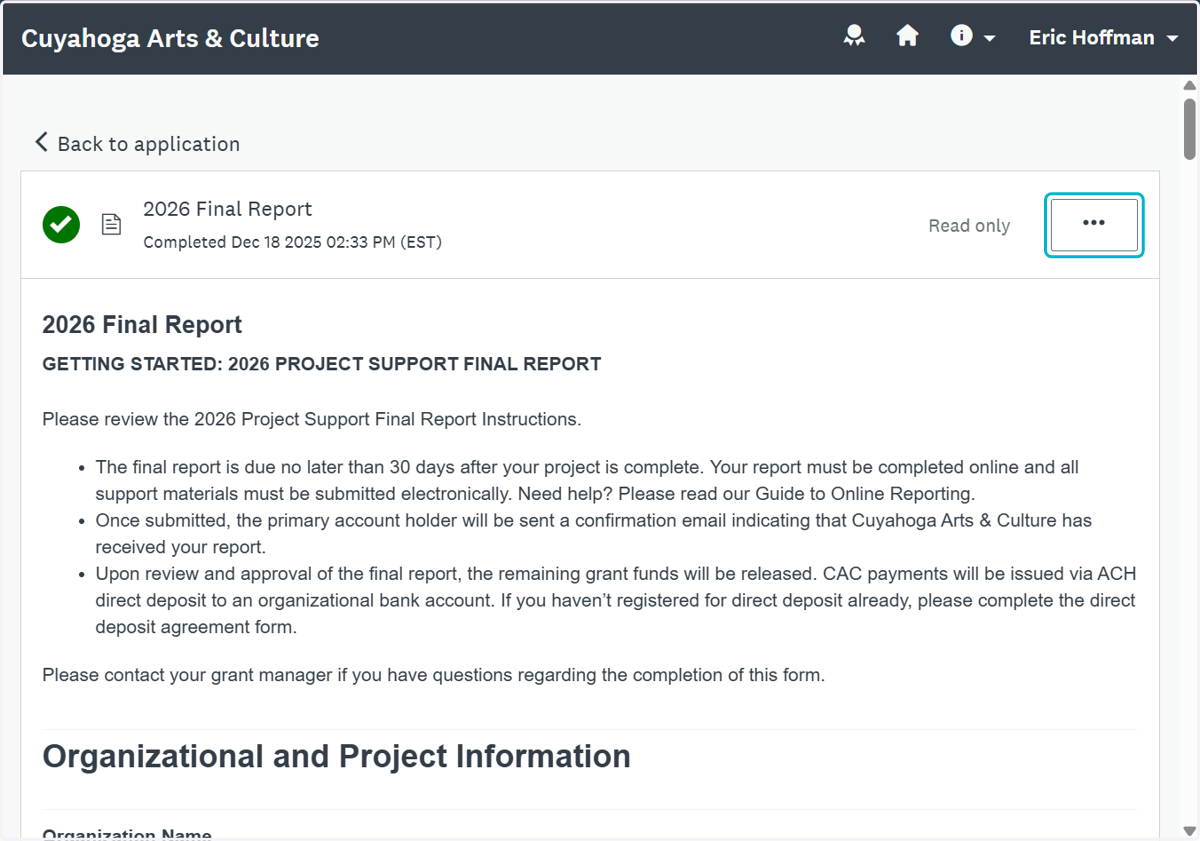
14. Click on the three horizontal dots next to the words "Read only"
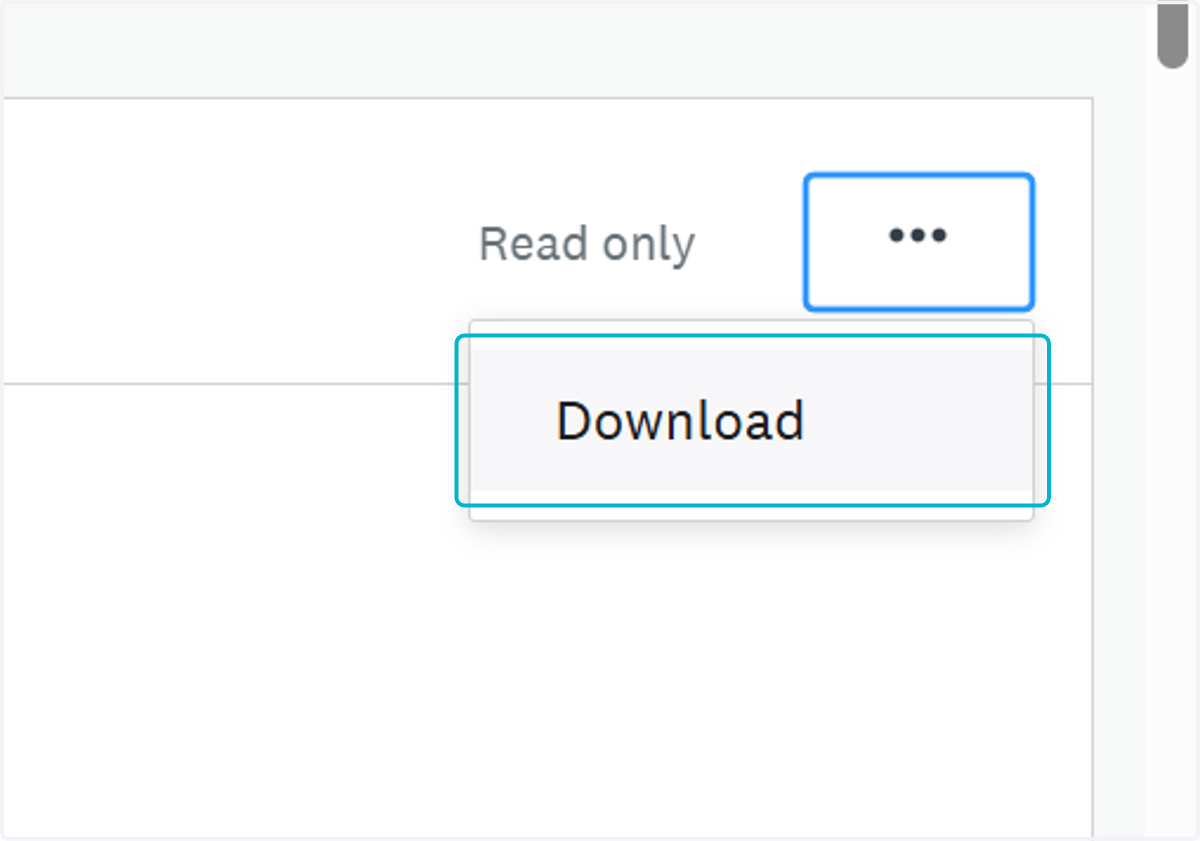
15. Click on Download
16. Click on DOWNLOAD
A new tab will open. On that tab click the green "DOWNLOAD" button. After saving that Report to your computer, navigate back to the SurveyMonkey Apply tab in your browser and repeat steps 7 - 11 to download Reports and Applications from other application cycles.