How To Add a Store
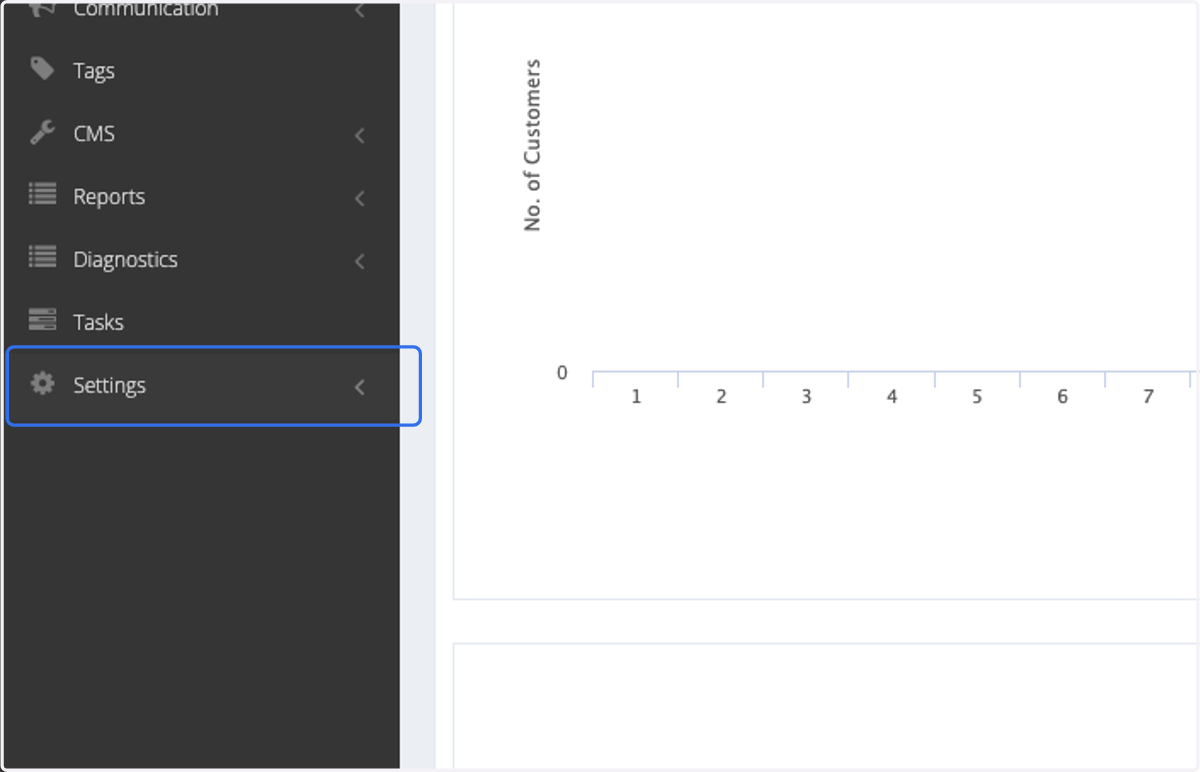
1. Click on Settings
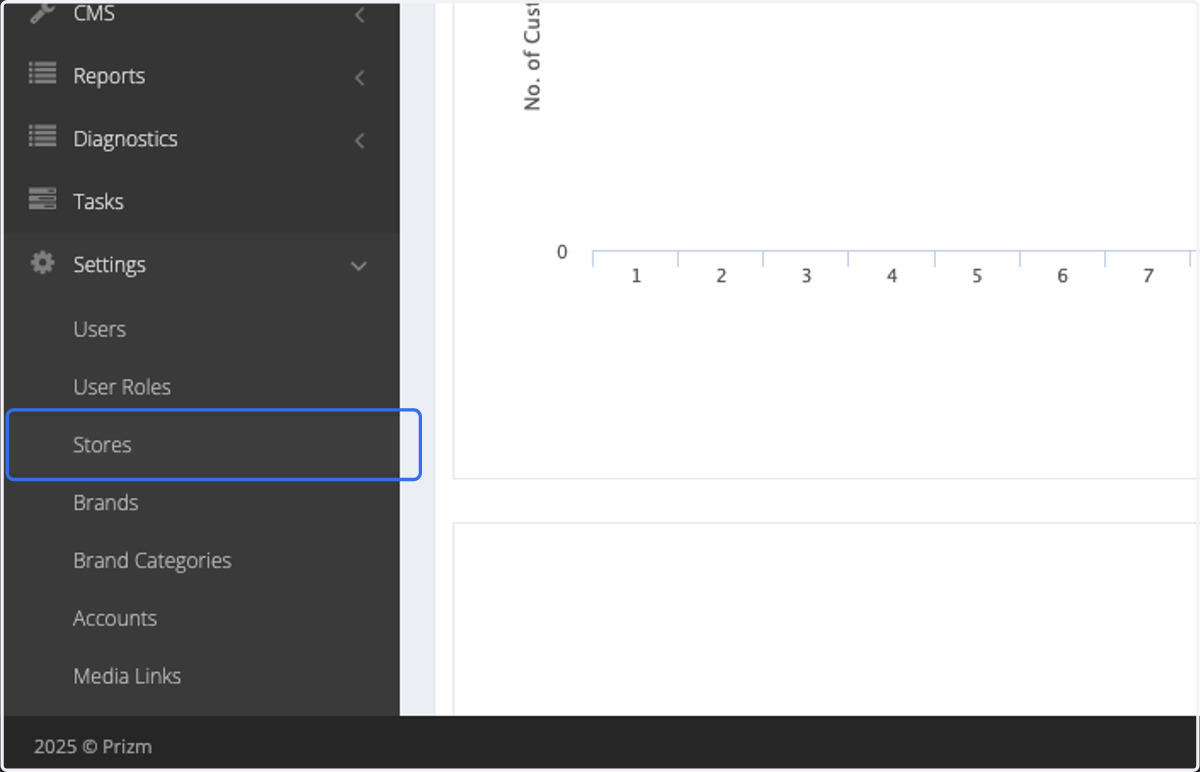
2. Click on Stores
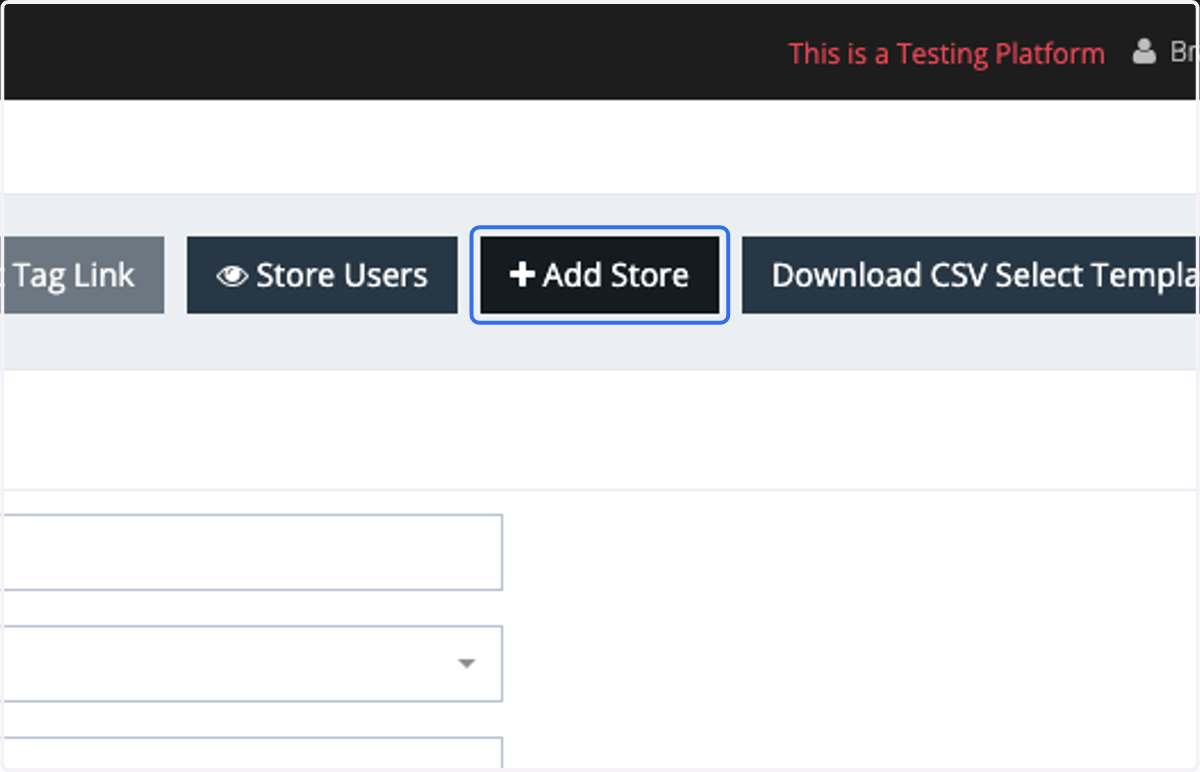
3. Click on Add Store
4. Select Active
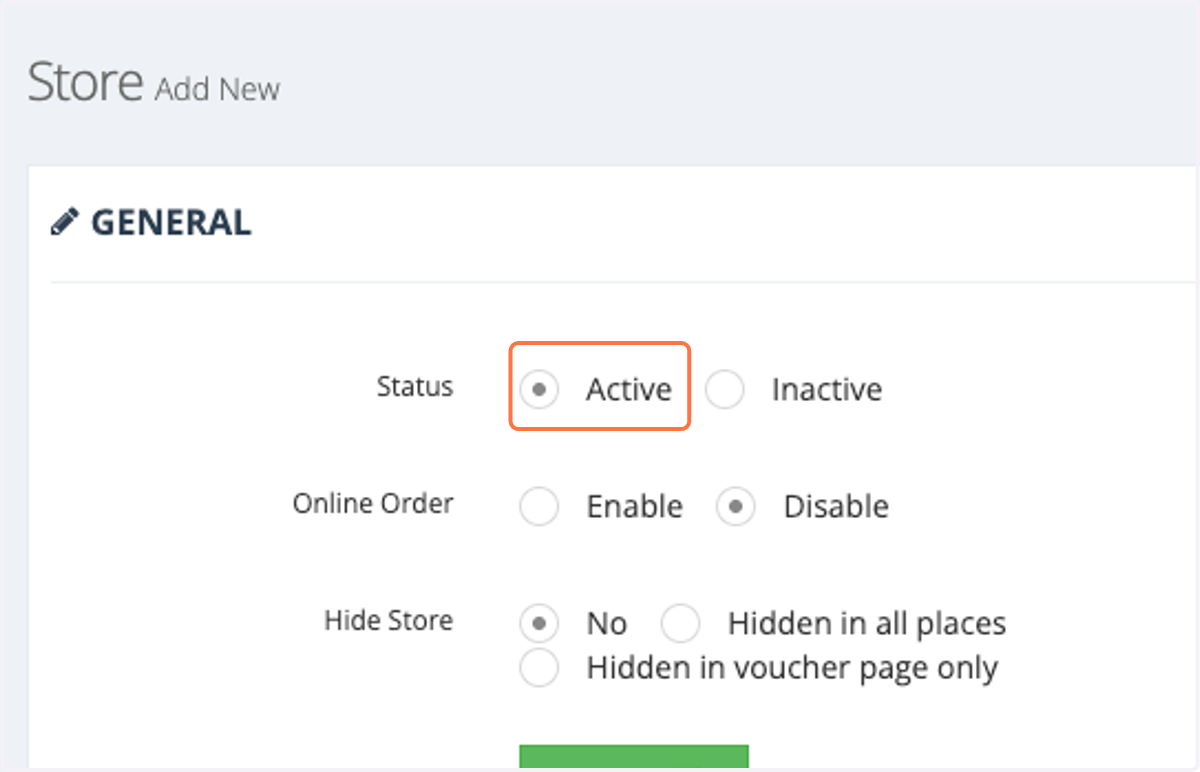
5. Select "Enable" if you wish to allow the store to accept online orders.

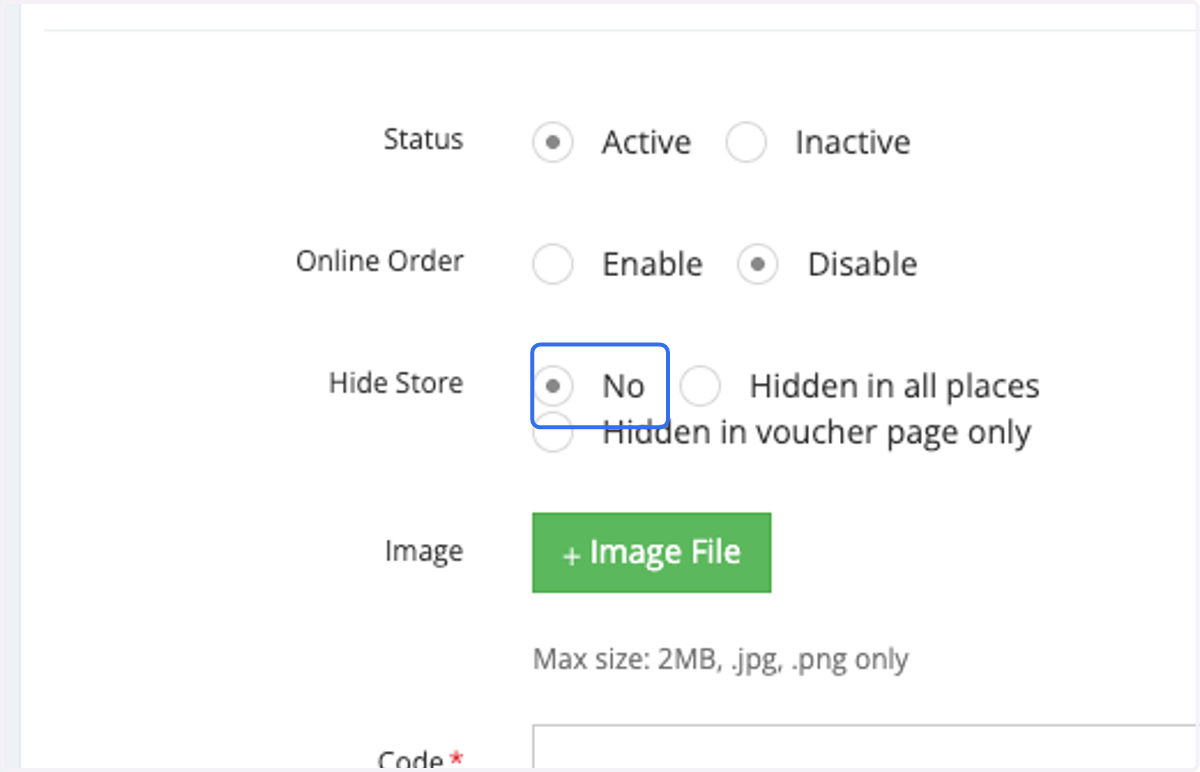
6. Select "No" to ensure your store is visible.
You can choose to display the store only on the Voucher Page. Under normal circumstances, if the store is set to "Hidden in all places", it will not appear on the Contact Page.
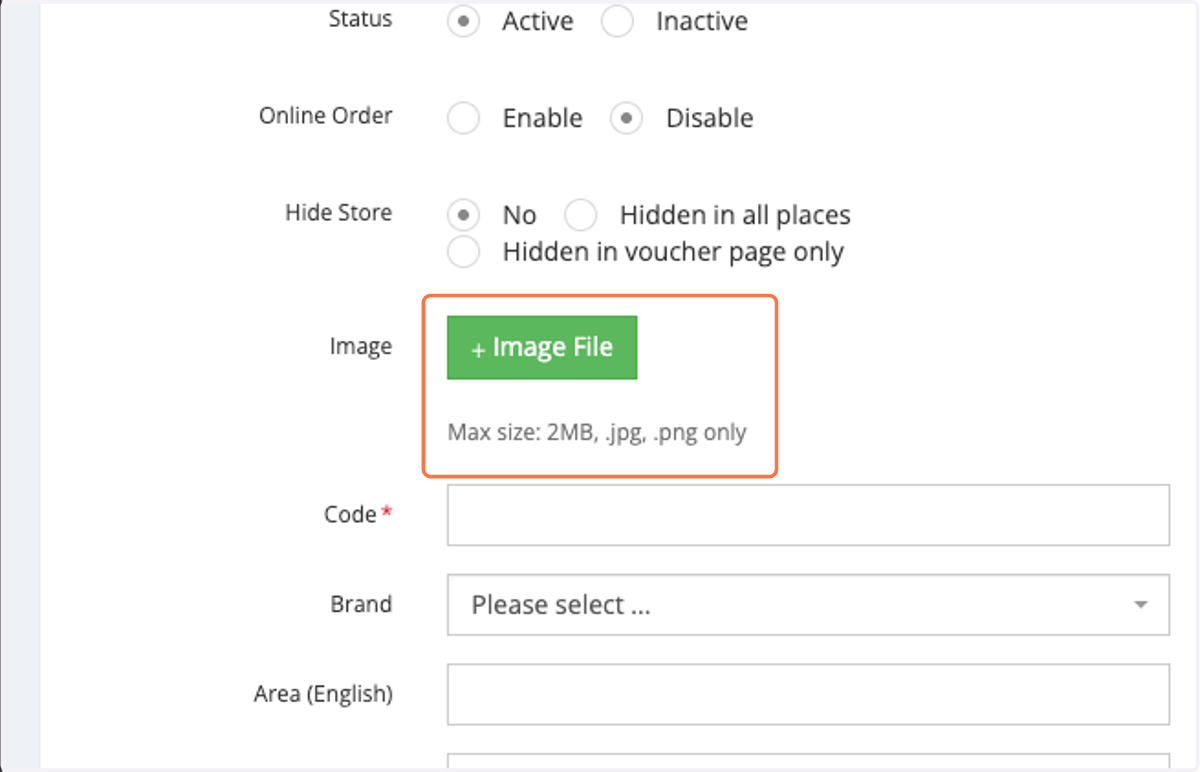
7. Upload an image for the store.
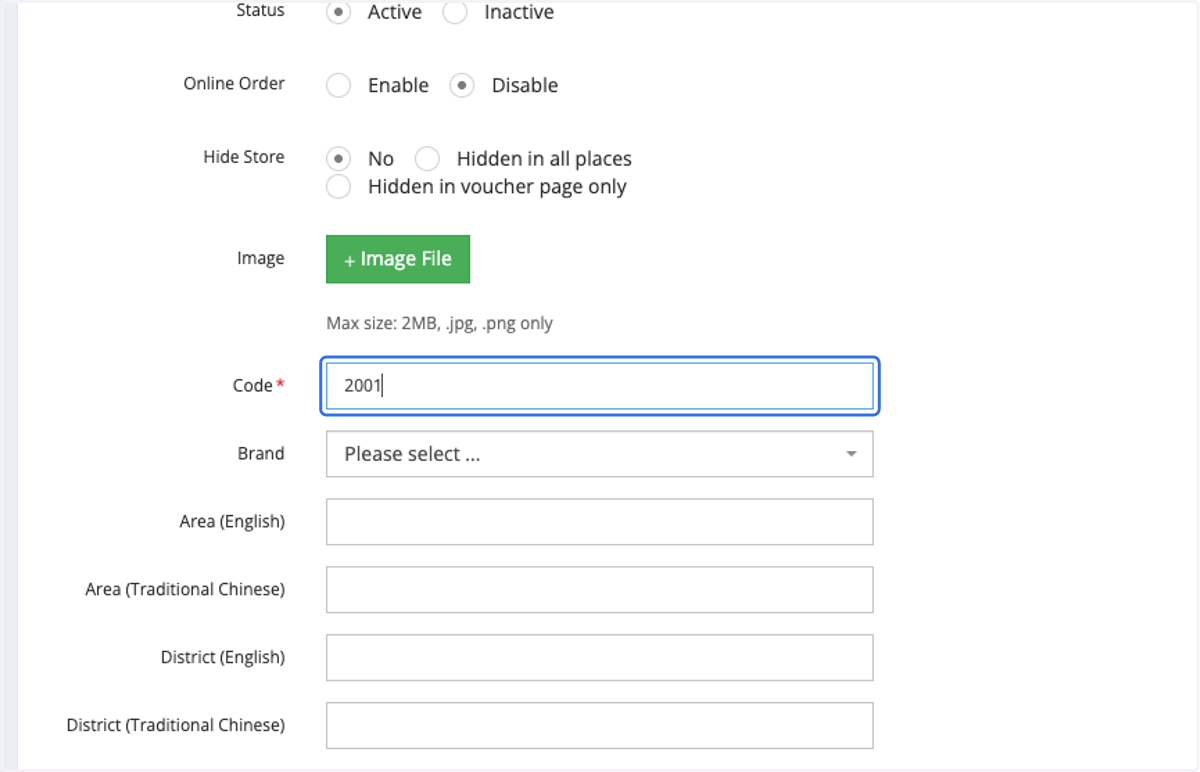
8. Insert store code
This code is flexible according to your business.
9. Select brand, if applicable
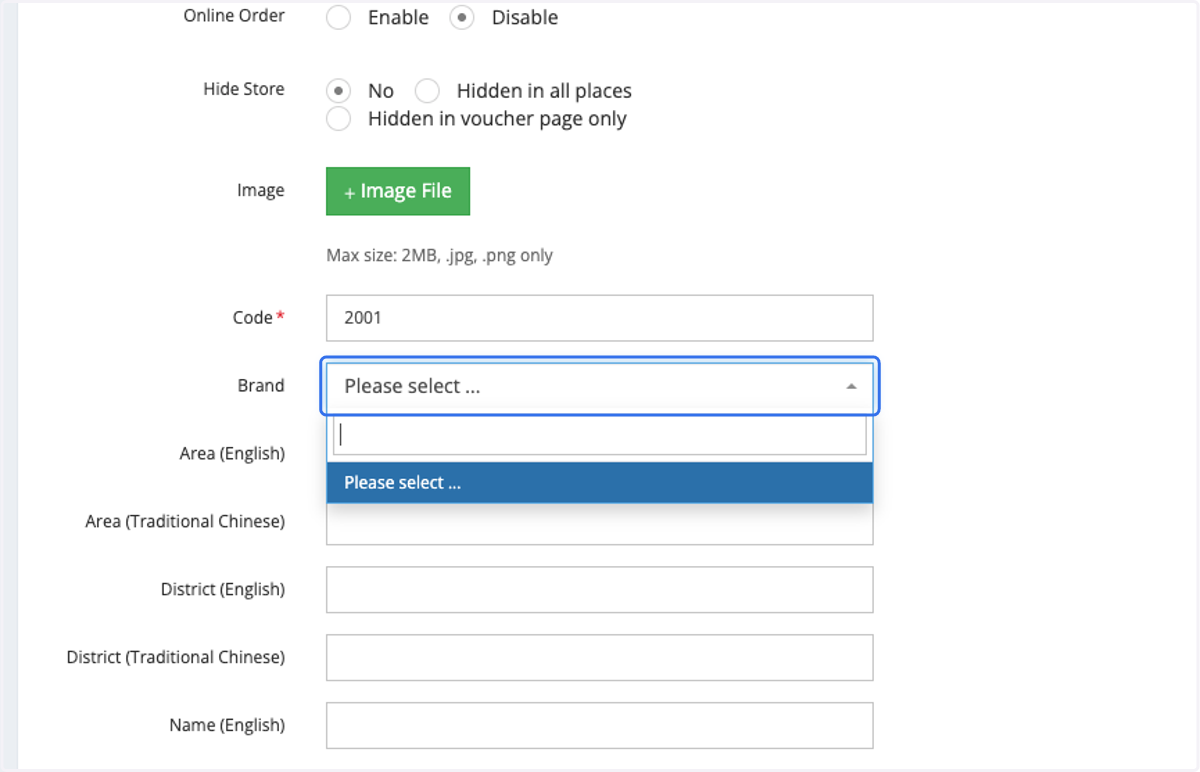
10. Insert Area and District Informations

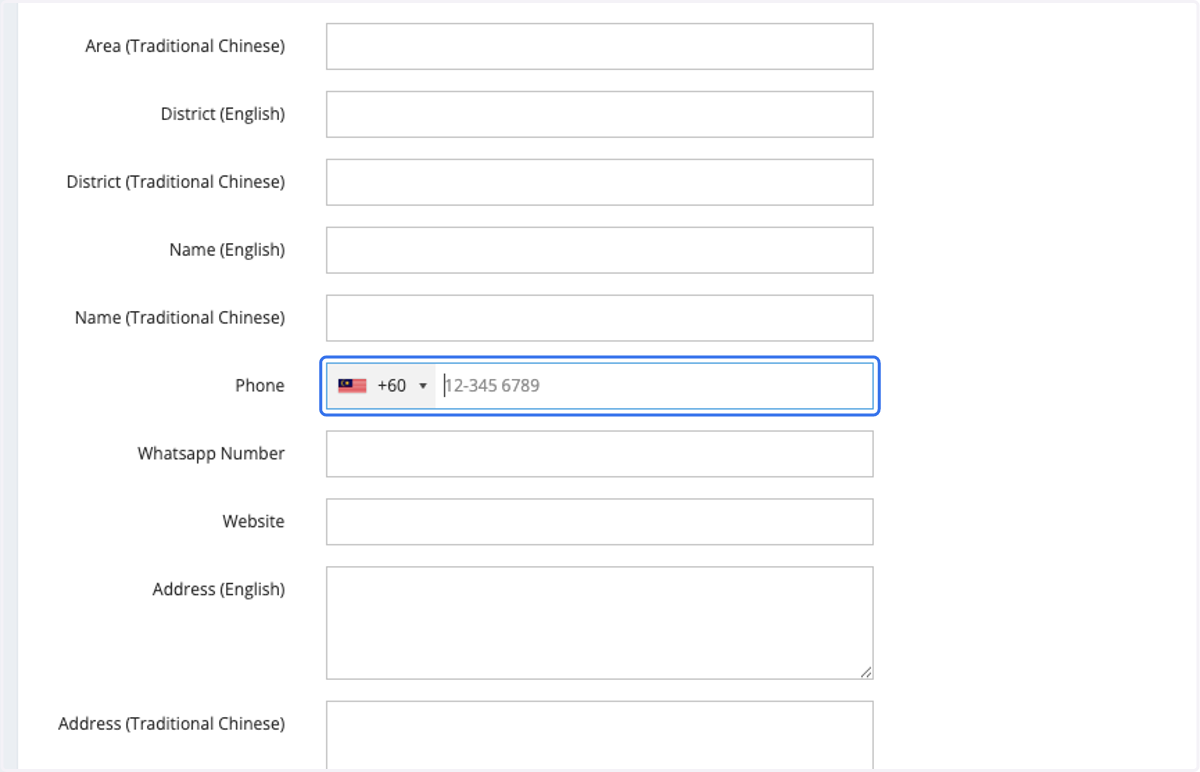
11. Insert the Contact Number of the store
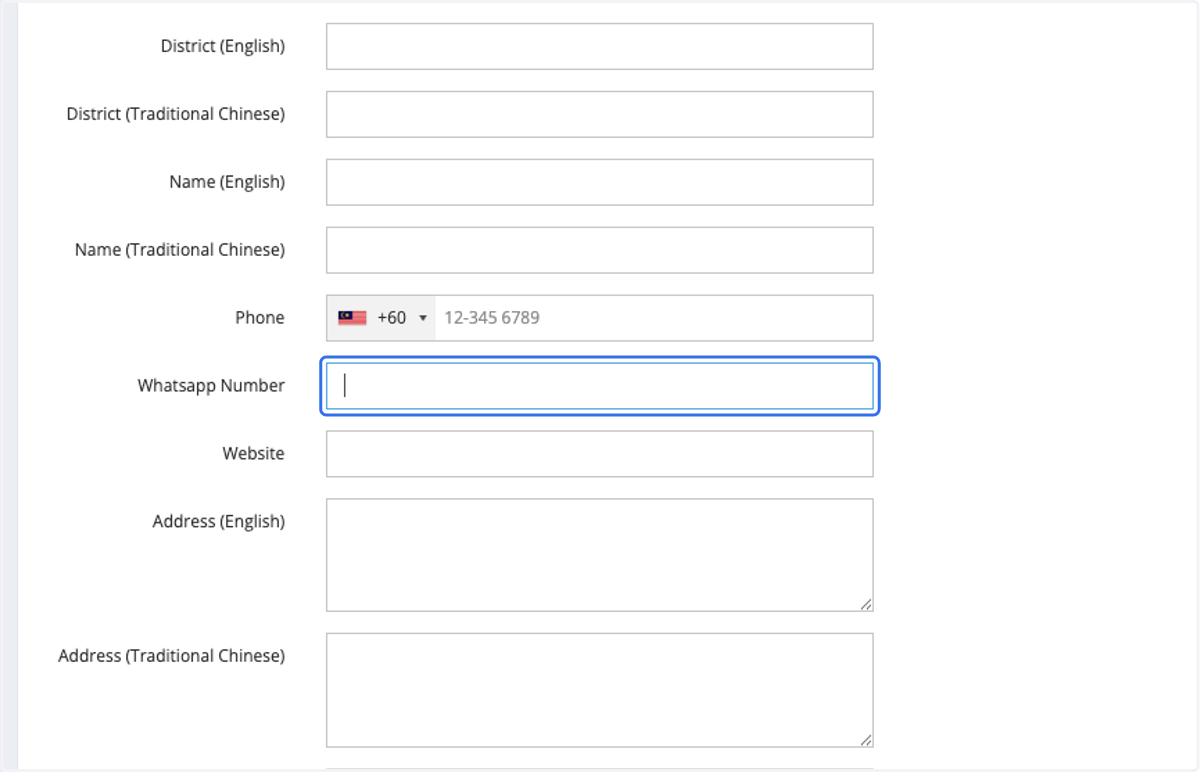
12. Insert the Whatsapp Number of the store, if applicable
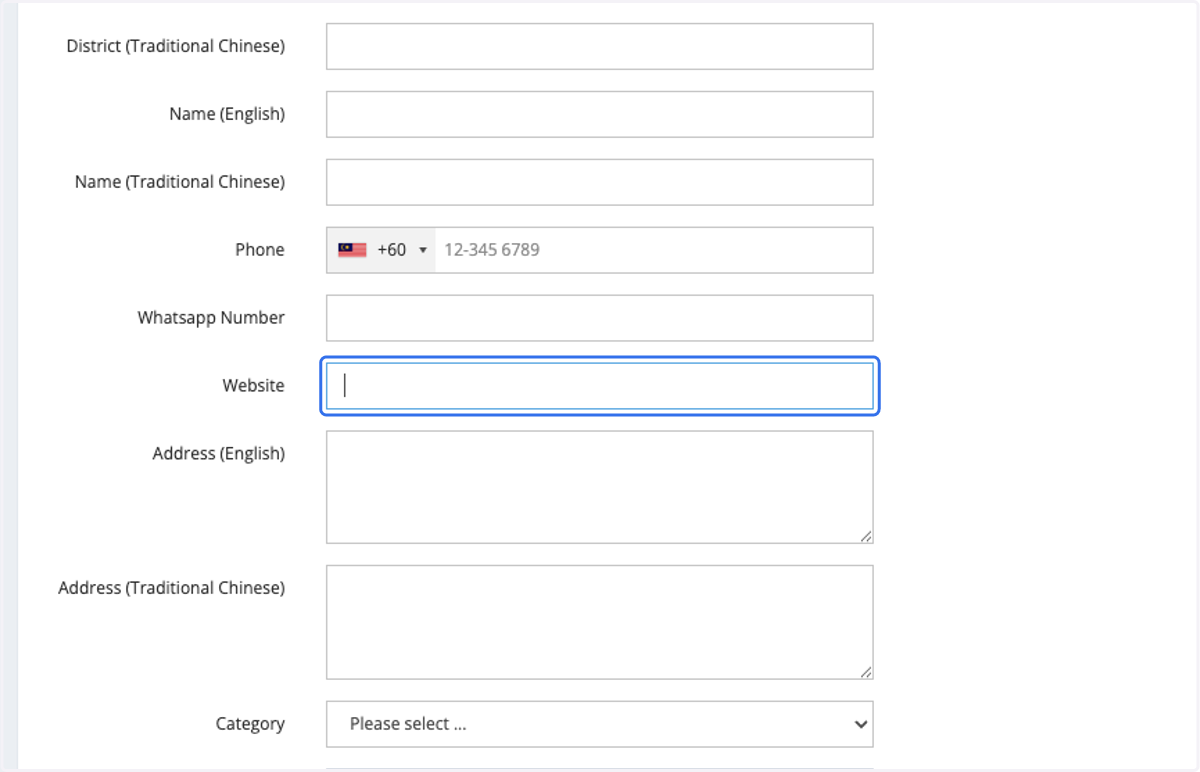
13. Insert the website of your brand, if applicable
14. Insert Address
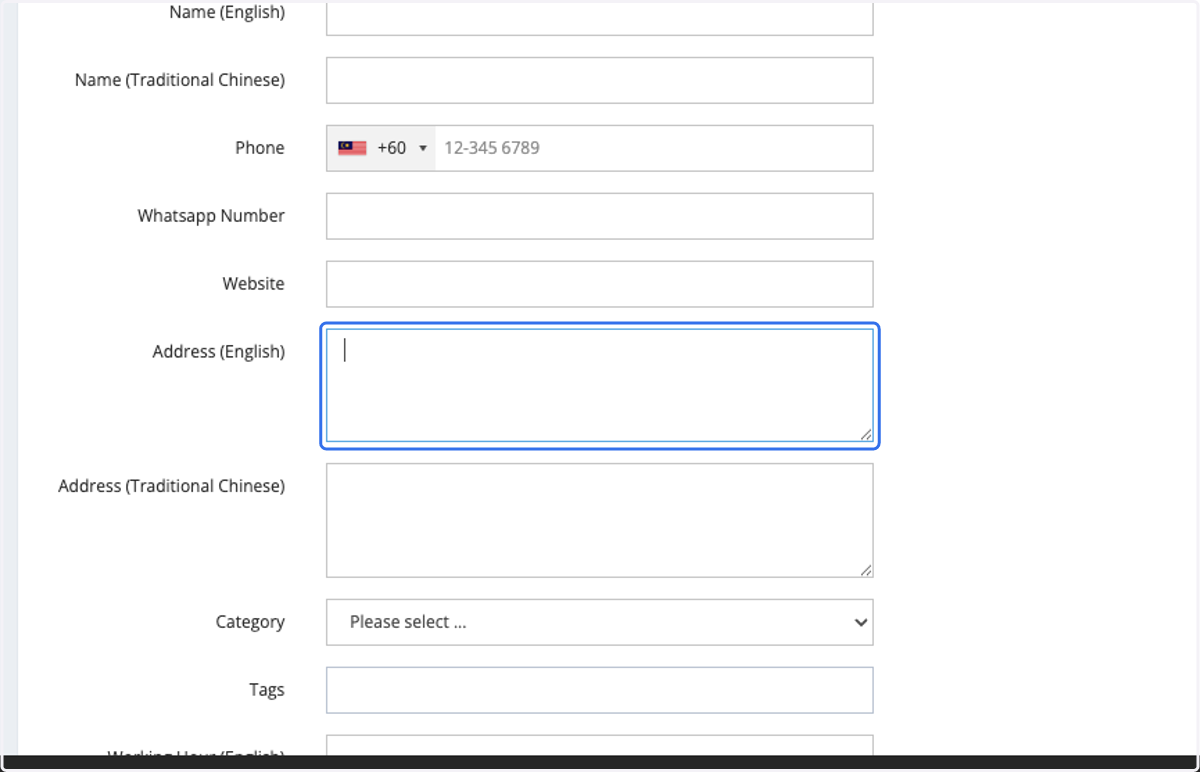
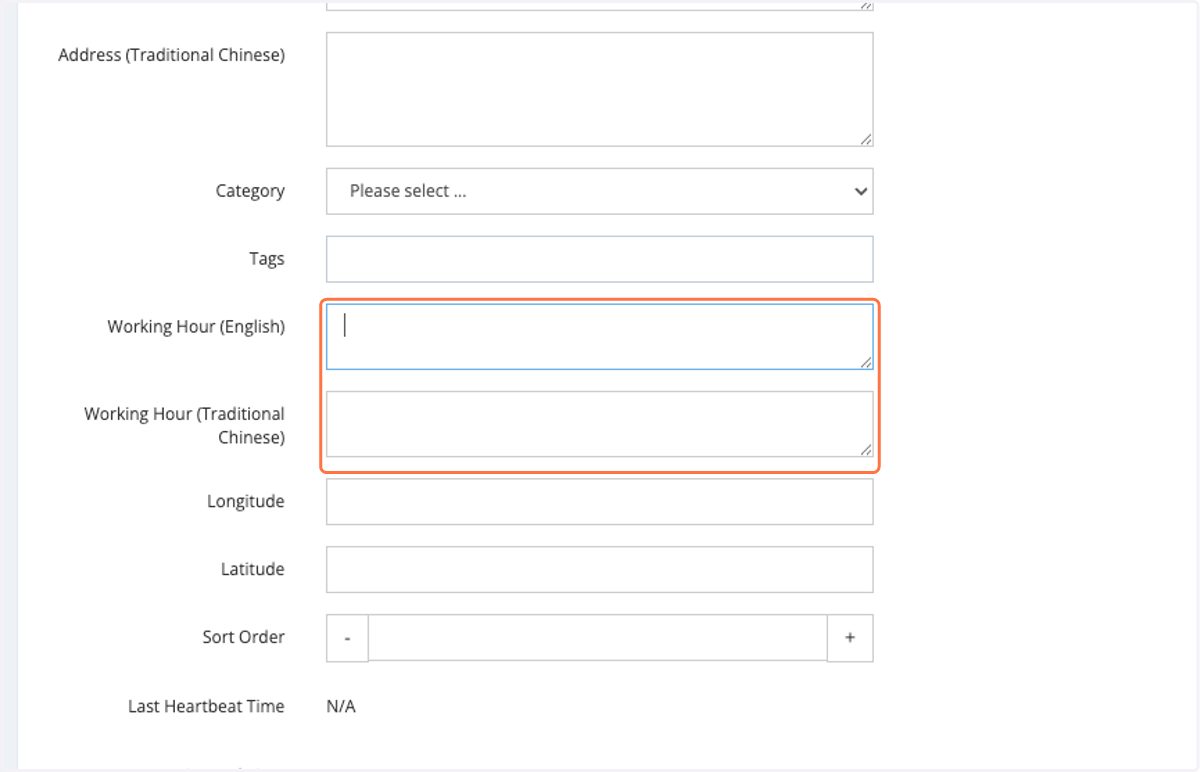
15. Insert Working Hour for customer references
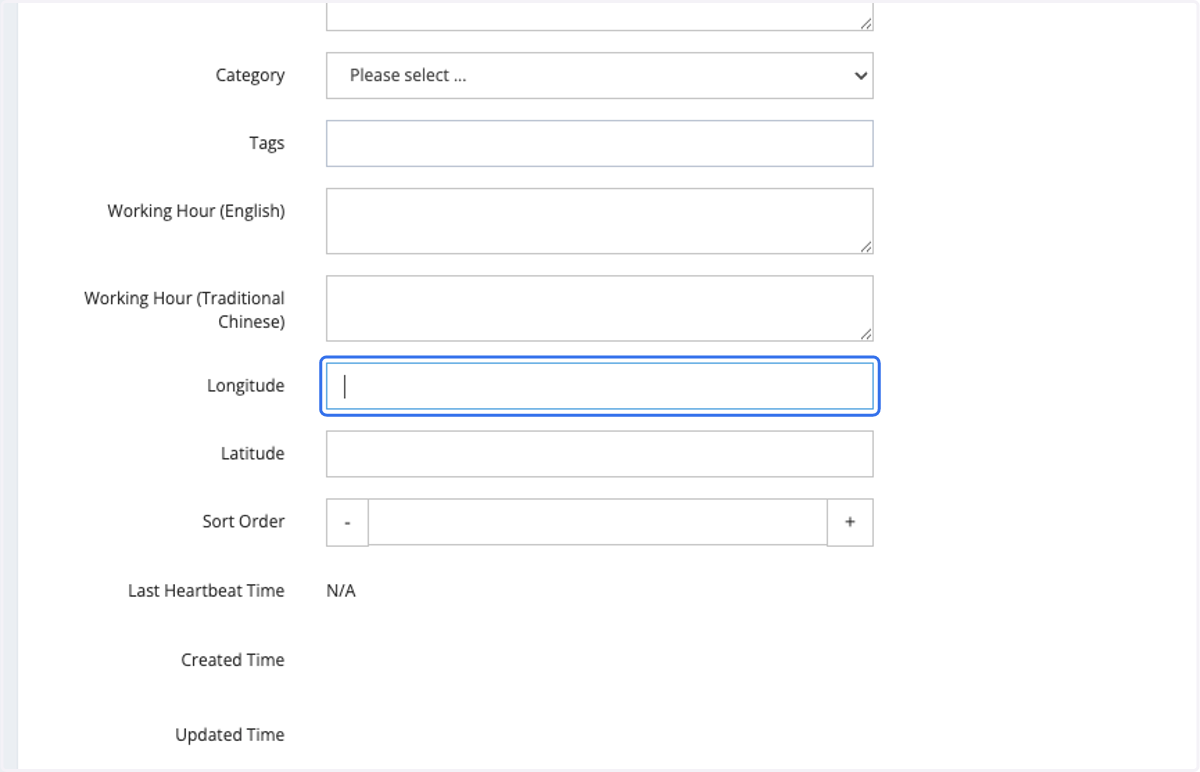
16. Insert the Longtitude and Latitude of your store
This will affect the Google Map pointing. Please ensure that you've inserted the correct information.
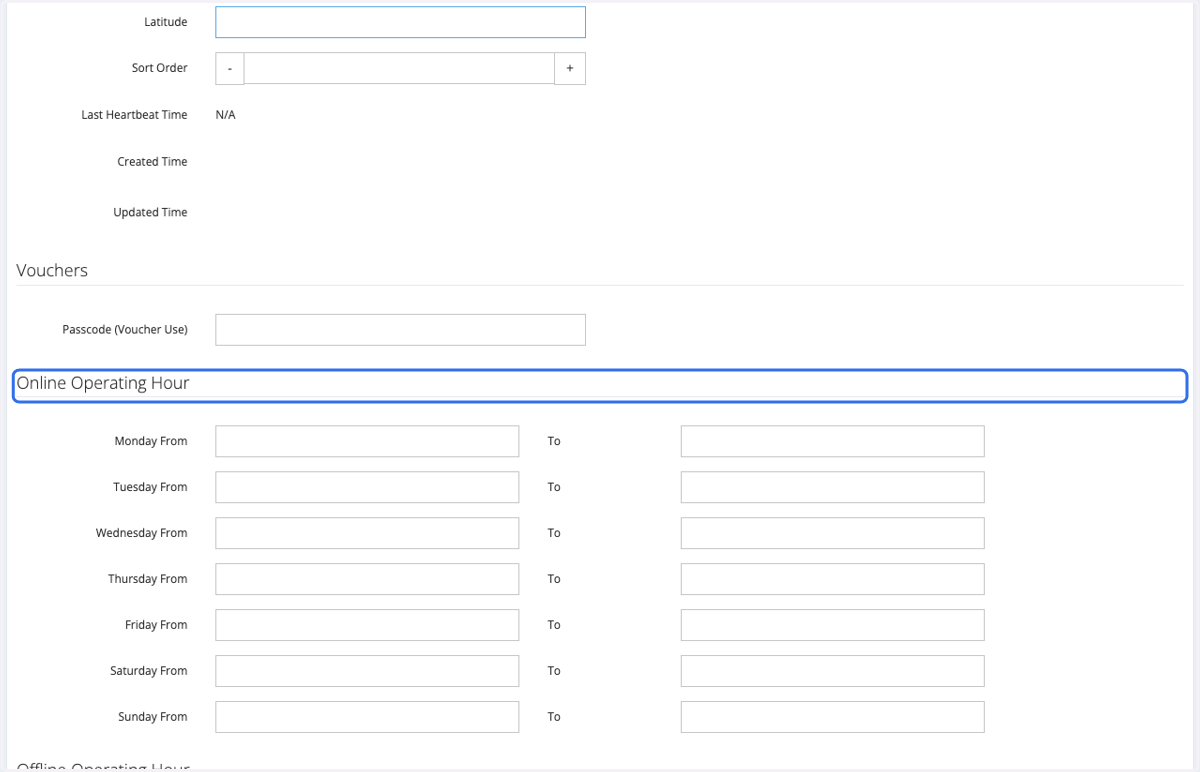
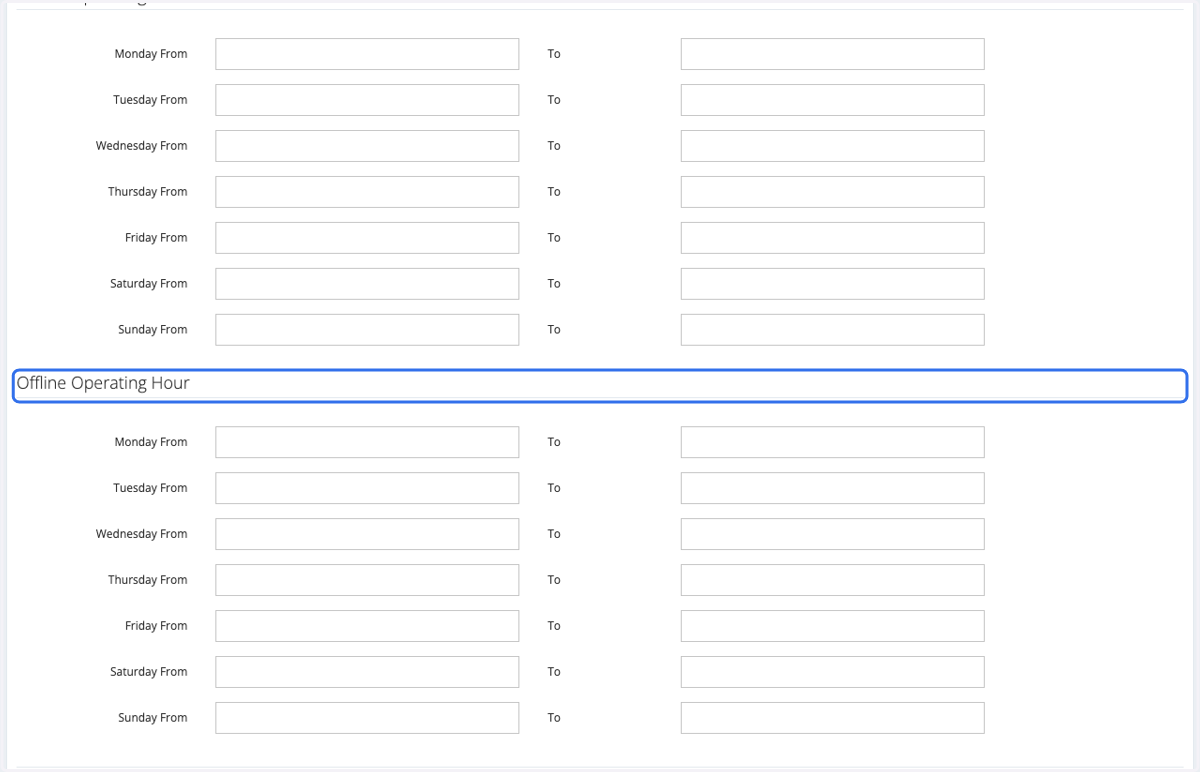
17. Insert the Online Operating Hour
18. Insert the Offline Operating Hour
19. Click on Submit
How To Edit Email of the store?
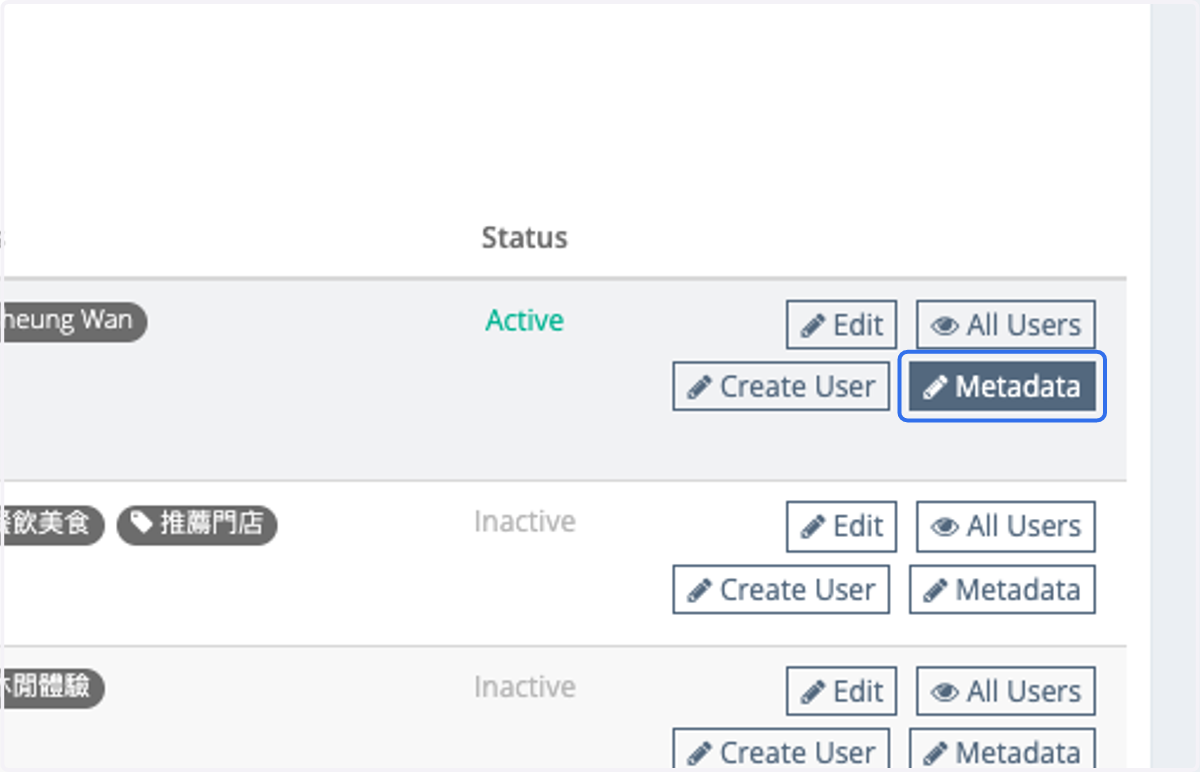
20. Click on Metadata of the store
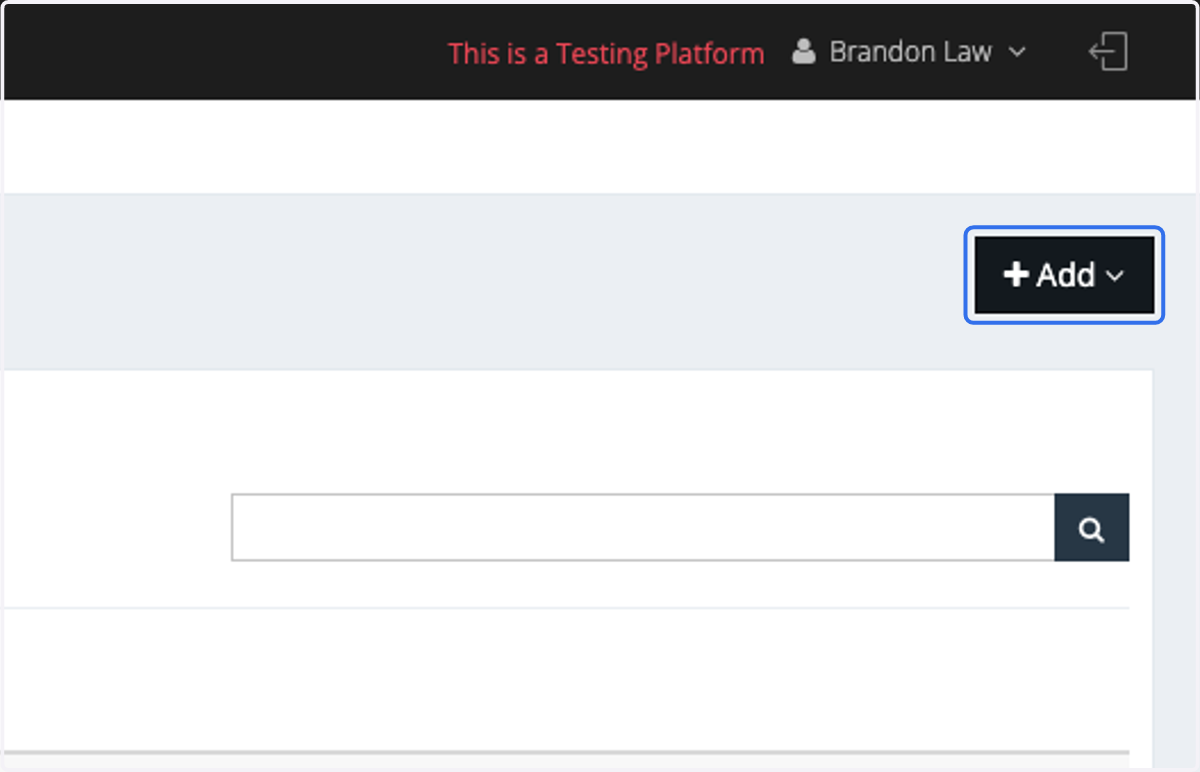
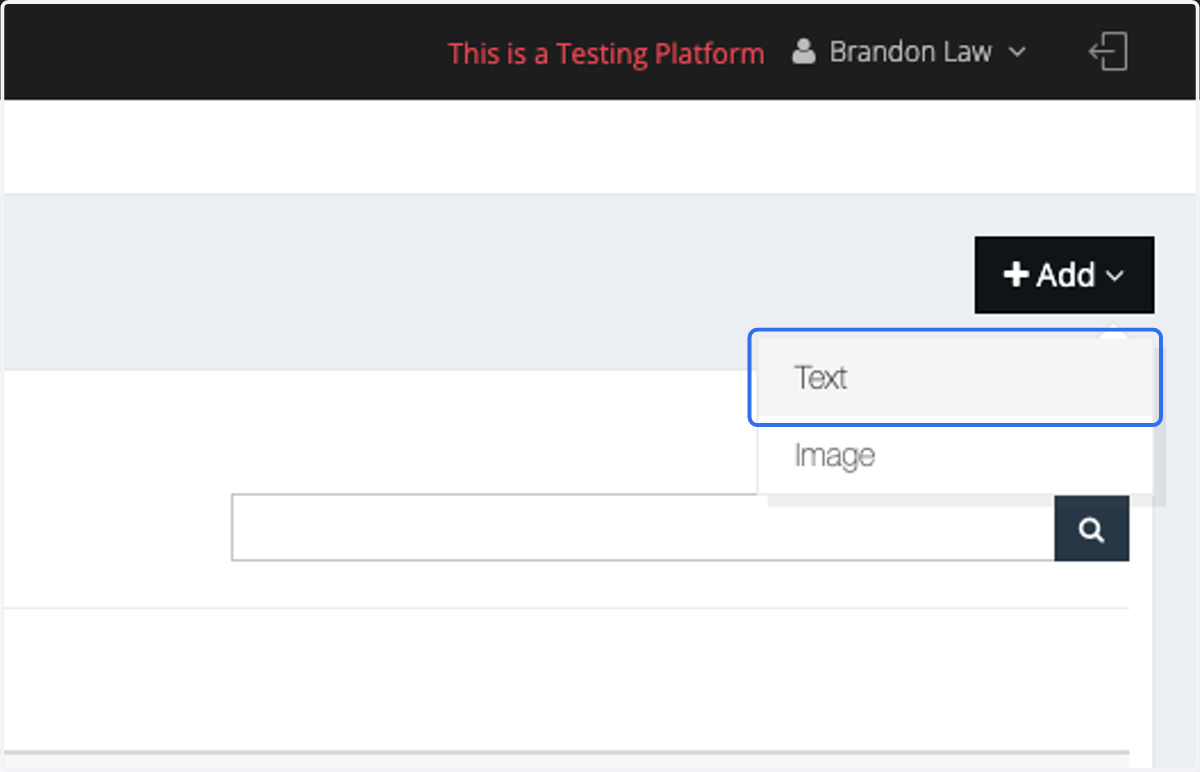
21. Click on Add
22. Click on Text
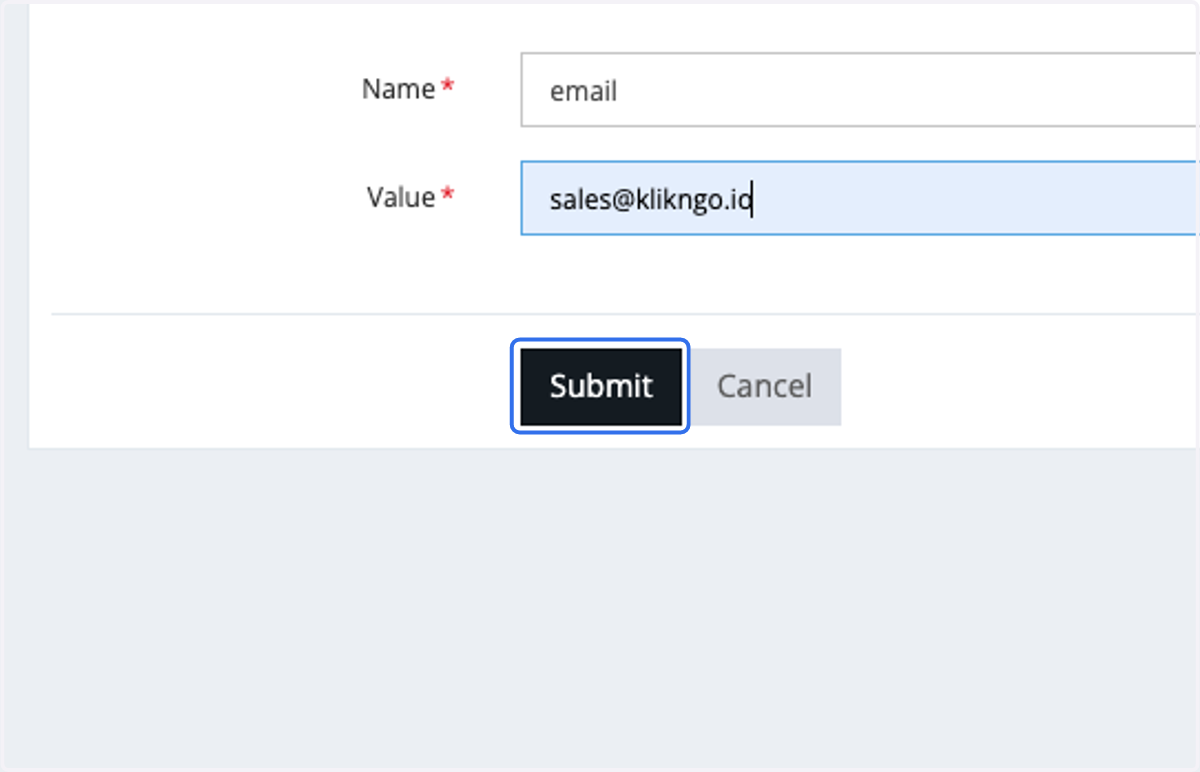
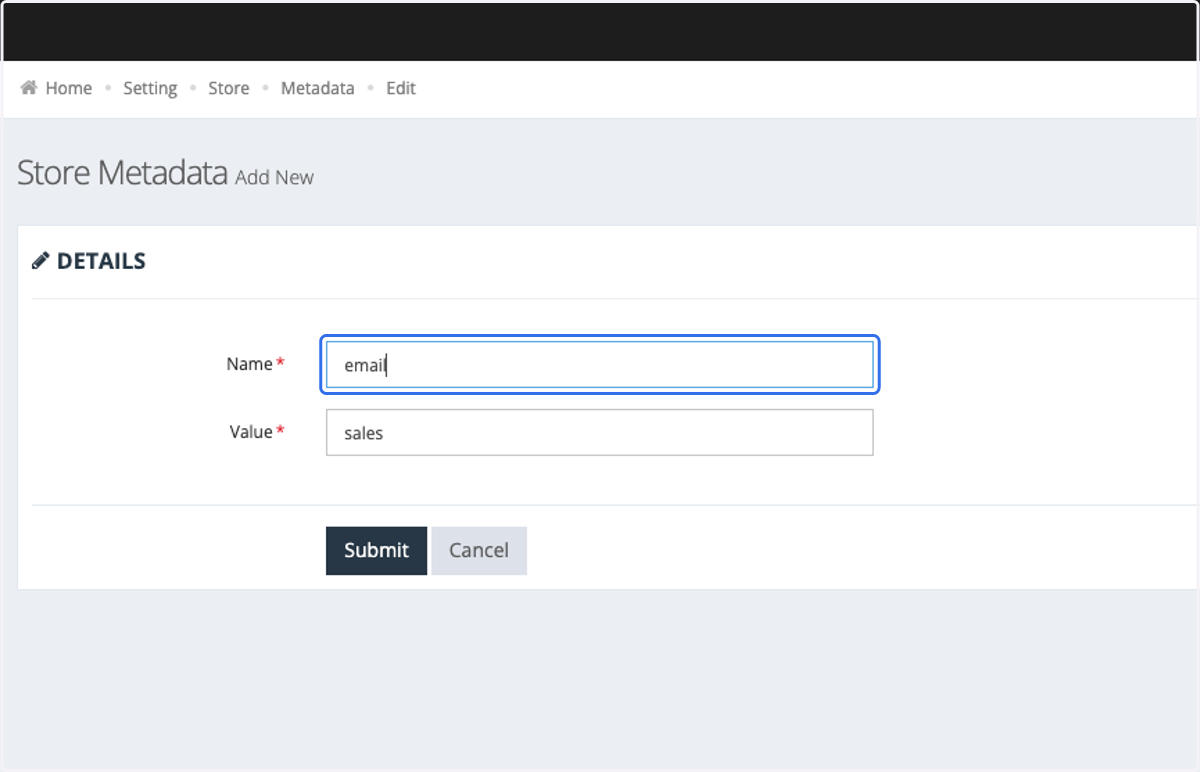
23. Insert name as "email"
24. Insert your email as Value
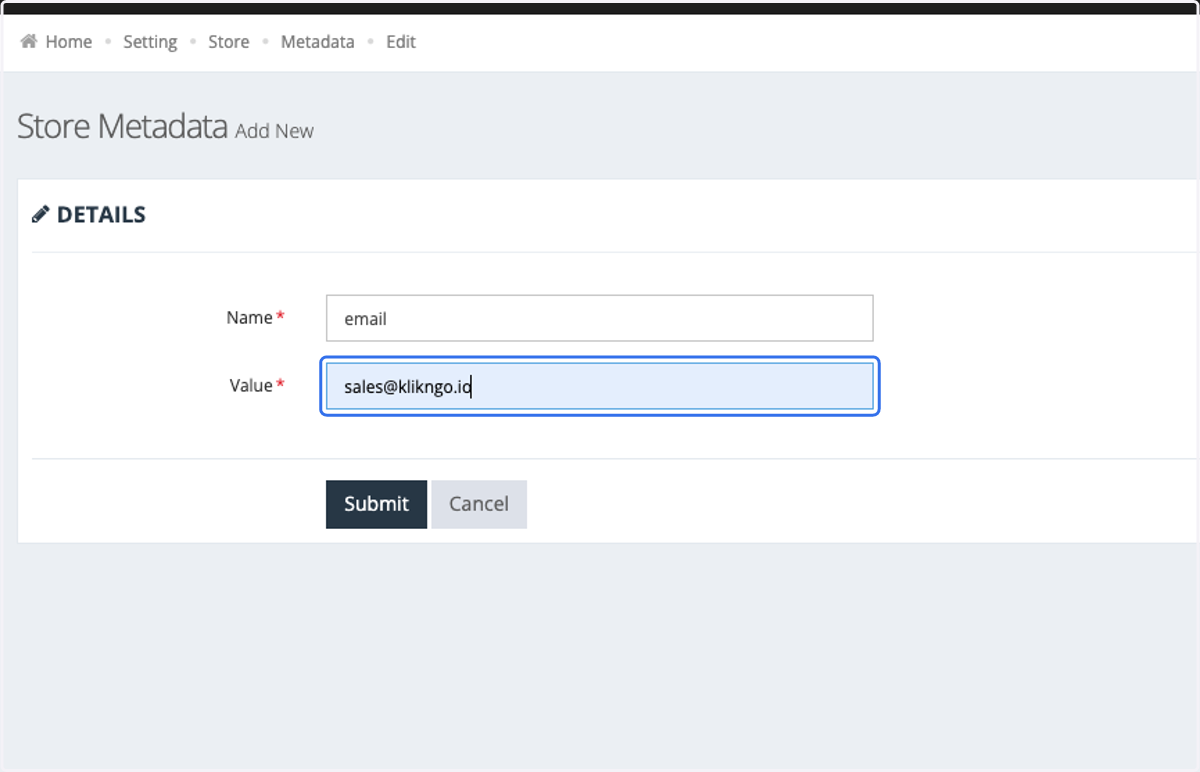
25. Click on Submit