How To Add User
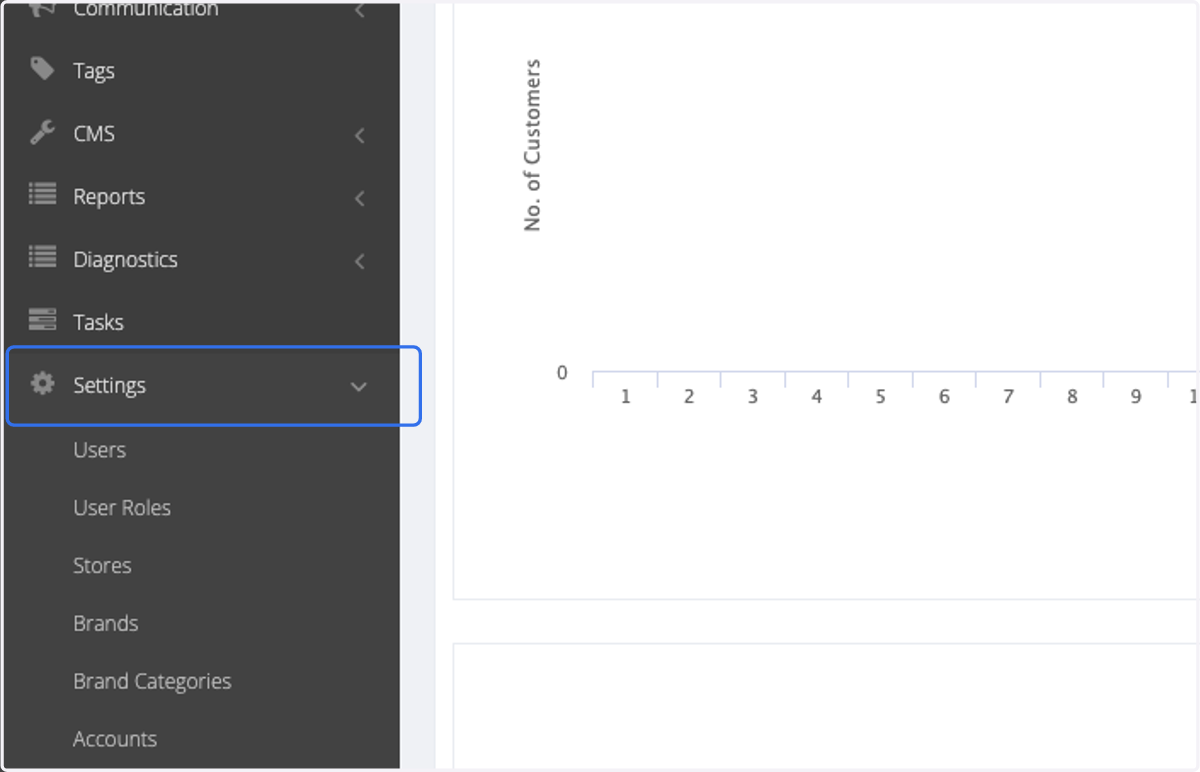
1. Click on Settings
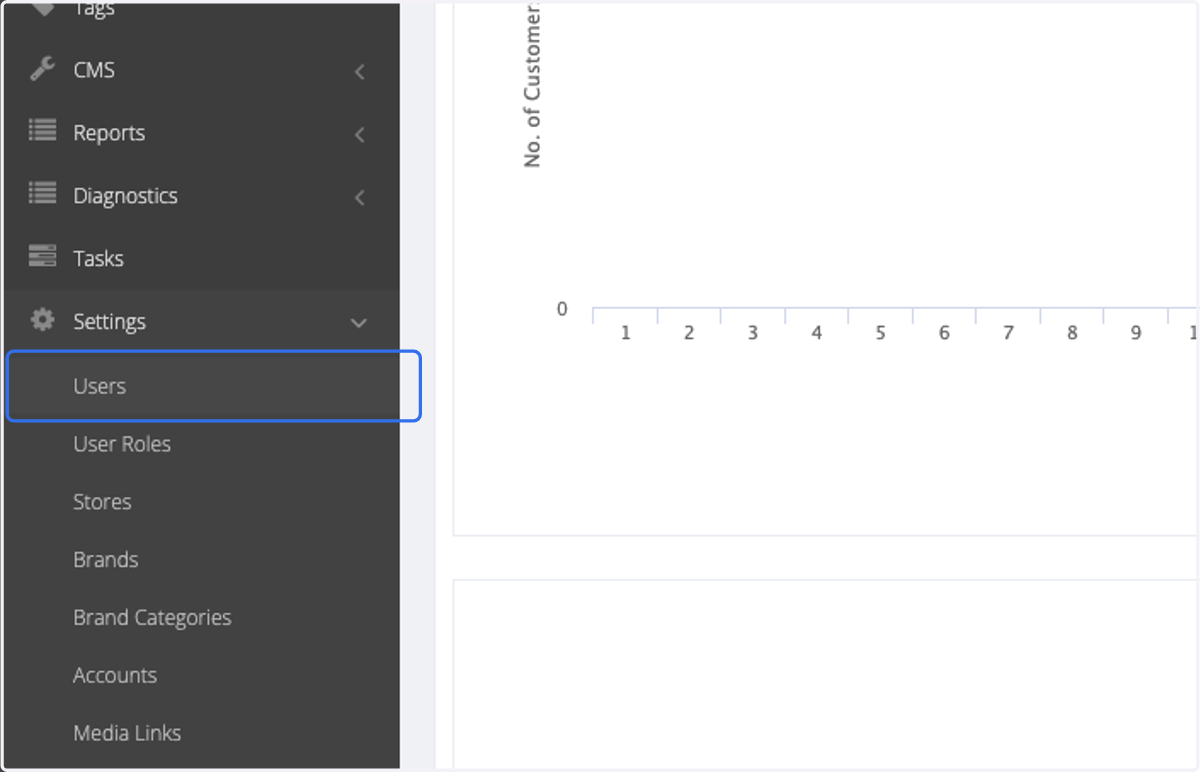
2. Click on Users
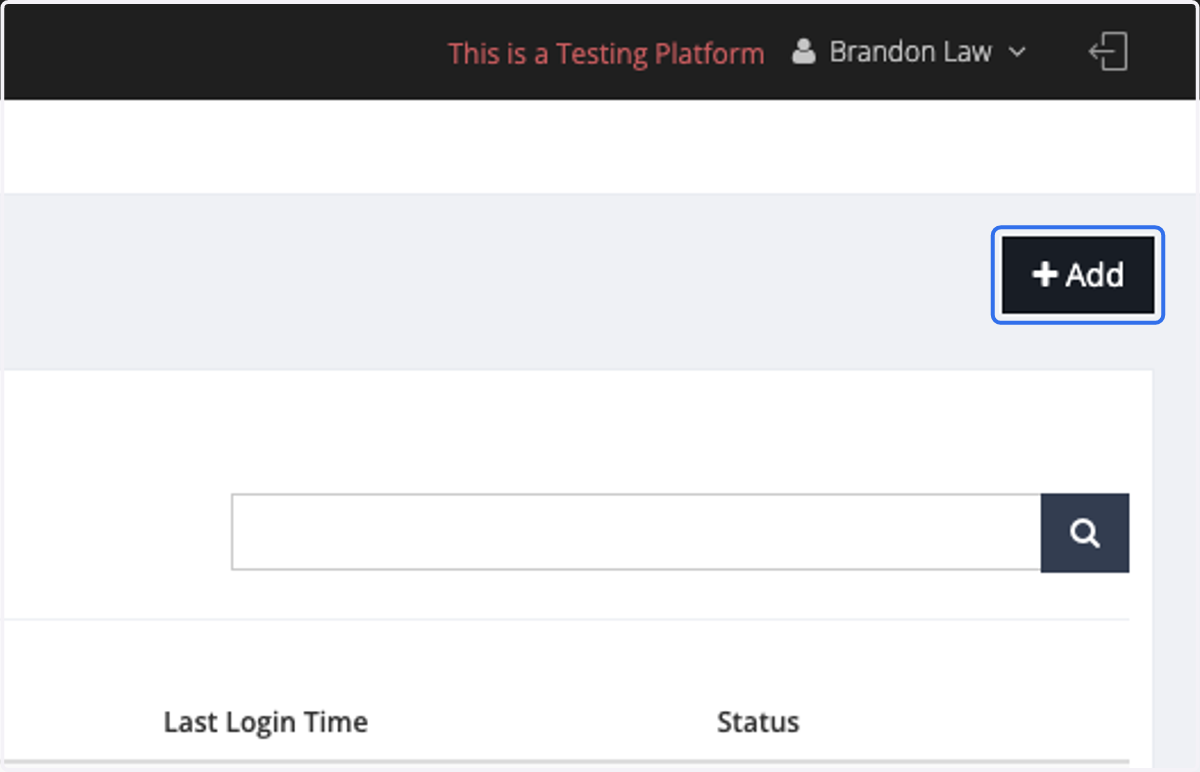
3. Click on Add
4. Enter the Display Name, which refers to the user's name.
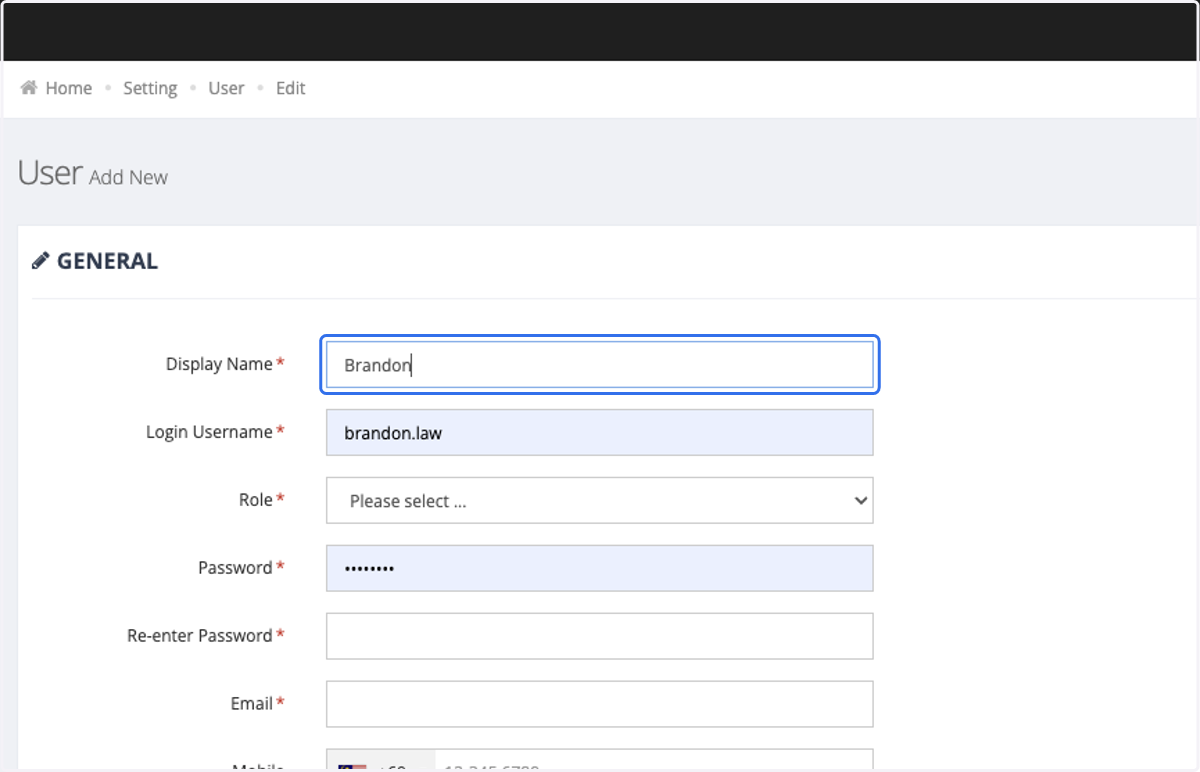
5. Enter the username that the user will use to log in.
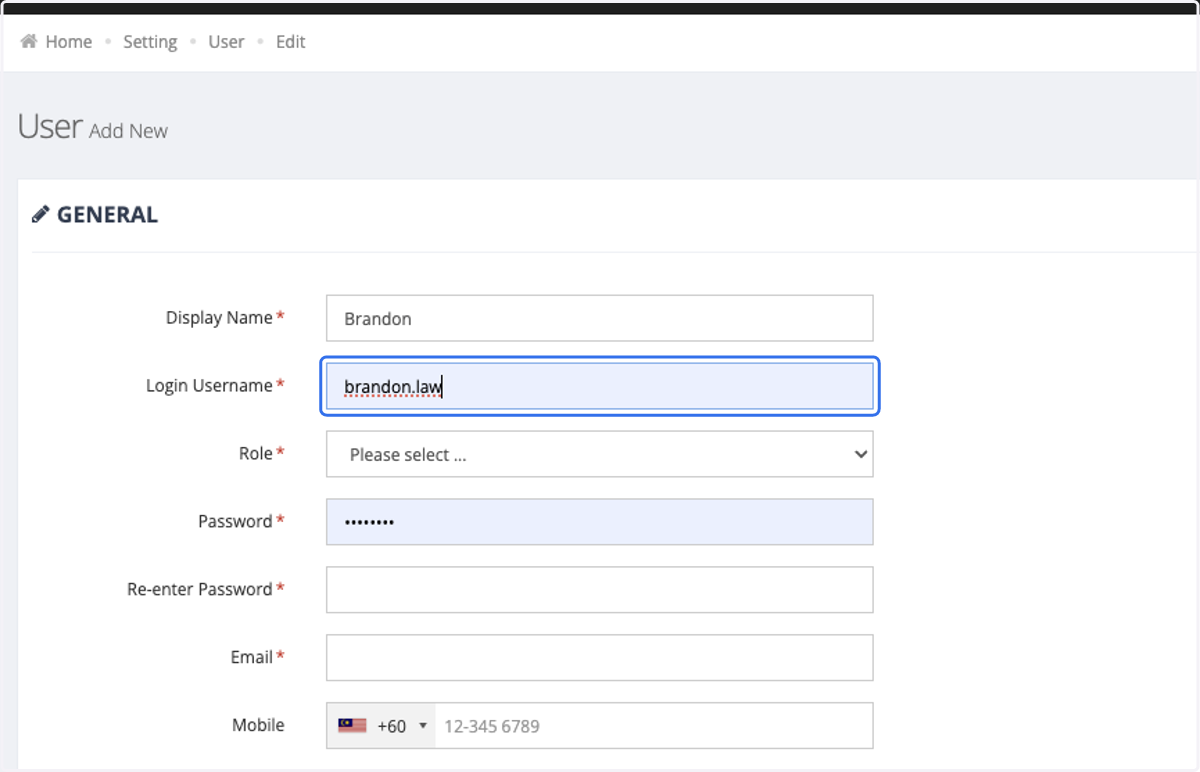
6. Select the role to which this user will have access.
Roles must be preconfigured in the User Role tab. Each role will have different access permissions.
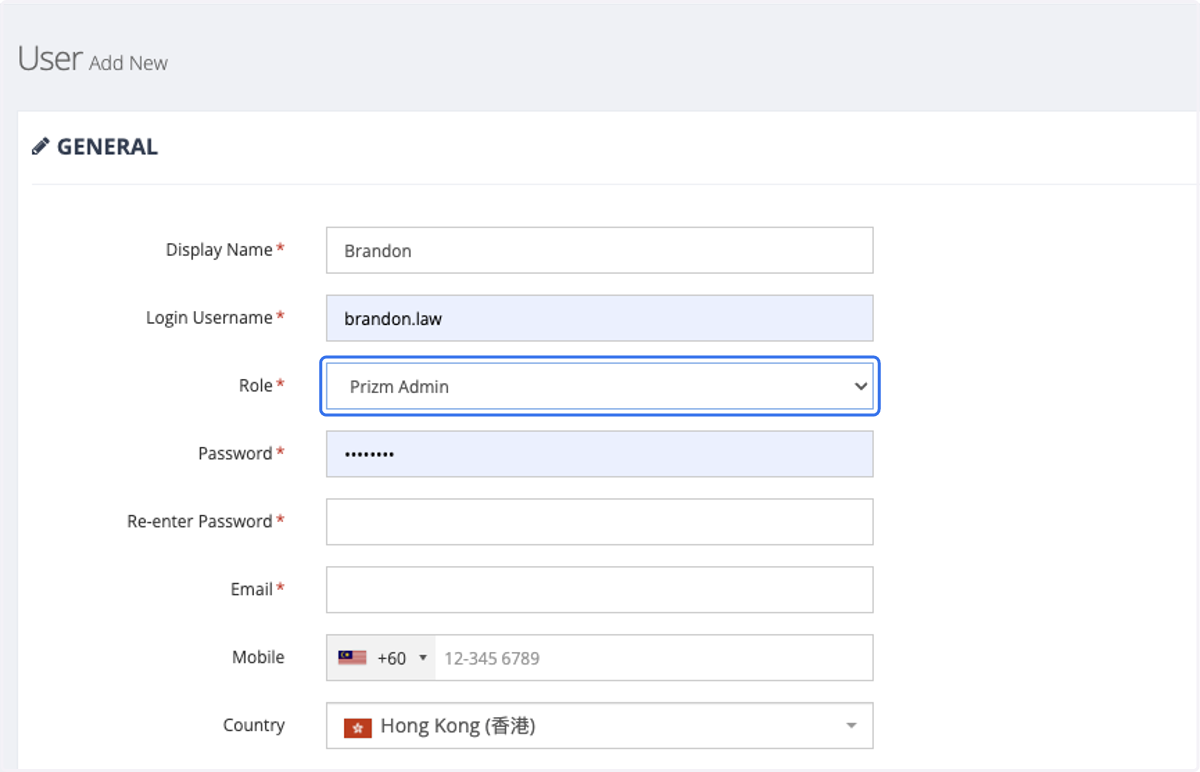
7. Enter the password the user will use to log in.
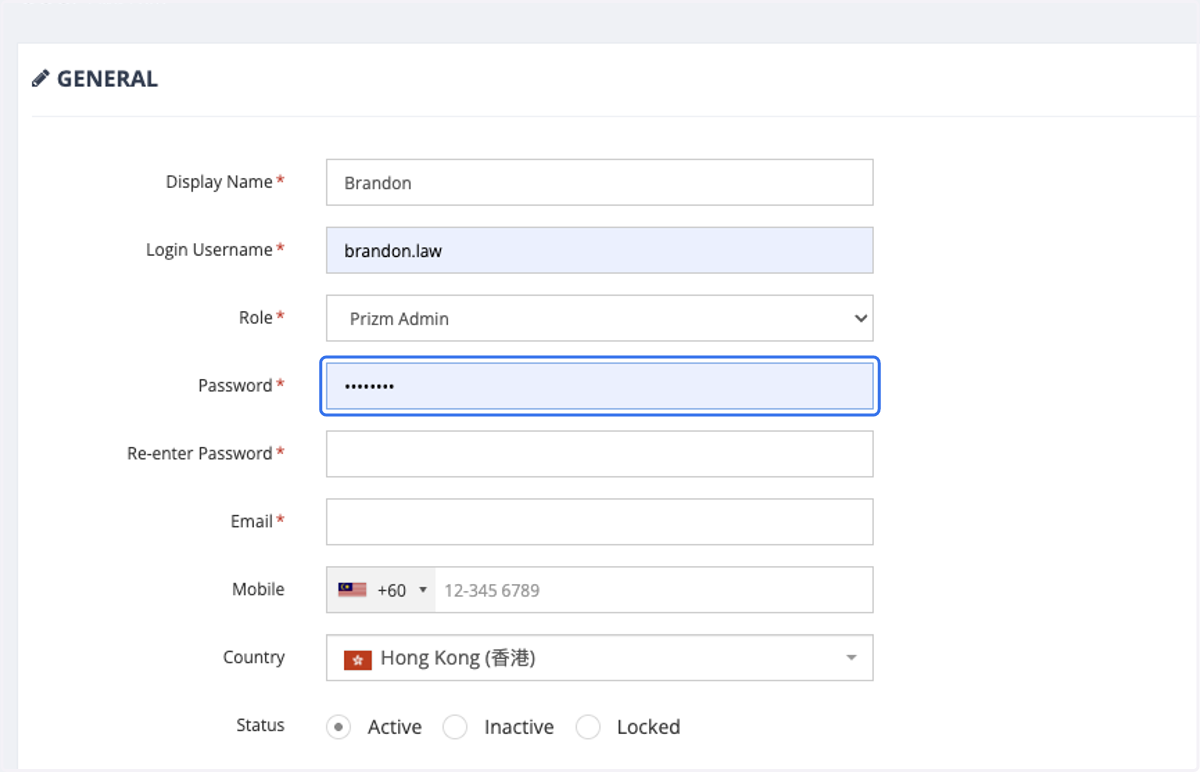
8. Re-enter the password to avoid mistake.
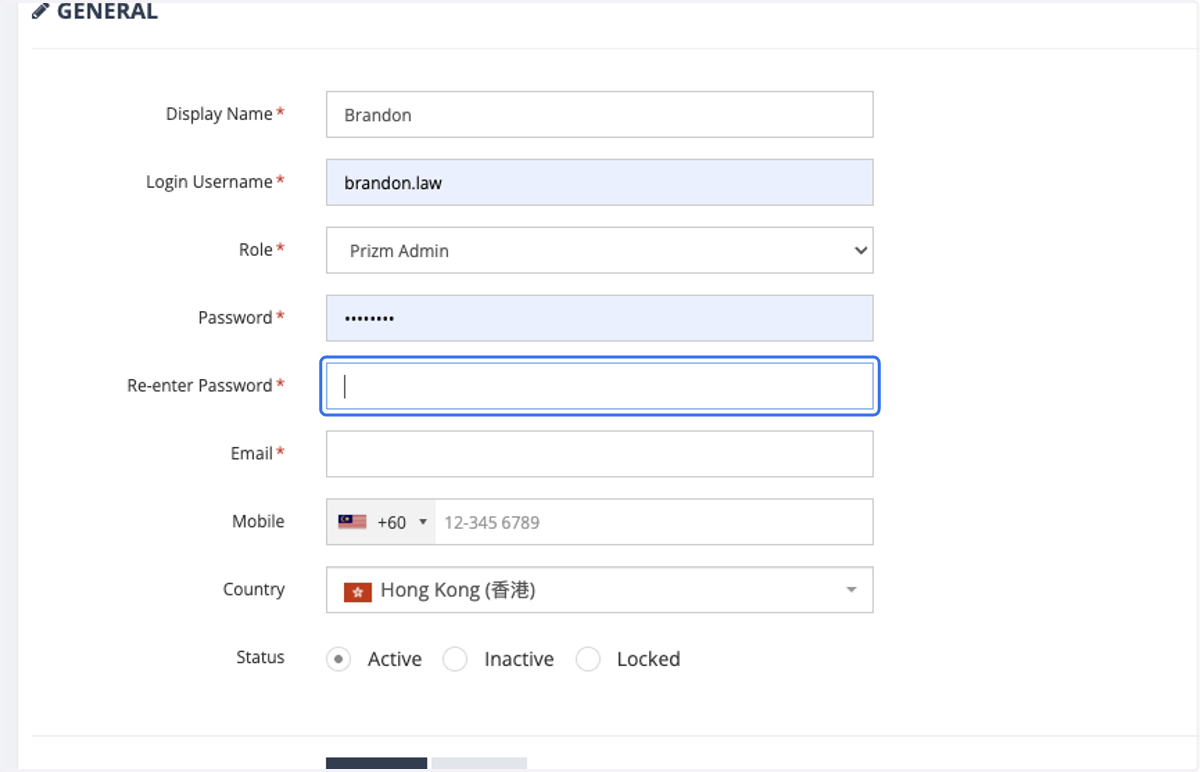
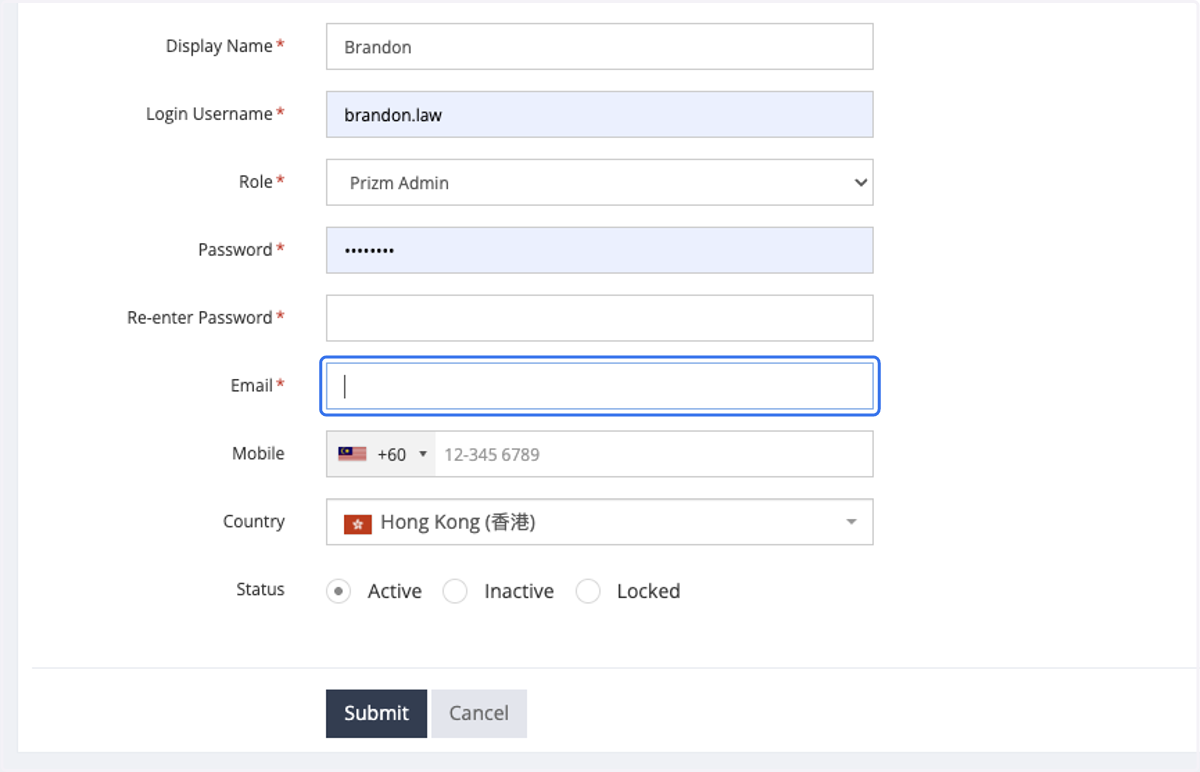
9. Enter the email of the user.
The email serves as a unique identifier for this user account. Duplicate emails will prevent the user from being created.
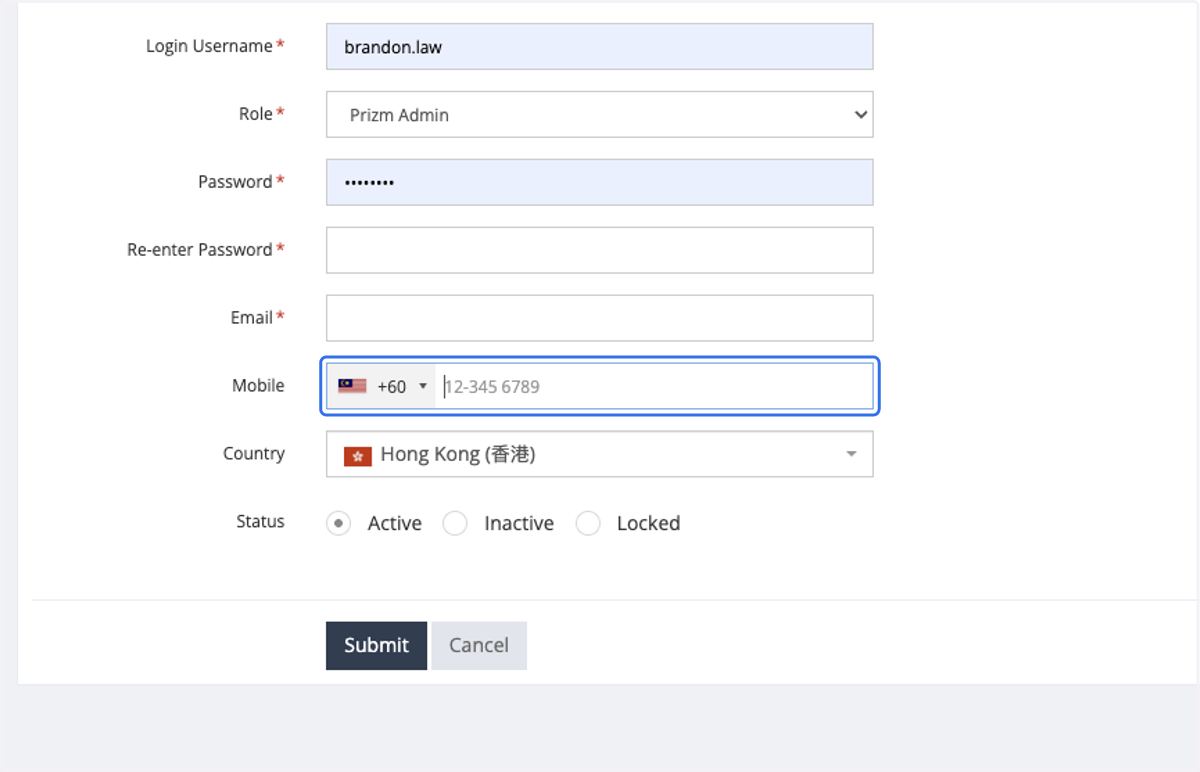
10. Enter mobile number, if applicable.
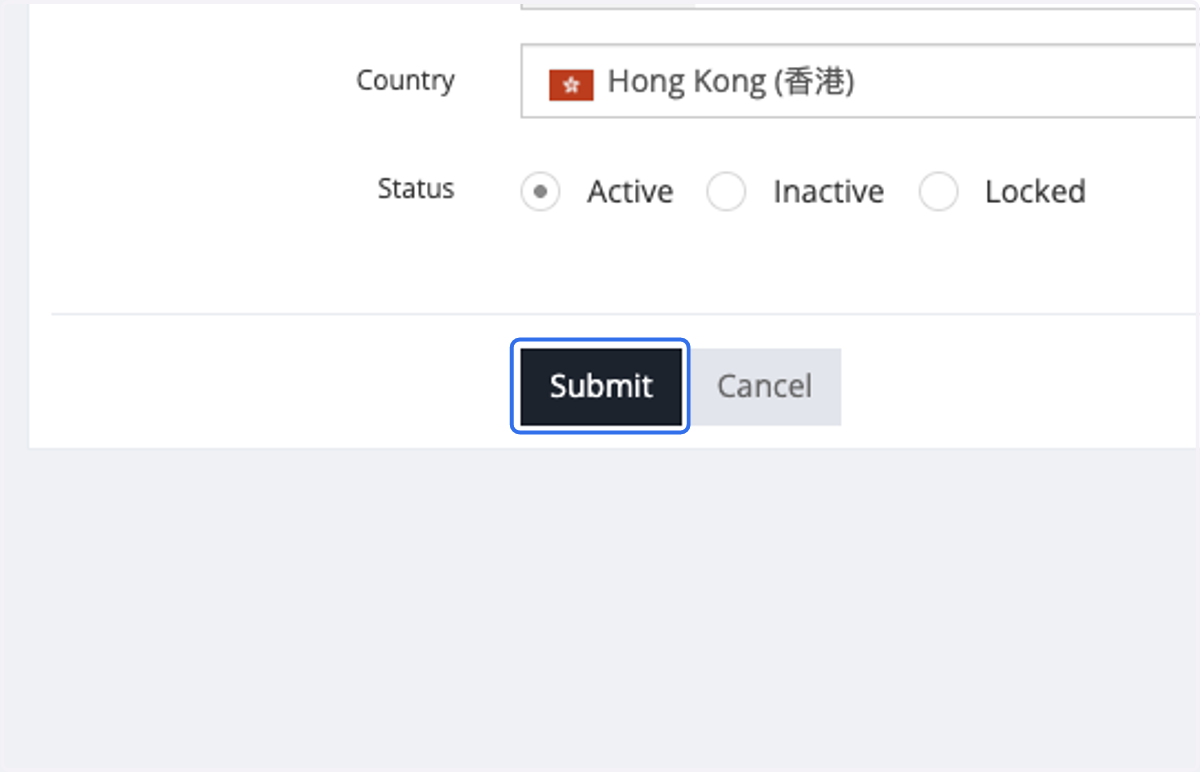
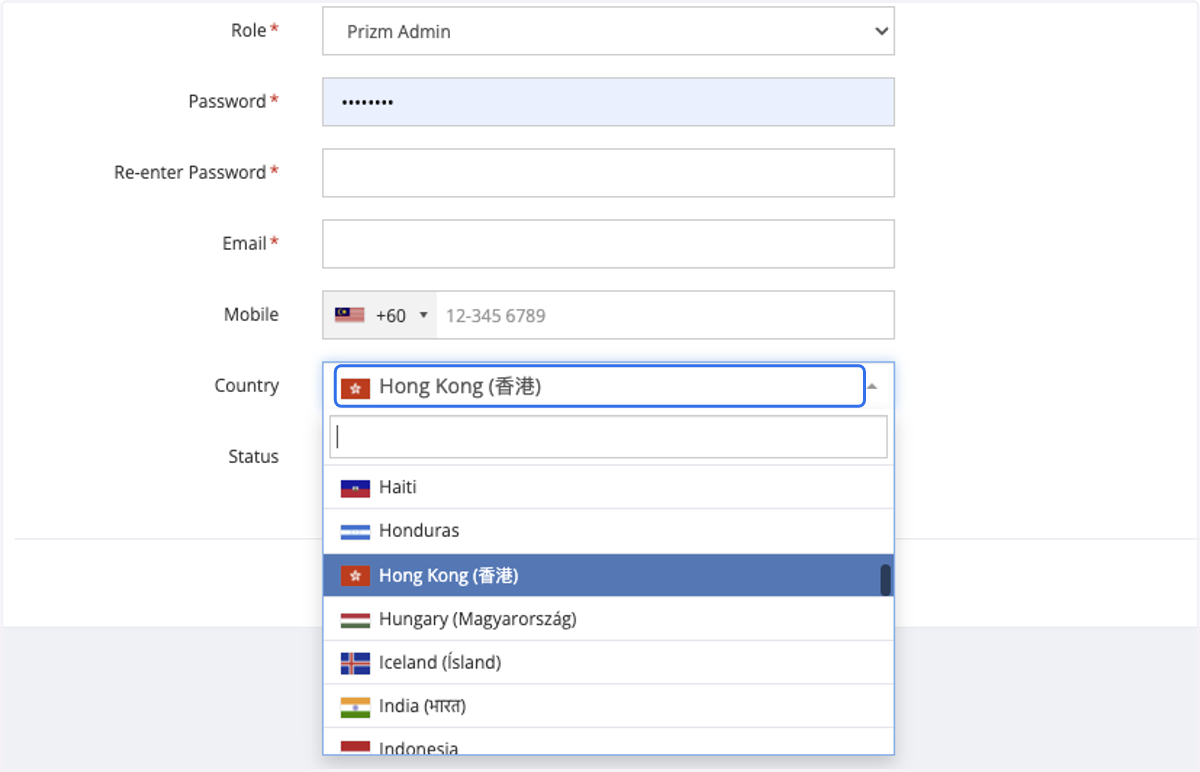
11. Select the user's country, if applicable.
12. Select Active
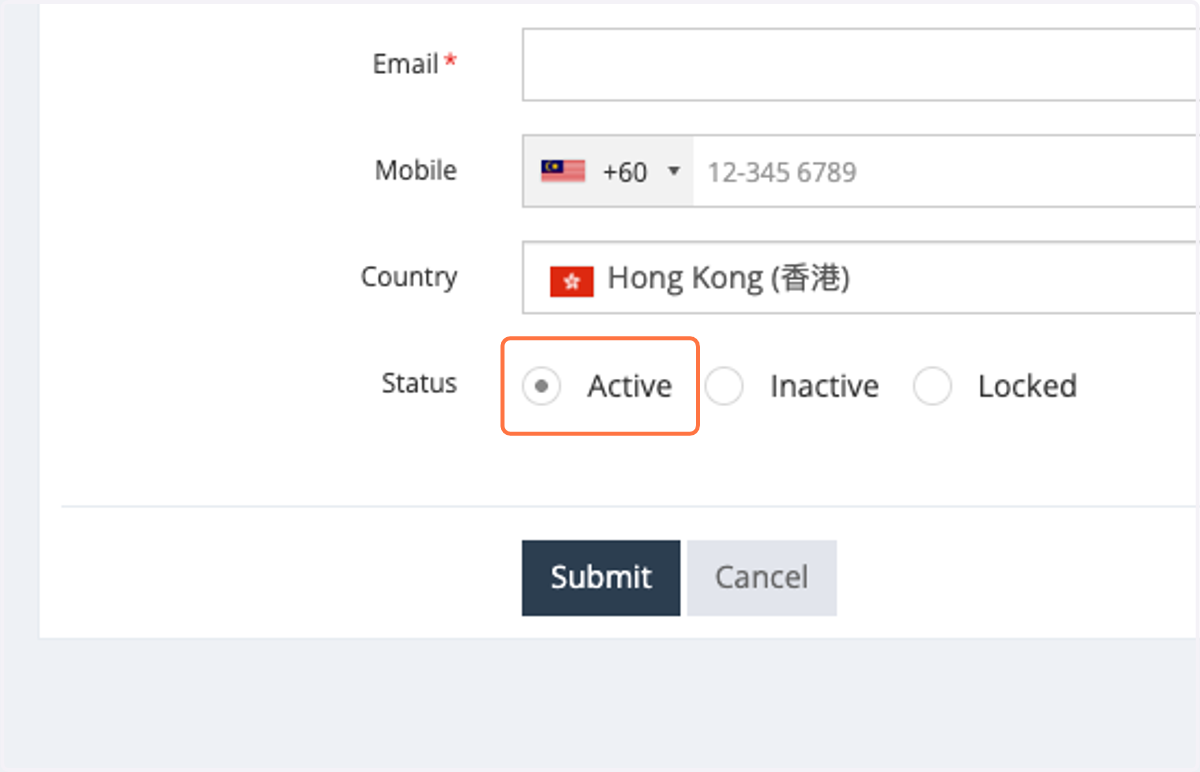
13. Click on Submit