Guide to Adding a monthly additional Vehicle and Purchasing Subscription for additional vehicle
Login Page | yayvalet.com
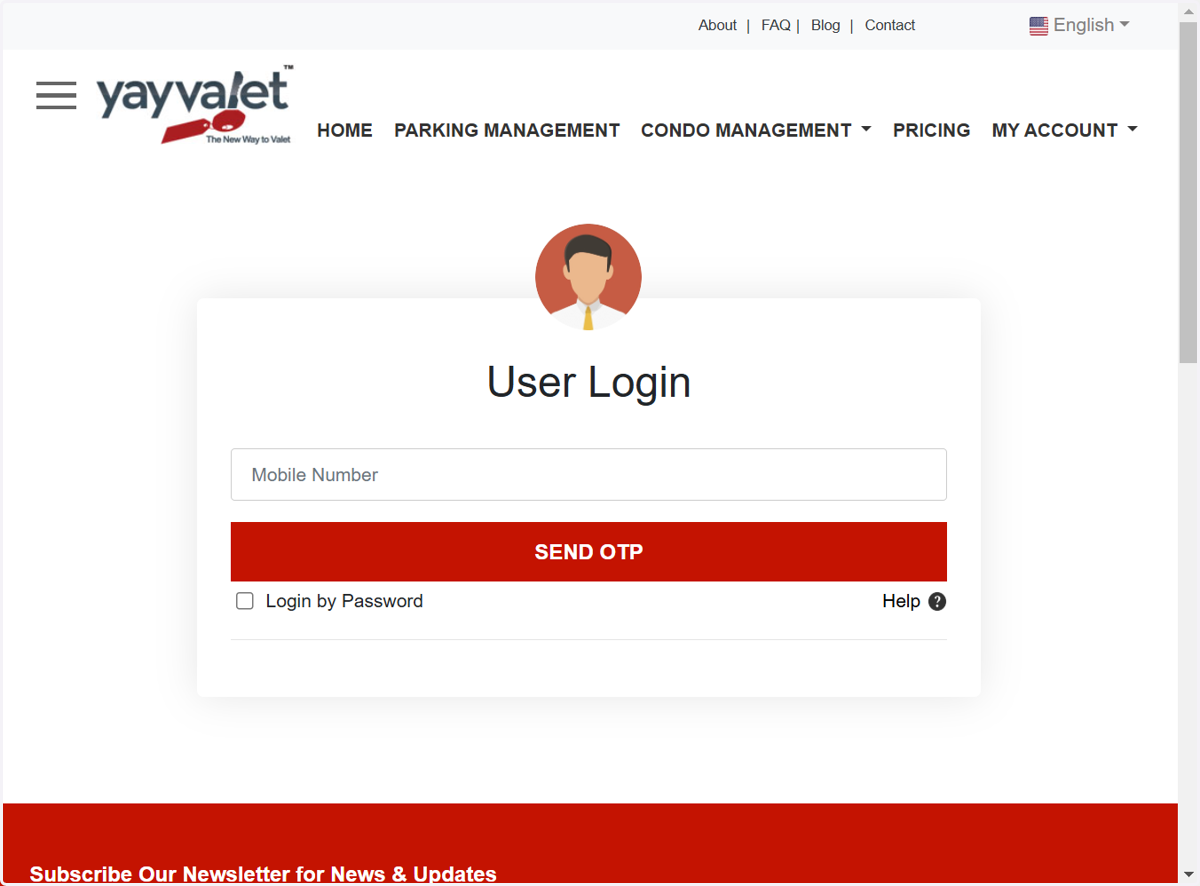
1. Login to yayvalet by entering cellular number & Click on Send OTP
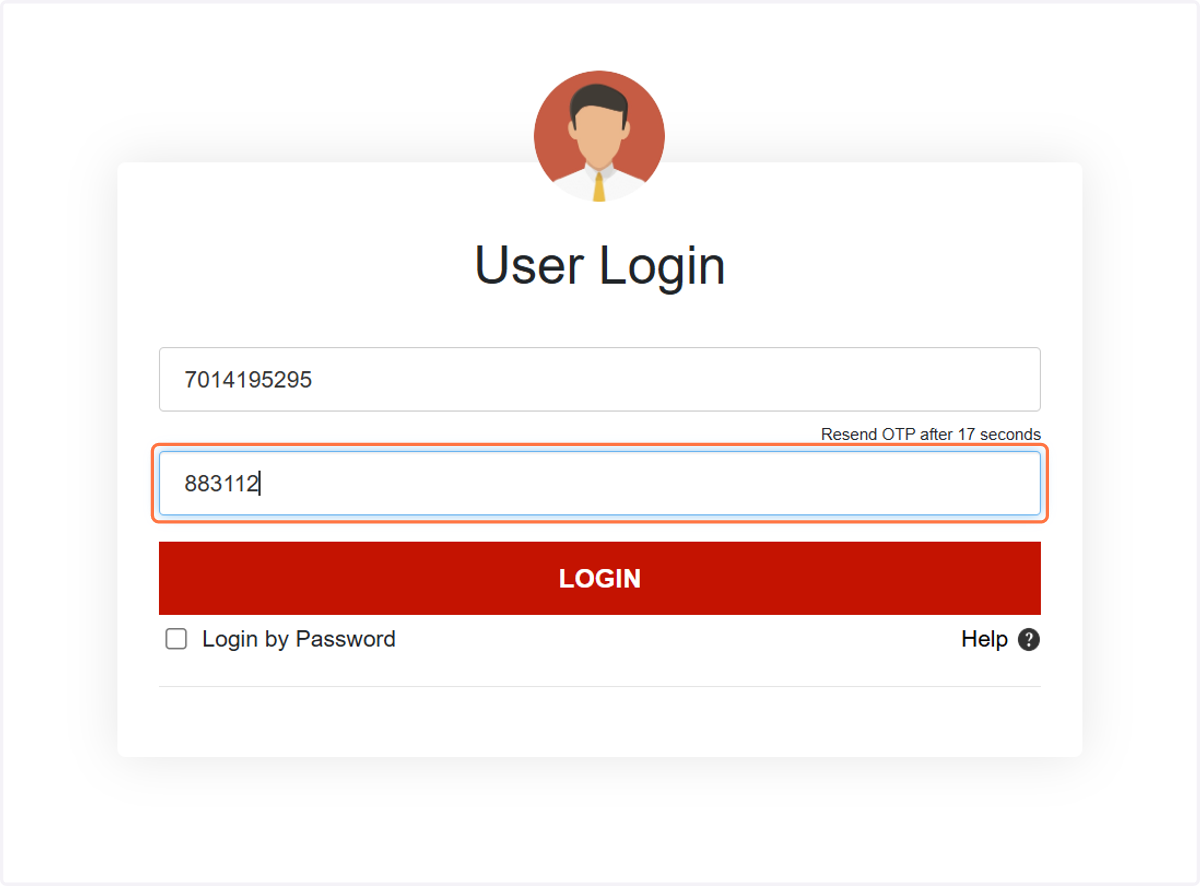
2. Enter OTP & Click on Login
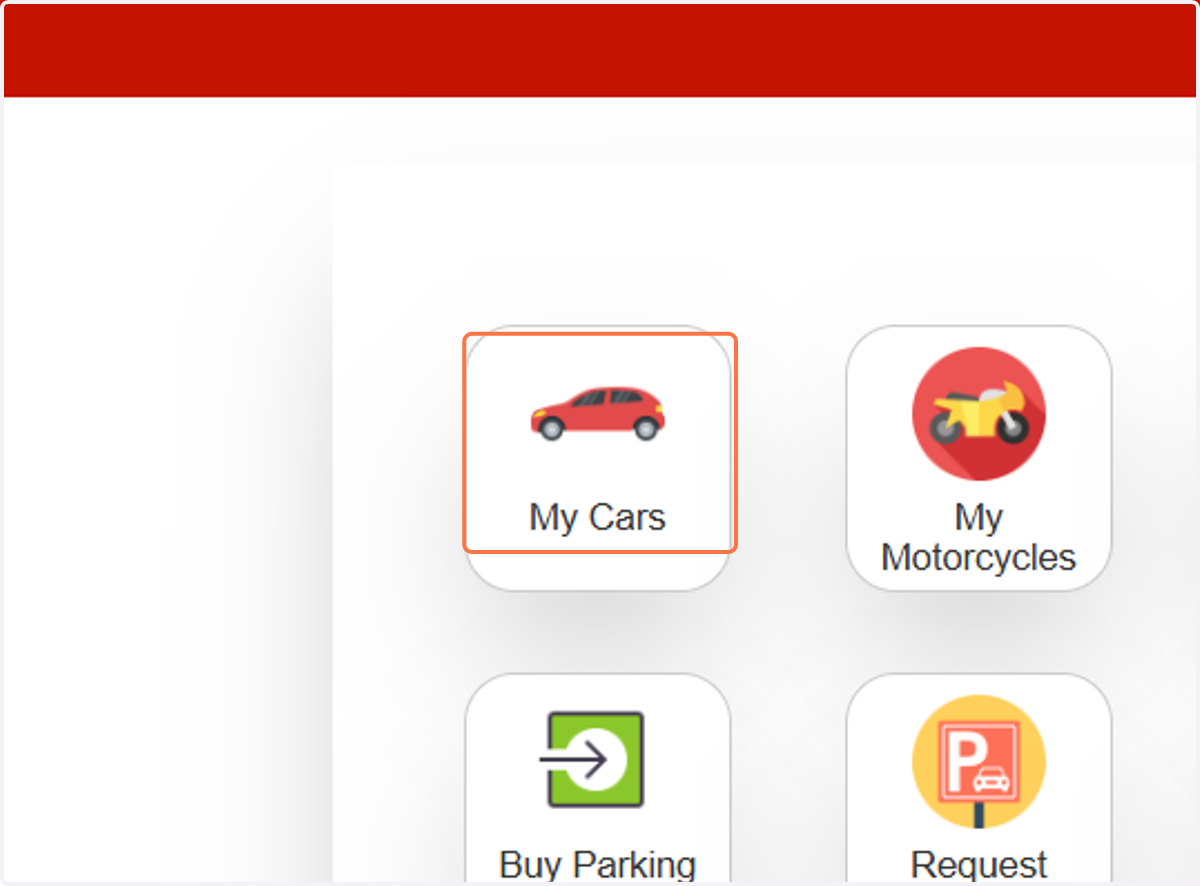
3. Click on My Cars
4. Click on ADD ADDITIONAL VEHICLE If you want to add an additional vehicle OR you can choose existing vehicle for which you want to purchase the subscription
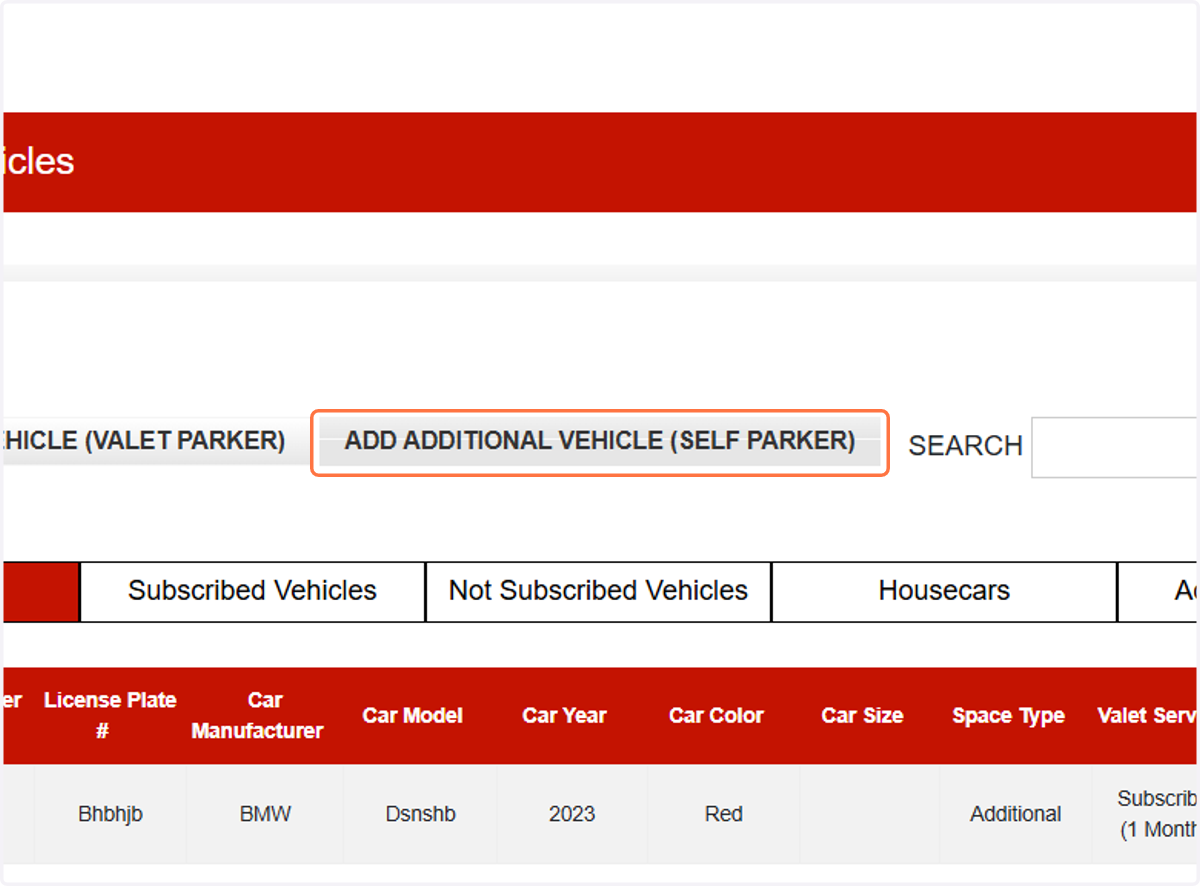
5. Enter License Plate Number
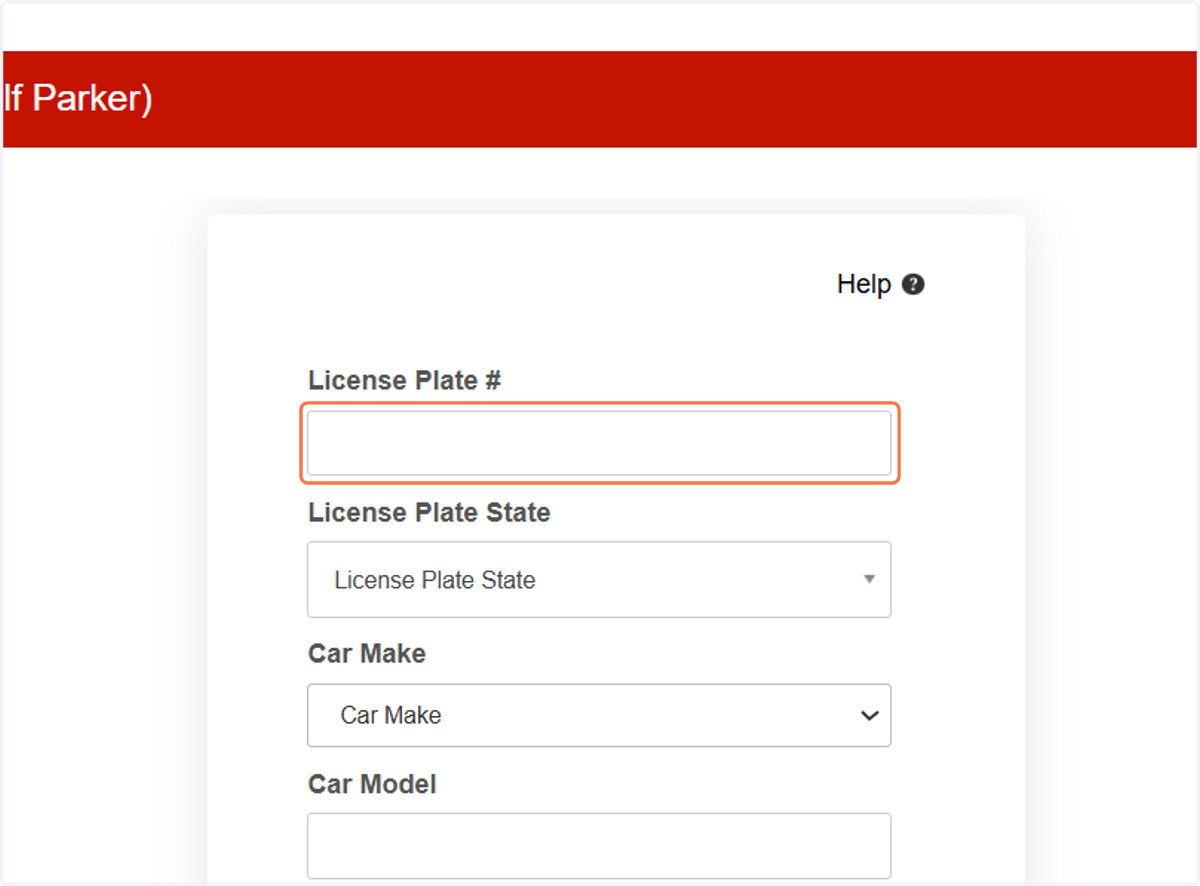
6. Select License Plate State
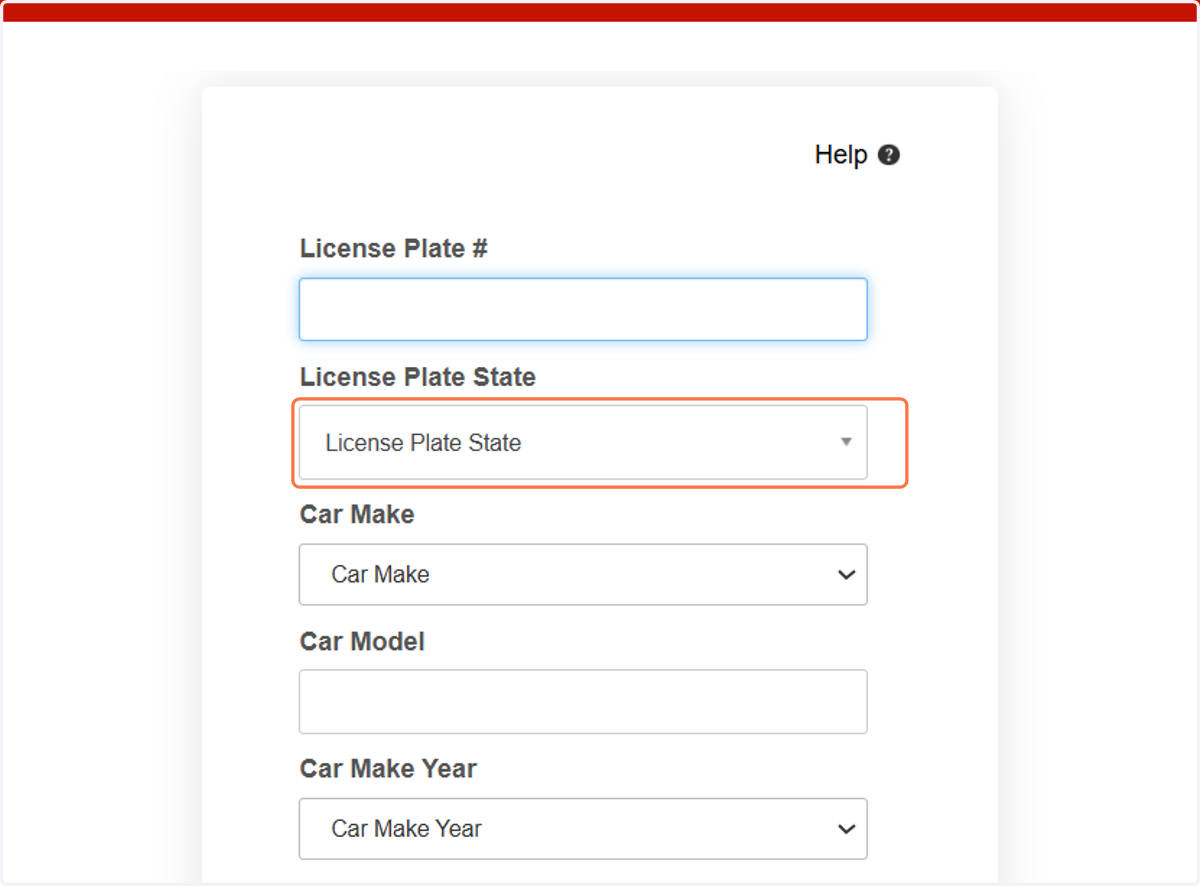
7. Select Car Make…
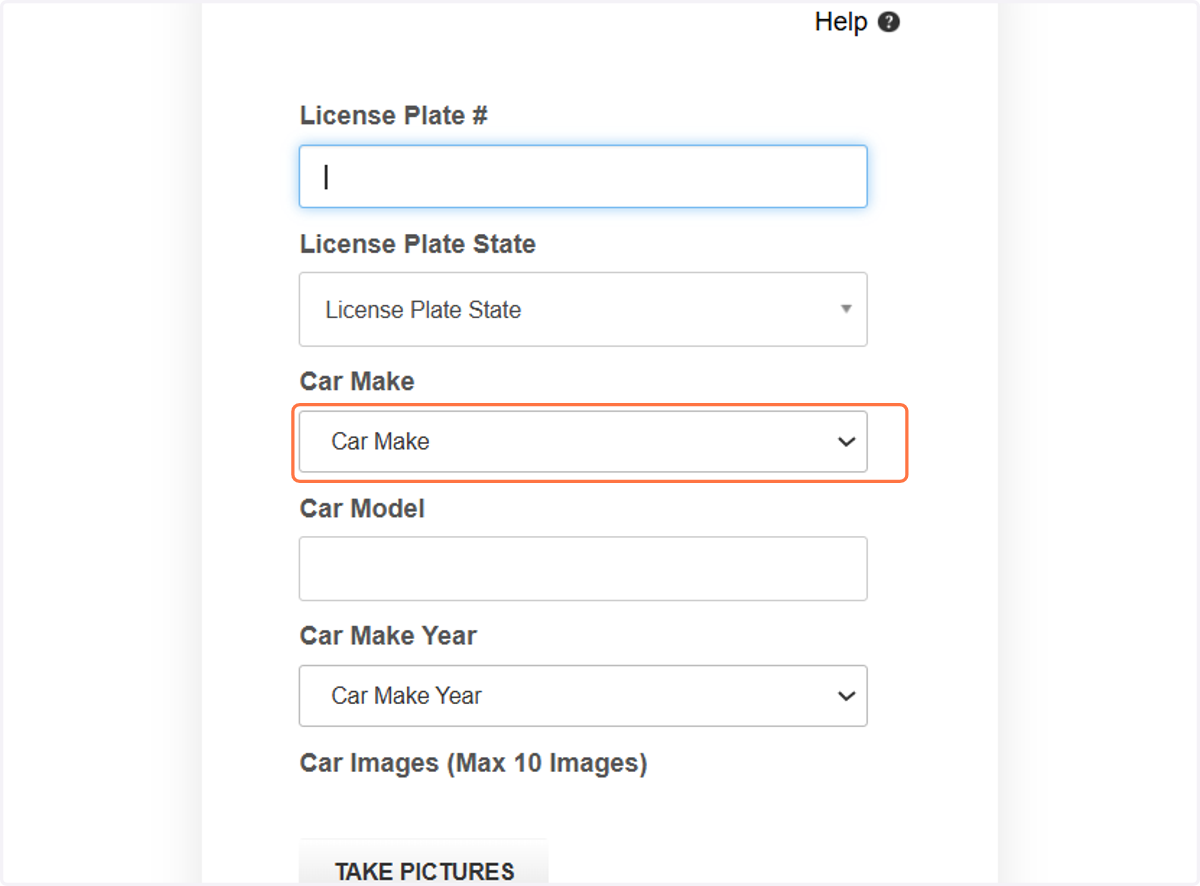
8. Enter Car Model
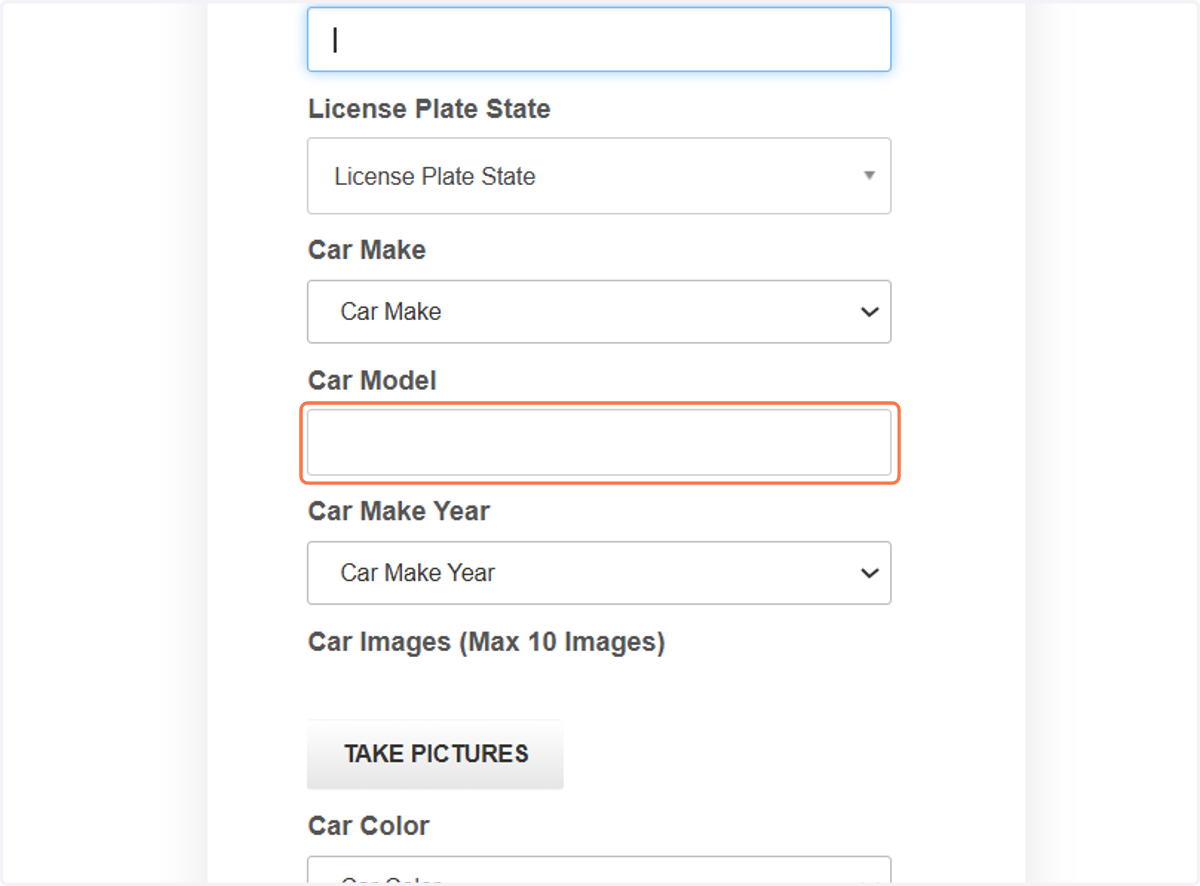
9. Select Car Make Year…
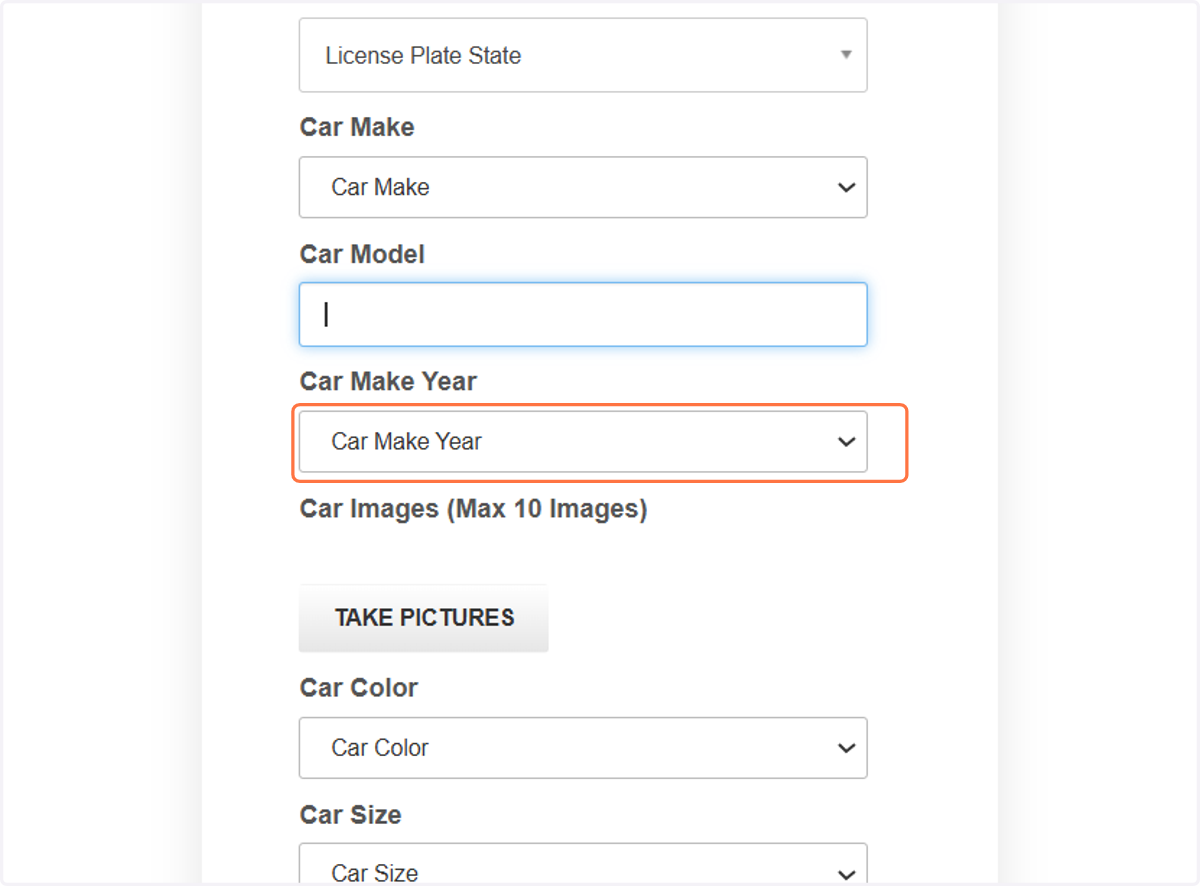
10. Upload Or Select Car Images (Optional)
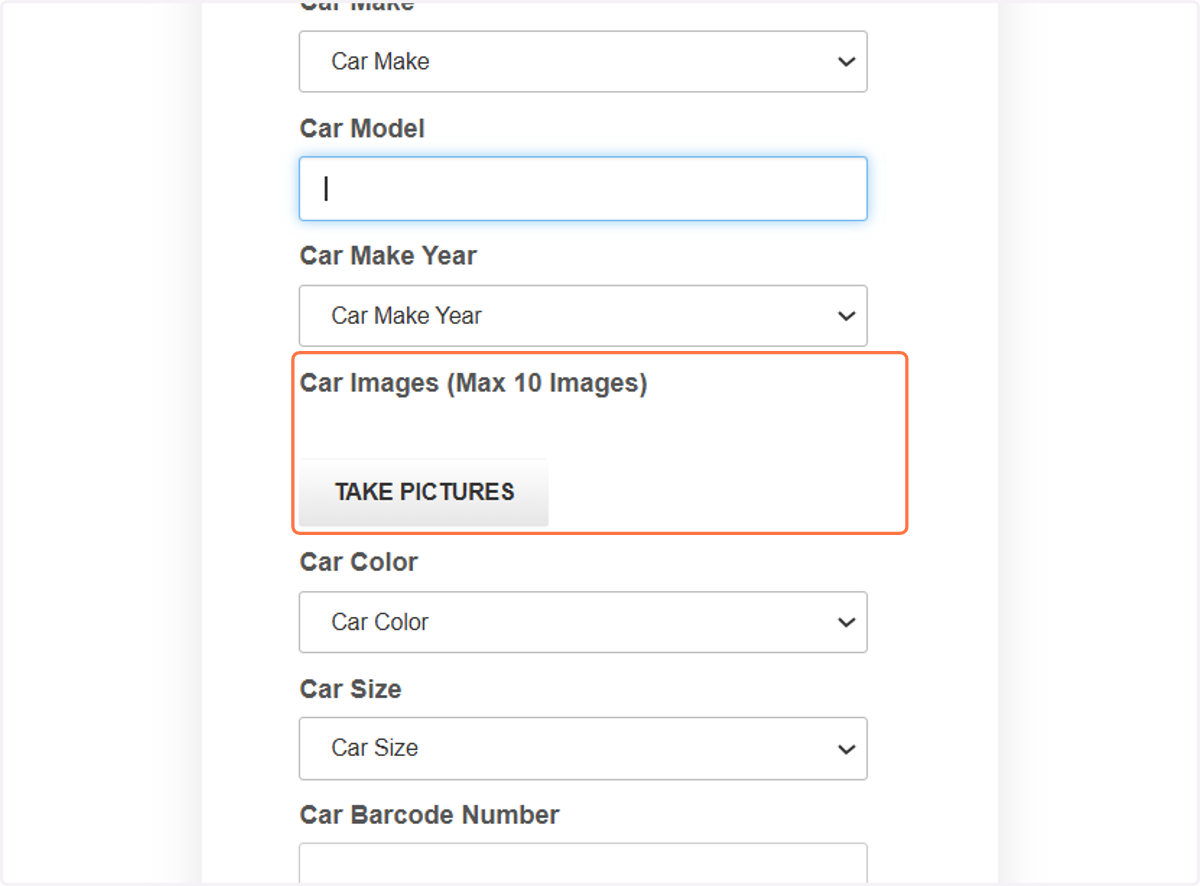
11. Select Car Color…
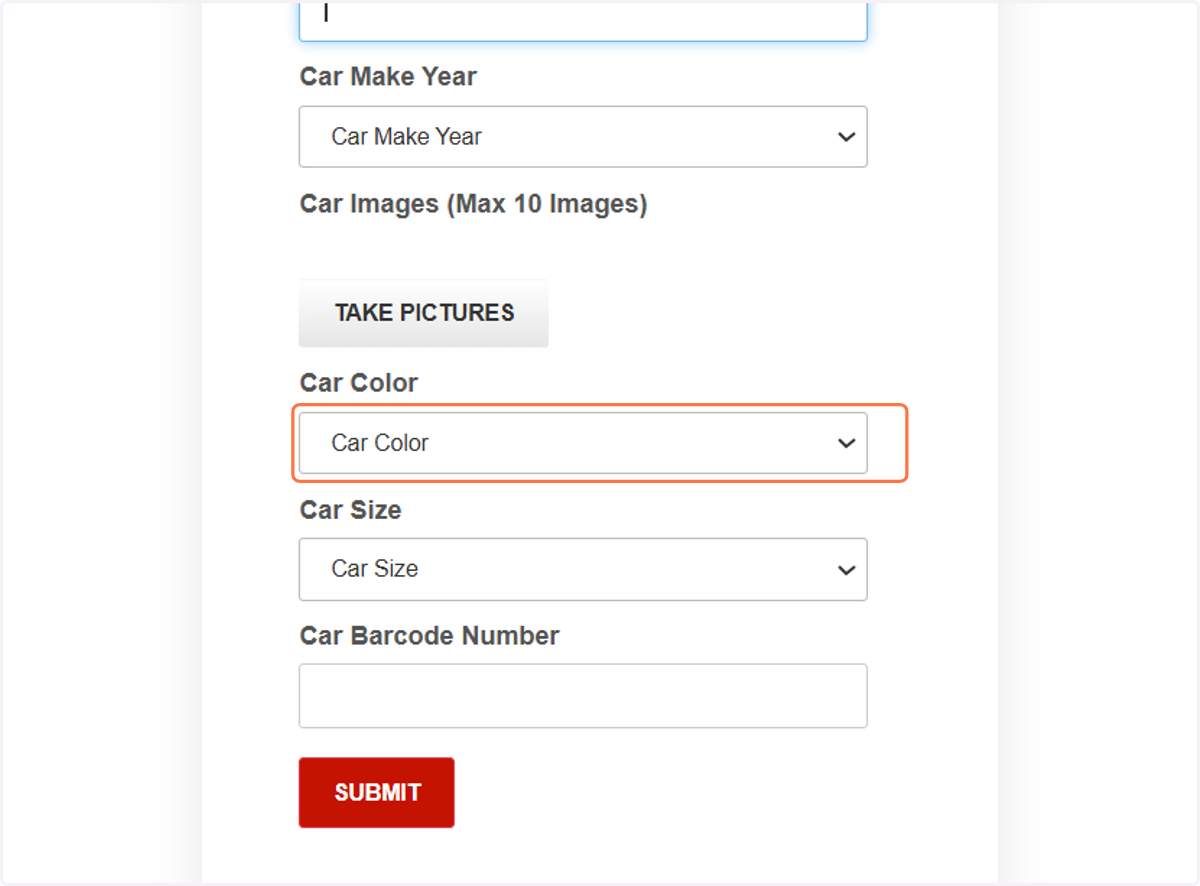
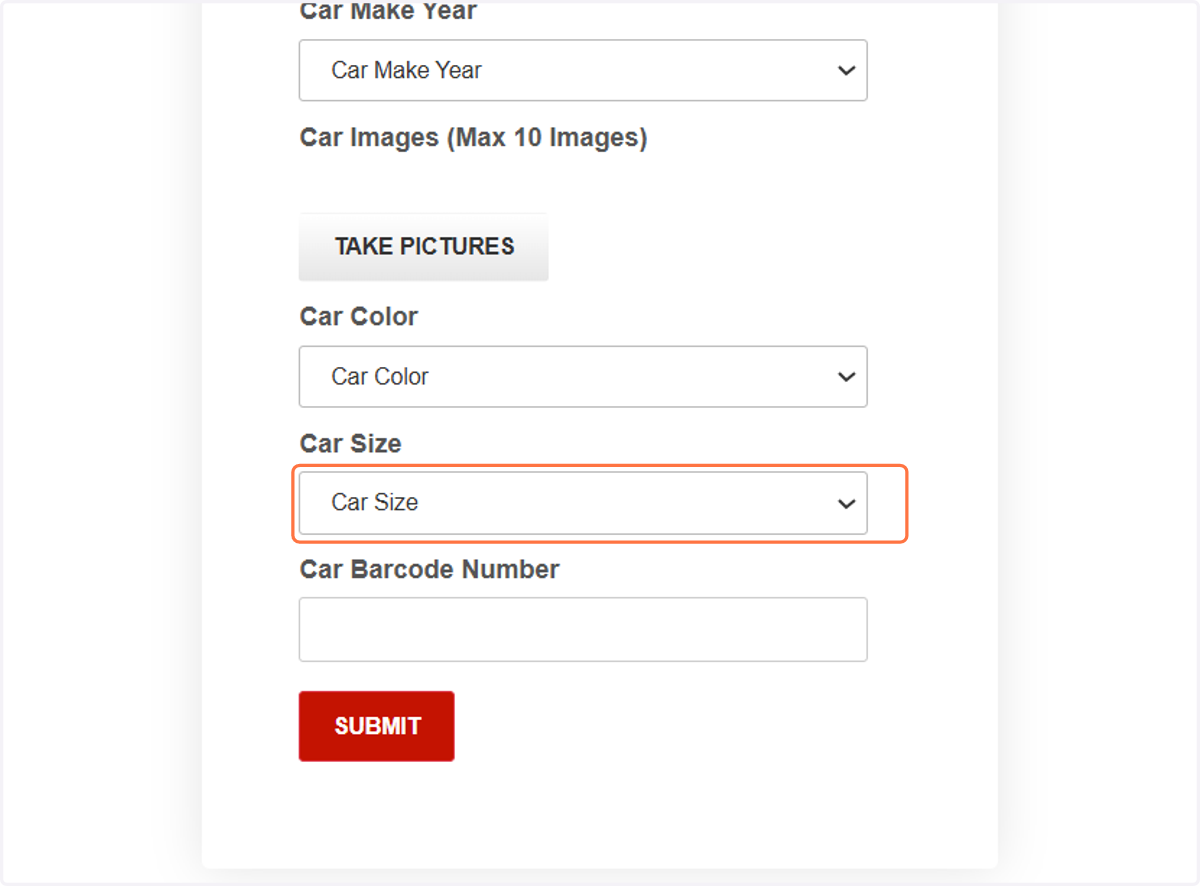
12. Select Car Size…
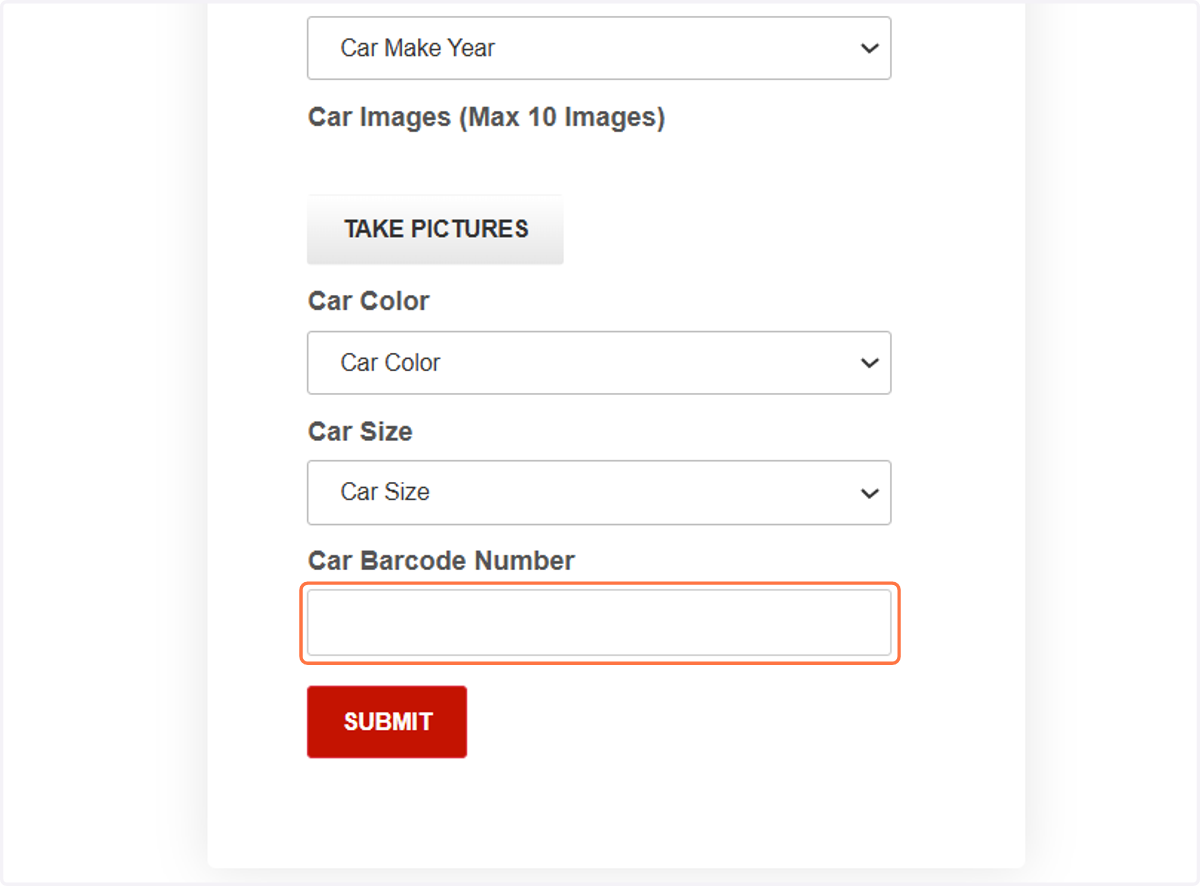
13. Enter barcode (Optional)
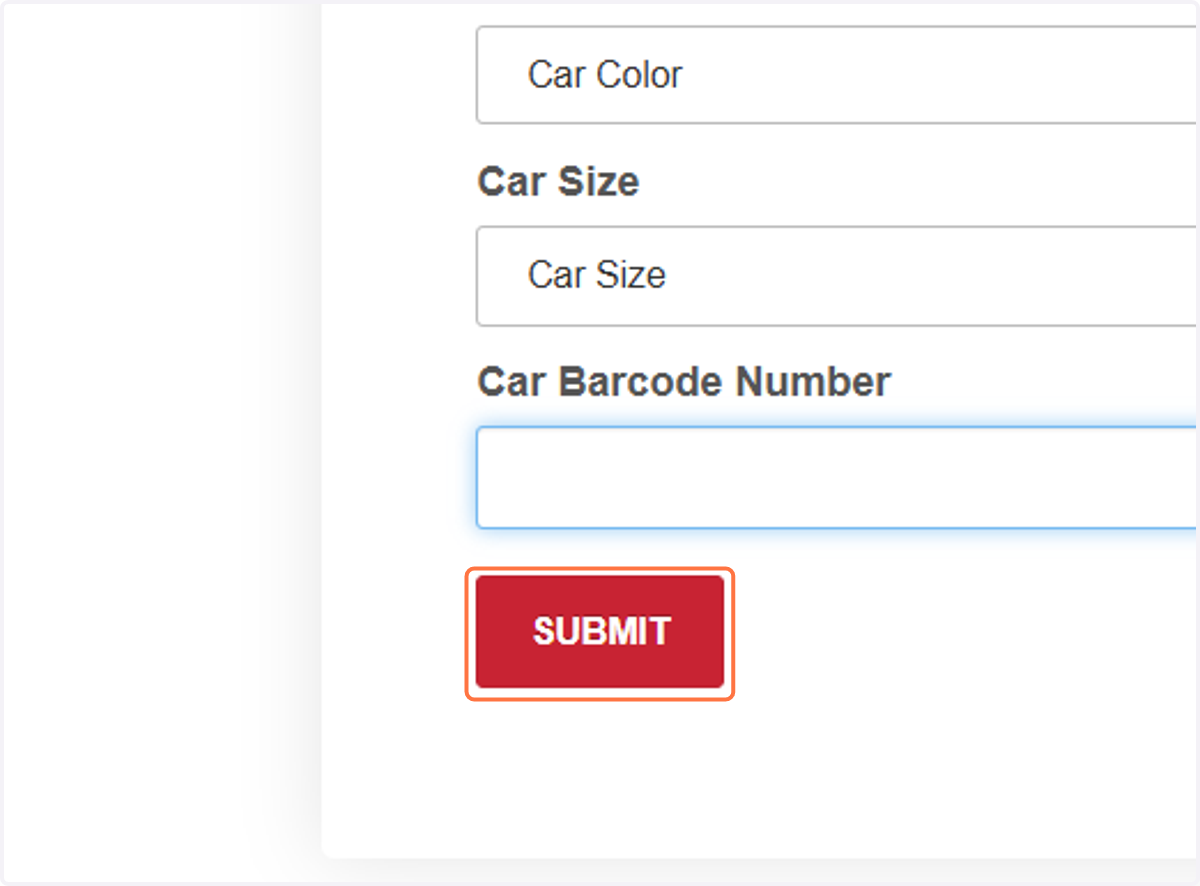
14. Click on SUBMIT
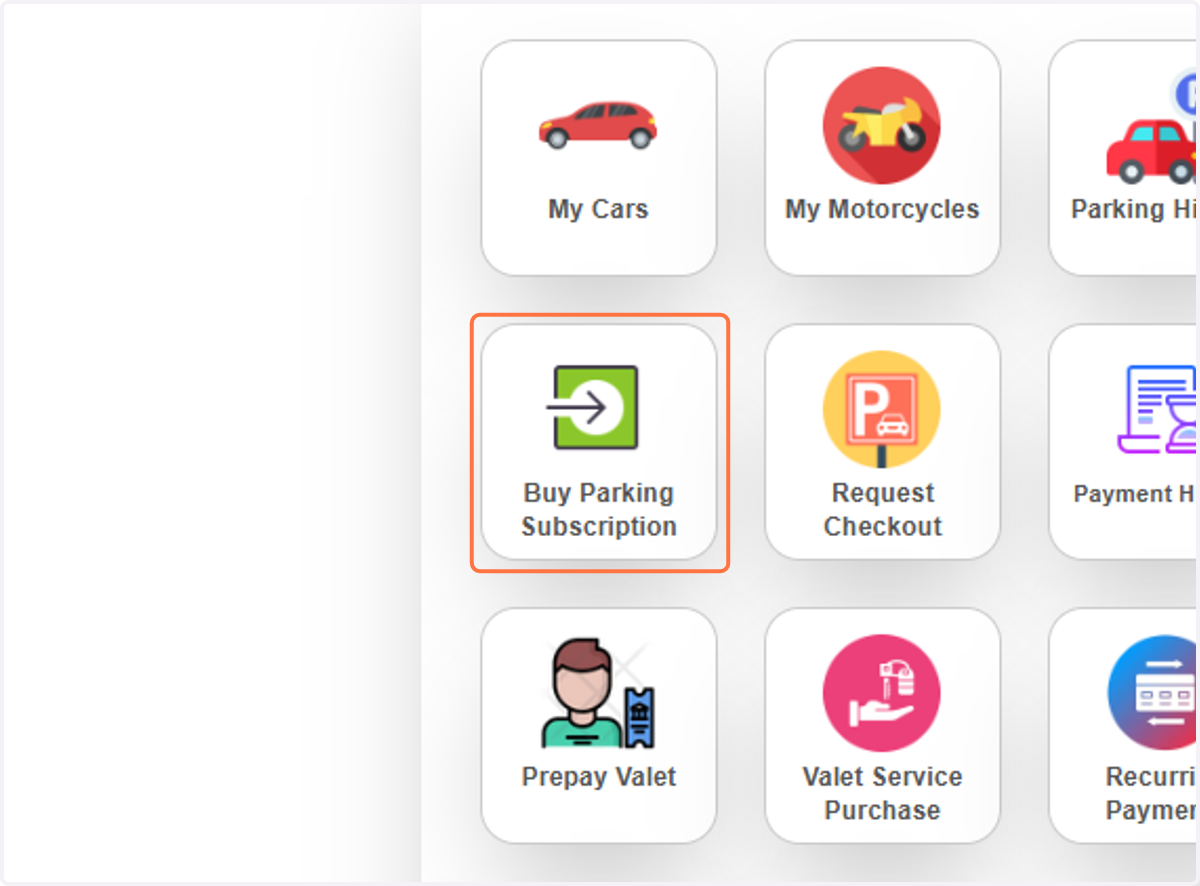
15. Click on Buy Parking Subscription
16. Click on Select Vehicle…
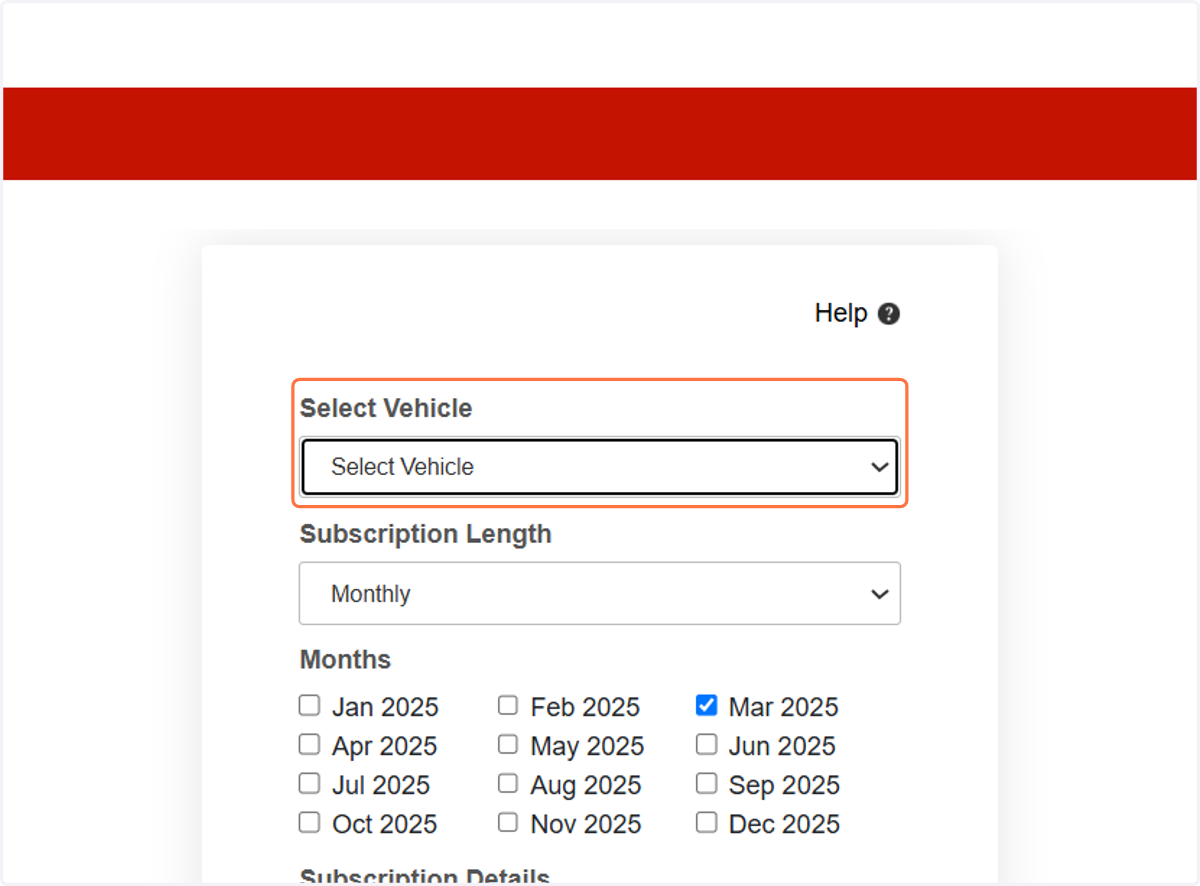
17. Click on Subscription Length…
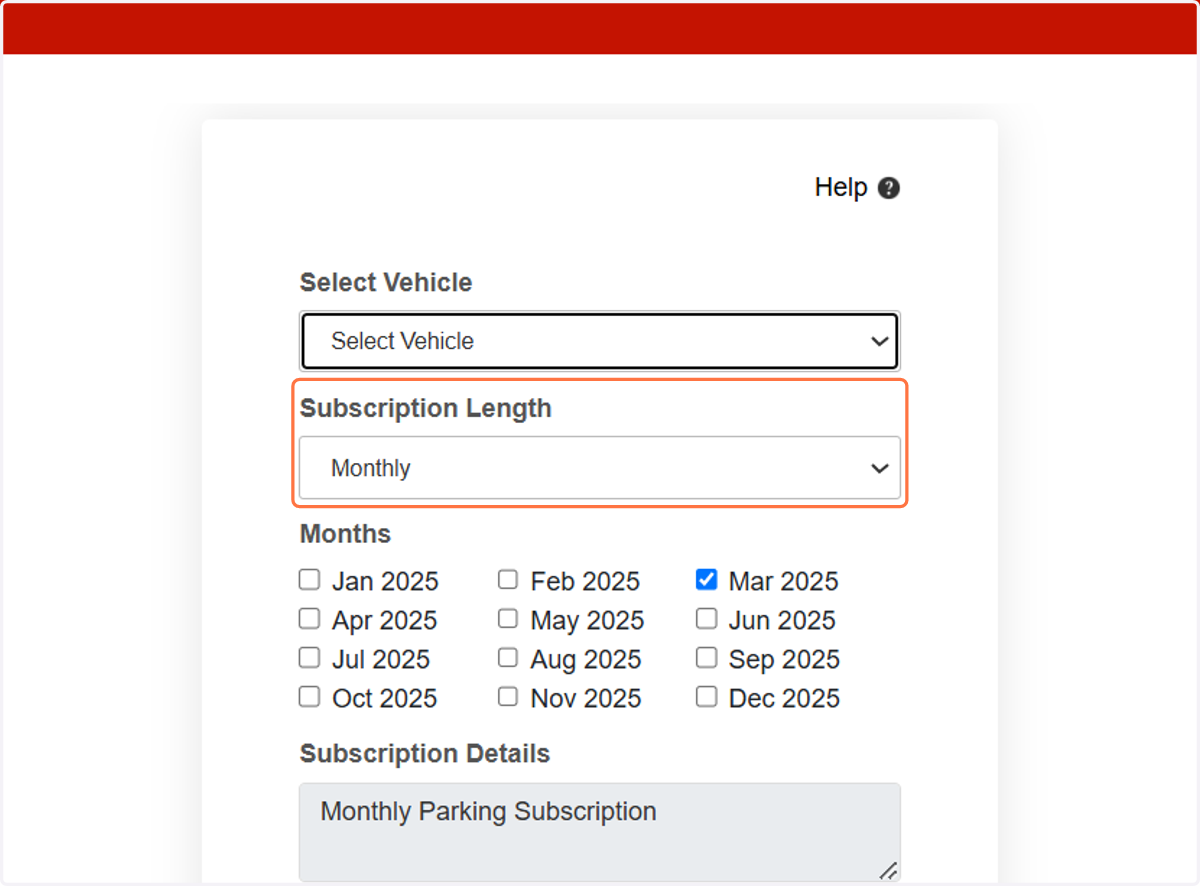
18. Click on Months…
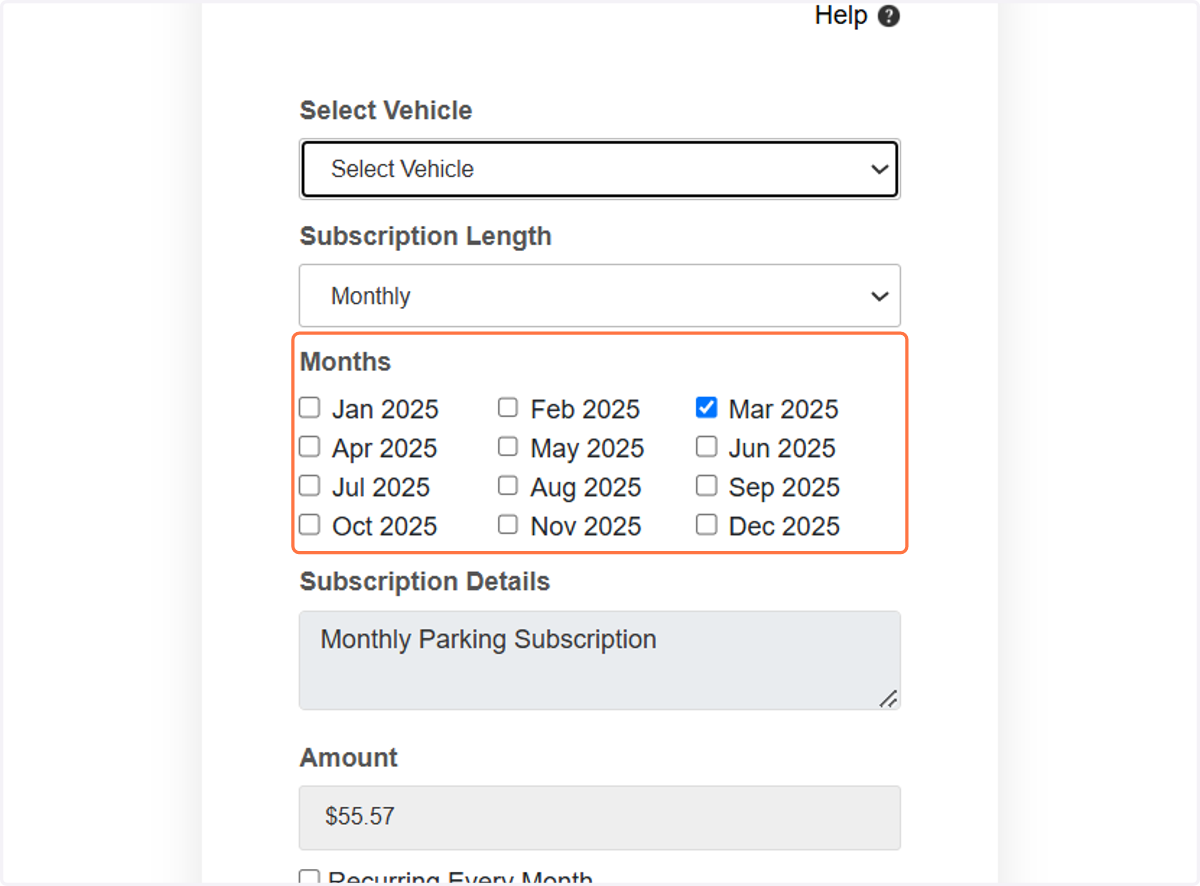
19. Click on Recurring Every Month
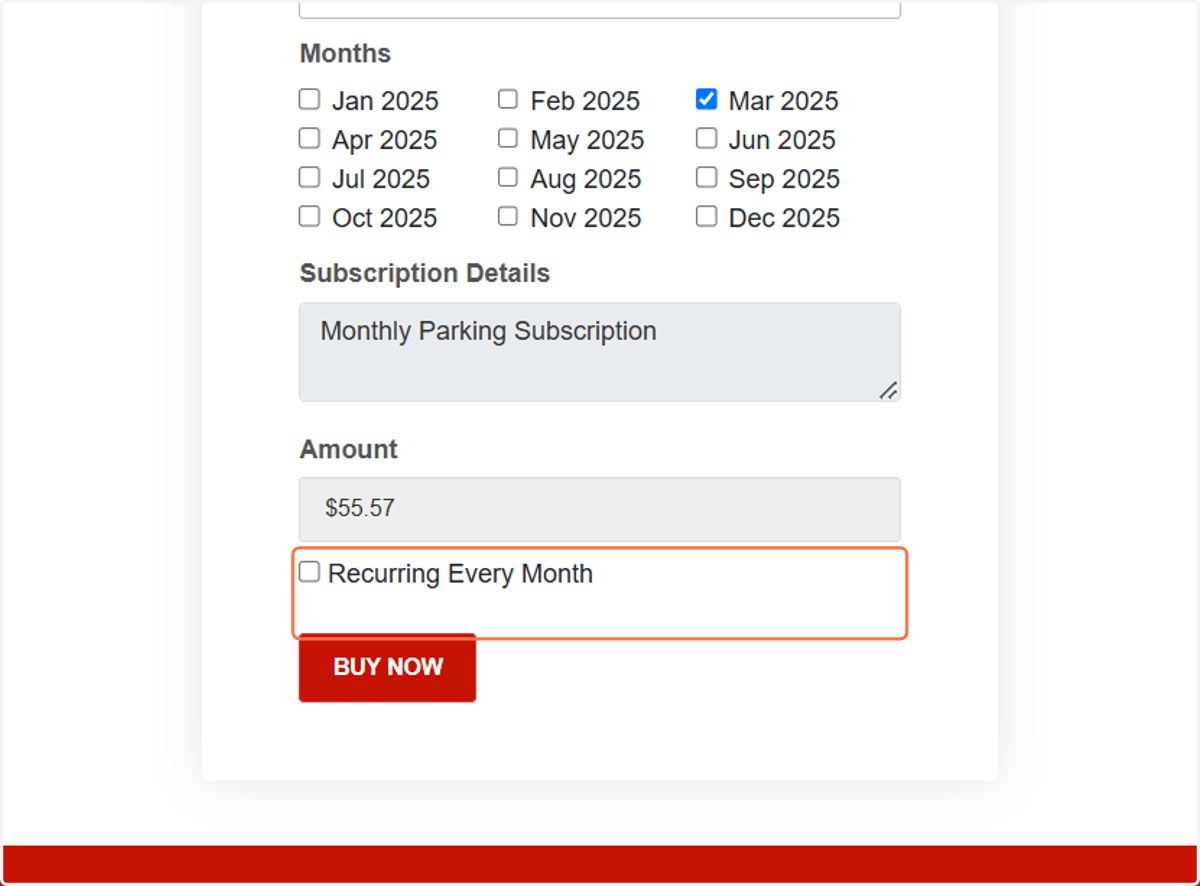
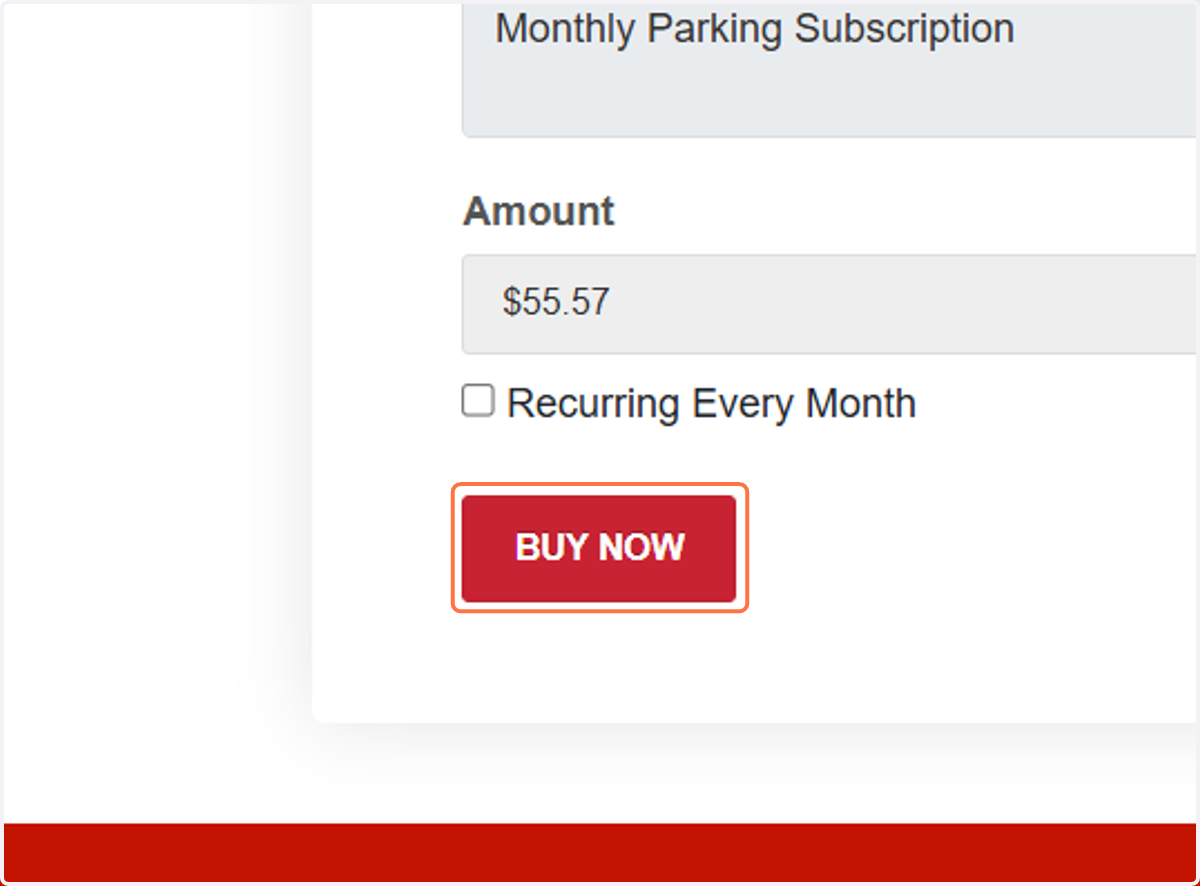
20. Click on BUY NOW
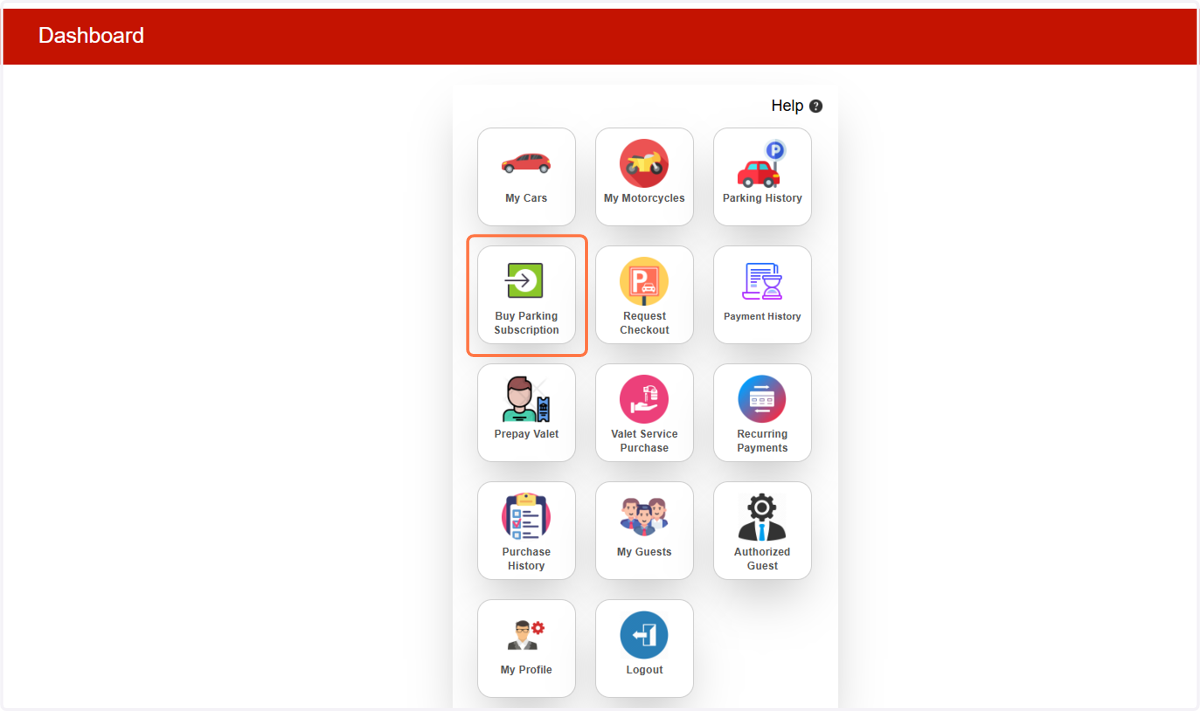
21. Now Go to Dashboard & Click on "Buy Parking Subscription"
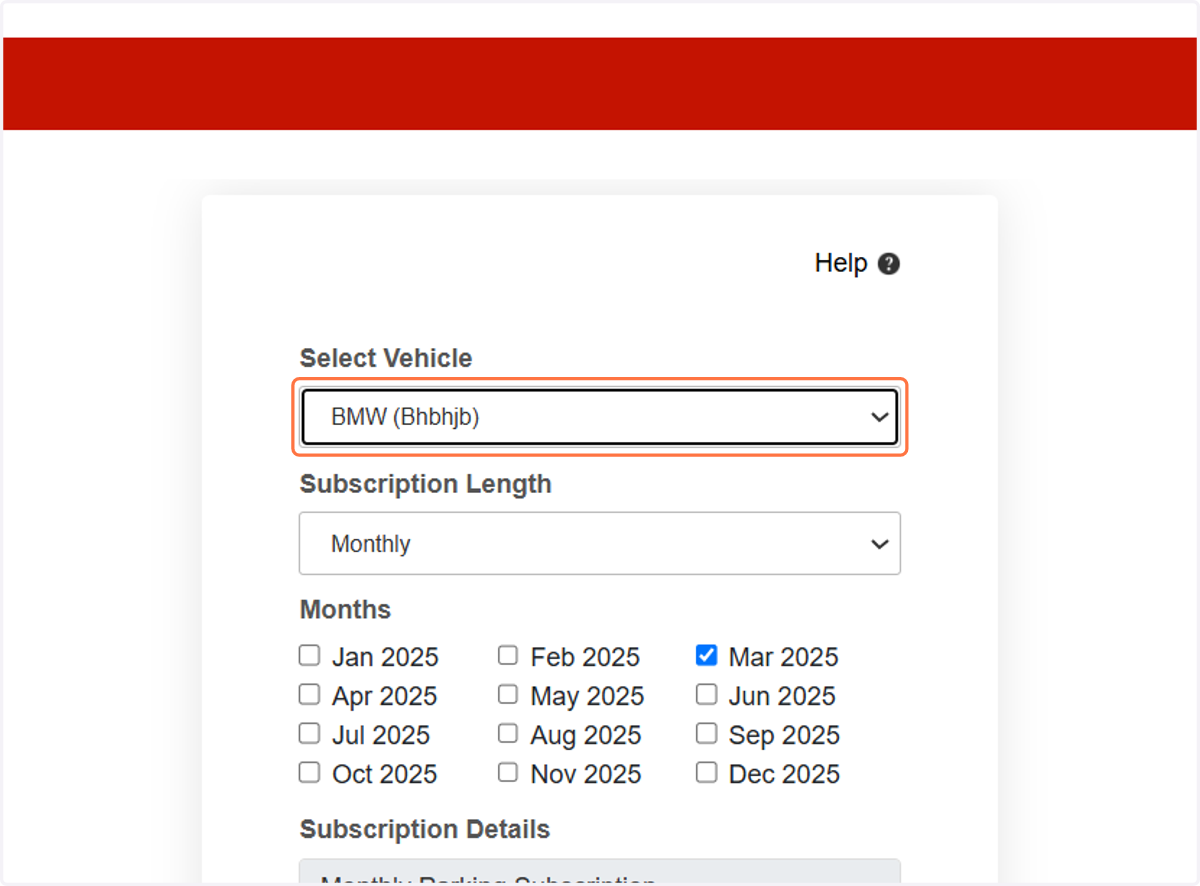
22. Select Vehicle from list
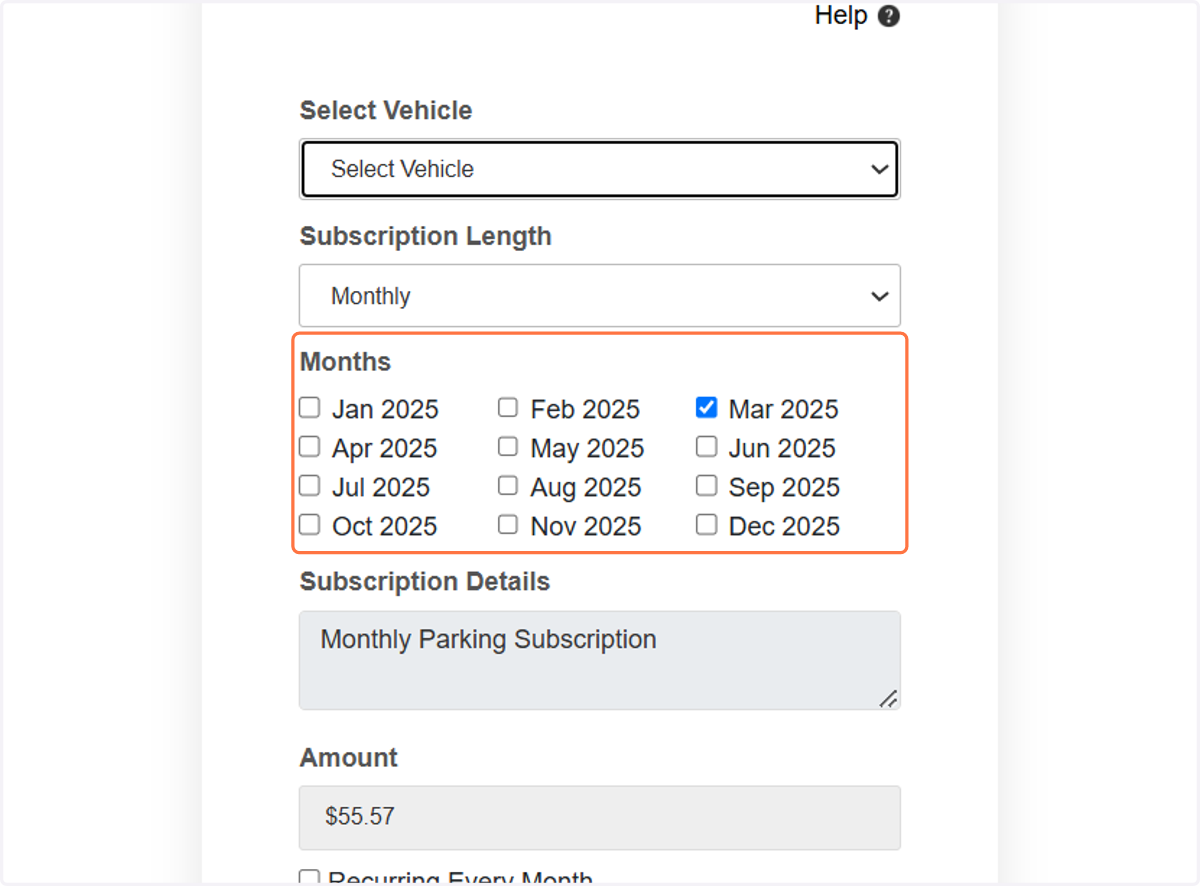
23. Select the months for which you want to add additional vehicle
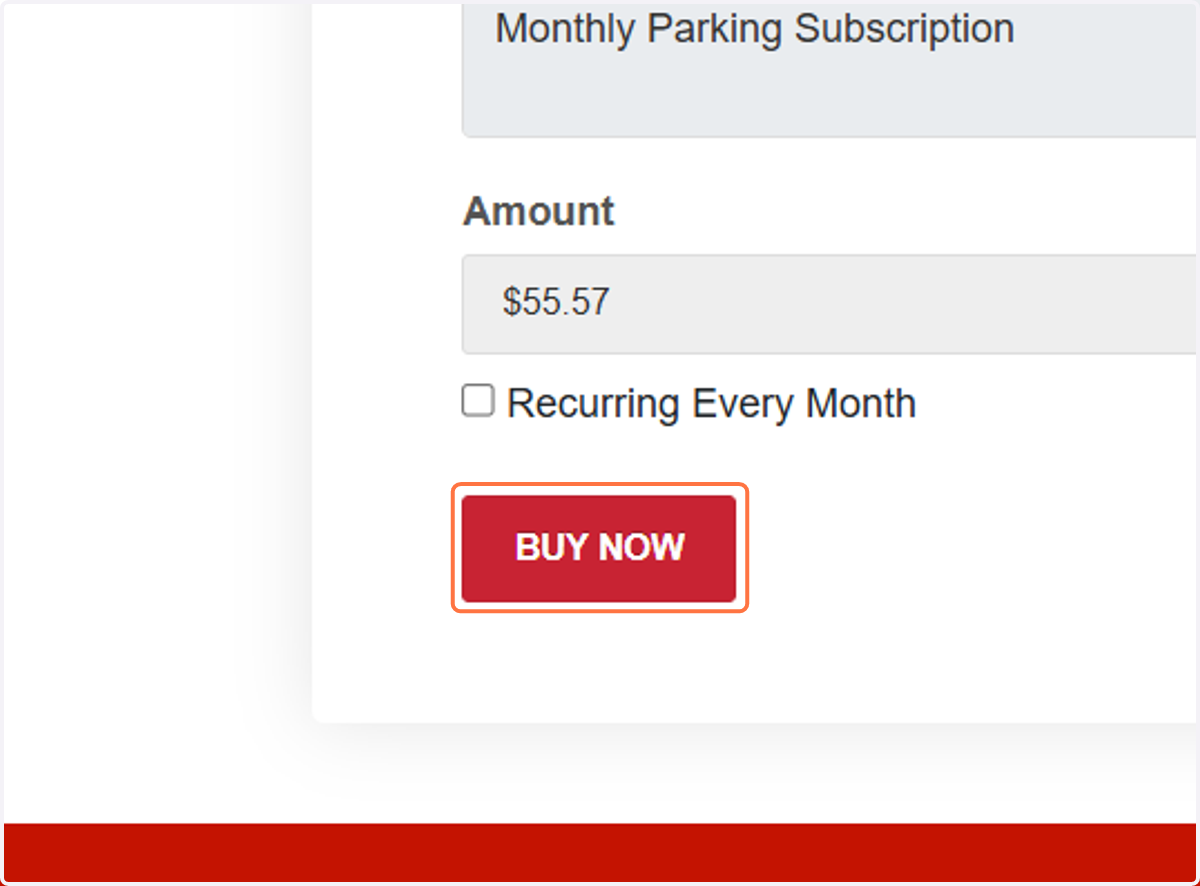
24. Click on Recurring if you want to set auto deduction every month & click on BUY NOW
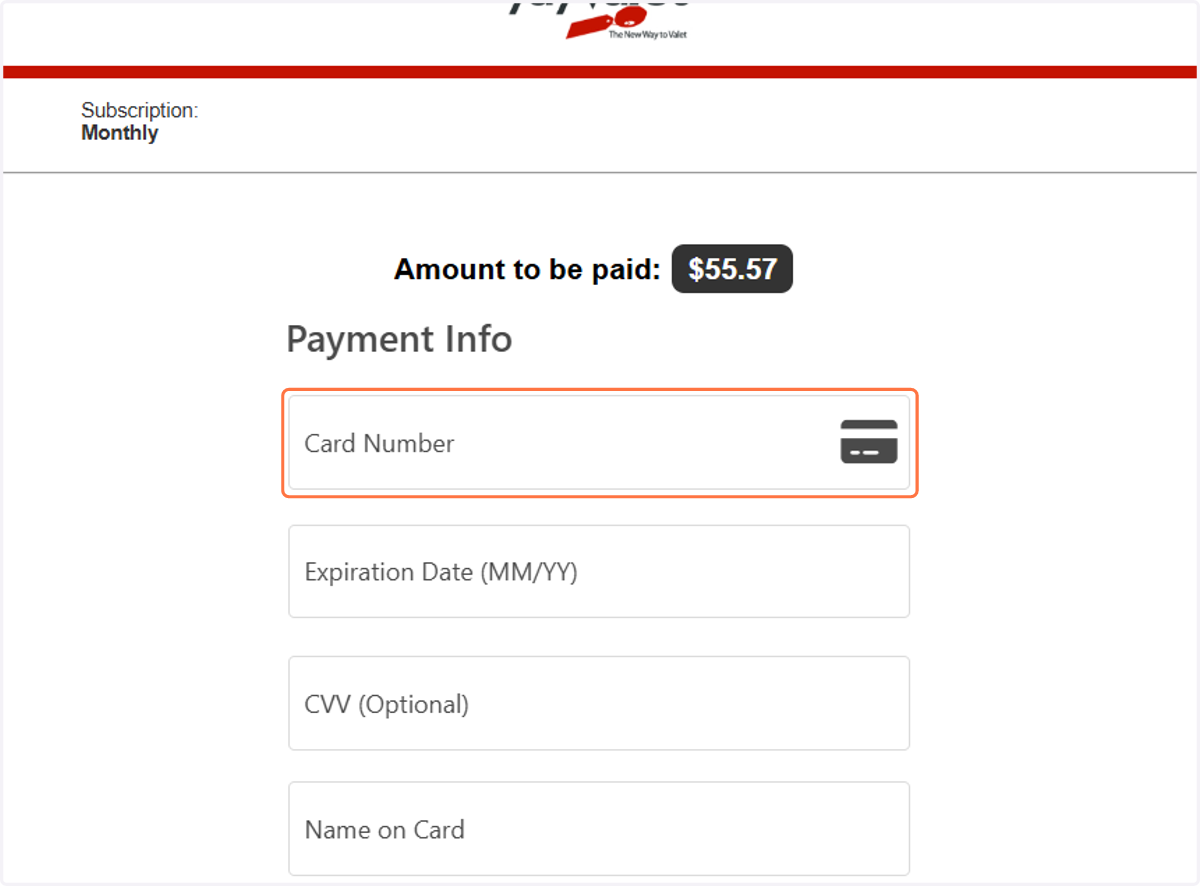
25. Now Enter Card Number
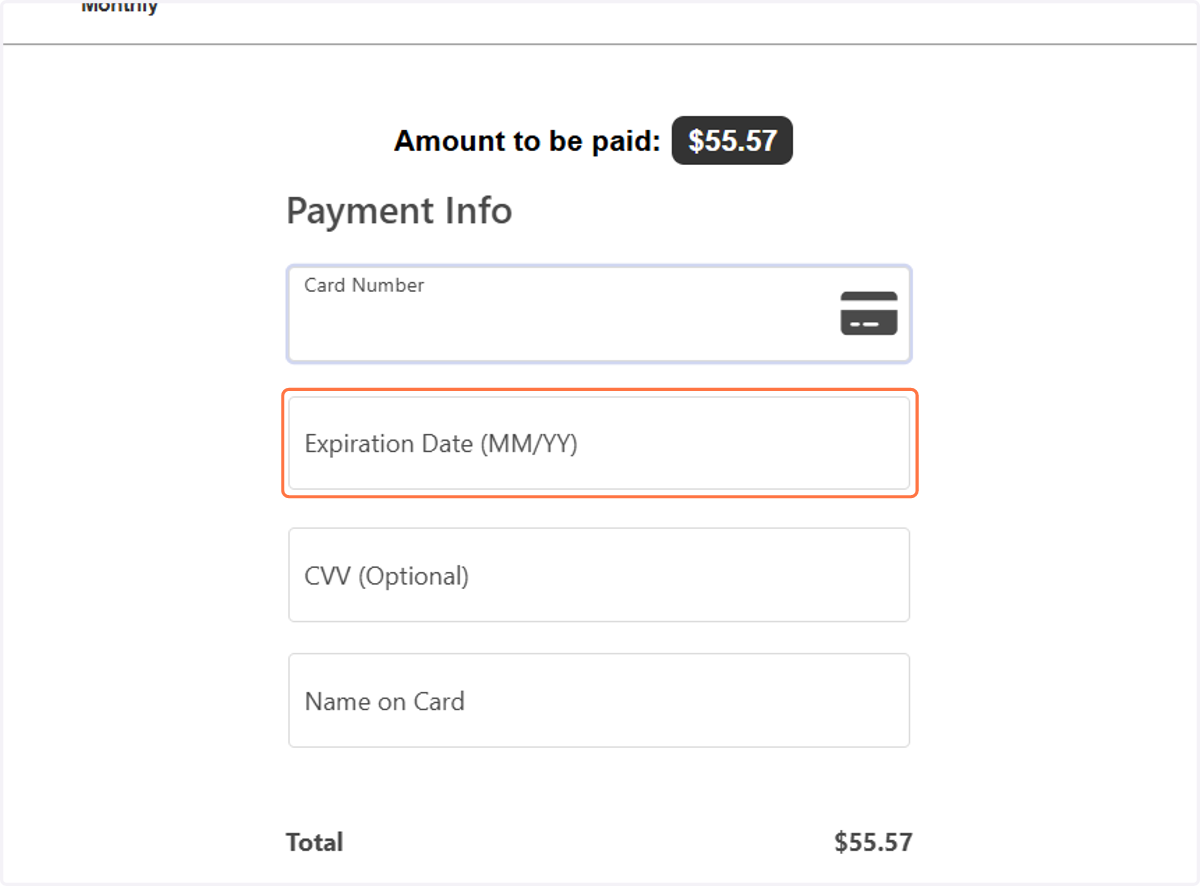
26. Enter Expiration Date (MM/YY) of Card
27. Enter CVV (Optional)
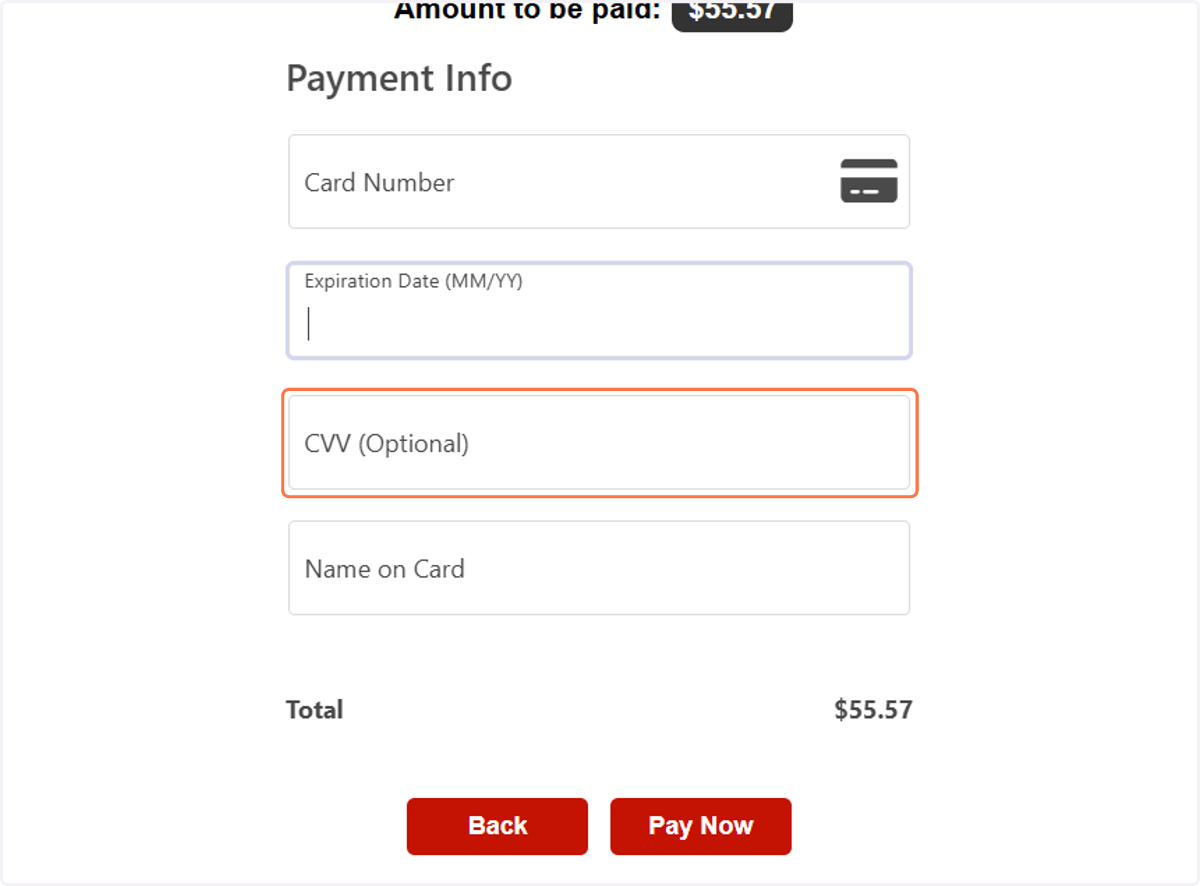
28. Enter the Name on Card
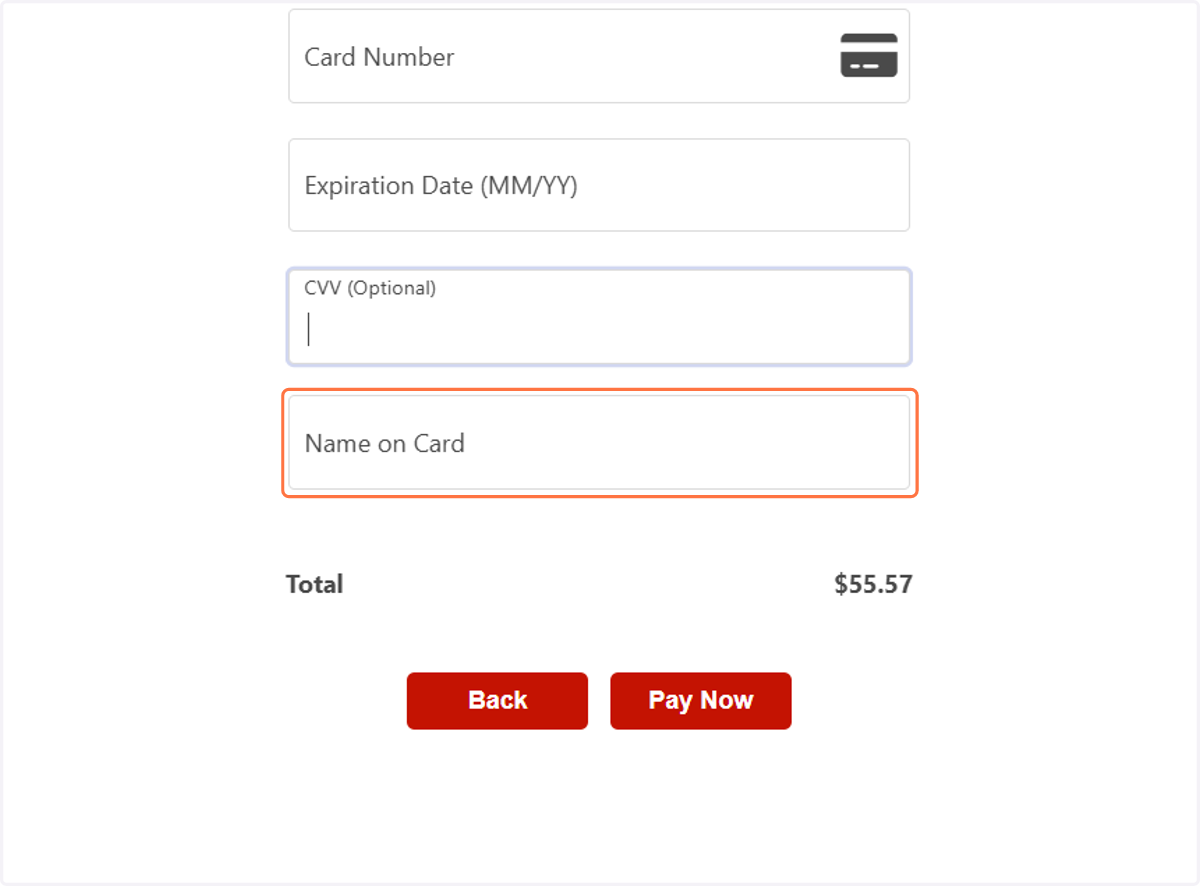
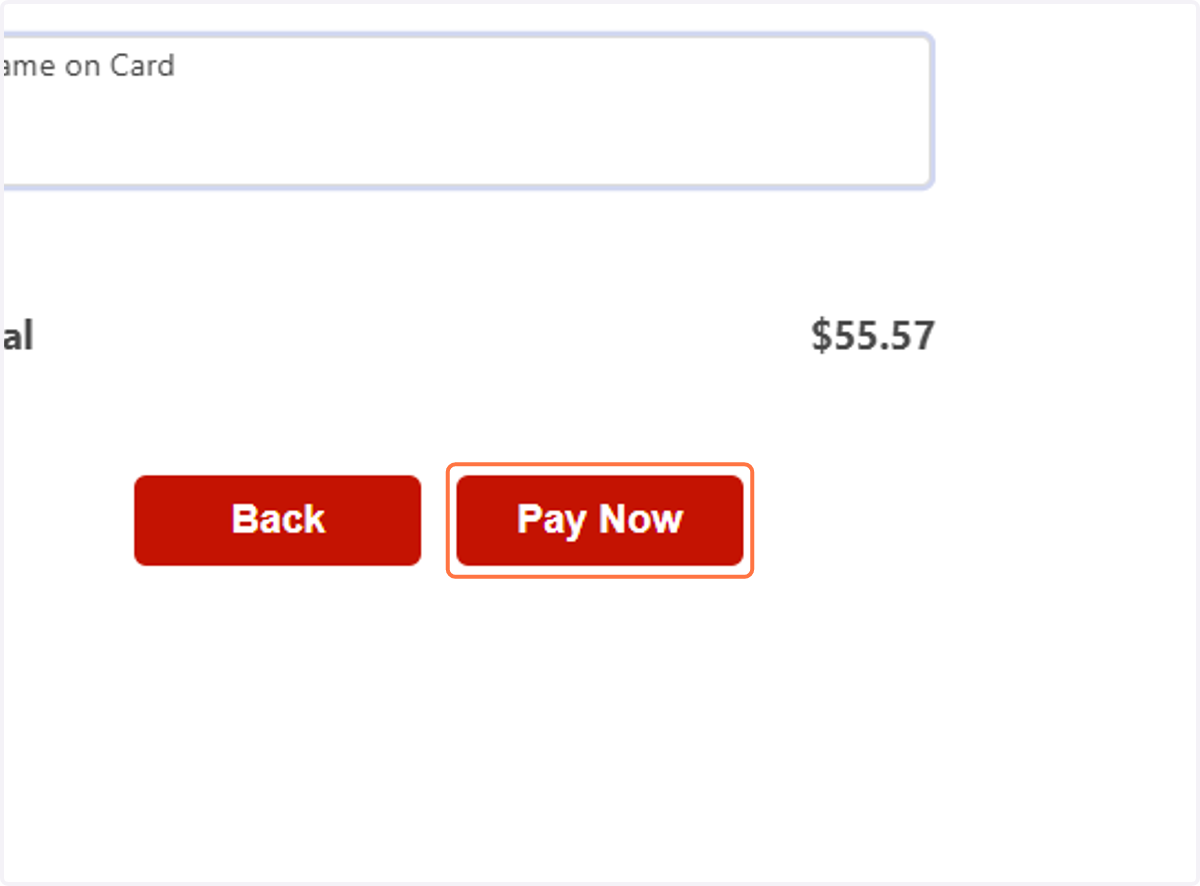
29. Click on Pay Now
30. After the Payment Successful, Go to the Dashboard & Click on My Cars
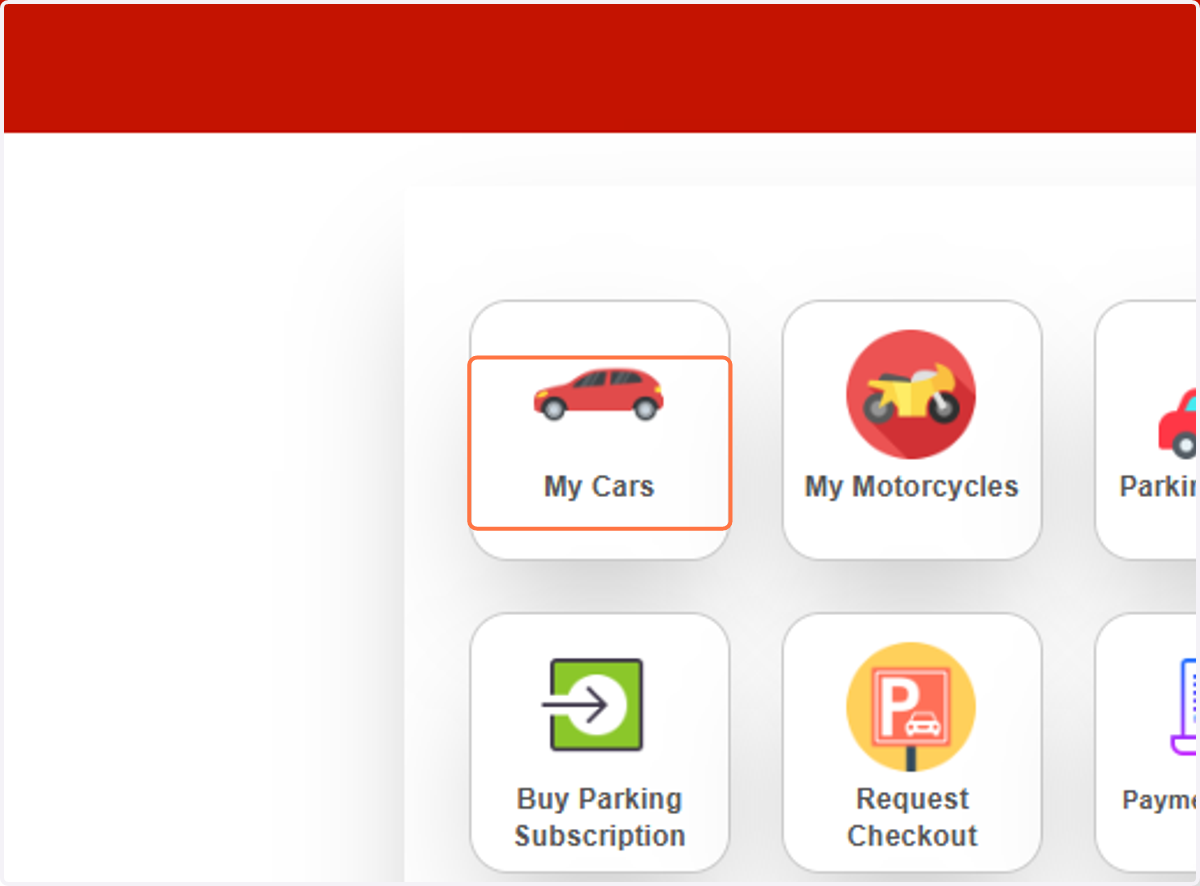
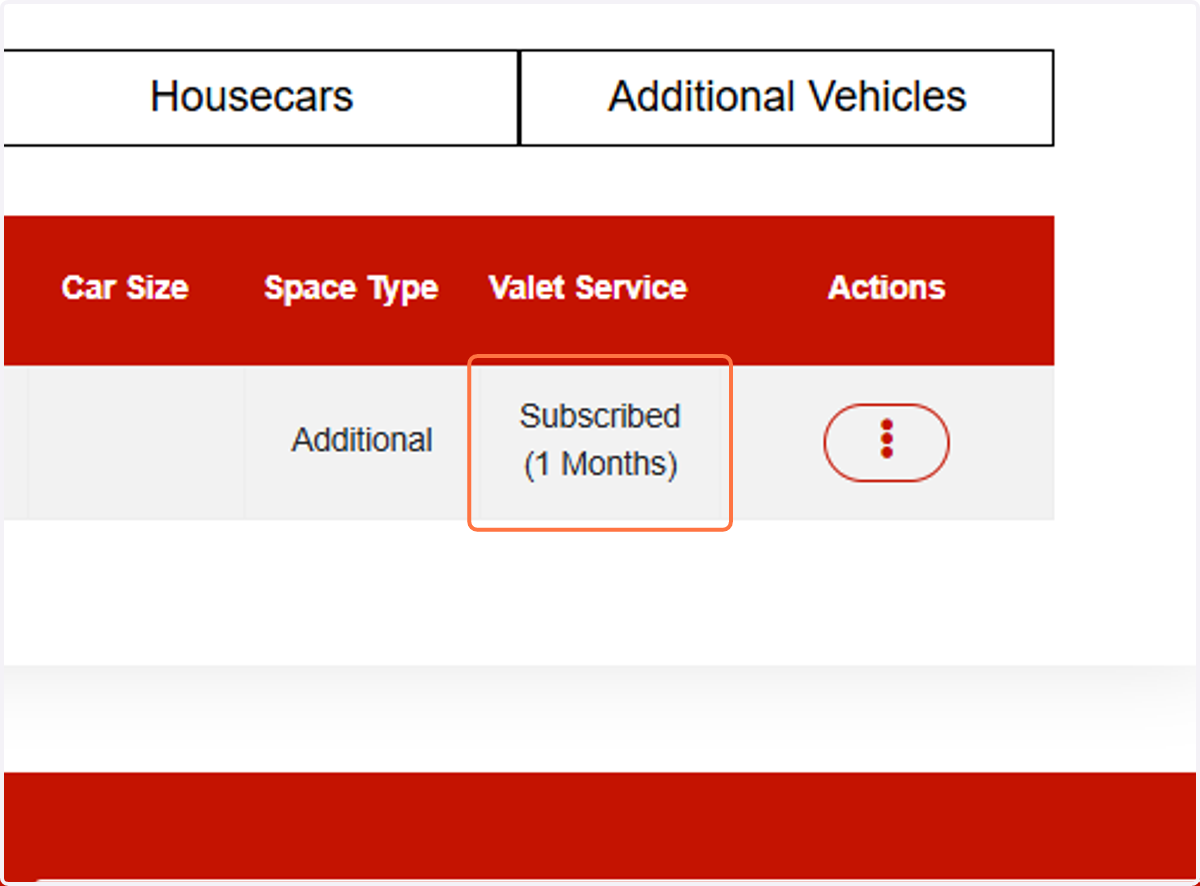
31. Now you can see the vehicle will show you "Subscribed"
After subscription, now Gate will be opened for your barcode every time when you enter to the building for 1 month...