Grading Assessments using Quick Eval
This tutorial will show you how to use the Quick Eval from your course to grade assessments.
Start Here - Patti - Practice as Instructor
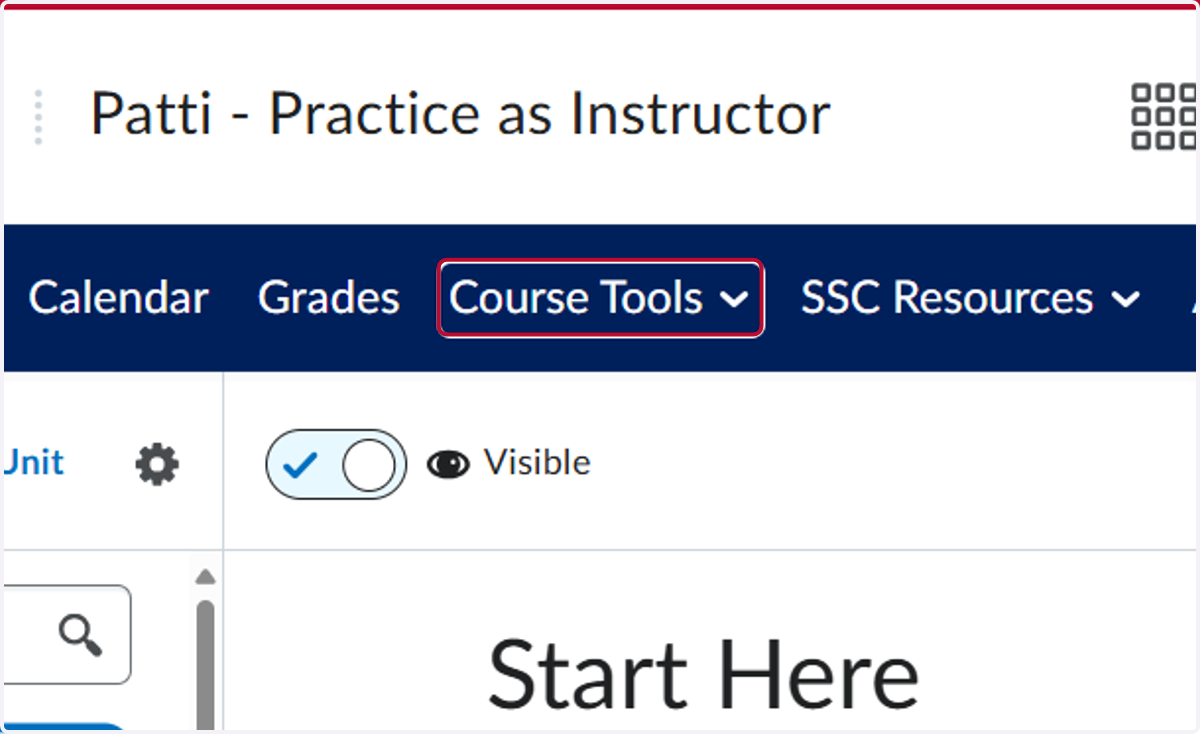
1. Click on Course Tools
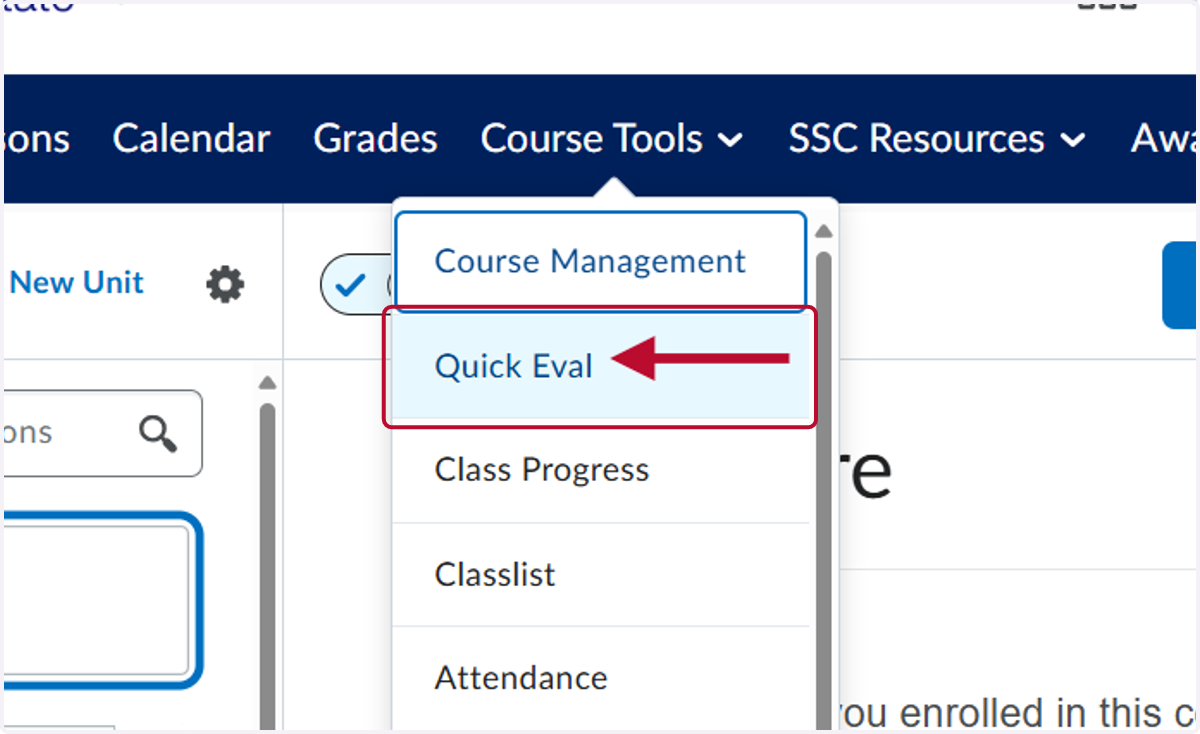
2. Click on Quick Eval
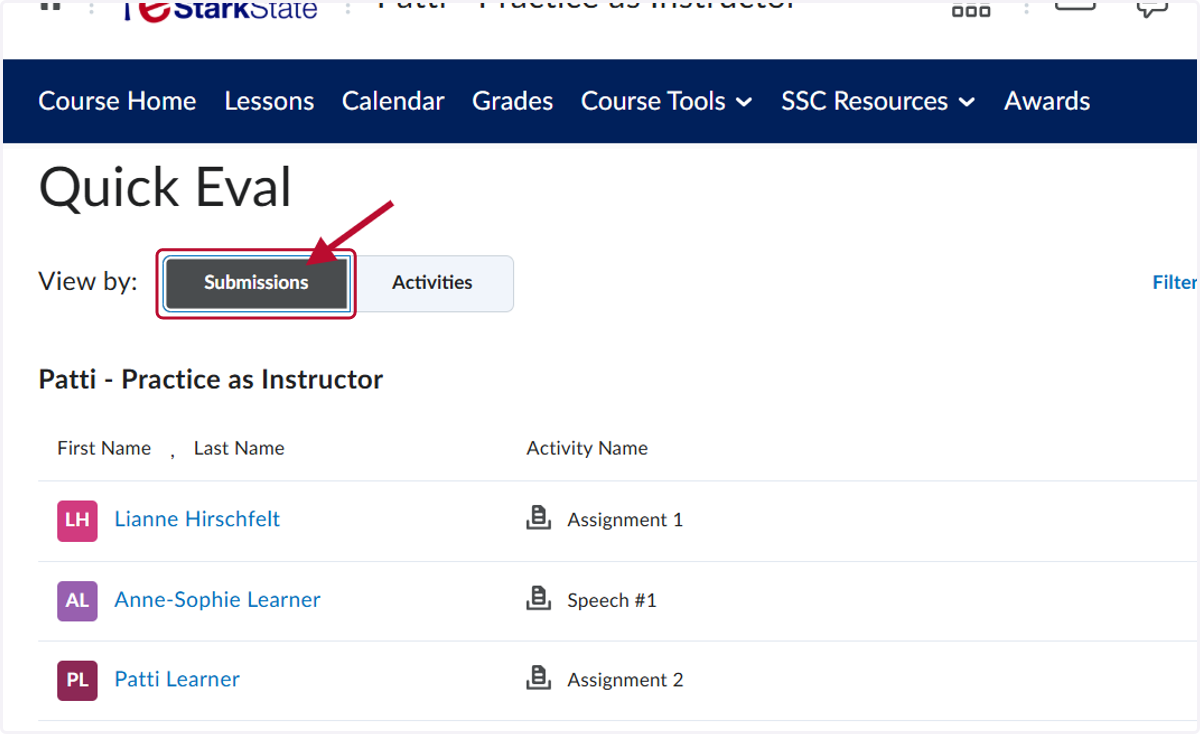
3. You have two View By options. Click Submissions to see each individual submission
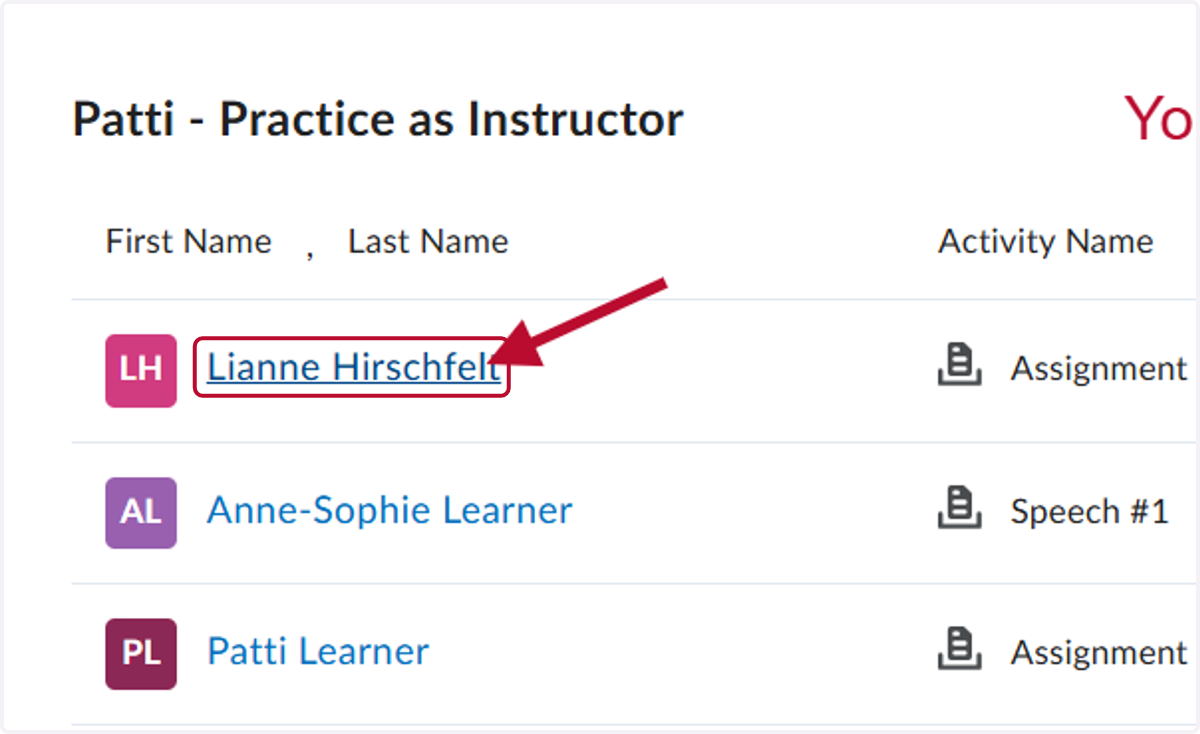
4. Click on the student you want to grade. In our example, we clicked on a sample student named Lianne Hirschfelt
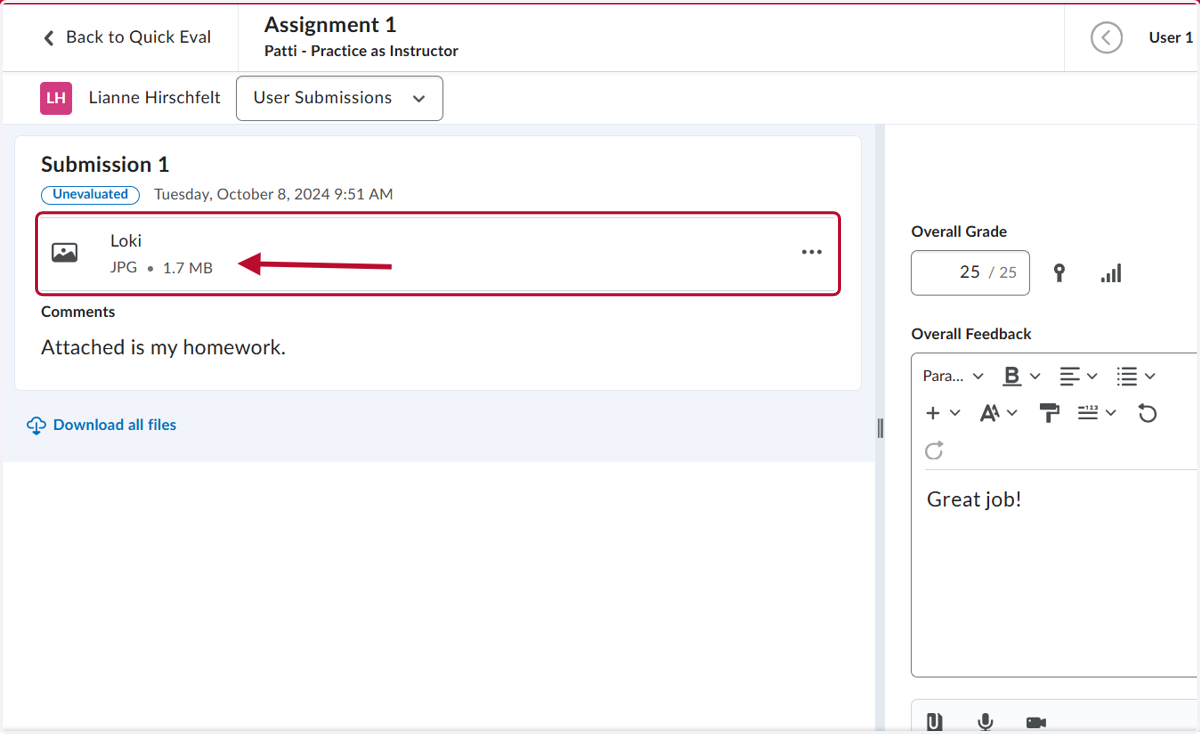
5. Click on their file to view it in the submission field.
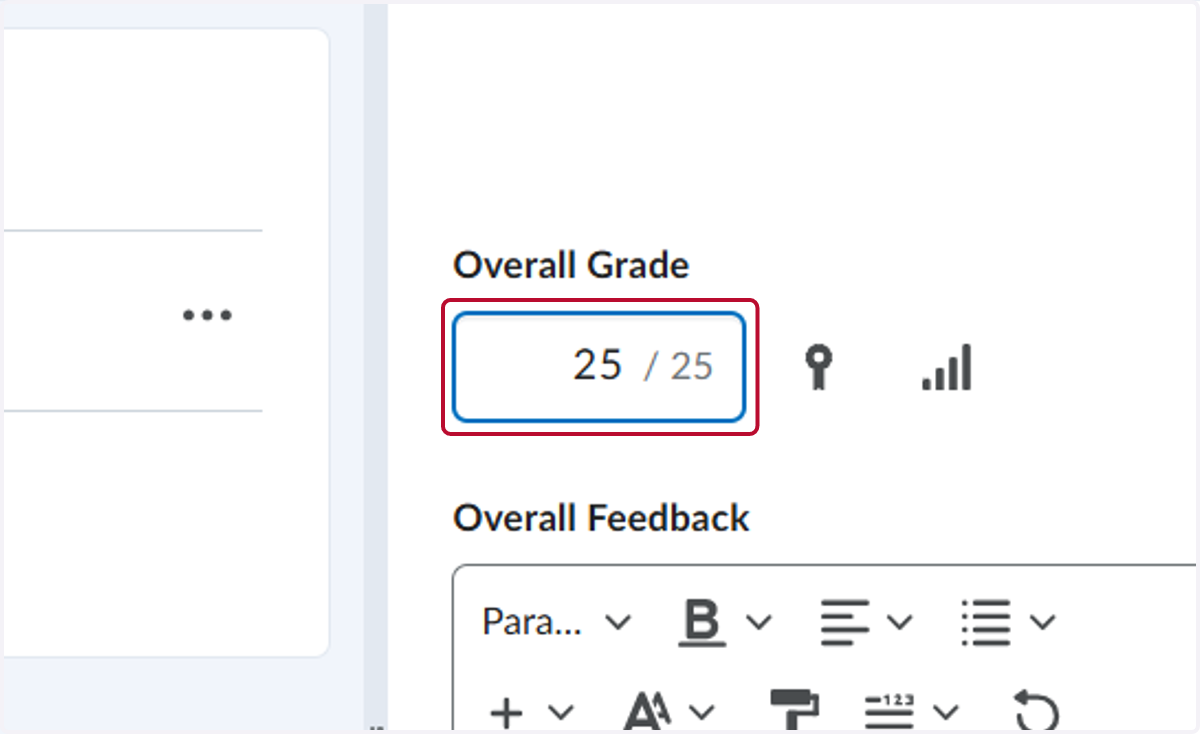
6. Click on Overall grade to give them a score. Note: If you have a rubric, you can use the rubric to populate the Overall Grade field.
7. Click on Overall Feedback
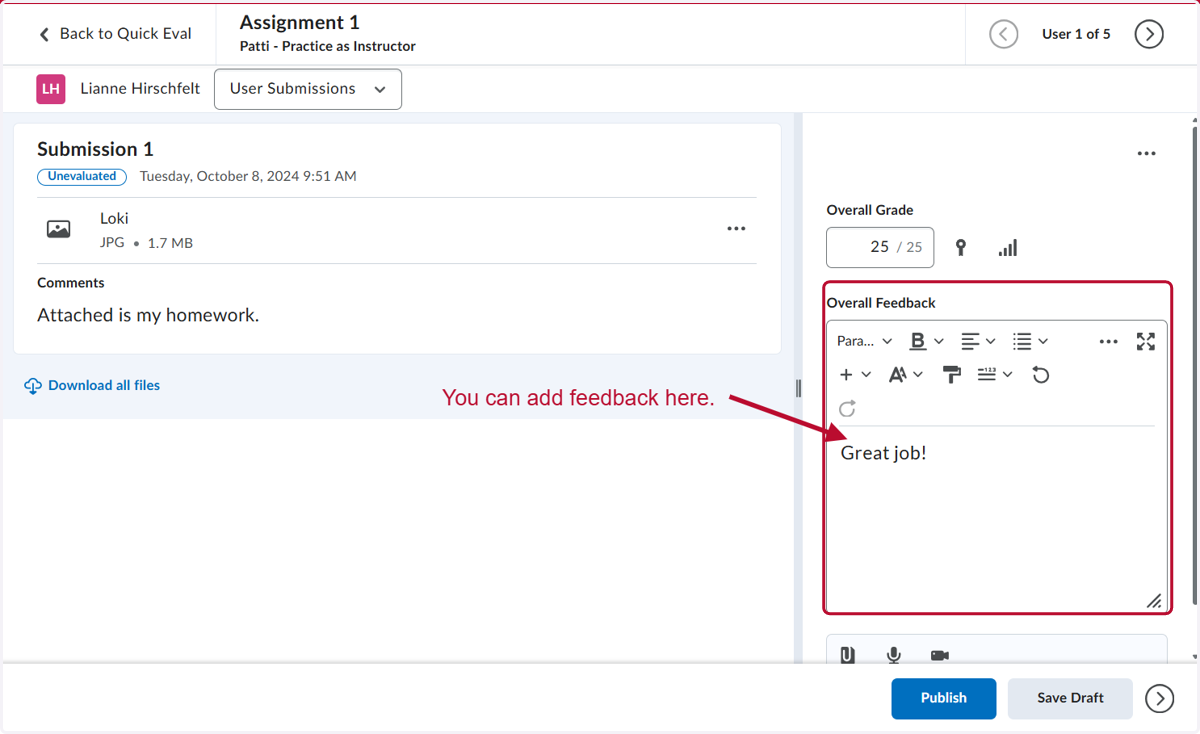
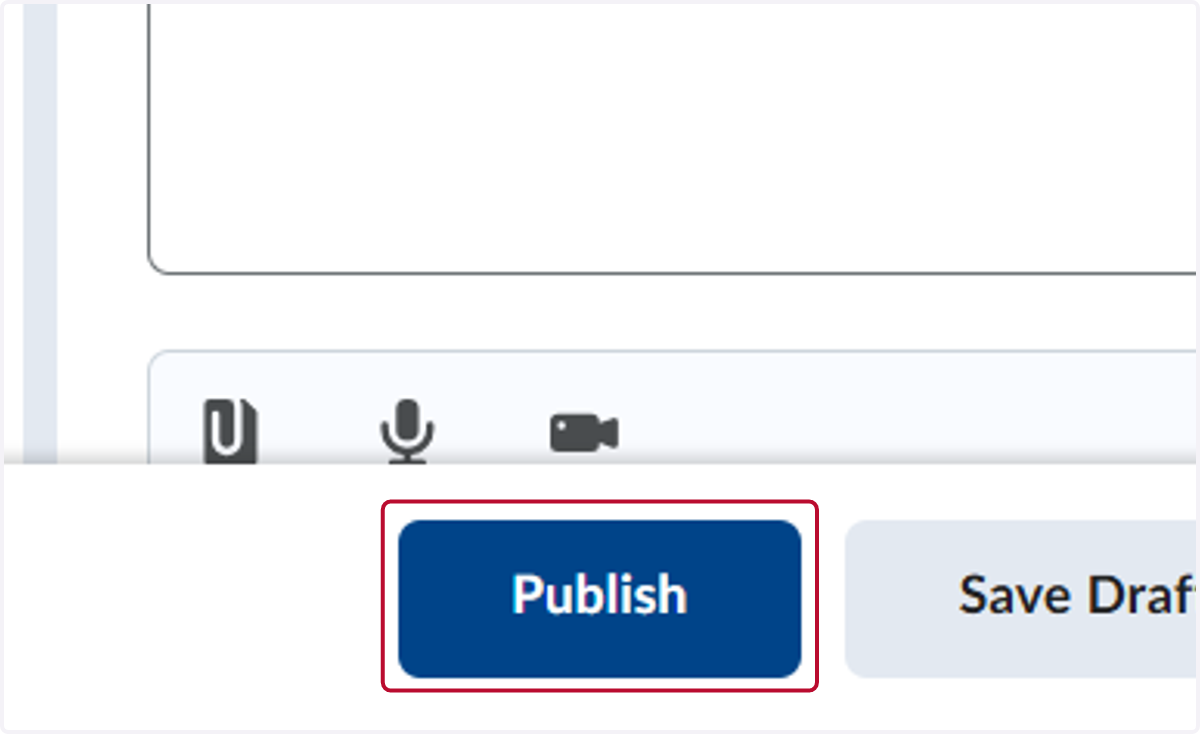
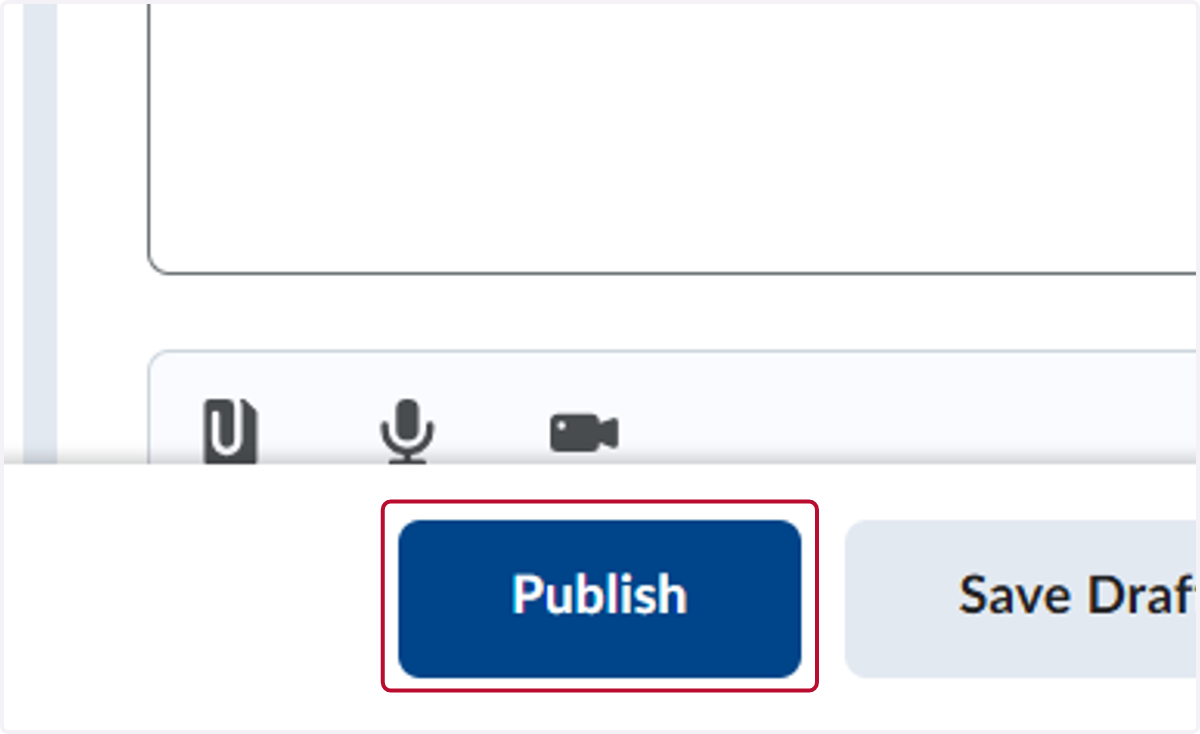
8. When you are done grading and adding feedback, click Publish to push the grades to the grade book. NOTE: You can also Save Draft and come back later to complete your grading. Once all grading is complete, you will need to click Publish.
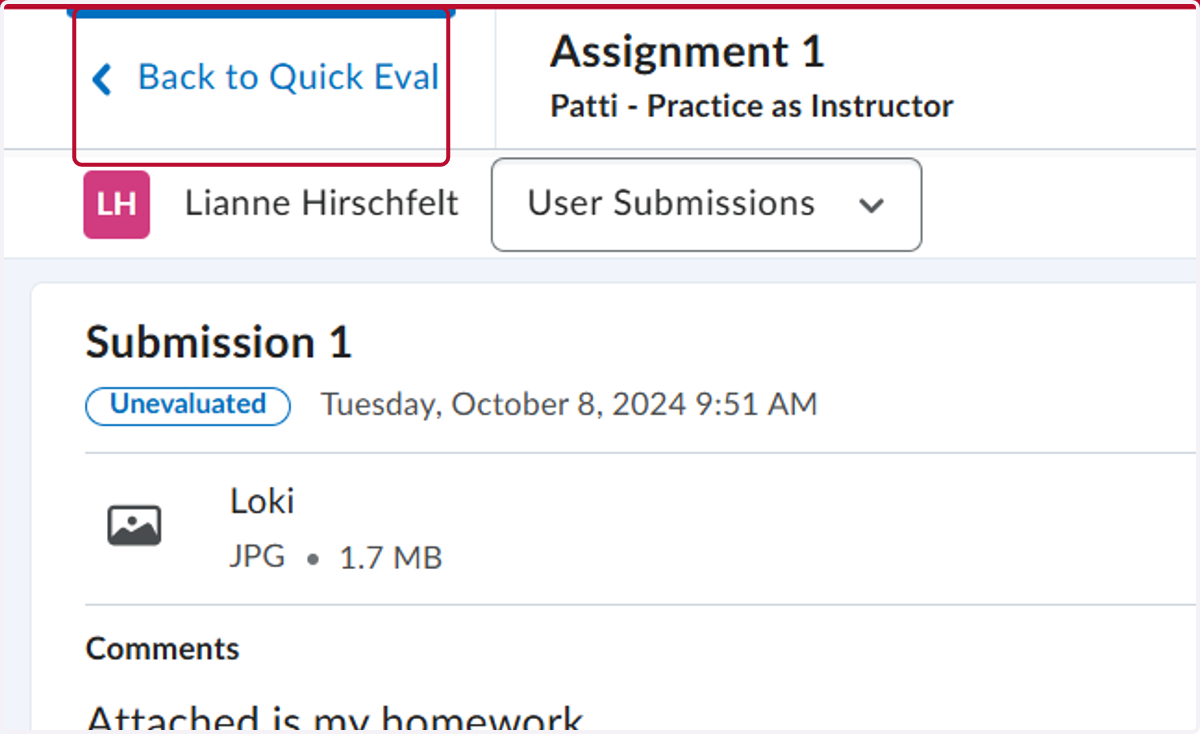
9. Click on Back to Quick Eval
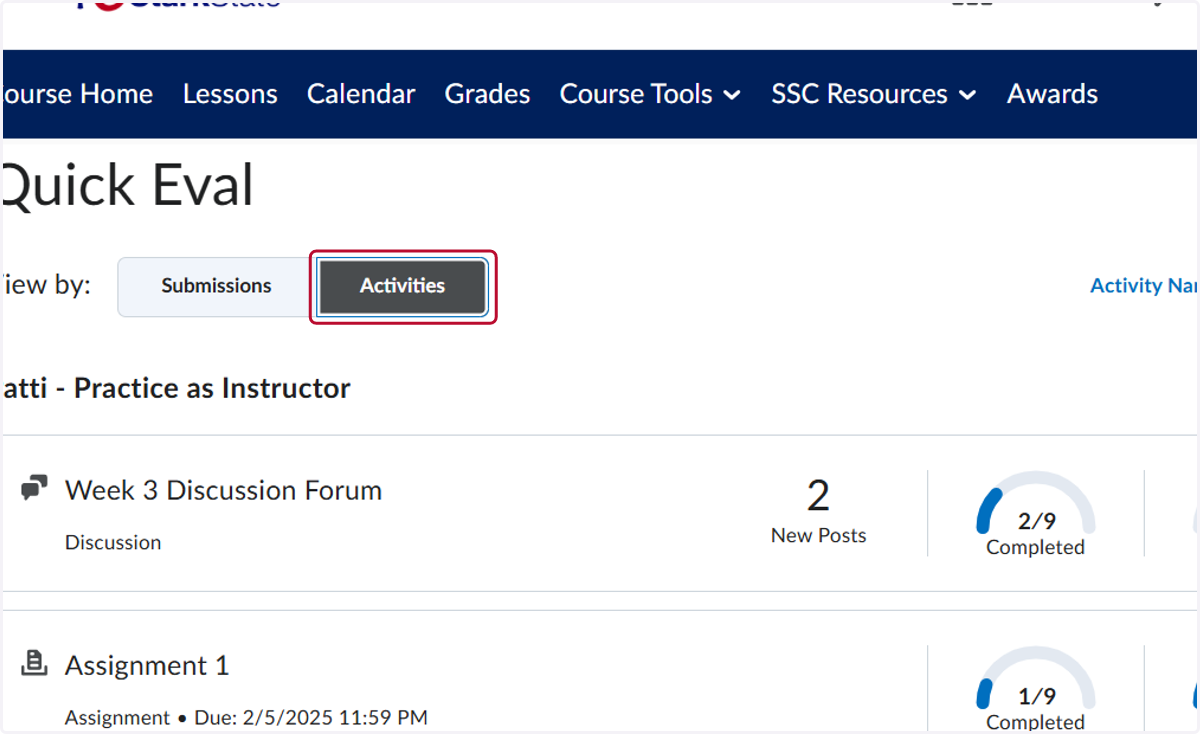
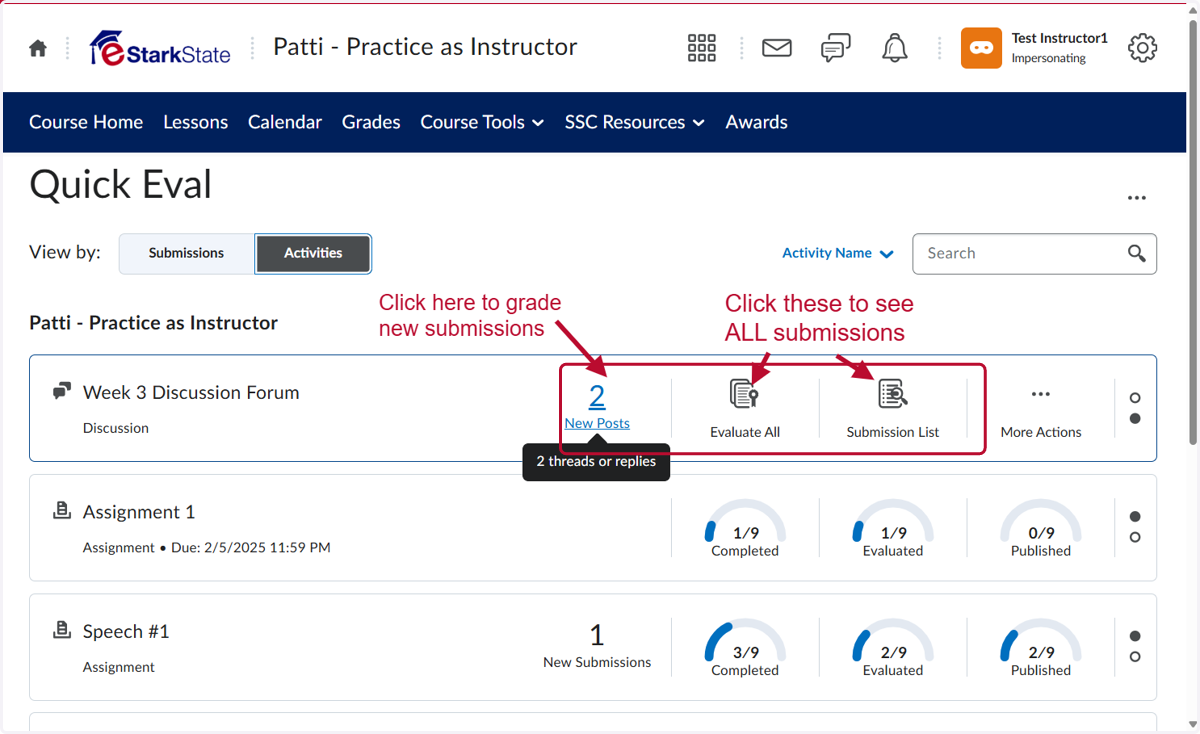
10. You can also view the assessments using the Activities button.
11. On the Activities page, you will see all the activities that have submissions. Click on the specific activity to view all the submissions.
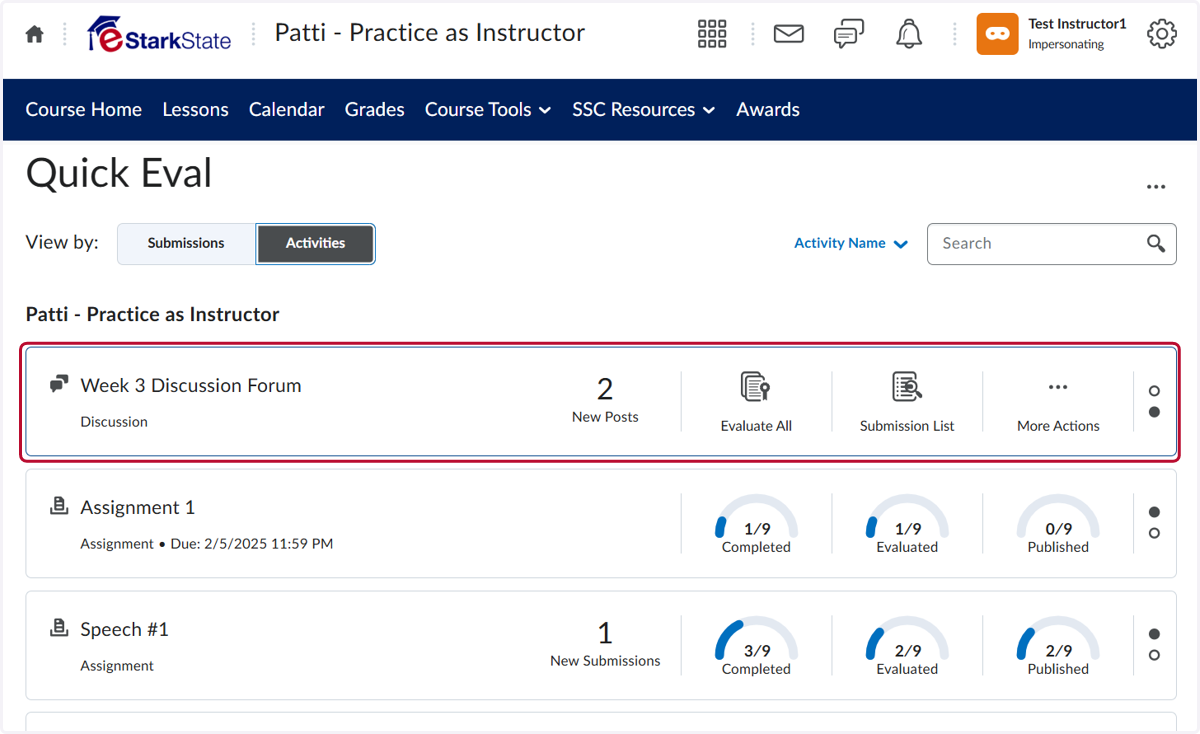
12. Click on new submissions on the left or you can view all submission
13. Click on highlight
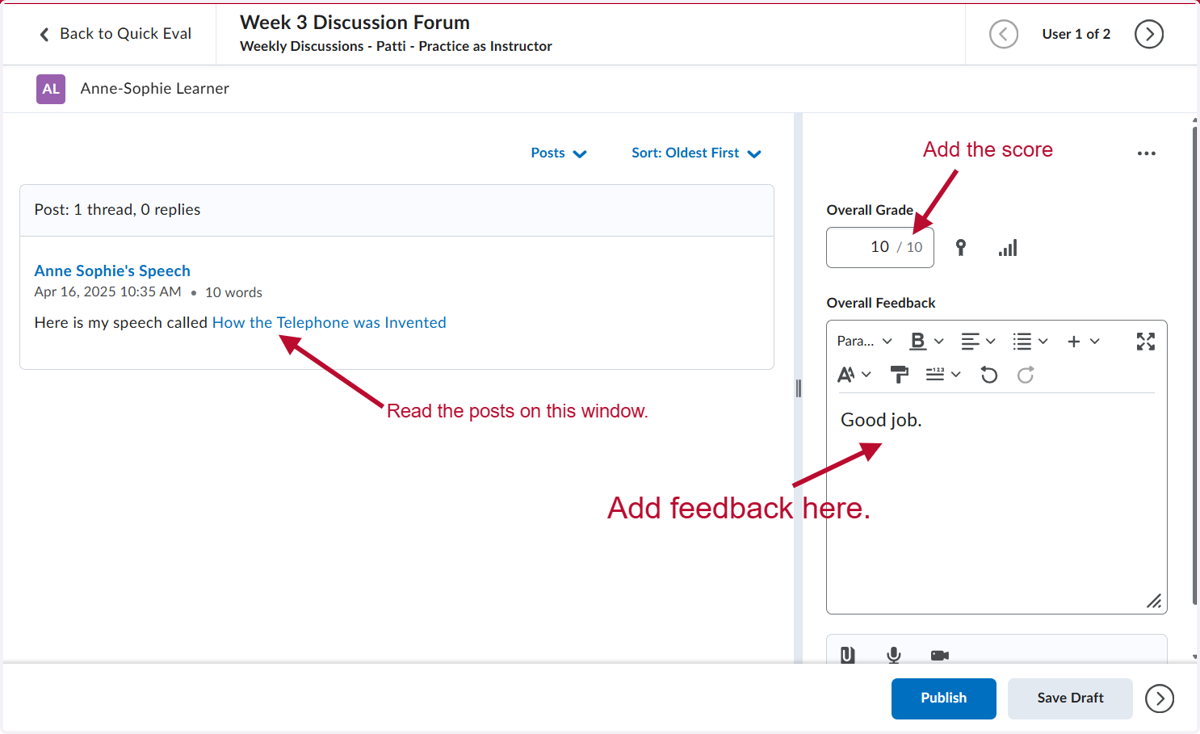
14. Click on Publish when you are done grading.
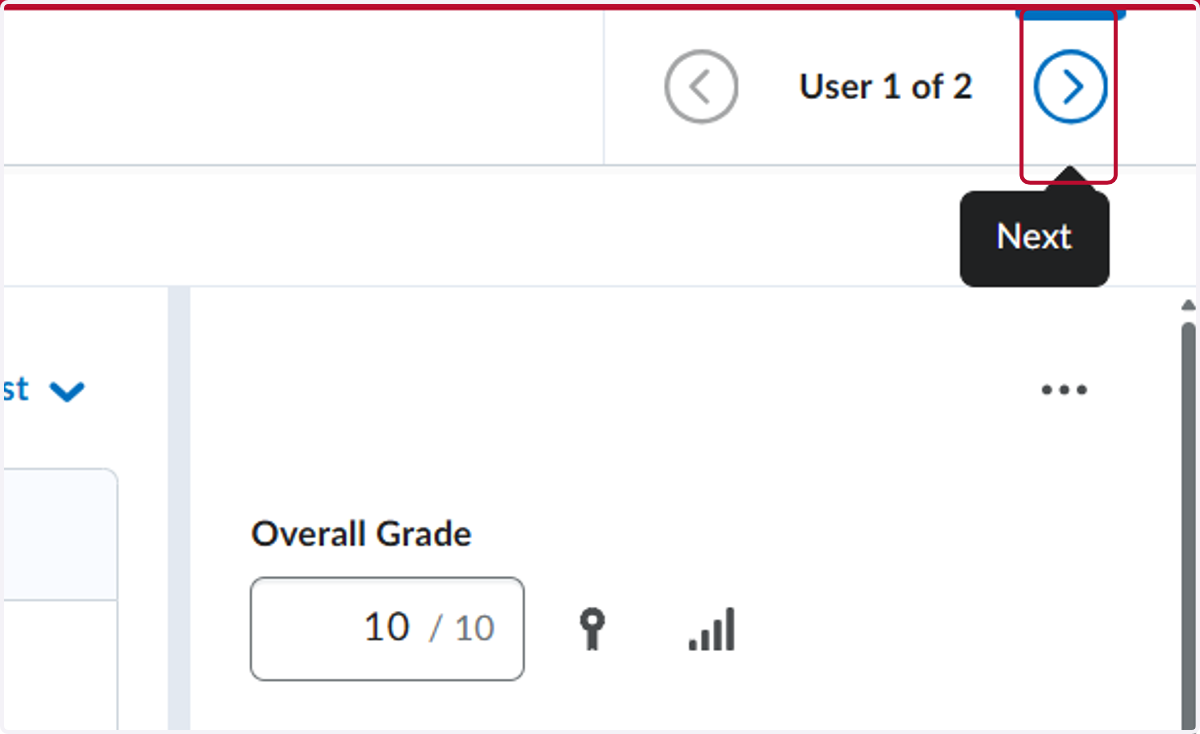
15. Click on Next to go to the next student.