Generating a Digital Media Asset on the Topline Pro app
Elevate your content effortlessly by transforming photos into social media-ready masterpieces. Whether it's showcasing a review, sharing a big announcement, or simply posting a photo you're proud of, our digital media asset tool is your ticket to making a lasting impression online.
Topline Pro
1. Go to the Topline Pro dashboard at app.toplinepro.com on your computer or the downloaded app on your phone
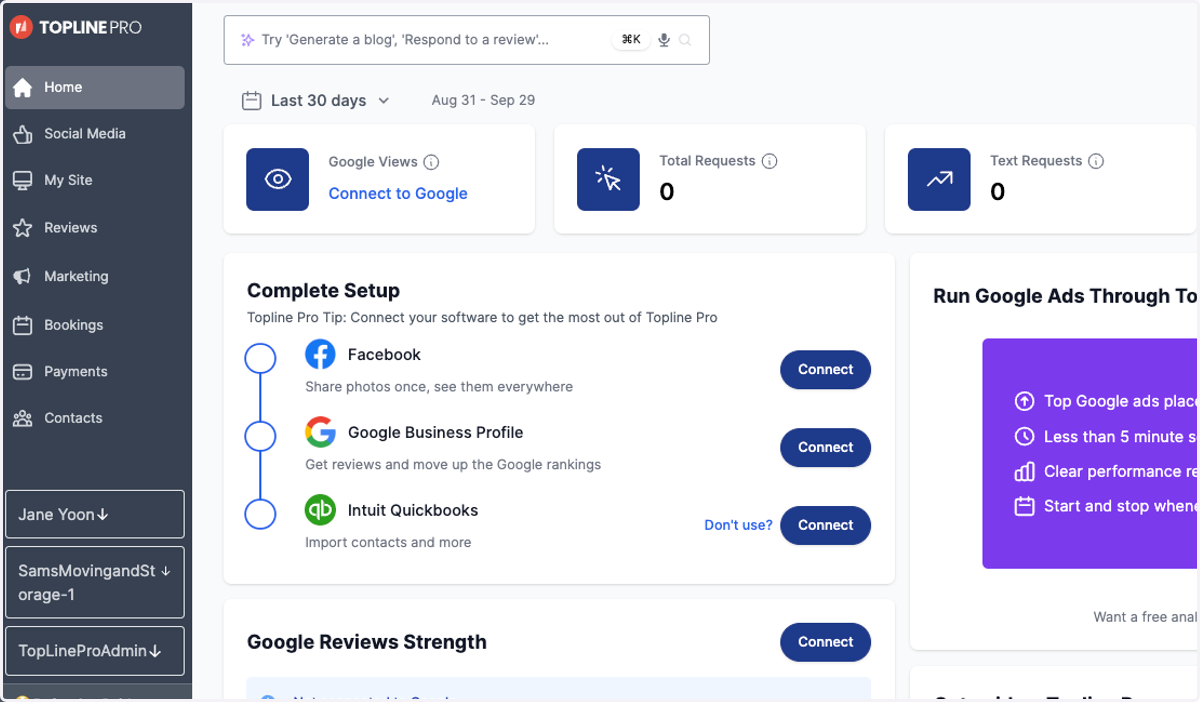
2. Click on Marketing
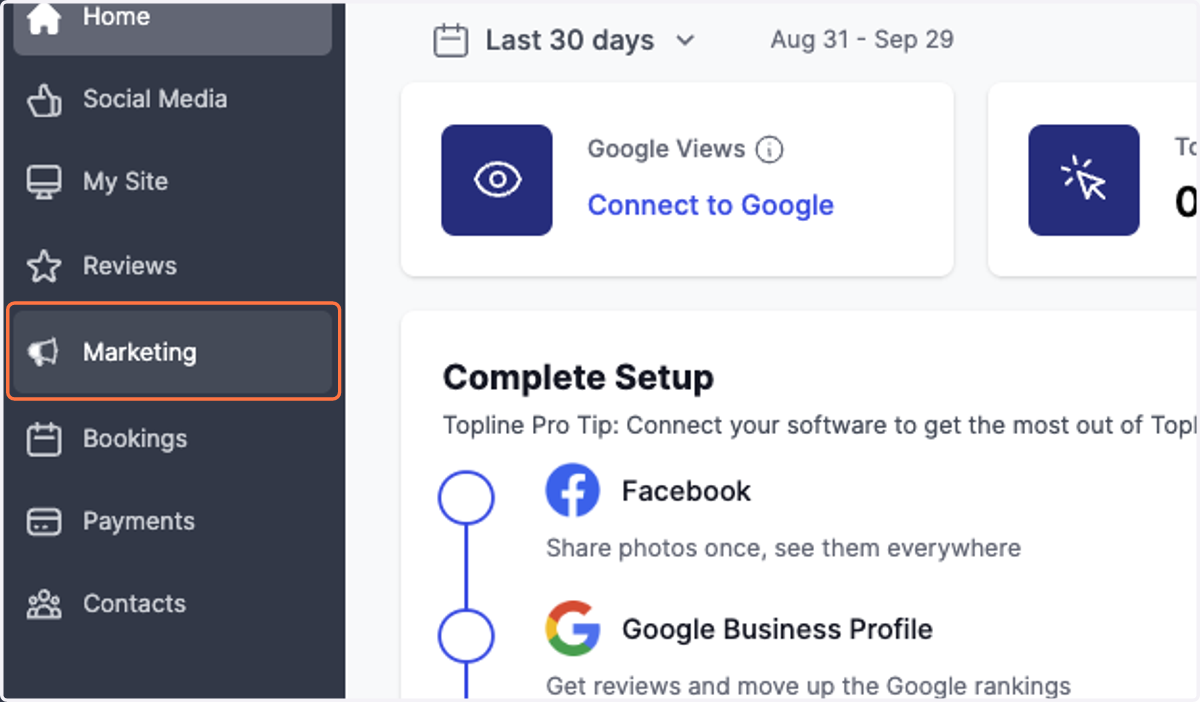
3. Click on Digital Media
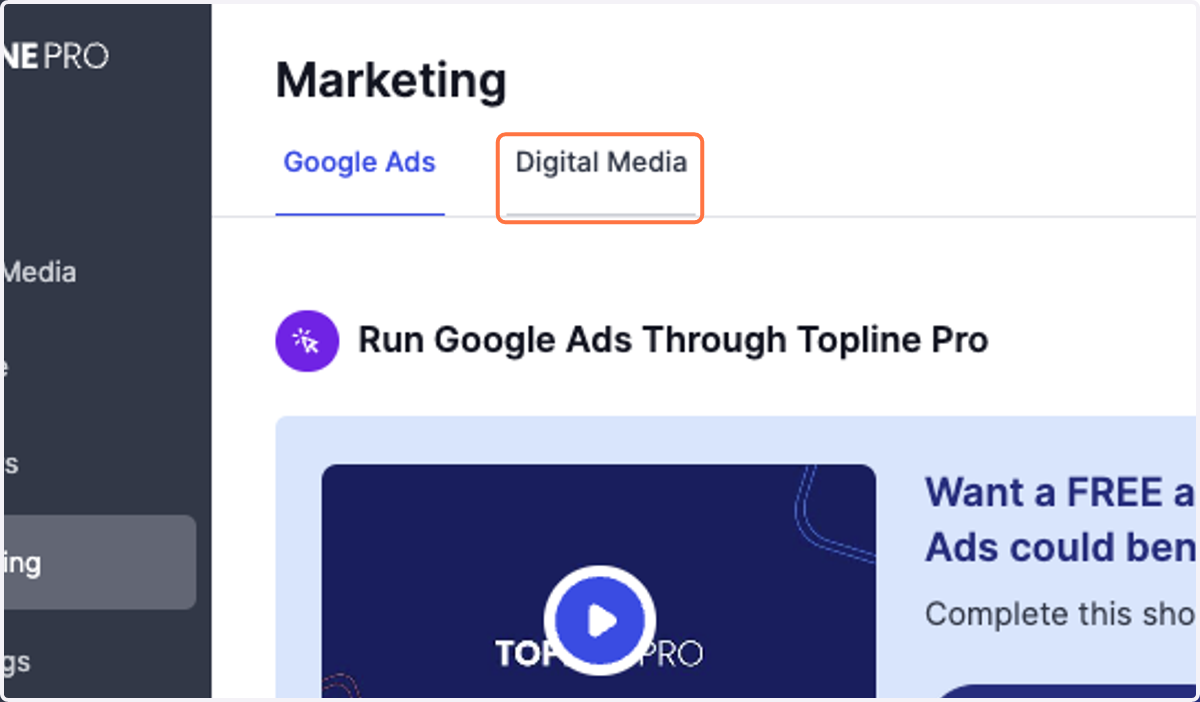
4. Choose the type of digital media asset you'd like to create based on the topics available
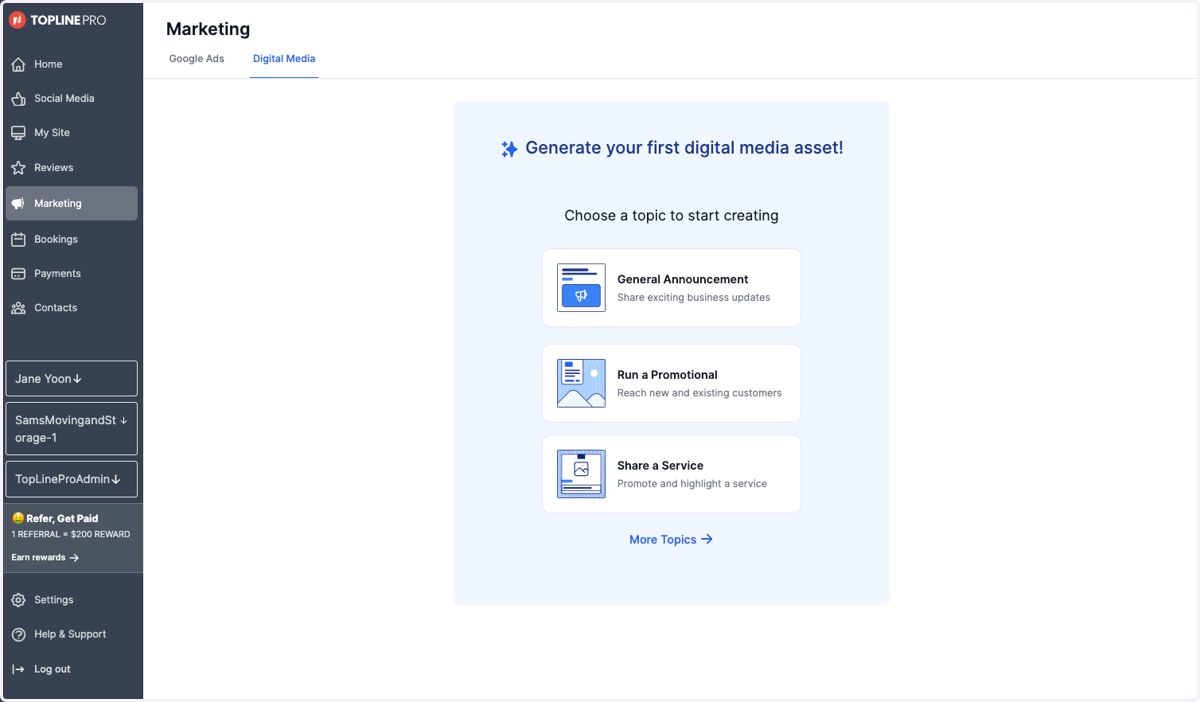
5. For this example, we'll click on Share a Service to promote and highlight a service
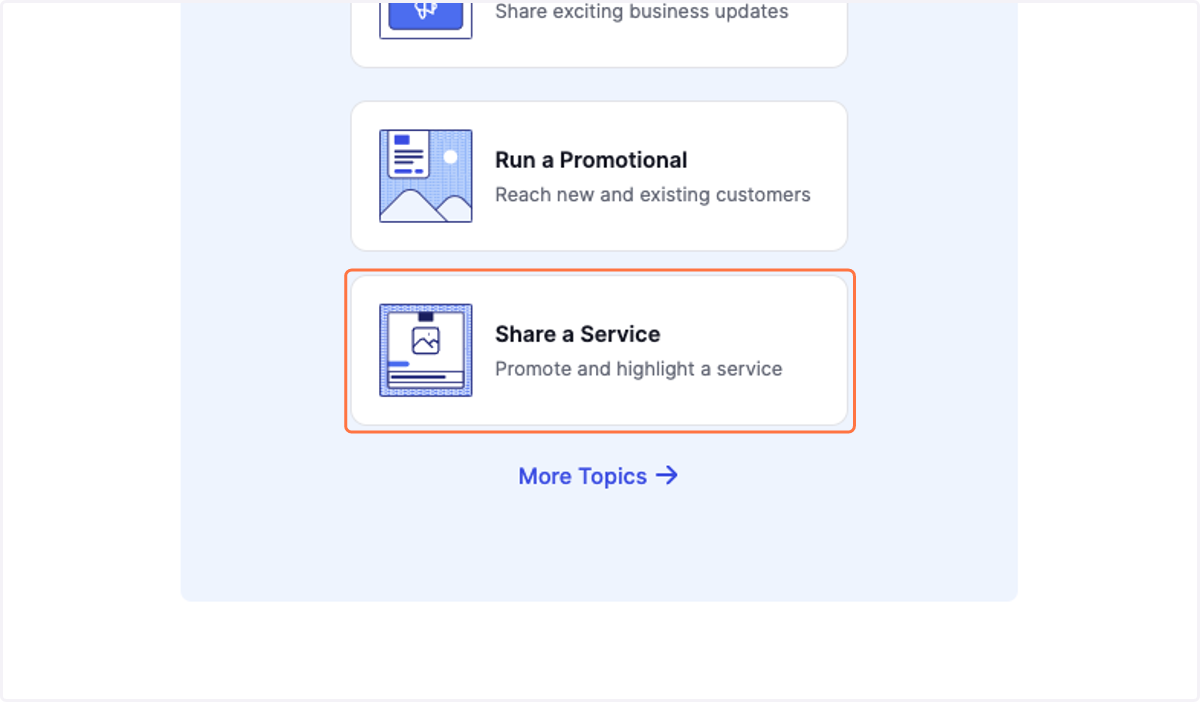
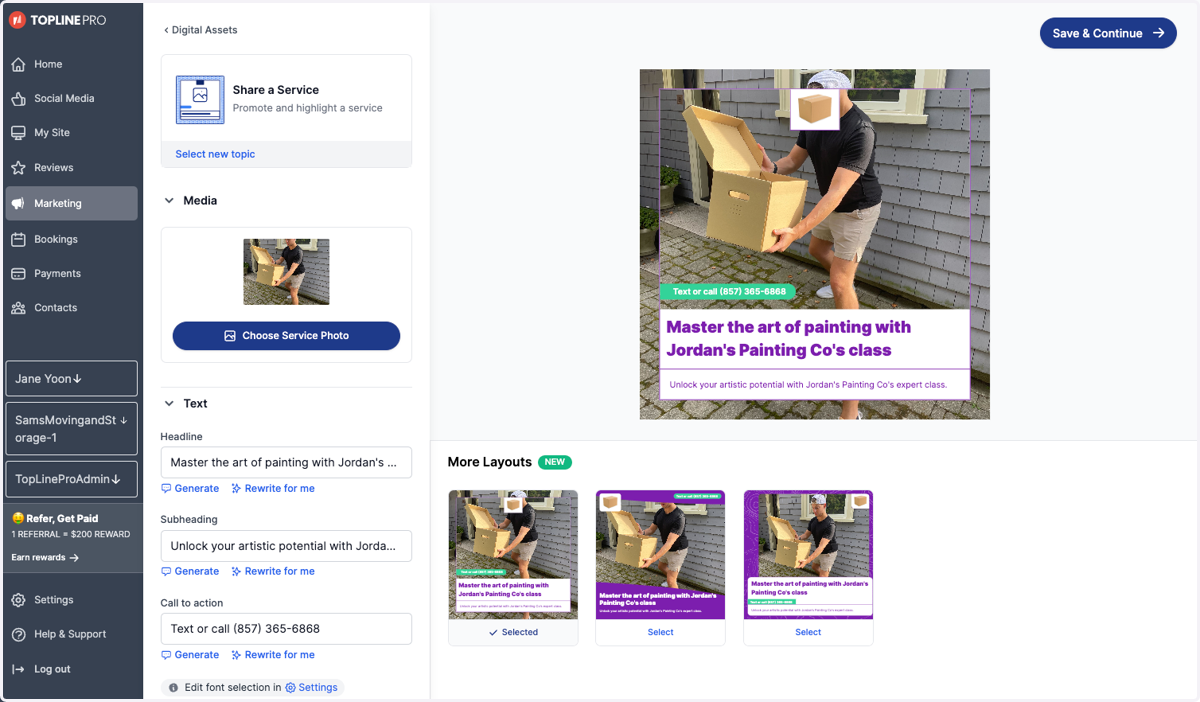
6. Click into Media, Text, and Color to make adjustments to your post
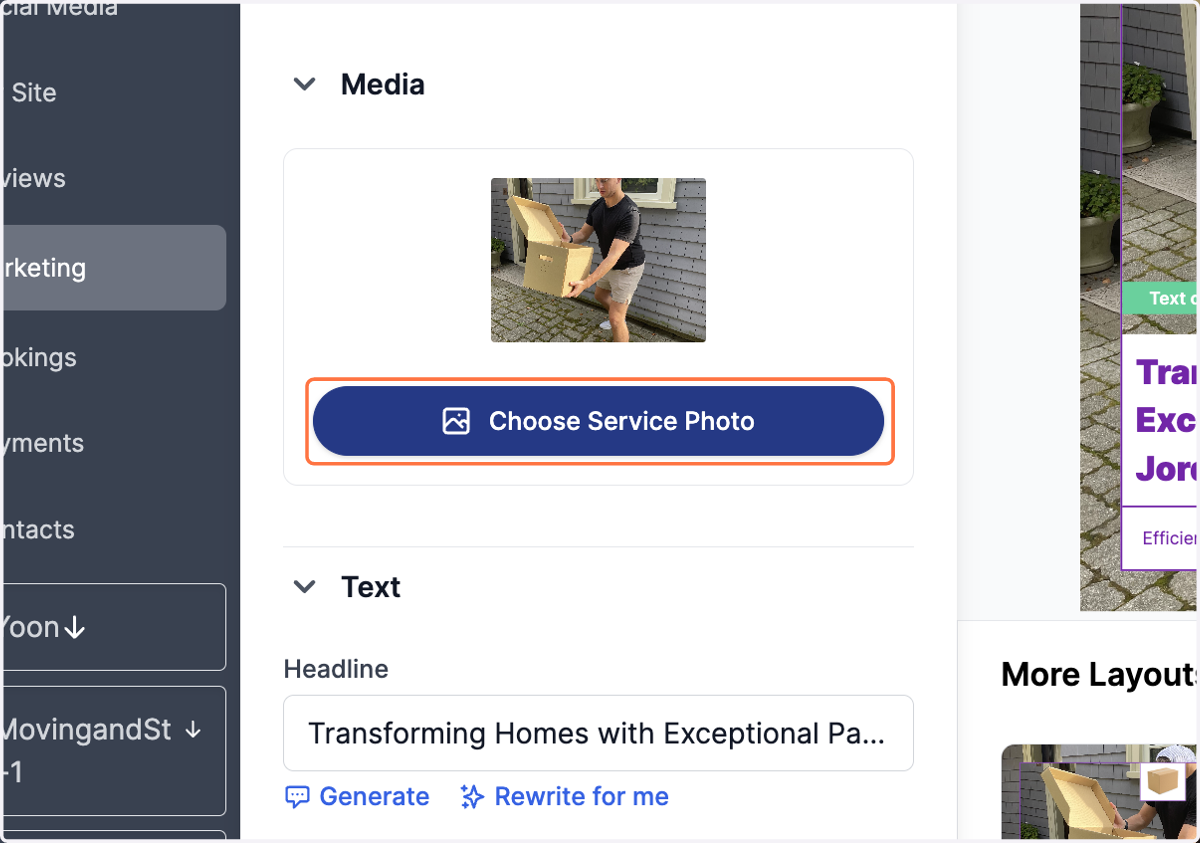
7. To change the photo, click on Choose Service Photo
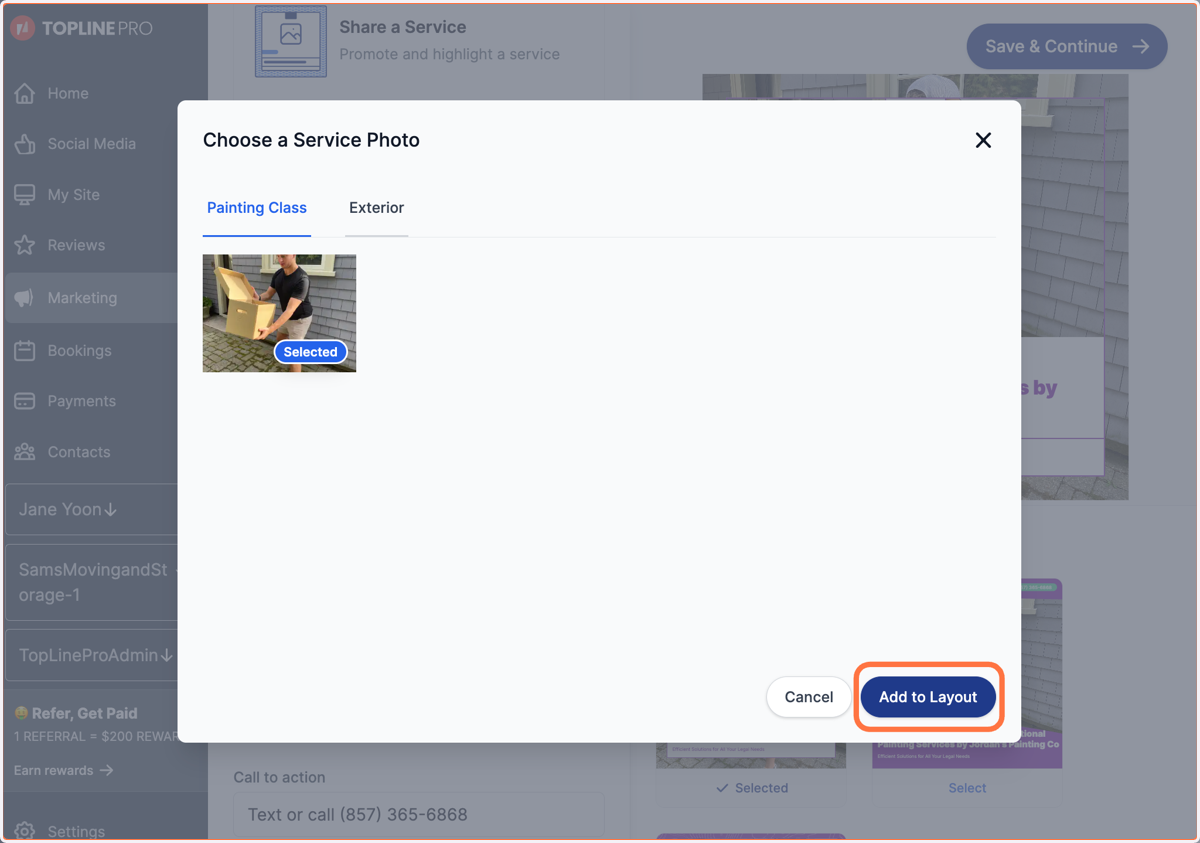
8. Choose a photo from your Service section and Add to Layout
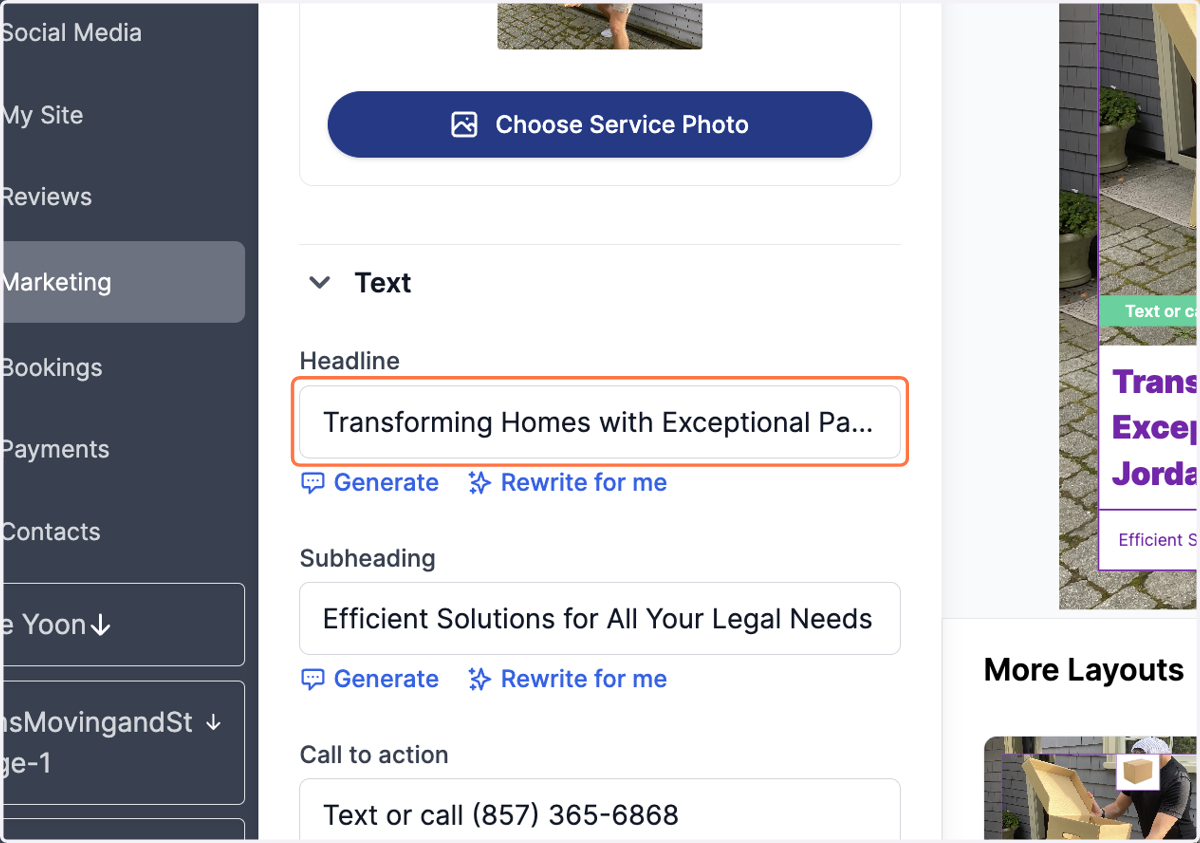
9. Click through Headline, Subheading, and Call to action to change the text
You can have a caption written for you by clicking Generate or Rewrite for me
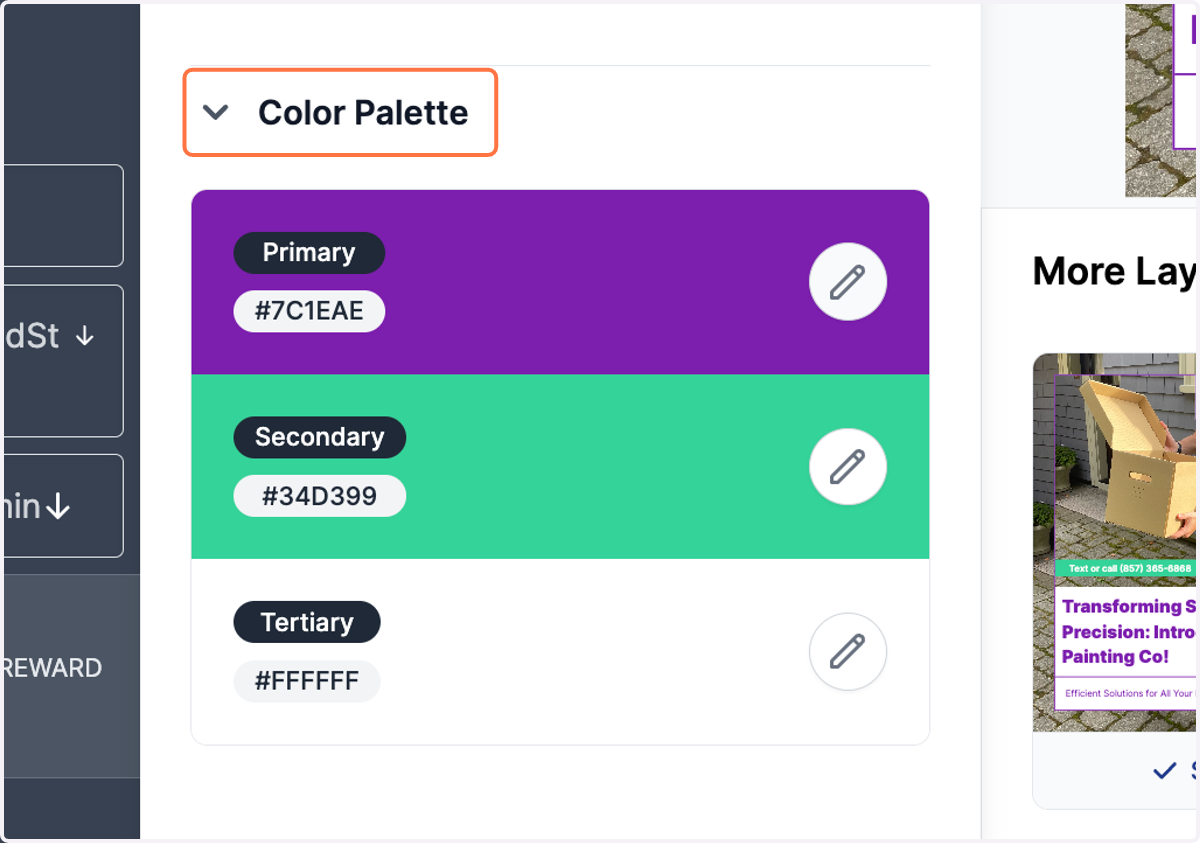
10. Click on Color Palette to change the colors used in the post
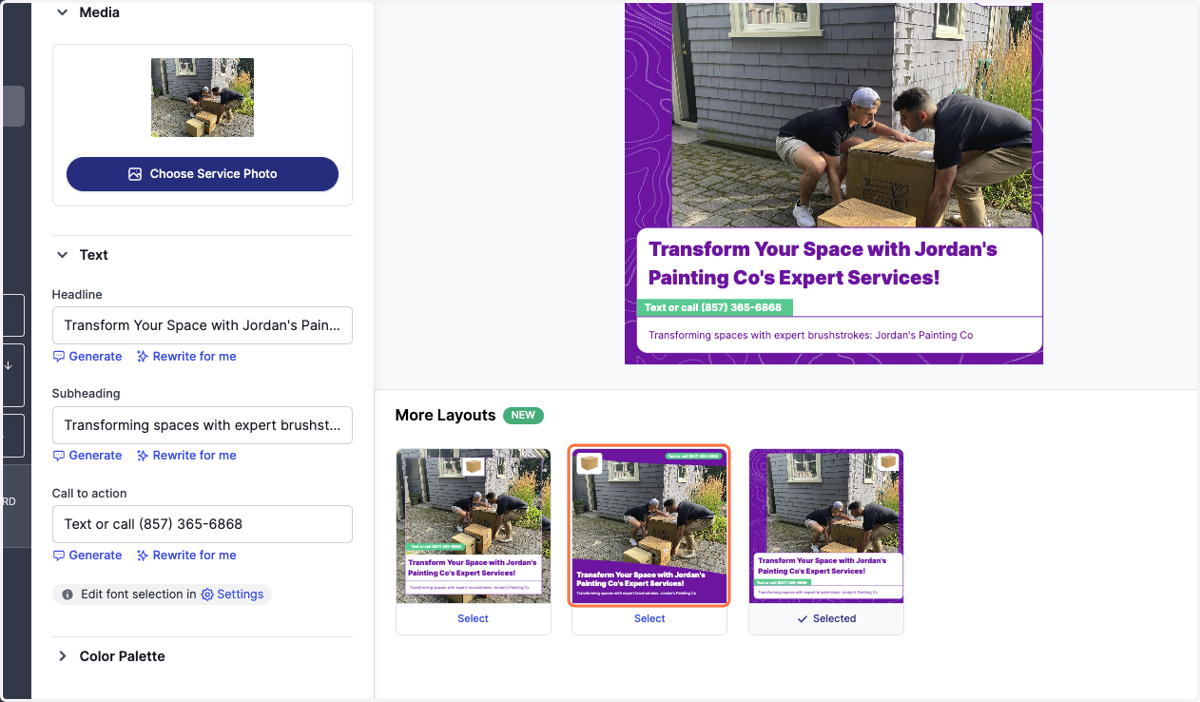
11. Finally, select a layout from the options below
12. When you're ready to share the post, click on Save & Continue
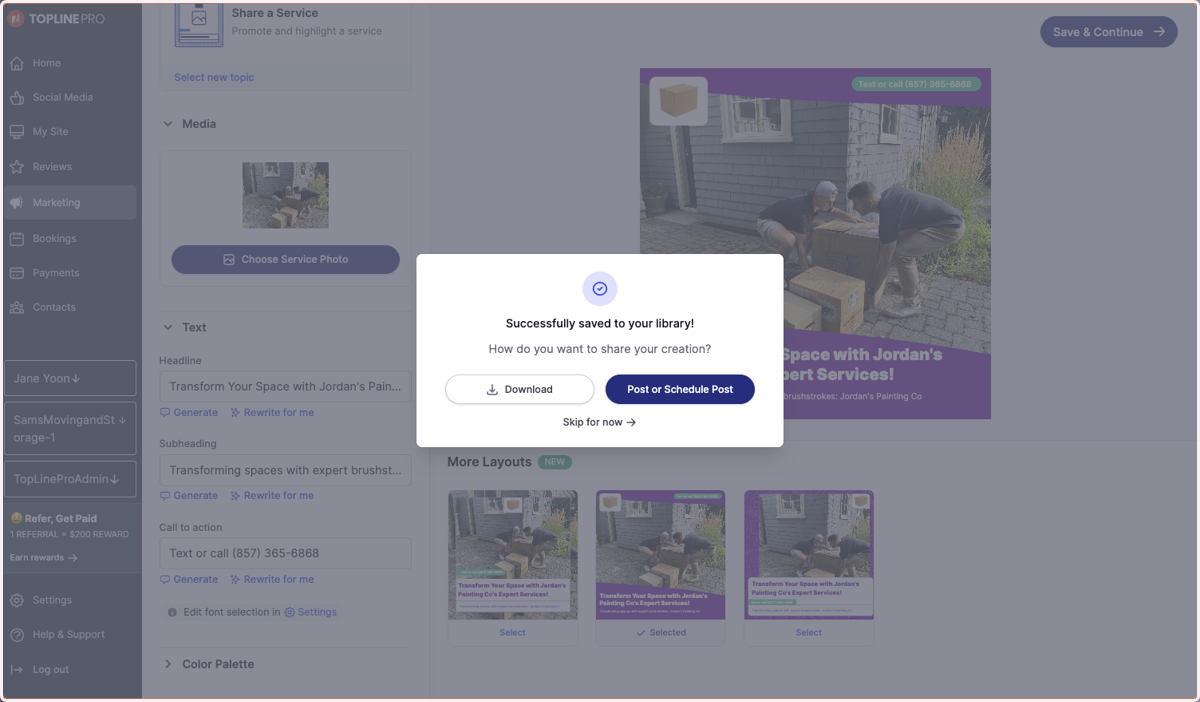
13. Download the photo to your device or select Post or Schedule Post to share your media asset
Clicking Skip for now will keep the photo in your Digital Media page on the app
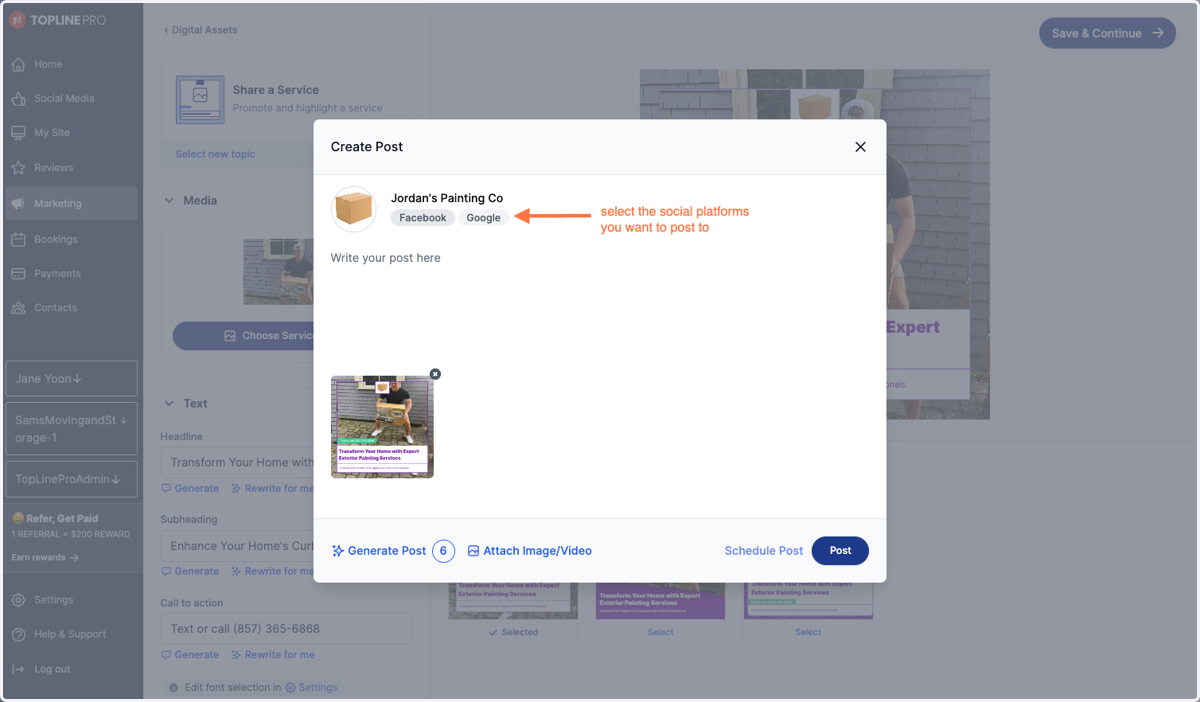
14. Write or generate text for your post before sharing
Make sure to select the social platforms you want to post to!
15. Click on Post or Schedule Post to share at a later time
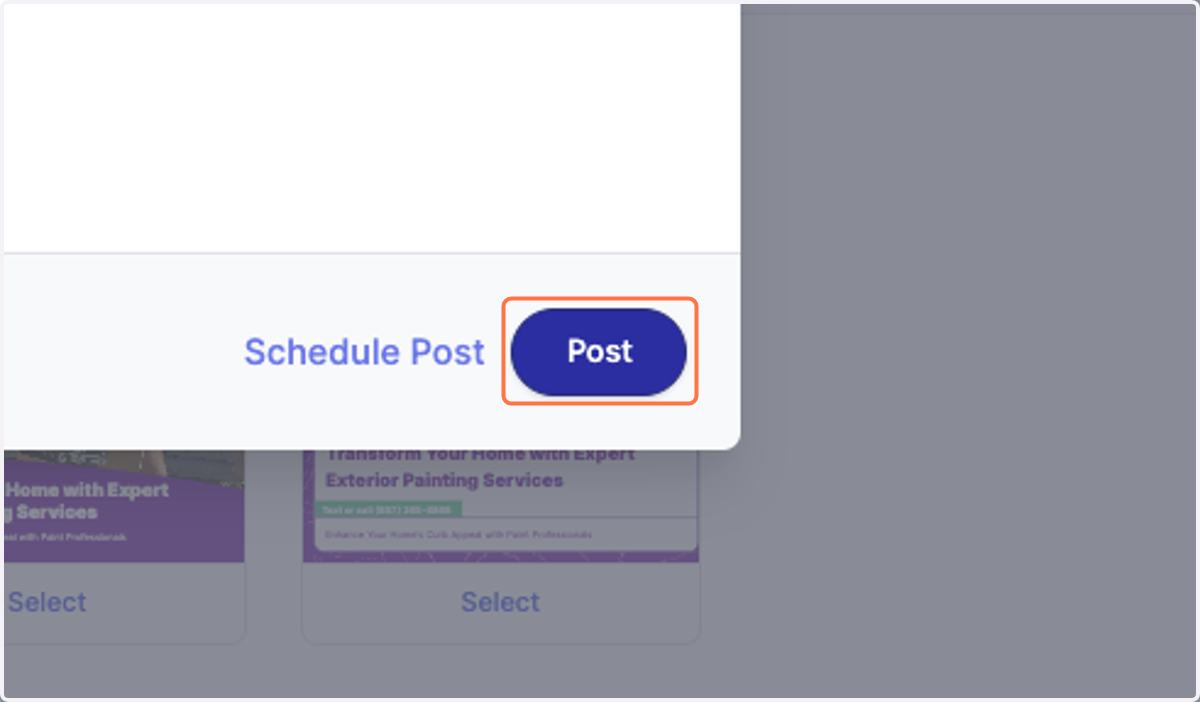
16. You're all set! Go check out your post or continue scheduling posts for the future.