Gartic Phone Plus Guide v3.1
In this guide, we will explain all the different features of the extension and how to use them.
Updates in v3.1
- Added flagged users which are highlighted orange
- Accounts under age threshold are now highlighted in yellow instead of orange
Updates in v3.0
- Mid-Game blocking is now Safe Mode
- Option to show/hide preview window
- Choose avatar instead of getting a random avatar
Updates in v2.6
- Added timer
- Added help link
1. Safe Mode
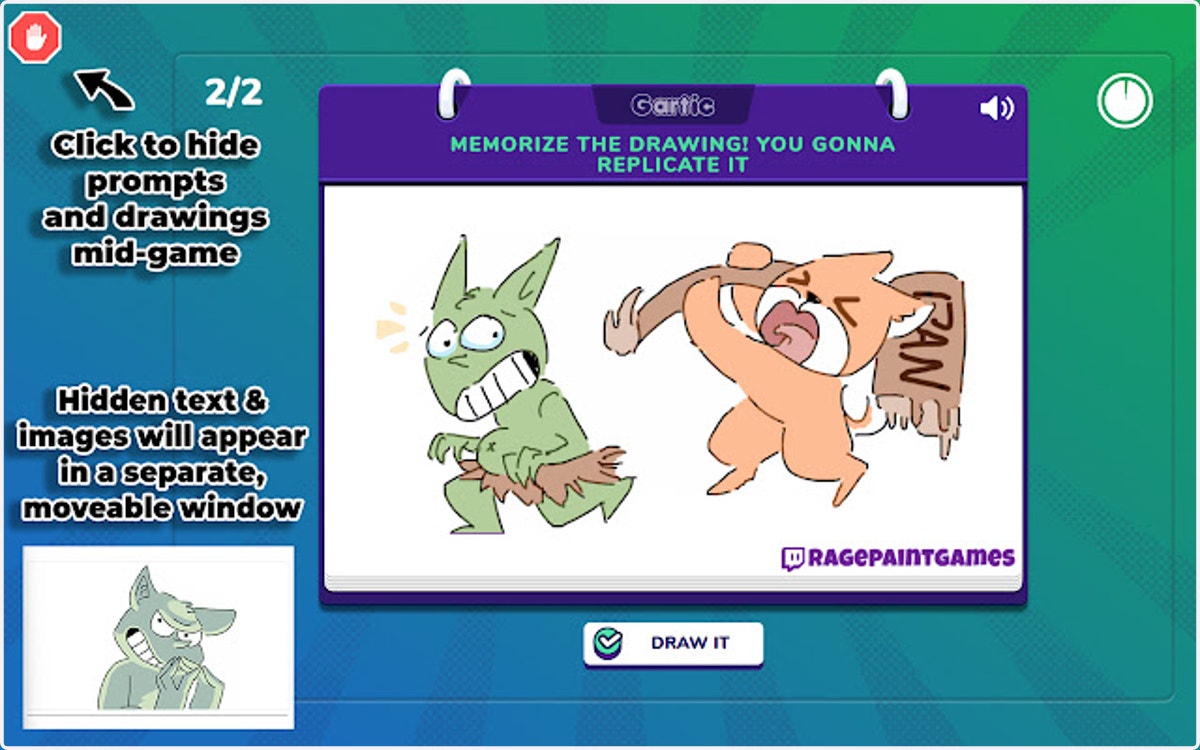
Click the green checkmark icon in the top left-hand corner of Gartic to enable safe mode. While enabled, the icon will display as a red blocking icon instead of a green checkmark icon.
This will hide all prompts and drawings during the game. The hidden text and images will appear in a separate, movable window that you can have off stream. This way, you can preview what has been written or drawn and determine whether or not you'd like to display it on your stream.
Note: Mid-game blocking can be toggled on or off anytime during the game.
2. Hidden Prompt Example
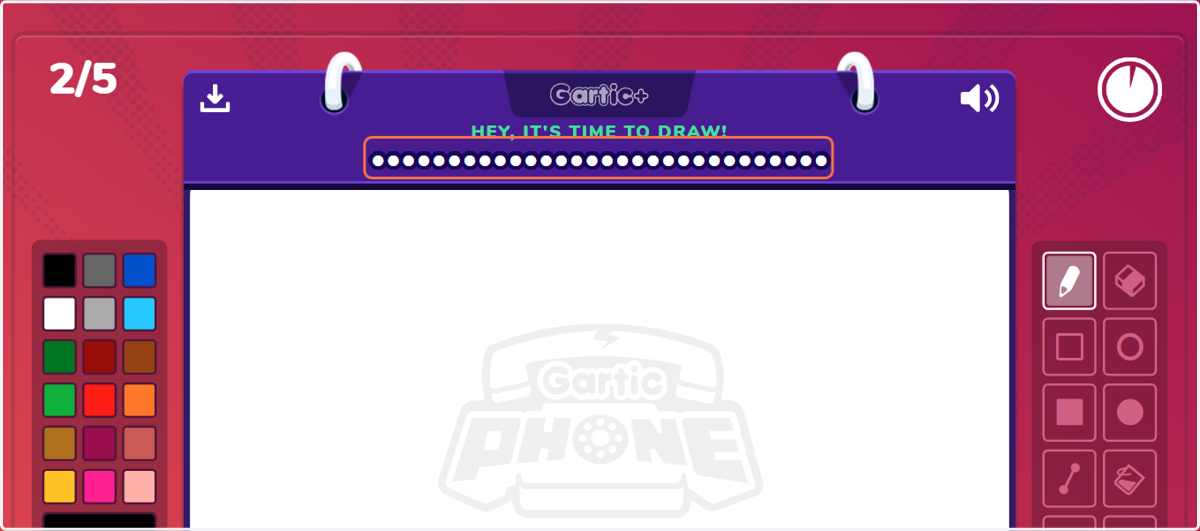
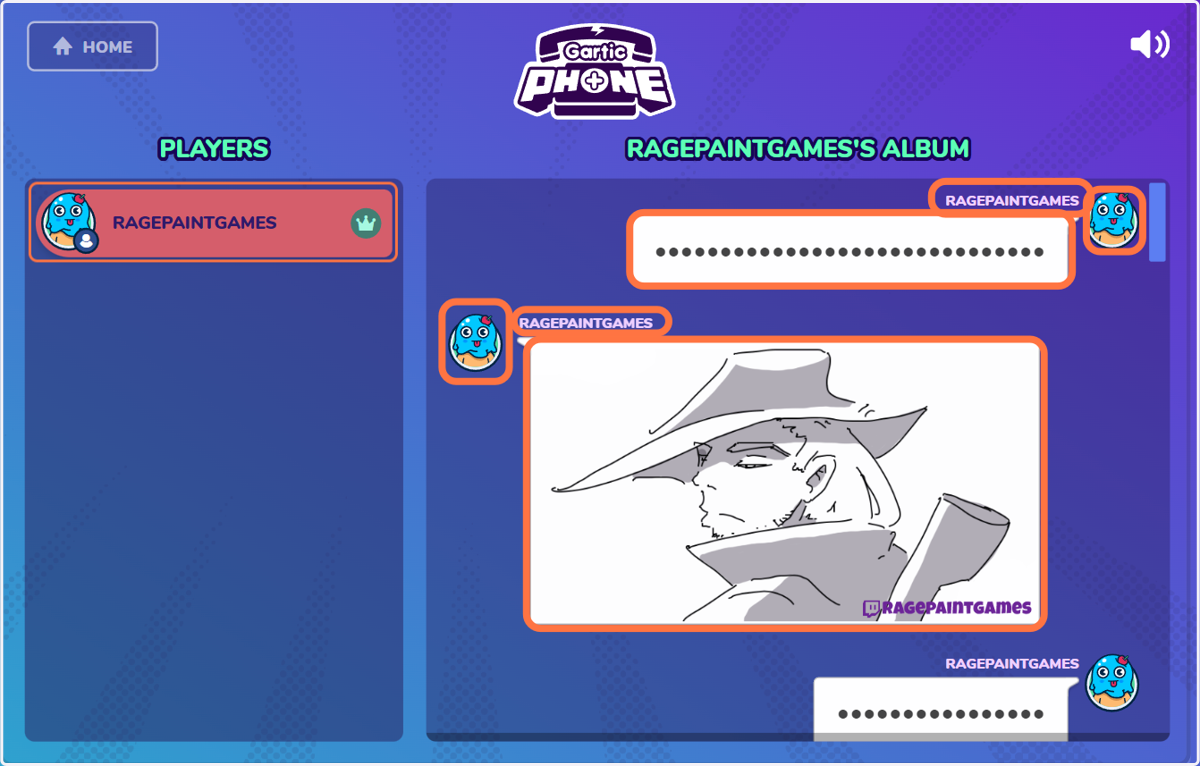
Hidden prompts will appear like a hidden password on-screen.
3. Hidden Drawing Example
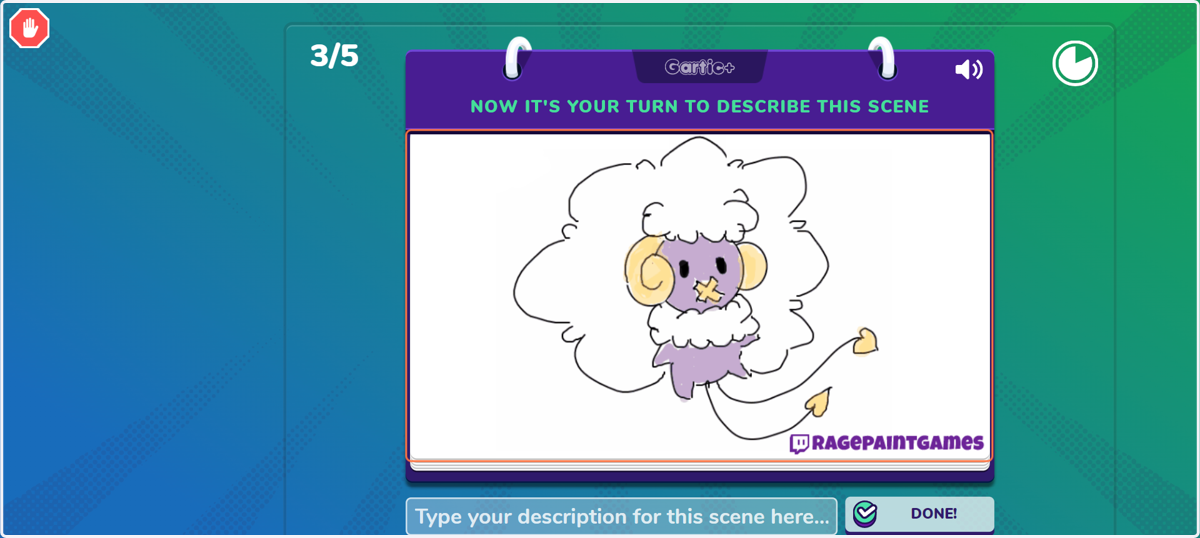
Hidden drawings will be replaced by a Gartic drawing done by RagePaintGames on Twitch (the extension creator). You can remove or replace these images with your own images, which we will talk about more later in the guide.
Note: We know this is a little self-promote-y, but we don't make any money off this extension, nor would we want to. We are simply trying to make Gartic Phone safer for our fellow streamers, so thank you to those of you who decide to keep our images, giving us credit for the extension. We appreciate it!
4. Album Blocking
You can block drawings and prompts from a particular user by clicking on their album in the left-hand sidebar, their name, icon, prompt or drawing during any part of the album reveal stage.
5. Twitch Avatar Example
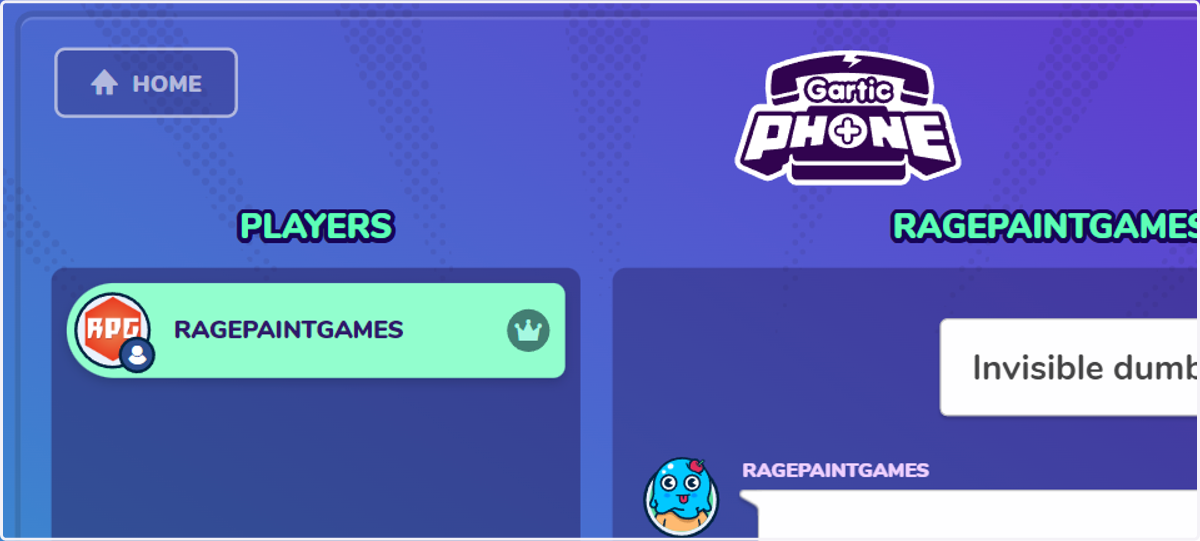
Here is a screenshot showing how RagePaintGames' avatar was automatically pulled into the game, with that setting enabled.
6. Hidden Twitch Icon Example
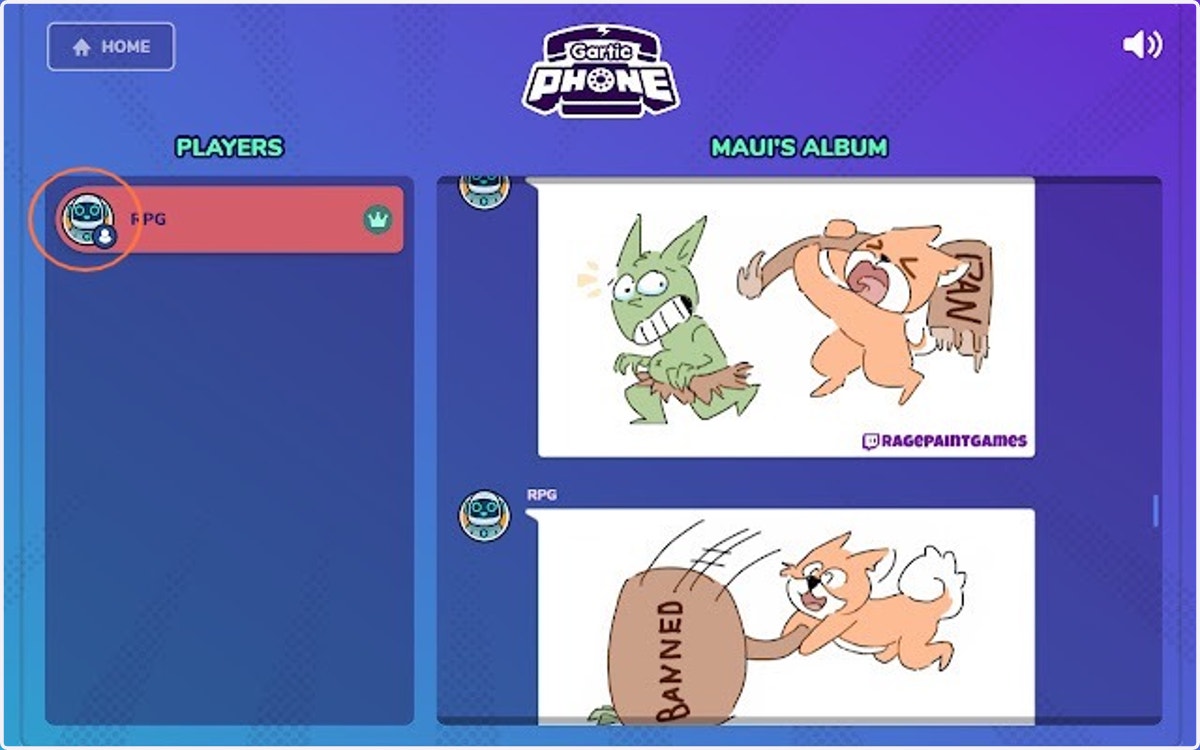
When you censor a user, their Twitch icon will revert back to a default Gartic Phone avatar. Thus, if someone has an inappropriate Twitch icon, you can hide it from stream.
Note: Inappropriate images can be reported to Twitch, so it's unlikely to happen but this was a safety precaution we built in.
7. Extension Options
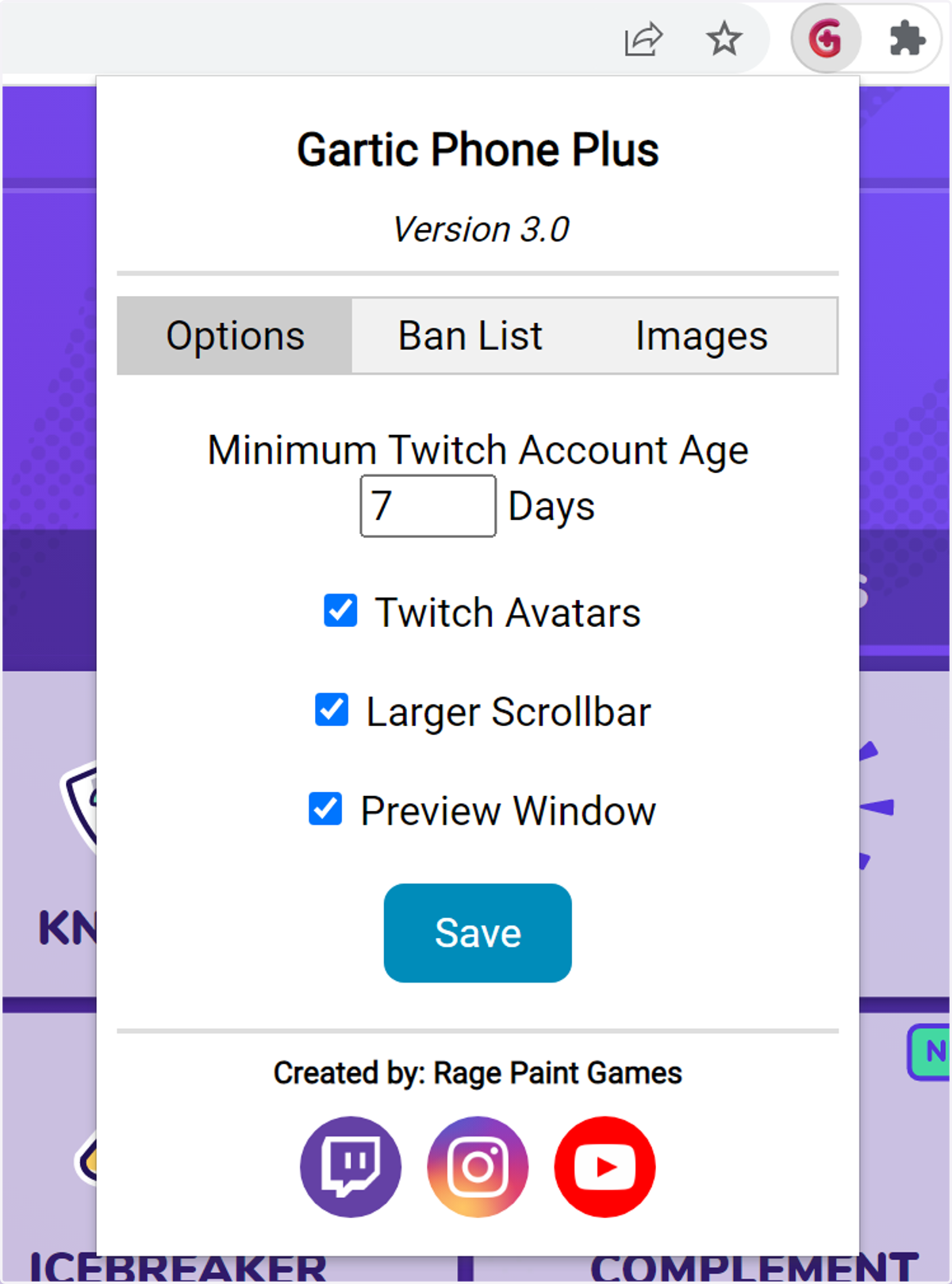
If you click on the Gartic Phone Plus extension icon, you will find additional options you can enable.
Minimum Twitch Account Age - Any Twitch account under this amount of days will be flagged in orange and a pop-up warning message will appear if you attempt to start a game if that user is still in the lobby. Note: This only works with Twitch authenticated games.
Twitch Avatars - Check the box next to this option, if you would like the game to automatically pull in Twitch icons instead of using the Gartic Phone avatars.
Larger Scrollbar - Check the box next to this option, if you would like the scrollbars in Gartic Phone to be a bit wider/easier to grab.
Preview Window - Un-check the box next to this option, if you don't want to see the preview window when prompts and images are blocked. This is useful when not streaming or regular viewers or moderators.
8. Twitch Flagged User
A list of problematic Gartic Phone Twitch users is being built out by a community of Gartic Phone streamers and mods. If a user joins your game and is found on this list that user will be highlighted in orange.
Hovering over a flagged user will display 'This user has been banned by other Gartic Phone streamers.'
Note: This list is mostly English speaking users. Non-English streamers may not get as much use out of this feature.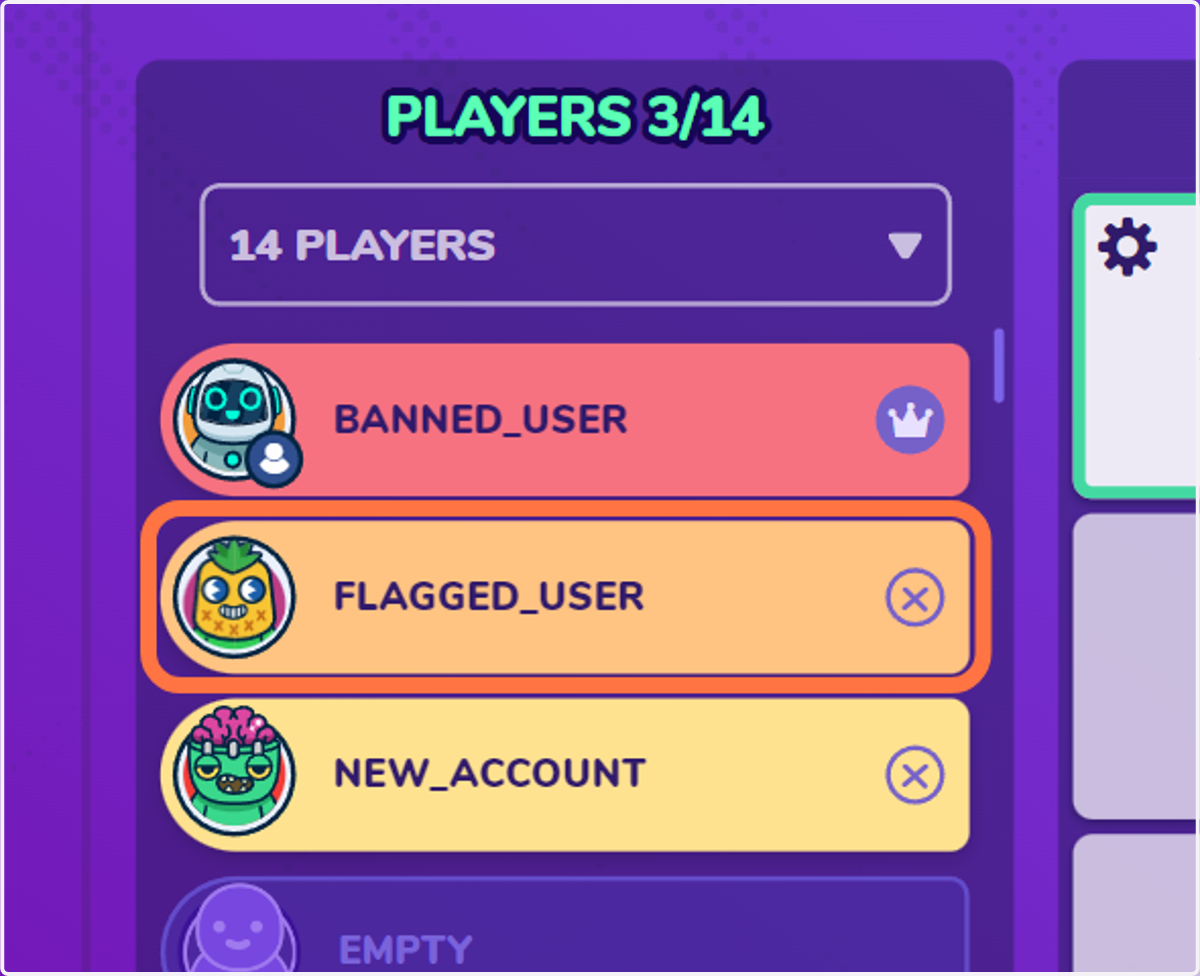
9. Twitch Account Age Display
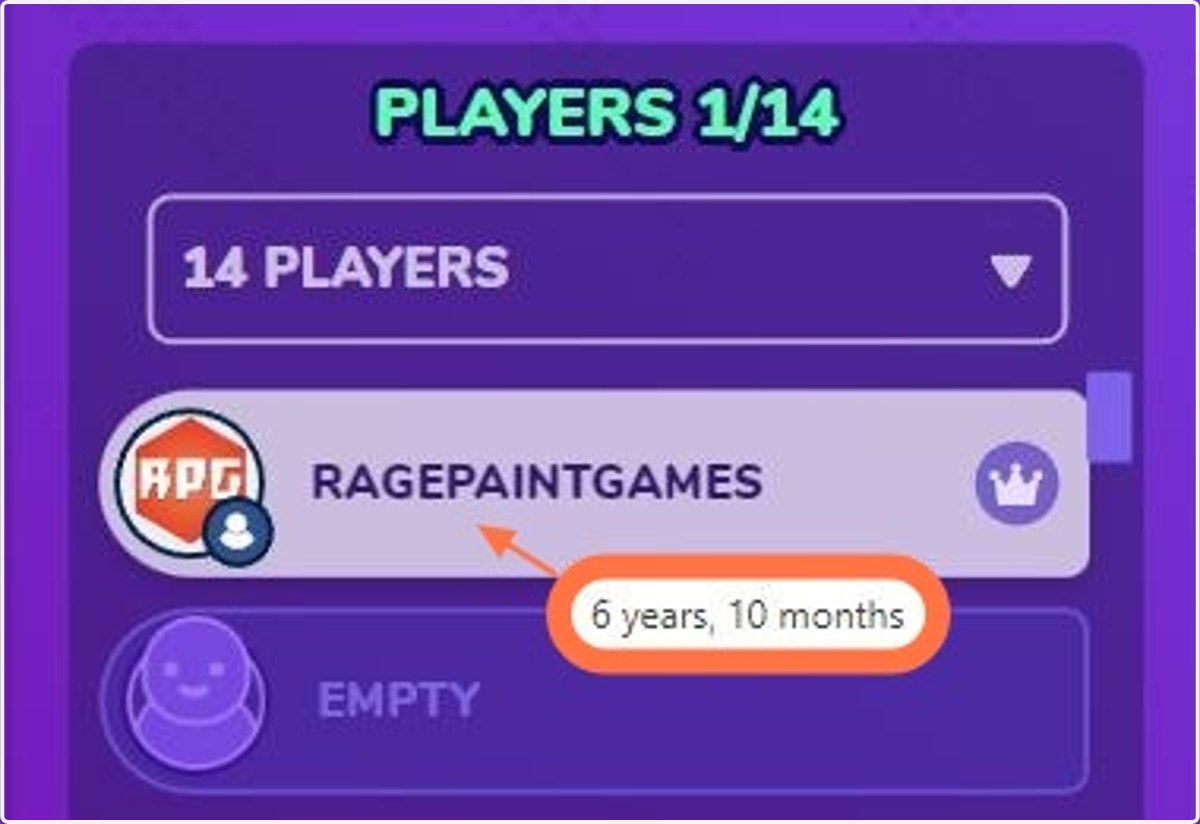
If you hover your mouse over a user's name, it will display their Twitch's account age.
Note: This only works with Twitch authenticated games.
10. Ban List Tab
NOTE: We removed this feature after Gartic Phone released their own sync to Twitch ban lists, but just in case this info is still useful to someone, we have left it in this guide.
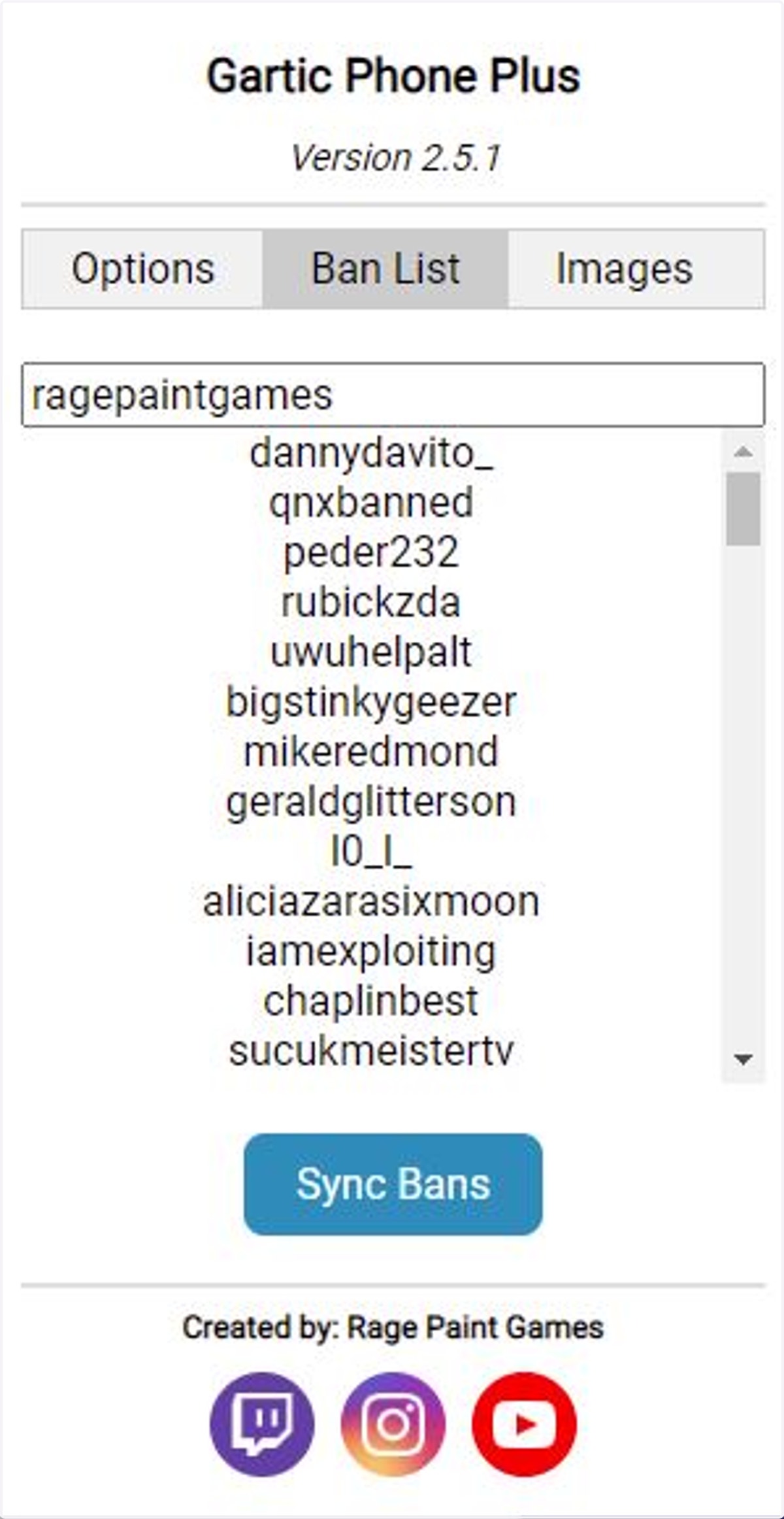
On the ban list tab, you can enter your Twitch username and click the "Sync Bans" button to import your list of banned users into the extension.If a user of the same name manages to join your game, their name will get flagged in red in Gartic Phone and a pop-up message will warn you that there's a banned player in your game, if you attempt to start the game. You will want to sync your ban list periodically, as this doesn't update automatically. It only syncs a single time, with your current list of bans.
11. Approve Sync
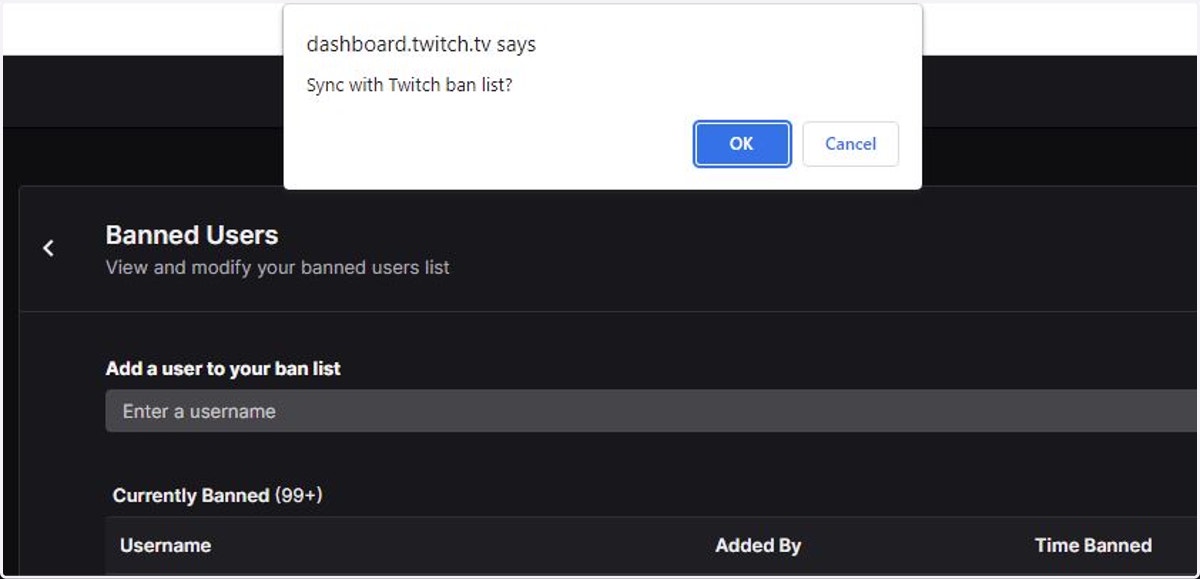
When you click "Sync Bans", it will open your ban list in another window and ask for you to approve the sync.
Note: This feature takes a second to load. Please wait for the pop-up that will appear on the top of the screen.
12. Removing or Replacing Images
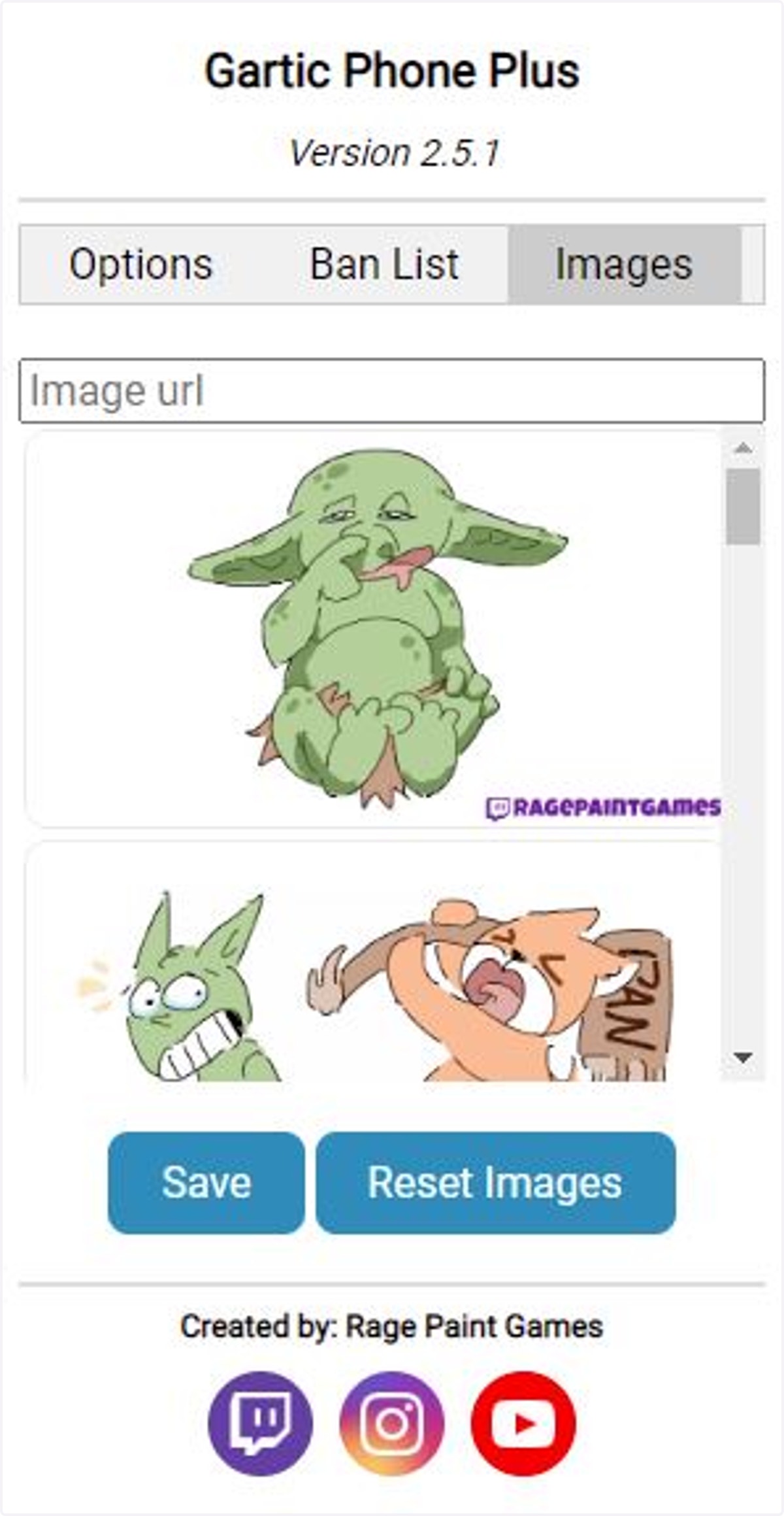
If you don't like the images we use to replace the troll drawings, you can remove some or all of them on the "Images" tab. To add your own images into the mix, simply paste the image URL into the field and press enter. When you are done click the "Save" button.
Note: If you have accidentally removed the default images, you can click the "Reset Images" button to restore them.
13. Custom Timer
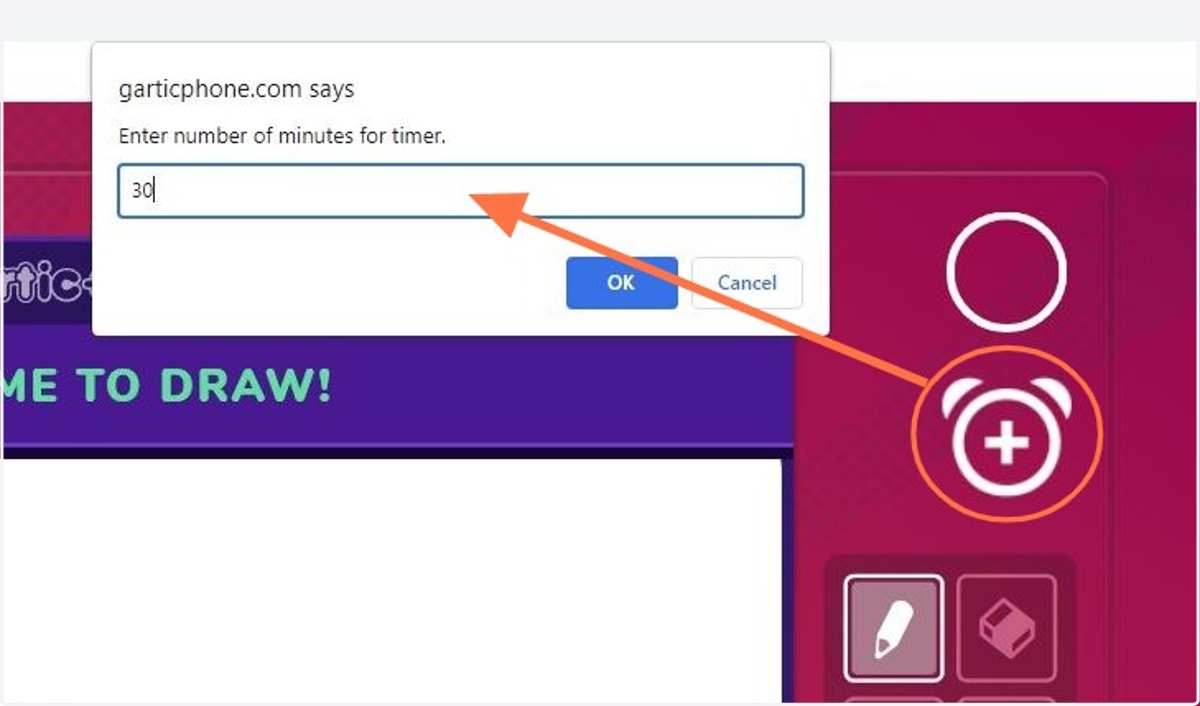
If you'd like to host a longer round than normal, you can start a game with "host decision" for the timer, and then click on the clock icon to start a count down. When the timer runs out, it will play the Gartic Phone ringing sound to let you know time is up.
If you'd like to end the timer early, click on the countdown and enter "0".
Note: The timer doesn't automatically end the round; you will still need to click "done" below the canvas to finish the round.