Forward Approvals in Munis
Hi everyone,
A friendly reminder: If you are an invoice or PCard approver in Munis and plan to be out of the office for a few days, please be sure to forward your approvals ahead of time.
You can assign them to your supervisor or another appropriate authorized approver. Taking a
moment to set this up helps keep invoices moving and ensures they are reviewed and paid on
time while you’re away.
We appreciate your help in keeping things running smoothly, thank you!
Hub - Pitkin County Munis Home
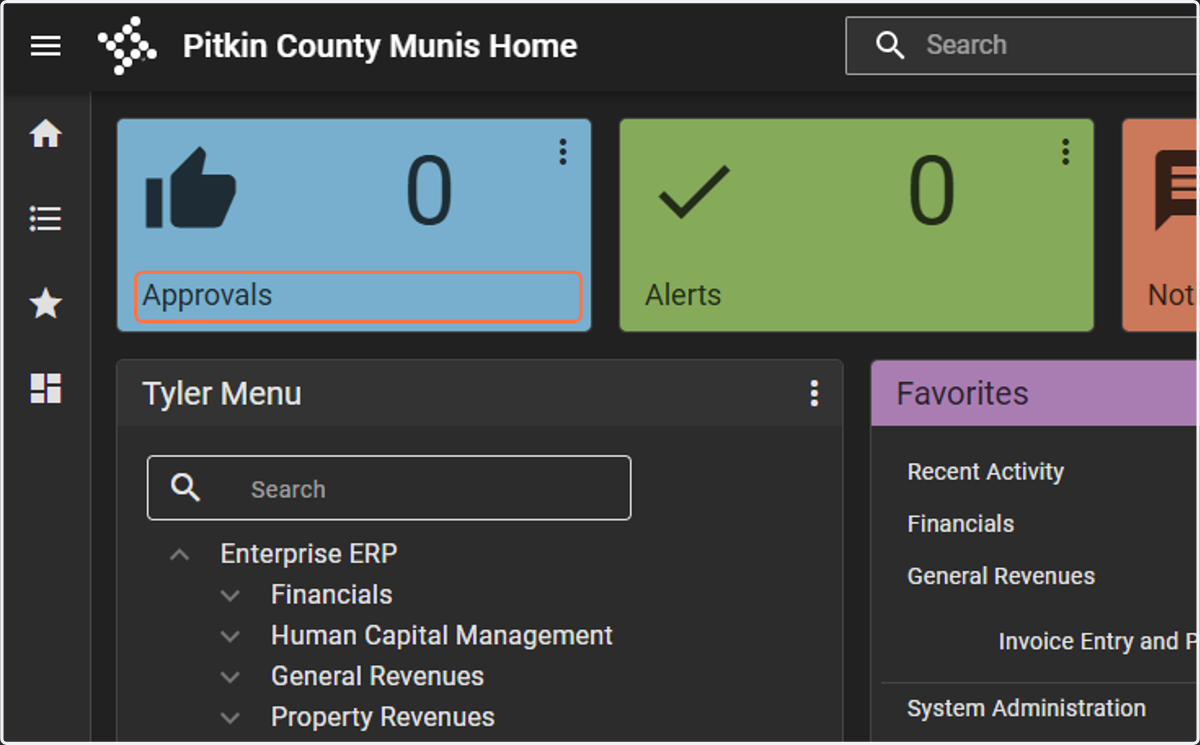
1. Click on Approvals
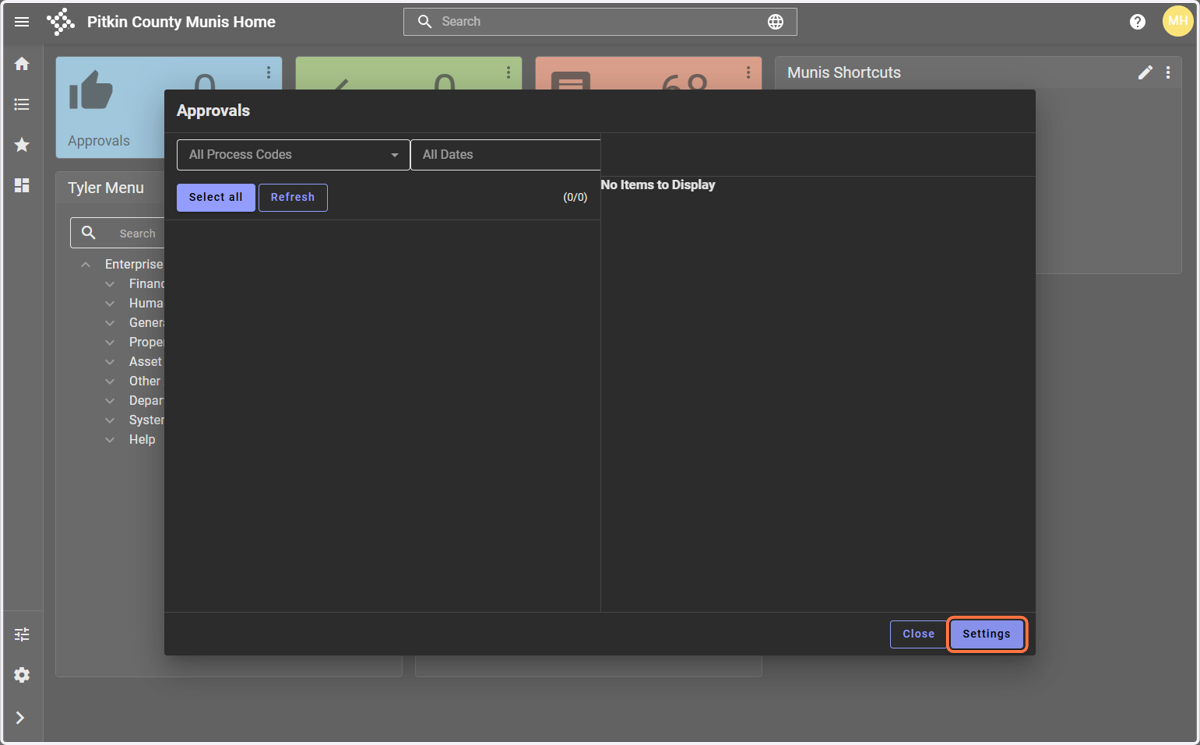
2. Click on Settings
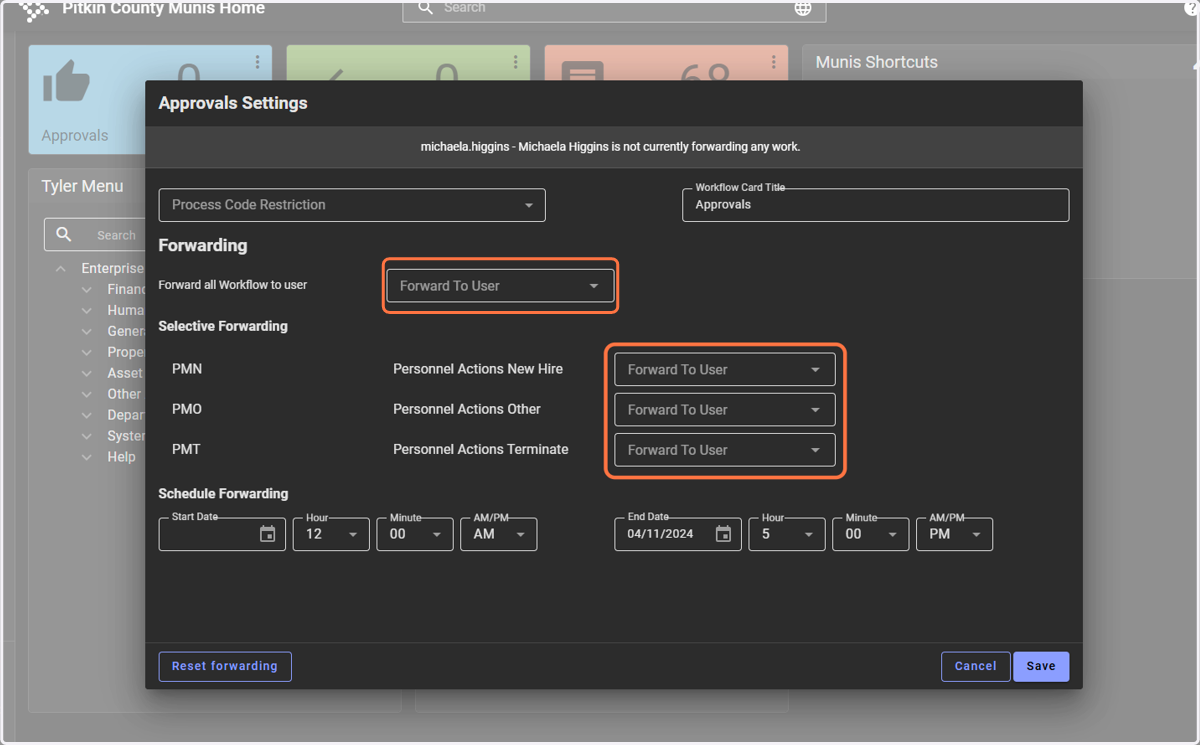
3. Select who to forward to, and for what workflows.
You can either:
A) Forward all workflows to one user
OR
B) Forward specific a workflow to a specific user (selective forwarding)
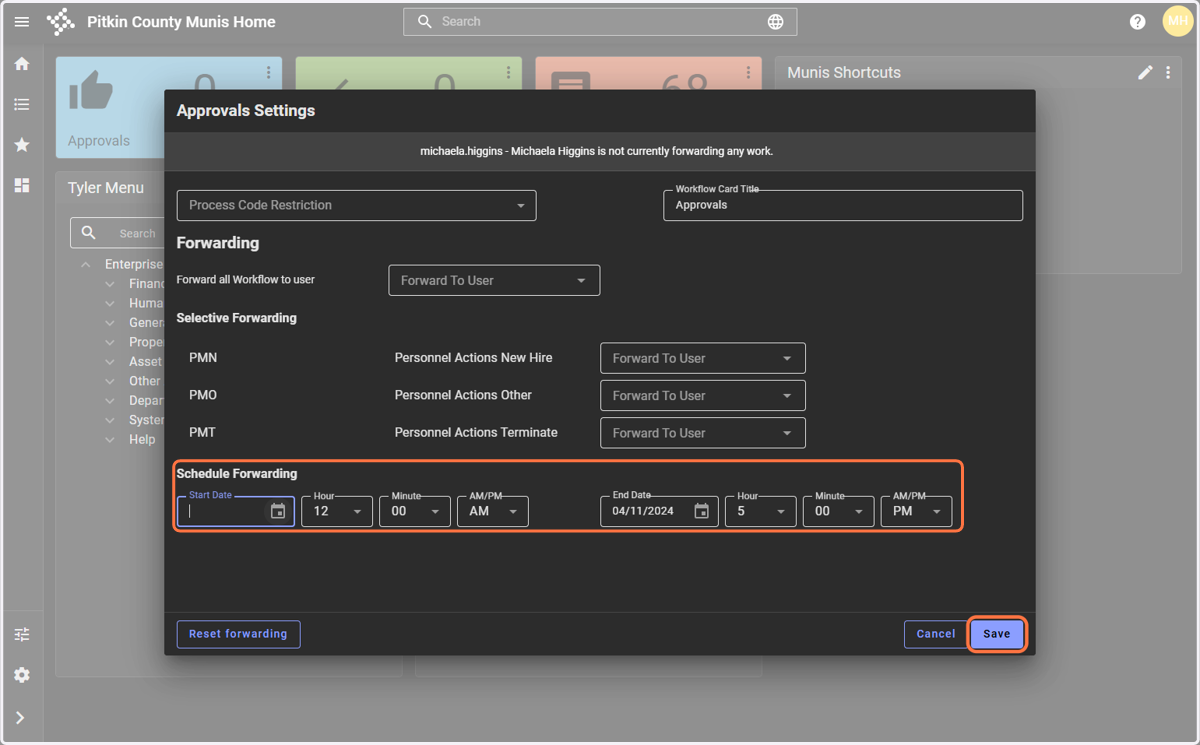
4. Set your date timeframe and click Save
Remember: Scheduled Forwarding can only be set in the future.