For Families: ORS - How to Register a Student for a Session
This step-by-step guide shows a parent/guardian or HST how to register a student for a class on the Homeschool Hub Online Registration System (ORS).
Log in to your CPA Homeschool Hub account
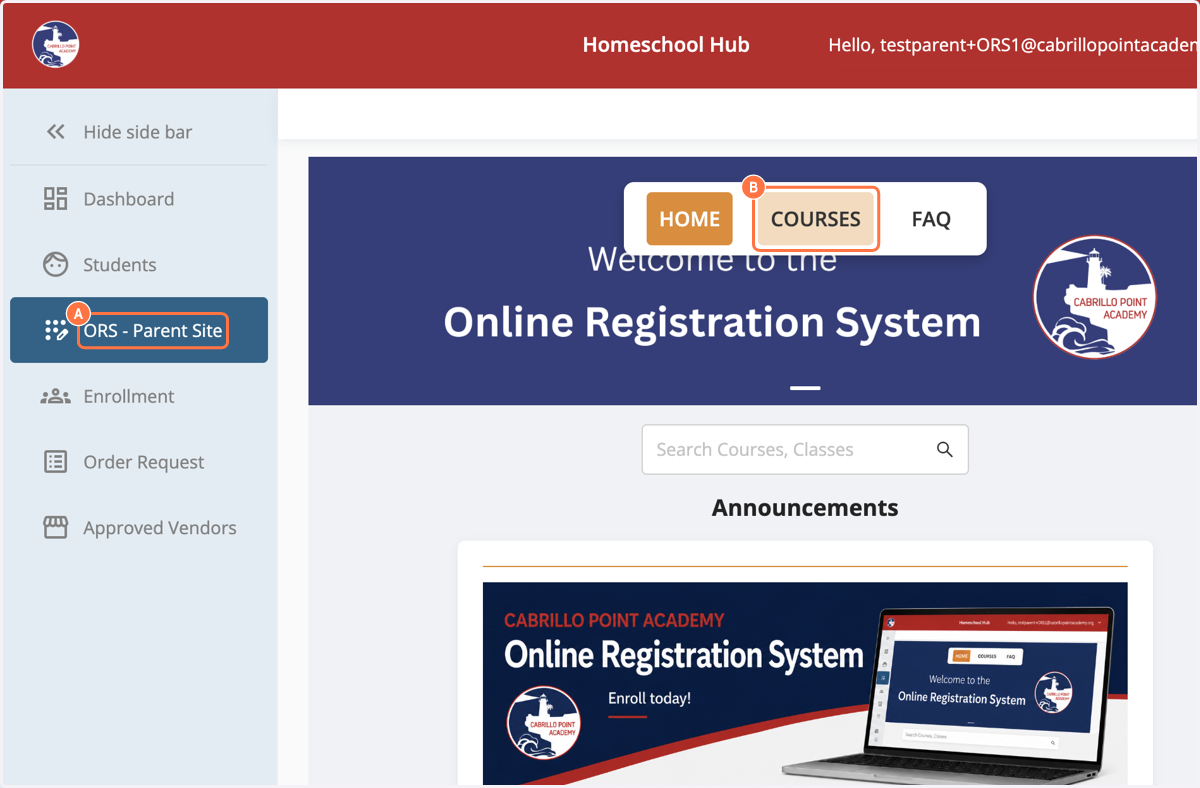
1. A. Click on ORS - Parent Site
1. B. Click on COURSES
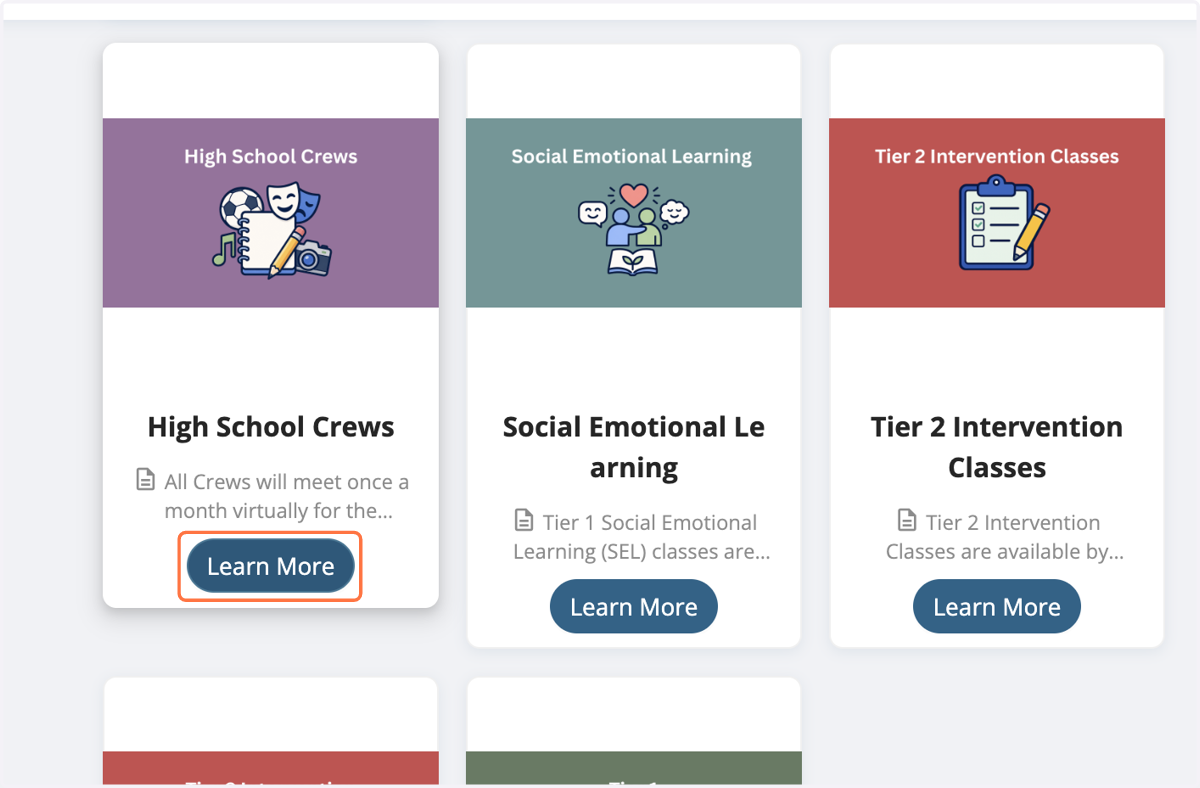
2. Browse the available courses and click Learn More
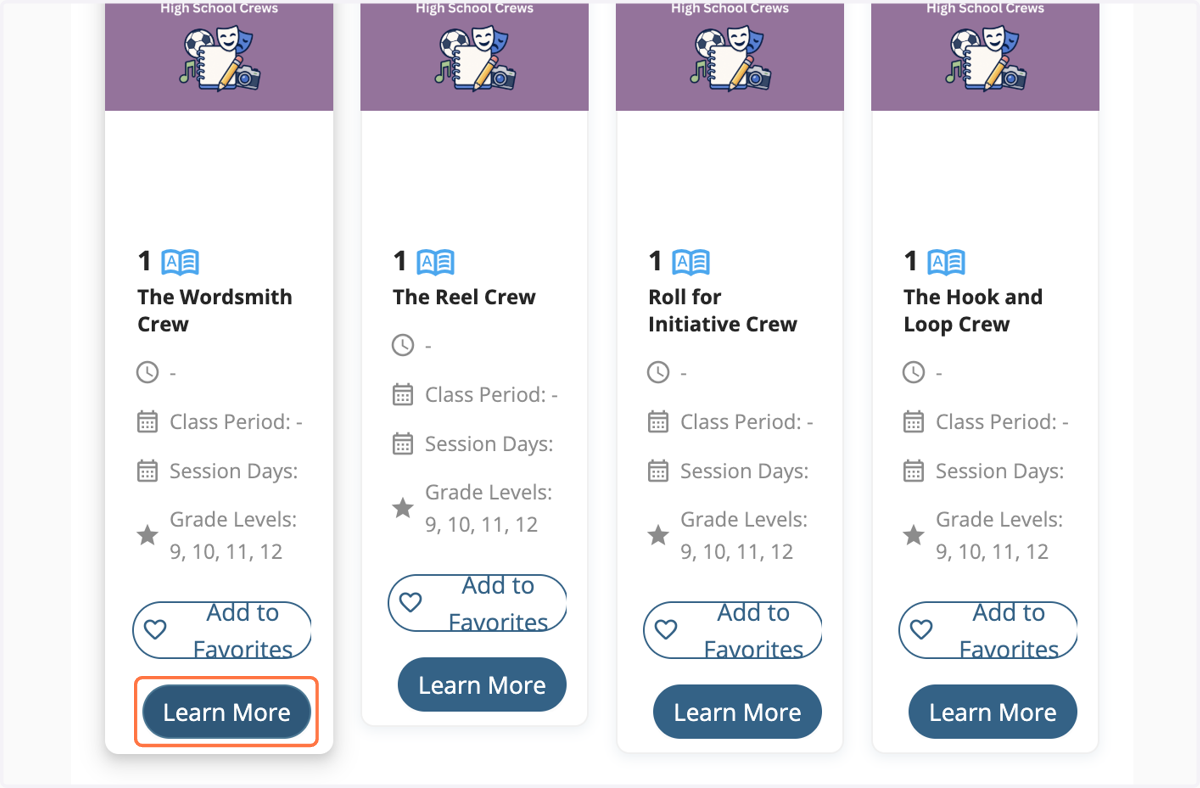
3. Browse available classes and sessions, and click Learn More
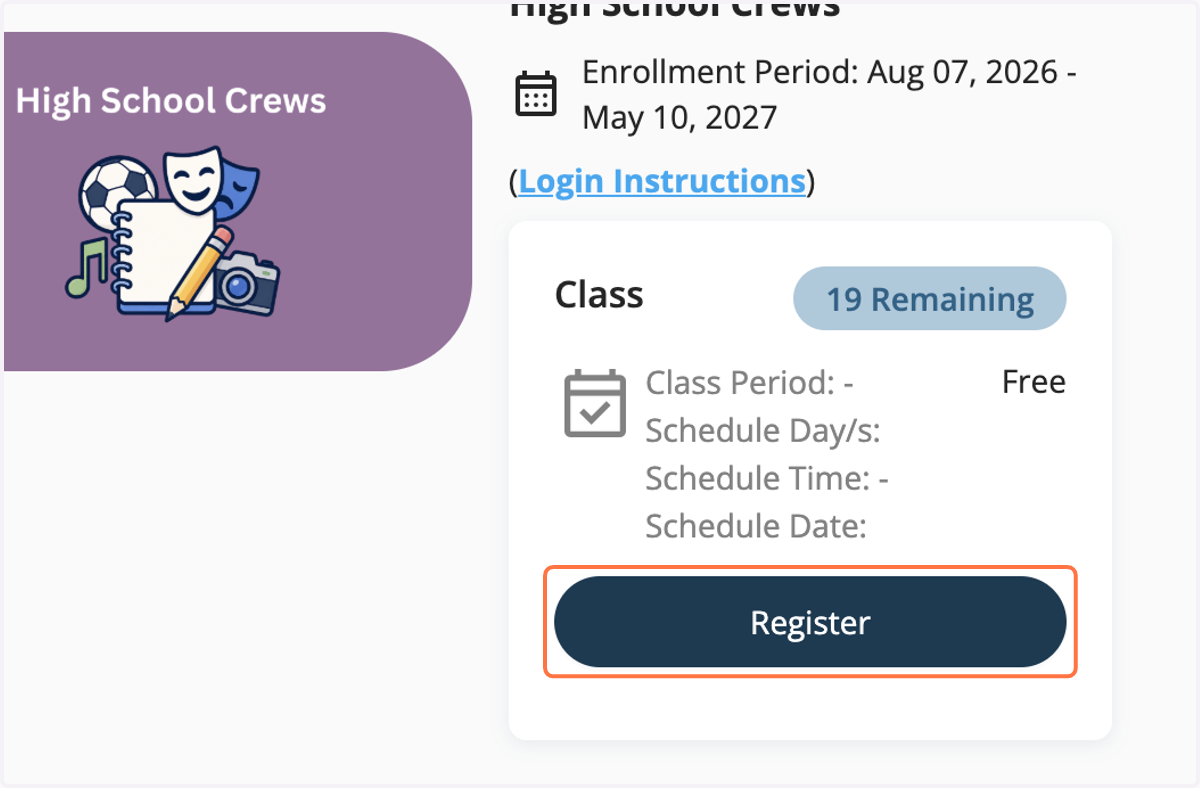
4. Click on Register
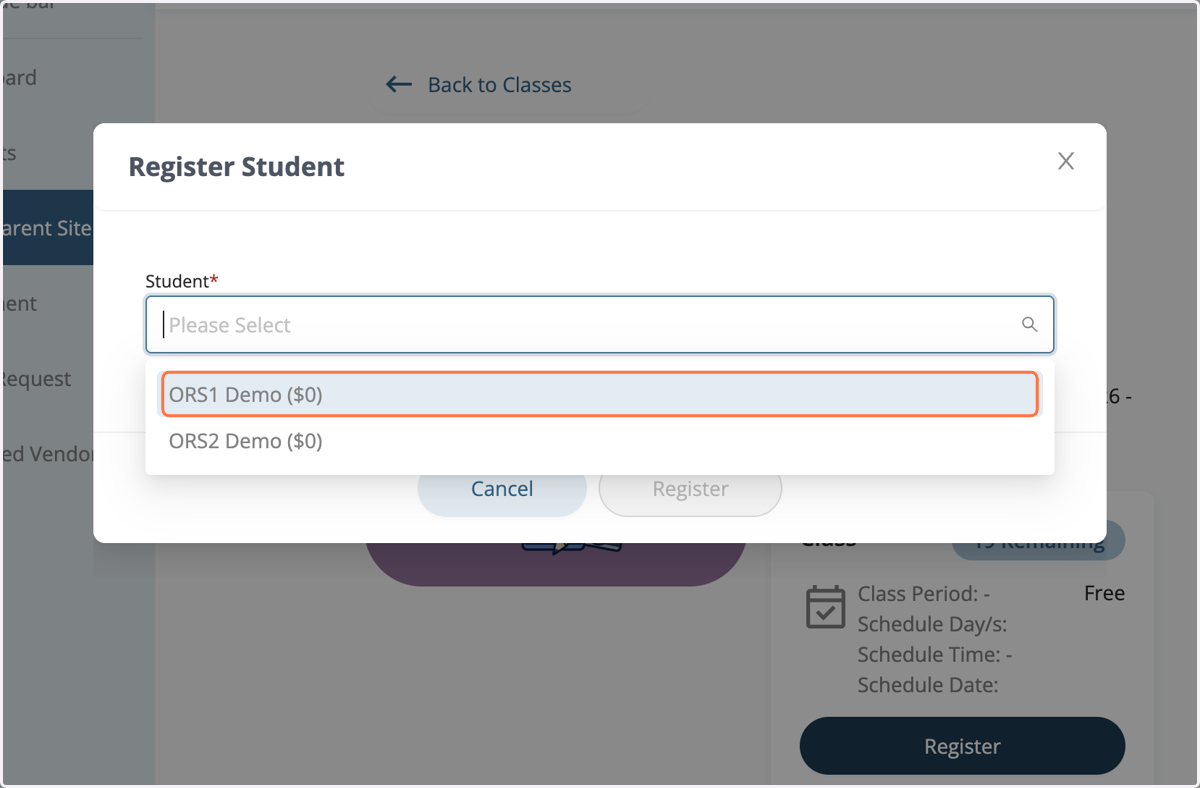
5. Select the student you would like to register
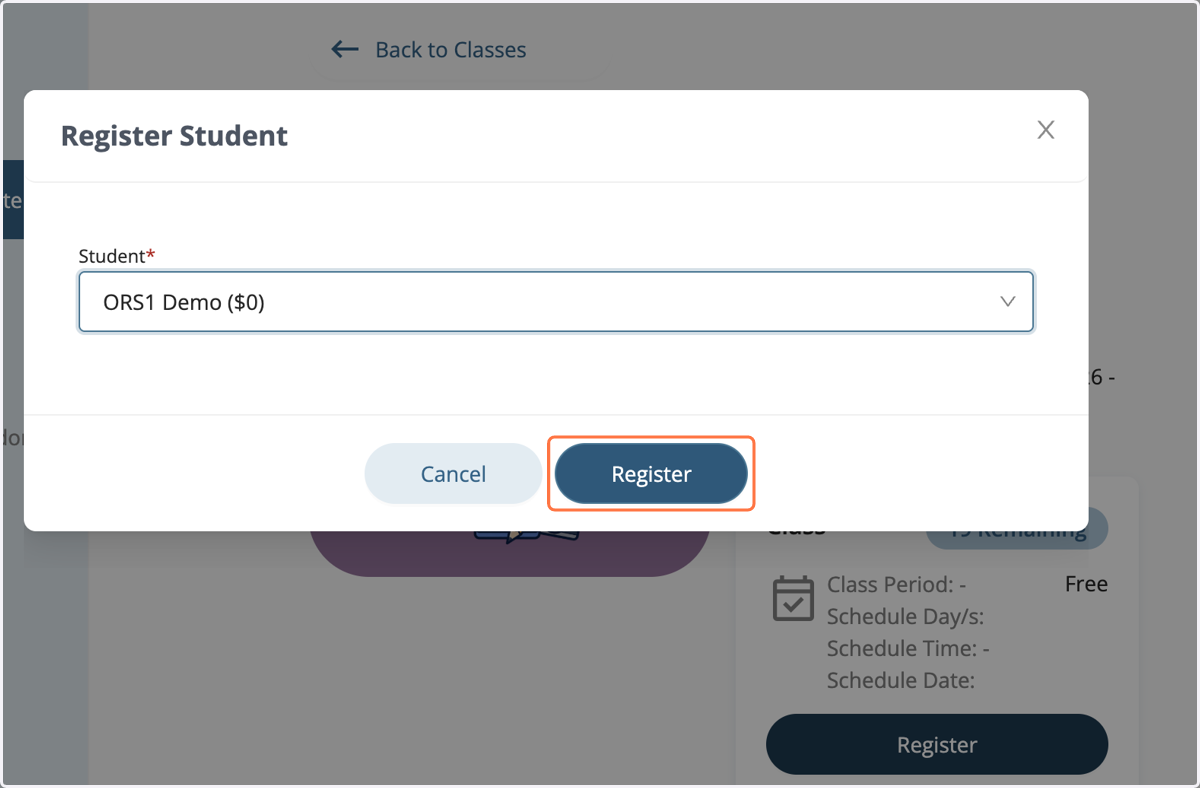
6. Click on Register
7. Click on Okay
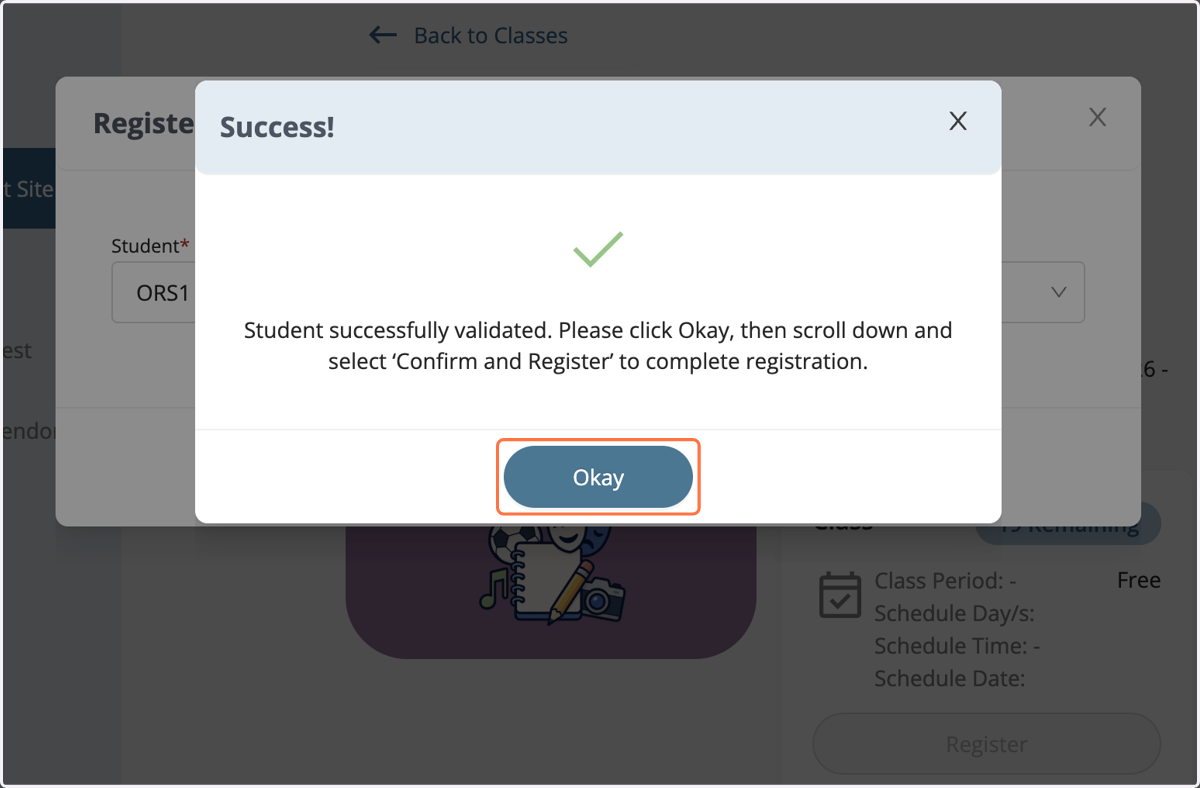
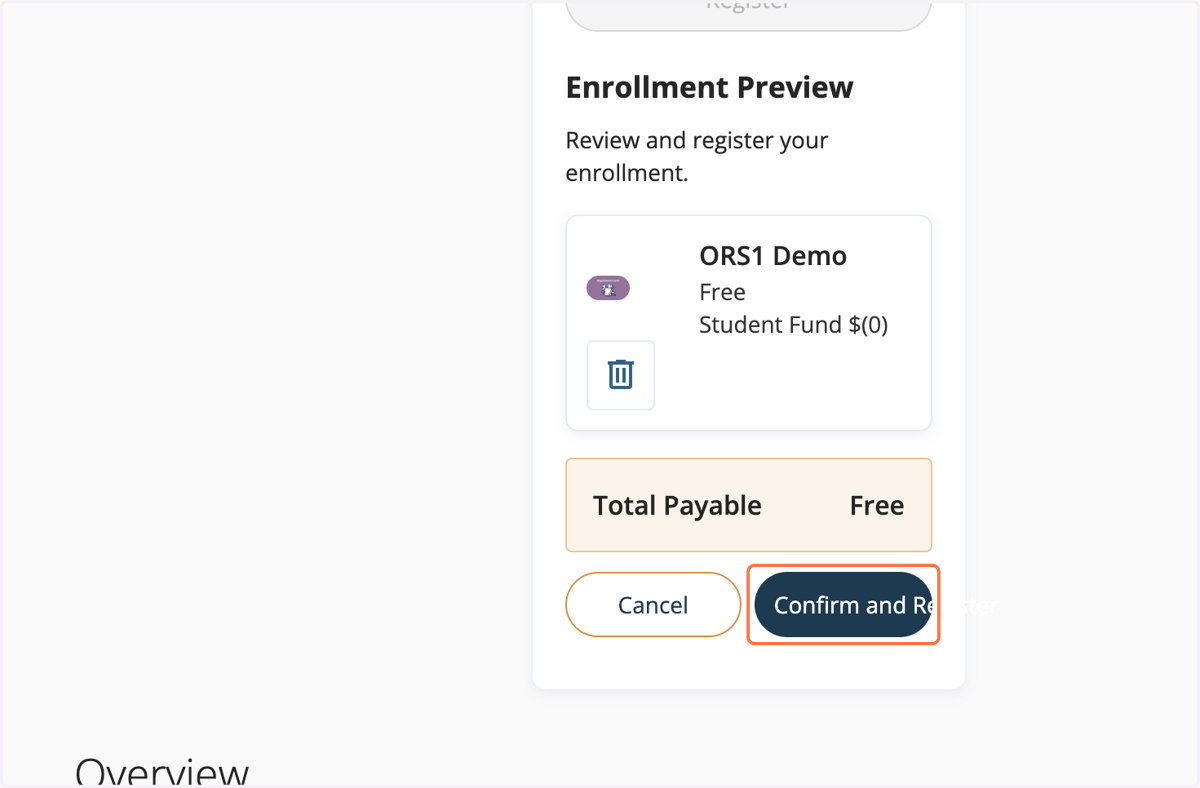
8. Click on Confirm and Register
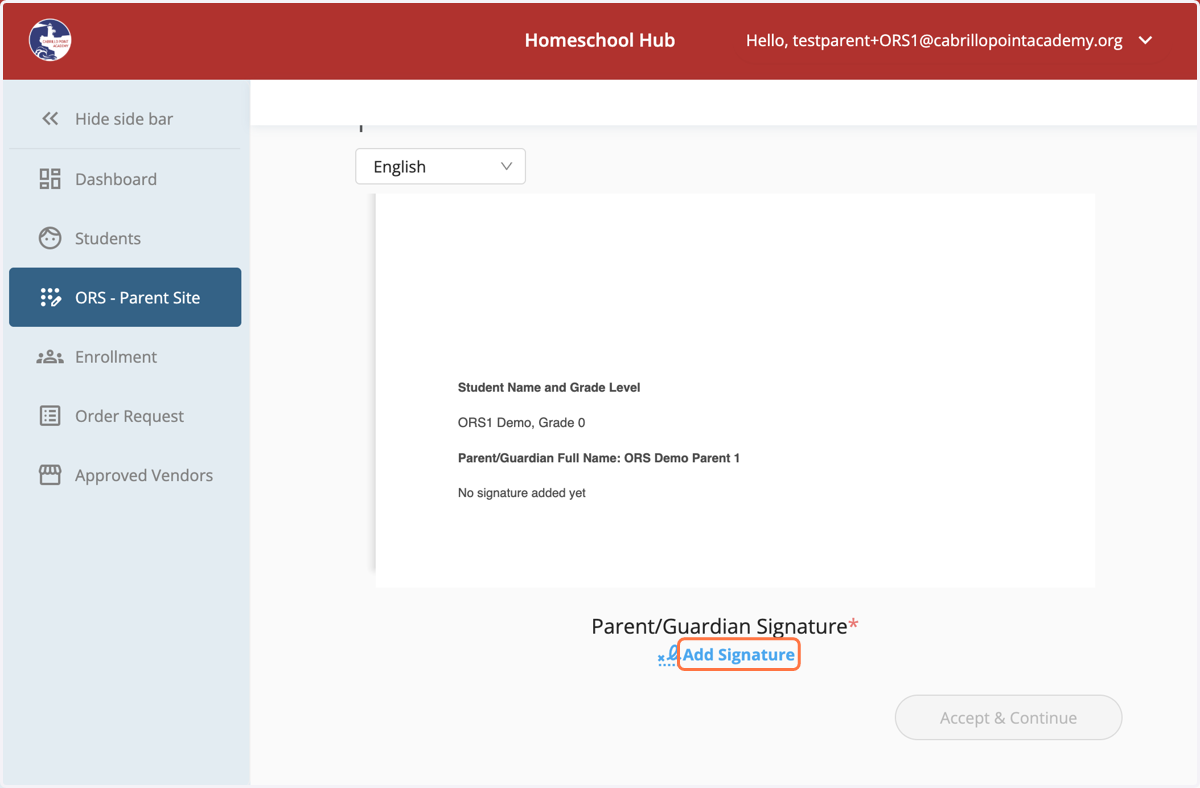
9. Select English or Spanish and read through the ORS Waiver
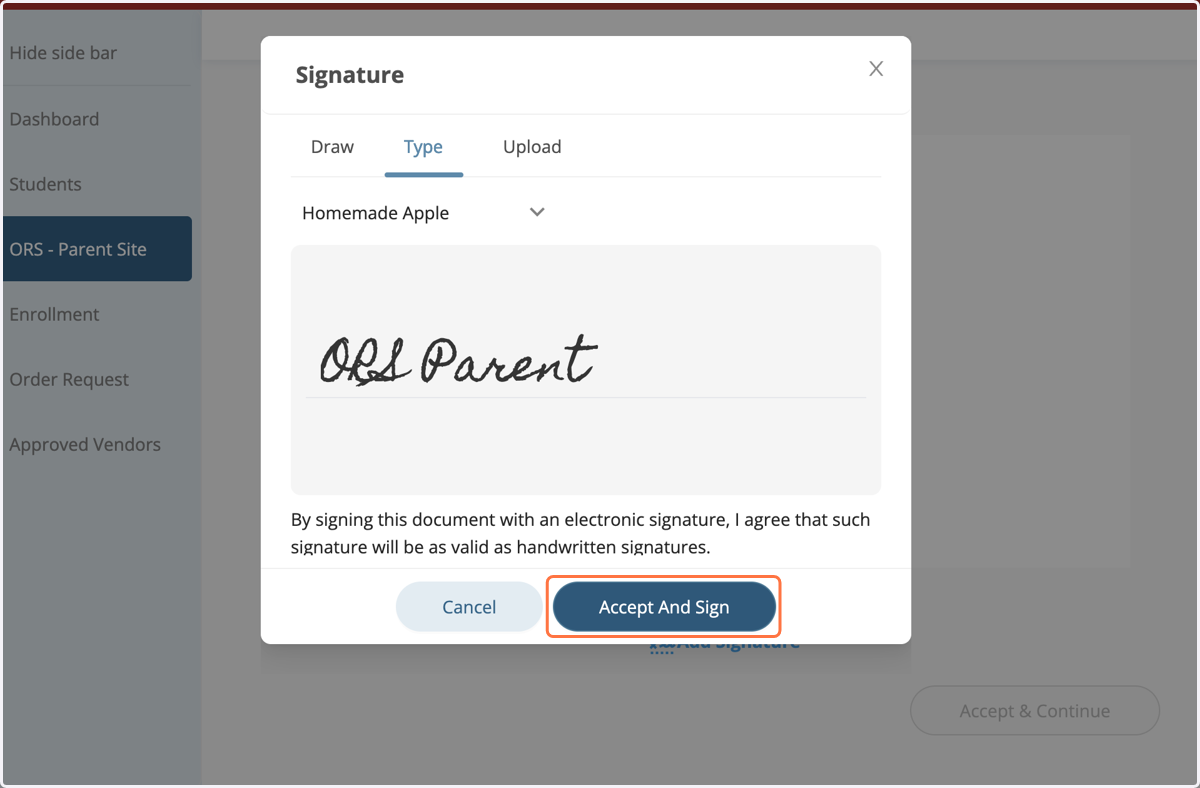
10. Draw, type, or upload your signature. Click on Accept And Sign
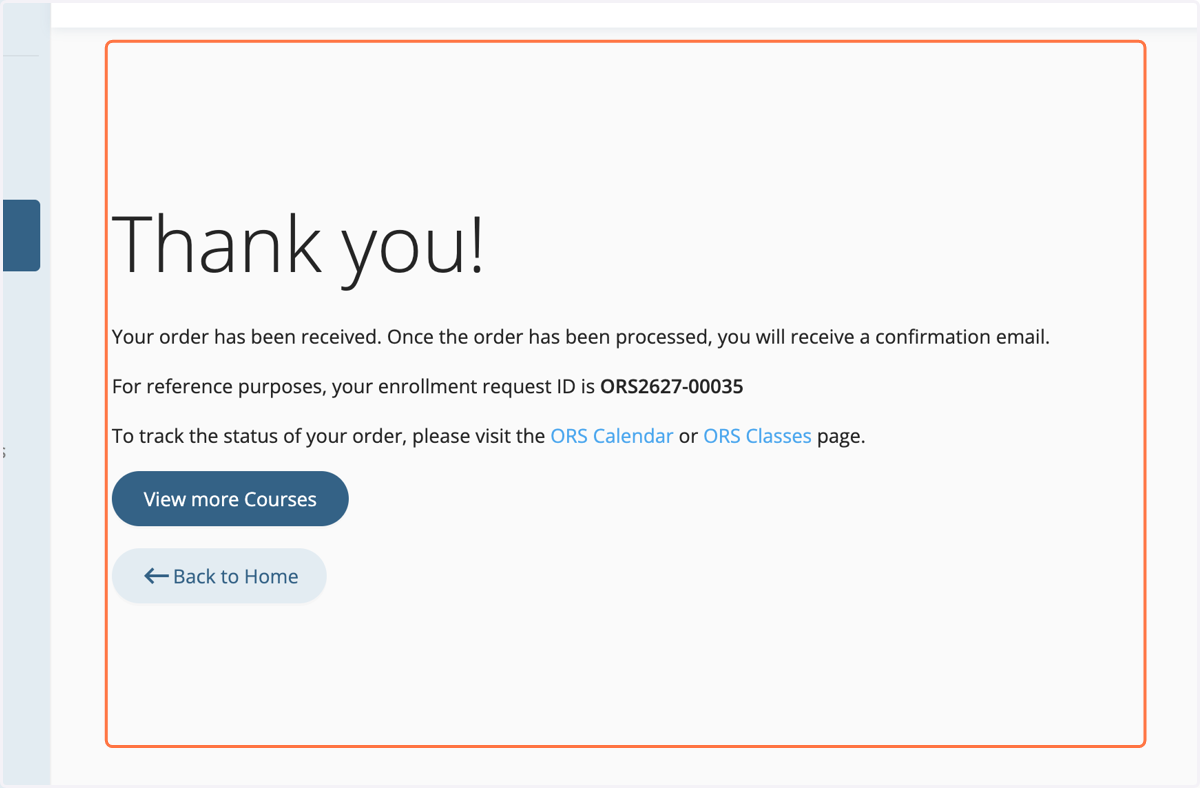
11. Once you make it to the Thank you! page, your student has been successfully registered. Click on View more Courses for the course catalog or Back to Home to view the ORS Homepage.