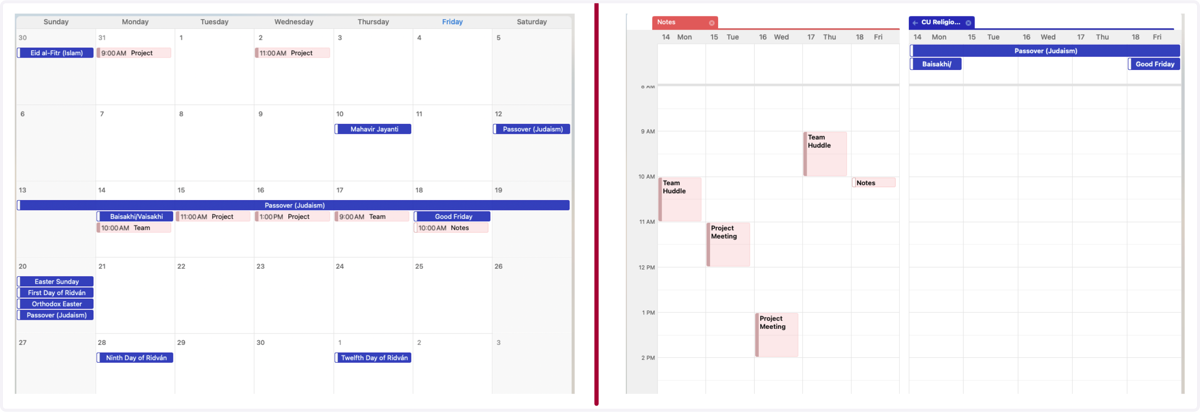
Follow the Steps Below to Subscribe to the CU Religious Observances Calendar in Outlook for Web.
1. Click on the link below and follow the steps.
On your computer, open Calendar - Chapman University. If prompted, log in with your Chapman credentials. Select Subscribe from web. Please note that the calendar is added via Outlook for Web, but will be available on all devices after it’s added.
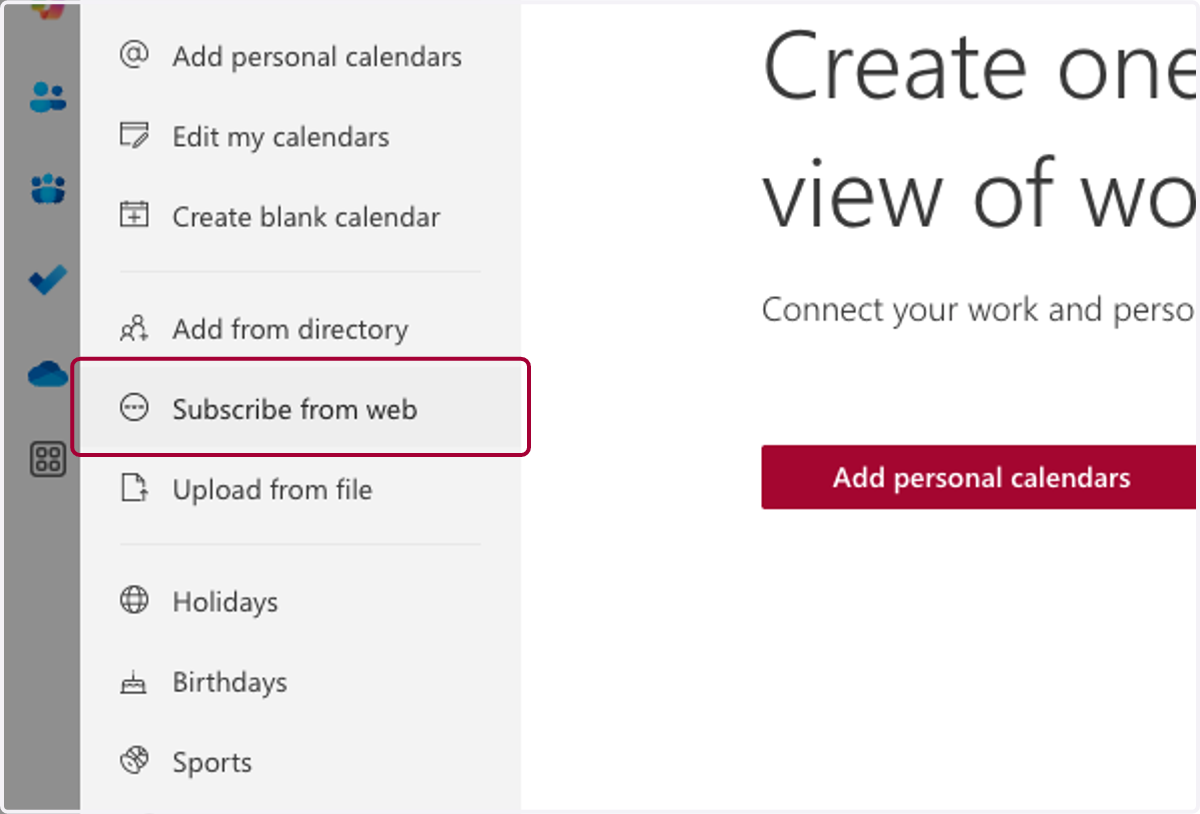
2. Add the calendar subscription link.
Copy and paste this URL into the dialog box:
https://outlook.office365.com/owa/calendar/07dd1735f0f34b7baec0a7a2bdb9cf06@chapman.edu/bc91bc524600424b9b27a3c2c597c3d88930237726266476650/calendar.ics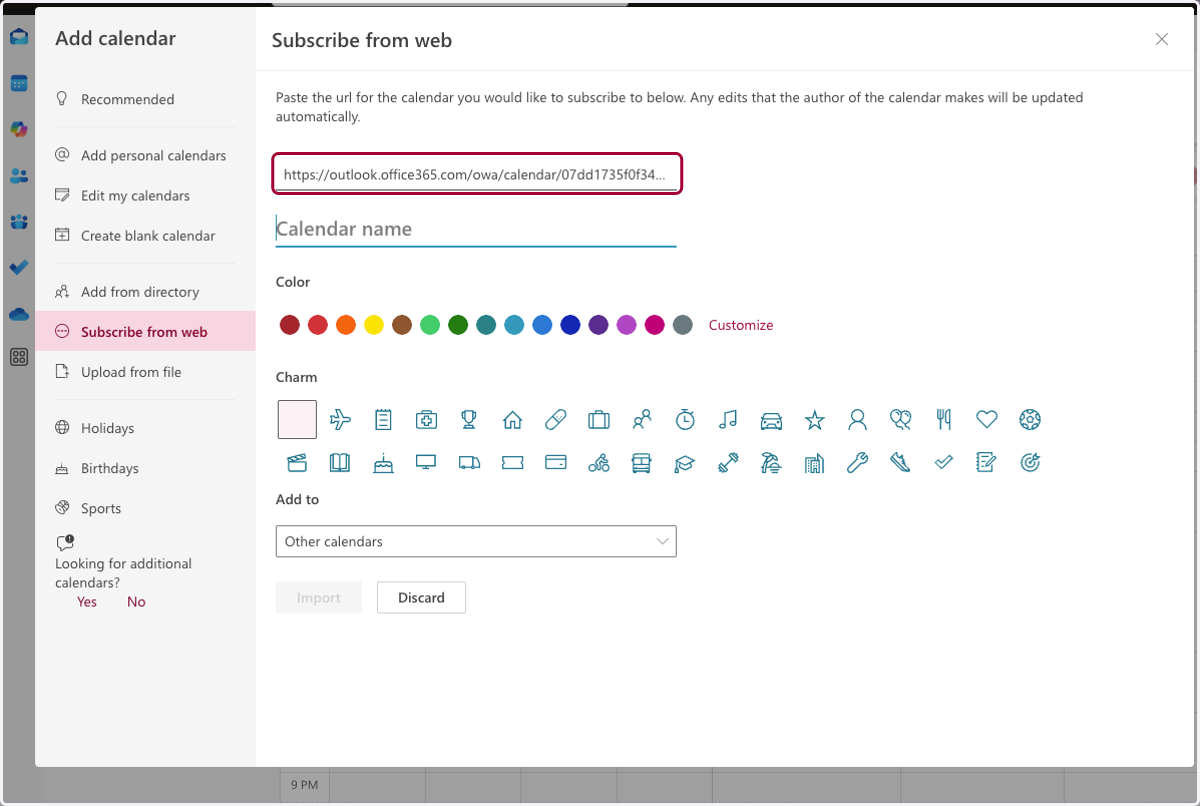
3. Add the calendar name.
We recommend using 'CU Religious Observances.'
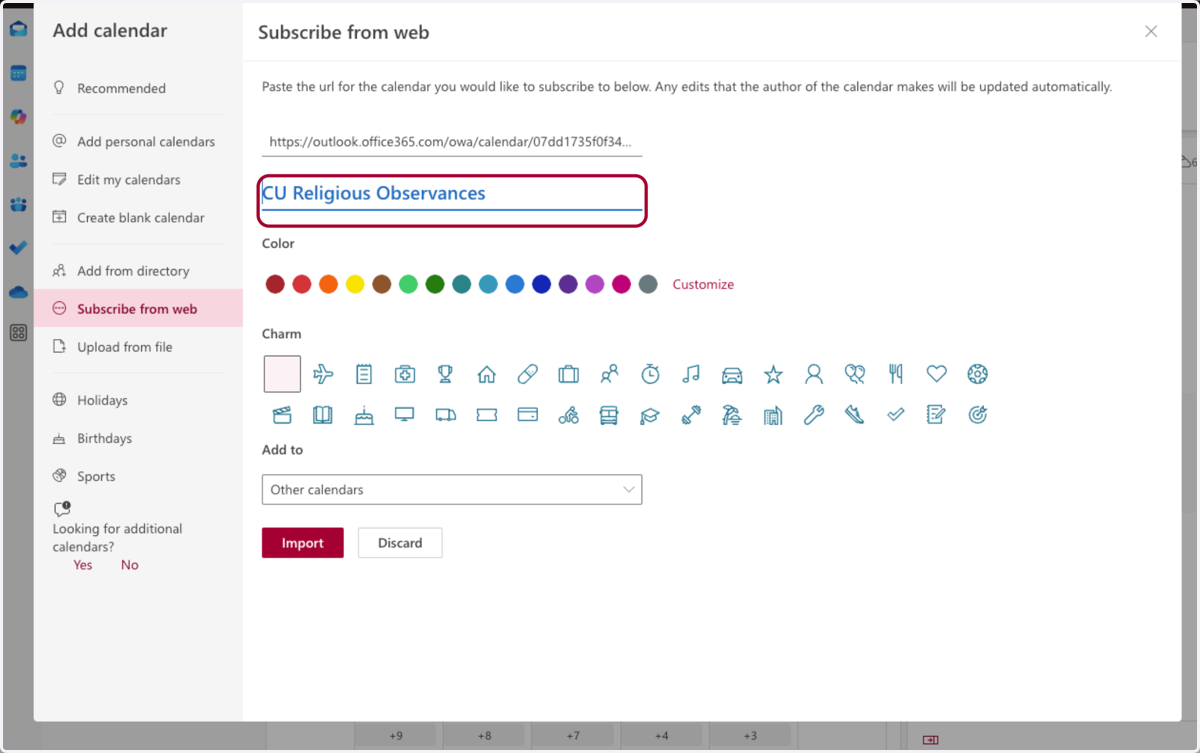
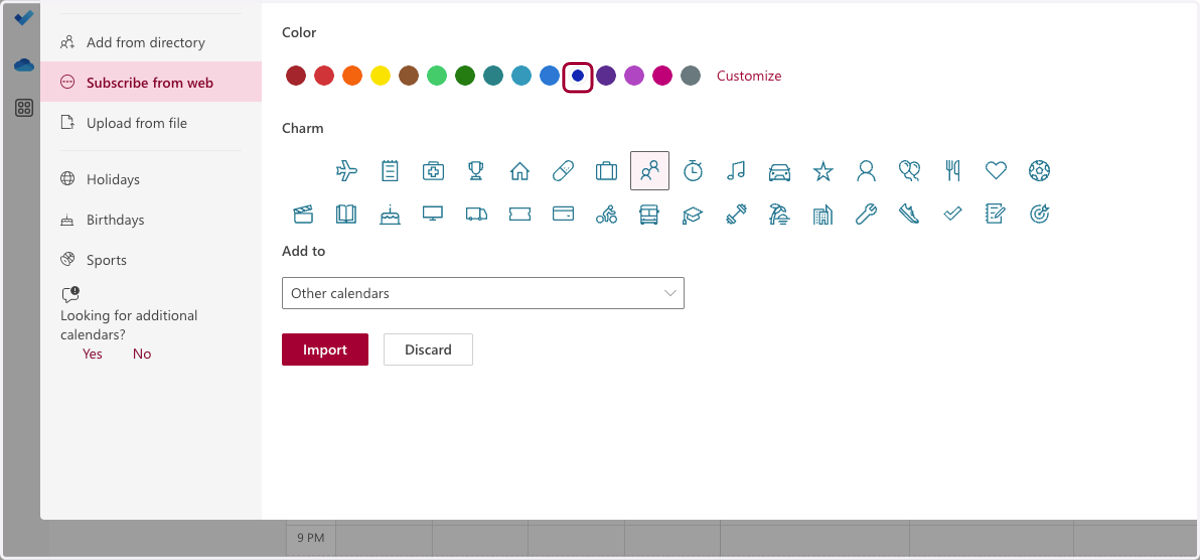
4. Personalize the calendar.
Select a color and a charm (icon).
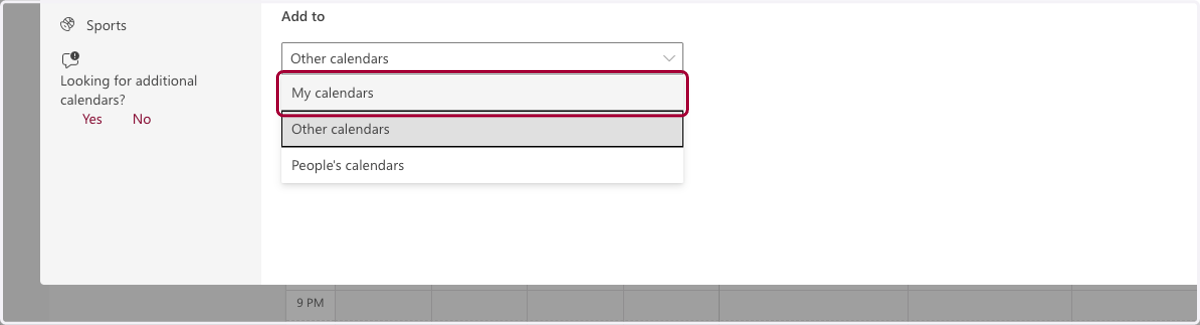
5. Select the location for the calendar.
Click on the dropdown menu and select 'My calendars.'
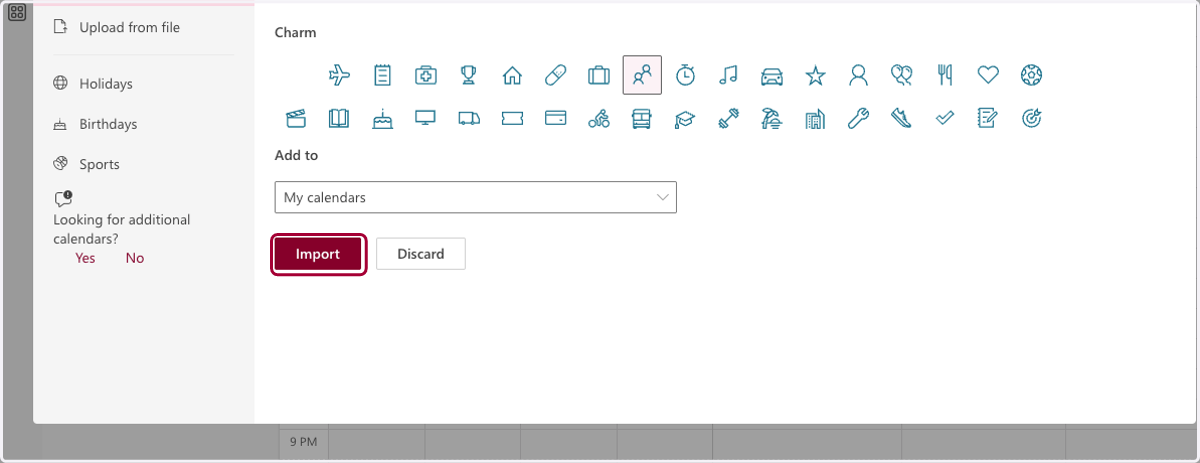
6. Finish importing the calendar.
Click on the 'Import' button.
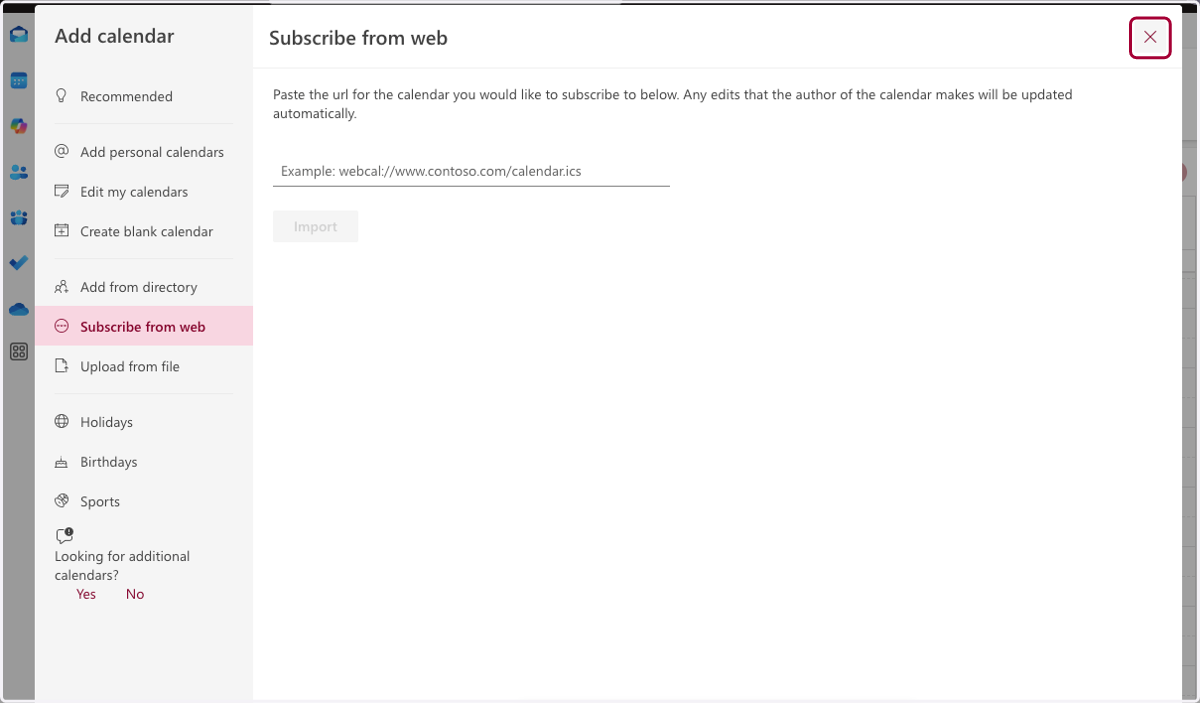
7. Close the window.
Click on 'X' in the top right corner to close the 'Add calendar' window.
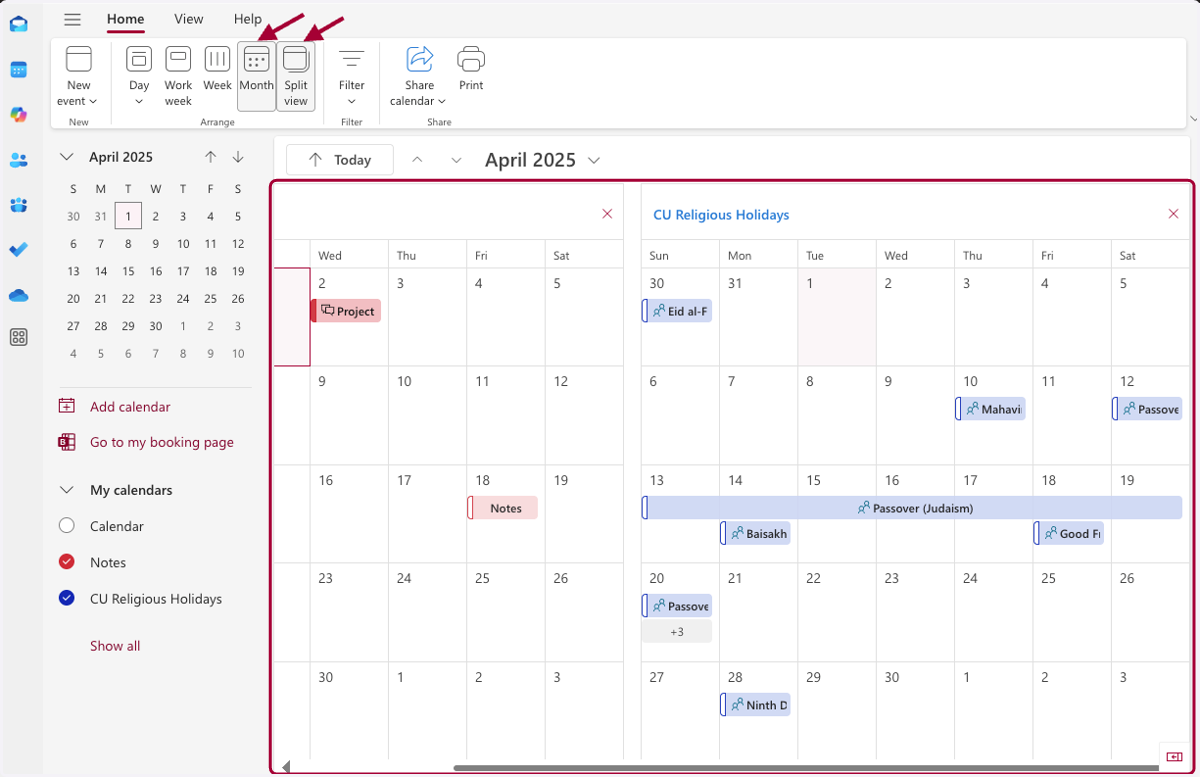
8. Customize your view for a better experience.
Use the view options in the menu bar to customize your viewing experience.
9. Customize your view in Outlook for Windows/Mac.
Click on the links below to learn how to change your Outlook calendar view. We recommend turning on 'Overlay' for a better experience.