Fixing Accessibility Using YuJa Panorama
This tutorial will walk you through using YuJa Panorama to fix accessibility issues in your course.
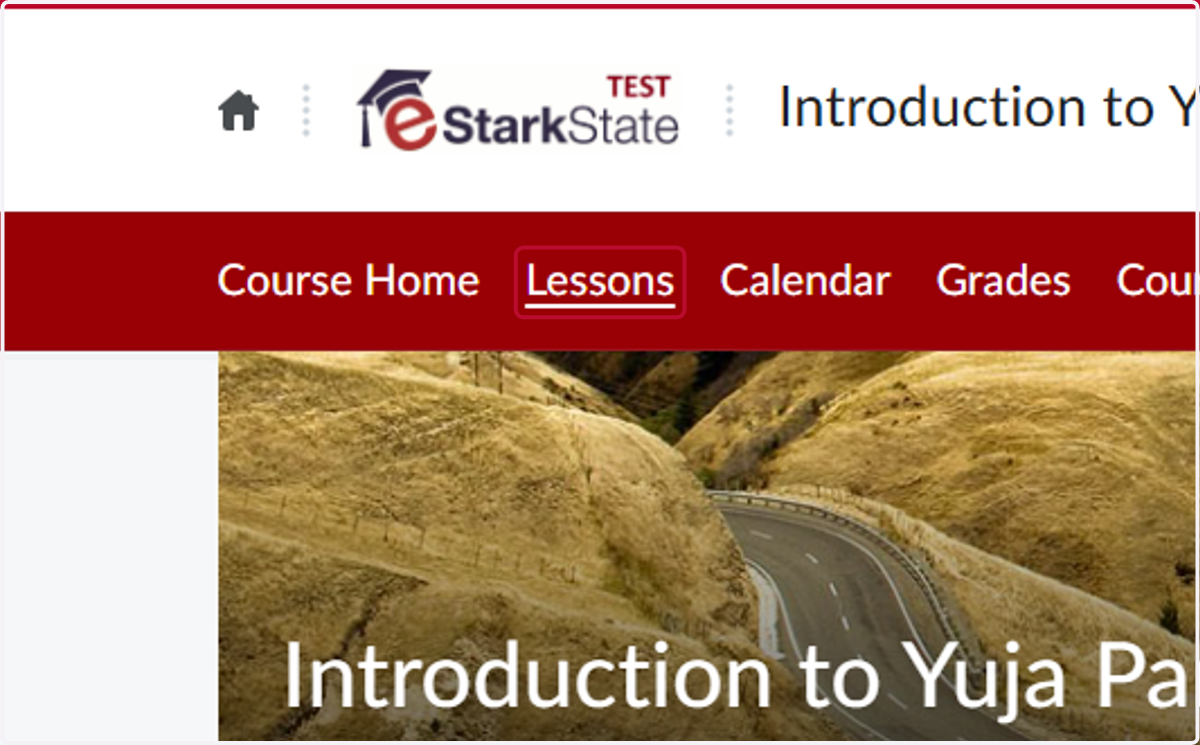
1. Click on Lessons
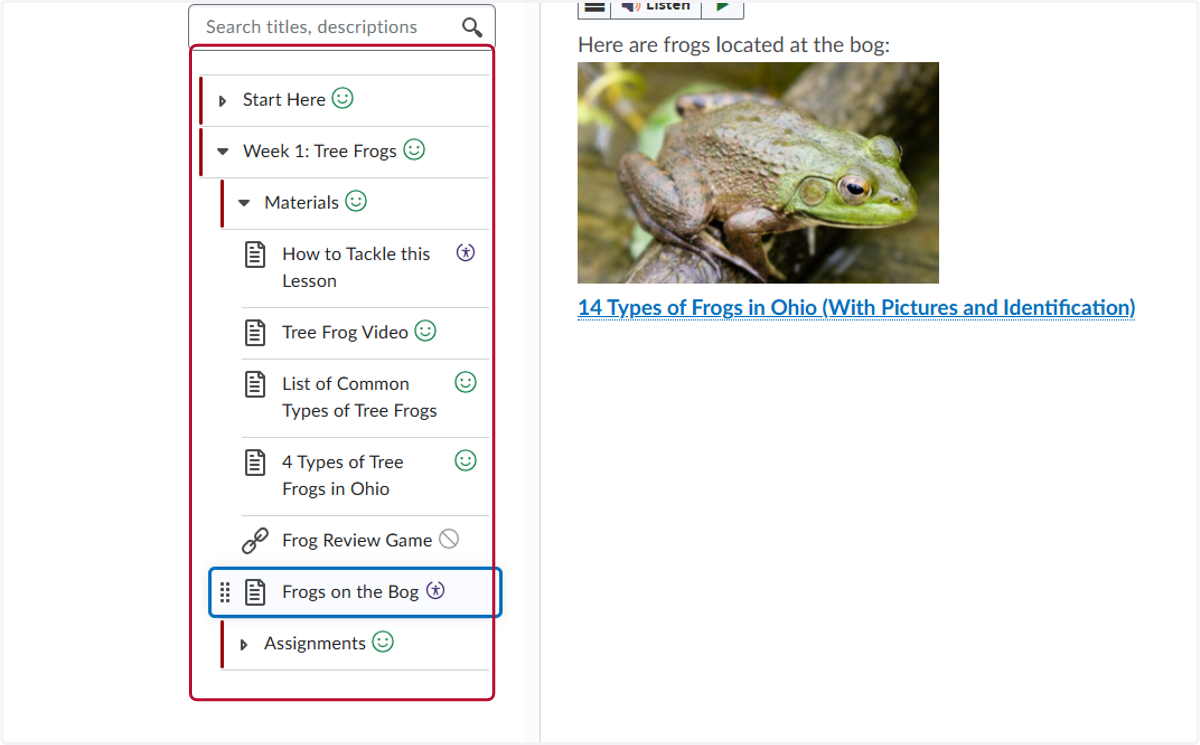
2. Locate a page that needs fixed and click on it on the navigation bar.
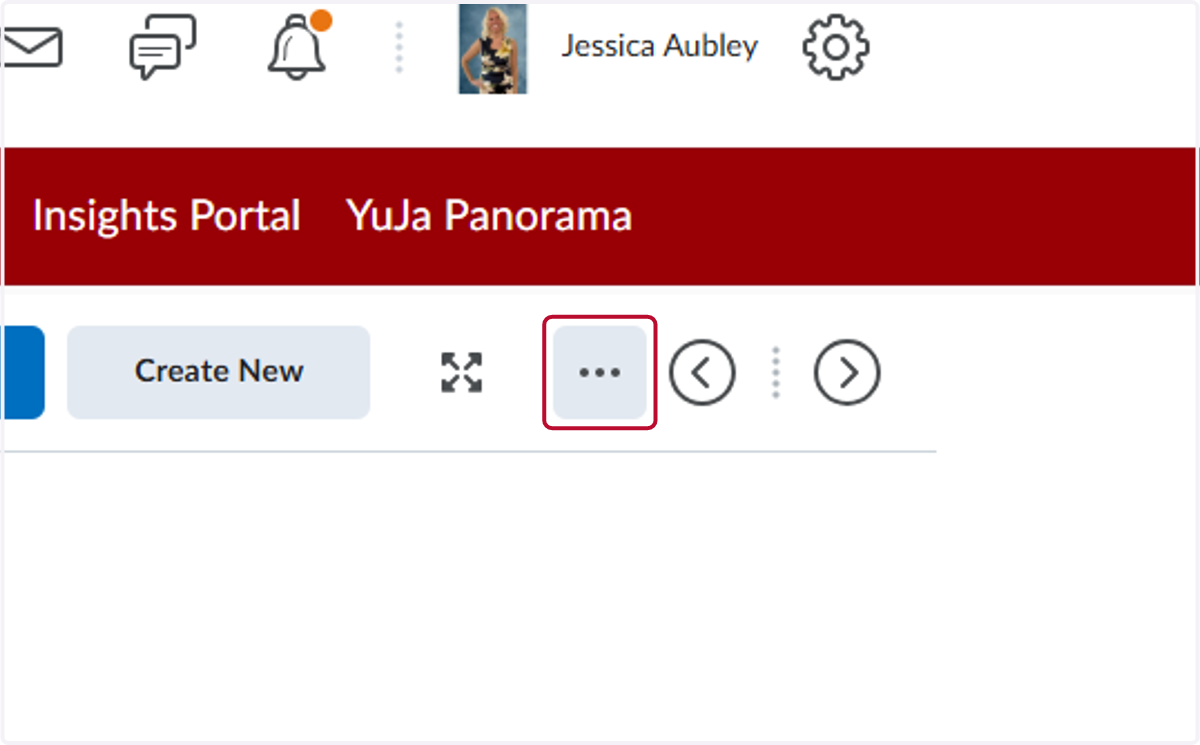
3. Click on Options
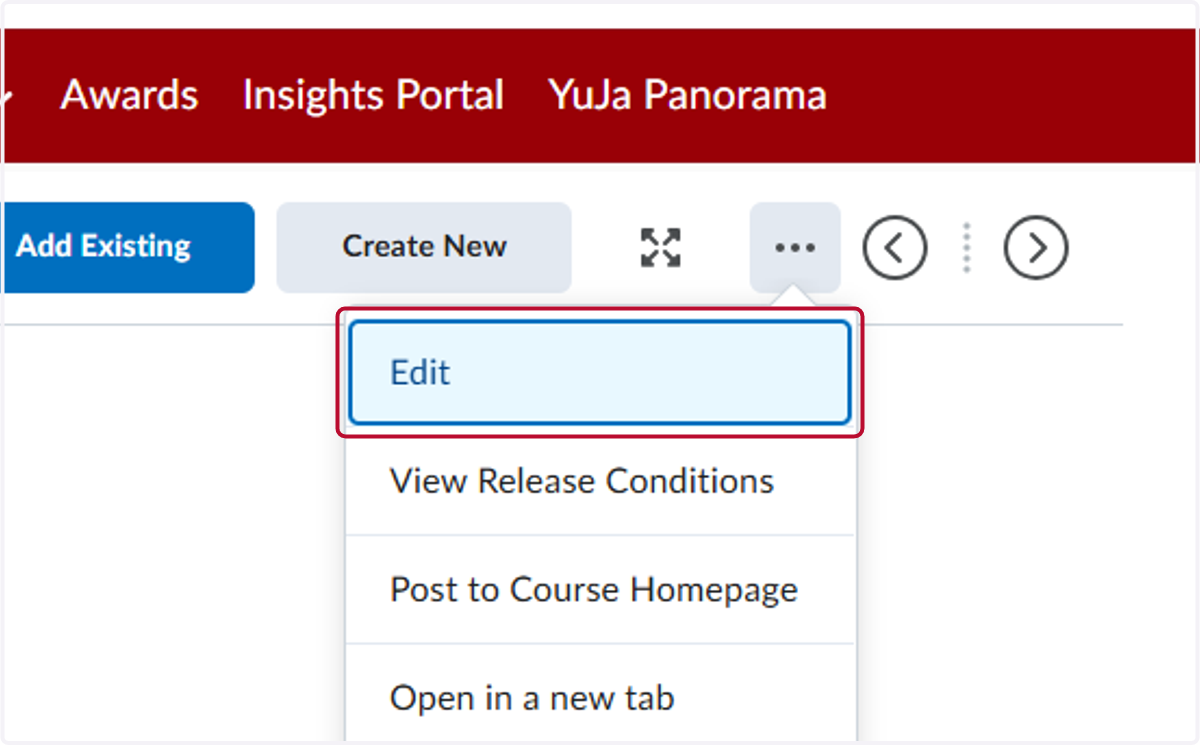
4. Click on Edit
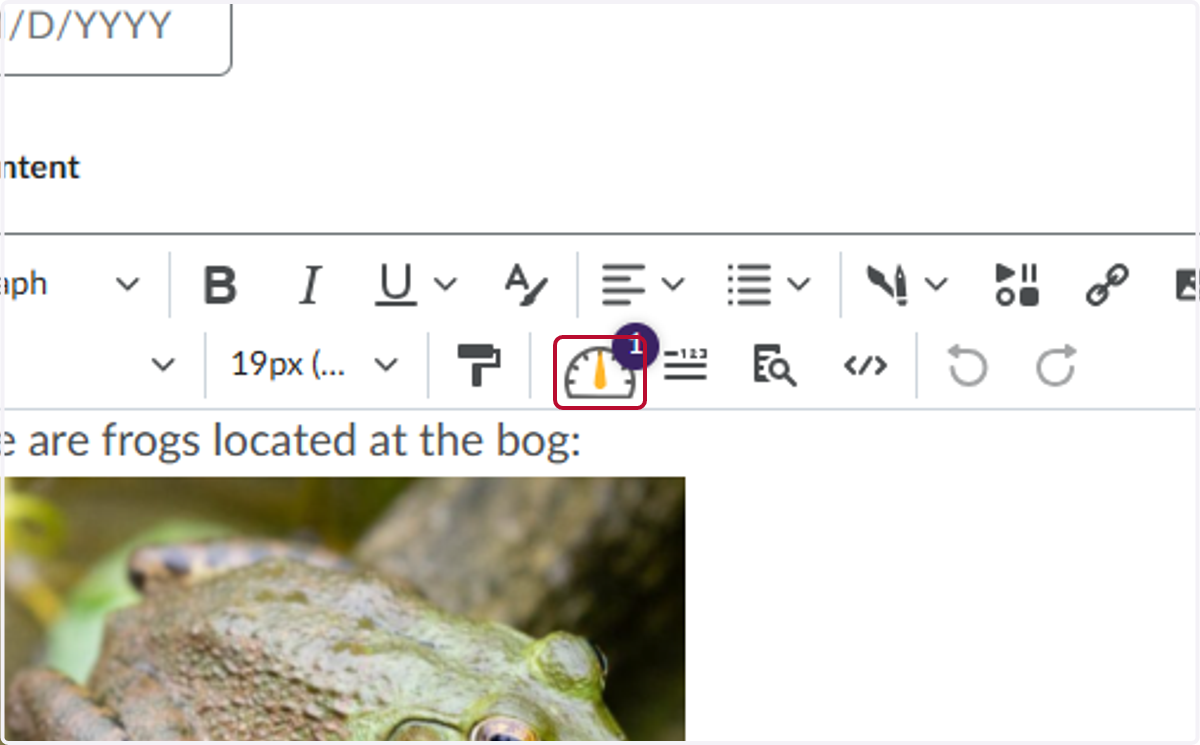
5. Click on the Gauge on the toolbar
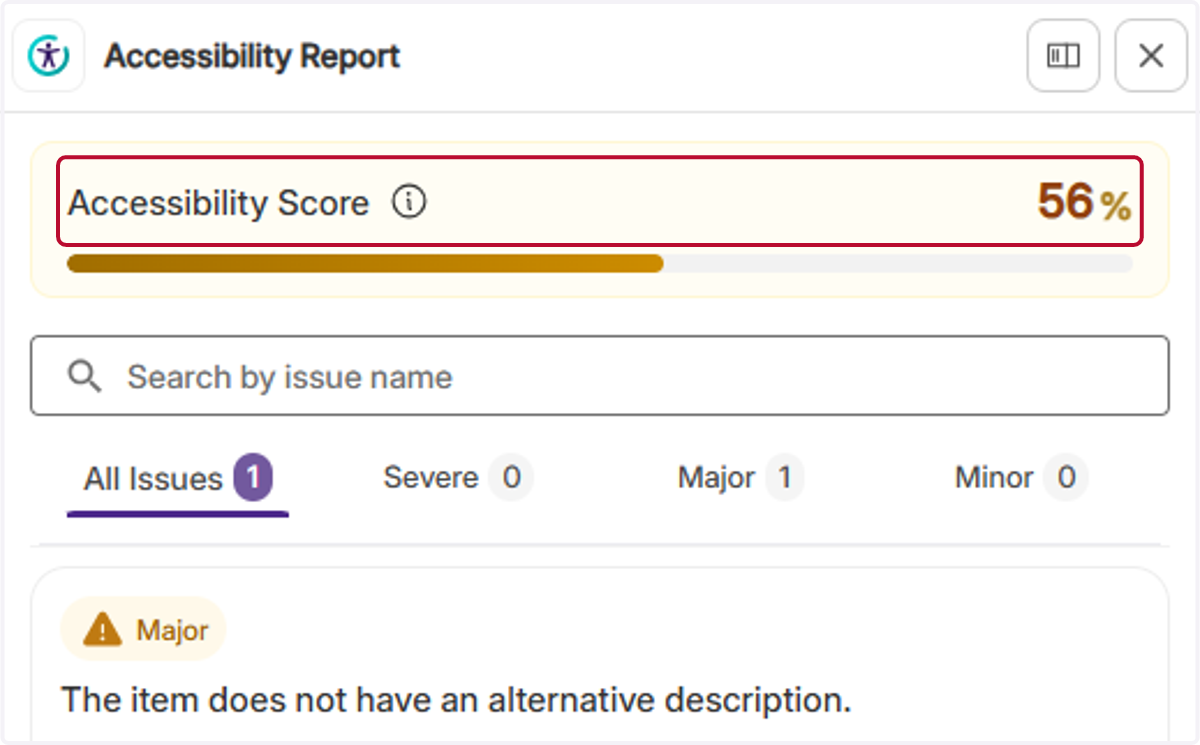
6. The Accessibility Score is located at the top of the page
7. Review the report and click on the first "Click on Check Issue →"
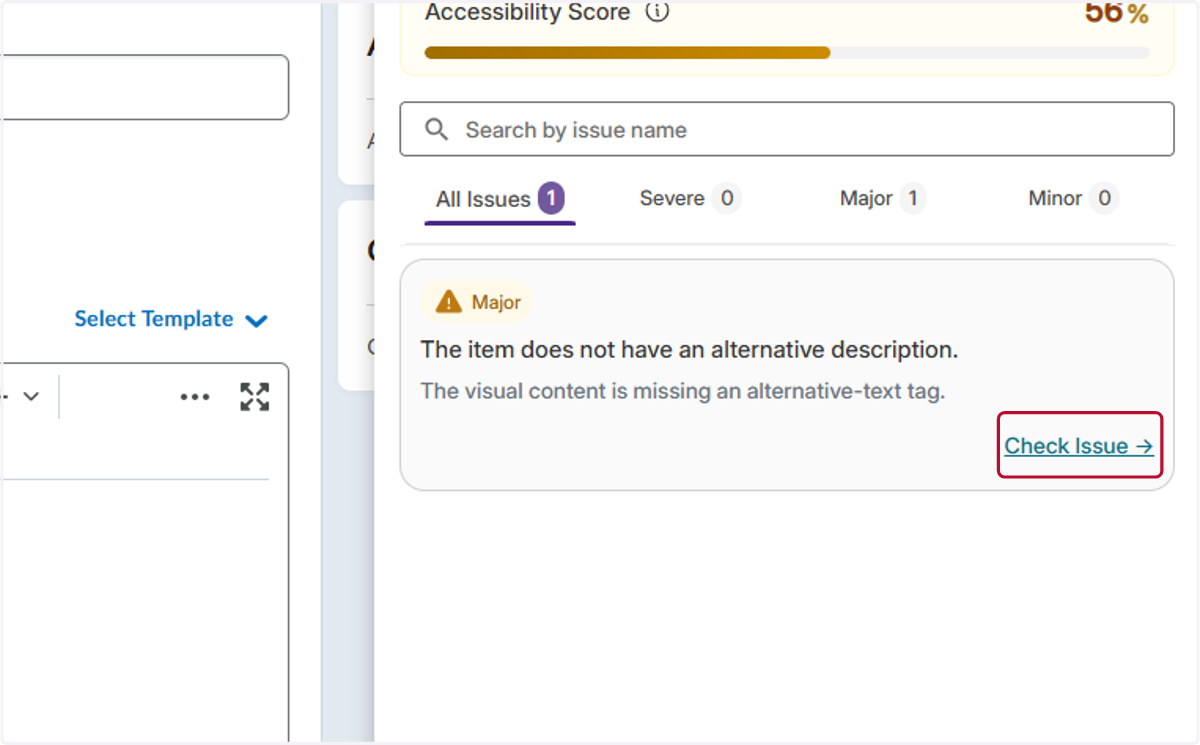
8. The system will walk you through the process needed to make changes
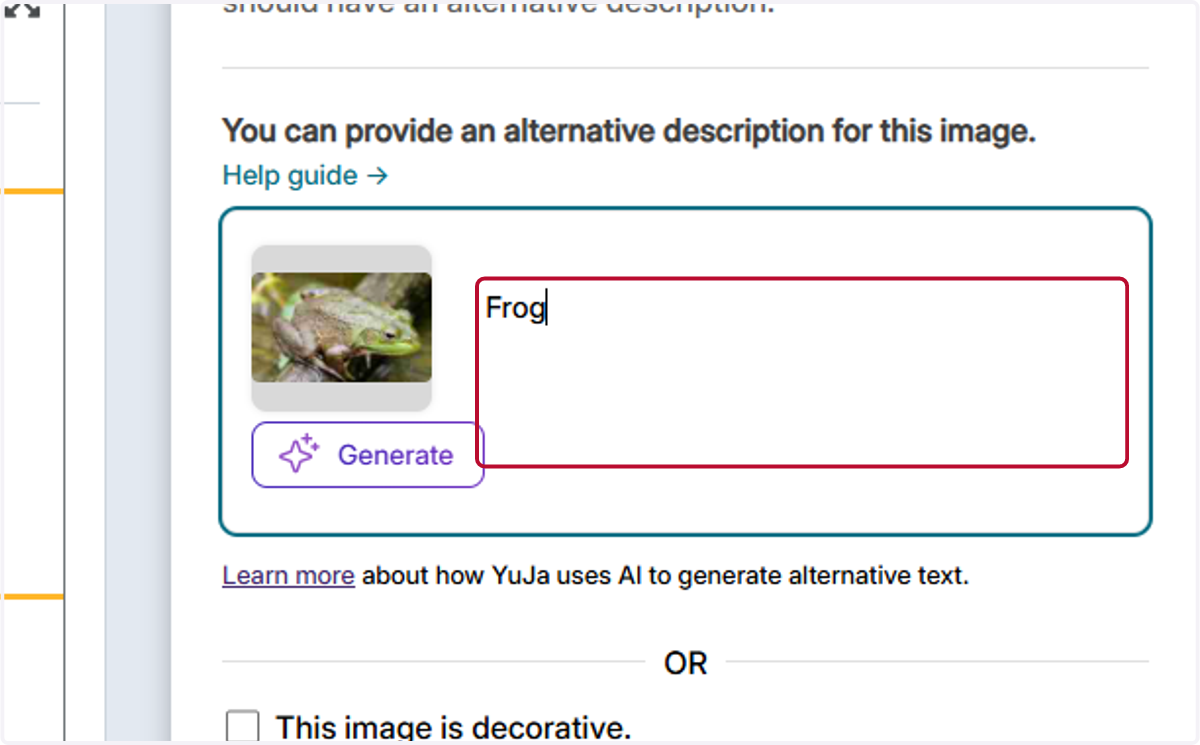
9. After you make your changes, Click on Apply fix
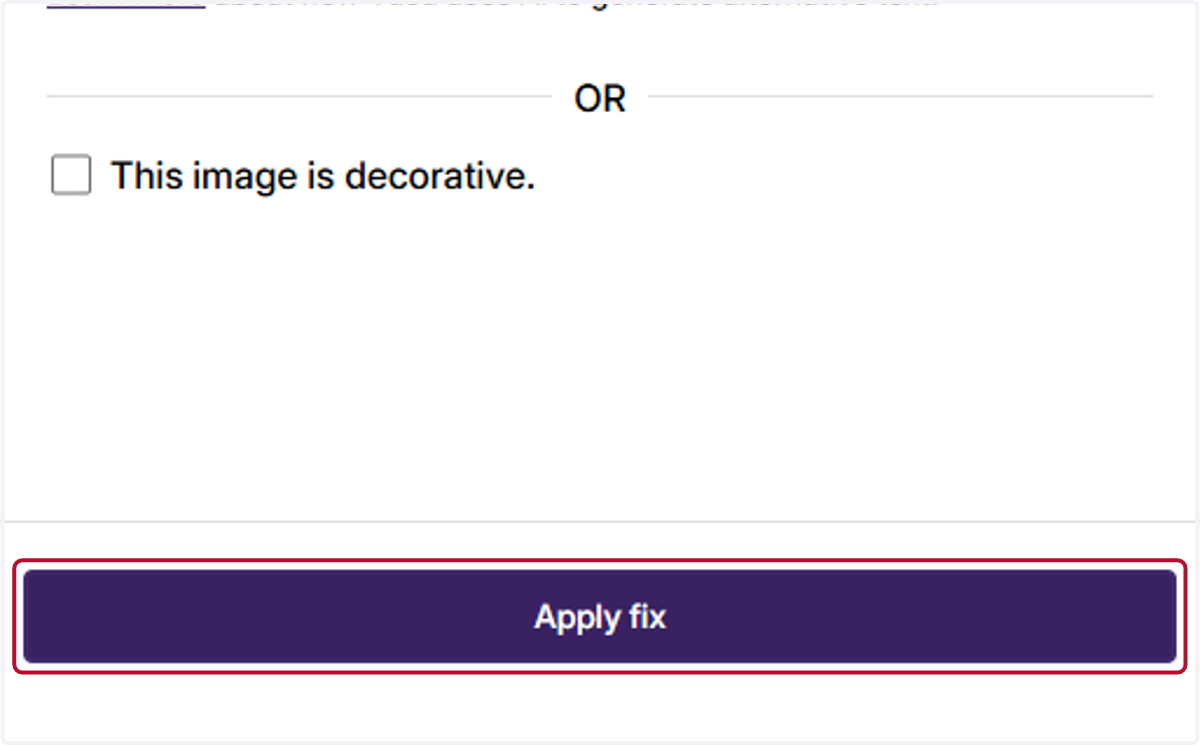
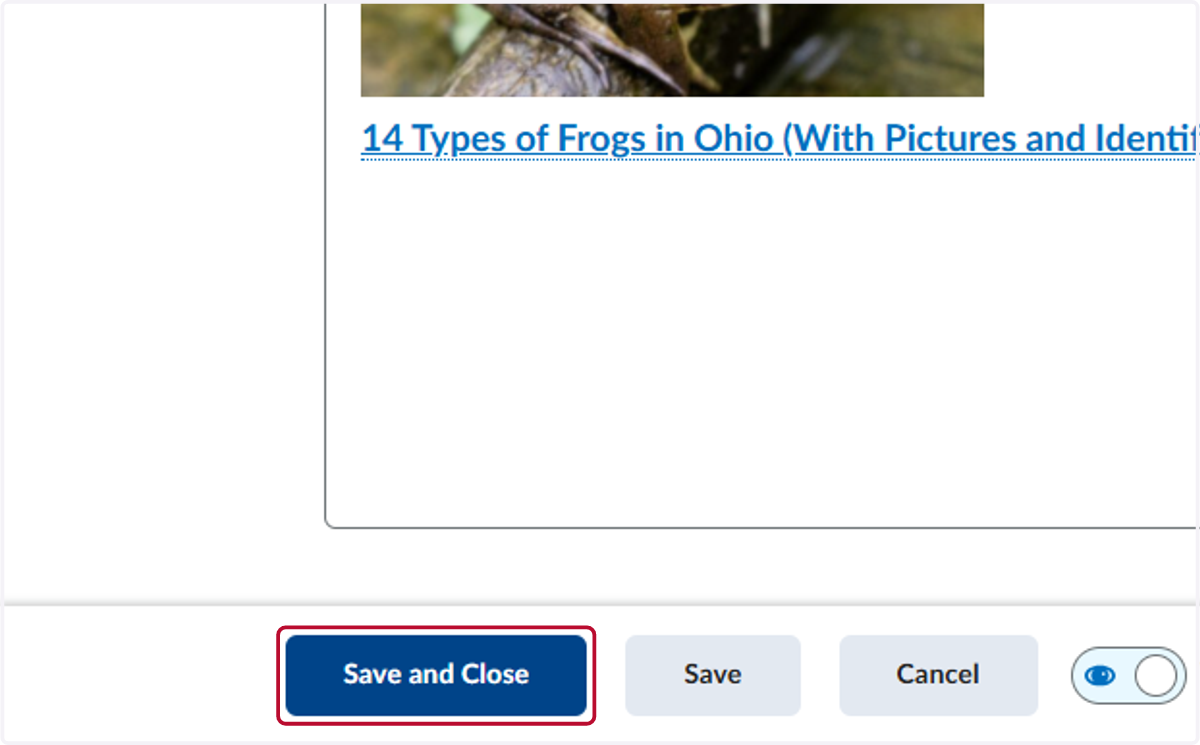
10. After you have resolved all issues you can then click on Save and Close