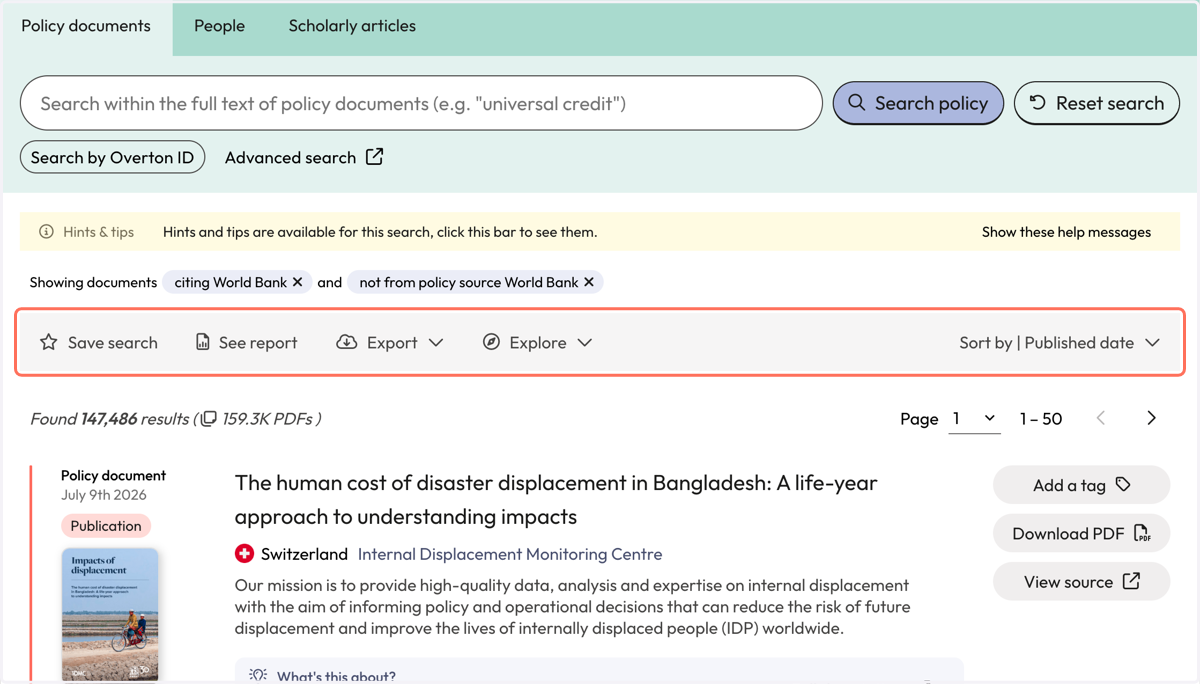
Find your policy focused publications which are indexed in Overton (trials)
Overton
1. From the Start page, click on 'Policy documents'
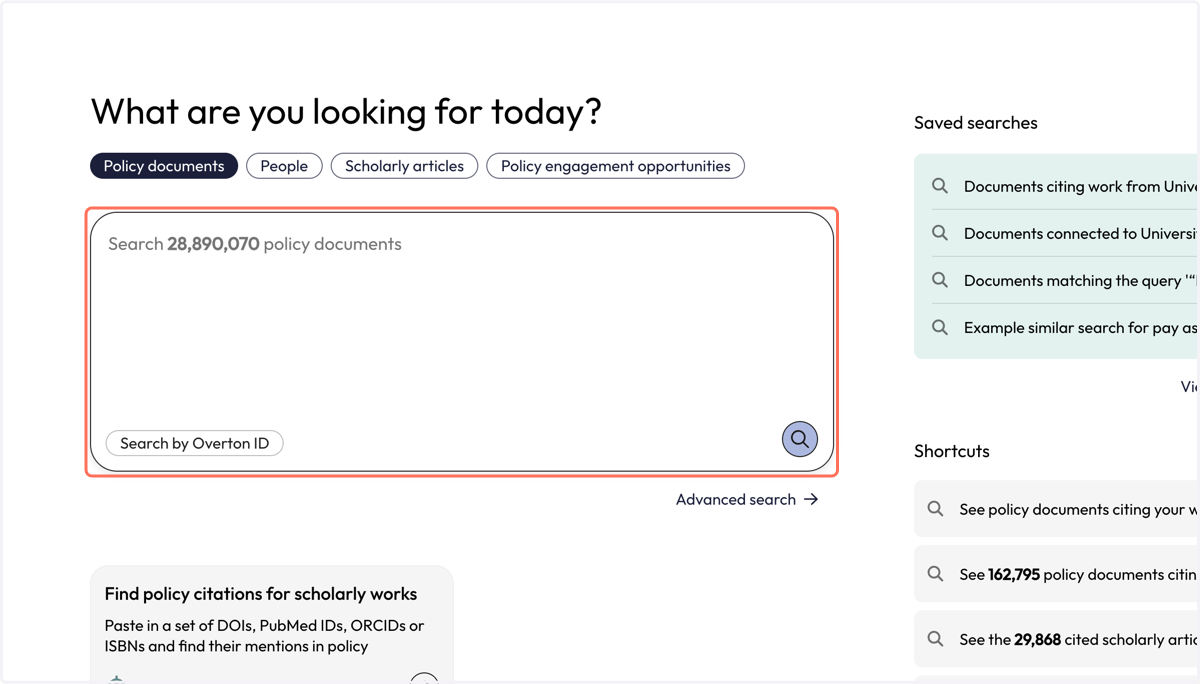
2. Type in the name of the policy source whose documents you want to find.
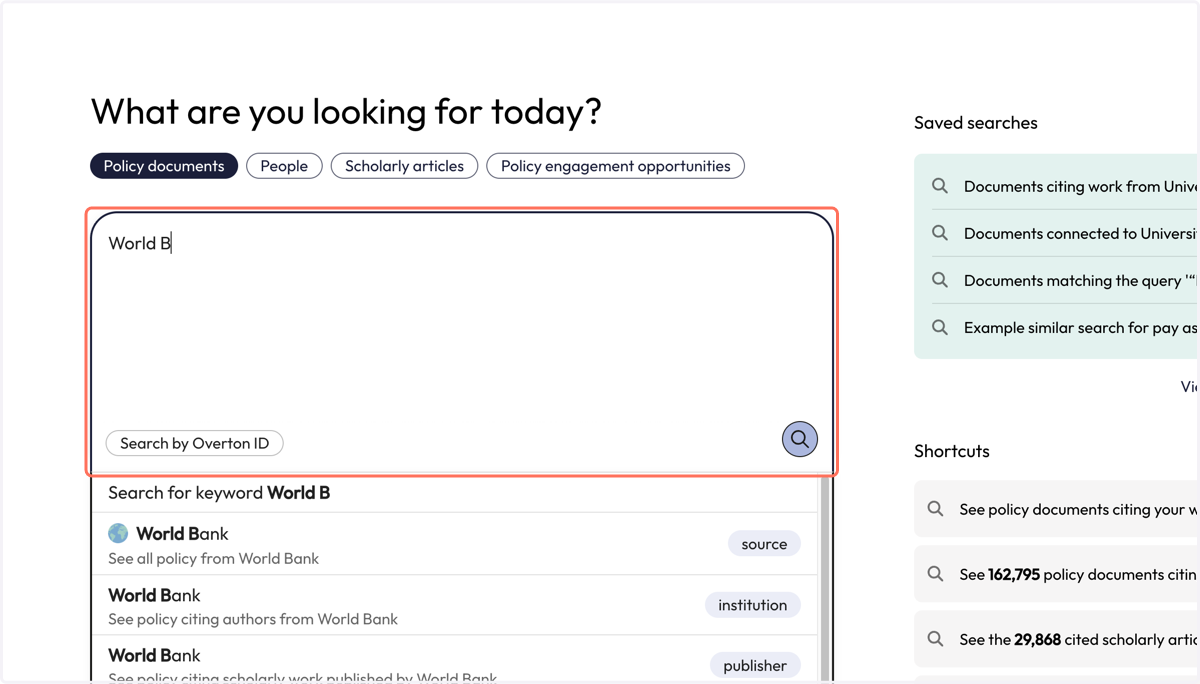
3. Select the source you are looking for from the dropdown that appears. Ensure you select the option next to the purple 'source' flag.
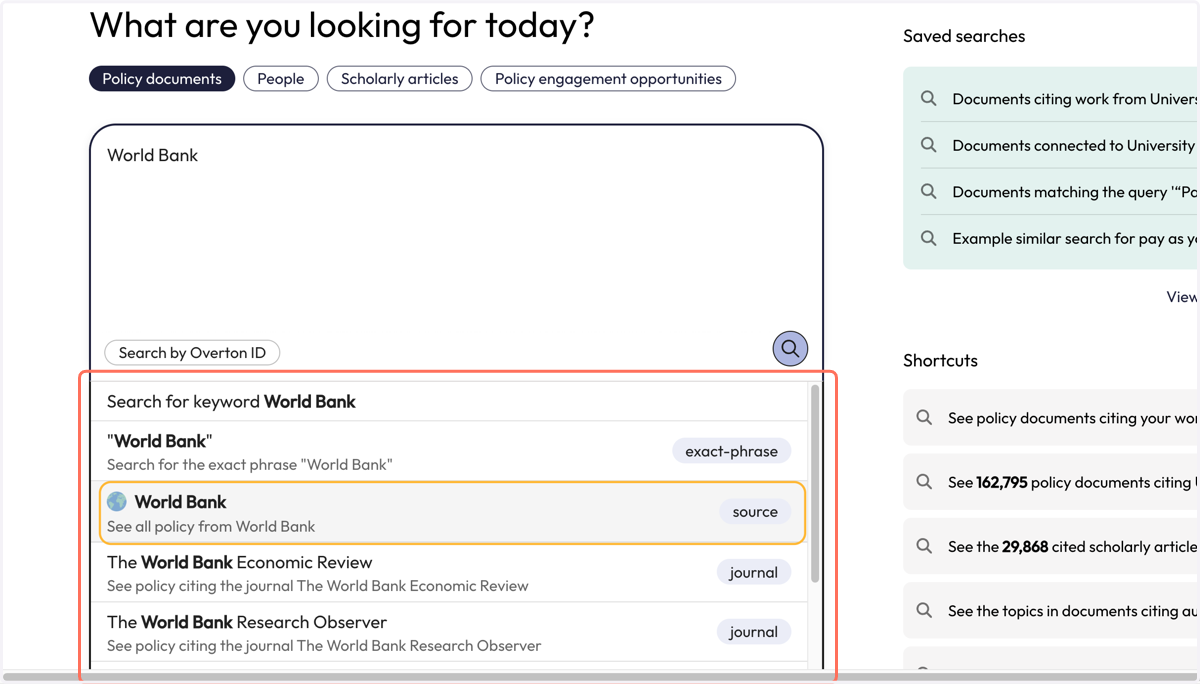
4. You will be taken to the 'Policy documents' page where will find all the documents in Overton from your selected policy source.
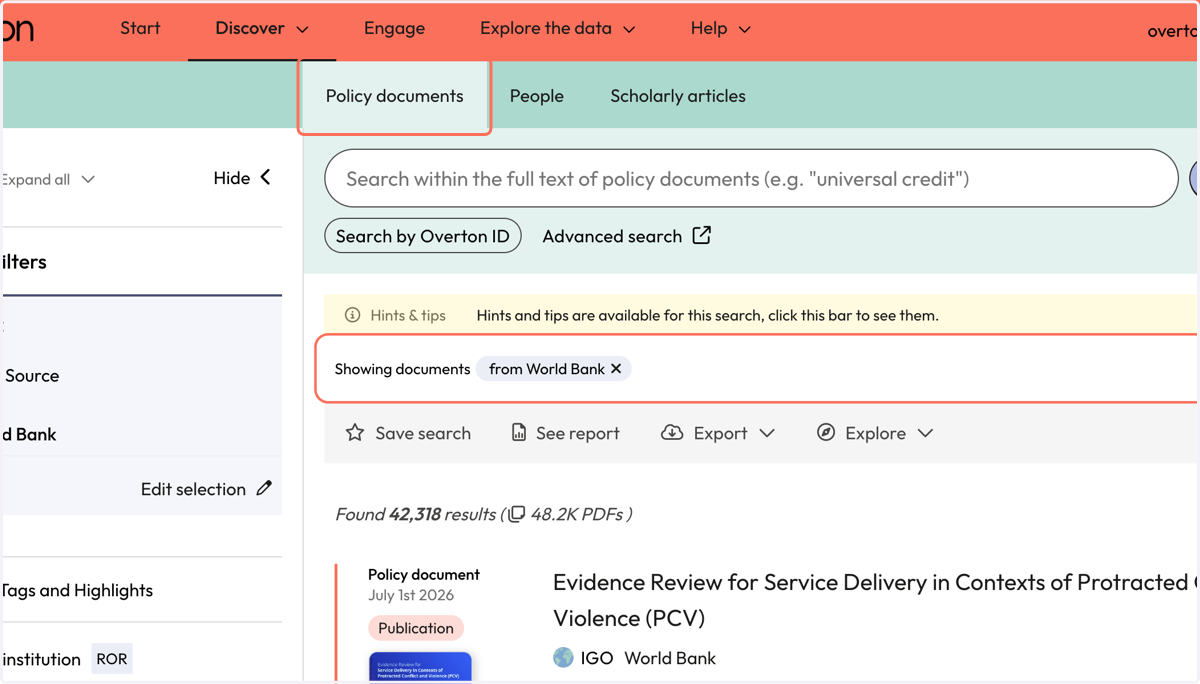
5. To find the citations for your documents, click on 'Explore' and 'See the policy citing this source'
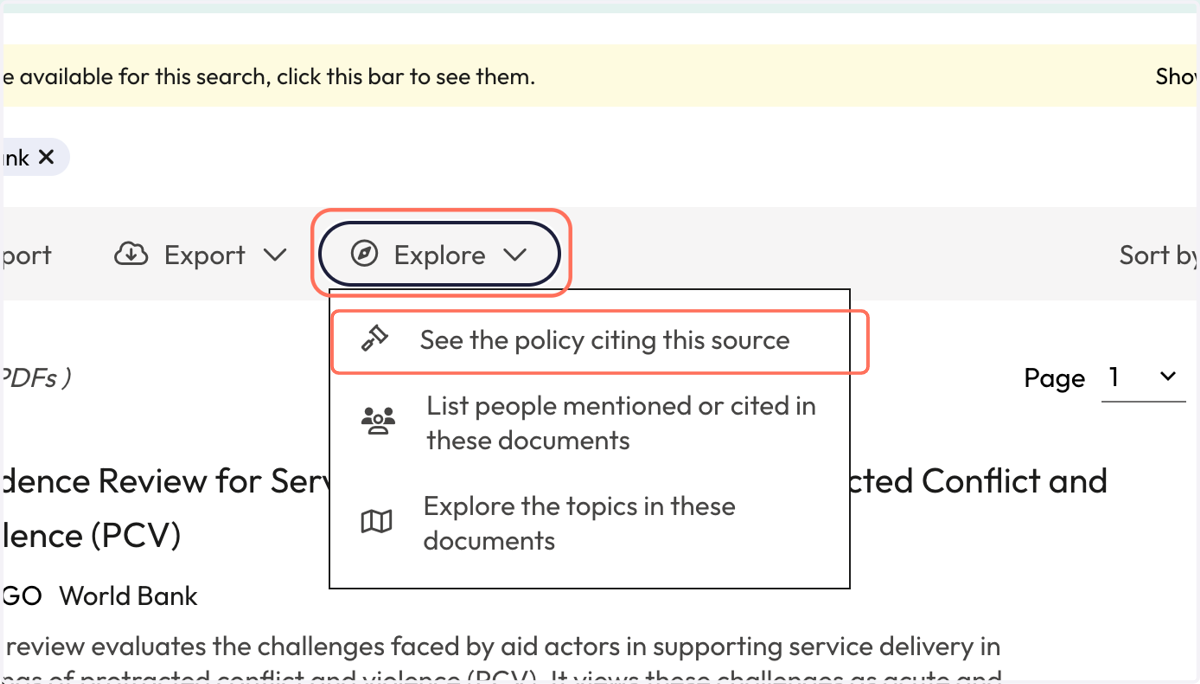
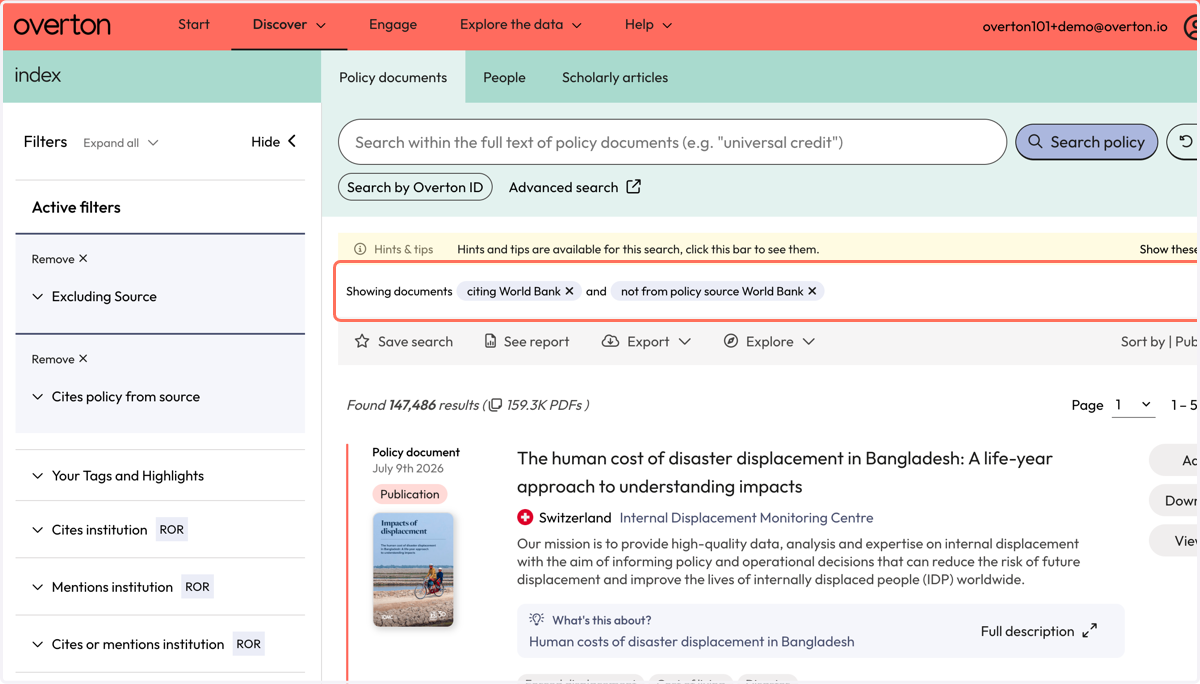
6. You will see policy documents which cite your documents in Overton.
By default, Overton applies the 'not from policy source' filter in order to exclude self-citations but users can click on the 'x' beside the filter to remove this filter.
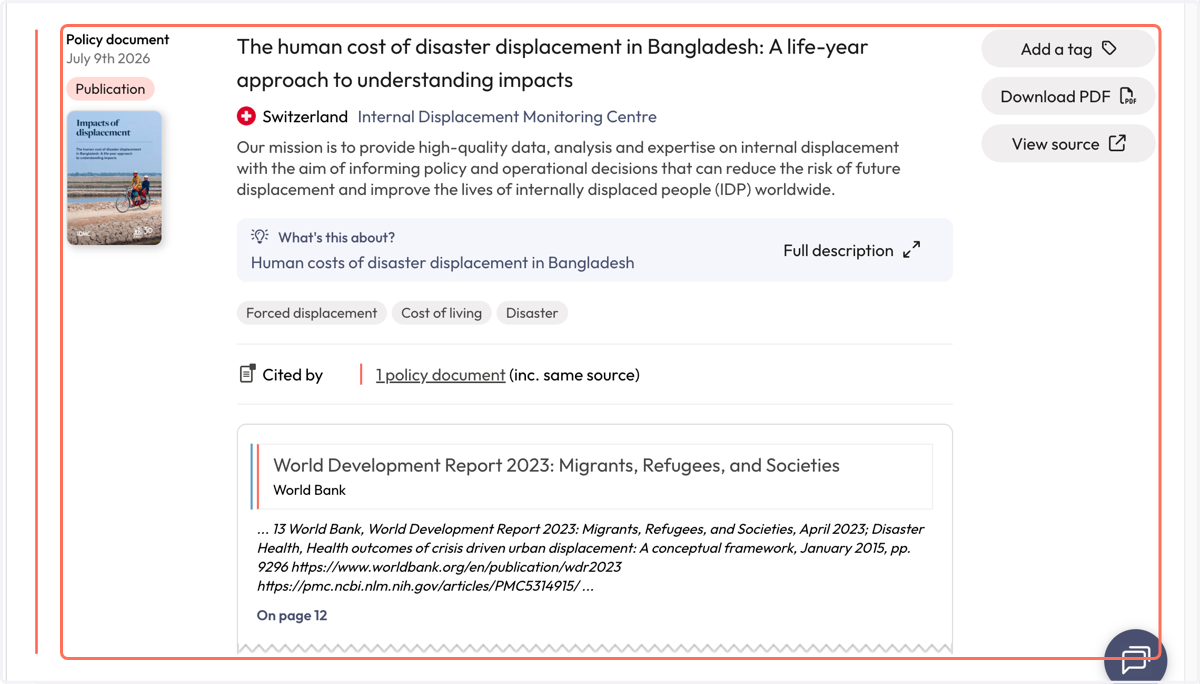
7. Each result includes the name of the citing policy document, the policy source and a snippet of context to indicate where the citation of your publication was found.
8. Use filters to narrow down results.
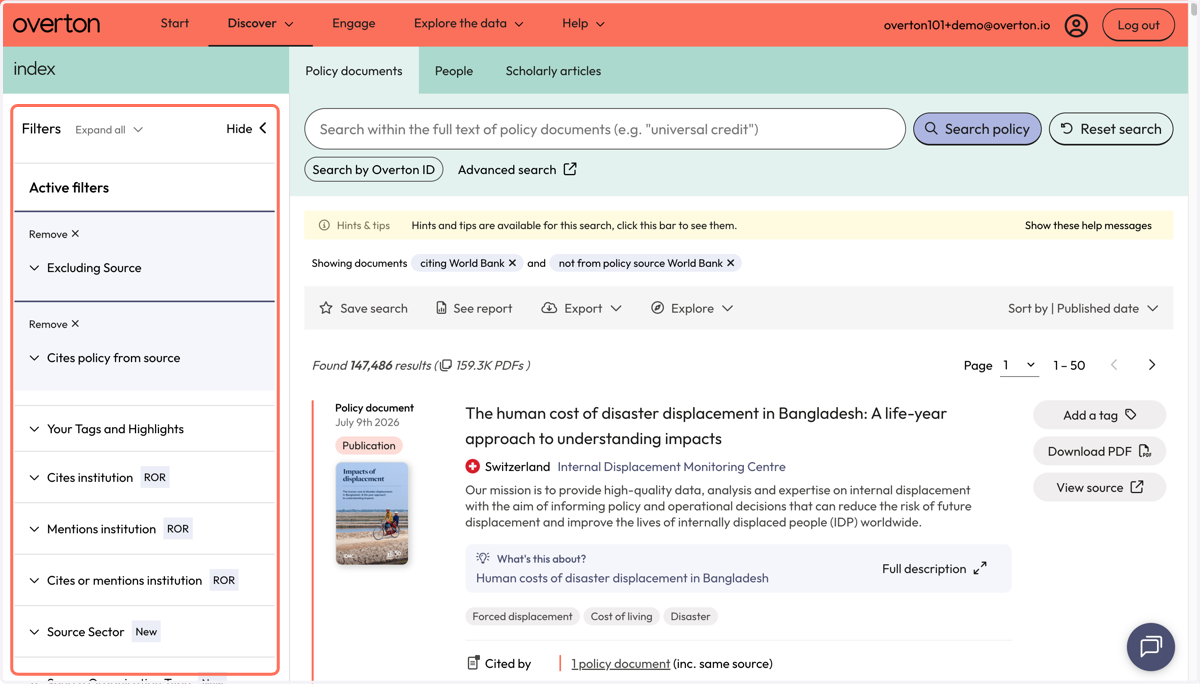
9. Use the action bar to save a search, generate a summary report, export* or explore further.
*exports are not available for limited 14-day trials