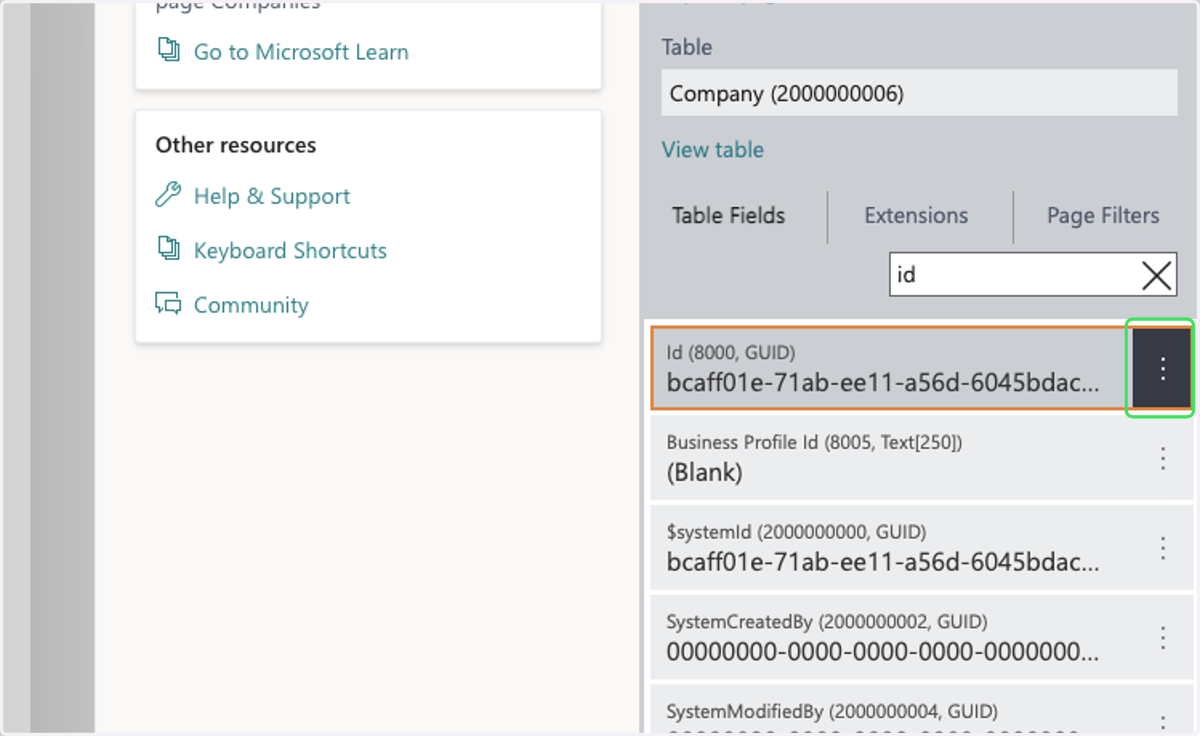
Find the necessary Business Central IDs required by the MaxOptra BC integration.
1. OBTAIN THE AZURE APP CLIENT ID
'clientId'
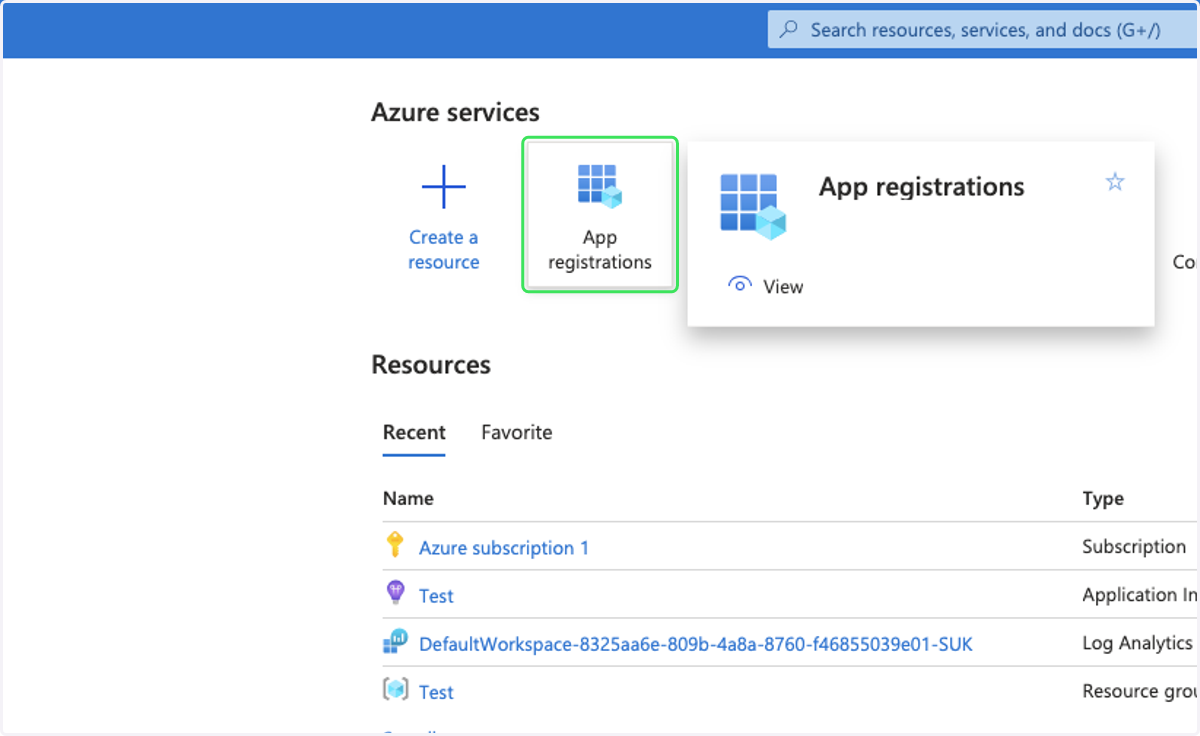
1. Click on App registrations
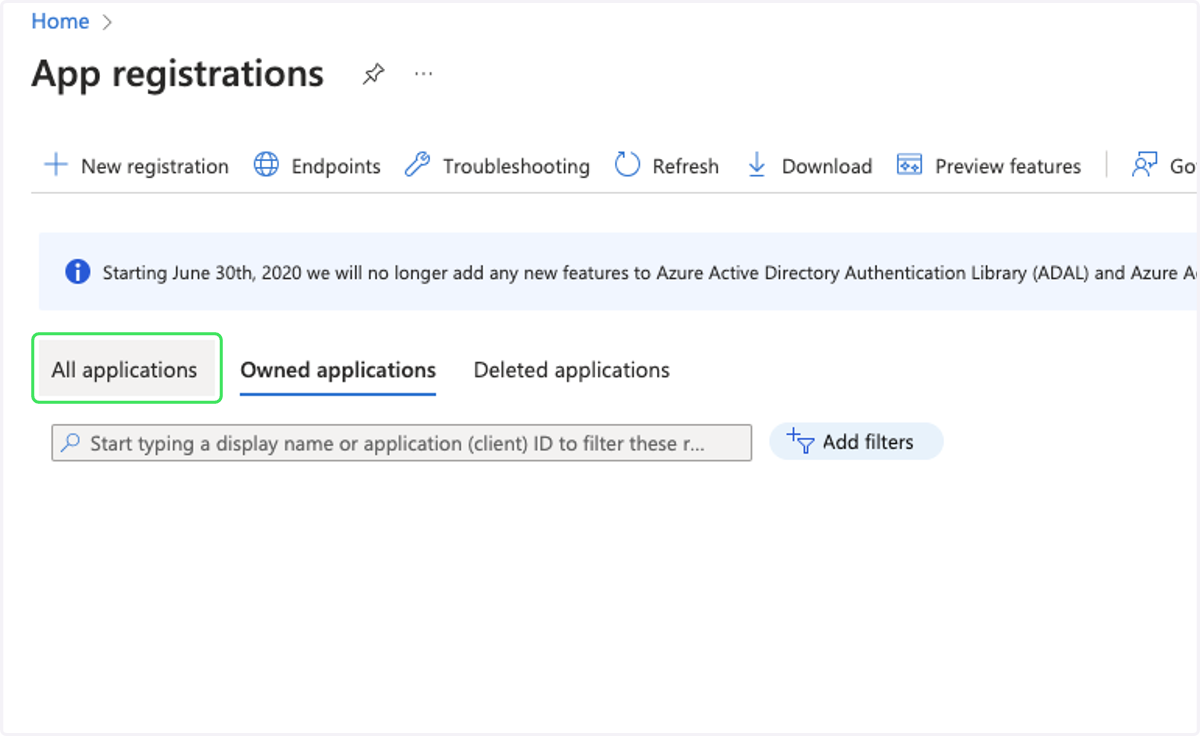
2. Click on All applications
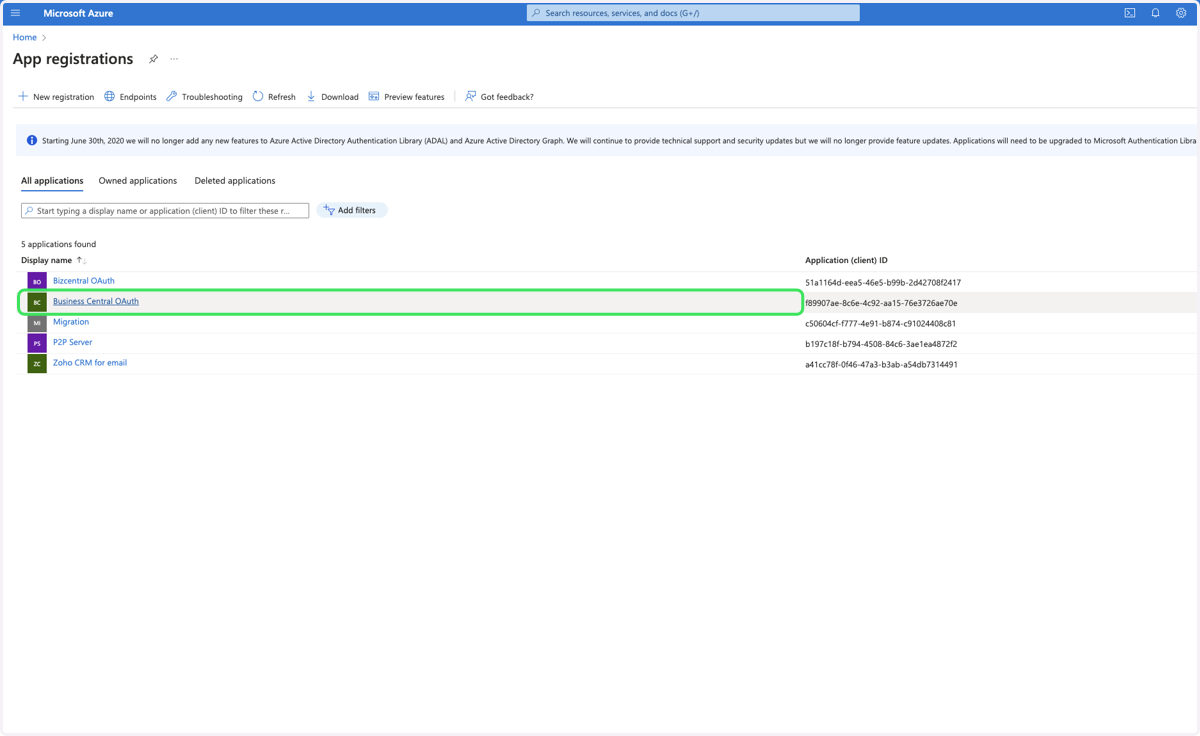
3. Locate the relevant app registration that has been set up for the MaxOptra BC integration.…
4. Locate the Application (client) ID field.
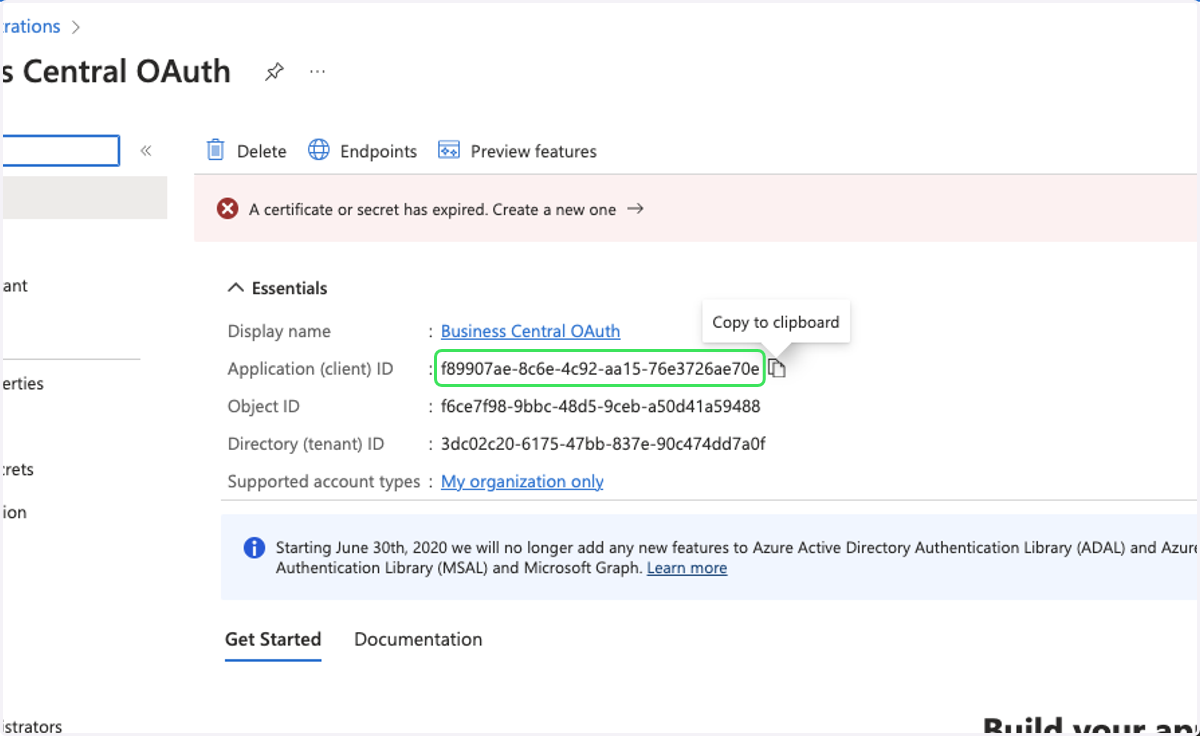
5. Click on 'Copy to clipboard' to copy the value for Application (client) ID.
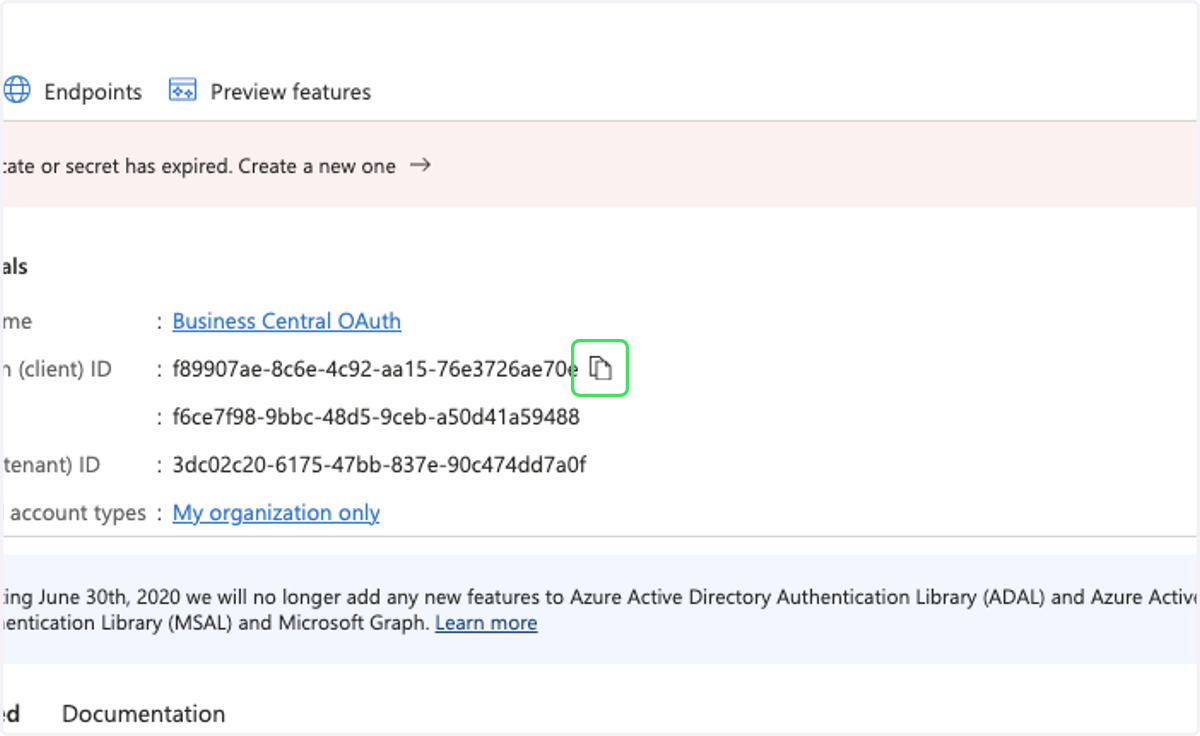
2. OBTAIN THE AZURE APP CLIENT SECRET VALUE
'clientSecret'
6. Refer to MaxOptra's 'Set-up Azure for MaxOptra BC Integration' documentation steps 16-21
3. OBTAIN THE BUSINESS CENTRAL TENANT ID
'tenantId'
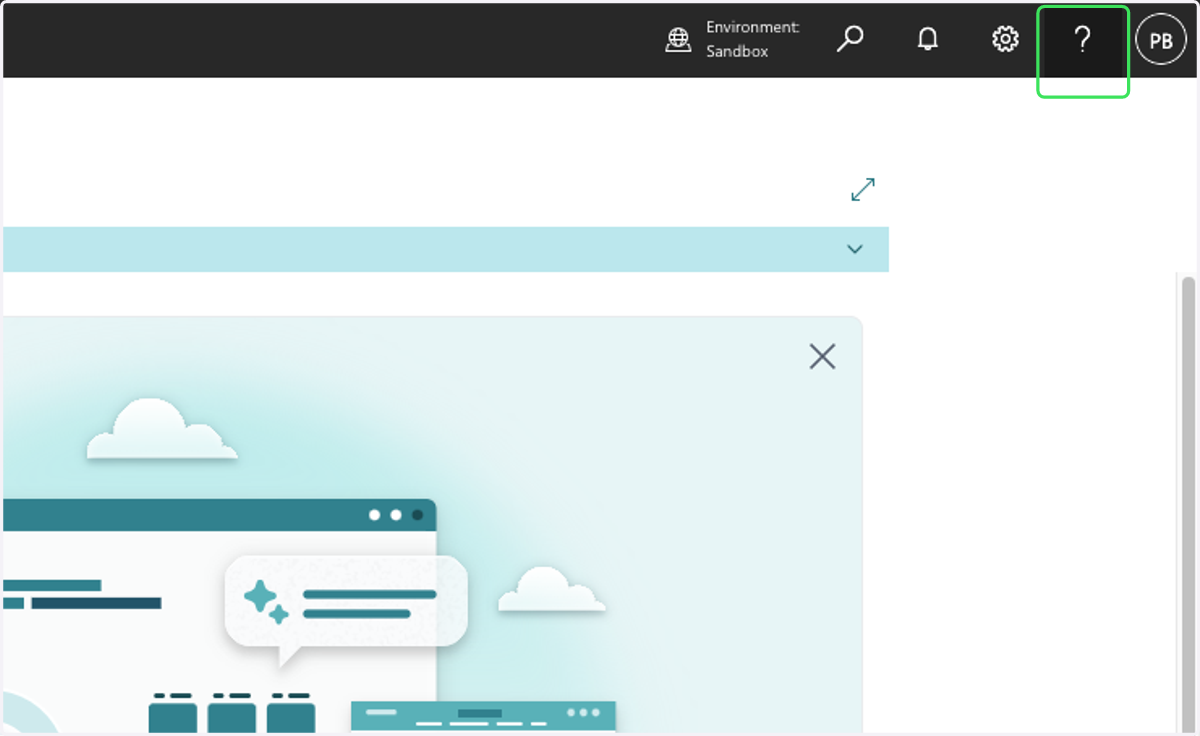
7. Click on Help
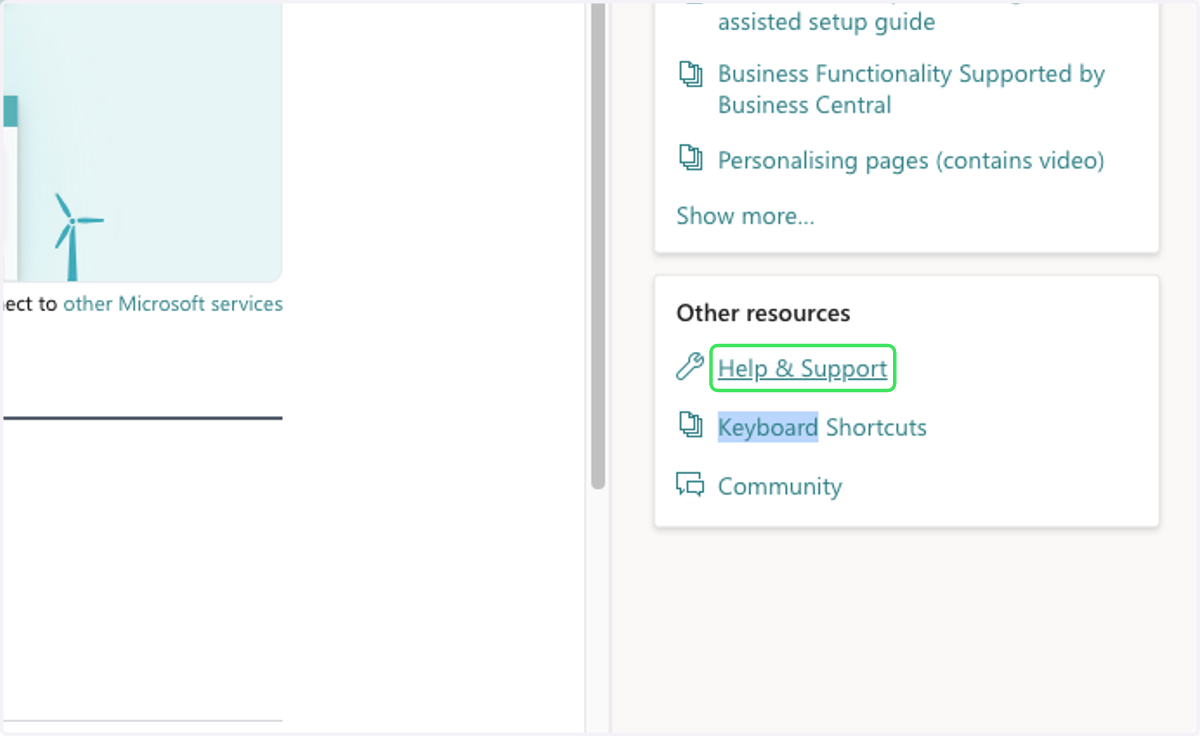
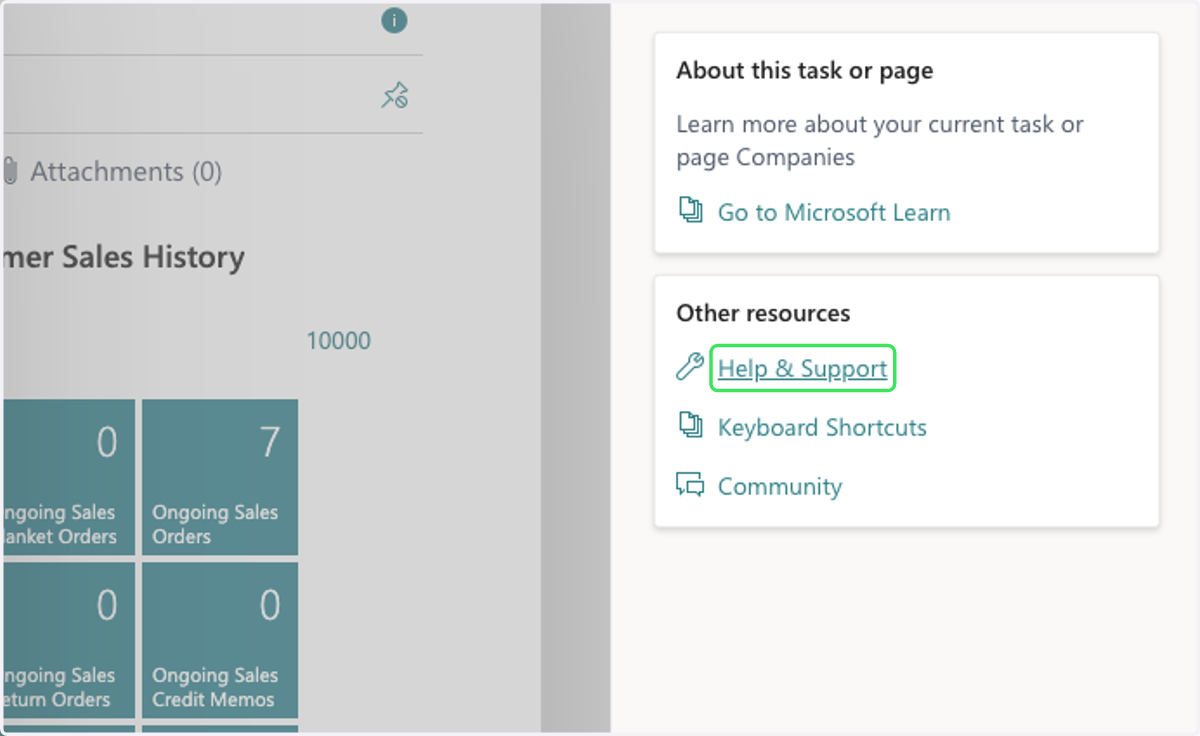
8. Click on Help & Support
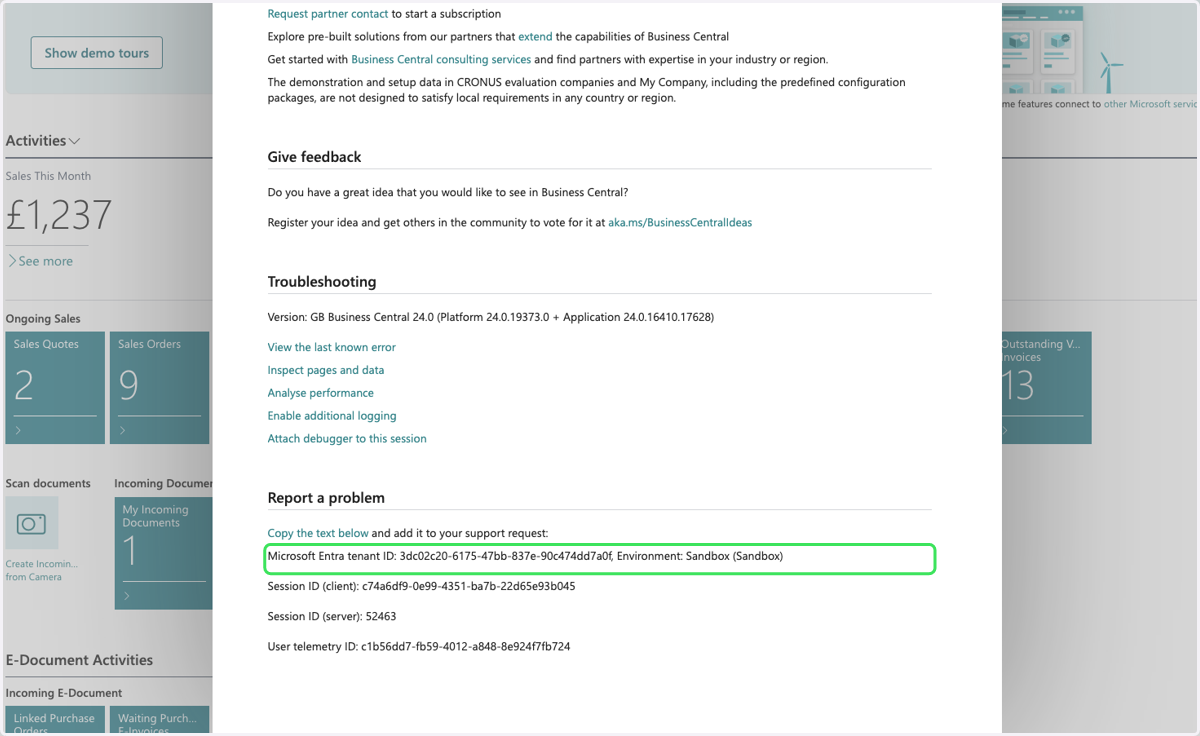
9. Locate Microsoft Entra or Azure AD tenant ID: i.e 3dc02c20-6175-47bb-837e-90c474dd7a0f, Environment: Sandbox (Sandbox)
4. OBTAIN BUSINESS CENTRAL COMPANY ID
'companyId'
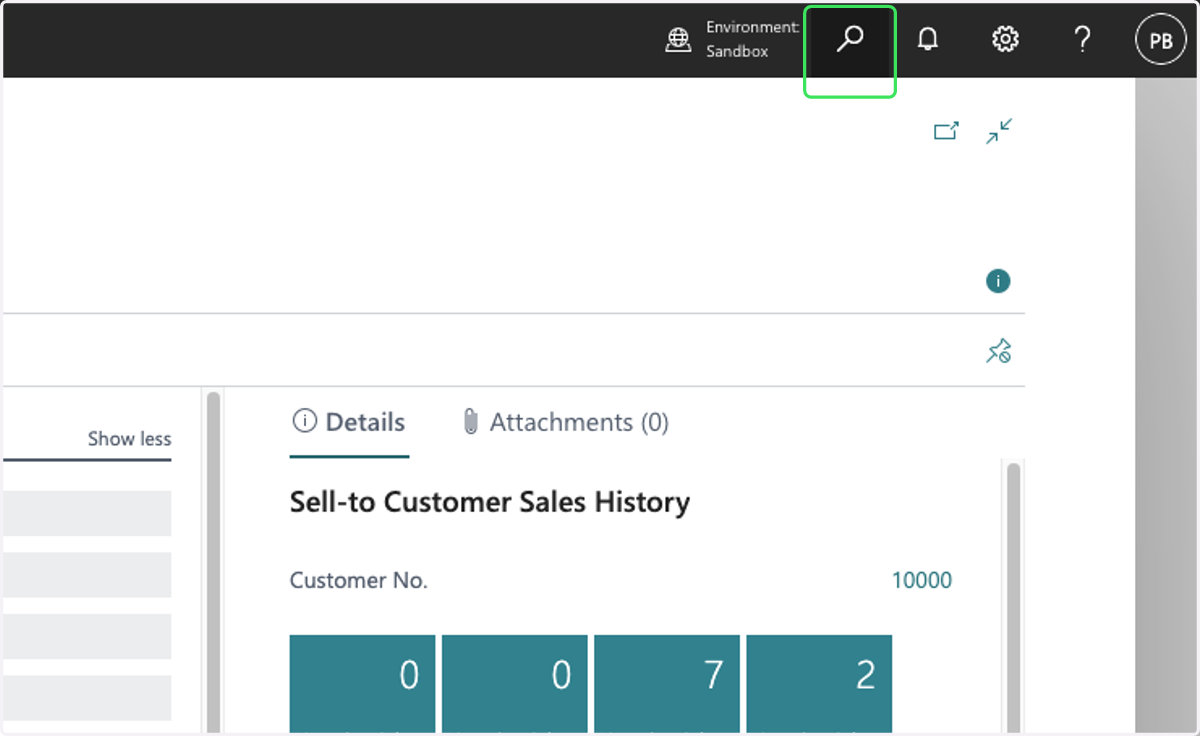
10. Click on Dynamics 365 Business Central search.
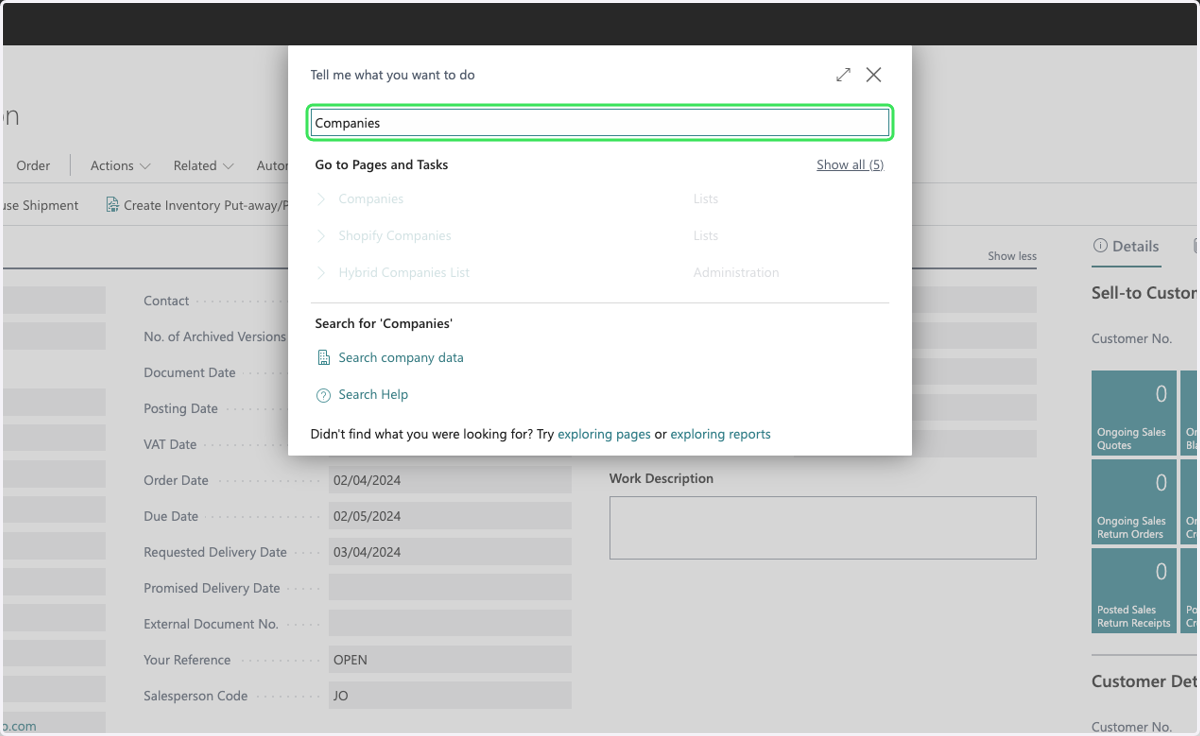
11. Type "Companies"
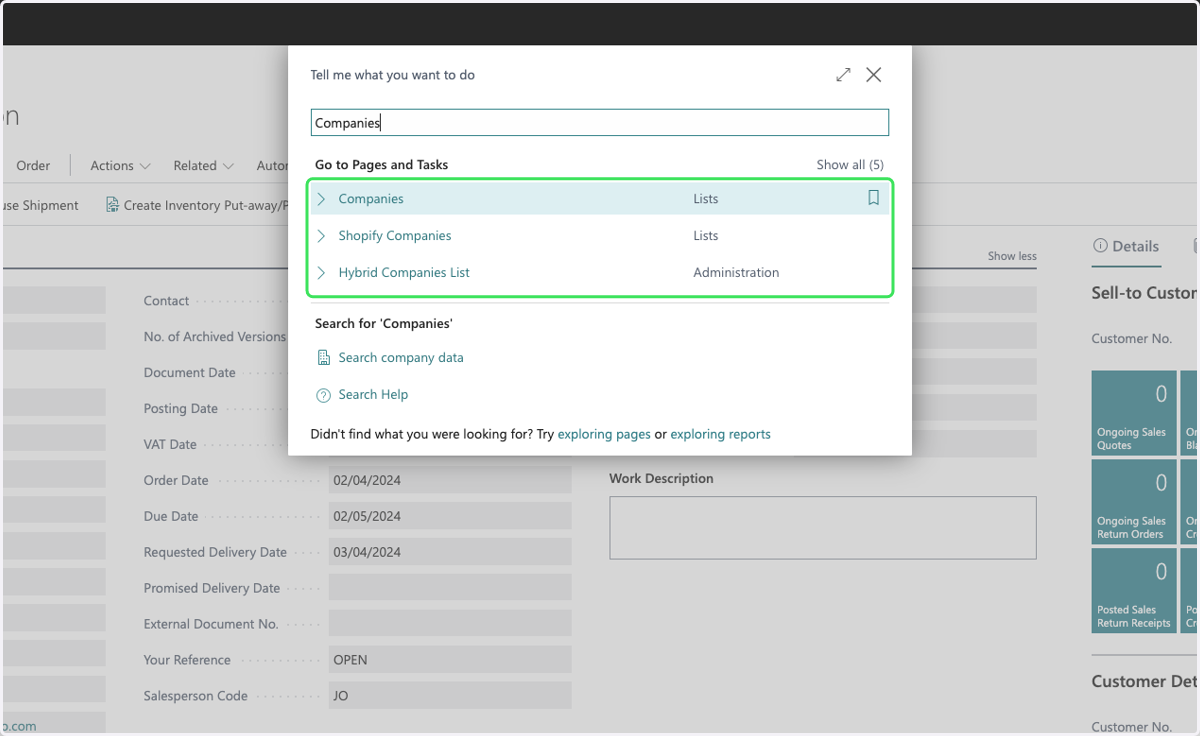
12. Click on Companies…
13. Locate the correct company and select the record.
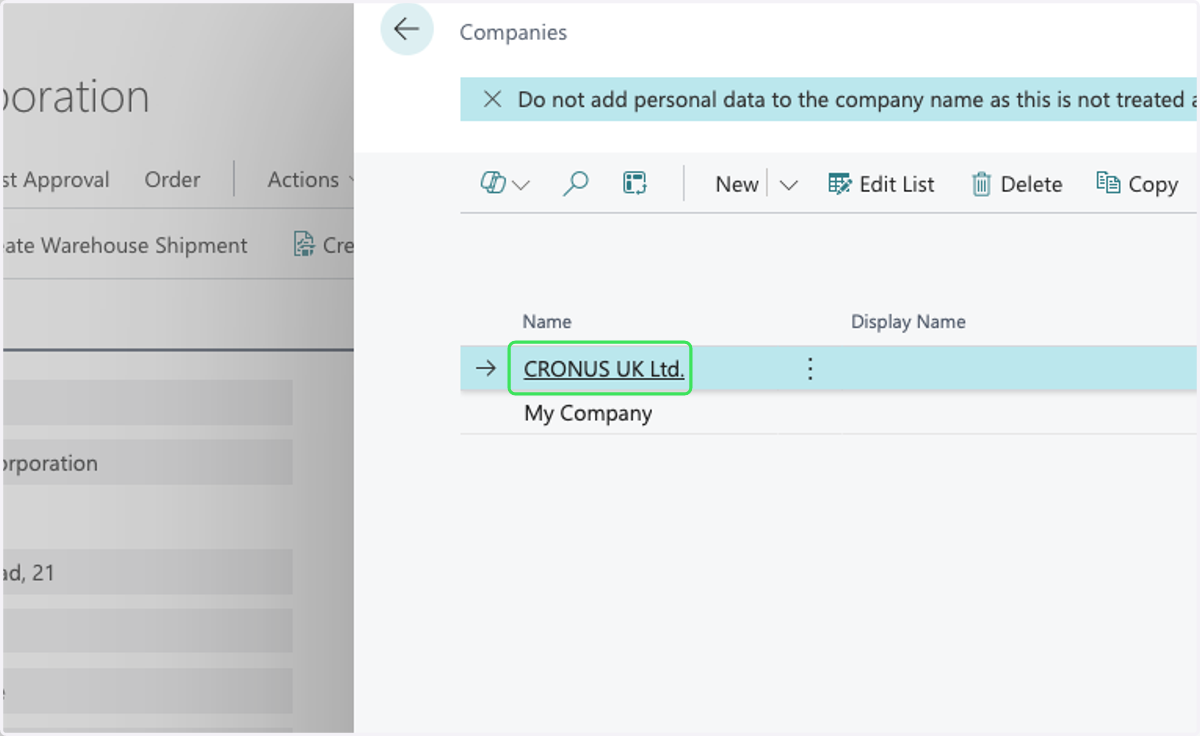
14. Click on Help
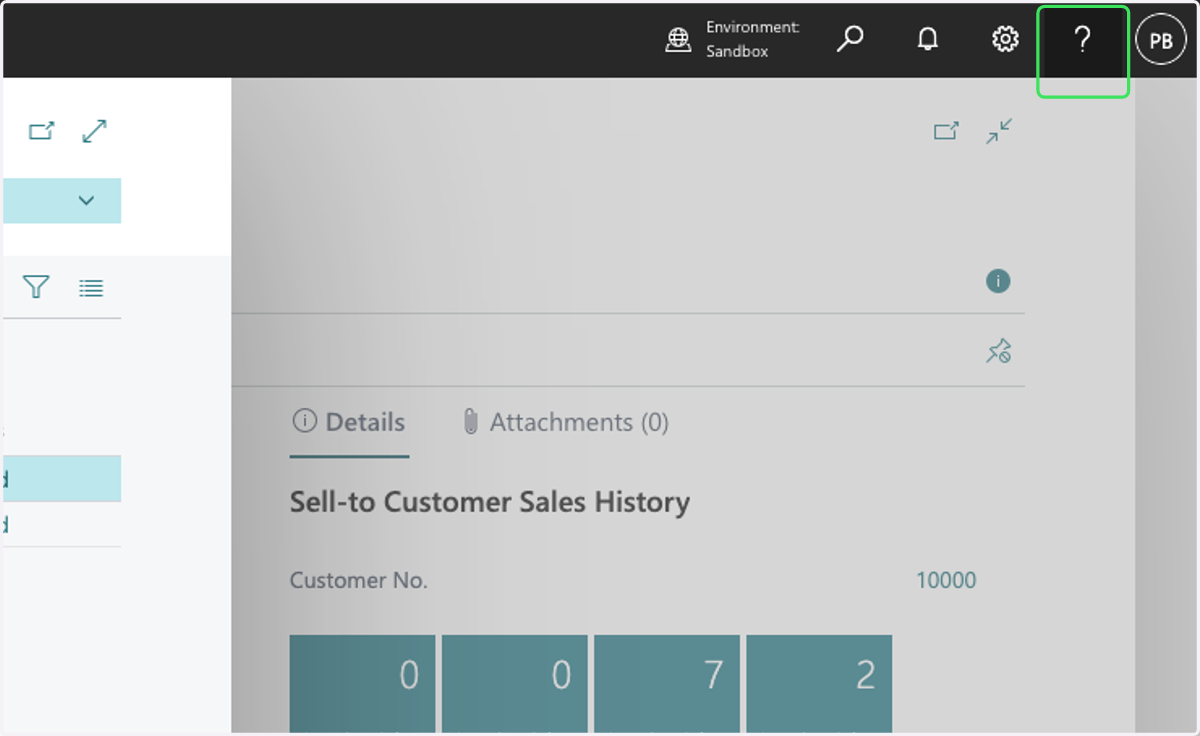
15. Click on Help & Support
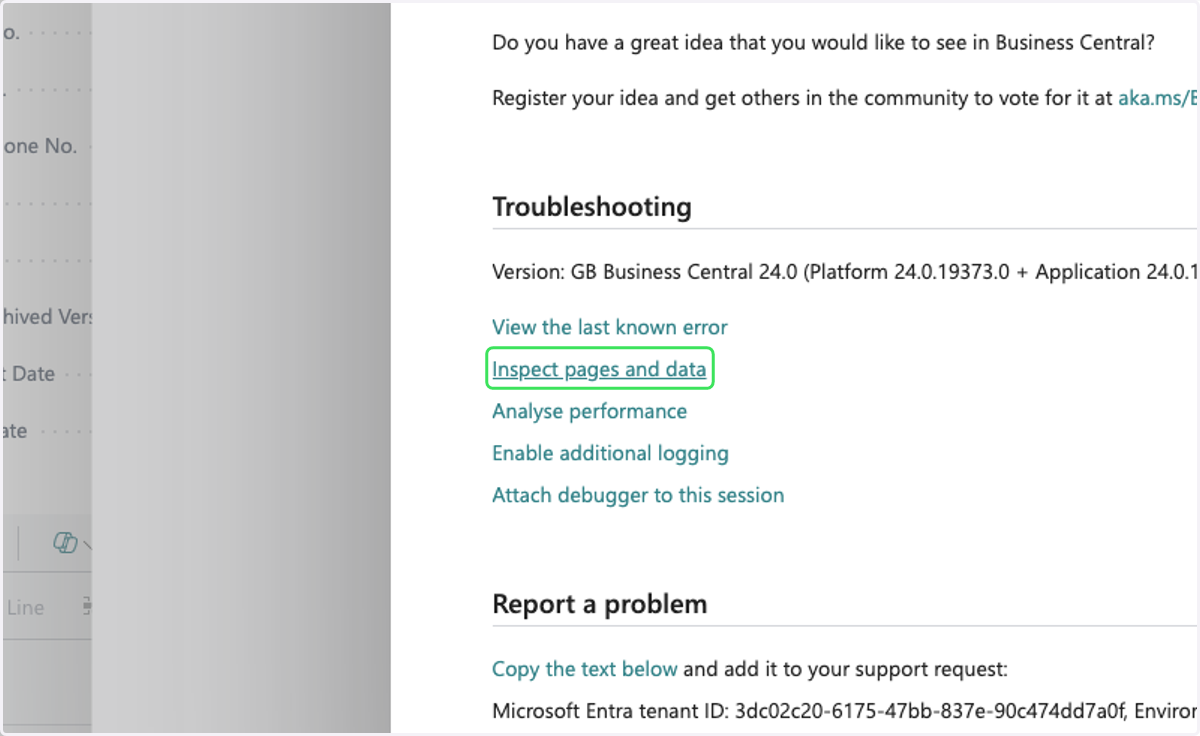
16. Click on Inspect pages and data
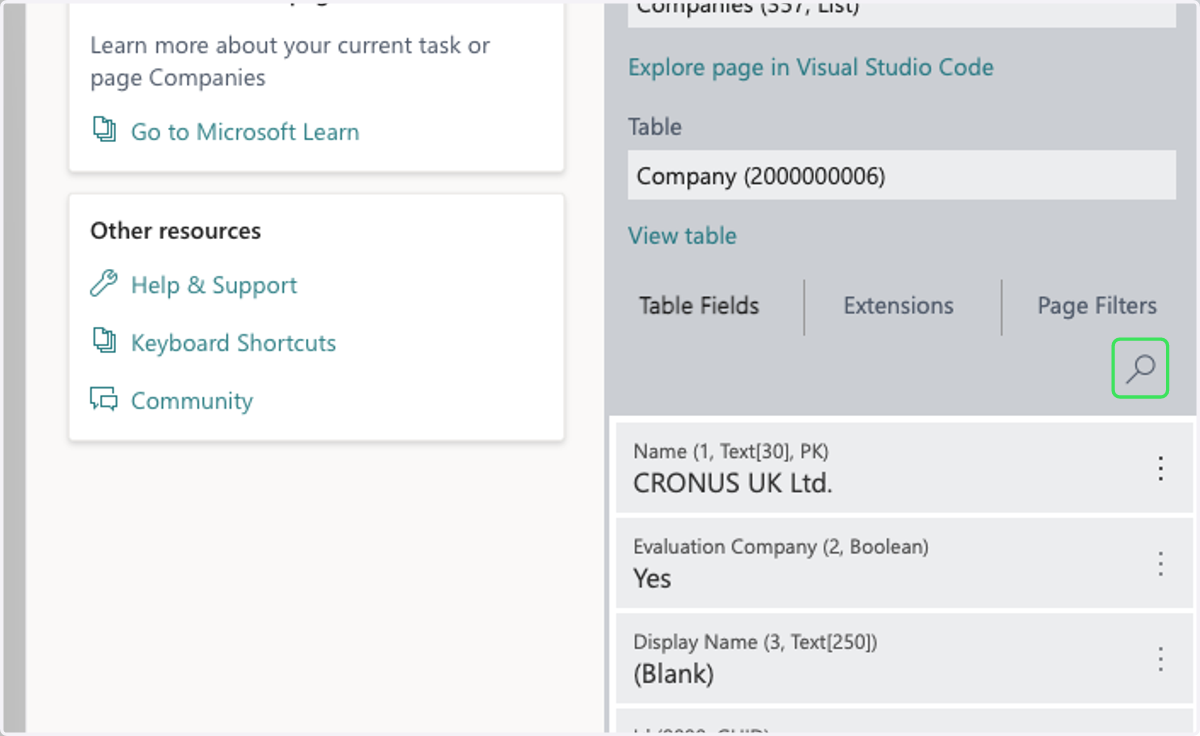
17. Under 'Page Inspection' on the right hand side of the screen, click on the search icon.
18. Type "id"
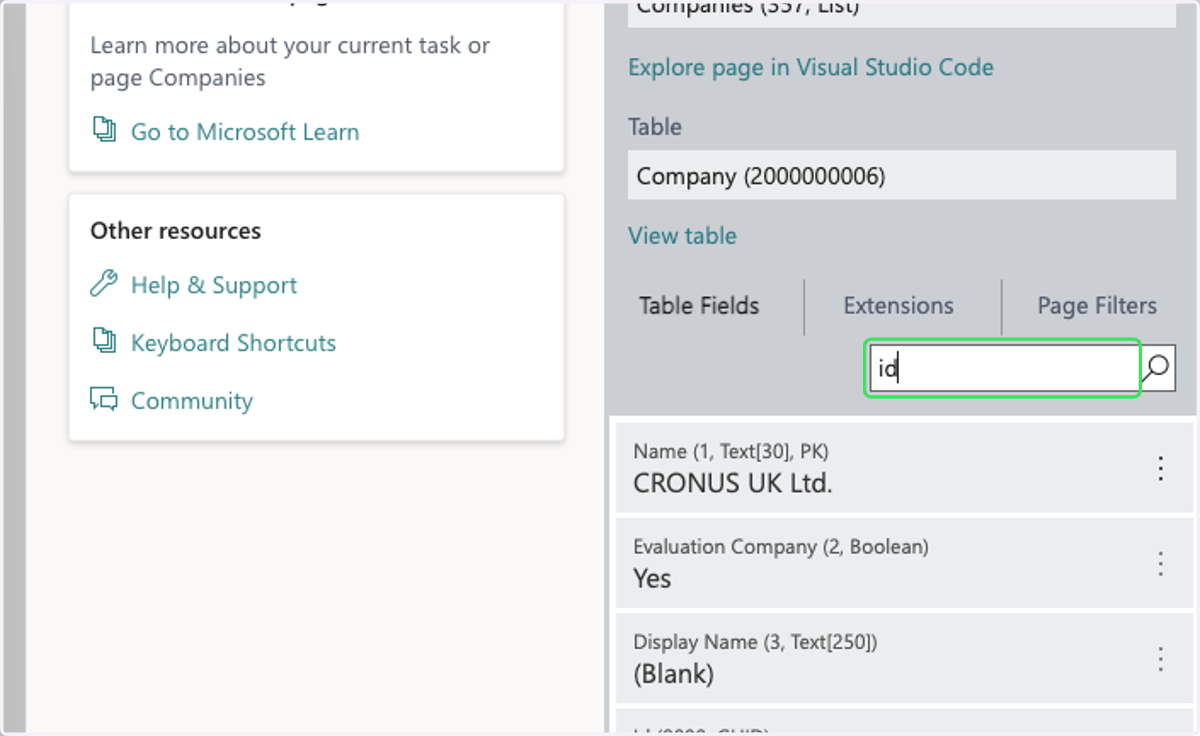
19. The 'companyId' is the first record shown in the list.