Field Trip Payment/Opt OUT - Campus Parent

Student Profile | Home | Infinite Campus

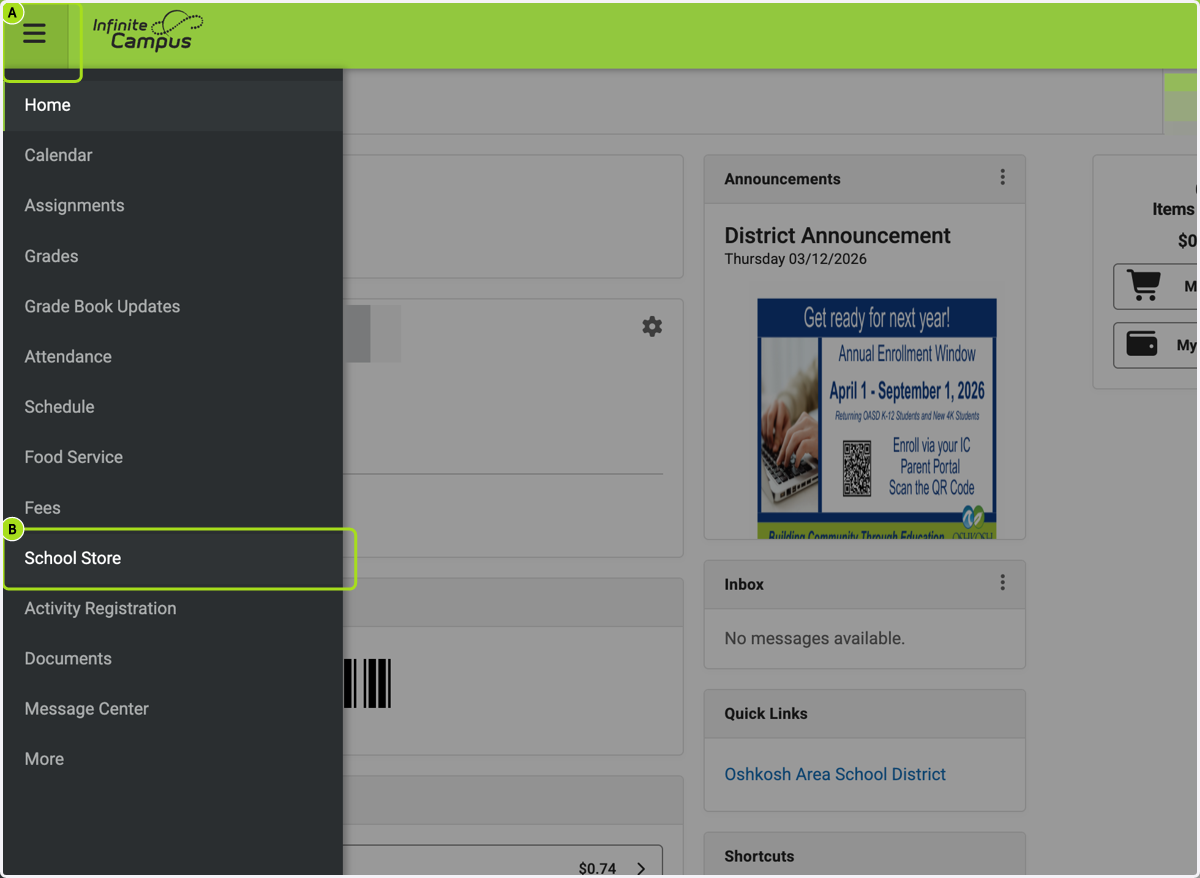
    1. 1. A. Click on Menu

    2. 1. B. Click on School Store

    A. Click on Menu B. Click on School Store
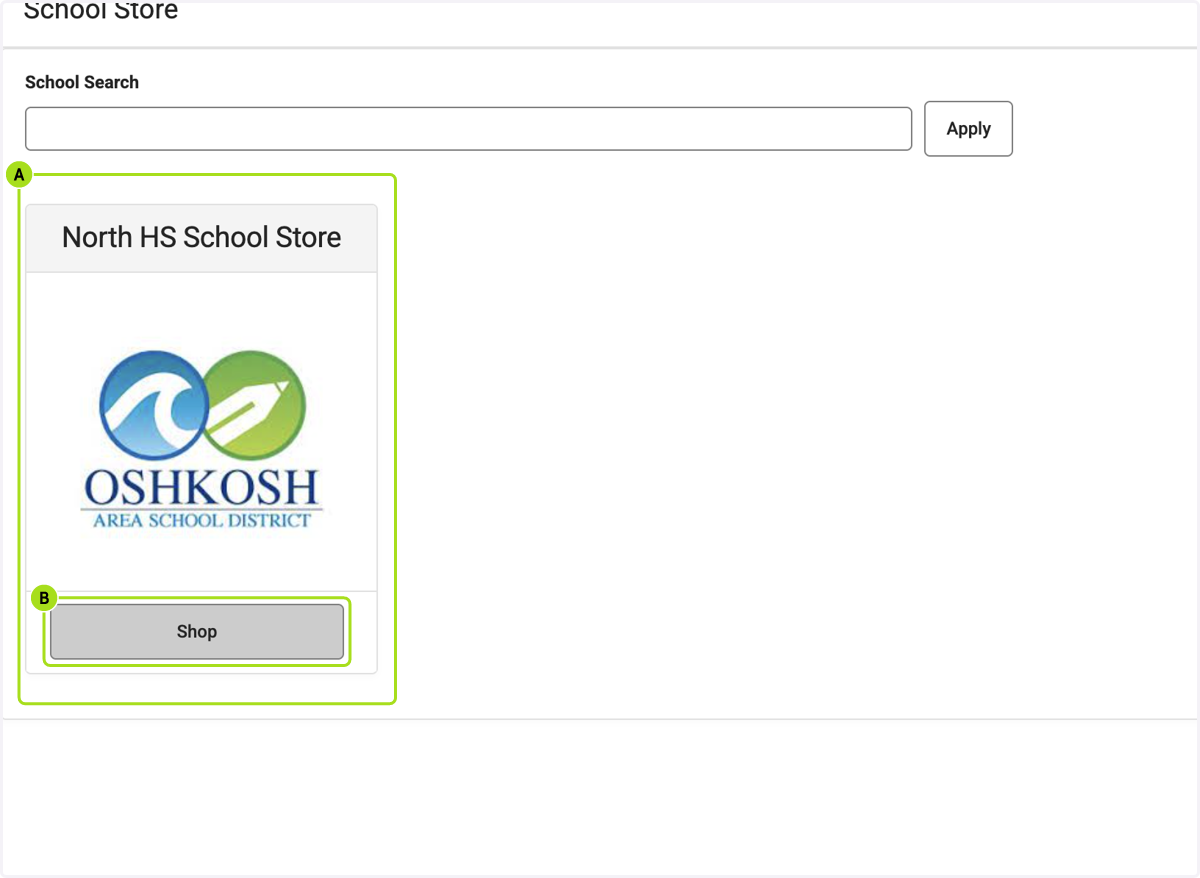
    1. 2. A. Click on your child's school

    2. 2. B. Click on Shop

    A. Click on your child's school B. Click on Shop
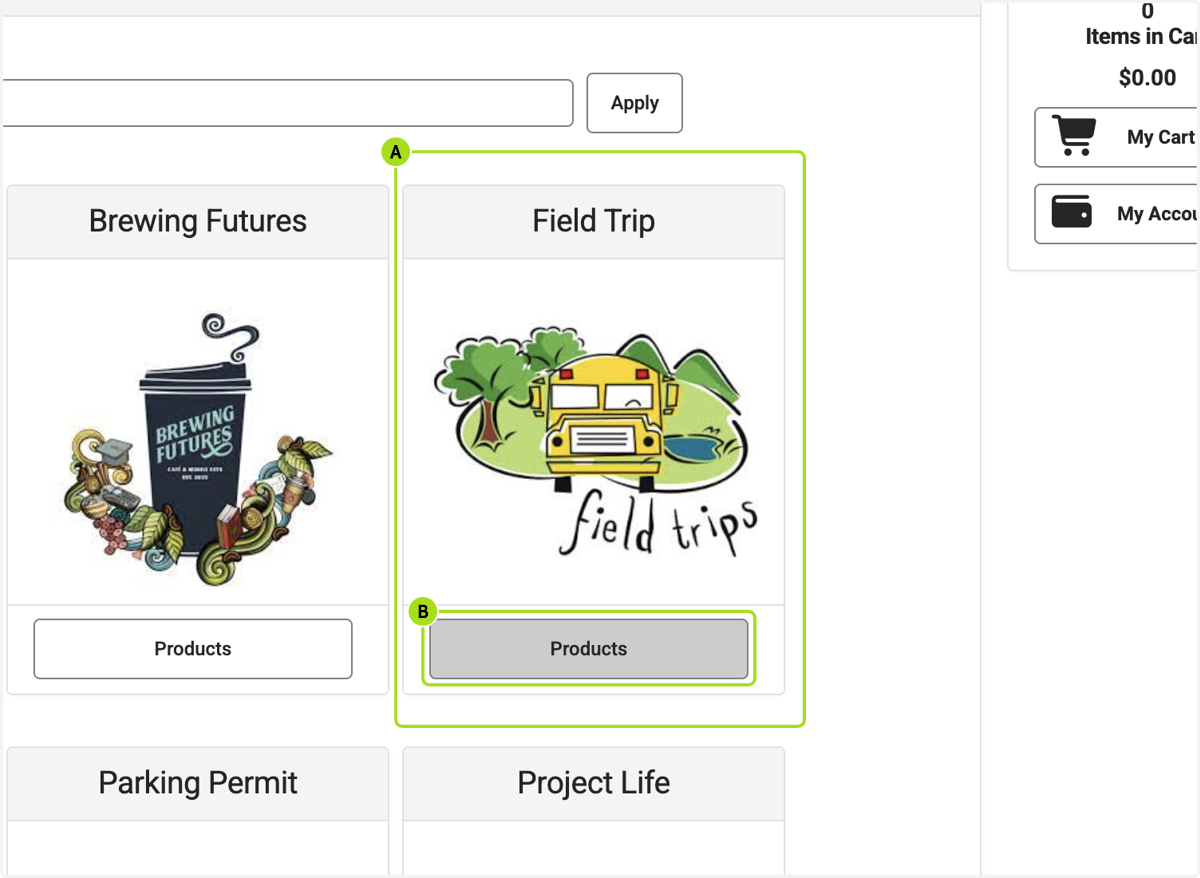
    1. 3. A. Click on Field Trip

    2. 3. B. Click on Products

    A. Click on Field Trip B. Click on Products
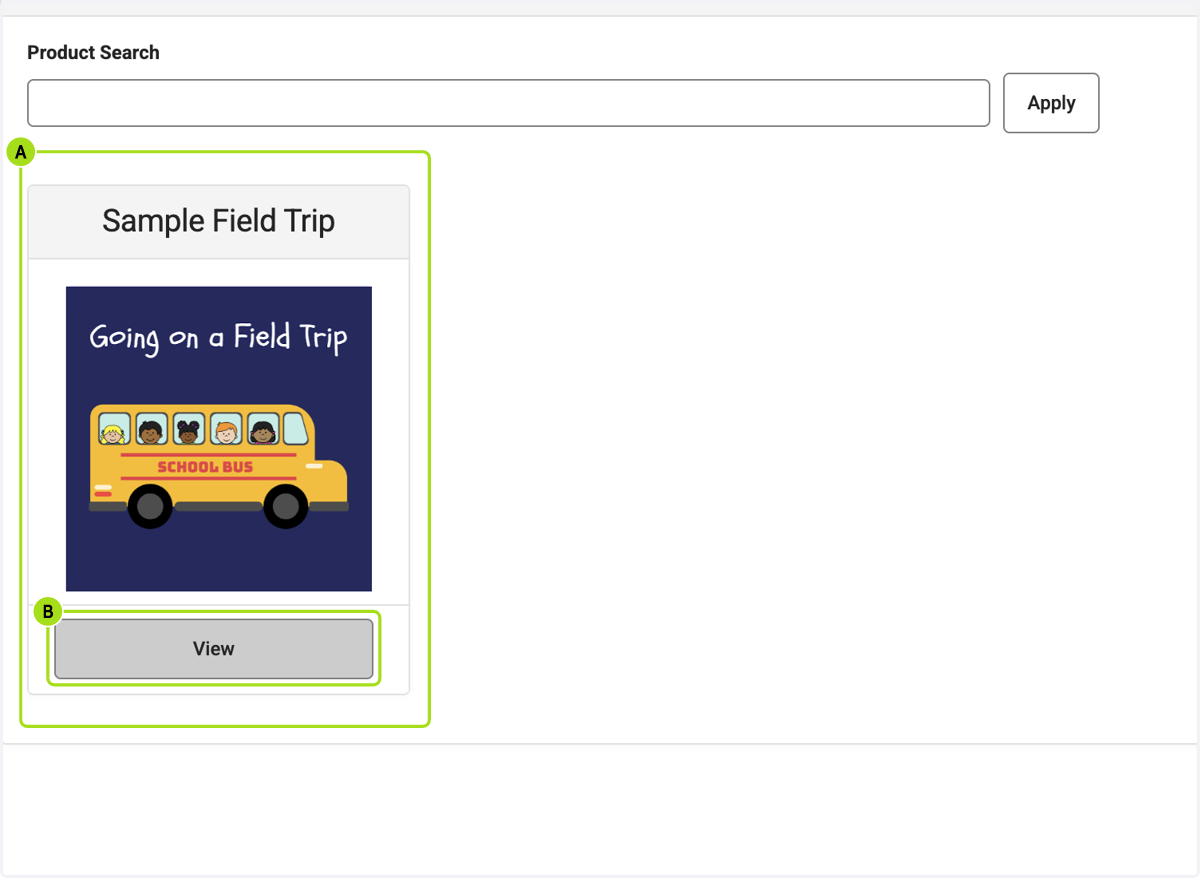
    1. 4. A. Click on the field trip you are paying for or opting out of

    2. 4. B. Click on a product card

    A. Click on the field trip you are paying for or opting out of B. Click on View
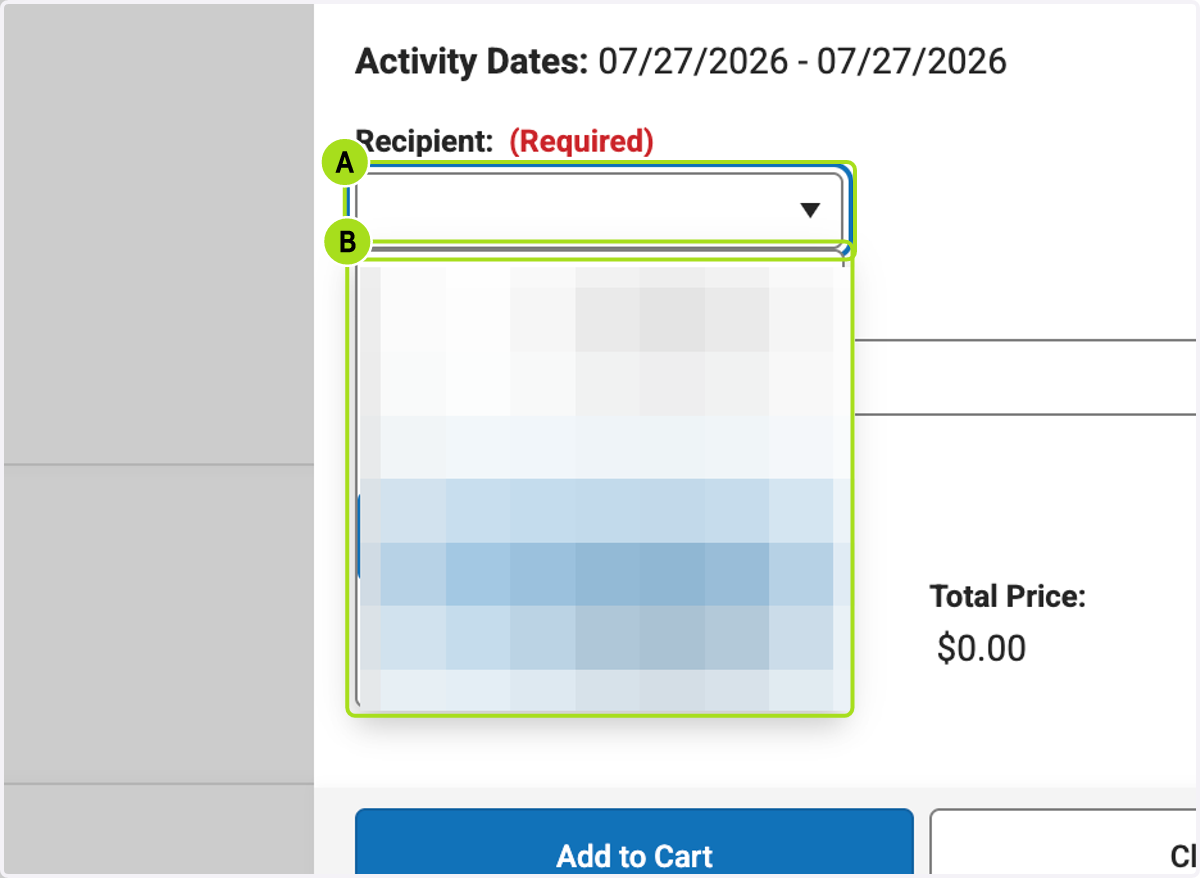
    1. 5. A. Click on Recipient: (Required)

    2. 5. B. Select Recipient: (Required)

    A. Click on Recipient: (Required) B. Select Recipient: (Required)
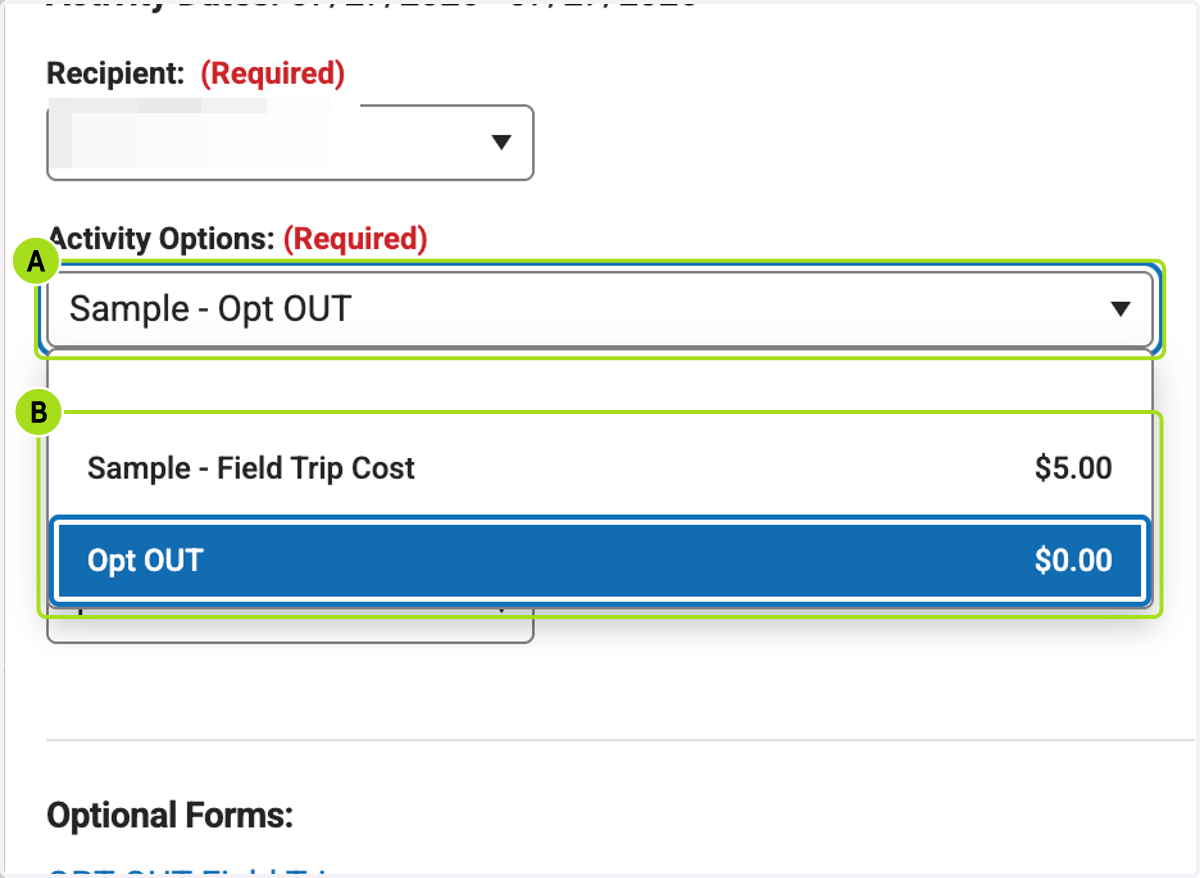
    1. 6. A. Click on Activity Options: (Required)

    2. 6. B. Select Activity Options: (Required) Pay for the Field Trip if Applicable or Opt Out
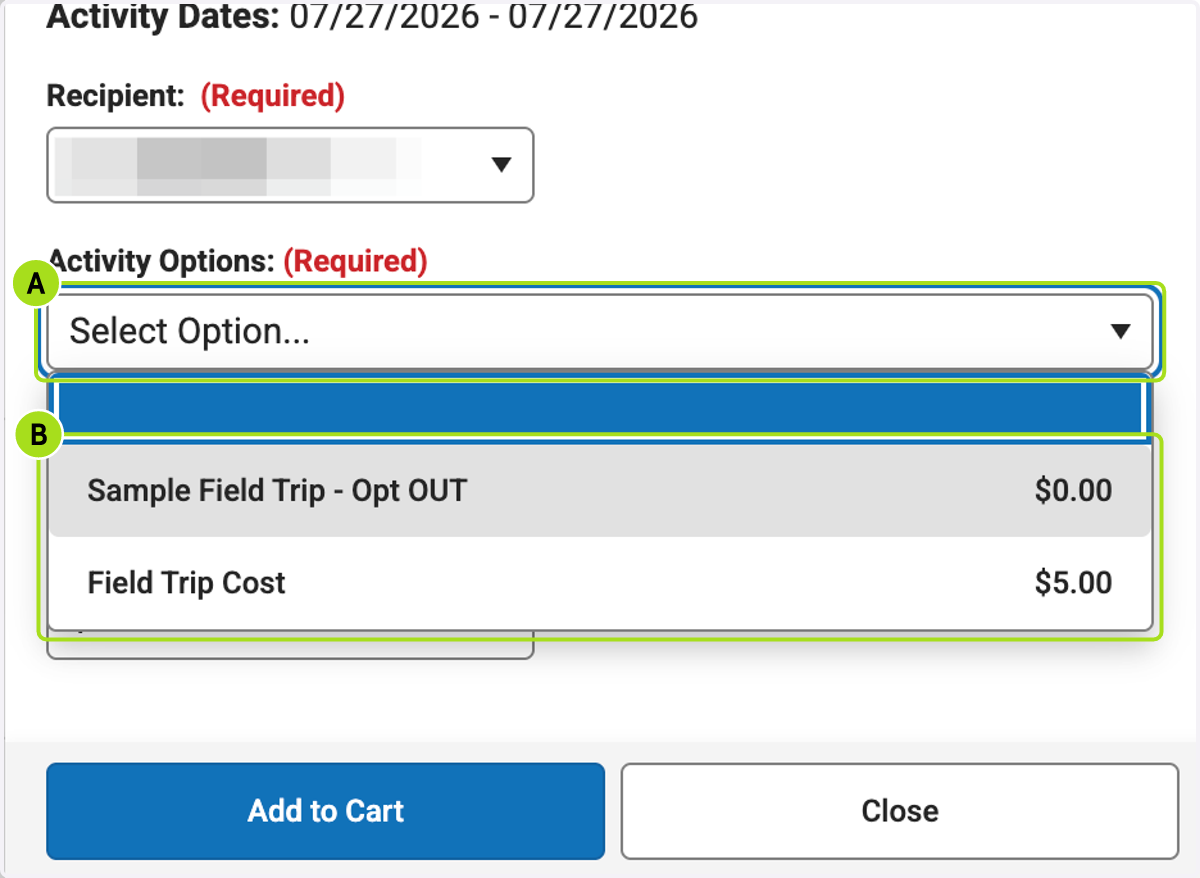
    A. Click on Activity Options: (Required) B. Select Activity Options: (Required) Pay for the Field Trip if Applicable or Opt Out
  1. 7. Click on Add to Cart if you are paying for the field trip
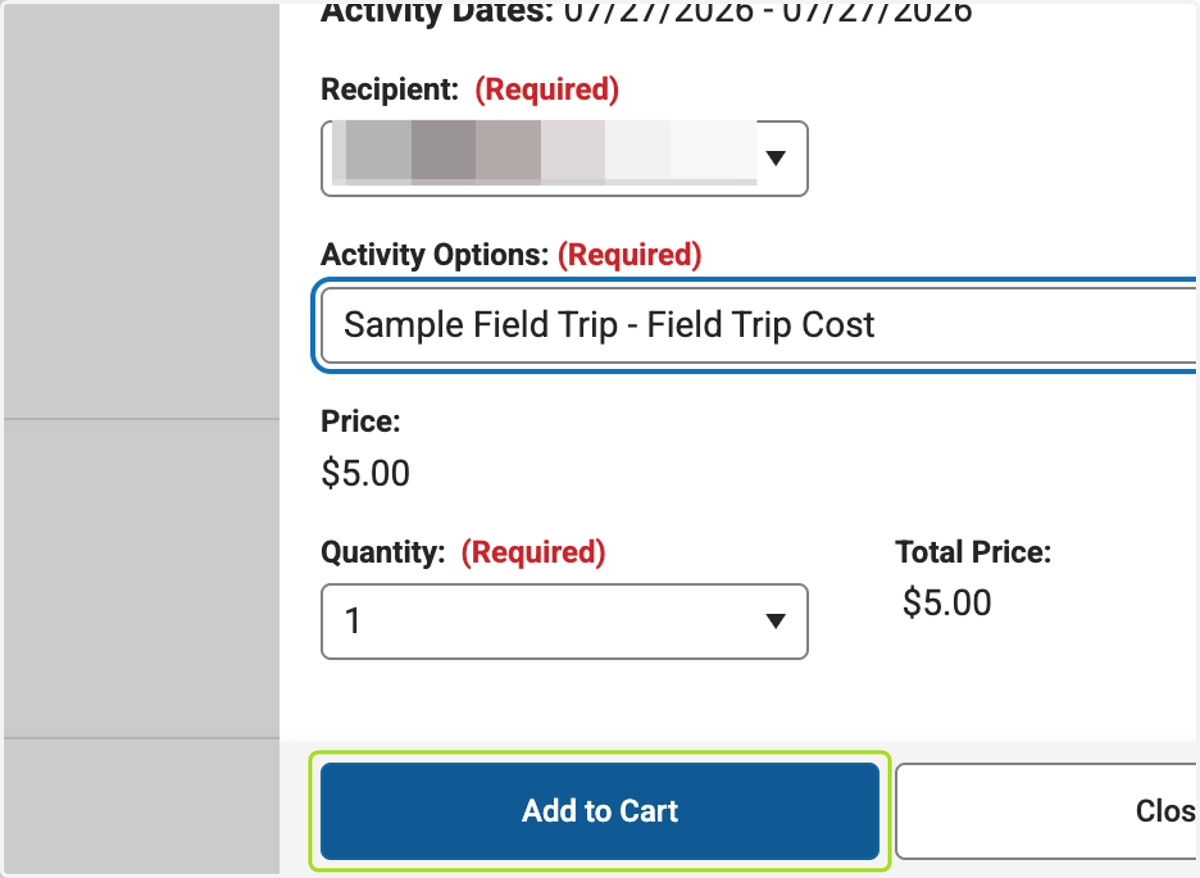
    Click on Add to Cart if you are paying for the field trip
    1. 8. A. Click on Activity Options: If Opting Out

    2. 8. B. Select Opt OUT

    A. Click on Activity Options: If Opting Out B. Select Opt OUT
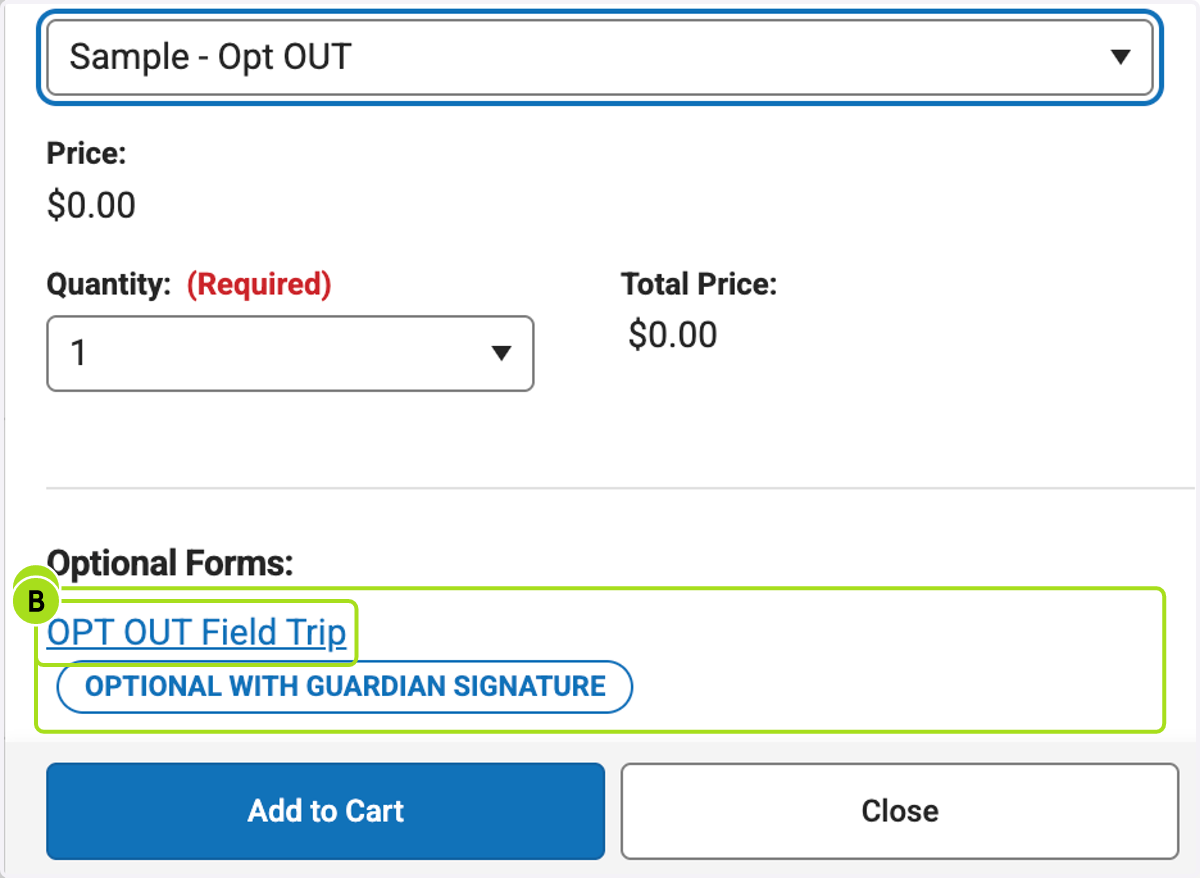
    1. 9. A. Click on OPT OUT Field Trip Form

    2. 9. B. Complete the Opt OUT Form

    A. Click on OPT OUT Field Trip Form B. Complete the Opt OUT Form
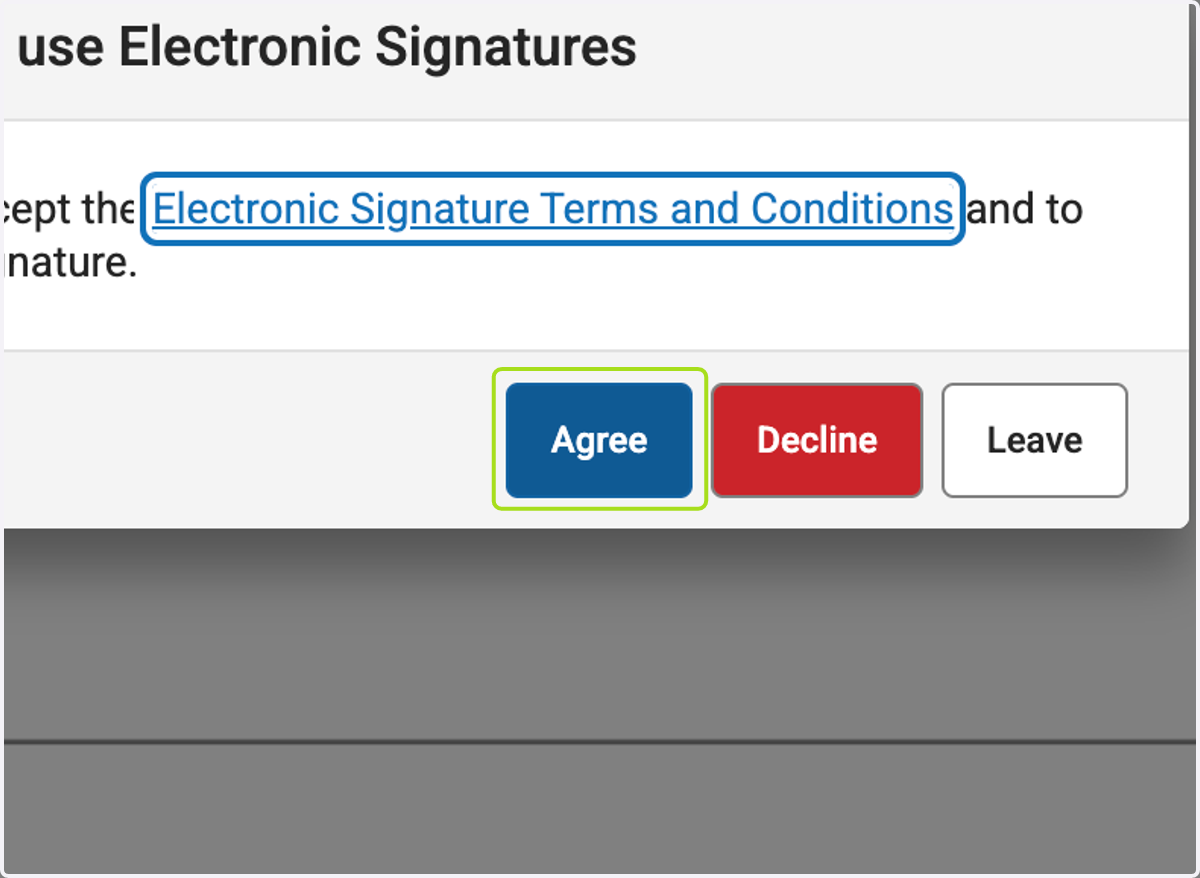
  2. 10. Click on Agree on Opt out Form

    Click on Agree on Opt out Form
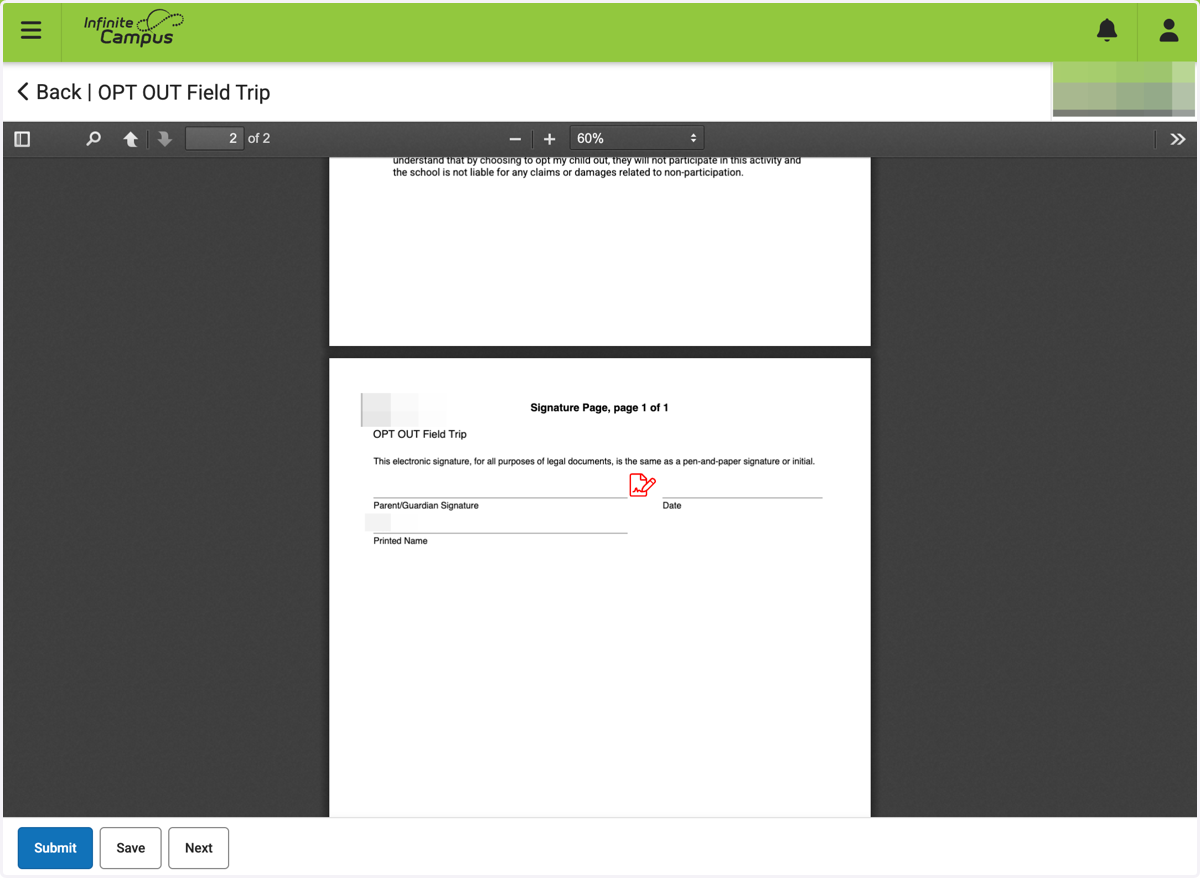
  3. 11. Sign Opt Out Form

    Sign Opt Out Form
  4. 12. Click on Click here to sign or decline
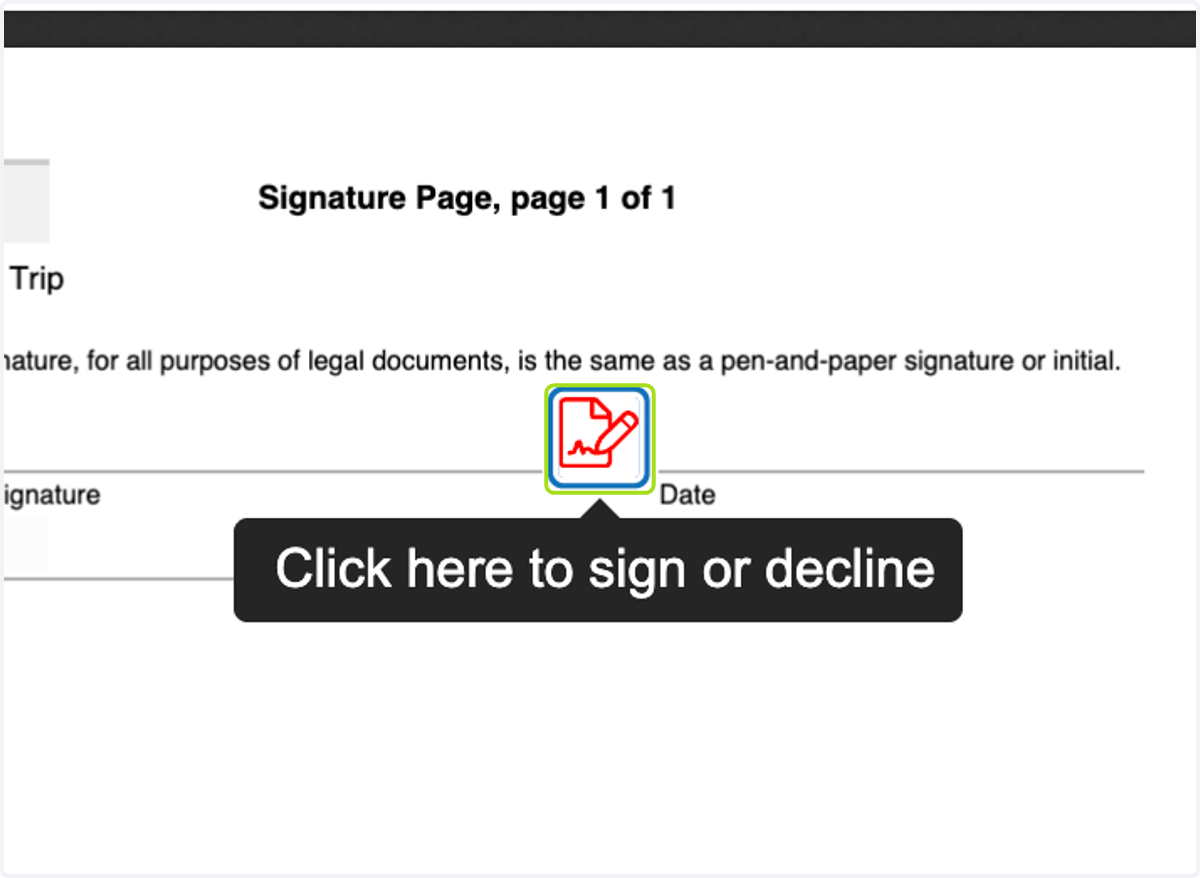
    Click on Click here to sign or decline
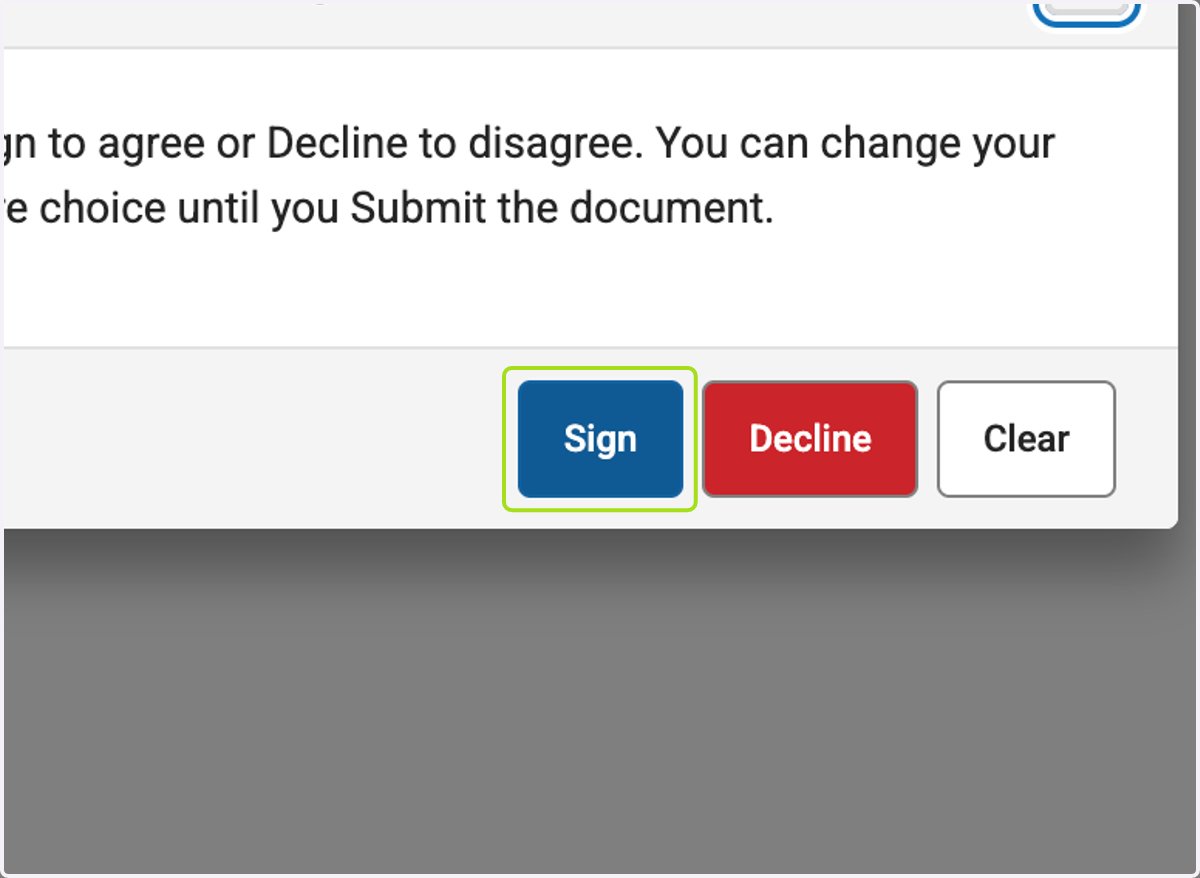
  5. 13. Click on Sign

    Click on Sign
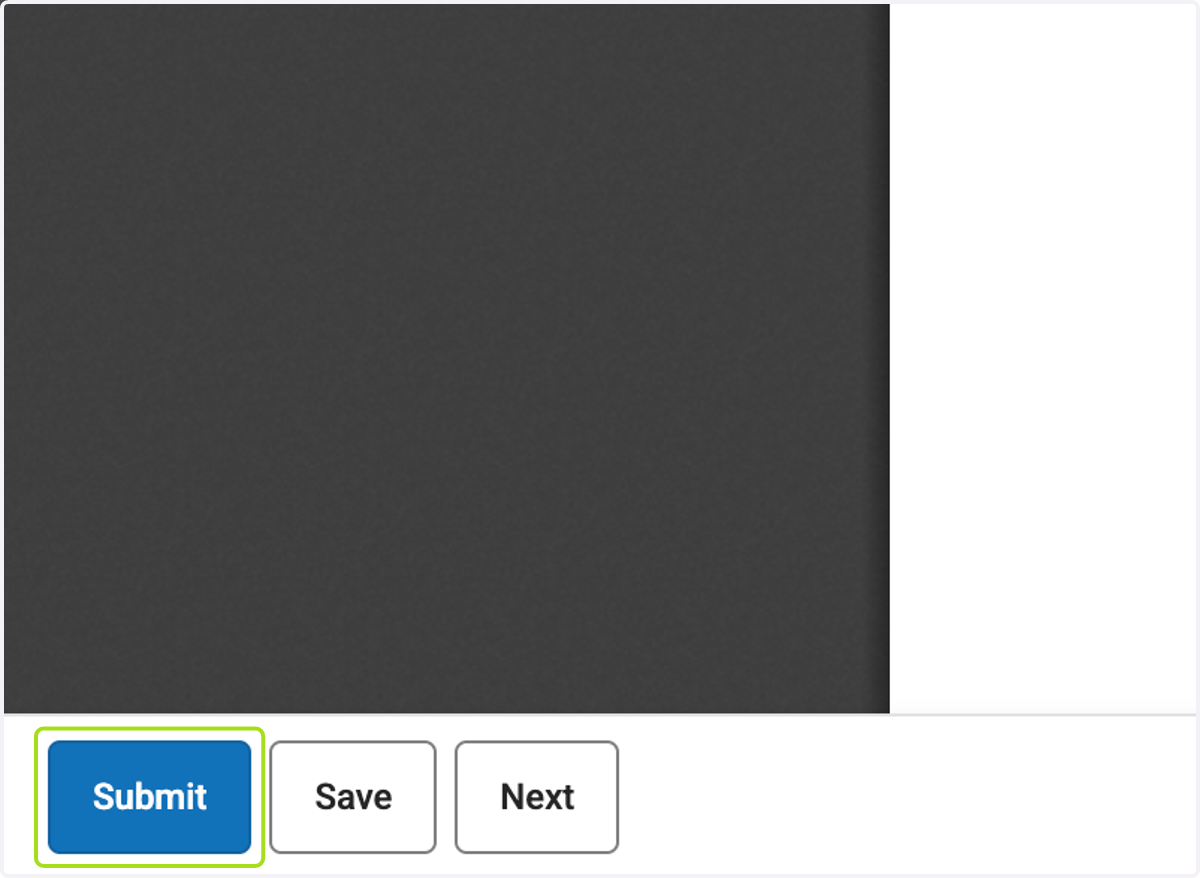
  6. 14. Click on Submit

    Click on Submit
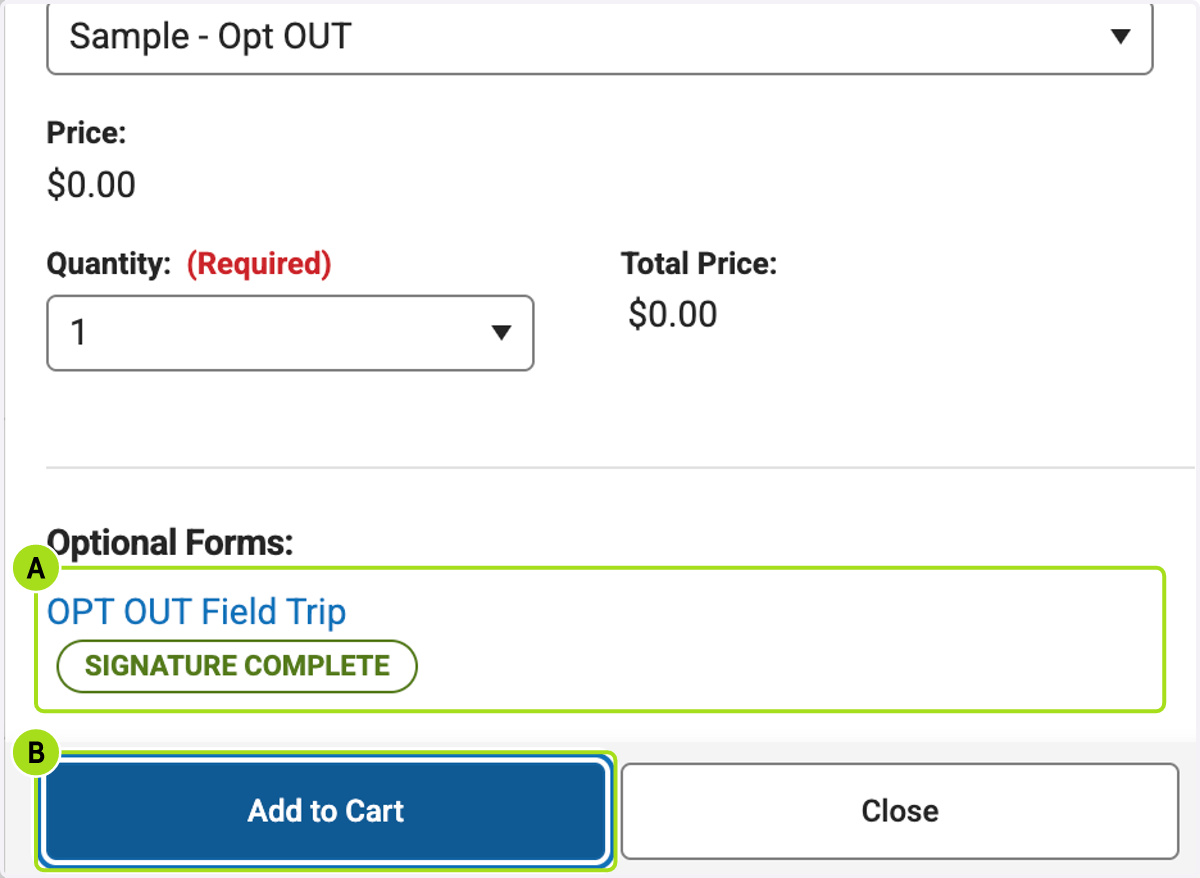
    1. 15. A. You will see your opt out form has been completed

    2. 15. B. Click on Add to Cart

    A. You will see your opt out form has been completed B. Click on Add to Cart
    1. 16. A. Click on cart item

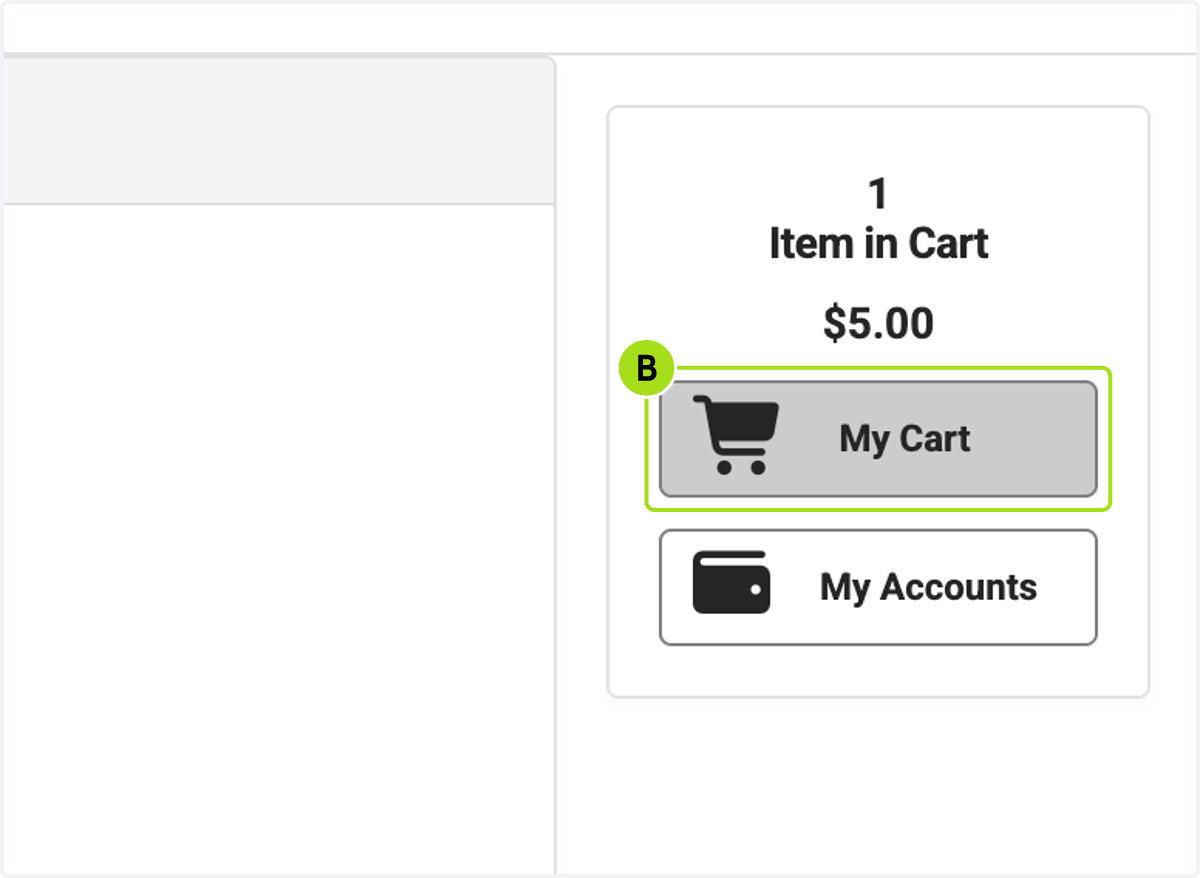
    2. 16. B. Click on My Cart

    A. Click on Item in Cart… B. Click on My Cart
    1. 17. A. Click on Payment Option or Add a Payment Method

    2. 17. B. Enter the email address for the receipt and click on Submit Payment
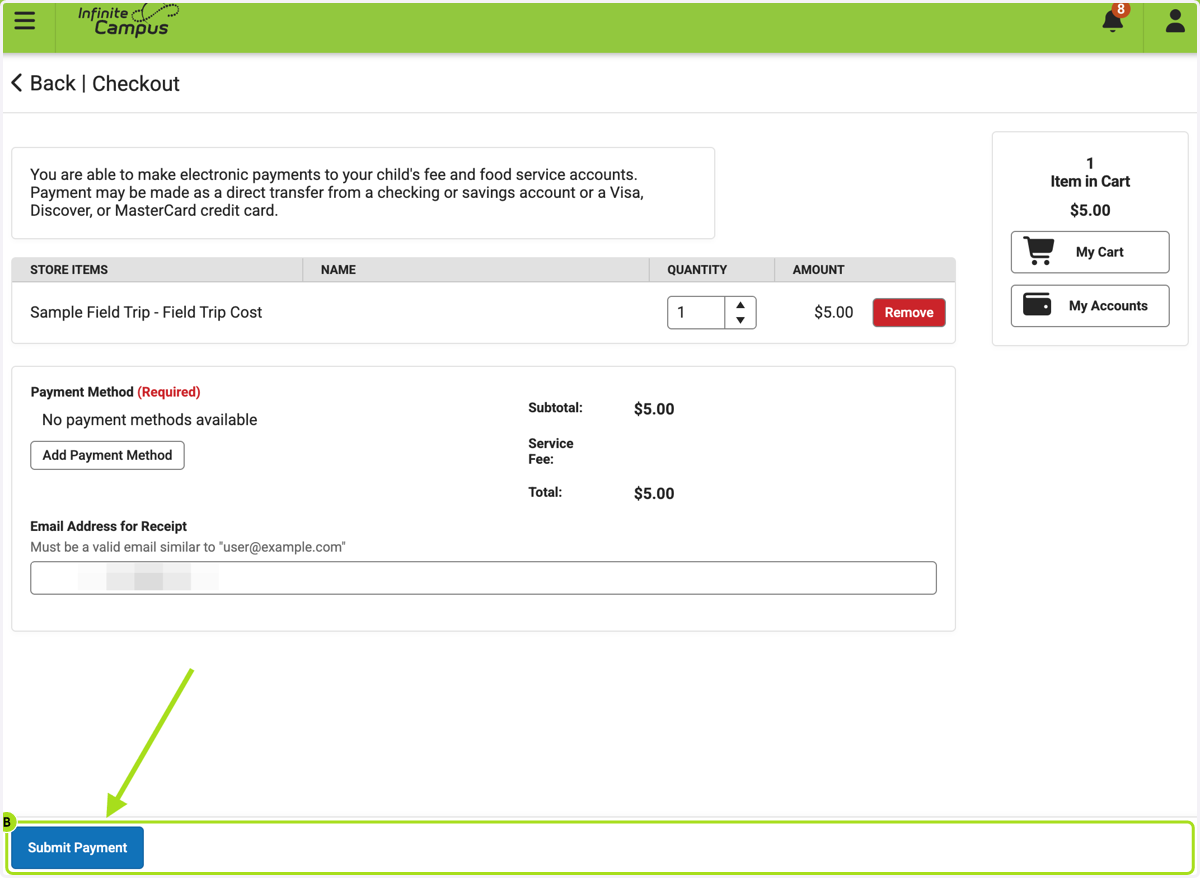
    A. Click on Payment Option or Add a Payment Method B. Enter the email address for the receipt and click on Submit Payment