Exempt Employee Guide: How to submit a Bereavement Leave Request for a colleague in Wolftime?
If you are an exempt employee, follow these steps to submit a bereavement leave request to attend a colleague's memorial event in Wolftime.
NOTE: The amount of total hours you are eligible to take for a Bereavement Leave - Colleague request is prorated by your Full Time Equivalent (FTE).
Examples
FTE = 1; Your standard work day is 8 hours; Up to 8 hours of Bereavement Leave for a Colleague request
FTE = 0.75; Your standard work day is 6 hours; Up to 6 hours of Bereavement Leave for a Colleague request
Supporting Information:
Login to MyPack Portal
1. Navigate to the Employee Self-Service

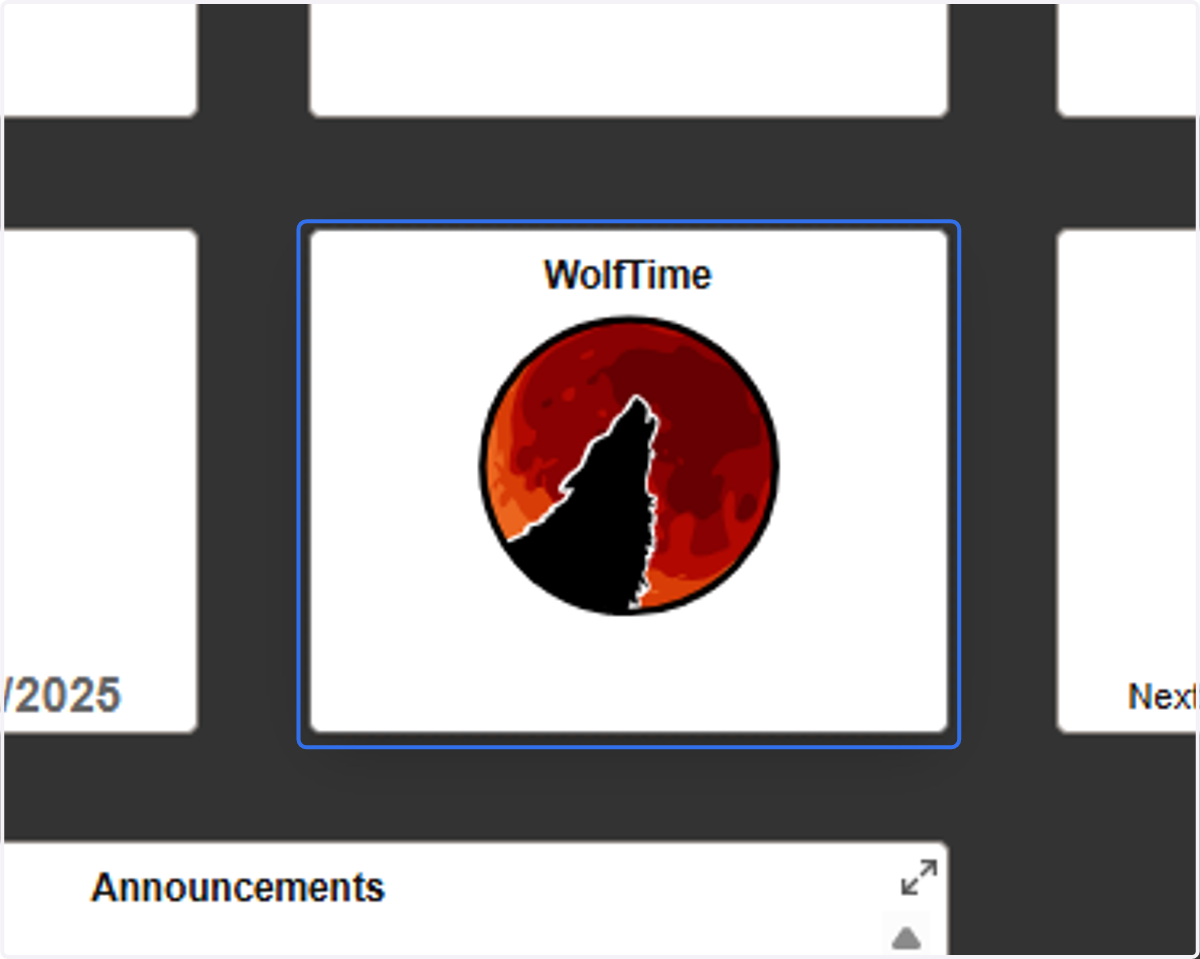
2. Click on the WolfTime tile
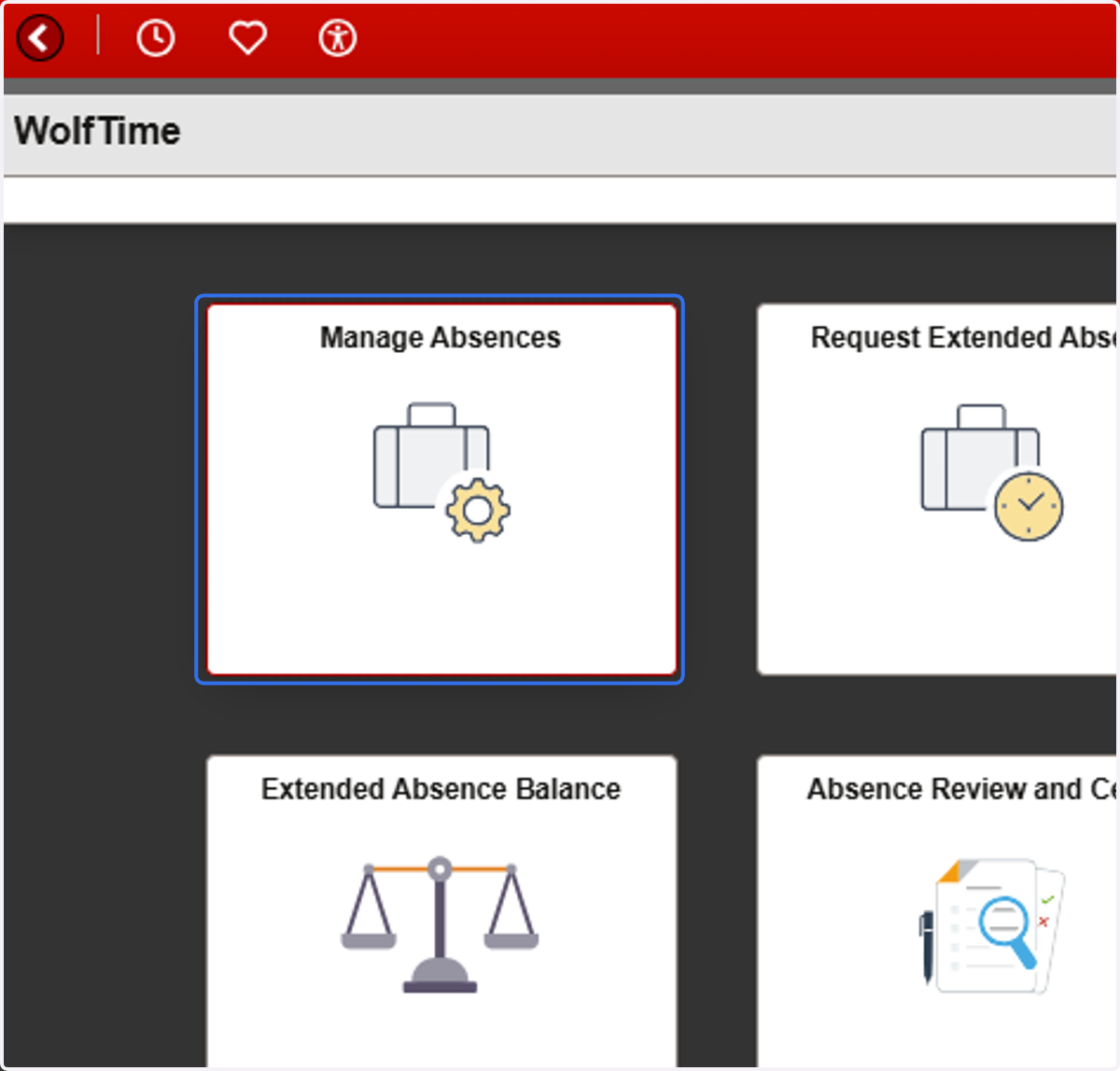
3. Click on the Manage Absences tile
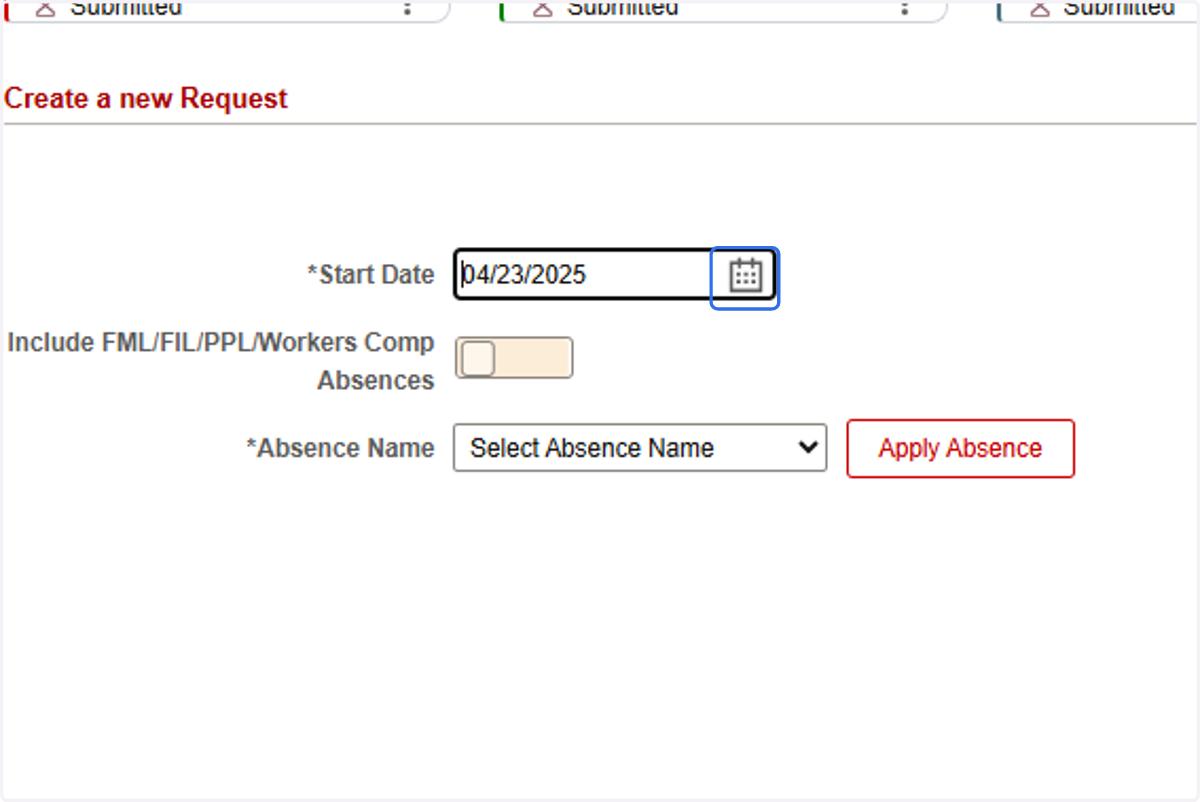
4. Select the Start Date of the Bereavement Leave Request
NOTE: This is the date of the memorial event you will be attending.
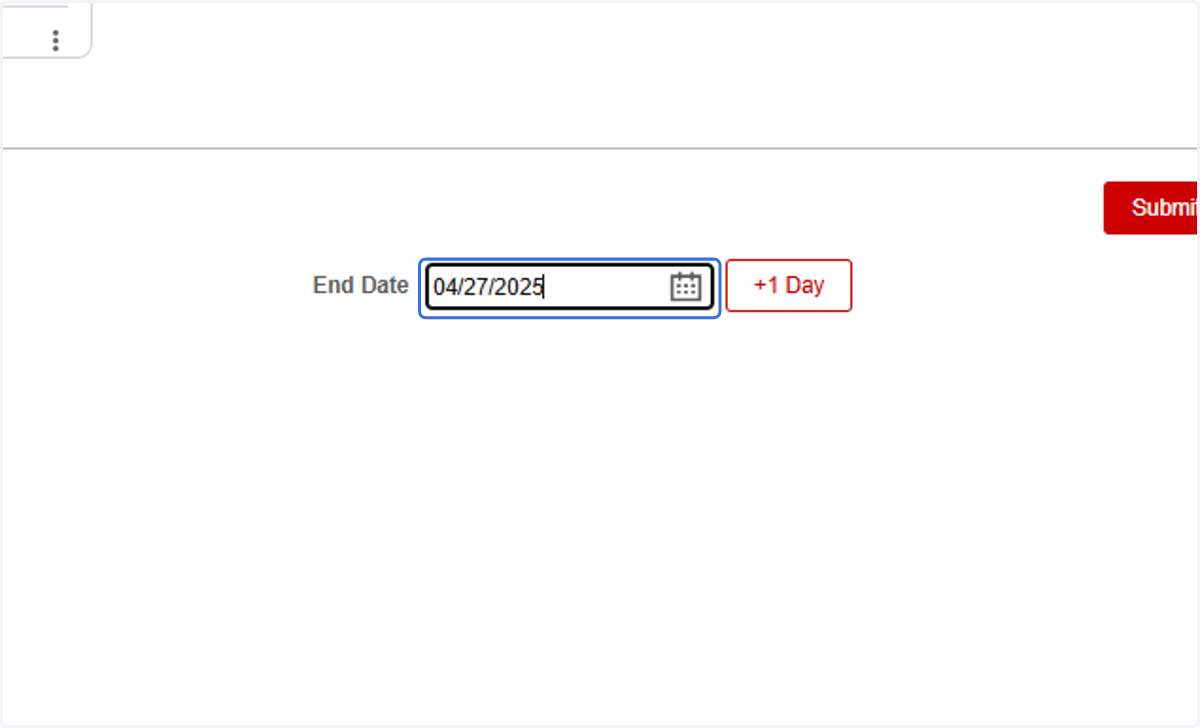
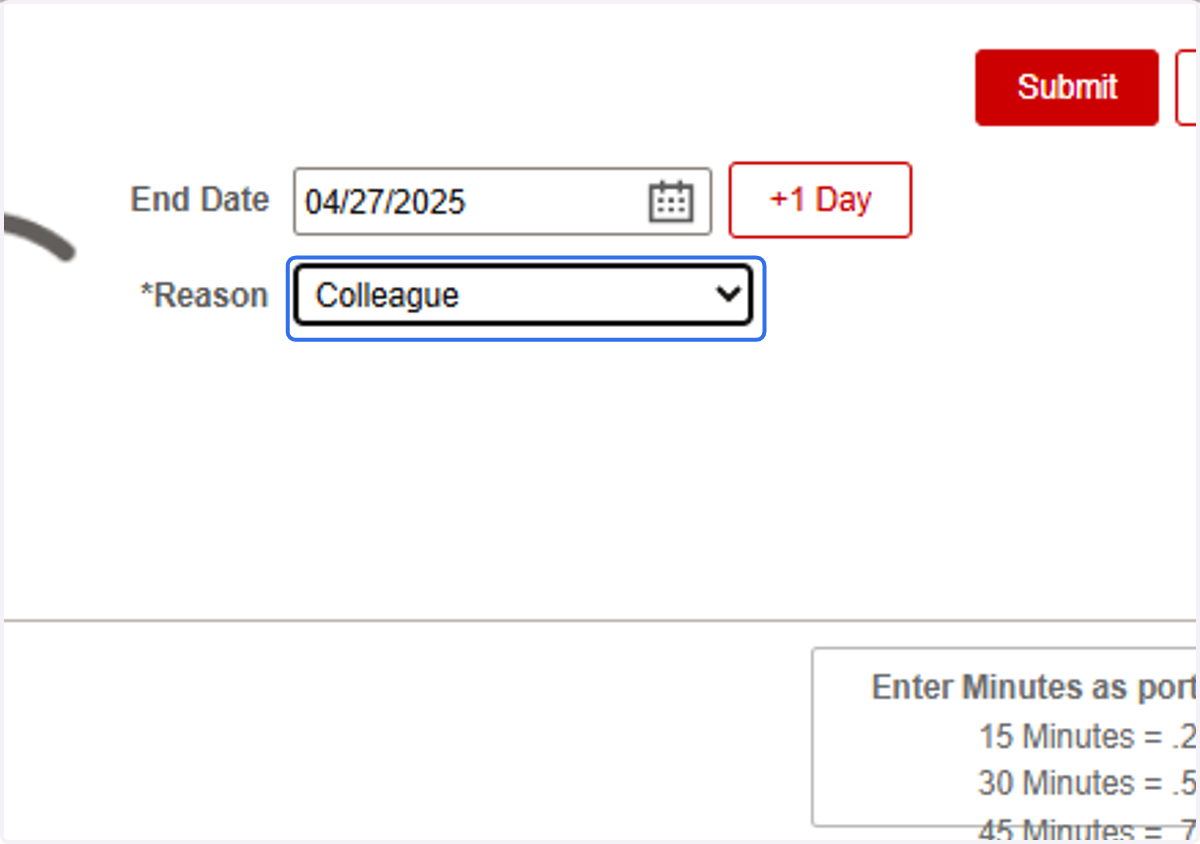
5. Select the End Date of the Bereavement Leave Request
NOTE: For colleague bereavement requests, this will always be the same date as your Start Date for the request. This is in line with the Bereavement Leave - Colleague policy.
6. Select Absence Name: Bereavement Leave
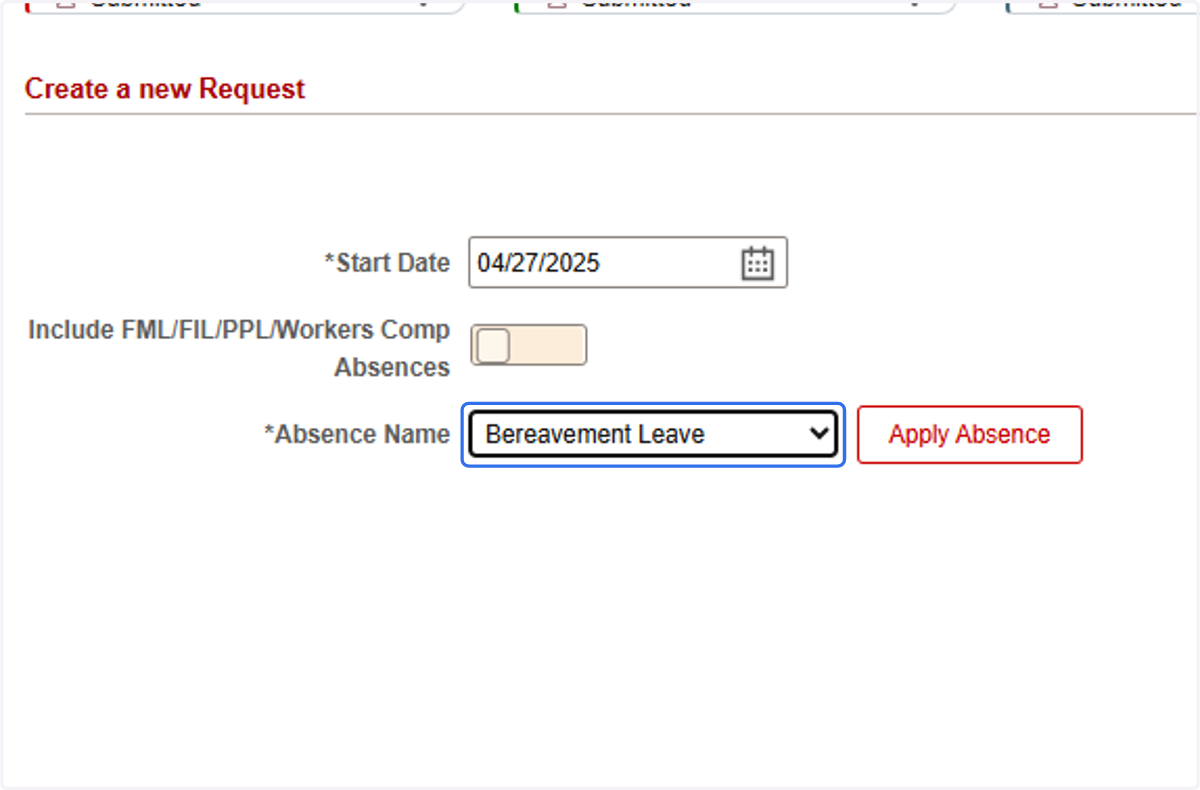
7. Click Apply Absence
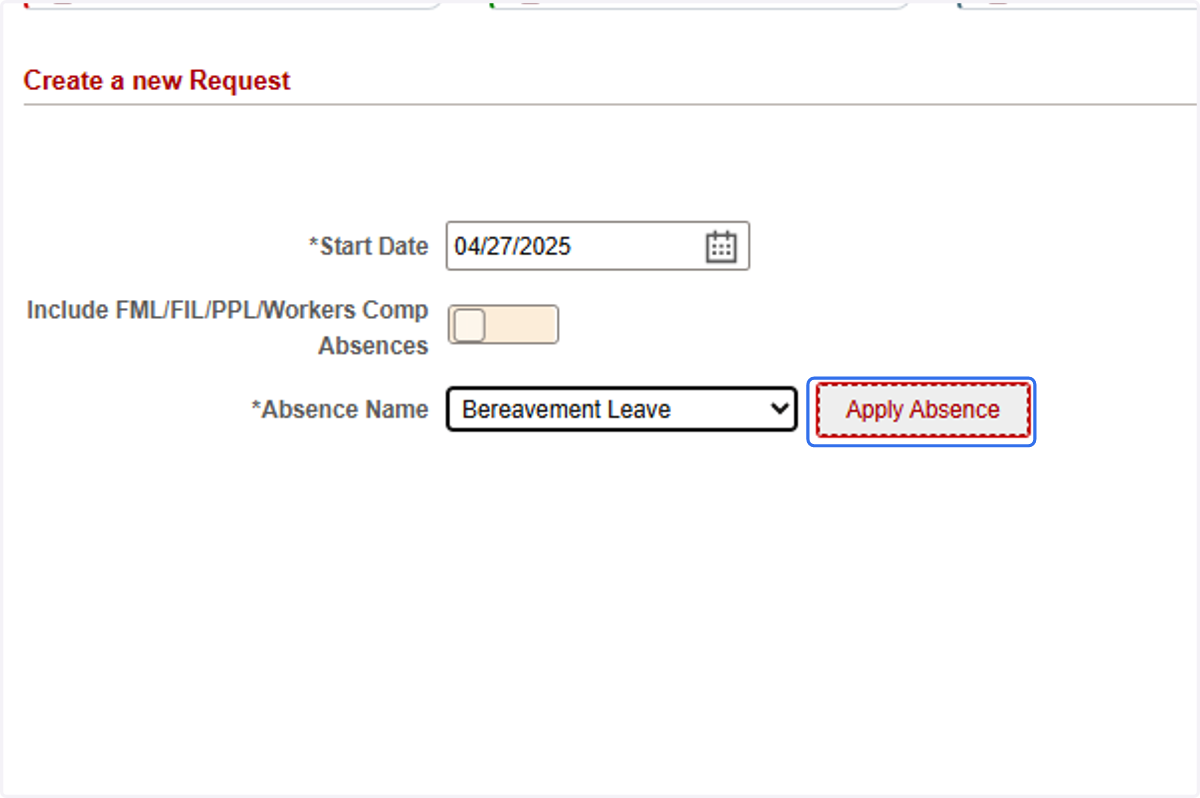
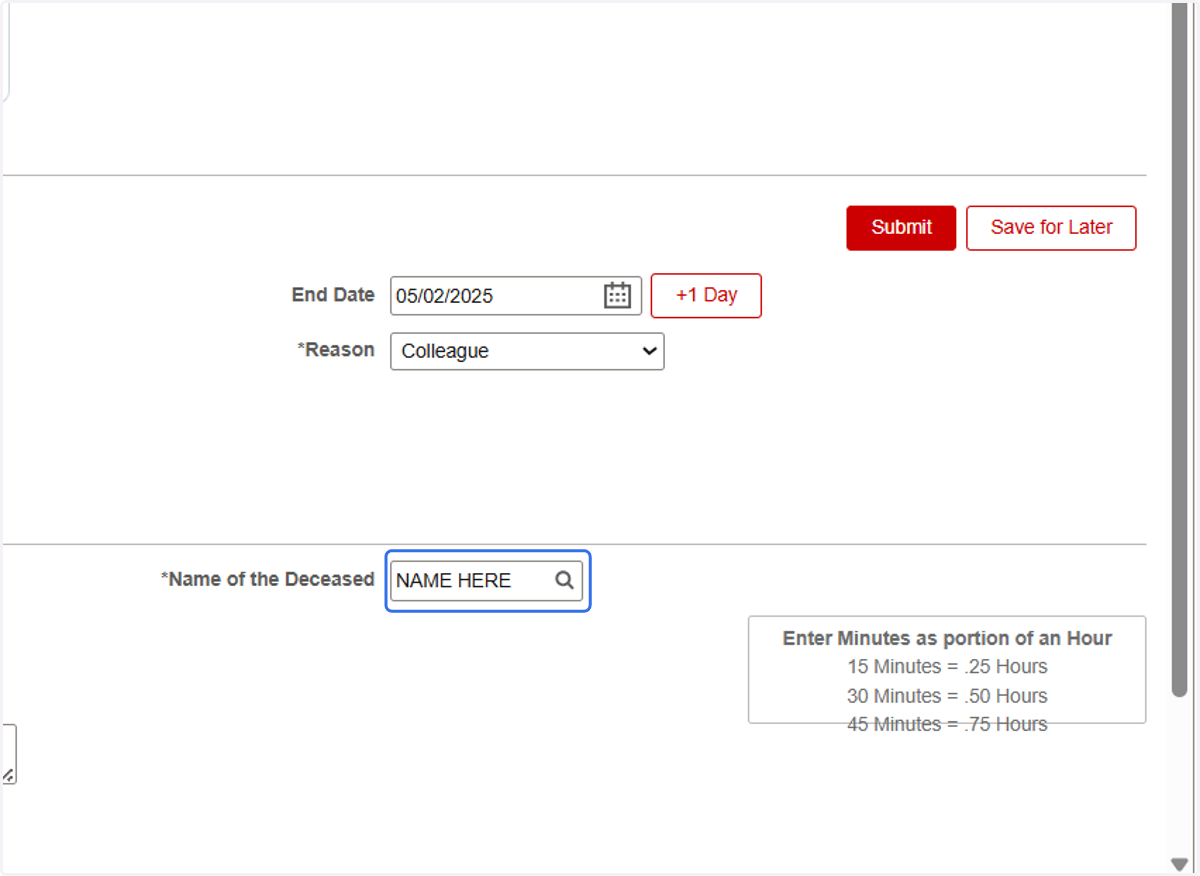
8. Select Reason: Colleague
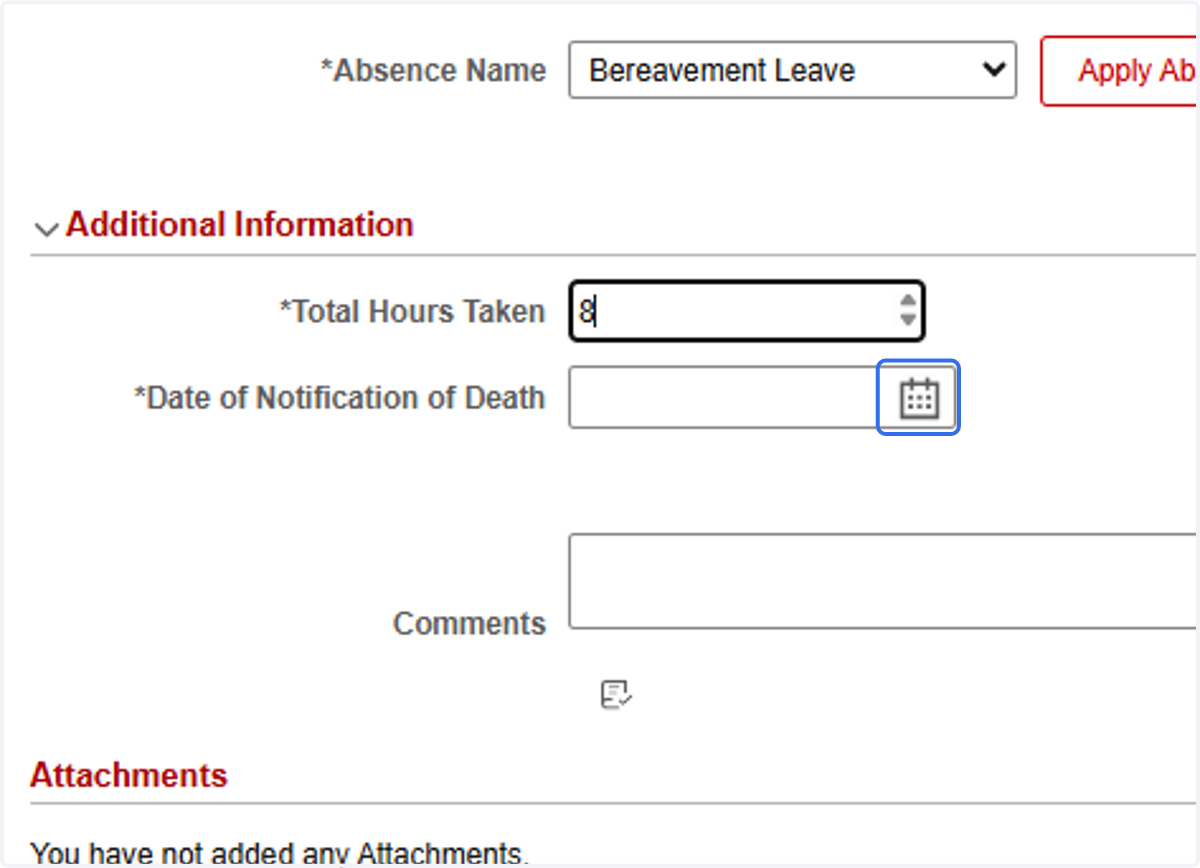
9. Input the Total Hours Taken
NOTE: The amount of total hours you are eligible to take for a Bereavement Leave - Colleague request is prorated by your Full Time Equivalent (FTE).
Examples
FTE = 1; Your standard work day is 8 hours; Up to 8 hours of Bereavement Leave for a Colleague request
FTE = 0.75; Your standard work day is 6 hours; Up to 6 hours of Bereavement Leave for a Colleague request
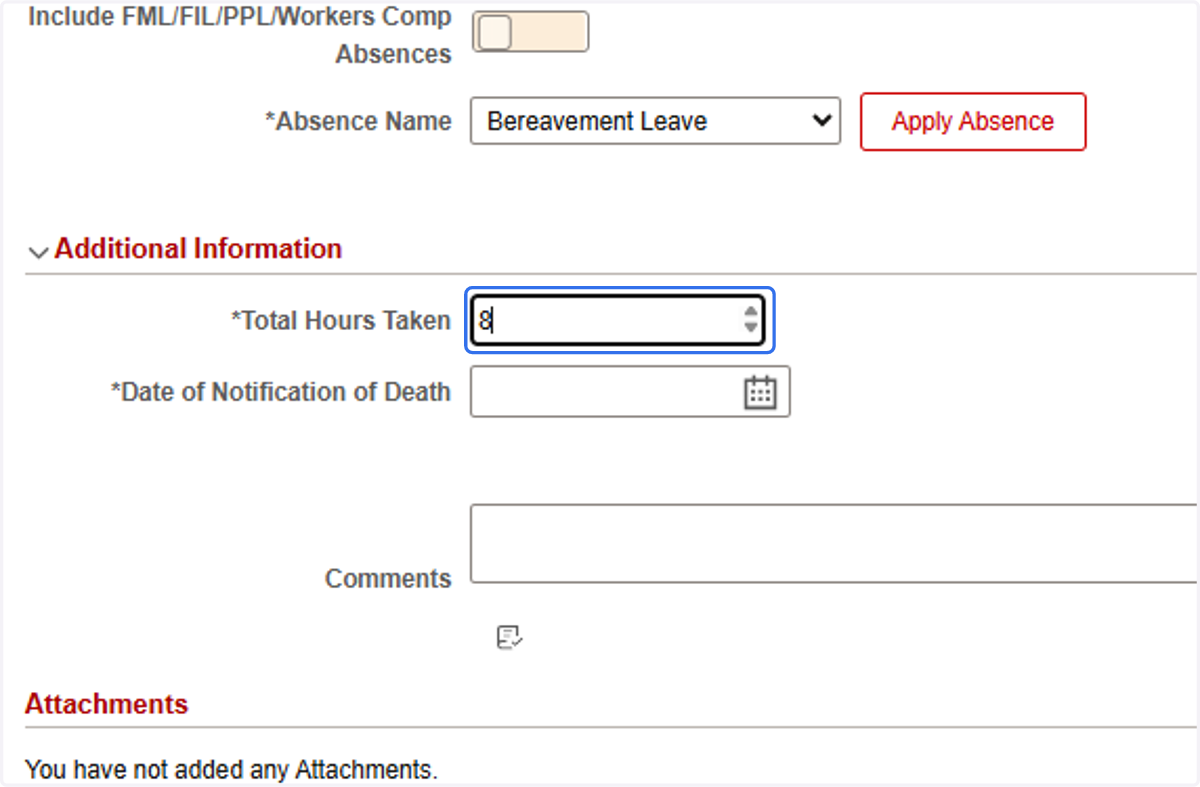
10. Input the Date of Notification of Death
NOTE: This date can't be in the future.
11. Input the Name or a Unique Identifier of the deceased
NOTE: This field is related to the Reason selected.
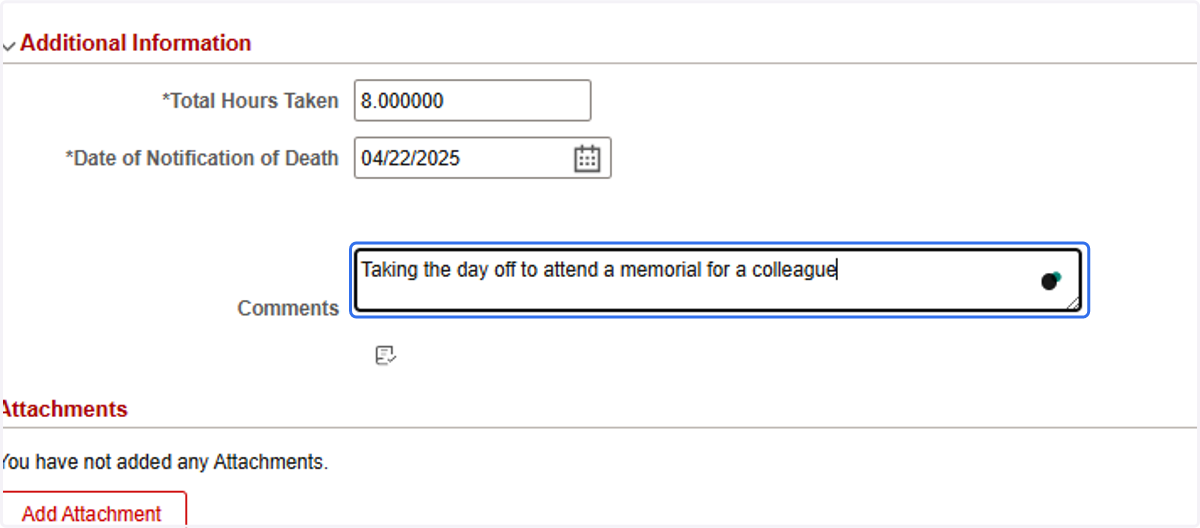
12. Type a supporting comment if it applies
This will be reviewed by your manager. Add any information you may want/need.
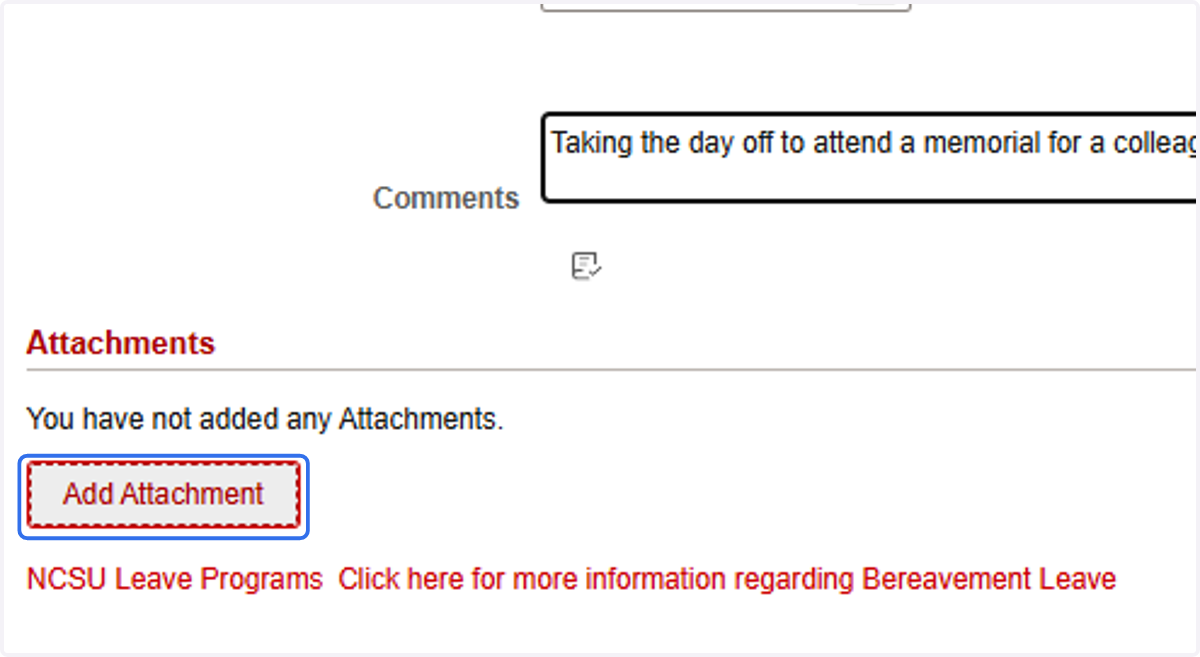
13. Click on Add Attachment if you have a supporting document
NOTE: This is not a required step. You can attach supporting documentation after you submit the request as well. Skip to step 18 if you are not adding an attachment.
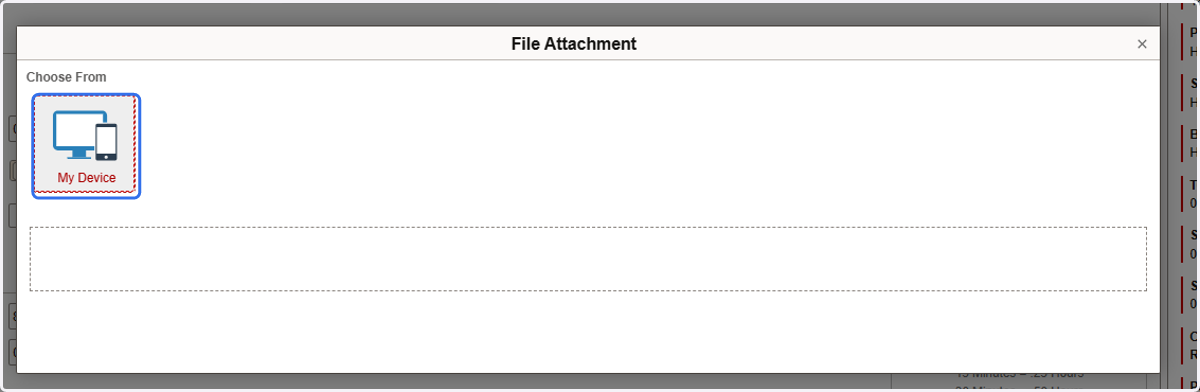
14. Click on My Device to access your device's file locator and select a file to upload.
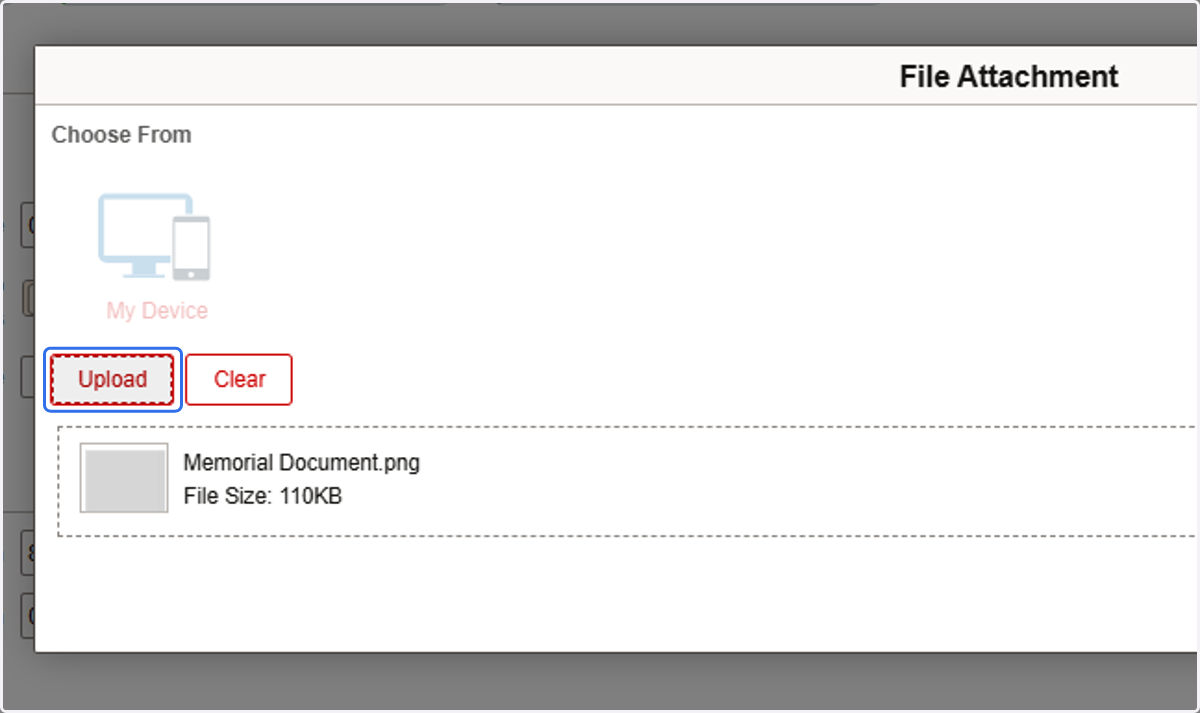
15. Click on Upload once you have added your attachment.
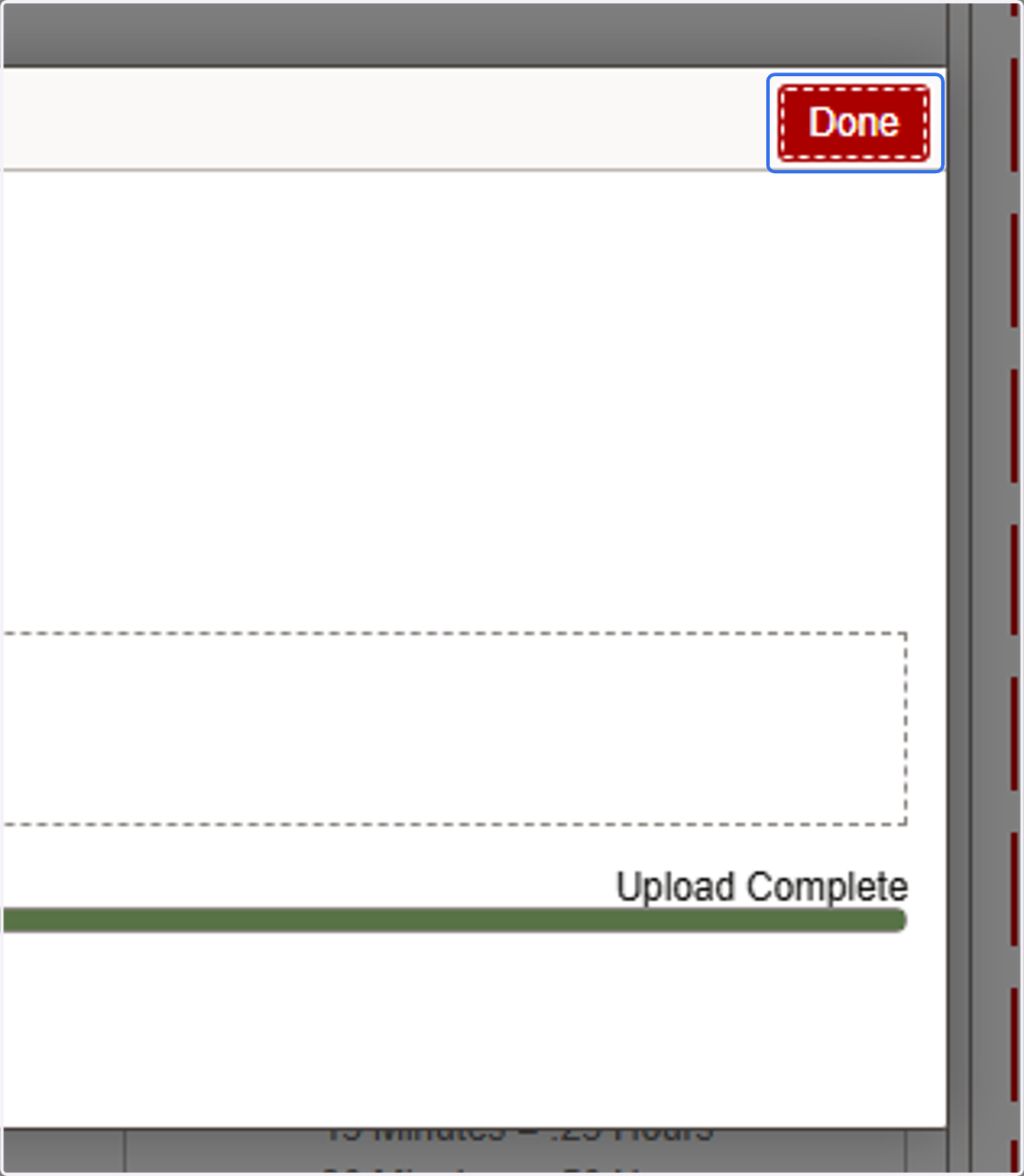
16. Wait for the pop-up to say "Upload Complete" and click "Done"
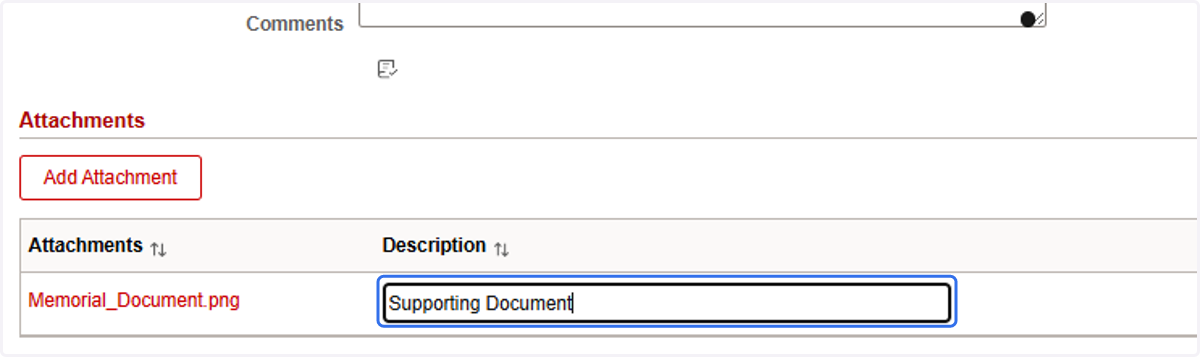
17. You can add a Description to the attachment here
NOTE: You can add multiple attachments, just proceed through steps 13-16 again.
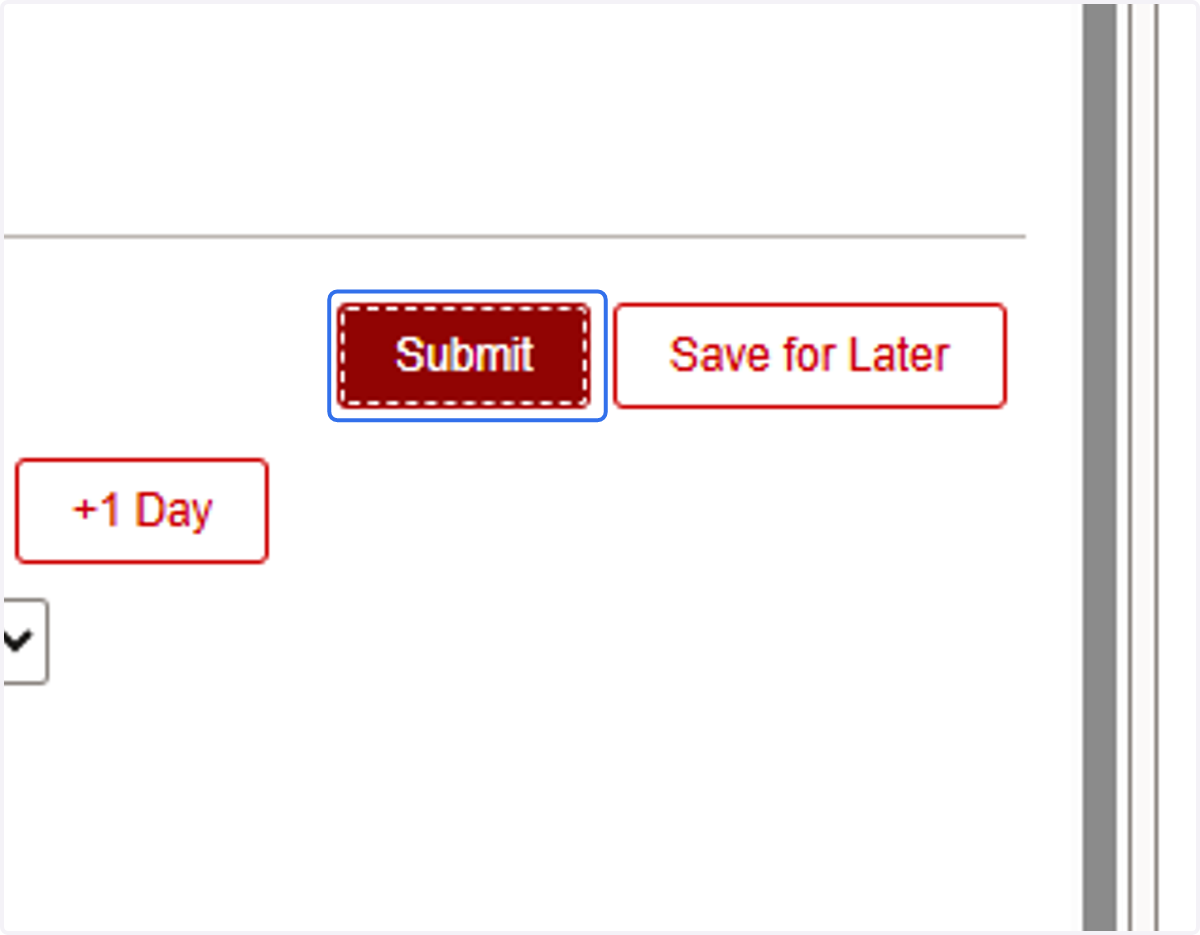
18. Click Submit
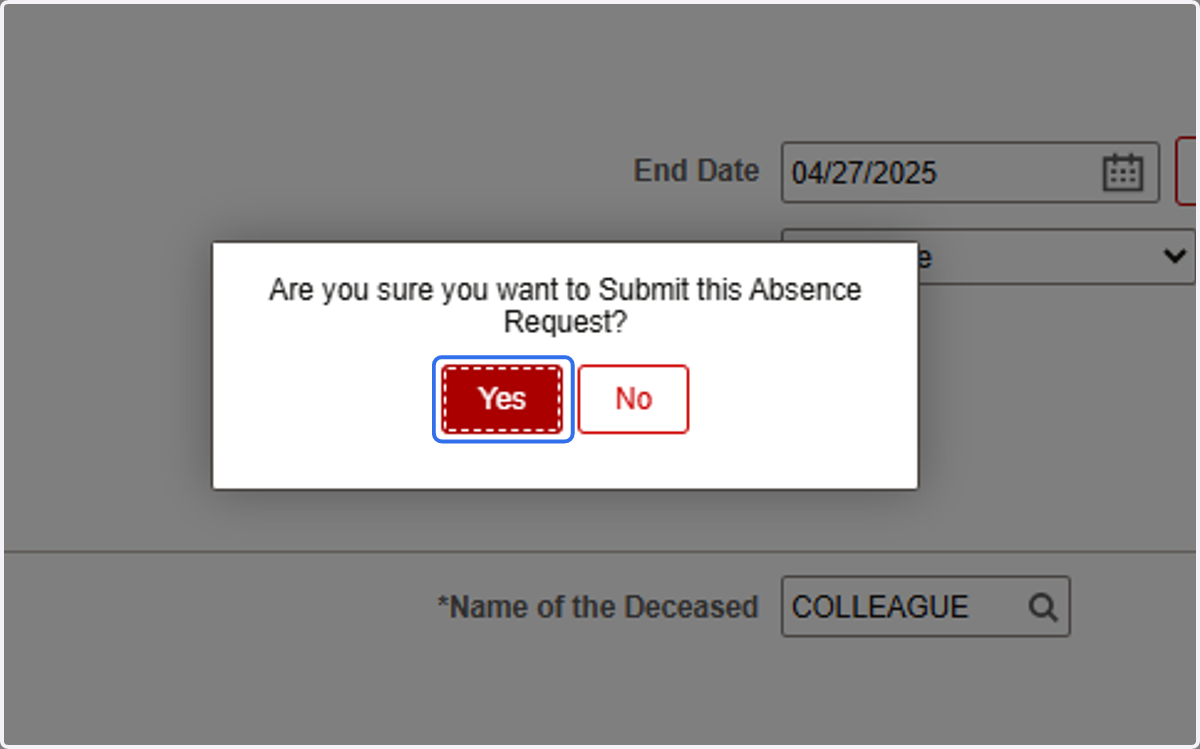
19. Click Yes
20. The absence has been submitted.
The following steps go over how to review the details of this request. If you do not want to review the details further skip to step 25.
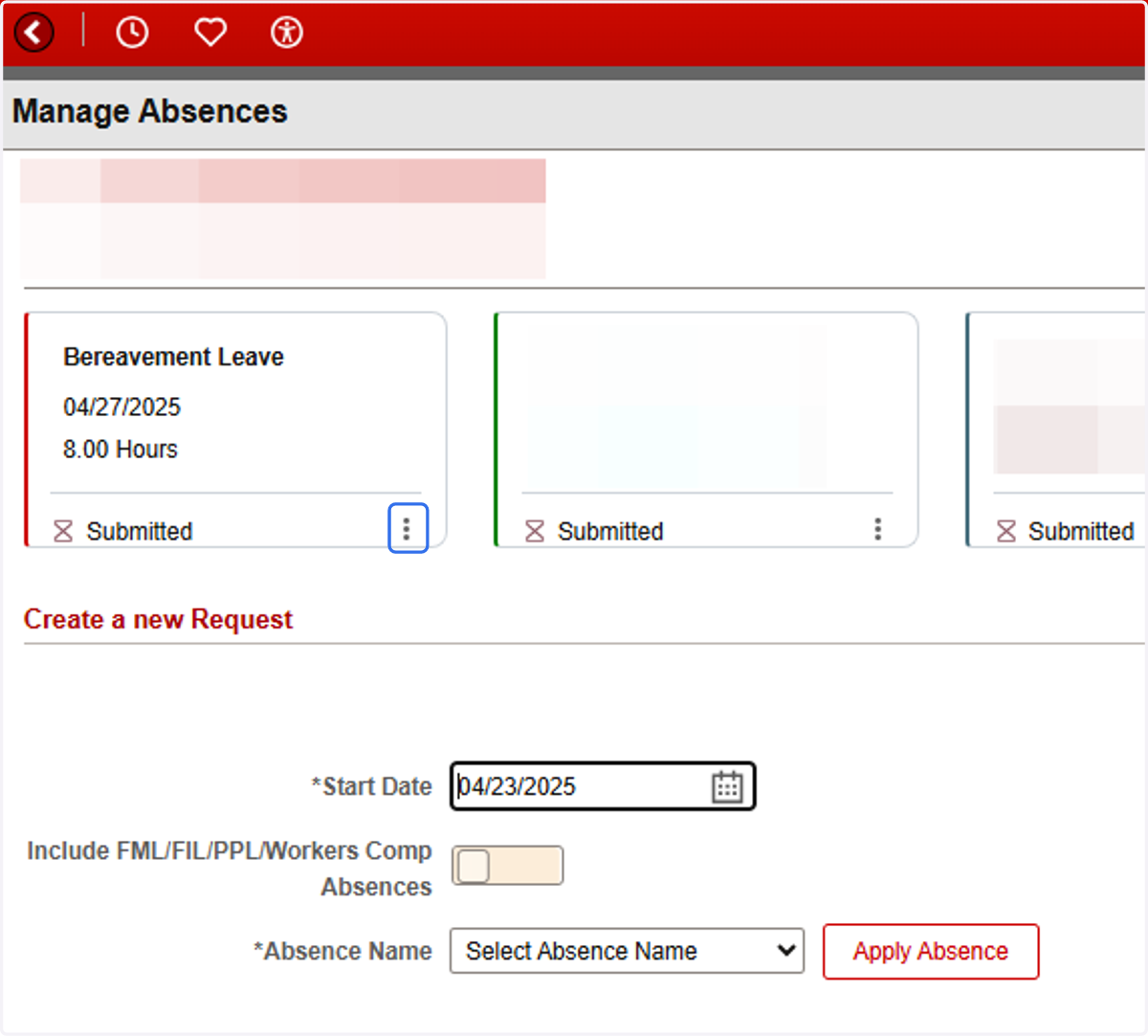
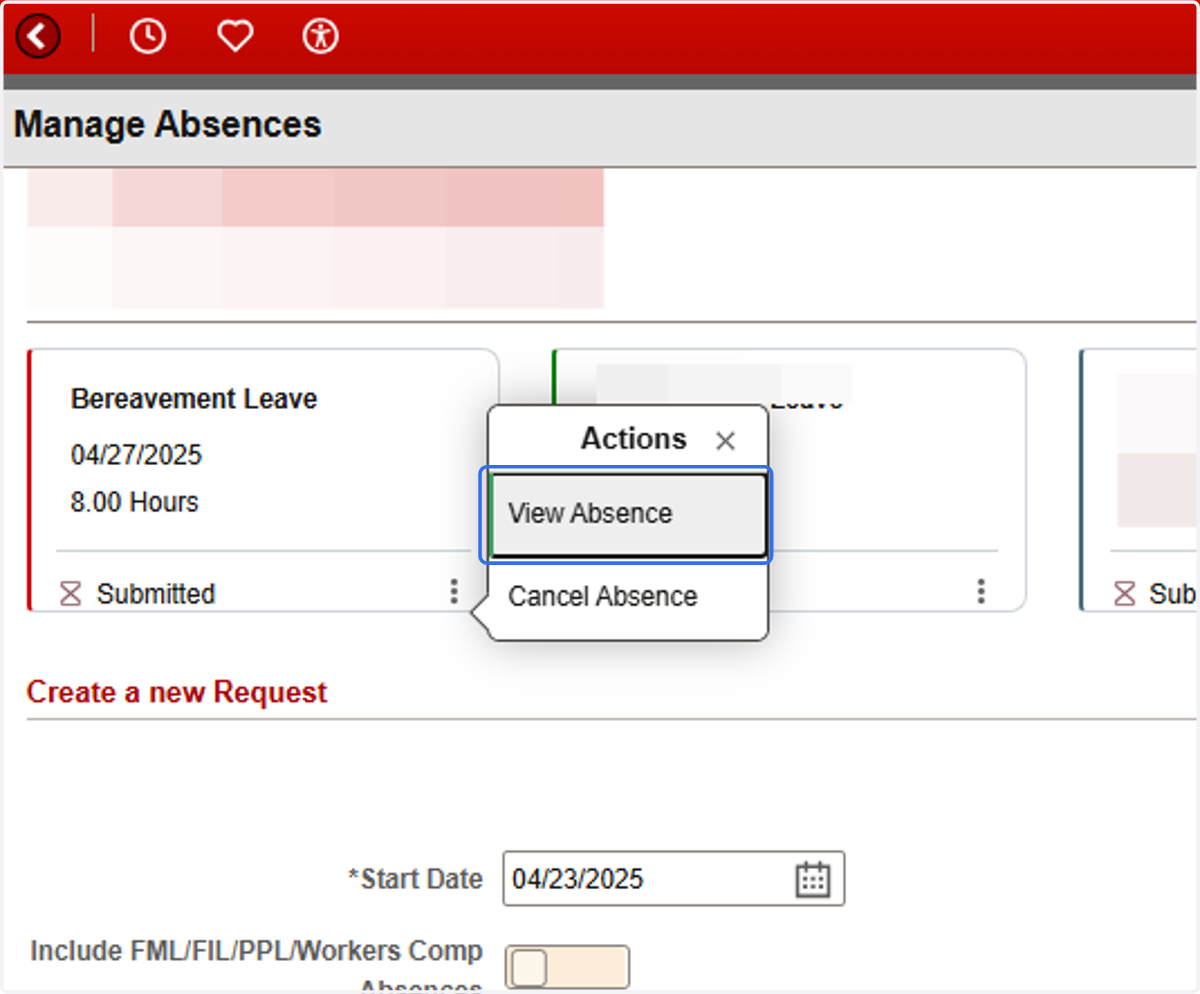
21. Click on the button with three vertical dots on the Absence Request and then click "View Absence"
22. Review Additional Information
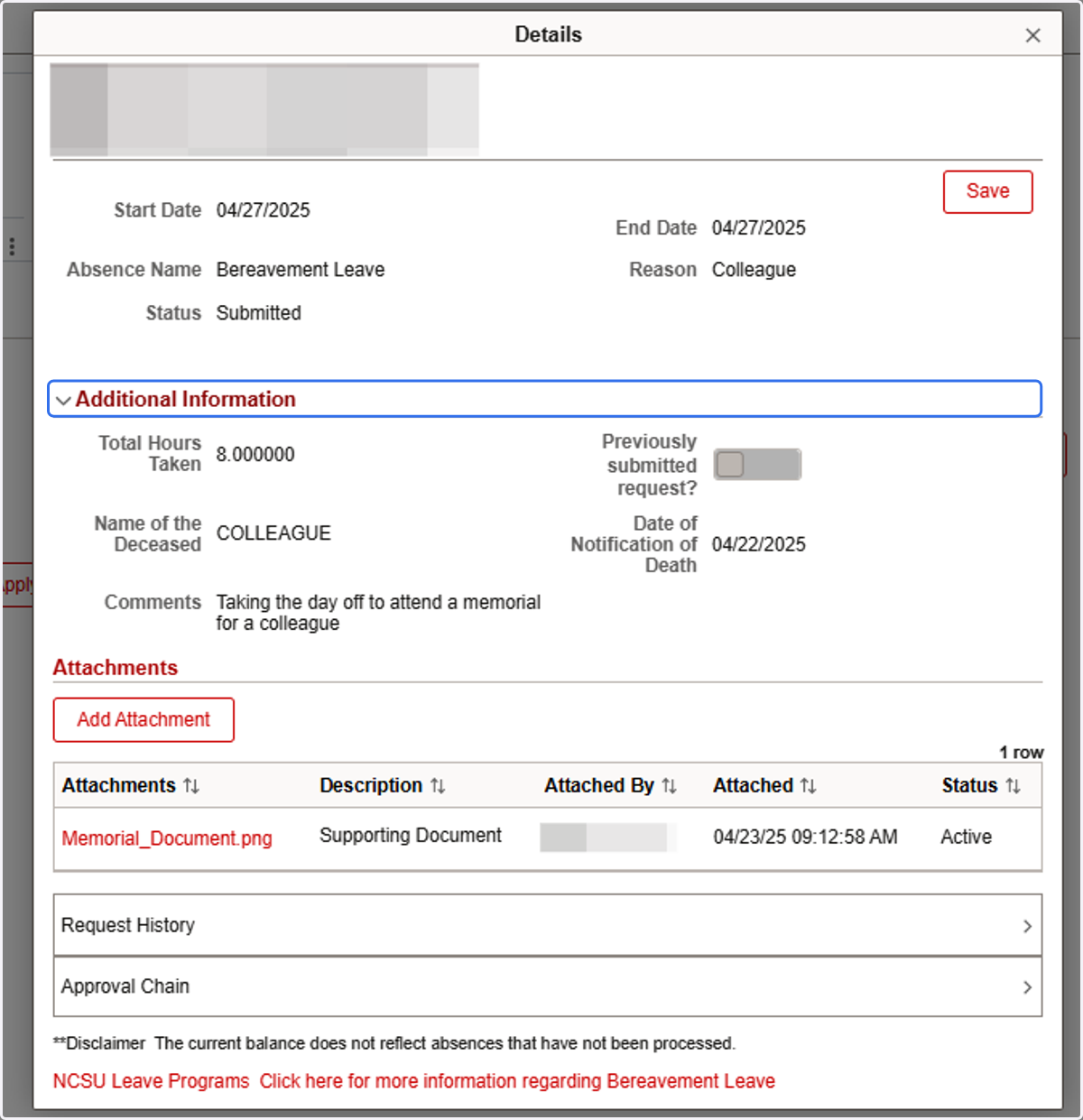
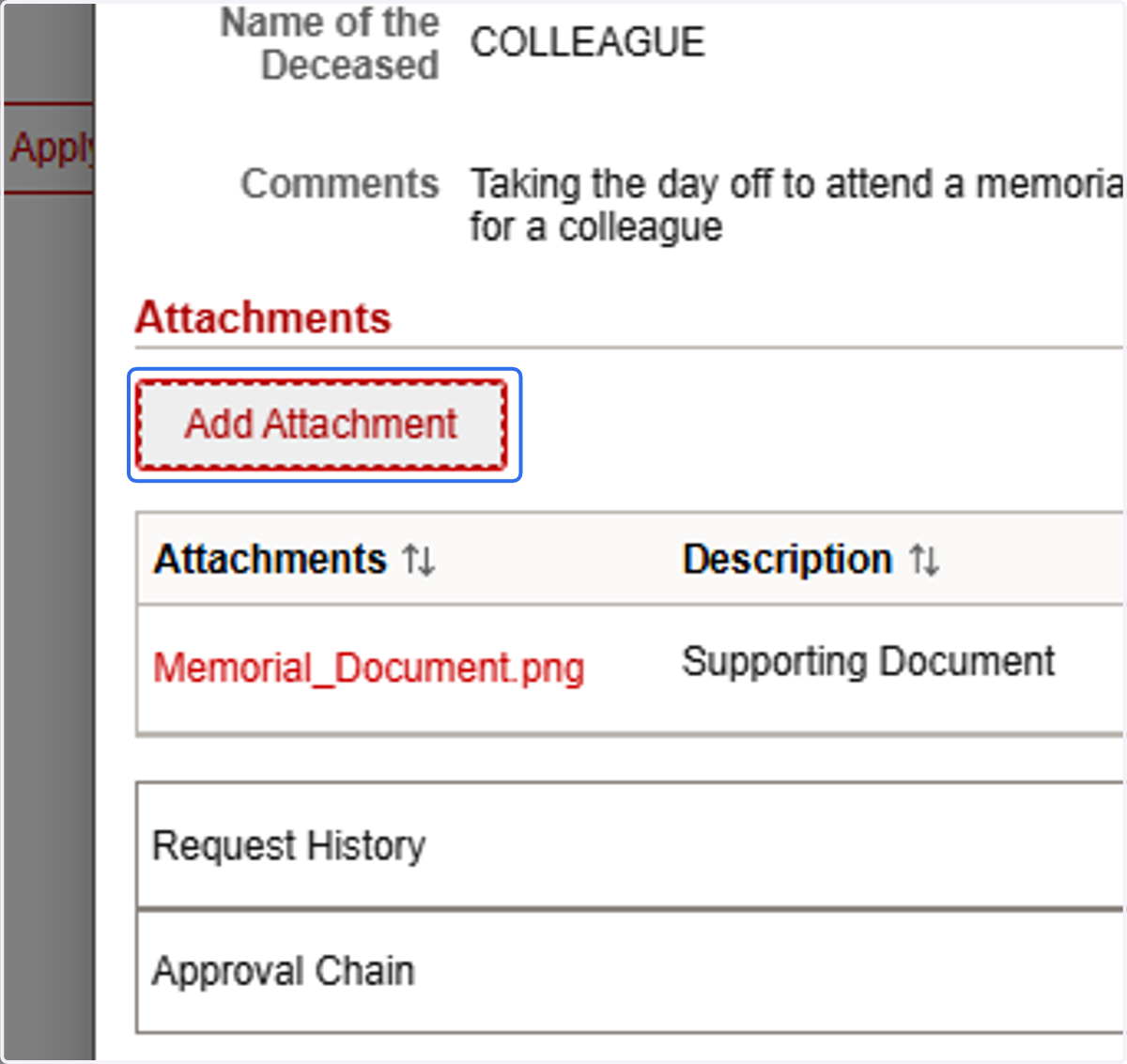
23. Click on Add Attachment to add an attachment after the request is submitted
24. Click on Close

25. You have submitted a Bereavement Leave Request for a Colleague