Enable Salesforce Phishing-Resistant MFA
Salesforce
1. Click on Setup
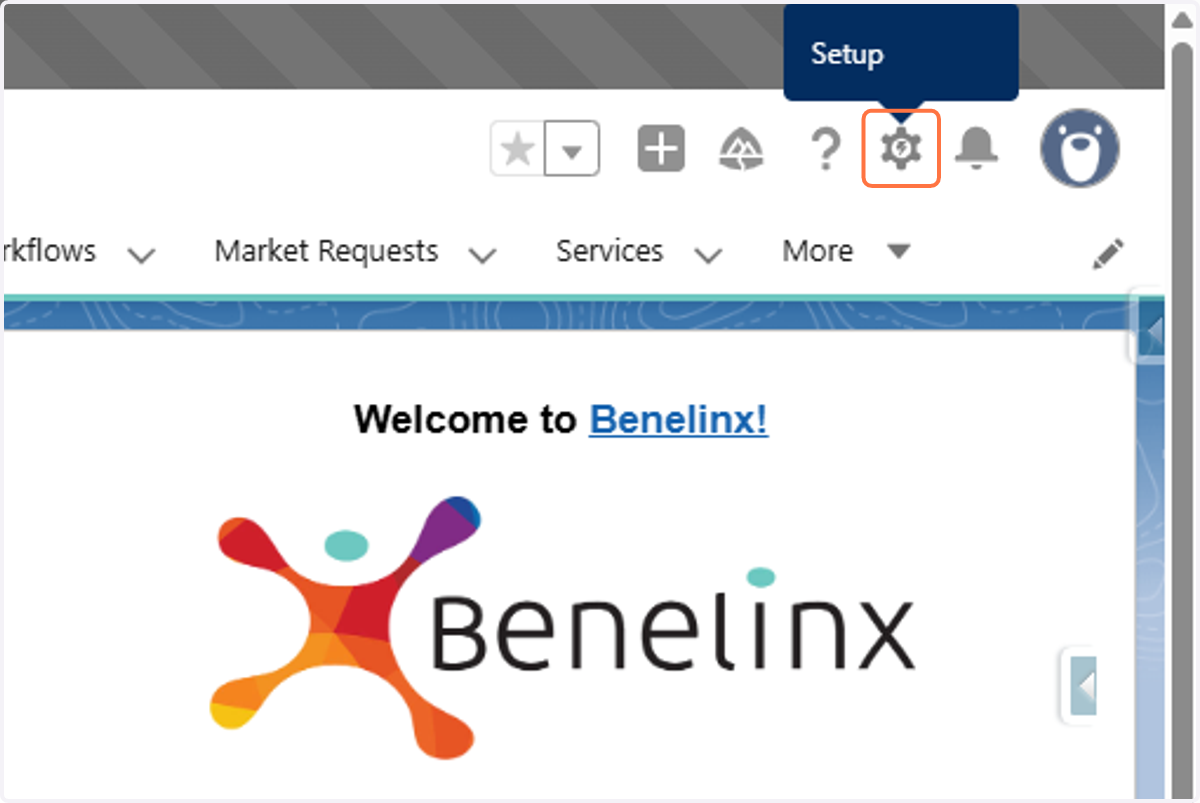
2. Click on Setup…
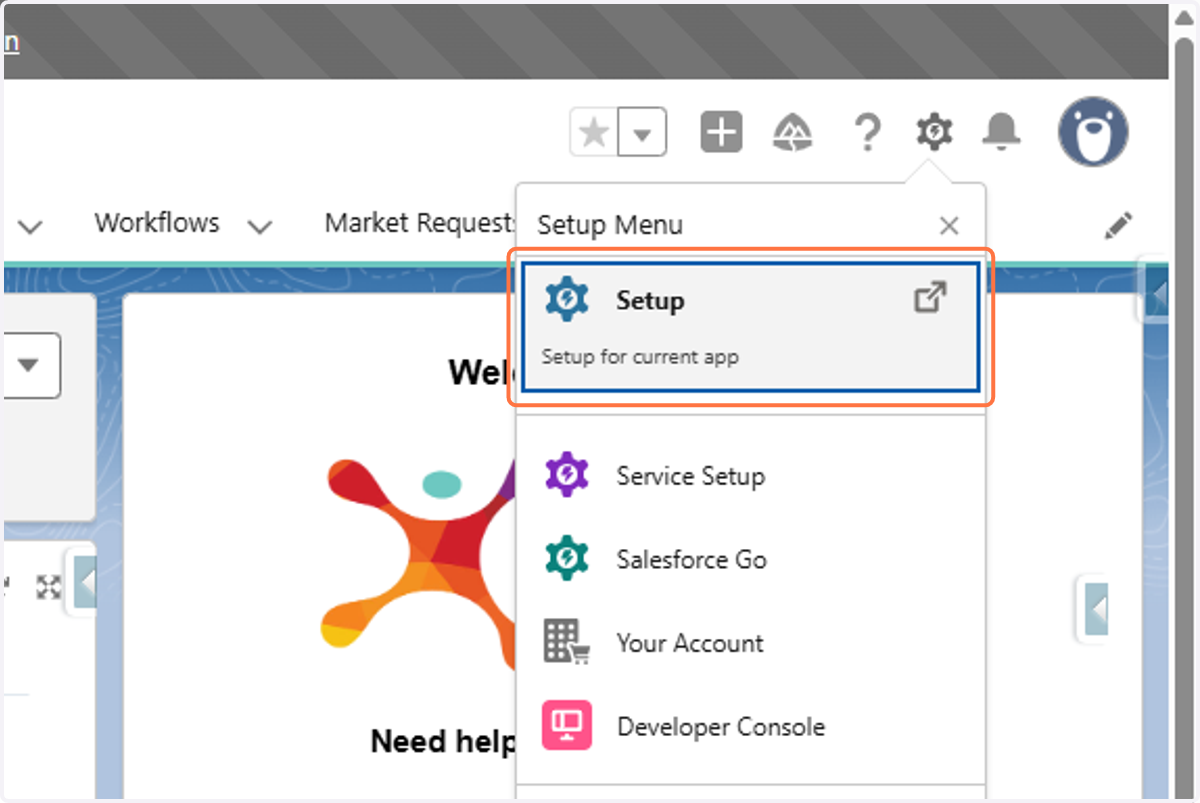
Salesforce
3. Click on Quick Find
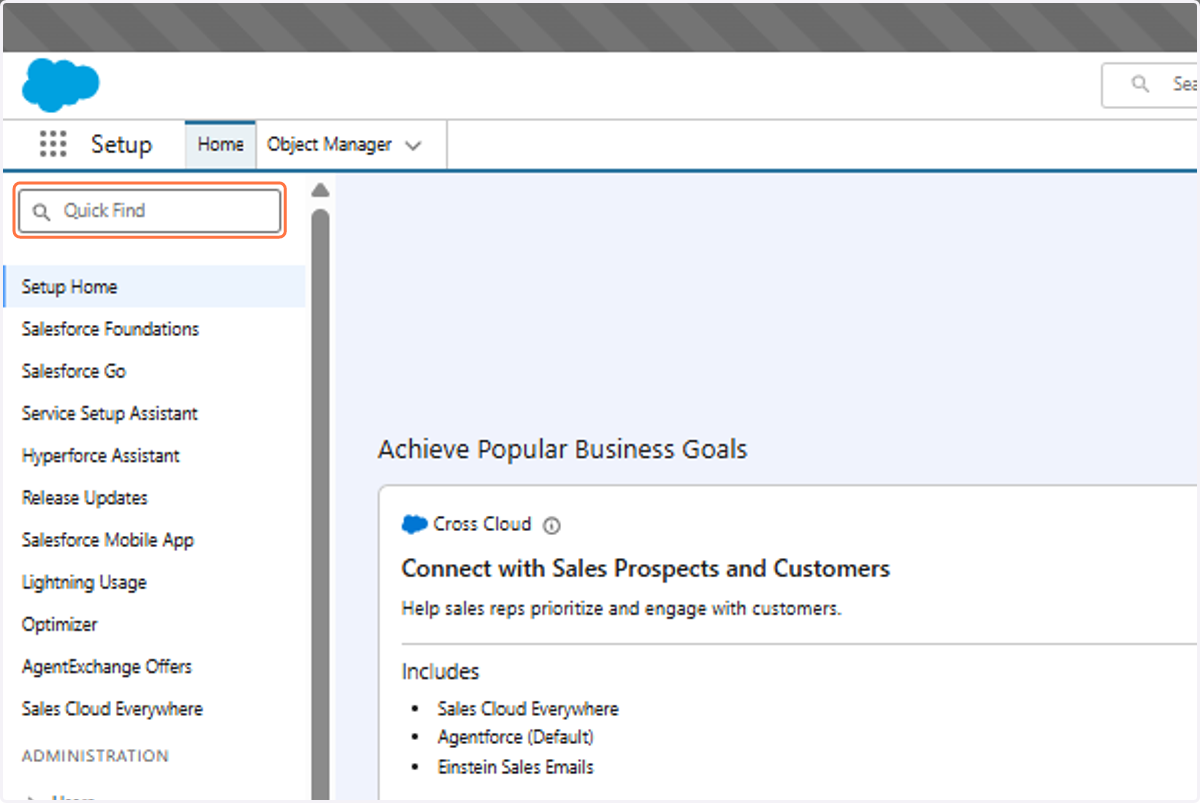
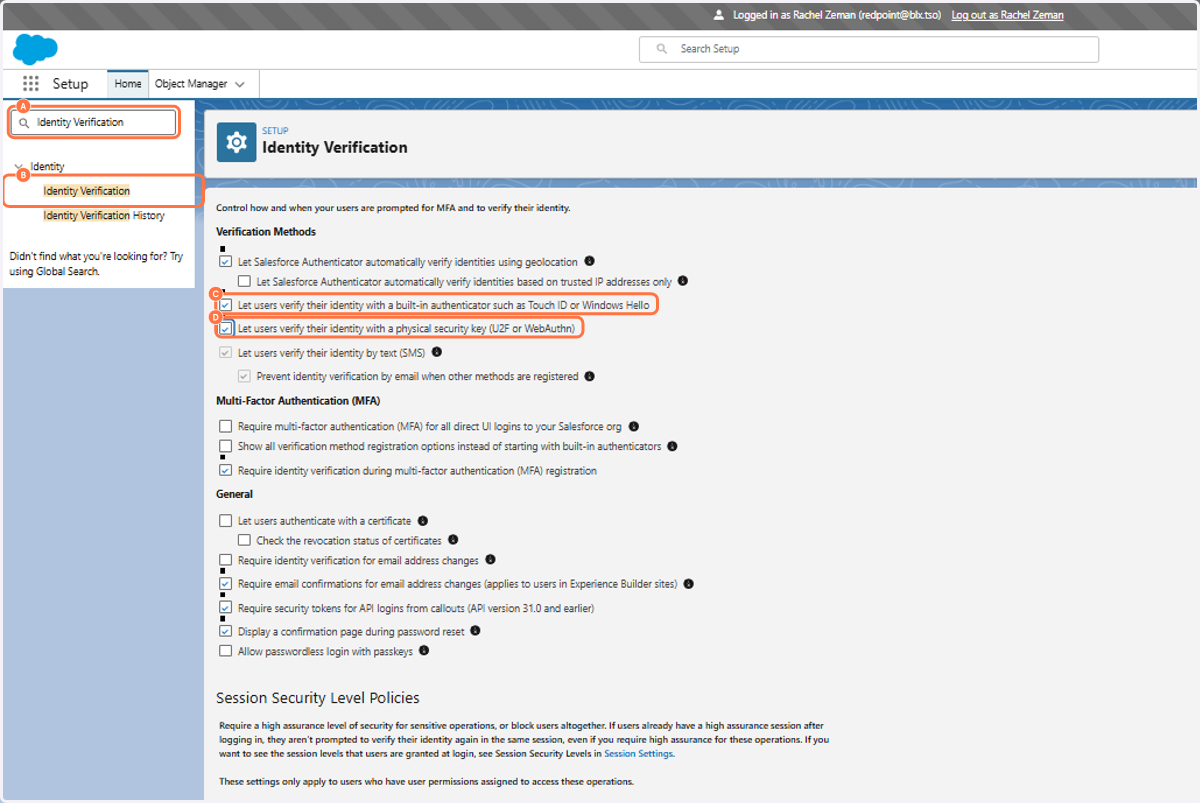
4. A. Click on Quick Find
4. B. Type Identity Verification and then Click on Identity Verification
4. C. Select Let users verify their identity with a built-in authenticator such as Touch ID or Windows Hello
4. D. Select Let users verify their identity with a physical security key (U2F or WebAuthn)
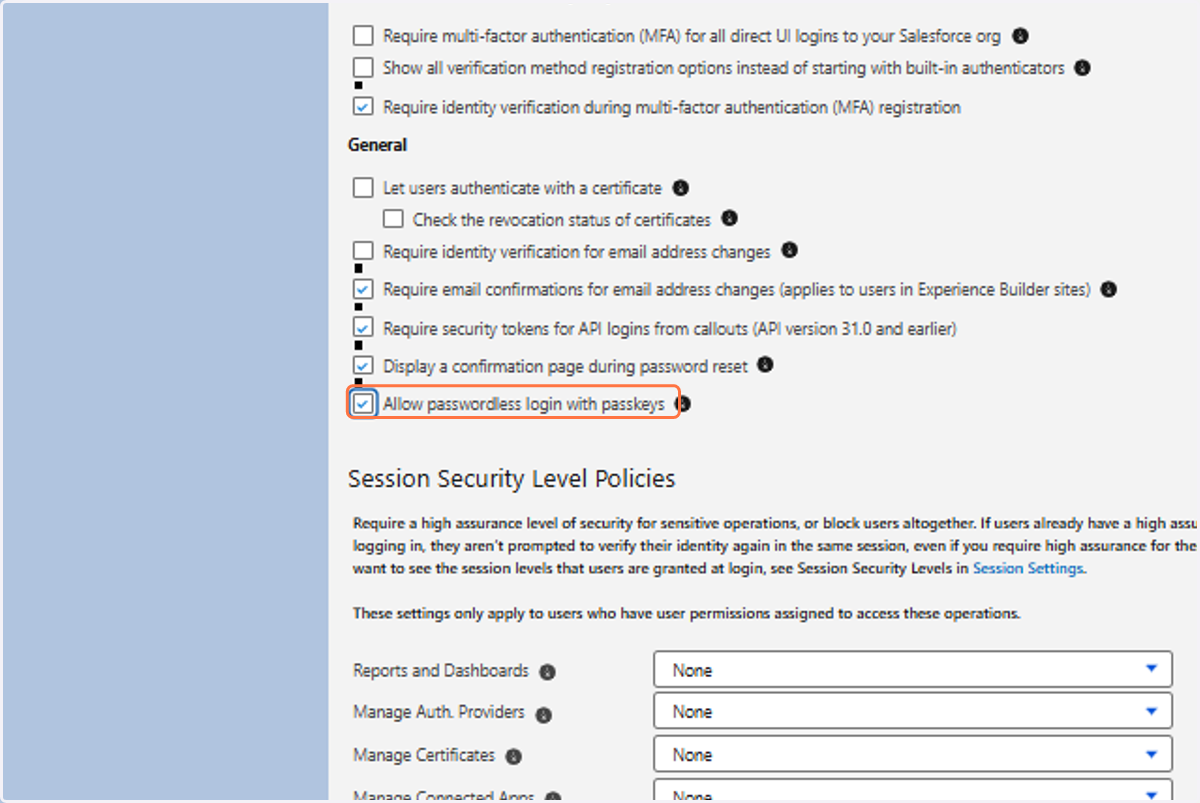
5. Select Allow passwordless login with passkeys
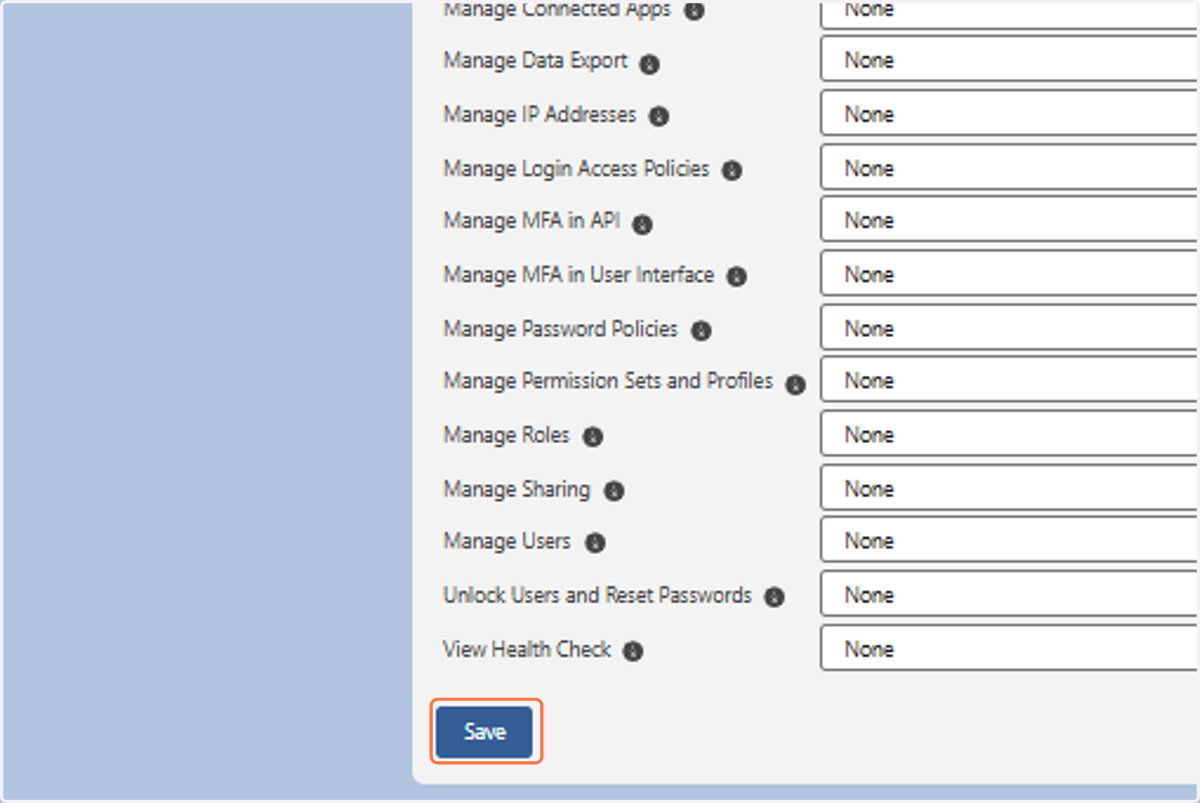
6. Click on Save