Enable Meetup Email Notifications
Meetup
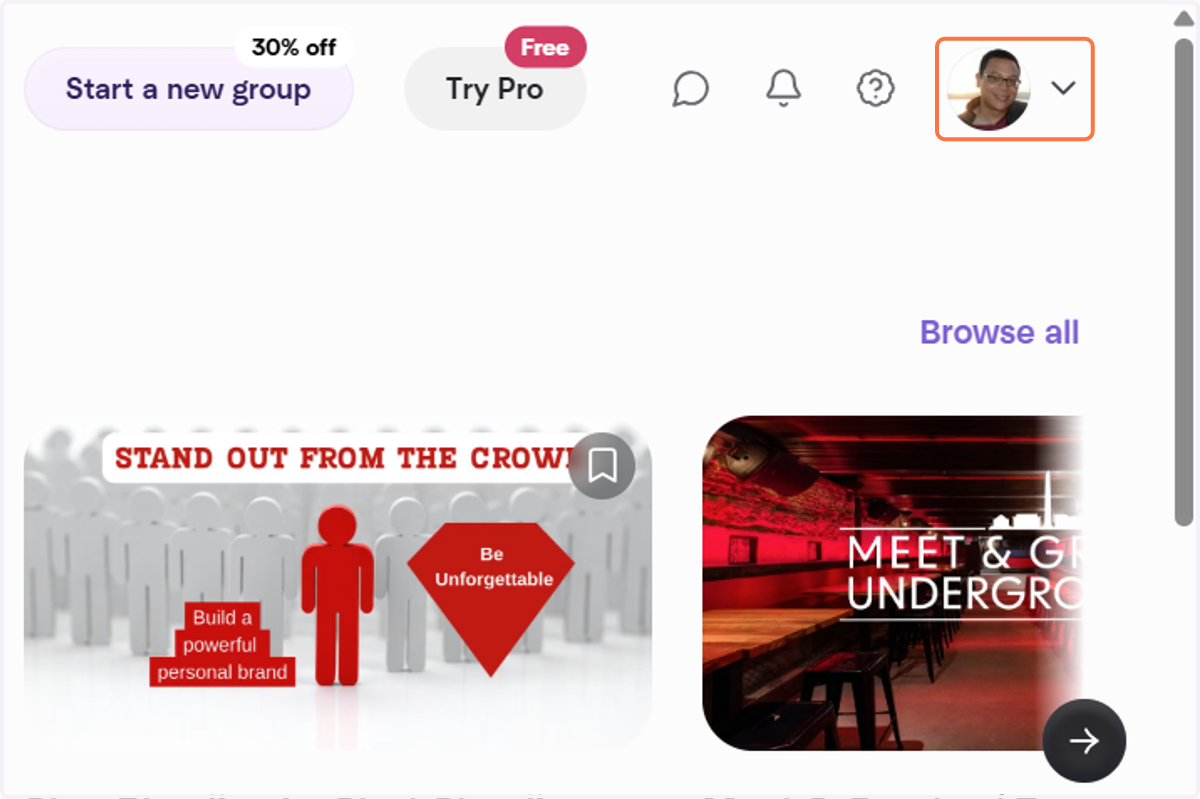
1. Goto Meetup.com & logon. Goto top right corner and click dropdown trigger next to your Profile picture. (On mobile app: visit your profile and instead click on the gear wheel toggle)
Desktop & mobile processes differ.
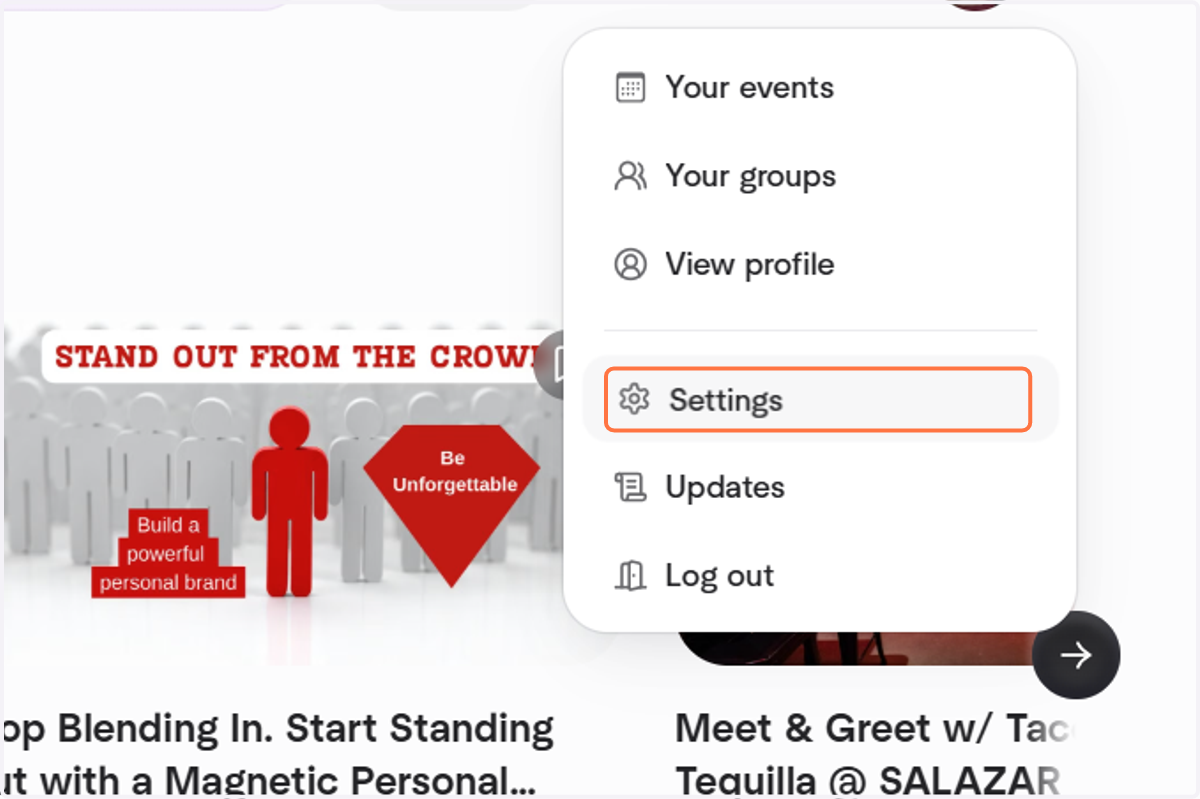
2. Click on Settings
(On mobile app: visit your profile and instead click on the gear wheel toggle)
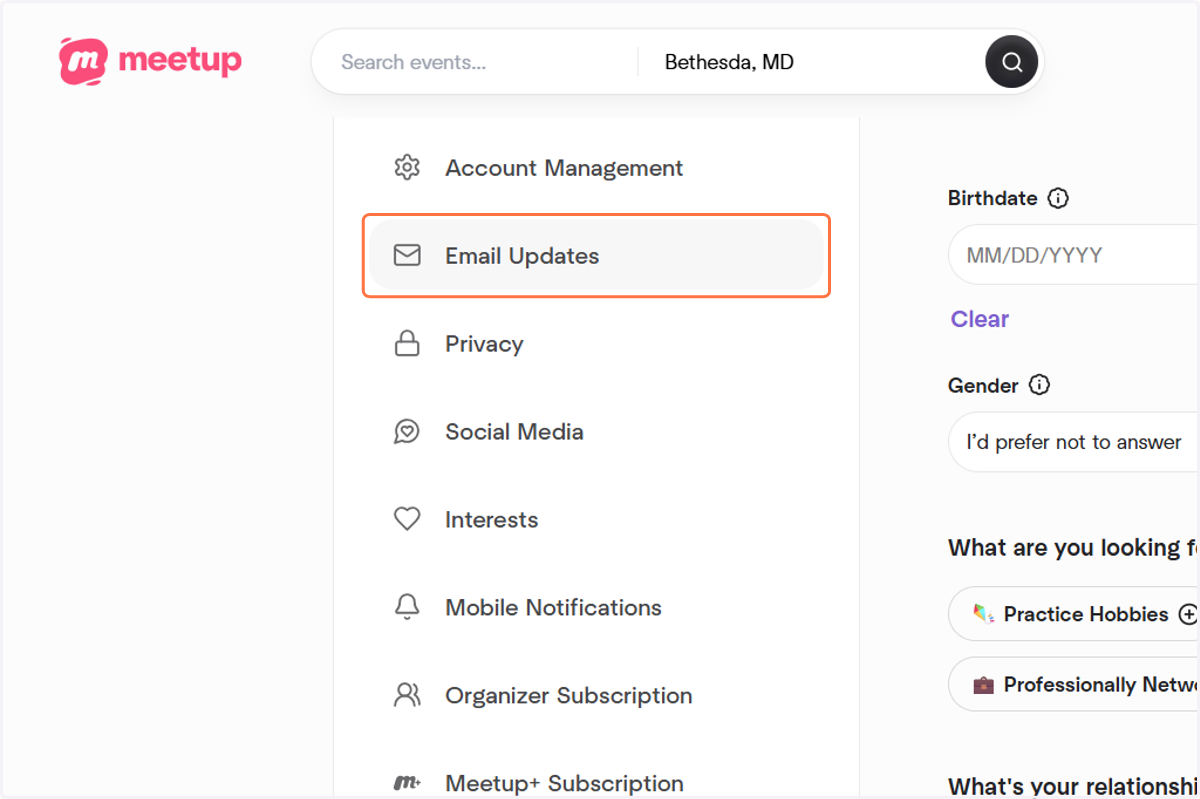
3. Click on Email Updates for Desktop version. (On mobile app: you can access 2 areas: Email Updates and Push Notifications, and if interested "Connect to Calendar)
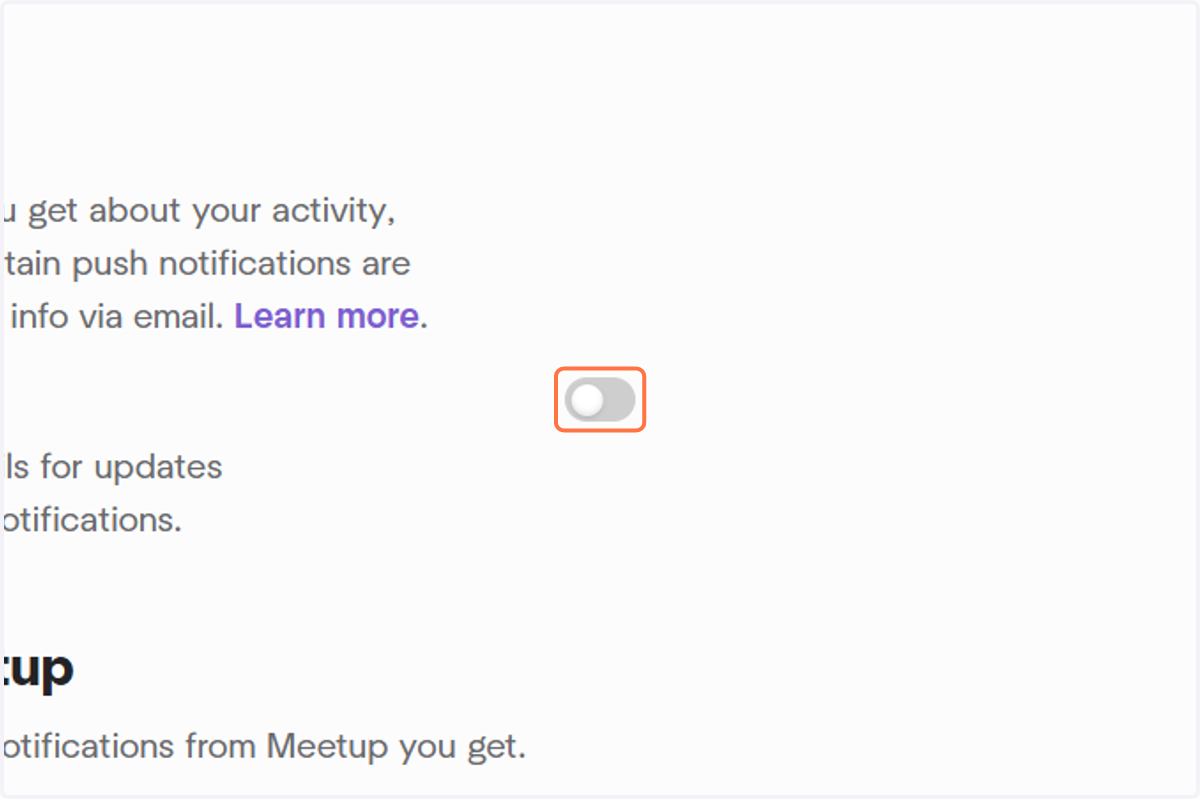
4. Visit the "Meetup wide" global notification level. Click on switch to Turn Off "Send fewer emails".
You'll want to ensure that you receive our group Emails, especially for RSVPs that have opened for new events and if spots open up after RSVPs have opened (kept limited to avoid excess emails). You can opt-in or opt-out individually to limit types of notifications. (On mobile app, we recommend: Get email updates, messages, replies to my comments, iCal attachments if you would like a calendar task).
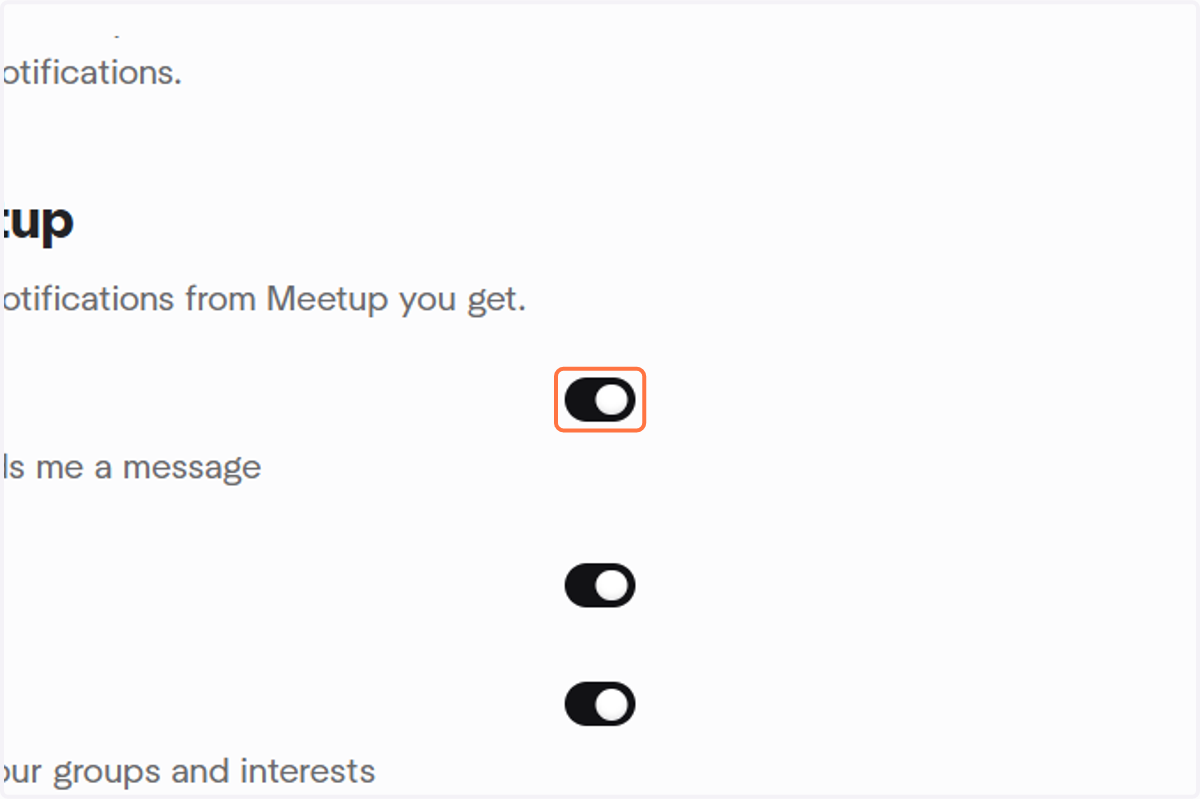
5. Scroll down further to section "Updates from Meetup". We suggest several selections to consider.
We recommend the following: "Messages. Email me when someone sends me a message, Replies to my comments, and Suggested events (will focus on a regular summary from your chosen groups and your interests)
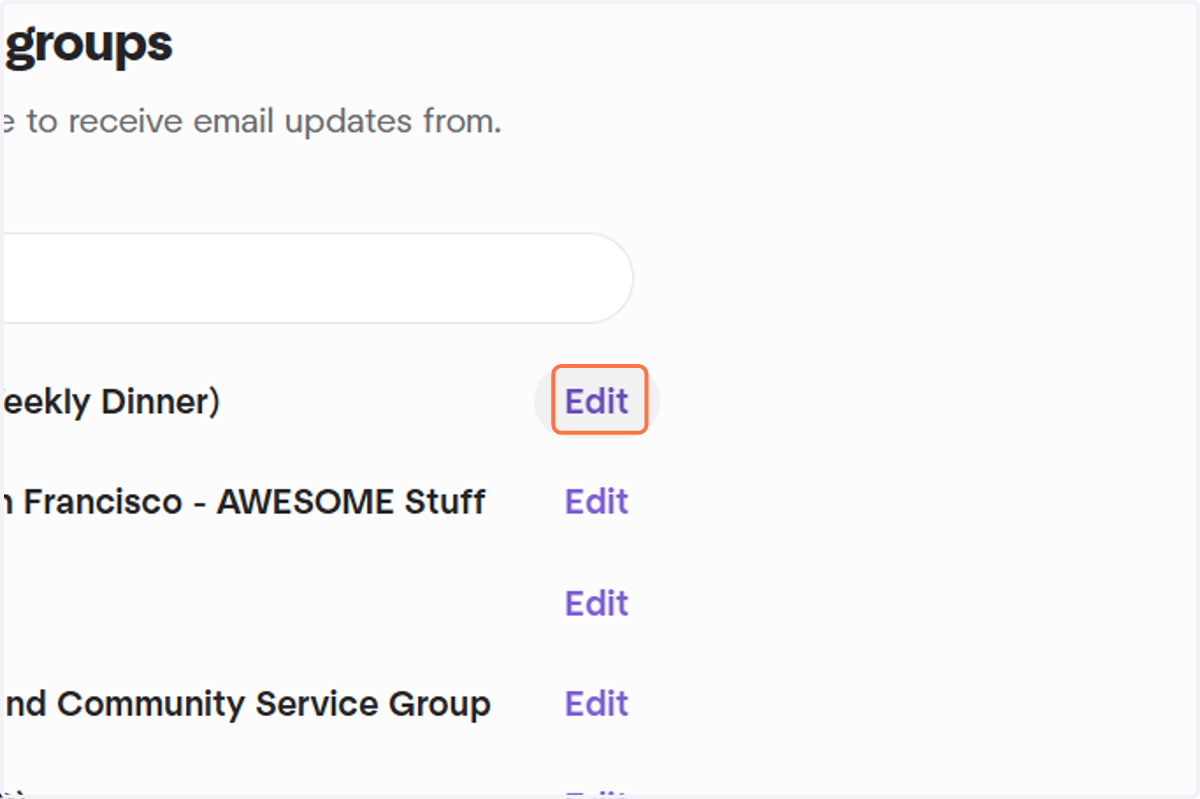
6. Scroll down further to section "Updates from your groups". Find our group, and click on Edit. (On mobile app, scroll down to Group notification section, and find our group to find group-specific notifications).
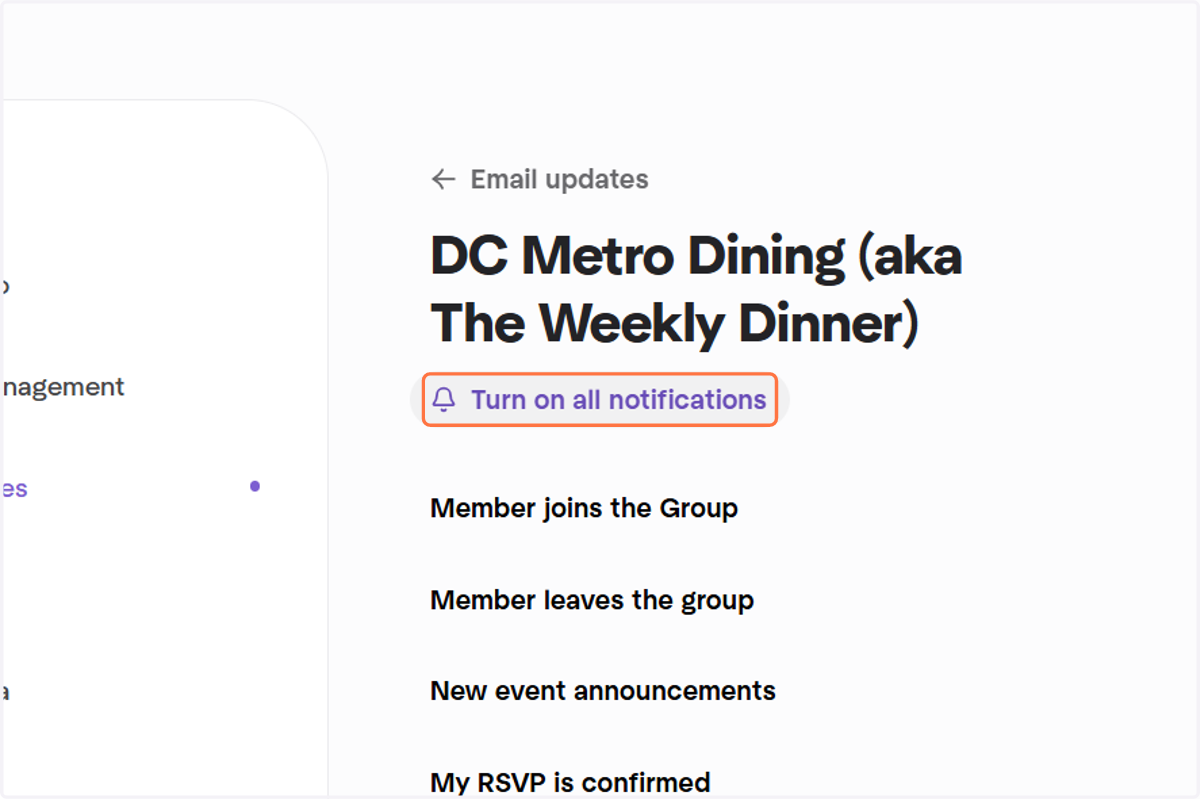
7. Click on Turn on all or selected recommended notifications.
We recommend keeping on the following minimum notifications: New event announcements, My RSVP is confirmed, Changes to event time or location, New comments, On events you’re attending or attended, Event reminders, Event rating requests, Event updates from organizers