Employee’s Guide: How to Submit time with the WolfTime Web Clock
NAVIGATING TO THE WOLFTIME WEB CLOCK
1. Step 1: Login to MyPack Portal
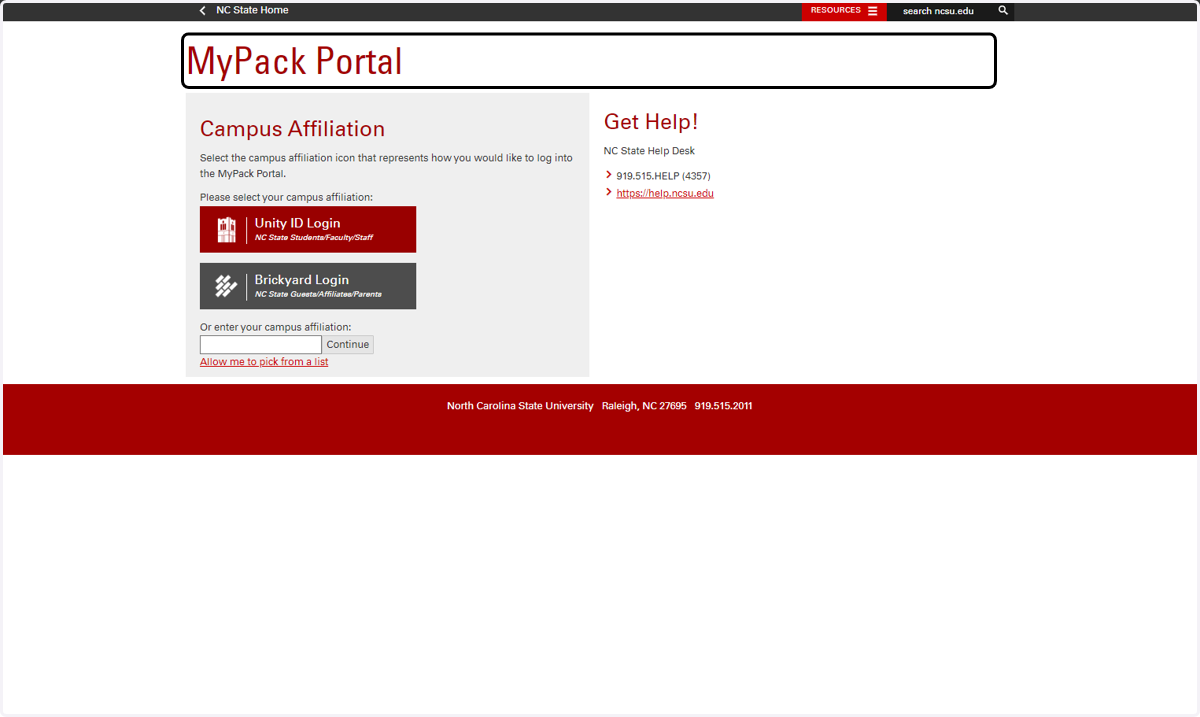
Navigate to MyPack Portal (http://mypack.ncsu.edu) using a web browser.
Select the NC State Students/Faculty/Staff Campus affiliation.
Enter your Unity ID and Password when prompted to login to MyPack portal
2. Step 2: Navigate to the Employee Self Service Homepage
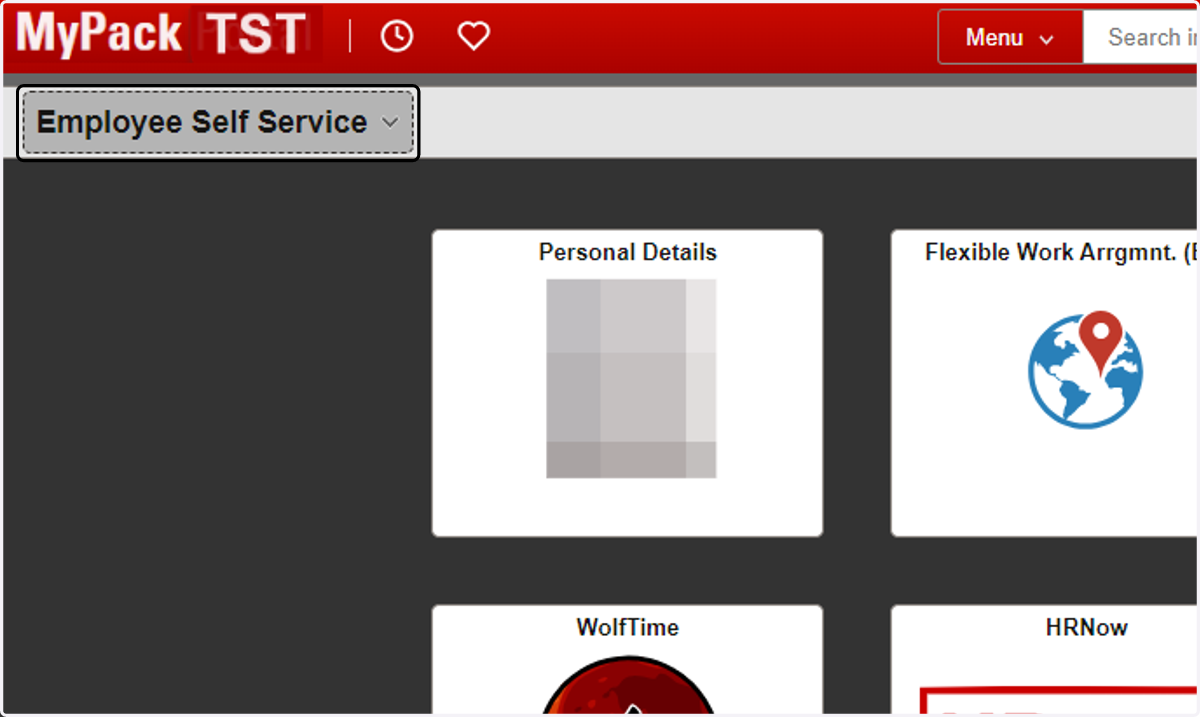
Upon successful login to MyPack Portal, if you do not land on the Employee Self Services homepage, select the Employee Self Service option from the dropdown menu in the top left corner of the banner
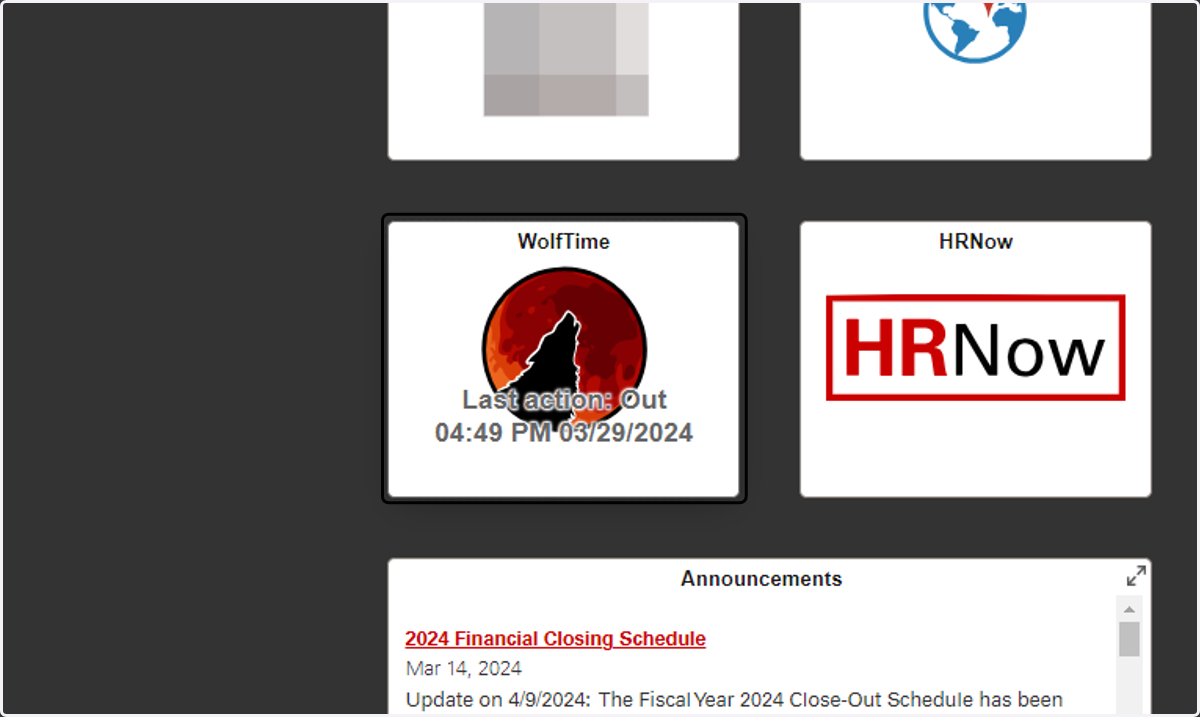
3. Step 3: Navigate to the WolfTime tile
4. Step 4: Navigate to Web Time Clock Tile
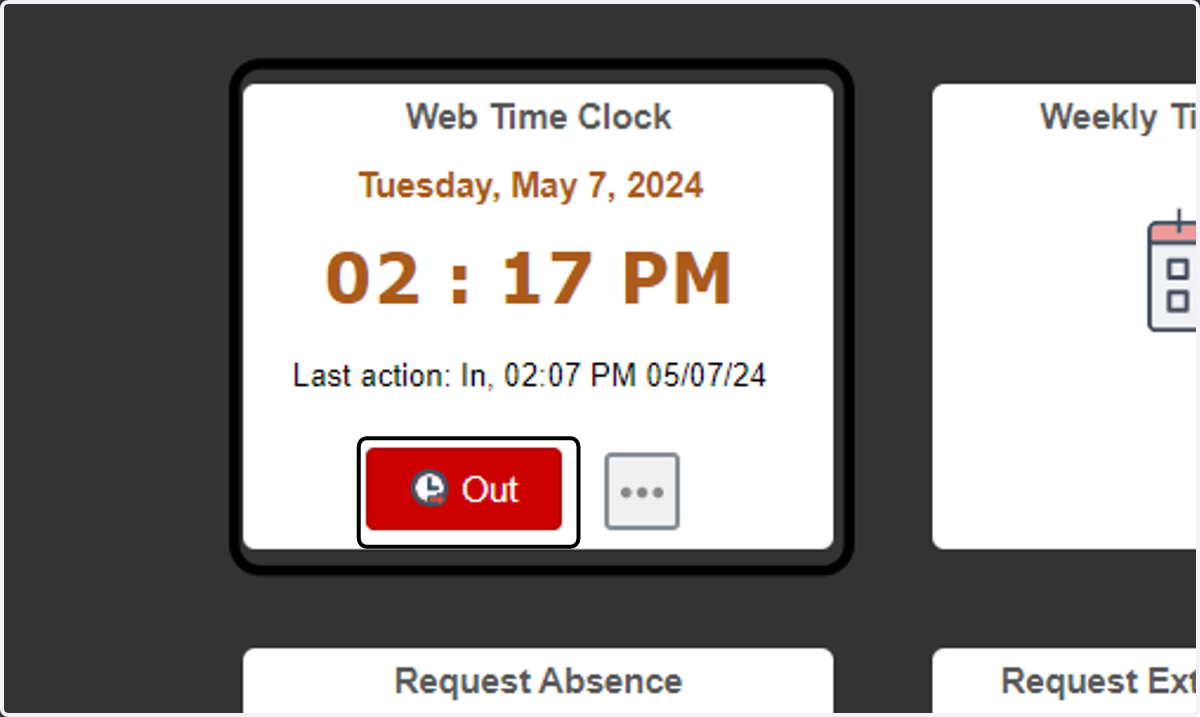
This tile displays the current date and time along with the last action details.
When the last action is 'IN', the button below it displays the next recommended action, in this example 'OUT'.
Click the button highlighted in red saying 'OUT' to log out.
5. EMPLOYEES WITH MULTIPLE JOBS
6. To select a different job, click Select Another Job
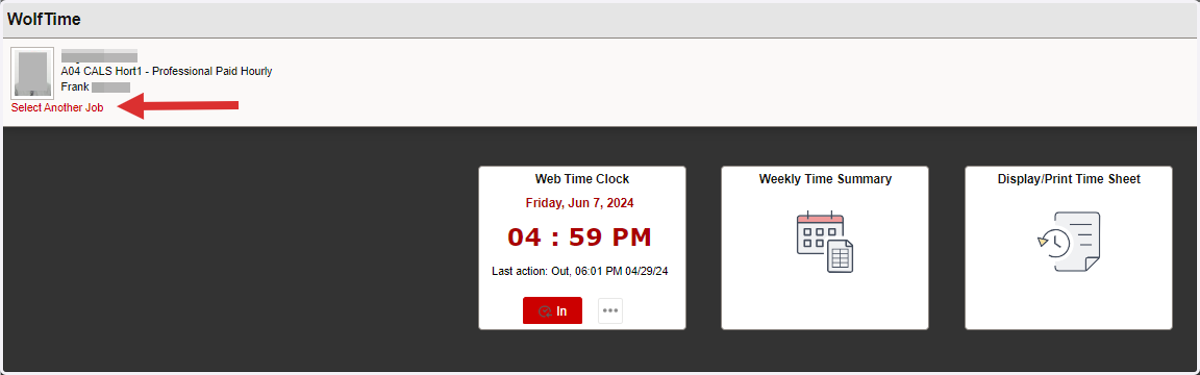
7. Click on the "Select Another Job" link to find the specific job to record punch time
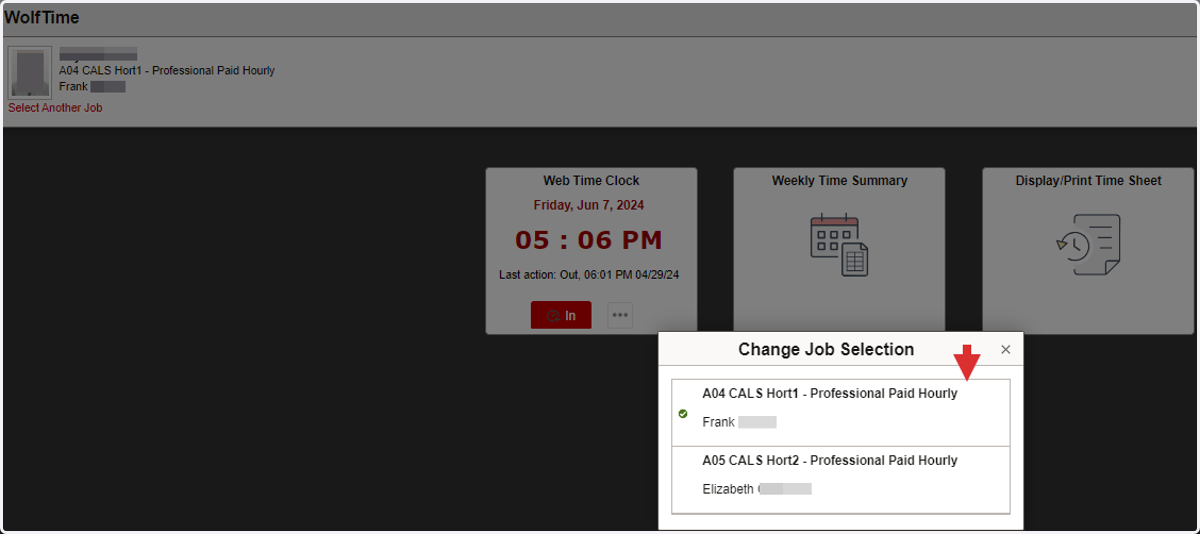
8. Select a Job from the drop down list
The green check mark reflects your primary job in the system. The supervisors name is also displayed for each job.
Mobile Smart Devices
9. Mobile Smart Phones and Devices
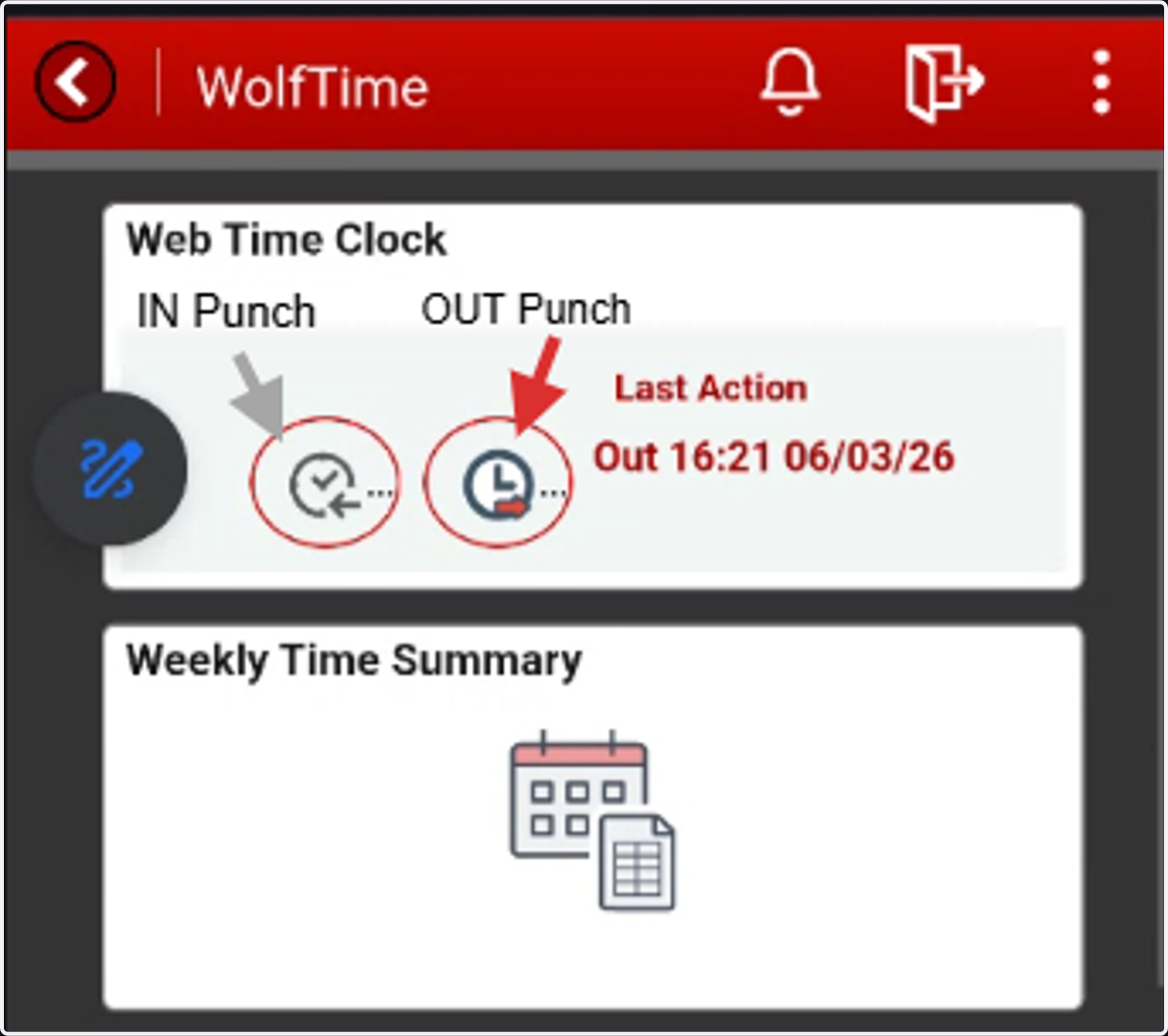
When using a mobile smart phone or device, the Web Time Clock display screen is slightly different from a laptop screen. In the following mobile phone example we will explain the two punch icons.
IN Punch Icon - use the inward pointing gray arrow/clock icon to clock IN
OUT Punch Icon - use the outward pointing red arrow/clock icon to clock OUT
LAST ACTION - this reflects your last punch action recorded on your timesheet. As you record punch times through out the day the Last Action will change between IN and OUT
CHANGING THE PUNCH TYPE
10. Step 5: Changing the Punch Type
The punch type displayed in red should toggle between In or Out dependent on the employee's last punch sequence. However, if you need to manually change the punch type click on the three dots next to it, then select In, Out, or View Full Site.
Note: An employee with multiple jobs should clock out of one job before clock into another job to prevent multiple punch overlap, which generates an exception alarm.
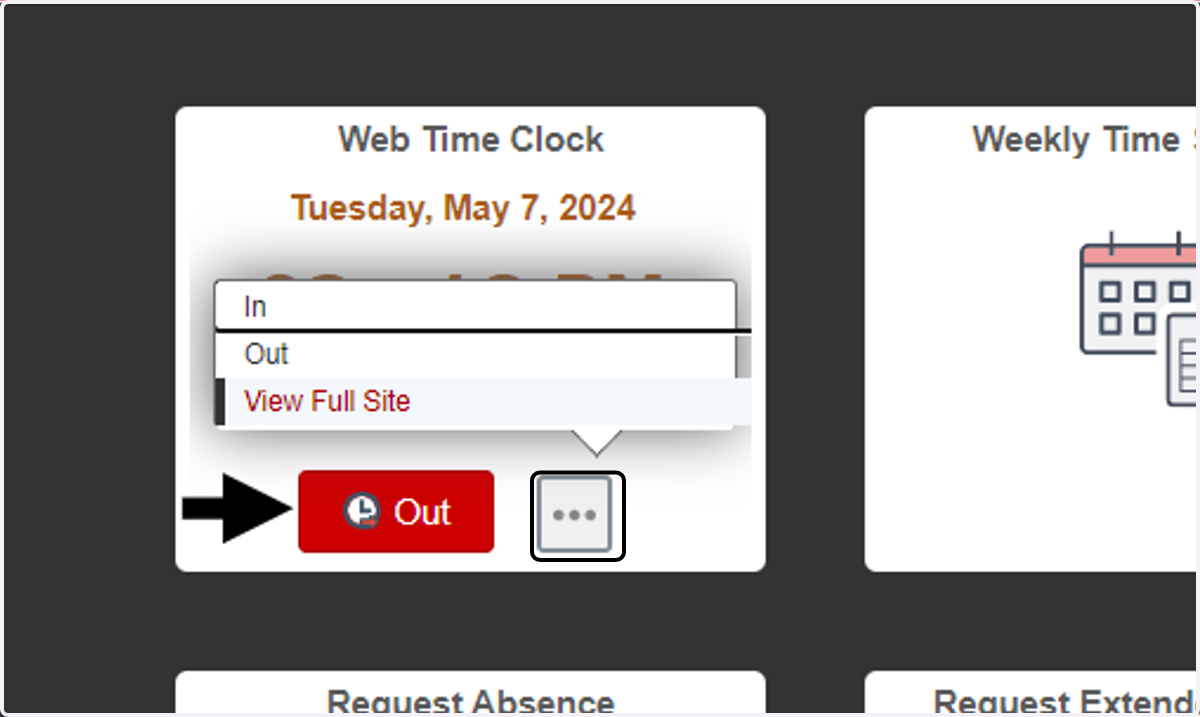
11. Changing punch type continued
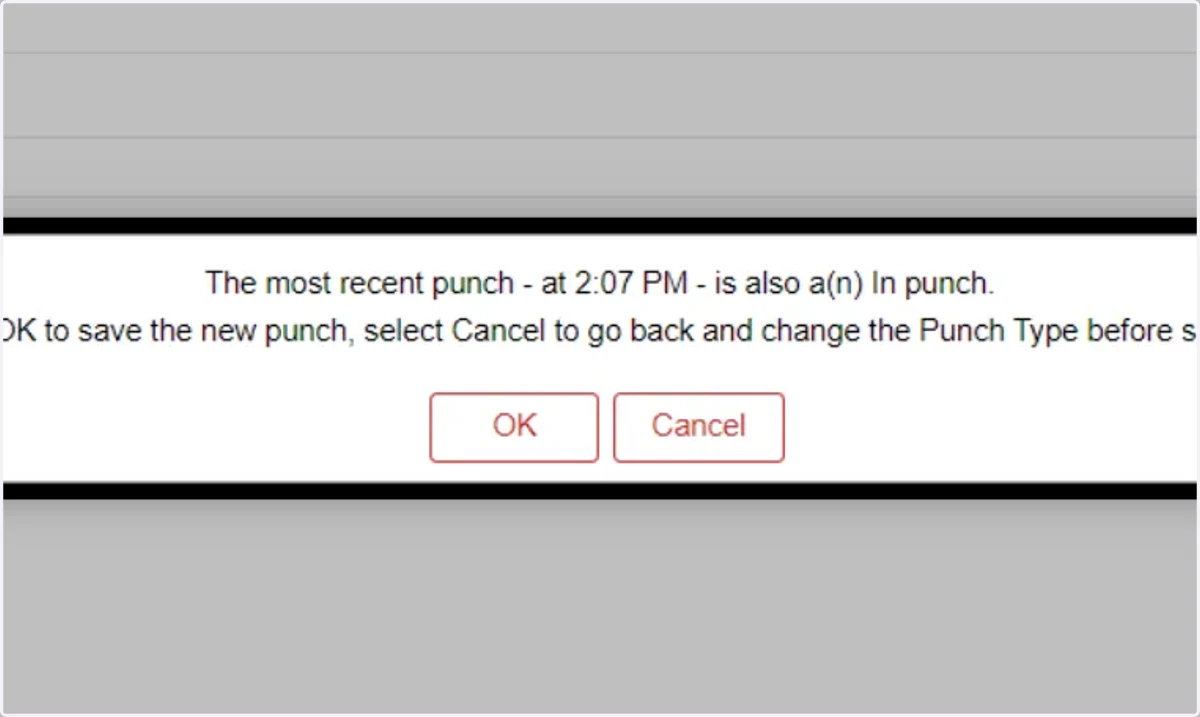
Submitting the same punch type as your last record entry will generate a pop up message showing last punch action and the options to change or proceed.
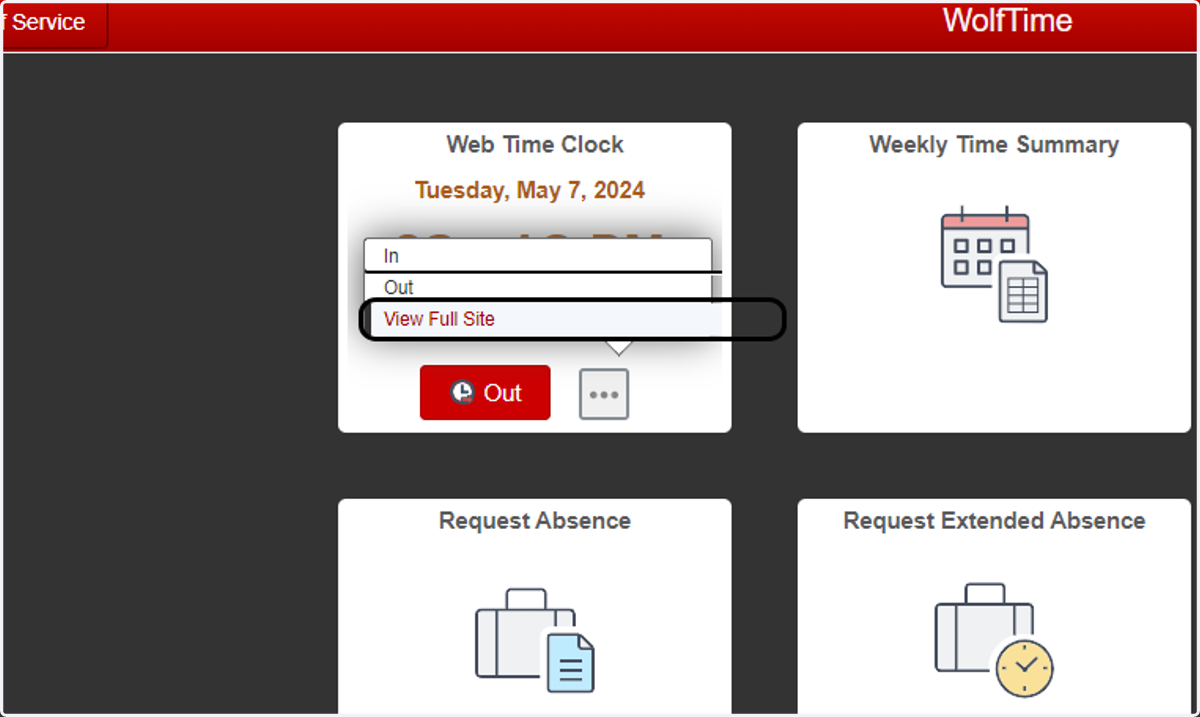
12. Step 6: Viewing all the punches for the day
Click on three dots on the tile, then select 'View Full Site'
13. Viewing all the punches for the day cont.
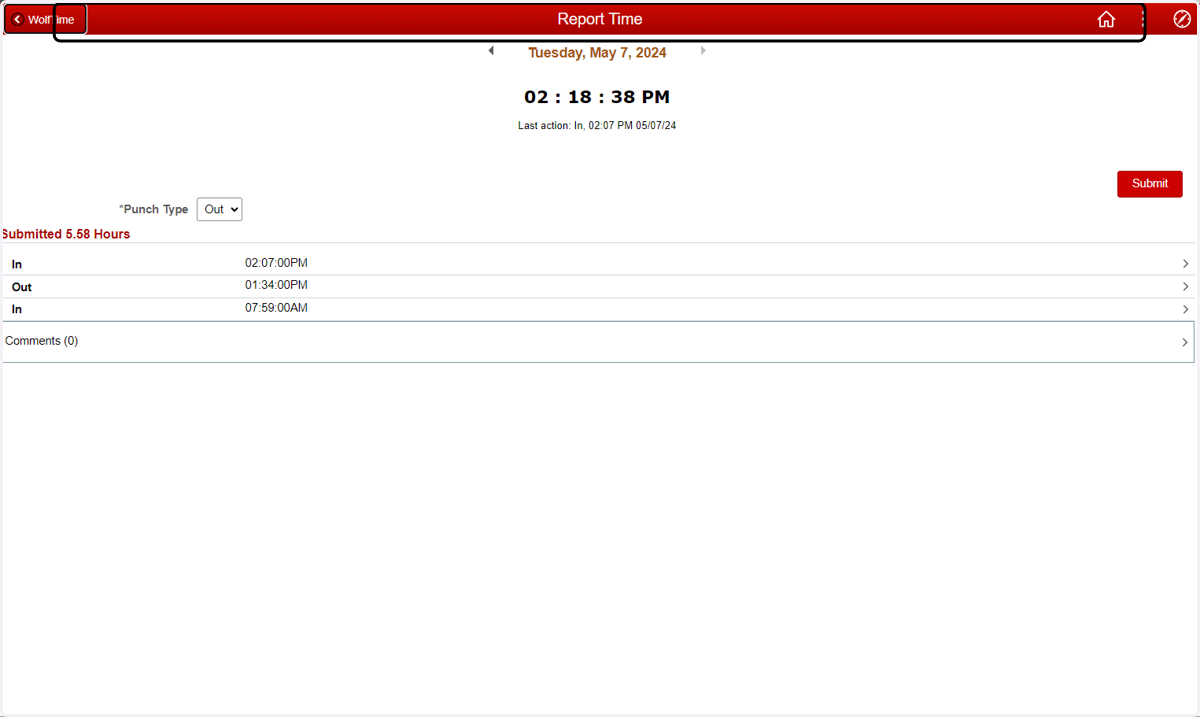
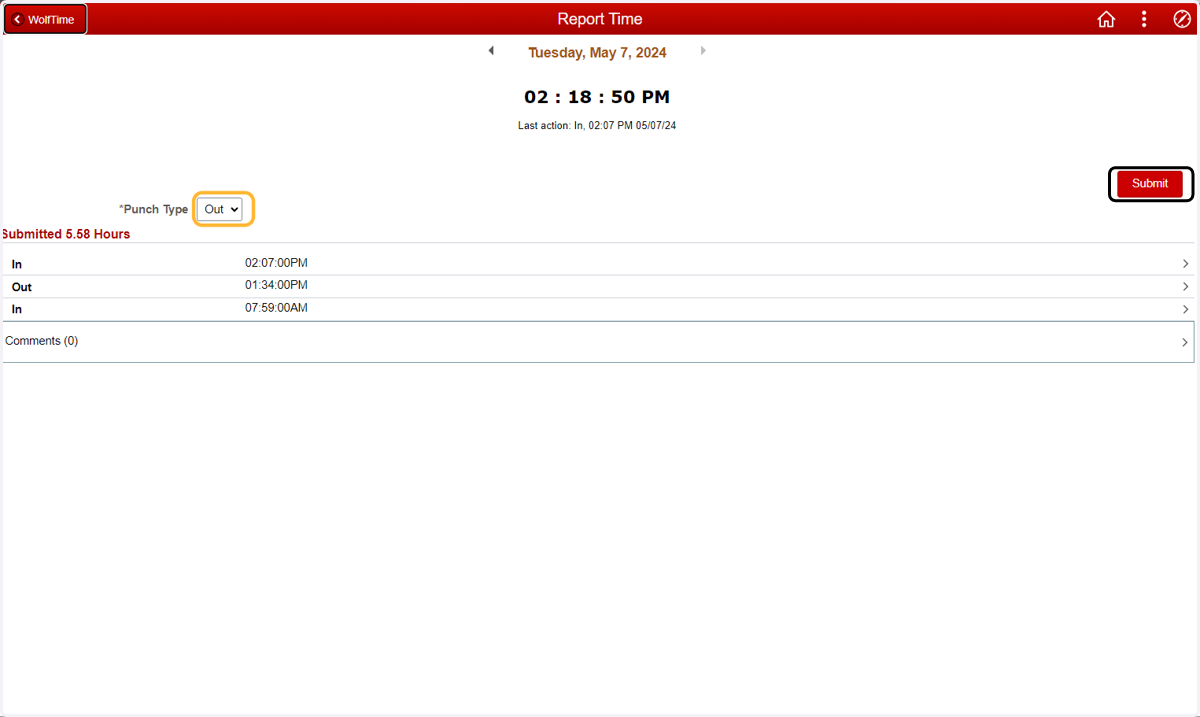
The previous action lands you on this page displaying the current date and time along with all the punch details, total submitted hours for that day.
14. Click on the submit button on the right to punch
Click on the dropdown to change punch type.(yellow box)
Review the punch type and click on submit.(highlighted in red)
15. View punches for a different day
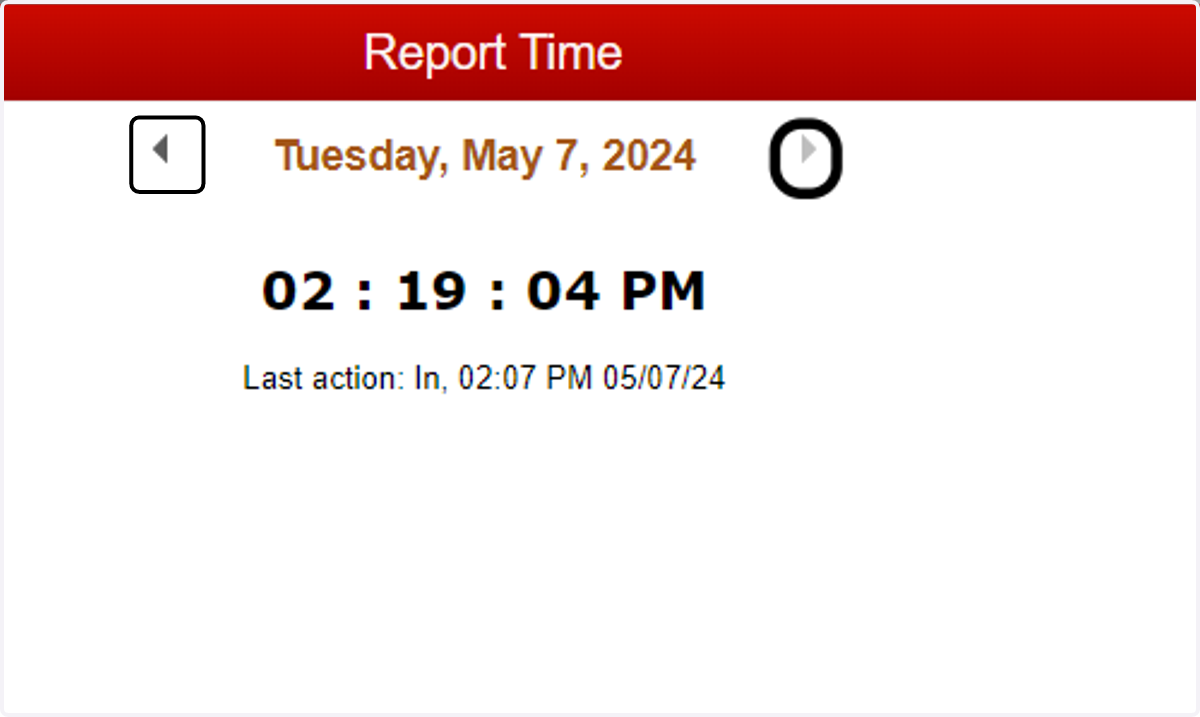
By default, this page shows current day.
To navigate to a different day, click on the left arrow for a past day an don right arrow for a future day.
16. Navigate back to WolfTime Screen
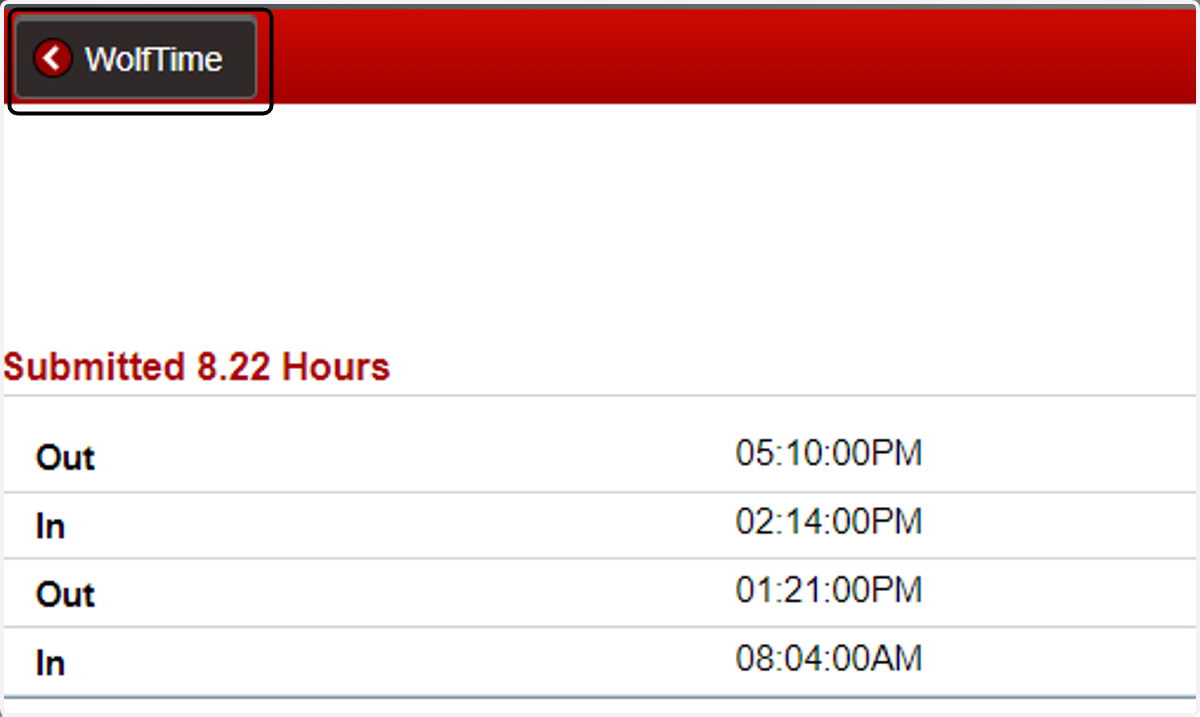
Click on 'WolfTime' at the top left corner to go back to the WolfTime screen.