Employee’s Guide: How to Cancel Leave Requests
1. Step 1: Login to MyPack Portal
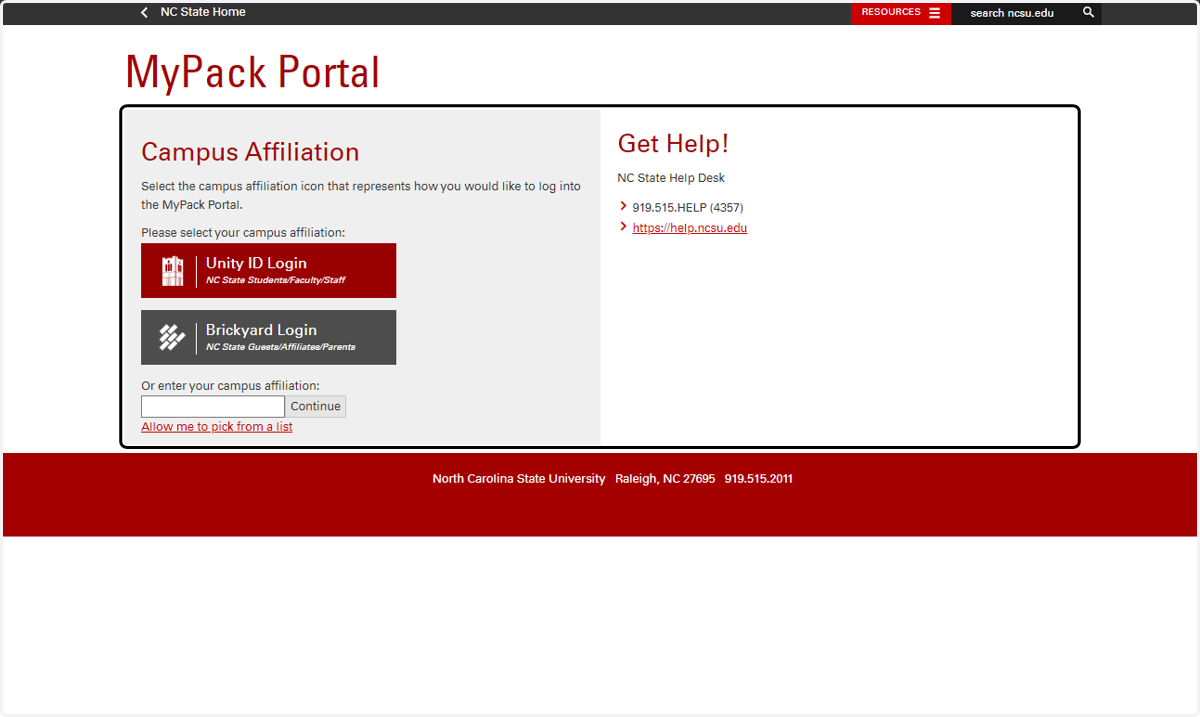
Navigate to MyPack Portal (http://mypack.ncsu.edu) using a web browser.
Select the NC State Students/Faculty/Staff Campus affiliation.
Enter your Unity ID and Password when prompted to login to MyPack portal
2. Step 2: Navigate to the Employee Self Service Homepage
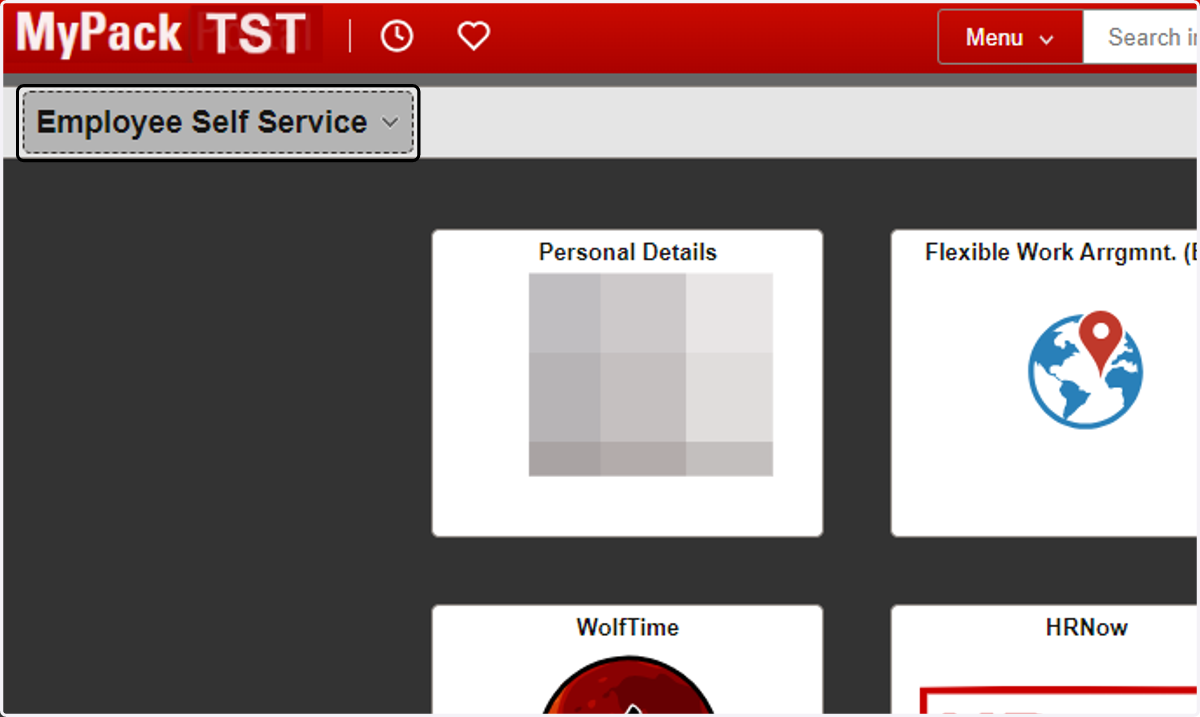
Upon successful login to MyPack Portal, if you do not land on the Employee Self Services homepage, select the Employee Self Service option from the dropdown menu in the top left corner of the banner
3. Step 3: Navigate to the WolfTime tile
4. Method 1: Step 1: Navigate to Cancel Absences Tile
5. Step 2: View and Filter Absence Requests
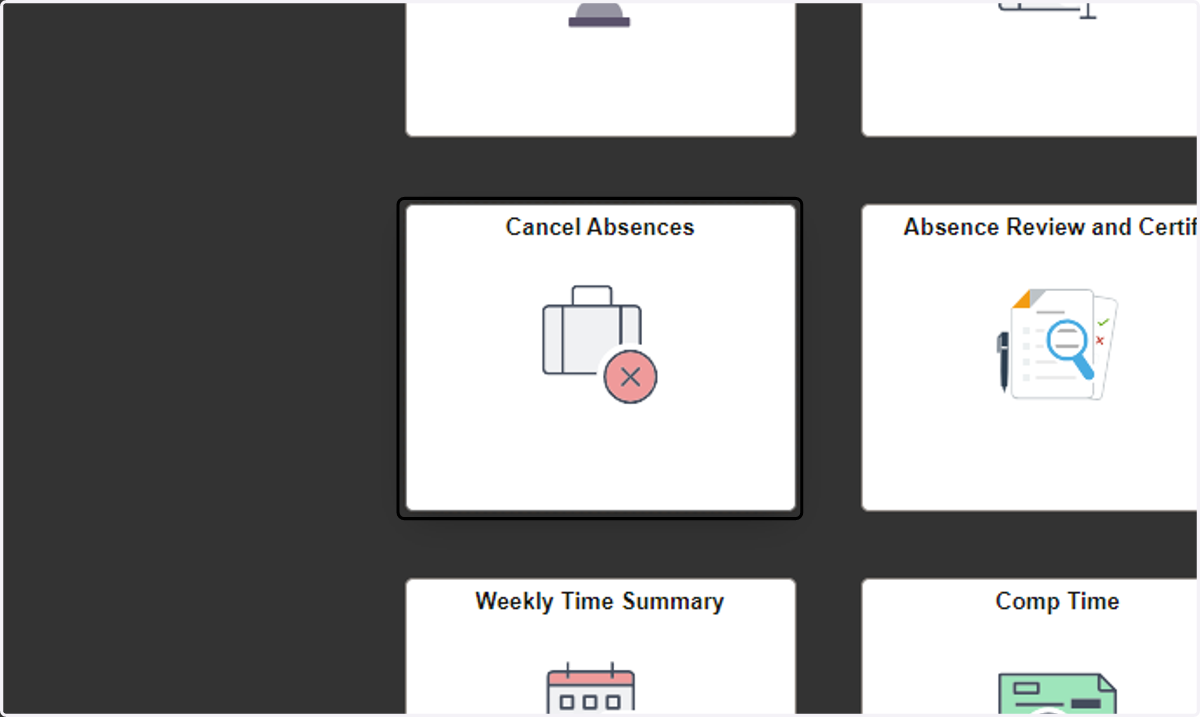
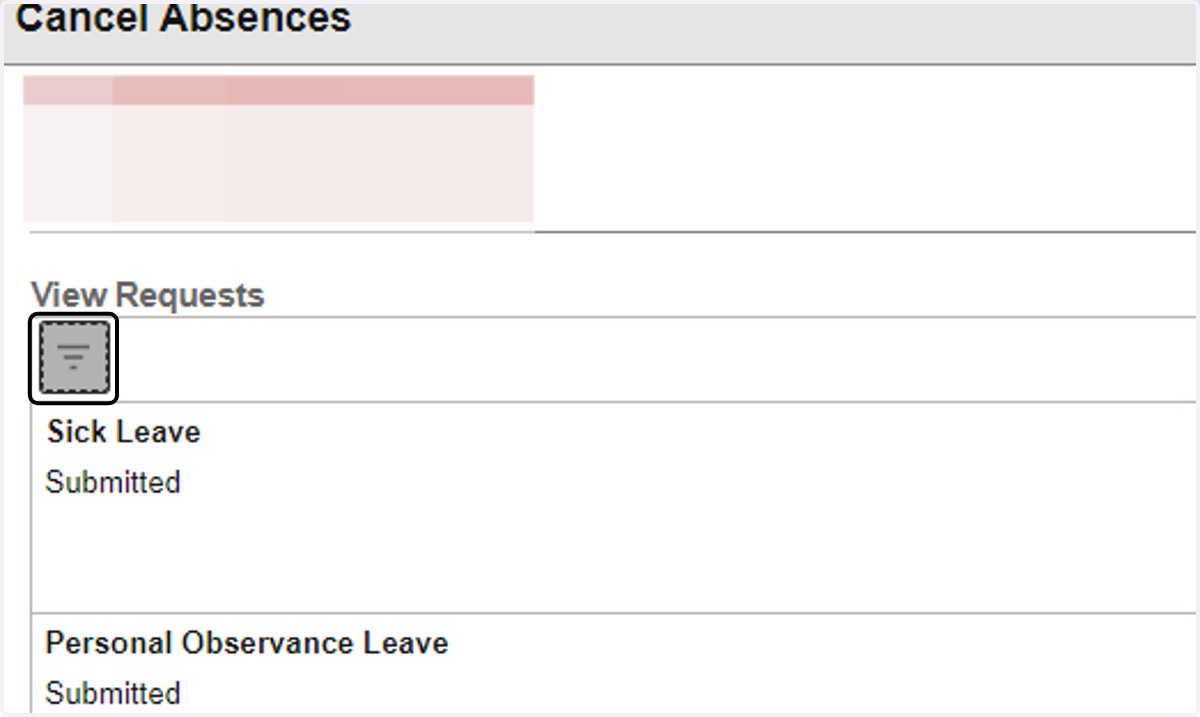
On the Cancel Absences page, you can view existing absence requests
Can view whether requests have been approved, denied, submitted, or saved as “Data Saved”
Select the filter button in the top left corner (shown in the green box) to filter the request by date and absence type.
6. View and Filter Absence Requests cont.
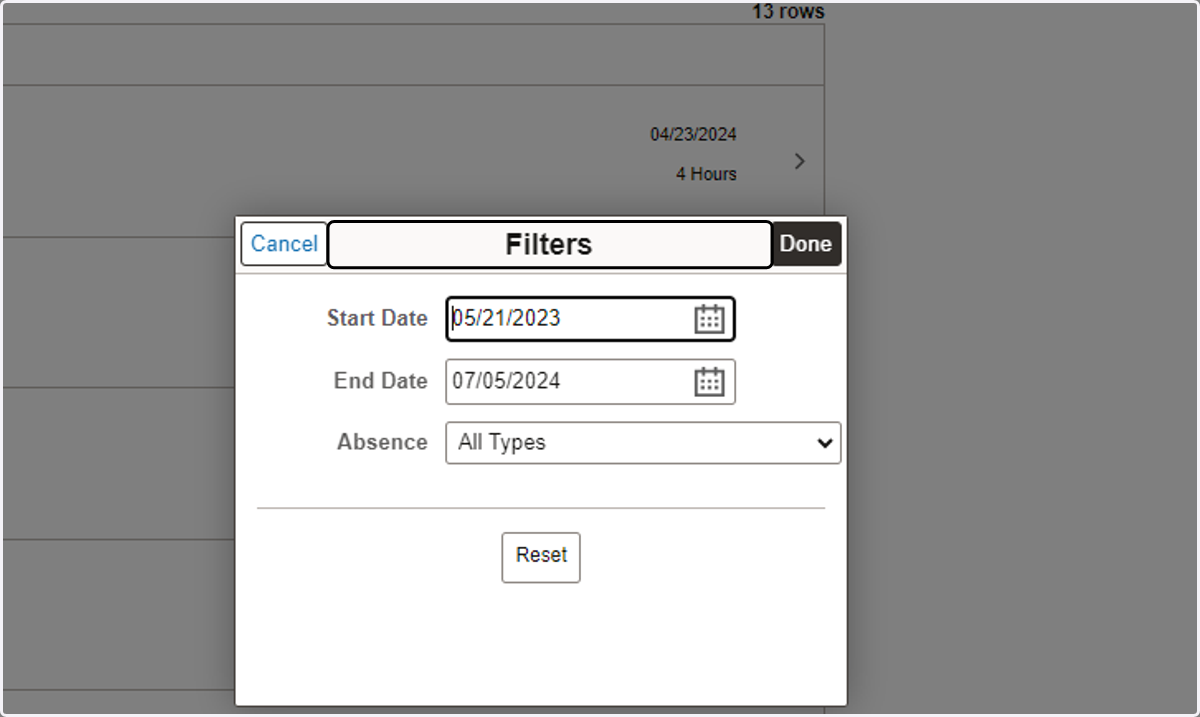
Set the desired filters on the Filters pop up.
7. Step 3: Select Individual Absence to Cancel
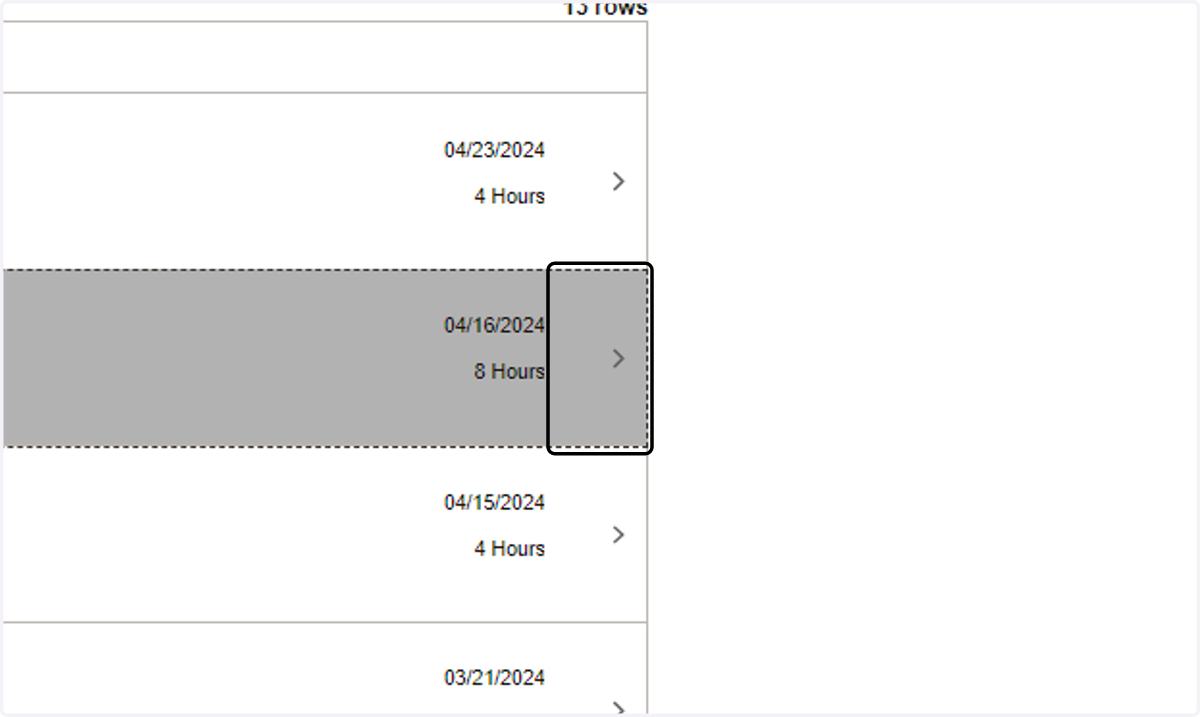
Select the gray arrow (shown in the blue box) on the right side of the absence request row to view the request.
8. Step 4: Reviewing Absence Request and Selecting Cancel
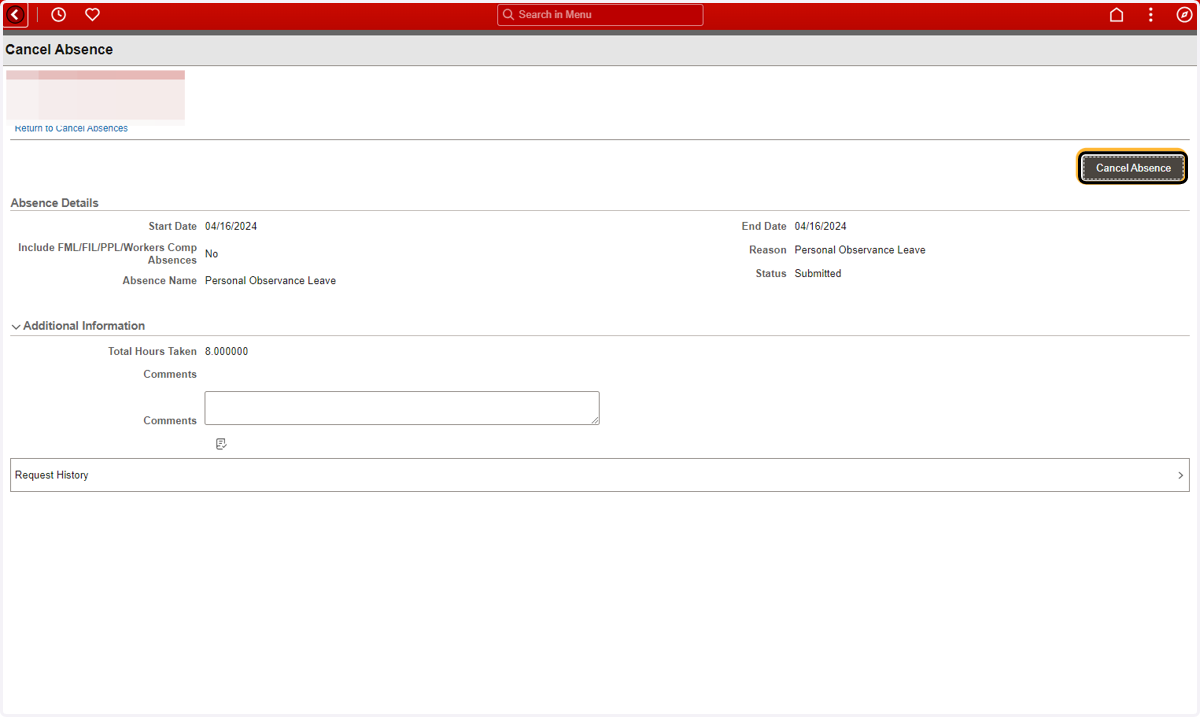
Take a moment to review Absence Details to ensure that it is the correct request to cancel.
Select the “Cancel Absence” button in the top right of the page.
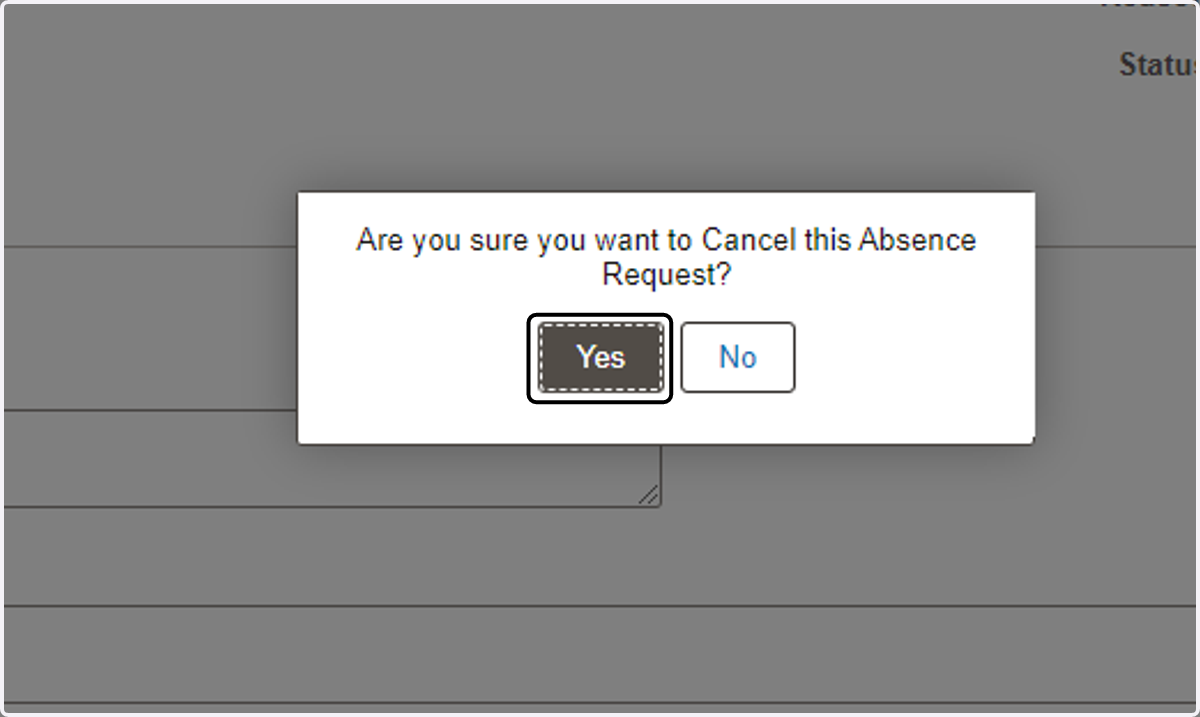
9. Step 5: Select “Yes” on The “Cancel this Absence Request” Pop-up
After clicking on the “Cancel Absence” button, a message will pop-up “Are you sure you want to Cancel this Absence Request?”
Select “Yes” if you want to cancel, or “No” if you want to keep the request.
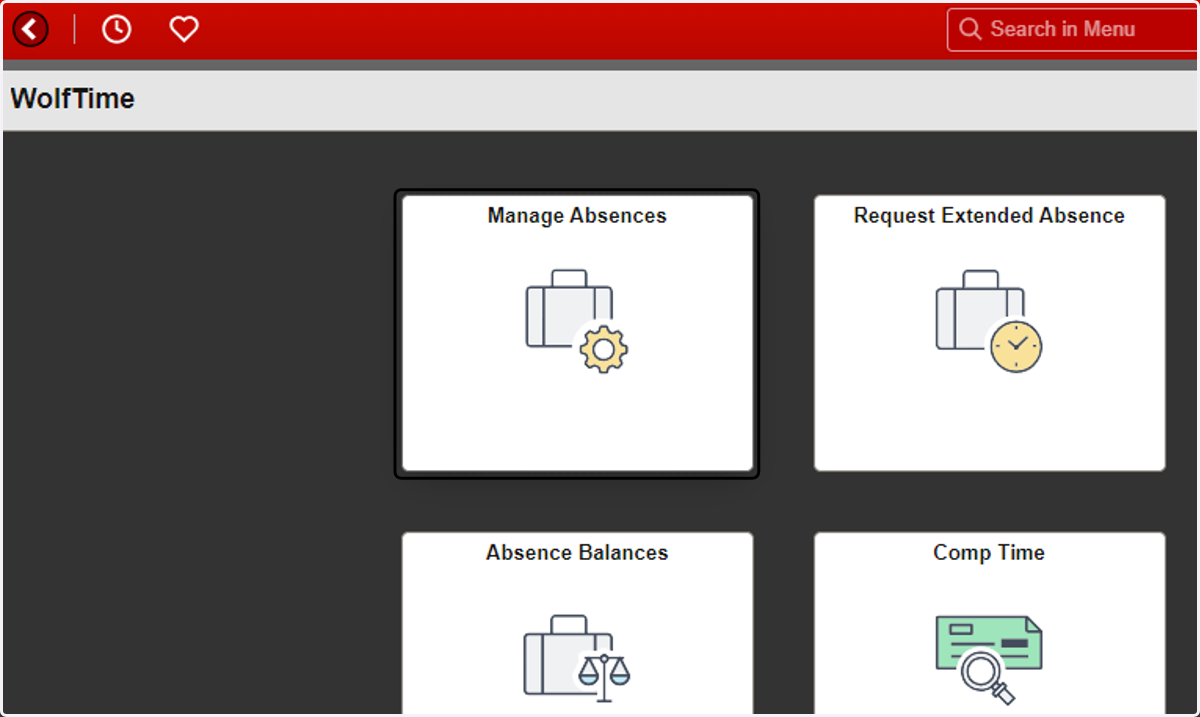
10. Method 2: Step 1: Click on Manage Absences Tile in WolfTime
For cancelling any of the last three absence requests.
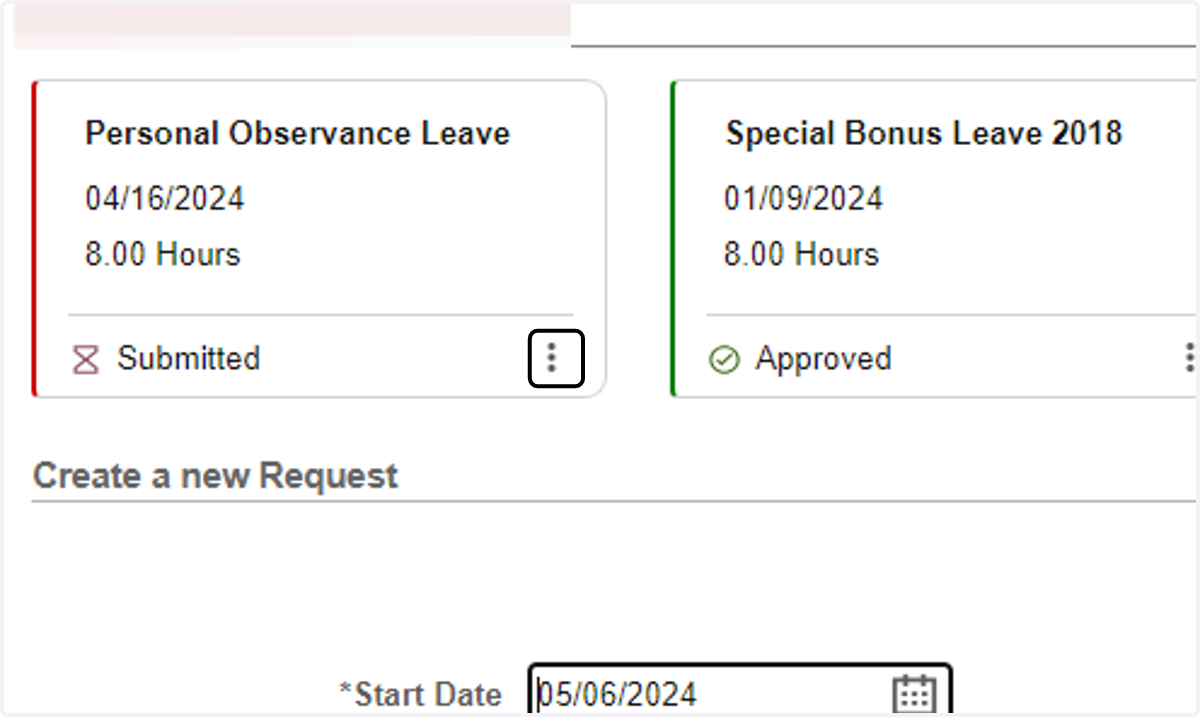
11. Step 2: Click on three dots
The page displays three recent most absence requests.
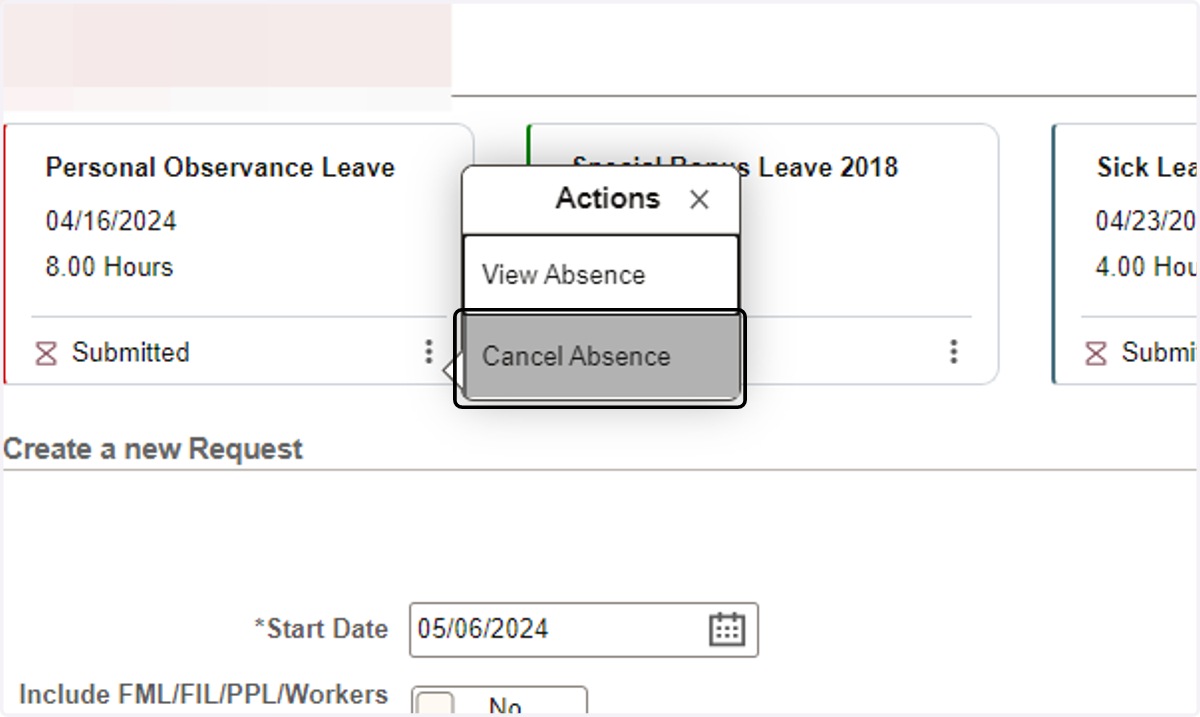
12. Step 3: Click on Cancel Absence
Upon clicking the three dots, click on Cancel Absence
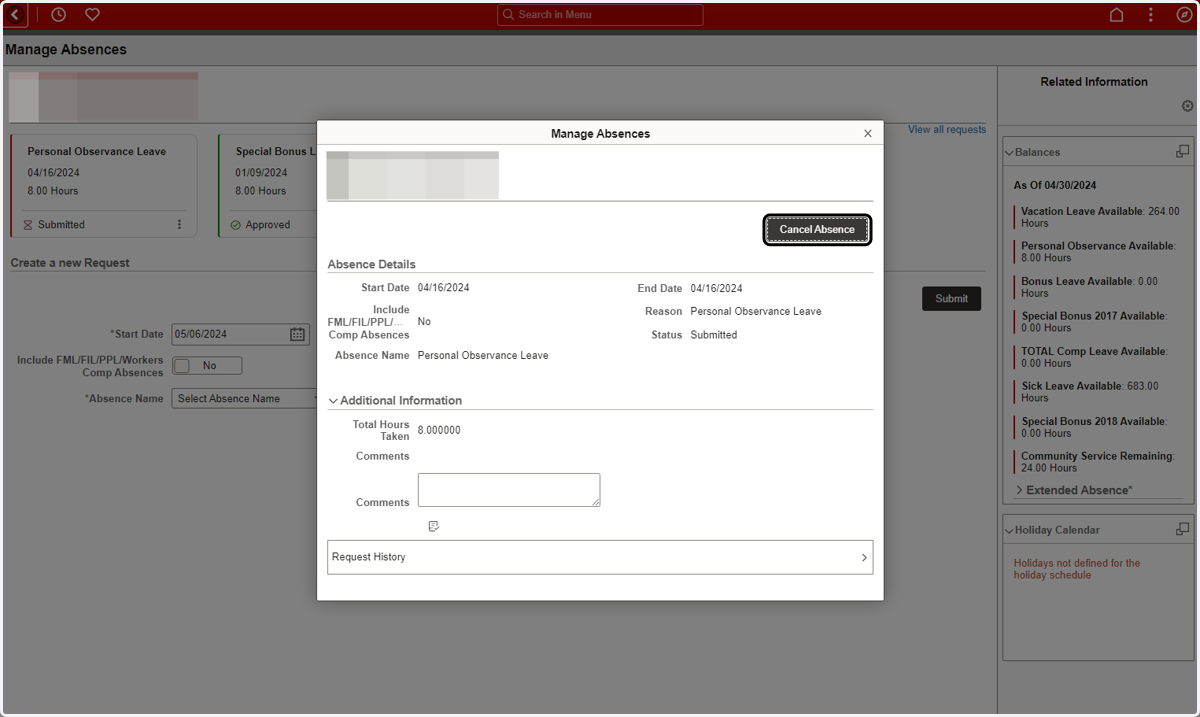
13. Step 4: Click on Cancel Absence
The previous action gives a pop up.
Take a moment to review the absence details to ensure that it is the correct request to cancel.
Select the 'Cancel Absence' button in the top right corner of the pop-up.
14. Step 5: Select “Yes” on The “Cancel this Absence Request” Pop-up
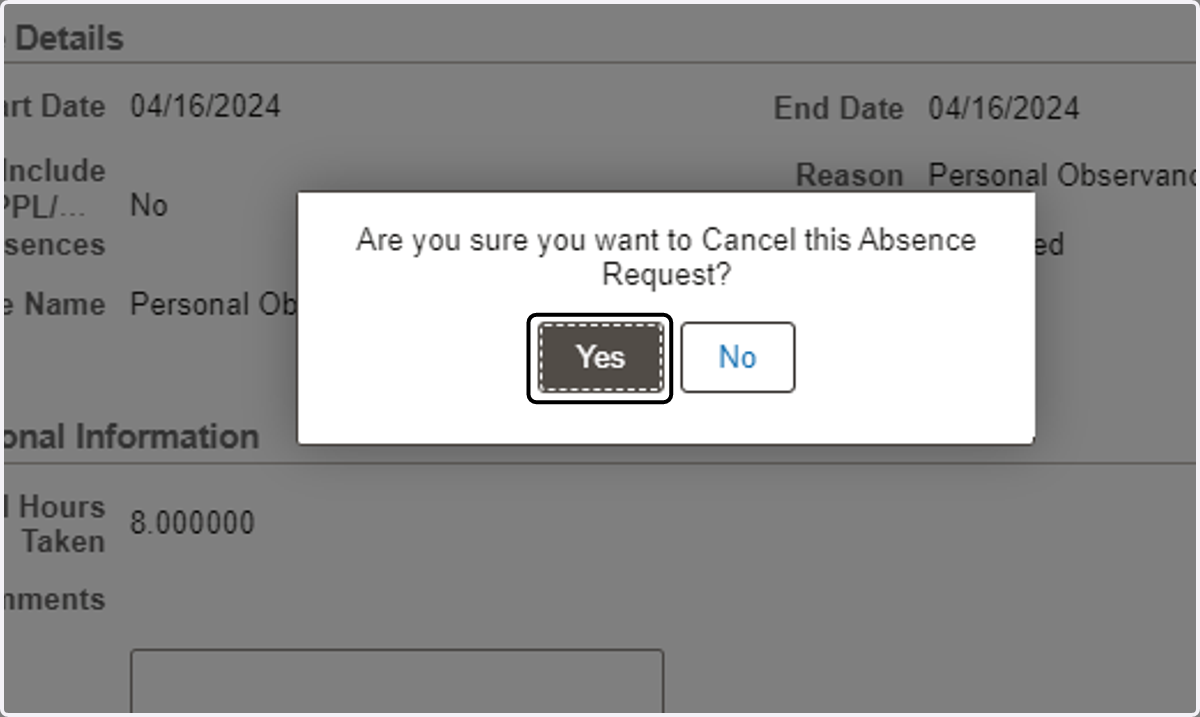
After clicking on the “Cancel Absence” button, a message will pop-up “Are you sure you want to Cancel this Absence Request?”
Select “Yes” if you want to cancel, or “No” if you want to keep the request.
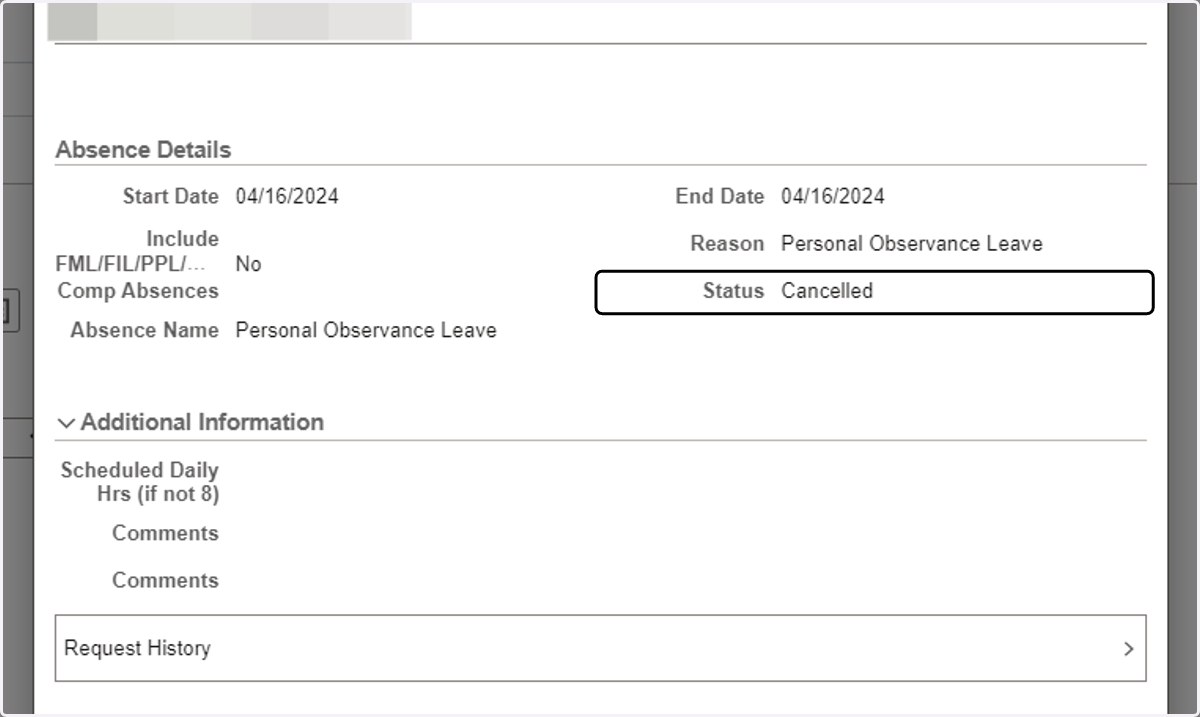
15. The previous actions lands you on the pop-up page with updated status as 'Cancelled'
16. What happens next?
If the absence request had been Approved prior to the Cancellation request:
An email will be sent to the Supervisor to approve the Cancellation request
The request will still be visible under the “View Requests” tile with the status “Cancel In Progress” until the Supervisor approves the cancellation
The employee will not be able to re-submit the leave request until the Supervisor approves the Cancellation request
If the absence request had the status of Saved or Submitted prior to the Cancellation request:
The request will be Cancelled automatically
Once Canceled, the absence request will be removed from the system.
Employees can resubmit the cancelled request if necessary.