Employee Guide: How to attach documentation to a bereavement leave request.
Employees may attach documentation to a bereavement leave request either at the time of submission or after the request has been approved. This documentation will be accessible for review by the employee, their supervisor, and the leave coordinator
Supporting Information:
Login to MyPack Portal
1. Navigate to the Employee SelfService
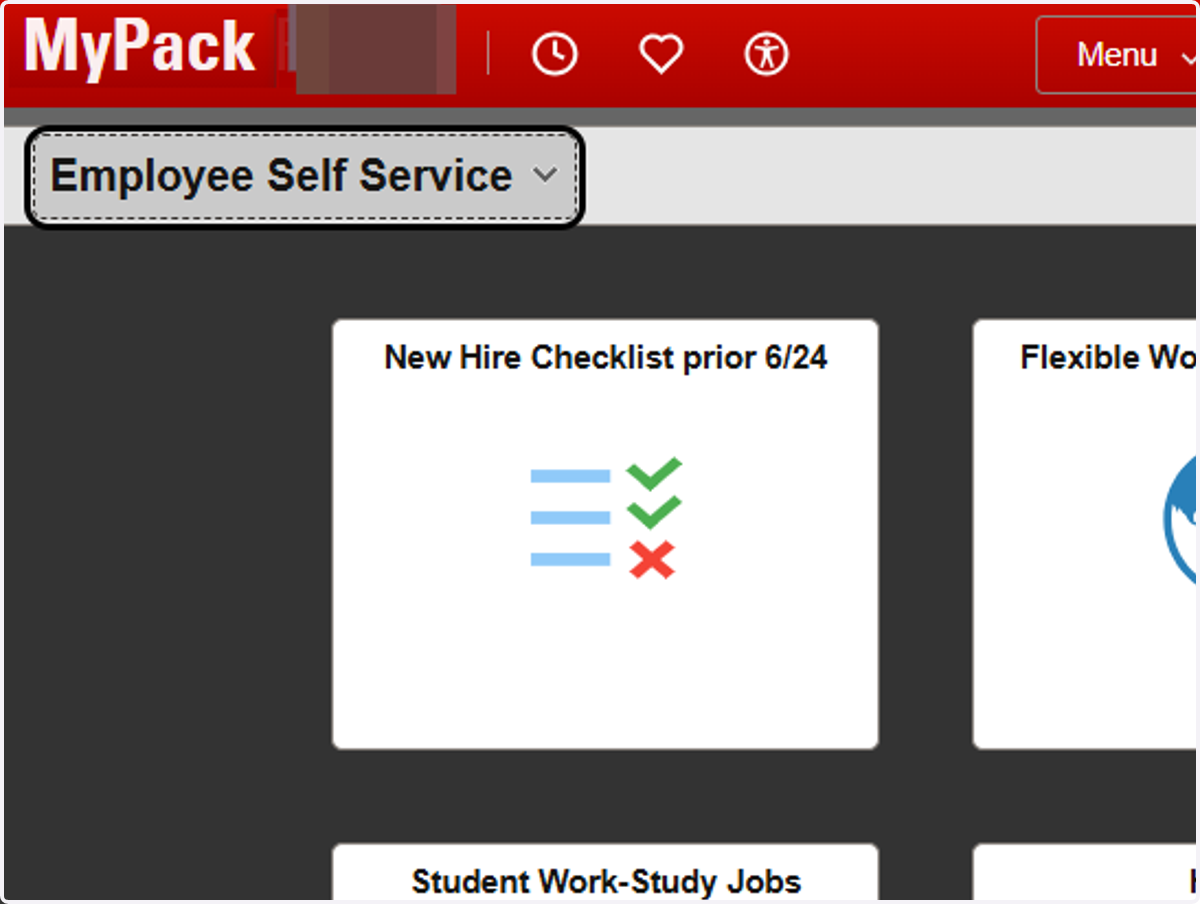
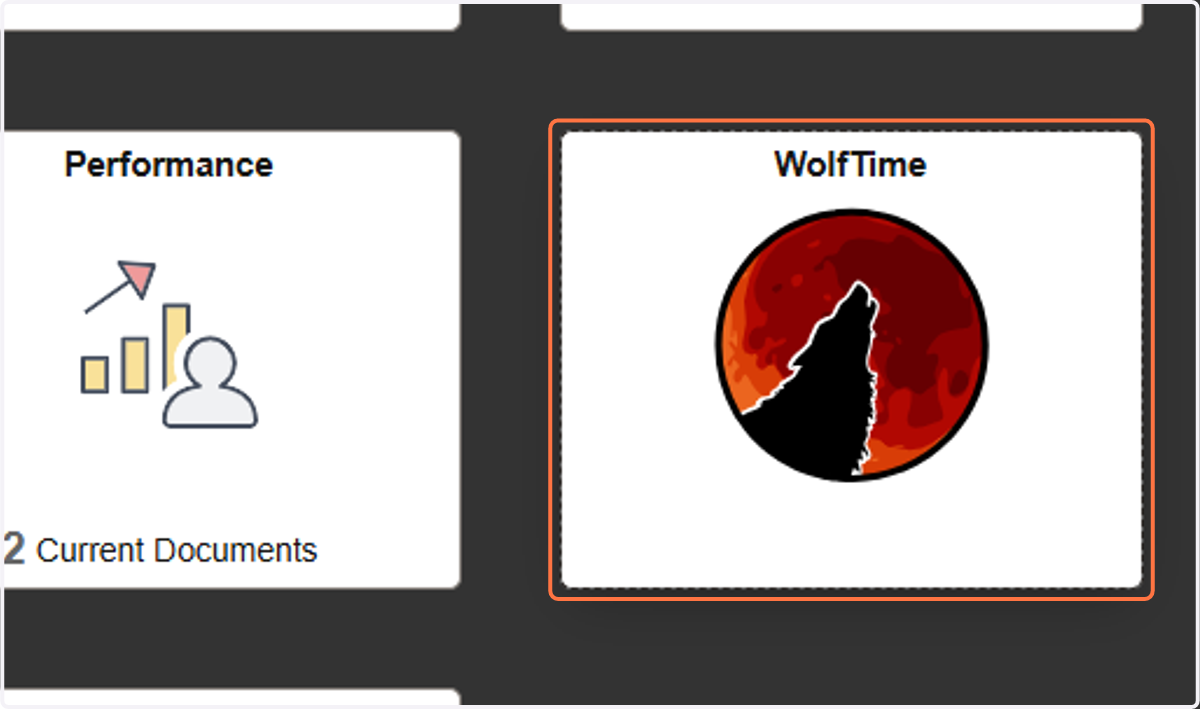
2. Click on WolfTime
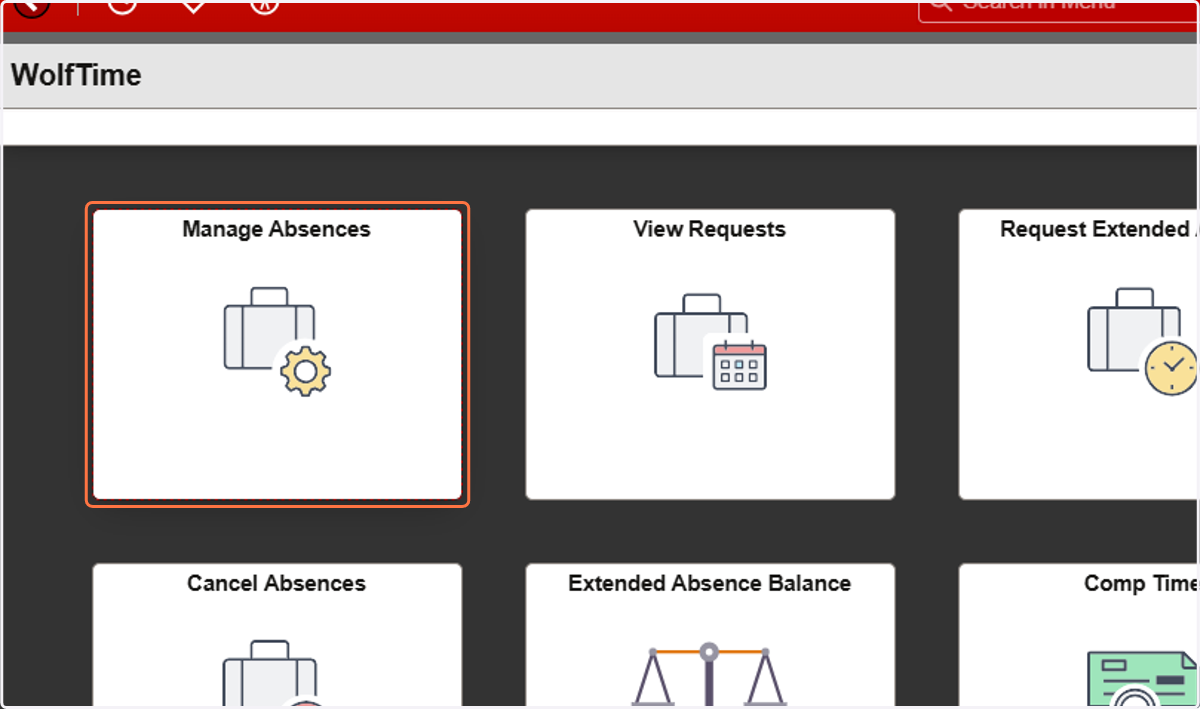
3. Click on Manage Absences
4. Click on the 3 dots beside your approved or submitted bereavement leave request

5. Click on View Absence

6. Click on Add Attachment

7. Click on My Device
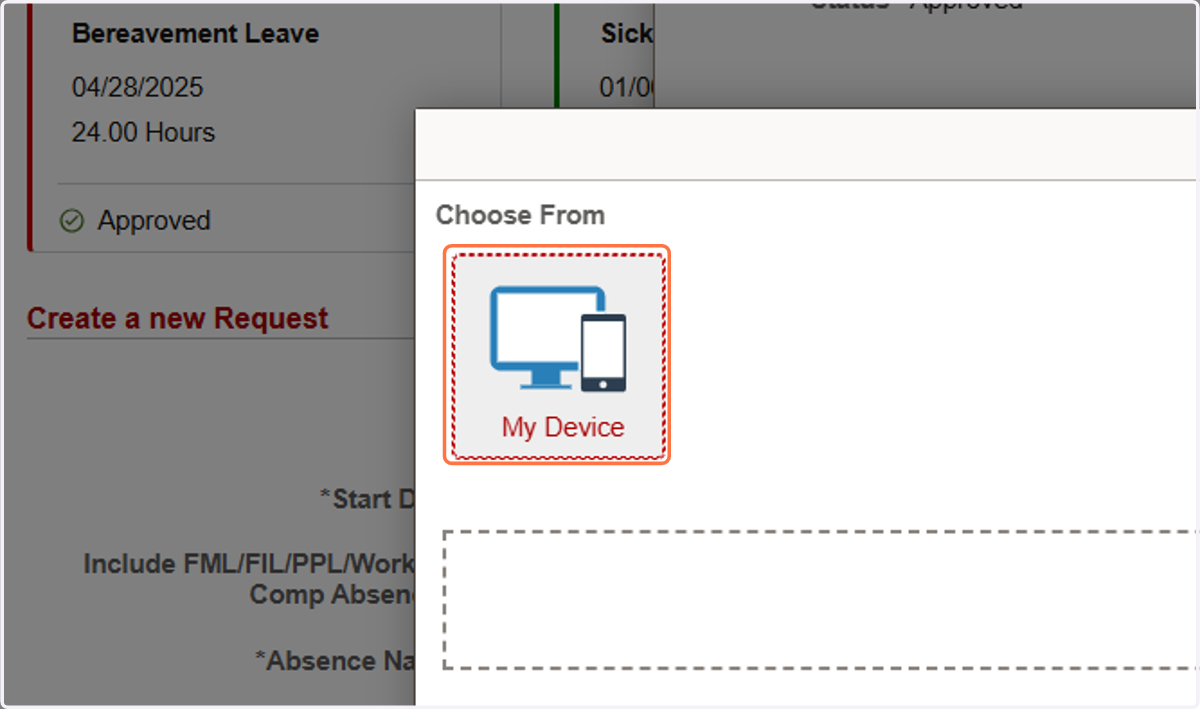
8. Select the document you would like to attach from your files
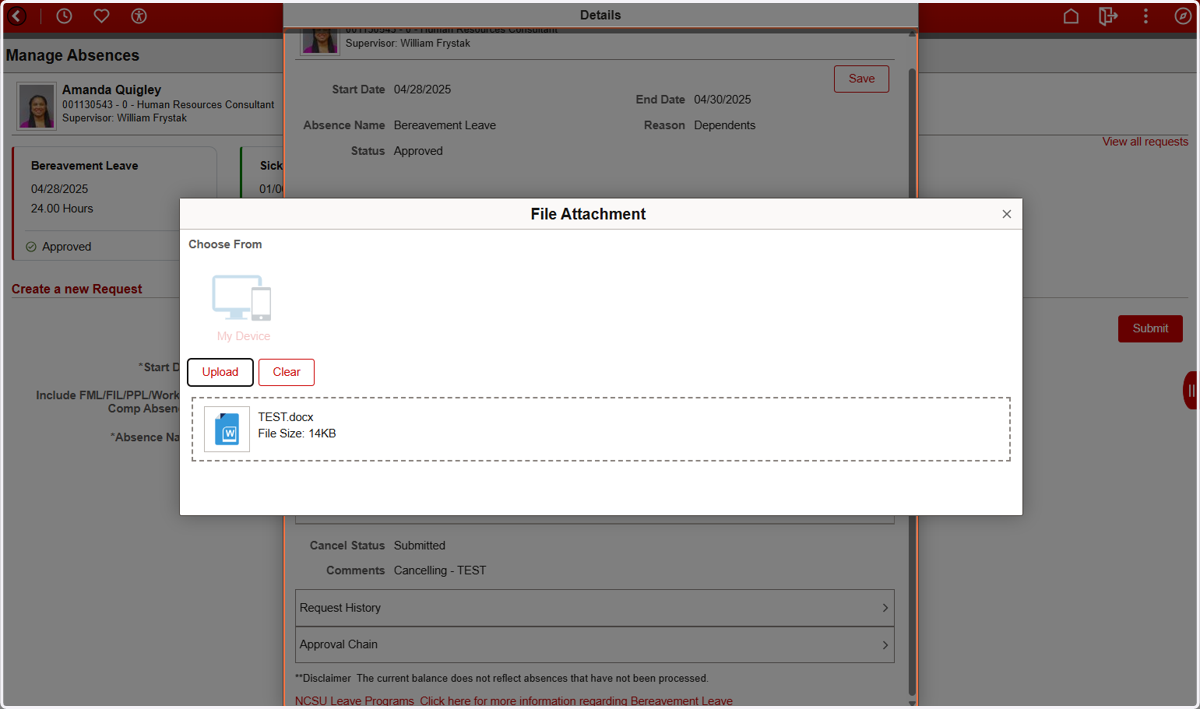
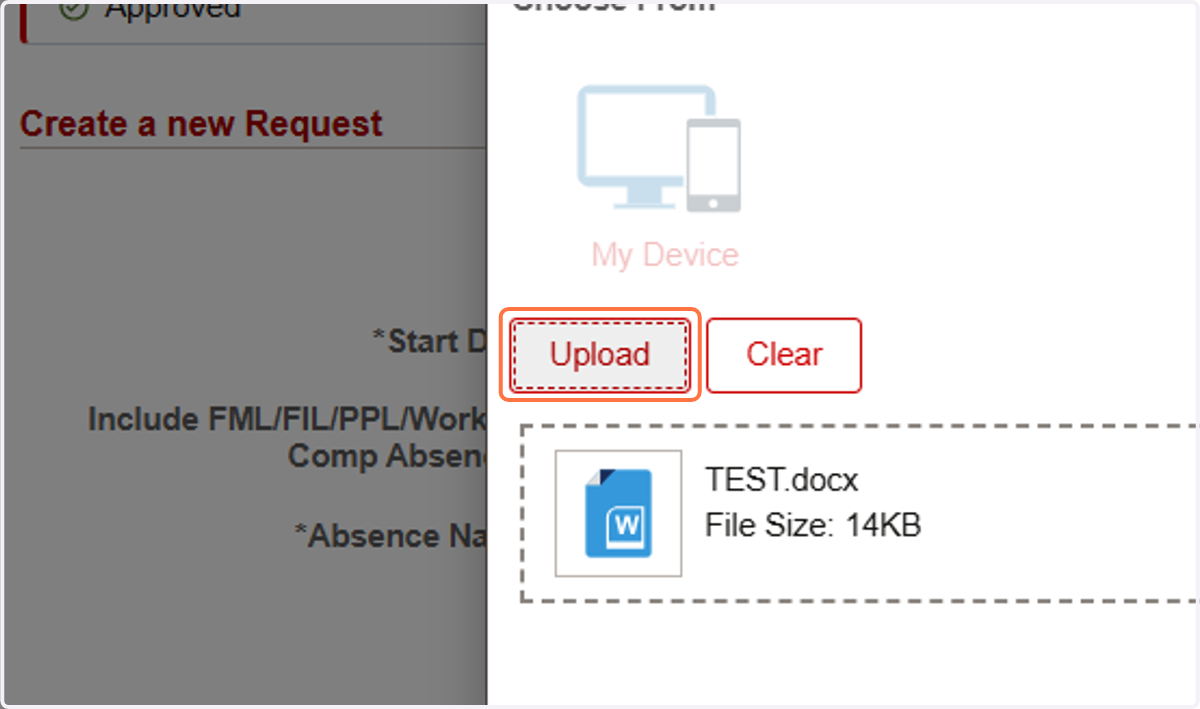
9. Click on Upload
10. Click on Done
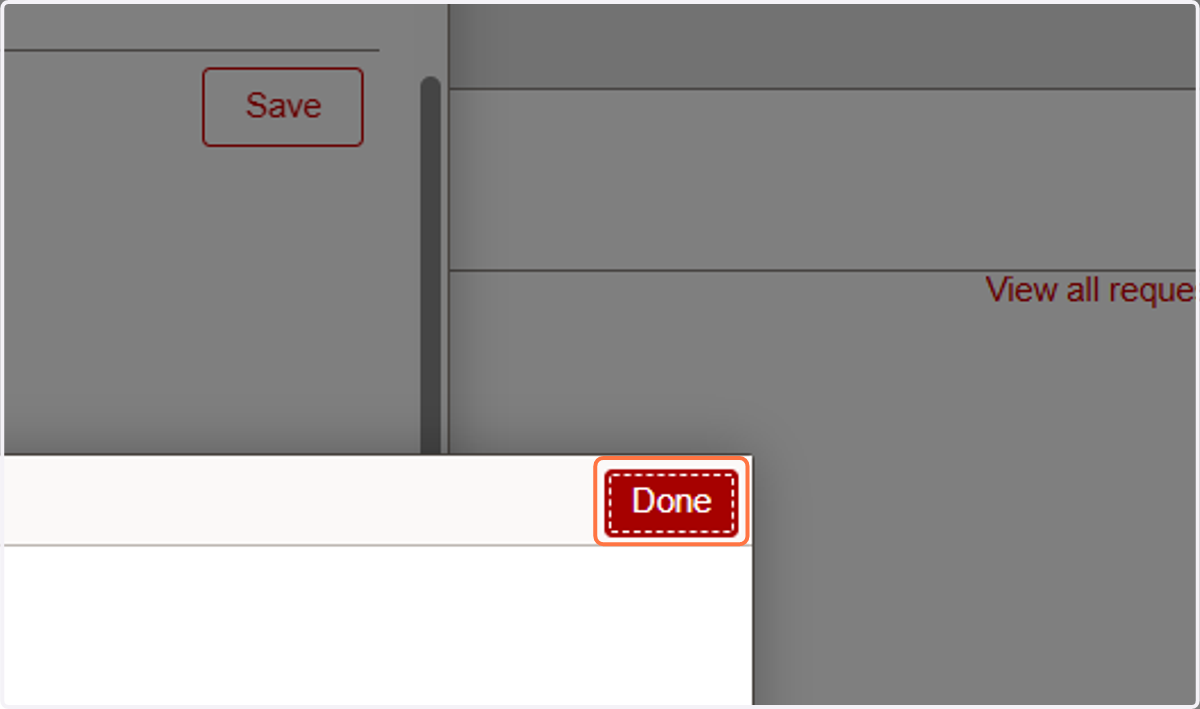
11. Click on Save

12. Click on Close
