Employee - Requesting One-Time Payment for Equipment Allowance in Workday
This will show the steps for an employee to request a one-time payment for an equipment allowance in Workday.
Home - Workday
1. Type "request one time payment" in the search bar to find the 'Request One Time Payment for Myself" task
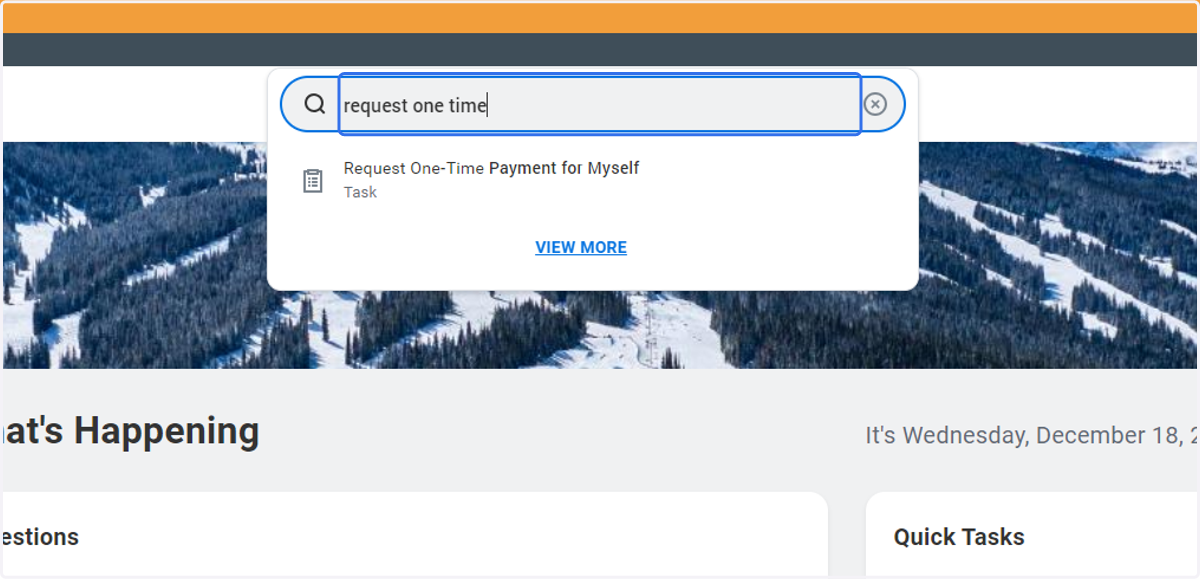
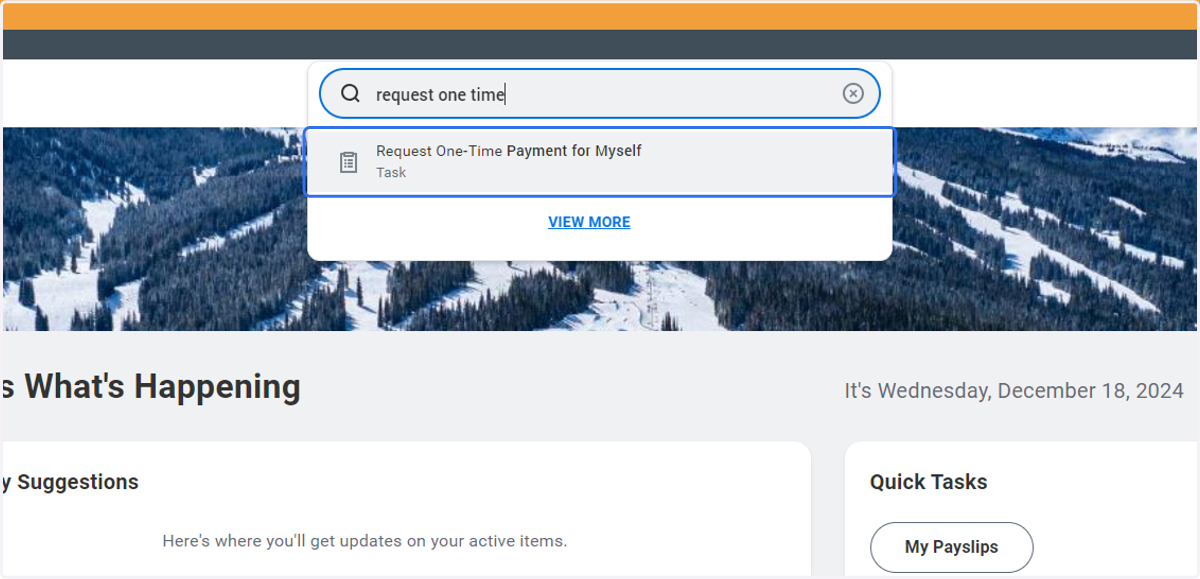
2. Click on Request One-Time Payment for Myself…
3. Click on Why are you requesting payment?
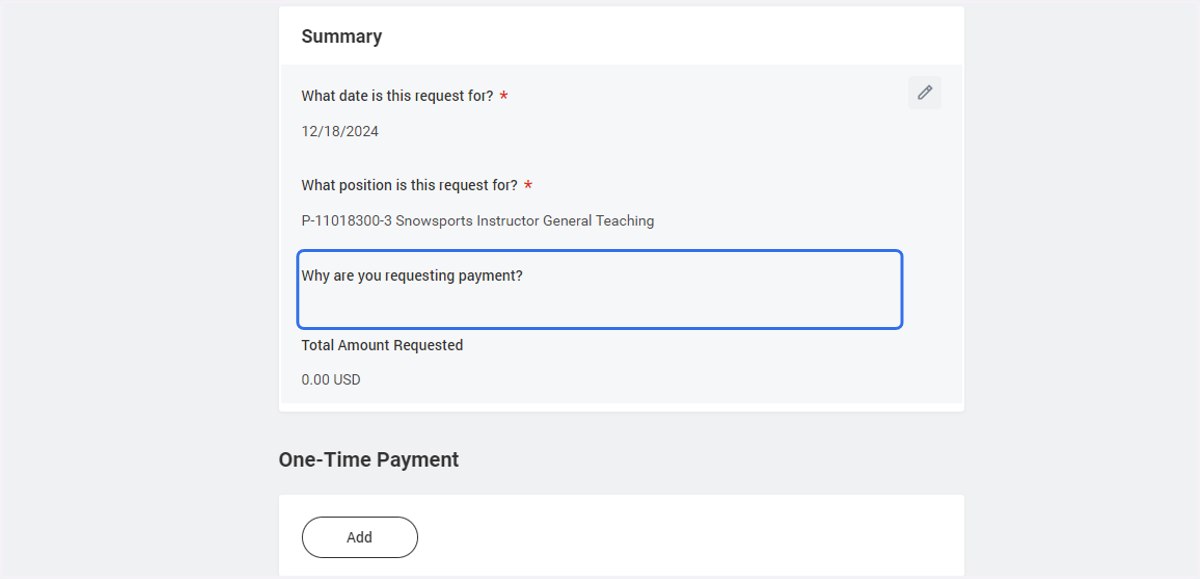
4. Click on menu option on the far right of that task.
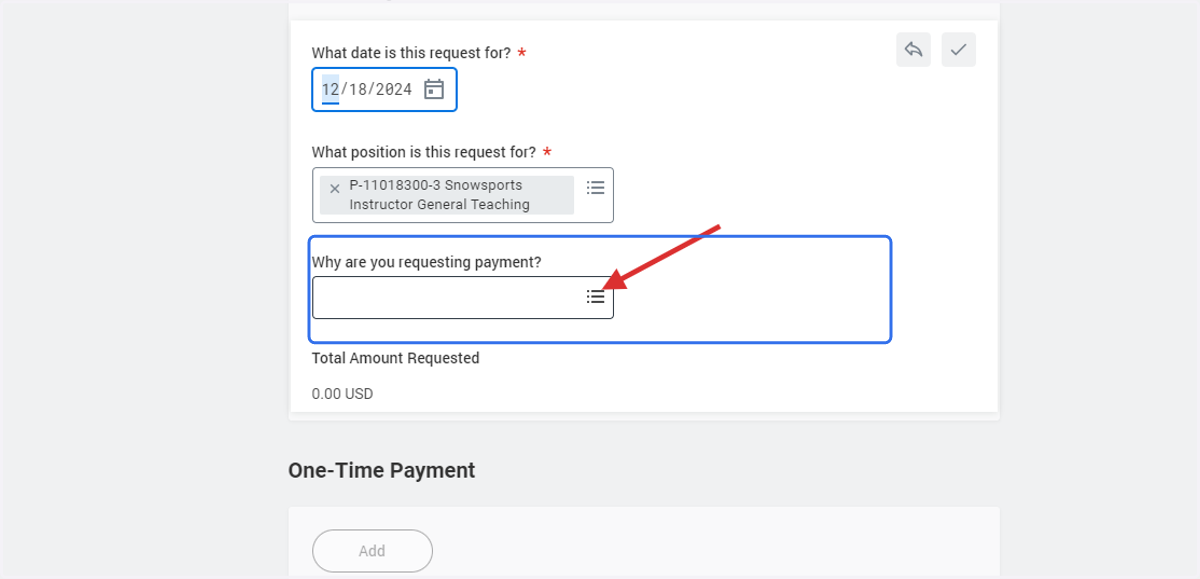
5. Click on Submenu One-Time Payment for Self > Reimbursement Request
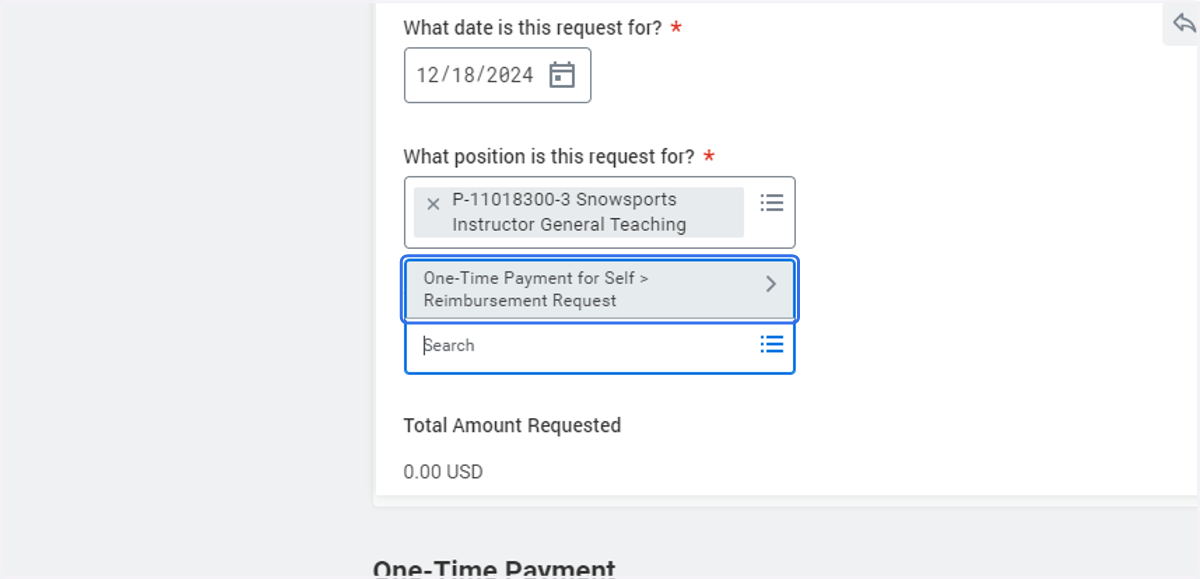
6. Select the 'Equipment Allowance Reimbursement' option
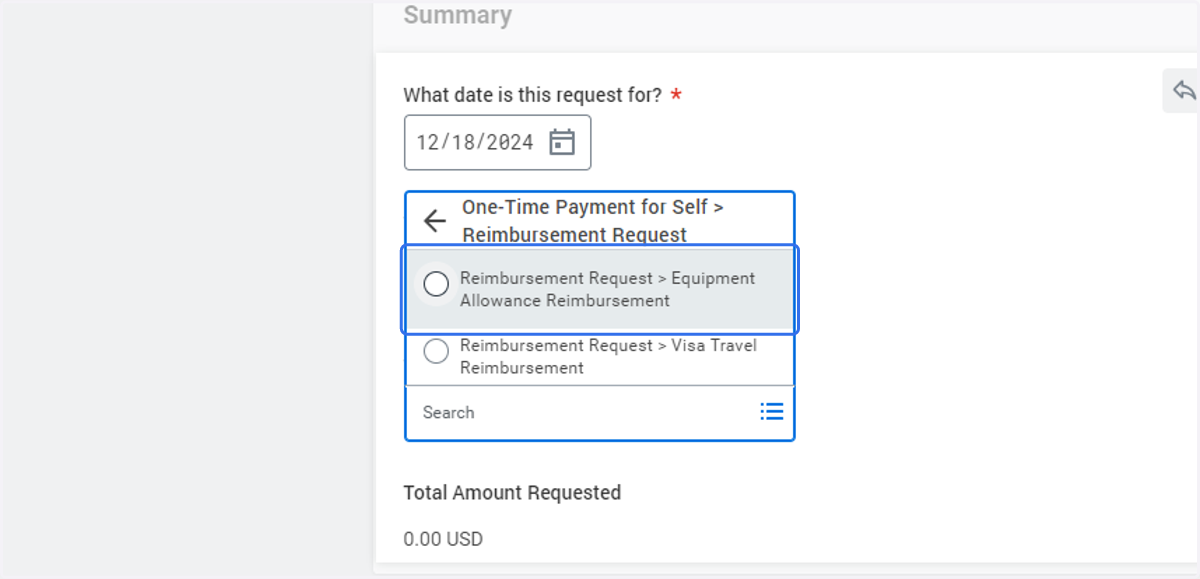
7. Click on One-Time Payment…
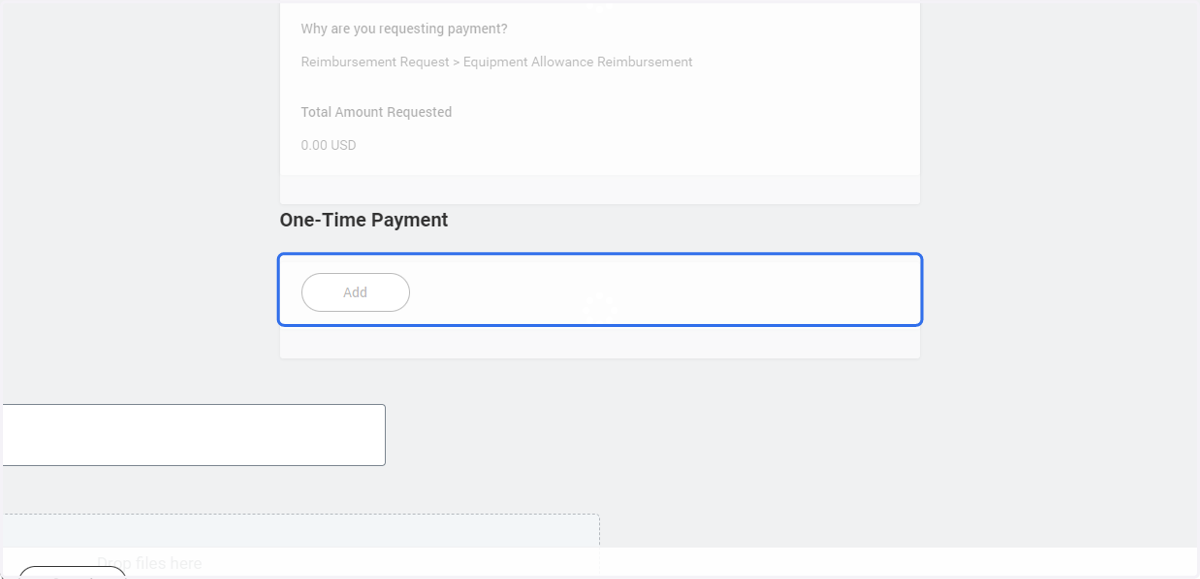
8. Click on Add
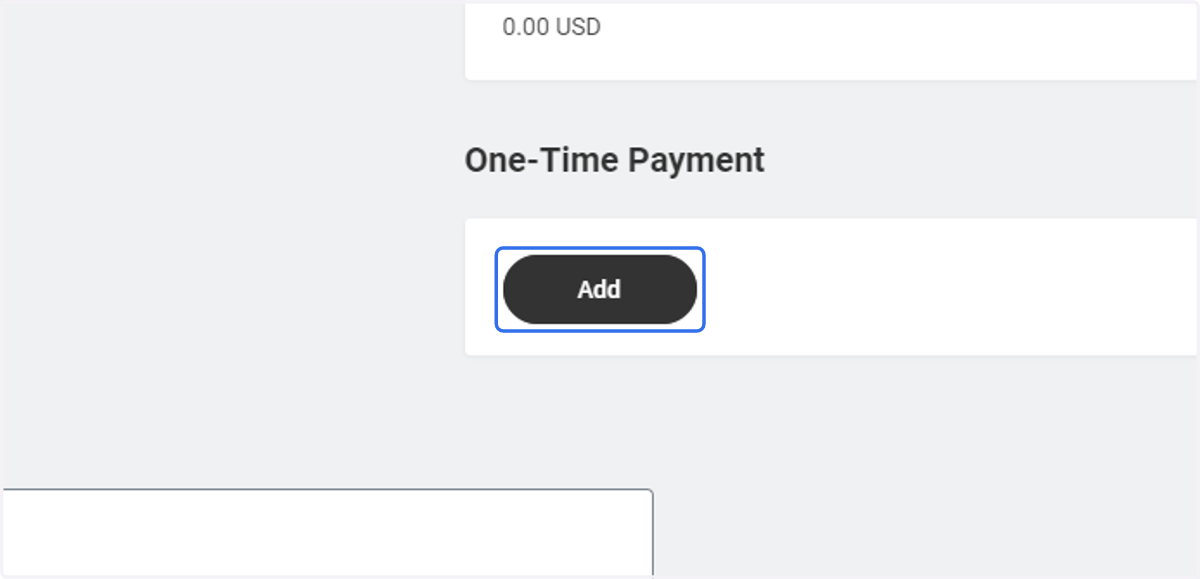
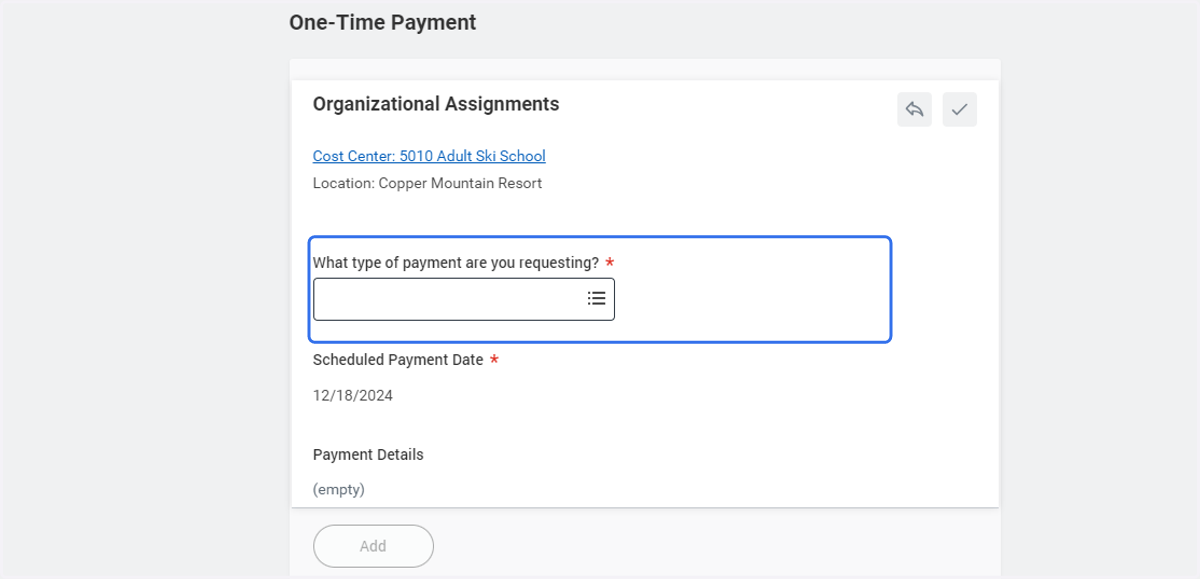
9. Click on What type of payment are you requesting?…
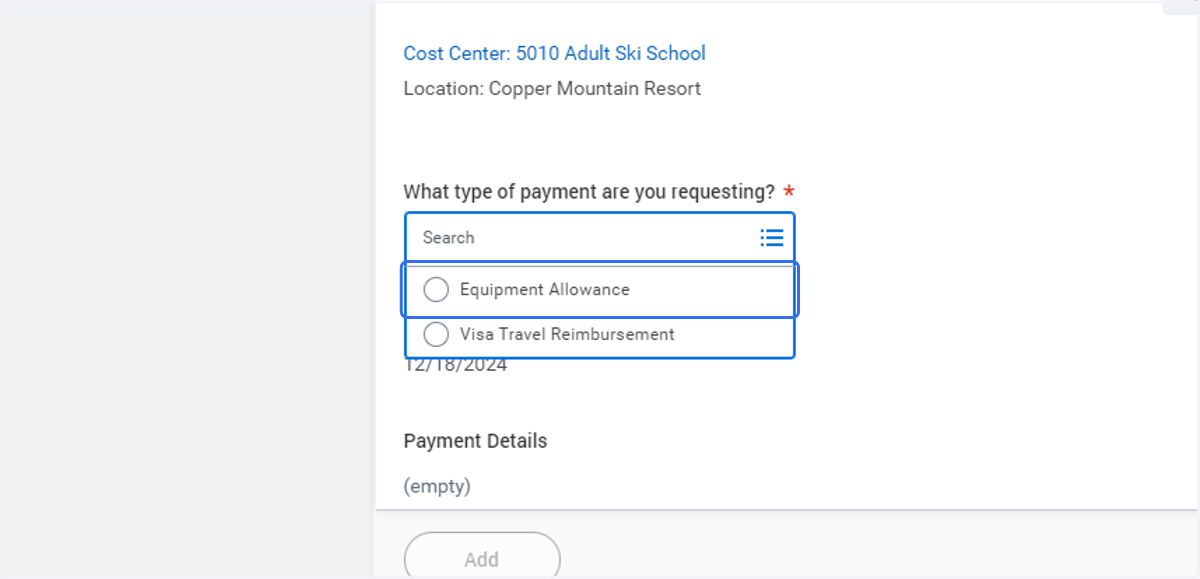
10. Click on Equipment Allowance option
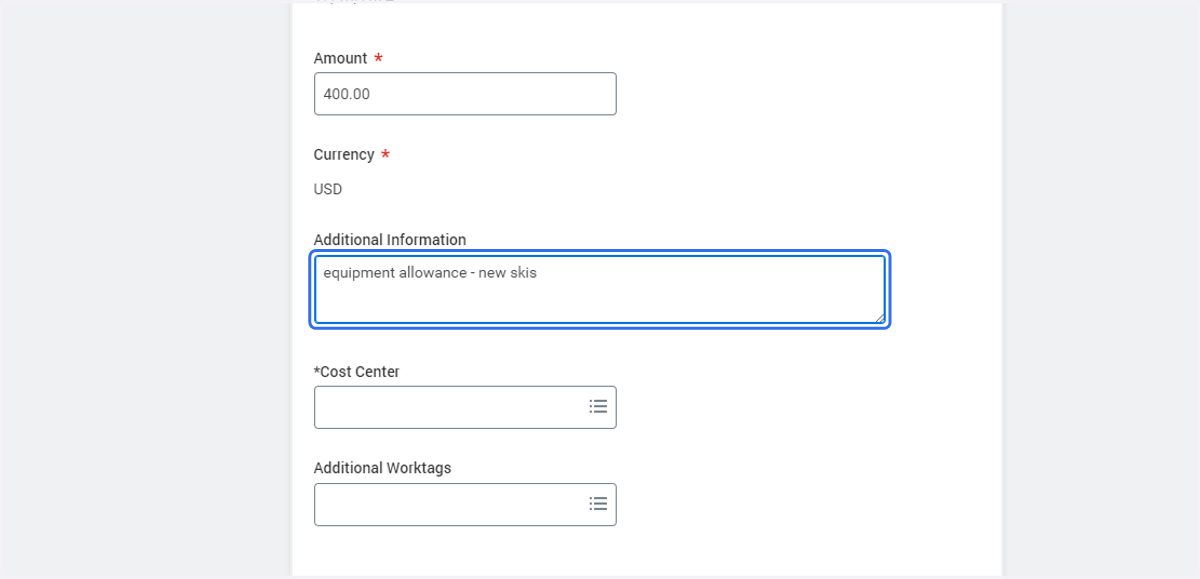
11. Type $ amount to be reimbursed
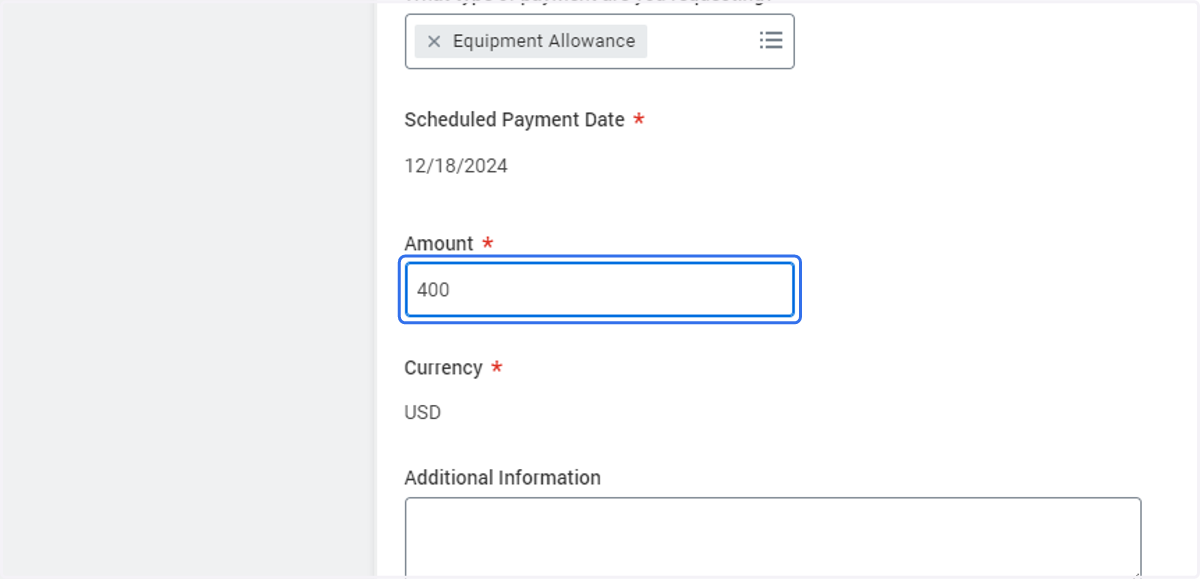
12. Under Additional Information - please provide a comment detailing items purchased for equipment allowance. Example: Rossignol Skis, Lange boots, etc.
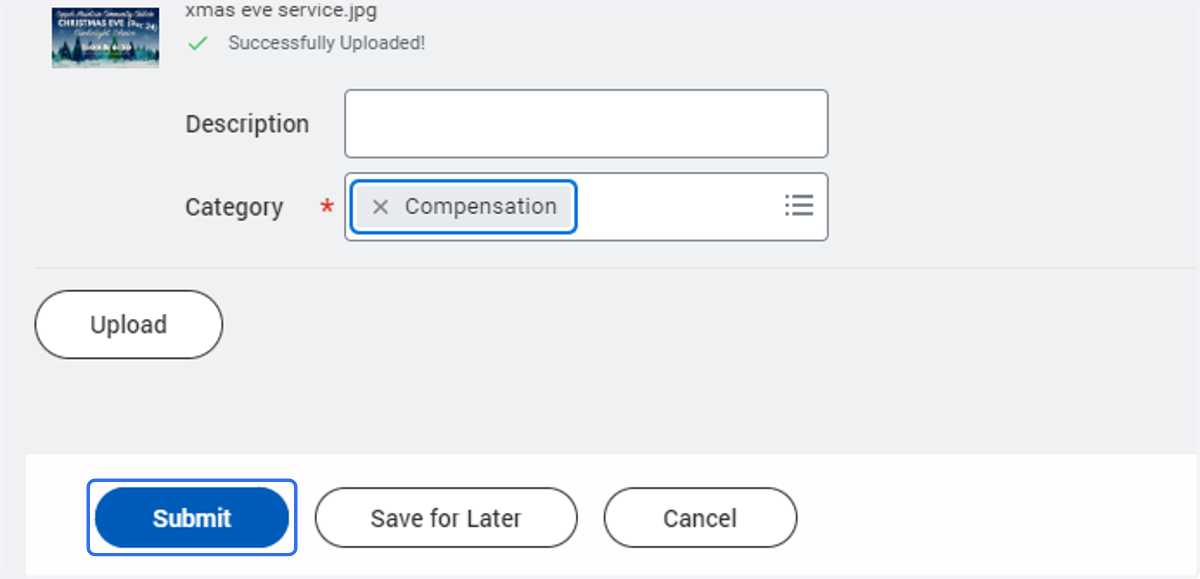
13. Click on Select files
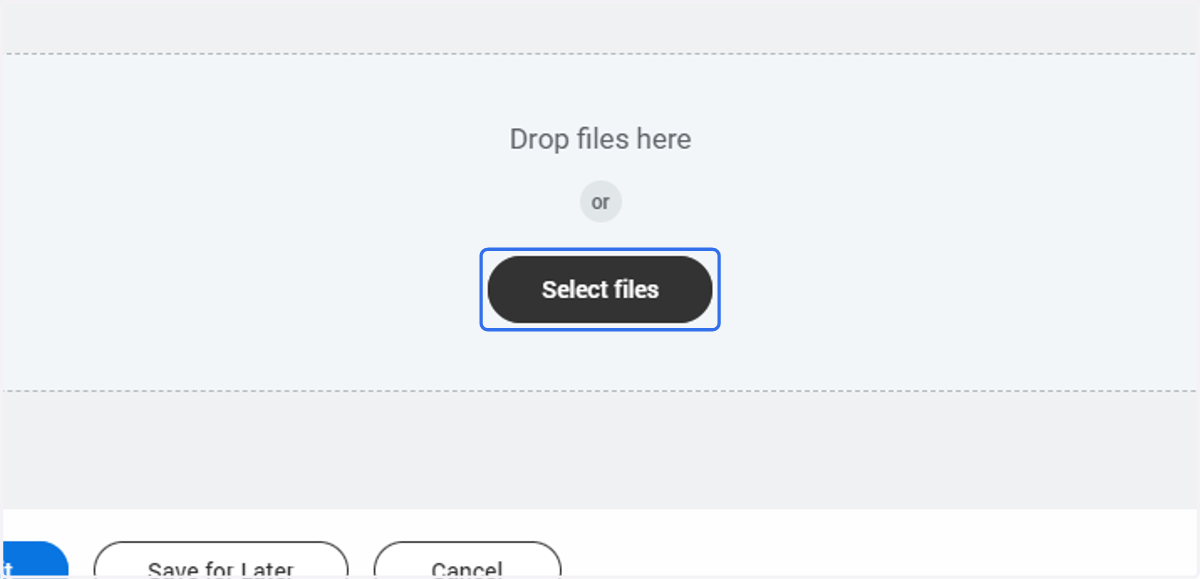
14. Upload copies of receipts that equate to the value requested to be reimbursed. Receipts MUST be clear and show itemized amounts and the total in USD. Receipts not meeting this requirement may lead to the reimbursement being rejected.
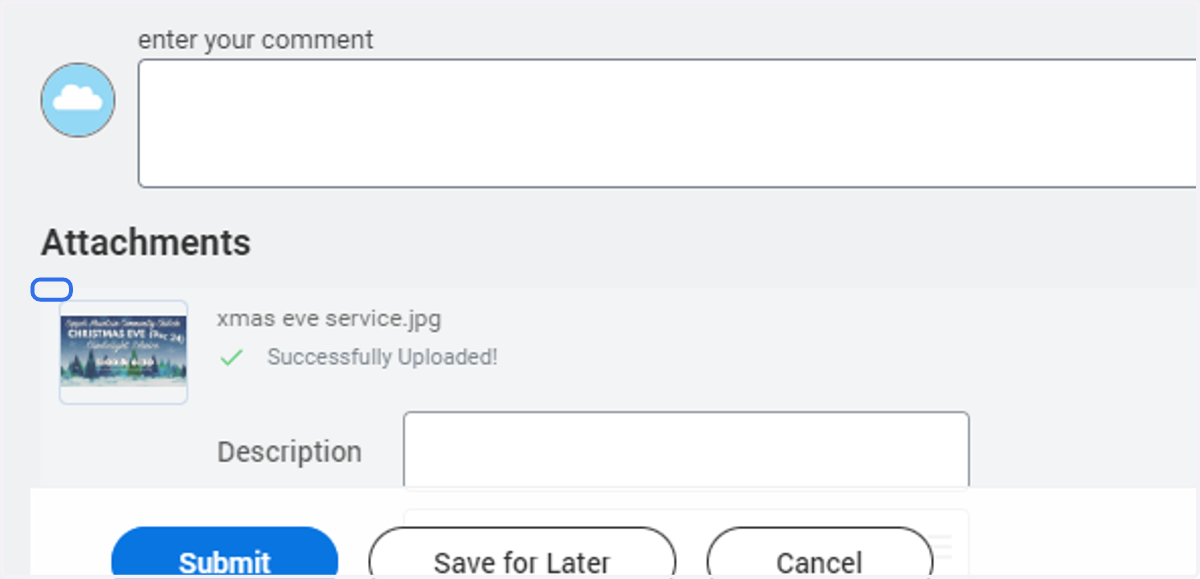
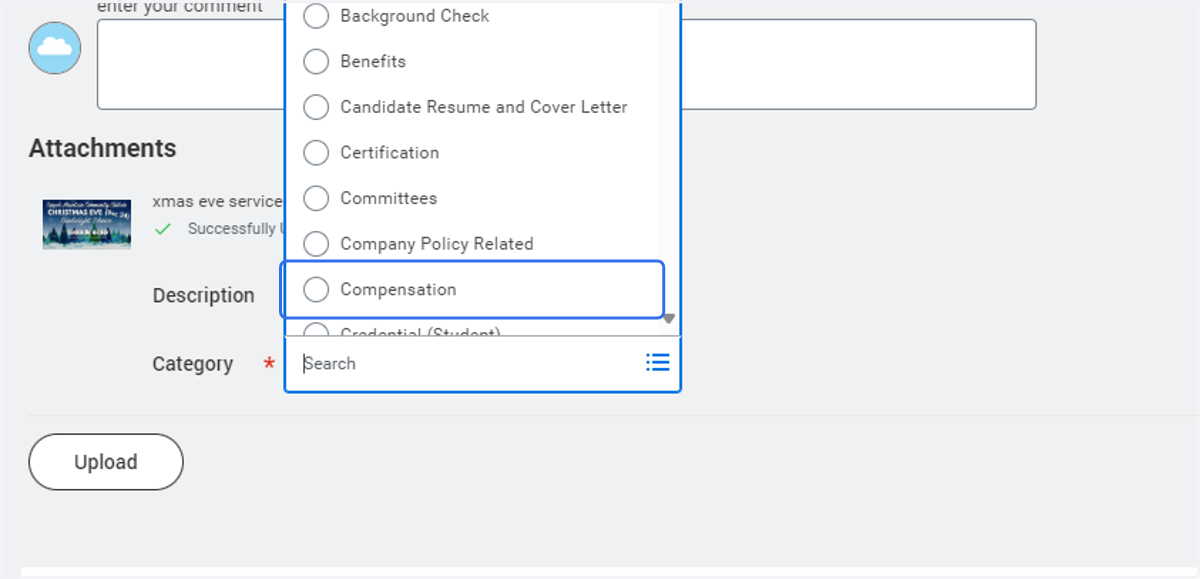
15. Click on Category…
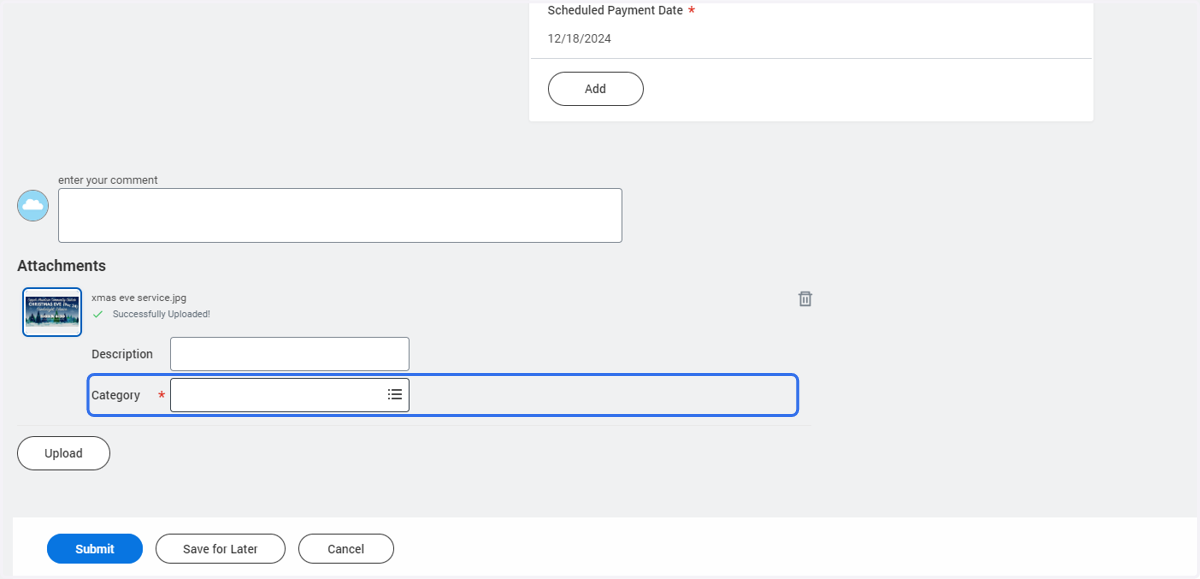
16. Click on Compensation radio button unselected
17. Click on Submit