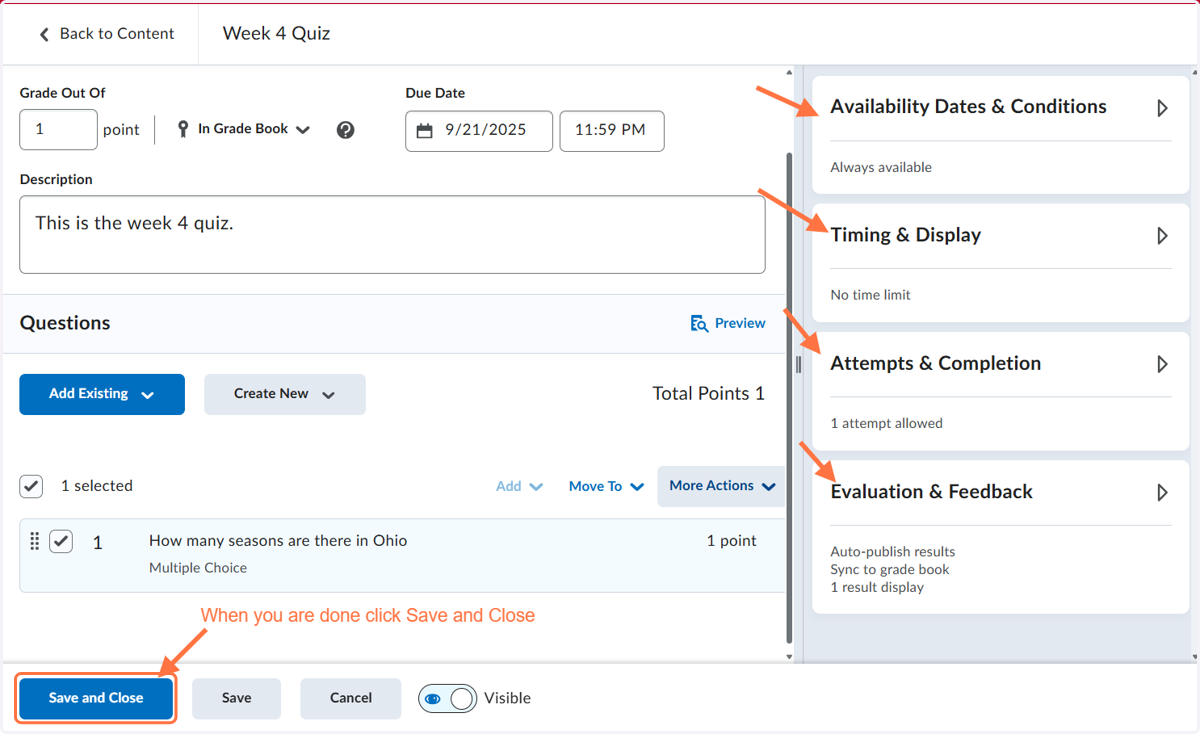
Editing a Quiz
This tutorial will show you how to edit a quiz. You cannot edit some items in a quiz if students have already taken it.
Week 4 Quiz - Patti - Practice as Instructor
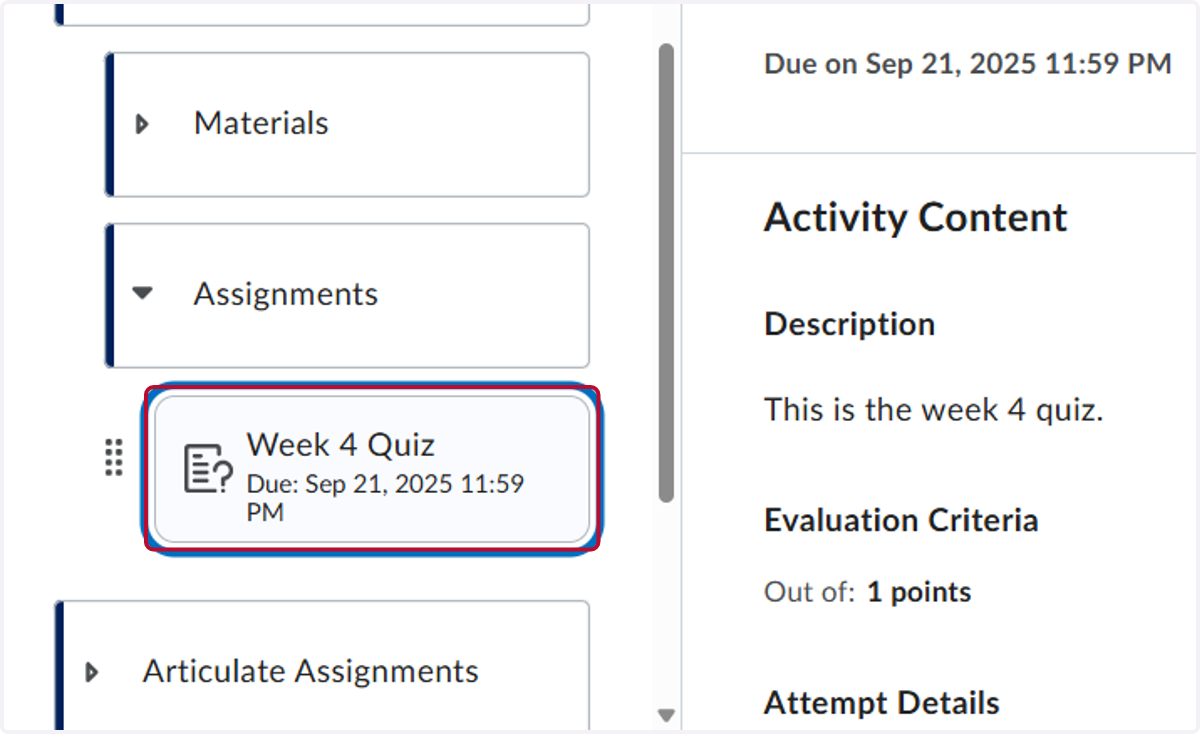
1. Click on the quiz you want to edit. Our example is Week 4 Quiz
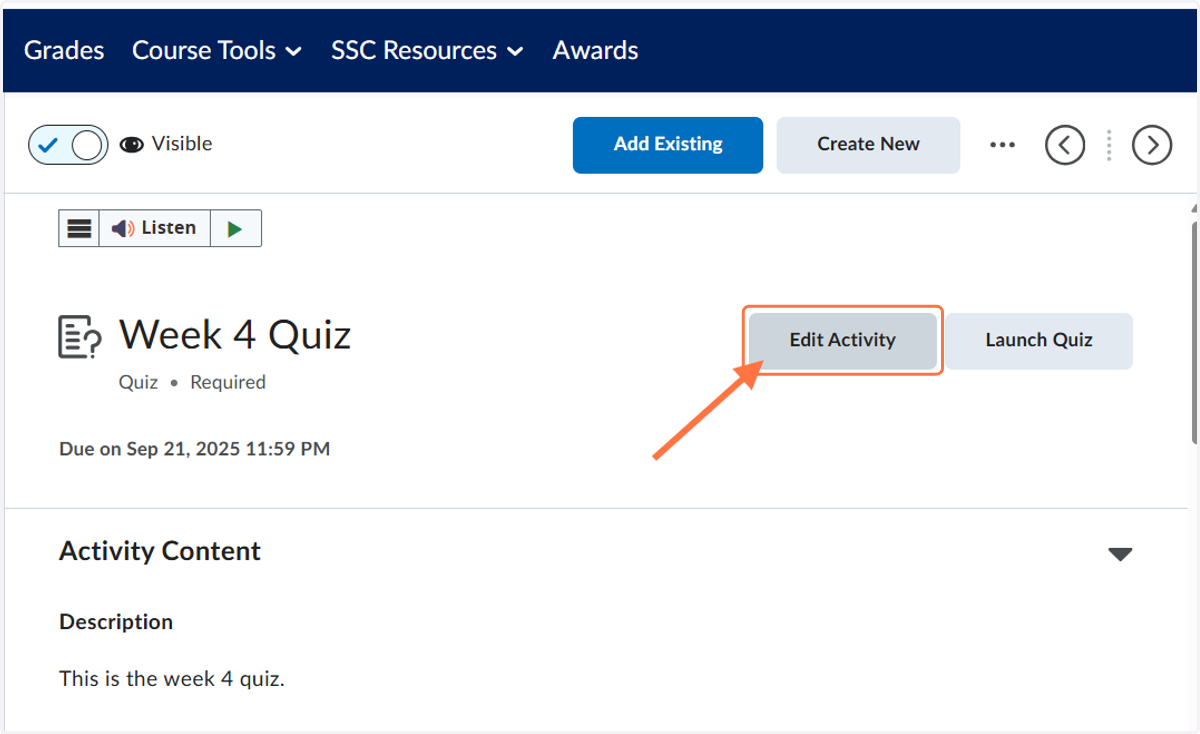
2. Click on Edit Activity
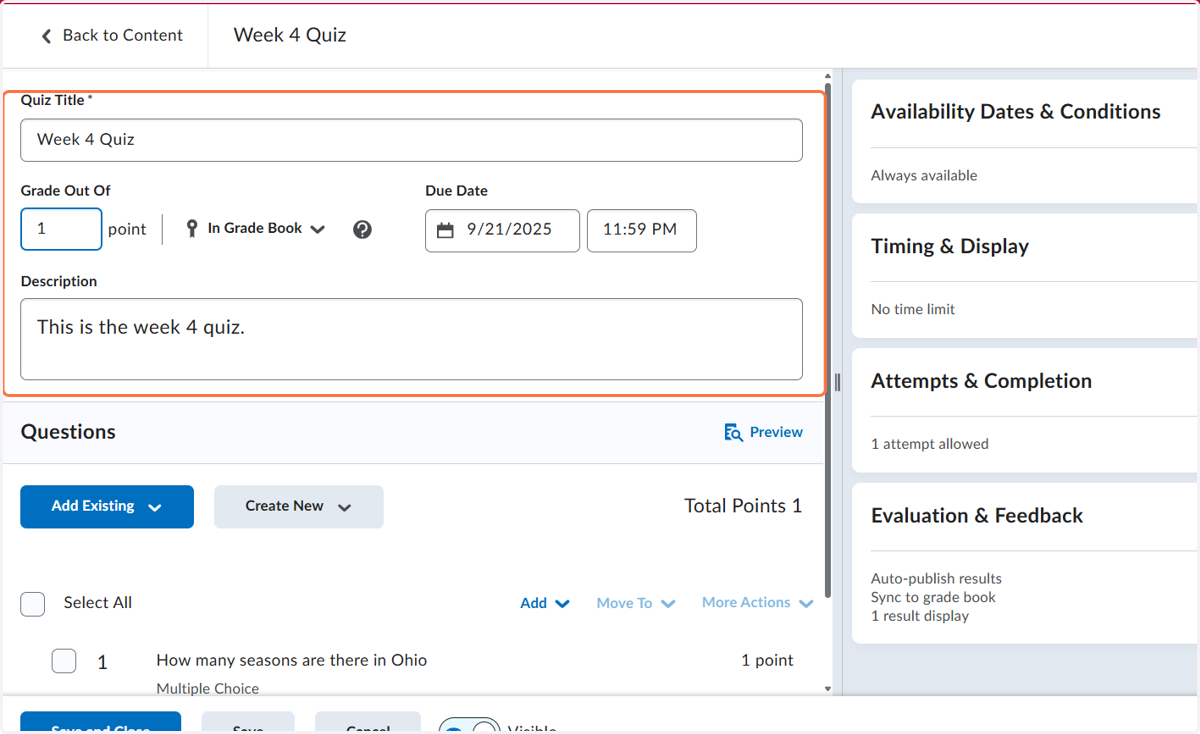
3. You can edit the title, points, due date, and description. Some items are not available for editing after a student takes the quiz or test.
4. Click on a question(s) to select
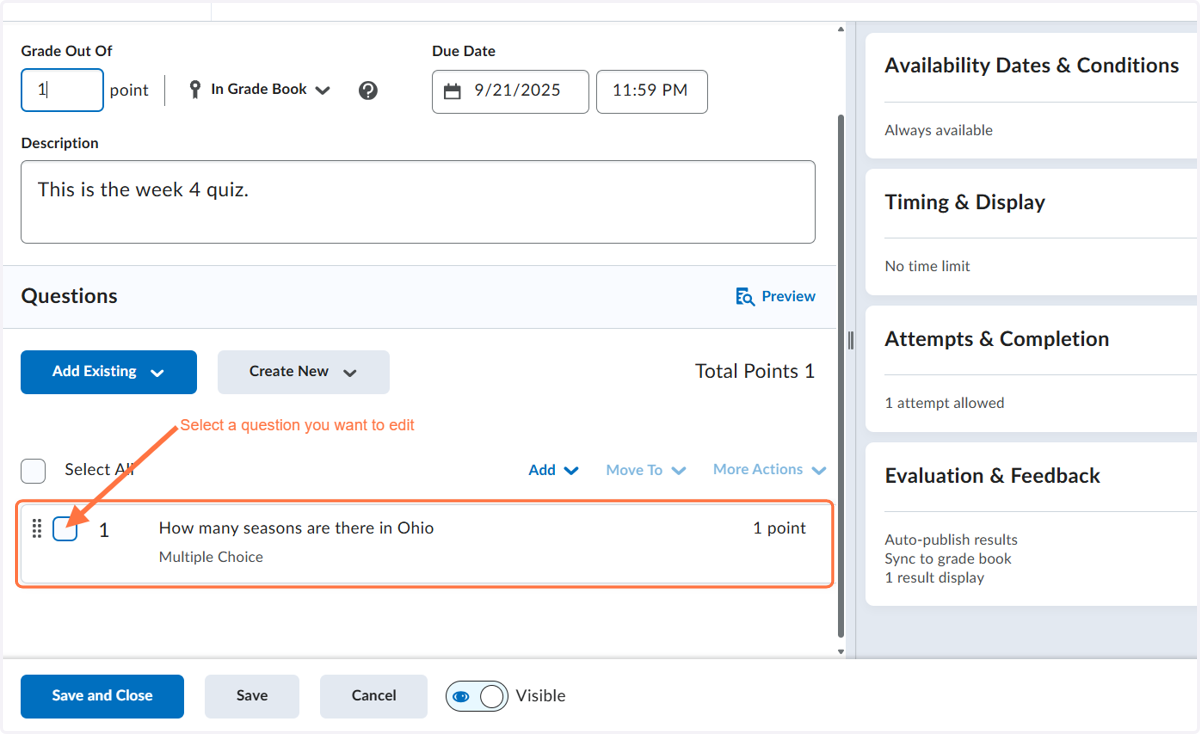
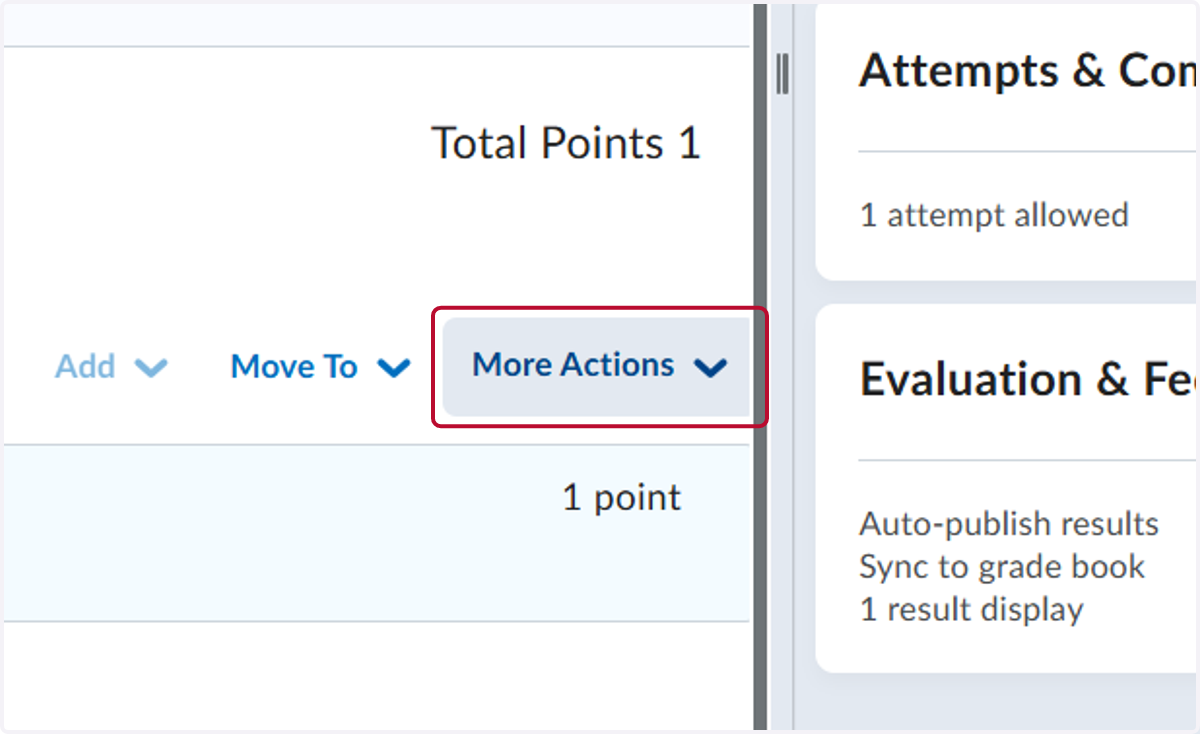
5. Click on More Actions
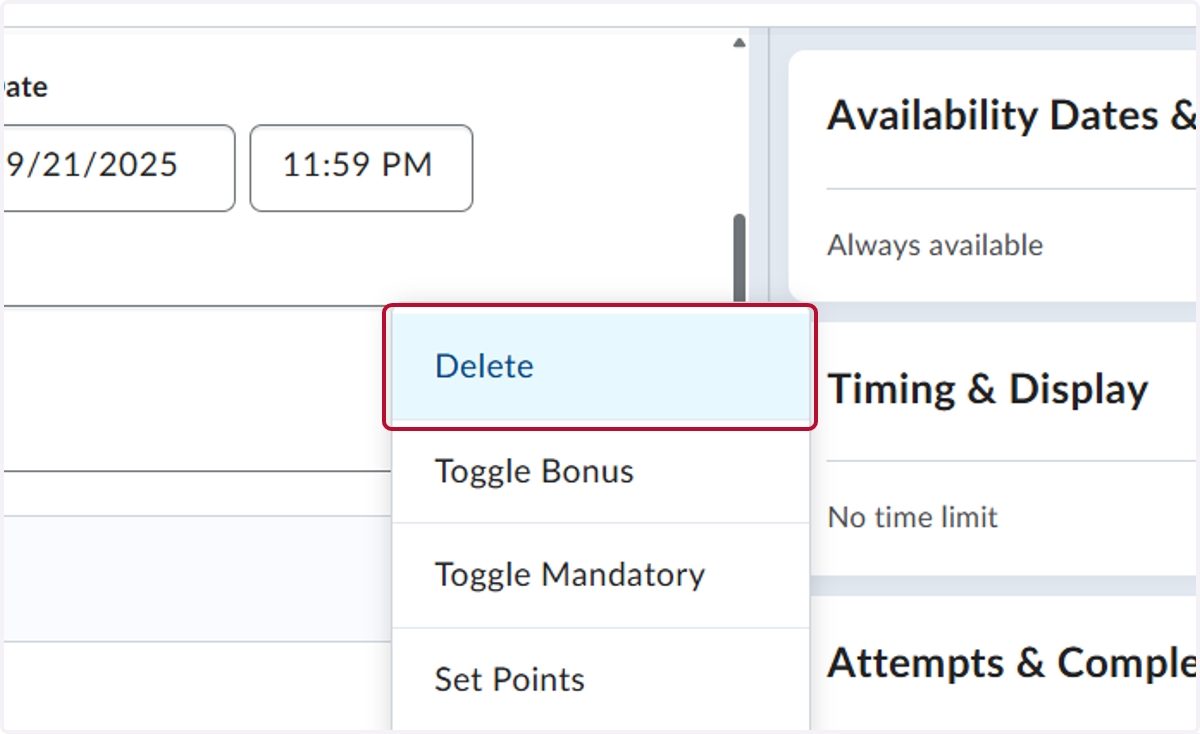
6. You can make an edit to the question by deleting, toggle bonus, toggle mandatory, or set points for each question selected.
7. After you are done editing any option, click Save and Close