Edit Employee Accrual Balance
This guide will show you how to edit an employees accrual balances
Login to your account
1. Navigate to your list of Employee Information.
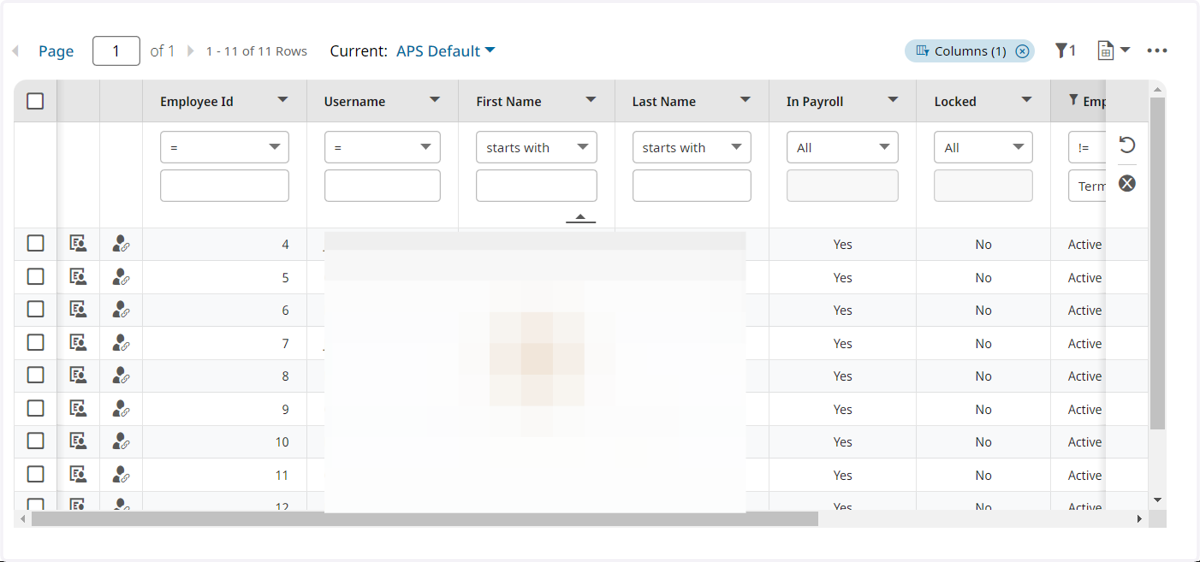
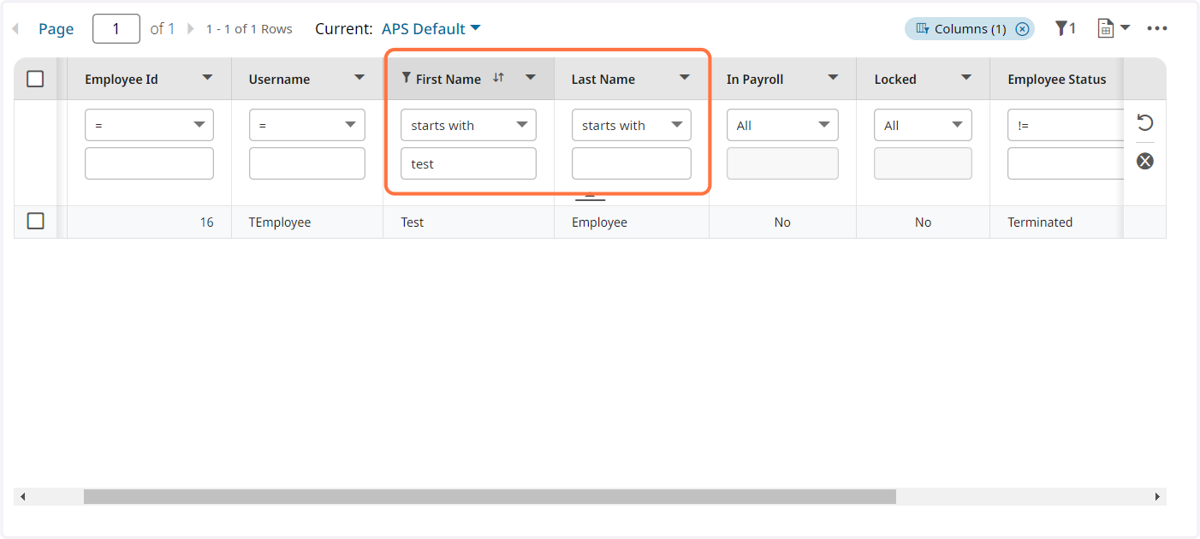
2. Use the filters to search for the employee you need to edit.
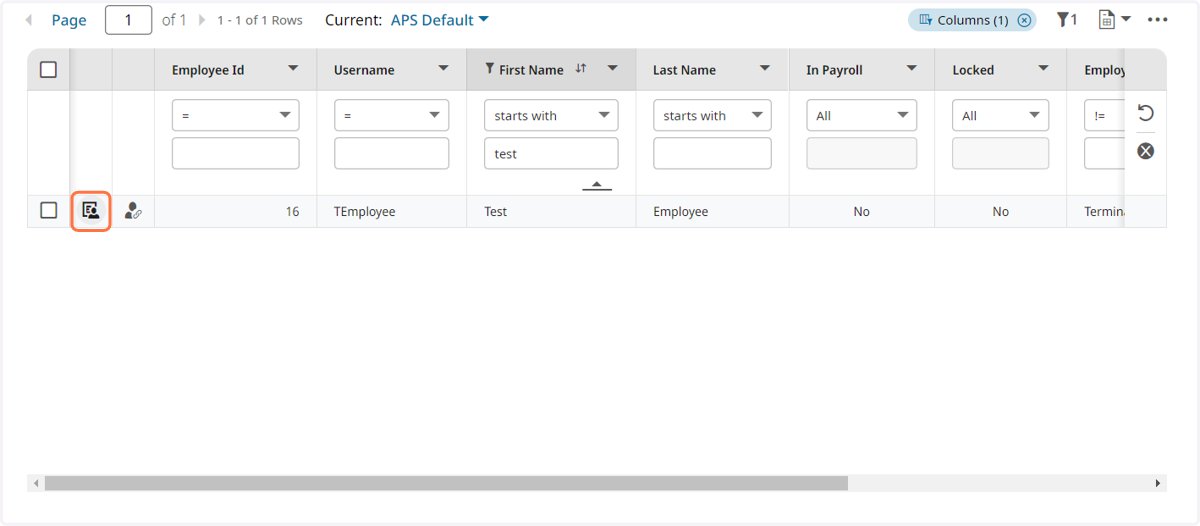
3. Click on the Employee Information button to view the employees accrual balances.
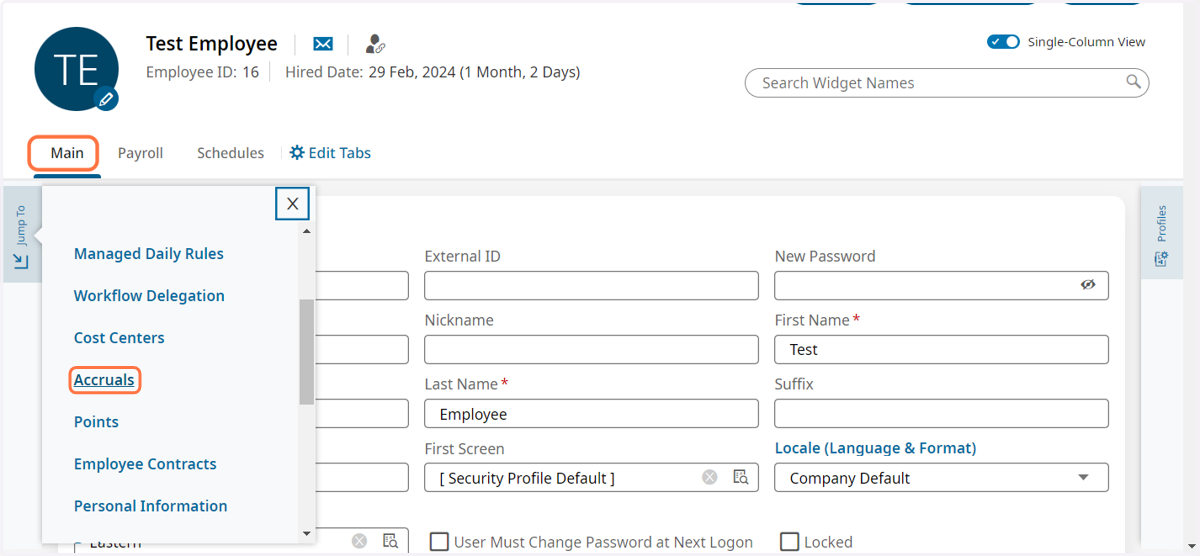
4. Click on the Main tab and then Accruals in the jump to menu.
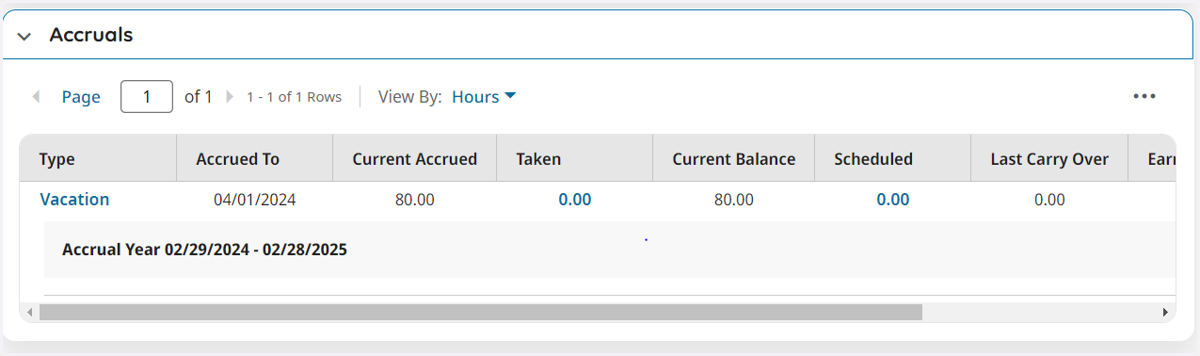
5. This opens up the Accrual Widget for the employee.
The accrual widget shows the accrual information and current balance
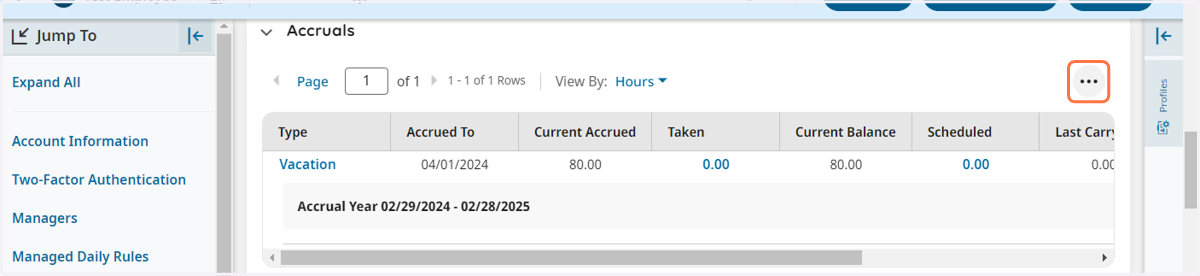
6. Click on the 3 dots to the right of the Accrual Widget
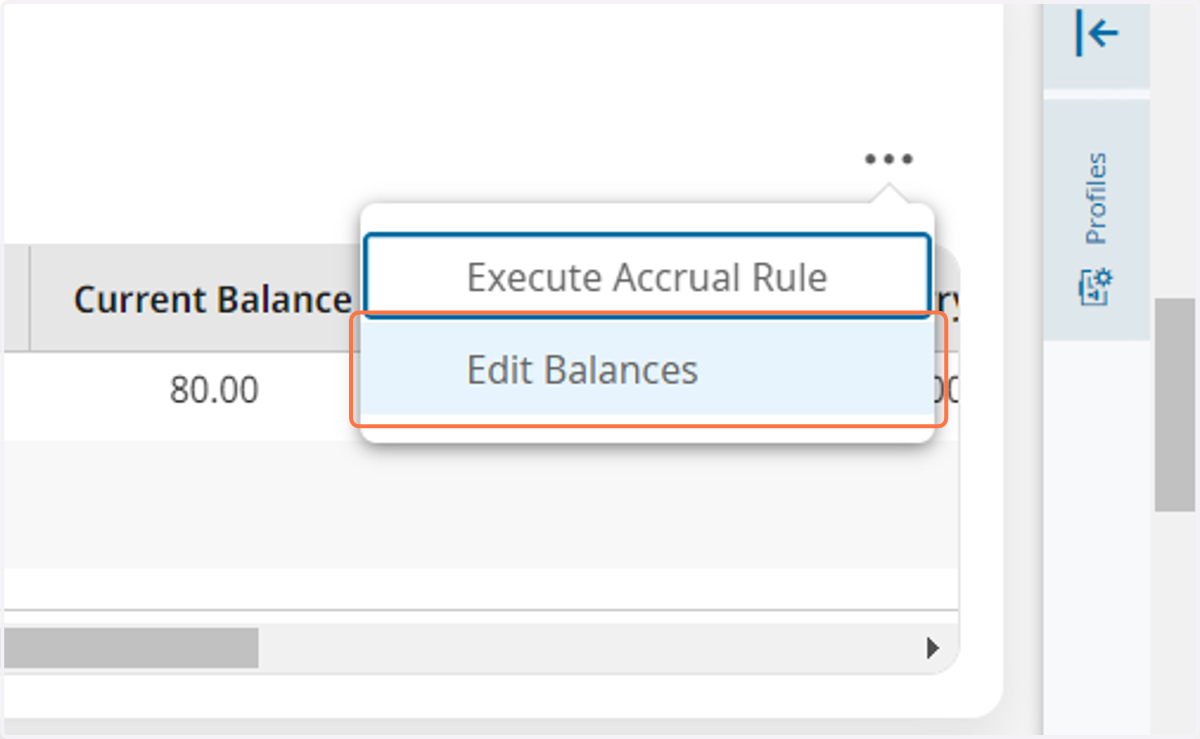
7. Click on Edit Balances
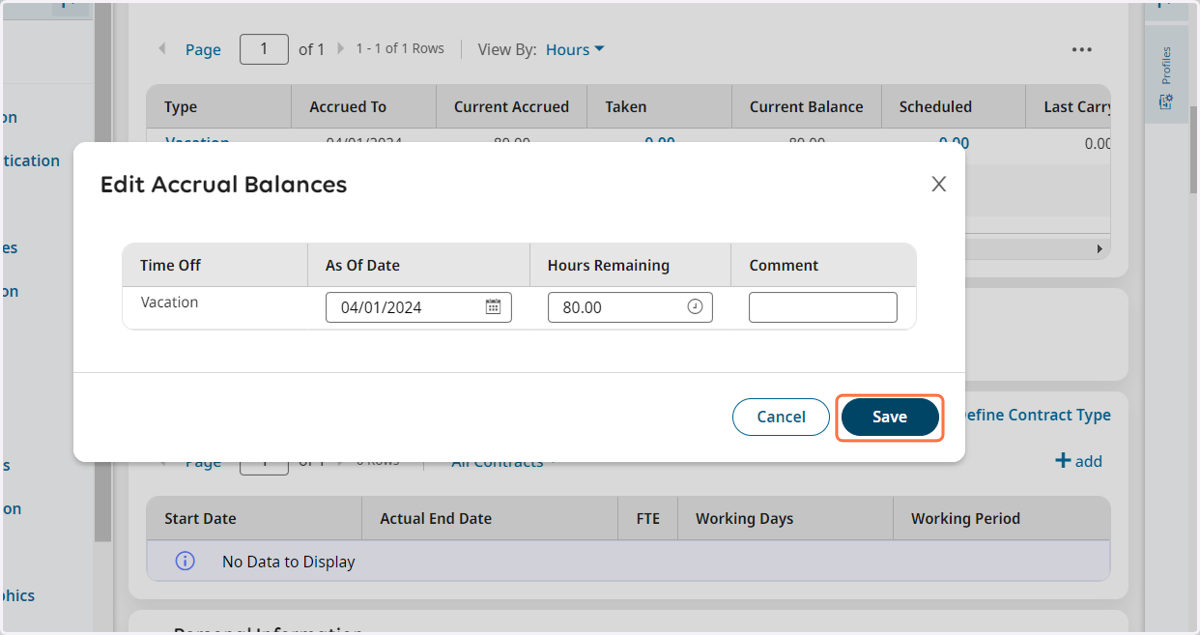
8. Type in the correct info into the 3 fields given
As of Date means the employees accruals are up to date as of the date listed
Hours Remaining is the current balance for the employee
Comment is a box for you to notate why you made the change you did for later reference
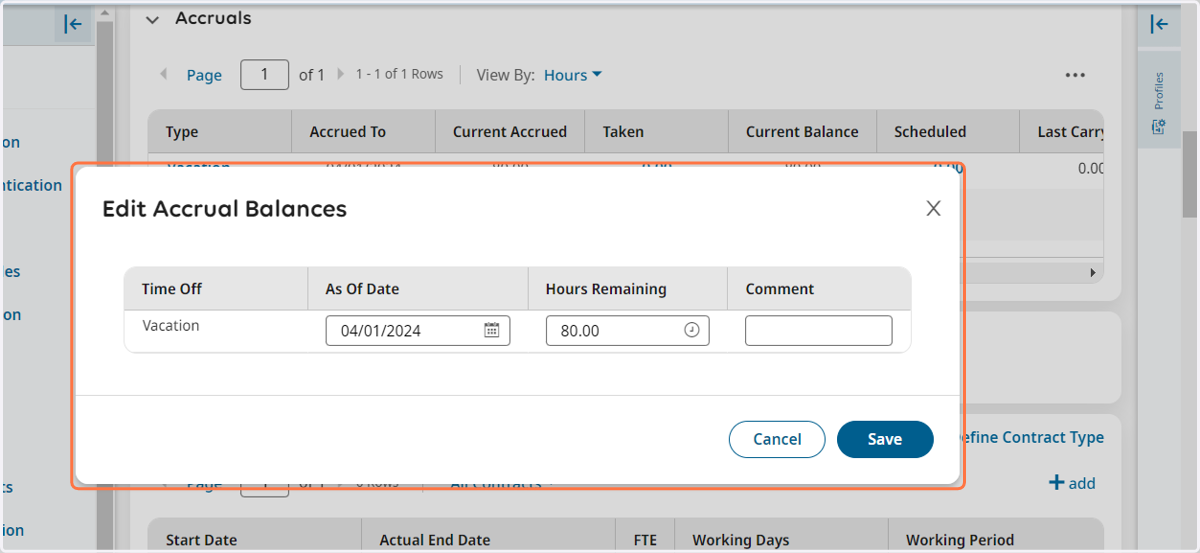
9. Click on Save once finished editing the balance.