EMP365 User Creation and Management
1. Introduction
To achieve this, the following steps must be completed:
Create a Microsoft Teams team named EMP365
Add the users to the team who should be granted access to EMP365
Below you will find a detailed step-by-step guide.
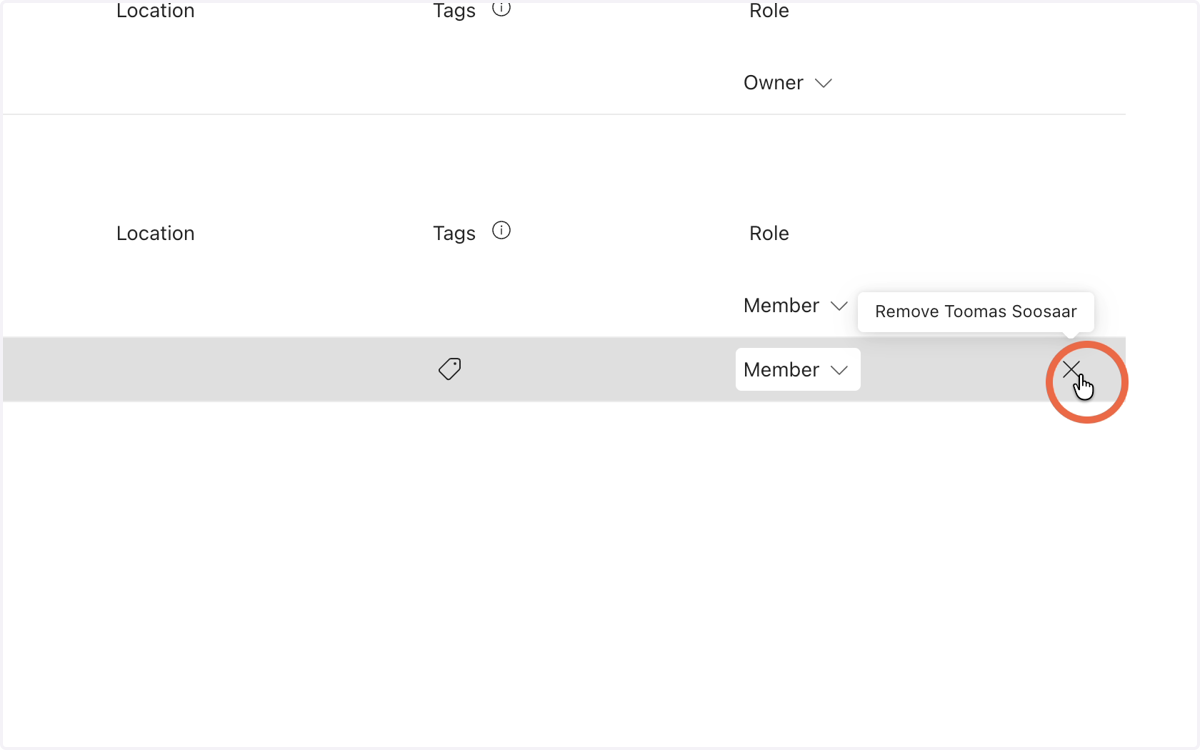
To revoke a user’s access to EMP365, the user must be removed from the EMP365 team
Open Microsoft Teams and select Chats from the left-hand navigation menu.
2. Open Microsoft Teams and select Chats from the left-hand navigation menu.
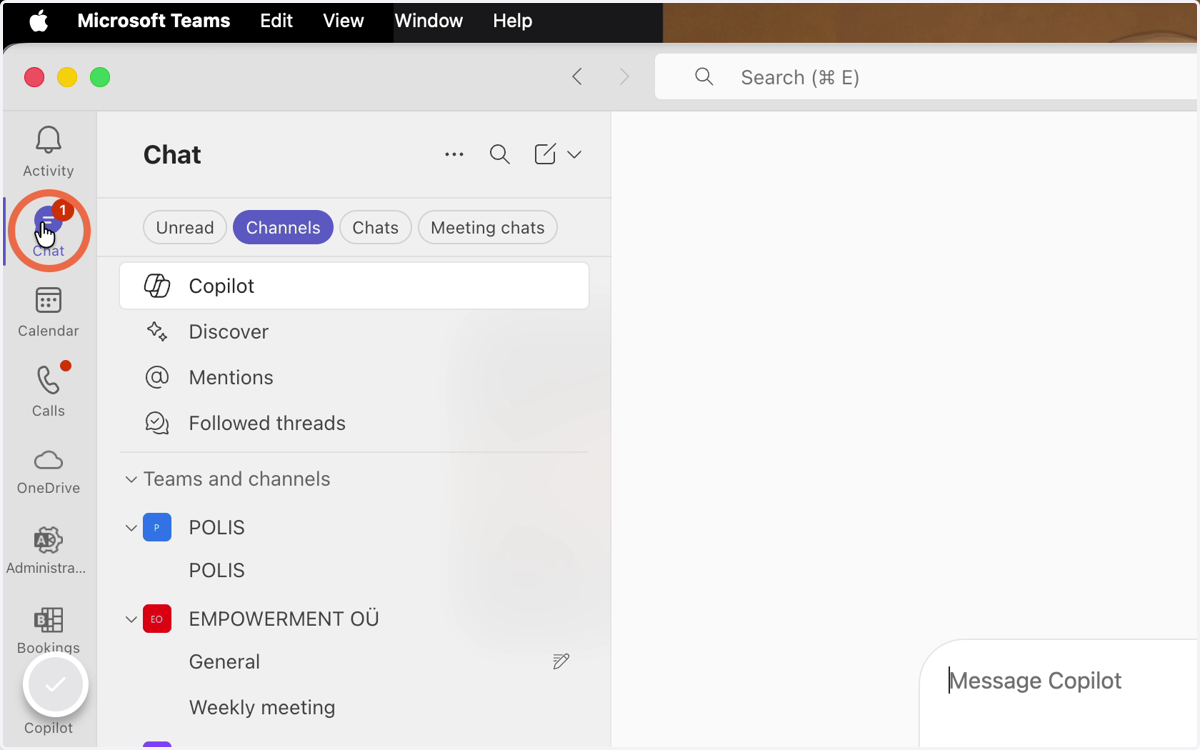
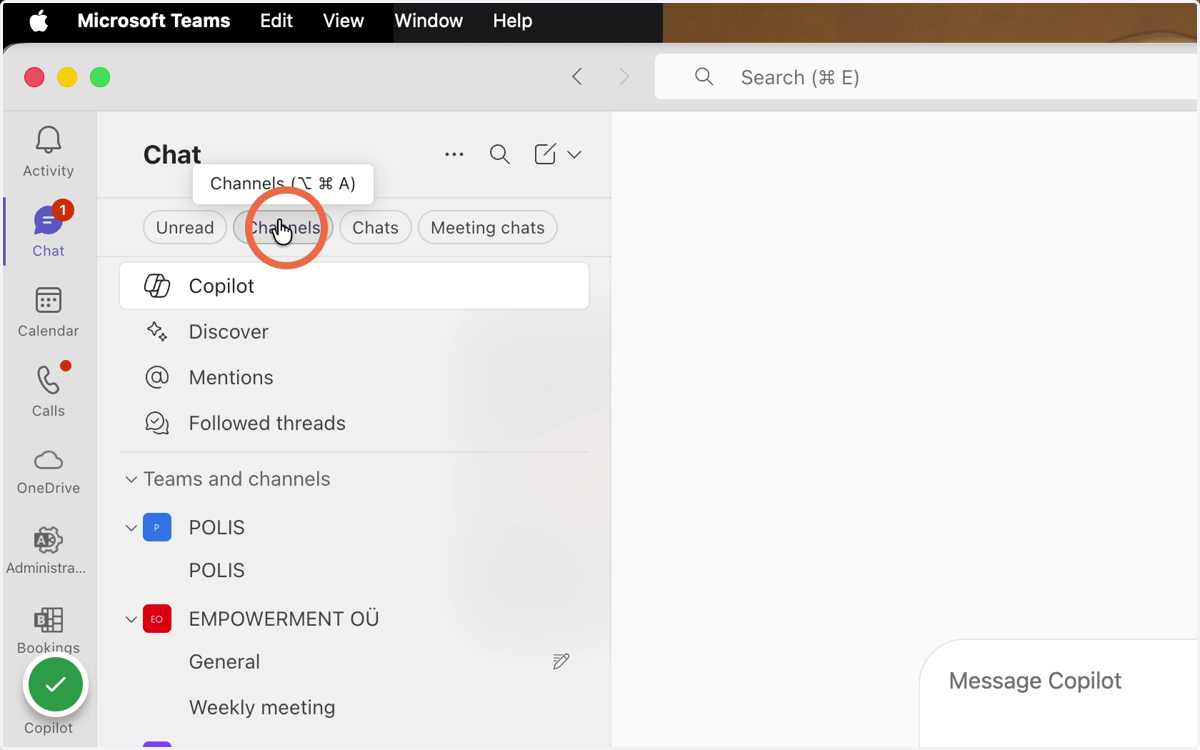
3. Click Channels
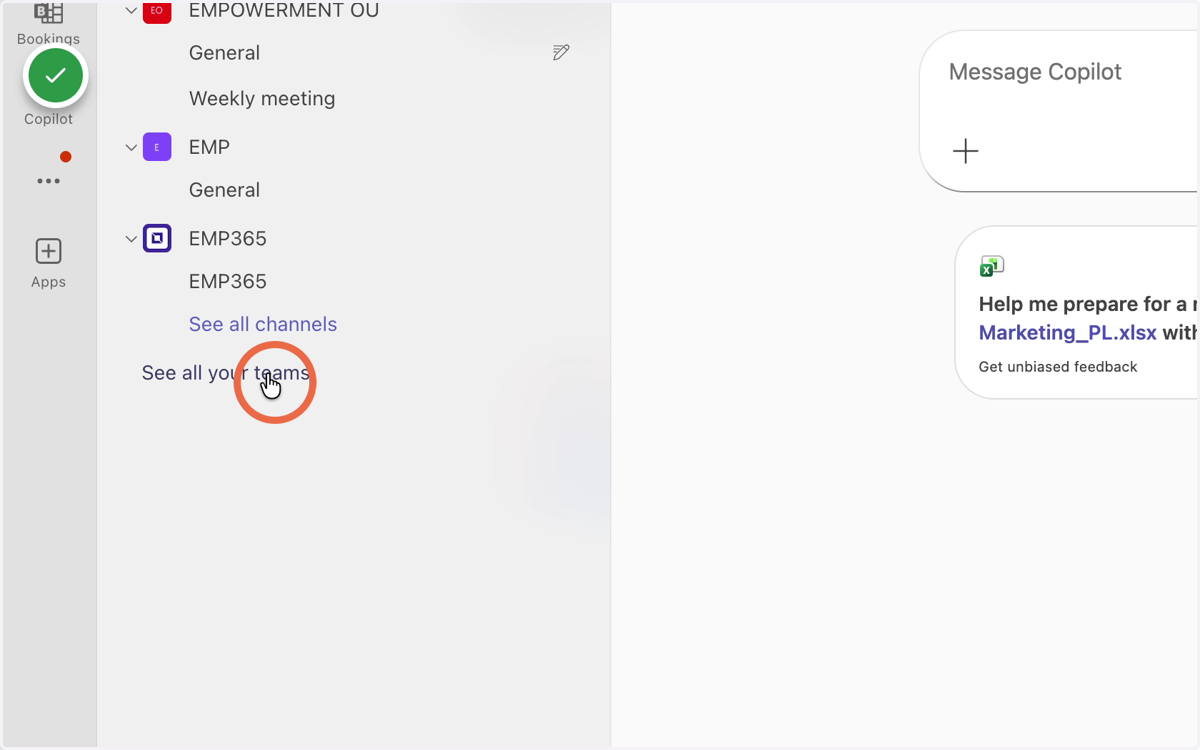
4. Click - Select all tour teams
5. Click - Create team
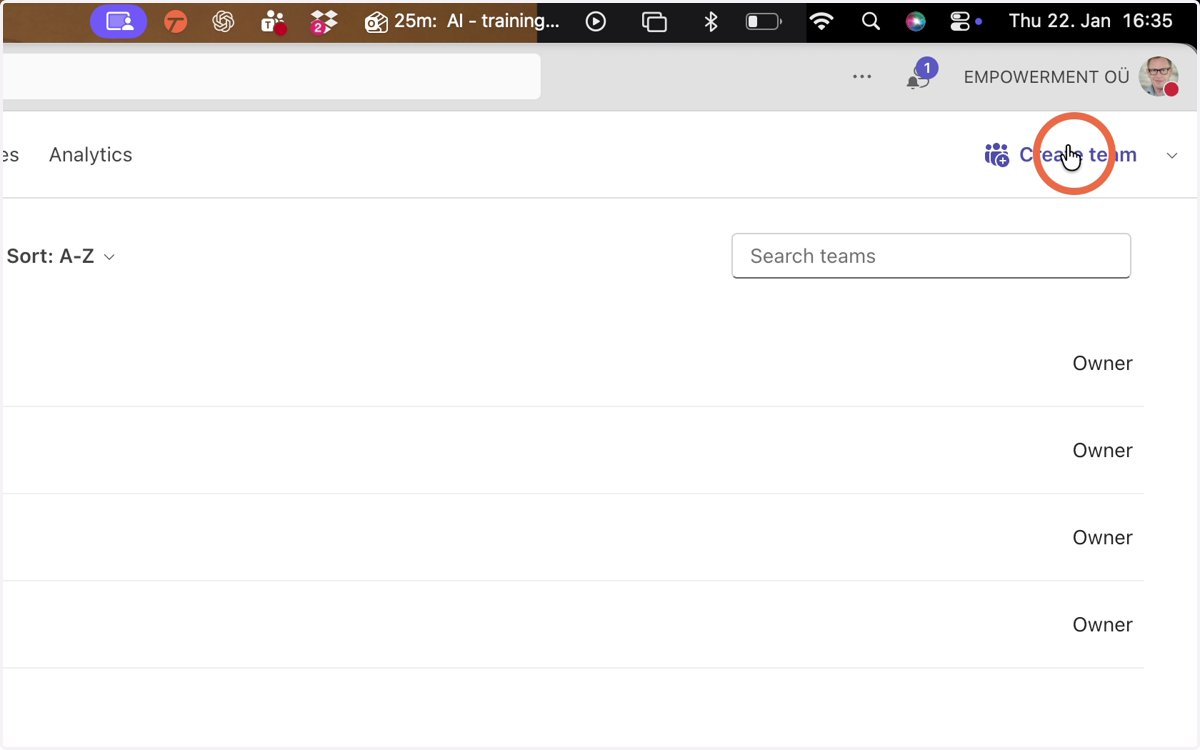
6. Type - EMP365
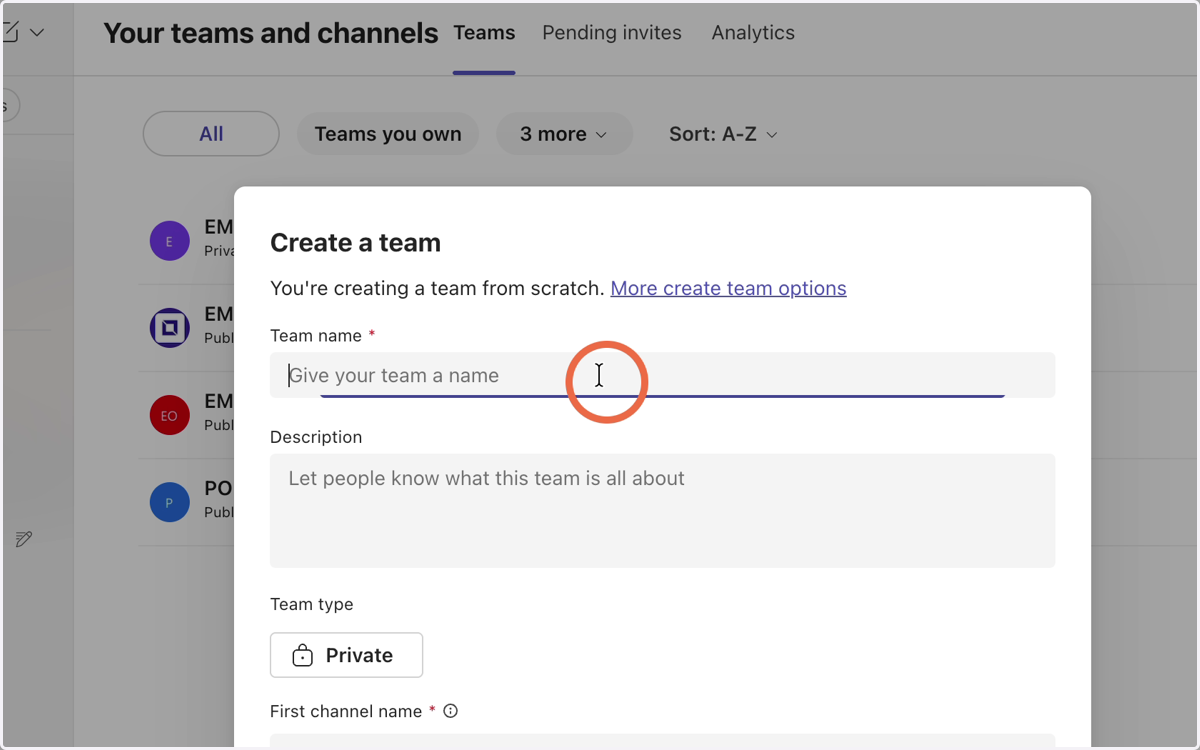
7. Type EMP365
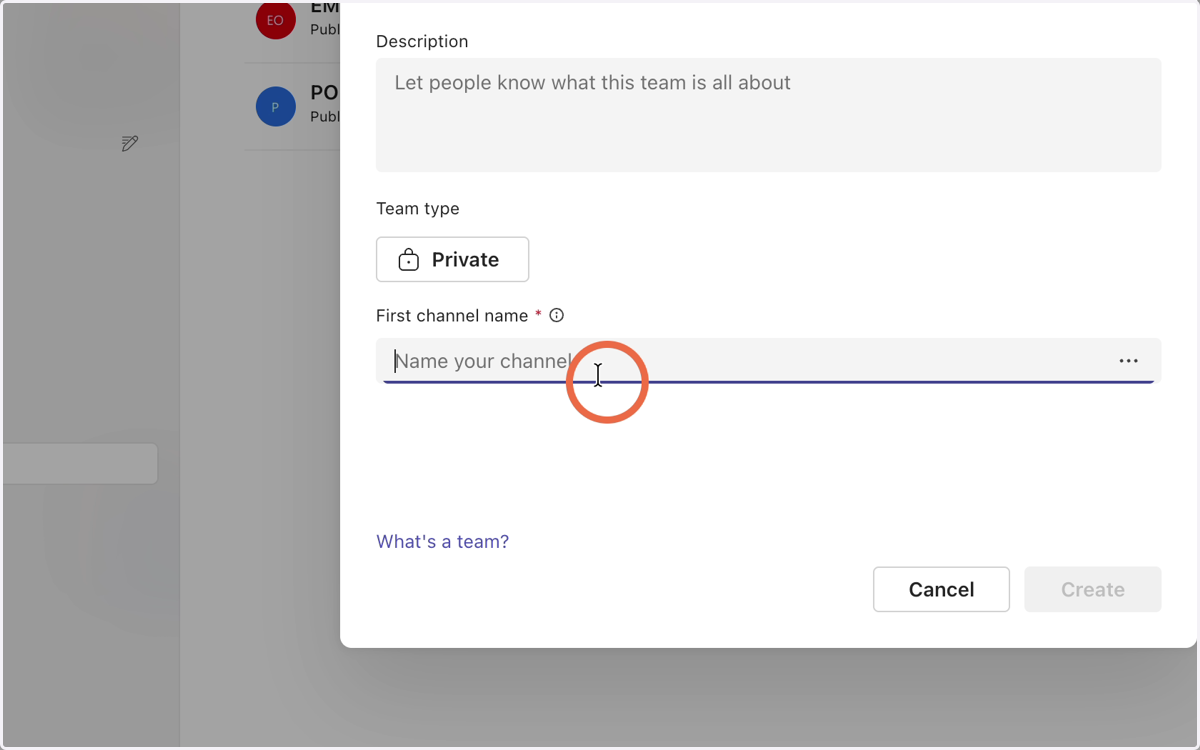
8. Click Create
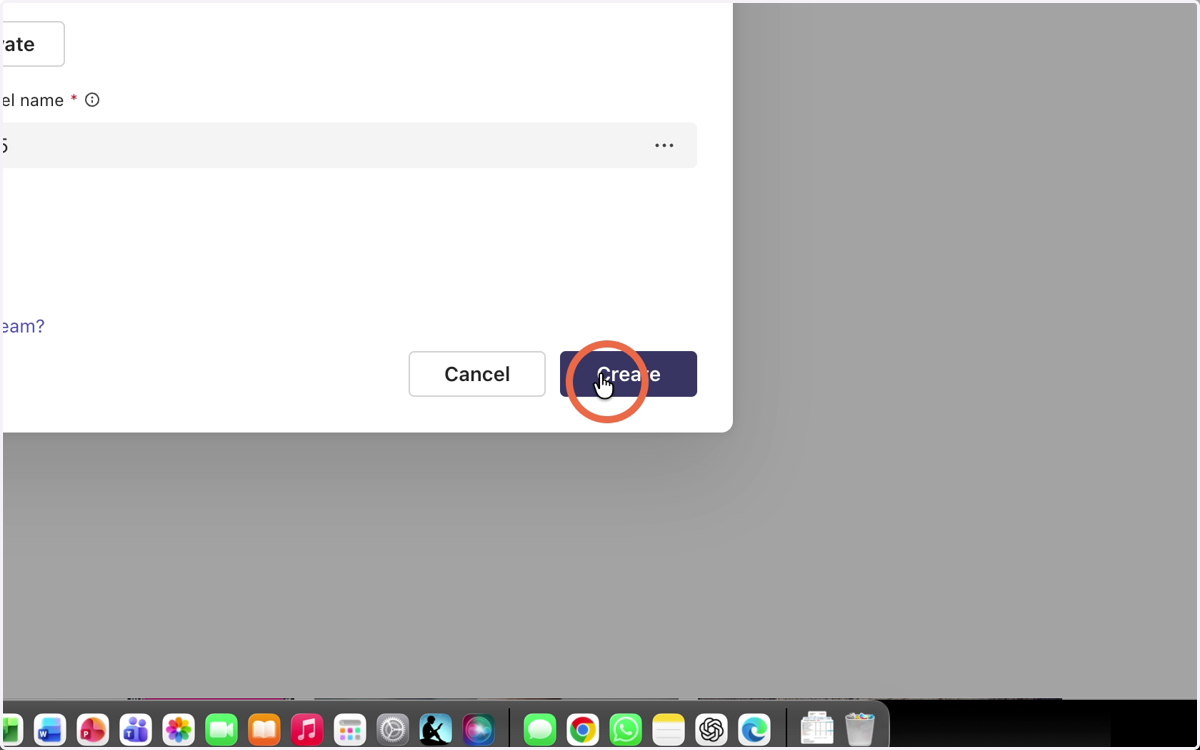
9. Type your name and select your user from the list that appears.
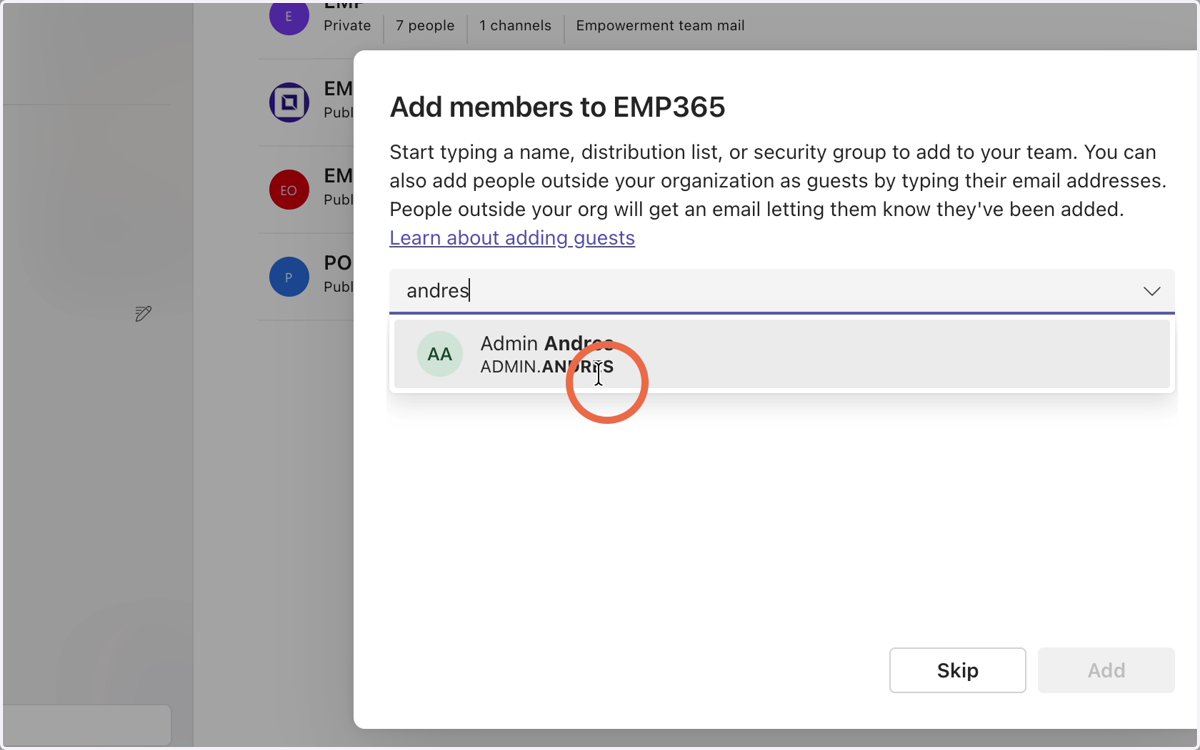
10. Click Add
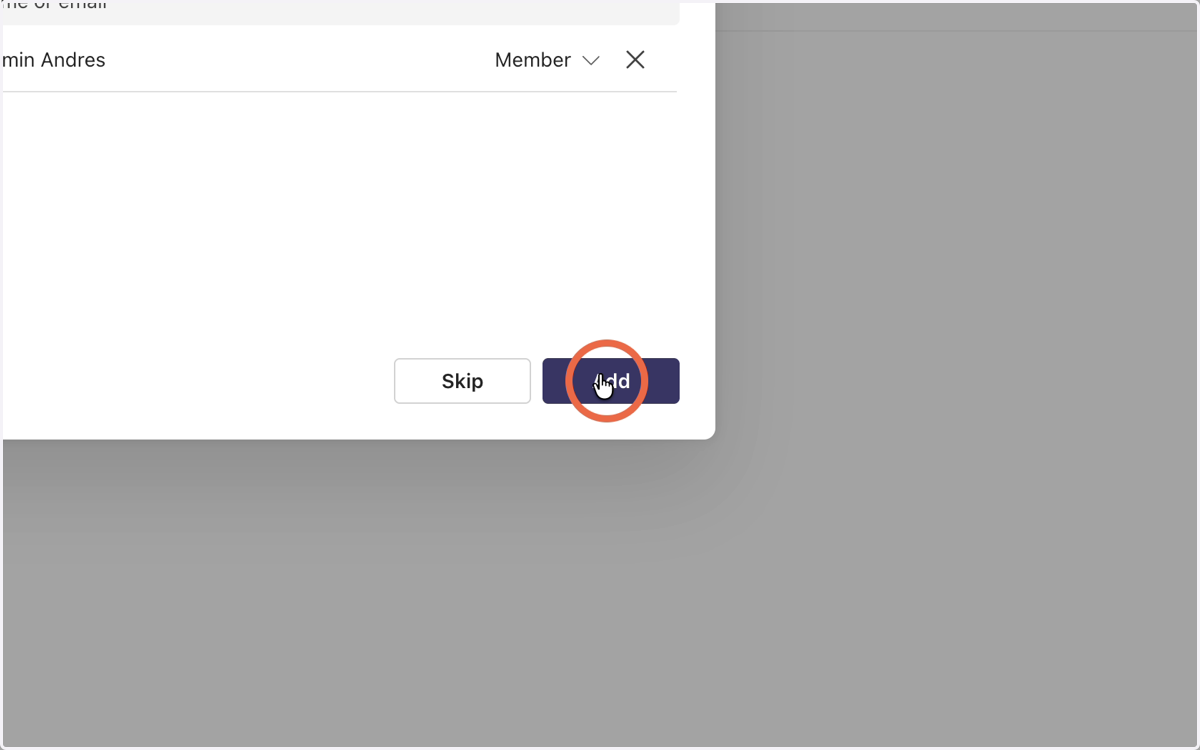
11. Click here
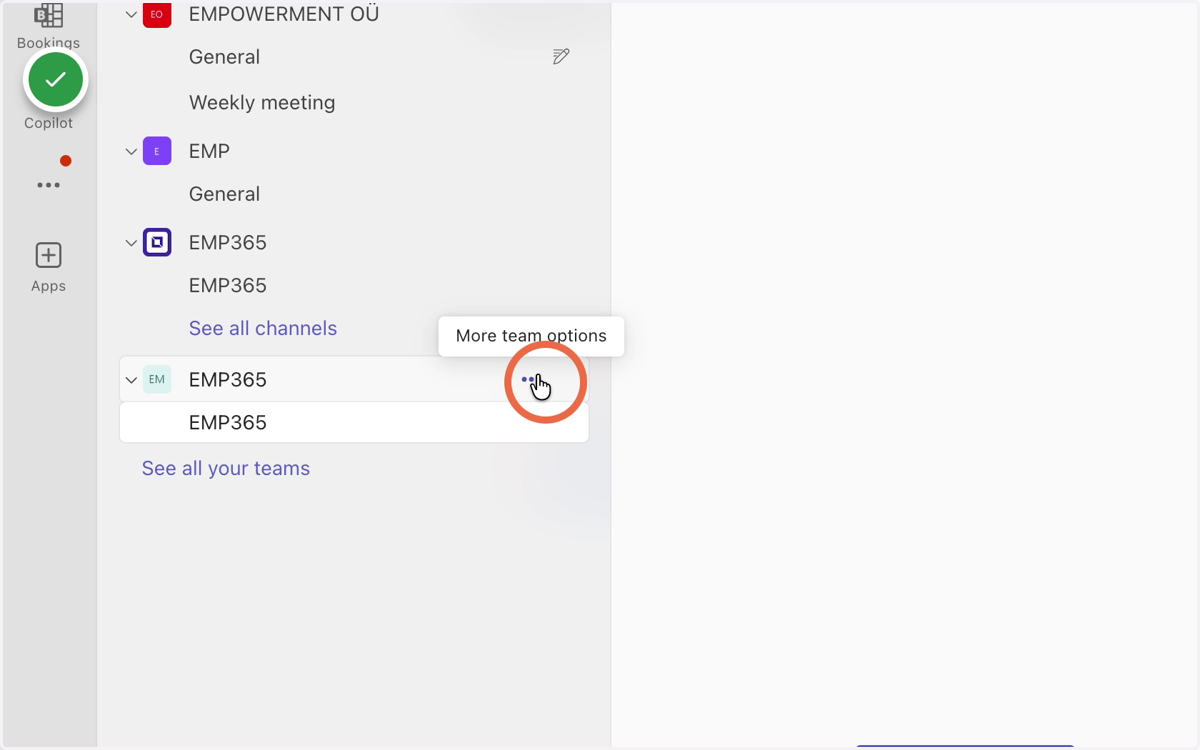
12. Click - Manage Team
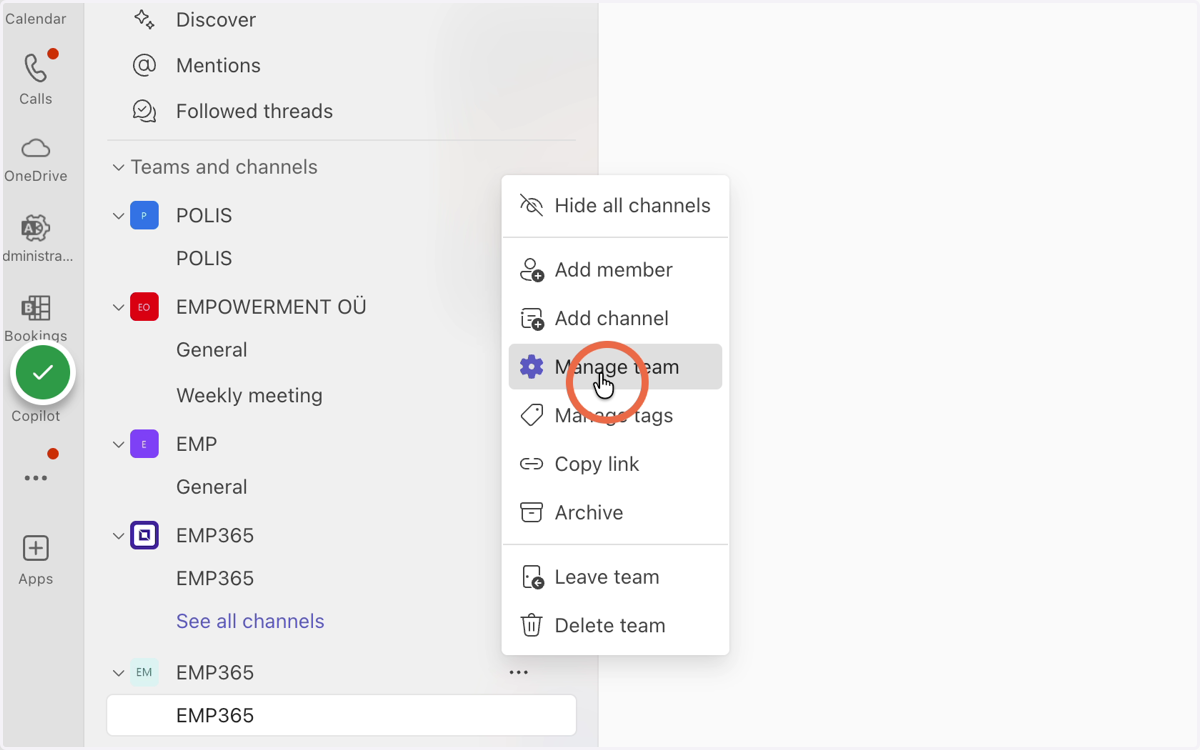
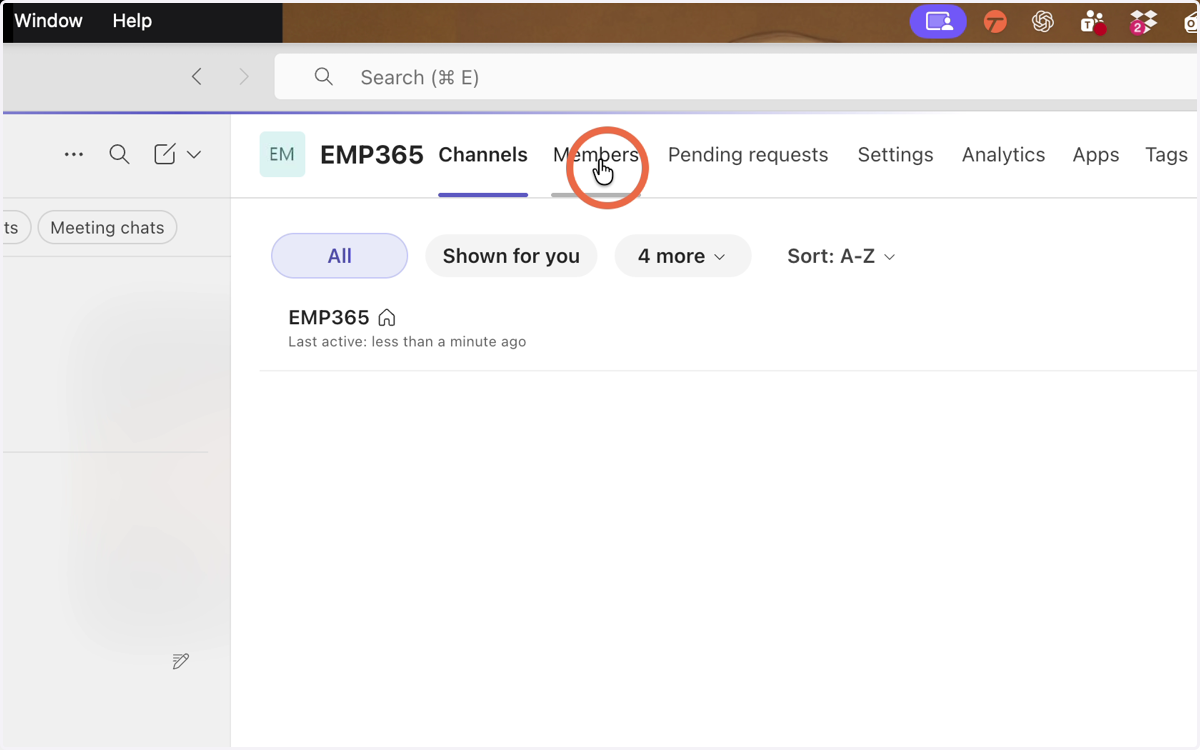
13. CLick Members
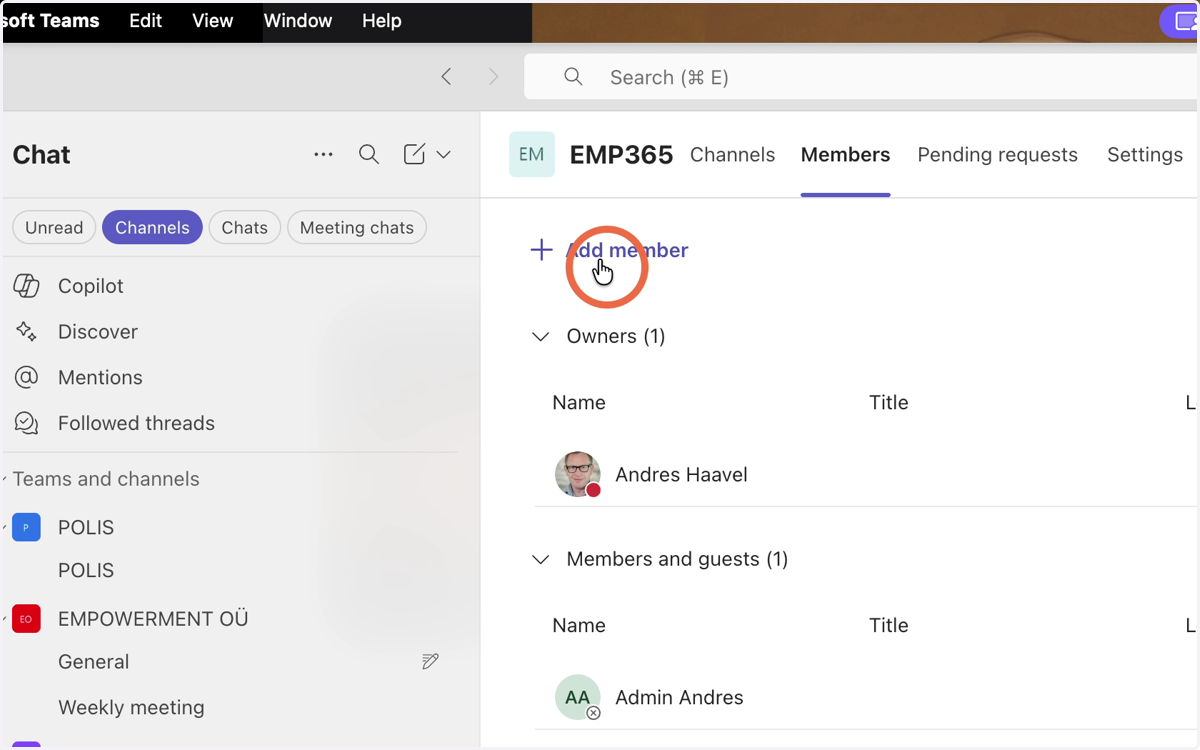
14. Click - Add member
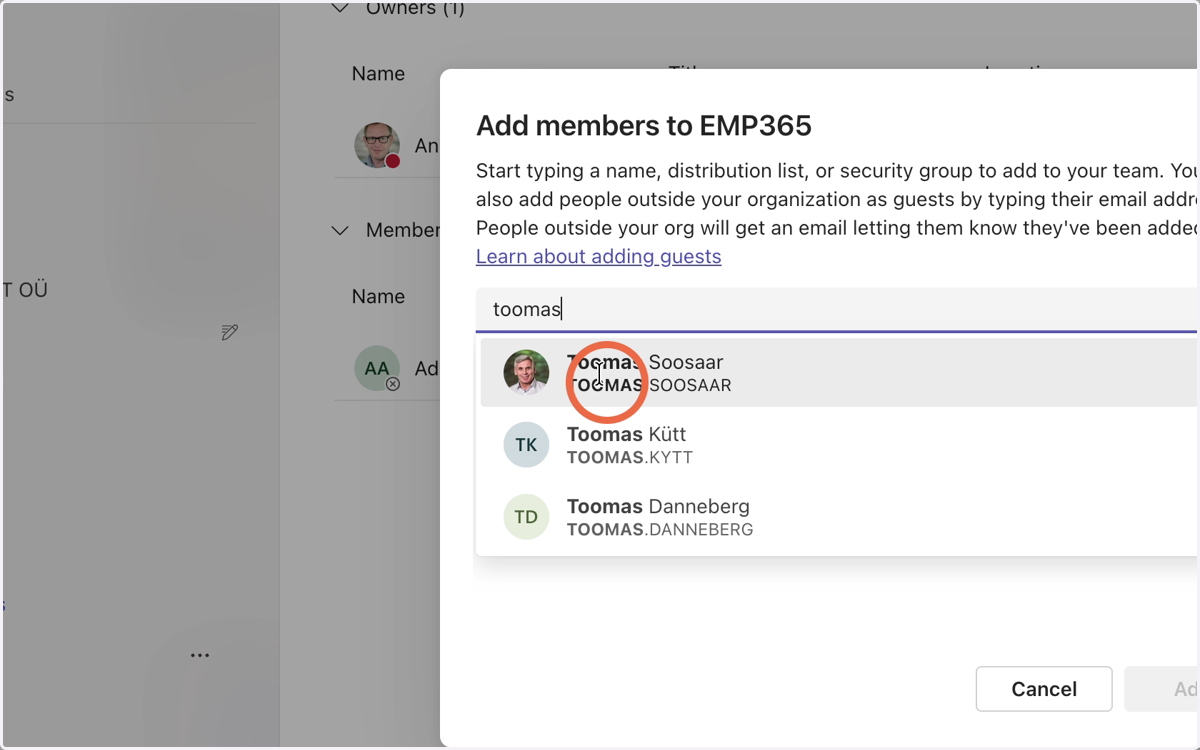
15. Type the name and select the desired user from the list that appears
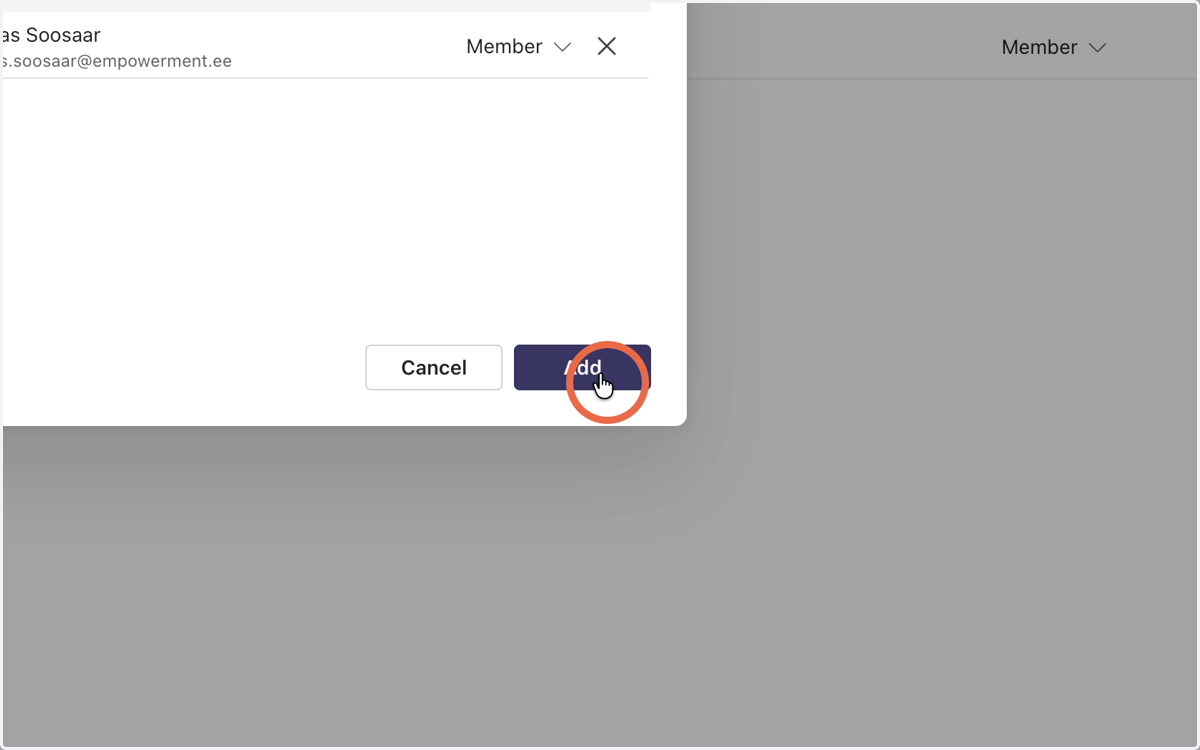
16. Click - Add
17. To delete a user, click the X next to the name and select Remove.