Downloading Spring OST Scores in Fall
Start at CHUH Homepage
1. Under Staff Click on Ohio Assessment Systems
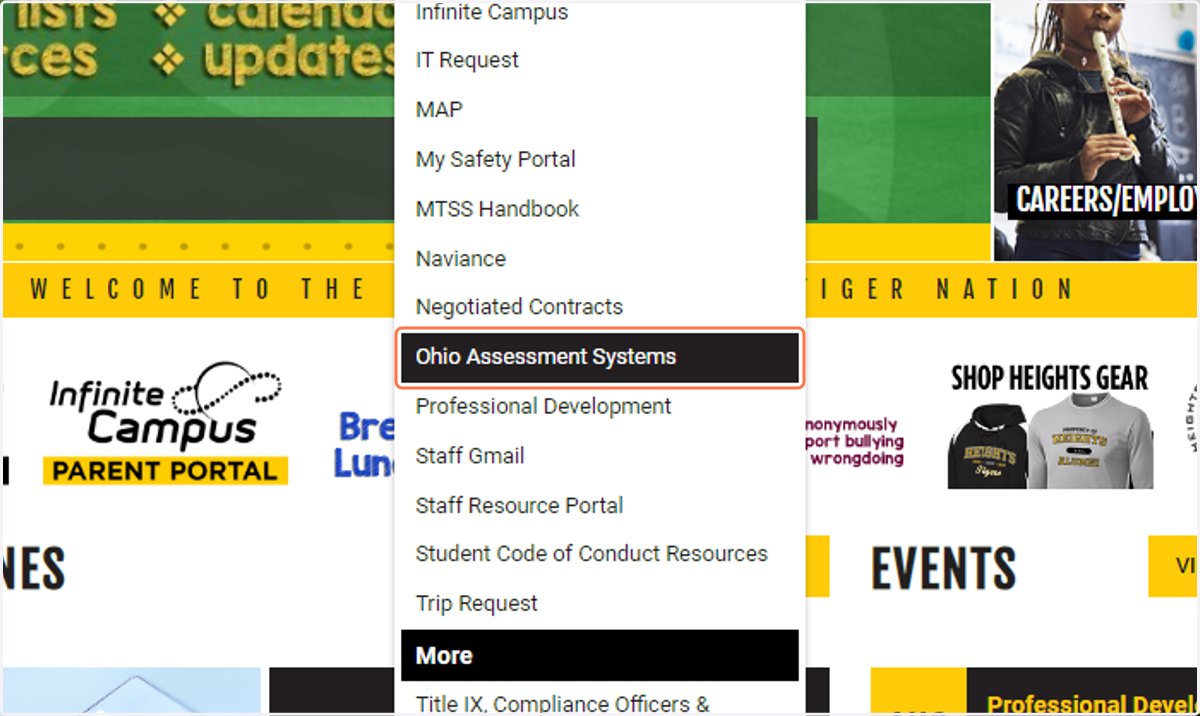
Home Page
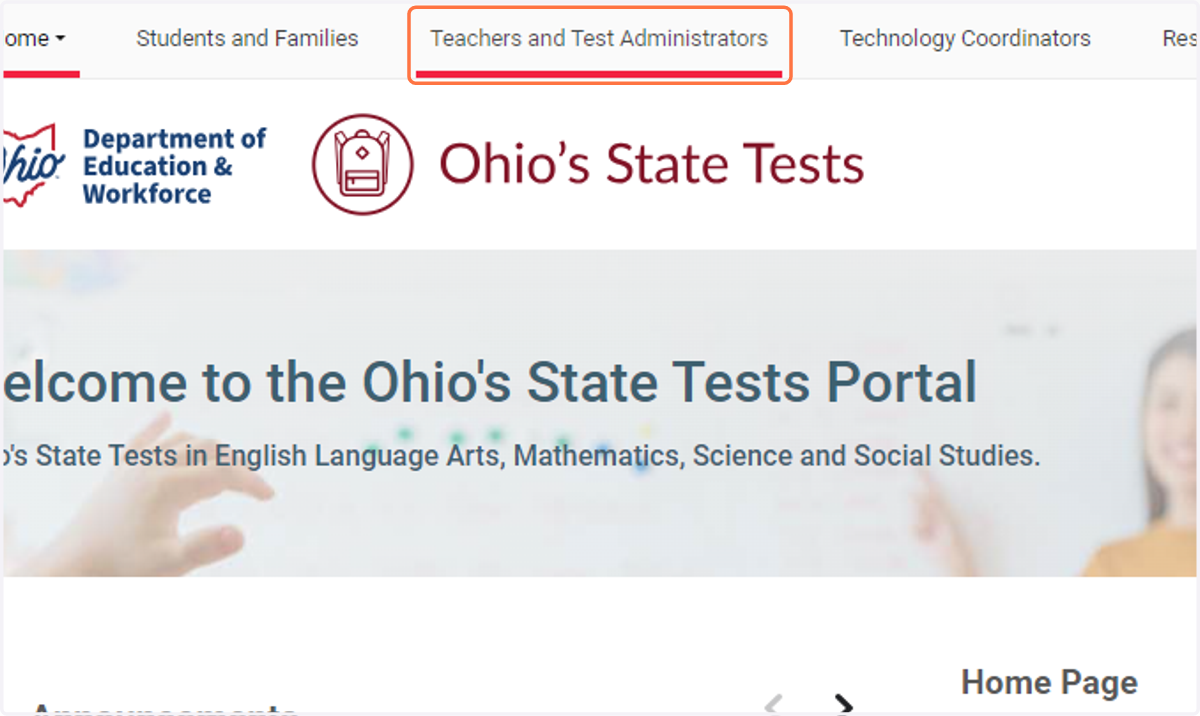
2. Click on Teachers and Test Administrators
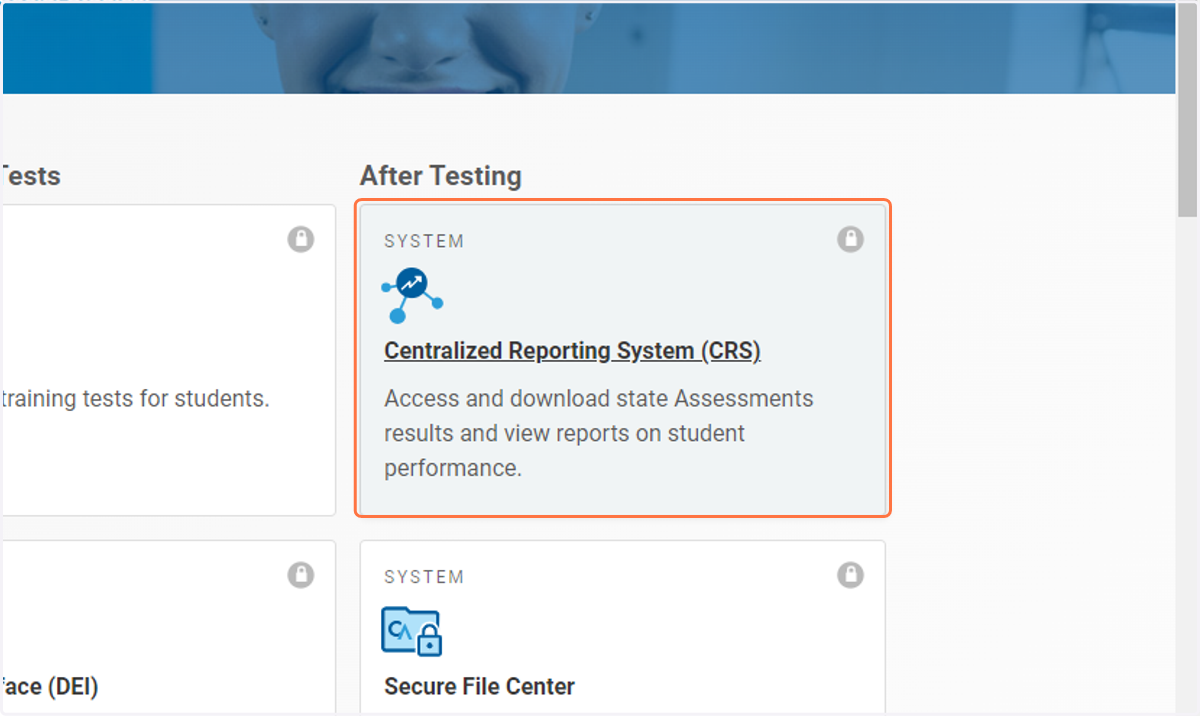
3. Select Centralized Reporting System (CRS)
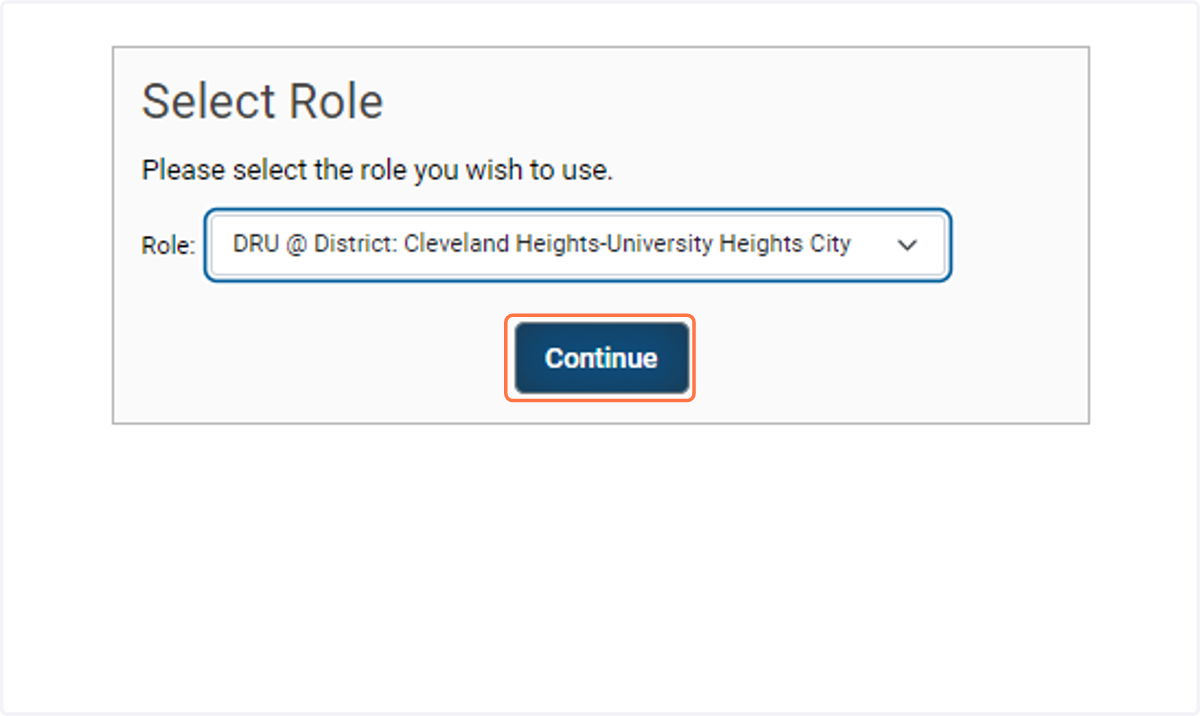
4. Select your role then click Continue
Users with only 1 role will skip this step
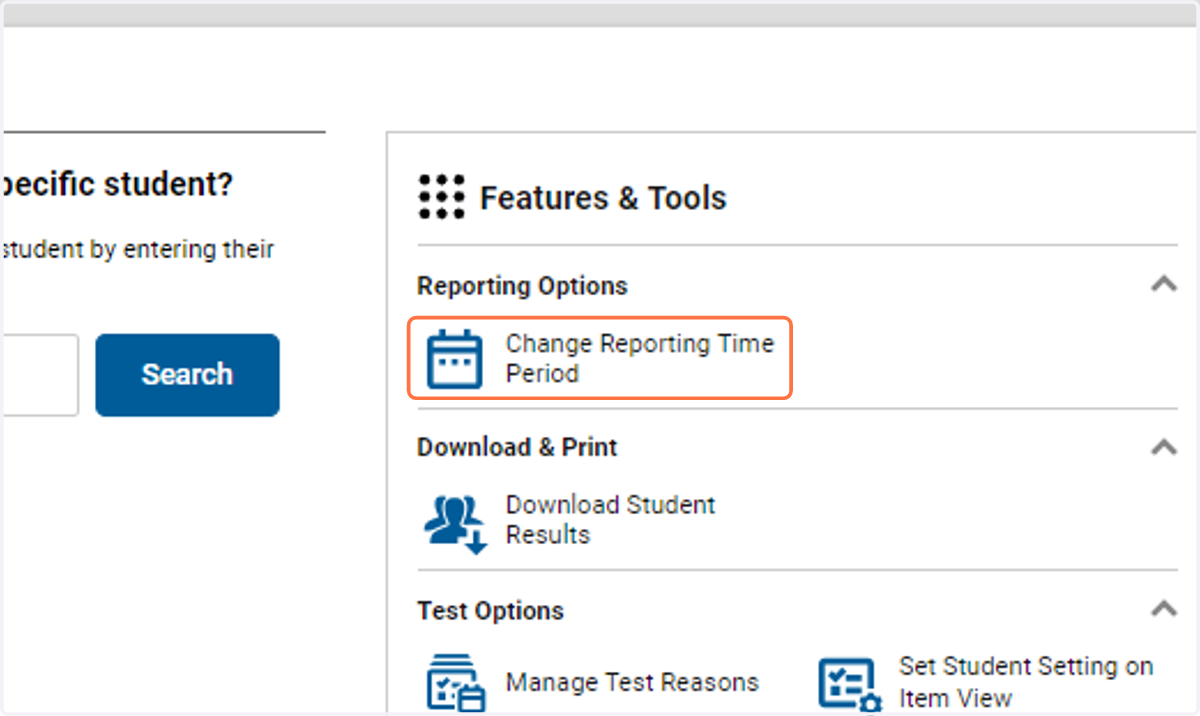
5. Click on Change Reporting Time Period
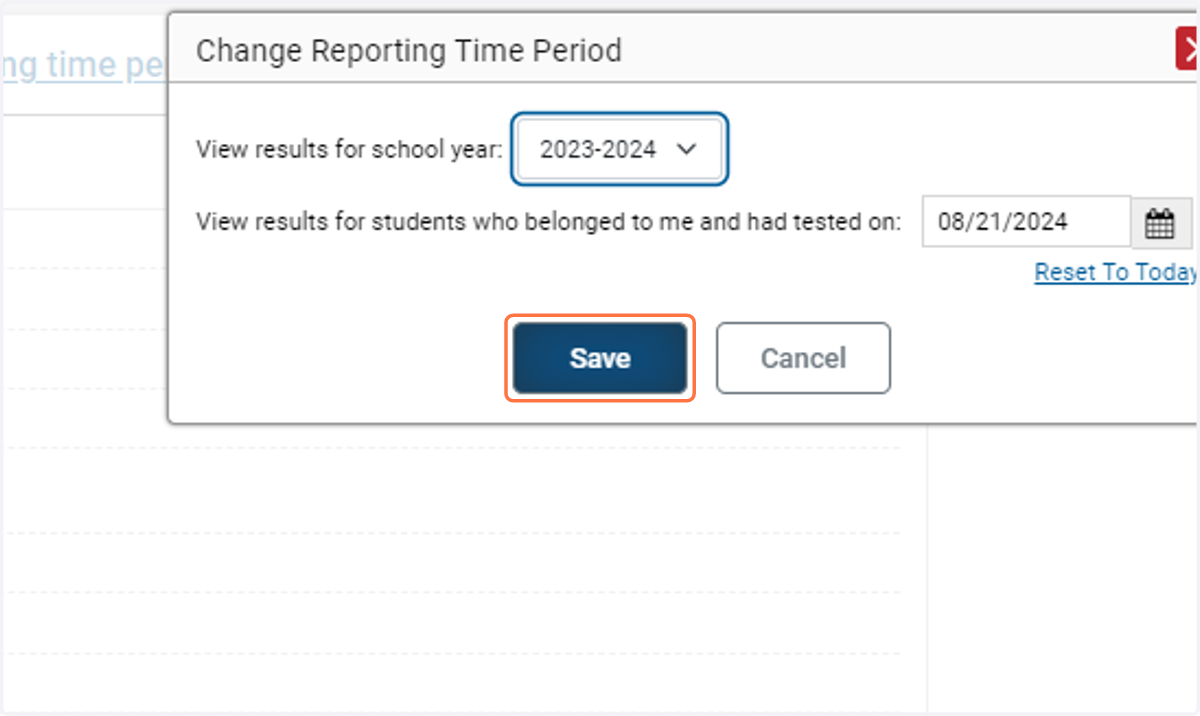
6. Change "View results for school year" to last school year and keep the "View results for students who belong to me and tested on" today's date. Click Save
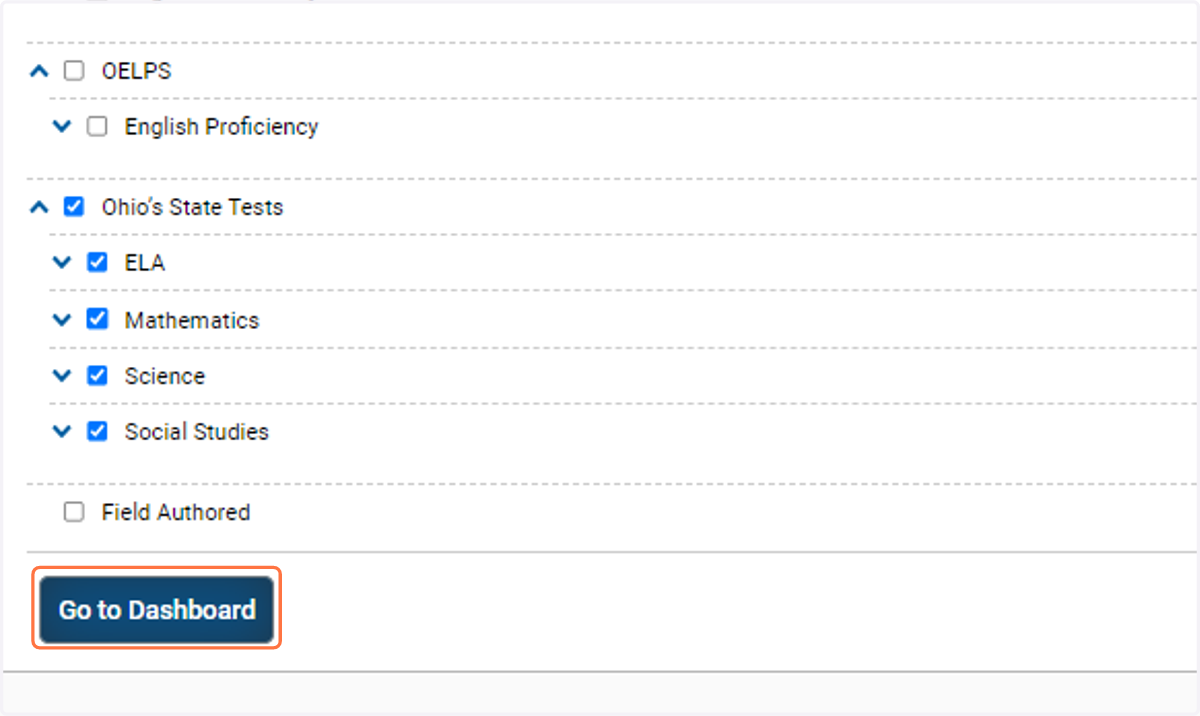
7. Be sure that Ohio State Tests is checked then click "Go to Dashboard"
8. Select a subject
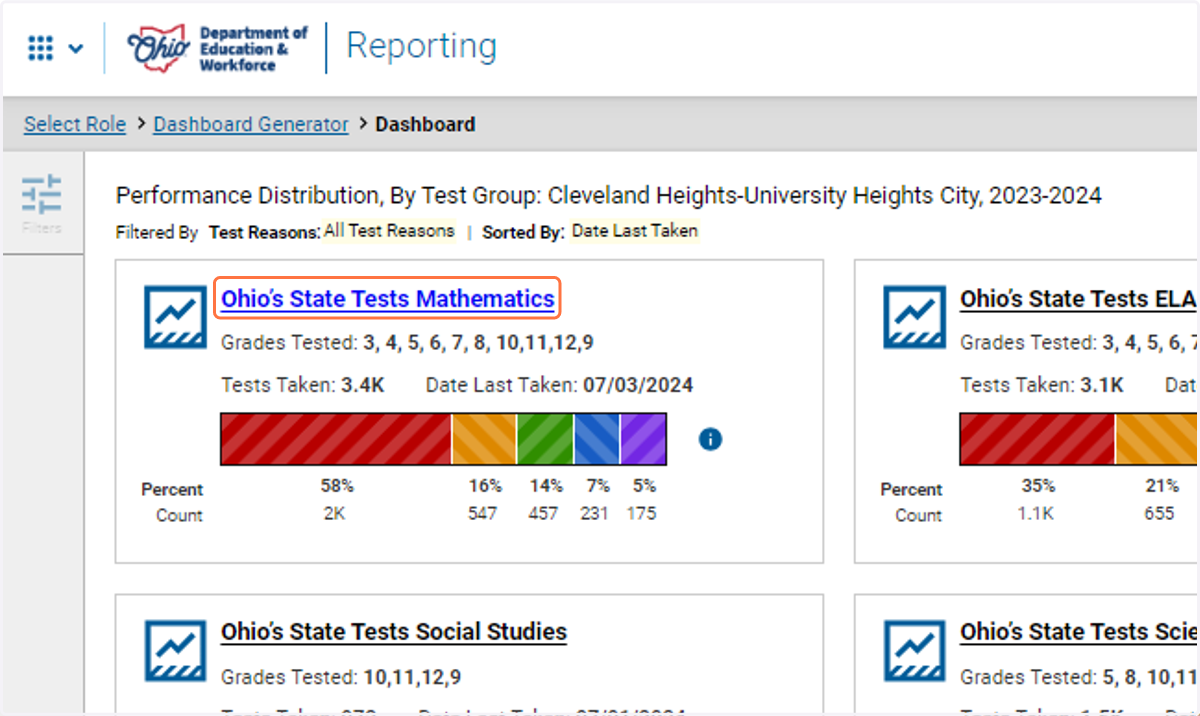
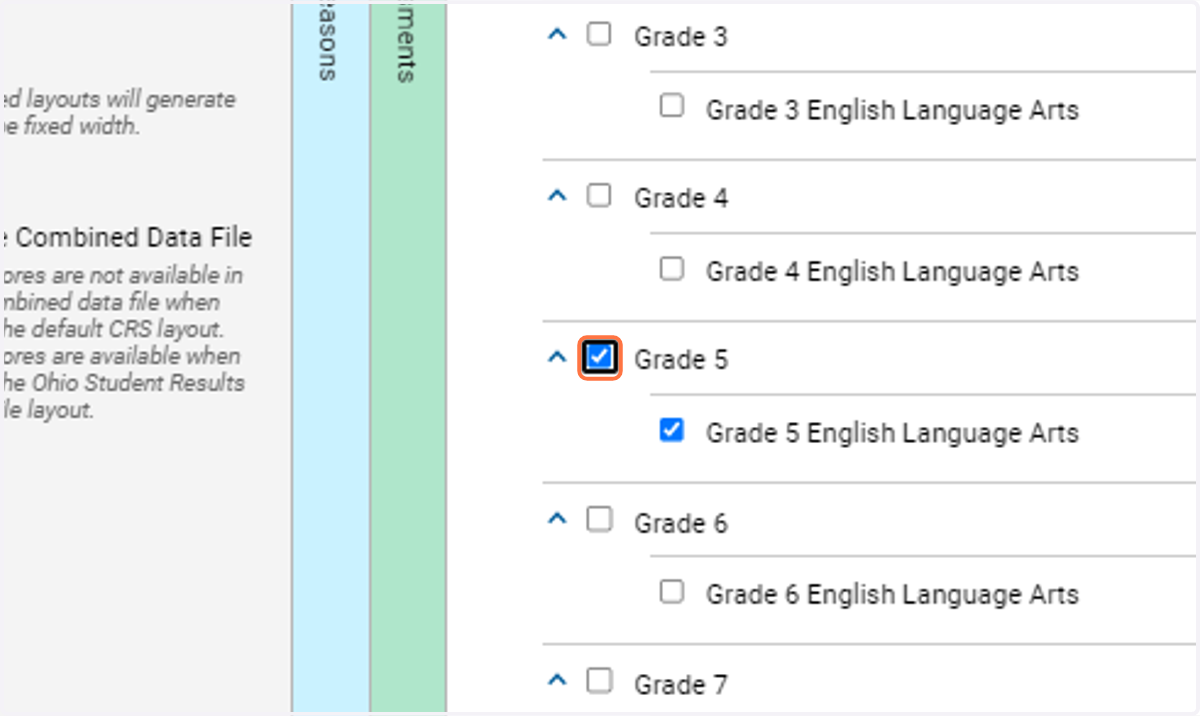
9. Click on Grade 5
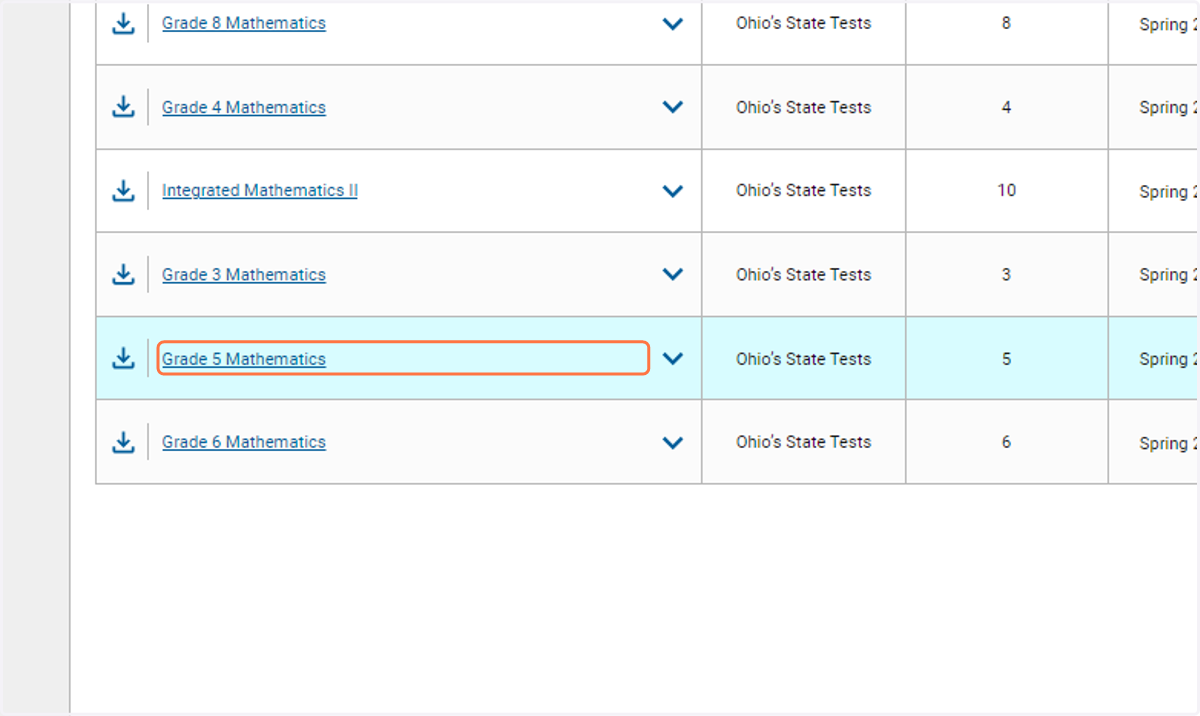
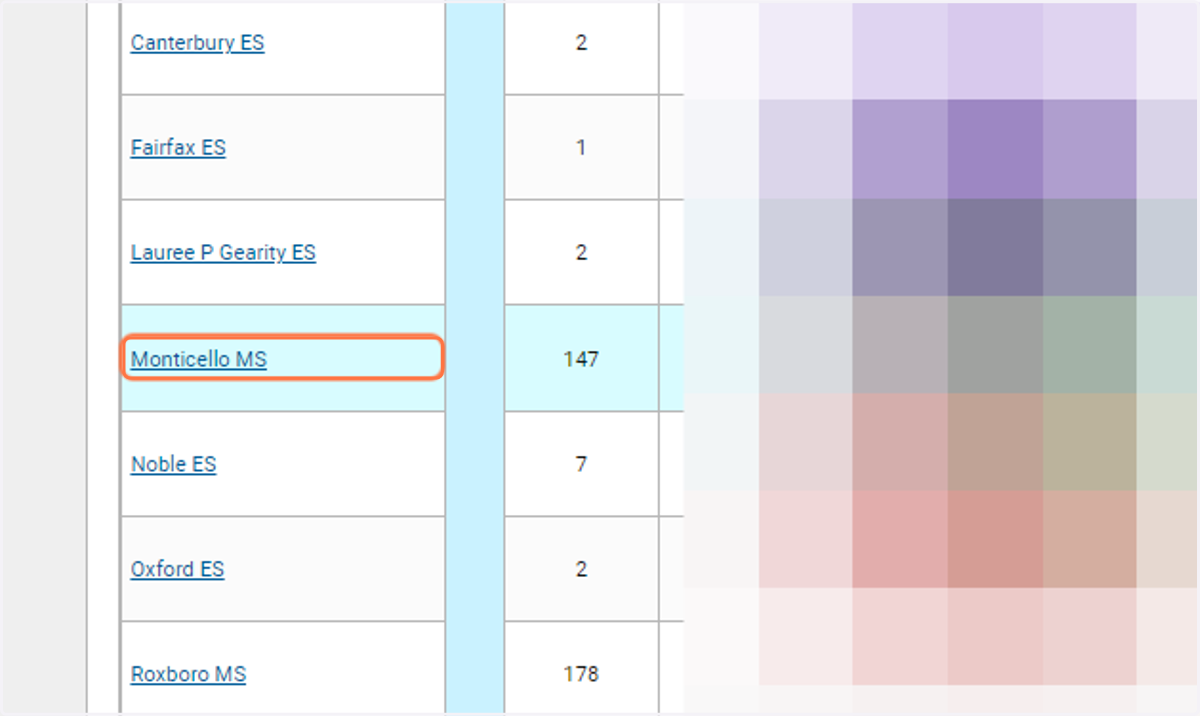
10. Click on school
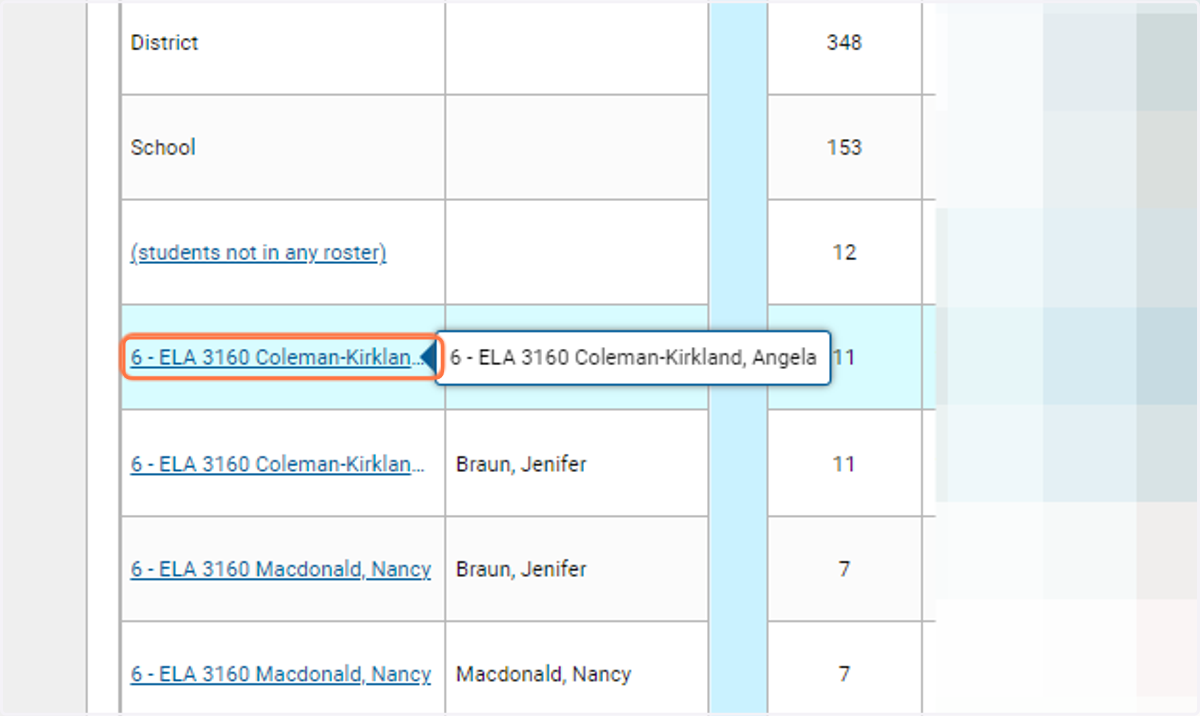
11. You can either click on an individual teachers roster to see the students scores.
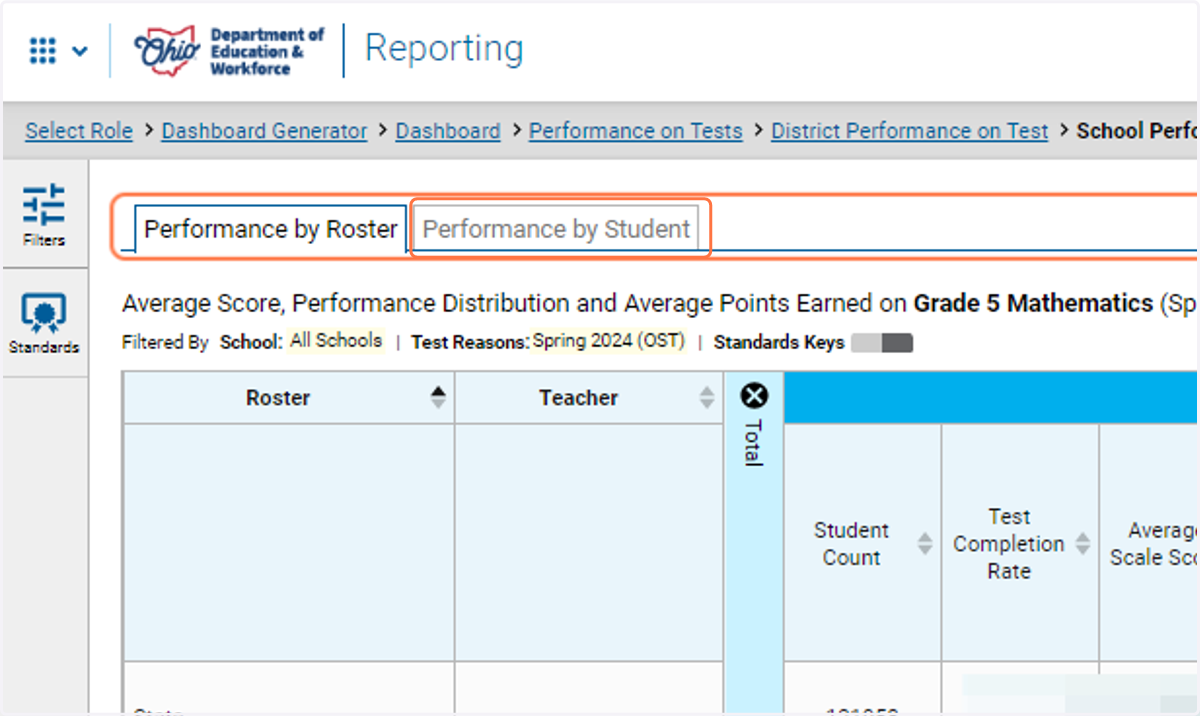
12. Or you can download all scores by clicking Performance by Student
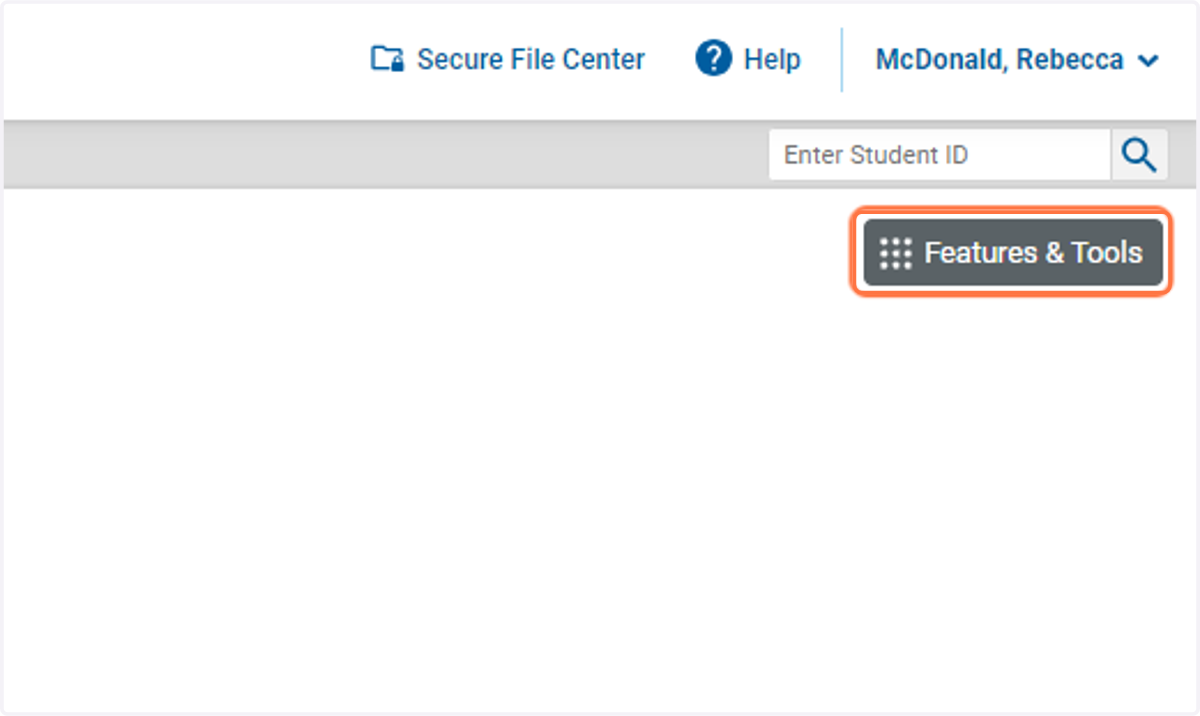
13. To download/print the results click on Features & Tools
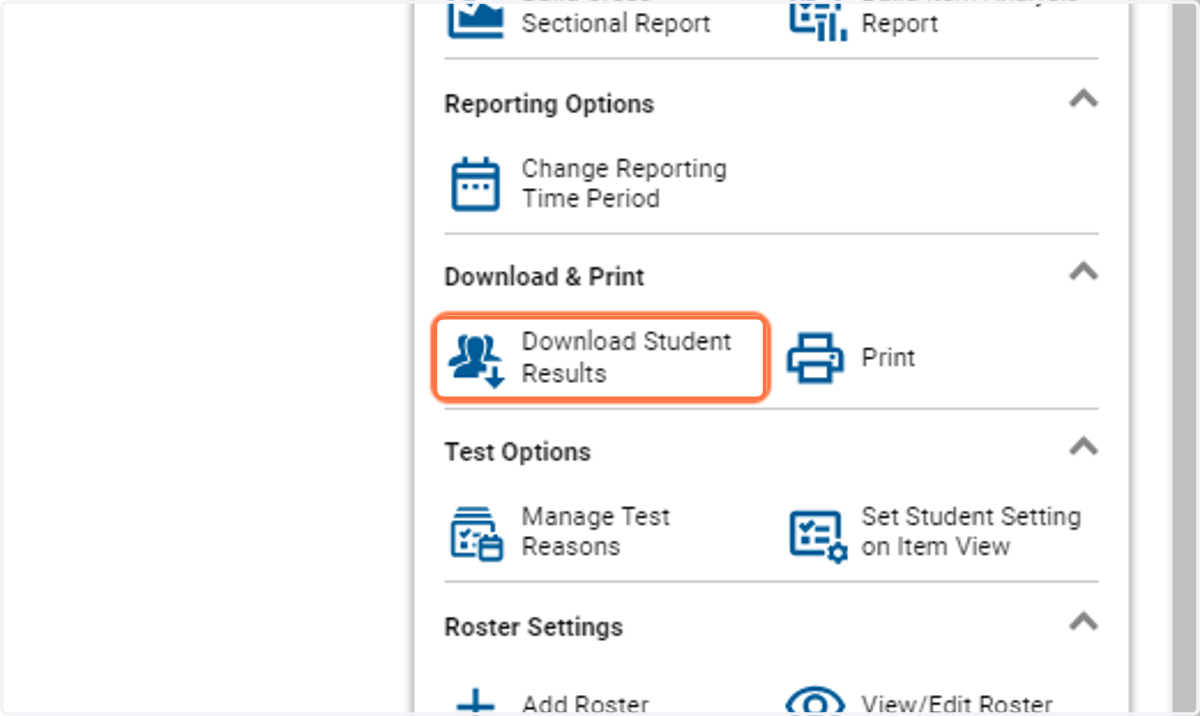
14. Click on Download Student Results
15. Select Student Data File
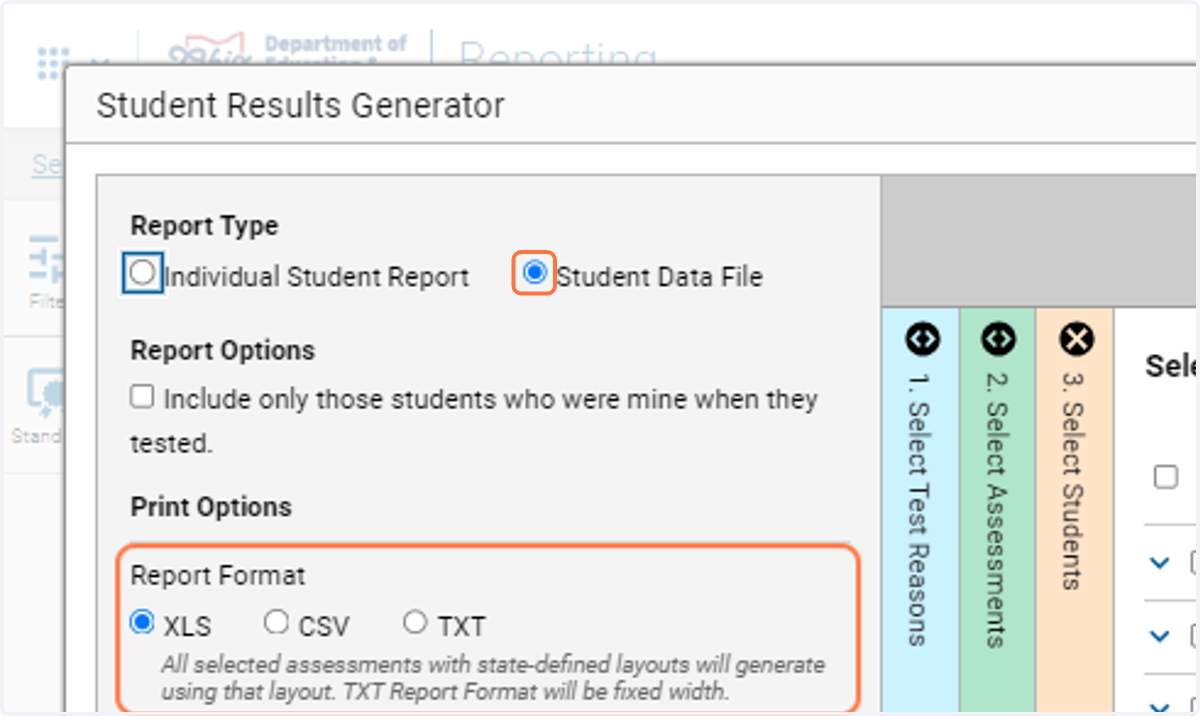
16. Select CSV
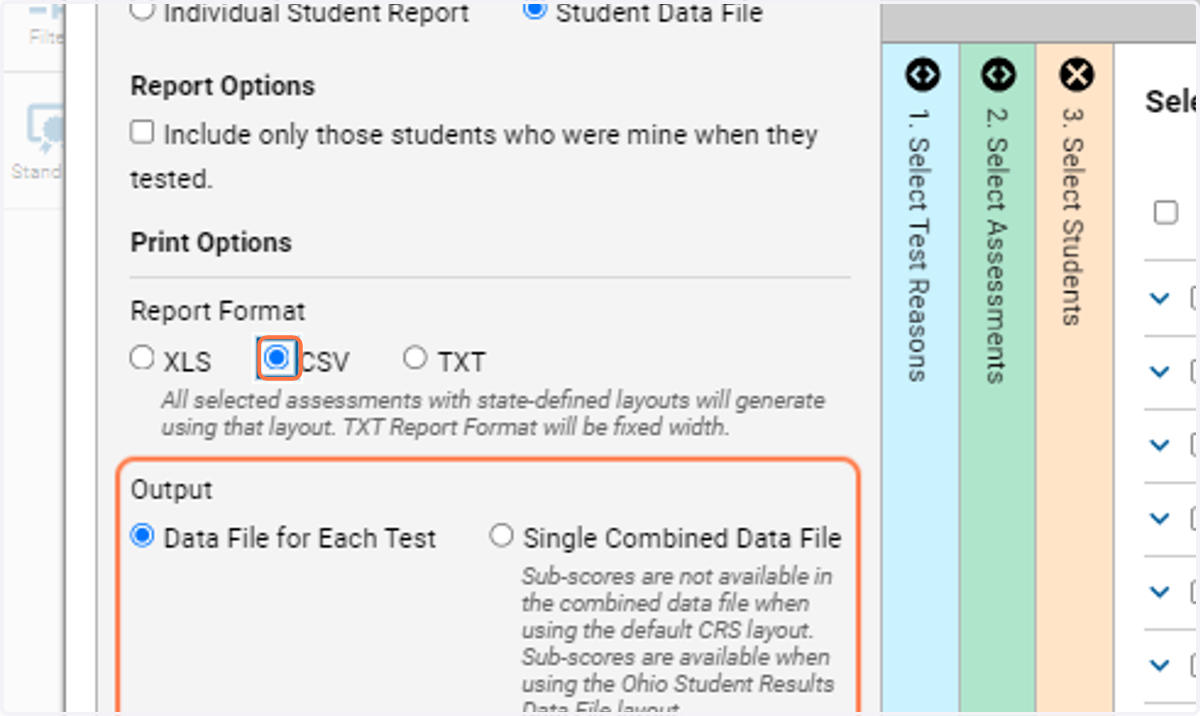
17. Click on 2. Select Assessments
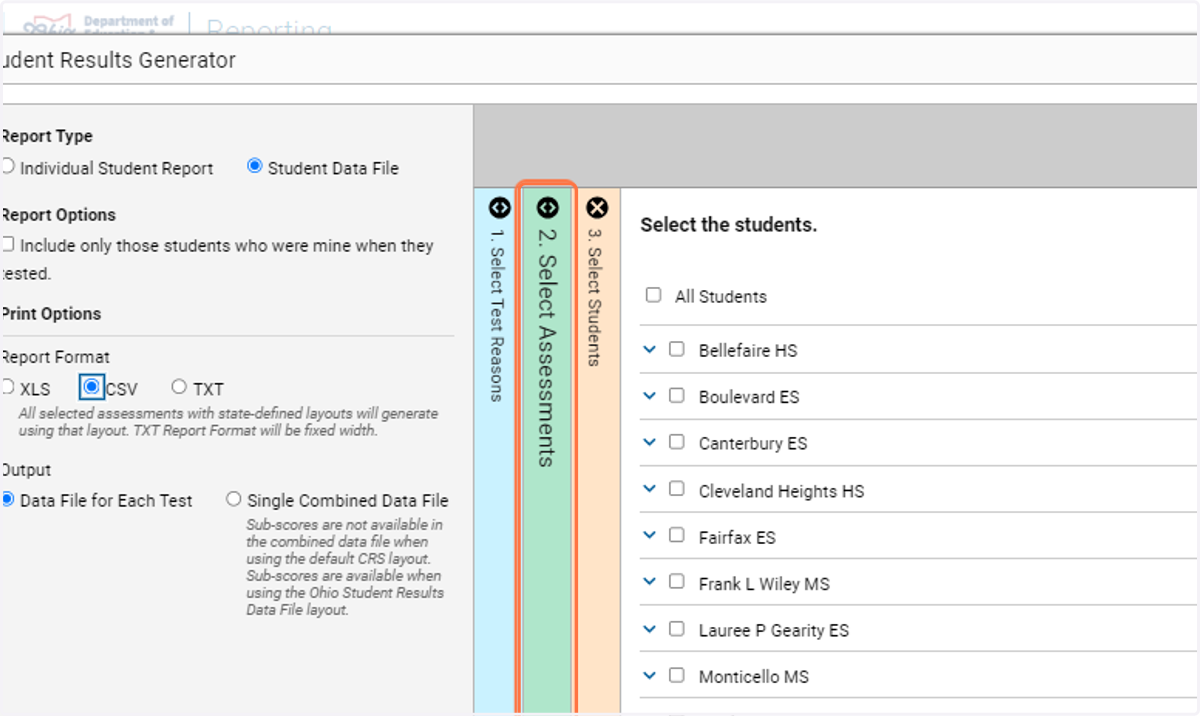
18. Select Assessments
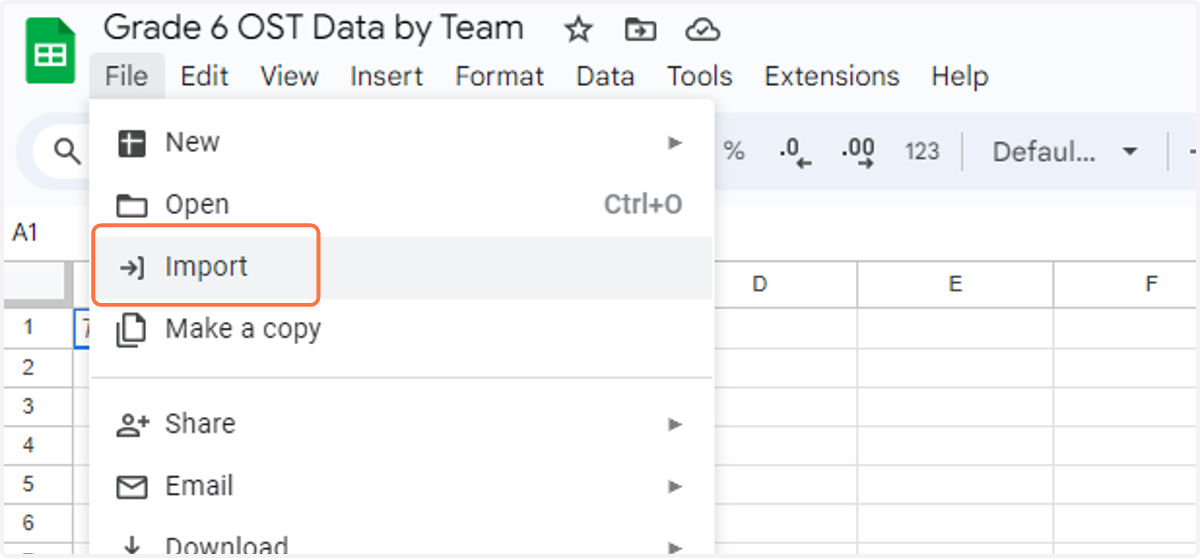
19. Select File --> Import
20. Click on 3. Select Students
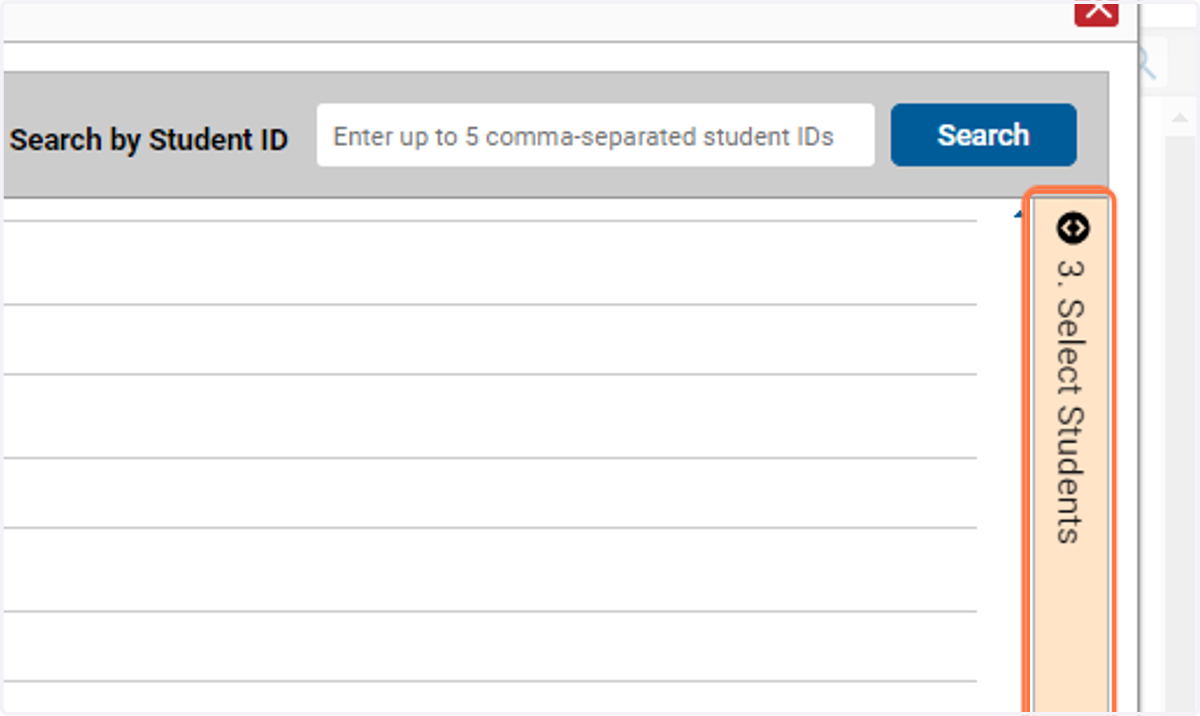
21. Select the down arrow next to school
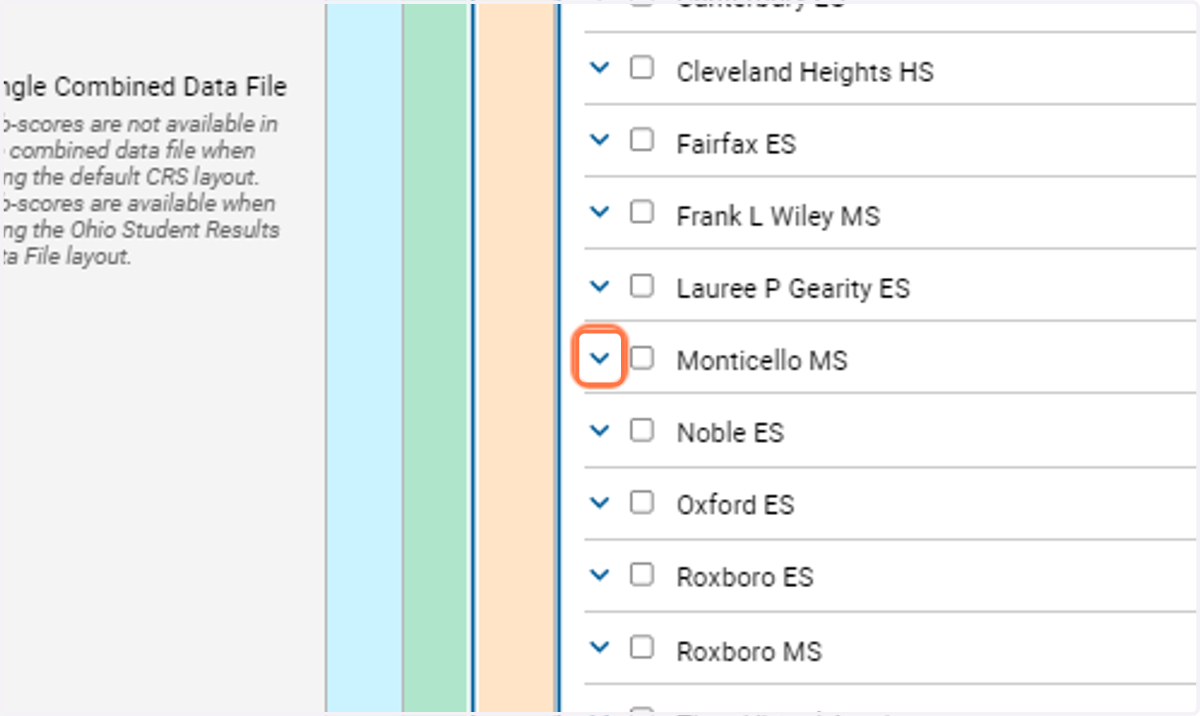
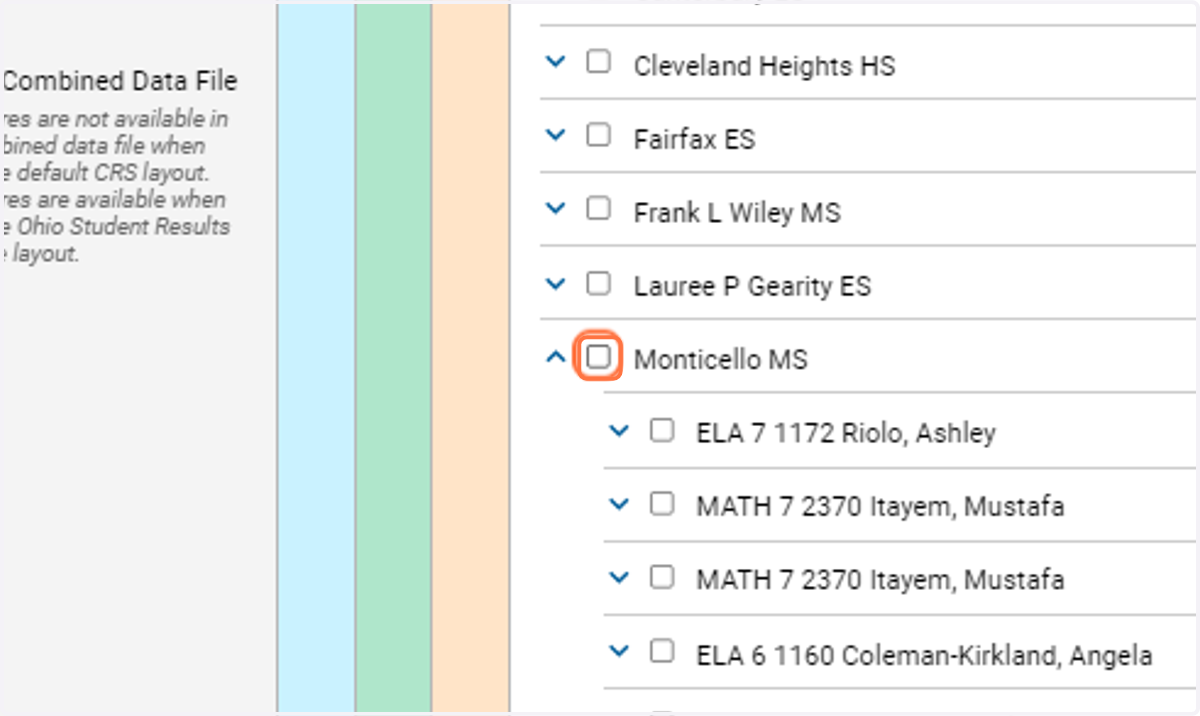
22. Select the teacher you want to view results for
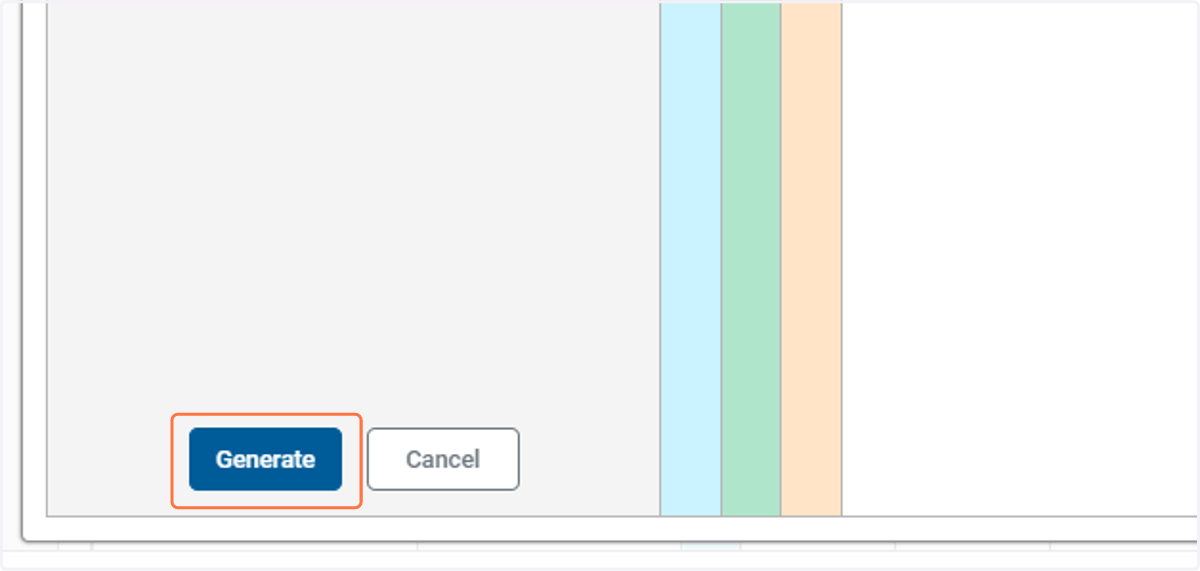
23. Click on Generate
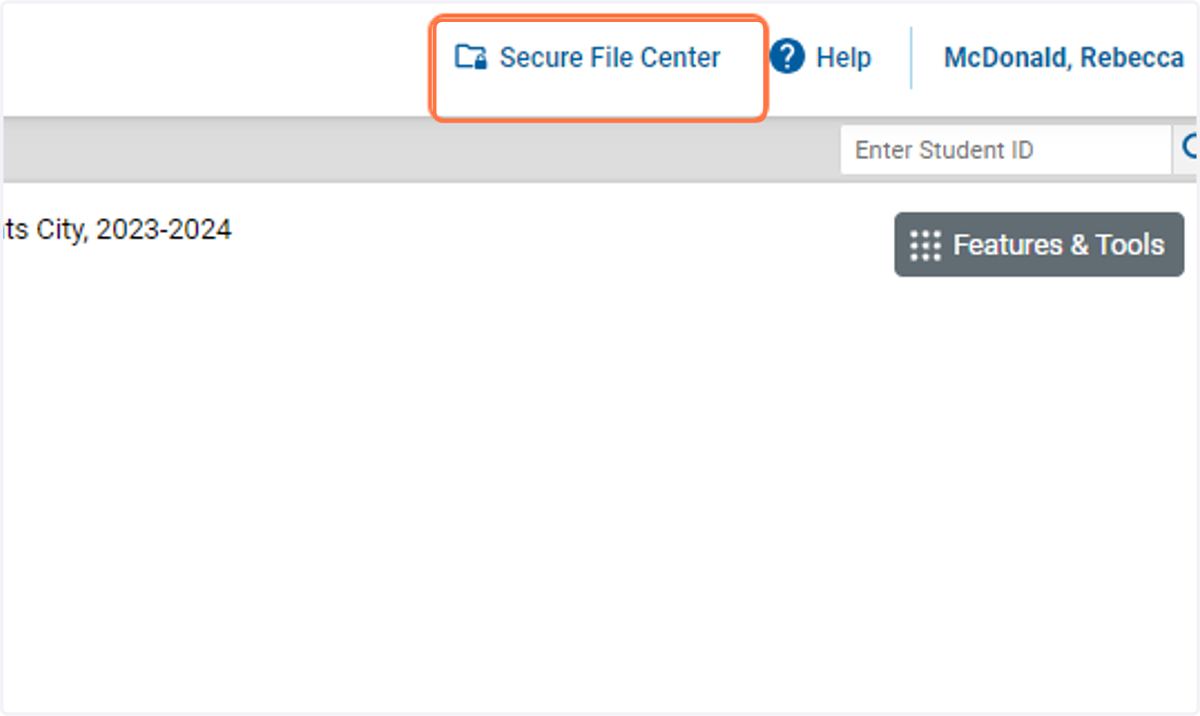
24. To see downloaded files click on Secure File Center
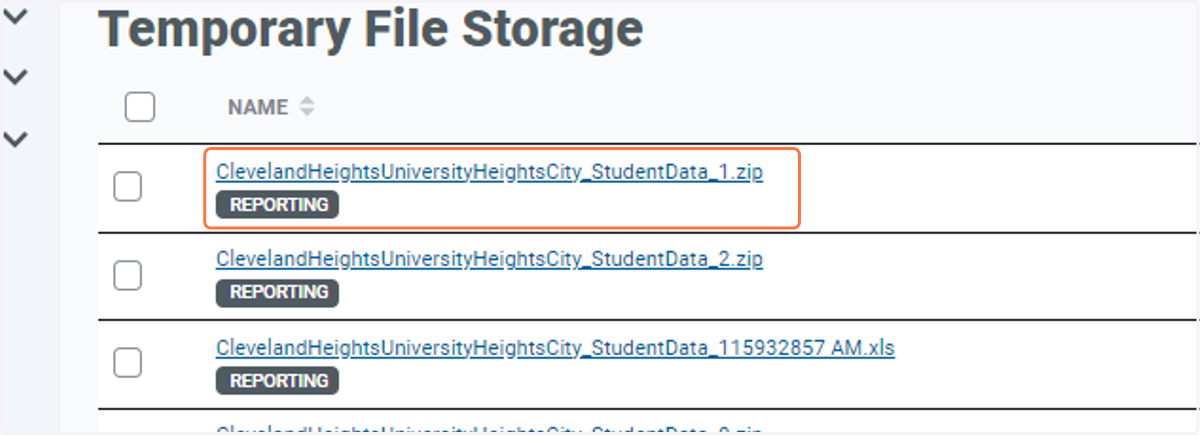
25. Select the name of the file to download it
Google Drive and open a Google Sheet
Google Docs
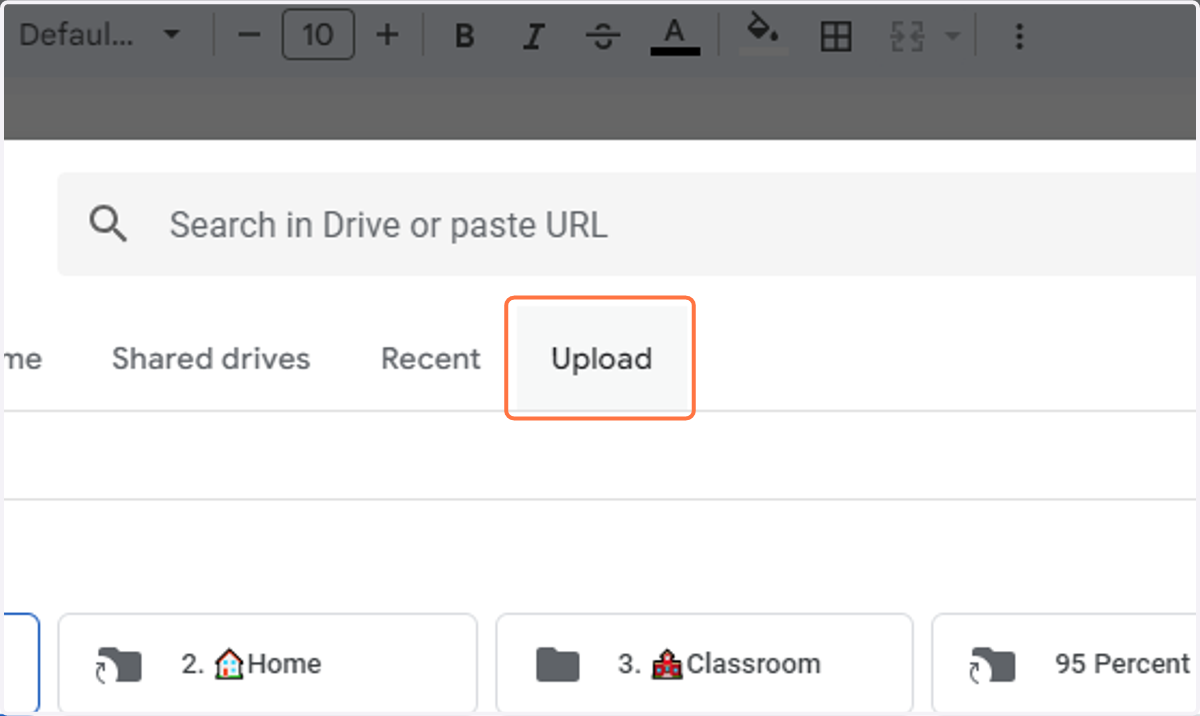
26. Click on Upload
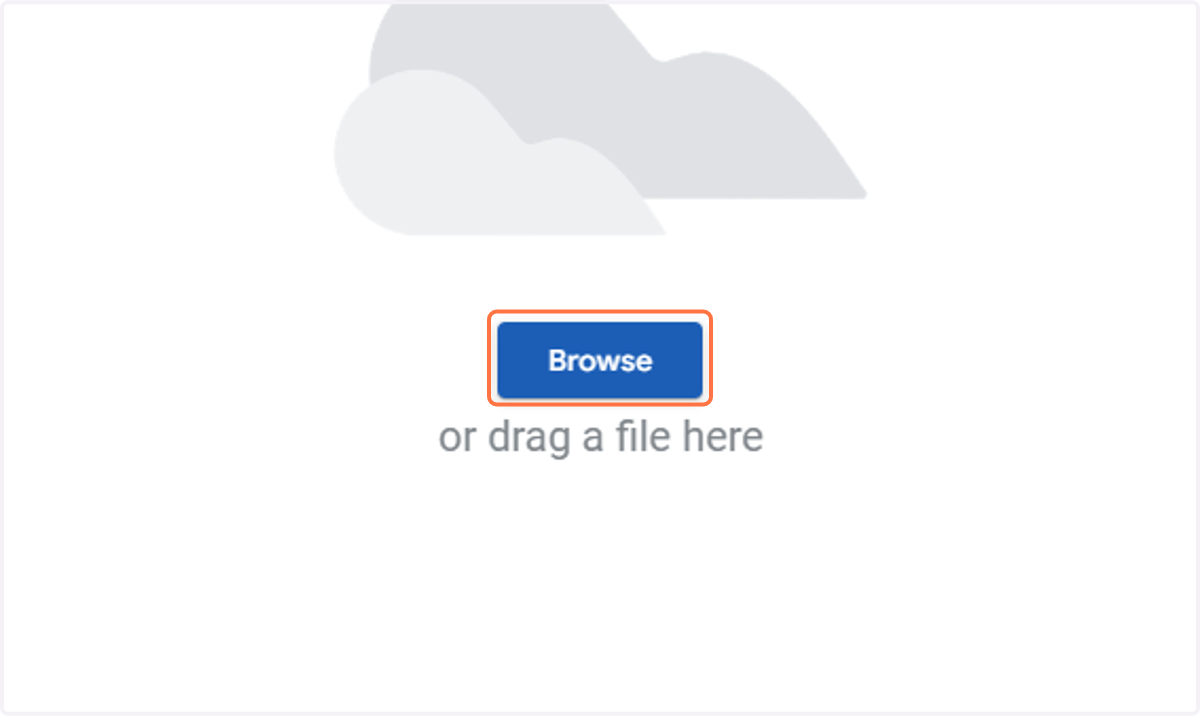
27. Click on Browse
28. Select the file you downloaded
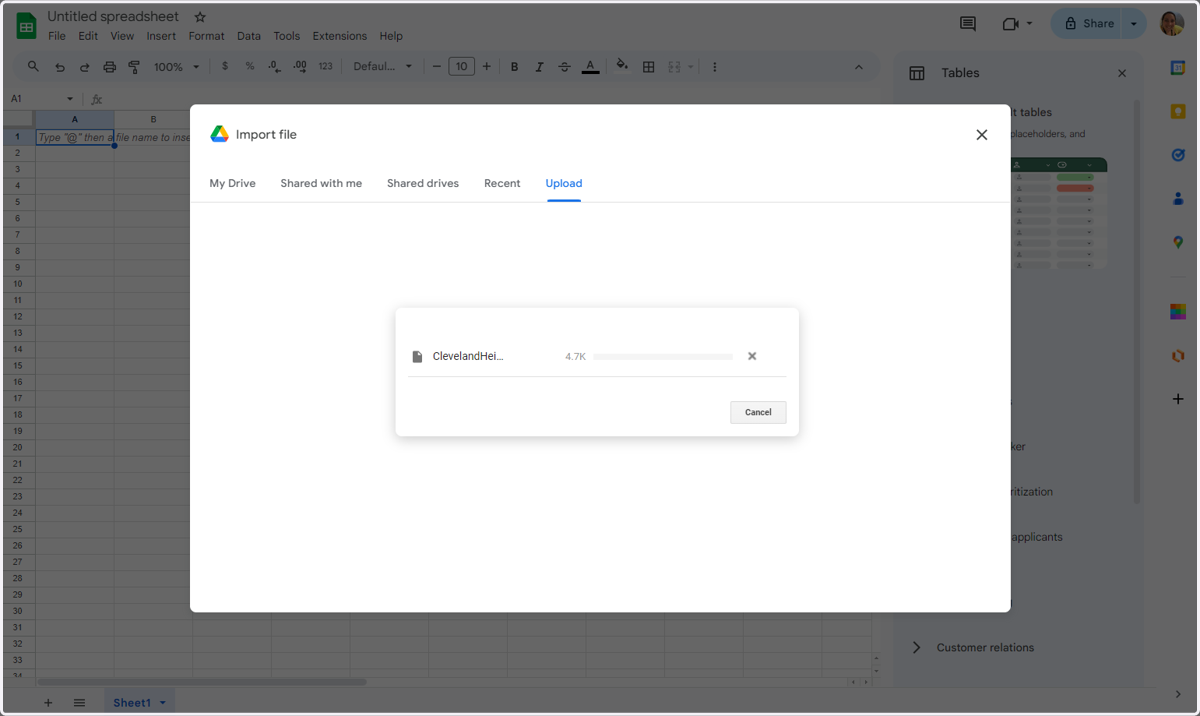
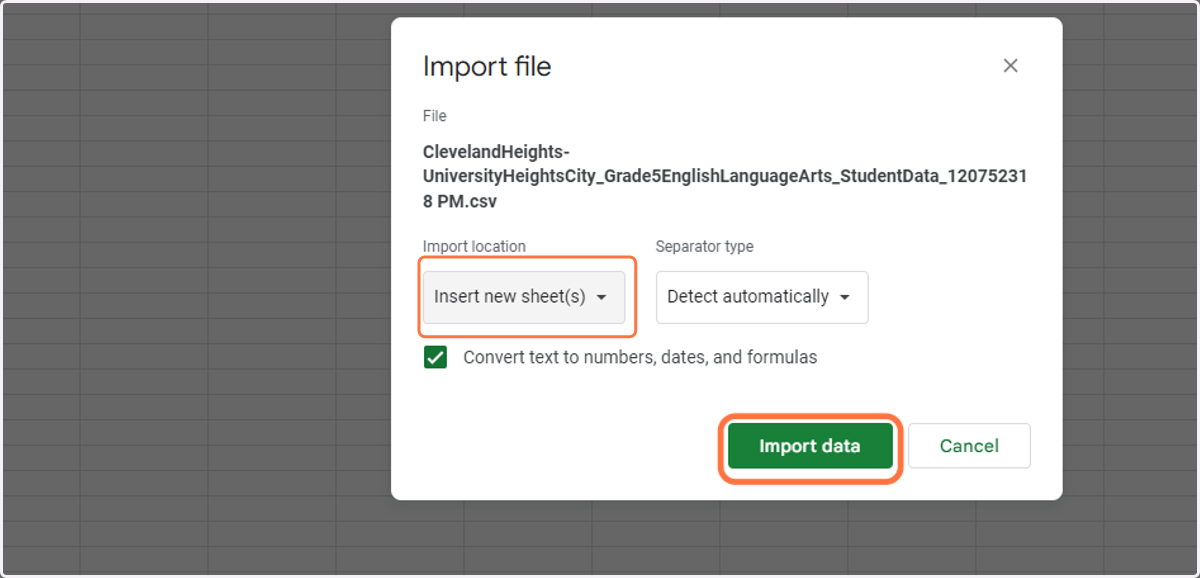
29. Select Insert New Sheet(s) and Import Data
OST scores will fall into columns AM and AN.