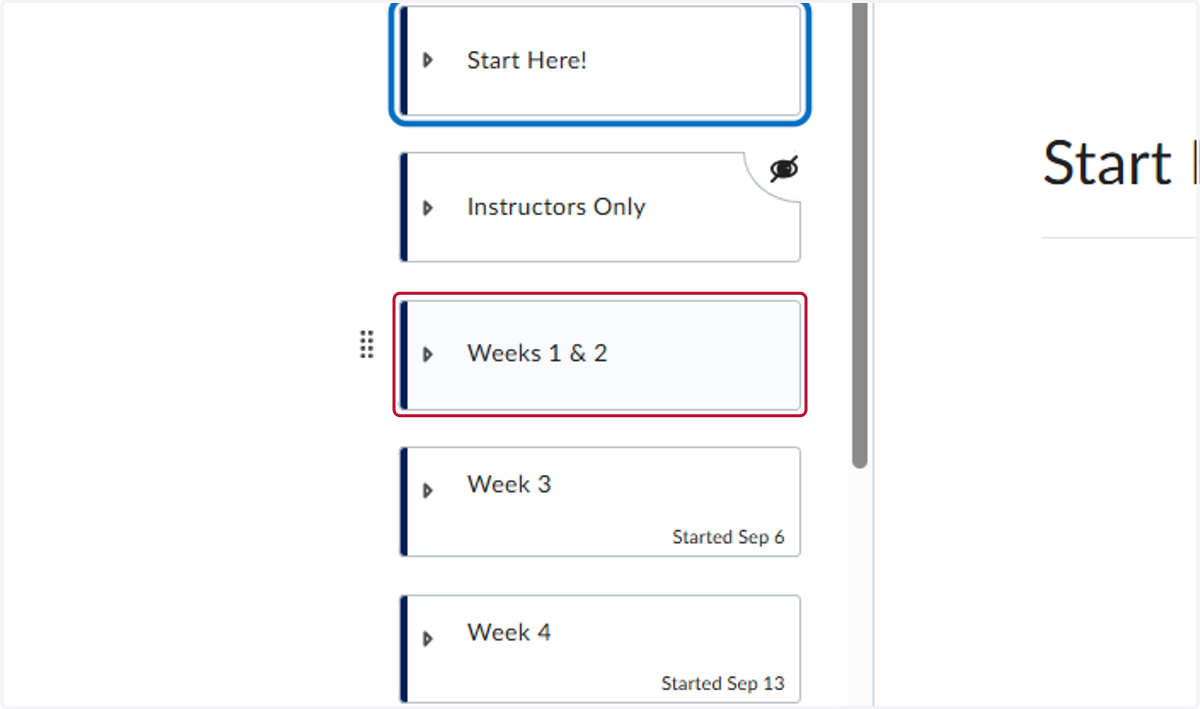
Deleting Multiple Content
Easiest way to remove multiple items in your course.
In this course, there are three items that need to be removed. You can see them below.
1. Click on FileTest 1
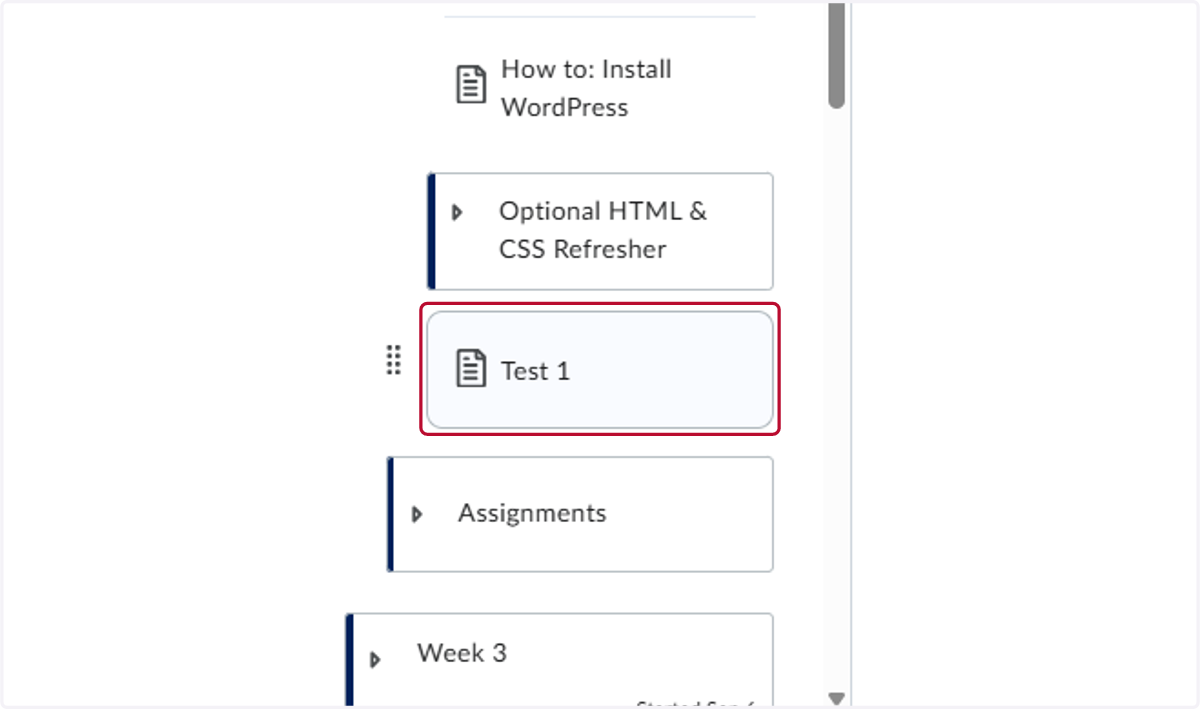
2. Click on FileTest 2
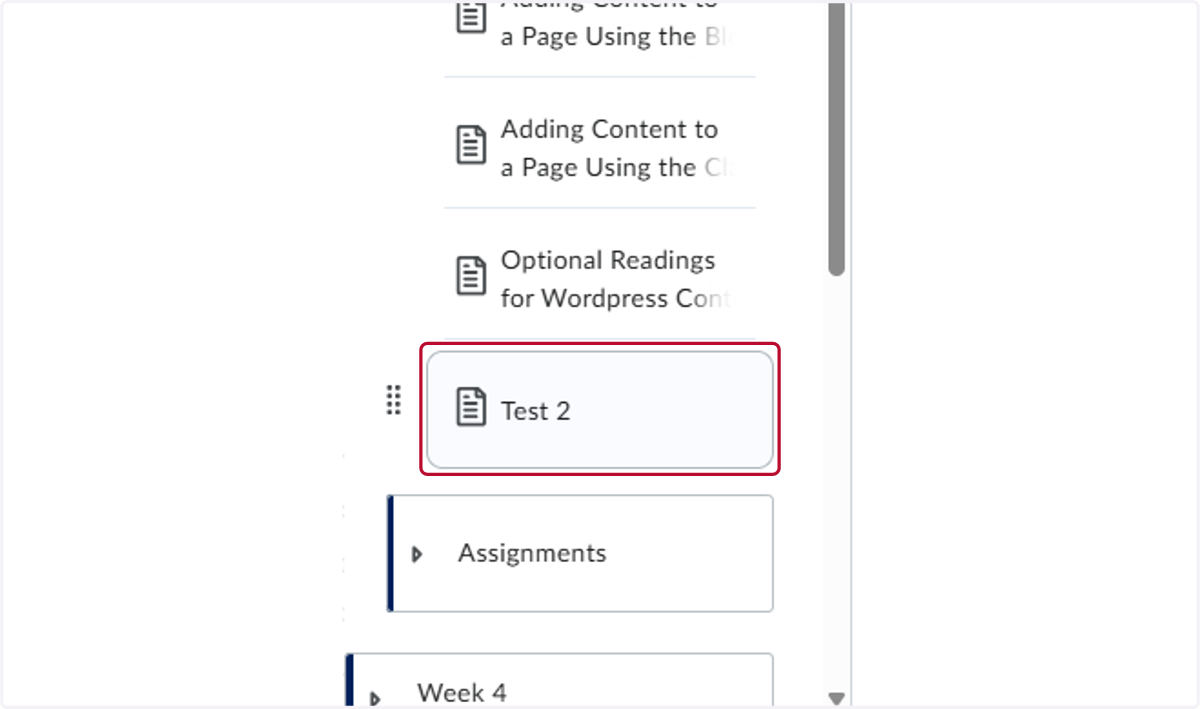
3. Click on FileTest 3
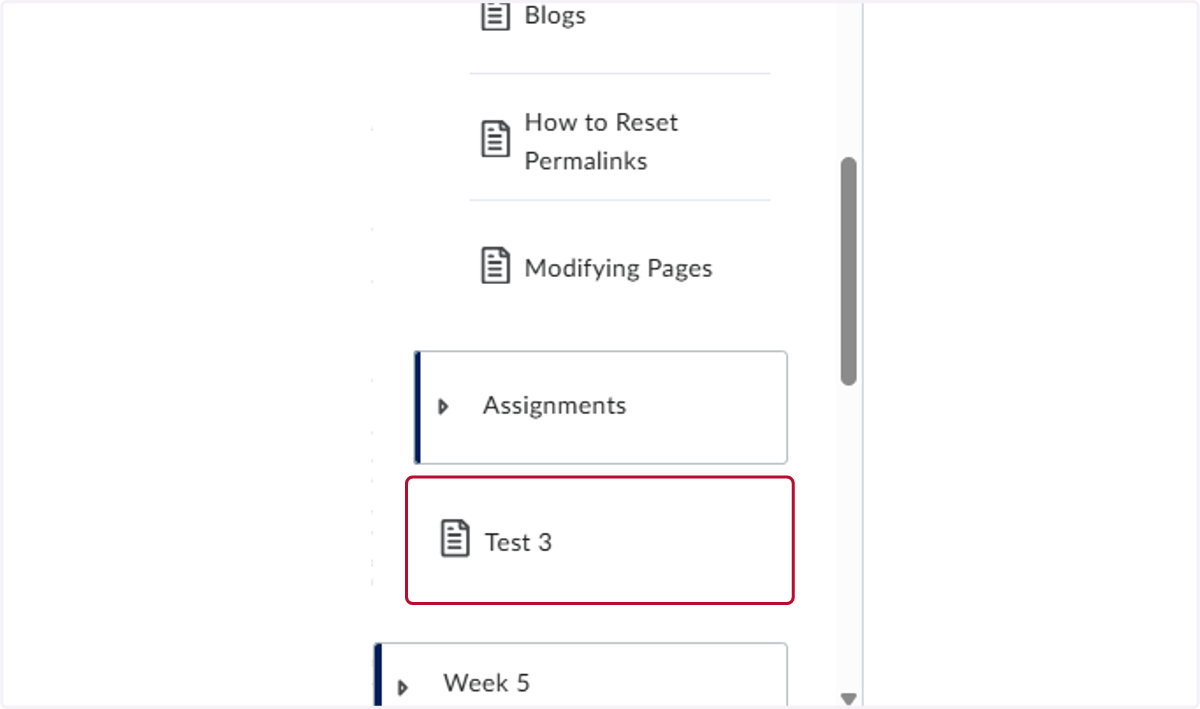
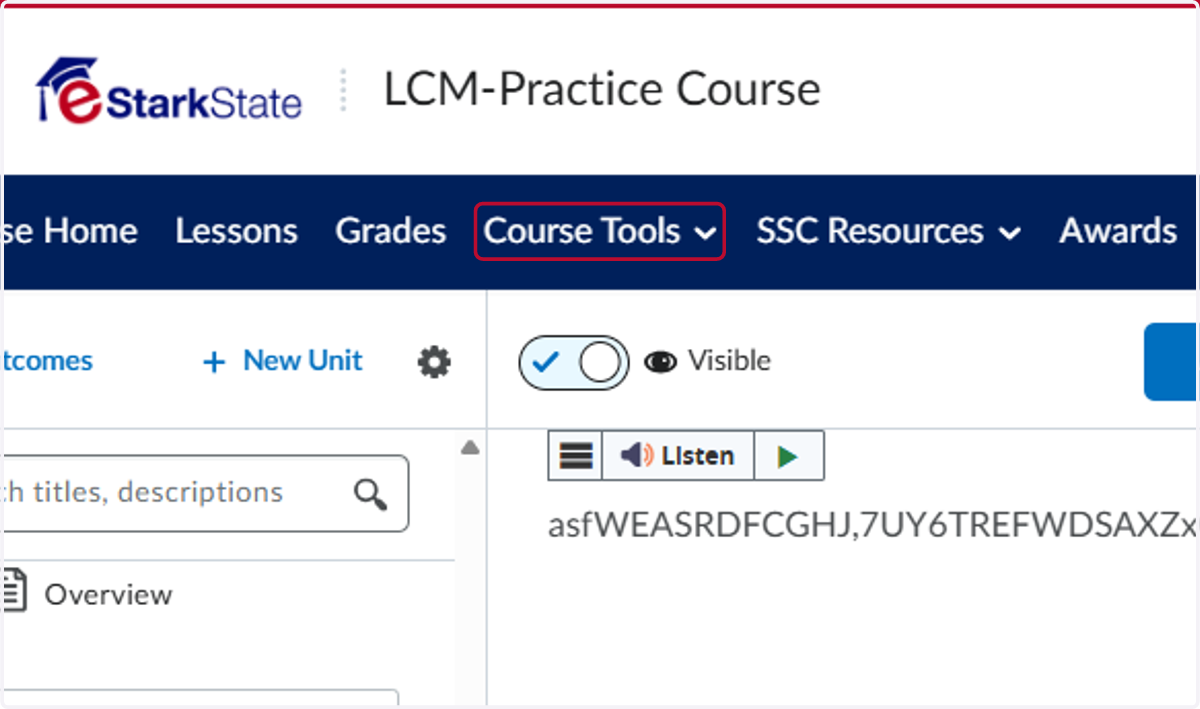
4. To remove them, click on Course Tools.
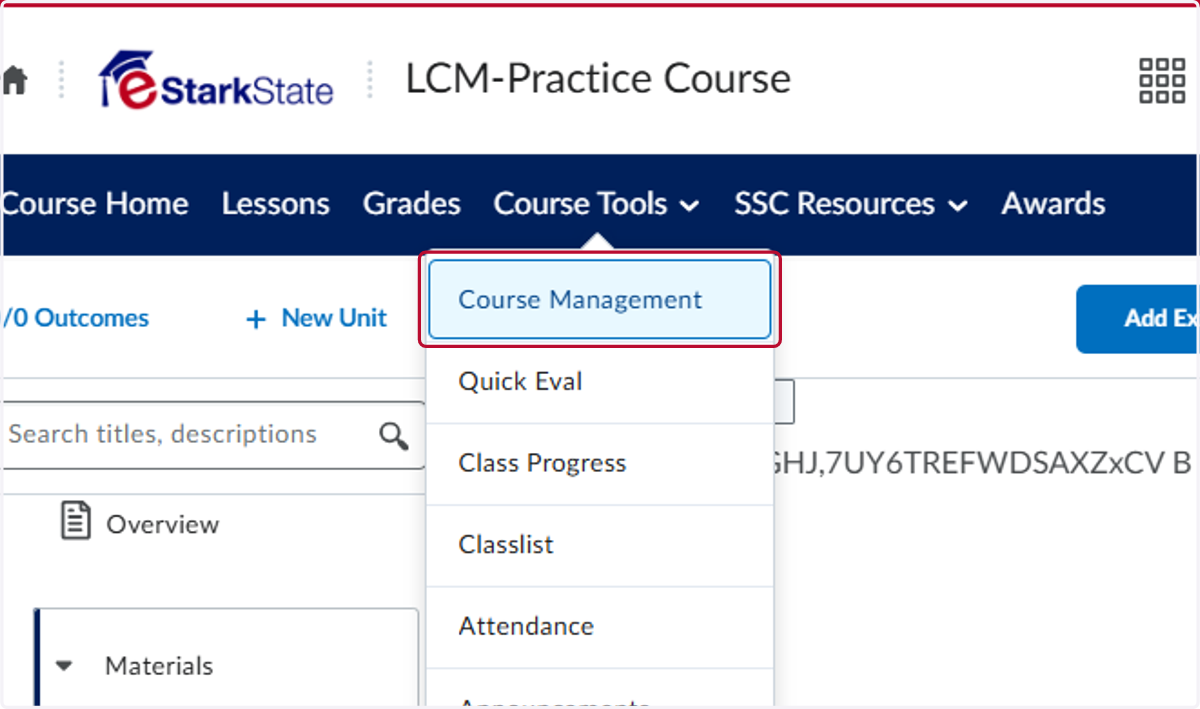
5. Click on Course Management
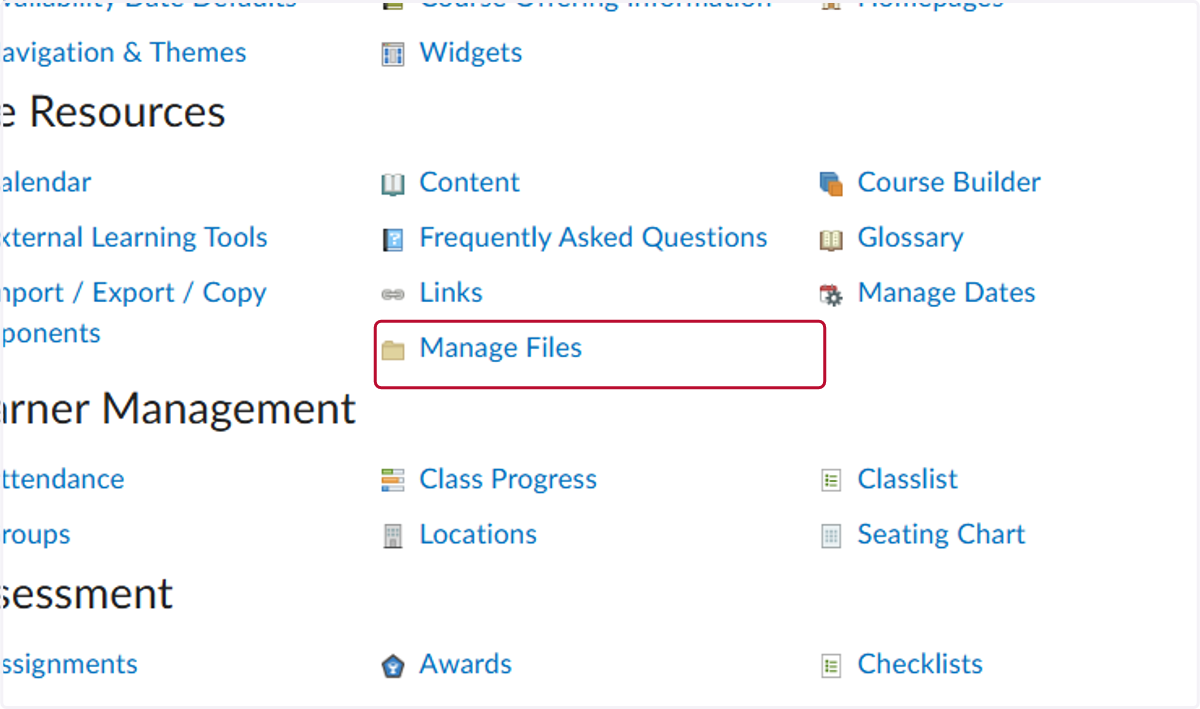
6. On the Course Administration page, click Manage Files.
7. Scroll down the list of files (they are usually in alphabetic order. Click the checkbox to the left of each filename.
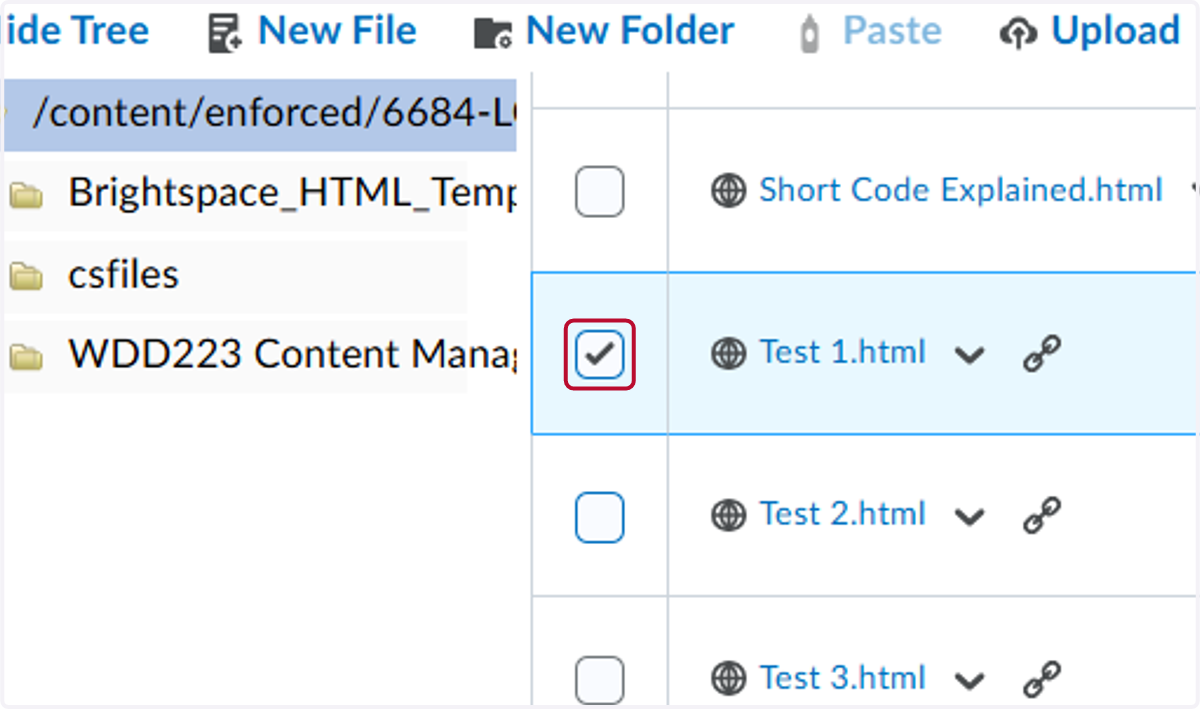
8. Click the 2nd item
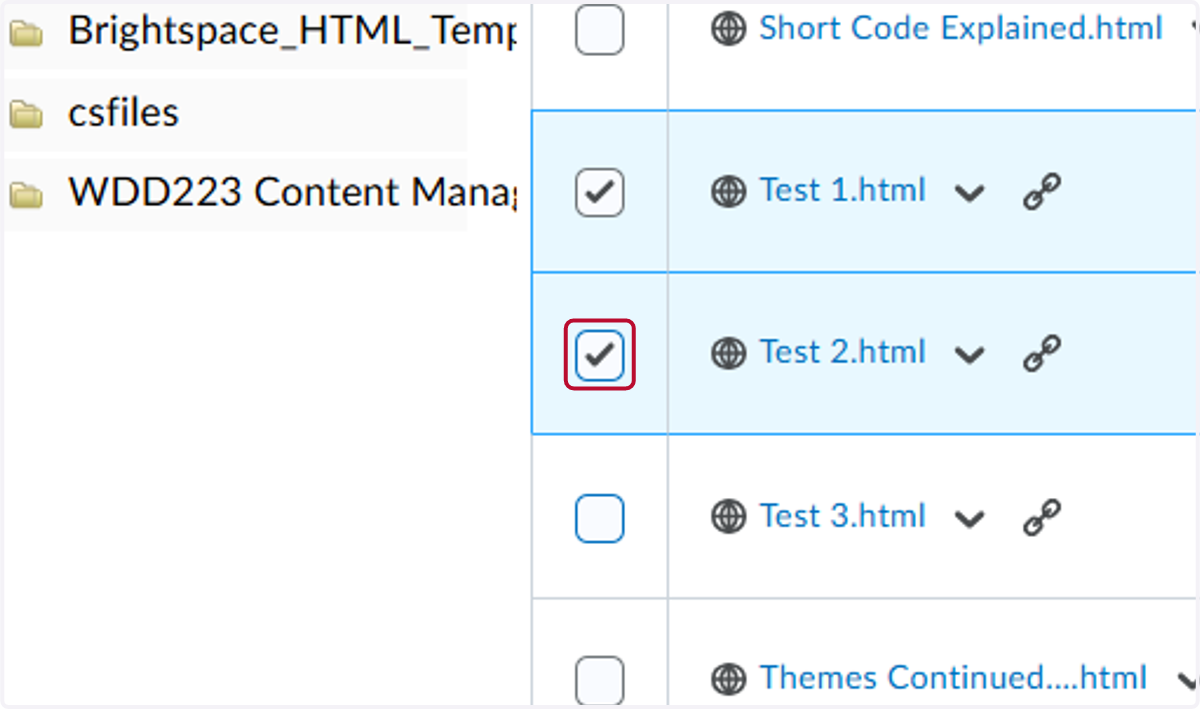
9. Click the third item.
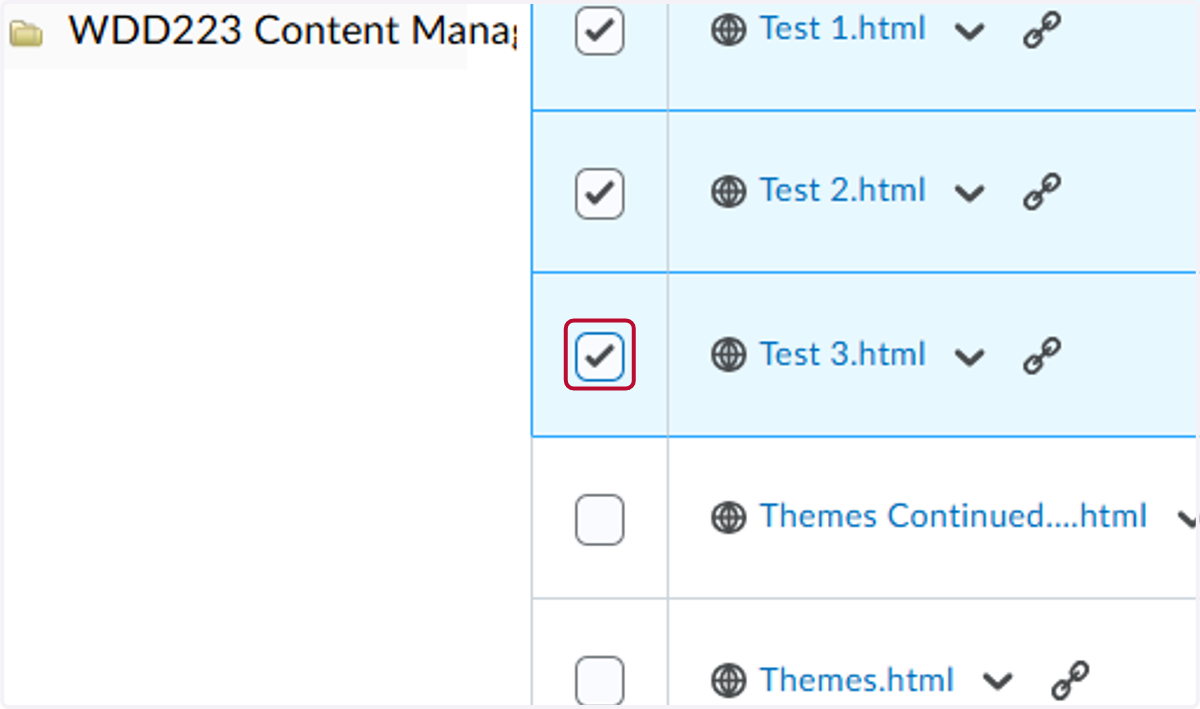
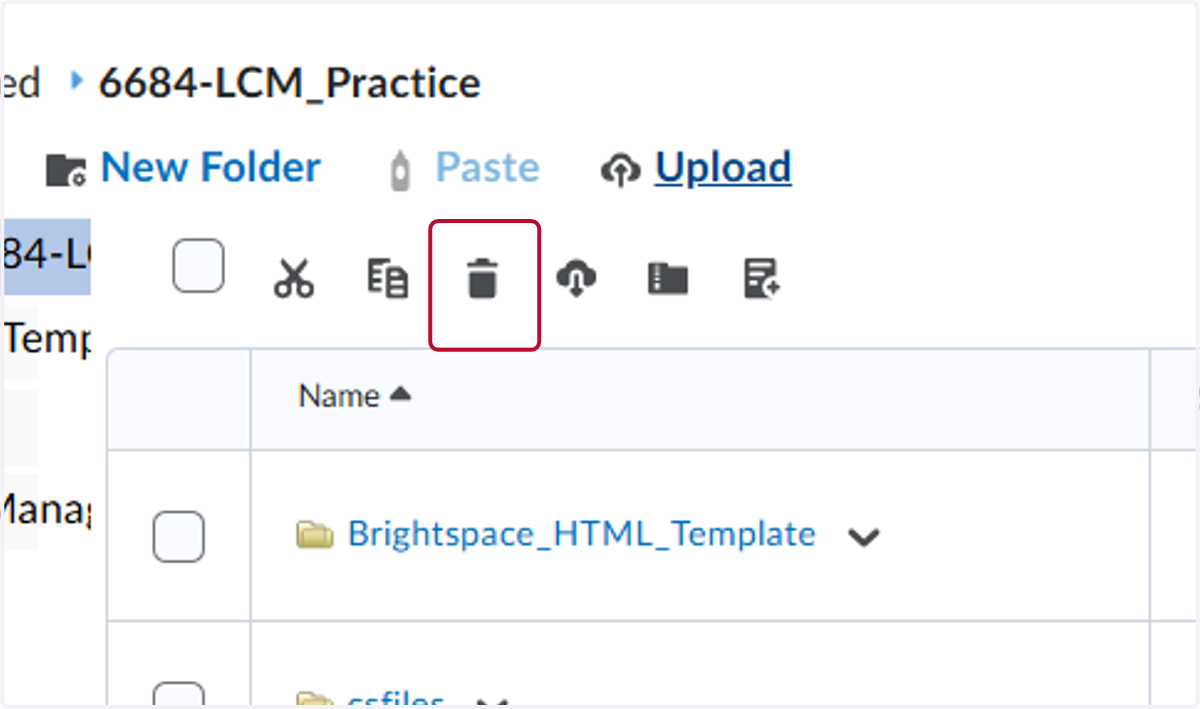
10. Scroll back to the top of the screen and select the trash can icon.
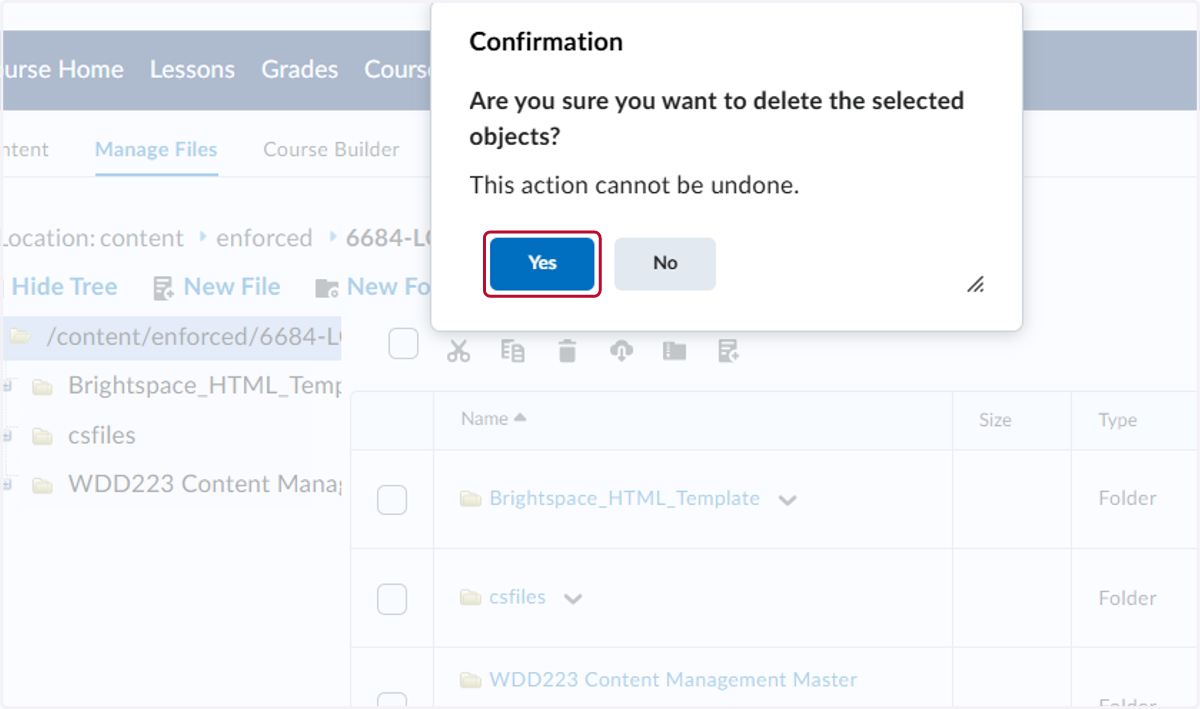
11. Click Yes.
12. On the Lessons tab, review each week's content. You'll discover the files have been removed.