Dashboard — Weekly Status Report
The weekly status report is more than just a routine — it’s your ritual for closing the week with intention. It gives you a moment to pause, reflect, and have an honest conversation with yourself: How did I do? What worked? What didn’t?
This simple habit creates space for feedback and learning — not from others, but from yourself.
Research shows that people who end their week by answering questions like “How did it go?” and “What will I do differently next week?” are up to one-third more successful and significantly happier. Why? Because they build an agile habit of continuous improvement.
They don’t just go through the motions — they experiment. They take small risks. They constantly test better ways of working.
Over time, this mindset compounds.
And that’s how you start achieving twice as much in half the time.
Open Microsoft Teams
1. Open dashboard
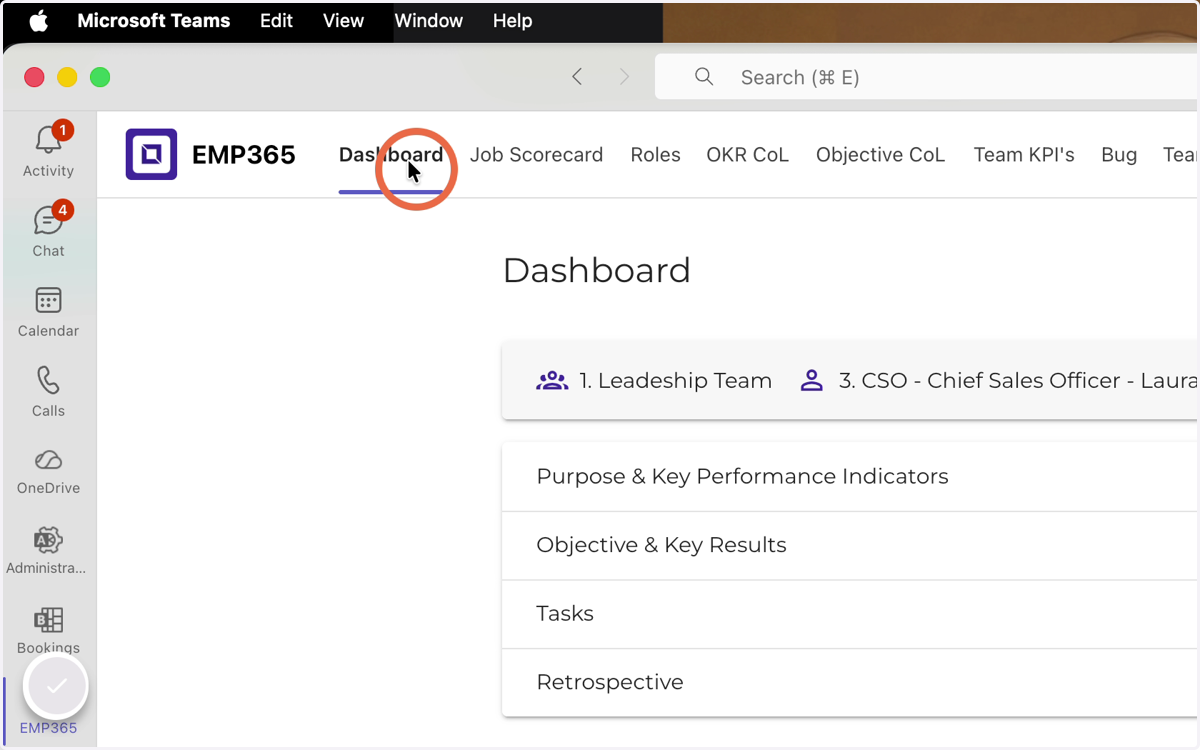
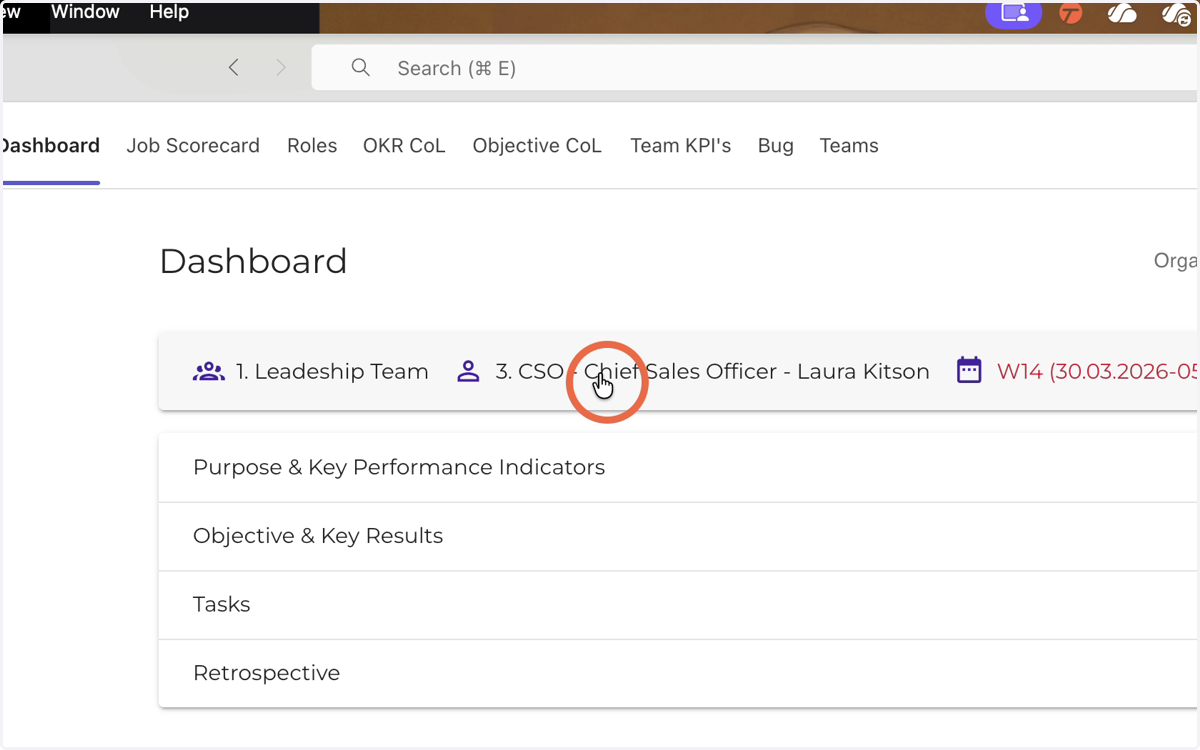
2. Select the role you want to create a status report for
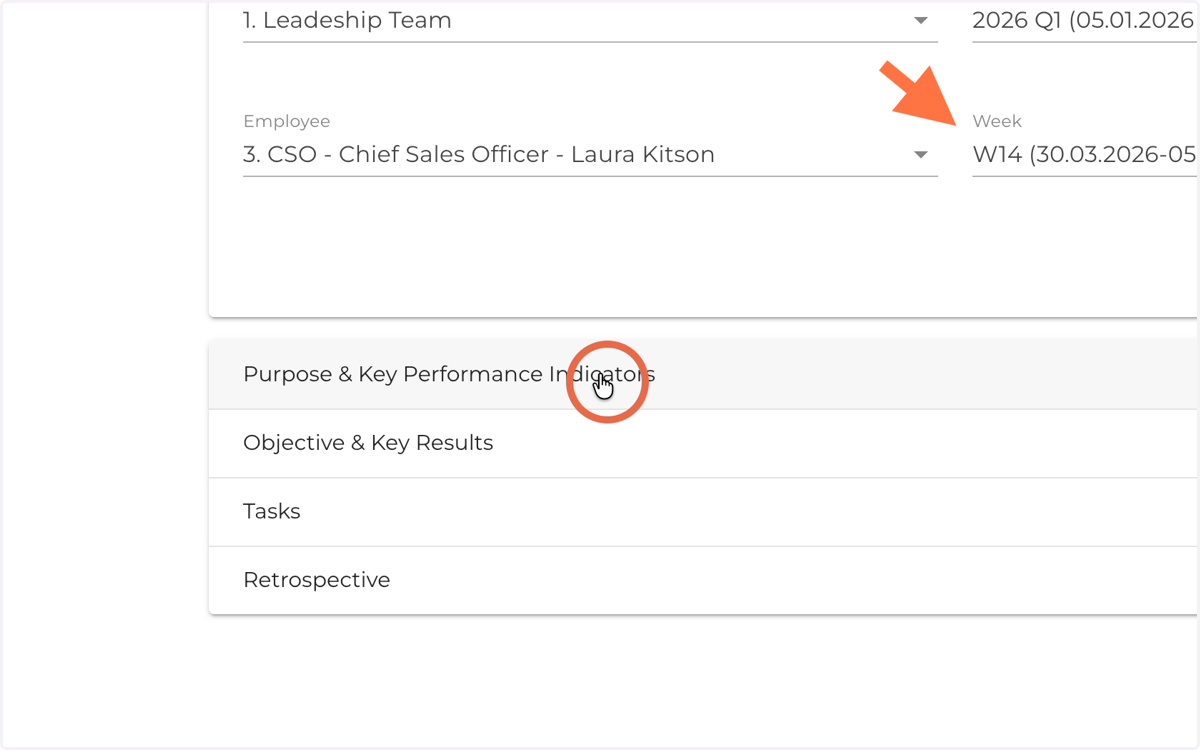
3. Open the ‘Purpose & Key Performance Indicators’ section to update the KPI values
Always enter your data in the new week’s report.
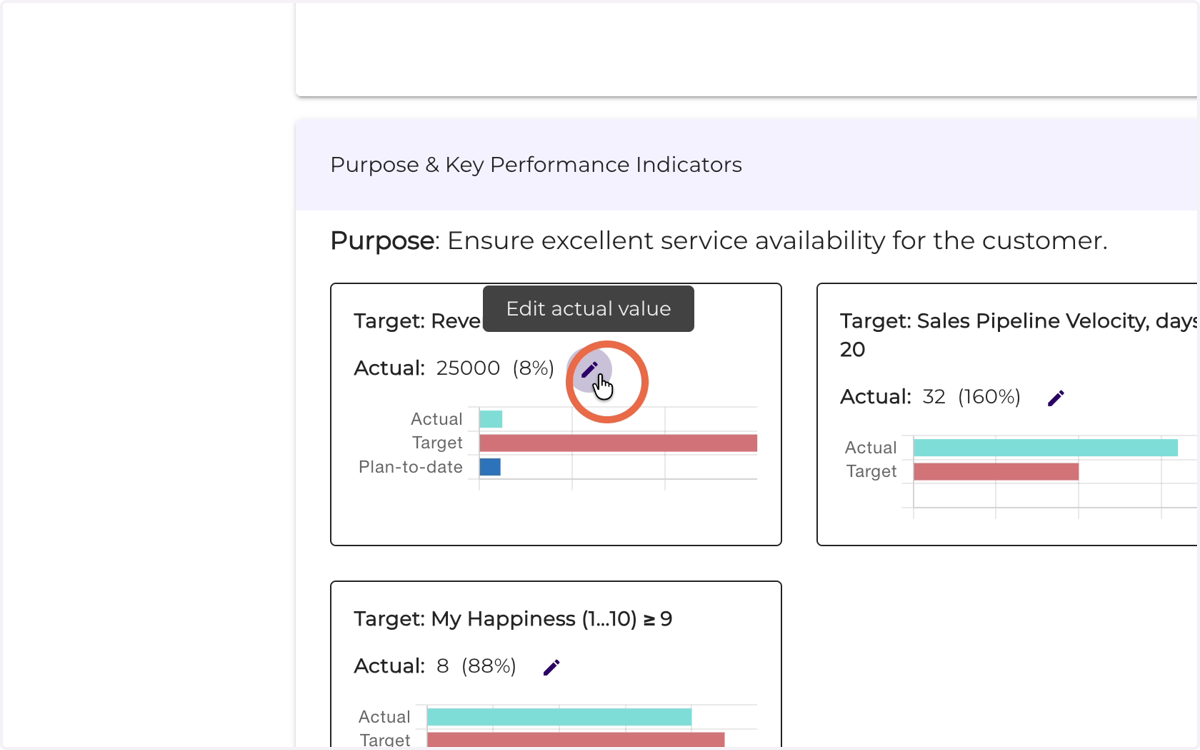
4. Click the pencil icon to edit the KPI value.
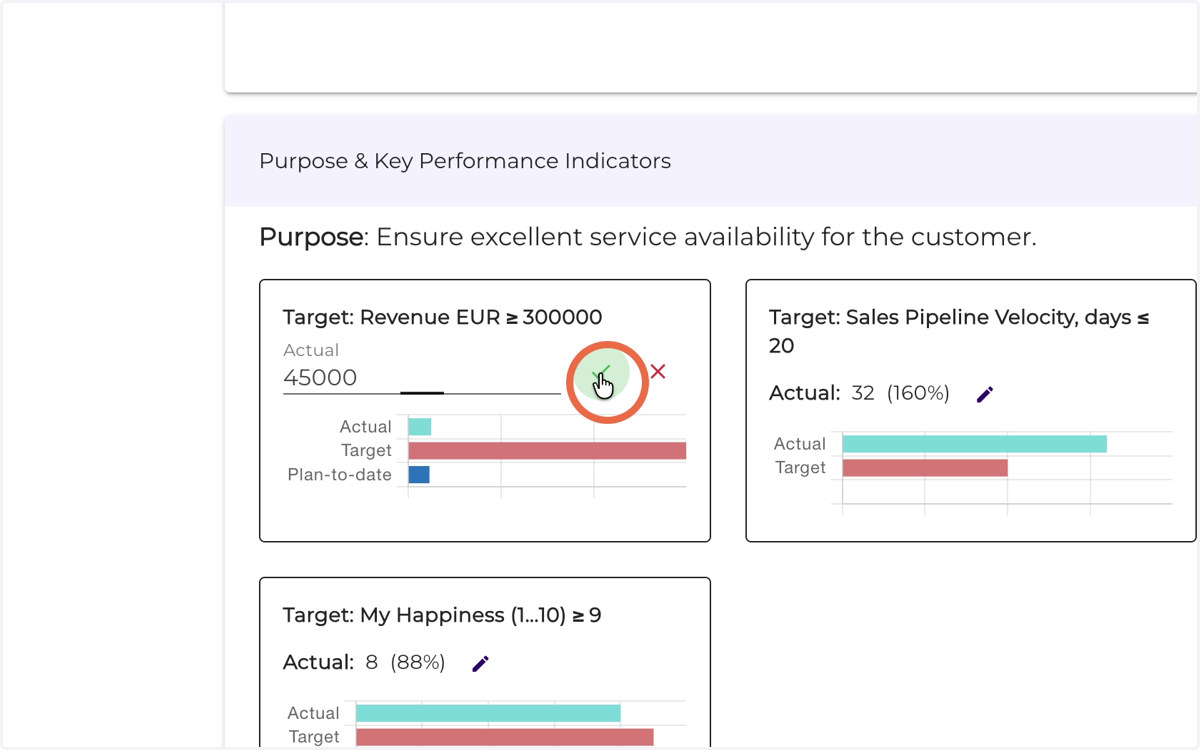
5. Enter the new value and save (click the checkmark)
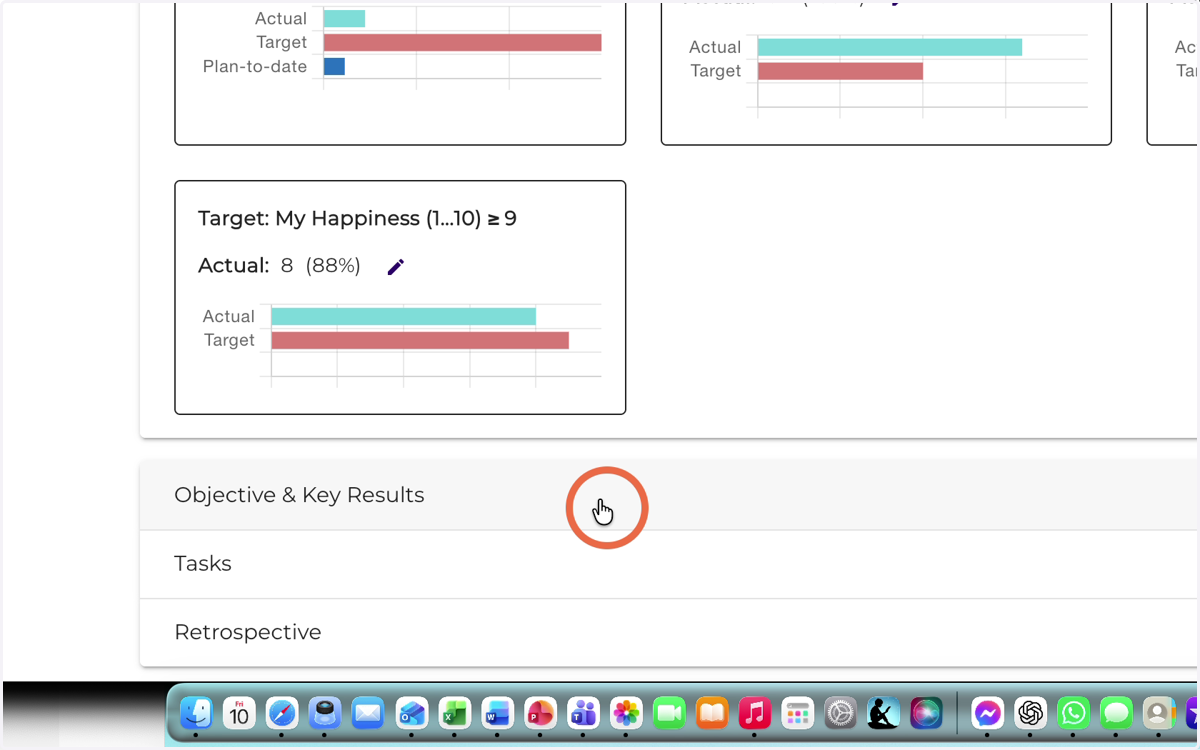
6. Open the ‘Objectives & Key Results’ section
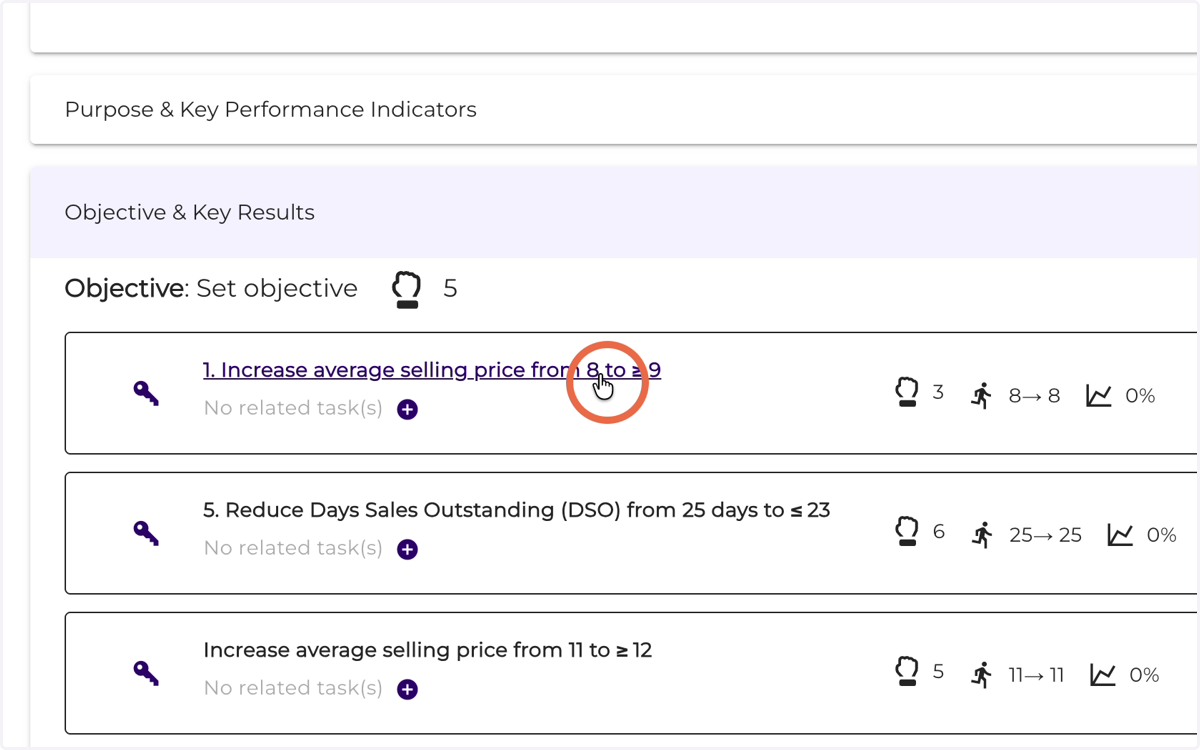
7. Click the key result name to update its status
8. Update the key result value (Actual)
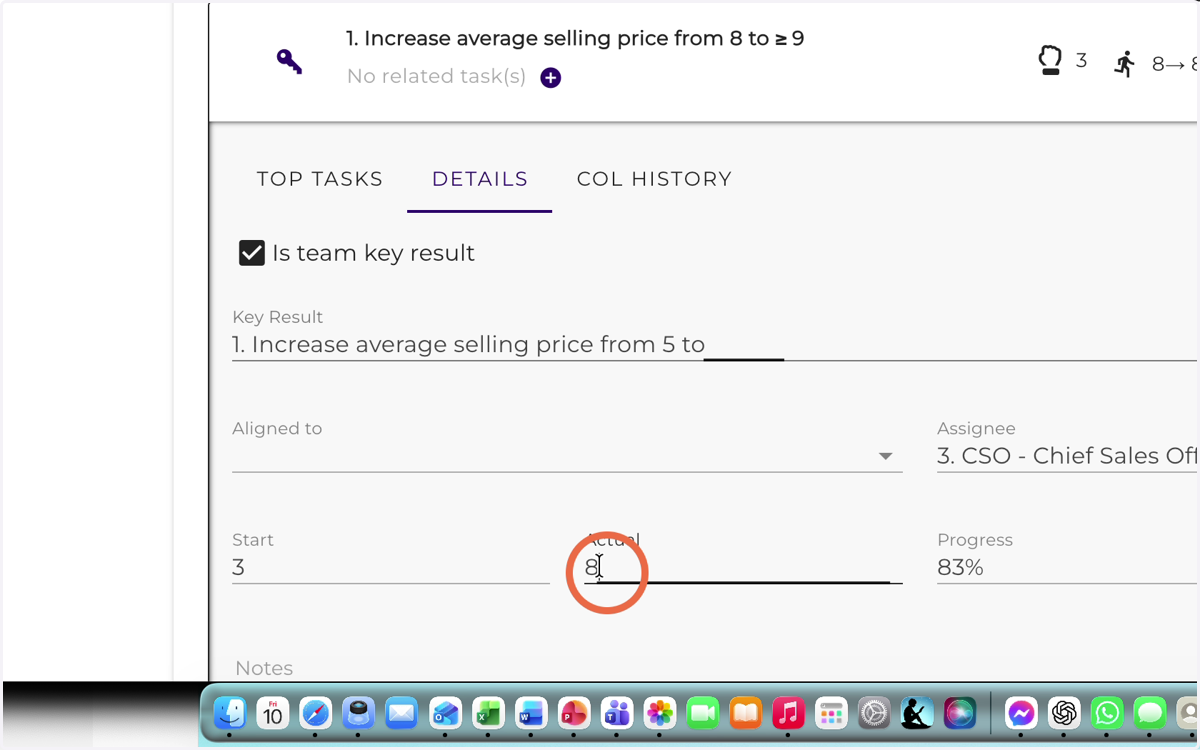
9. On a scale of 1 to 10, how confident are you that you will achieve this key result by the end of the quarter?
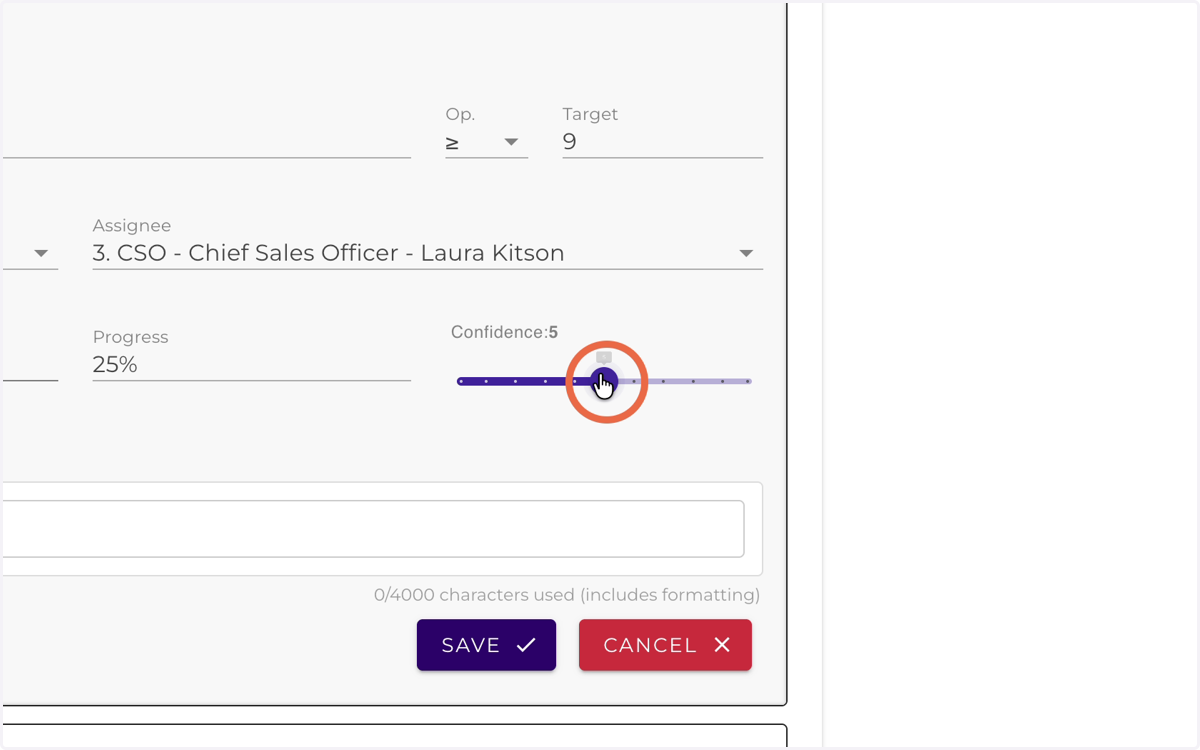
10. Enter the TOP task — the one action that will increase your confidence in achieving the key result by 1 point next week
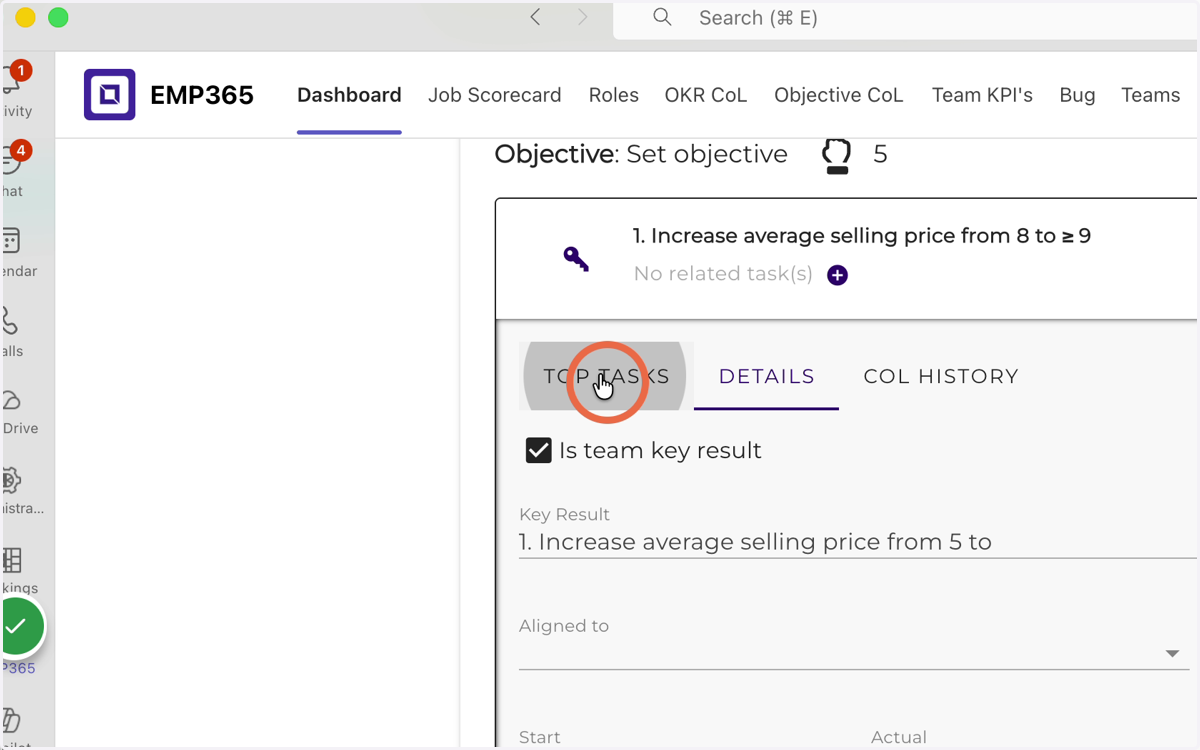
11. Click ‘Add Task’.
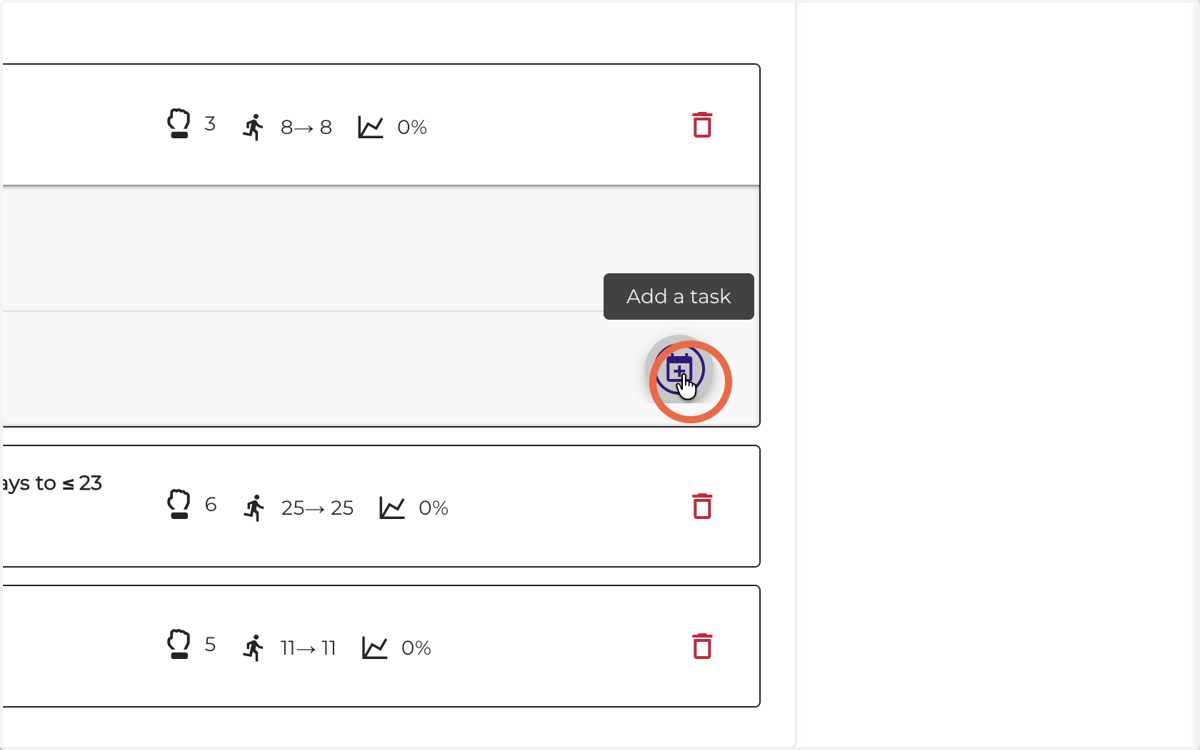
12. Select a time slot when you plan to complete this task
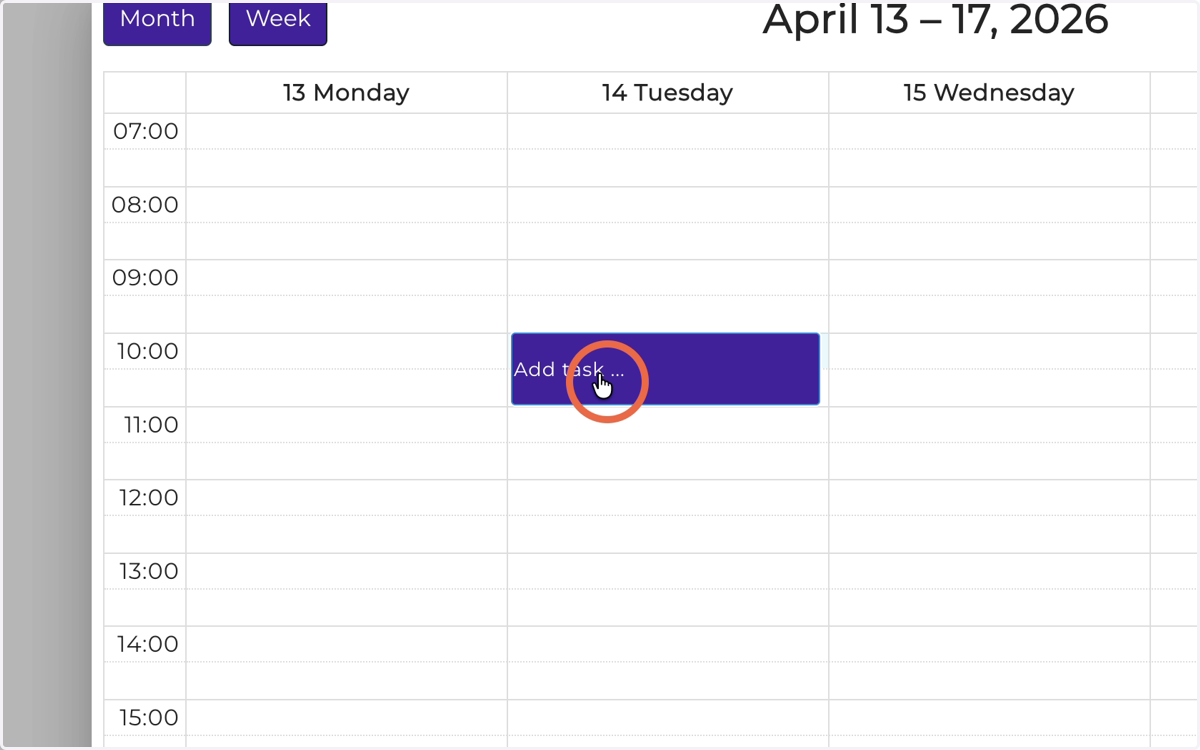
13. Select a time slot when you plan to complete this task and give the task a name
The task name must always meet the Definition of Done criteria.
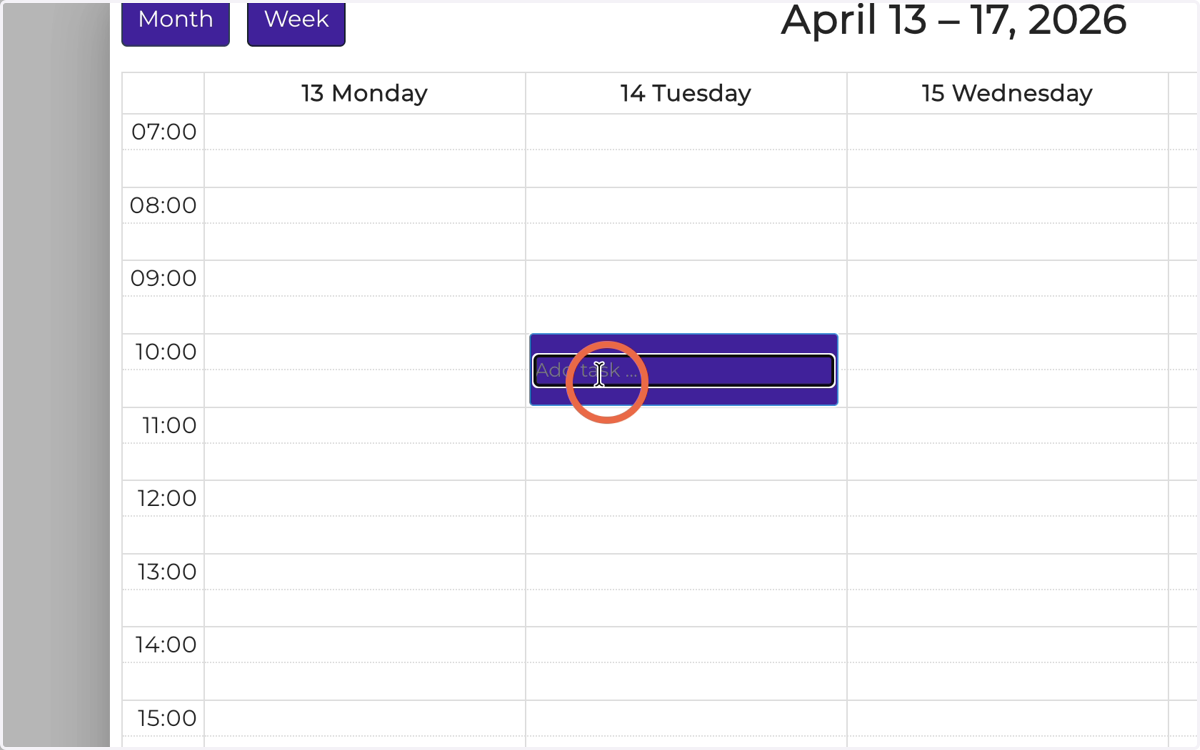
14. Click Save
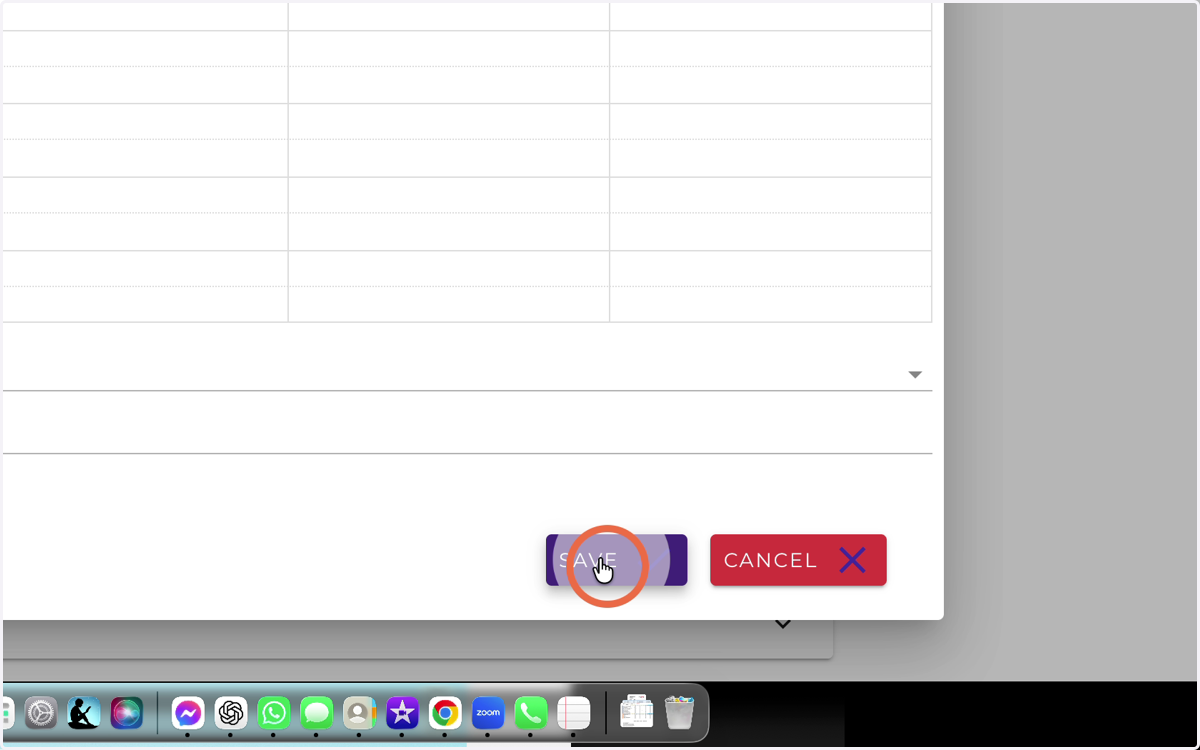
15. Click Tasks
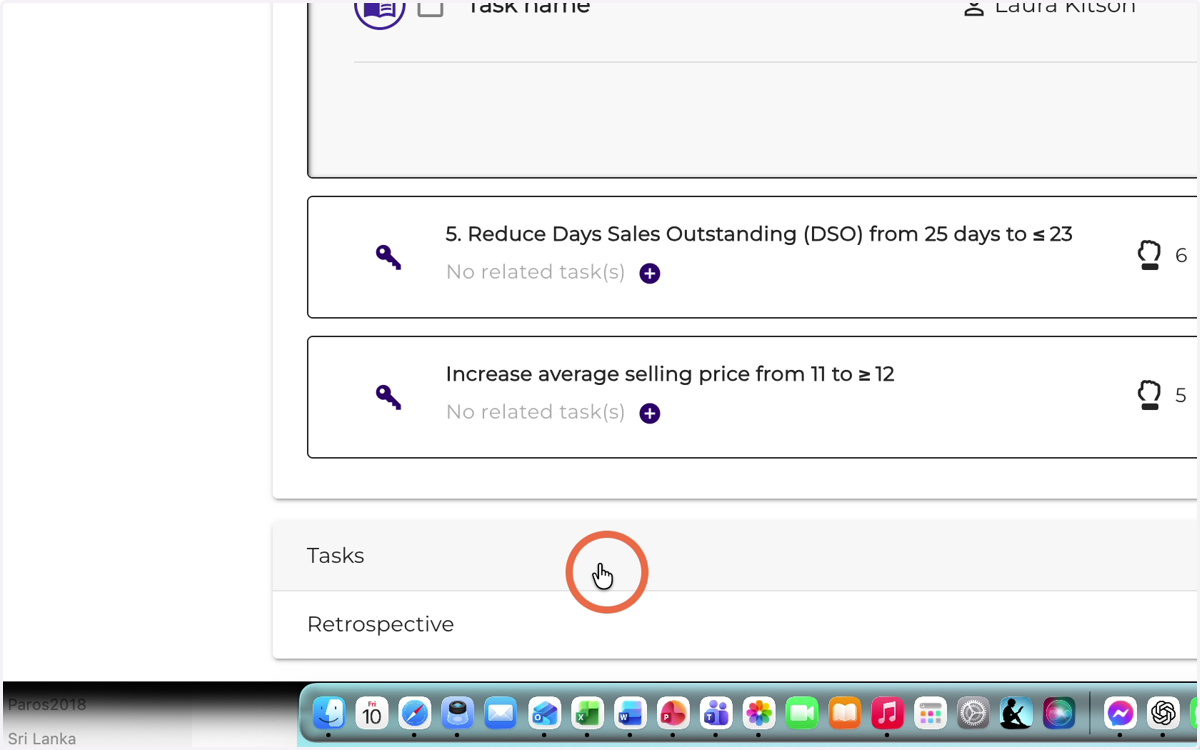
16. By clicking on the key result, you can change which key result the task is linked to.
This section provides a quick overview of your task status.
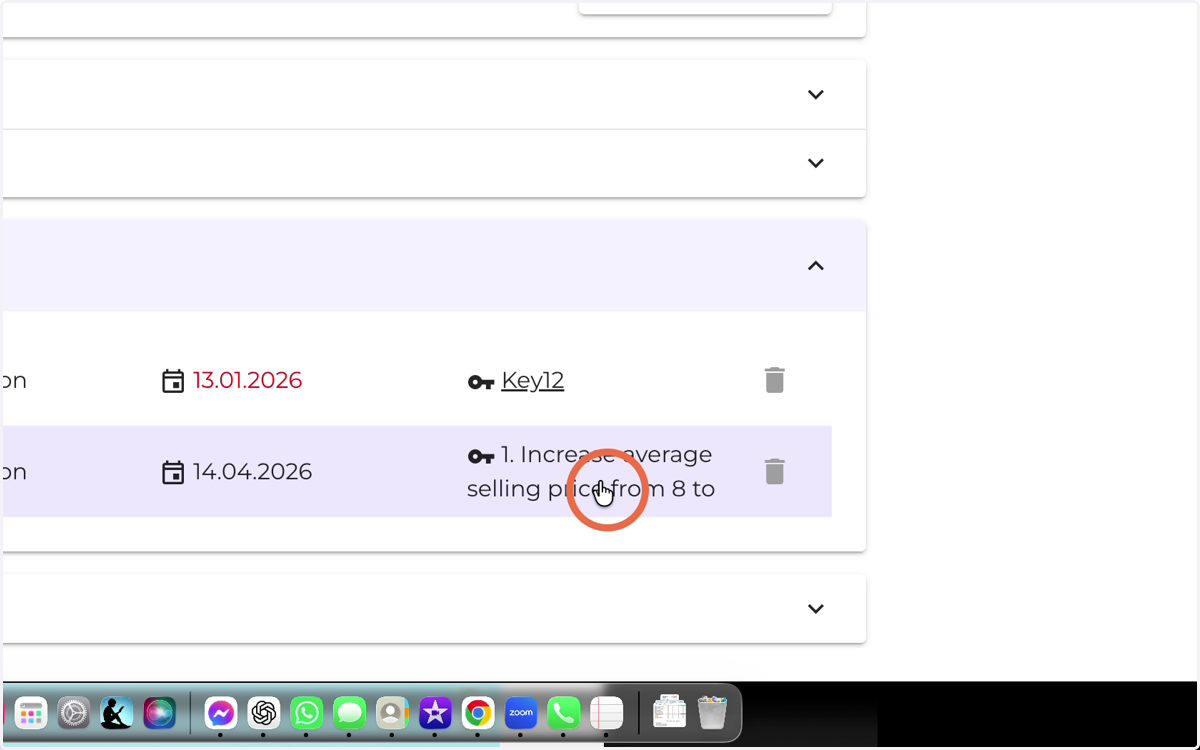
17. Open the ‘Retrospective’ section
The purpose of this section is to help you reflect weekly — to assess how well you executed your plans, what impact your actions had on achieving key results and objectives, and to create a continuous learning loop for finding better solutions. Agility gives you the speed and confidence to take small risks.
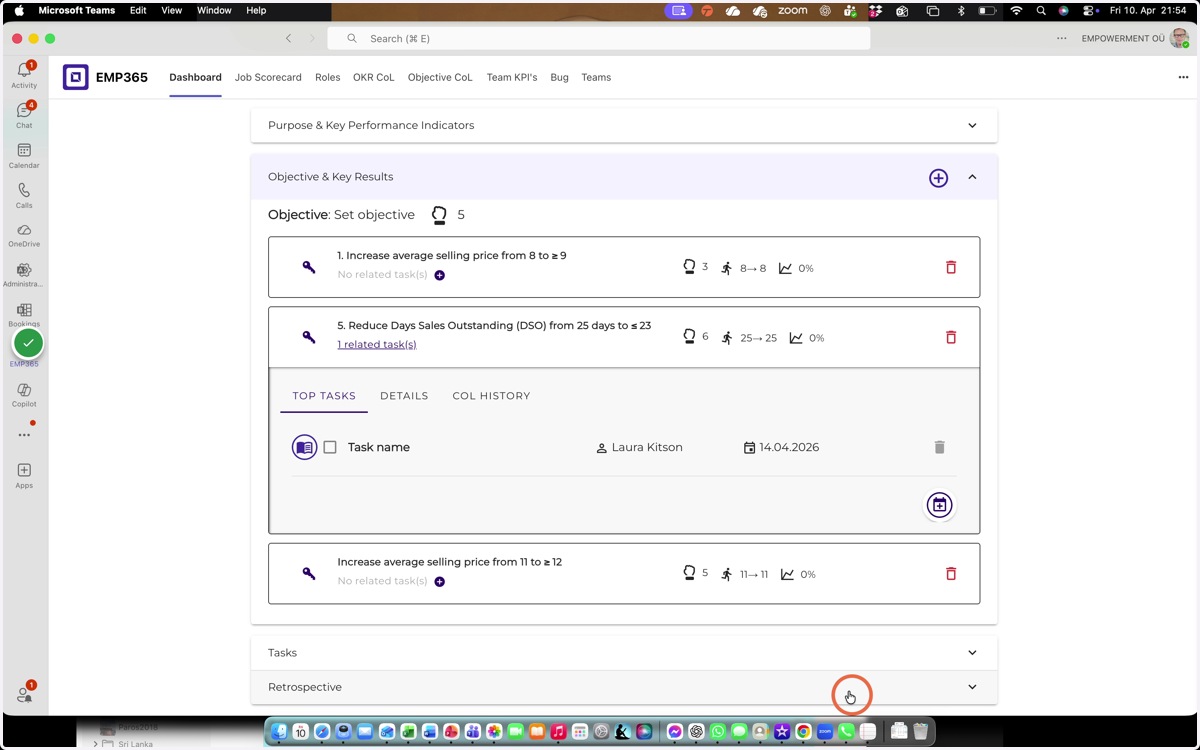
18. Parking Lot — If you encounter obstacles in completing your weekly tasks and need support from the team or a team member, add your request for help here
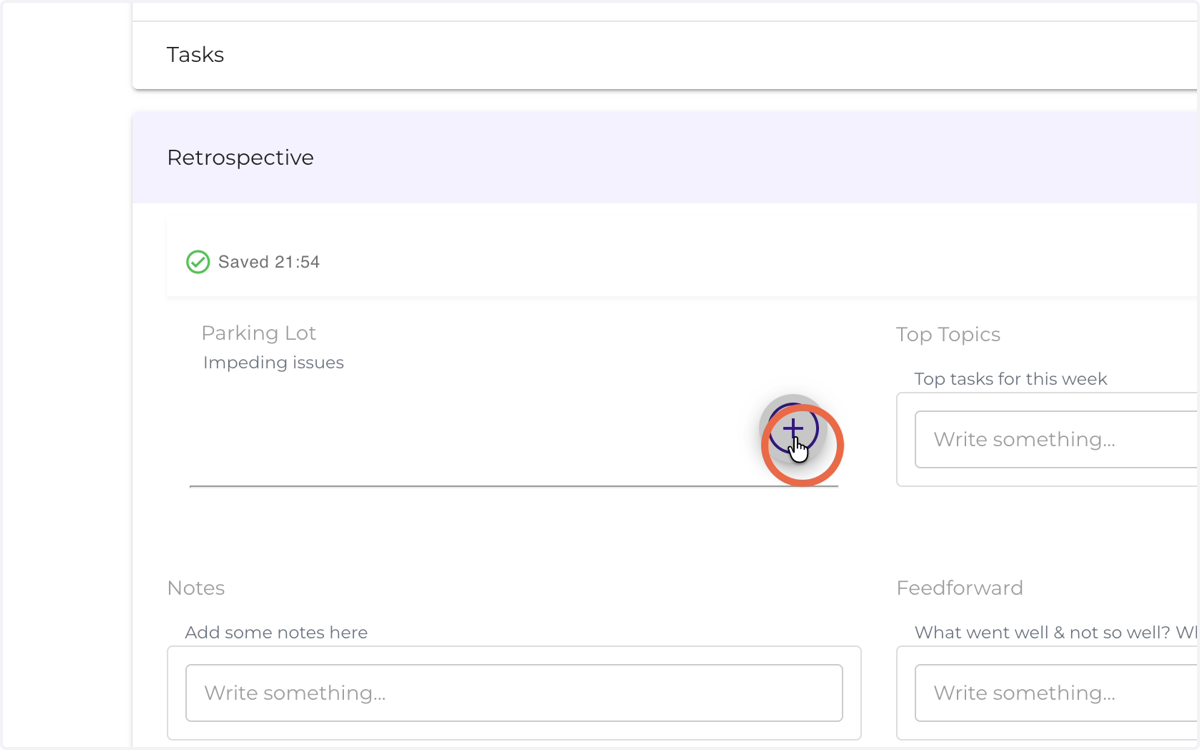
19. Select from the list who to send the Parking Lot request to
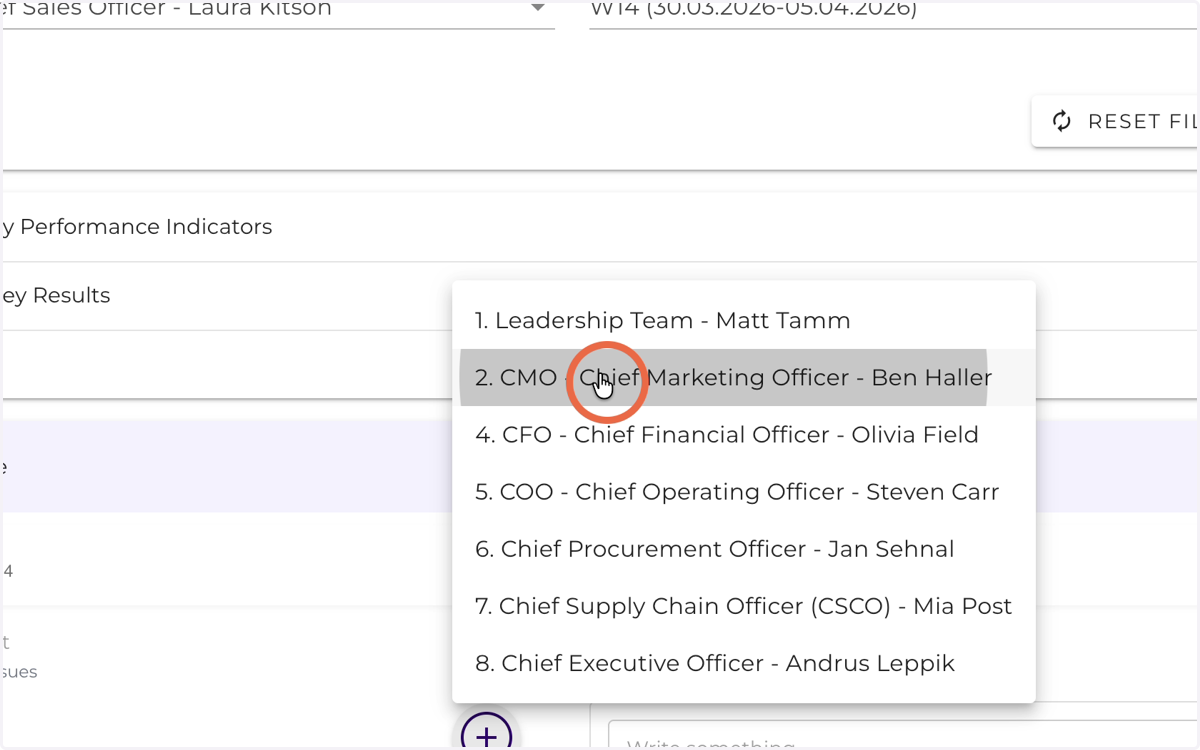
20. Enter your request, and if needed, you can add a hyperlink to the supporting document
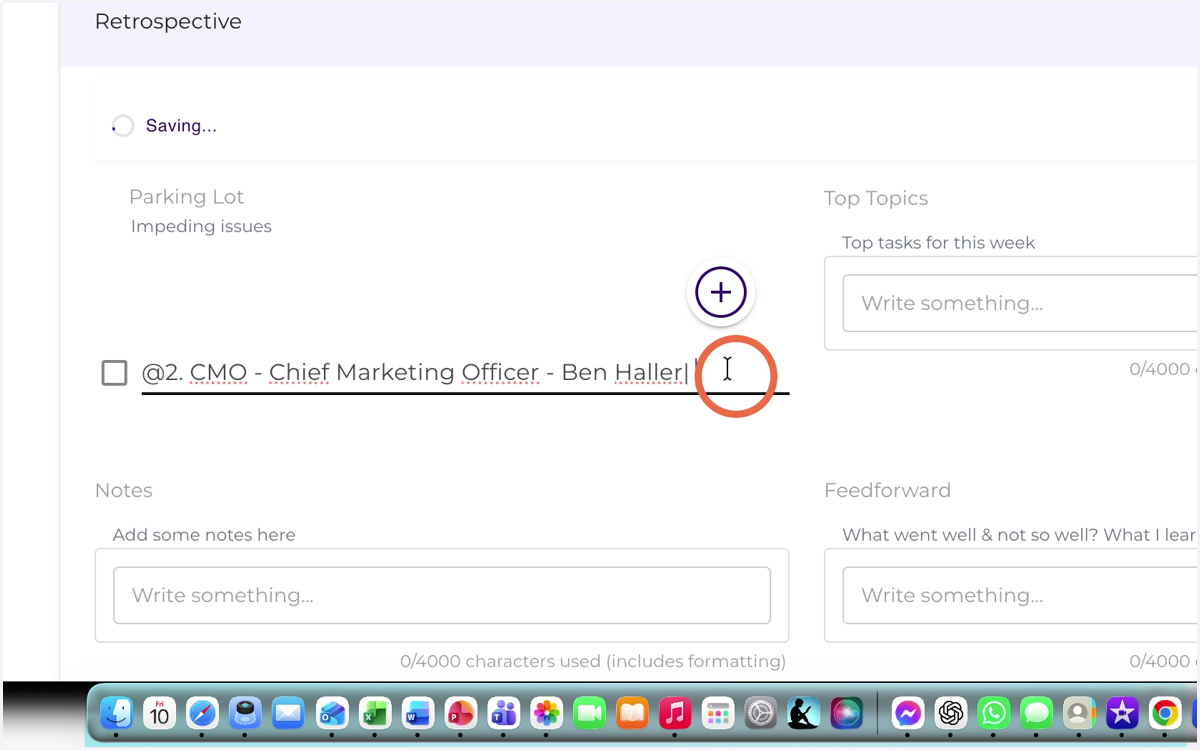
21. Enter any information you need to share with the team, such as being absent or noting an important event.
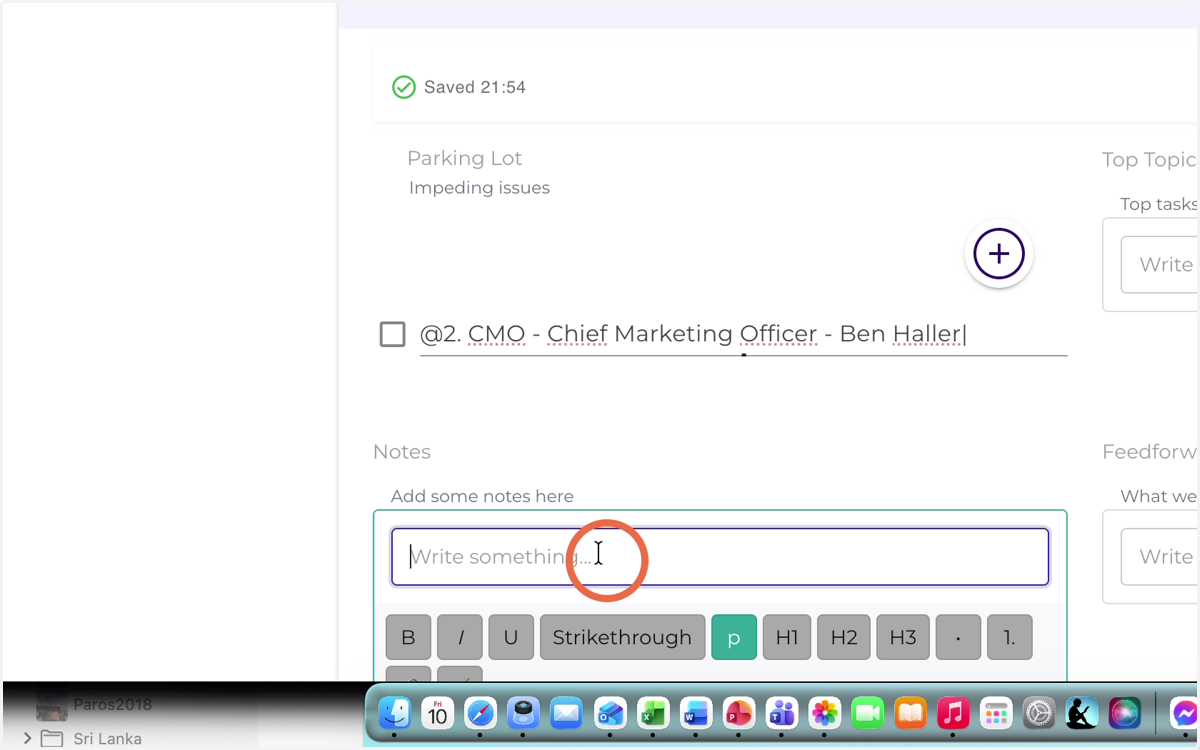
22. Enter the TOP tasks you plan to complete next week
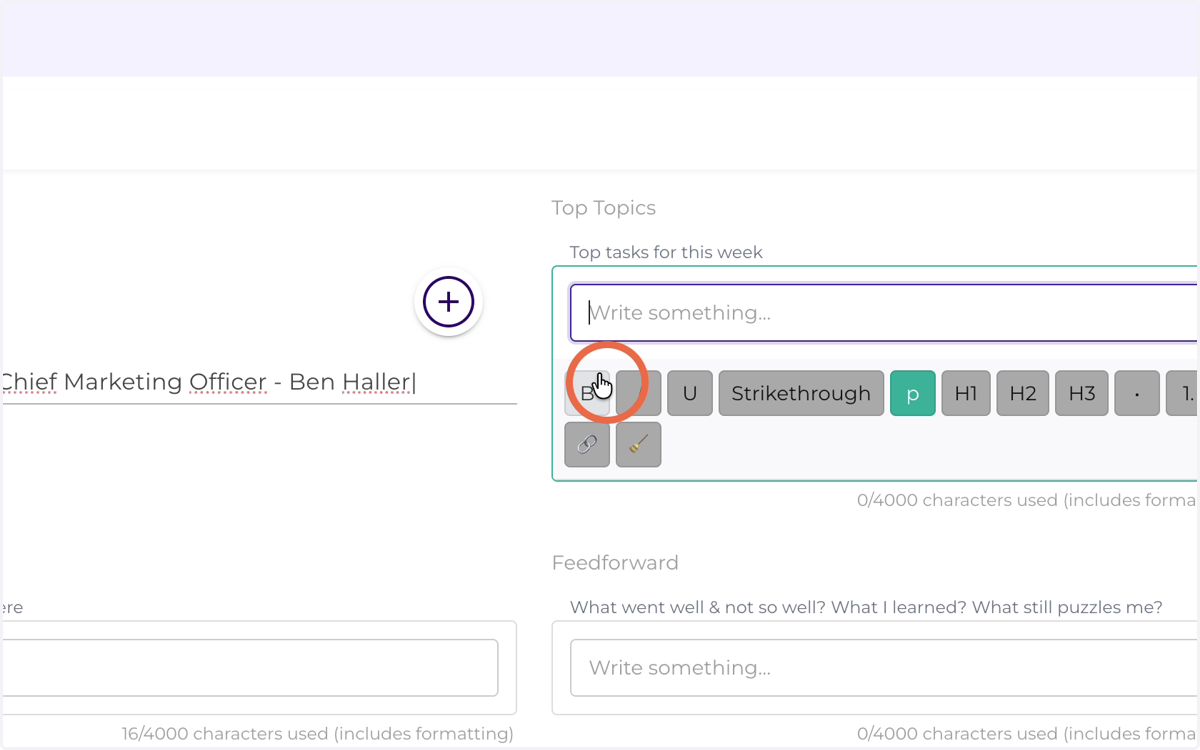
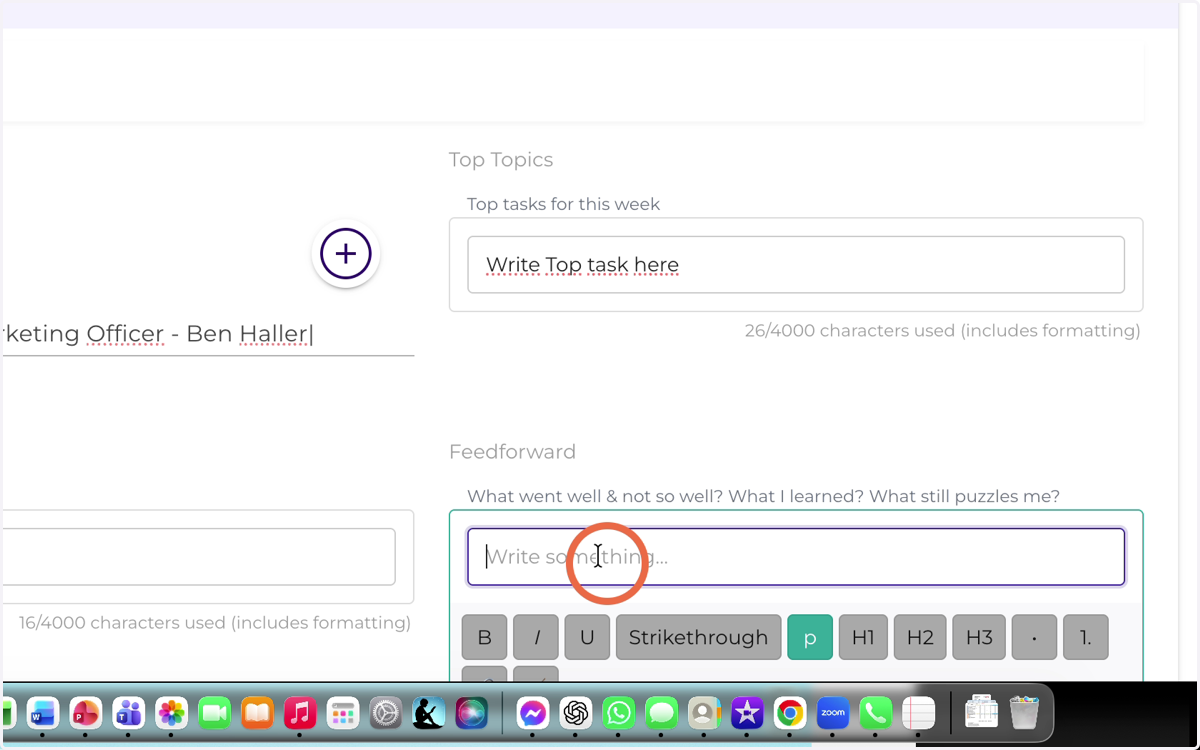
23. In the Feedforward field, briefly summarize your week — what went well, what didn’t, what you learned, and what you will do differently next week to be more effective and successful.”