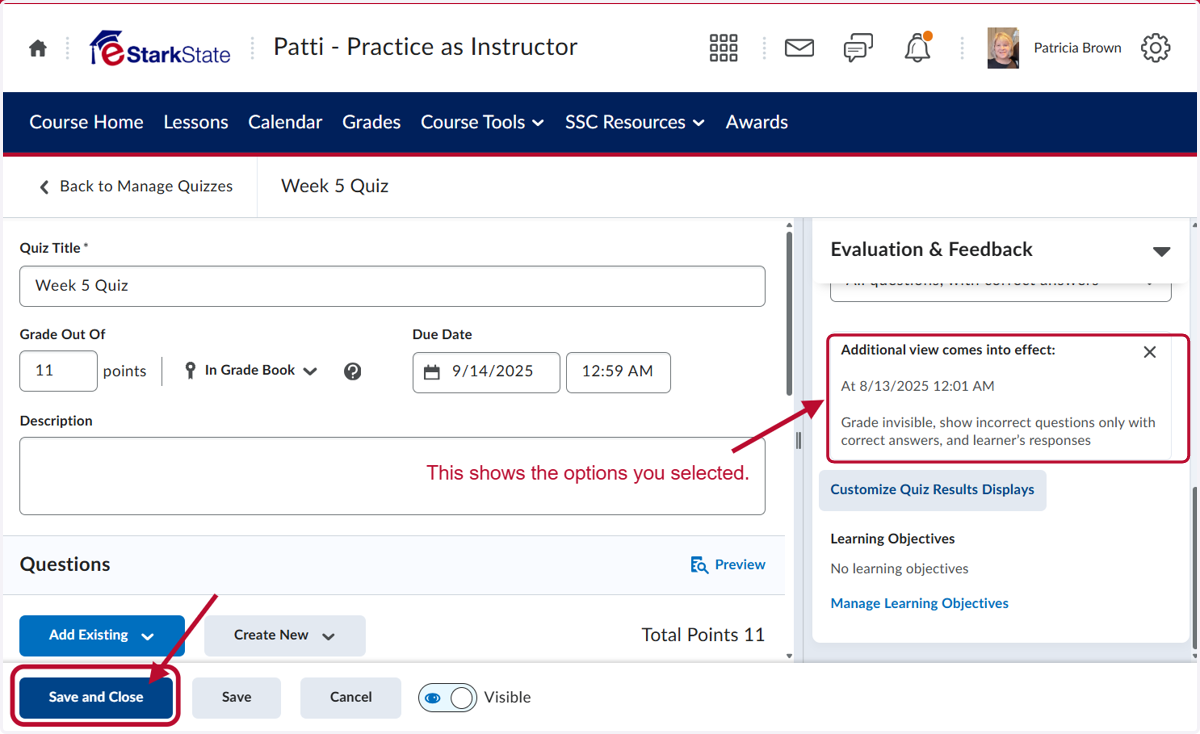
Custom Feedback for a Quiz
This tutorial will show you how to add more than one feedback view.
Homepage - Patti - Practice as Instructor
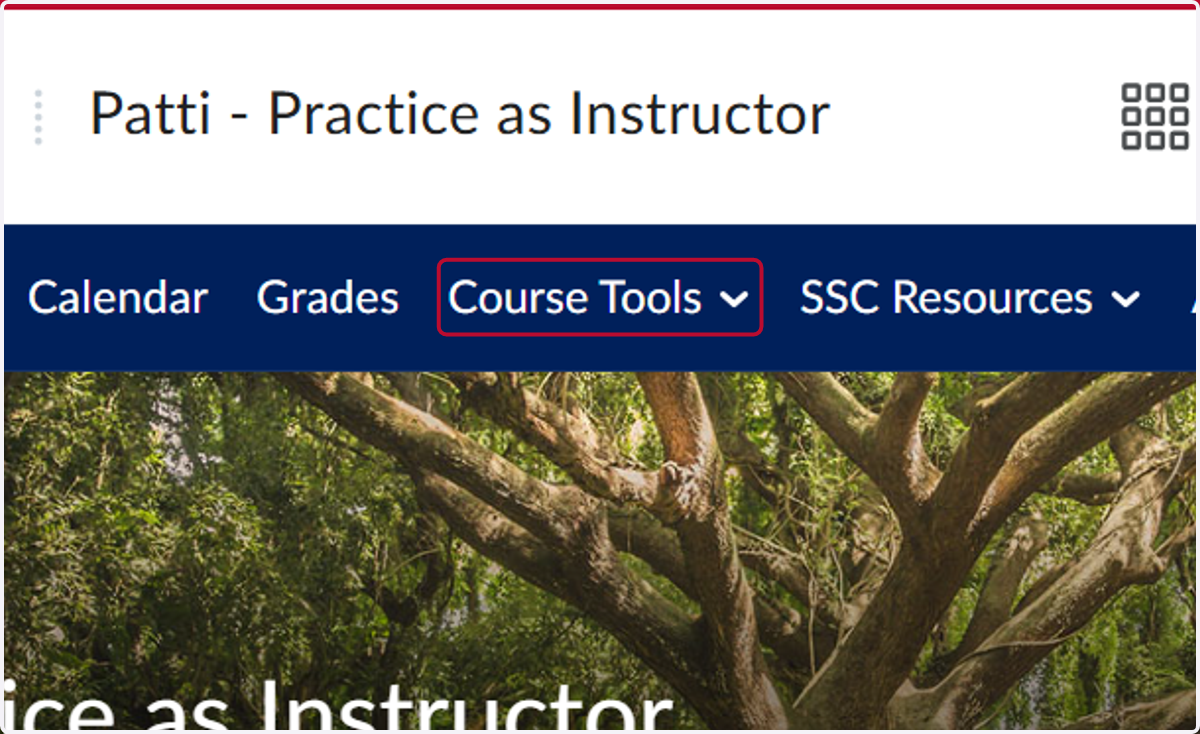
1. Click on Course Tools
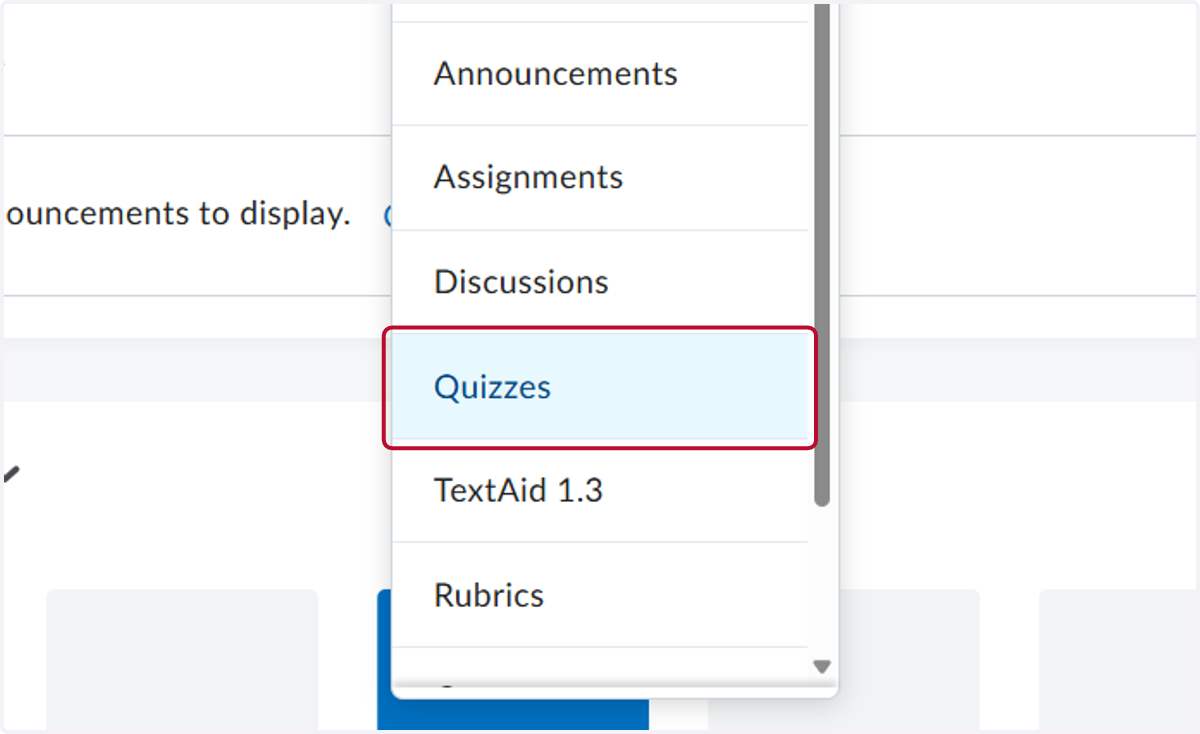
2. Click on Quizzes
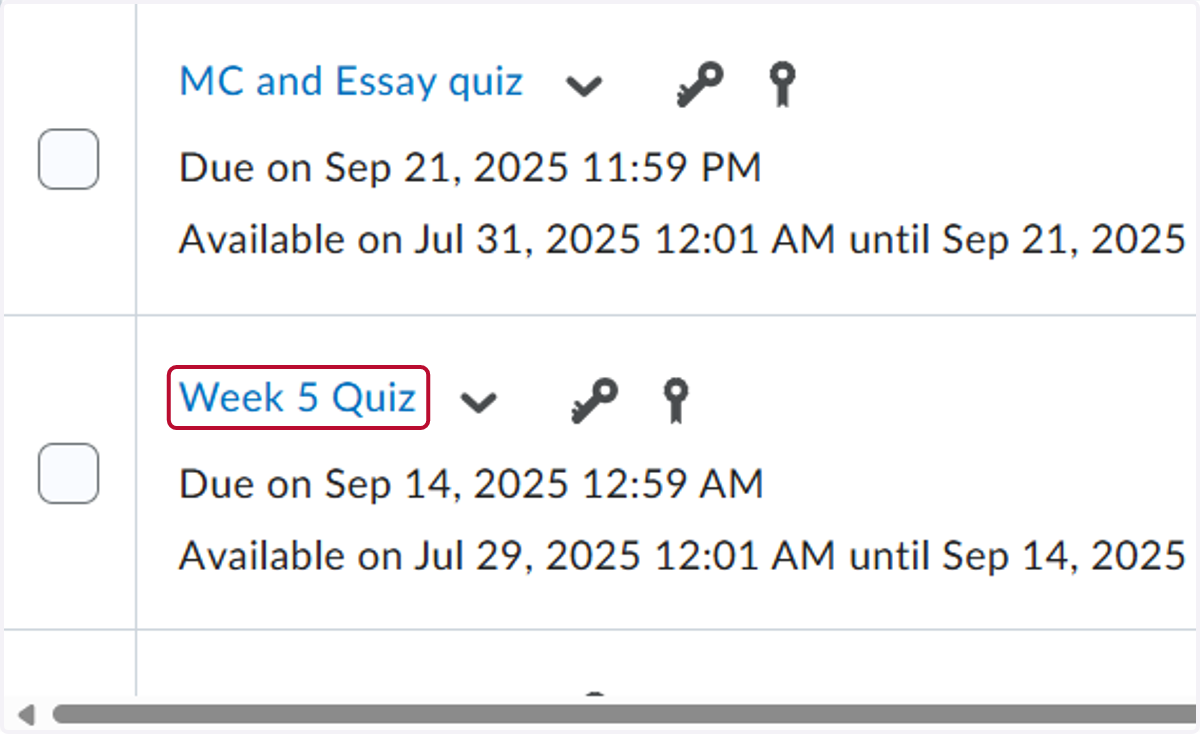
3. Click on the quiz you want to change. In our example we selected Week 5 Quiz
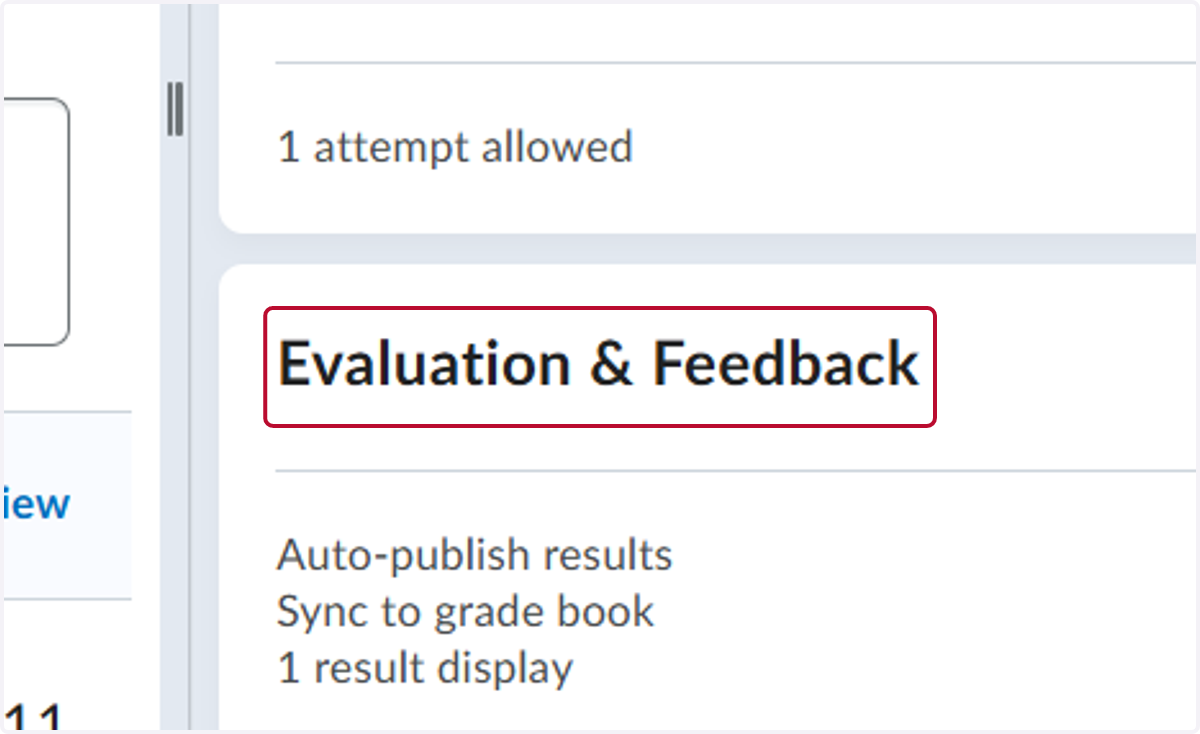
4. Click on Evaluation & Feedback
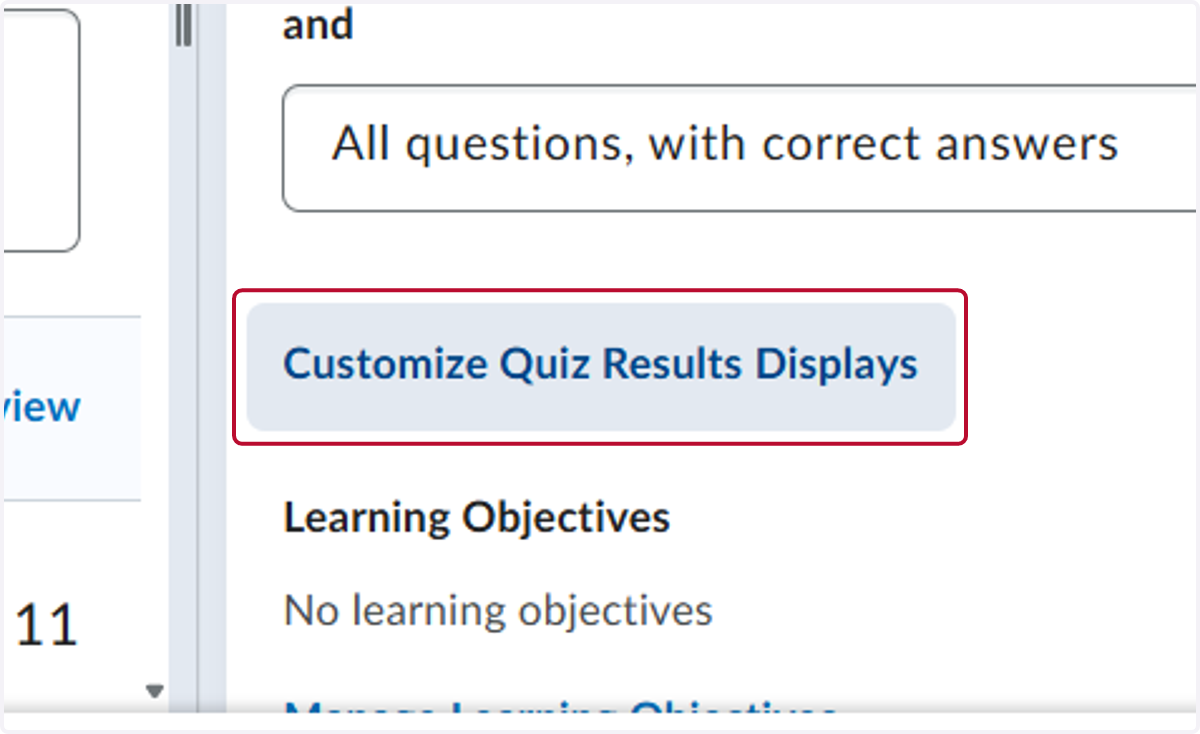
5. Click on Customize Quiz Results Displays
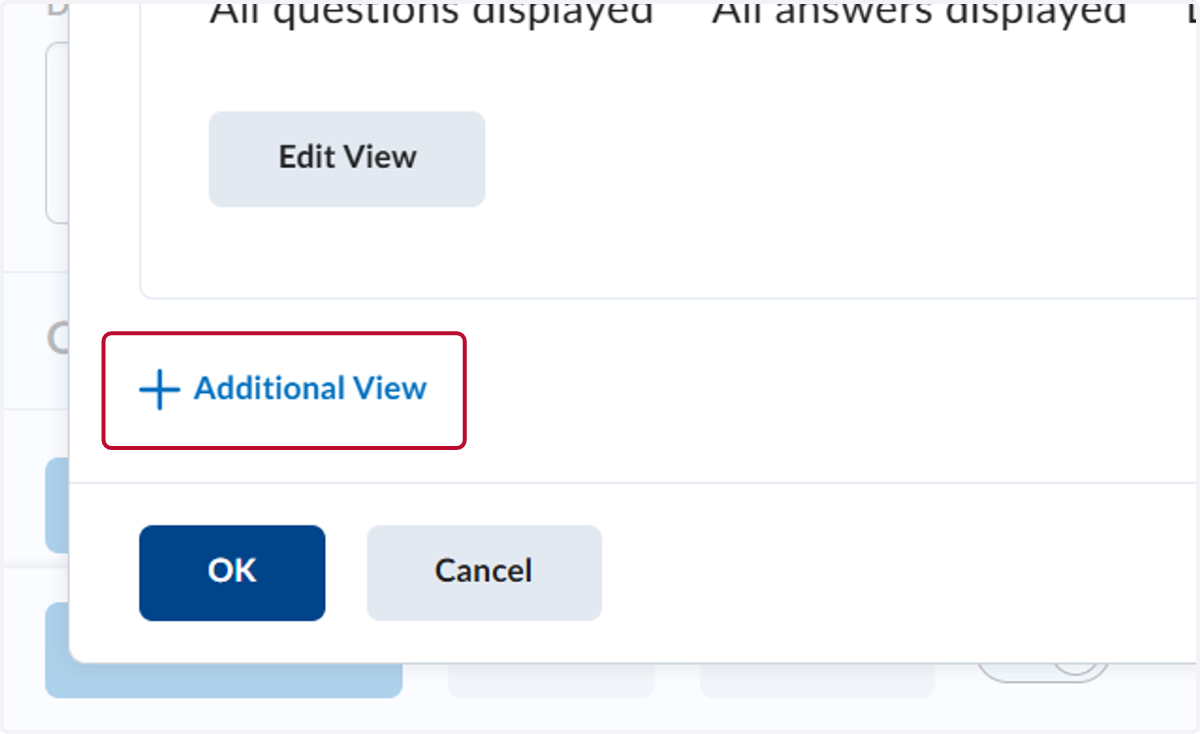
6. Click on +Additional View
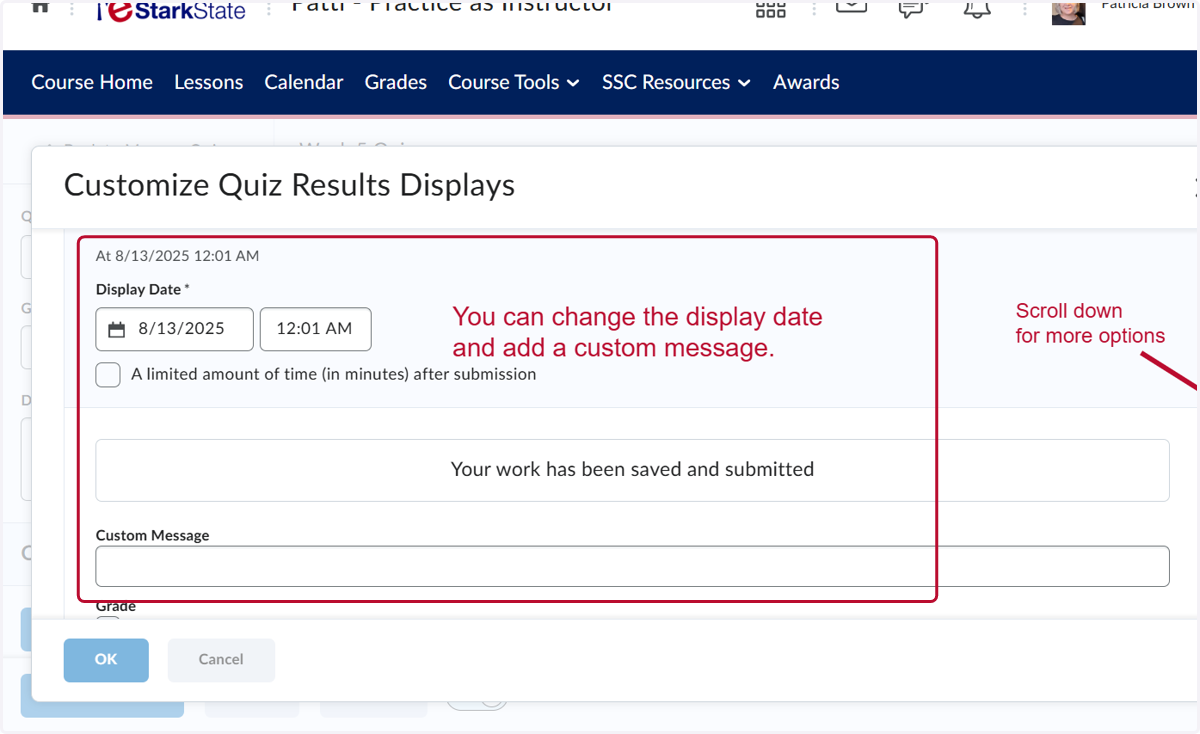
7. You can change the display date and add a custom message. Scroll down for more options.
8. Select Incorrect questions only with learner’s responses from Questions
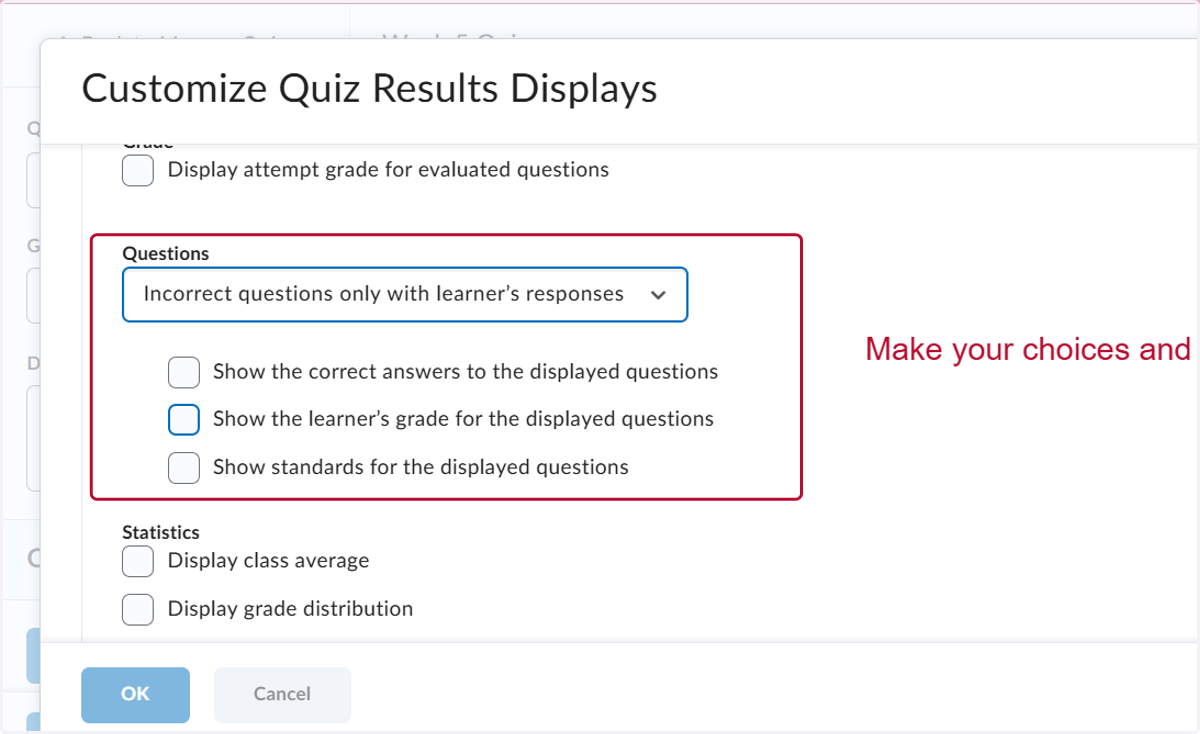
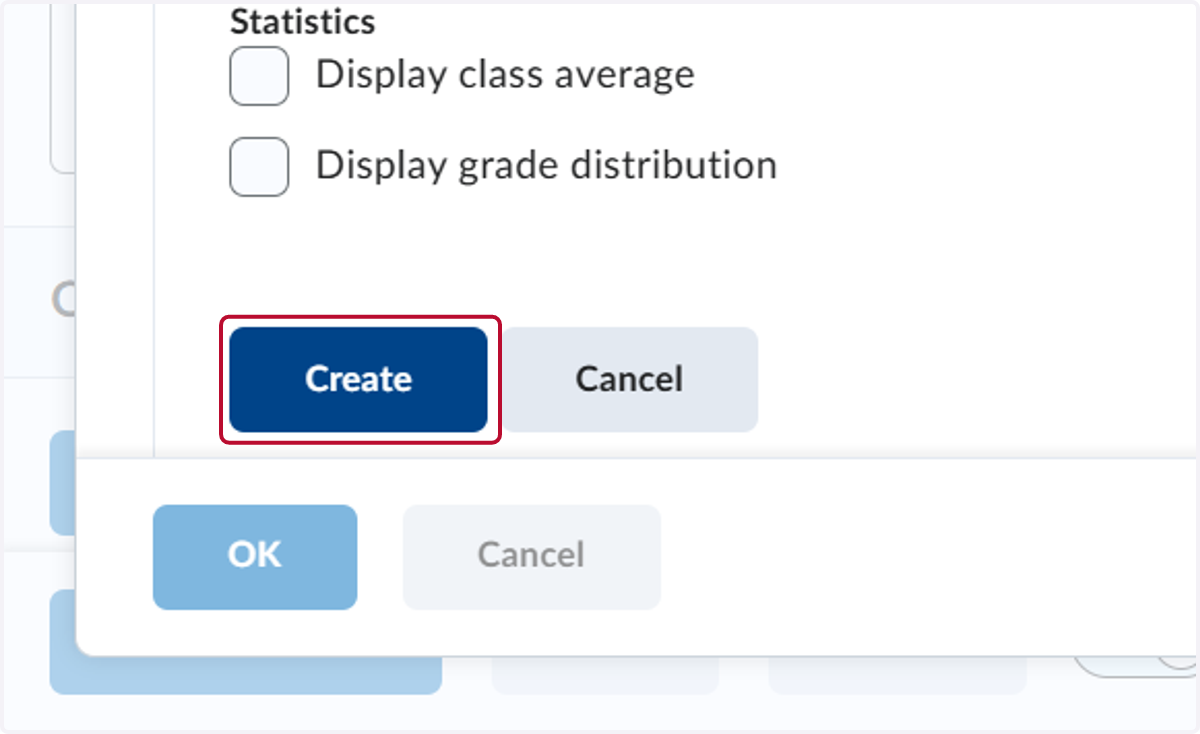
9. Click on Create when you have finished
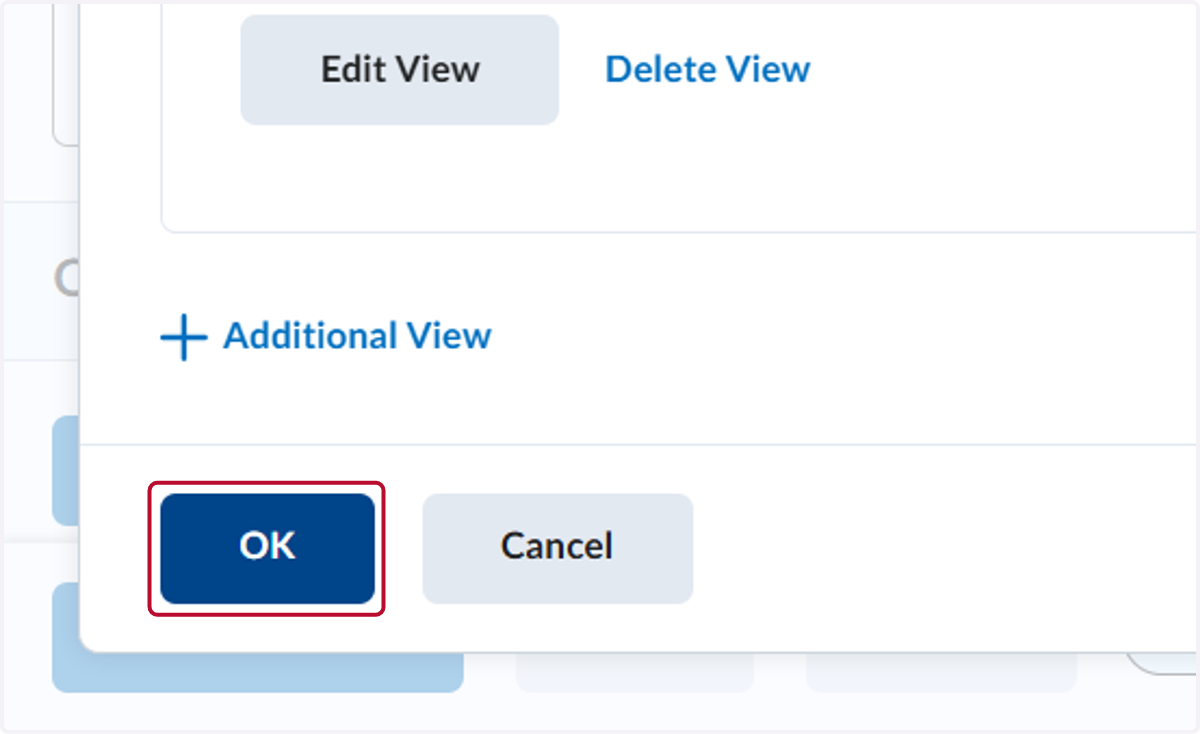
10. Click on OK
11. Click on Save and Close