Creating and Managing Social Media Posts in HeyOrca
HeyOrca | The Social Media Scheduler for Teams
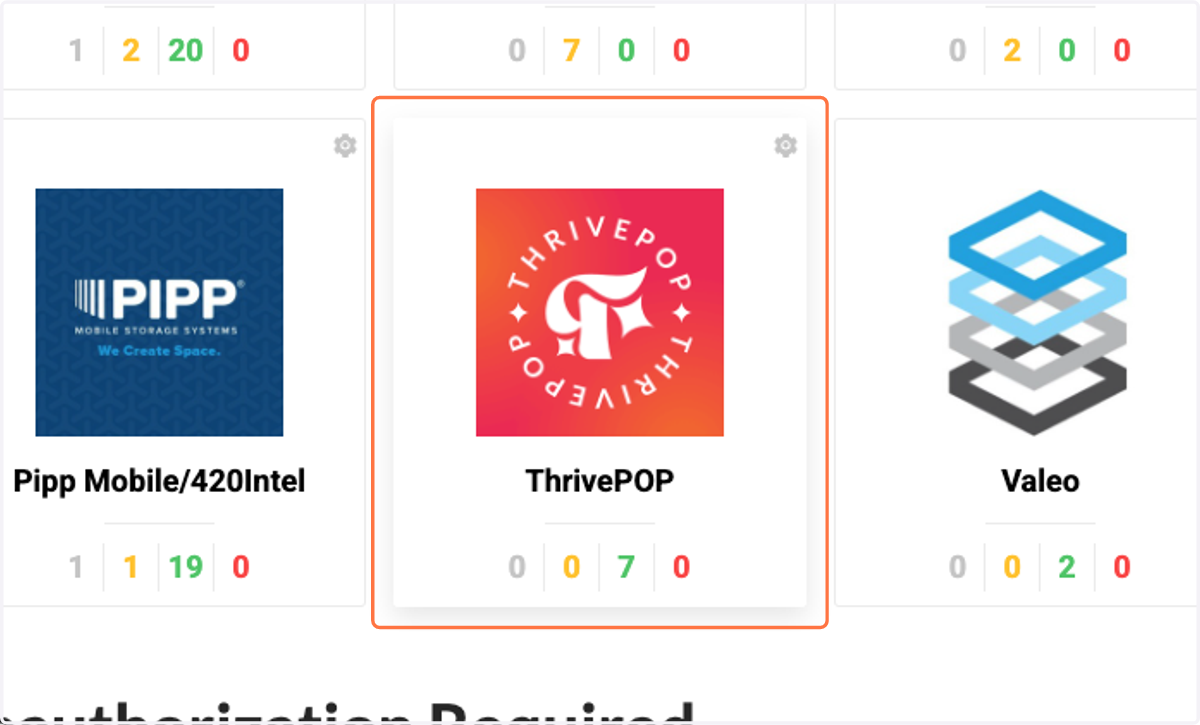
1. Click on the account you want to post on
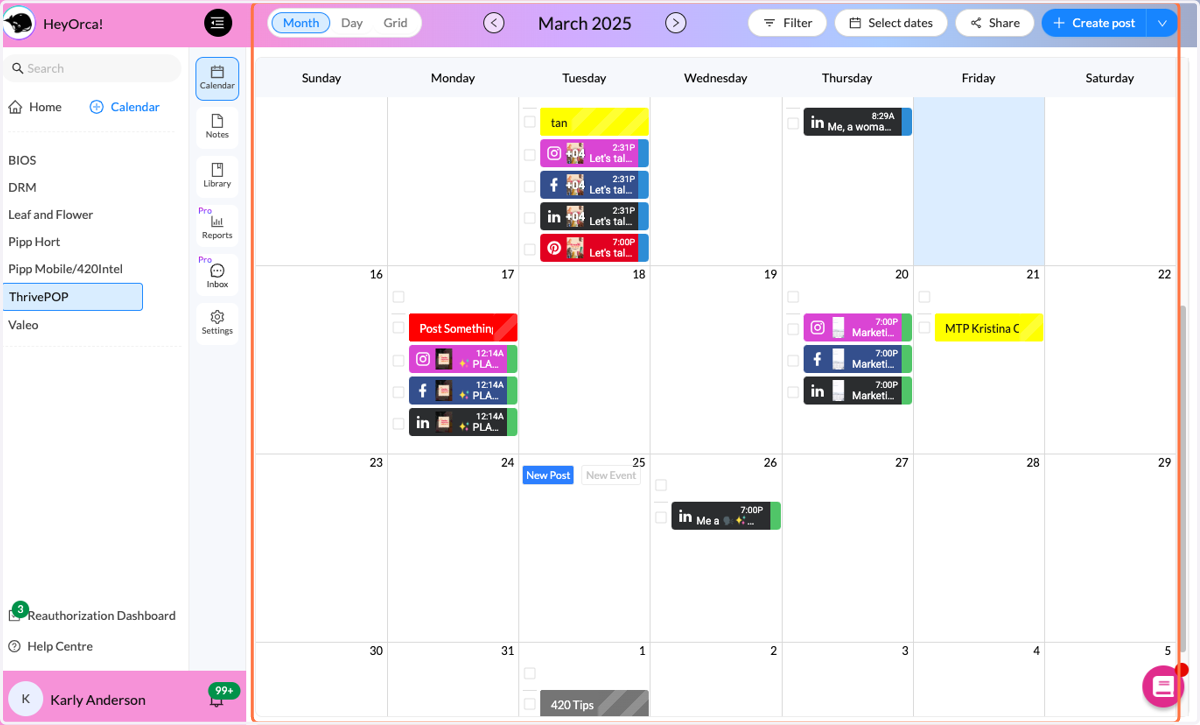
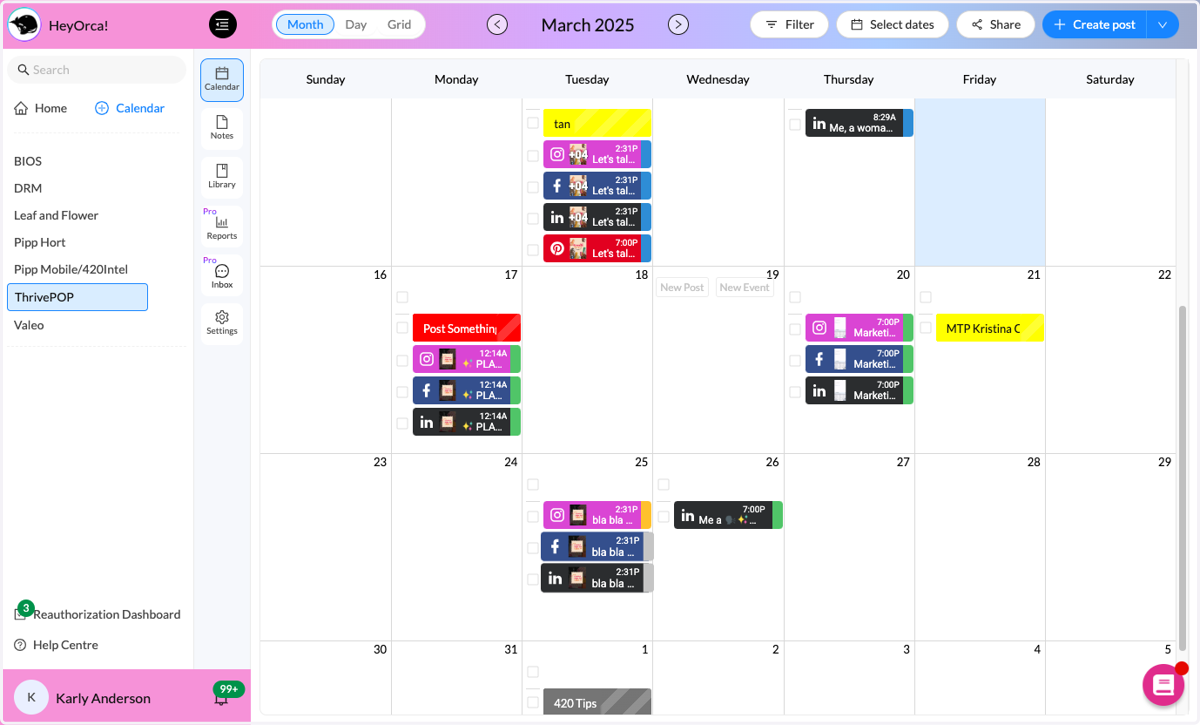
2. click on the day you want to post on from month view
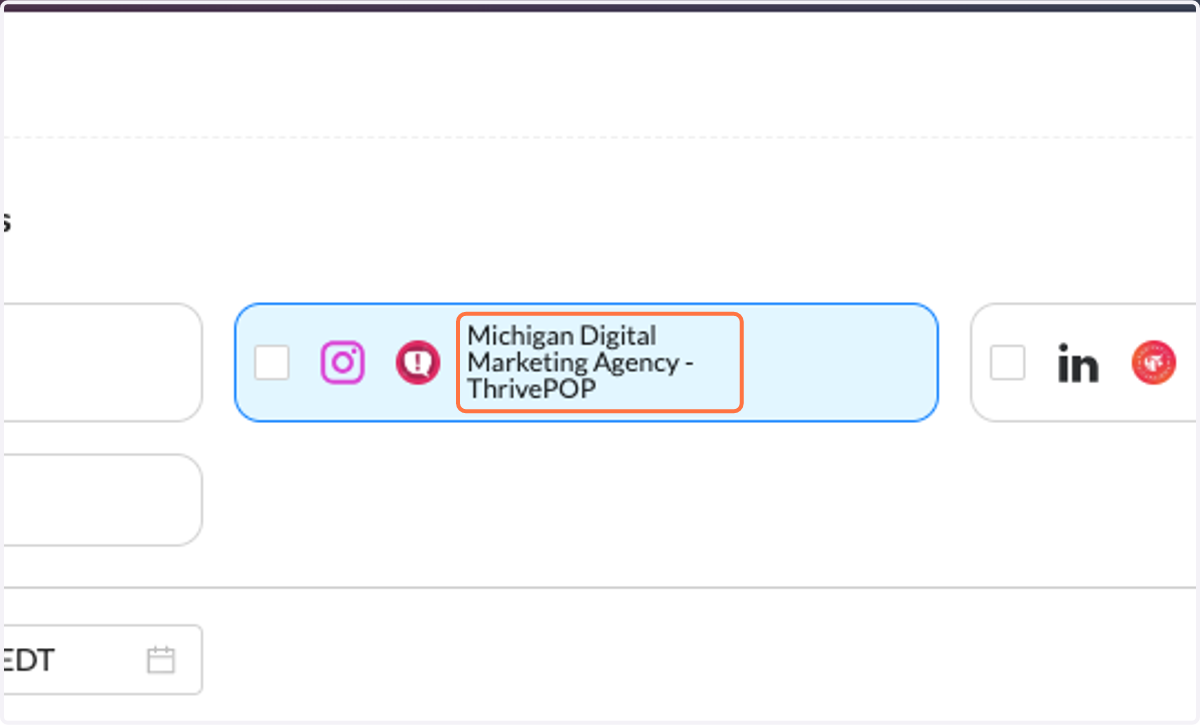
3. Click on the platform you want to post on
4. Click on add media
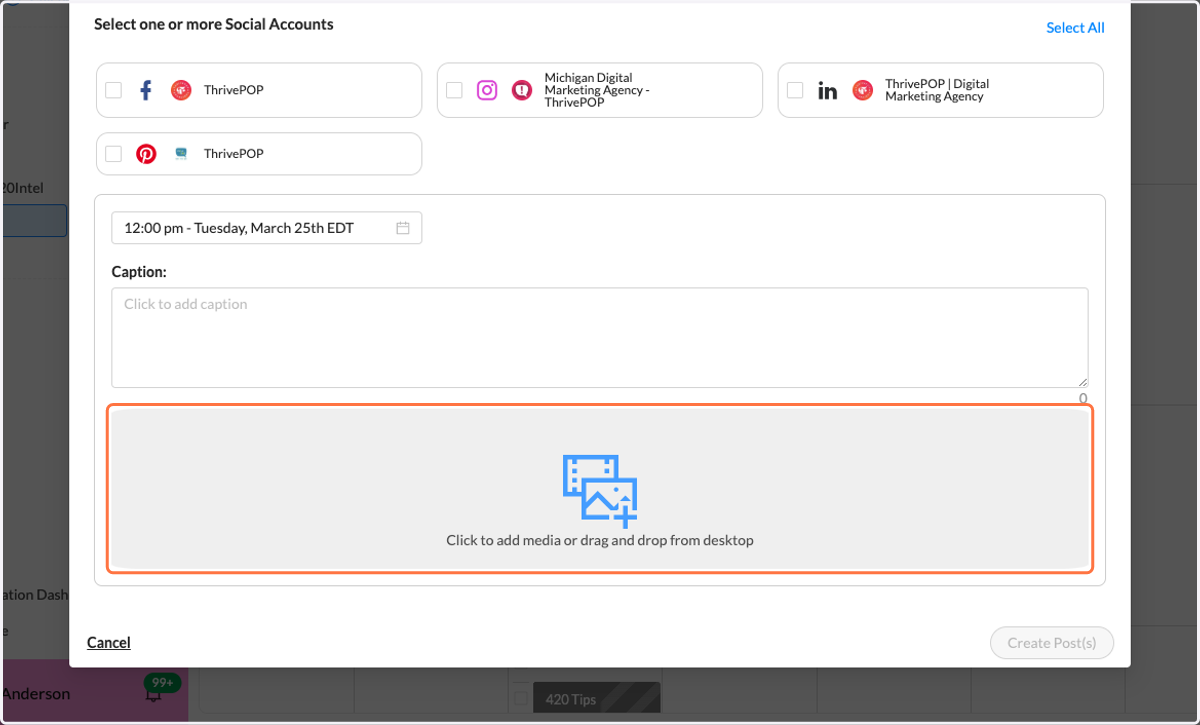
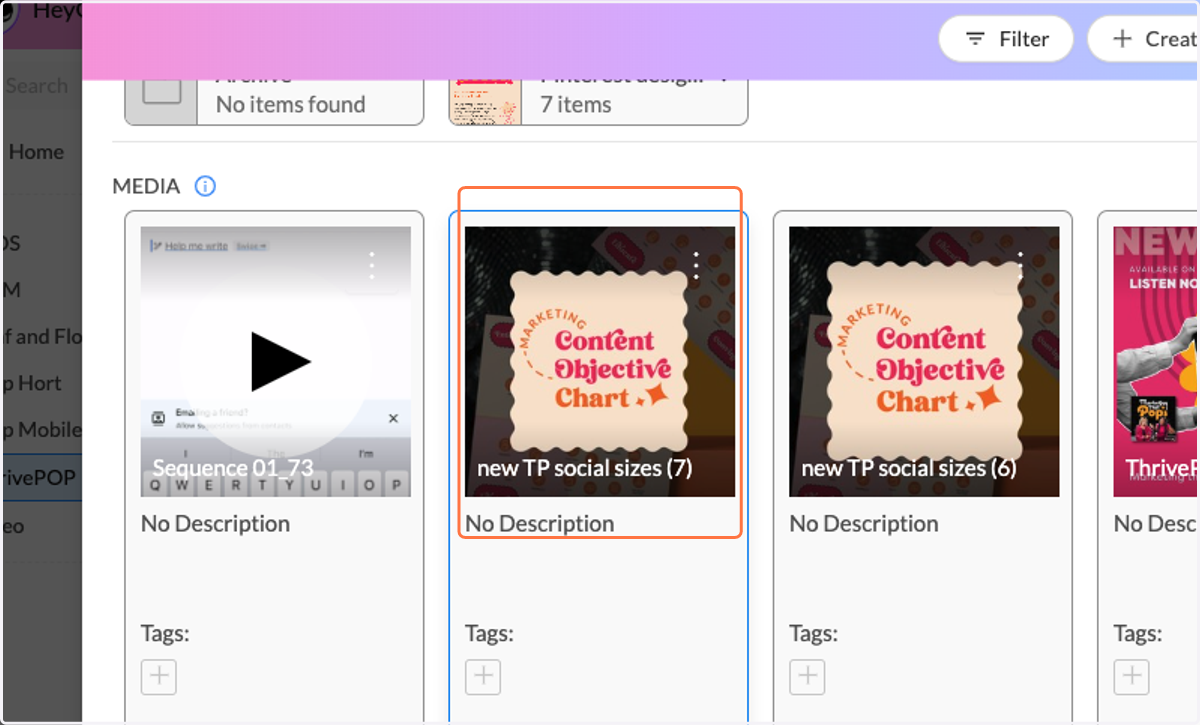
5. Click on image you want
6. Type your caption
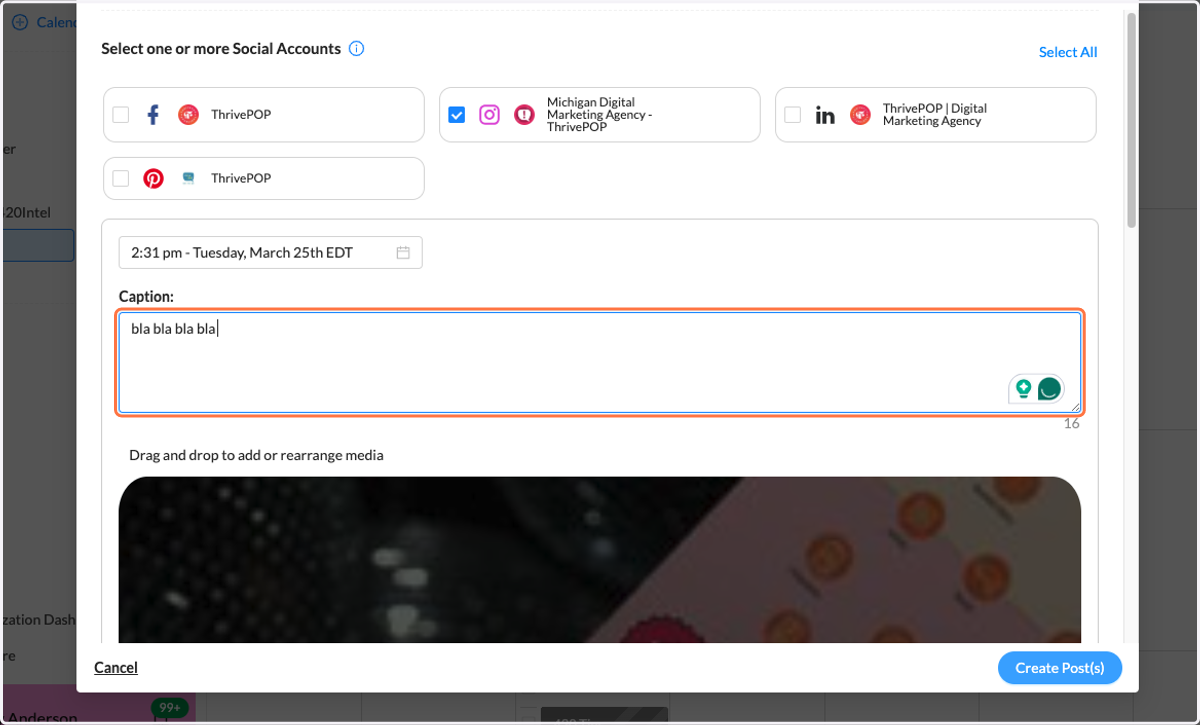
7. Click on Create Post(s)
8. Add first comment if applicable
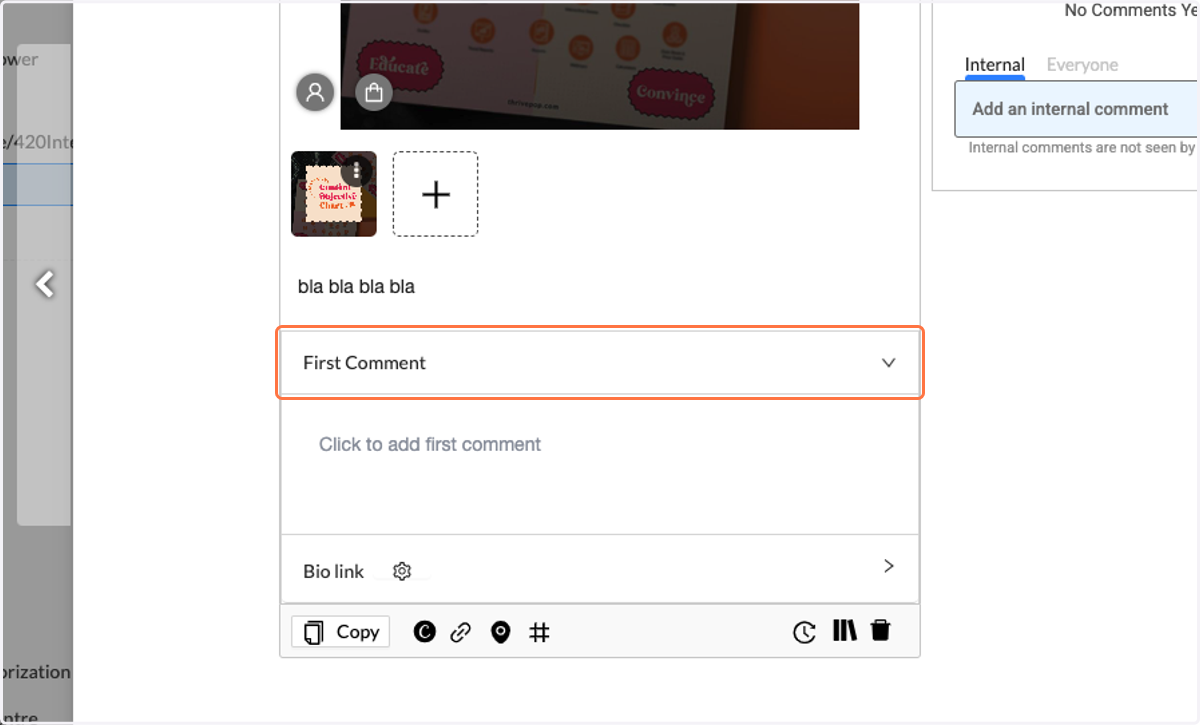
9. Click on Click to add URL... if applicable
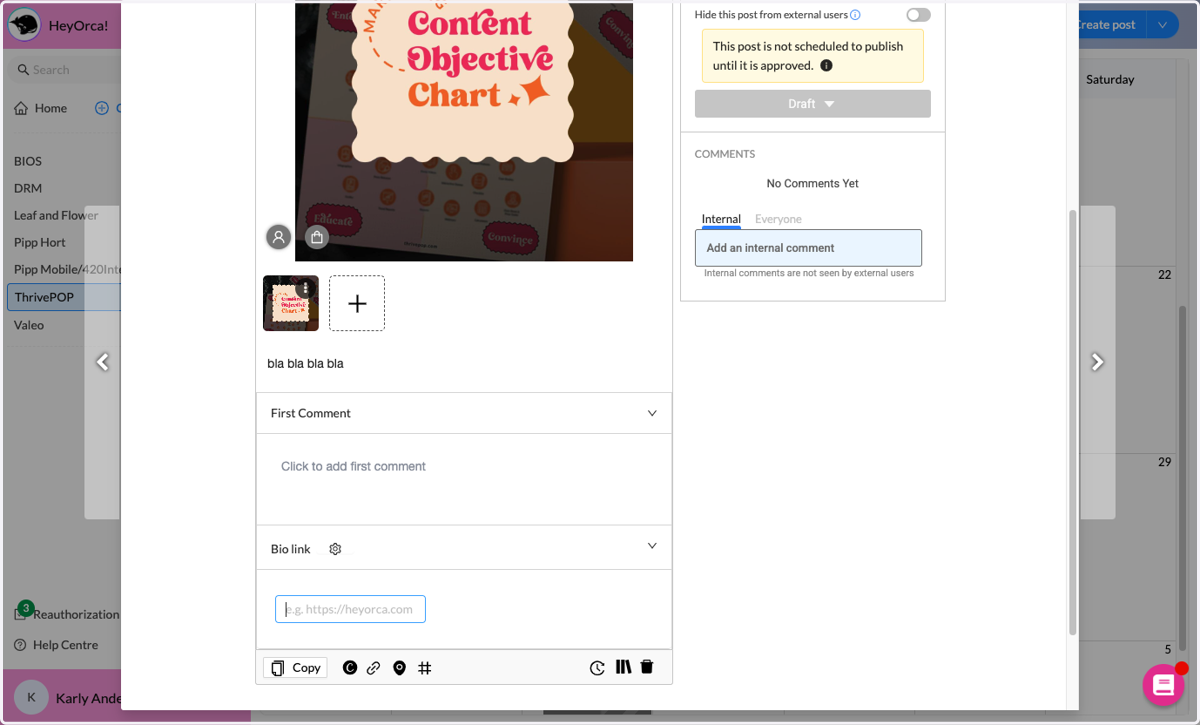
10. Click on Save…
11. Paste link
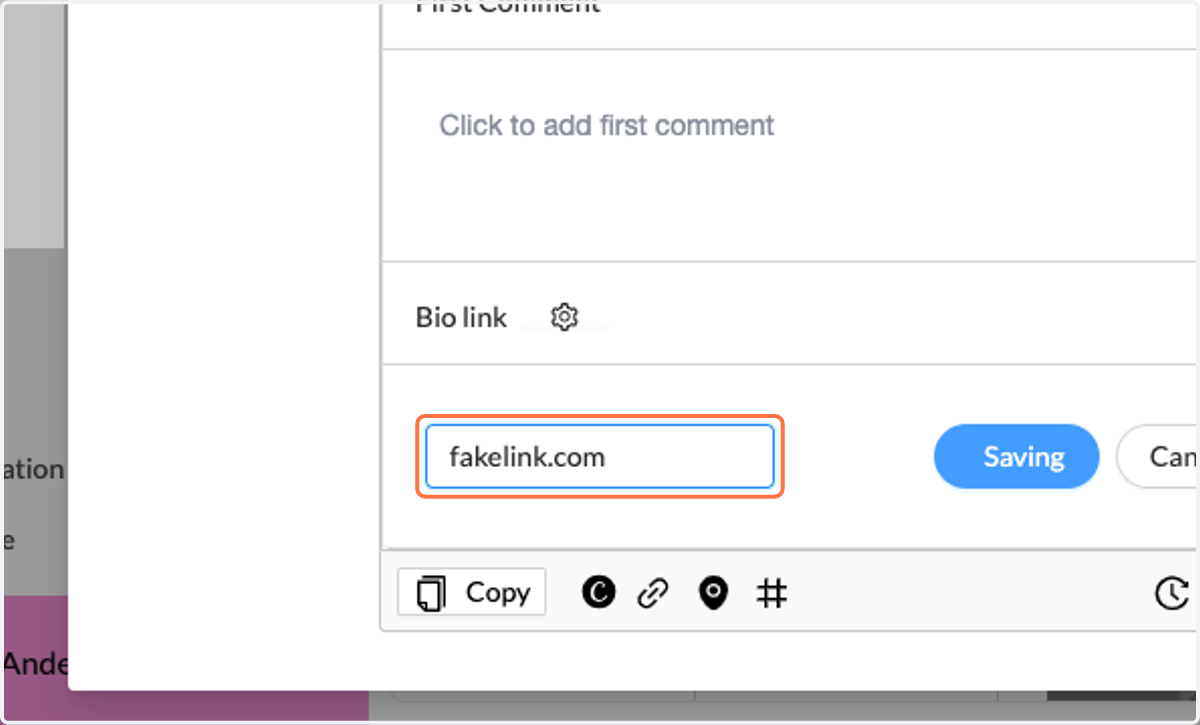
12. Click on Saving
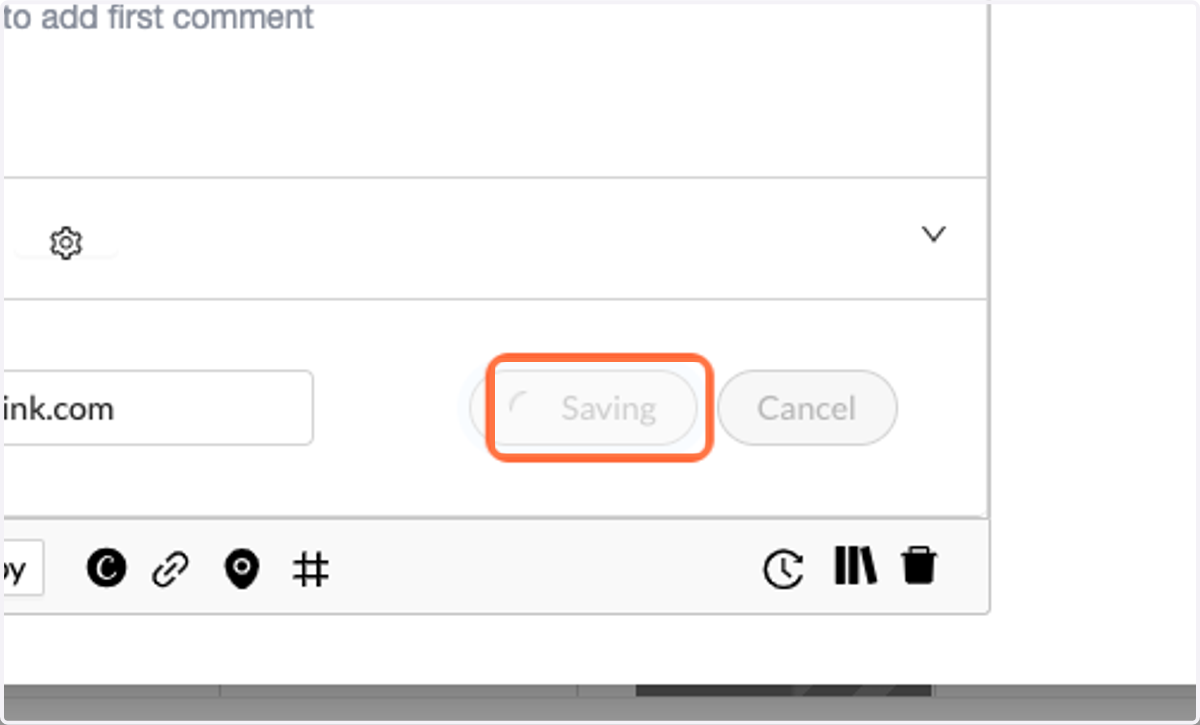
13. Click on draft to change its status
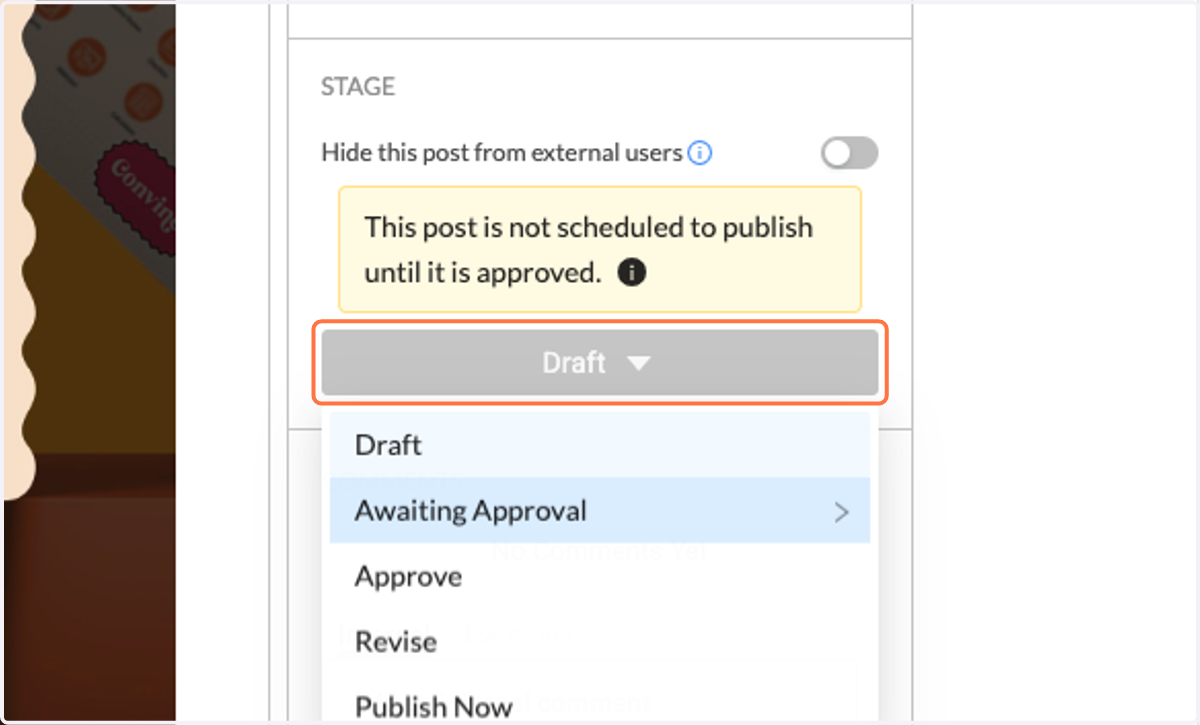
14. Click on Awaiting Approval
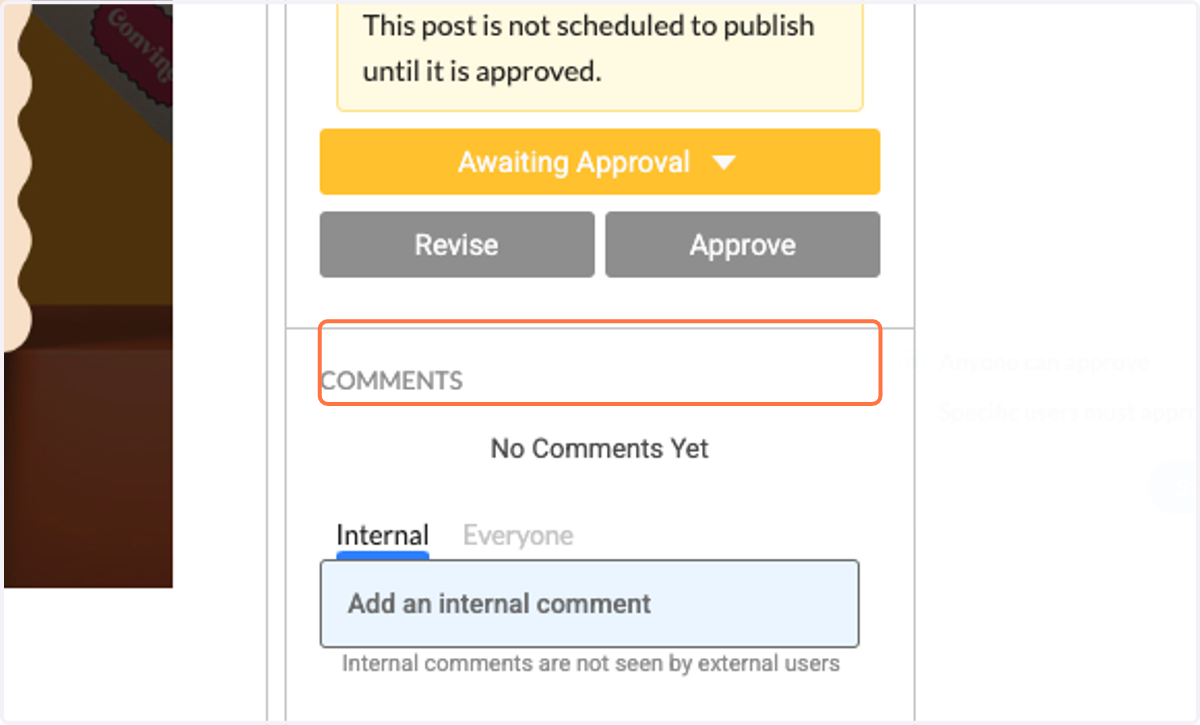
15. Click on Copy
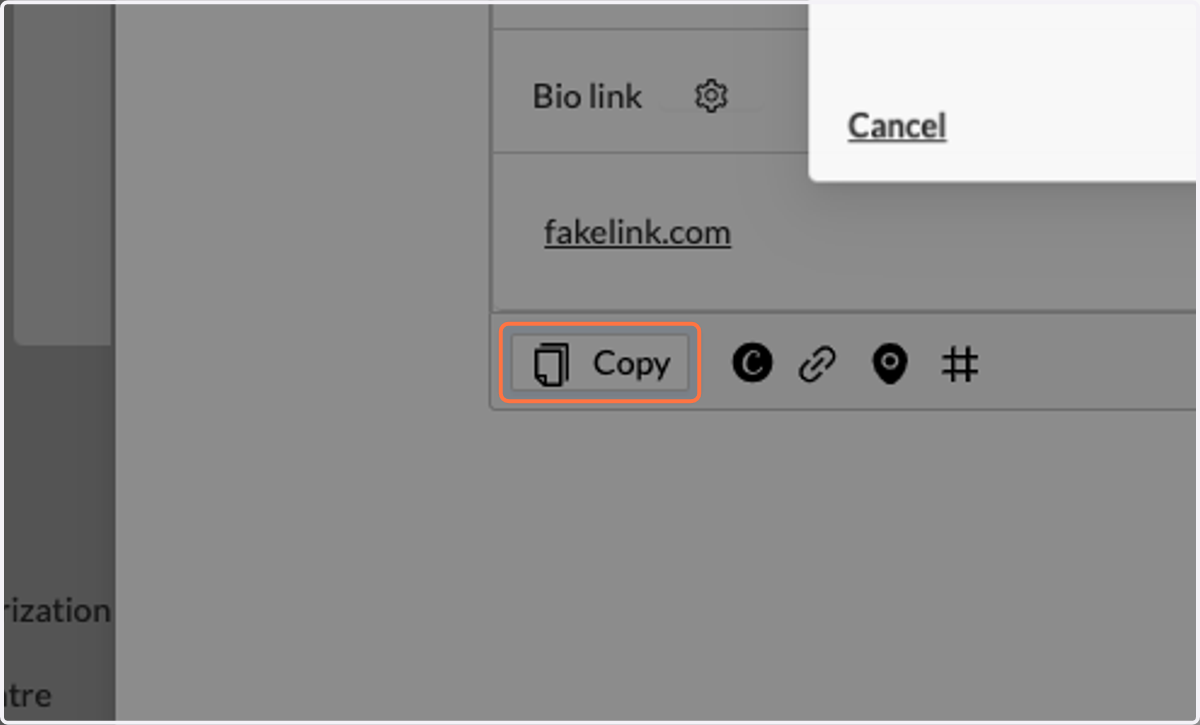
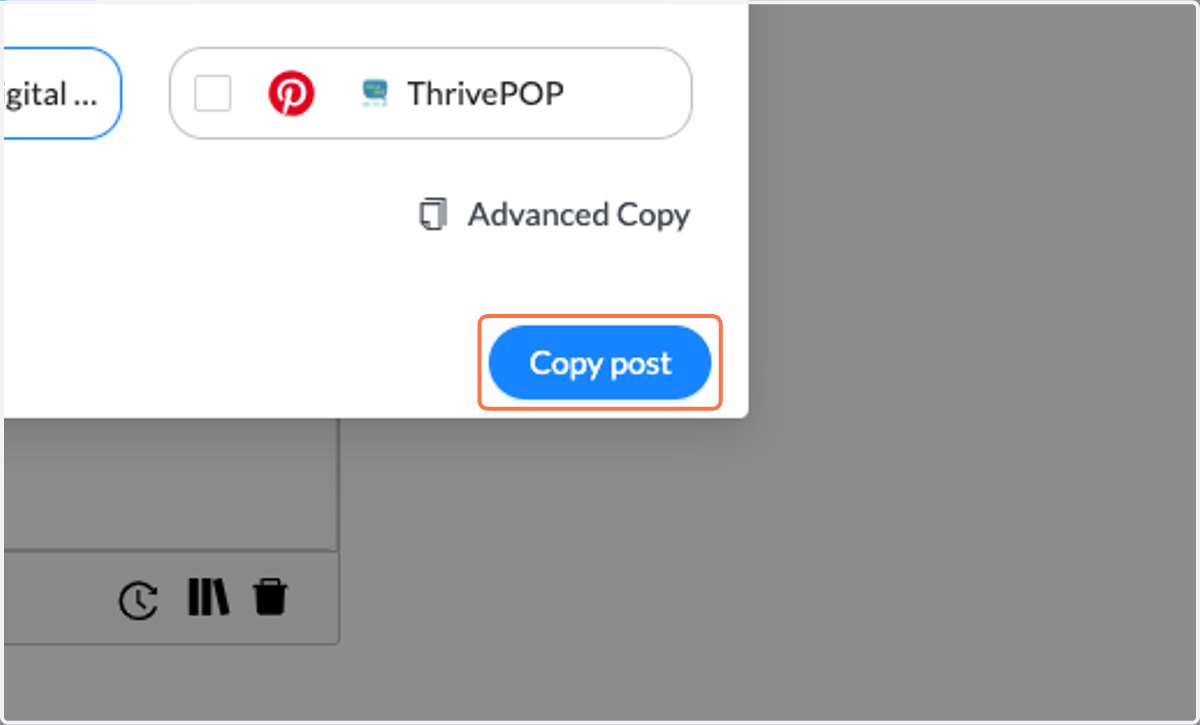
16. Click on Copy Post - Select accounts you want this post on
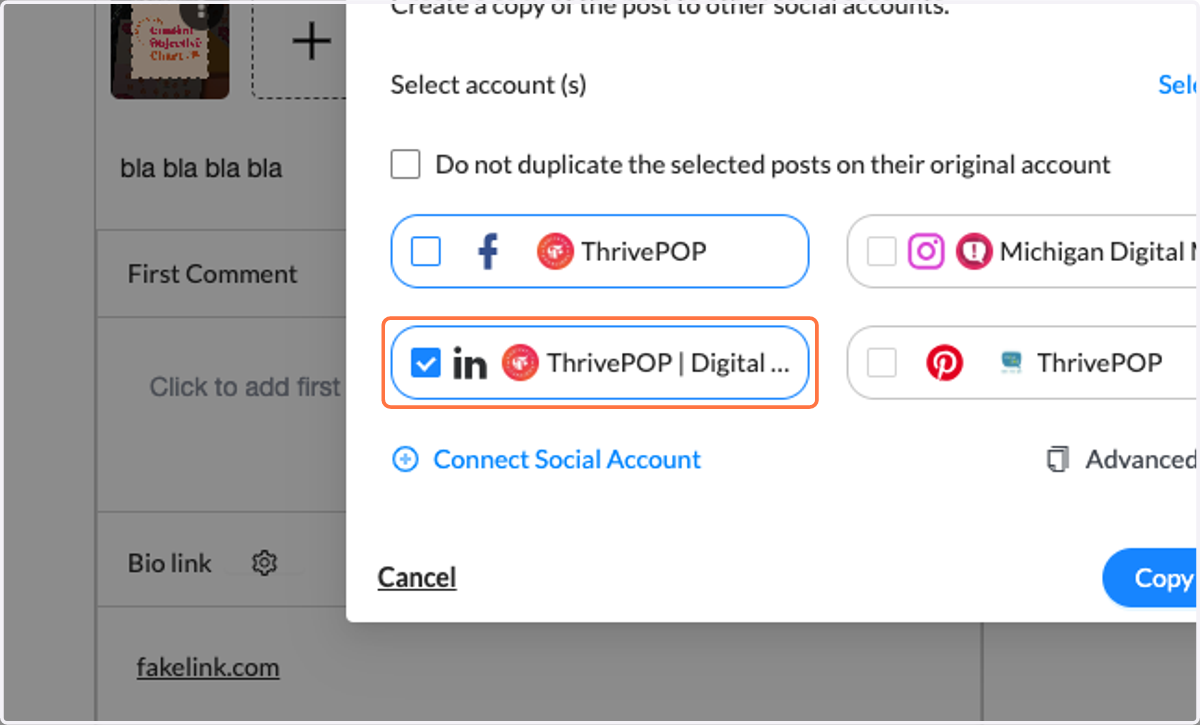
17. Click on Copy post
18. Click on close
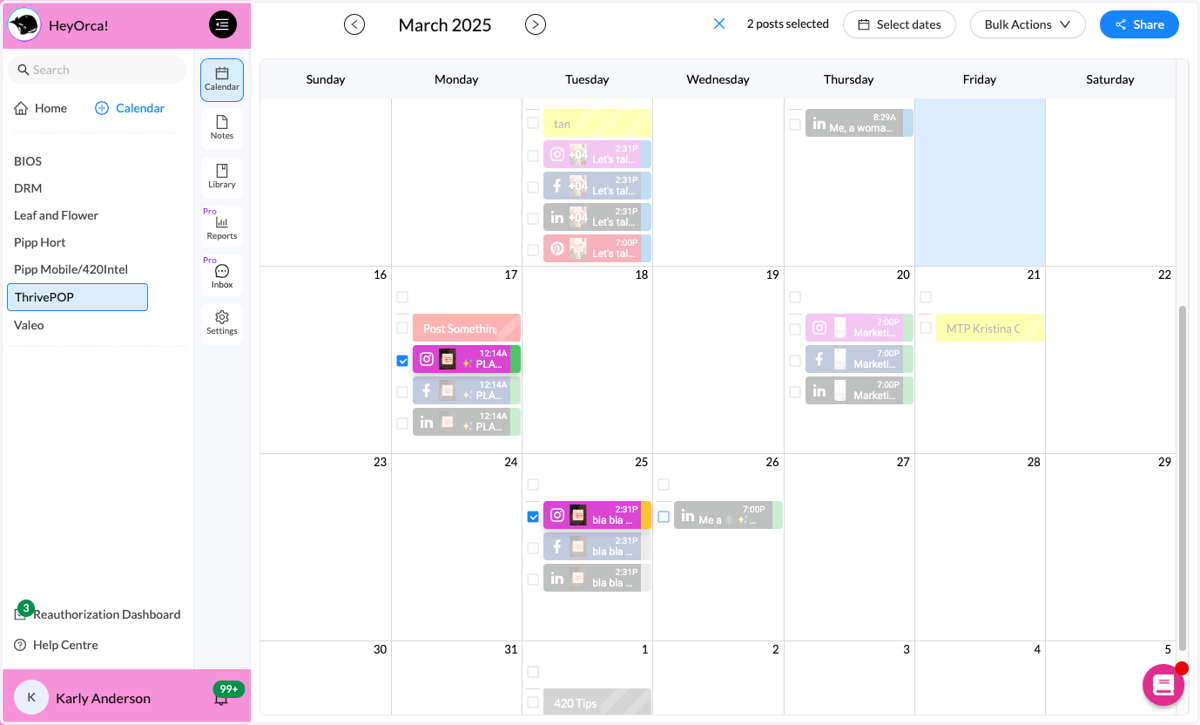
19. Check boxes of posts you want to send to client
Instead of checking each post for each platform, stick to showing them one post so they don't get overwhelmed. Once they approve or request edits, make sure you approve or change all of them according to their wants
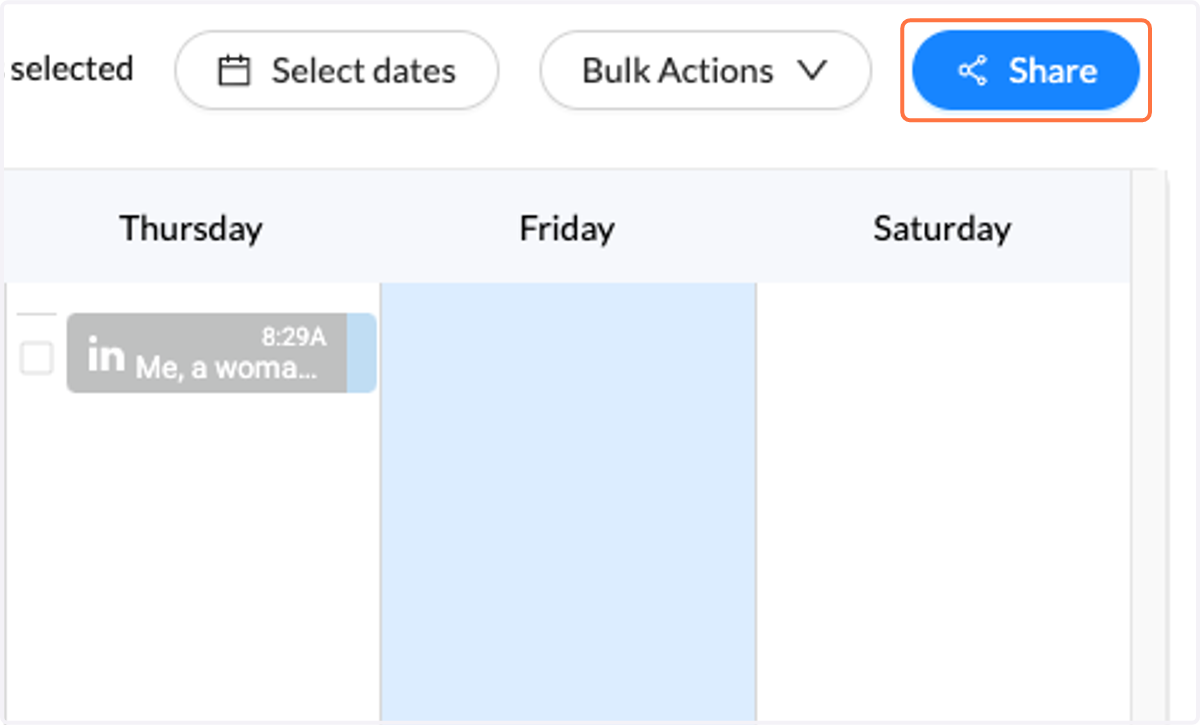
20. Click on Share
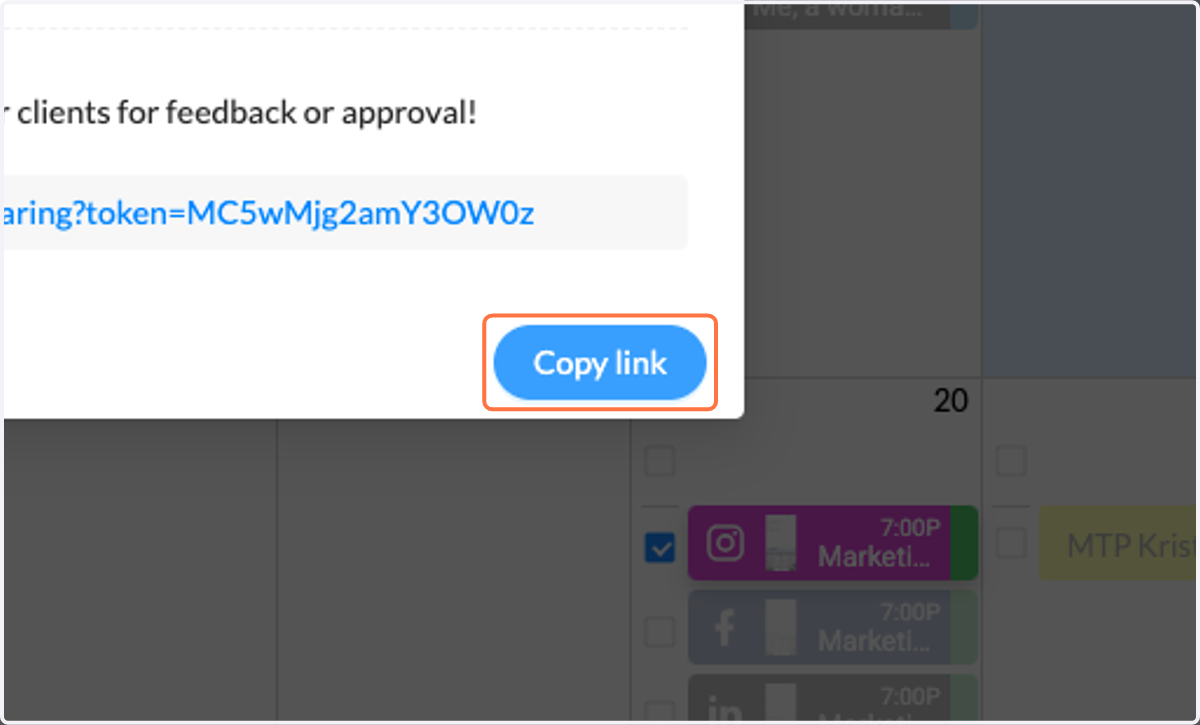
21. Click on Copy link
Send to your strategist for link approval first :) then you can send the same link to client once the strategist approves