Creating and Adding a QR Code

Designs | DirectMail Portal

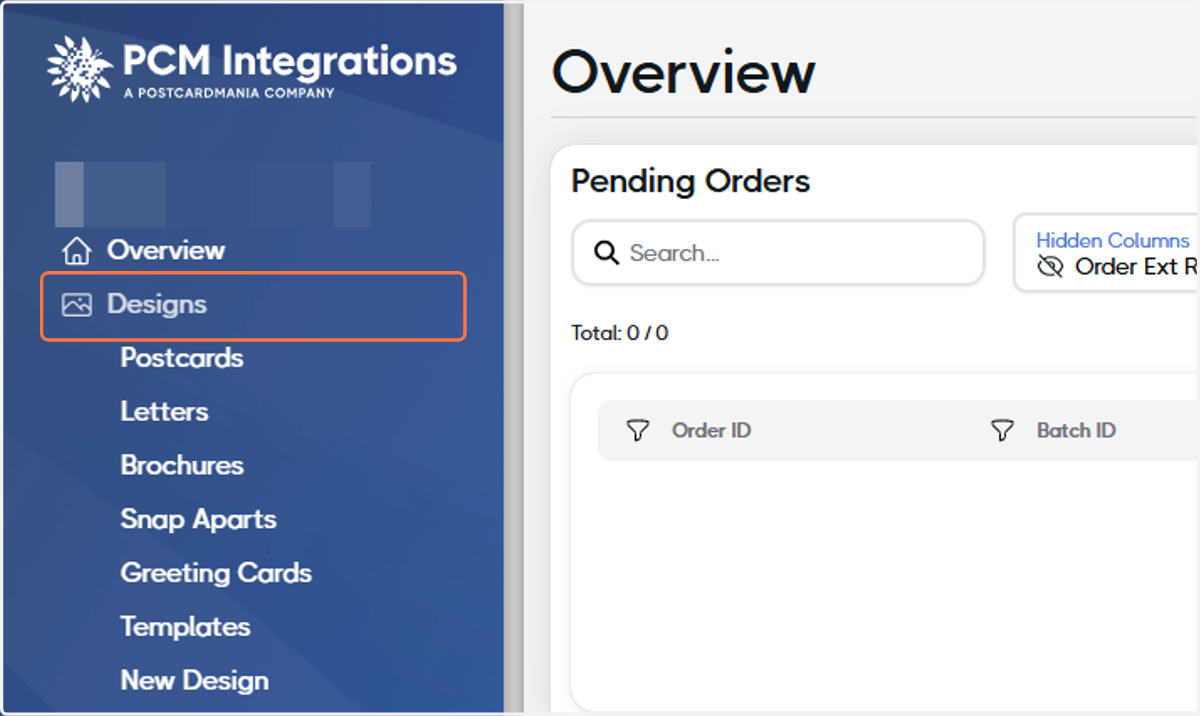
  1. 1. Click on Designs

    Click on Designs
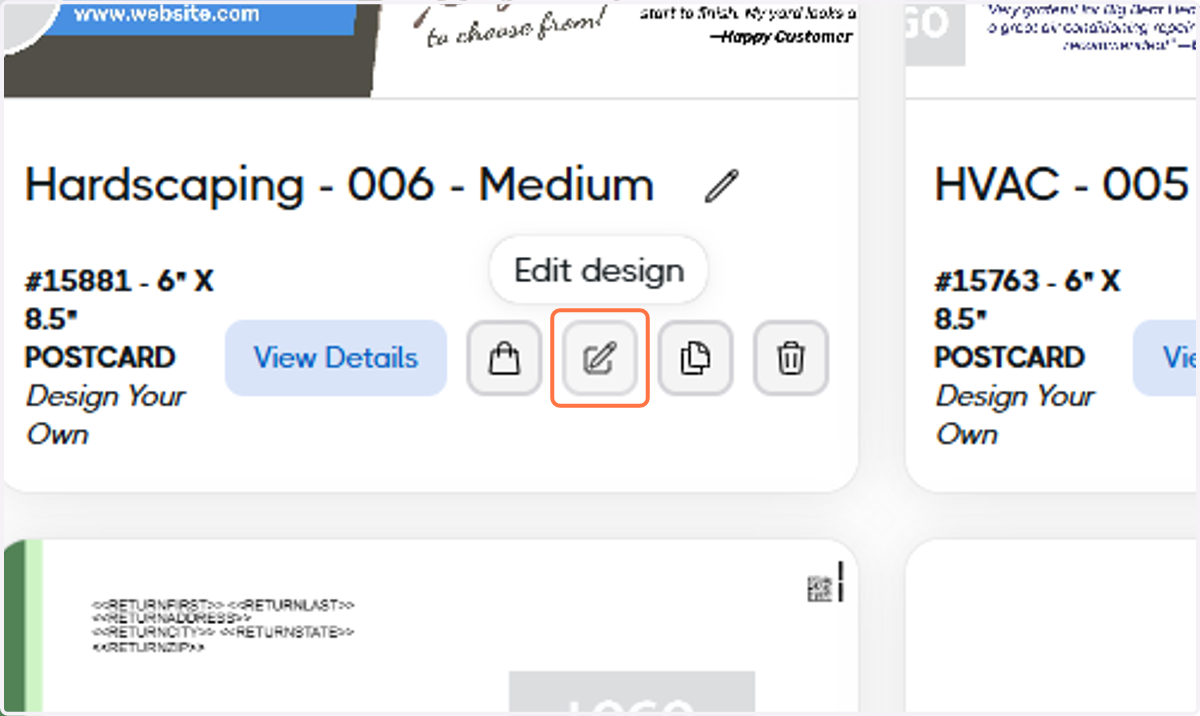
  2. 2. Find the design you'd like to add the QR code to
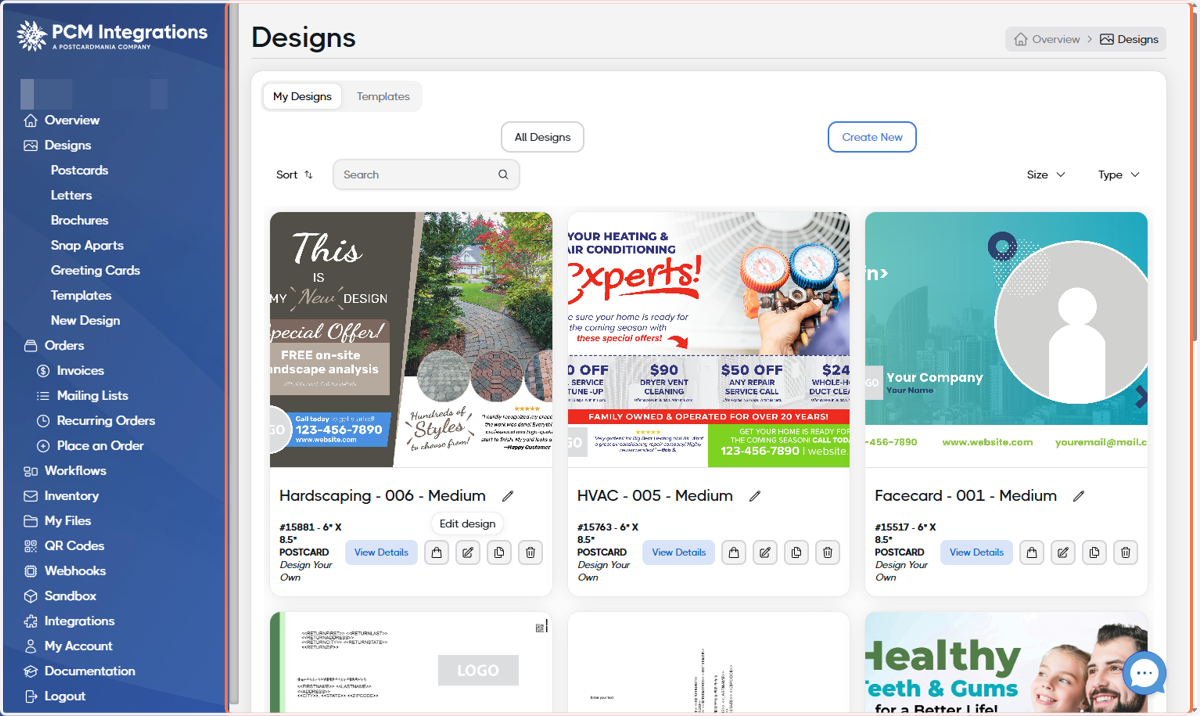
    Find the design you'd like to add the QR code to
  3. 3. Click on Edit design

    Click on Edit design
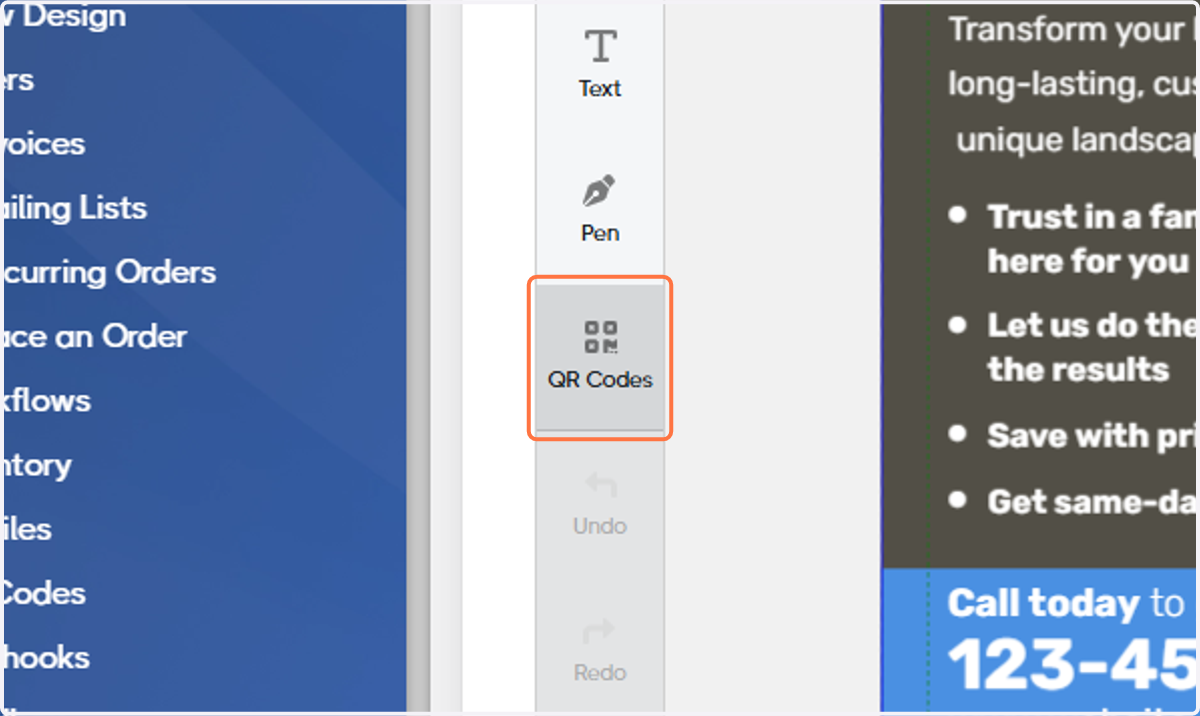
  4. 4. Click on QR Codes

    Click on QR Codes
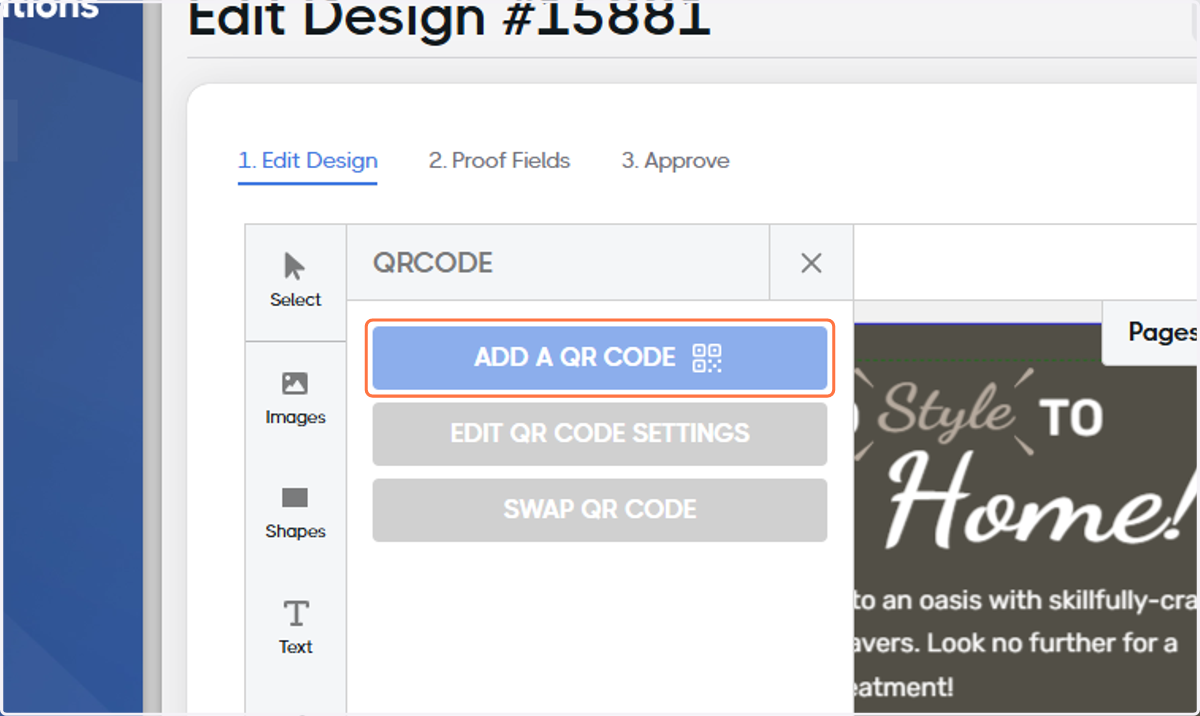
  5. 5. Click on Add A QR Code

    Click on Add A QR Code
  6. 6. If you'd like to use an existing QR code, select it from the list and click ADD QR CODE. Otherwise, click on CREATE NEW QR CODE.
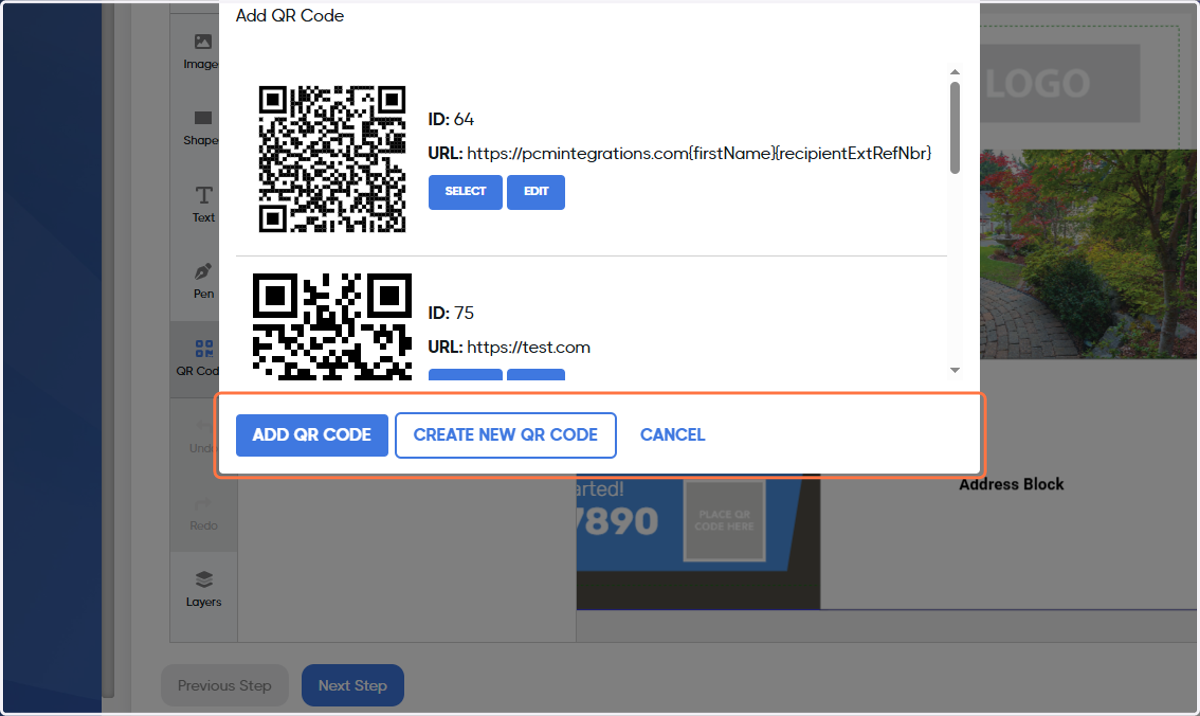
    If you'd like to use an existing QR code, select it from the list and click ADD QR CODE. Otherwise, click on CREATE NEW QR CODE.
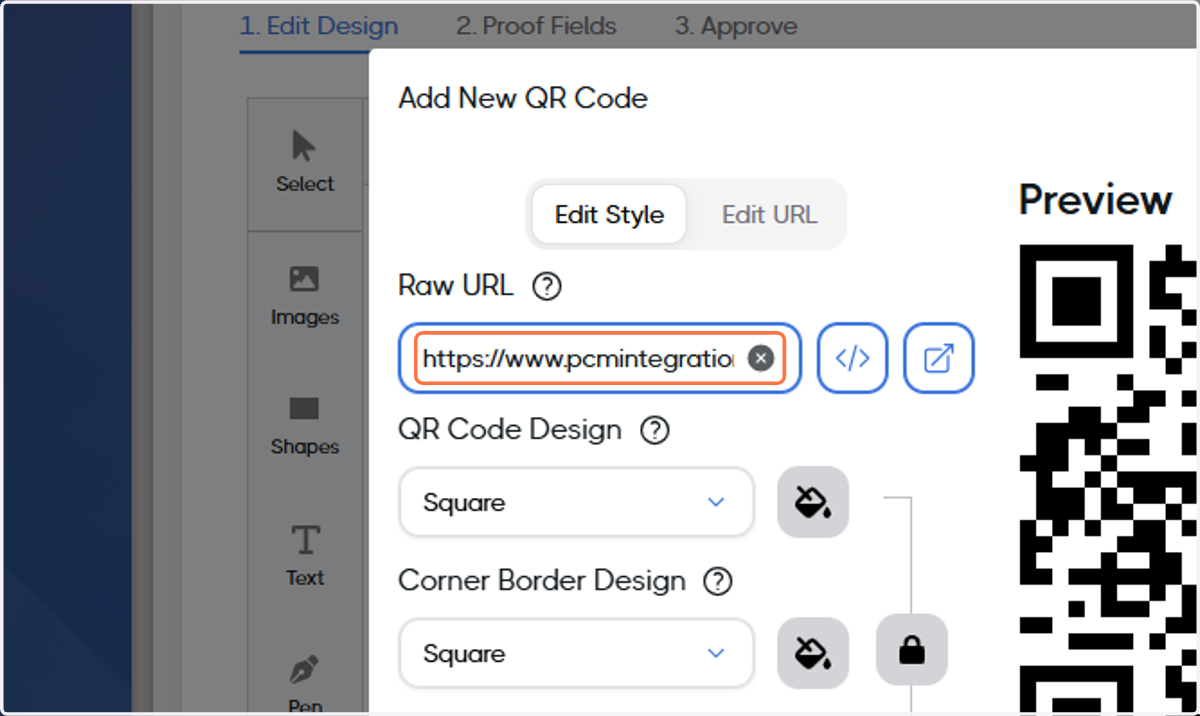
  7. 7. Add the URL

    Add the URL
  8. 8. If desired, click on Add URL Parameter
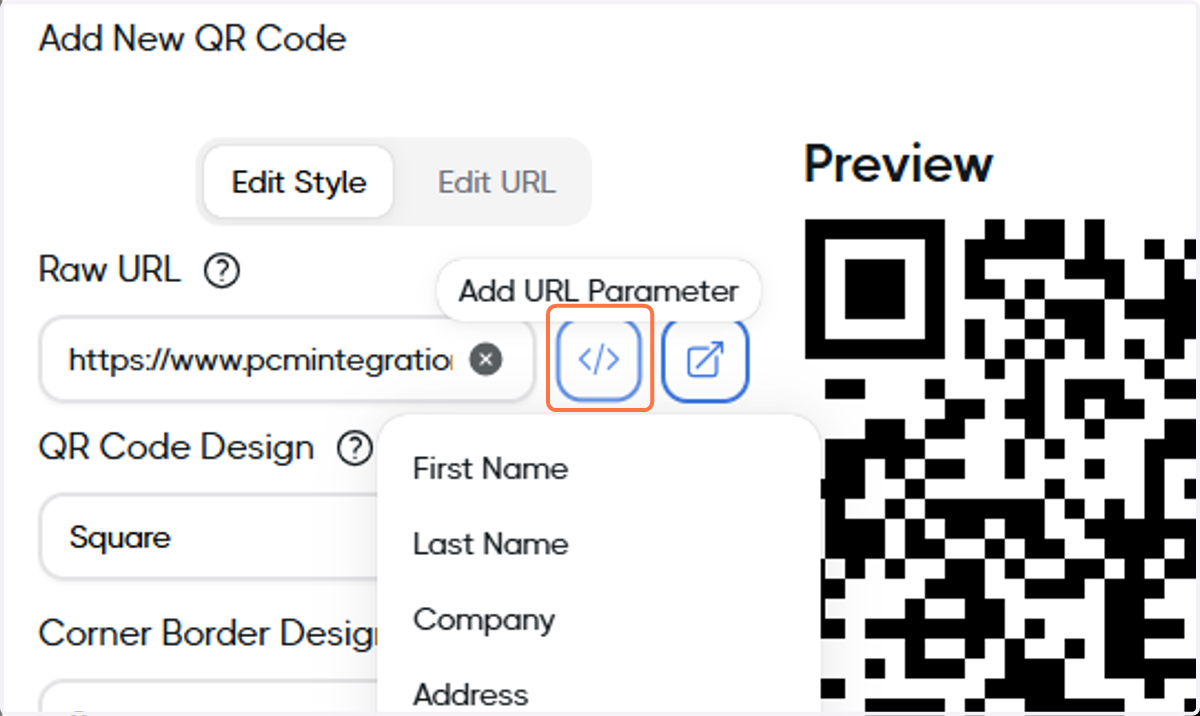
    If desired, click on Add URL Parameter
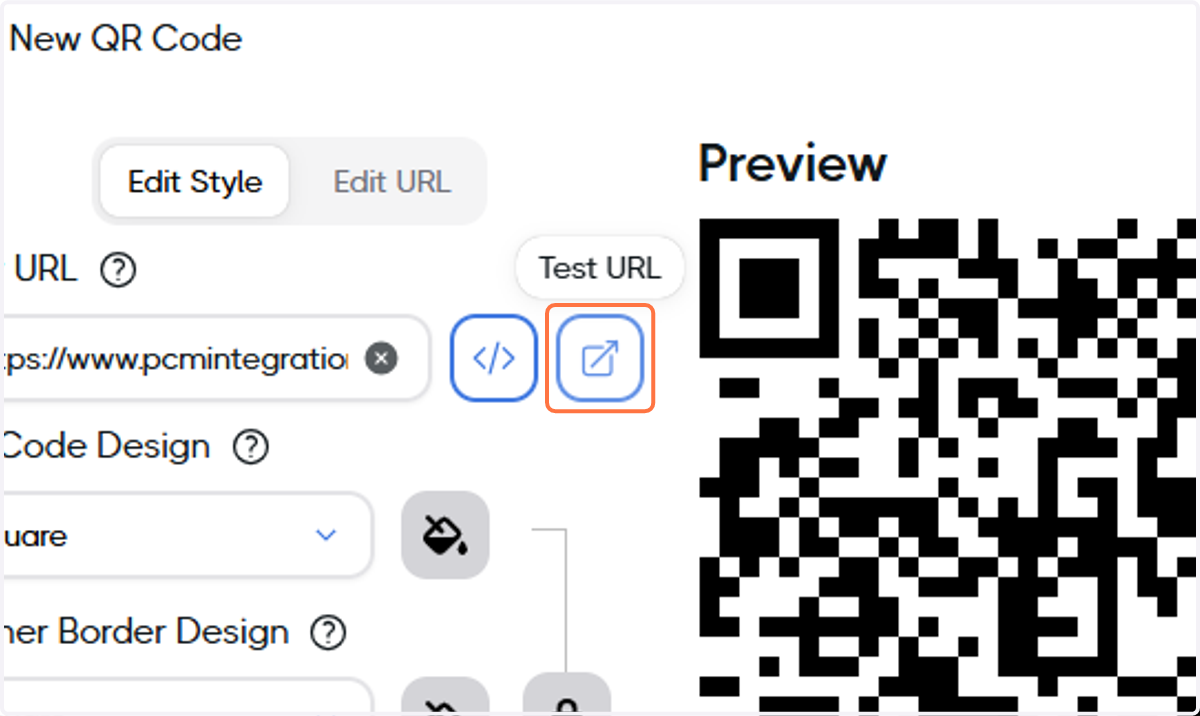
  9. 9. Test the URL

    Test the URL
  10. 10. If desired, edit the QR code design
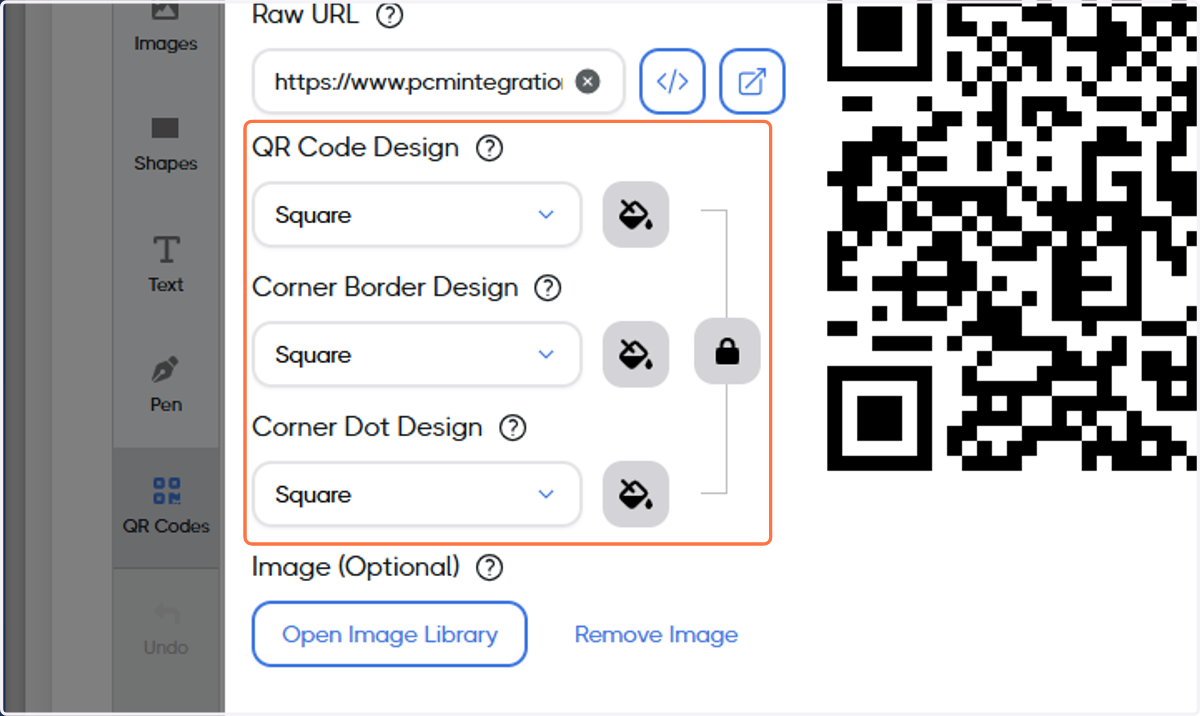
    If desired, edit the QR code design
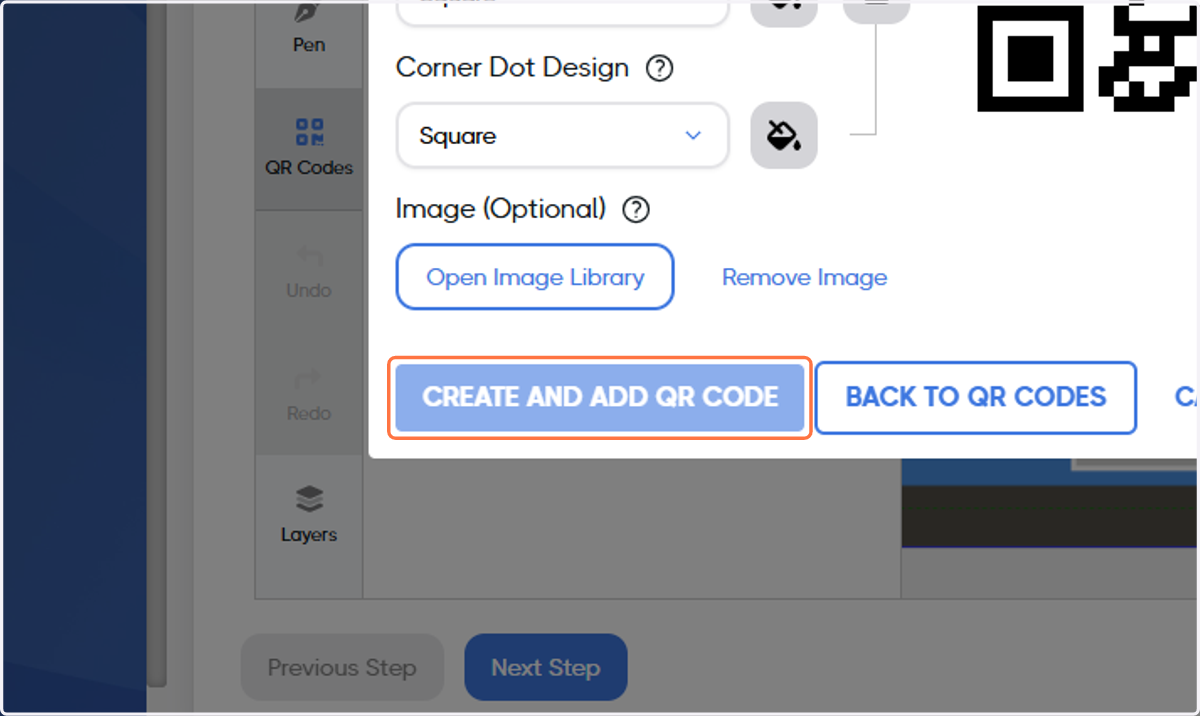
  11. 11. Click on CREATE AND ADD QR CODE

    Click on CREATE AND ADD QR CODE
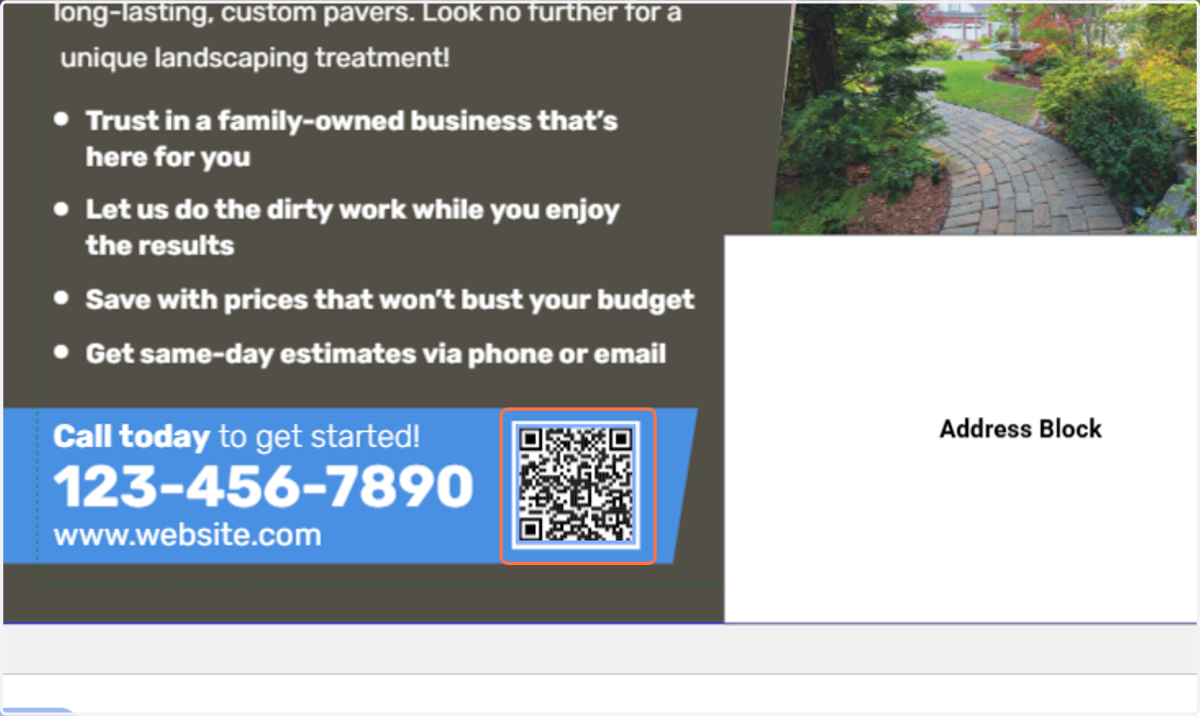
  12. 12. Click and drag the QR code

    Click and drag the QR code
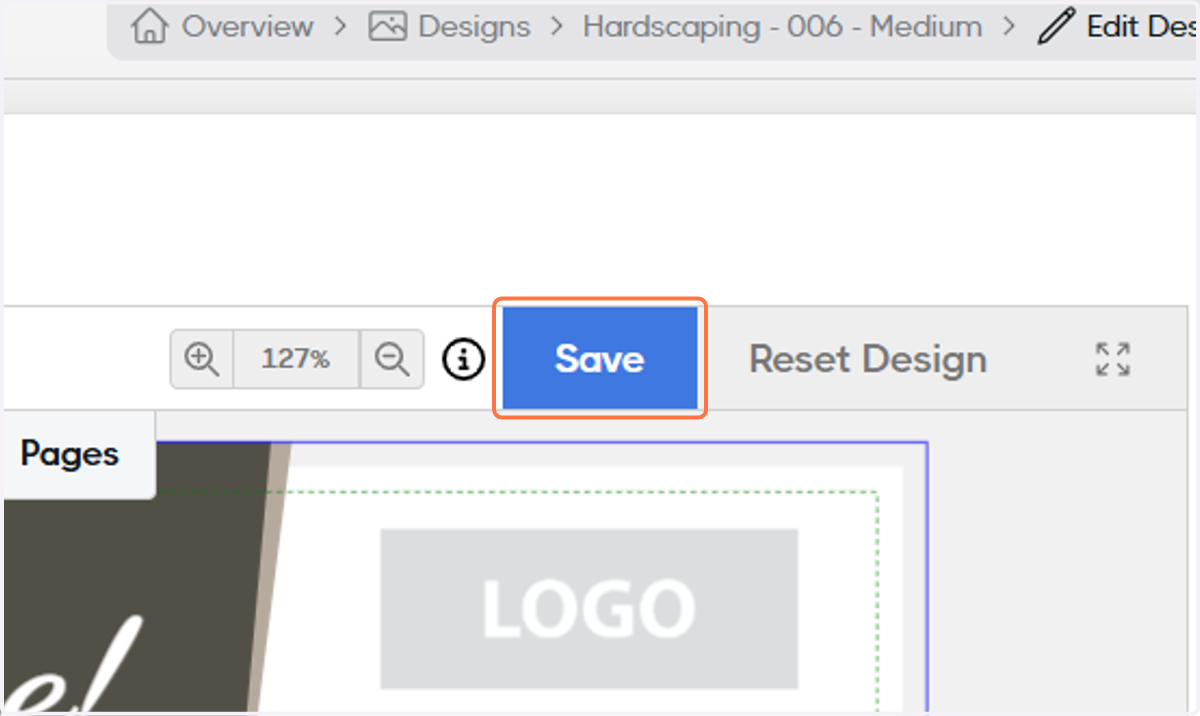
  13. 13. Click on Save

    Click on Save
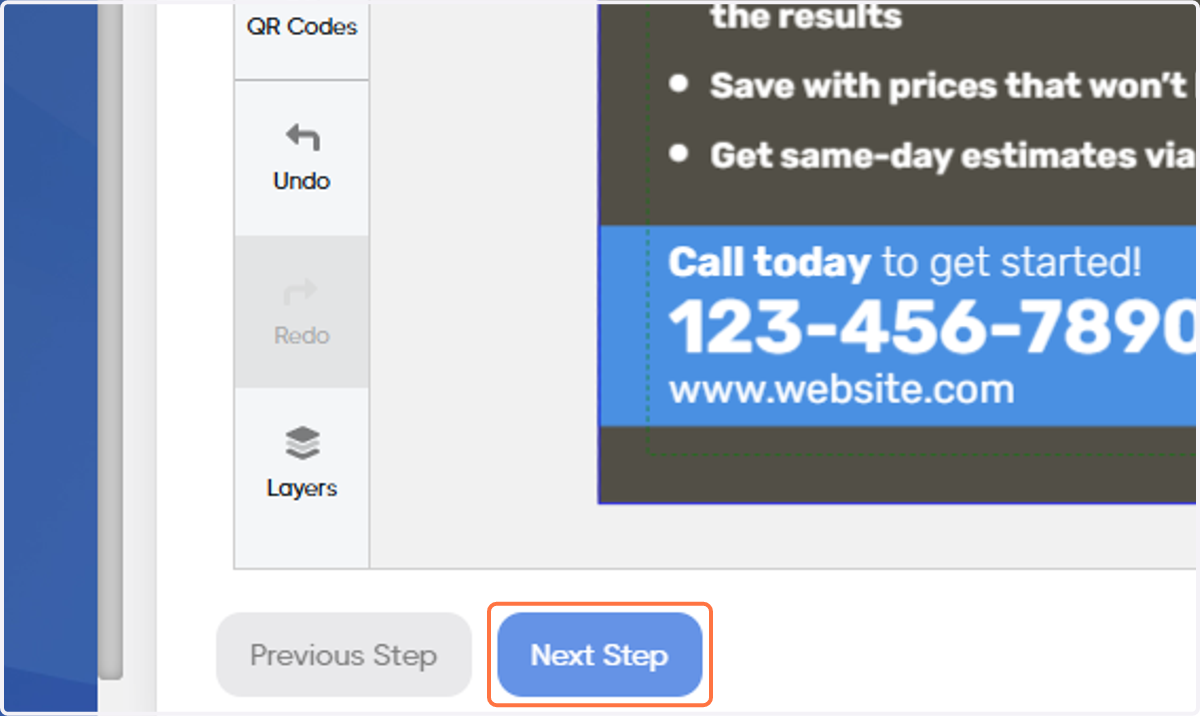
  14. 14. Click on Next Step

    Click on Next Step
  15. 15. Double-check the proof and, if ready, click on Publish Design
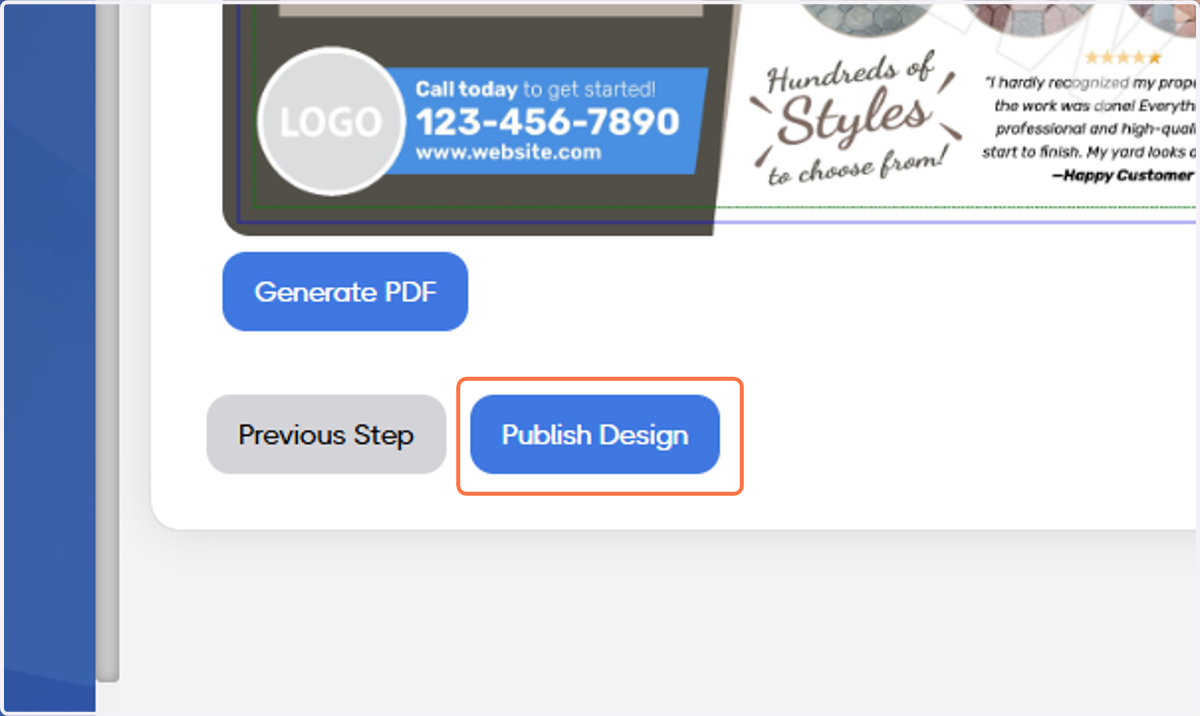
    Double-check the proof and, if ready, click on Publish Design
  16. 16. Congratulations! Your design is ready!
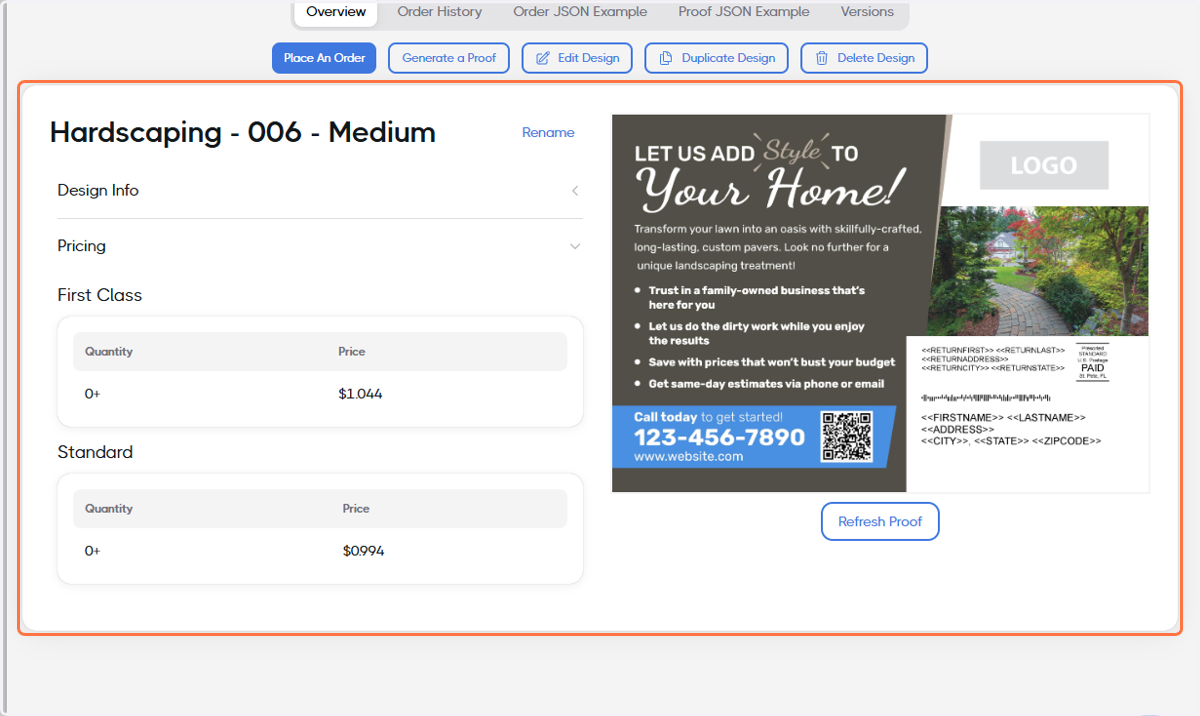
    Congratulations! Your design is ready!