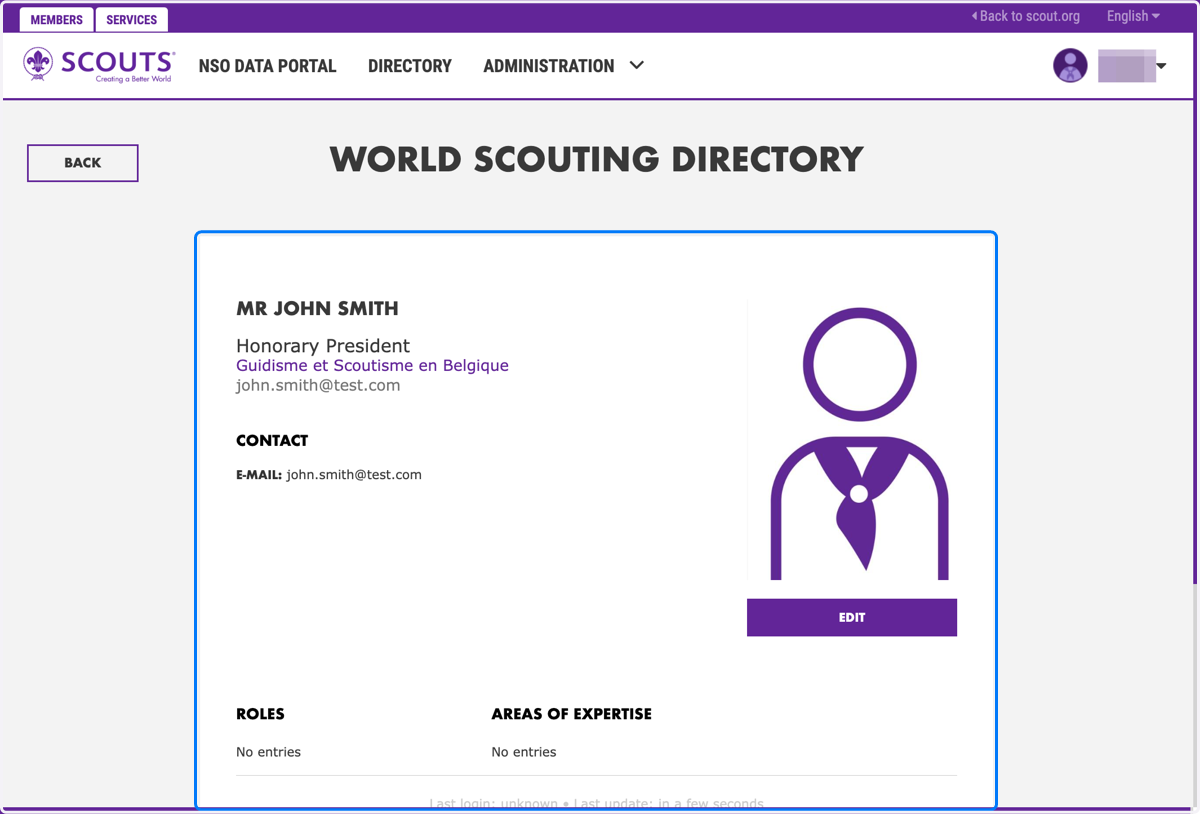
Creating a Person in Directory
These general steps can be used for creating or for editing a person on the Directory for your organisation.
World Scouting Directory - Persons
Navigate to directory.scout.org and login. NSO Administrator access will be required to proceed. Email reporting@scout.org to request access.
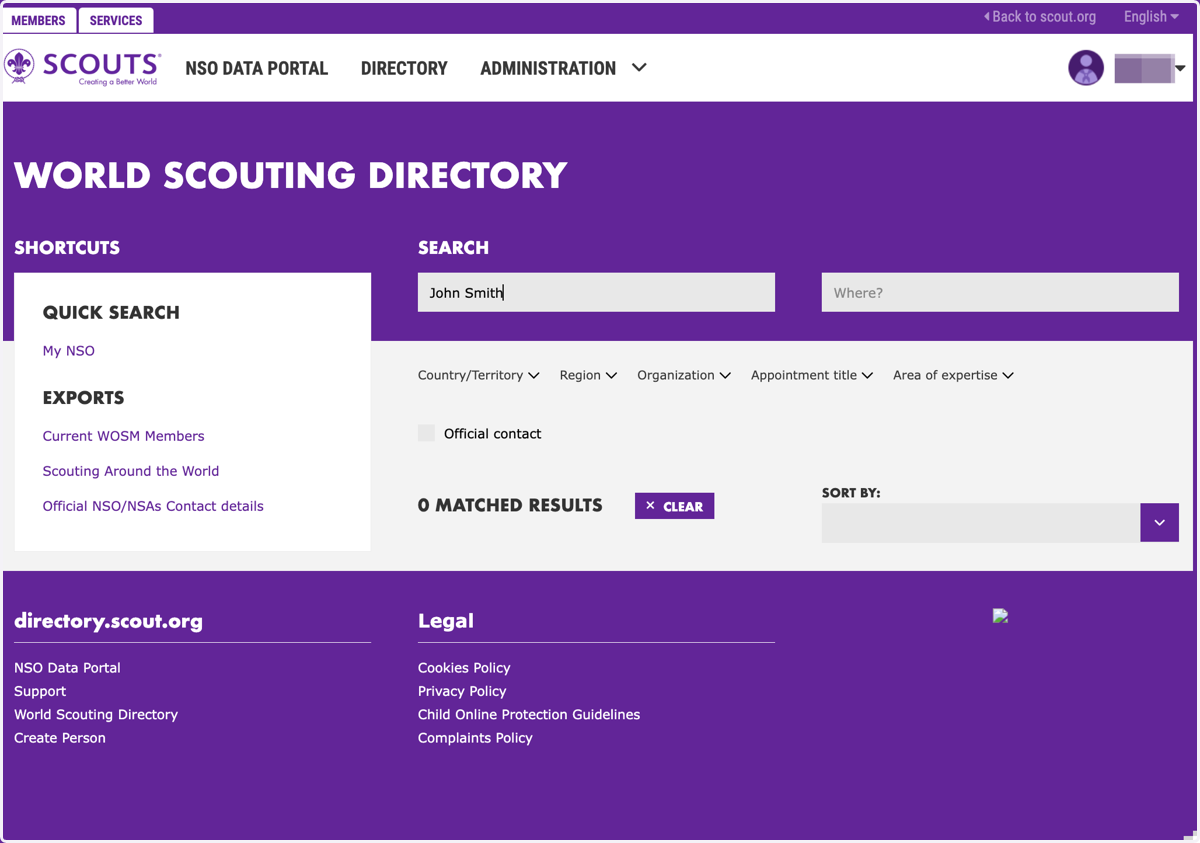
1. Conduct a search for the person
It is important to first search for the person you wish to create to check if they already have a profile in the Directory.
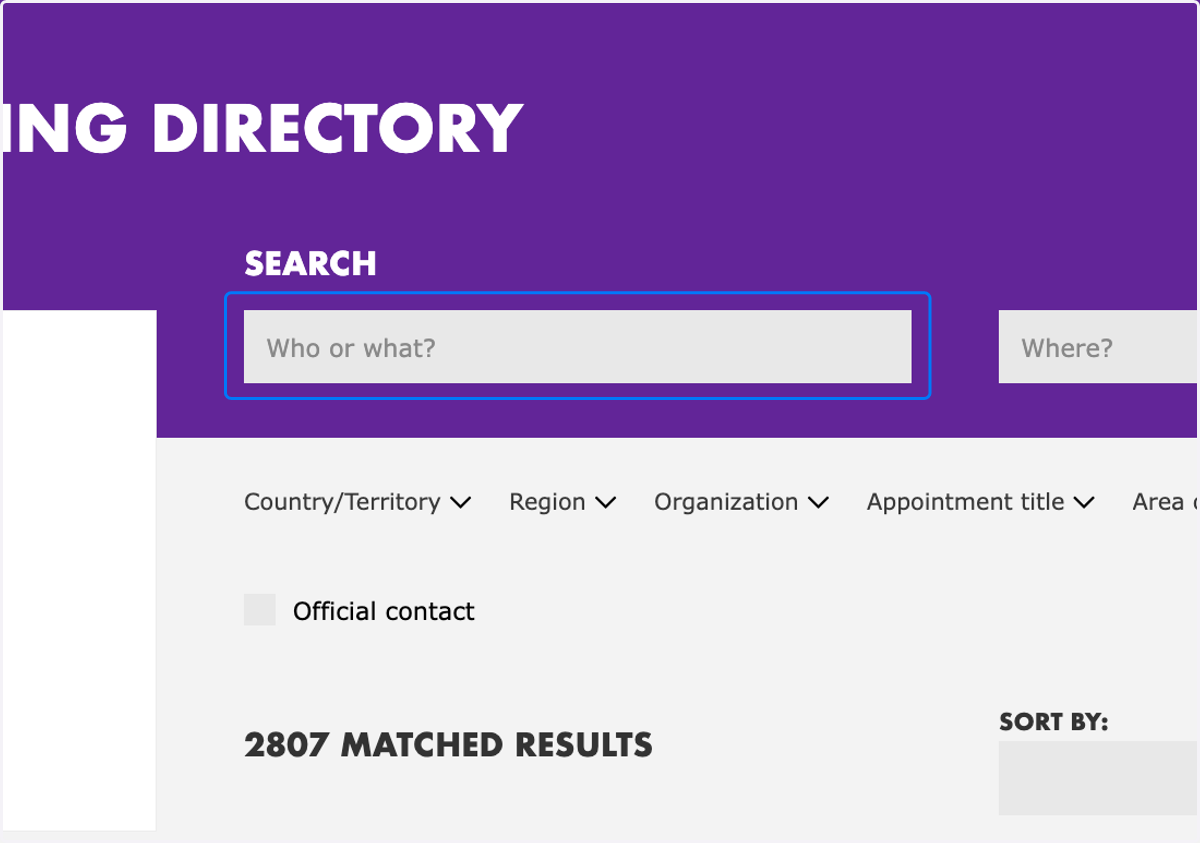
2. Verify search results
The search needs to be exact, so try different variations of their name to verify.
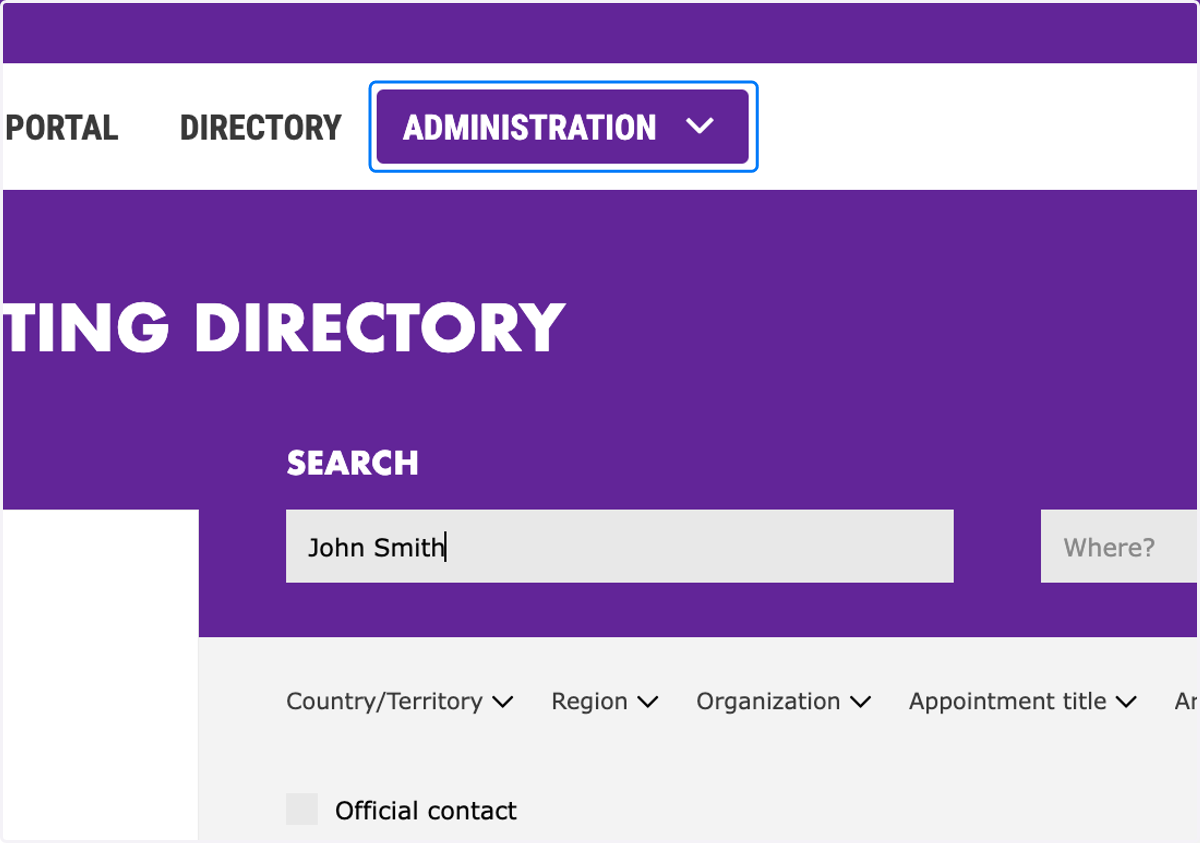
3. Click on "Administration"
If you need to create a person in the Directory, proceed with the following steps.
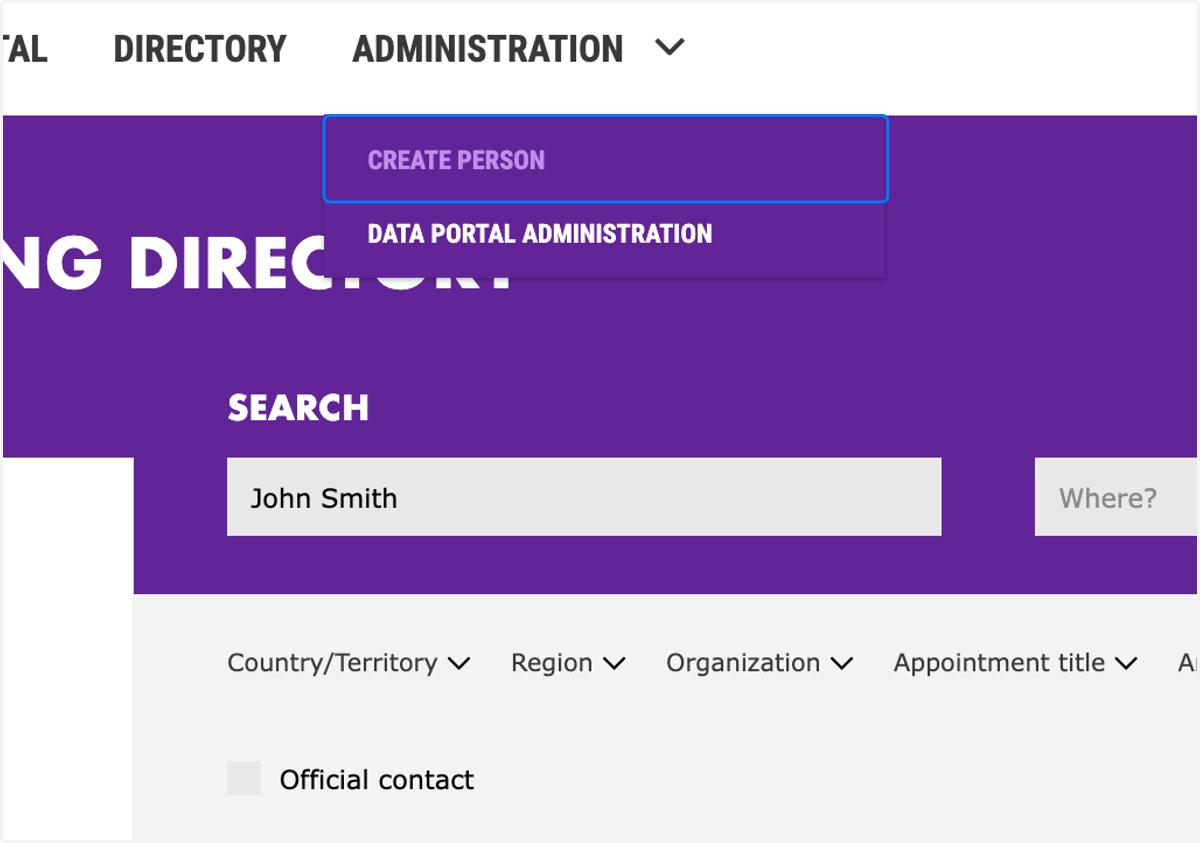
4. Click on CREATE PERSON
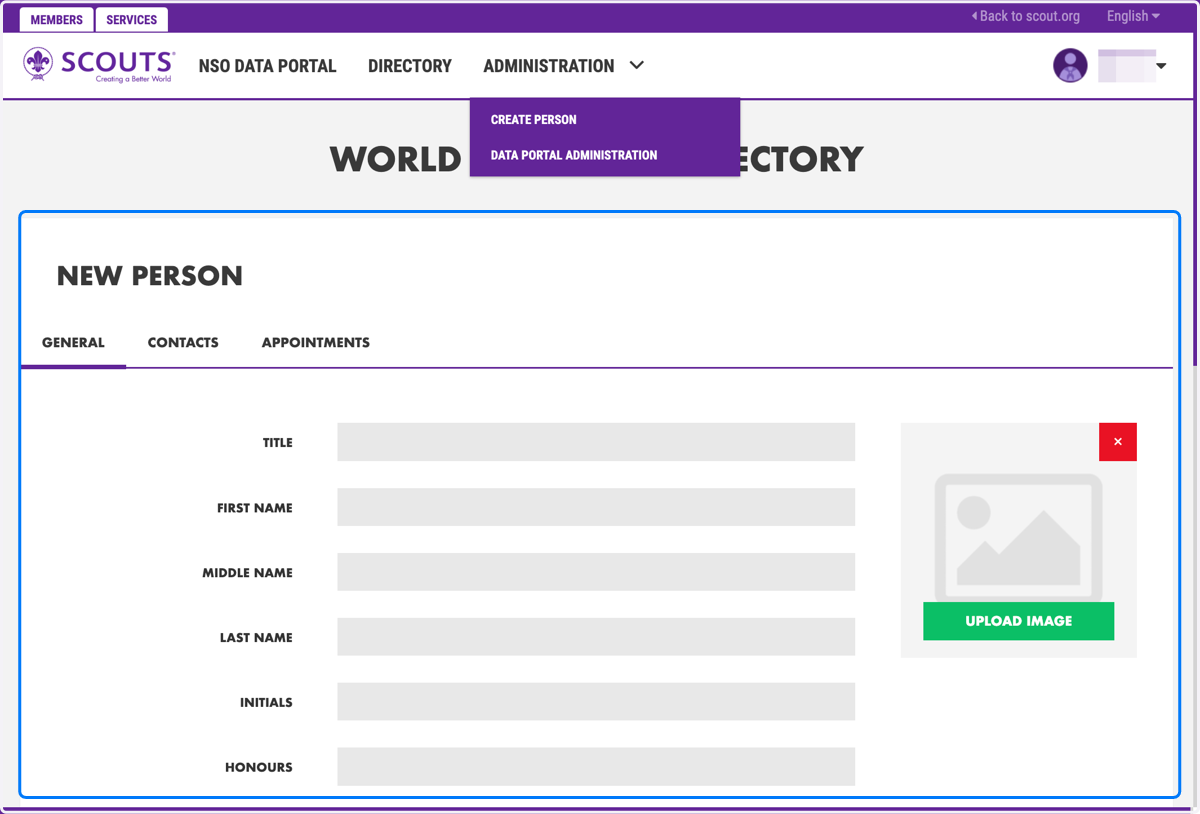
5. Welcome to the create a new person edit view
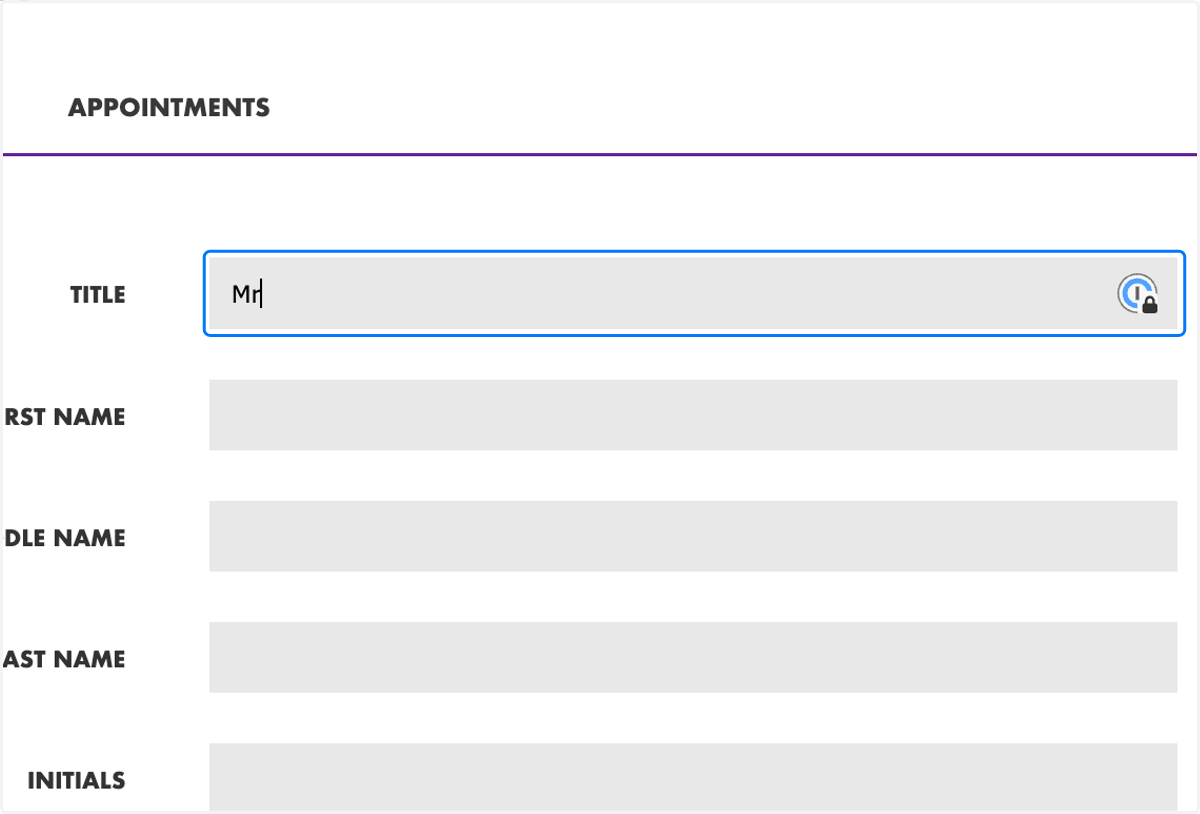
6. Enter the person's "Title"
The title options to enter include Mr, Mrs, Ms or other formal name titles. This title is not the title of the person's appointment and is an optional field.
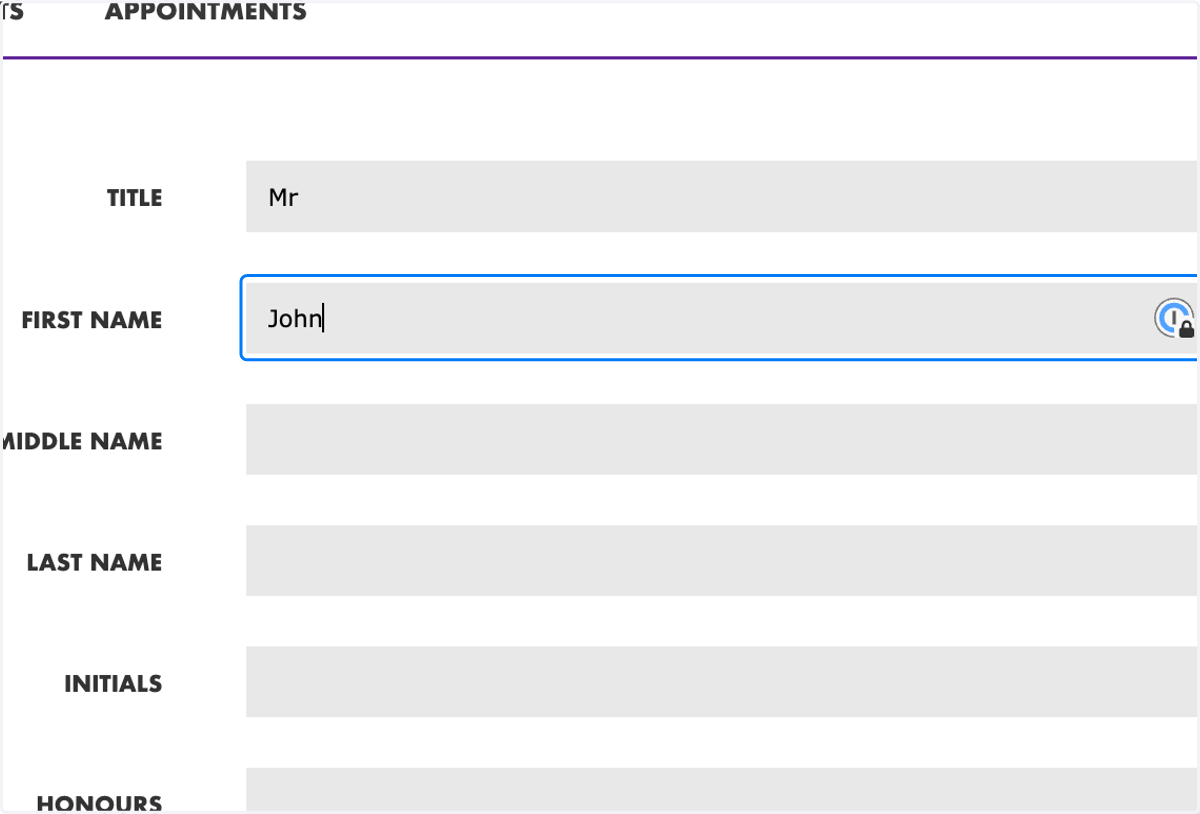
7. Enter the person's "First Name"
This field is mandatory to create a person's profile.
8. Enter the person's "Last Name"
This field is mandatory to create a person's profile.
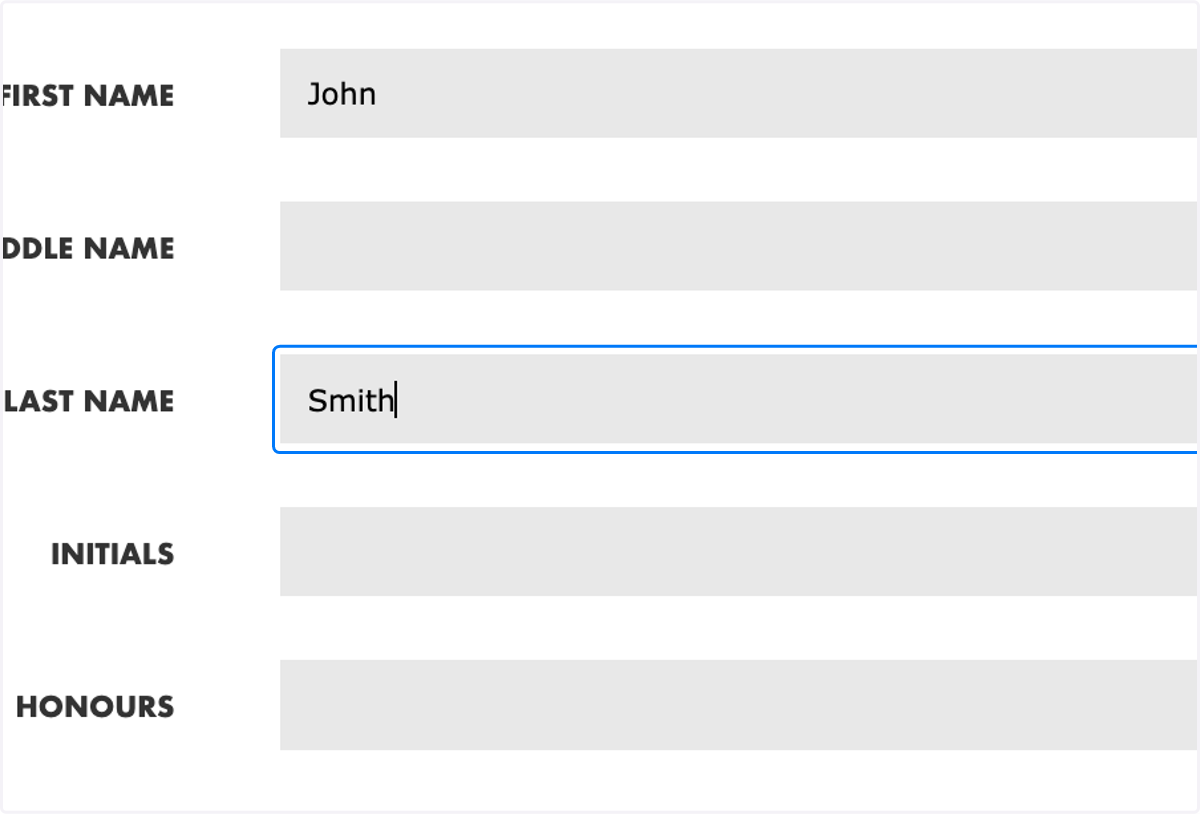
9. Select their gender
This field is optional to create a person's profile.
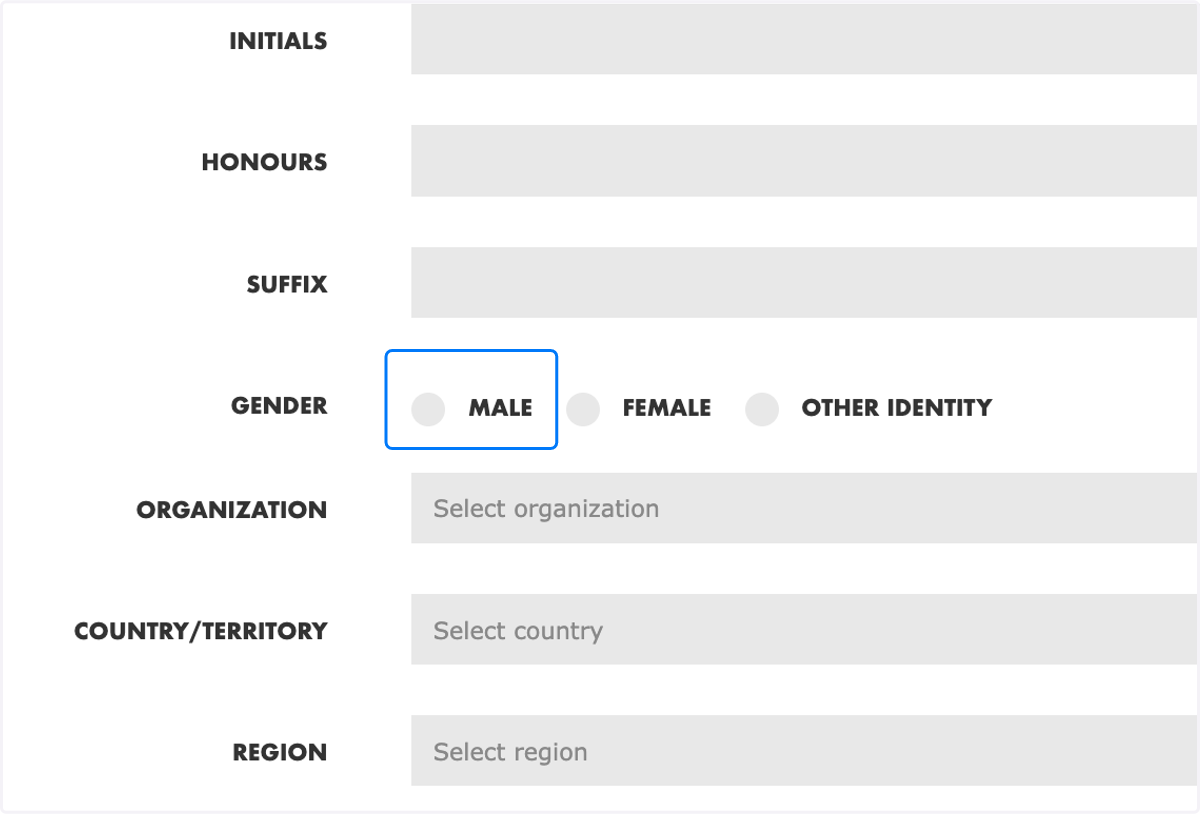
10. Select "Organization"
This field should be filled in to create a person's profile.
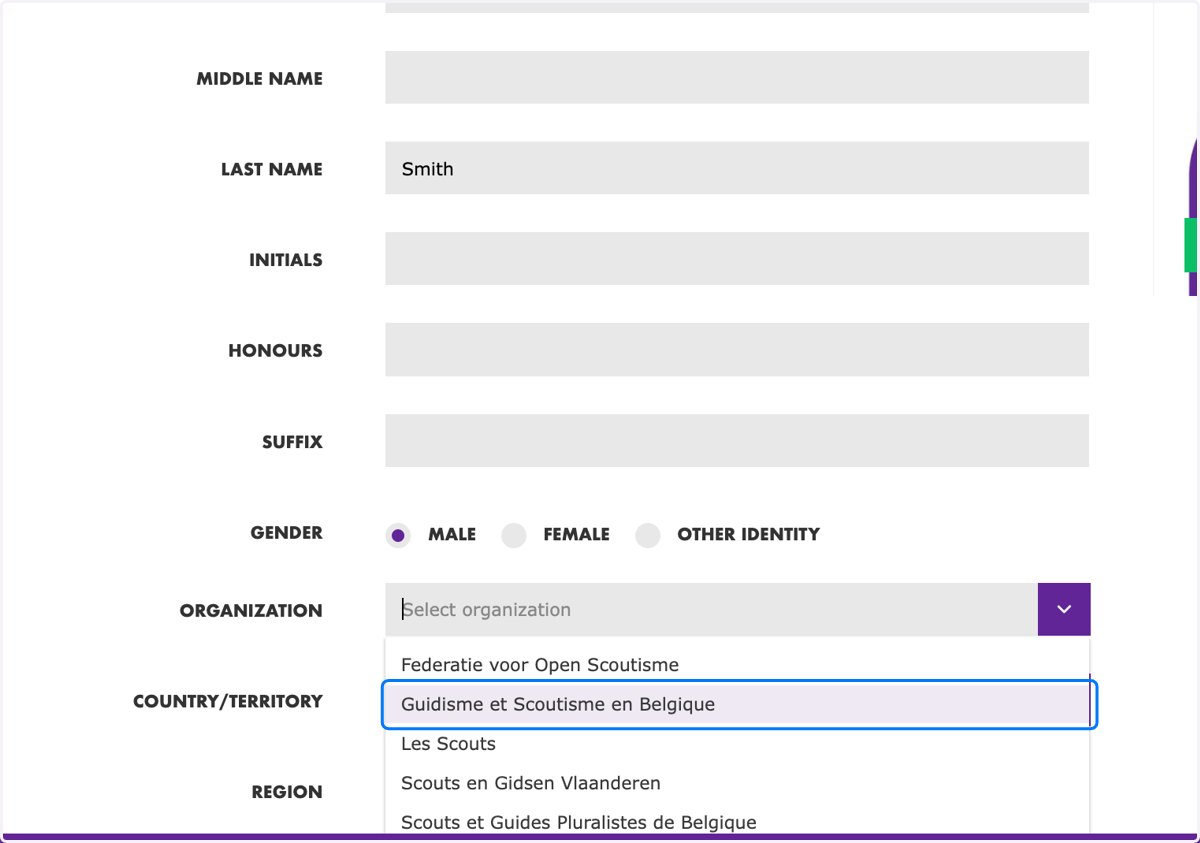
11. Select the "Country"
This field is mandatory to create a person's profile.
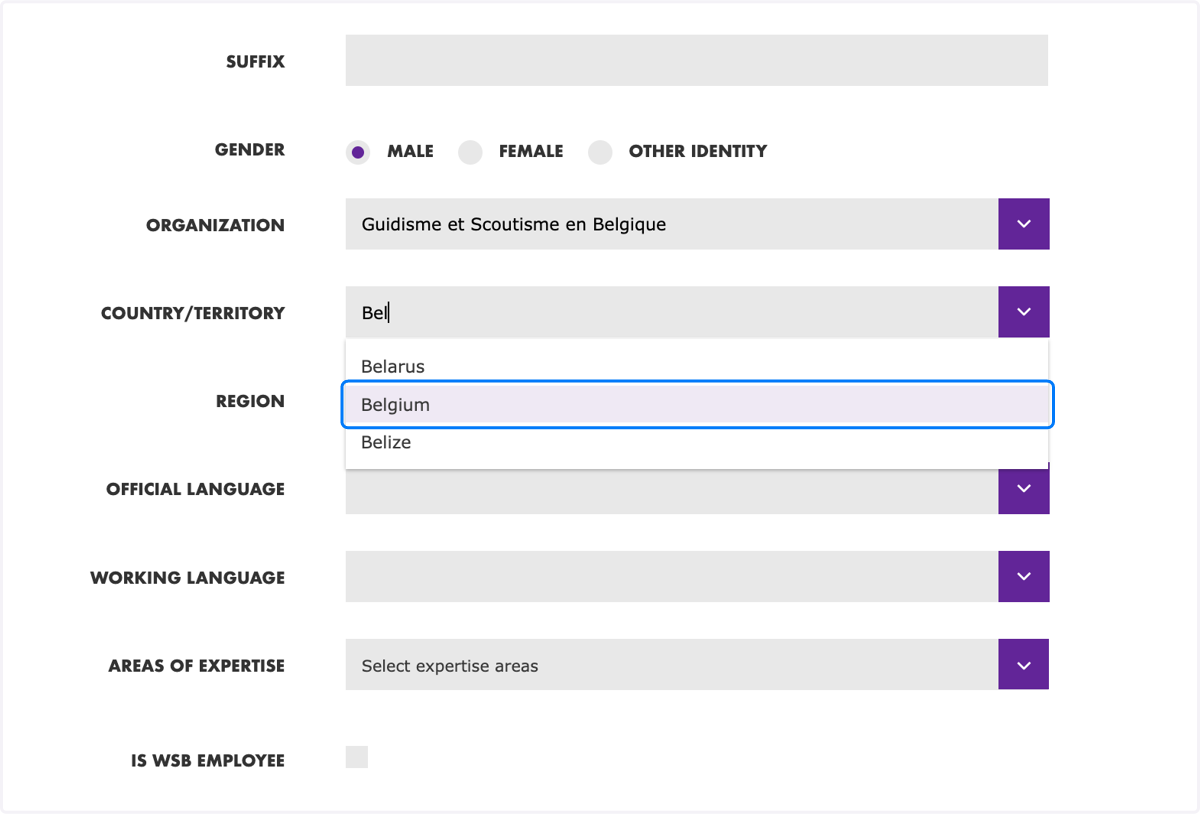
12. Select the Scout "Region"
This field is mandatory to create a person's profile.
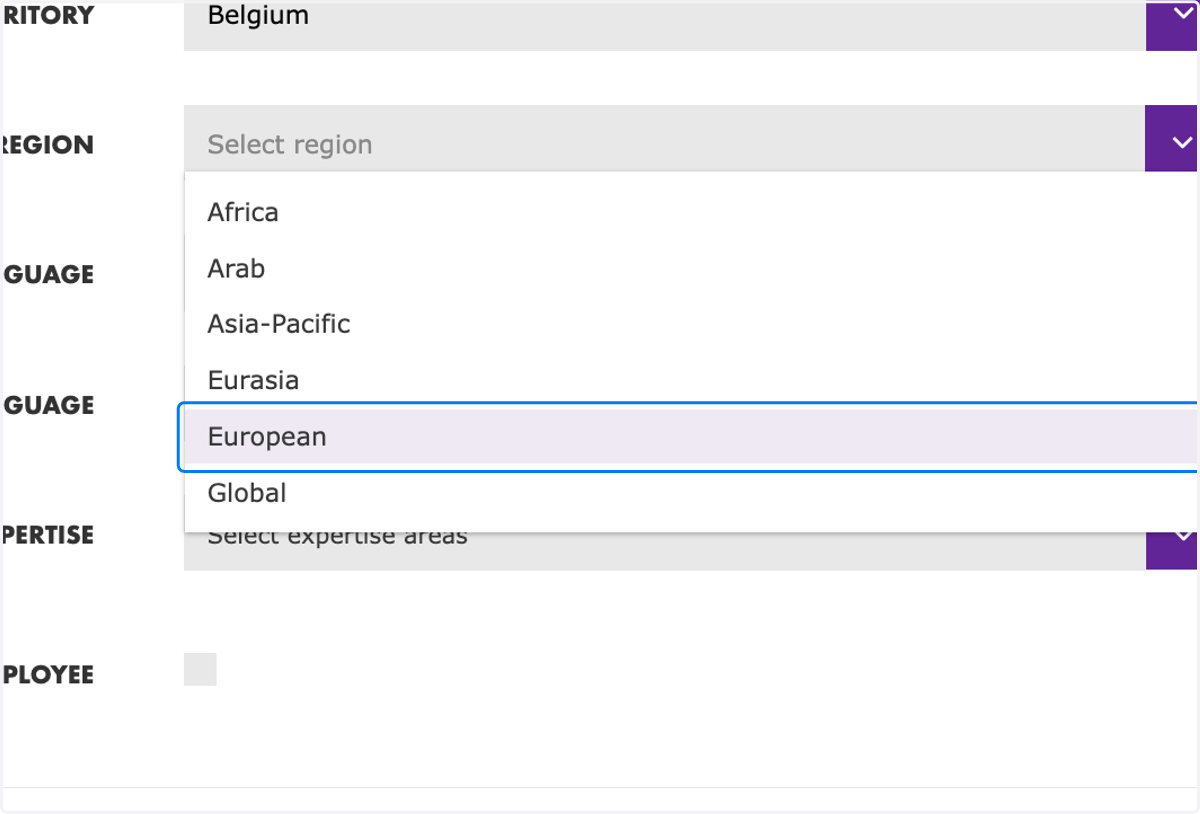
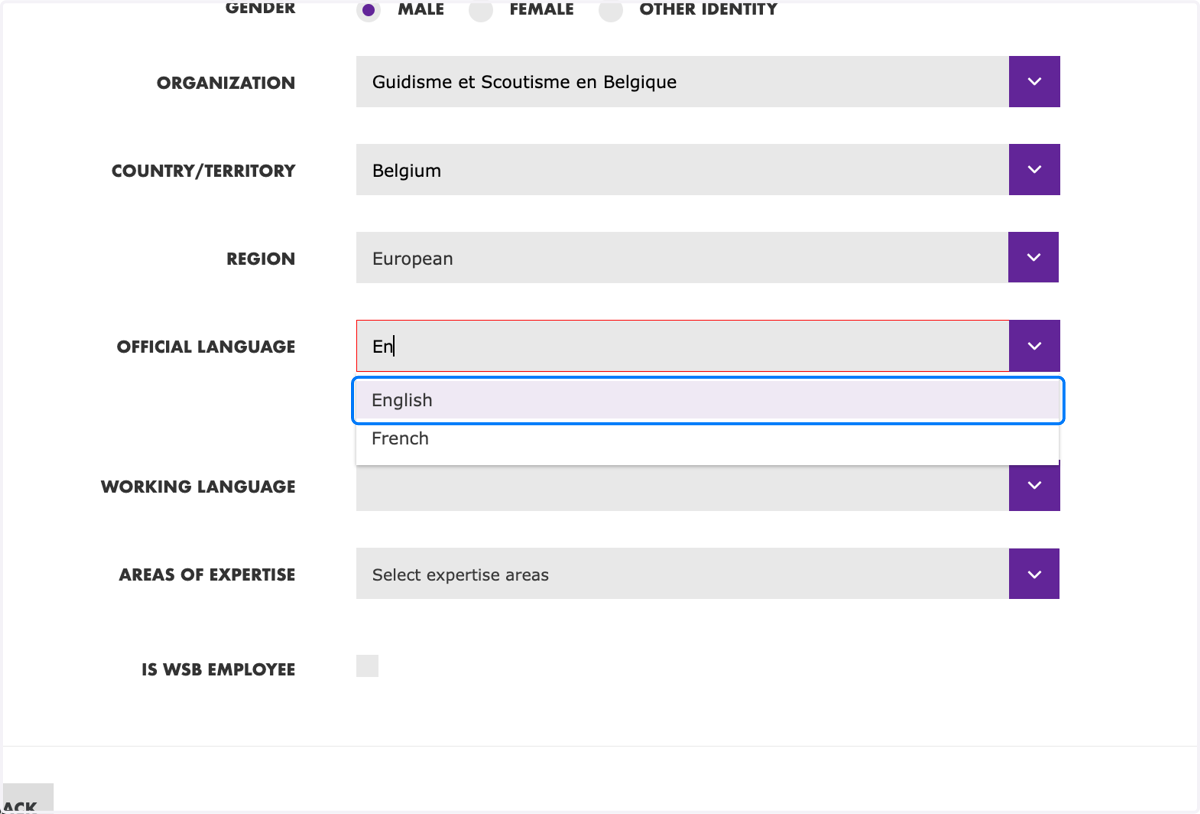
13. Select the "Official Language" of preference
This field is mandatory to create a person's profile.
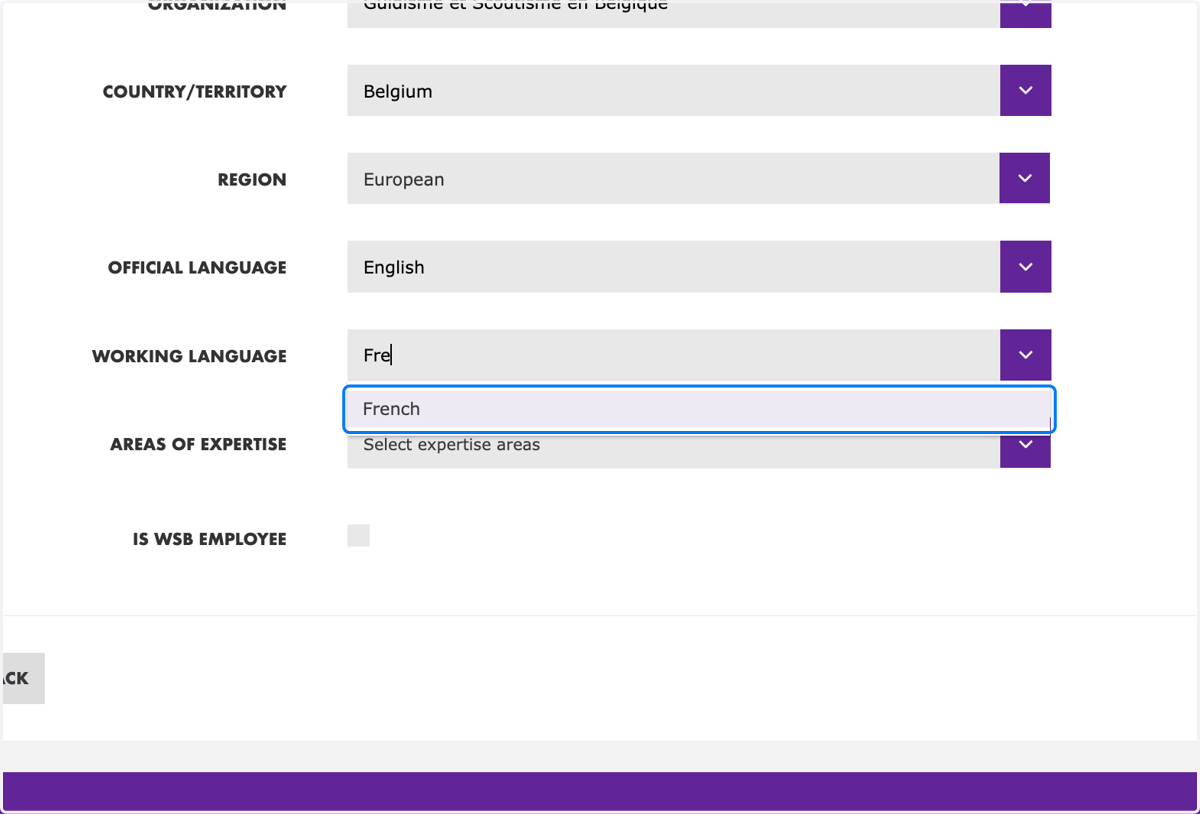
14. Select the "Working Language" of preference
This field is mandatory to create a person's profile.
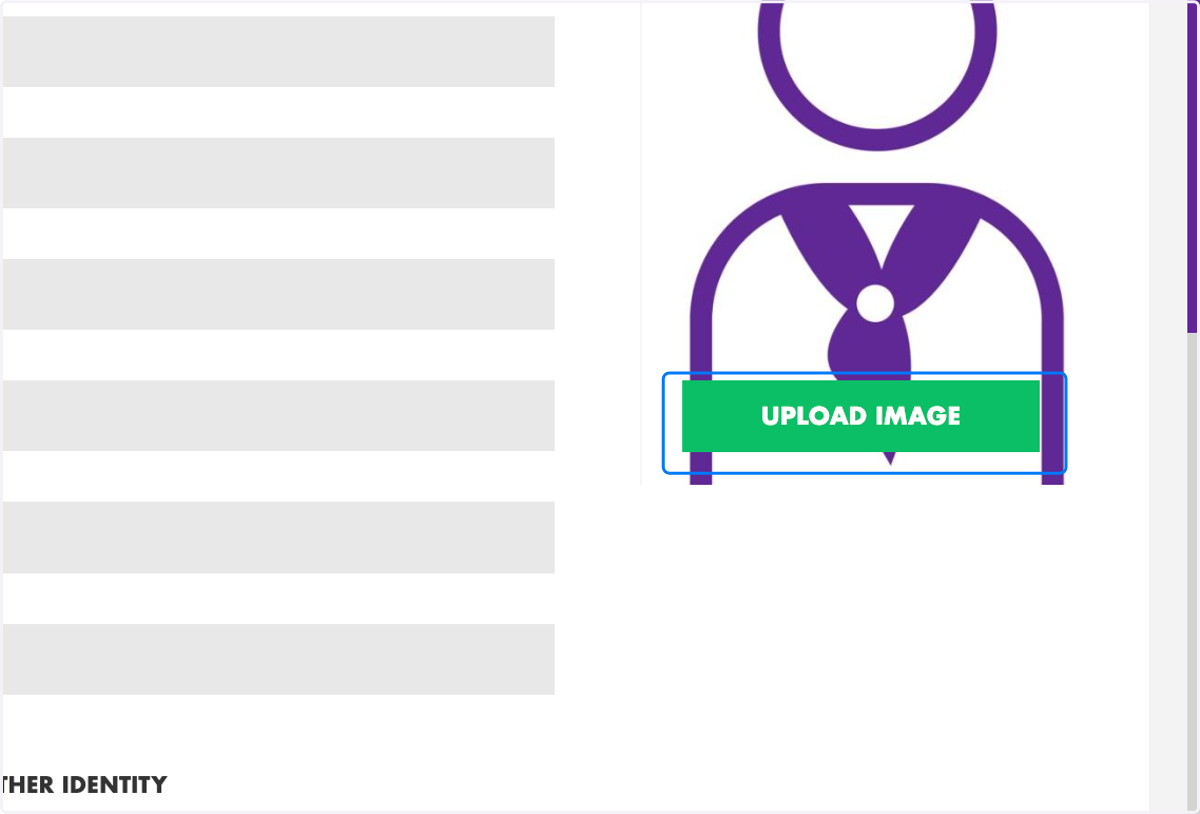
15. Click on "Upload Image" to add a profile photo
This field is optional to create a person's profile.
16. Click on the "Contacts" tab
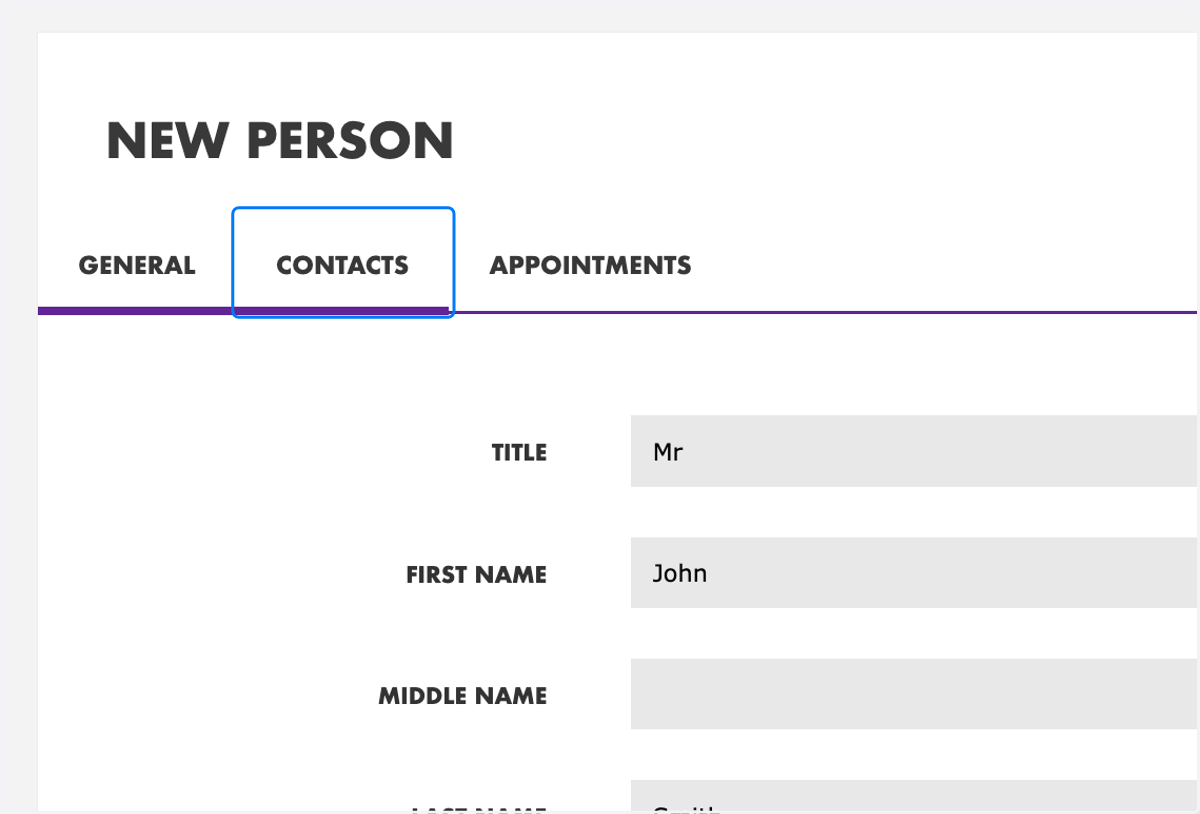
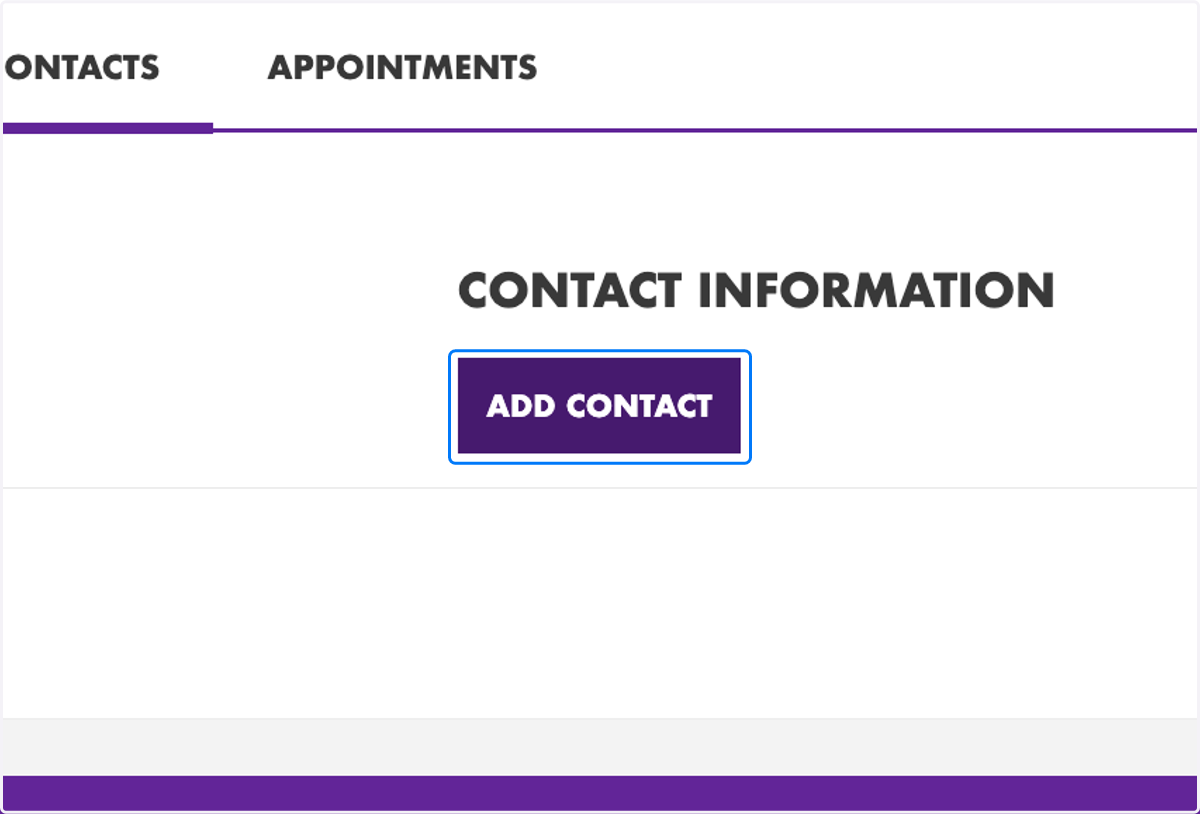
17. Click on "Add Contact"
Adding a contact is optional to create a person's profile.
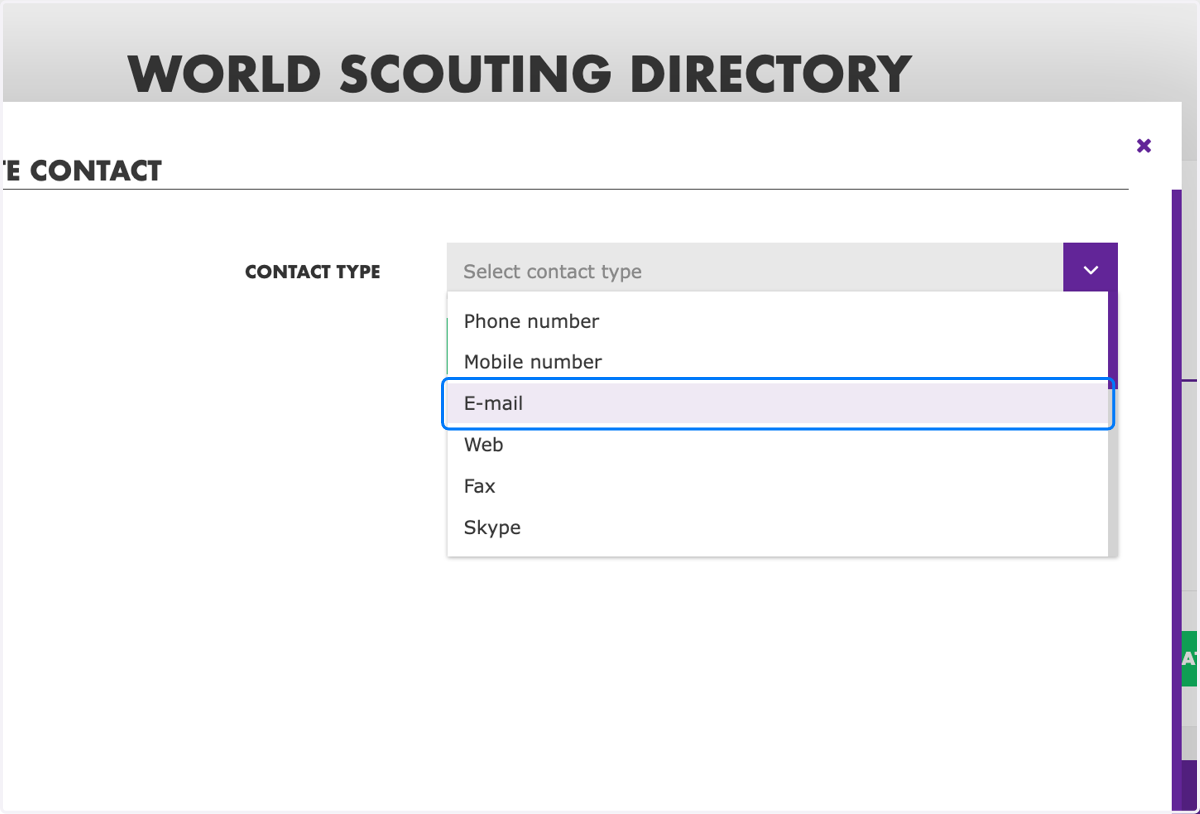
18. Select the contact type
Adding an email address to the person's profile will assist with offering networking opportunities within Scouting and allow the person to receive communications from WOSM.
19. Enter the contact information
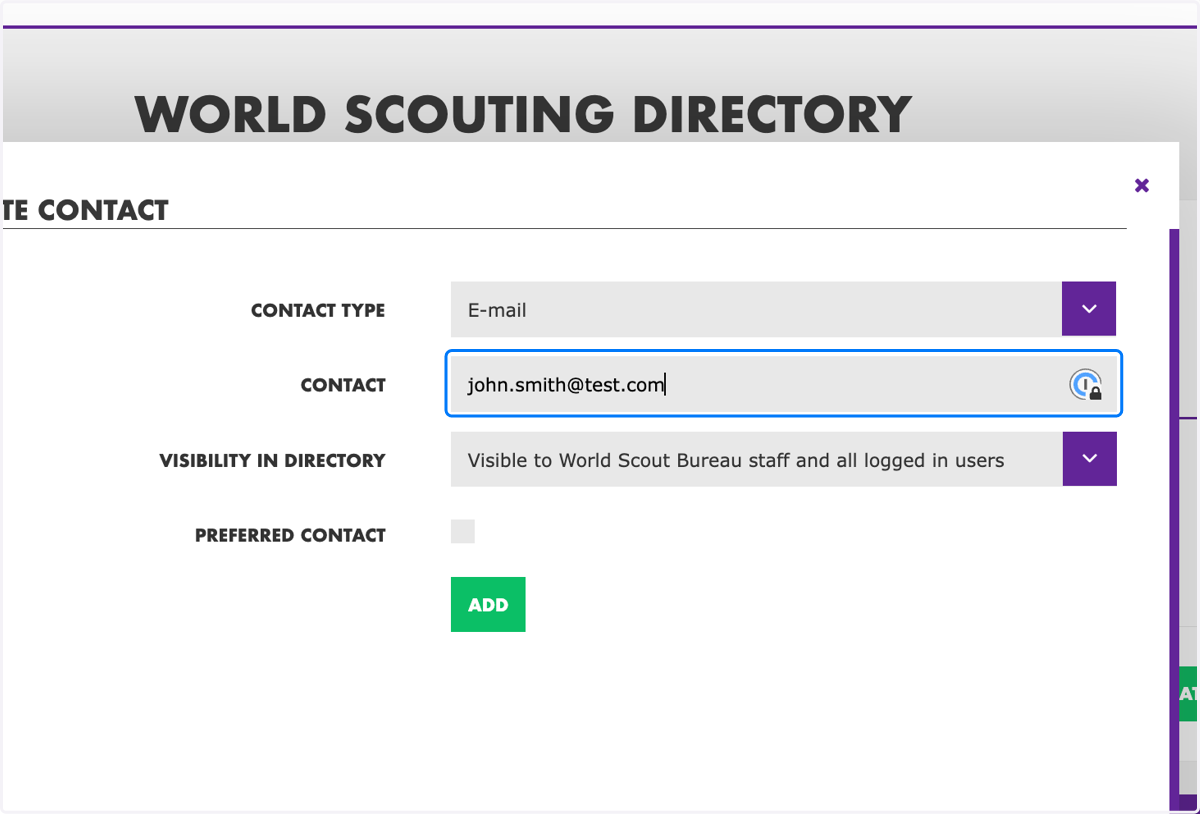
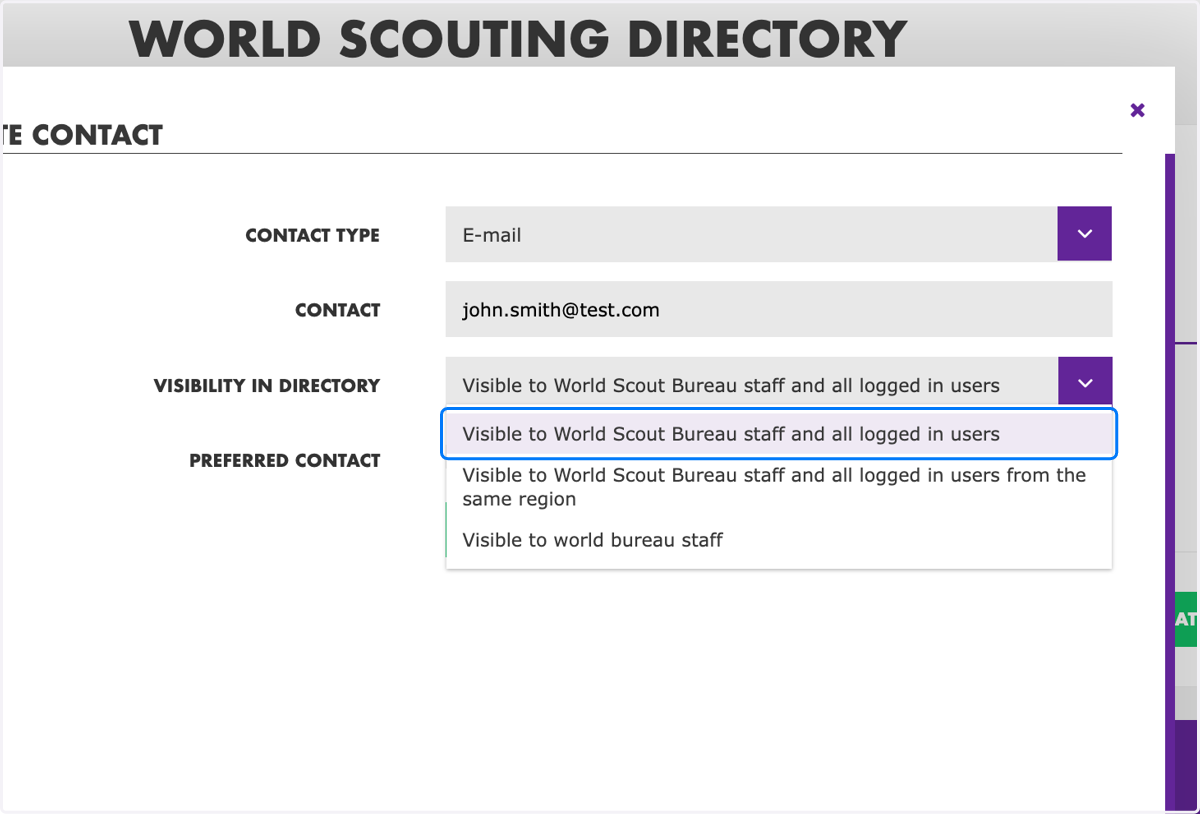
20. Select the "Visibility in Directory" preference
It is possible to select the desired visibility level for each contact type added to the Directory to align with personal data privacy preferences.
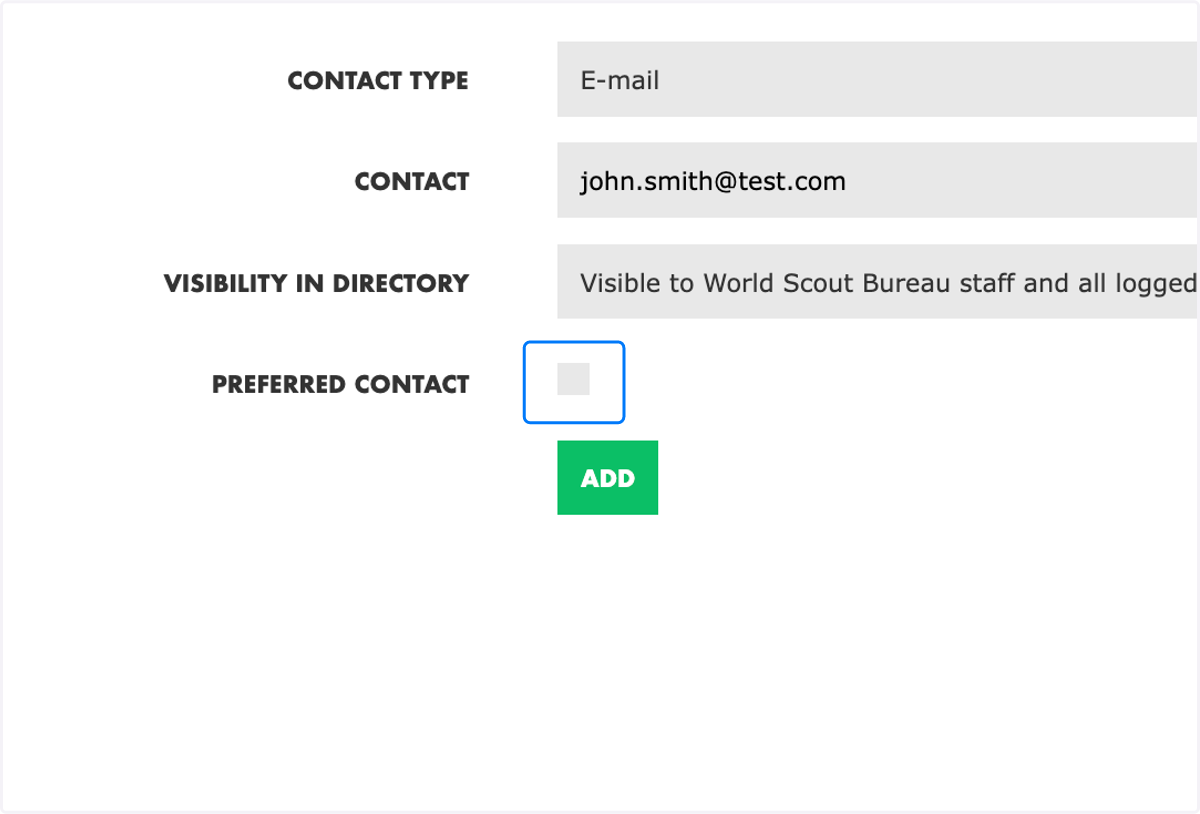
21. Select "Preferred Contact" as needed
At least an email address should be identified as a preferred contact so it connects with the World Scouting communication lists.
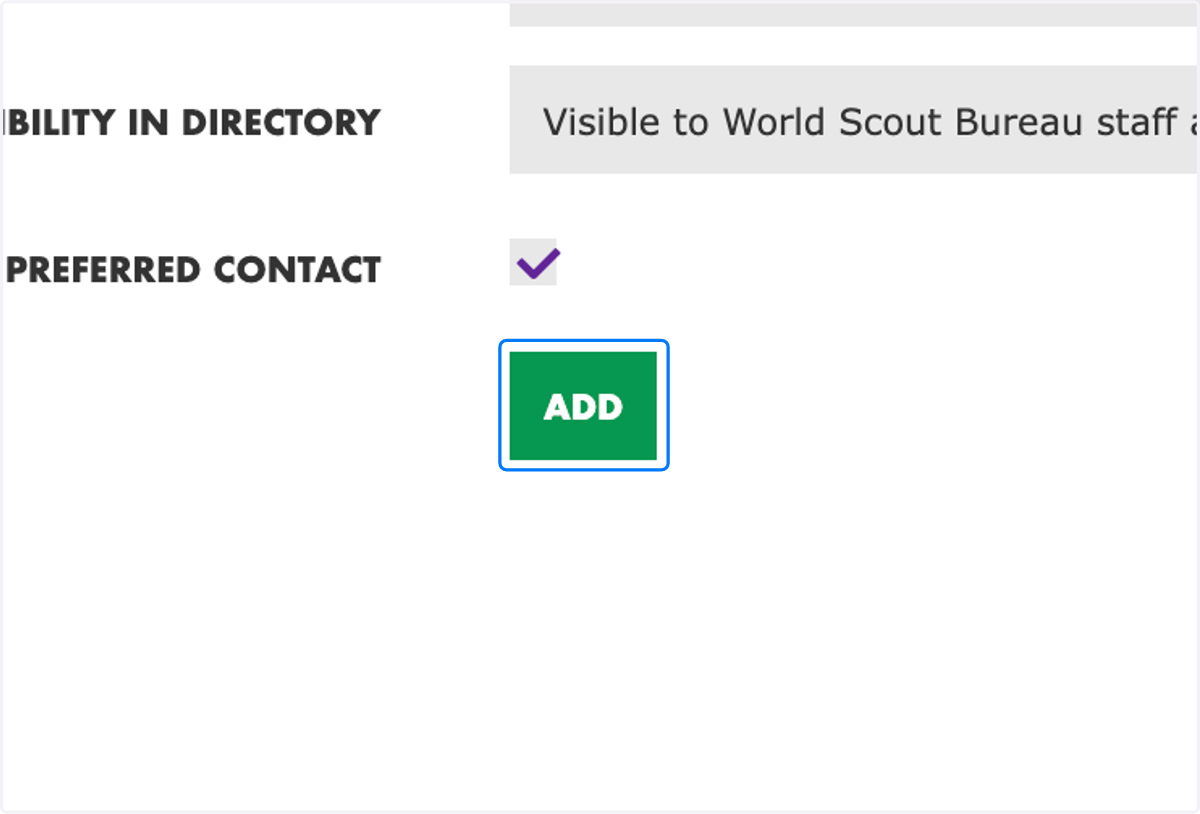
22. Click on "Add"
You can add as many contact types as desired.
23. Click on "Appointments"
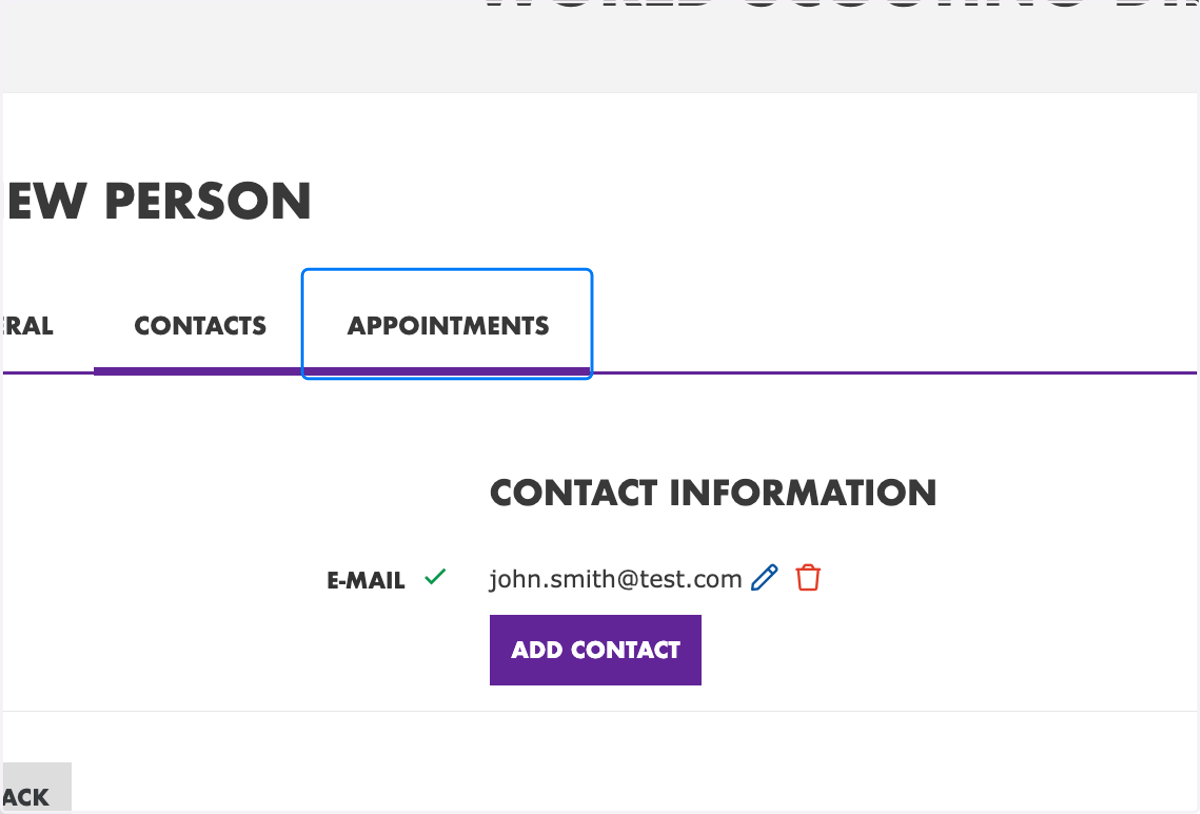
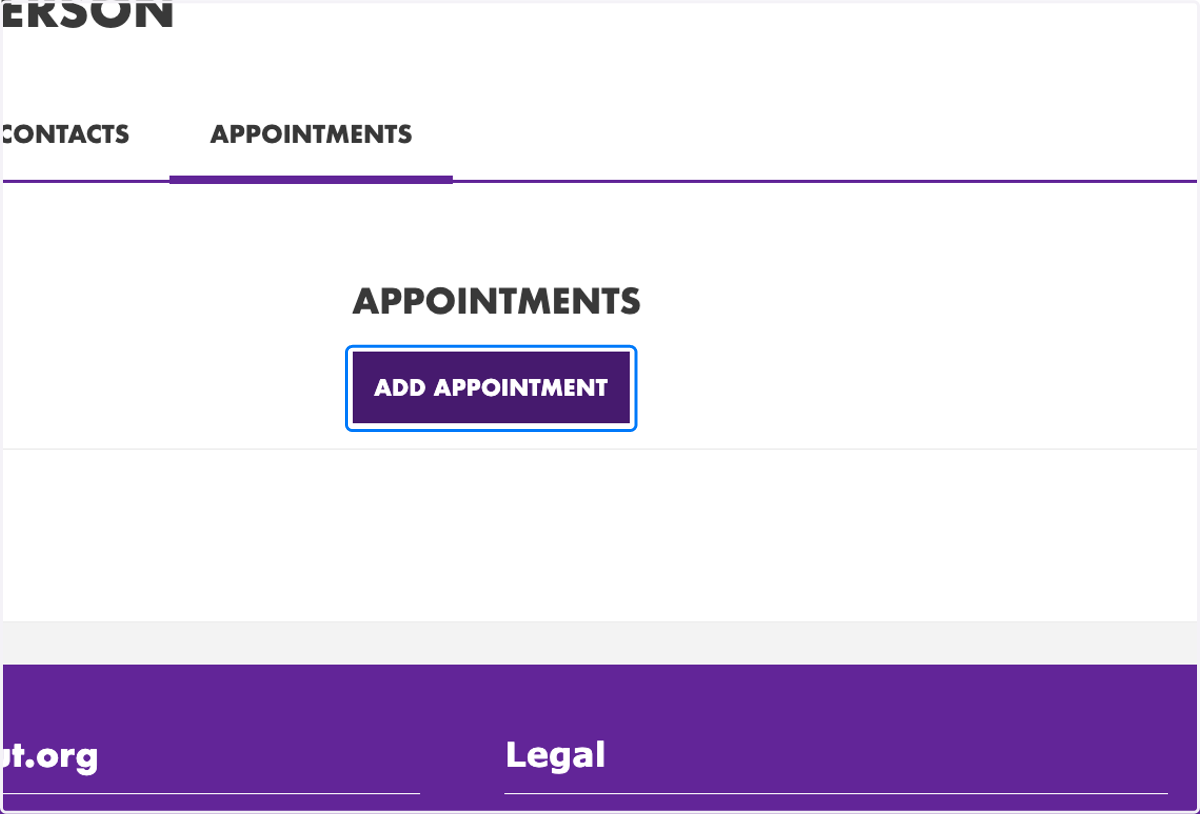
24. Click on "Add Appointment"
Every person in the Directory is required to have at least one appointment with WOSM listed on their profile.
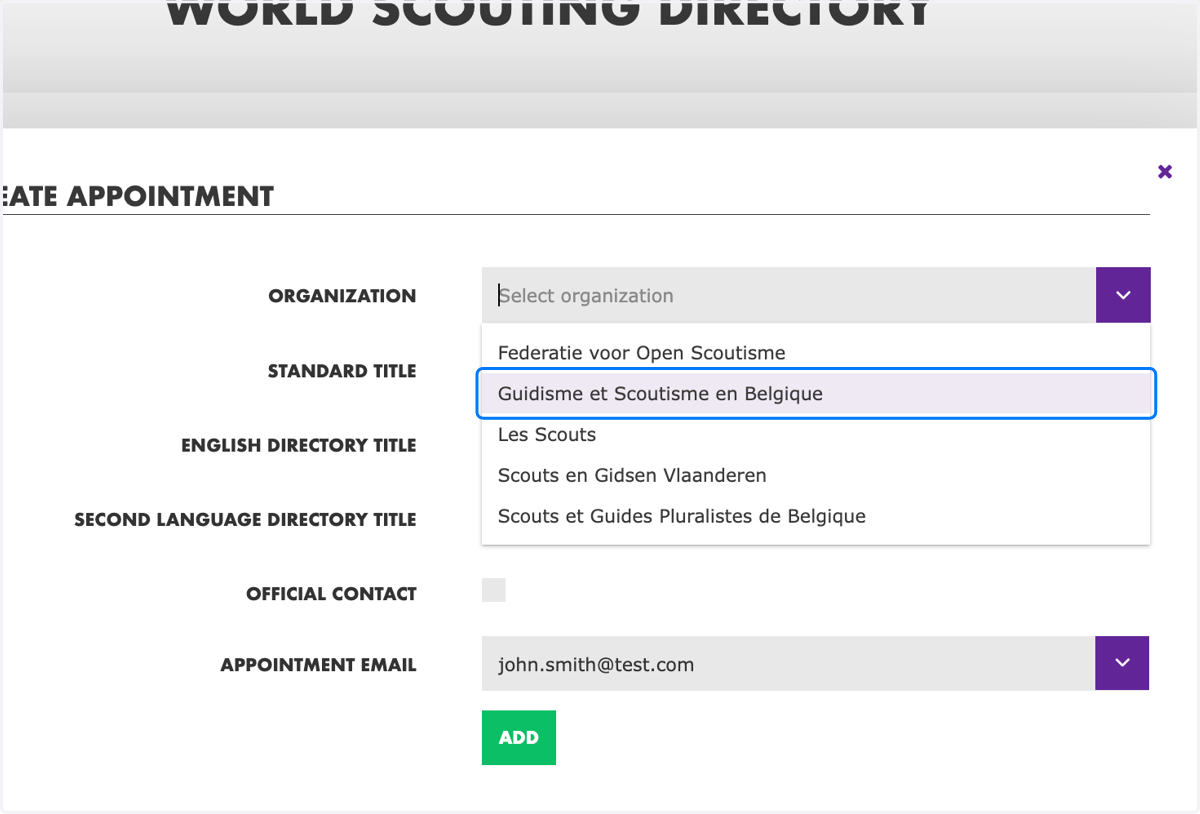
25. Select the "Organization"
This field is required to create a person's appointment.
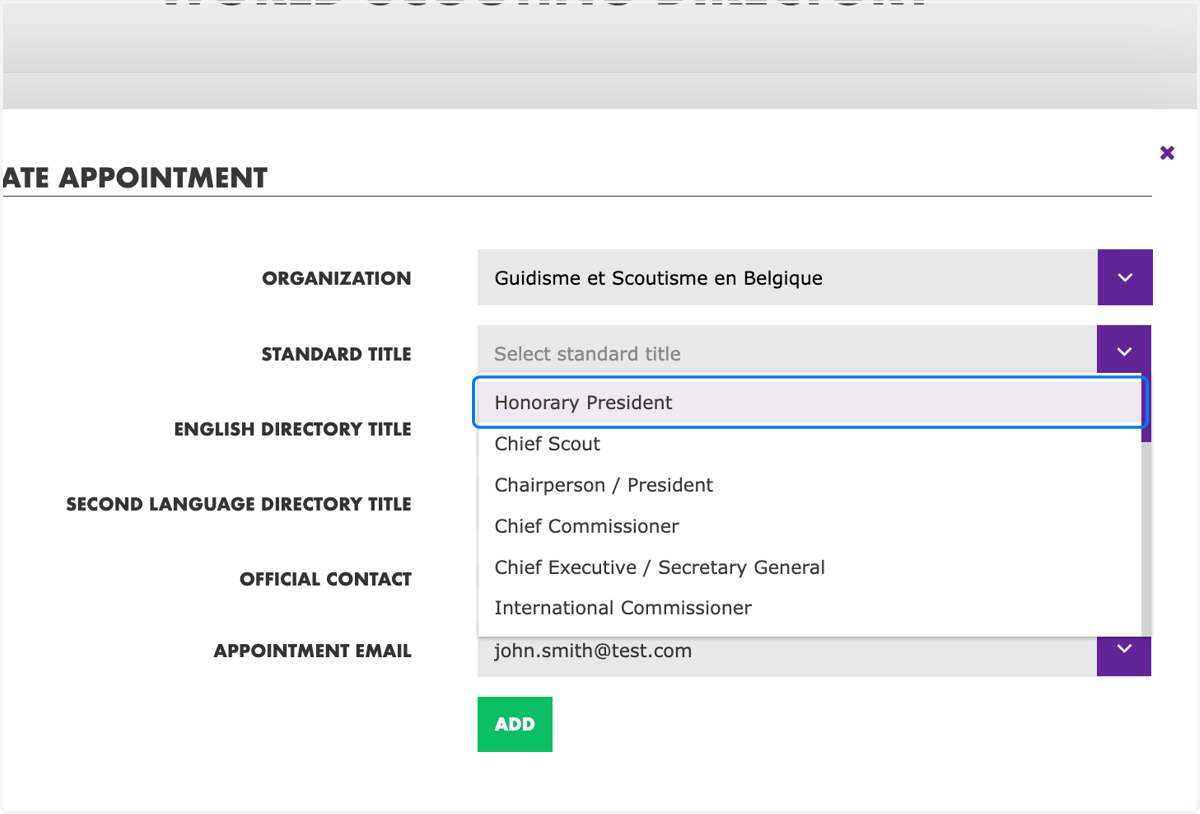
26. Select the "Standard Title" of appointment
This field is required to create a person's appointment. The standard appointment titles help identify who should be contacted for different roles or areas of work within the NSO.
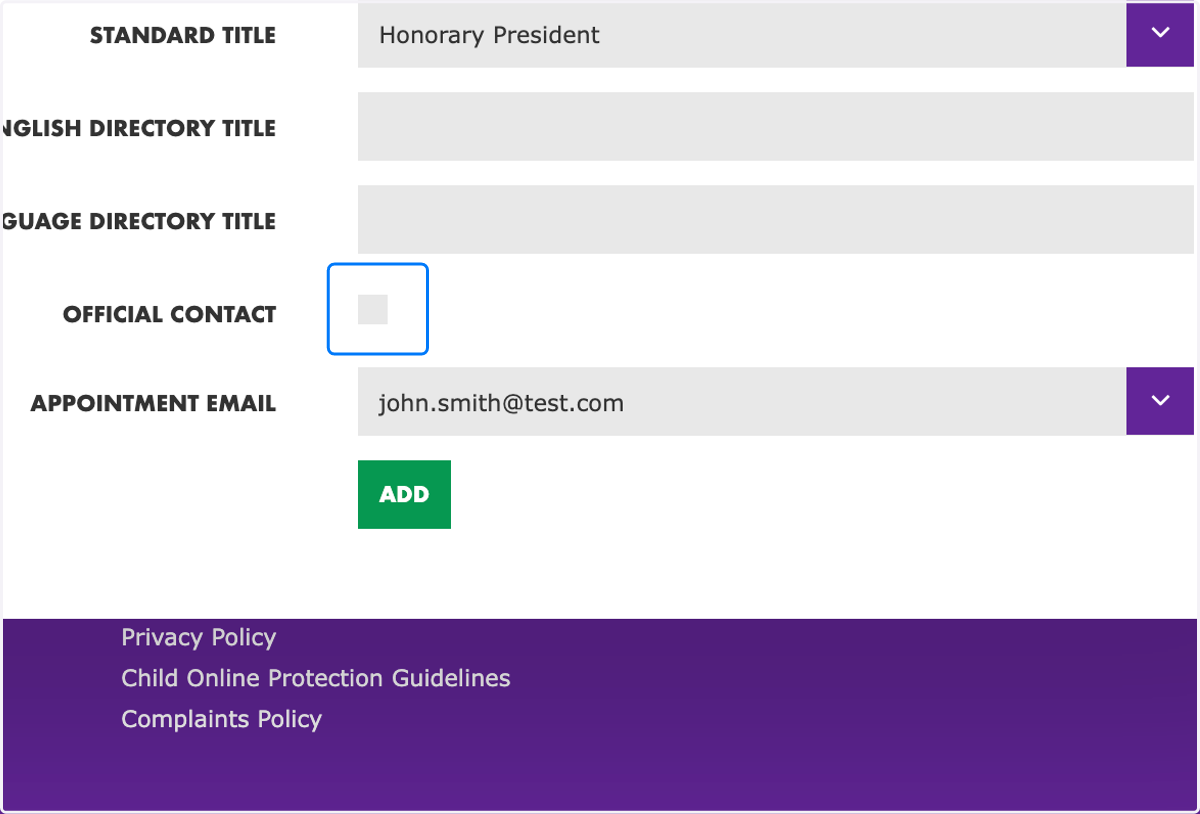
27. Select "Official Contact" if needed
Official contact's should be limited to one or two appointees for the organisation and identify the person's who are the Official Contacts with WOSM (ie International Commissioner).
28. Select "Appointment Email"
This email should be the preferred email for communications in relation to the appointment. This field is optional to create a person's appointment.
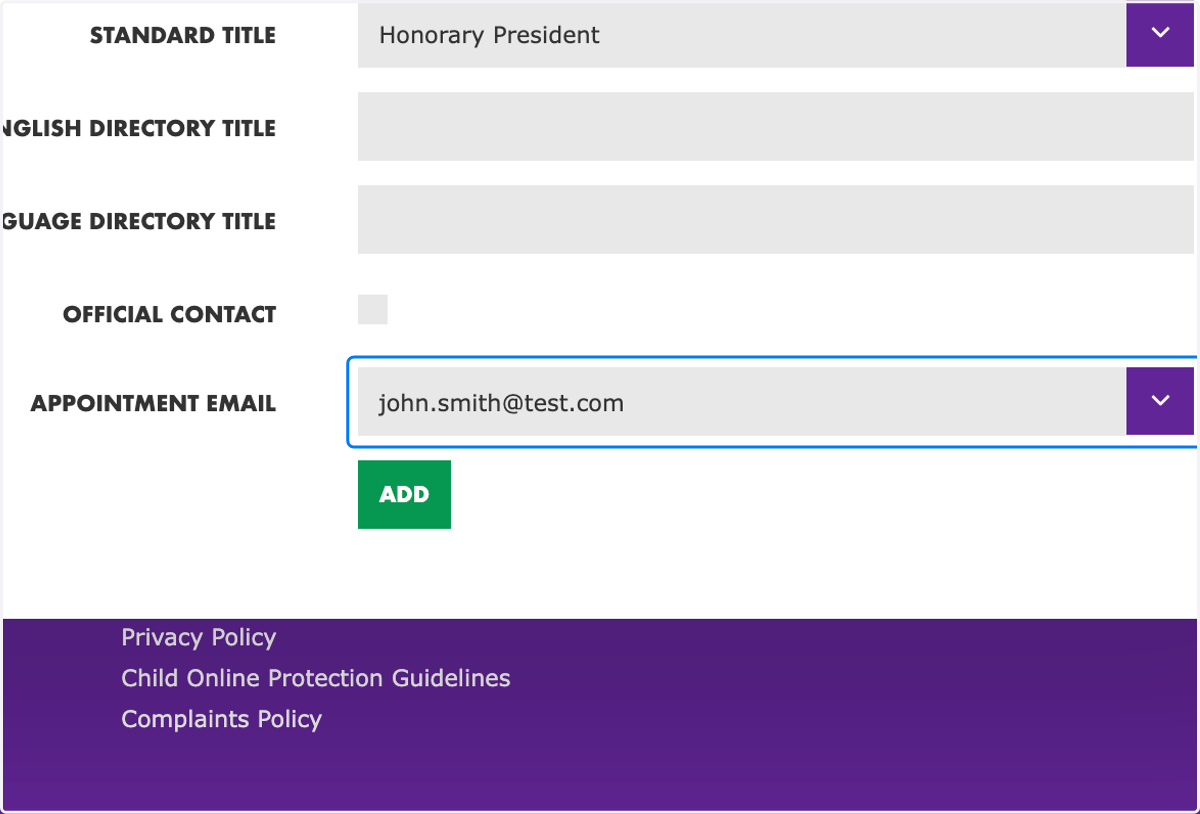
29. Click on "Add"
You can add as many appointments to the person's profile as needed.
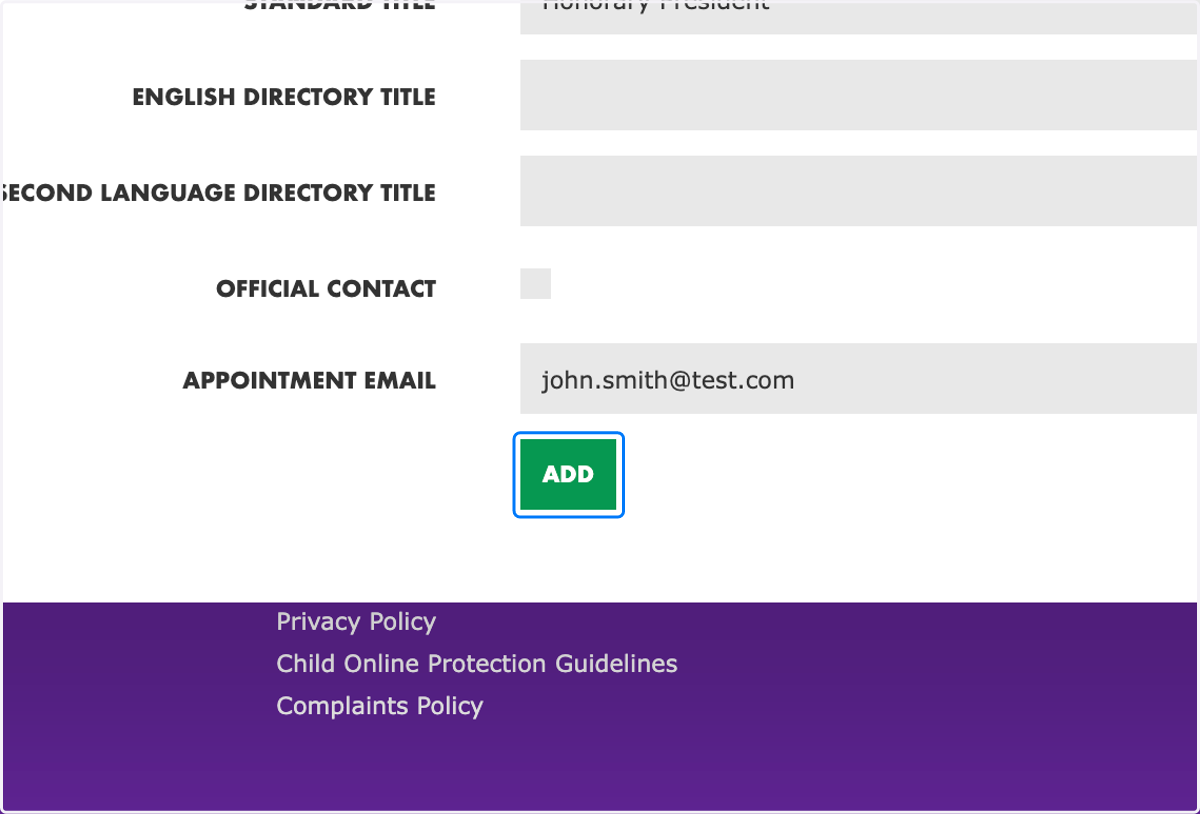
30. Click on "Create Person"
If editing a person's profile, then click on "Save"
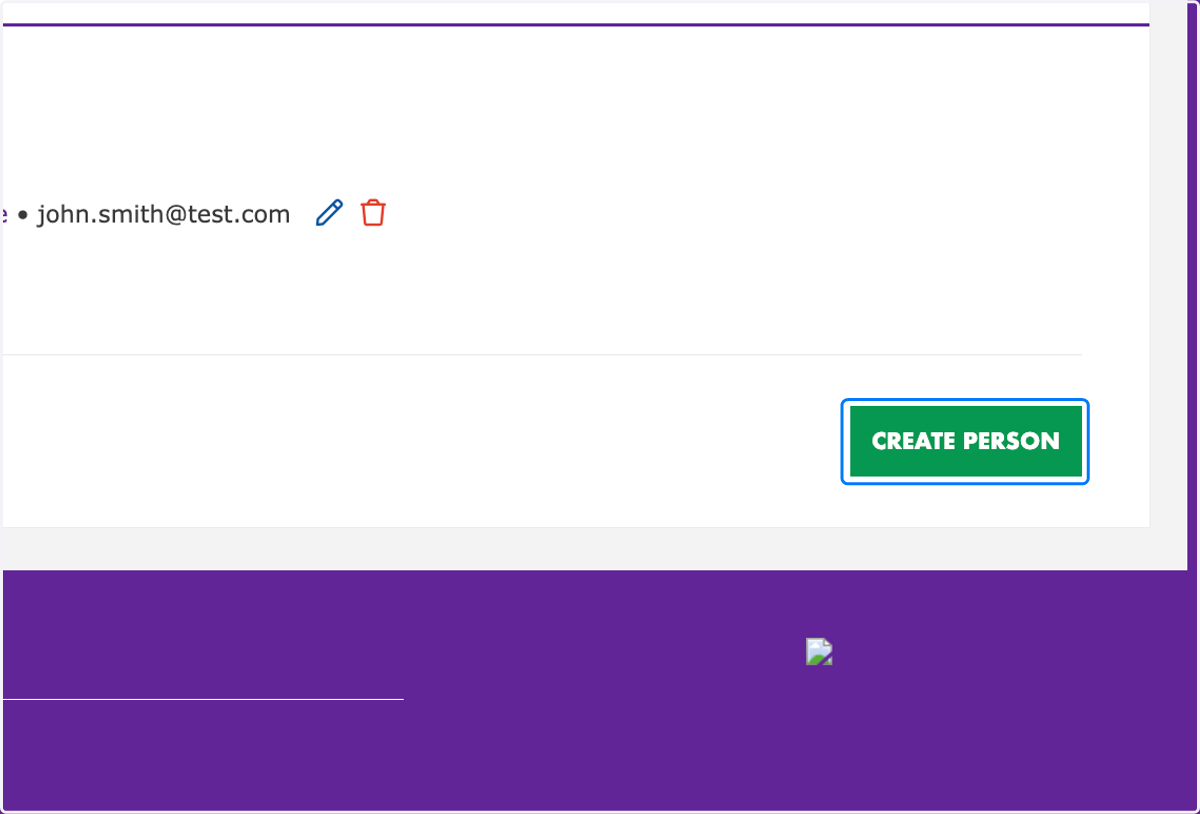
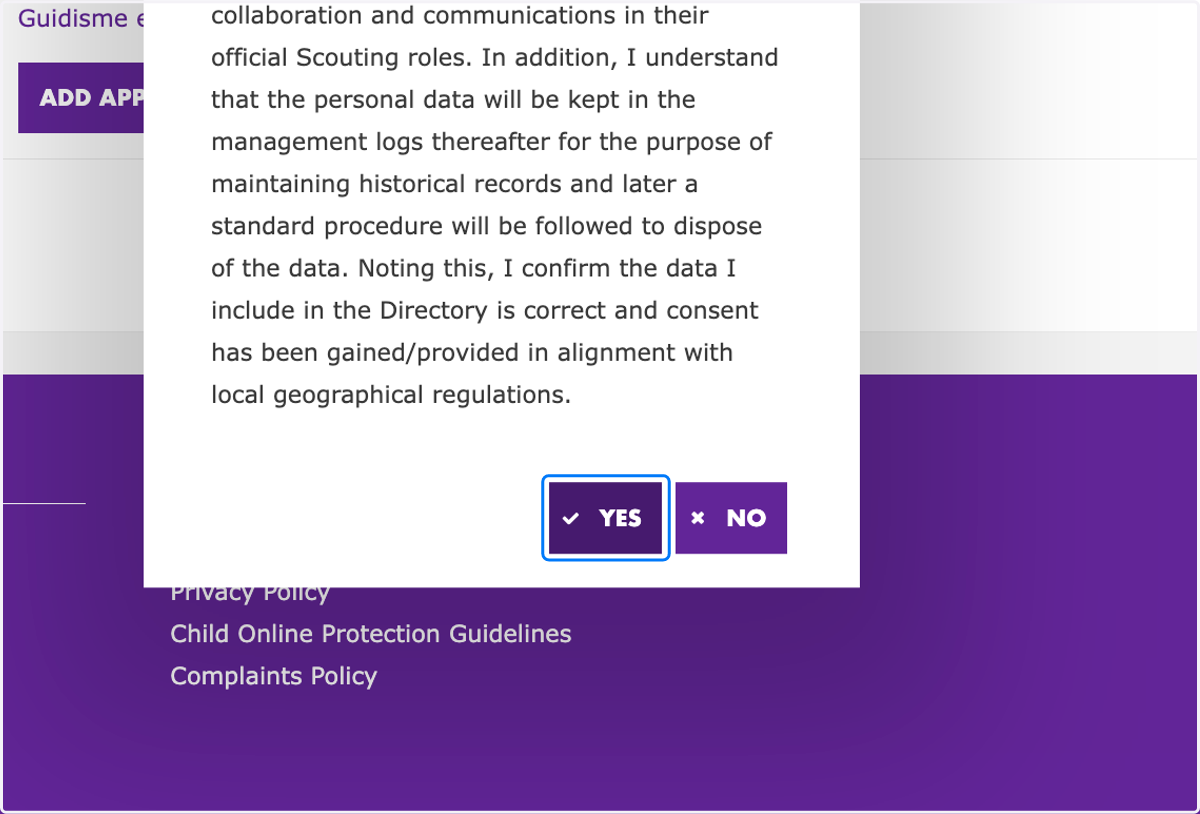
31. Carefully read the "Personal Data Consent" agreement
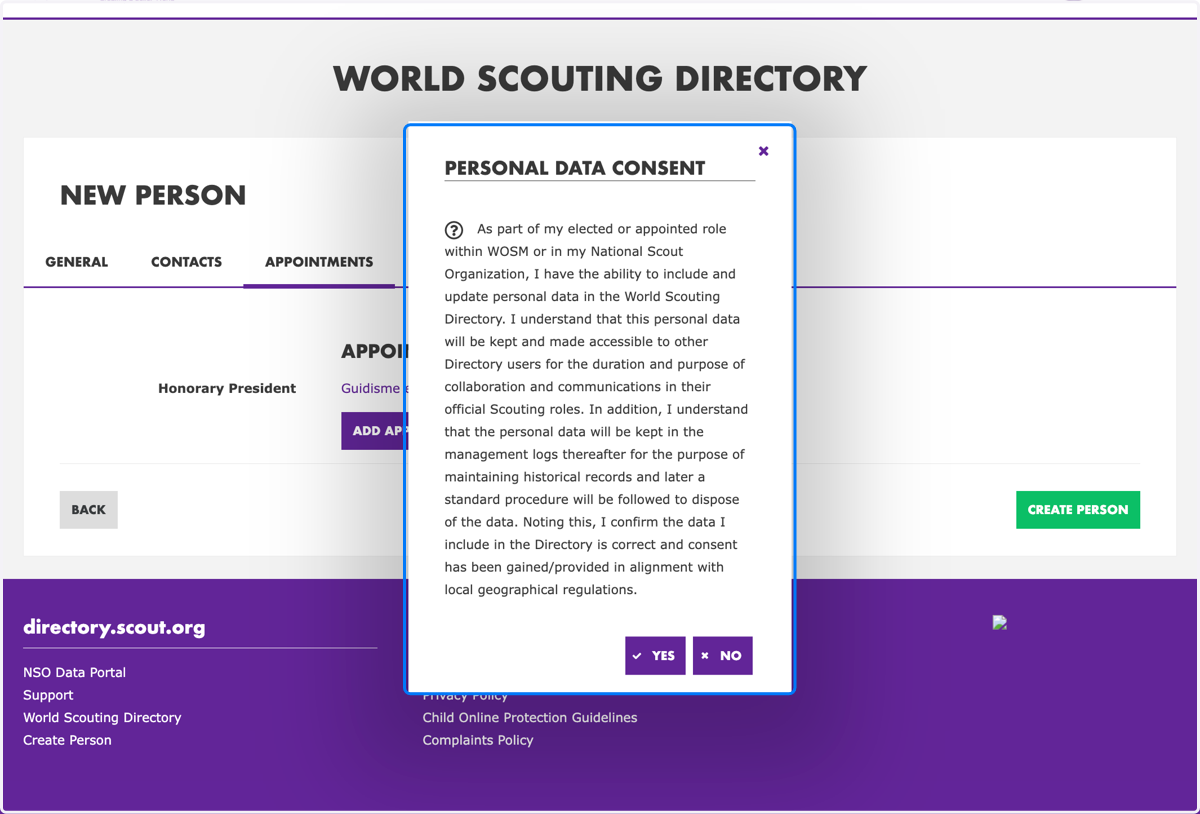
32. Click on "Yes"
To create a person or save a profile, you will need to agree to the personal data consent message. Or come back later to start over once you have the required consent to proceed.
33. Congratulations! You have created a new person