Creating a Membership Package: Continuous
You should create different packages for all memberships available at your venue. e.g. adult, student, junior, family / groups.
If you offer the continuous membership - this would be paid by installments and is only possible if paid online via Stripe
Clubspark / Admin / Membership
1. Click on Membership
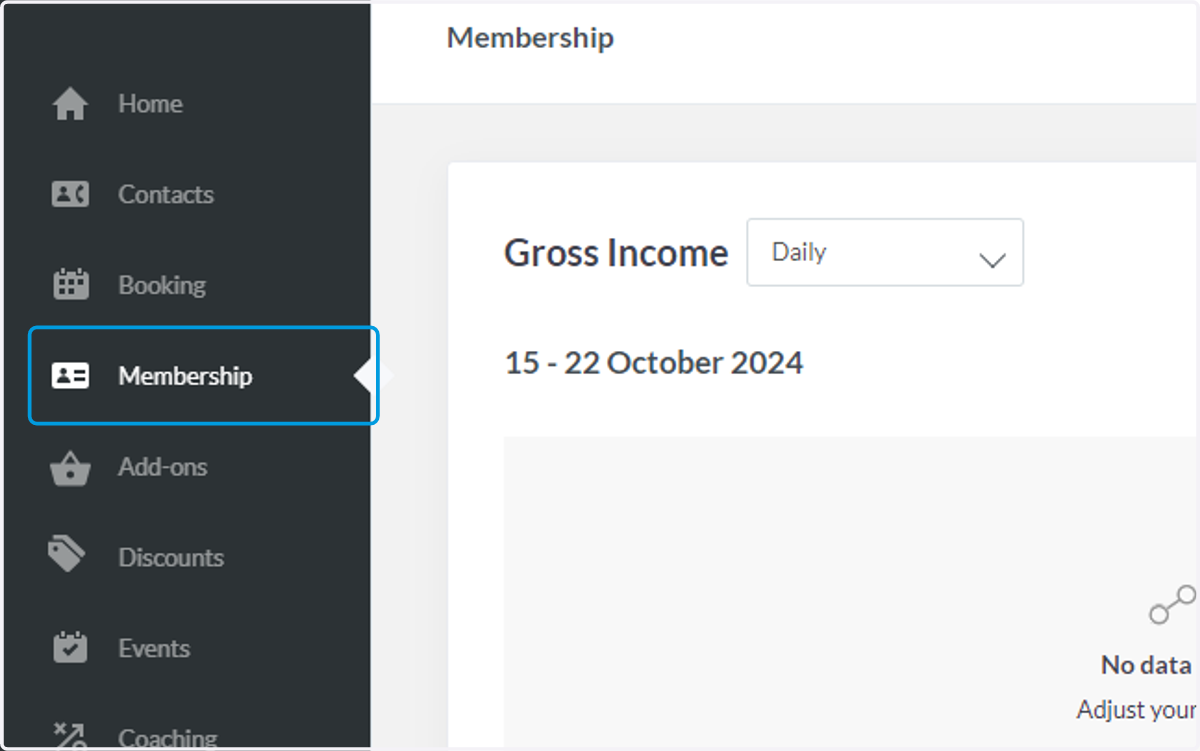
2. Head to Fixed date membership packages
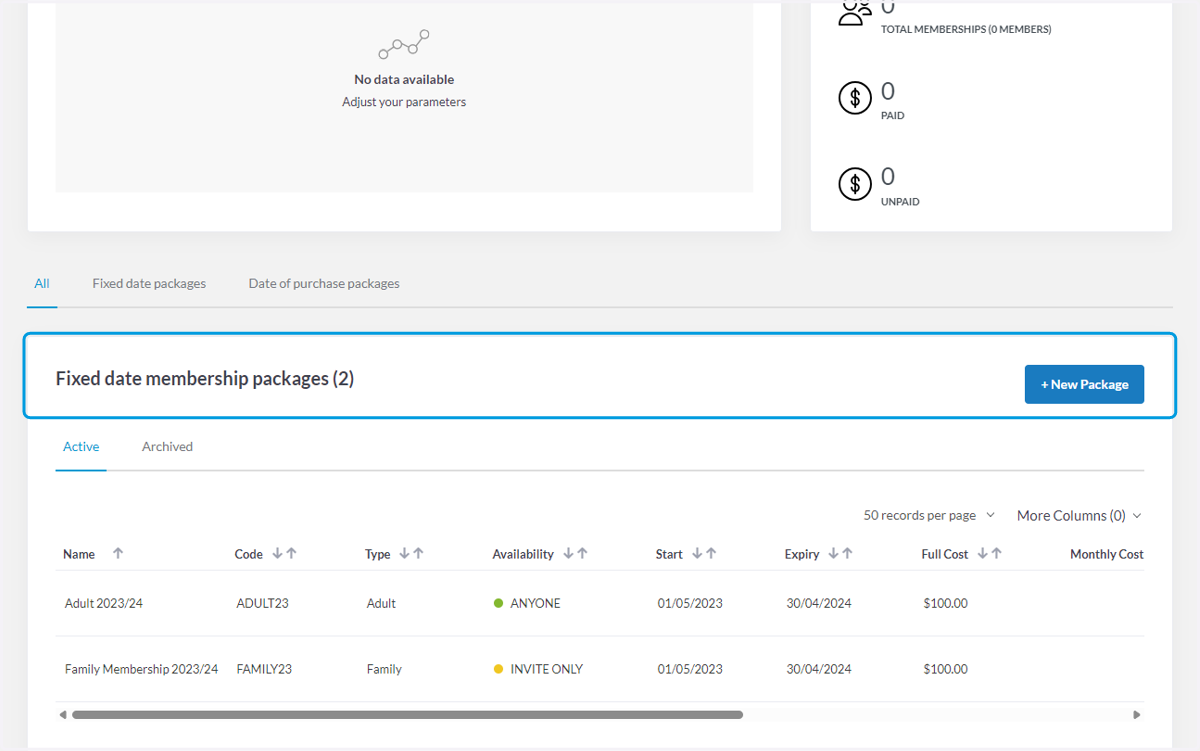
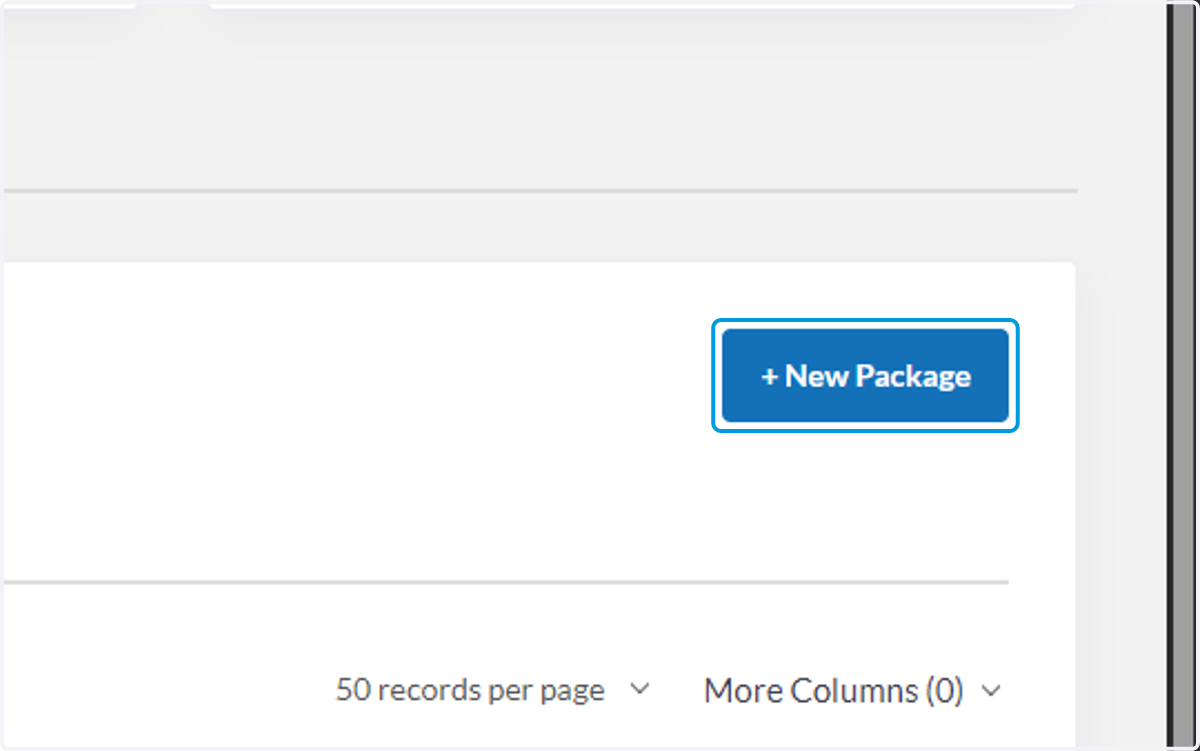
3. Click on + New Package
4. Type the package name e.g. "Adult Membership 2025/26"
It's important to include the season years to ensure the user signs up to the correct membership

5. Input a internal code used for reconciling purposes e.g. "ADULT-2025/26"
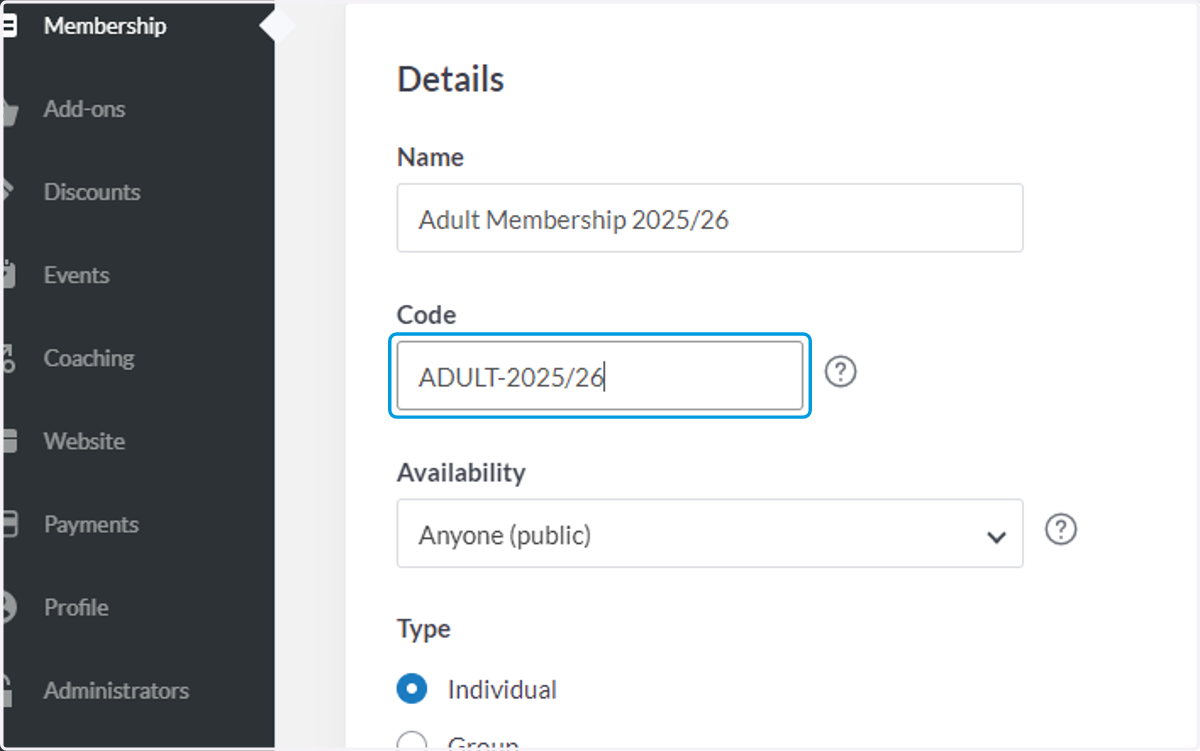
6. Specify the visibility of the package.

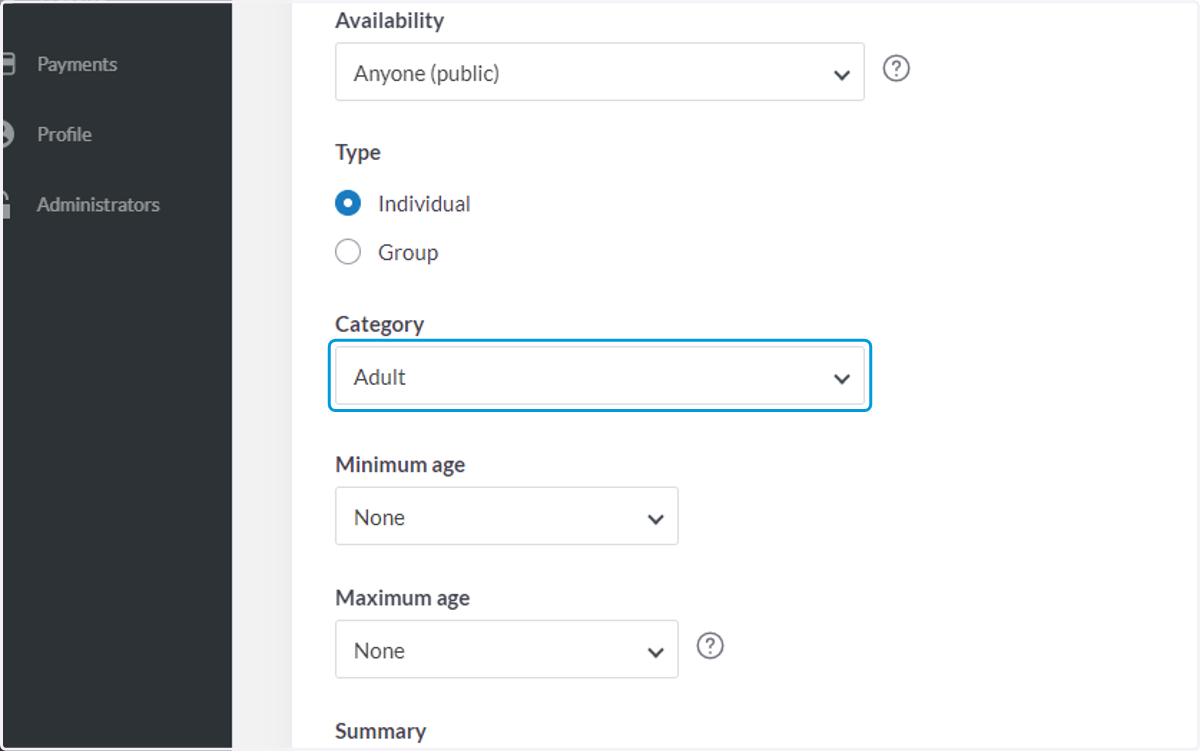
7. Click on Adult as the category.
If the package is Junior then you will need to select this within the drop down.
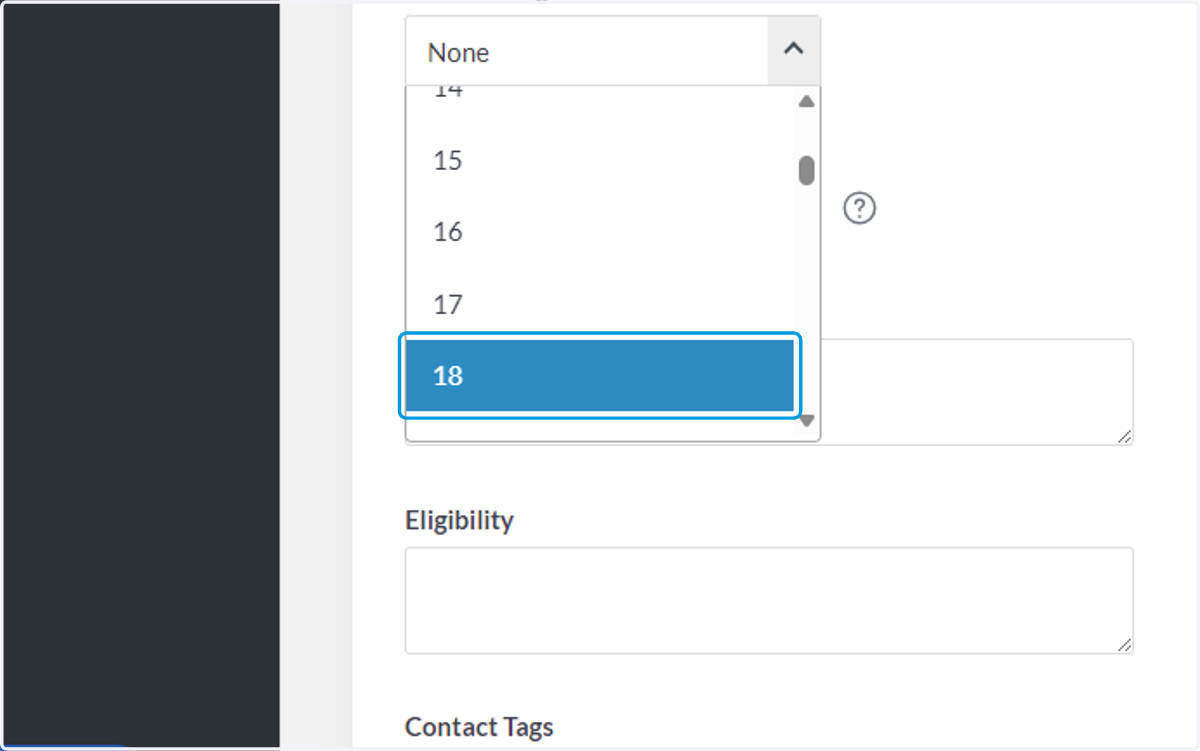
8. Specify the minimum age a user can sign up to the package
You can add a maximum which would only be suitable for age specific packages such as juniors etc..
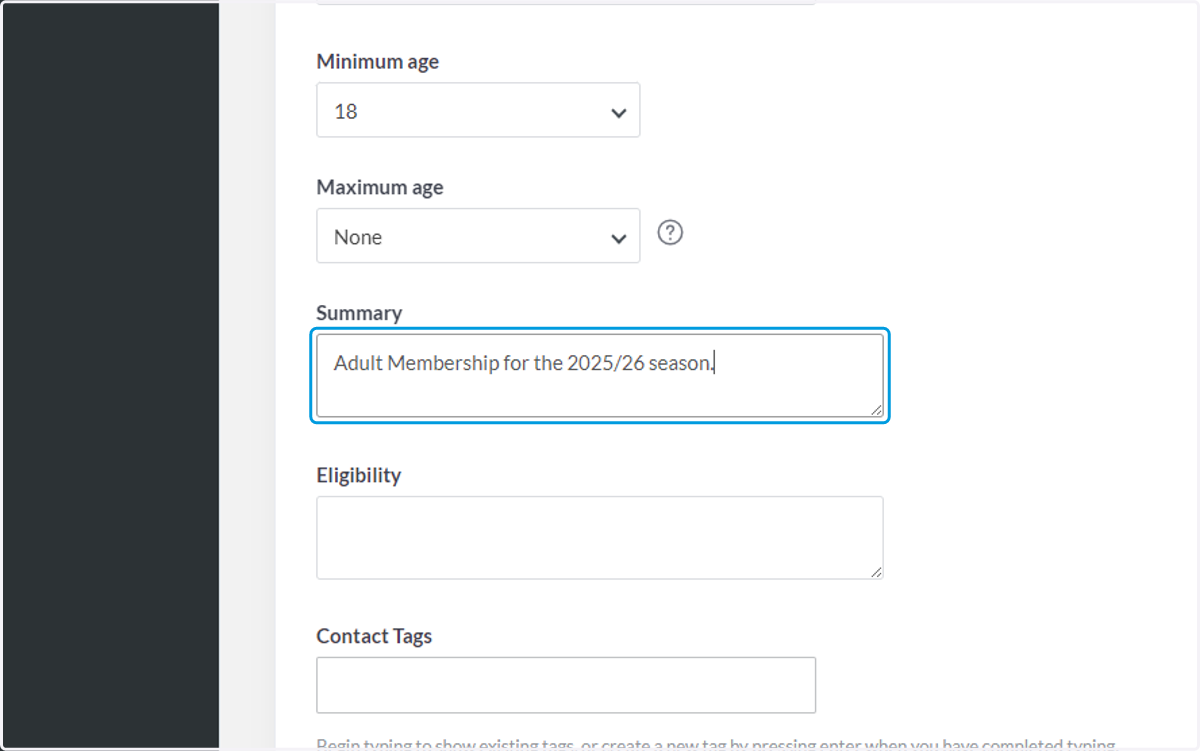
9. Add a summary for the package, this will be shown on the website and provides details on what's included.
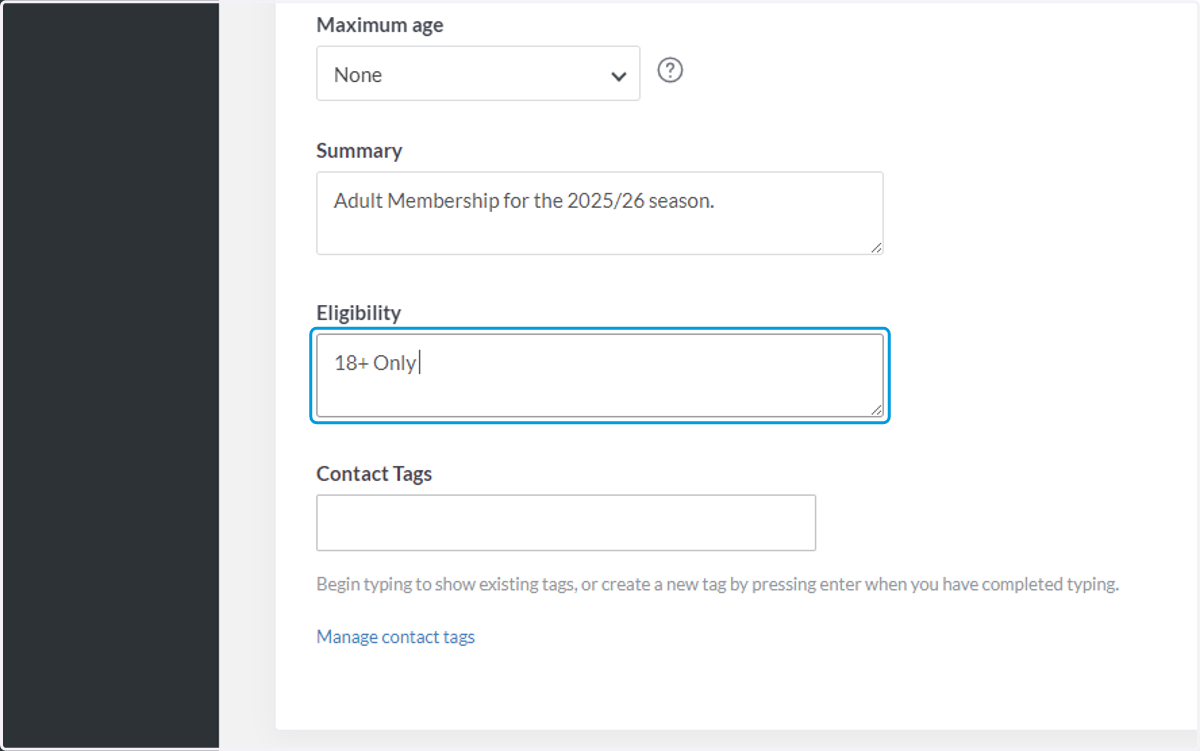
10. Add in any policy or rules for the specific membership package.
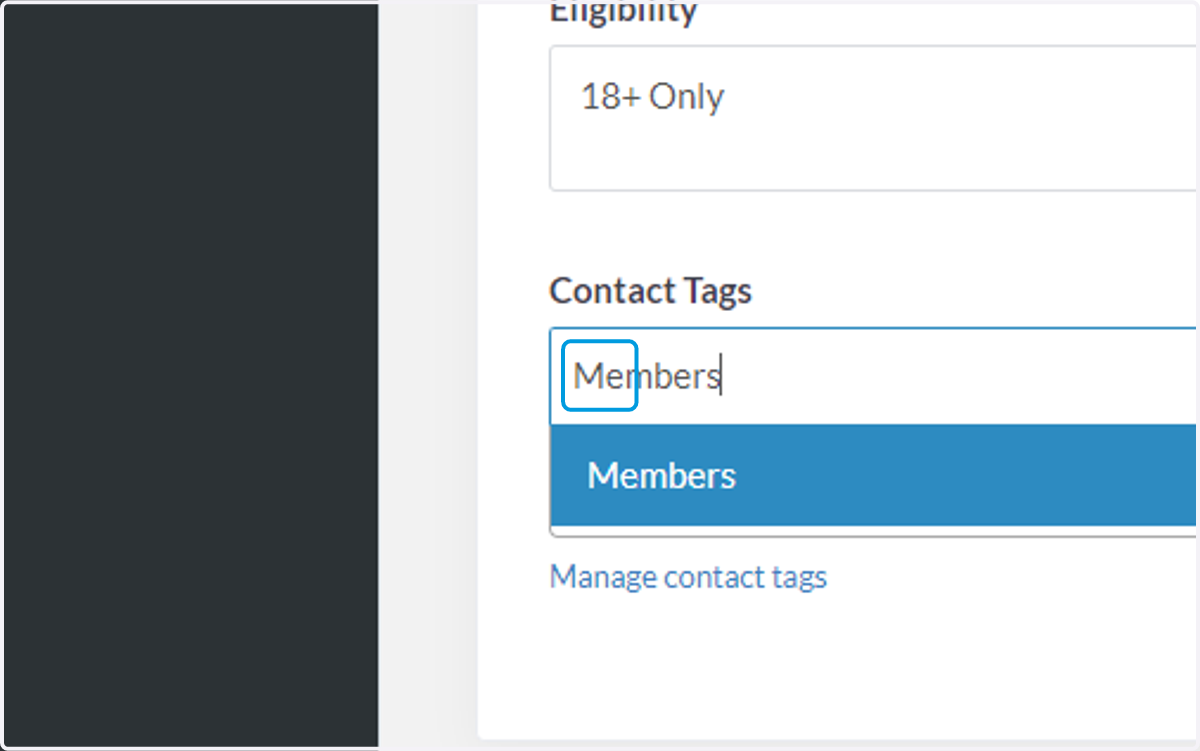
11. Add a Contact tag
In this example we have used Members which means it makes it easier to send emails when we need to filter contacts by group.
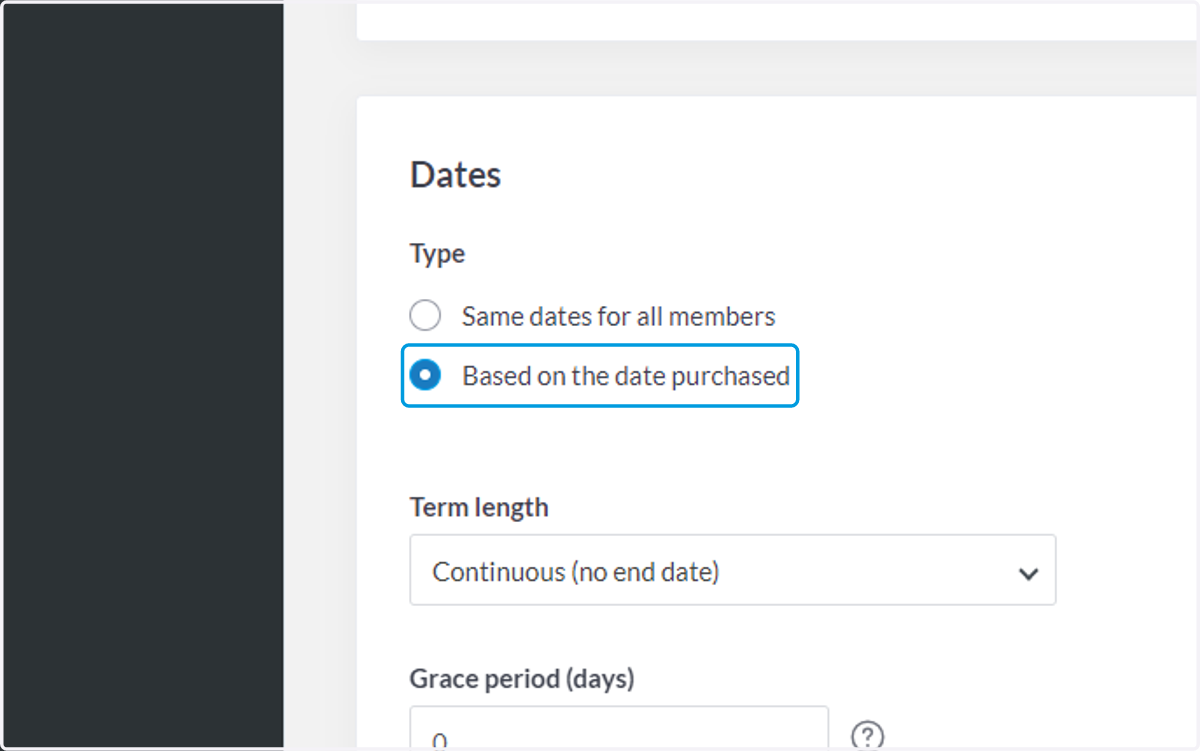
12. Select Based on the date purchased
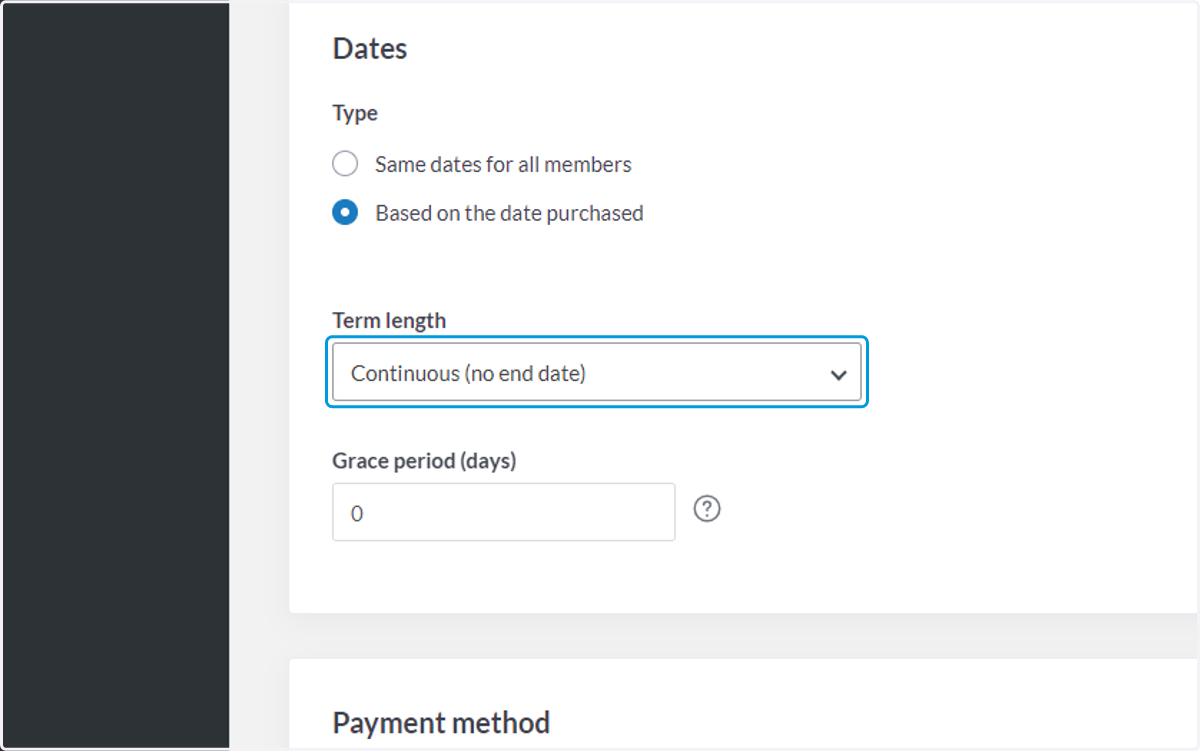
13. Click on Continuous (no end date) or specify how long the membership package will appear.
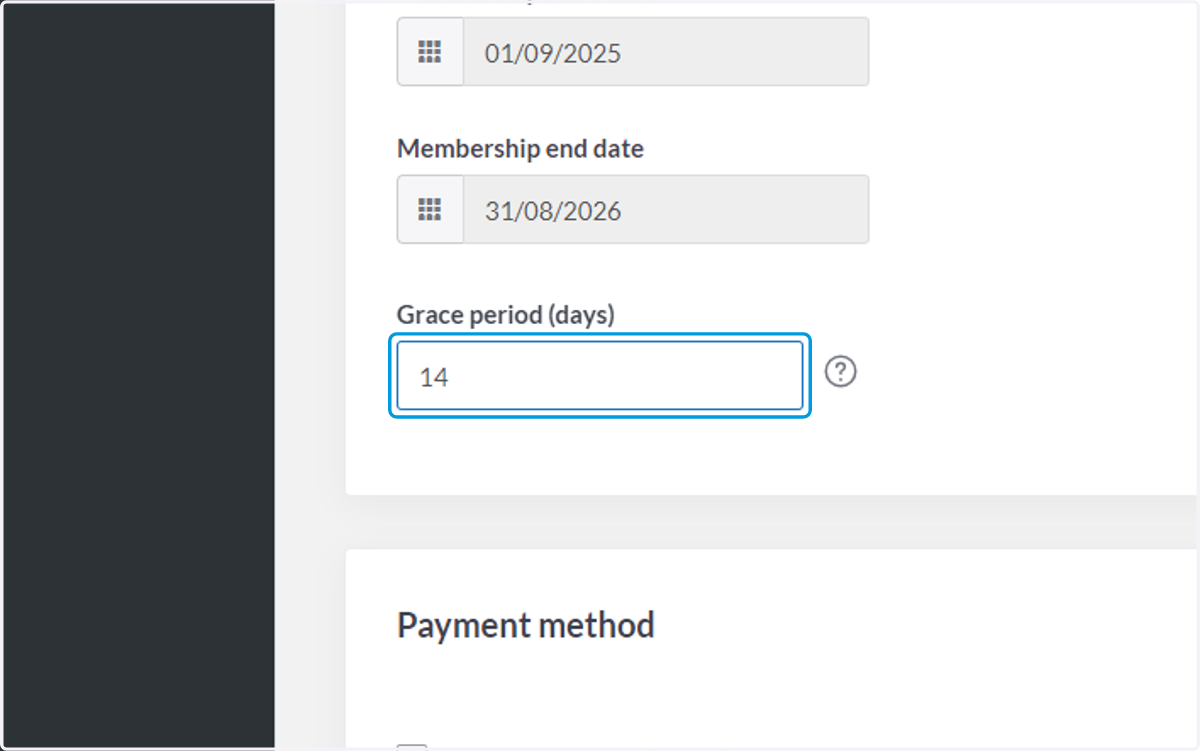
14. Specify Grace Period
You can also decide your grace period for renewing at the end of this membership. This extends the membership by the number of days entered into the grace period box. If the membership period ends on 31st March and '20' days entered in the grace period box - the member will have until 20th April to renew their membership. After the grace period, any membership that is not renewed in a new package, will be moved to 'lapsed' status.
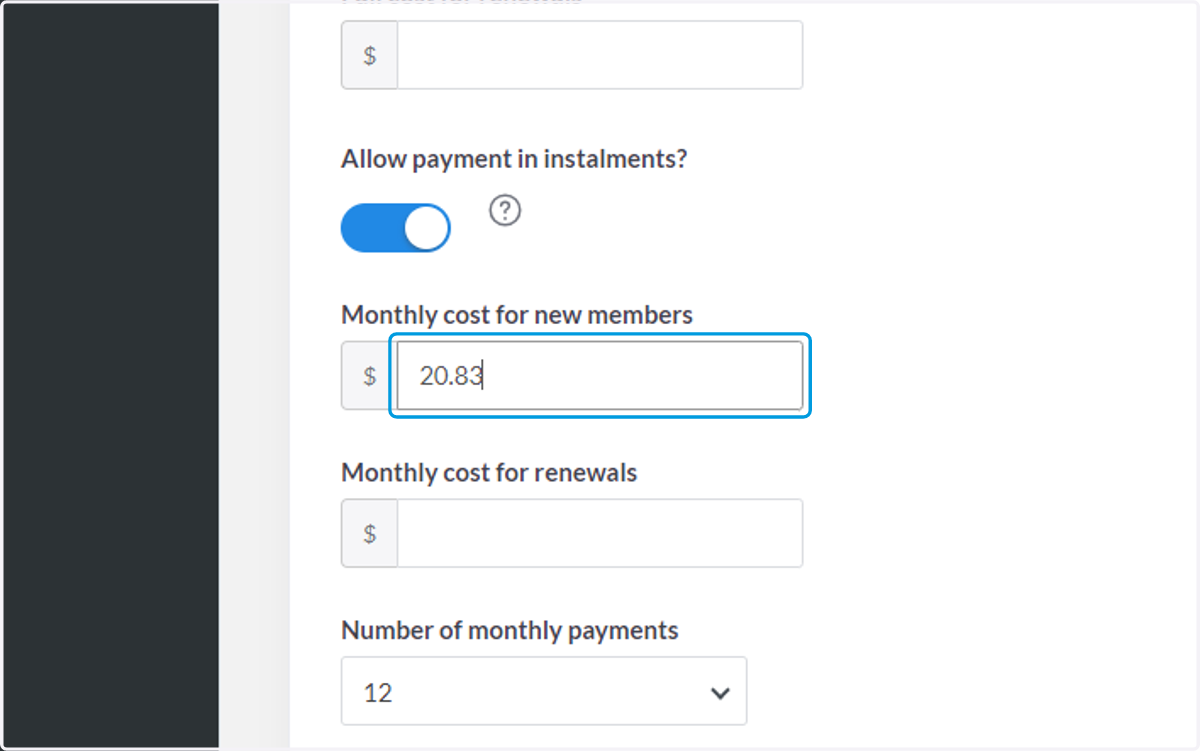
15. Enter the monthly cost and also the renewal cost - this can be the same and also changed at a later date.
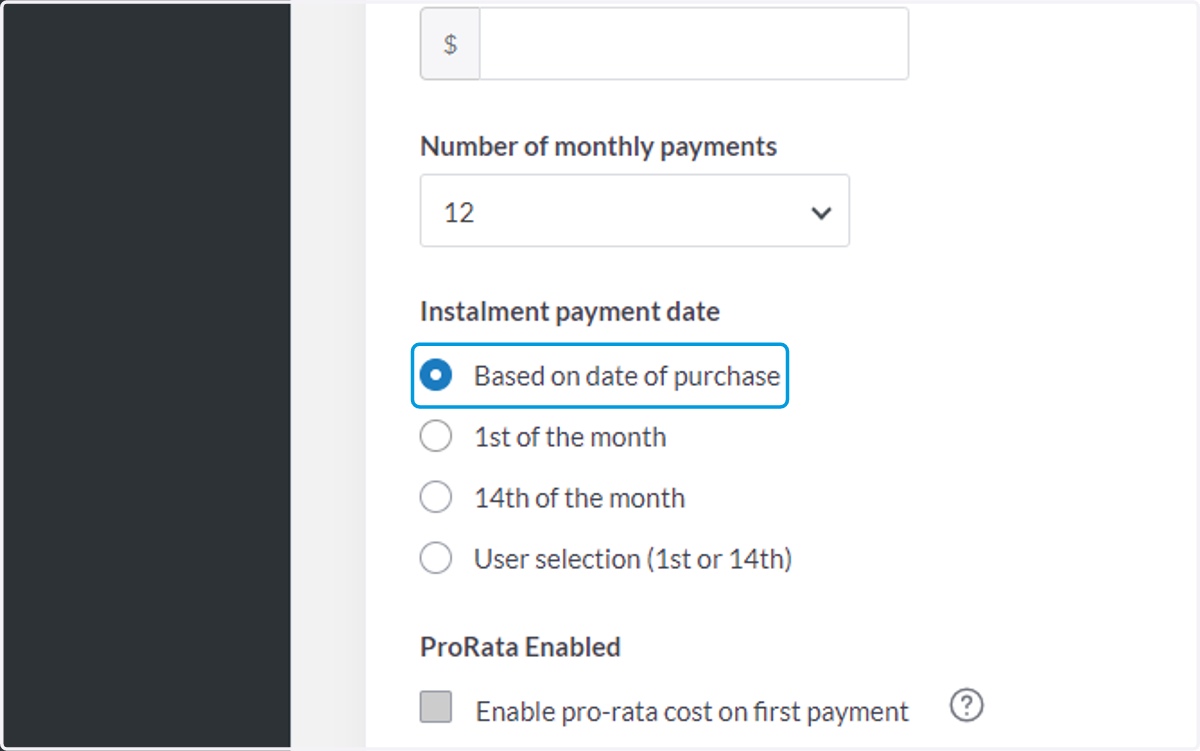
16. The Installment payment date options
This means this will work out when the payment is made. I.e. Today is the 4th January - if you choose the below this is date the 1st payment and continuous payments will be collected.
Based on date of purchase - 4th January
1st of the month - 1st February
14th of the month - 14th January
User selection (1st or 14th) - either the 1st February or 14th January.
Unless you select - Enable pro-rata cost on the first payment : Pro-rata payments are available on continuous subscriptions only. If enabled we’ll take a pro-rata payment as soon as possible and then schedule the recurring payments from the next available payment date. So in the above example, if you selected 1st Month- and enabled prorata - it would take payment today (4th January for 27 days of January) and then again 1st February for the full amount.
17. Payment Reminders
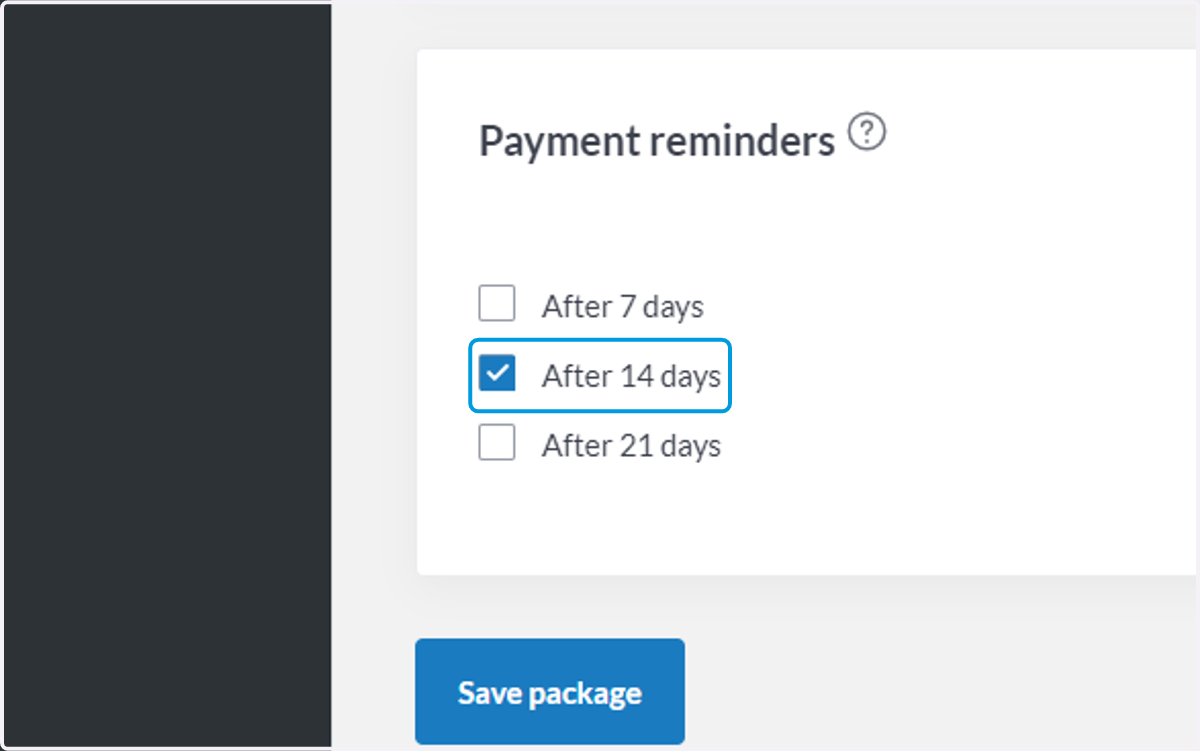
Finally, decide if you would like to send payment reminders to your members. If they haven't paid yet we'll automatically send a reminder email to membership primary contacts 7, 14 and 21 days after a payment request was first sent to them
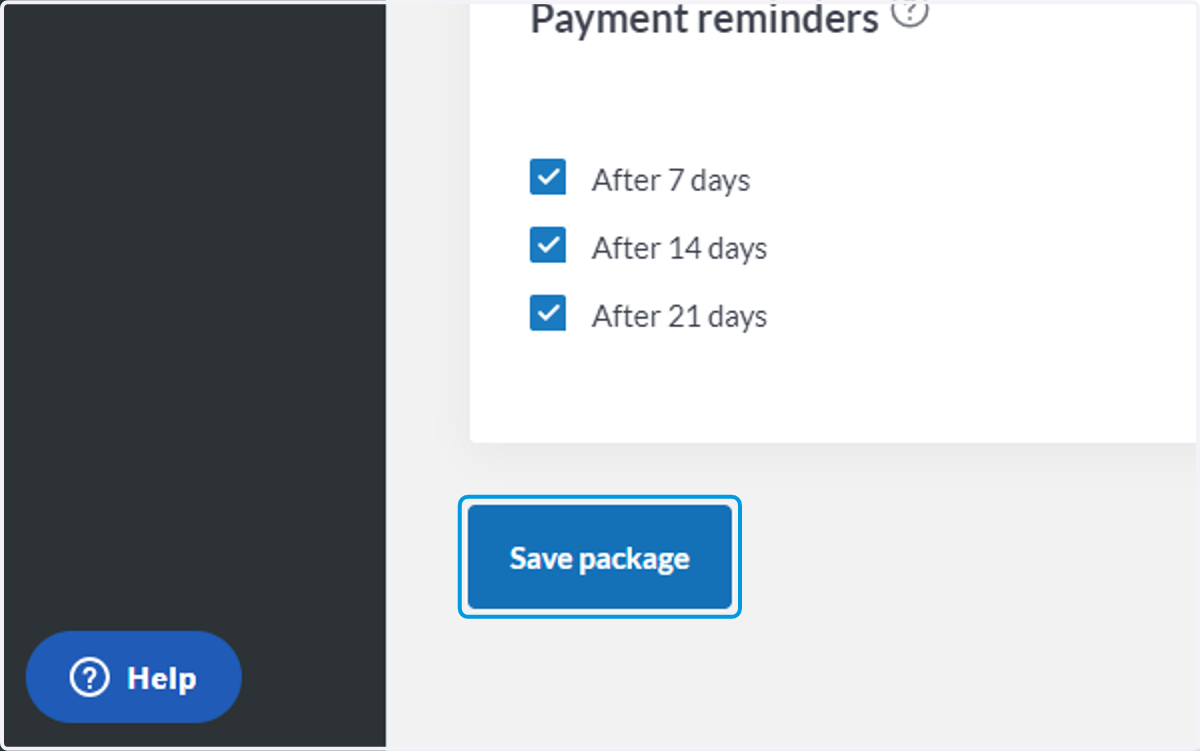
18. Click on Save package
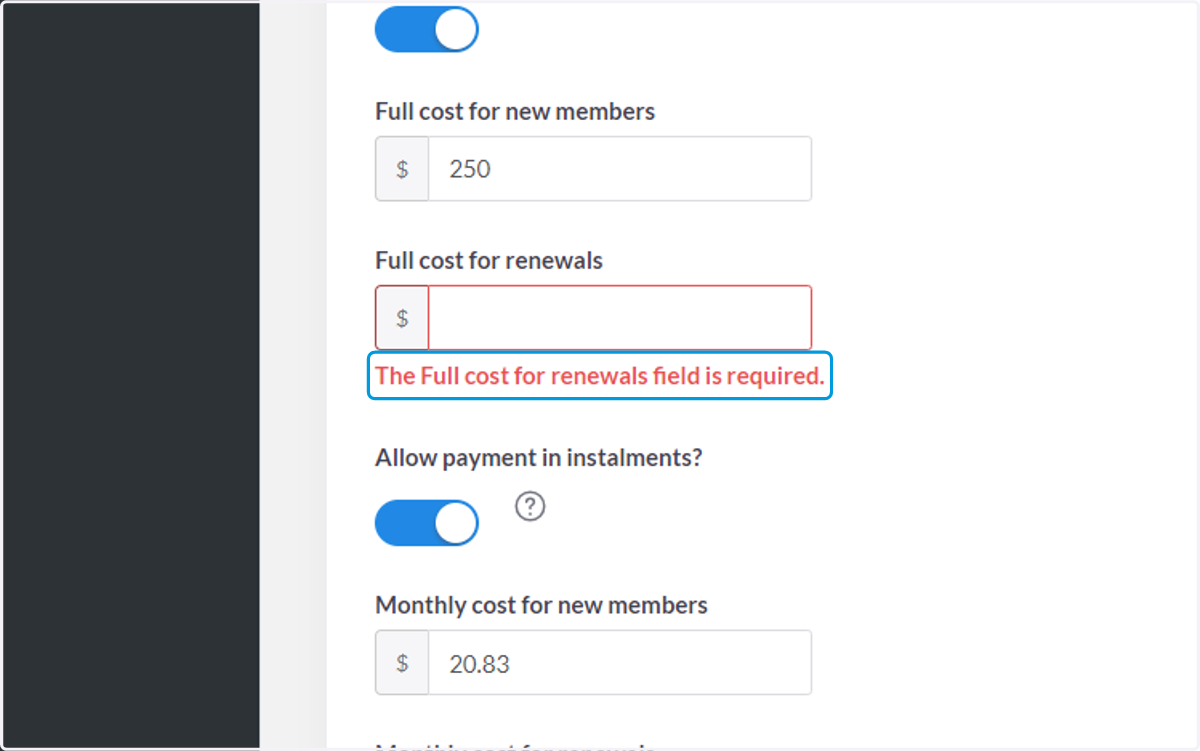
19. If there are missing fields in the process, Clubspark will highlight anything that's missing as indicated below
20. Click on Adult Membership 2025/26
