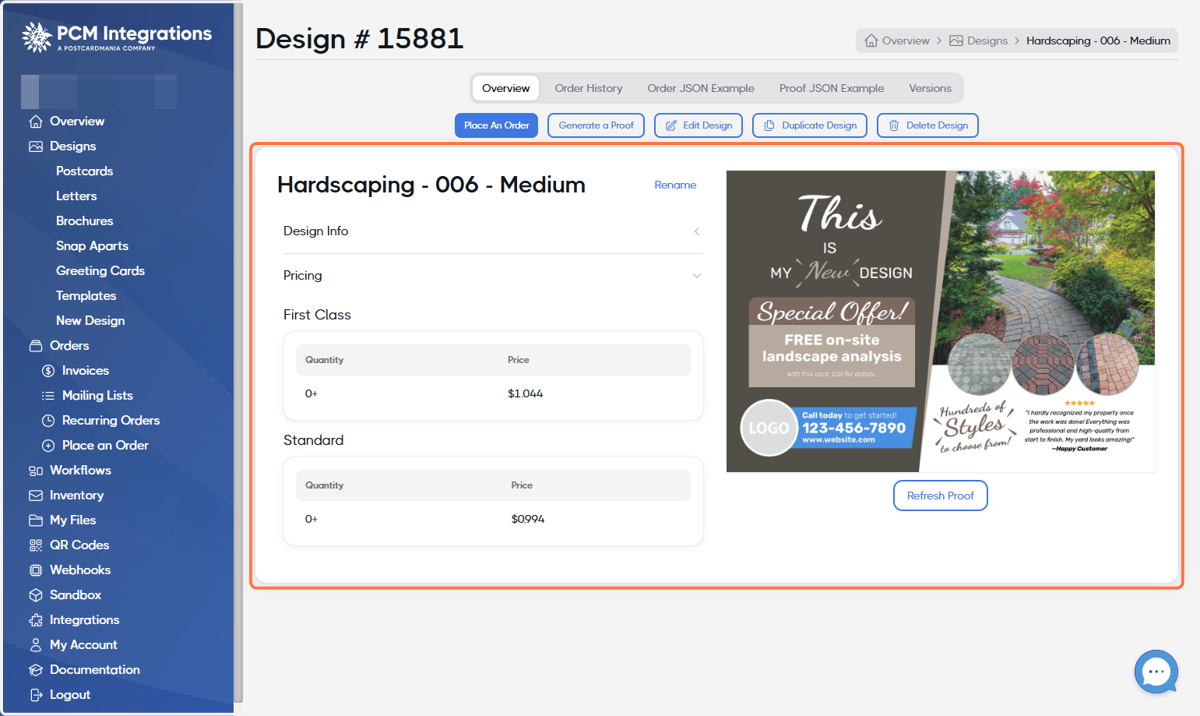
Creating a Design from a Template
Designs | DirectMail Portal
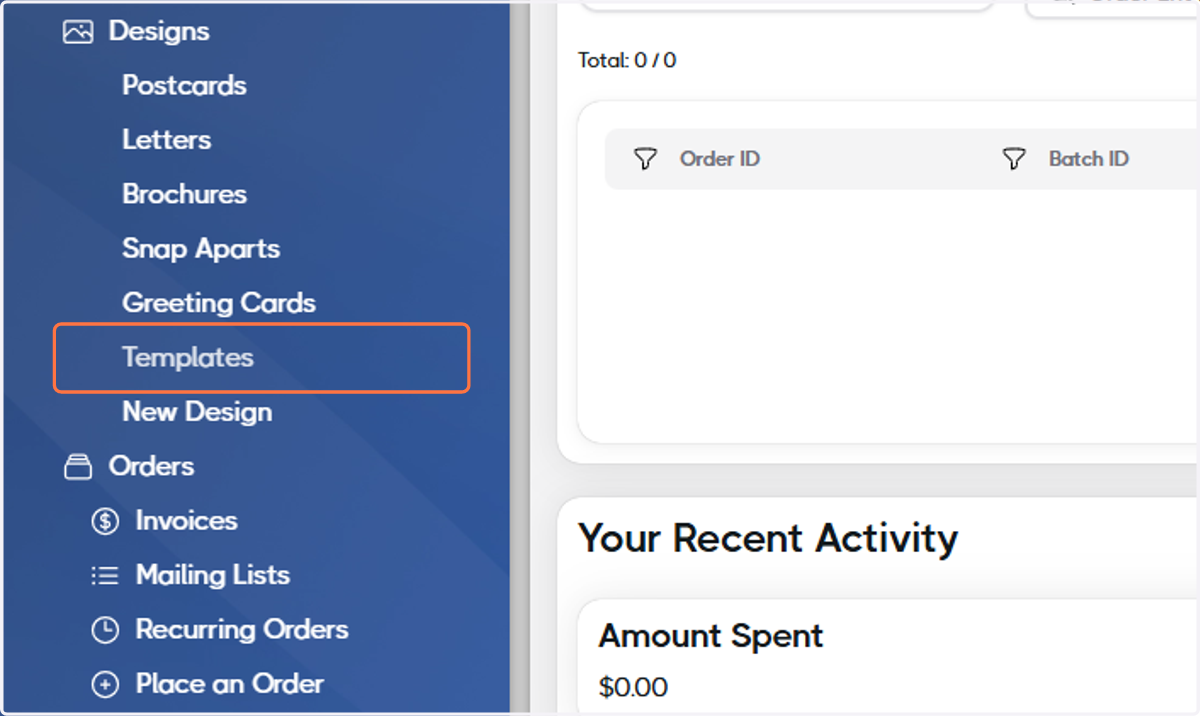
1. Click on Templates
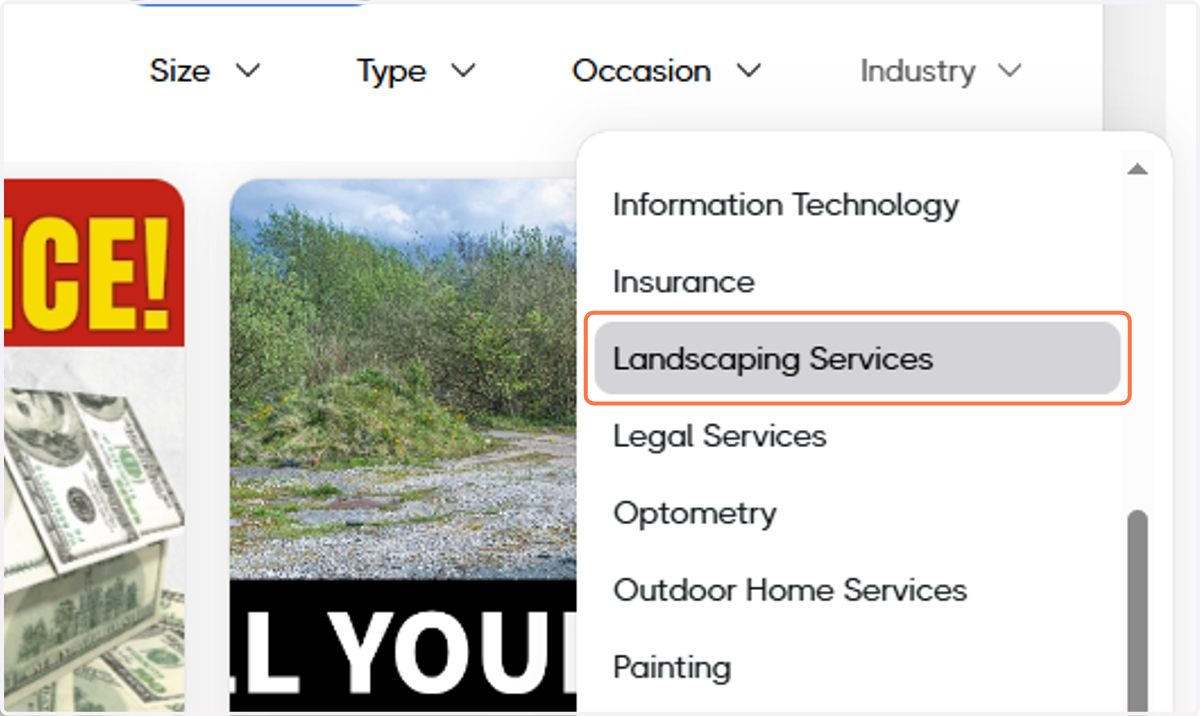
2. Select your industry
For this example, we'll select Landscaping Services.
3. Browse the template library
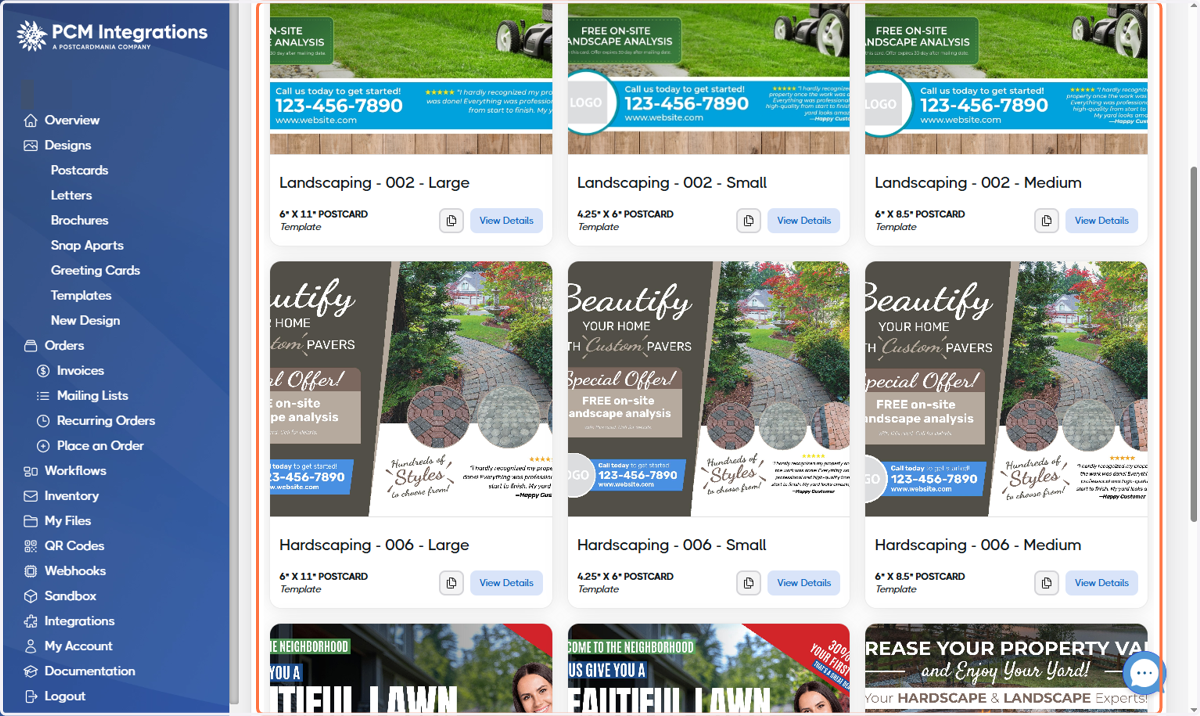
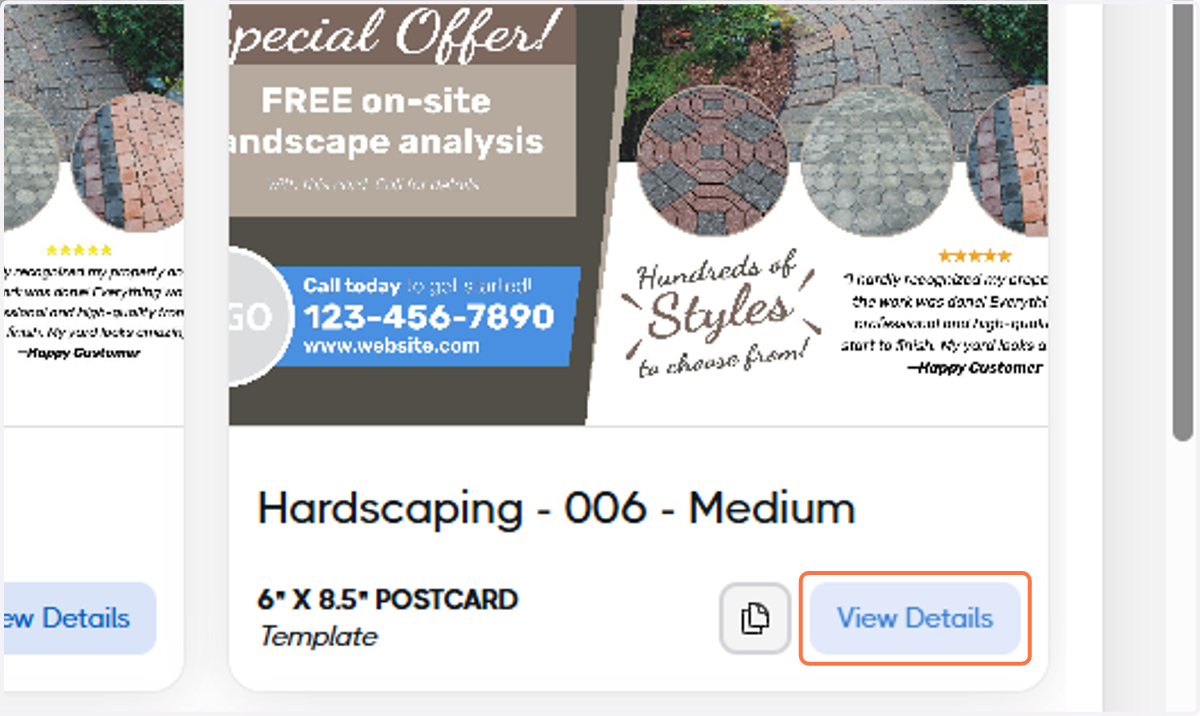
4. When you find a template you like, click on View Details
For this example, we'll select Hardscaping - 006 - Medium.
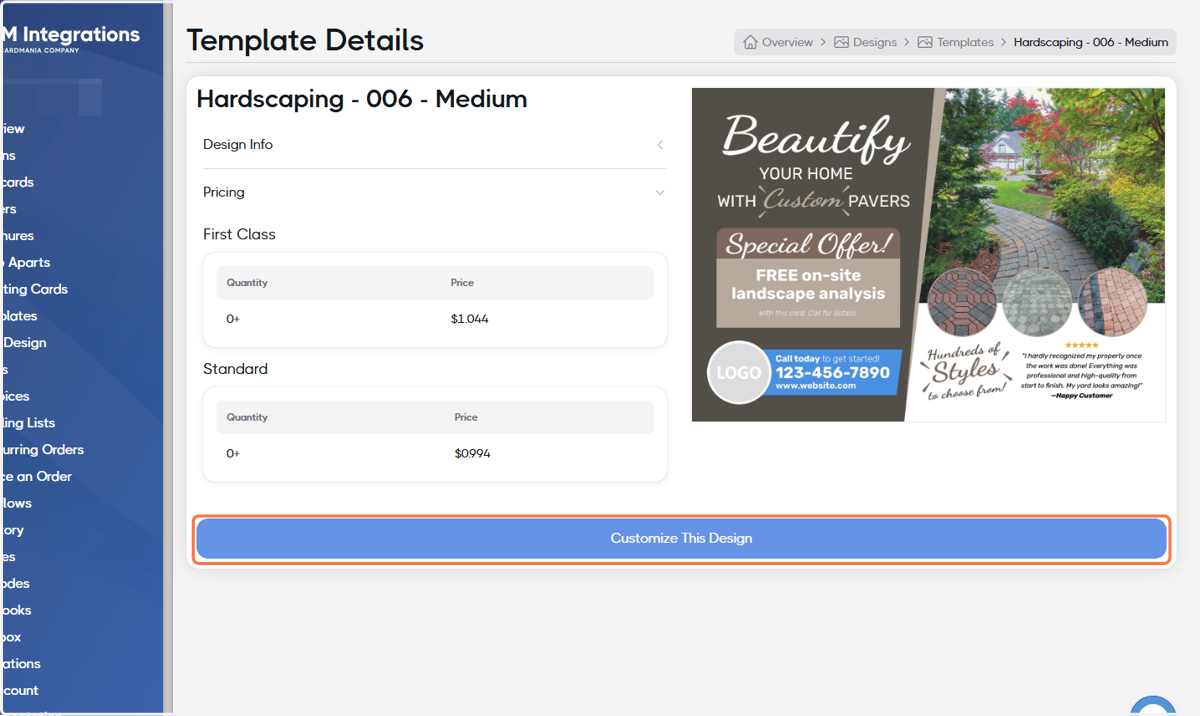
5. Click on Customize This Design
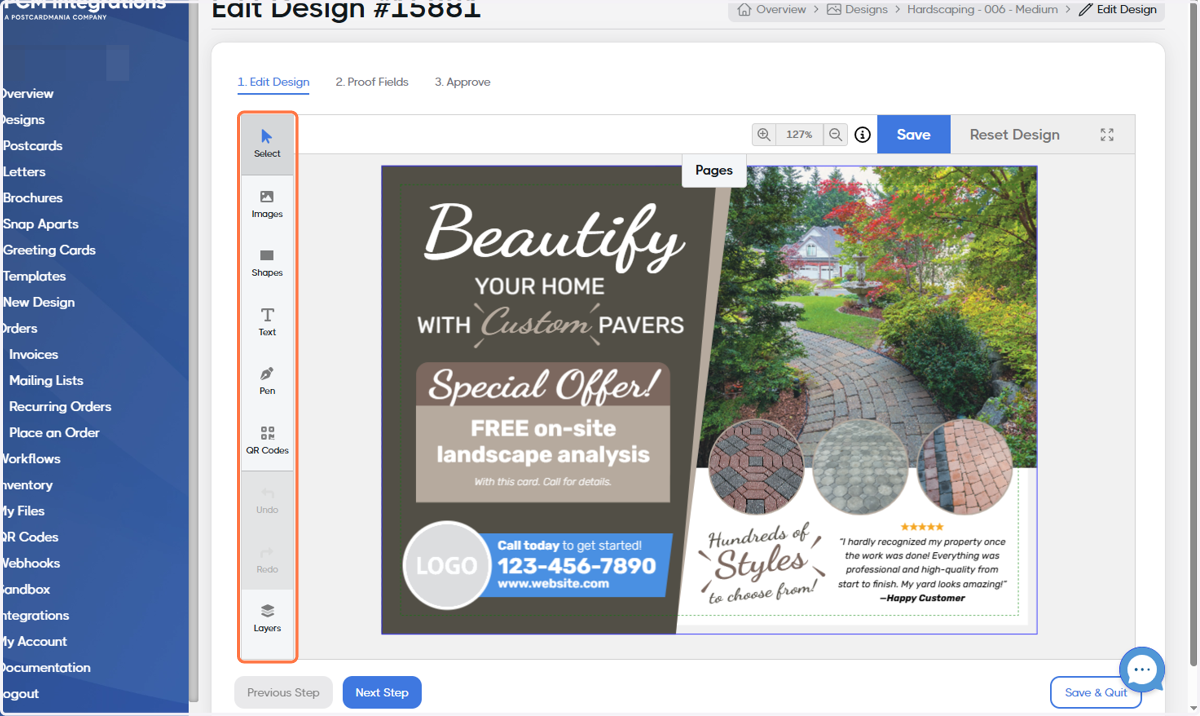
6. Use the tools on the left to customize your template
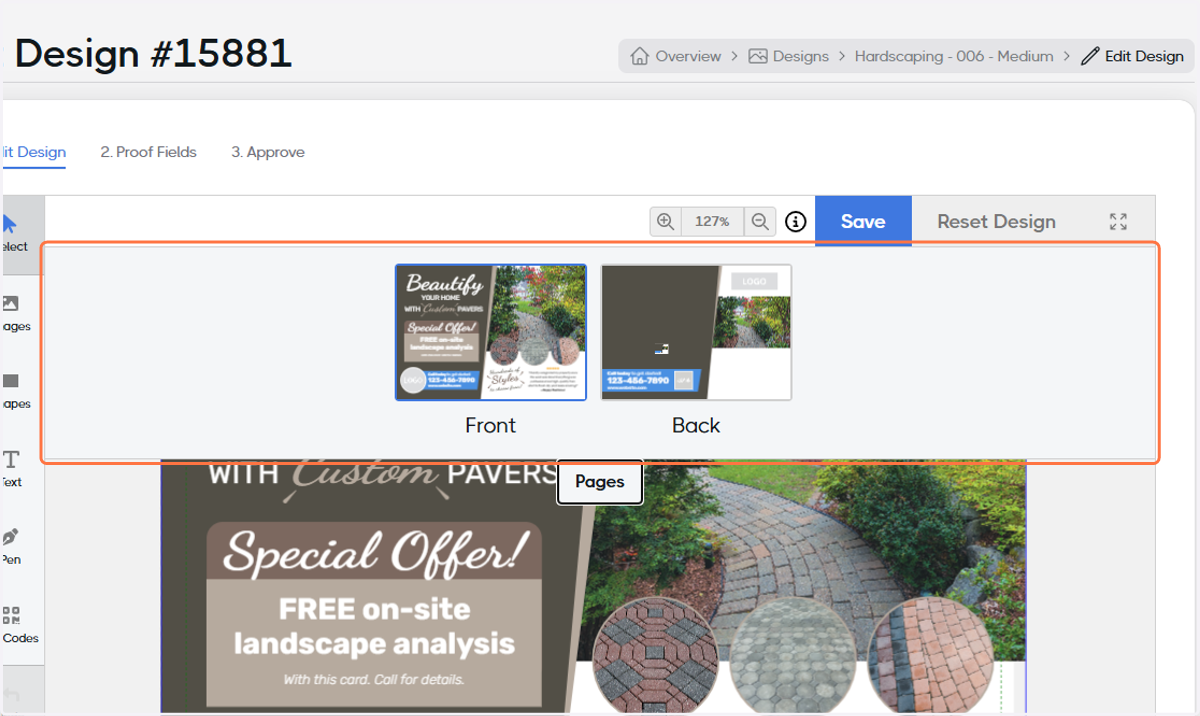
7. Click the Pages button to switch to the back
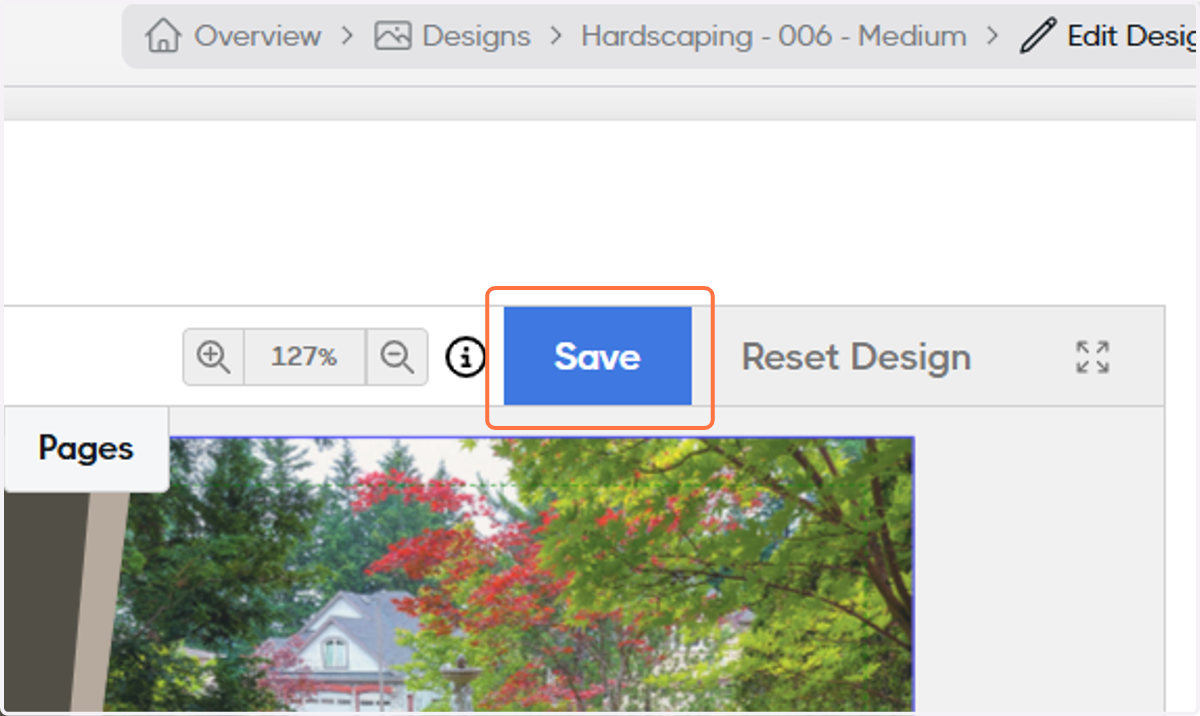
8. When you're finished editing, click on Save
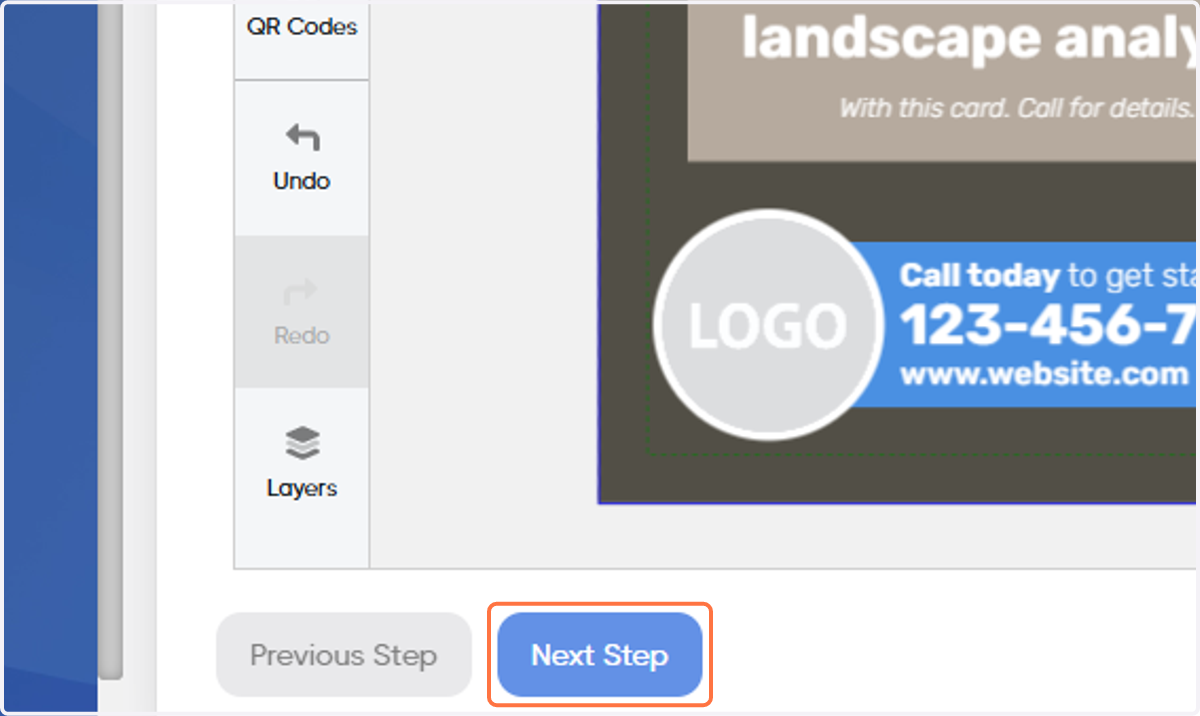
9. Click on Next Step
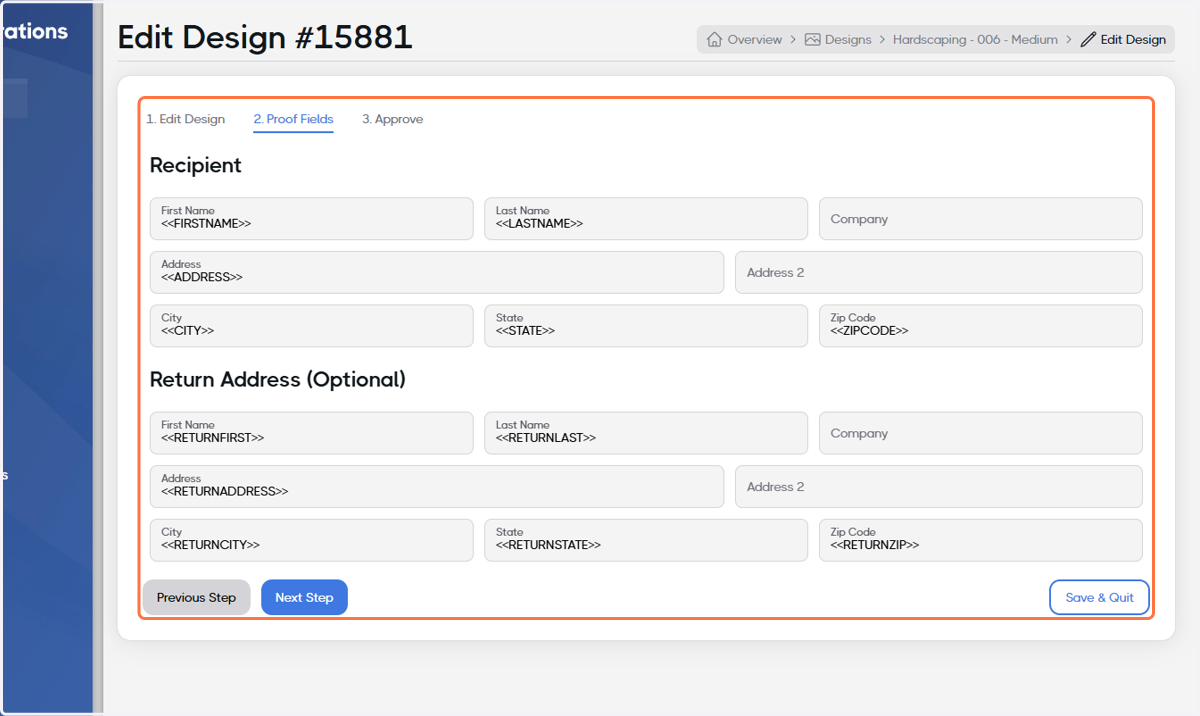
10. Ensure the Recipient and Return Address sections are filled with the proper values
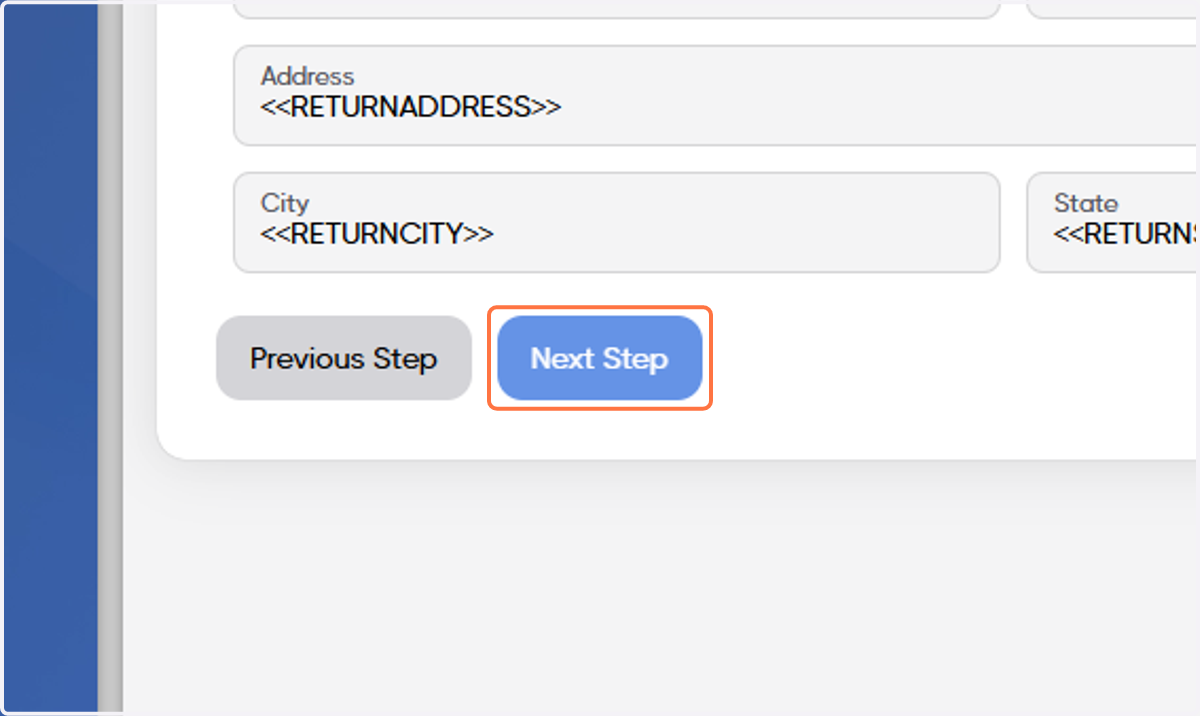
11. Click on Next Step
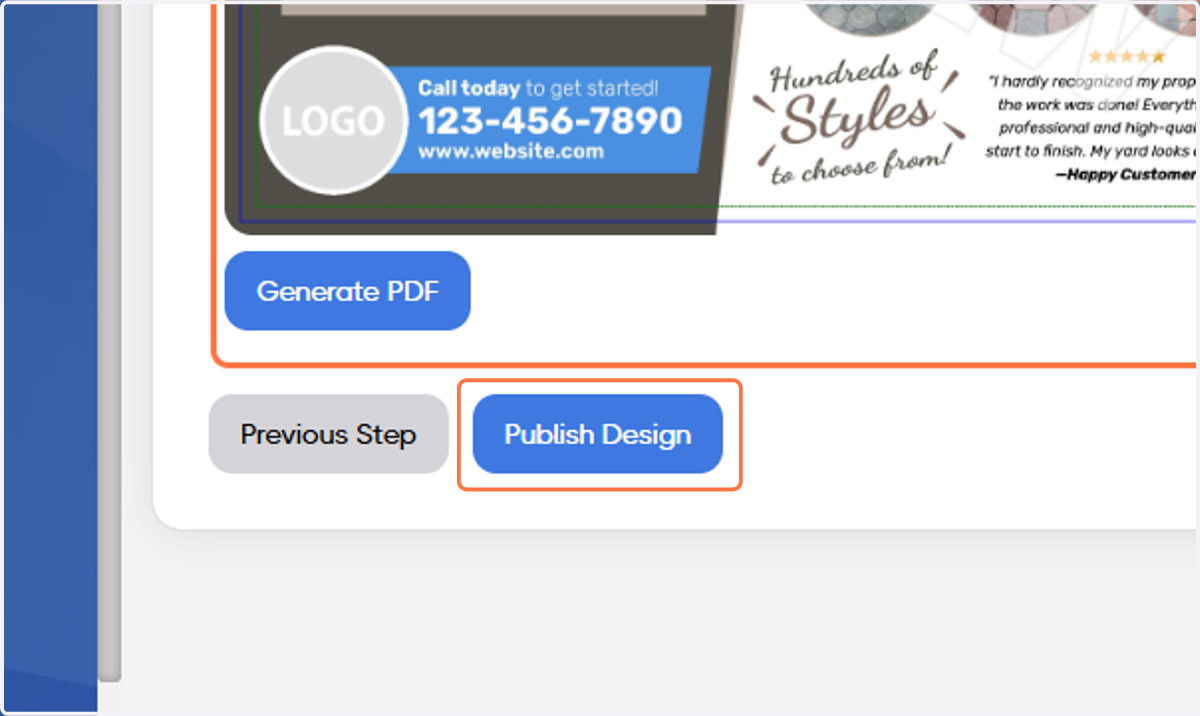
12. Double-check the proof and, if ready, click on Publish Design
13. Congratulations! Your design is ready!