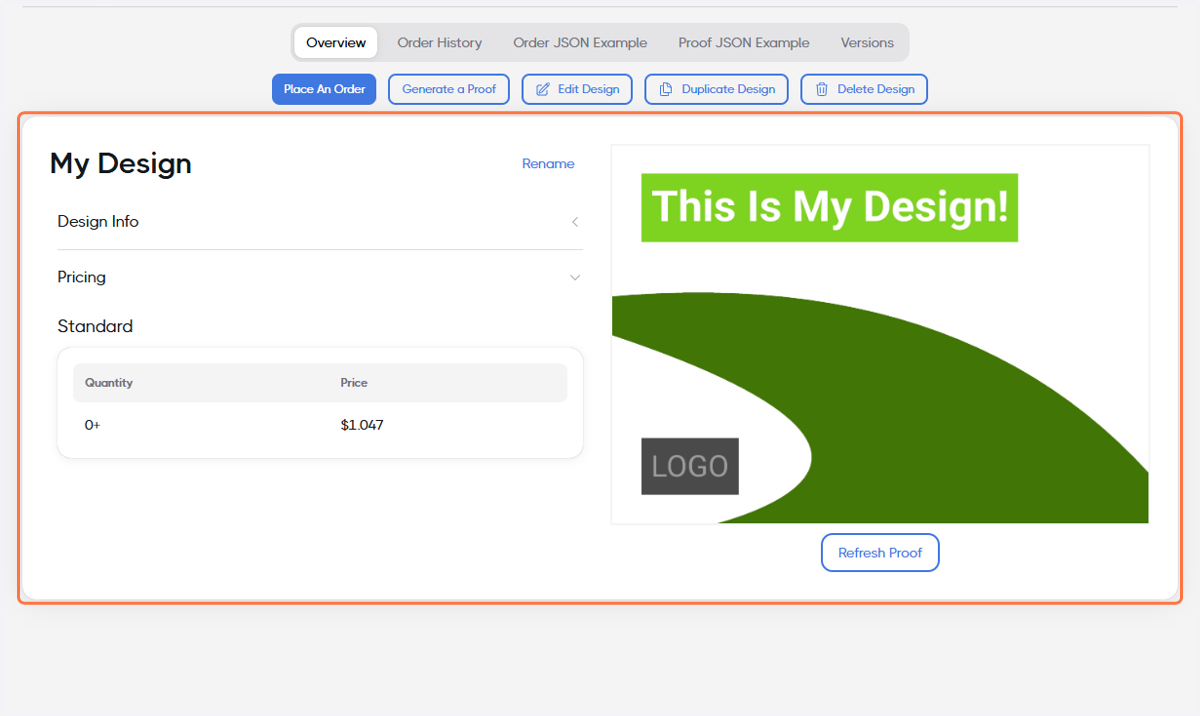
Creating a Design from Scratch
DirectMail Portal
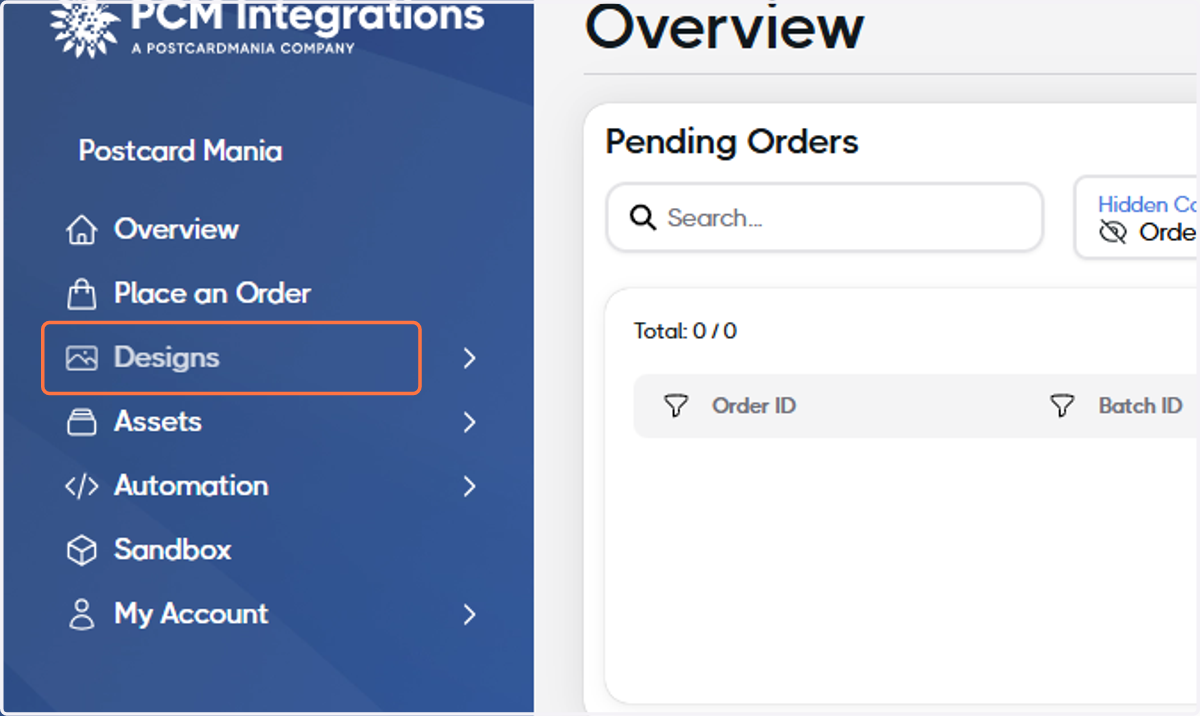
1. Click on Designs
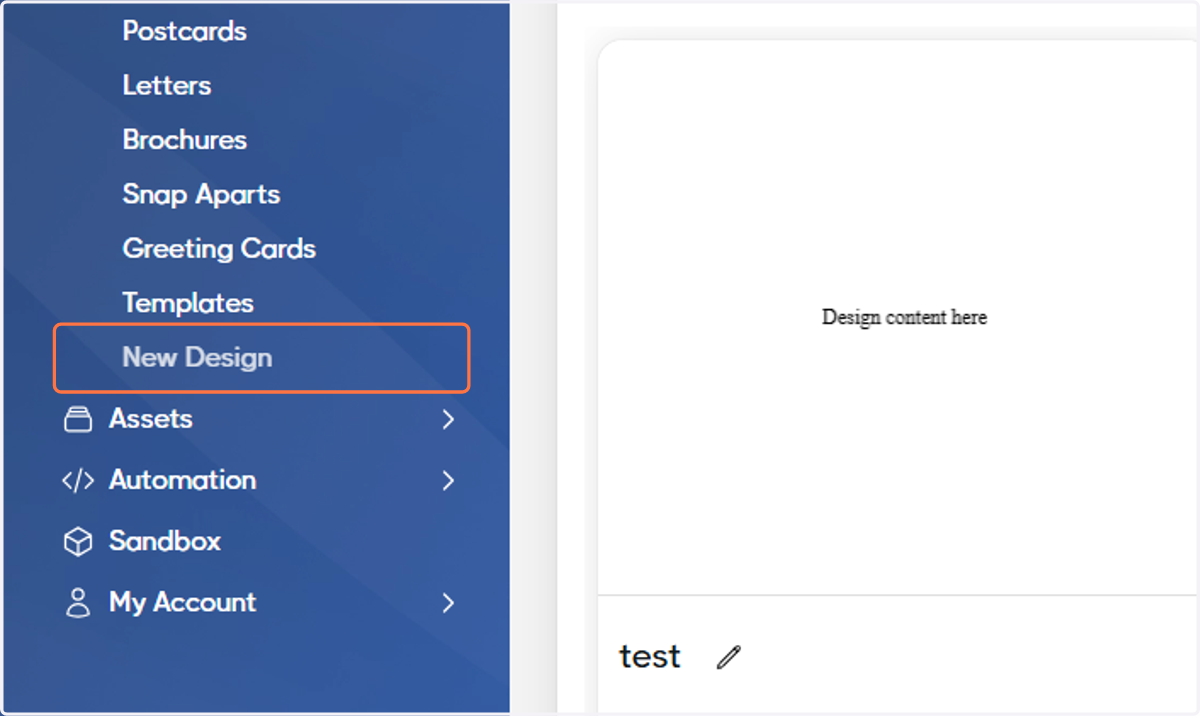
2. Click on New Design
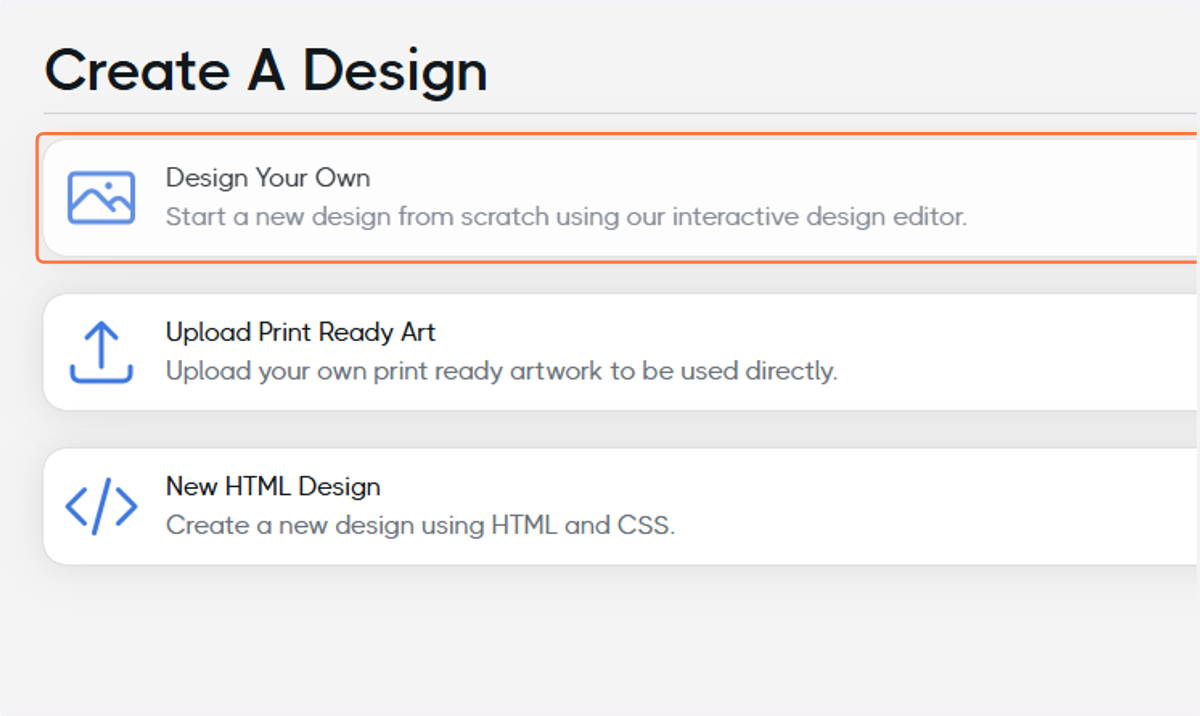
3. Click on Design Your Own…
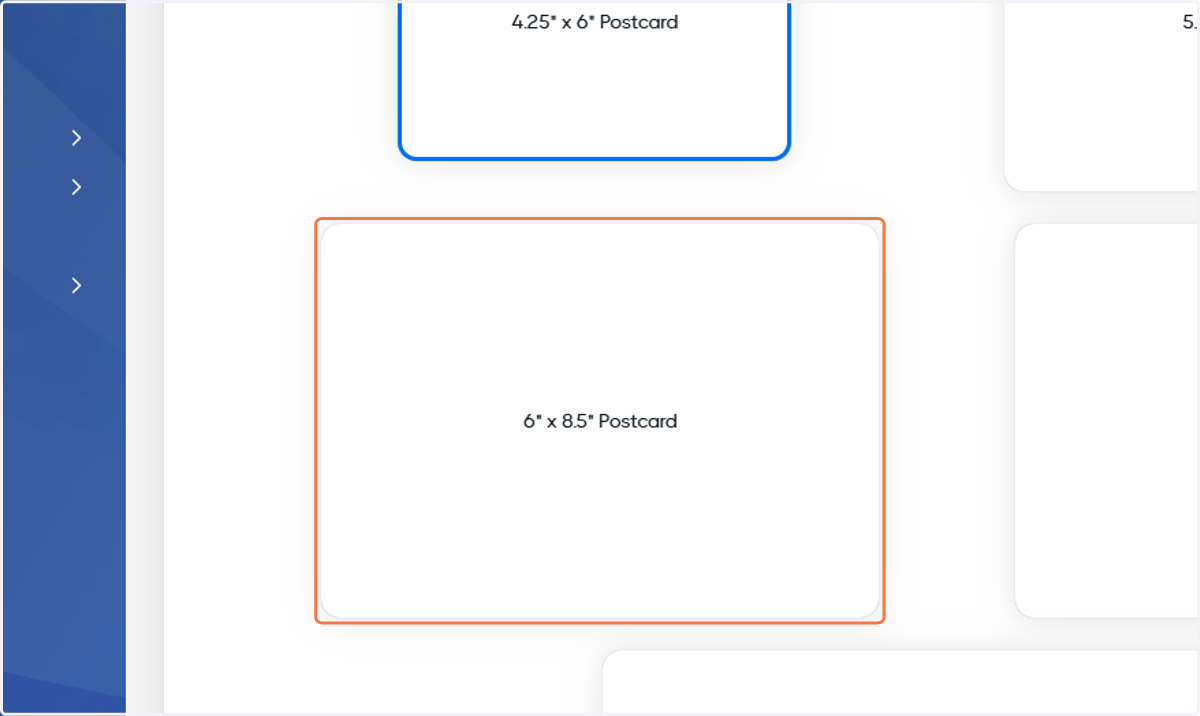
4. Select your mail piece size
For this example, we'll select 6" x 8.5" Postcard.
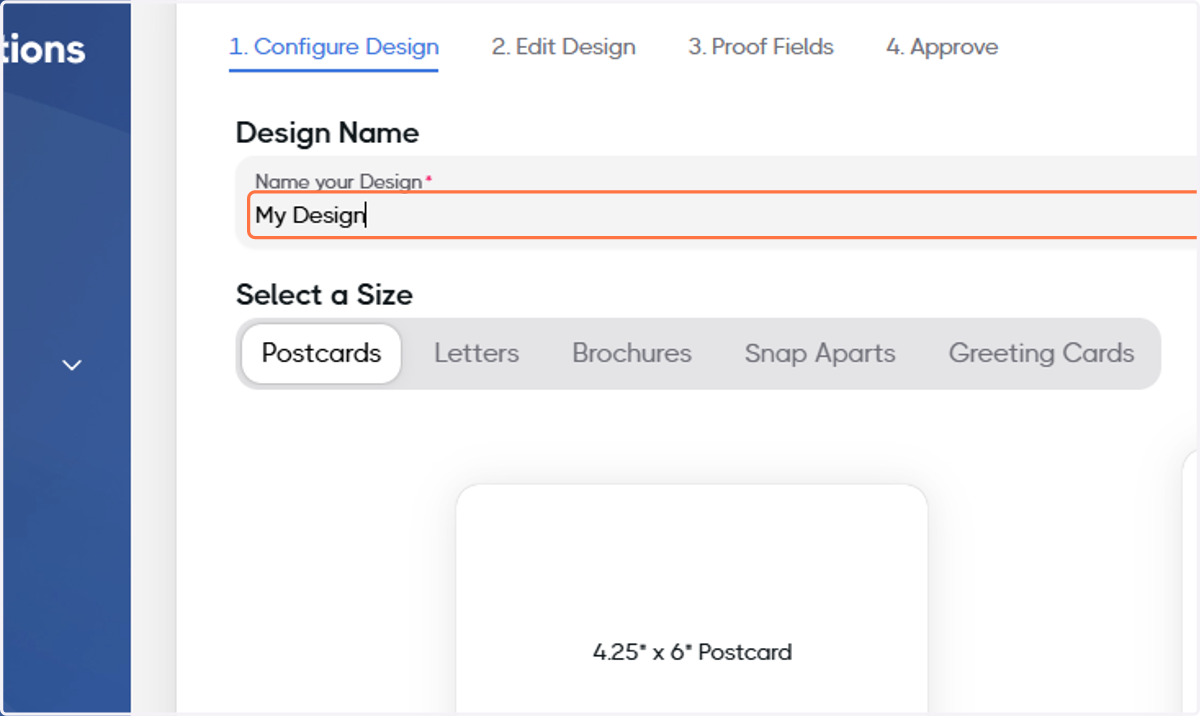
5. Name your Design
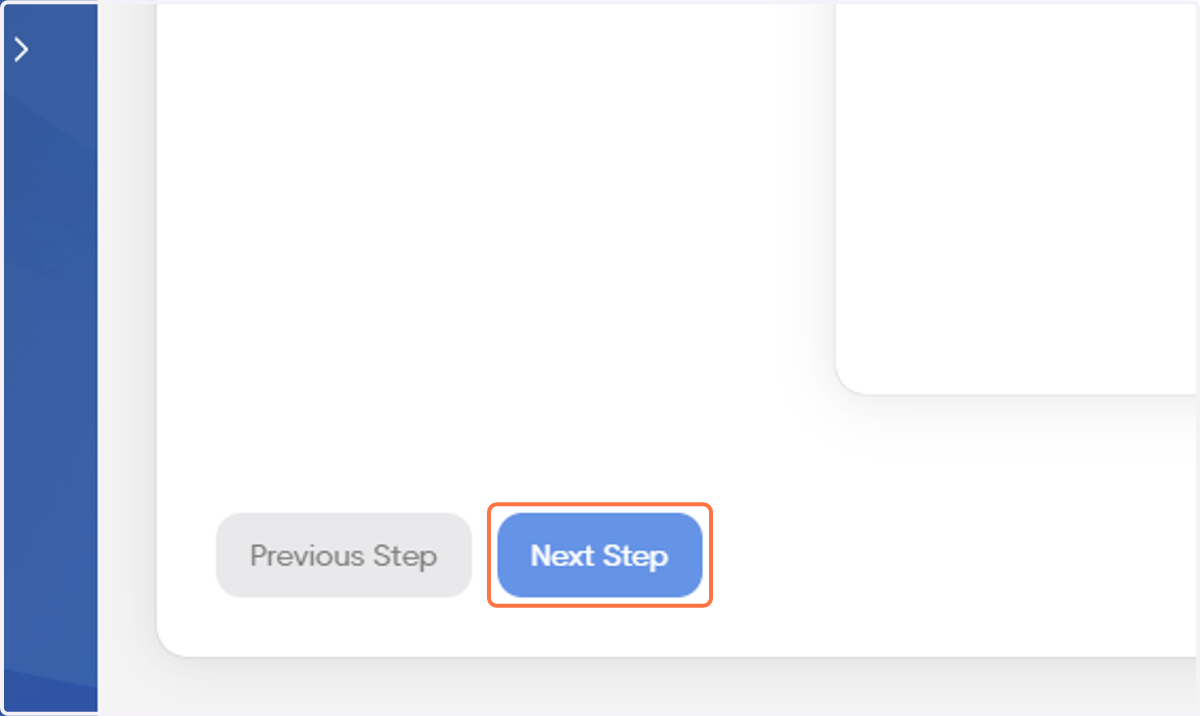
6. Click on Next Step
7. Use the tools on the left to create your Design
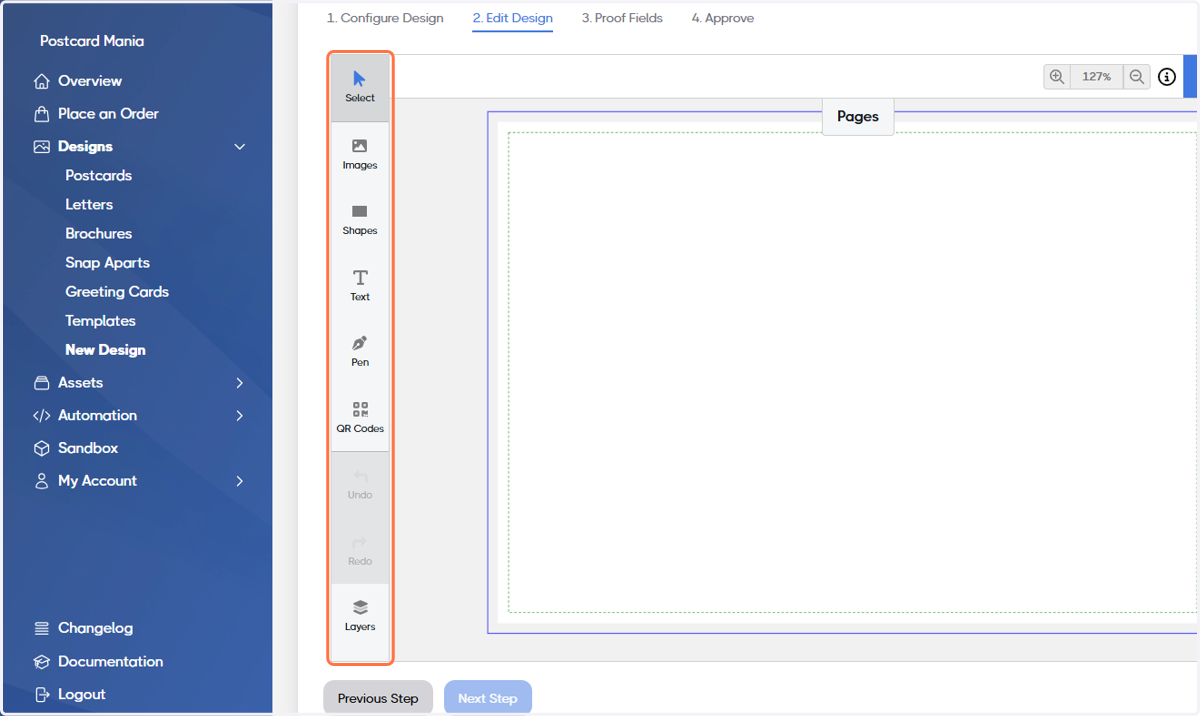
8. IMPORTANT: When creating your design, extend colors and shapes to the blue bleed line. Keep all of your major assets (images of people, text, etc.) within the green, dotted safe area, preferably at a good distance from the line itself.
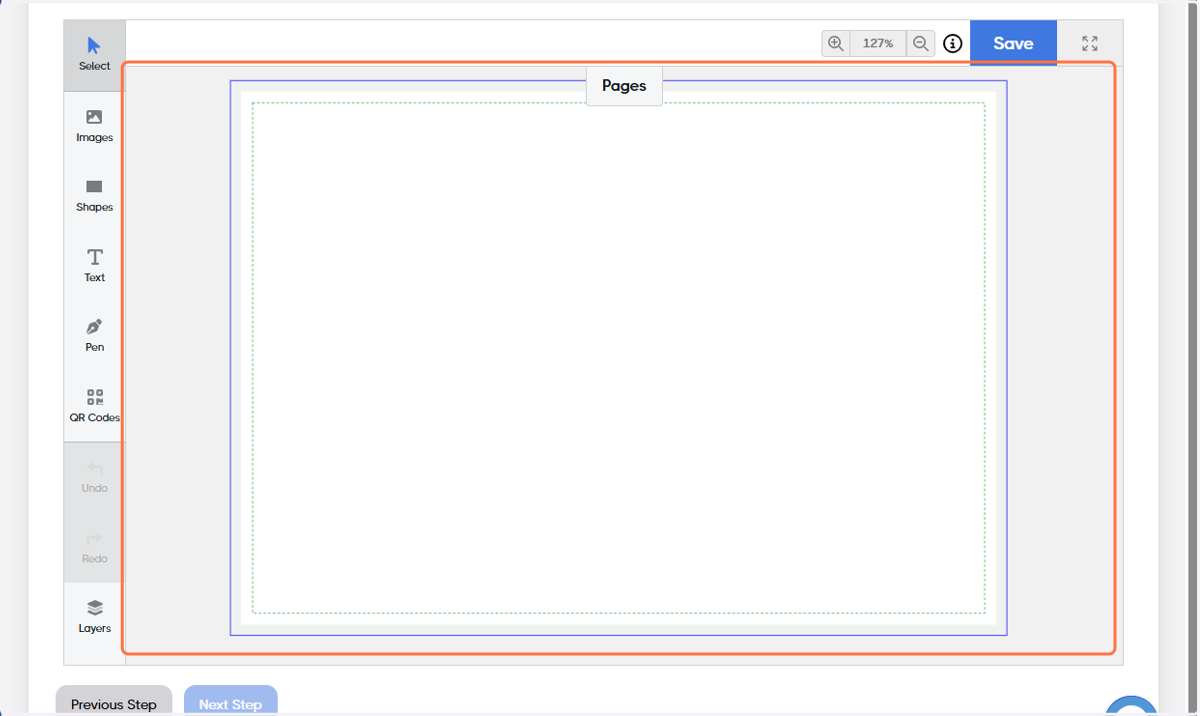
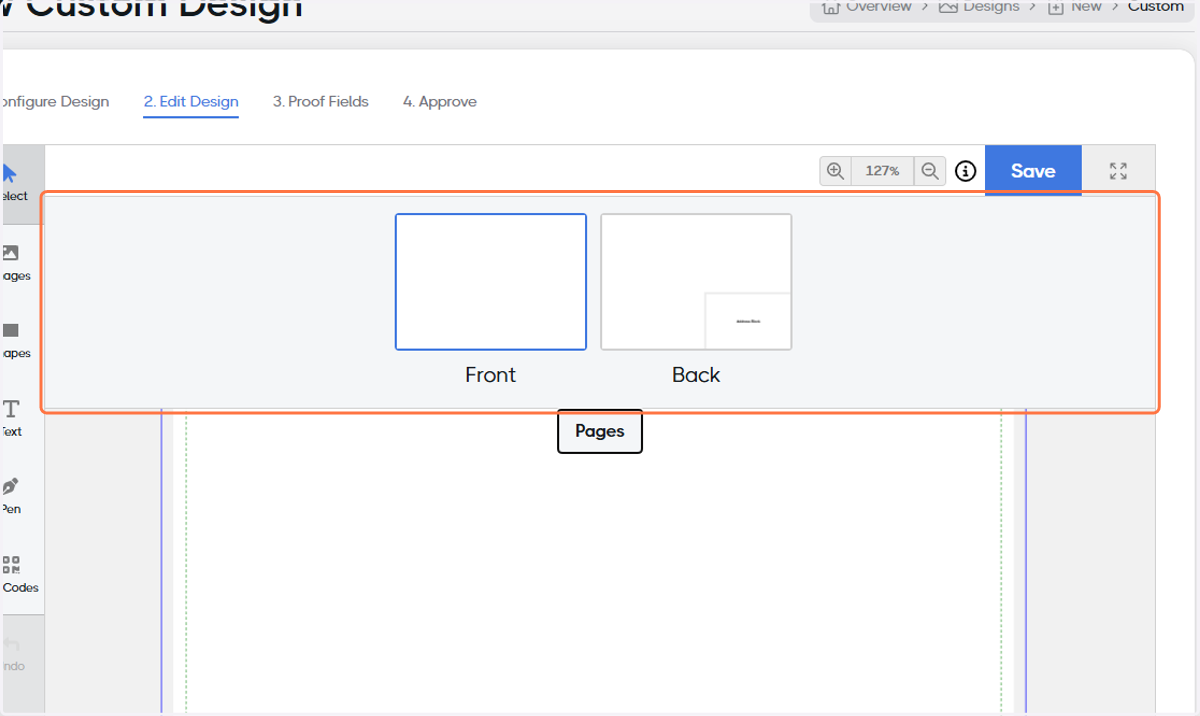
9. Click the Pages tab to switch the canvas to the back of the mail piece
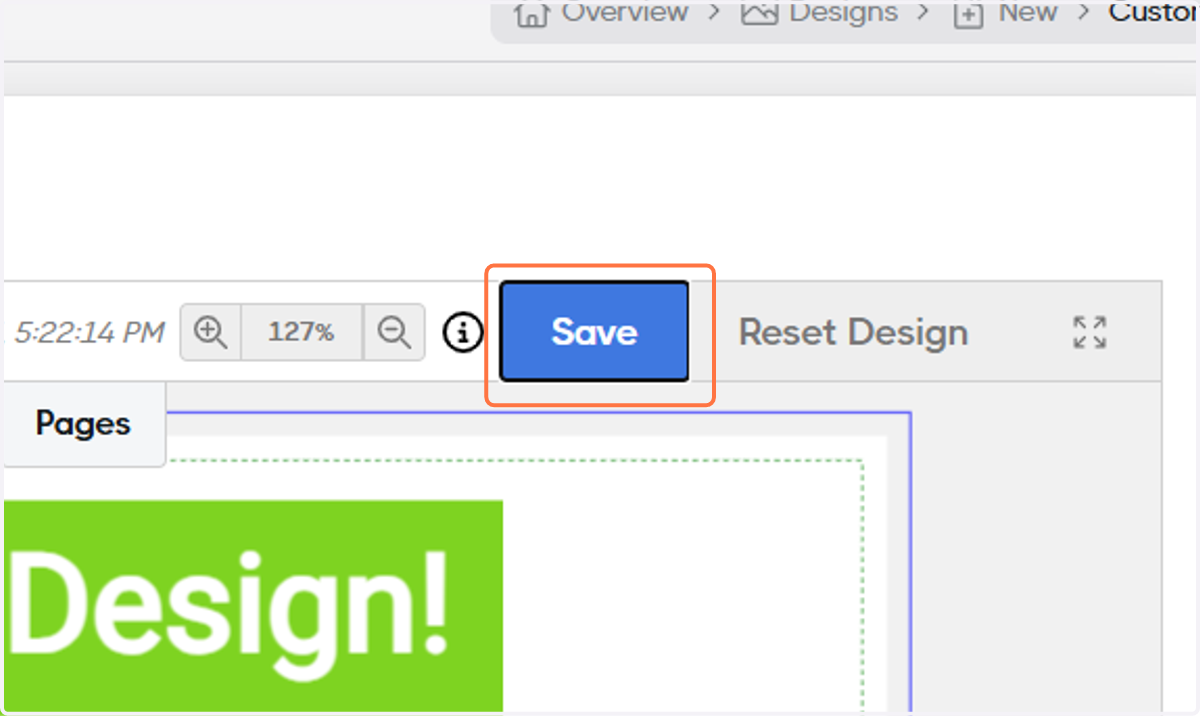
10. When you're Design is ready, click Save
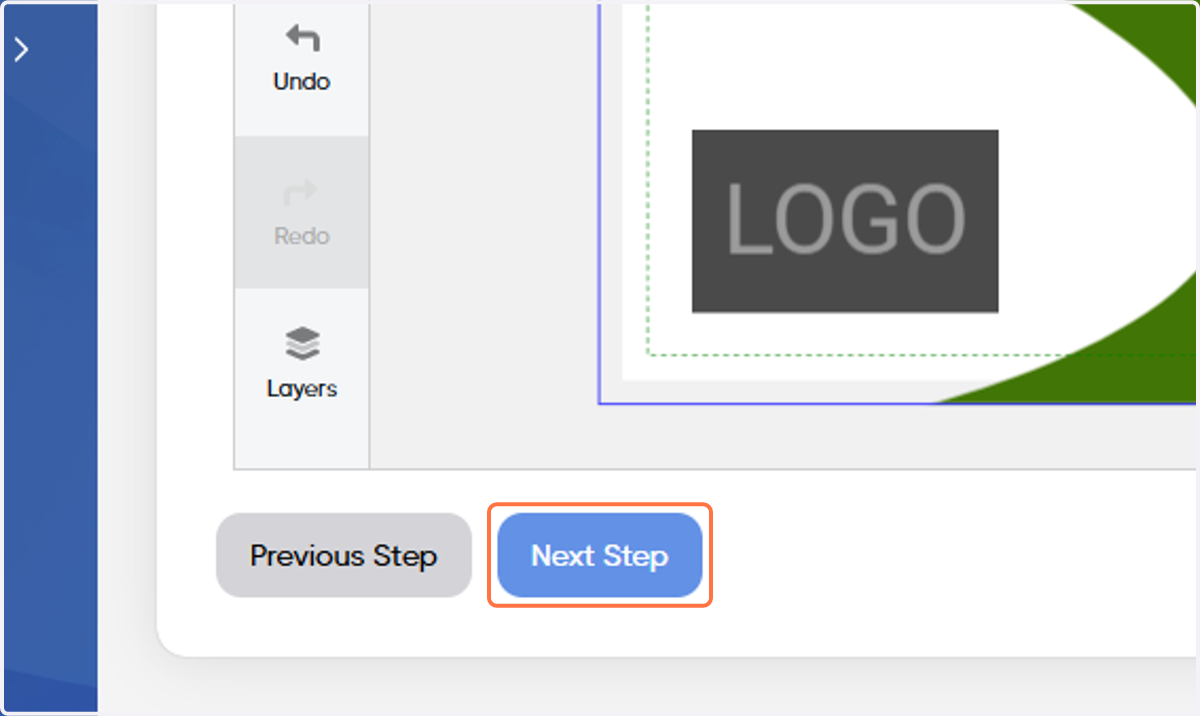
11. Click on Next Step
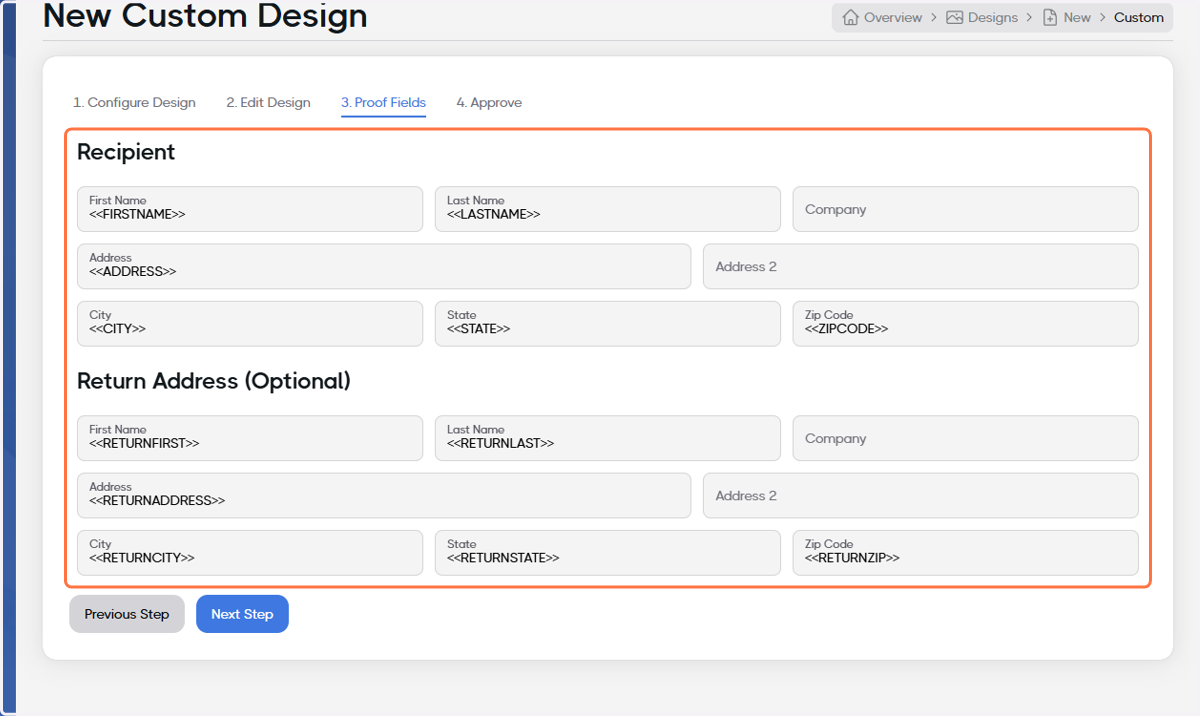
12. Ensure the Recipient and Return Address sections are filled with the proper values
13. Click on Next Step
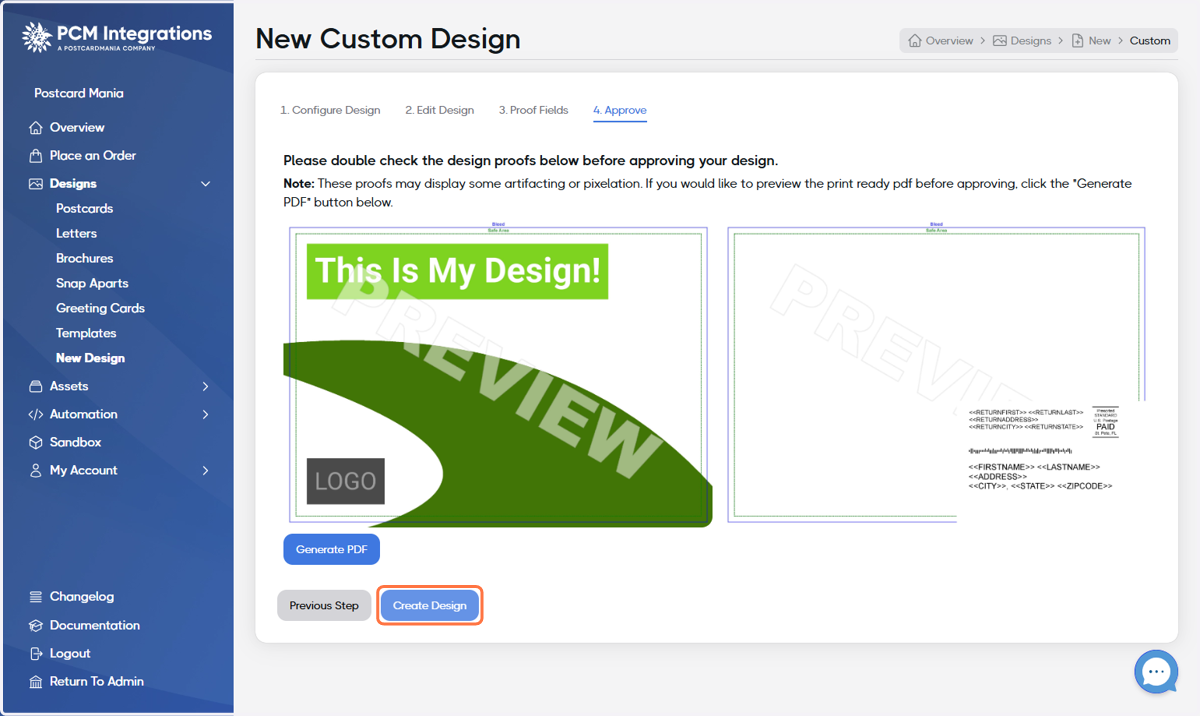
14. Double-check the proof and, if ready, click on Create Design
15. Congratulations! Your design is ready!