Creating New Accessible Content with Panorama
When creating new content in Brightspace, Panorama provides you with live feedback on the accessibility of your content. Whenever you use the text editor to create Announcements, Units, Lessons, or Assignments, look for the Panorama gauge icon within the toolbar.
1. Click on the gauge icon.
As you add text and images, the gauge will show a number indicating the number of accessibility issues.
2. Choose one to start with and click on Fix Issue
This contains a list of issues on the page.
Clicking the Fix Issue button will highlight the problem in your text editor. It will also give suggestions on how to fix the content.
3. Click on Move report to the left
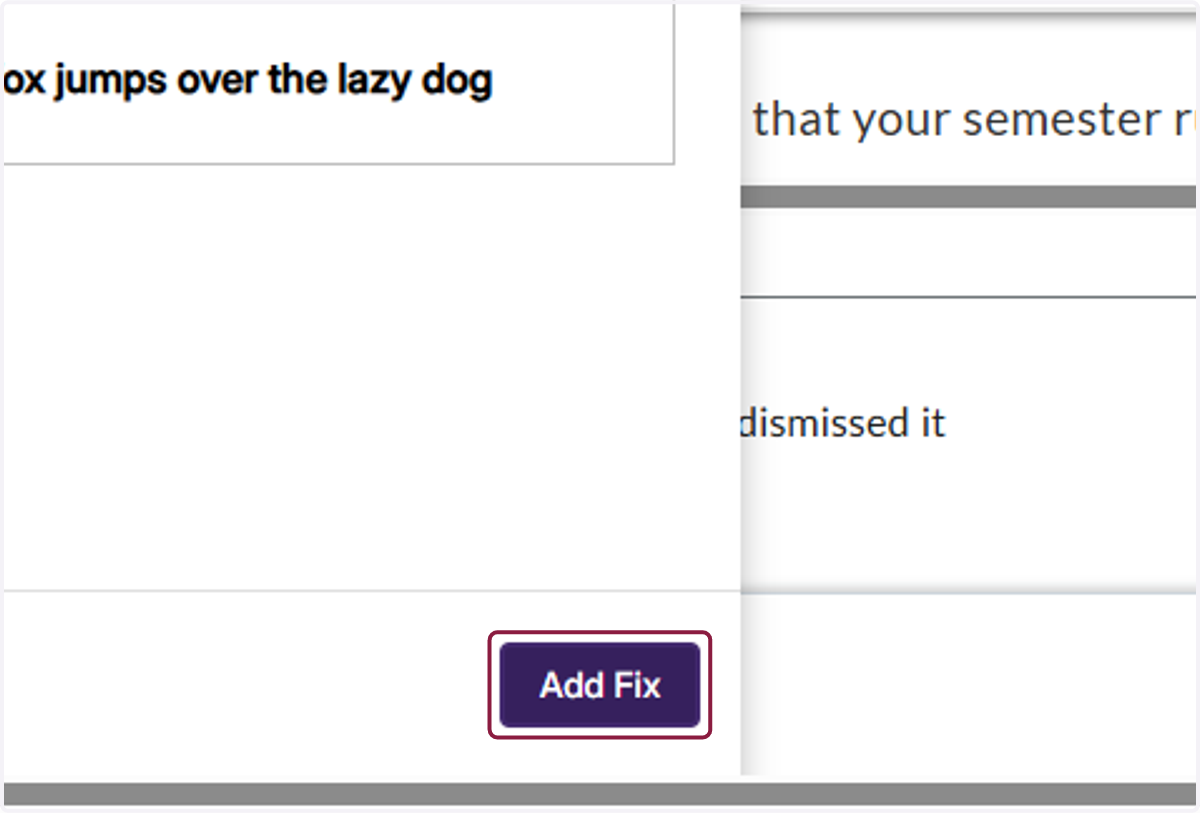
Pressing the button that looks like a box with an arrow pointing left will move the Panorama pane, revealing the hidden Add Fix button at the bottom that the Brightspace chat box covers.
4. Click on Add Fix
This allows Panorama to make the suggested change for you. You are also welcome to manually make the change in the text editor.
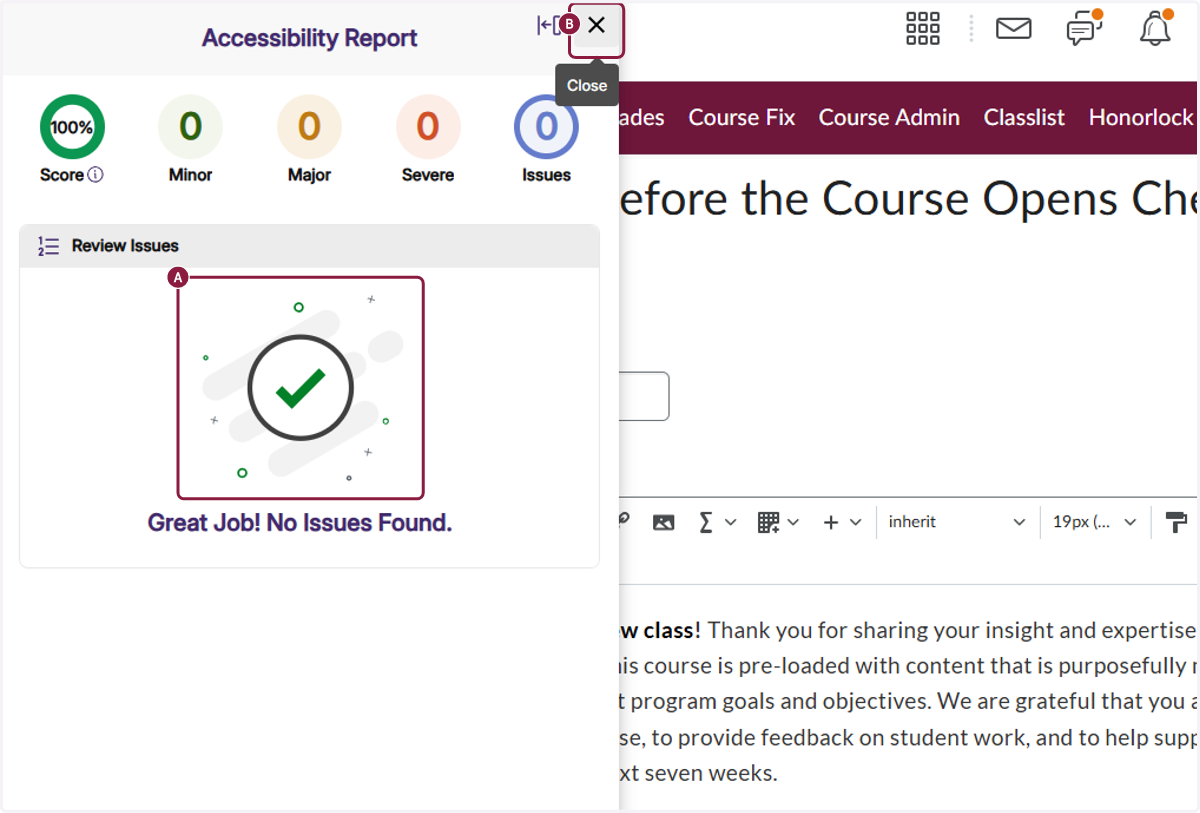
5. A. When all fixes are made, you will see a No Issues Found message.
5. B. When you see this, click to close the Panorama pannel.
6. Click on Update or Save to save your work.