Creating Codes In NetSuite
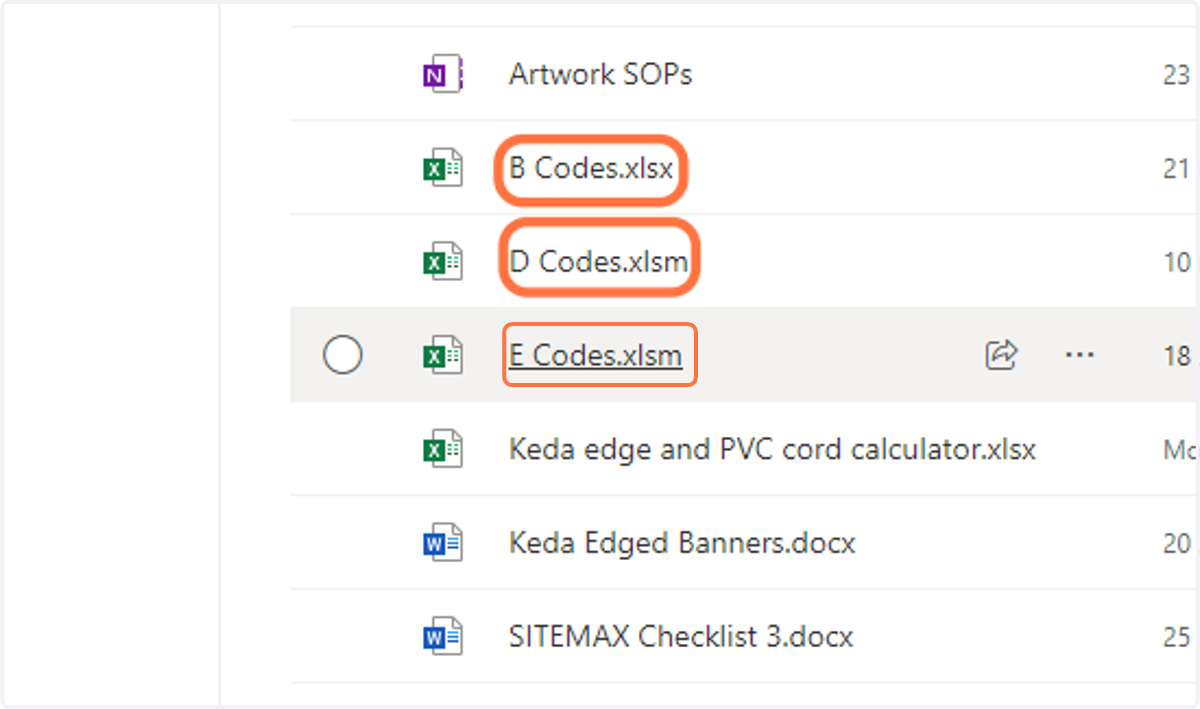
Artwork - Artwork - All Documents
1. Click on Open Your Code list.
B Codes - Micha
D Codes - Angela
E Codes - Daniel
Front
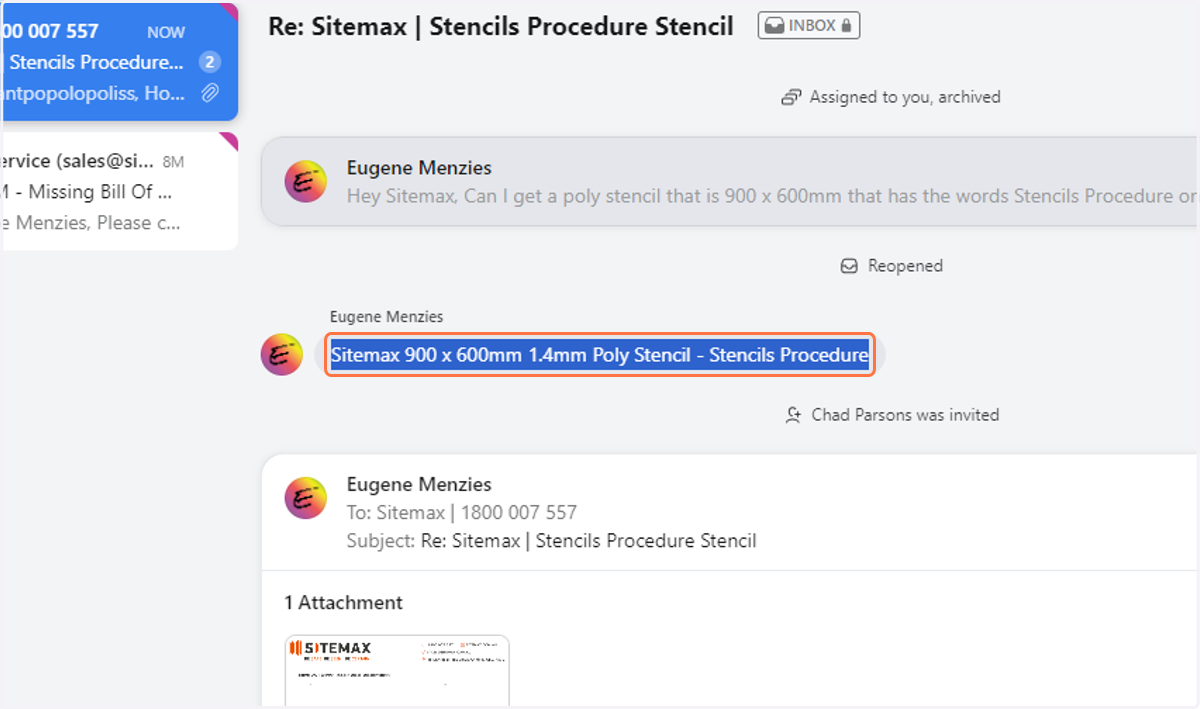
2. Copy the artwork description from the Front internal comments
E Codes.xlsm
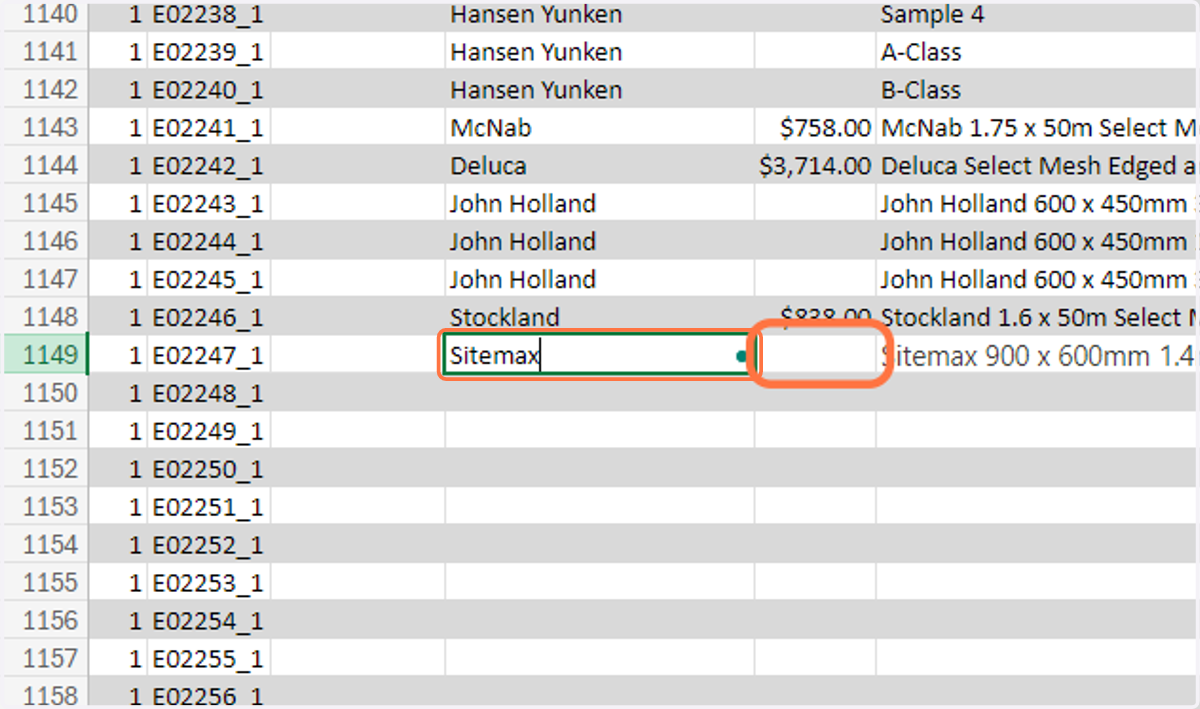
3. Paste the description into the next vacant description cell
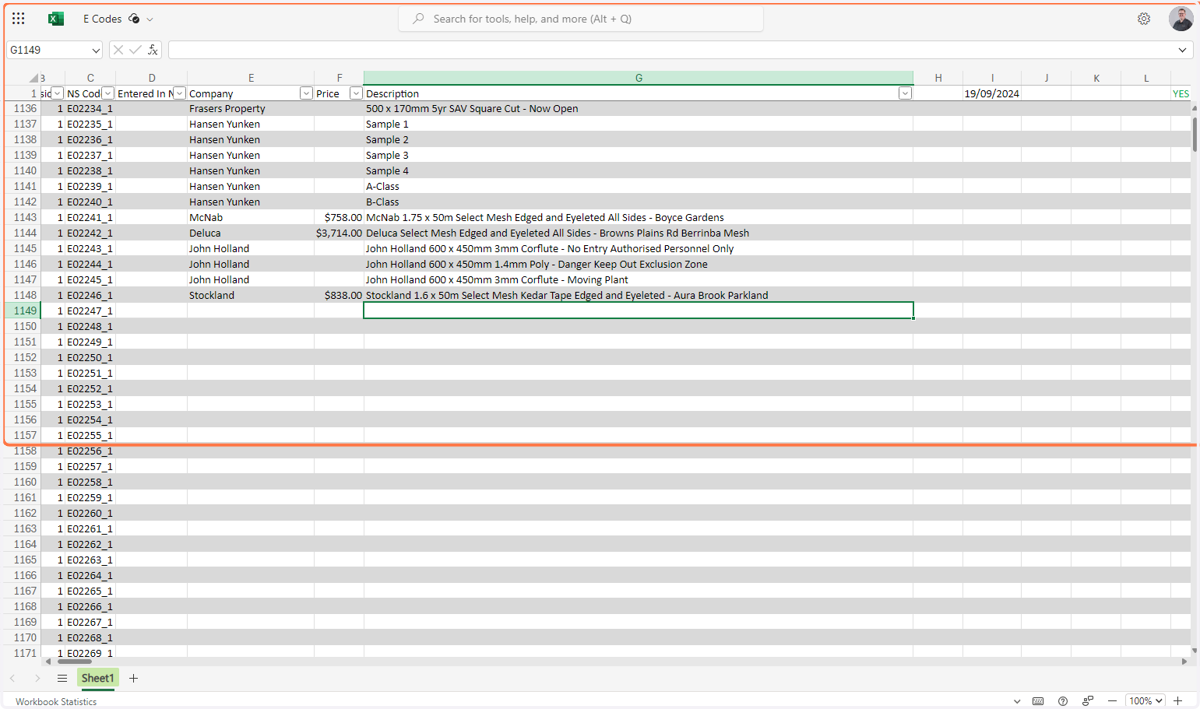
4. Fill out the Company cell and the Price cell if a price has been provided
NetSuite
5. Click on Expand/Collapse filters
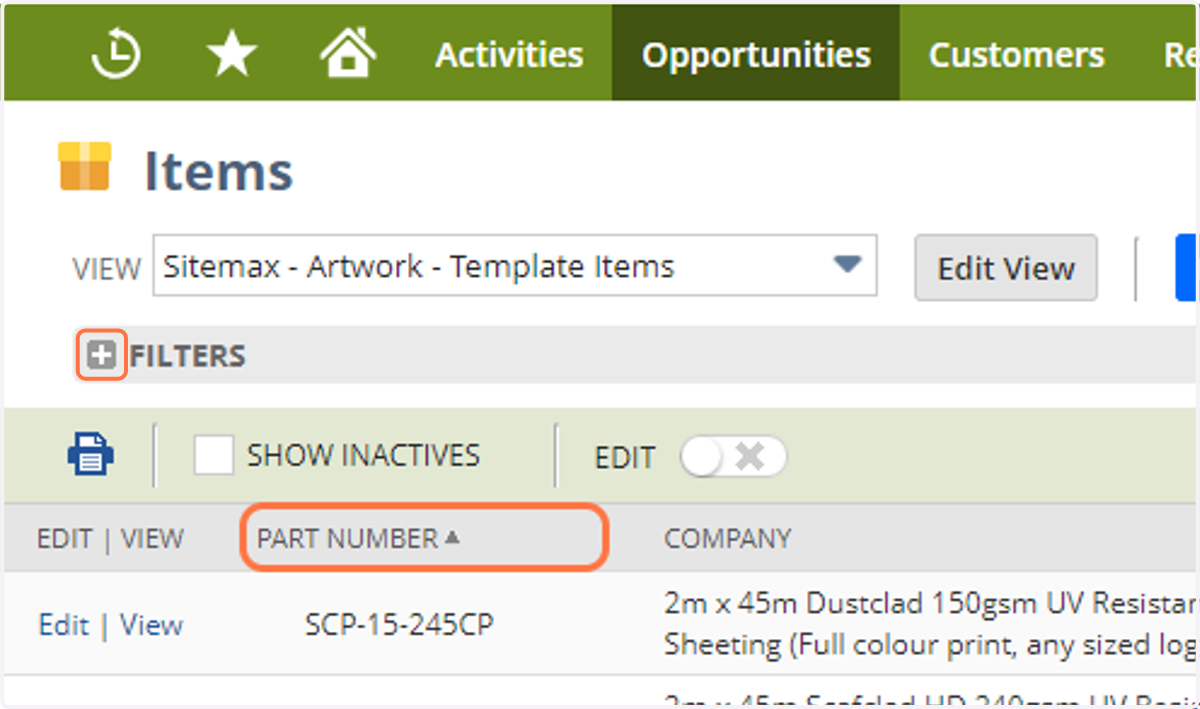
6. Search for the required material.
Most Common Materials are:
Corflute
Poly
Aluminium
Metal or Gal
SAV
Select Mesh
Maxflow Mesh
440 Vinyl
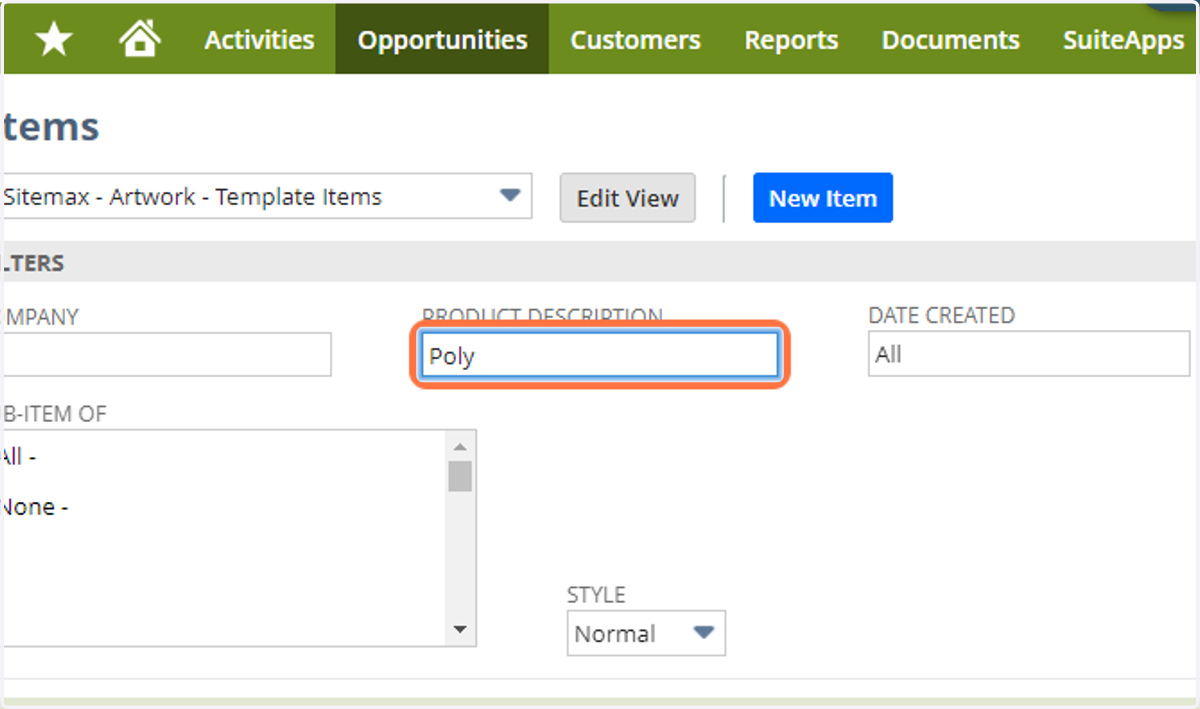
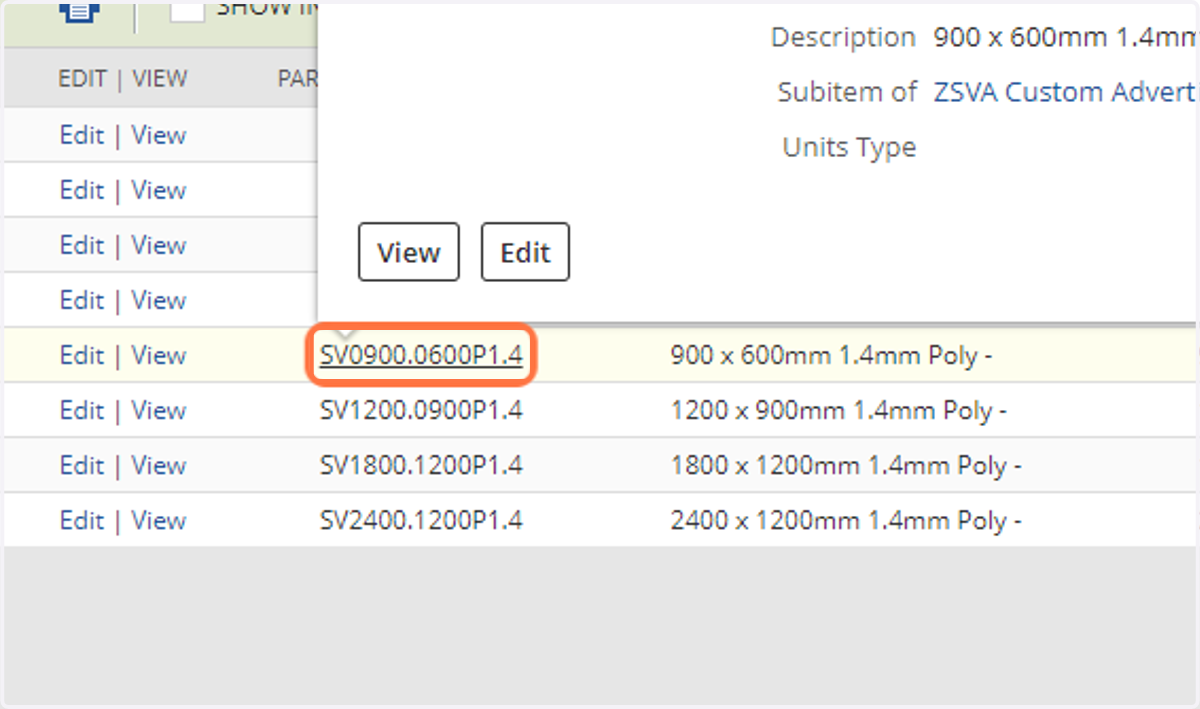
7. Open the template the same size or the the next size up
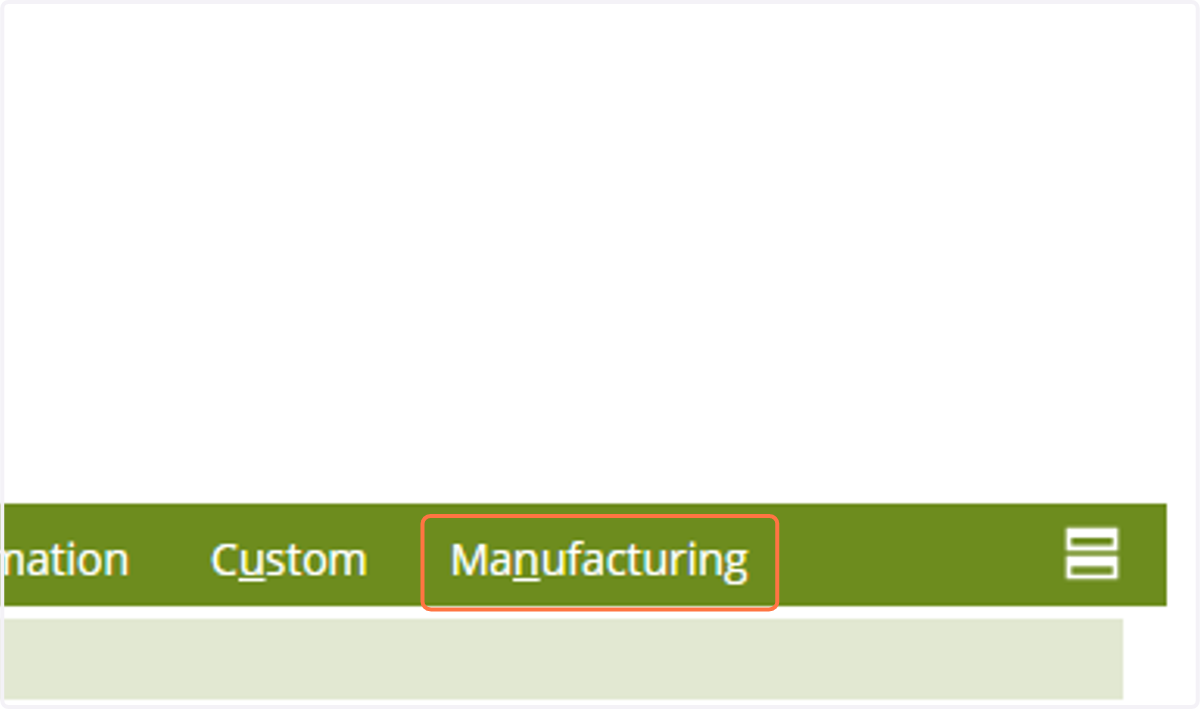
8. Click on Manufacturing
9. Take note of the Bill of Materials already on the template.
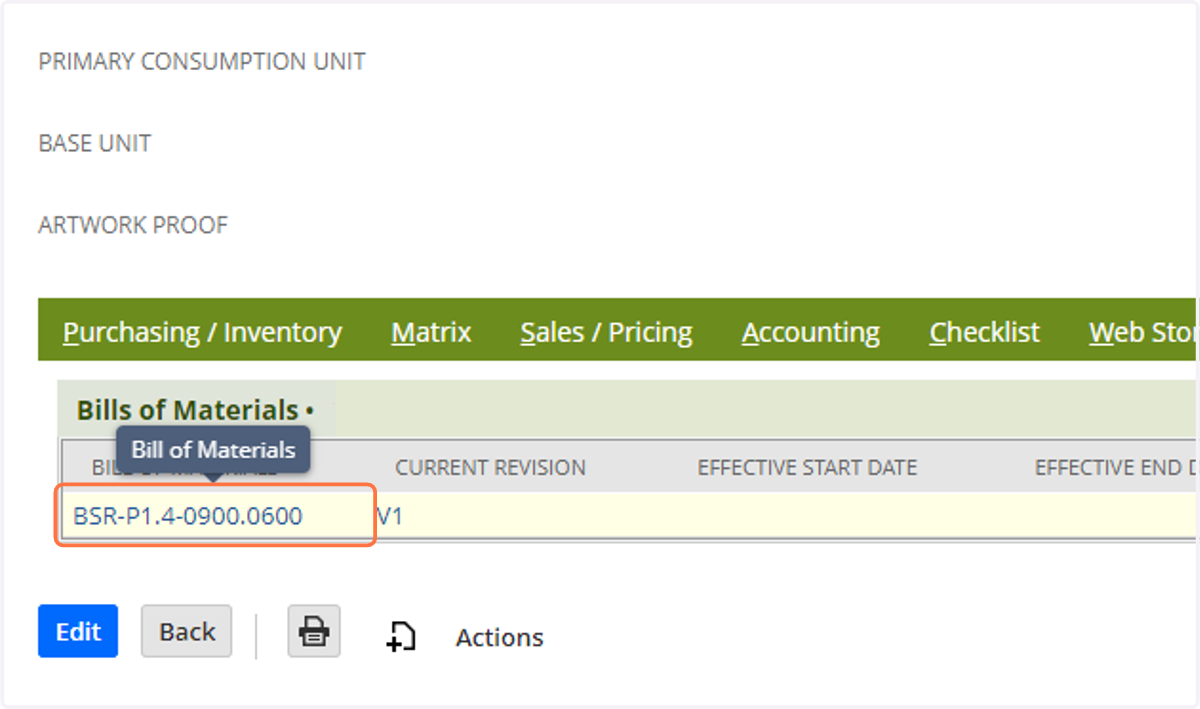
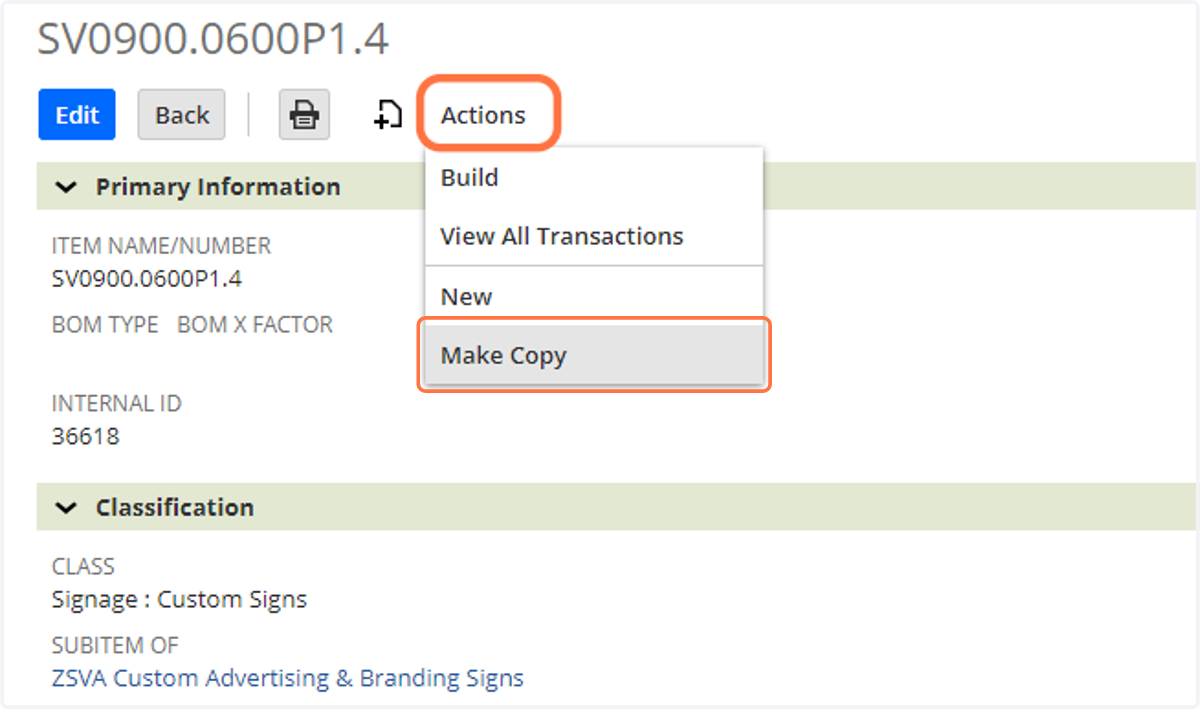
10. Click on Actions > Make Copy
11. If not the tab already, Click on Manufacturing
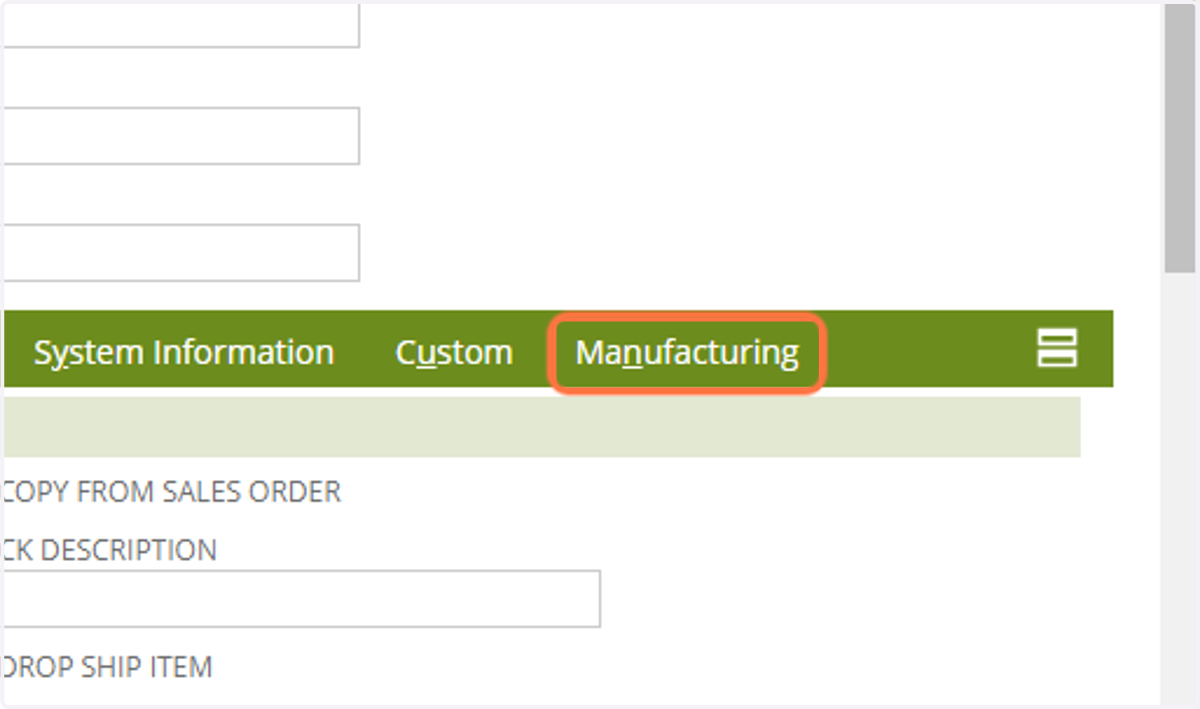
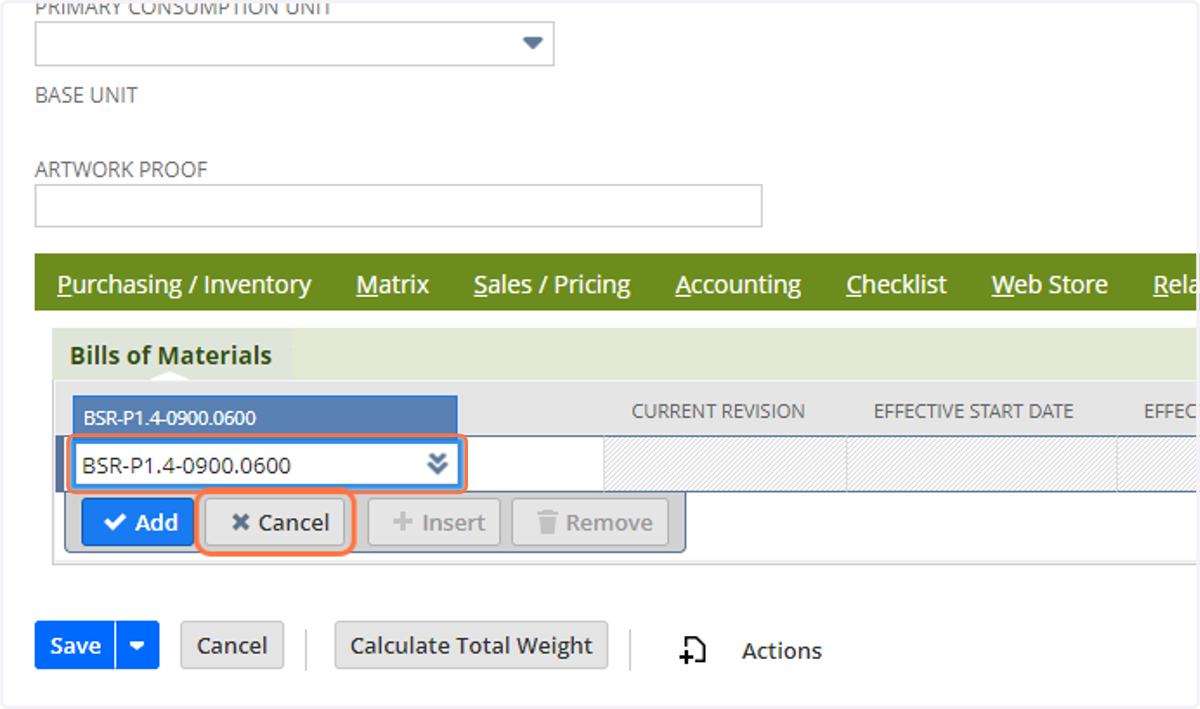
12. Enter in the correct Bill Of Materials
Use the document below to pick the right Bill Of Materials.
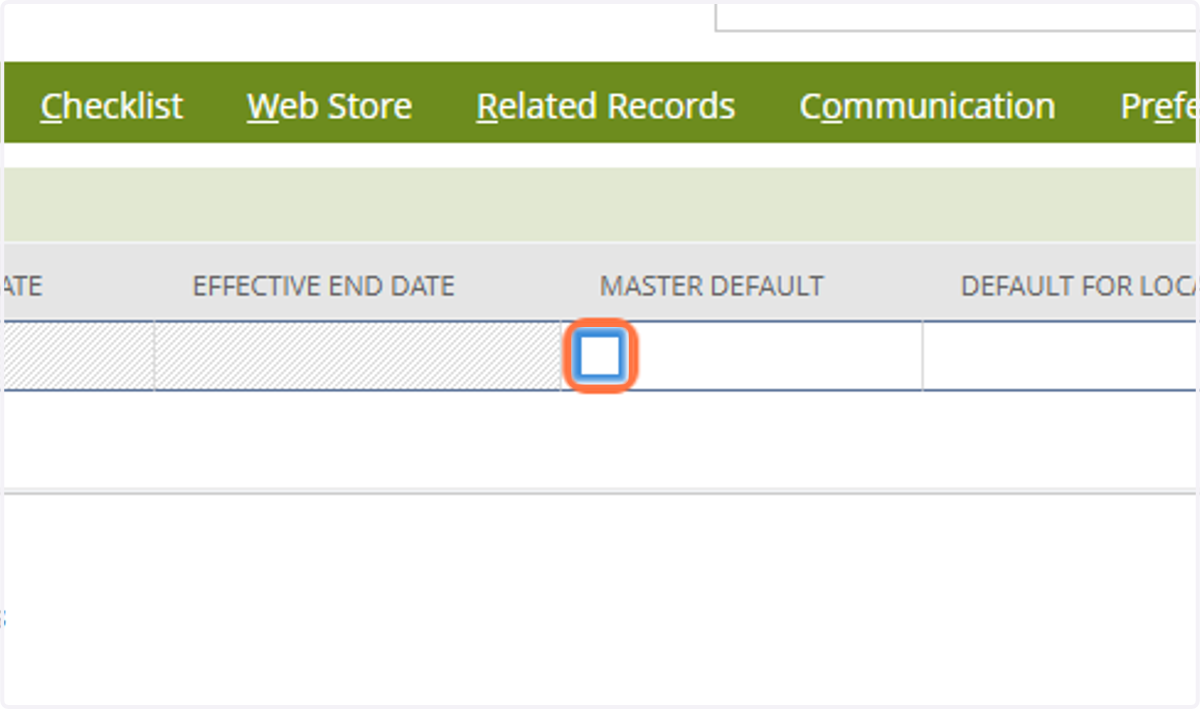
13. Tick Master Default
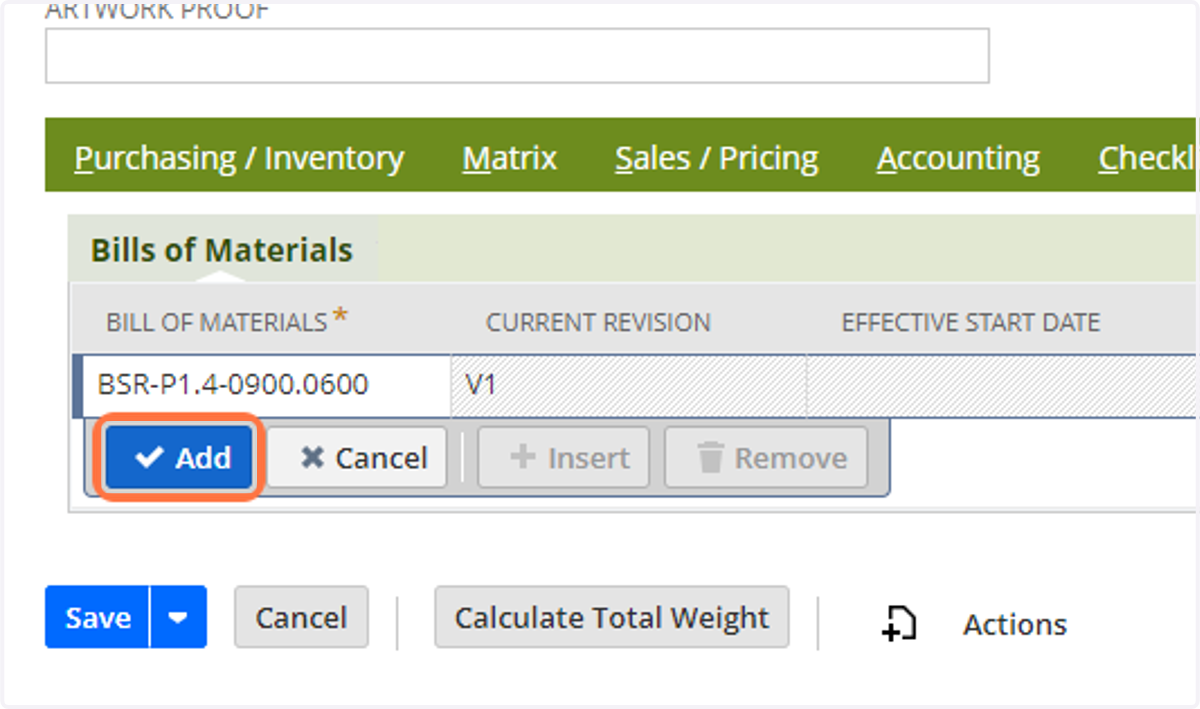
14. Click on Add
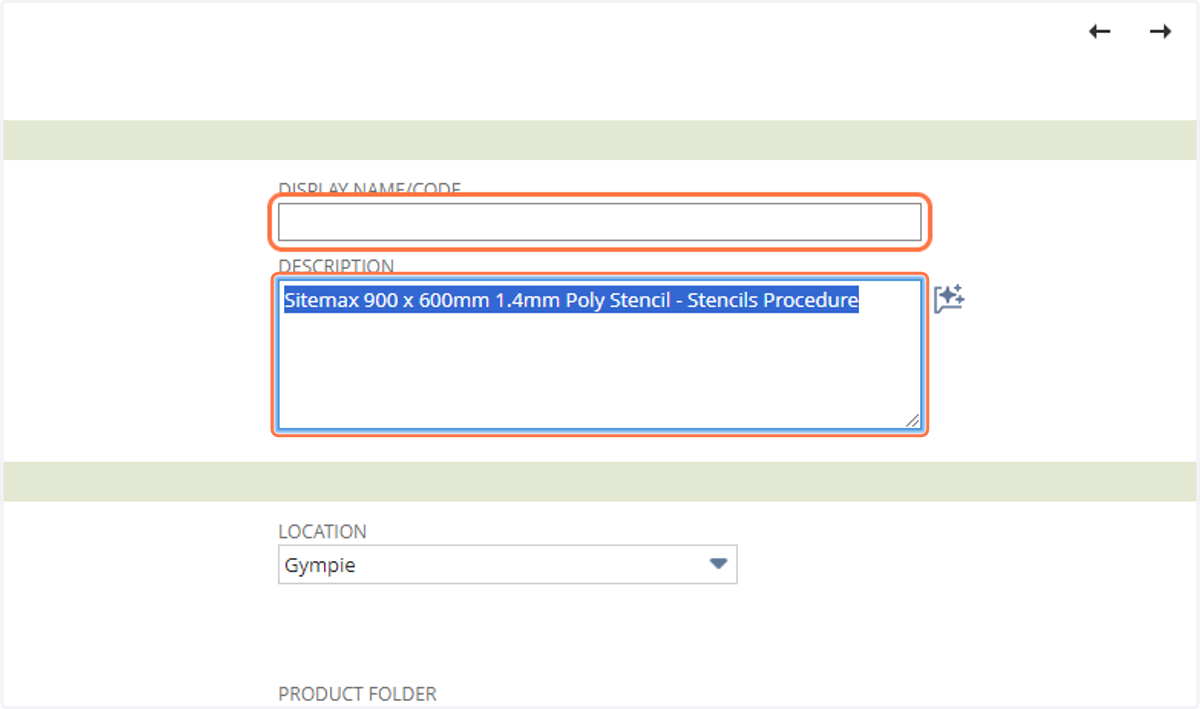
15. Paste the Artwork Description from Front into the Description field and the Display Name/Code field
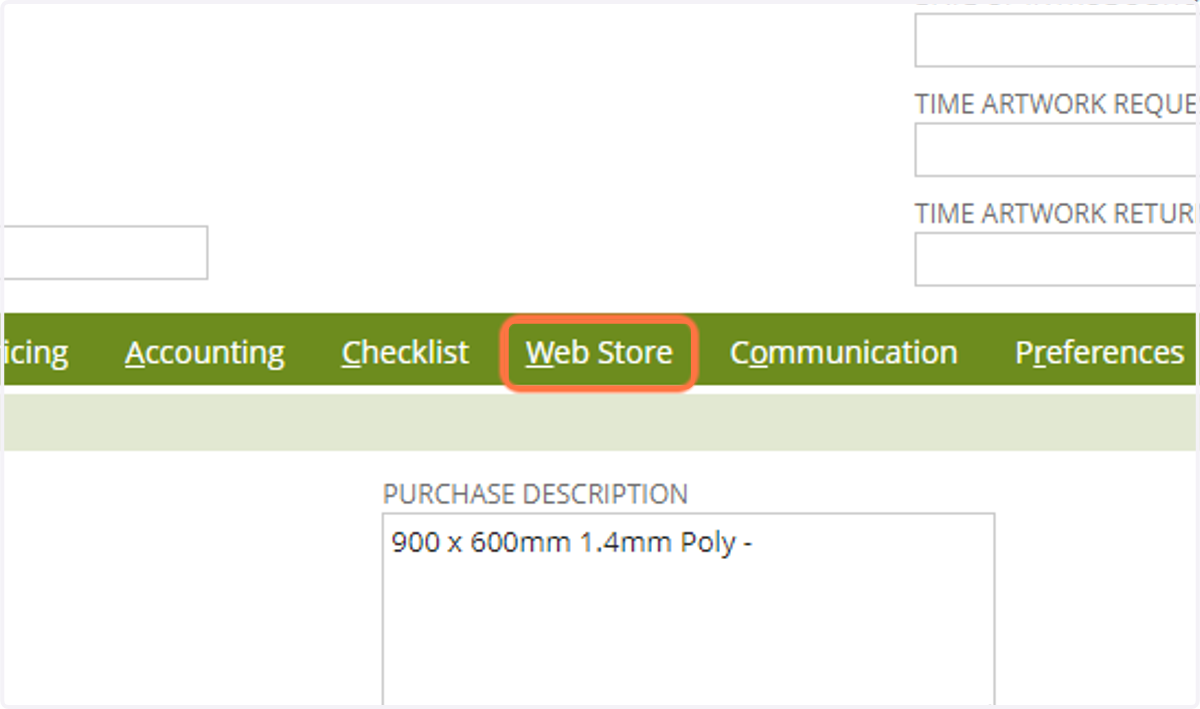
16. Click on Web Store
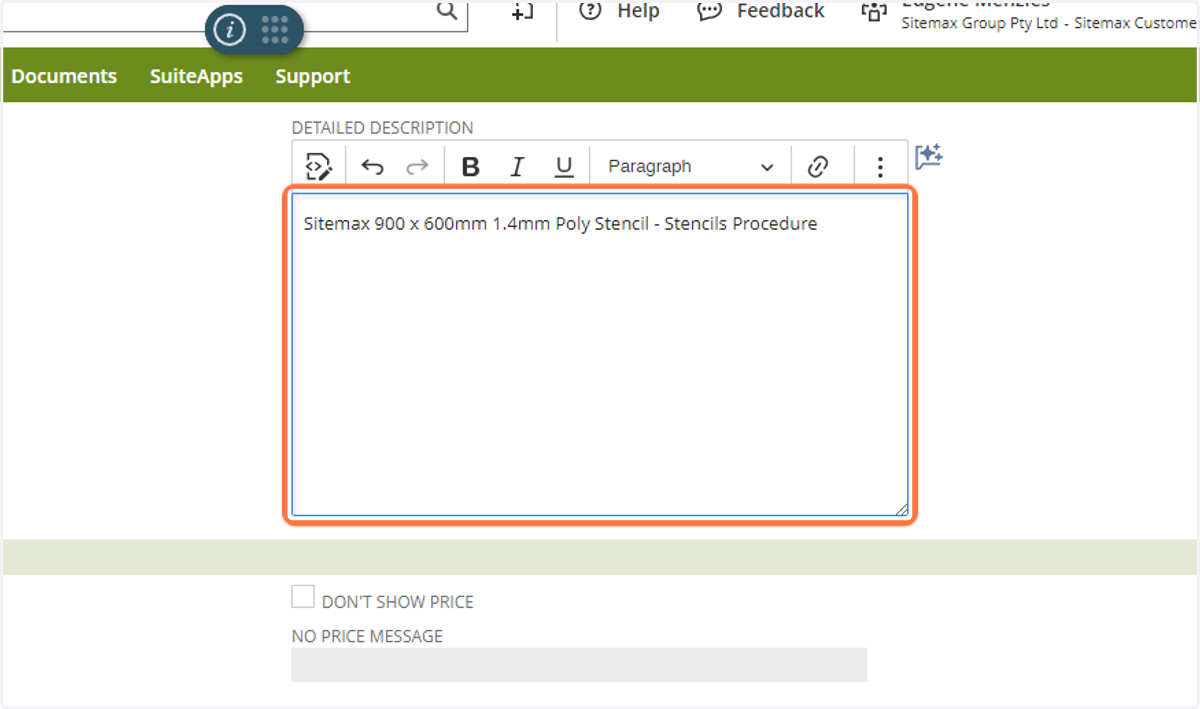
17. Paste the artwork description into the Detailed Description field
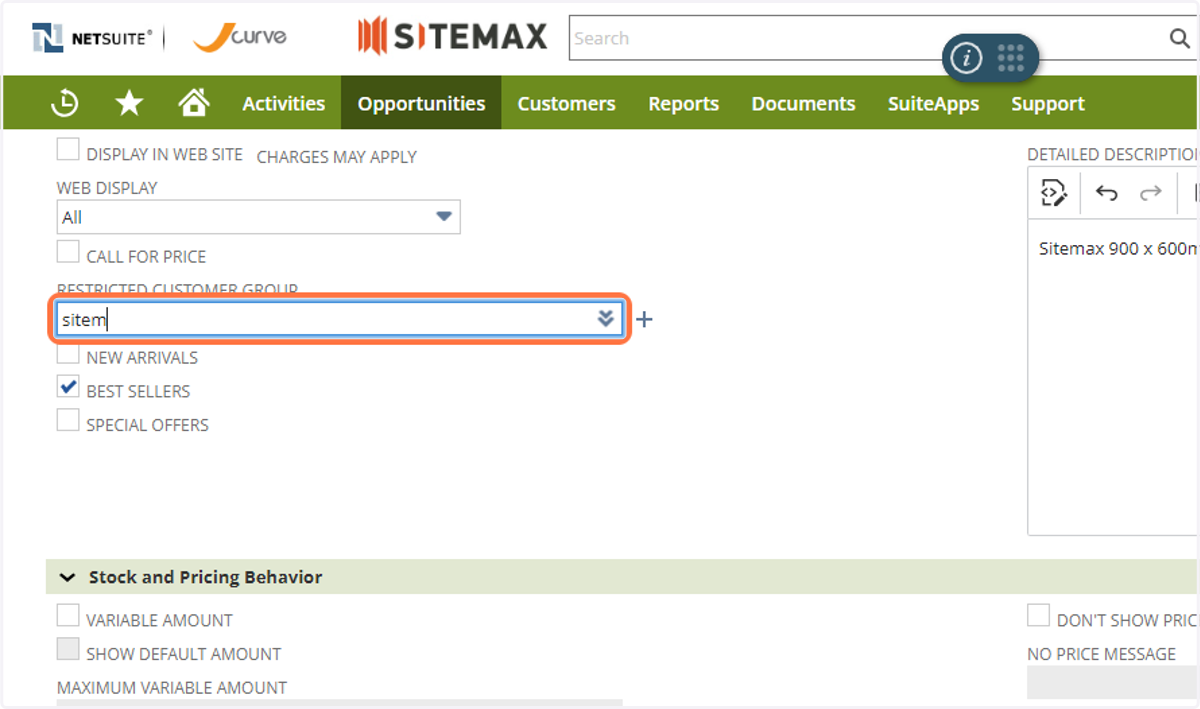
18. Enter in the Company in the Restricted Customer Group field
19. Click on Sales / Pricing
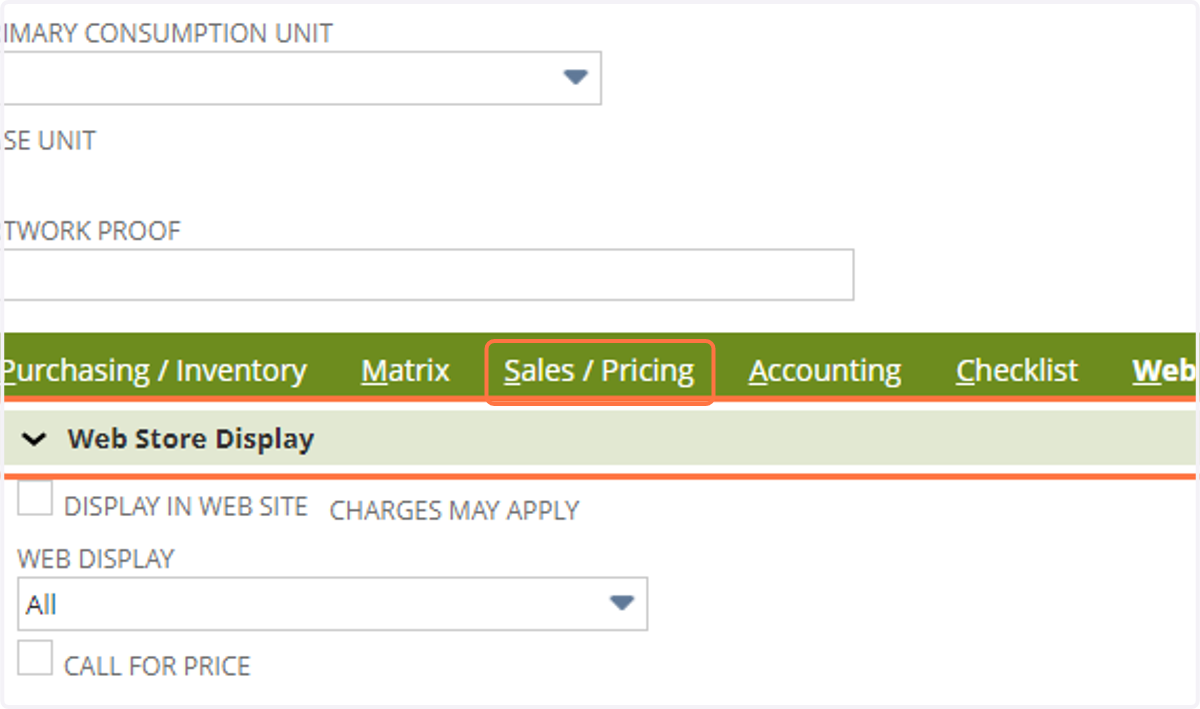
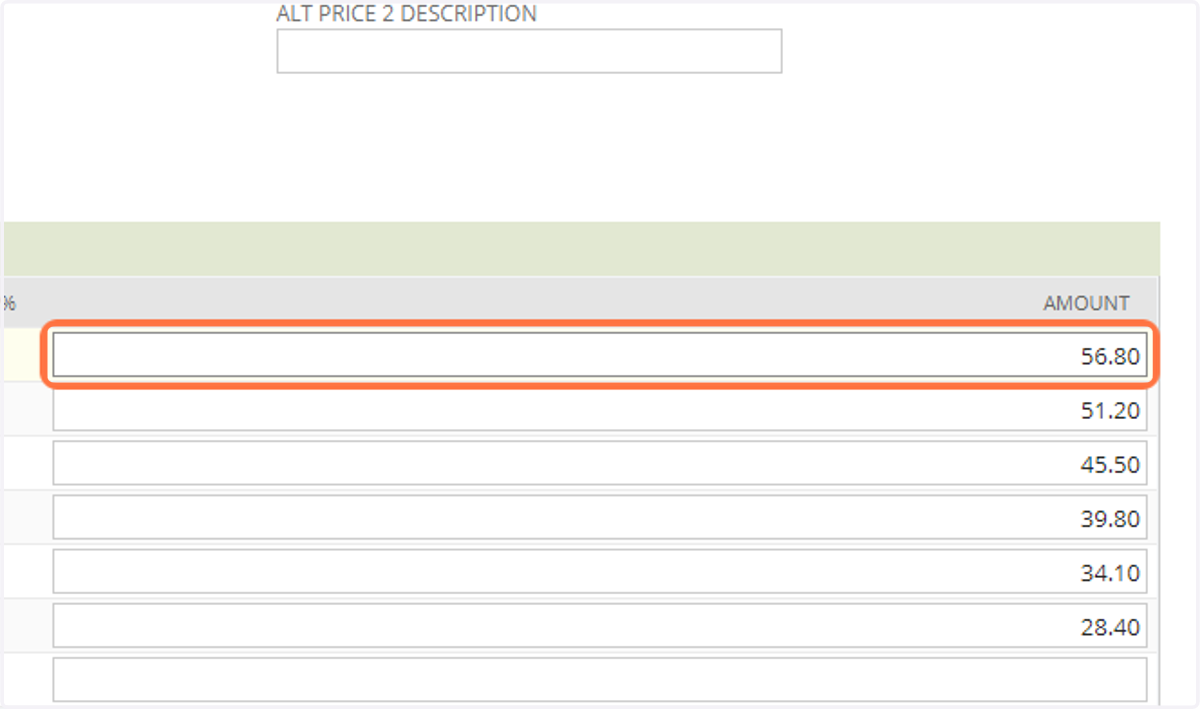
20. Check whether the price matches any price supplied by Customer Service. If not, update it to match
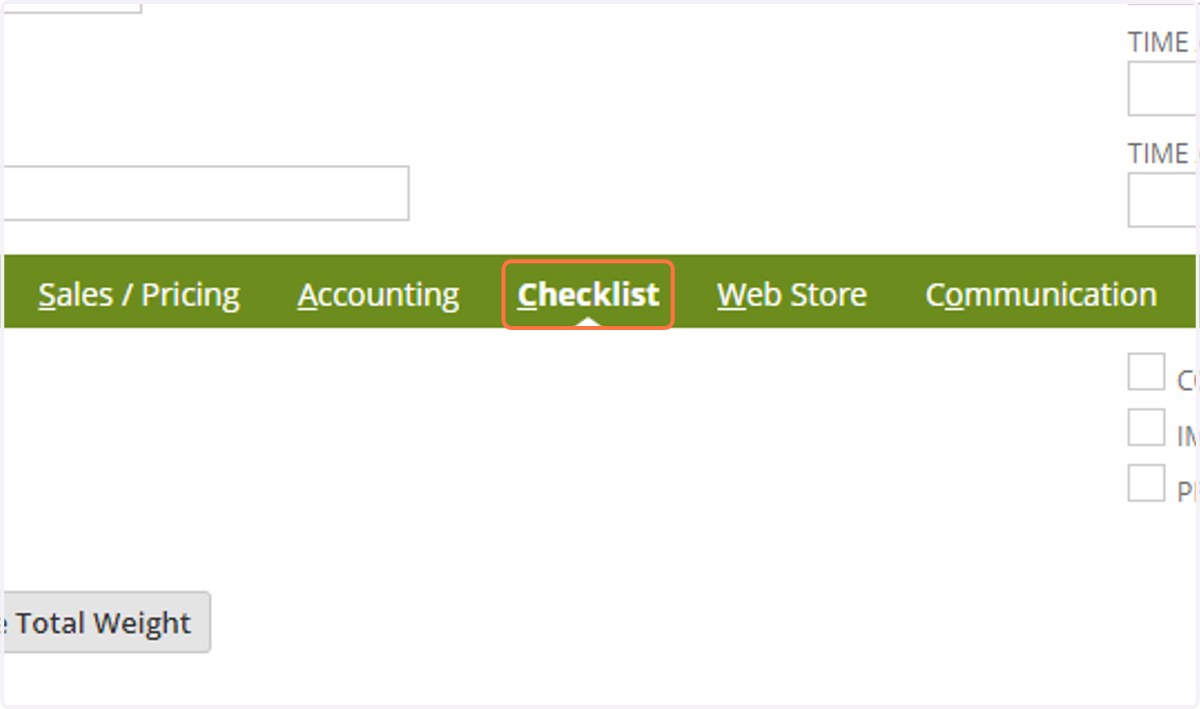
21. Click on Checklist
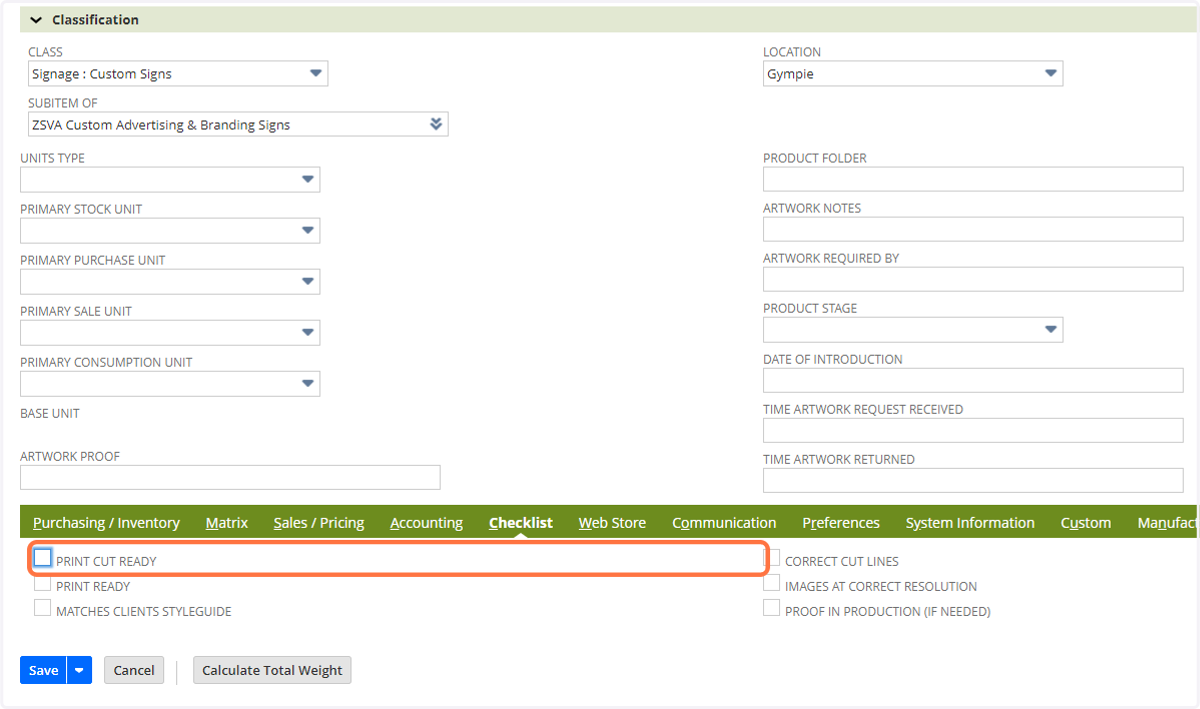
22. Check all boxes are unchecked
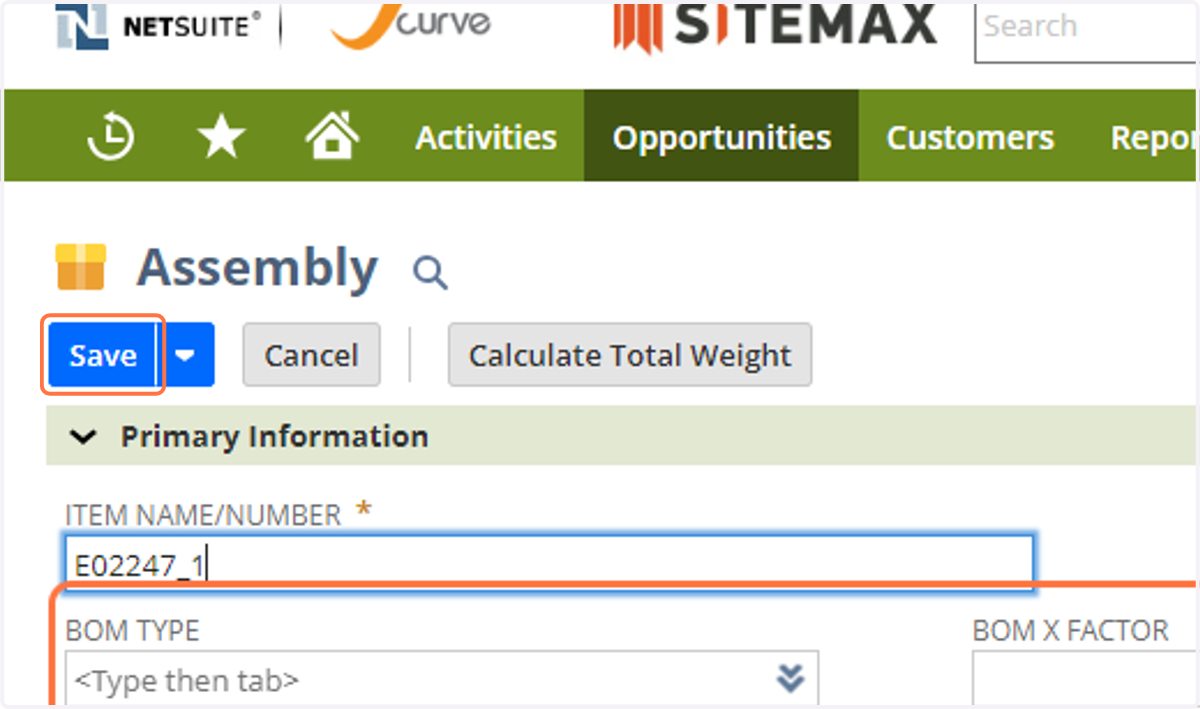
23. Enter the Artwork Code in the Item Name/Number Field
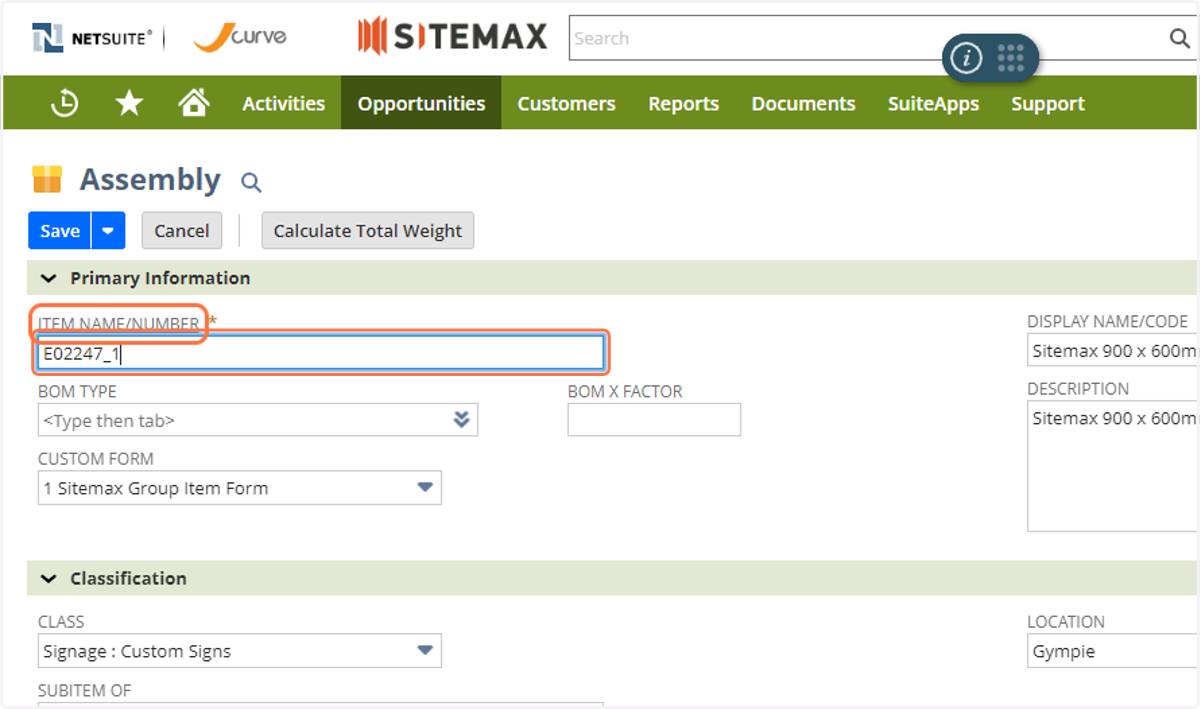
24. Click Save