3. Your home page shows the list of projects you have access to in Planning & Self-Study.
4. Click on "Edit Map" to edit the curriculum map for the selected program.
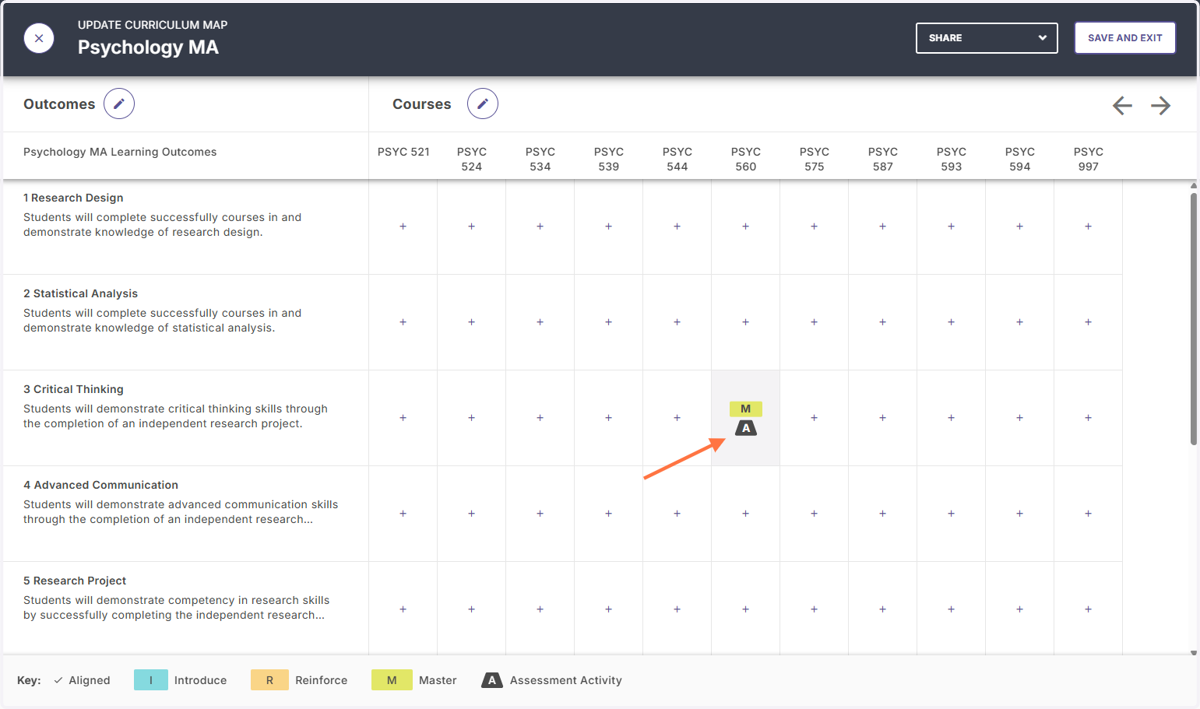
5. You will then be redirected to a screen that shows all the outcomes and courses that can be aligned to them.
6. You can update your outcomes if needed by clicking on the pencil icon.
7. To align a course with an outcome, click on the ' + ' that falls under the appropriate row and column. For example, to align PSY 360 with the outcome of Critical Thinking, select the box indicated below.
Note the levels of alignment are below (introduce reinforce, master).
8. A menu will appear with alignment options.
9. Toggle on the alignment.
10. Then, select the level of alignment with the outcome.
11. You also have the option to add measures to this outcome.
12. If there are measures you want to add to this outcome that are found within this course, you can select ADD MEASURE.
13. Identify the method of measurement.
14. Provide a title for the measure.
15. Identify the target criteria of success for this measure.
16. Provide a brief description of the measure.
17. In the upper right corner of the scree, click ADD when all the measure information is entered.
18. Your new measure should be showing in the list on the right side of the screen.
19. To close this window, click the ' X ' in the upper right corner.
20. Your new alignment should now appear in your curriculum map.
21. To make this map accessible to others who may not have access to Planning & Self-Study, you can copy a link to share with them.
22. Check ON to "Enable Public Share Link". Then click COPY LINK and CLOSE.