Create a roster in CRS
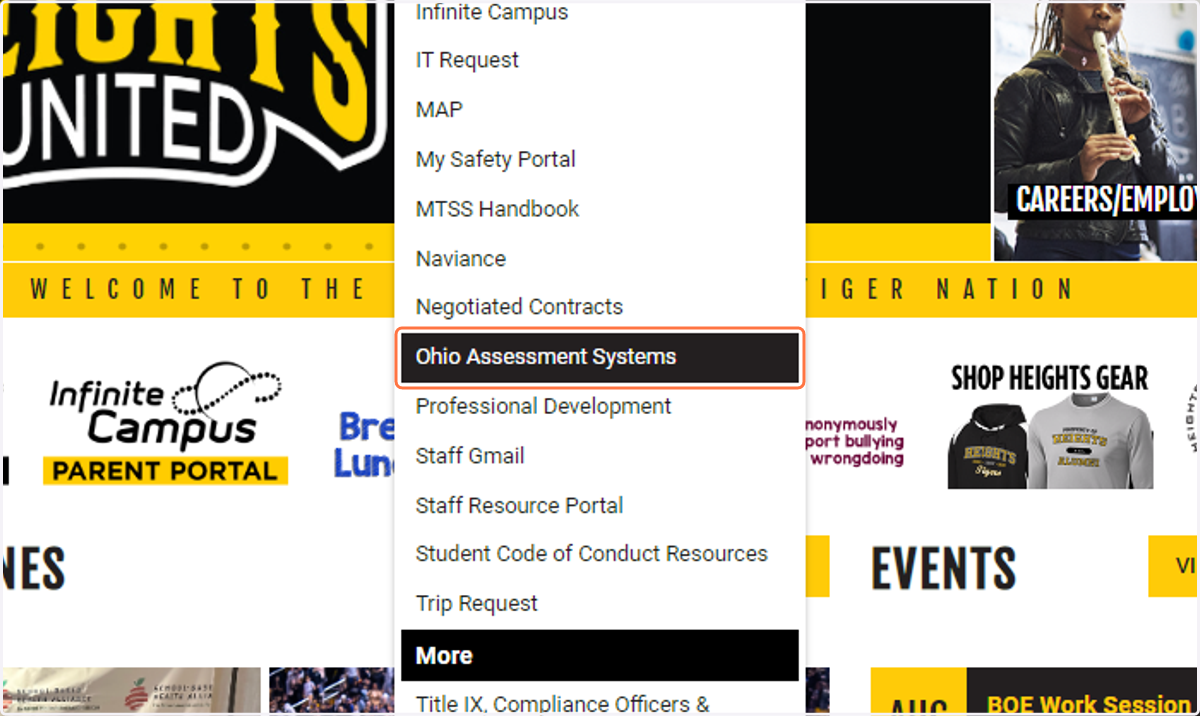
1. Hover over Staff and click on Ohio Assessment Systems
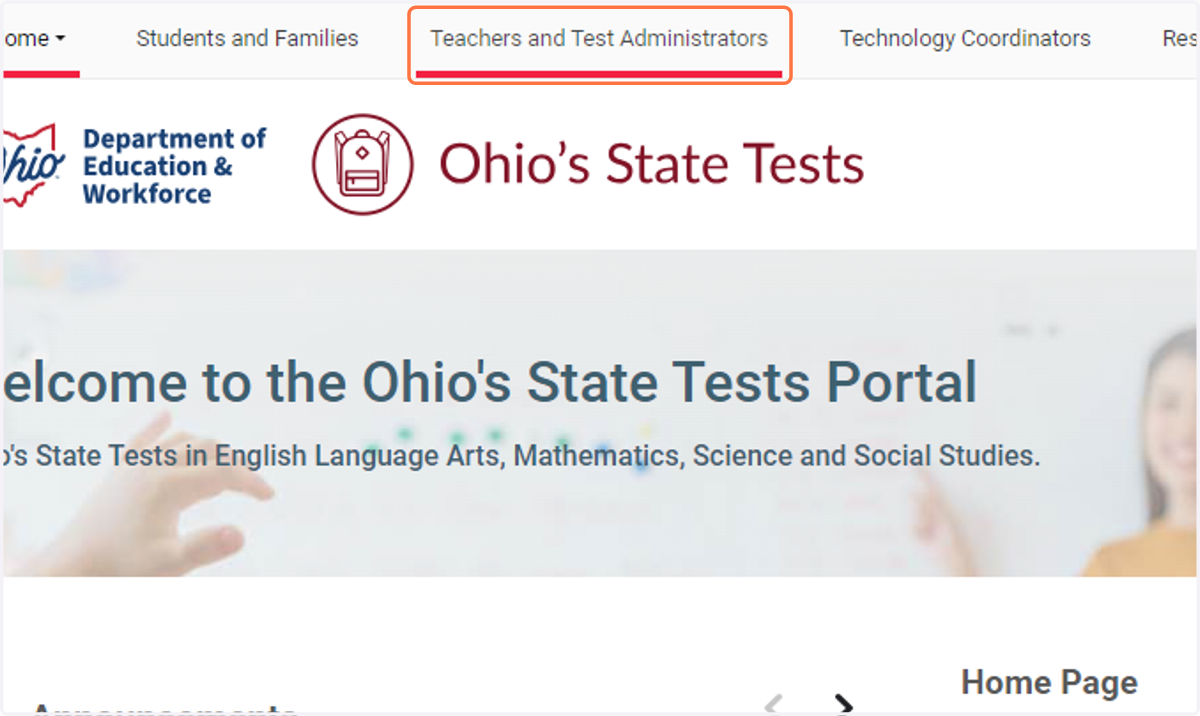
2. Click on Teachers and Test Administrators
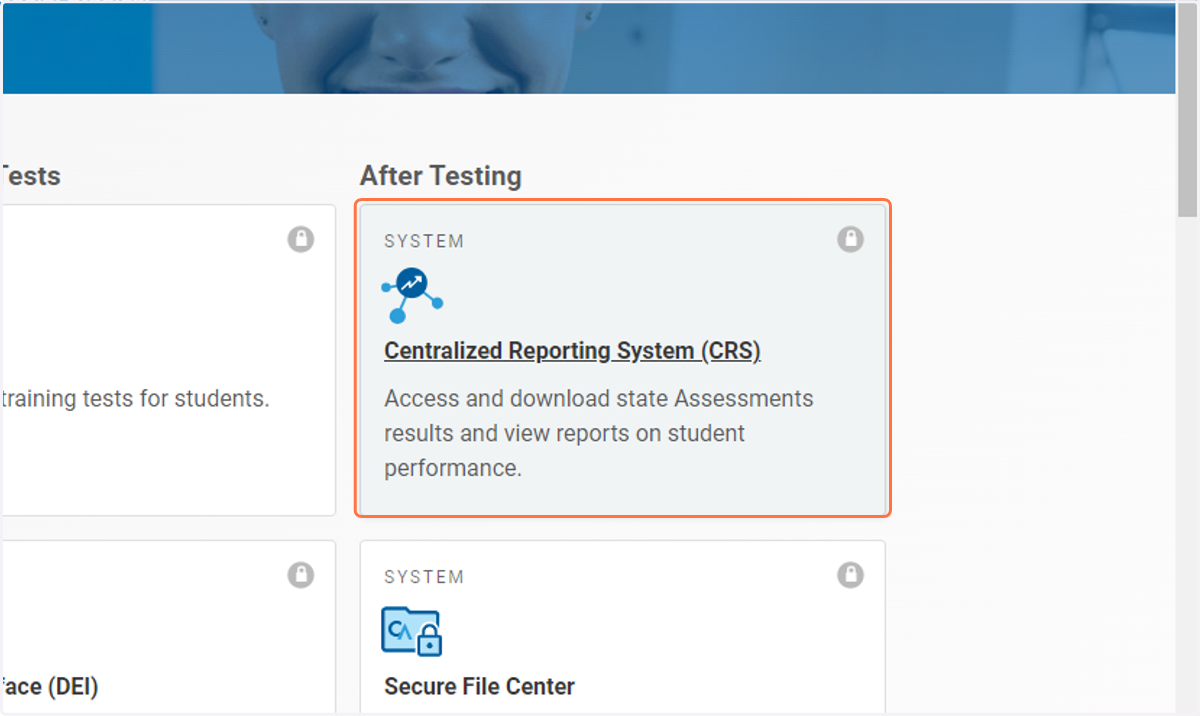
3. Click on Centralized Reporting System (CRS)
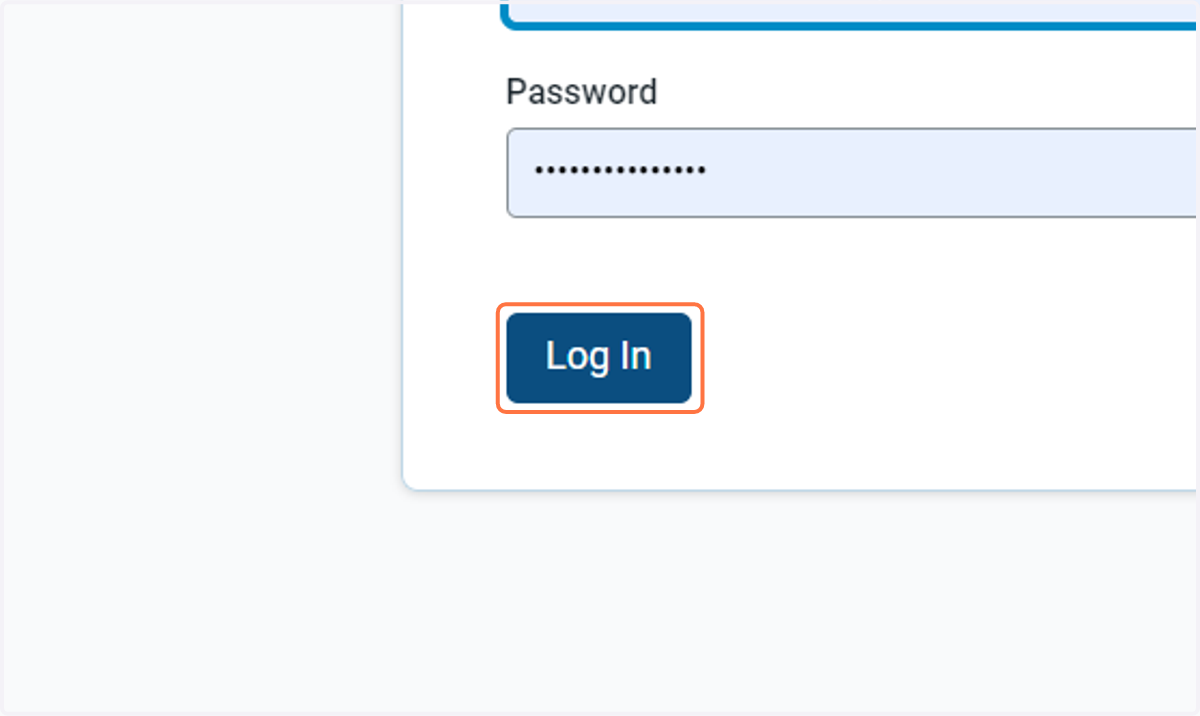
4. Enter your Username and Password then click on Log In
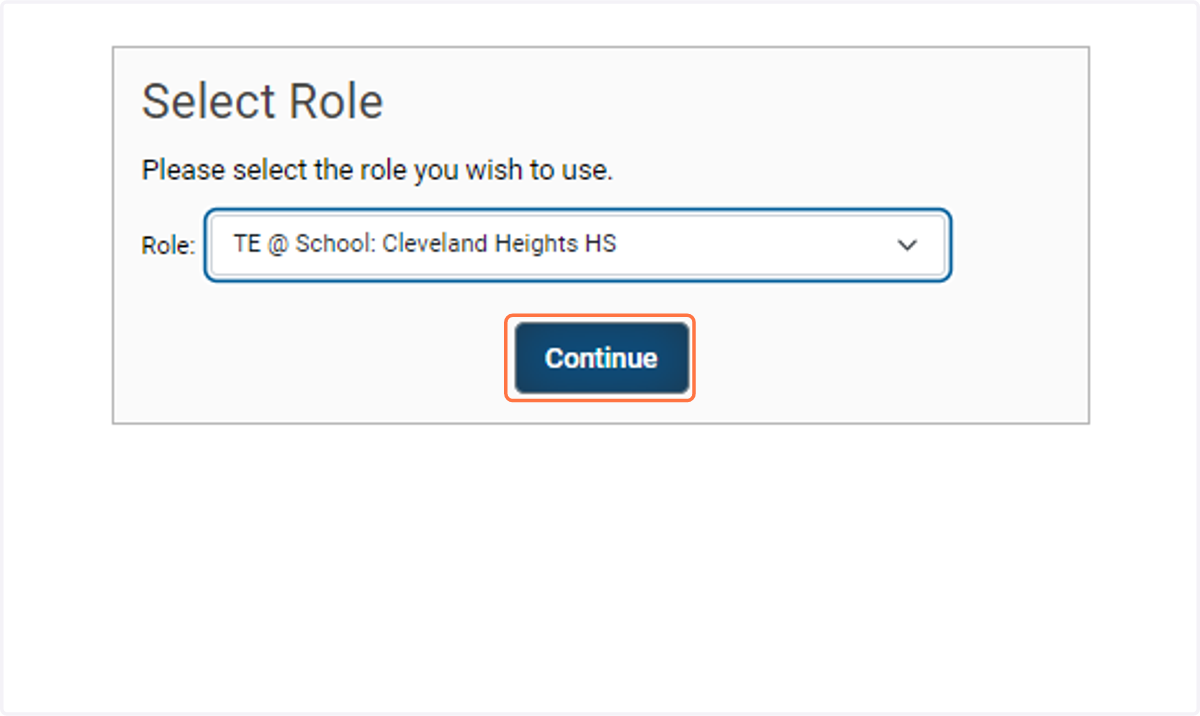
5. Click on Continue
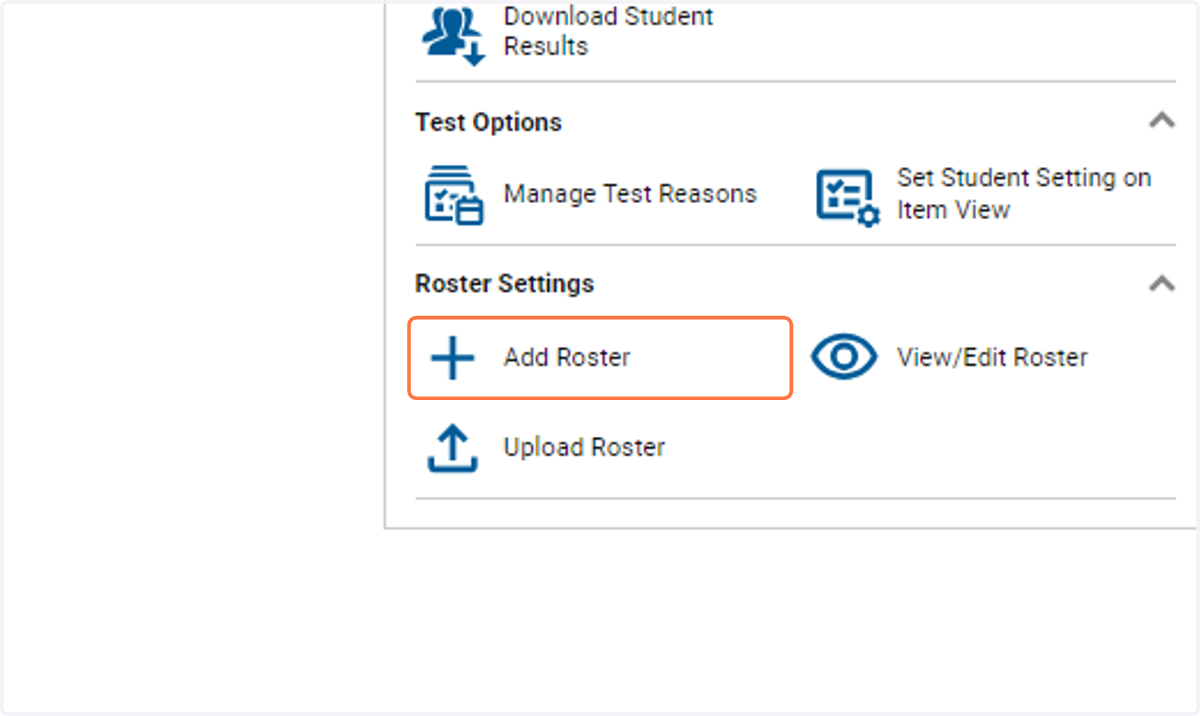
6. Click on Add Roster
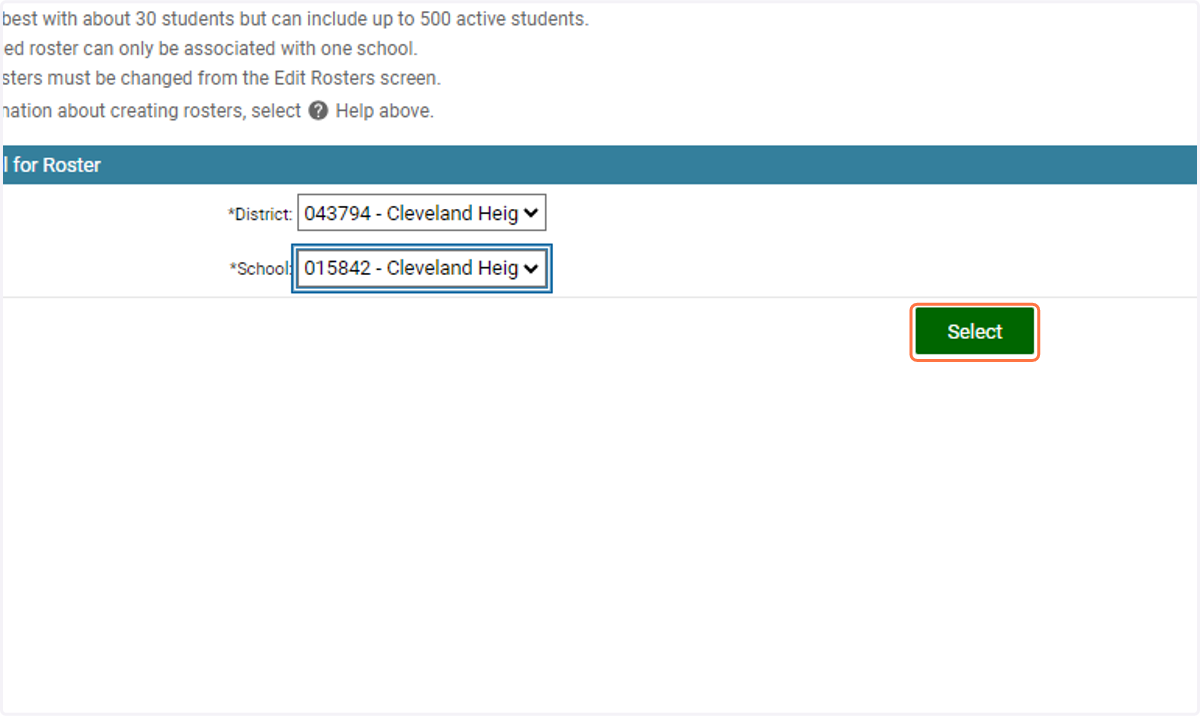
7. Select the school then click on Select
8. Click on Student Search
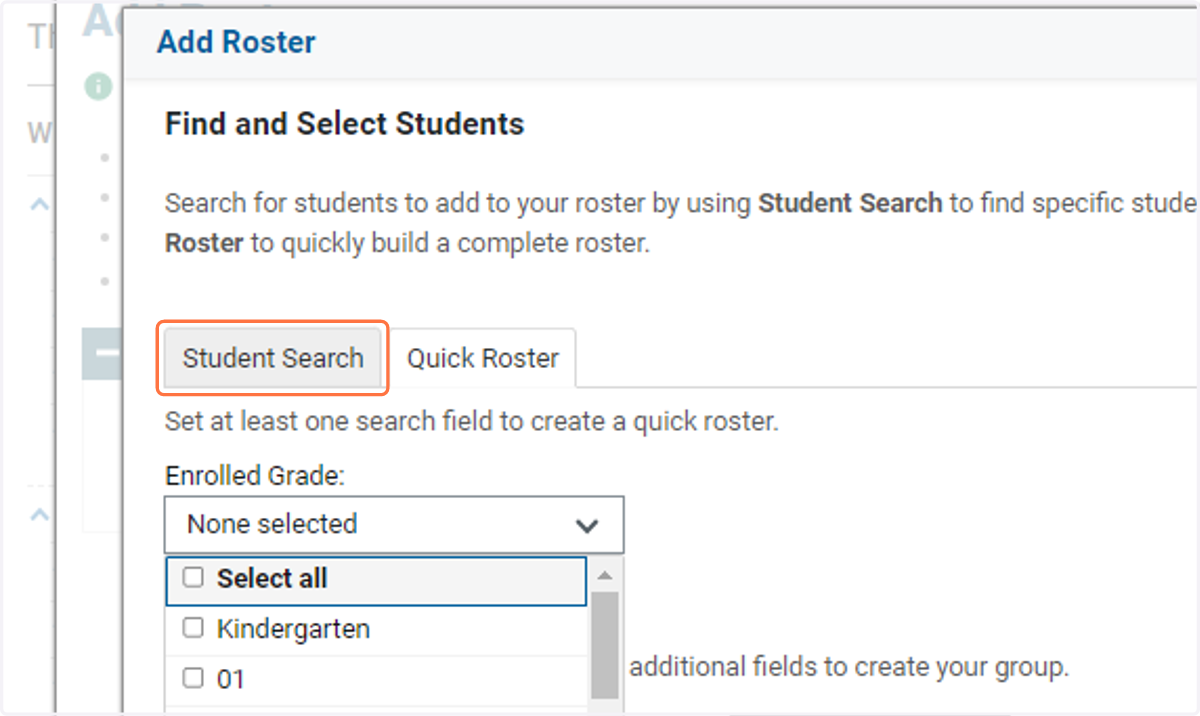
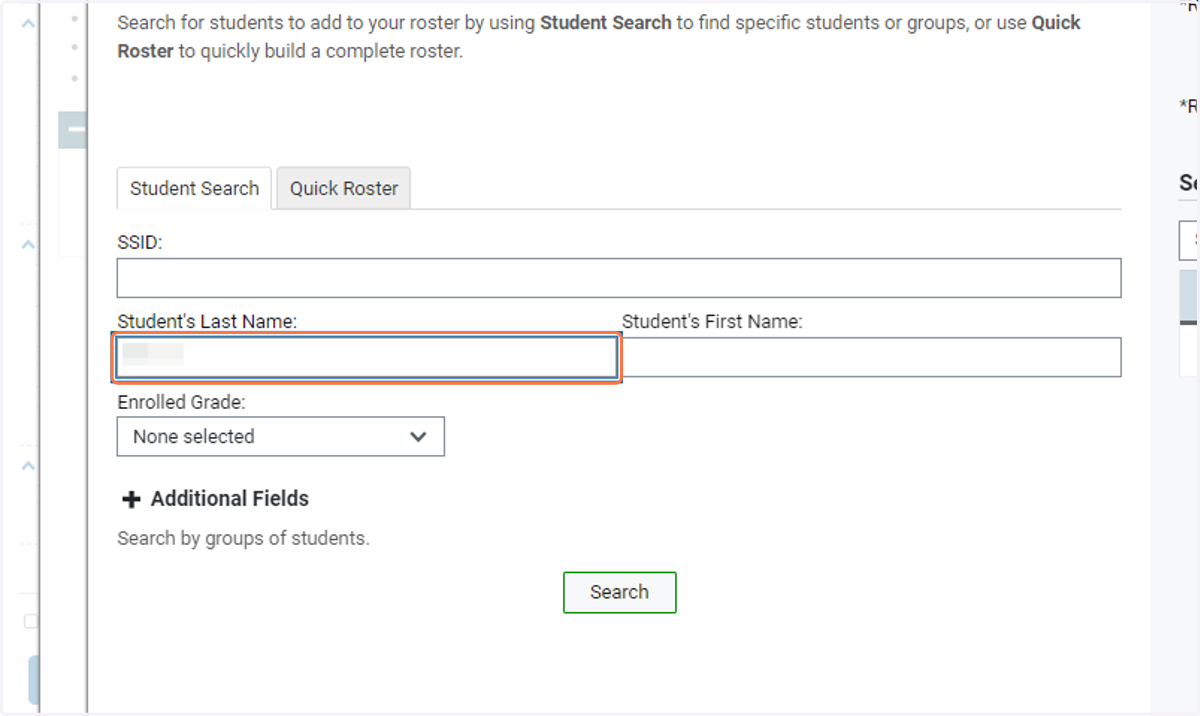
9. Search for students- You can use State ID, Student Last Name or Student First Name
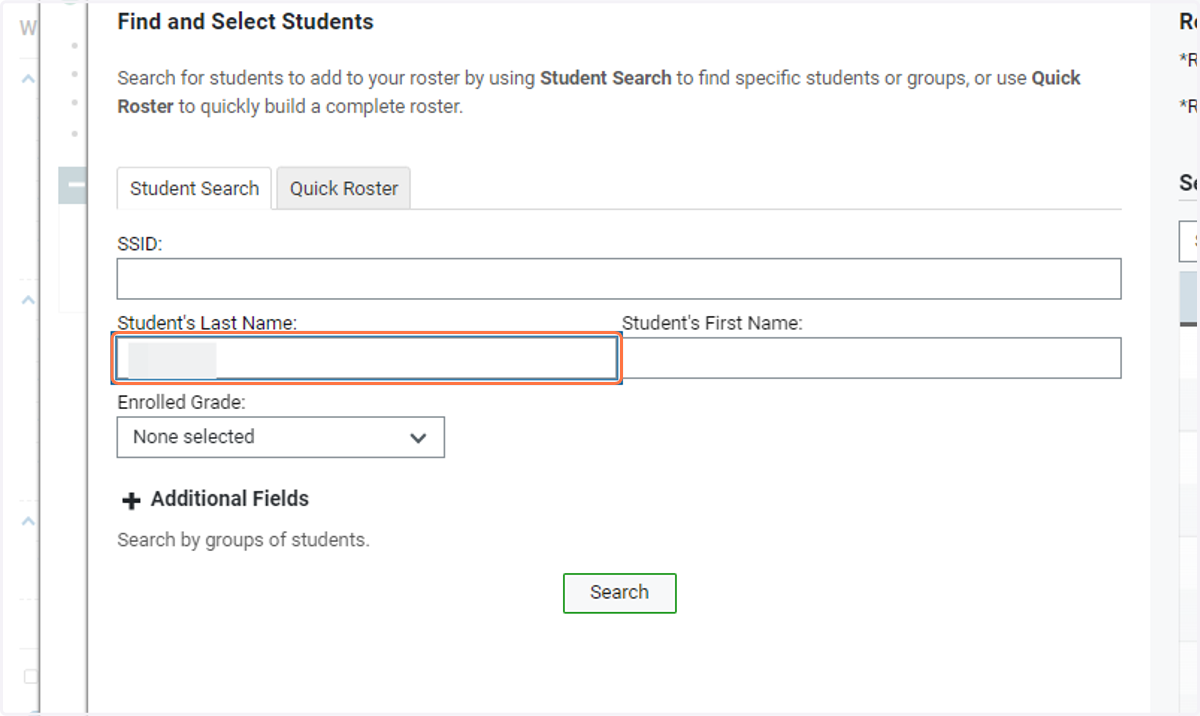
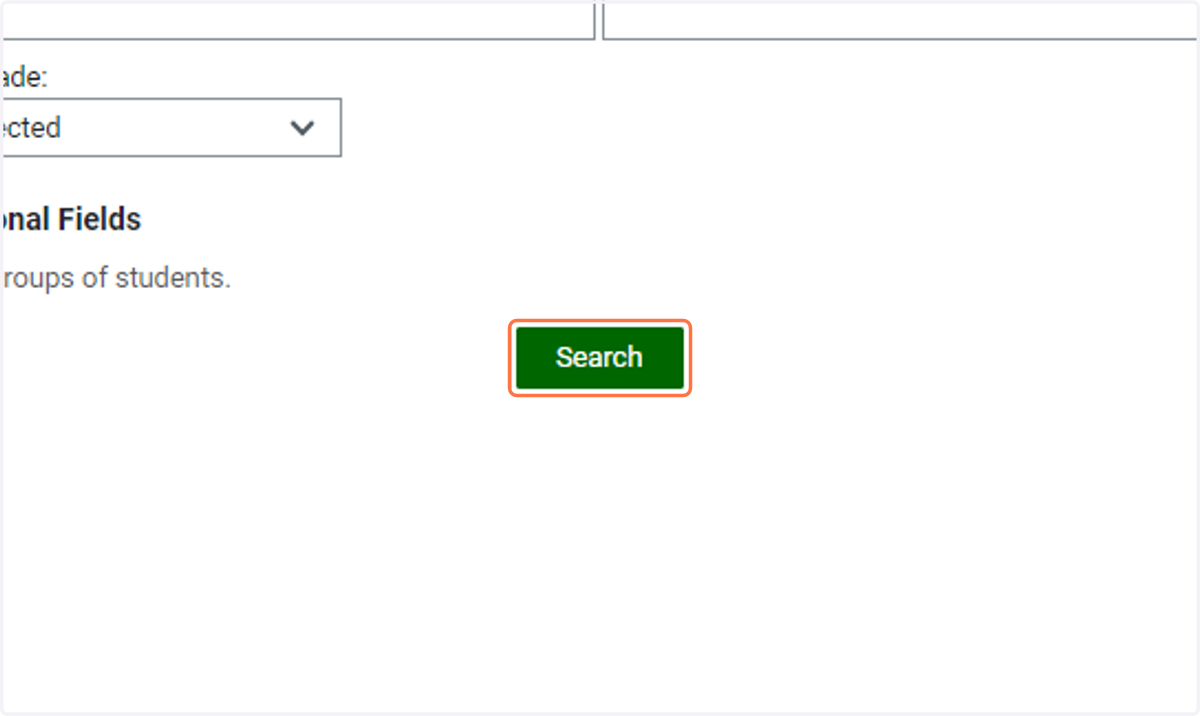
10. Click on Search
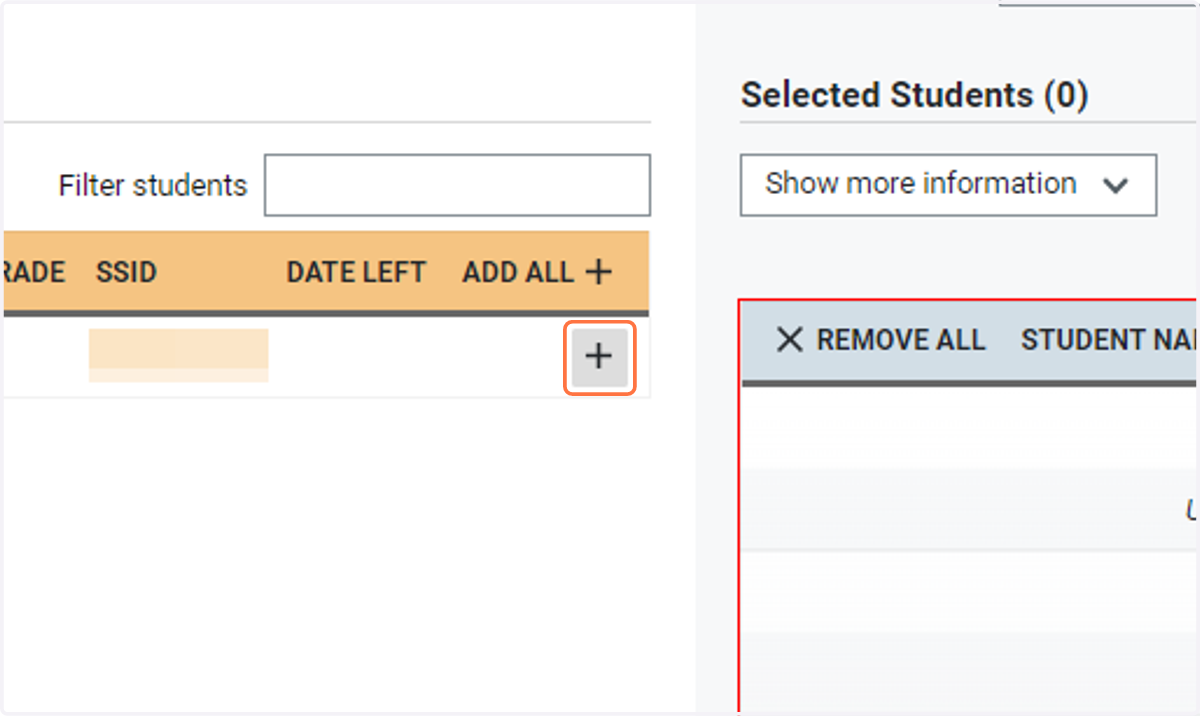
11. Identify the correct student then click the + to Add the student to the roster
12. To search for the next student click on Change Search
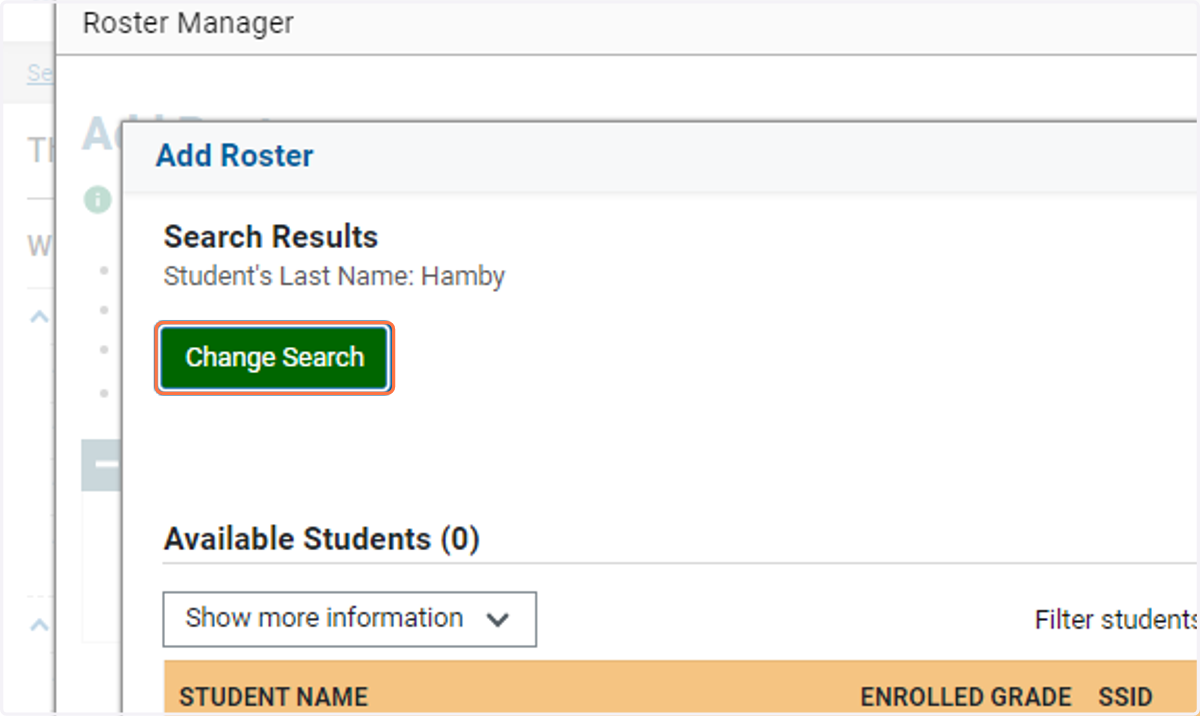
13. Continue steps 9-12 until all students have been added to the roster
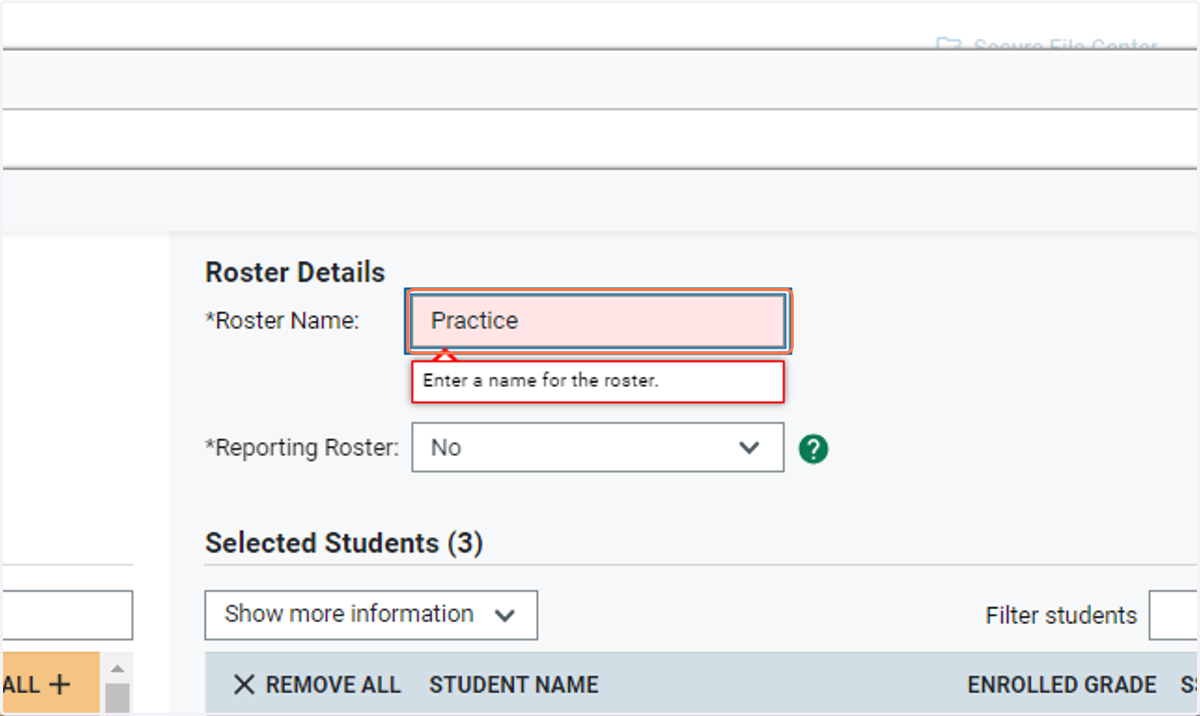
14. Create a name for your roster
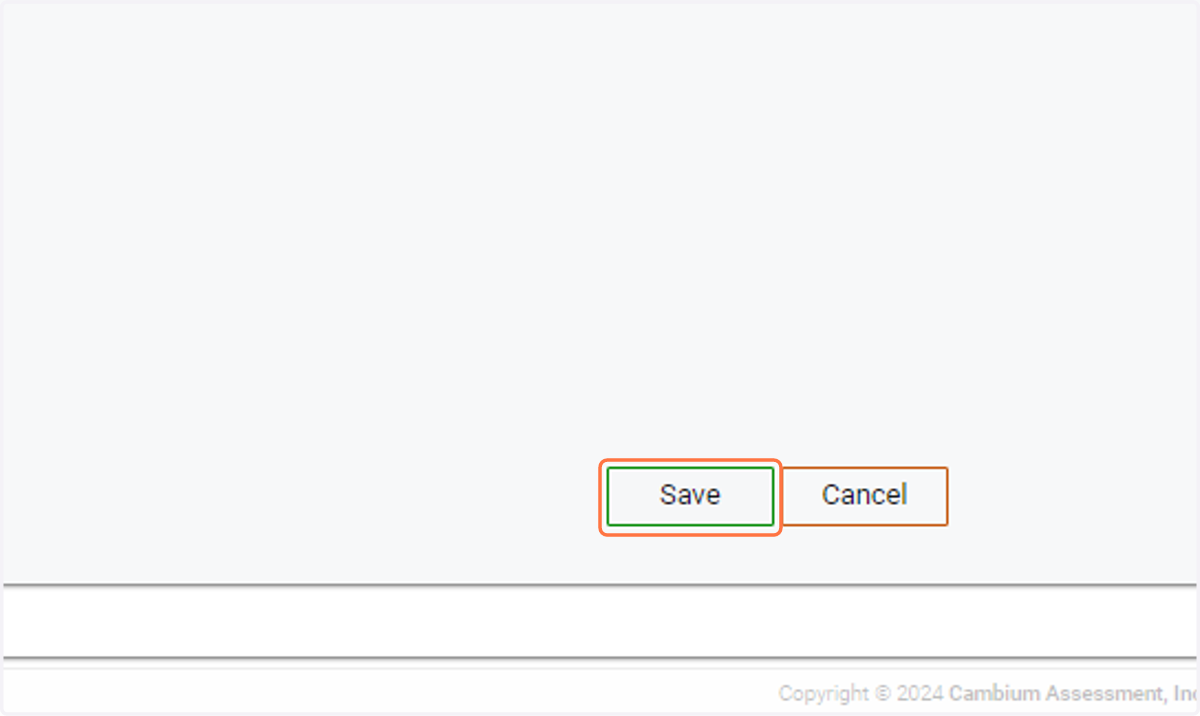
15. Click on Save
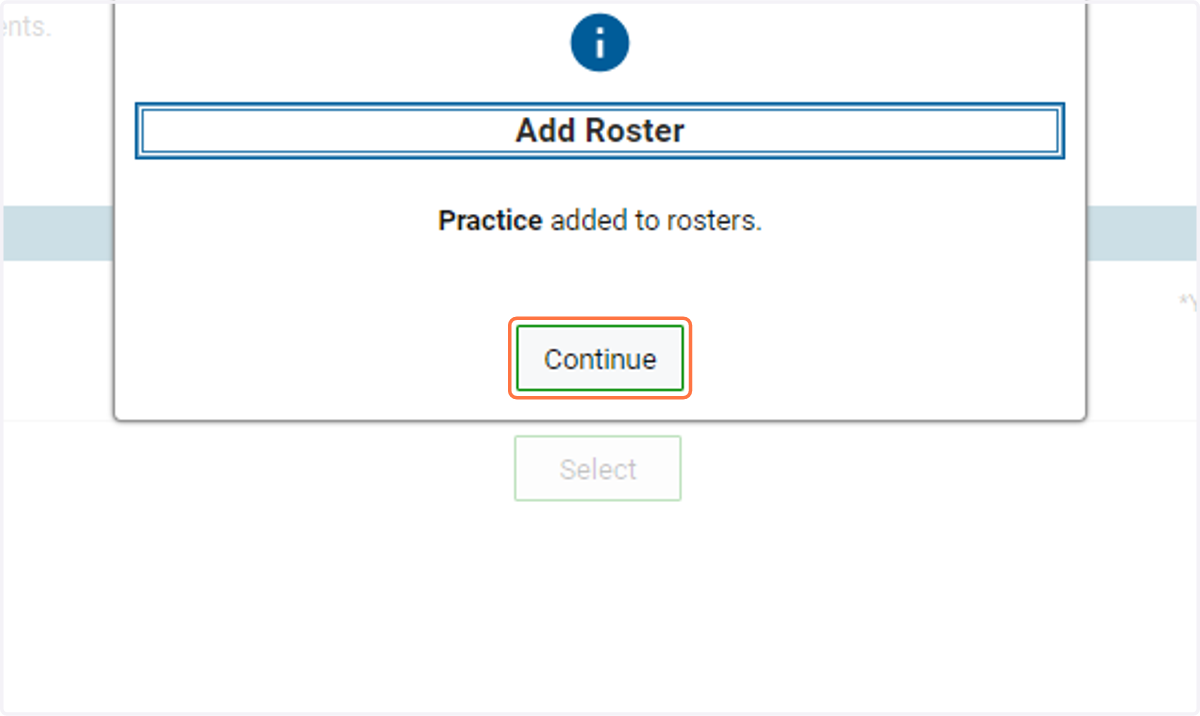
16. Click on Continue
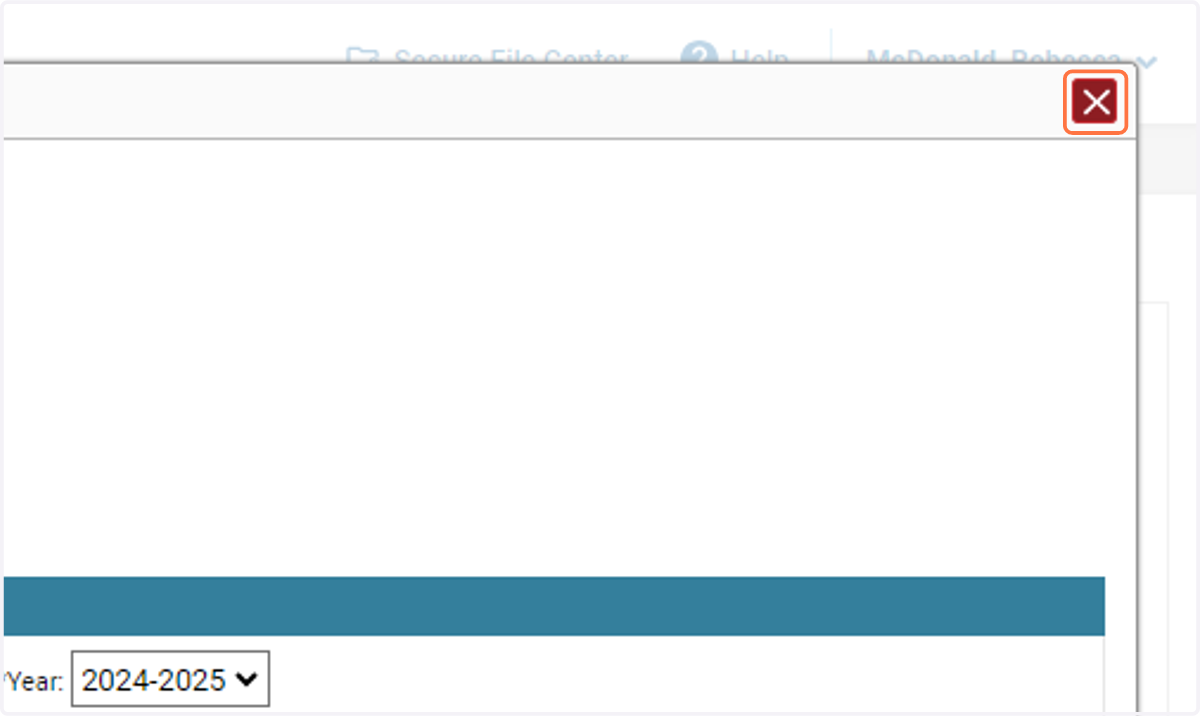
17. Click on Close