Create a Zap for creating LaunchNotes subscribers from new HubSpot Contacts
Navigate to your Zapier account
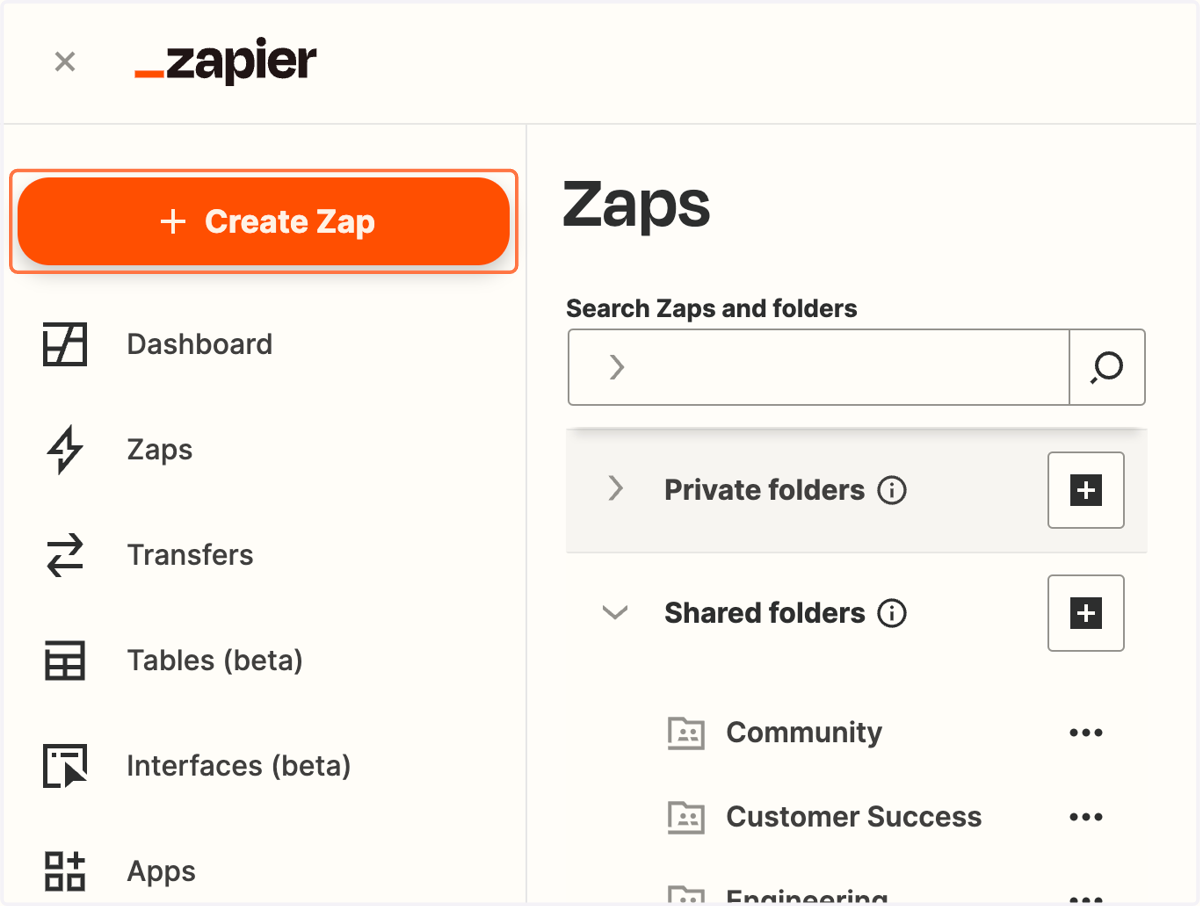
1. Click on Create Zap
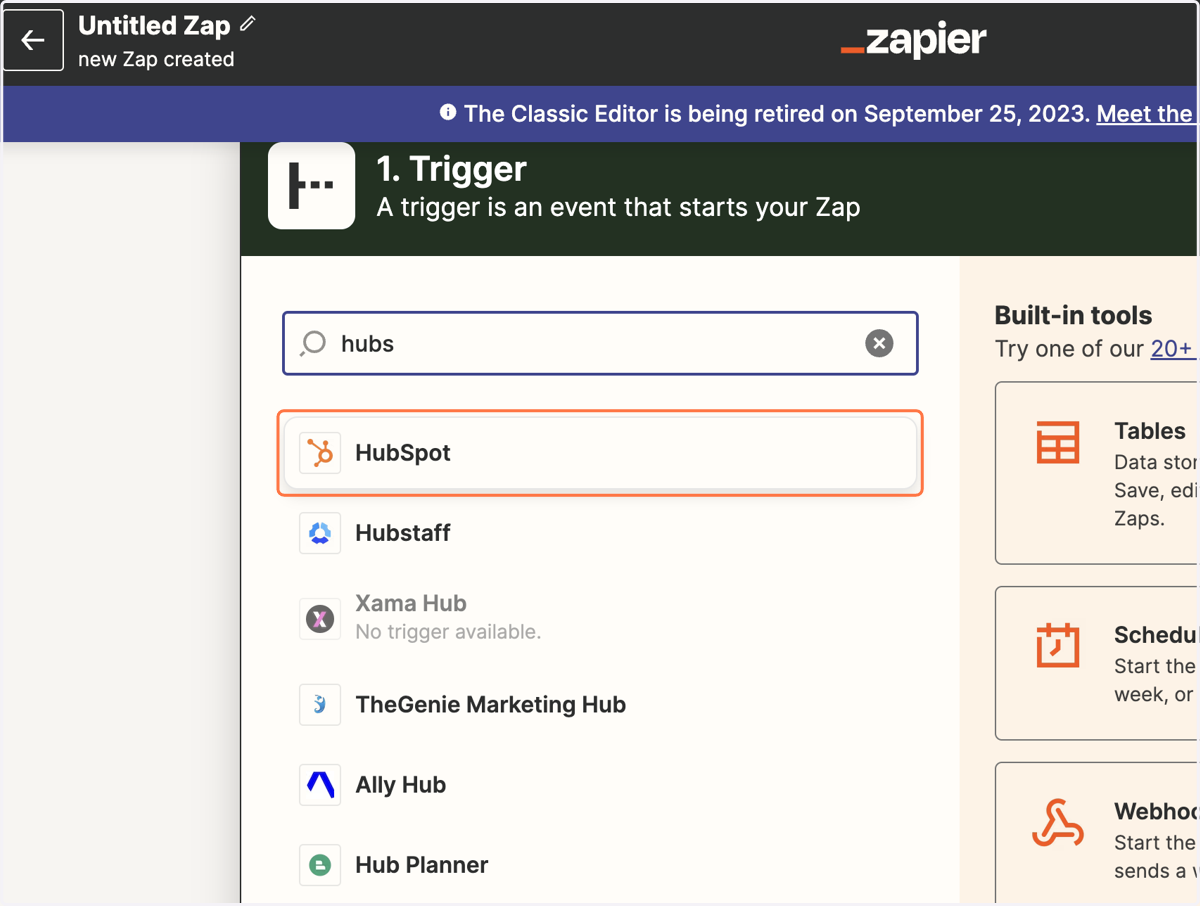
2. Select HubSpot as the Trigger
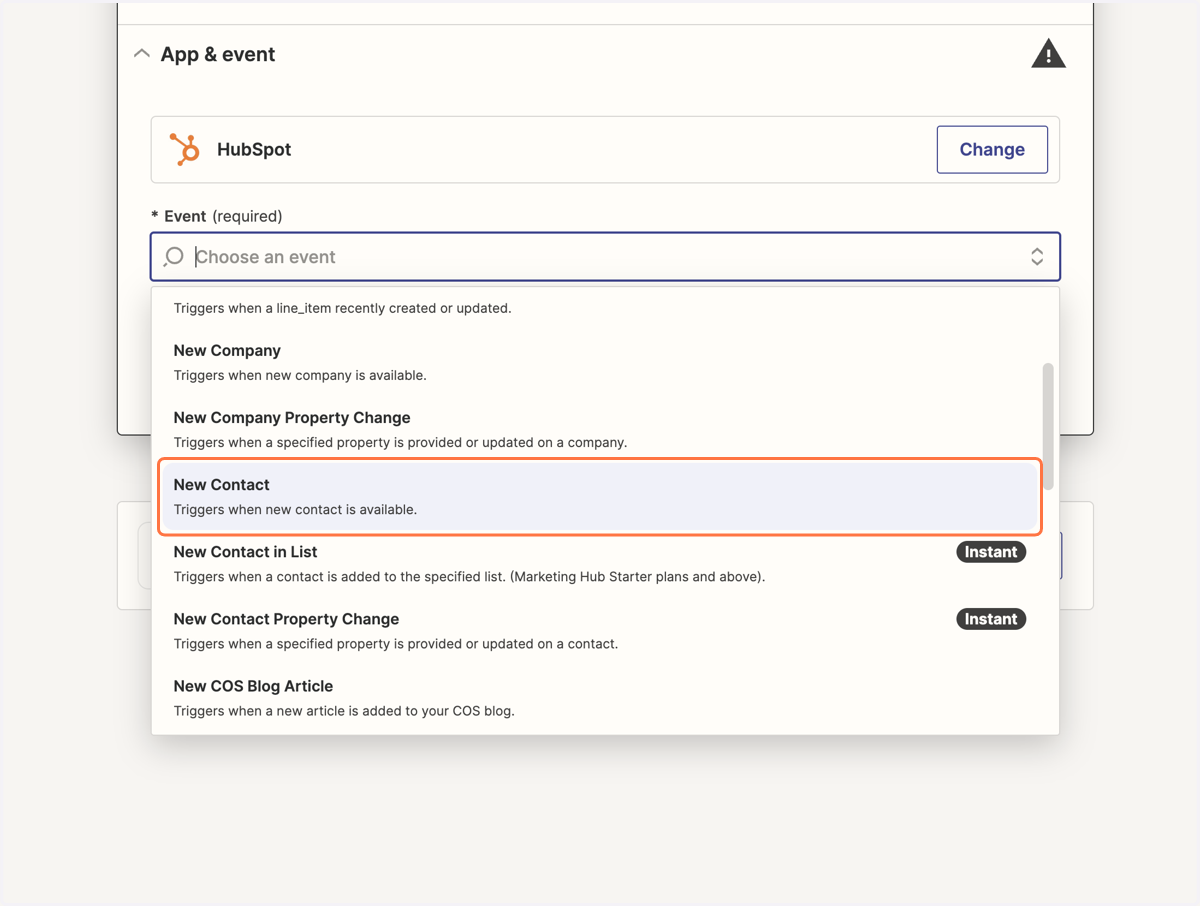
3. Under Event select New Contact
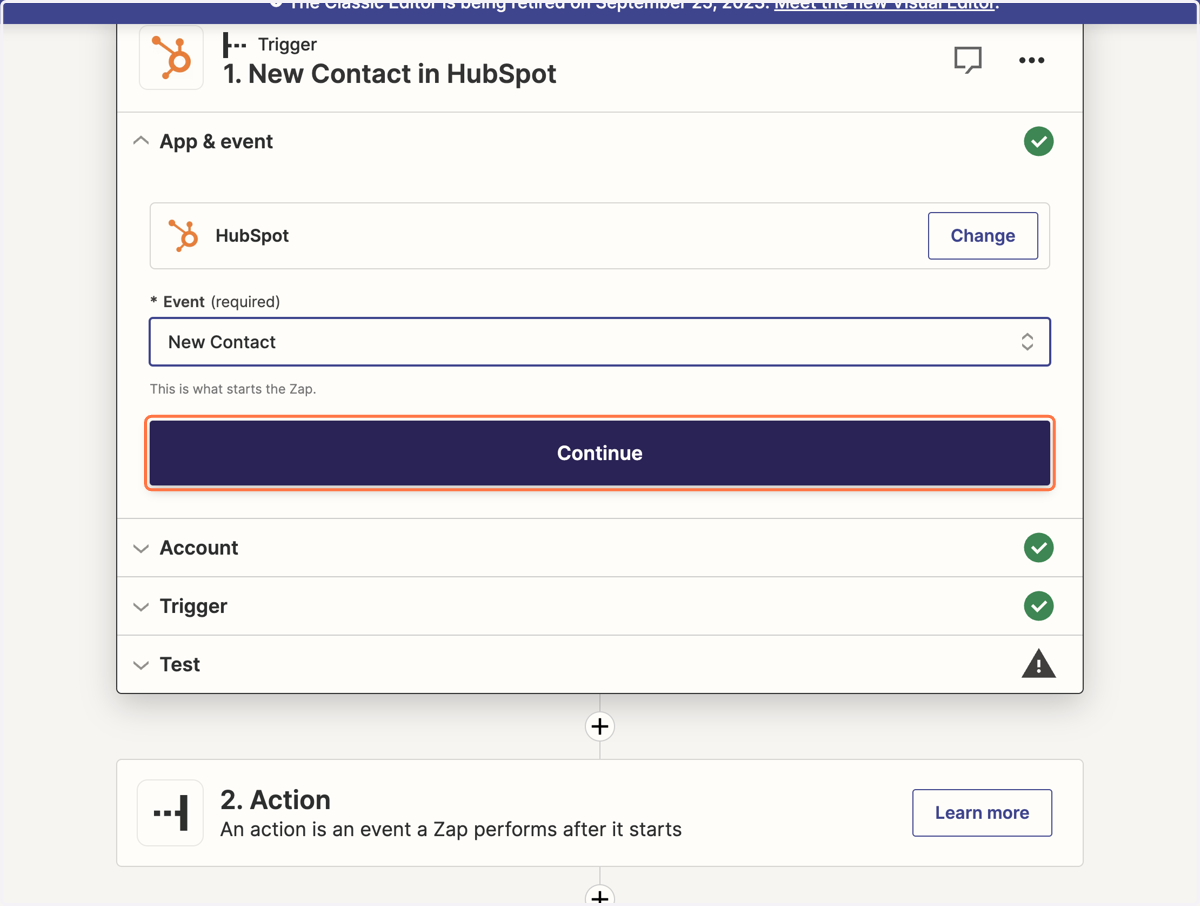
4. Click on Continue
Connect your HubSpot account
5. Click on Continue
6. Click on Continue
HubSpot
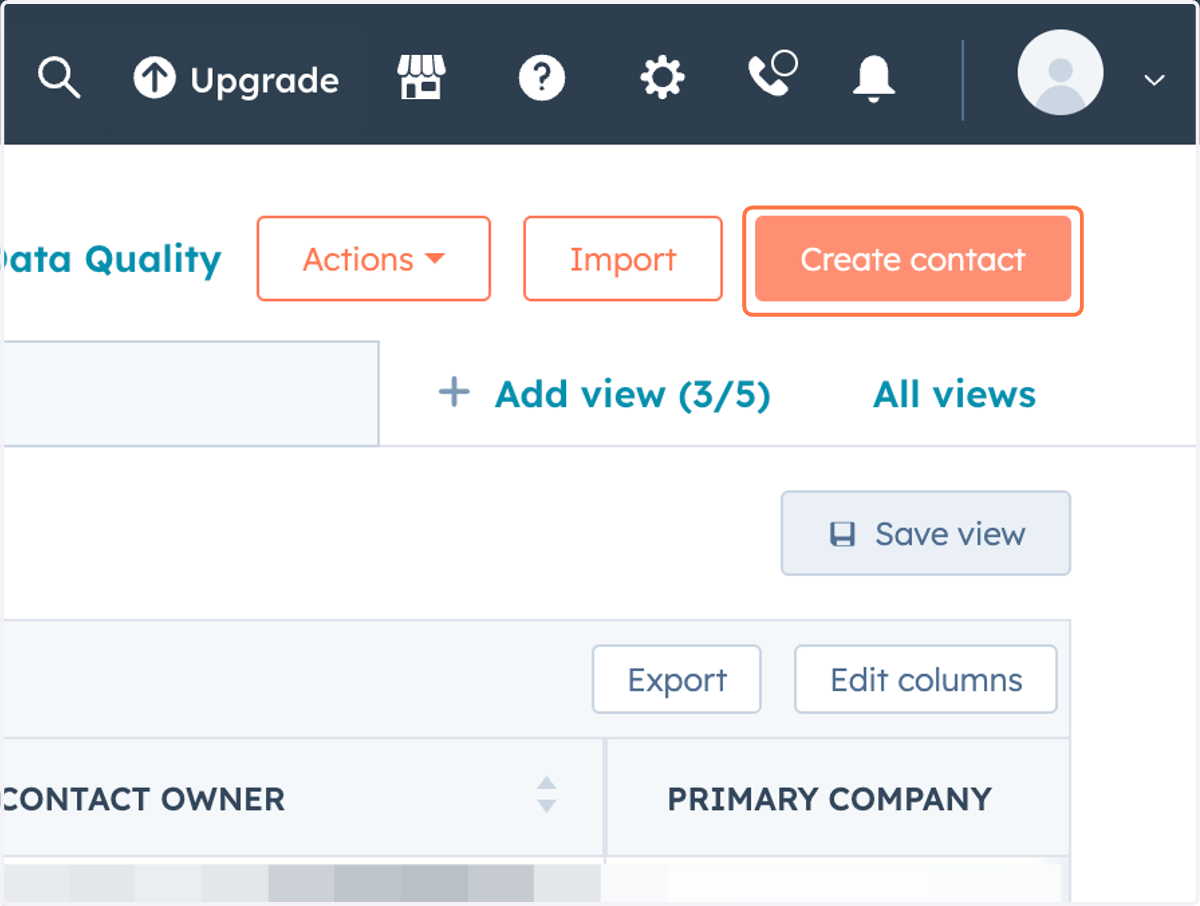
7. Click on Create contact
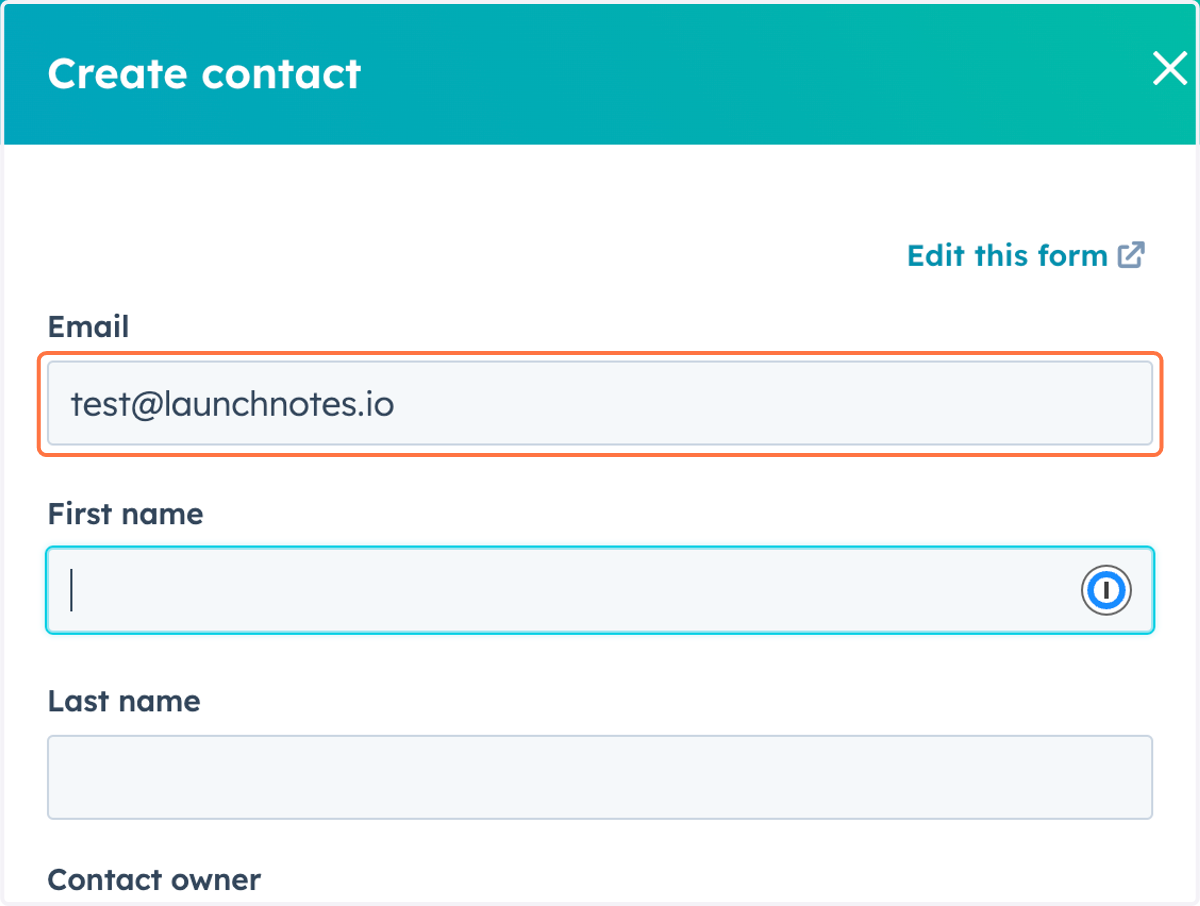
8. Create a test contact to use for the integration
Navigate back to Zapier
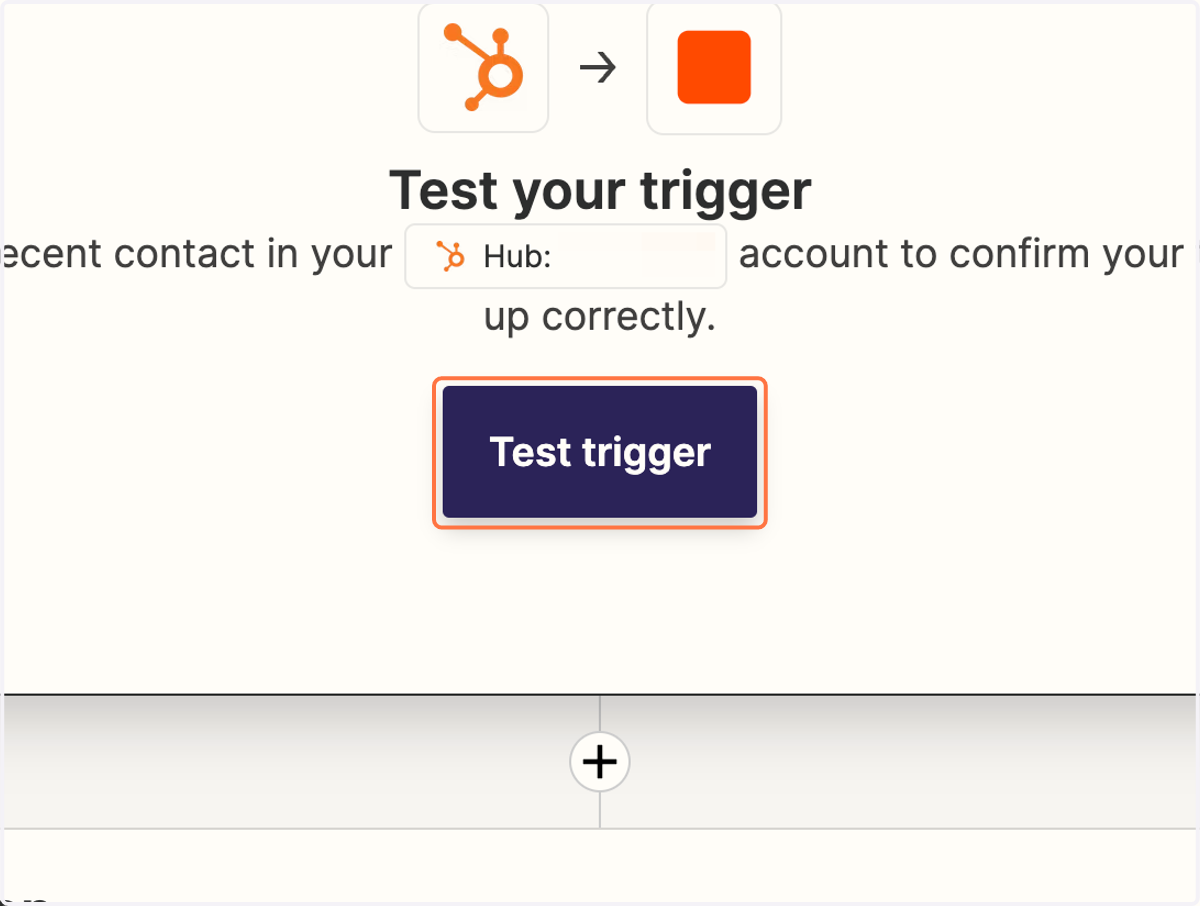
9. Click on Test trigger
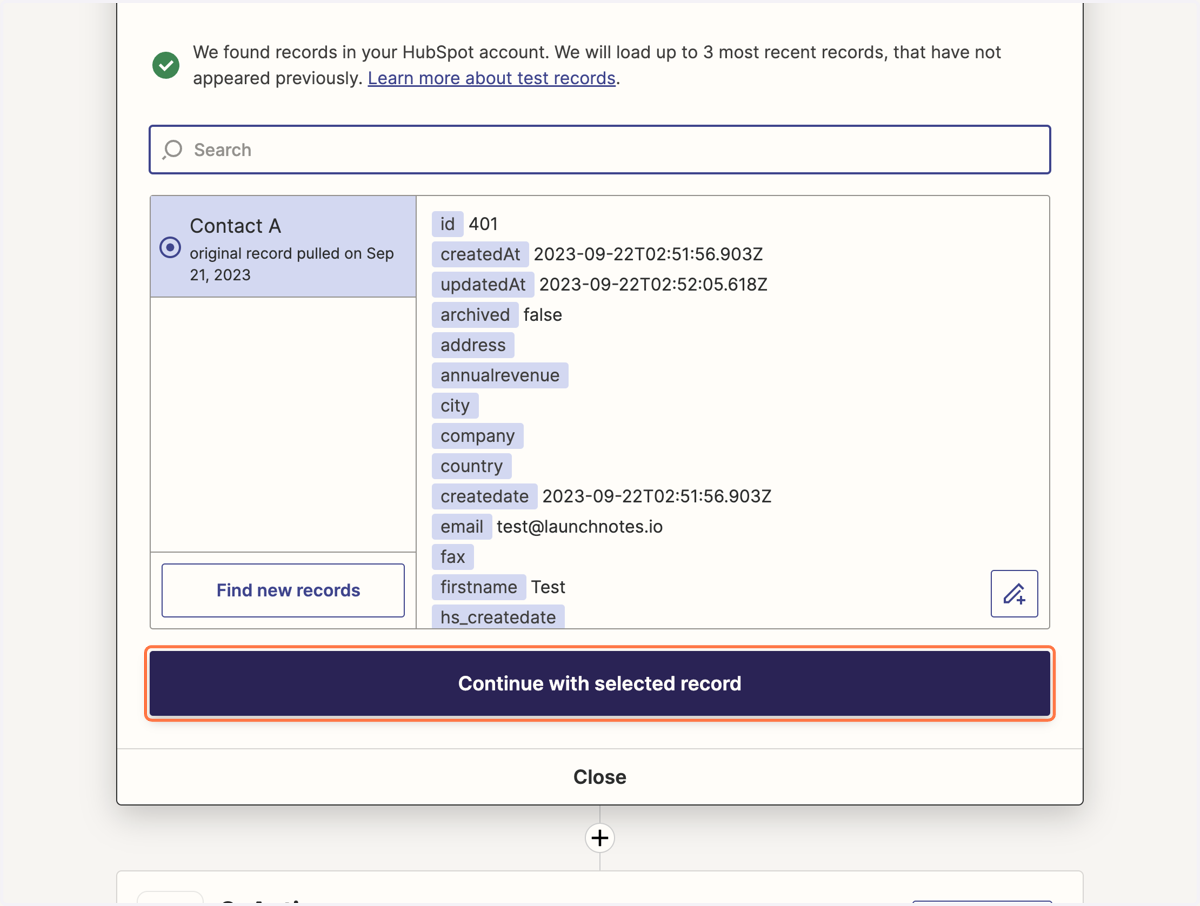
10. Click on Continue with selected record
11. To optionally add a filter, click on Add Step Button
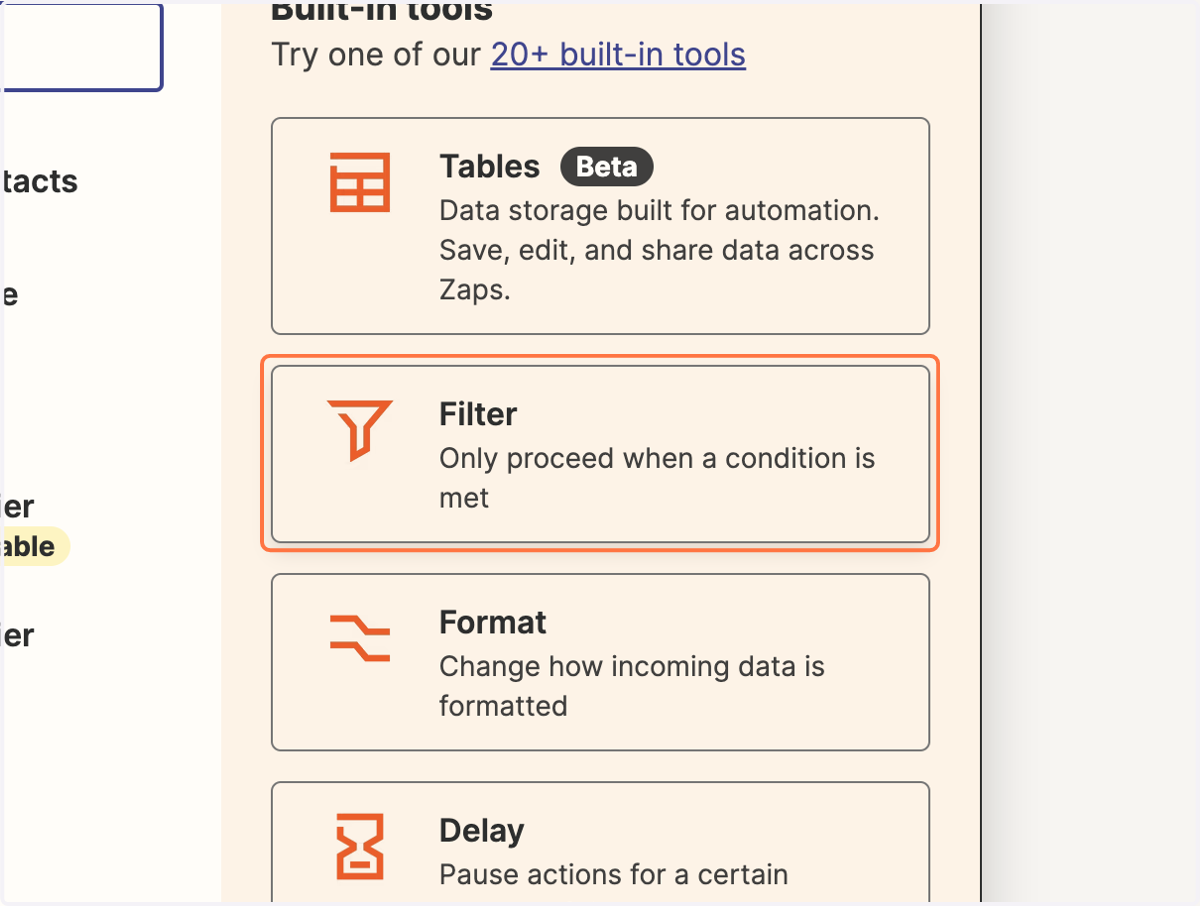
12. Click on Filter…
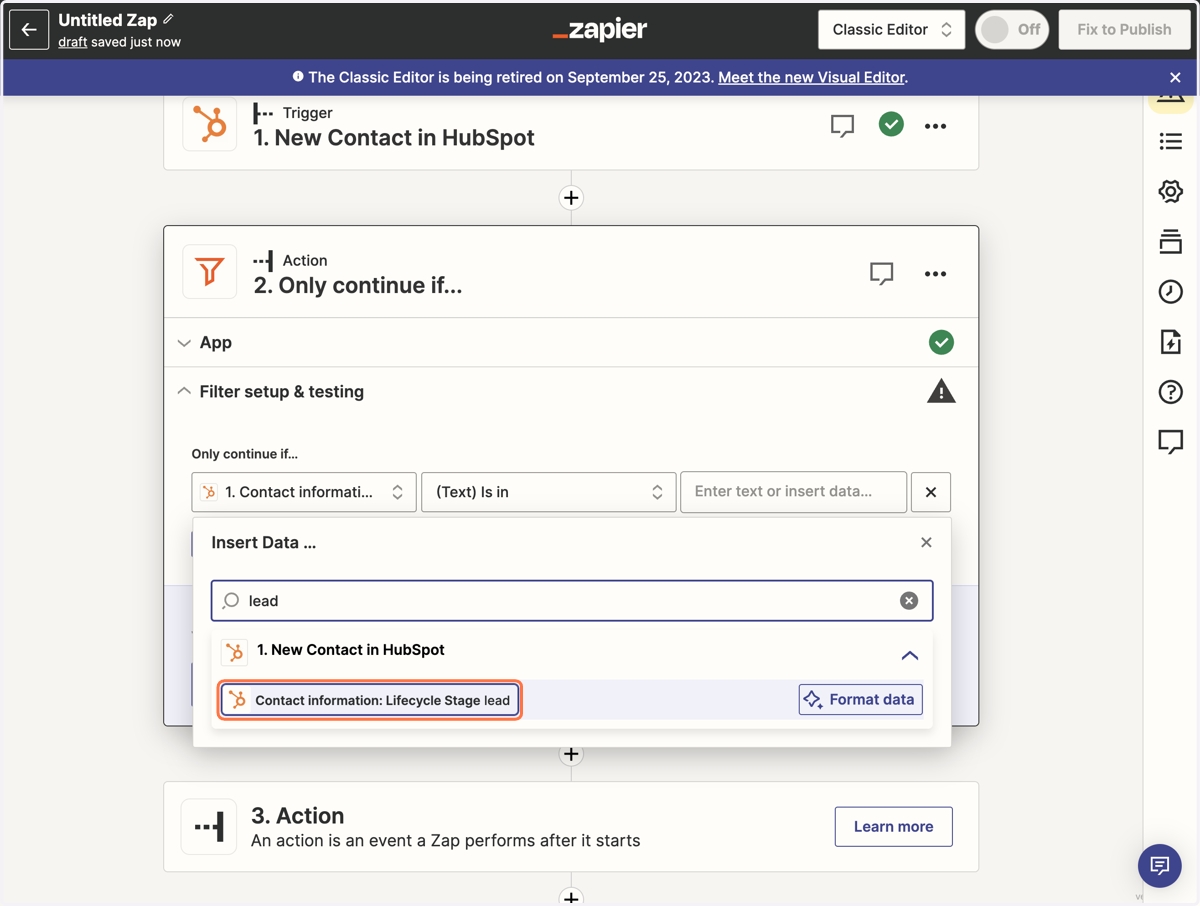
13. Click on Choose field…
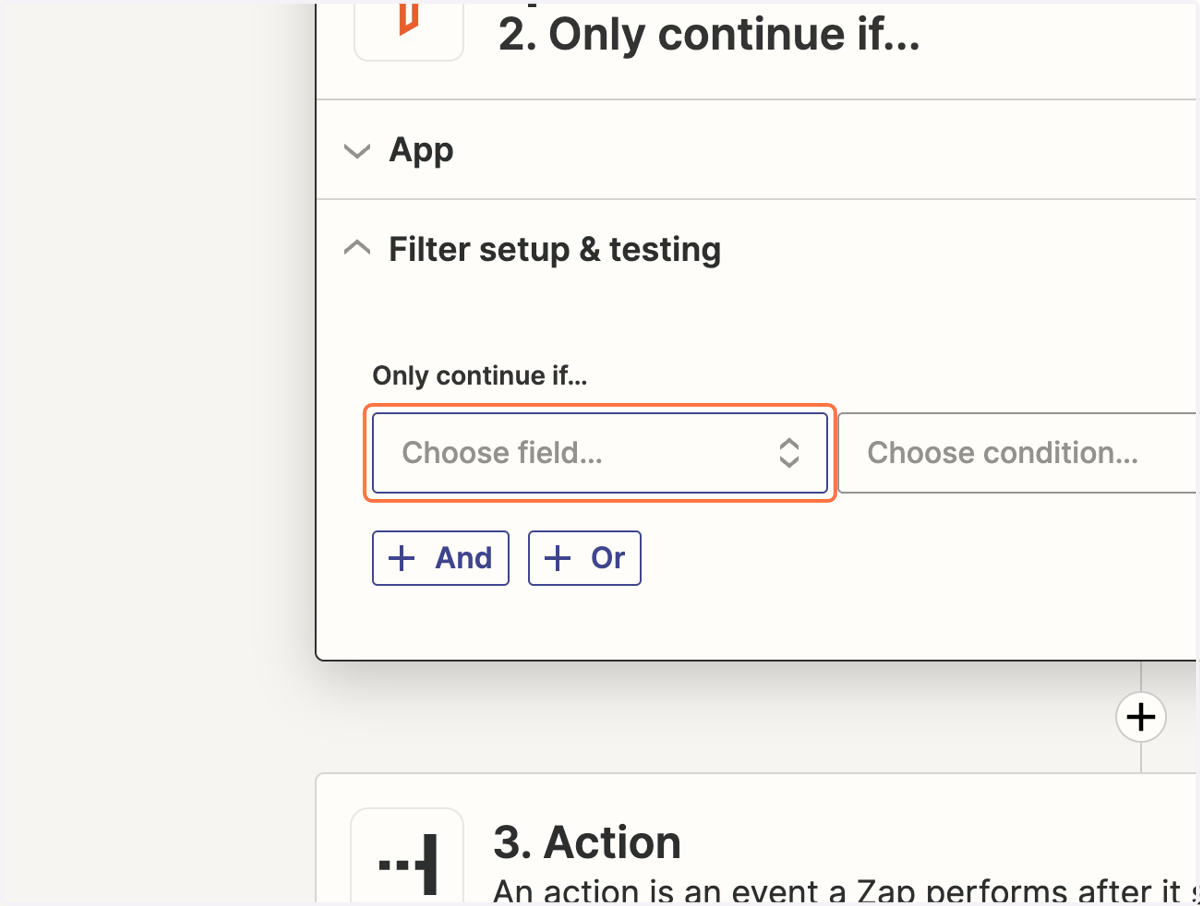
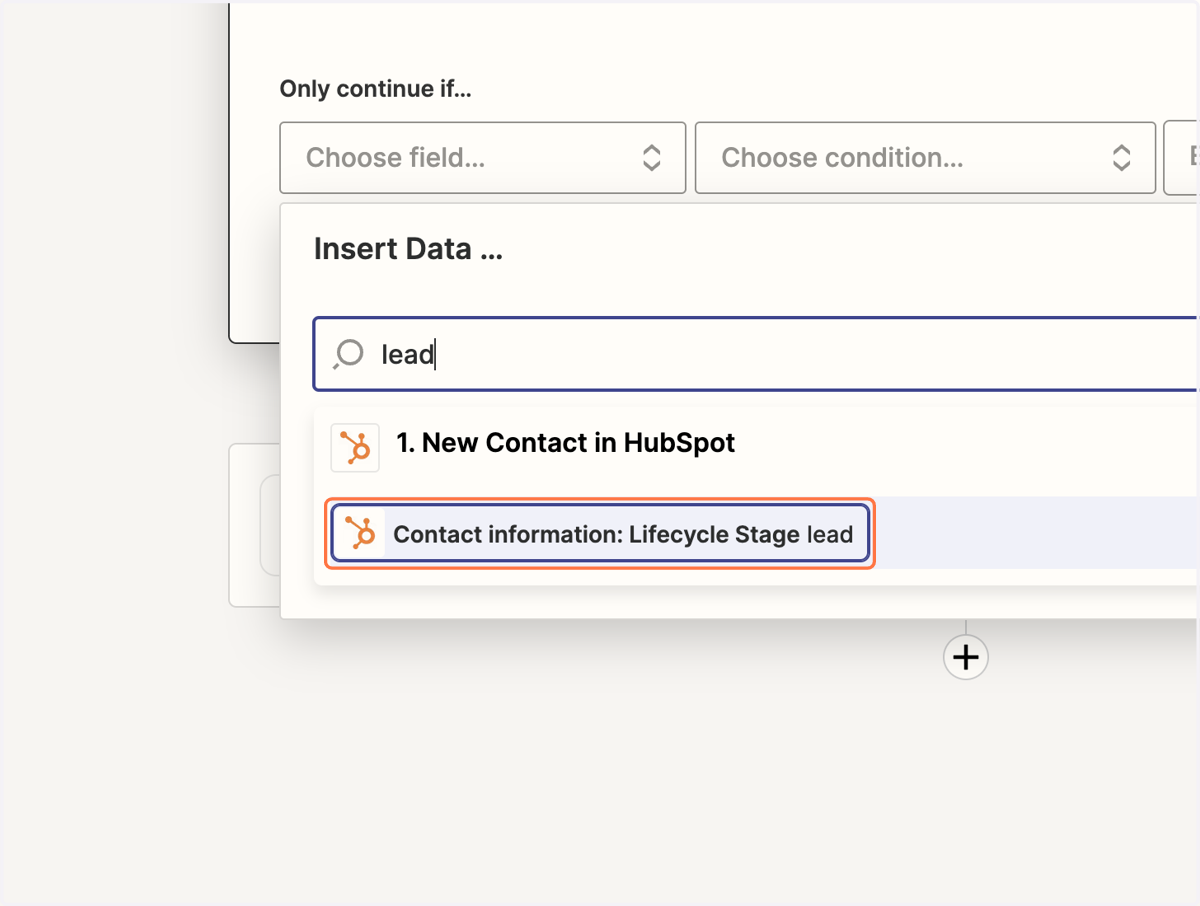
14. Click on Contact information: Lifecycle Stage, or any other attribute you want to filter by
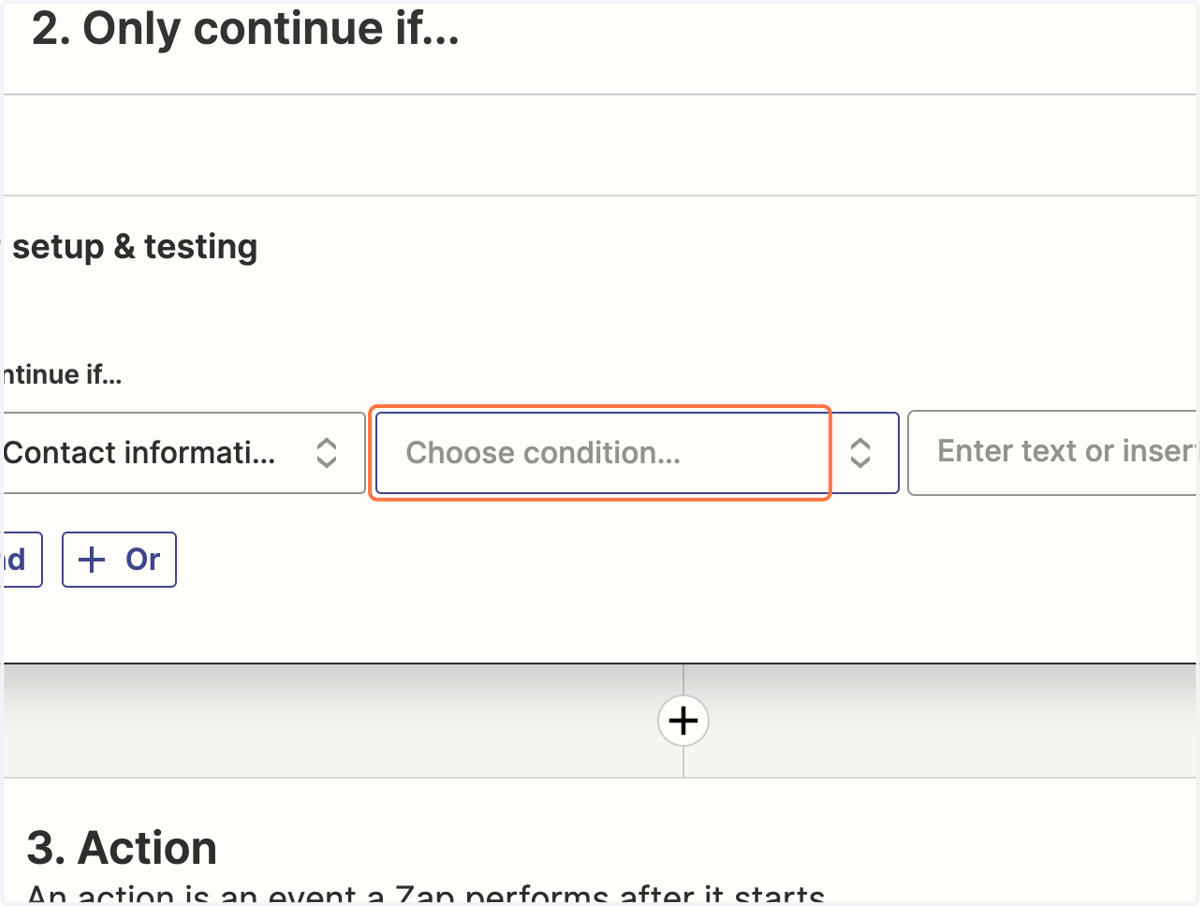
15. Click on Choose condition…
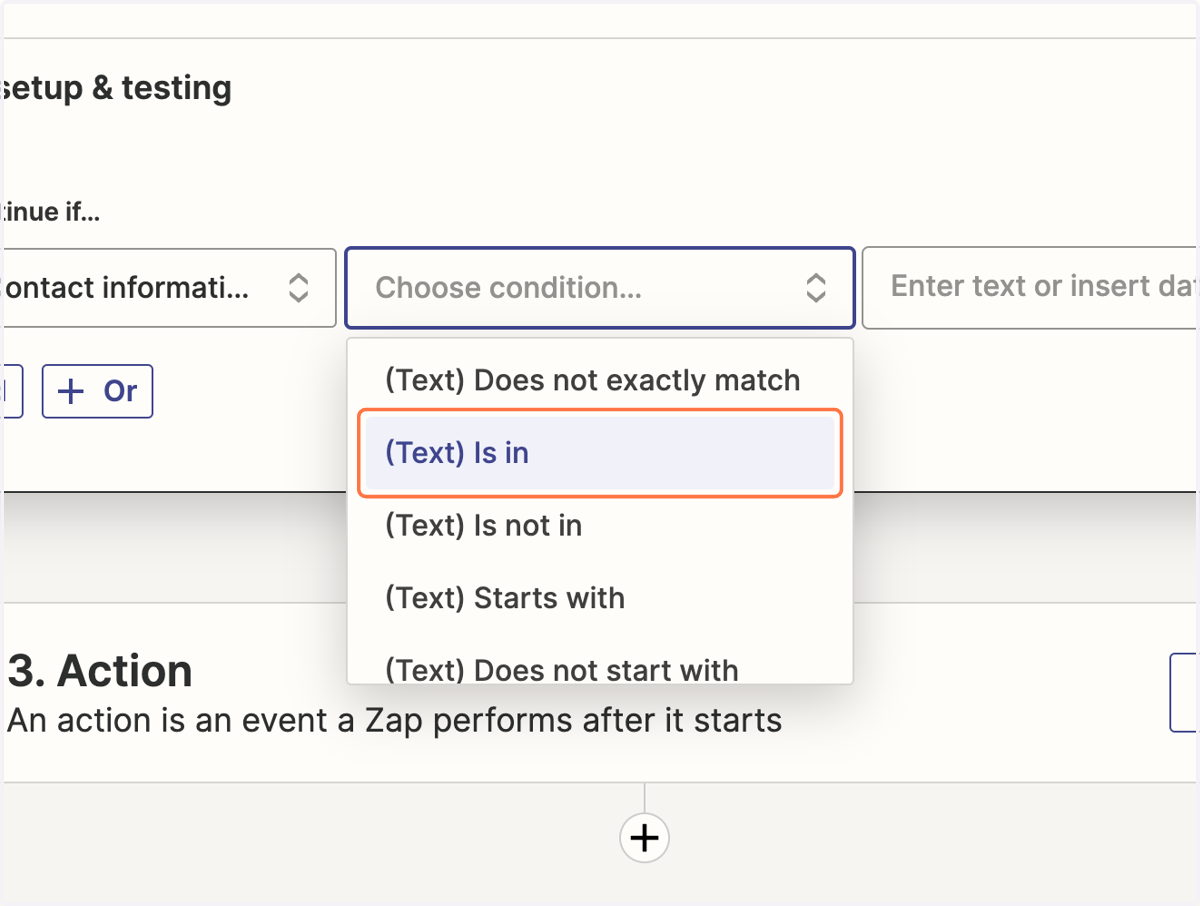
16. Click on (Text) Is in
17. Click on Contact information: Lifecycle Stage lead
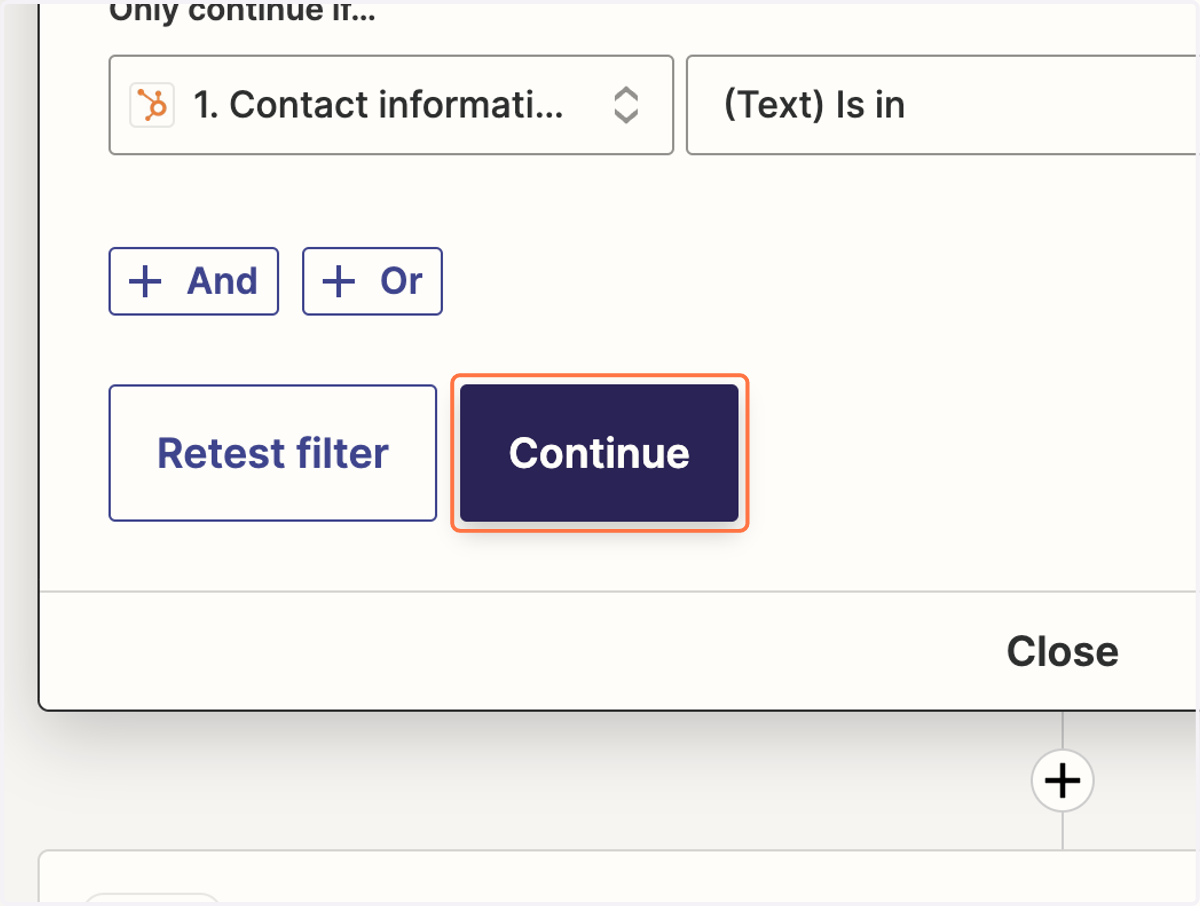
18. Click on Continue
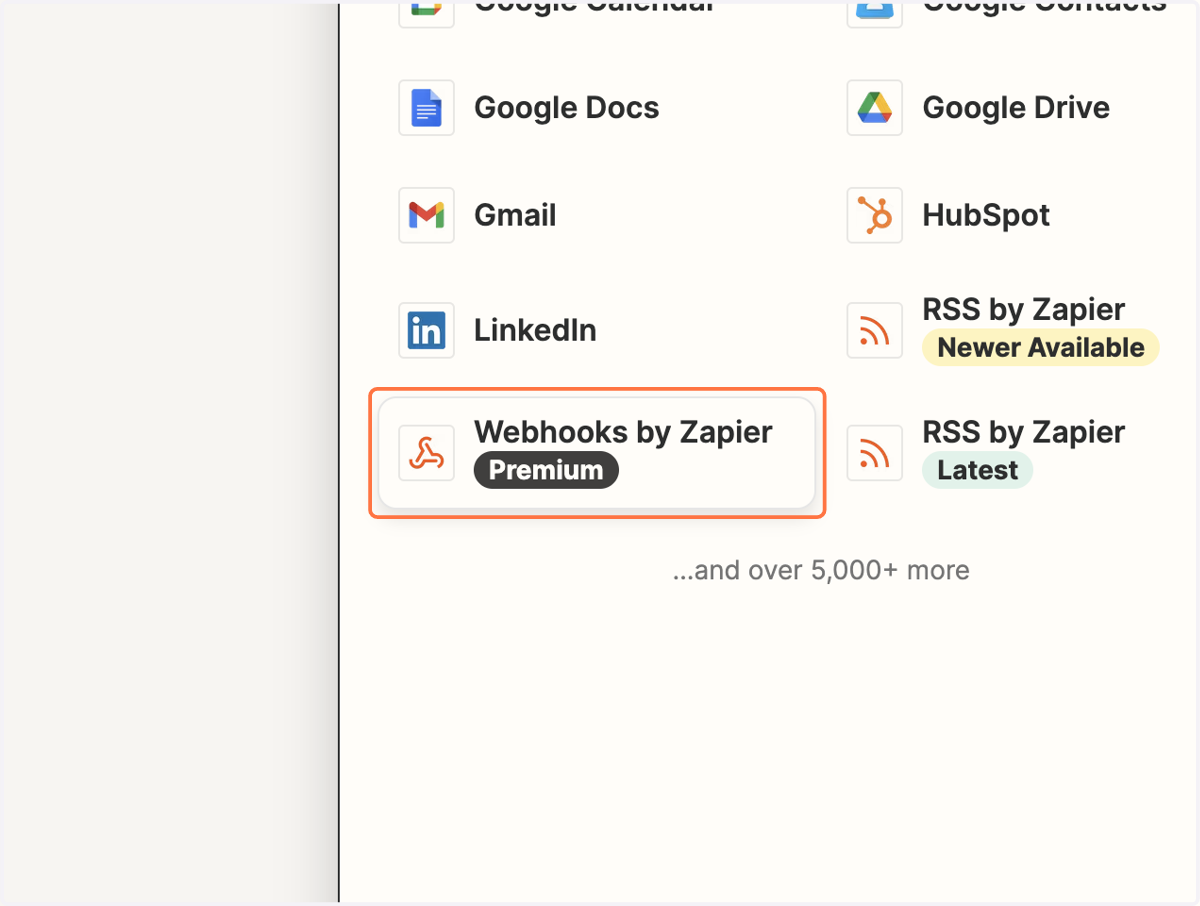
19. For the Action, click on Webhooks by Zapier
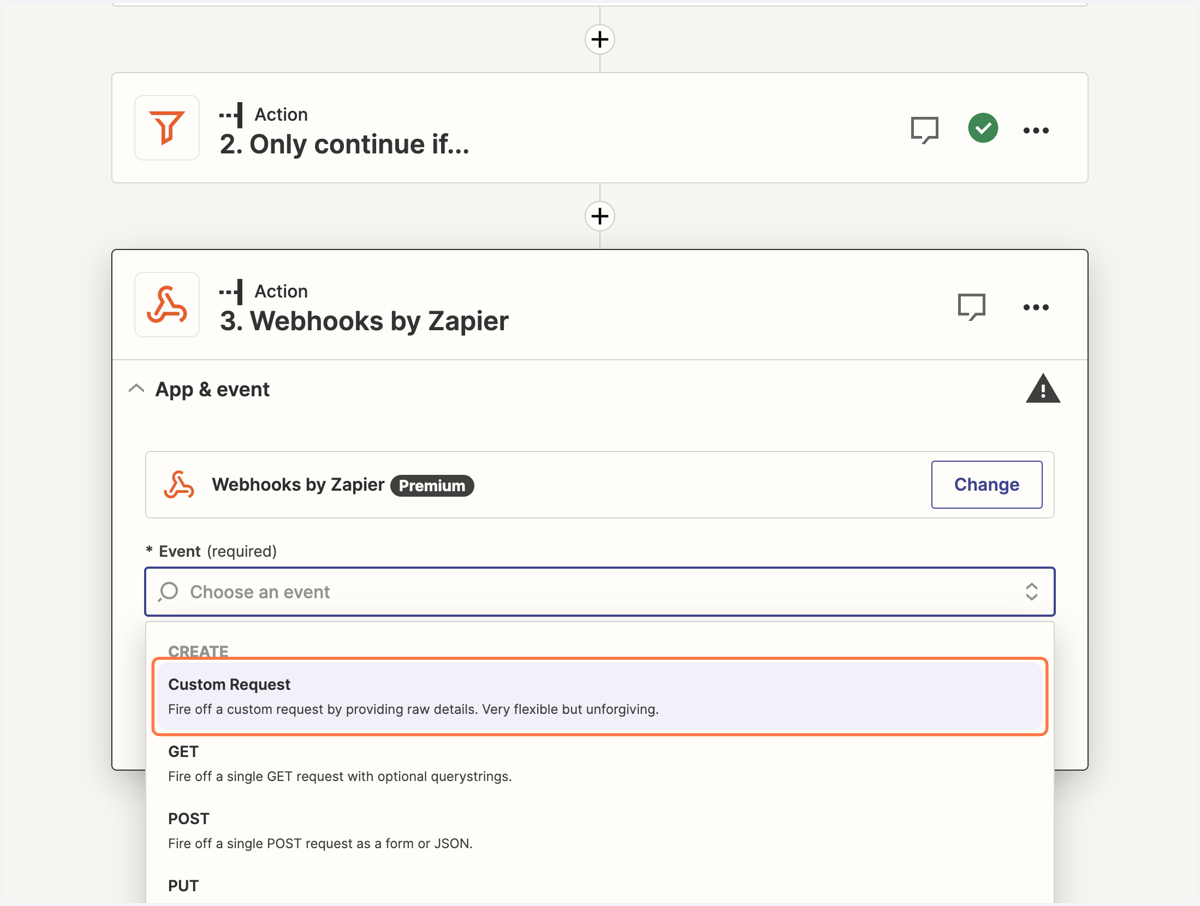
20. For the Event, click on Custom Request…
21. Click on Continue
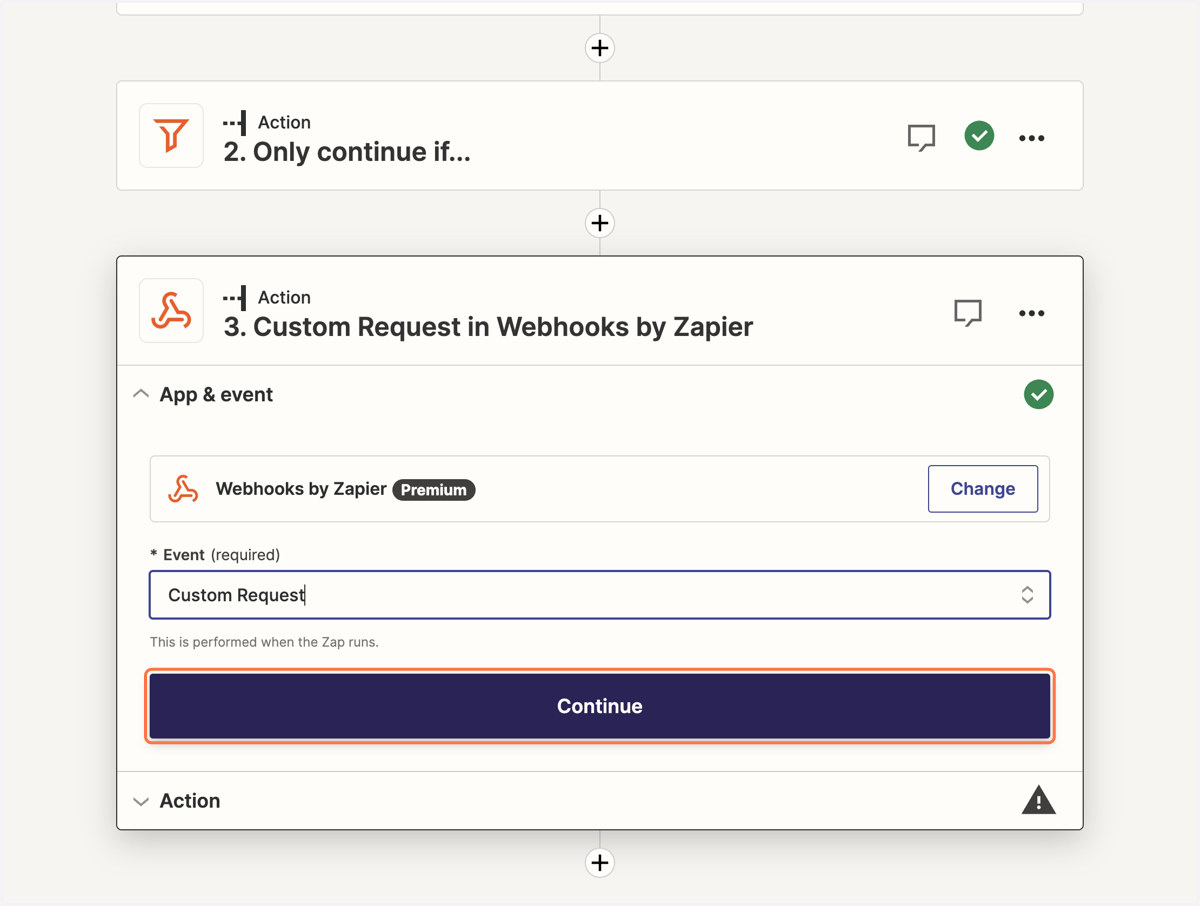
22. Select POST for the Method
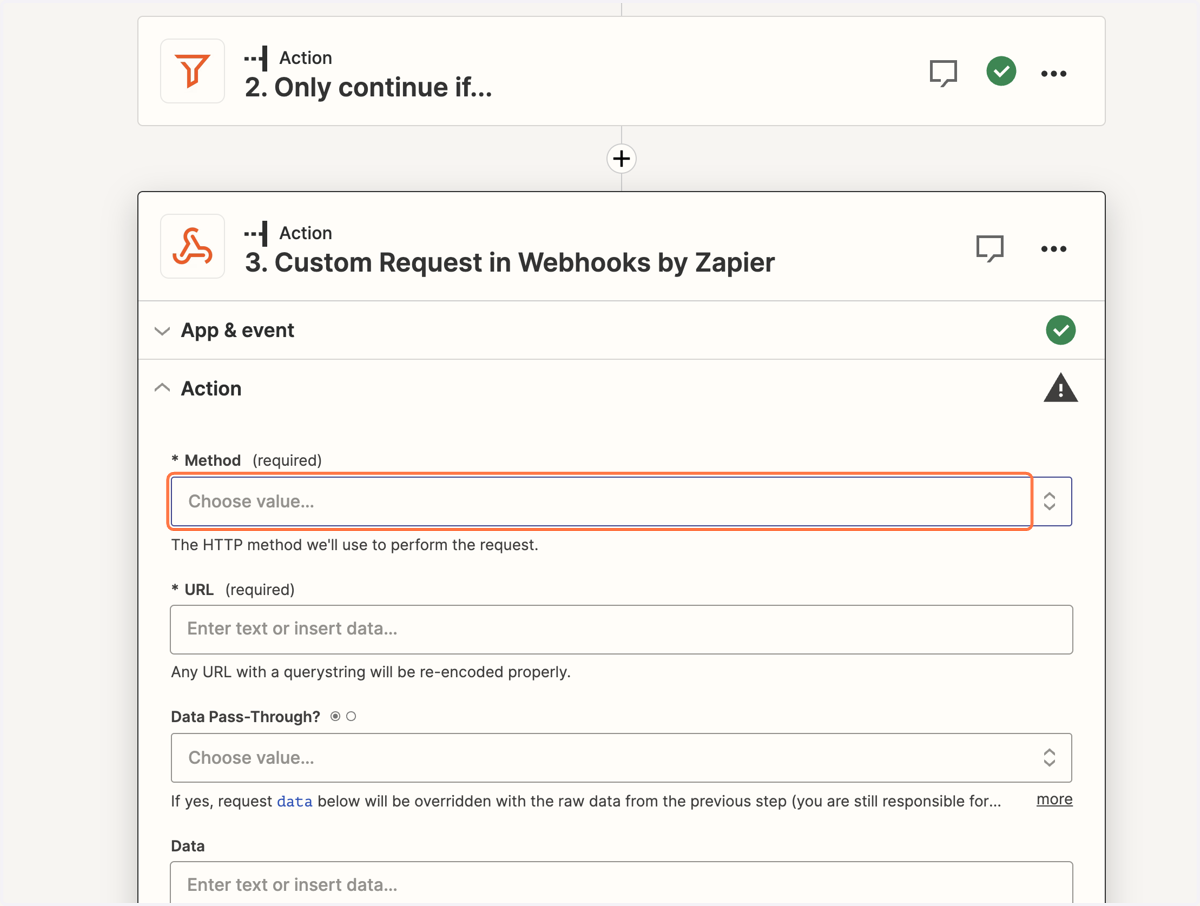
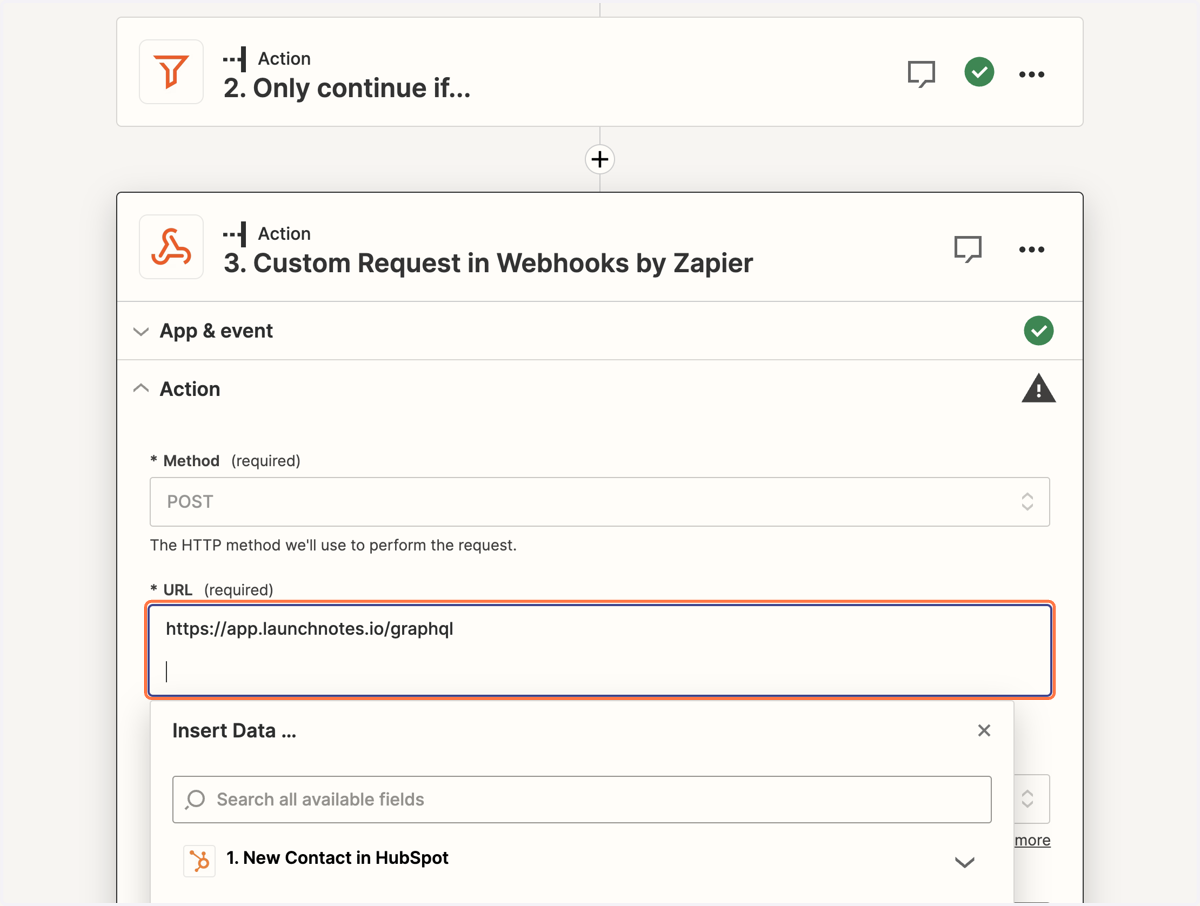
23. Set the URL to https://app.launchnotes.io/graphql
24. Paste the code snippet into Data
{ "query": "mutation CreateProjectSubscription($projectId: ID!, $email: String!, $workItemId: ID, $categoryId: ID,) {createProjectSubscription(input: {projectSubscription: {projectId: $projectId,subscriber: {email: $email, type: SUBSCRIBER},workItems: [{id: $workItemId}],categories: [{id: $categoryId}],skipOptIn: true}}) {projectSubscription {id createdAt subscriber {email,confirmedAt}}, errors {path,message}}}", "variables": {"projectId": "Project ID","email": "Email address variable from trigger","categories": "Category IDs","workItems": "Roadmap item IDs",} }
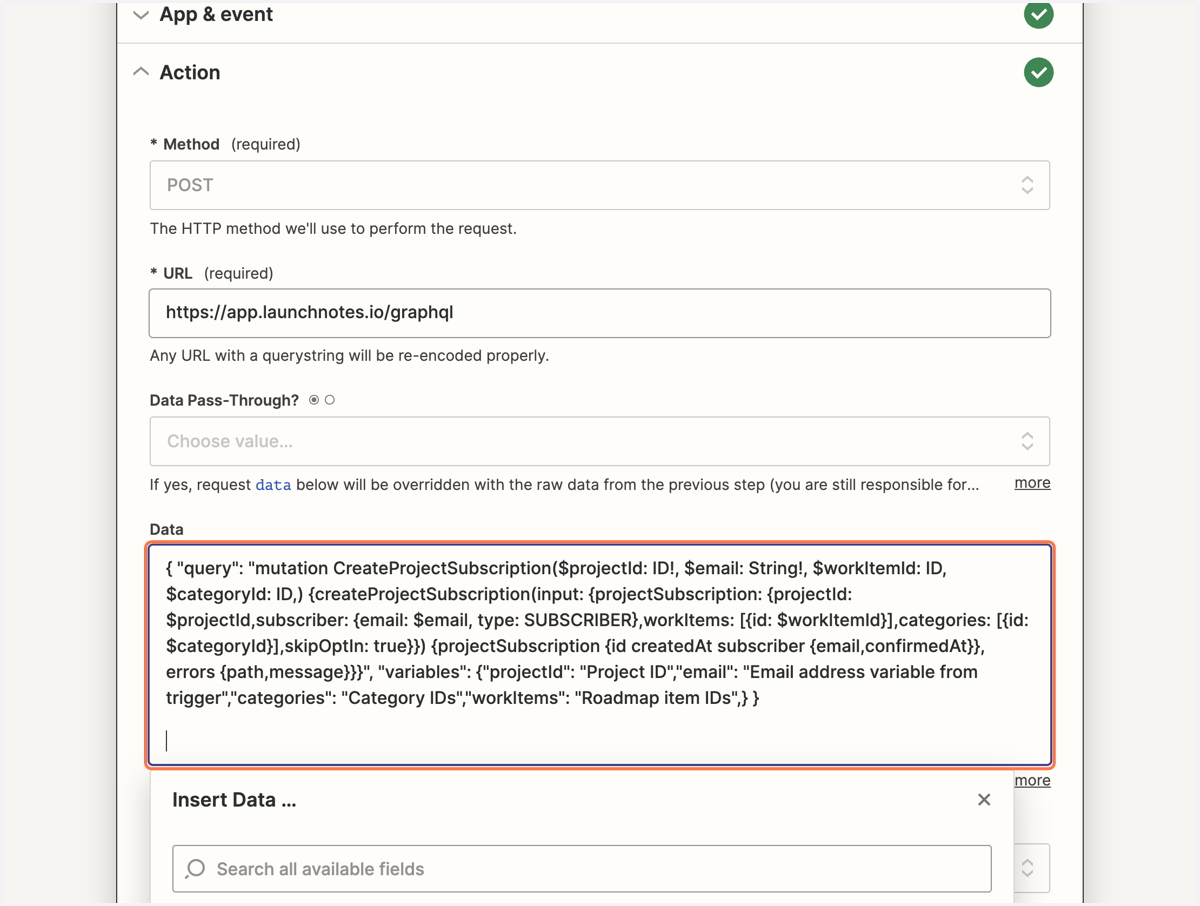
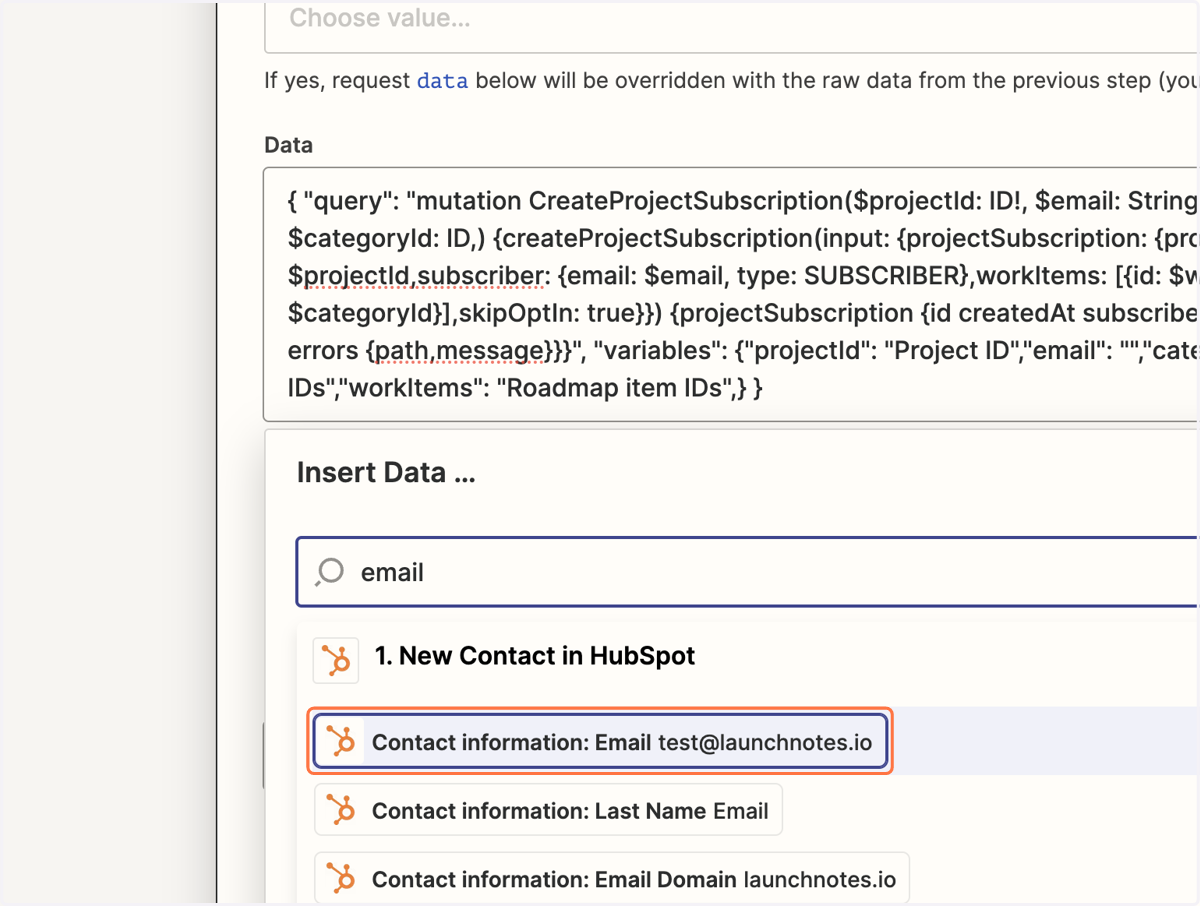
25. Replace the Email address variable from trigger with inserted data from HubSpot
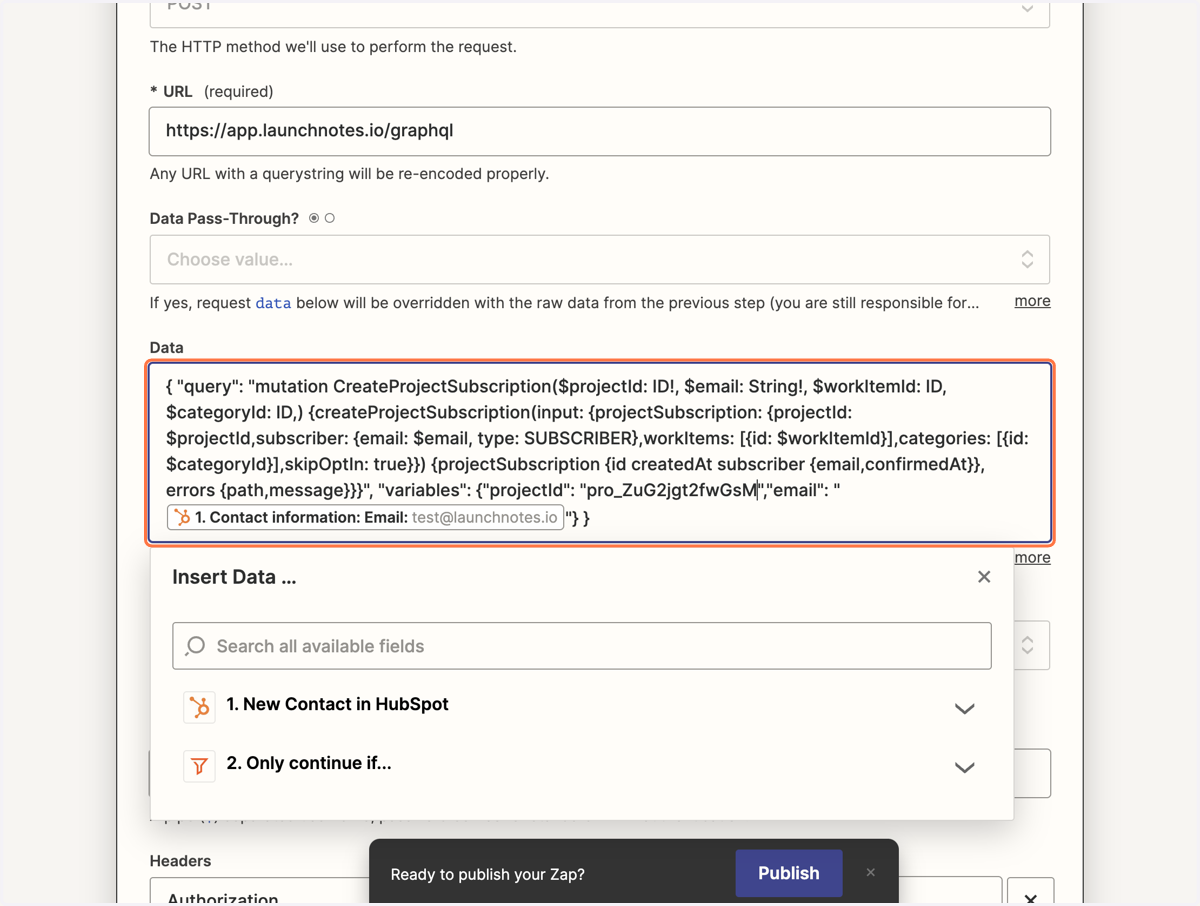
26. Replace the Project ID with the LaunchNotes project ID
This will be formatted beginning with pro_ and can be found in the URL when in the LaunchNotes management portal
27. Optionally specify categories and/or roadmap items (work items) in the data variables
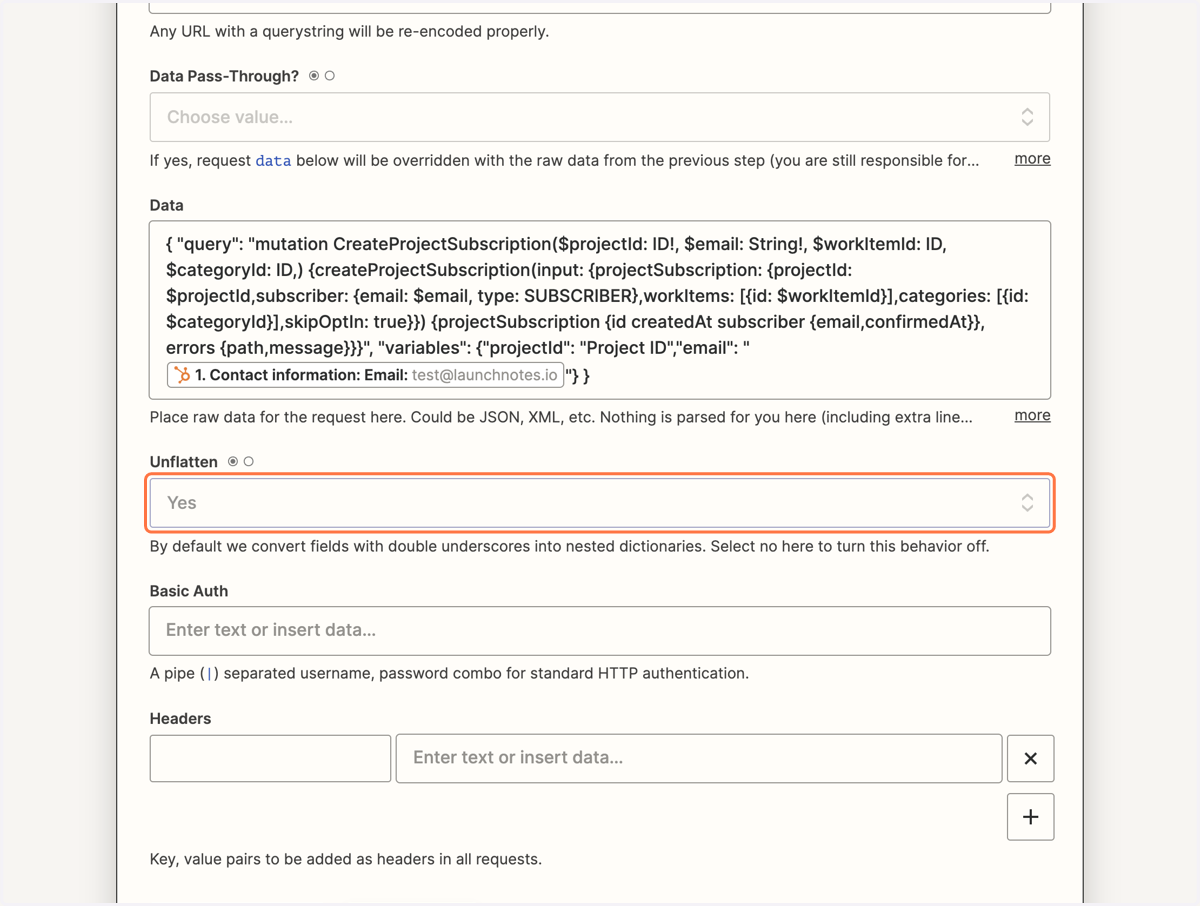
28. Set Unflatten to No
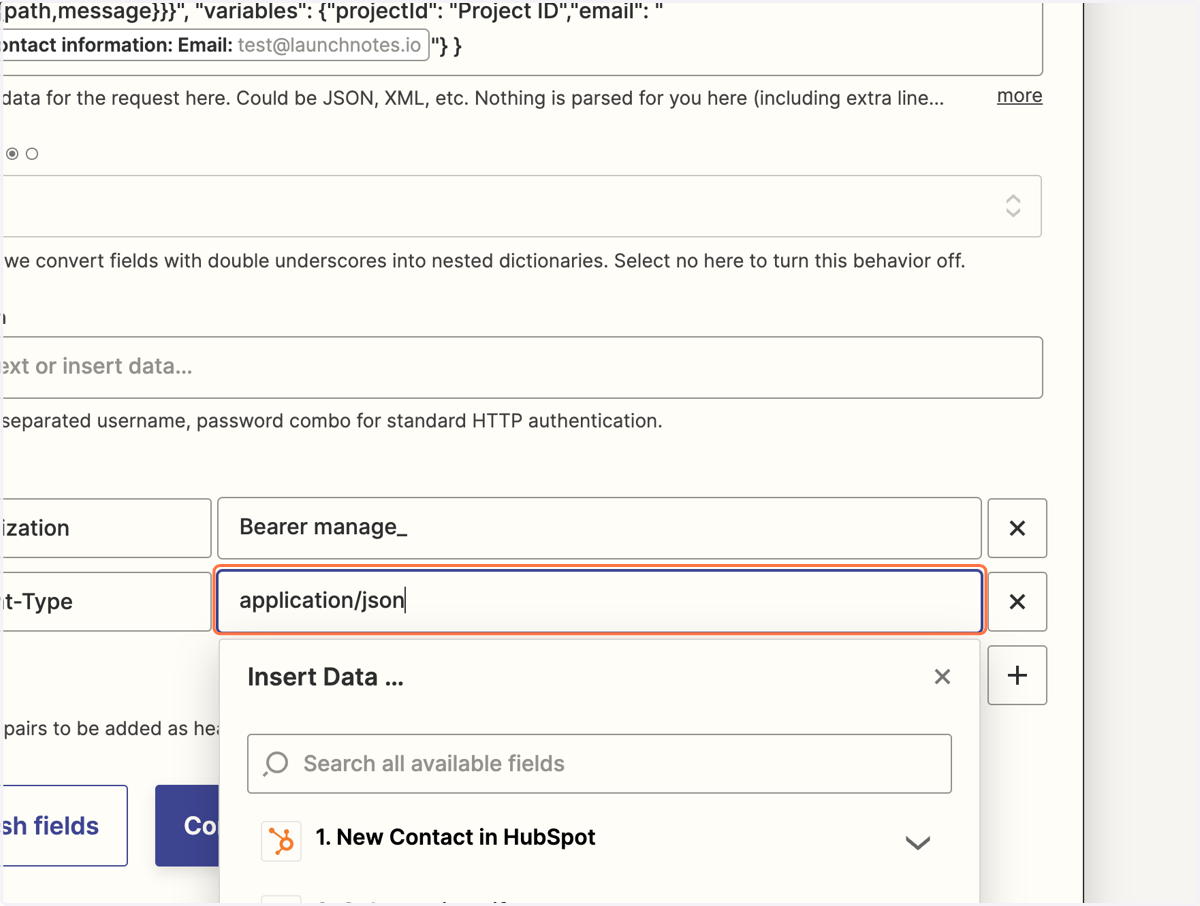
29. Add header for "Authorization"
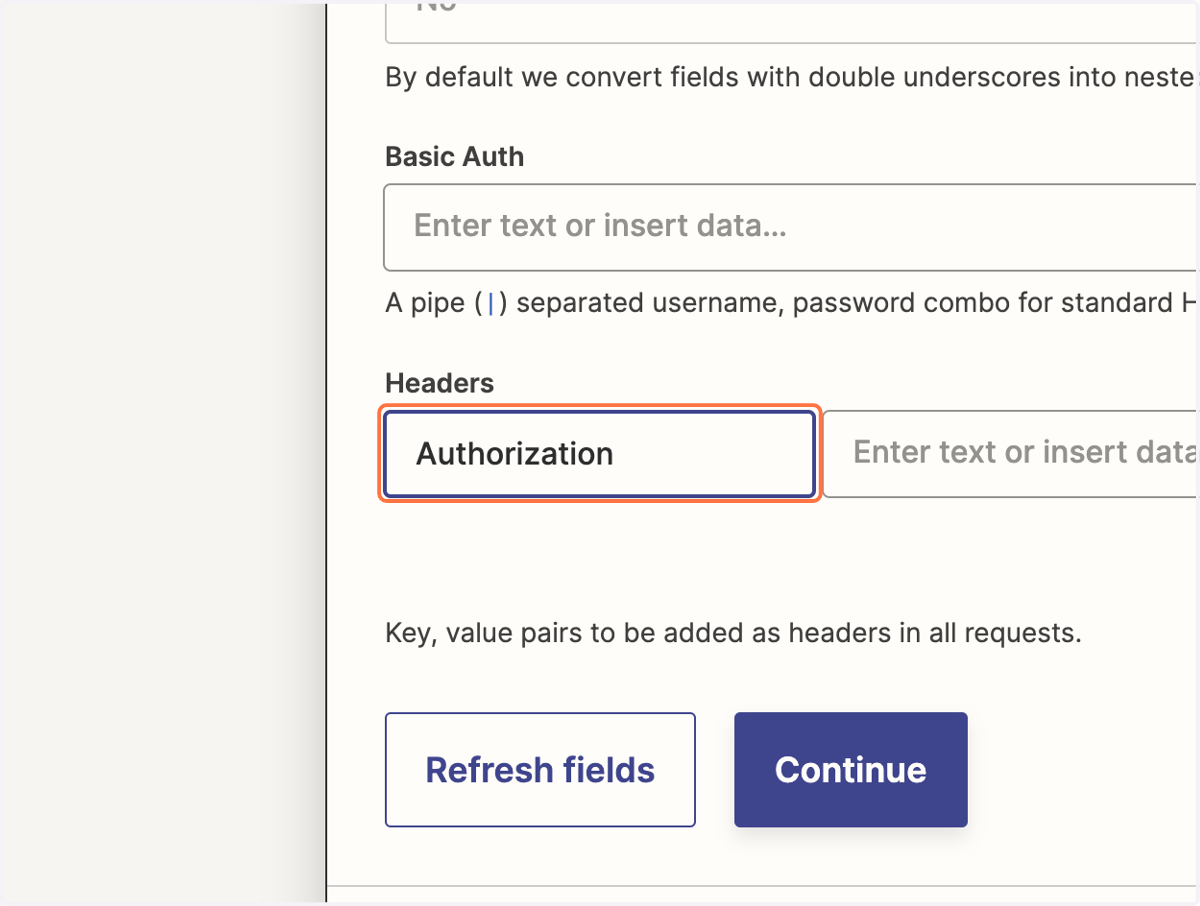
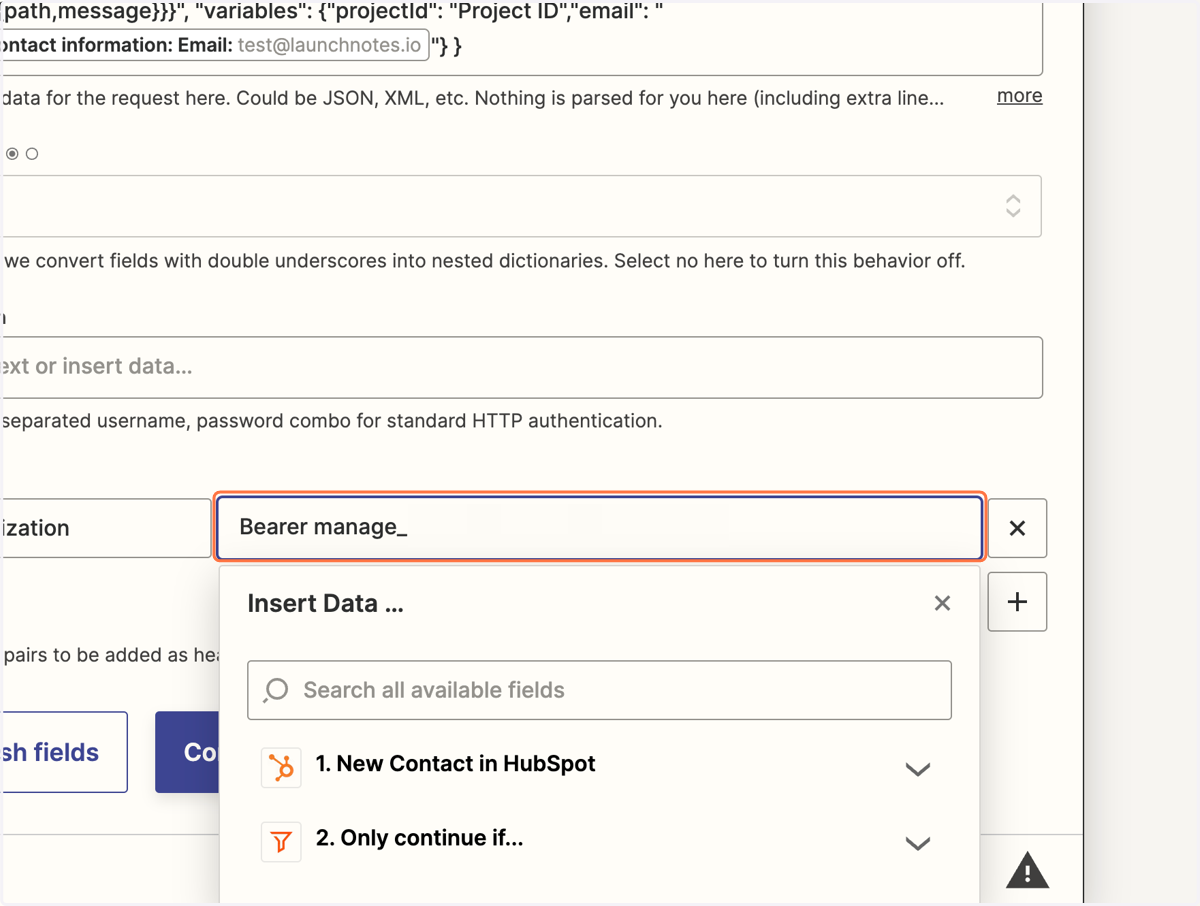
30. Set Authorization to "Bearer " followed by your management API token
The management API token can be created and found in LaunchNotes under Settings -> Embed, API & RSS -> API
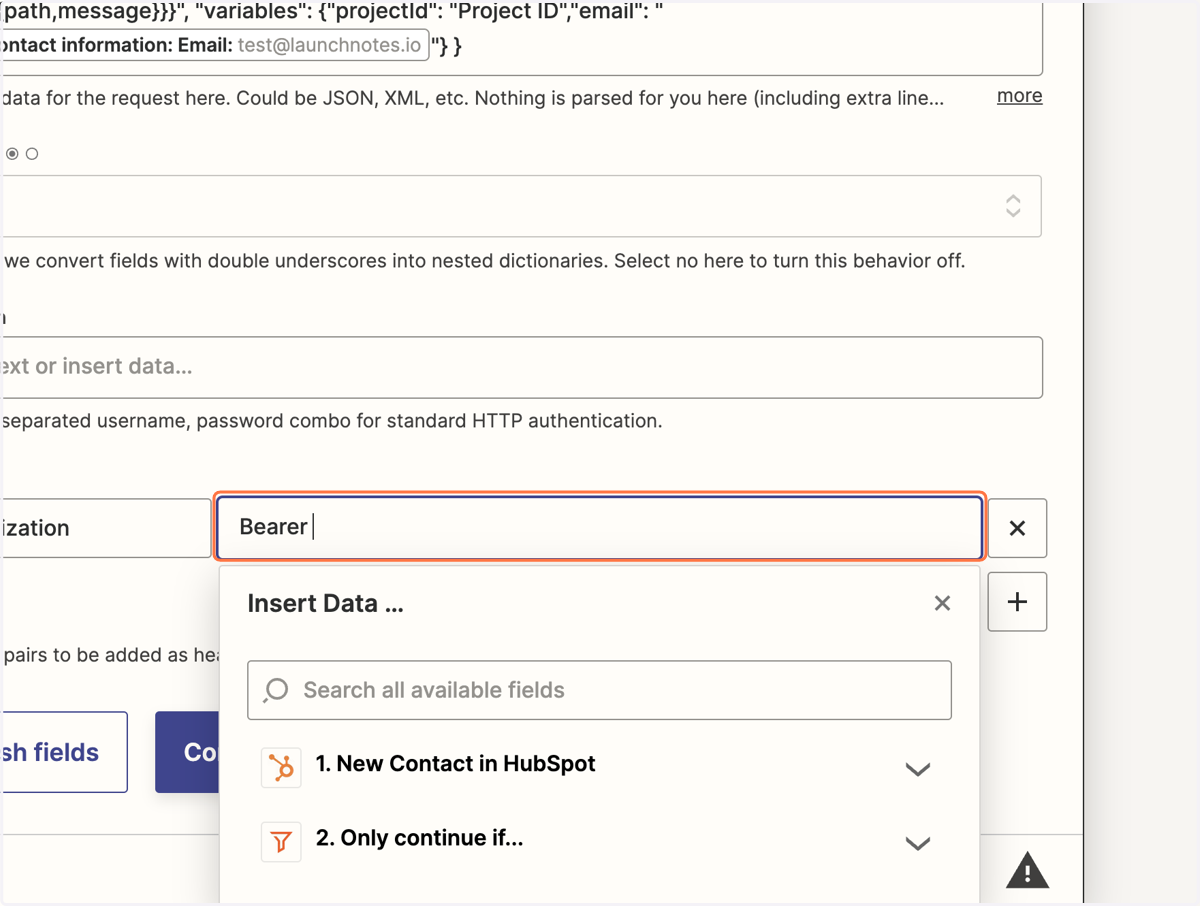
31. In LaunchNotes, copy a management API to

32. Paste element
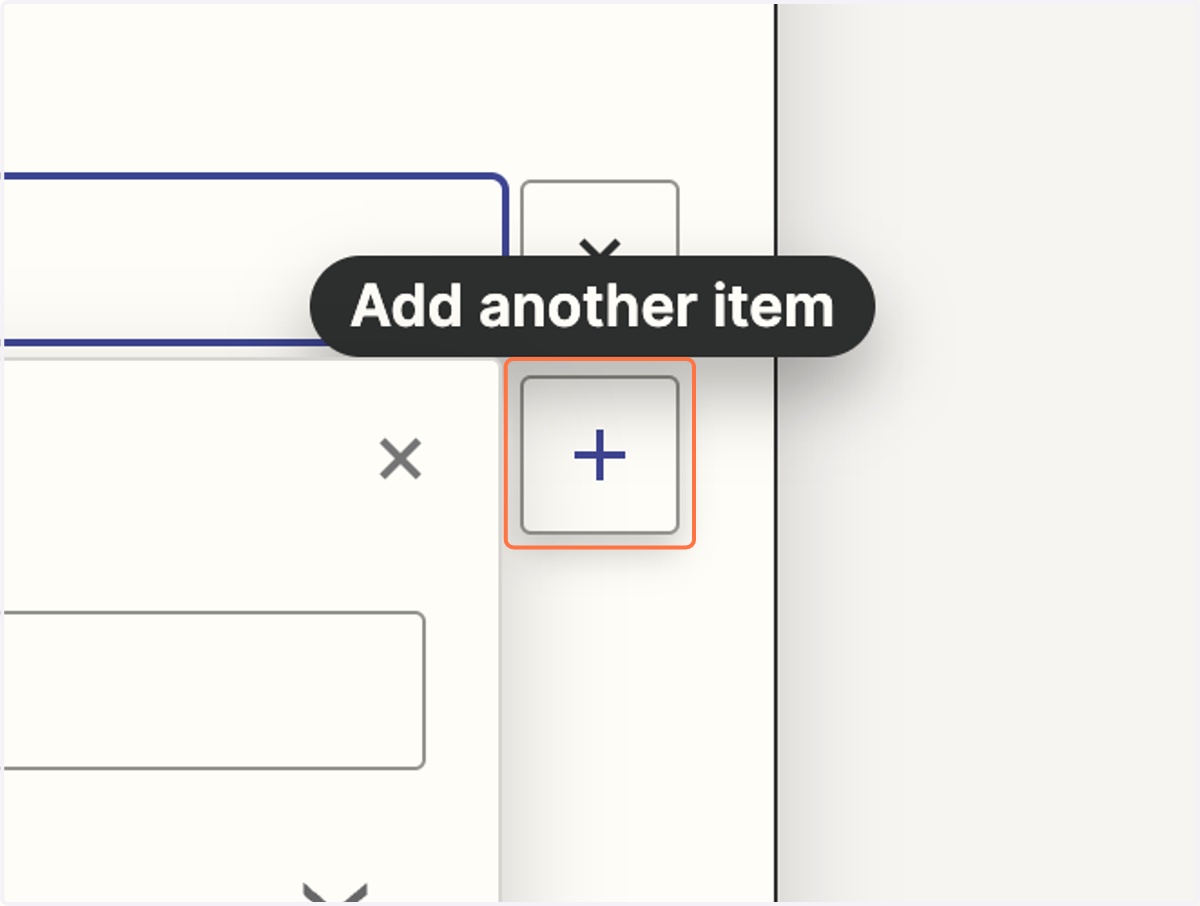
33. Click on Add another item
34. Add a second Header "Content-Type"
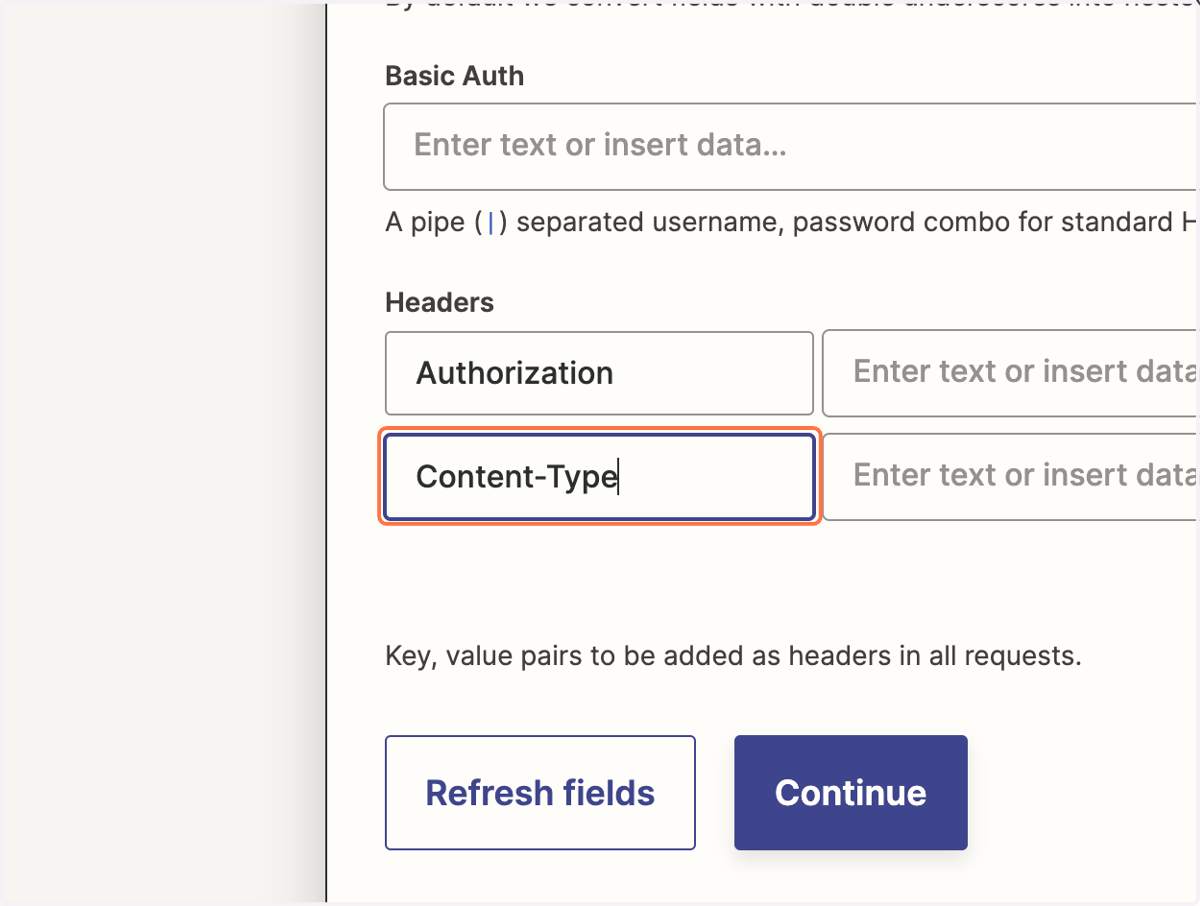
35. Set "application/json" as the value
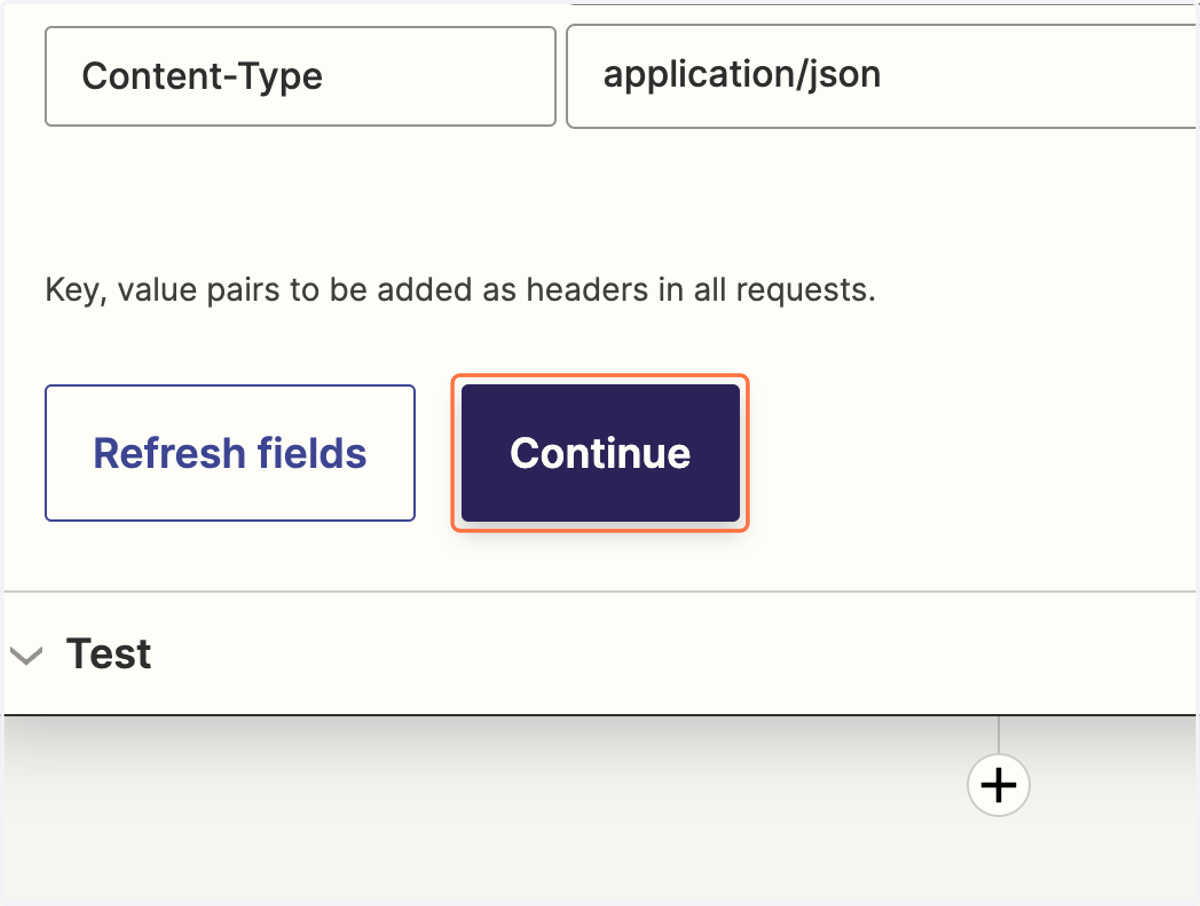
36. Click on Continue
37. Click on Test step
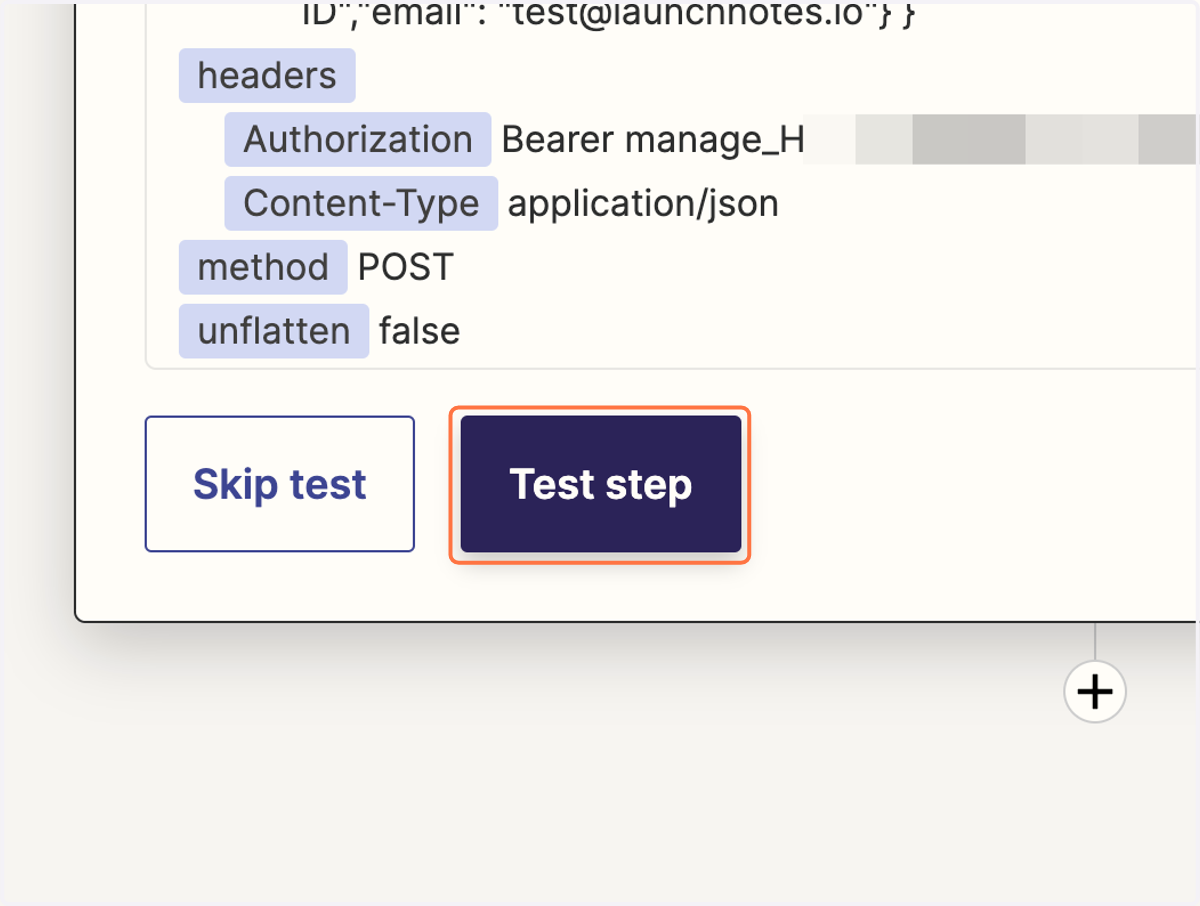
Success 🎉
You'll see the test email address as a new subscriber in your LaunchNotes page, and once this Zap is published it will create new subscribers for all new contacts in HubSpot.