Create a Volunteer Opportunity
Oregon State University
1. Login
Go to the Volunteer Hub login page, click on the login button.
Enter your account credentials (username and password) or use SSO.
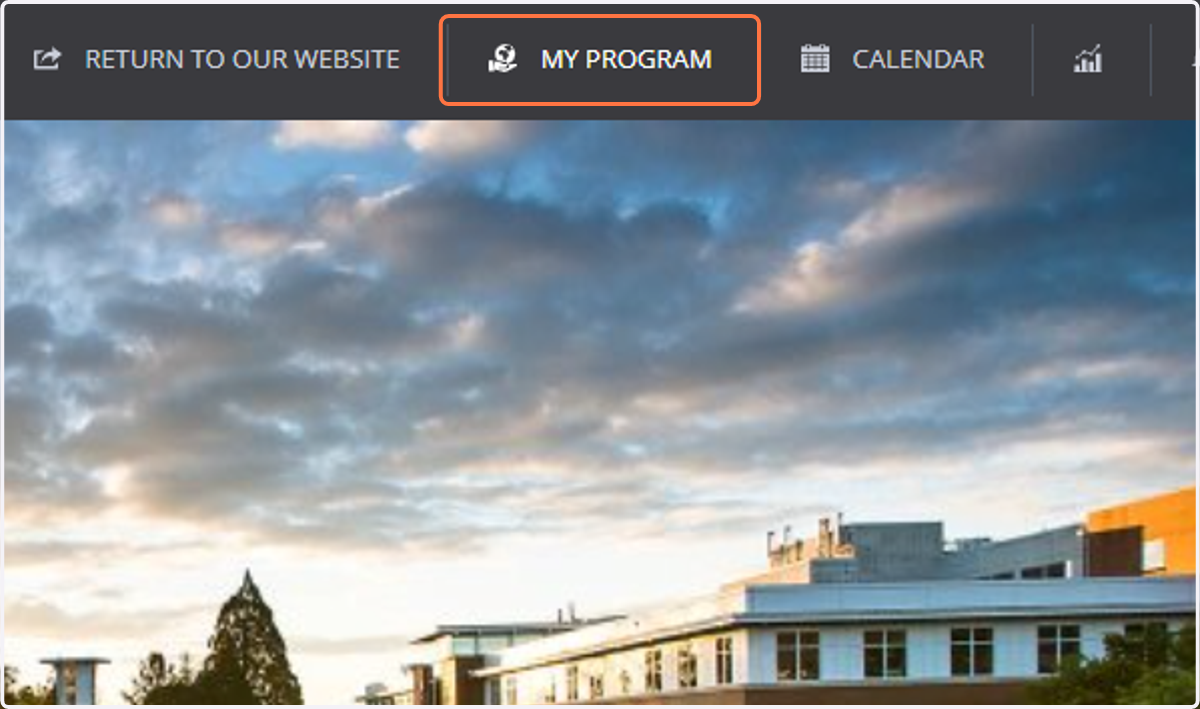
2. Click on “My Program”
Once you’re logged in, click on “My Program” in the menu bar at the top of the screen.
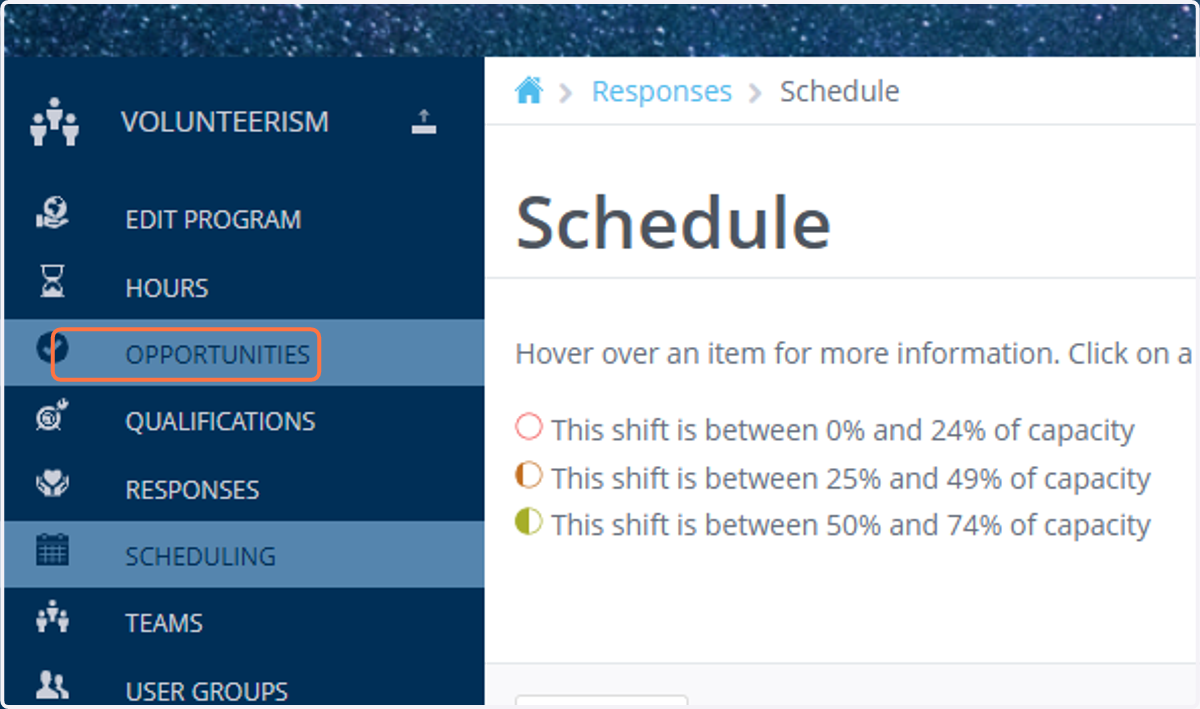
3. Next, navigate to “Opportunities” in the menu bar on the left side of the screen.
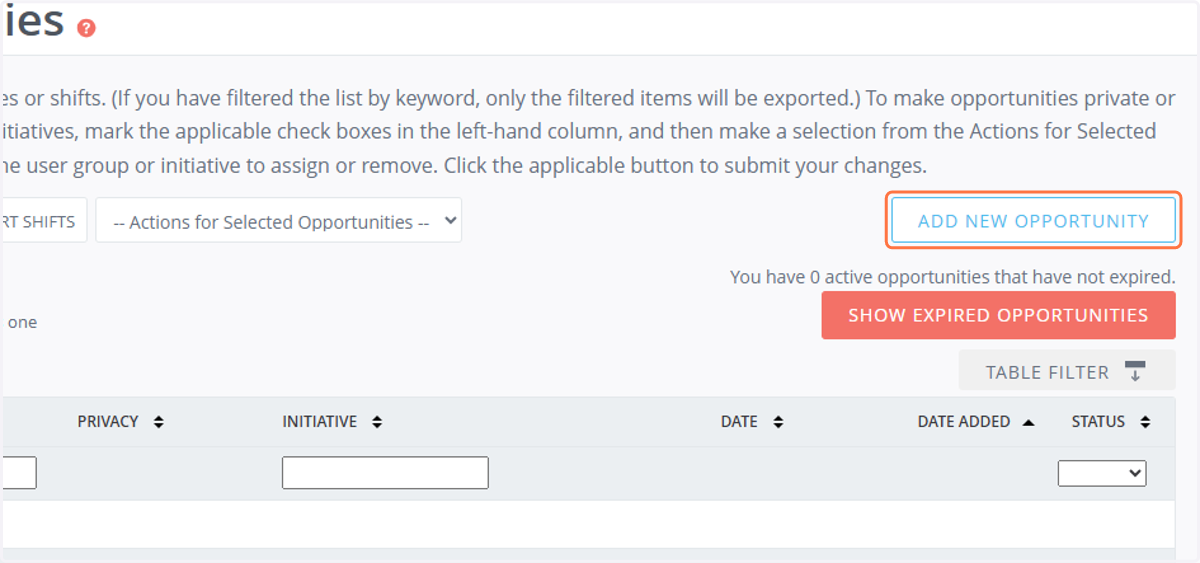
4. Create a new Opportunity
Please click on “Add New Opportunity”
5. Click on Status *…
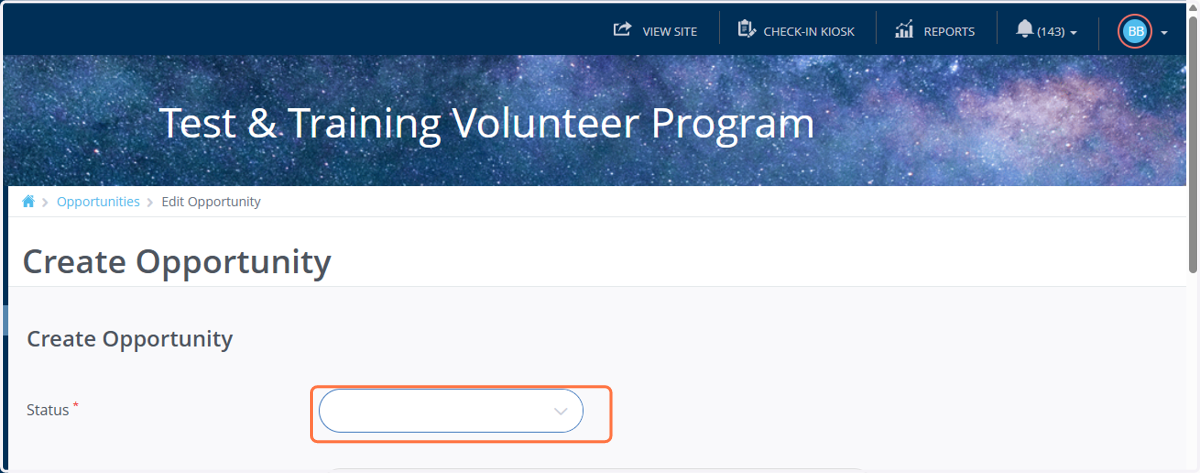
6. Select Status
Click the dropdown arrow on the right-hand side next to the word ‘Status,’ and select
a. Active: Ready to go live! Volunteers can see and respond to the Opportunity on your site.
b. Pending: Not quite ready to share yet. You can use this to keep the Opportunity private until it's ready to post or share it with selected volunteers
Please Note: After you create an Opportunity, it must be approved by a Site Manager (UHR Team) before it becomes visible for volunteers to sign up. Be sure to set the status to Active when the Opportunity is ready for review. If it remains in Pending, it will not appear in the UHR team’s work queue.
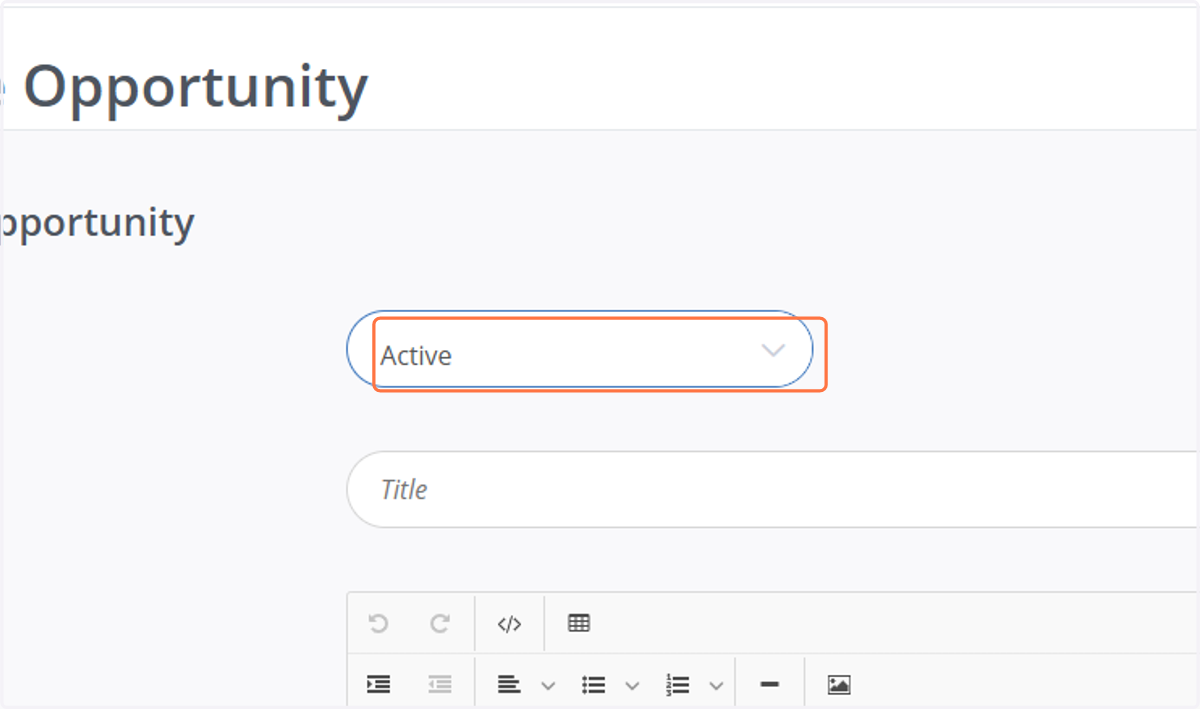
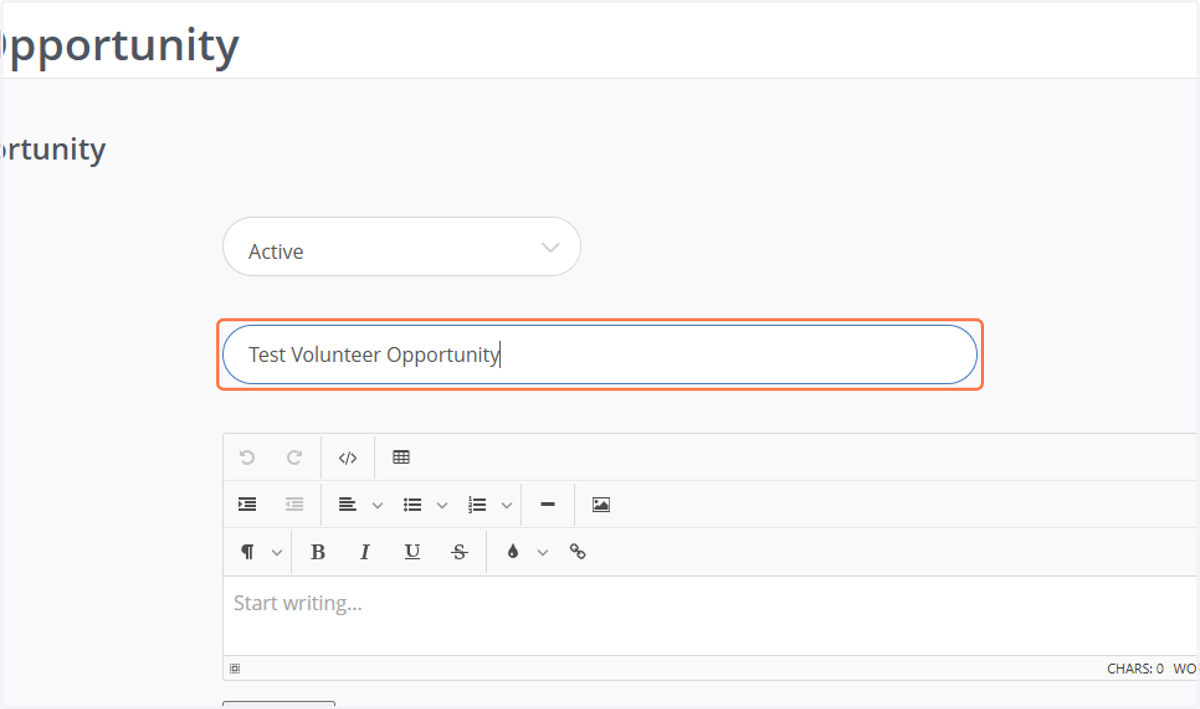
7. Title: Give your volunteer Opportunity a title.
Please use the naming convention below:
[Program/Event Name] [County (if Applicable)] [Year] [Term/Season (if applicable)]
Examples:
· Youth Science Camp Lane County 2025 Summer
· Community Food Drive Linn County 2025 Fall
· Volunteer Recognition Event 2025 Winter
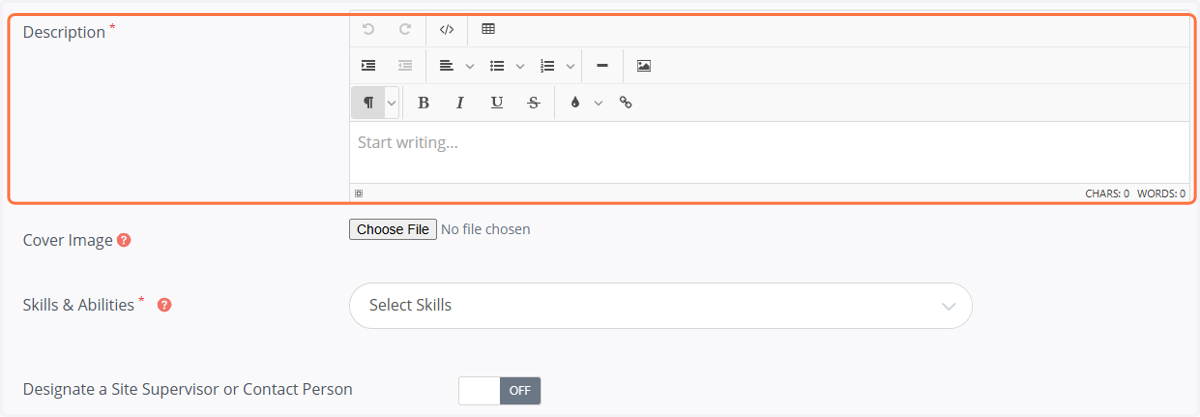
8. Opportunity Description: Please add a Description. Please feel free to add links and pictures.
Please make sure to follow the Opportunity Description guideline below. Volunteer Opportunity Description Template.pdf
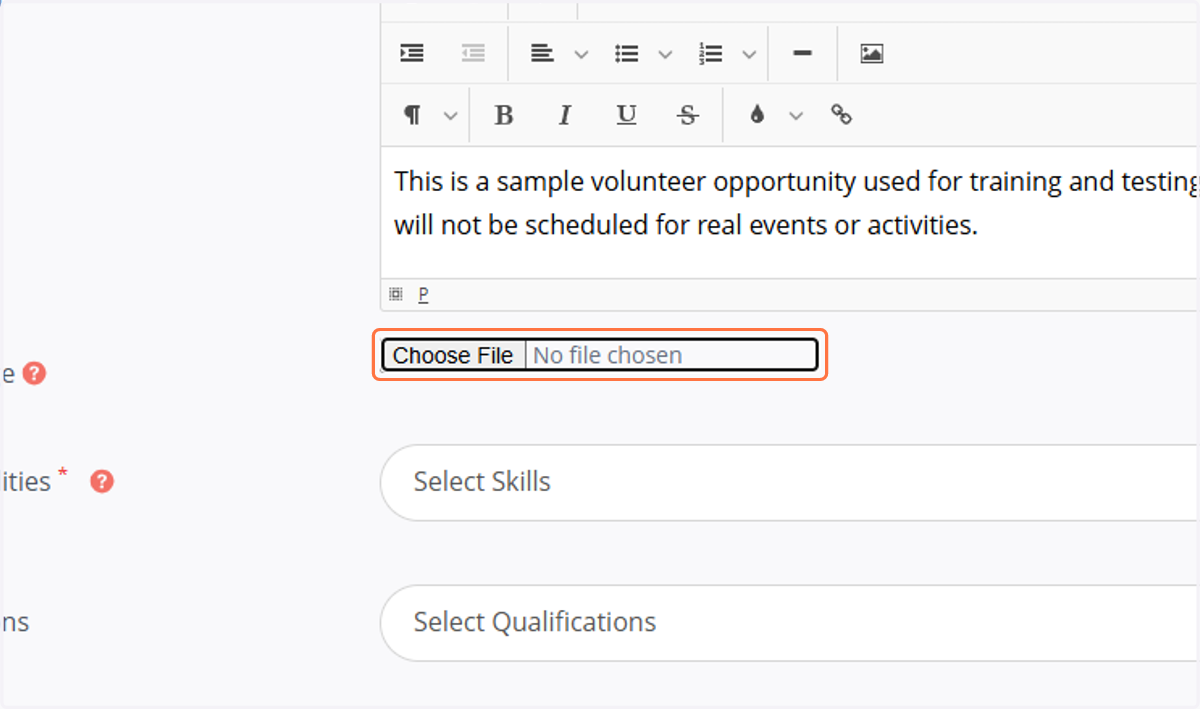
9. Cover Image: You can choose a cover image, which will be displayed when volunteers click on your opportunity.
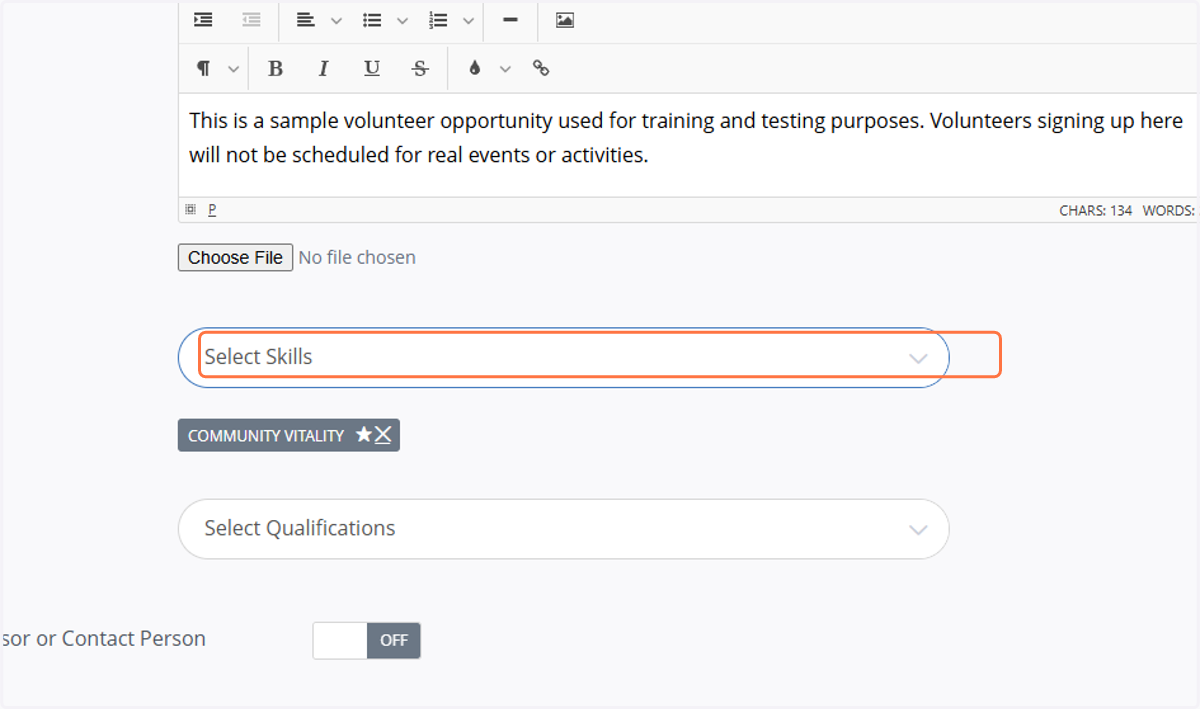
10. Skills & Abilities: Please choose required skills and abilities from the drop-down menu.
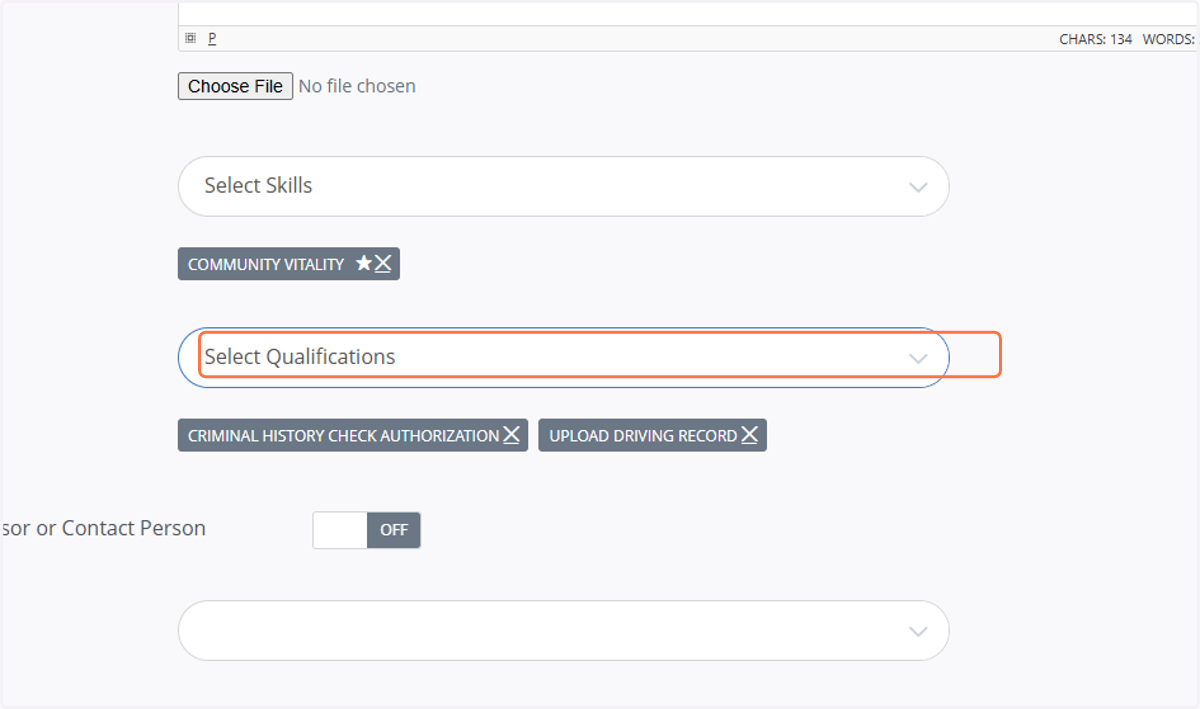
11. Qualifications: Select the appropriate options from the dropdown menu, if applicable.
1. Select “Criminal History Check Authorization” if a background check is required.
2. Select “Upload Driving Record” if the opportunity involves driving.
Note: All volunteers will automaticall
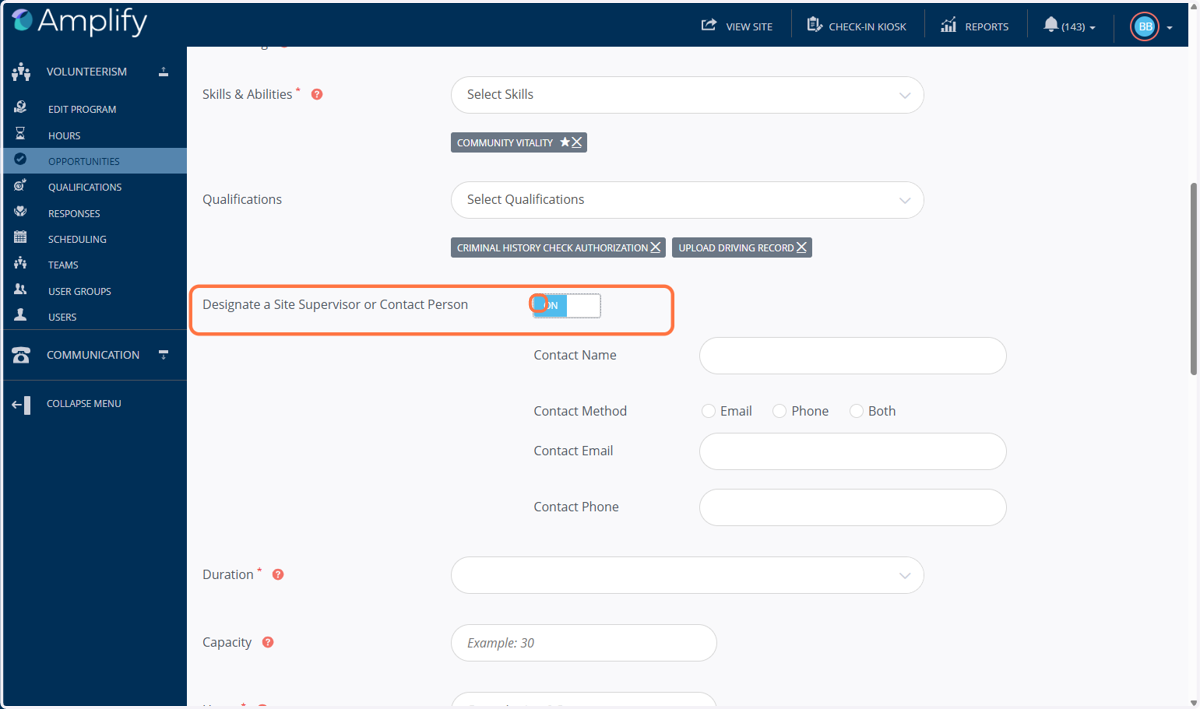
12. Check Designate a Site Supervisor or Contact Person
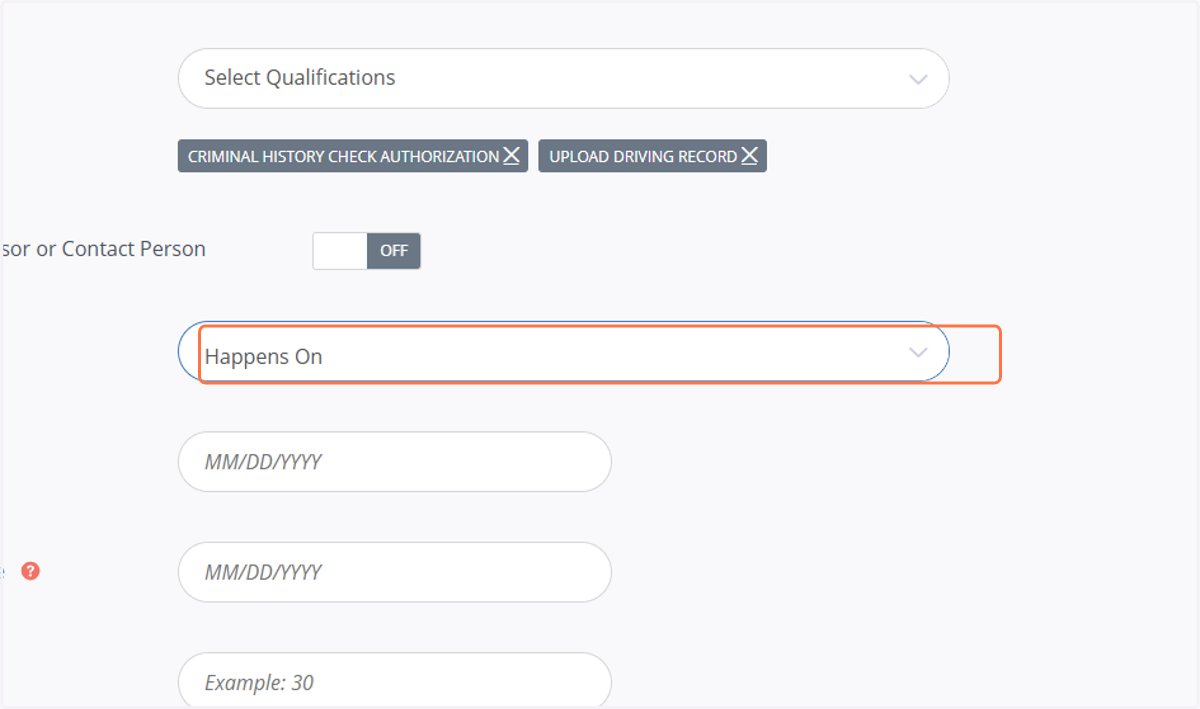
13. Select Happens On
You can find more information about the different duration types here. For this example, we will continue with the “Happens On” duration. Please note that the fields are dynamic and will change based on the selected duration type, though they follow a similar structure.
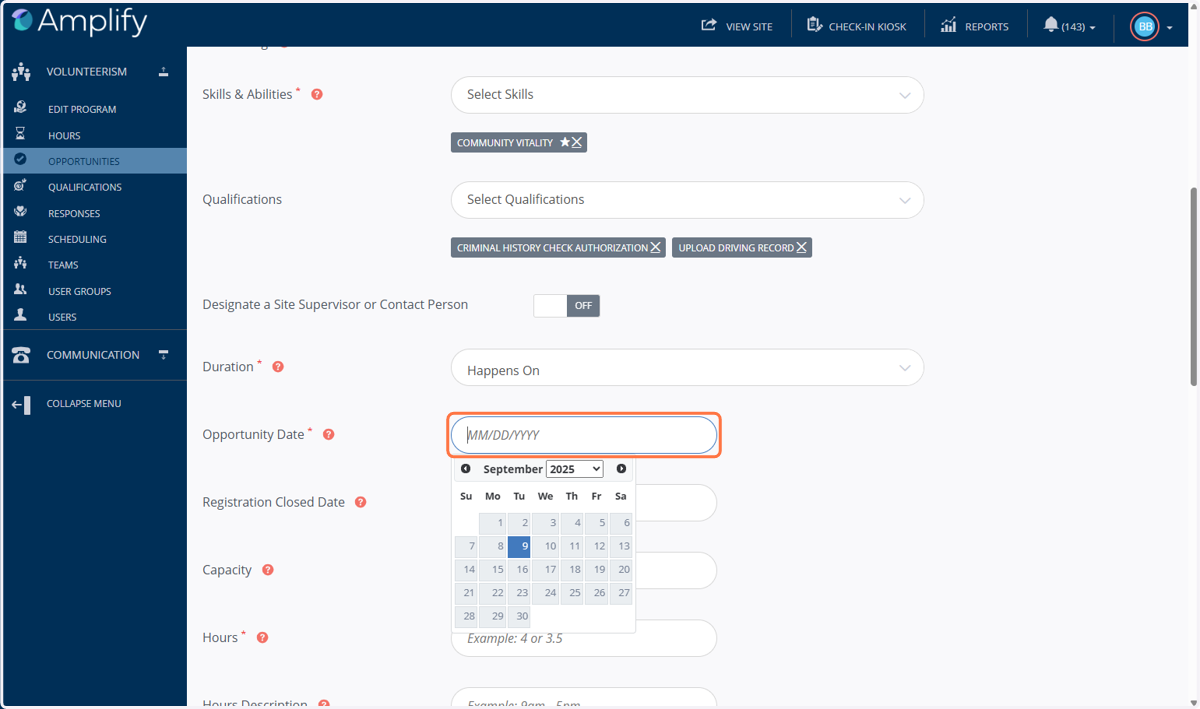
14. Opportunity Date: Please add the Date when your Opportunity will take place.
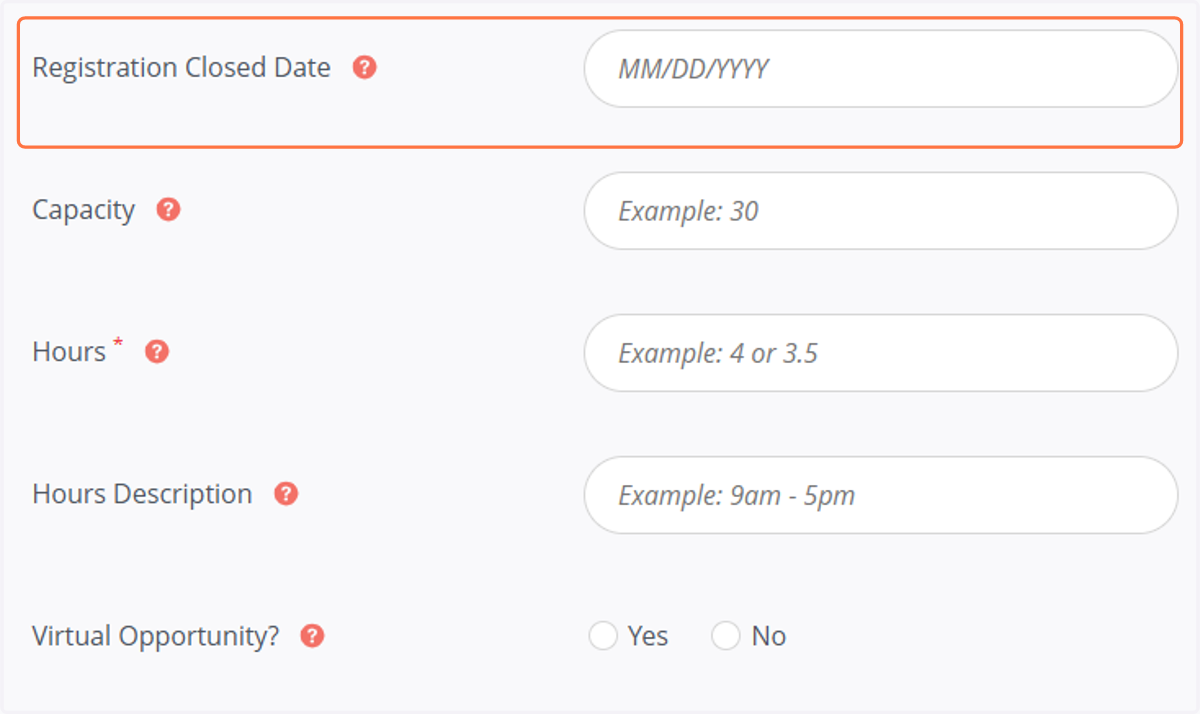
15. Registration Close Date: This is an optional field.
Please enter the date when you would like registration for the opportunity to close. Volunteers can register for the opportunity up till this date.
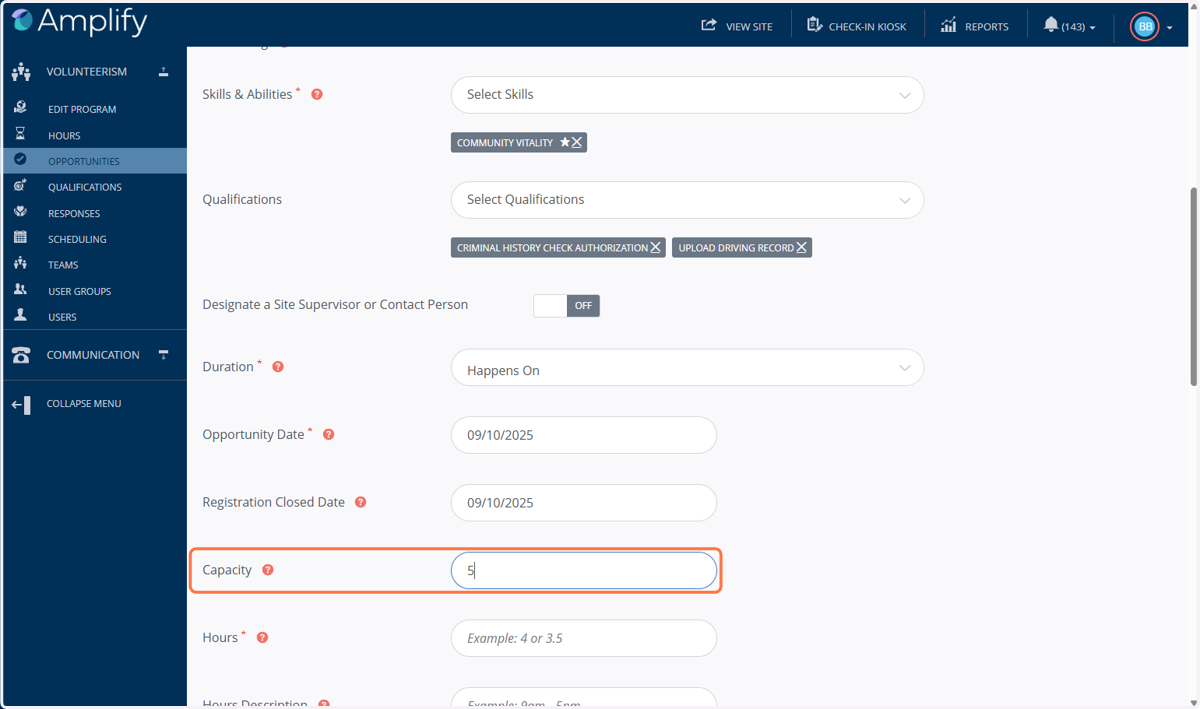
16. Capacity: Indicate the maximum number of volunteers required for the opportunity.
For example, if the opportunity is from 9am to 1pm, record 4 hours in the corresponding field.
17. Hours: Please add the expected duration of your opportunity. For example, 2h.
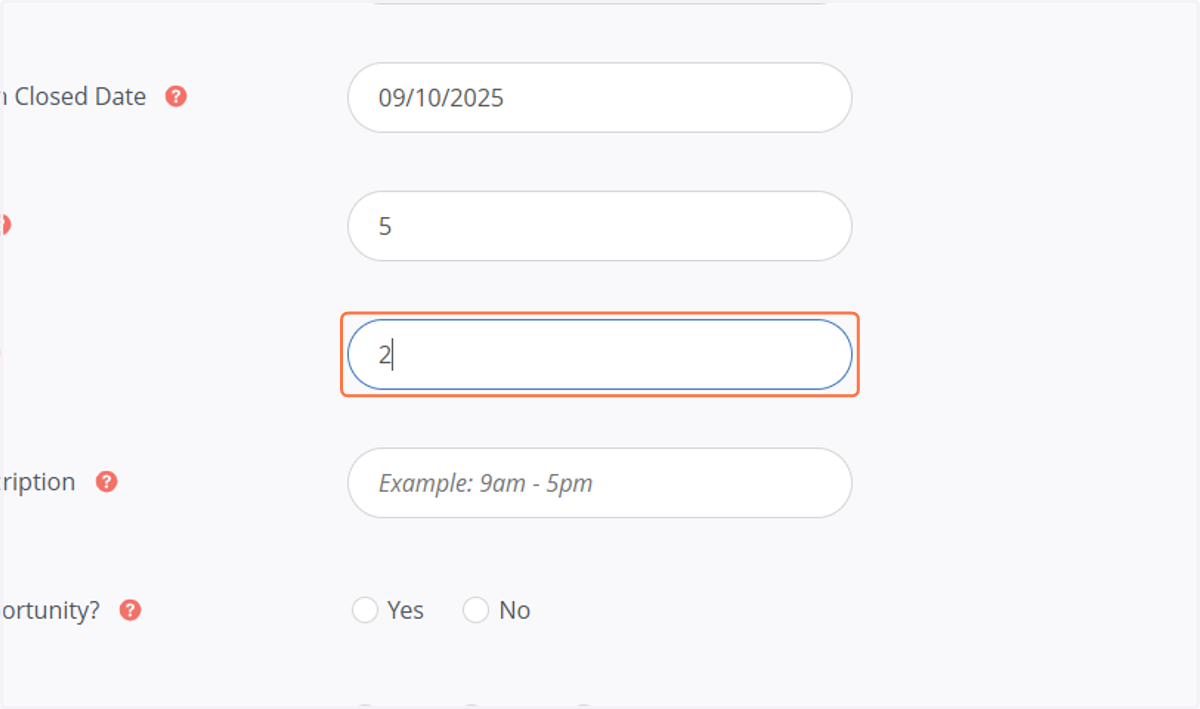
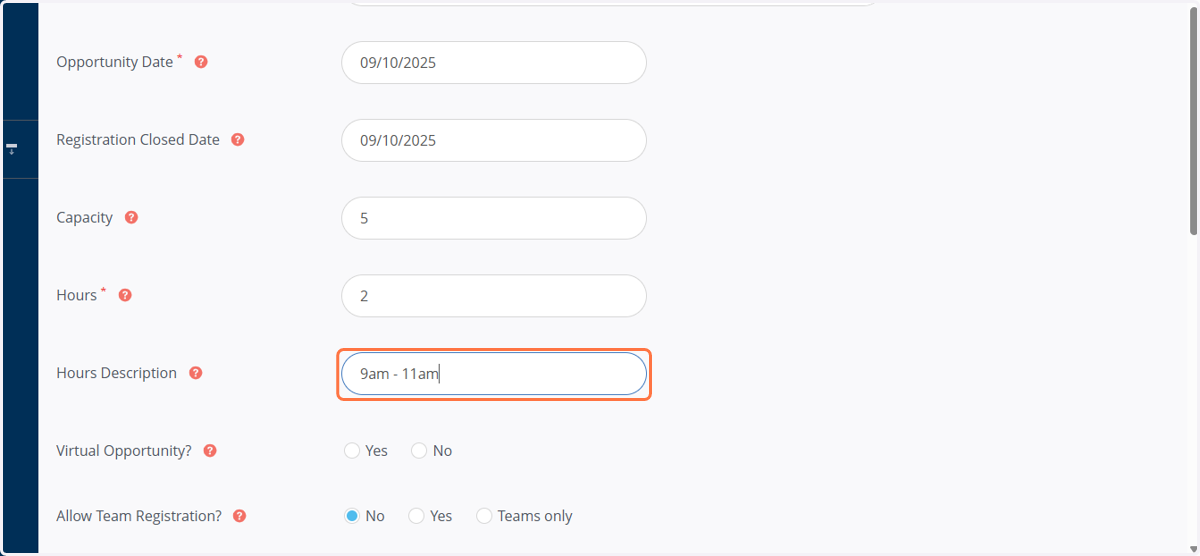
18. 13. Hours Description: This is an optional field. Please add a hour description. For example, 9am to 11am
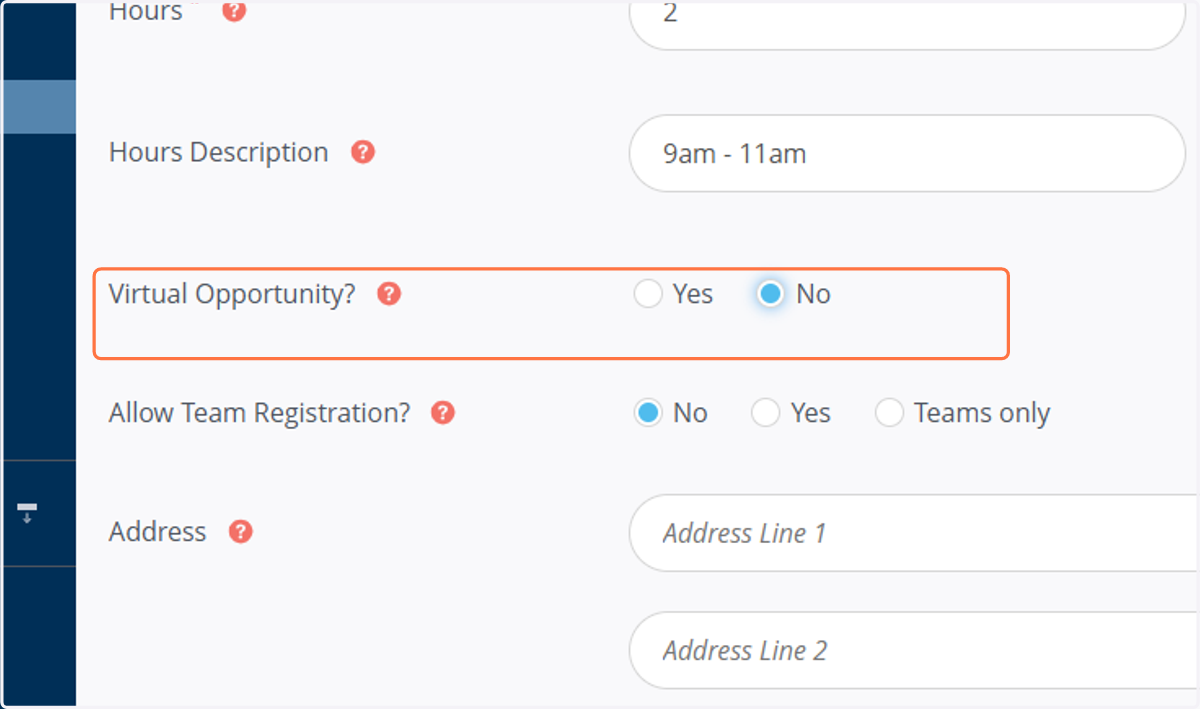
19. Virtual Opportunity: Please indicate whether this opportunity is virtual or in-person. Select ‘Yes’ if the opportunity is virtual and ‘No’ if it is in-person.
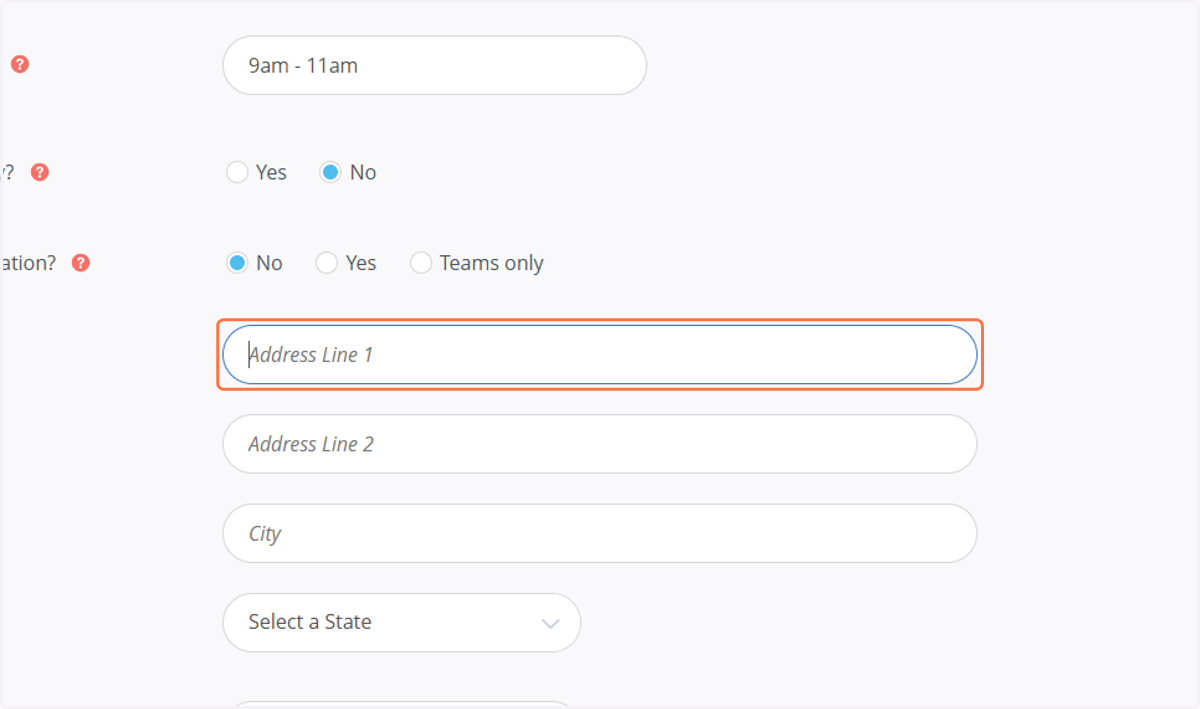
20. Address: Please enter the full address where the opportunity will take place.
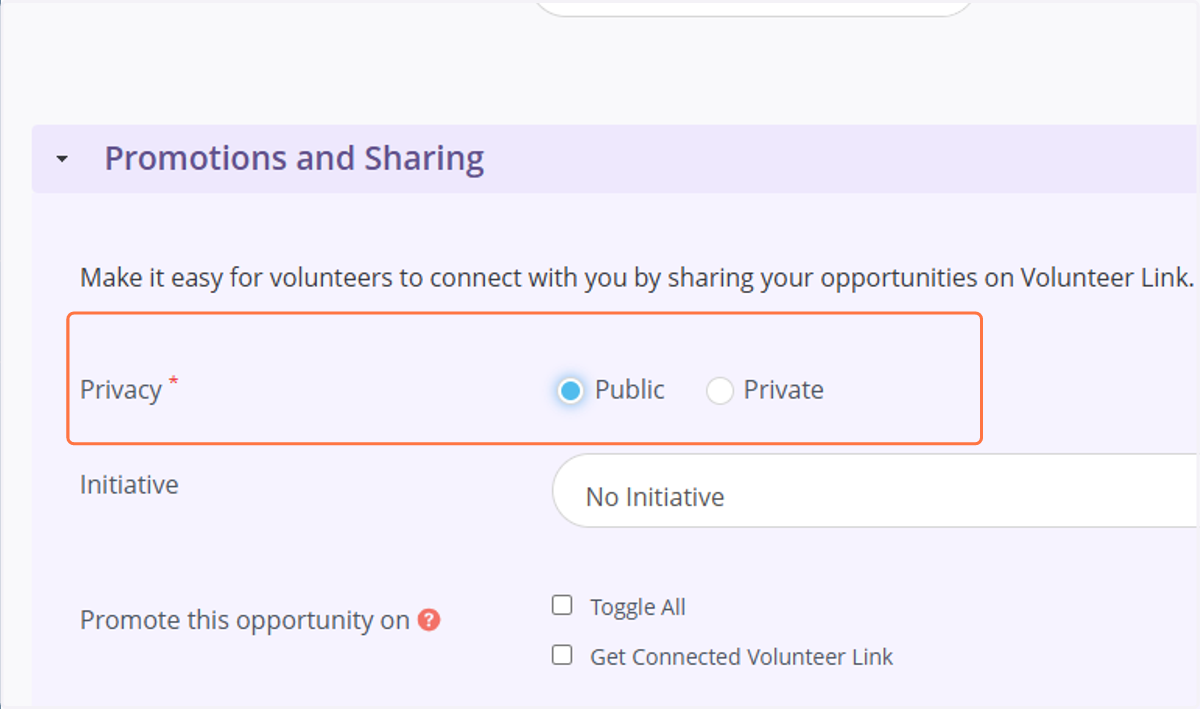
21. Privacy: Select “Public” if you want the opportunity to appear on the Volunteer Hub website. Select “Private” if you prefer it to remain hidden from public view. In that case, only individuals with the direct link will be able to sign up.
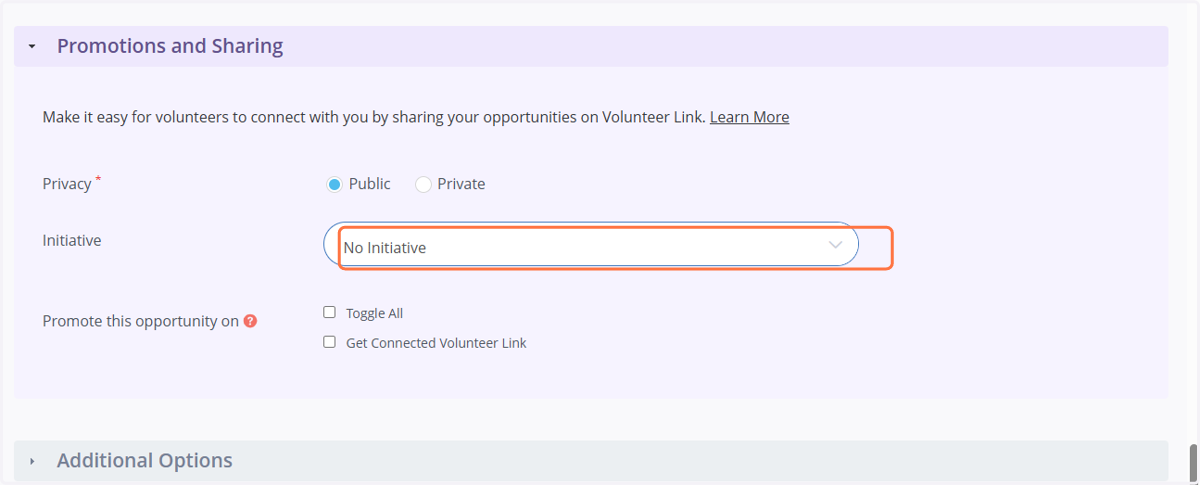
22. Initiative: Under Initiative, indicate whether the opportunity is part of a youth program. If it is, choose “Youth Opportunity” from the dropdown menu.
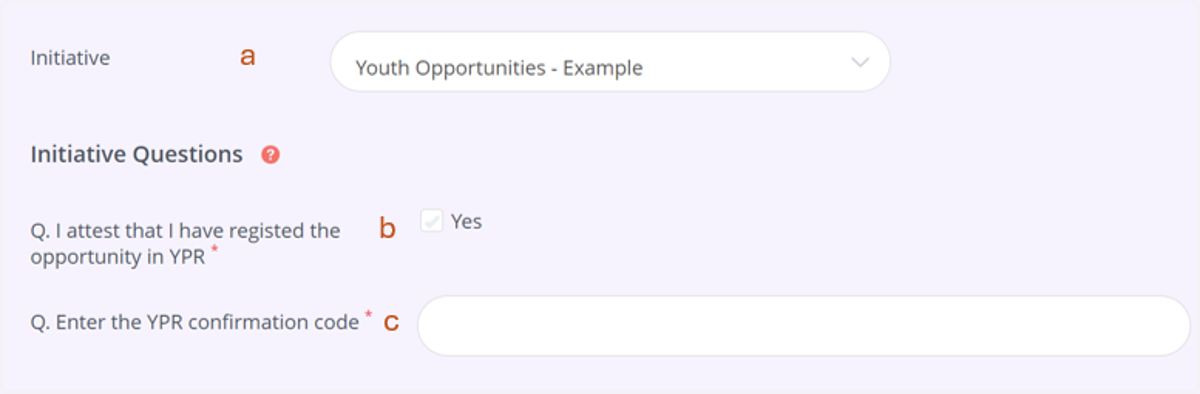
23. Registering a Youth Opportunity
a. Select "Youth Opportunity" from the Initiative drop-down list.
b. Check the box that confirms: "I attest that I have registered this opportunity in the OSU Youth Program Registry (YPR)."
c. Enter the YPR confirmation code in the field labeled "Enter YPR Confirmation Code." You will receive this code after successfully registering your opportunity with the OSU Youth Program Registry.
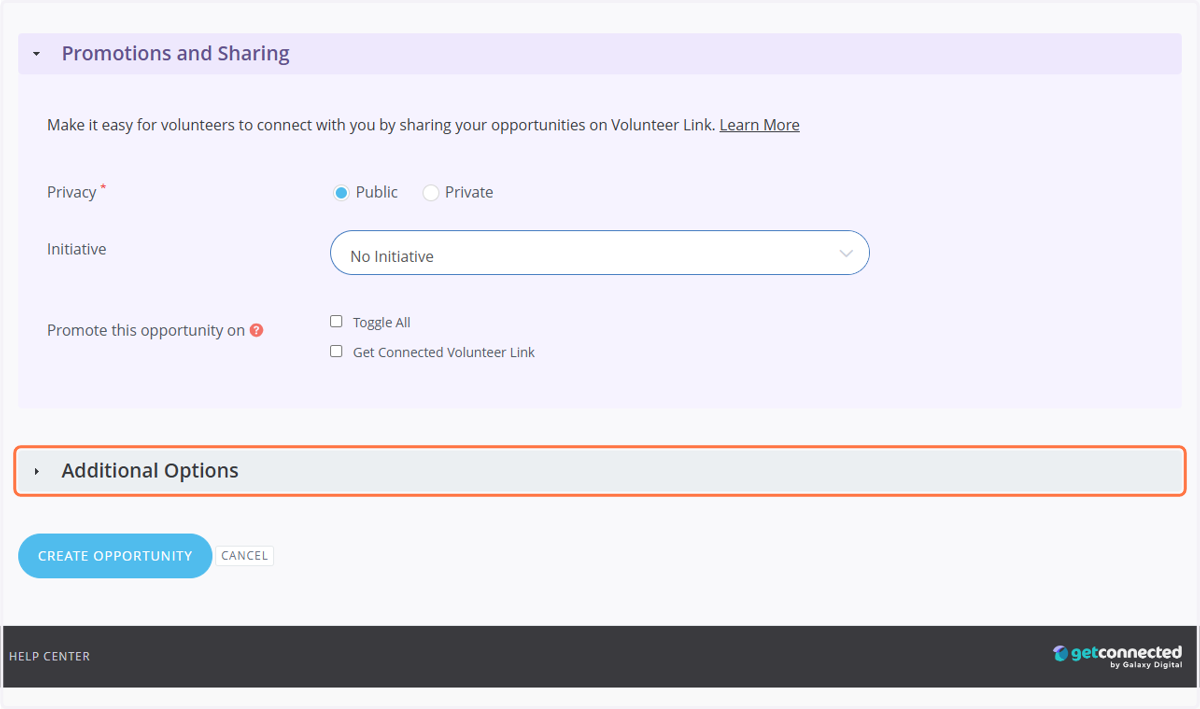
24. Open the drop-down menu by clicking on the gray “Additional Options” box.
You may add additional settings or details here to enhance your volunteer opportunity. For more information, please refer to the article linked or click the question mark icons next to each option.
25. You may add additional settings or details here to enhance your volunteer opportunity. For more information, please refer to the article linked or click the question mark icons next to each option.
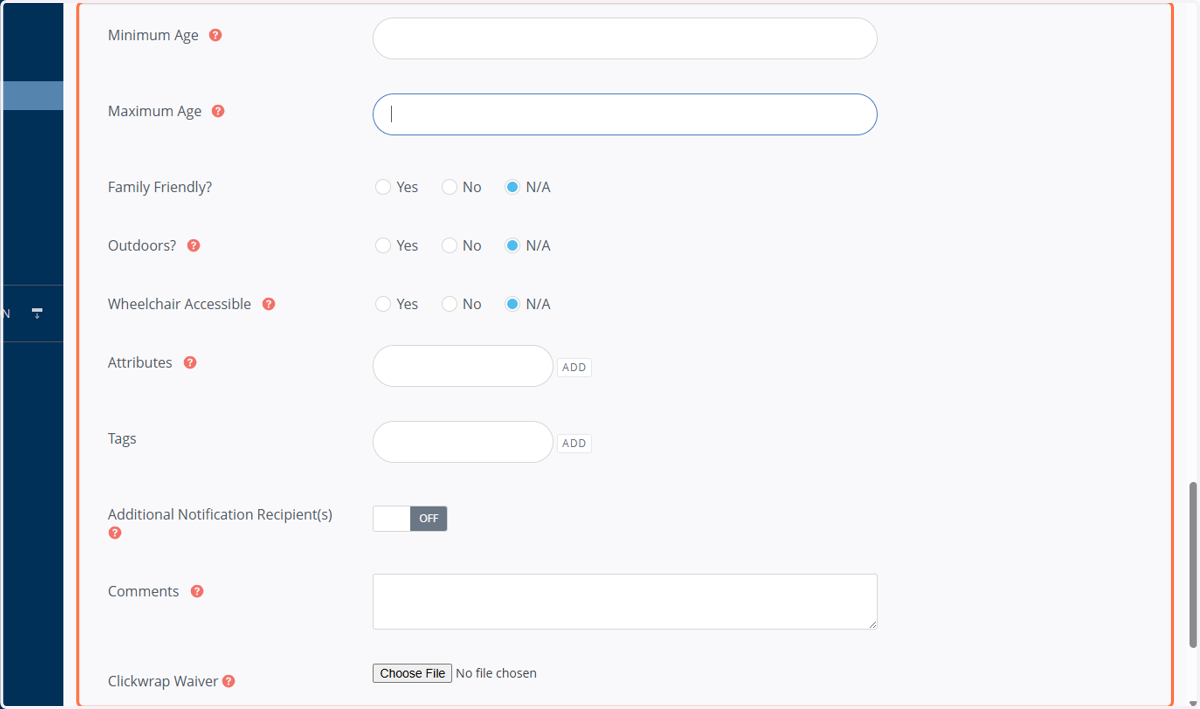
26. Once you have completed all required fields, click on “Create New Opportunity” to save and your opportunity.
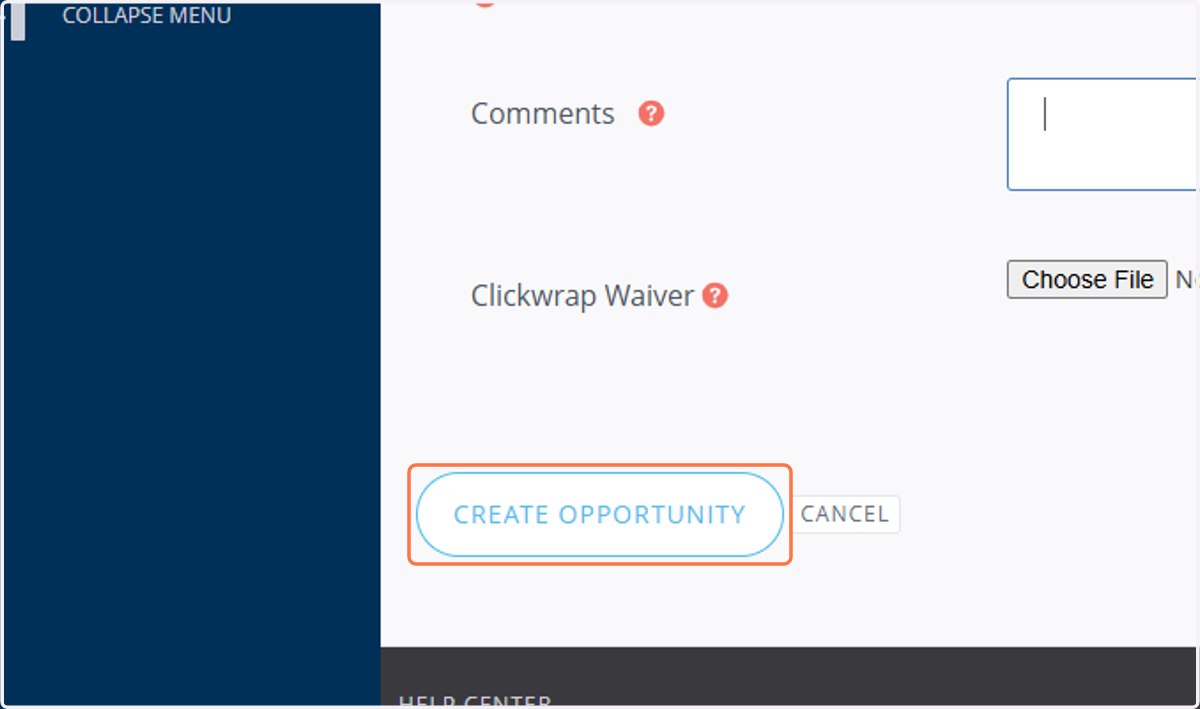
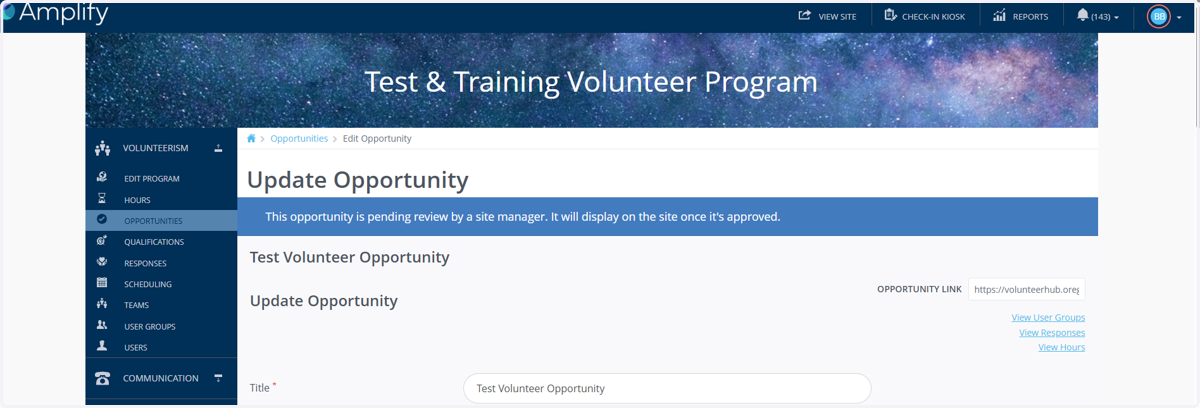
27. You will receive a message at the top of your screen indicating that the opportunity is pending approval by a Site Manager from the Employment Services team.